A potential customer searches for your business on LinkedIn. They find the right name, but the description is vague and there’s no clear way to check your services or take the next step.
You may already have a useful offer and a working website, yet your Page gives visitors little help deciding whether to contact you.
A few well-chosen sections can close that gap. This guide shows you what to put where, what to finish first, and how to connect your LinkedIn Page to the action you actually want visitors to take.
What Should a LinkedIn Company Page Include?
When deciding how to structure LinkedIn company pages, start with four visitor questions:
- What does this business do?
- Is it relevant to me?
- Why should I trust it?
- What should I do next?
Every part of your Page should help answer at least one.
| Page element | Visitor question | Essential content |
|---|---|---|
| Header and tagline | What do you offer, and is it relevant to me? | Recognizable branding, a specific offer, and location when it matters |
| About description | How can this business help me? | Customers served, services or products, delivery details, and a reason to choose you |
| Business details | Is this the business I’m looking for? | Accurate website, industry, company size, type, and location |
| Website and call to action | What should I do next? | One clear invitation and a link to the page that fulfills it |
| Featured posts | Can I assess the business before contacting it? | An offer introduction, a useful answer, and evidence of how you work |
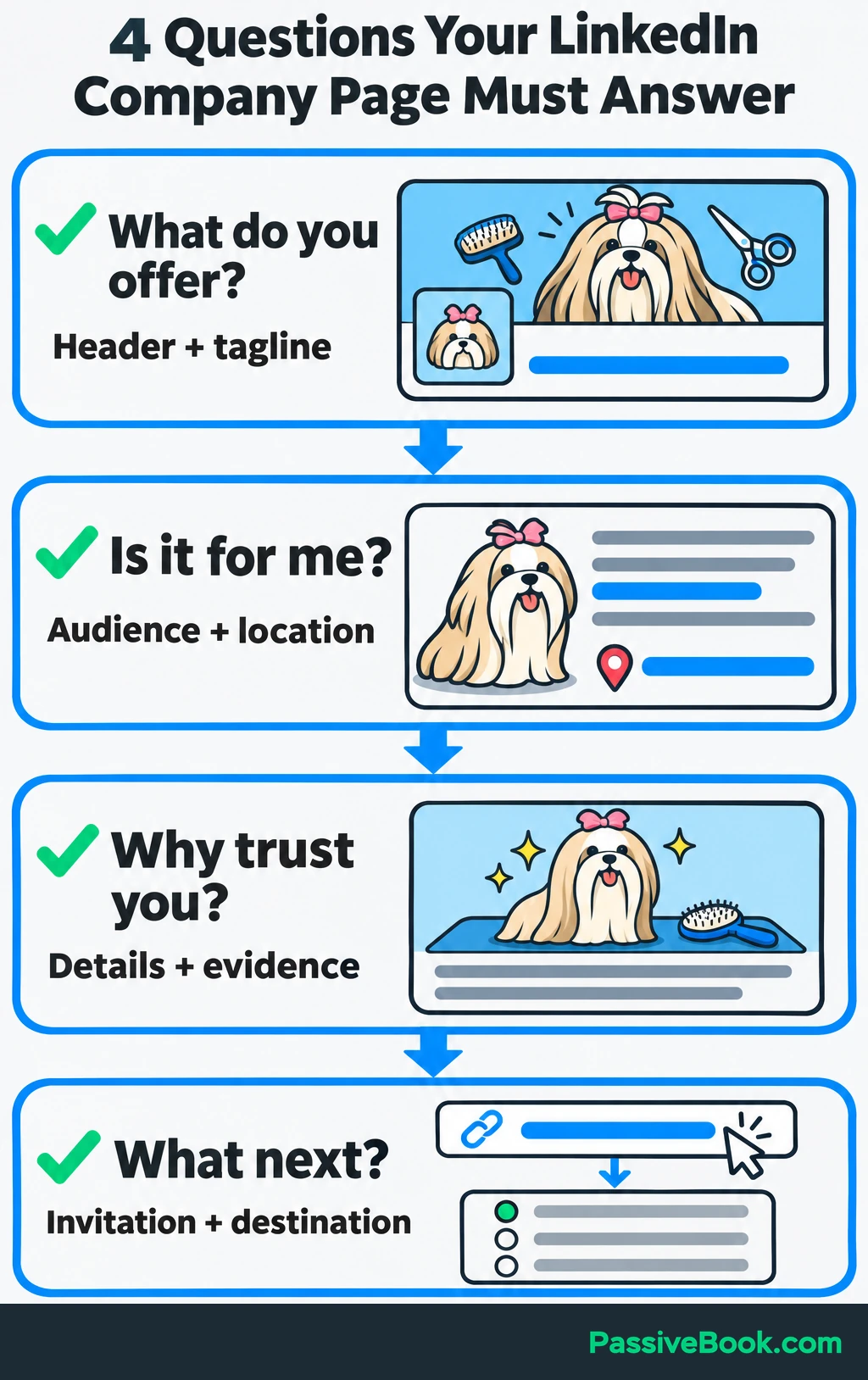
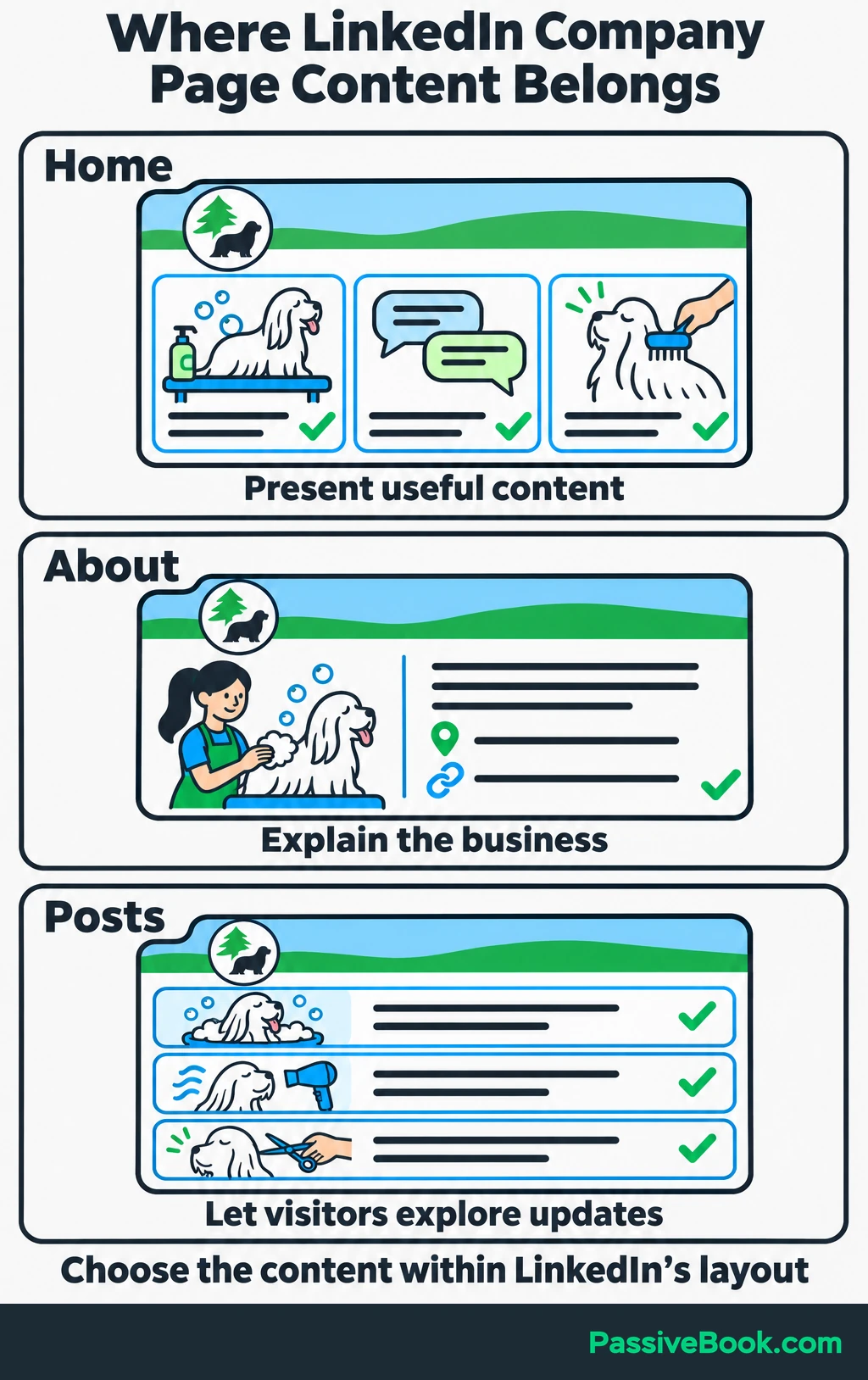
You work within LinkedIn’s existing layout. Home presents content, About holds business information, and Posts lets visitors browse updates. You choose what goes into those areas rather than designing a page from scratch.
Before writing anything, choose one primary outcome: inquiries, purchases, partnerships, or applications. That choice gives your description, links, and featured posts a shared purpose.
Throughout this guide, imagine you run Cedar Coat Grooming, which offers grooming appointments for long-haired dogs at a salon in Bristol. Service information and booking live on its website. The business details and sample copy are illustrations.
For this Page, I would prioritize bookings. Partnership inquiries can still arrive, but they don’t need equal space in every sentence.
Finish the essentials before planning a busy publishing schedule. LinkedIn says complete Pages potentially receive 30% more weekly views. That supports completing your information, but it doesn’t predict bookings or sales. LinkedIn’s Page completion guidance
Create the Page and Complete Its Business Details
Search LinkedIn for your business first. If an existing Page already represents it, request admin access rather than creating a duplicate.
Use your personal account to manage the business Page. LinkedIn requires more than one connection and an account at least one day old, and it may require workplace verification. If creation is blocked, check those requirements first. LinkedIn’s Page creation requirements
To create a free Page on desktop:
- Open For Business and choose Create a Company Page.
- Select Company.
- Enter the business name, public URL, website, and company details.
- Confirm that you have authority to represent the business, then create the Page.
The creator becomes its super admin, with control over Page details and admin access.
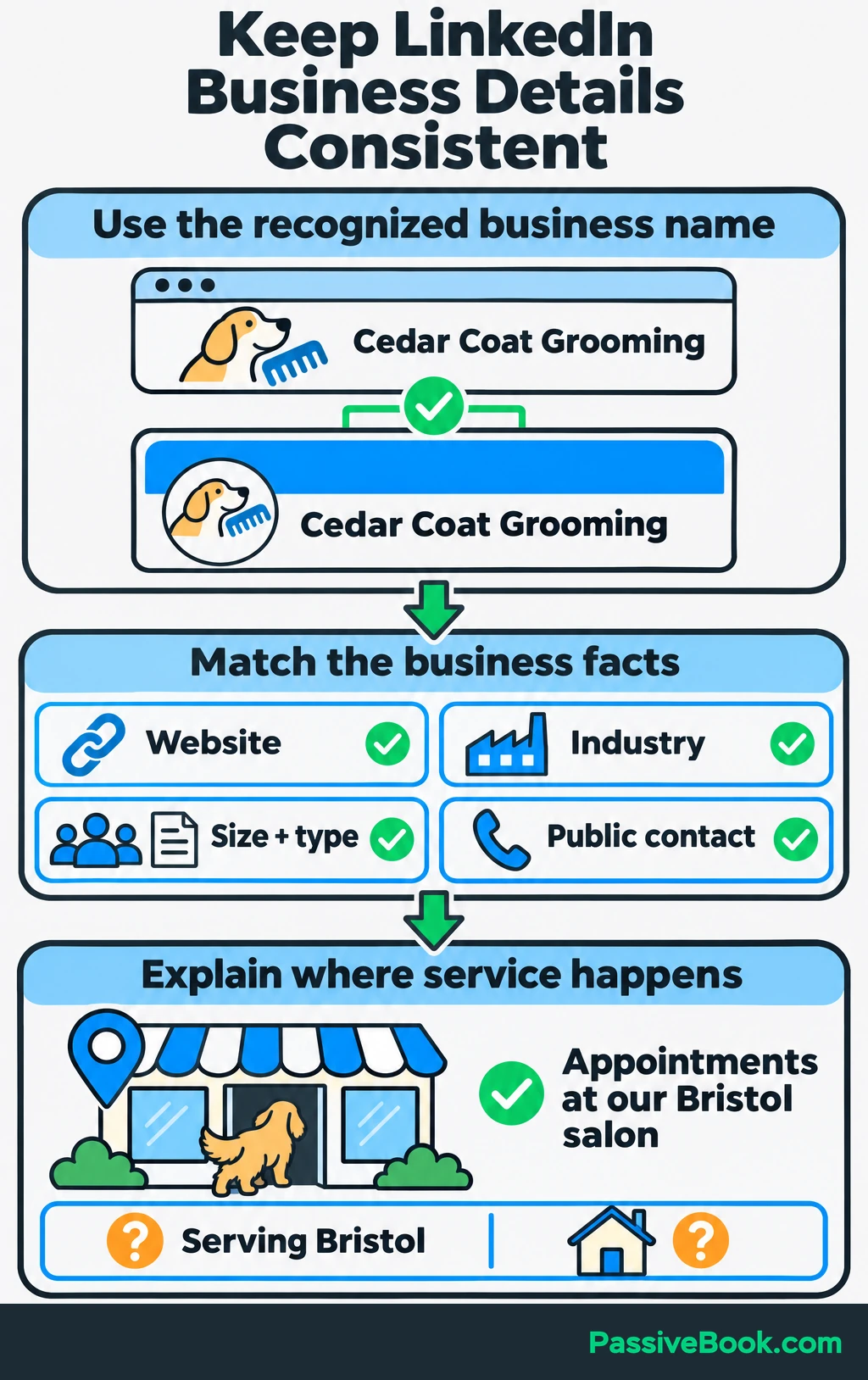
Use the business name customers recognize. Choose a public URL that resembles it, and avoid adding promotional phrases to the name.
Then complete the facts:
- Website address.
- Closest accurate industry.
- Actual company size and business type.
- Business location.
- Public contact details you want customers to use.
Keep these consistent with your website. A different business name or old address creates a question you could have prevented.
Also distinguish your location from your service area. Cedar Coat Grooming’s salon is in Bristol, and appointments happen there. “Serving Bristol” alone could leave visitors wondering whether it offers home visits.
Make the Header Explain Your Business at a Glance
Use a Recognizable Logo and Focused Cover Image
Use the same logo and colors as your website so visitors can recognize the business across both places.
Check the logo at a small size. Fine lettering that looks elegant on a large design canvas may become unreadable beside a post.
LinkedIn recommends these image specifications:
| Image | Recommended dimensions | File requirements |
|---|---|---|
| Logo | 400 × 400 pixels | PNG or JPEG, maximum 3 MB |
| Cover | 1512 × 256 pixels | PNG or JPEG, maximum 3 MB |
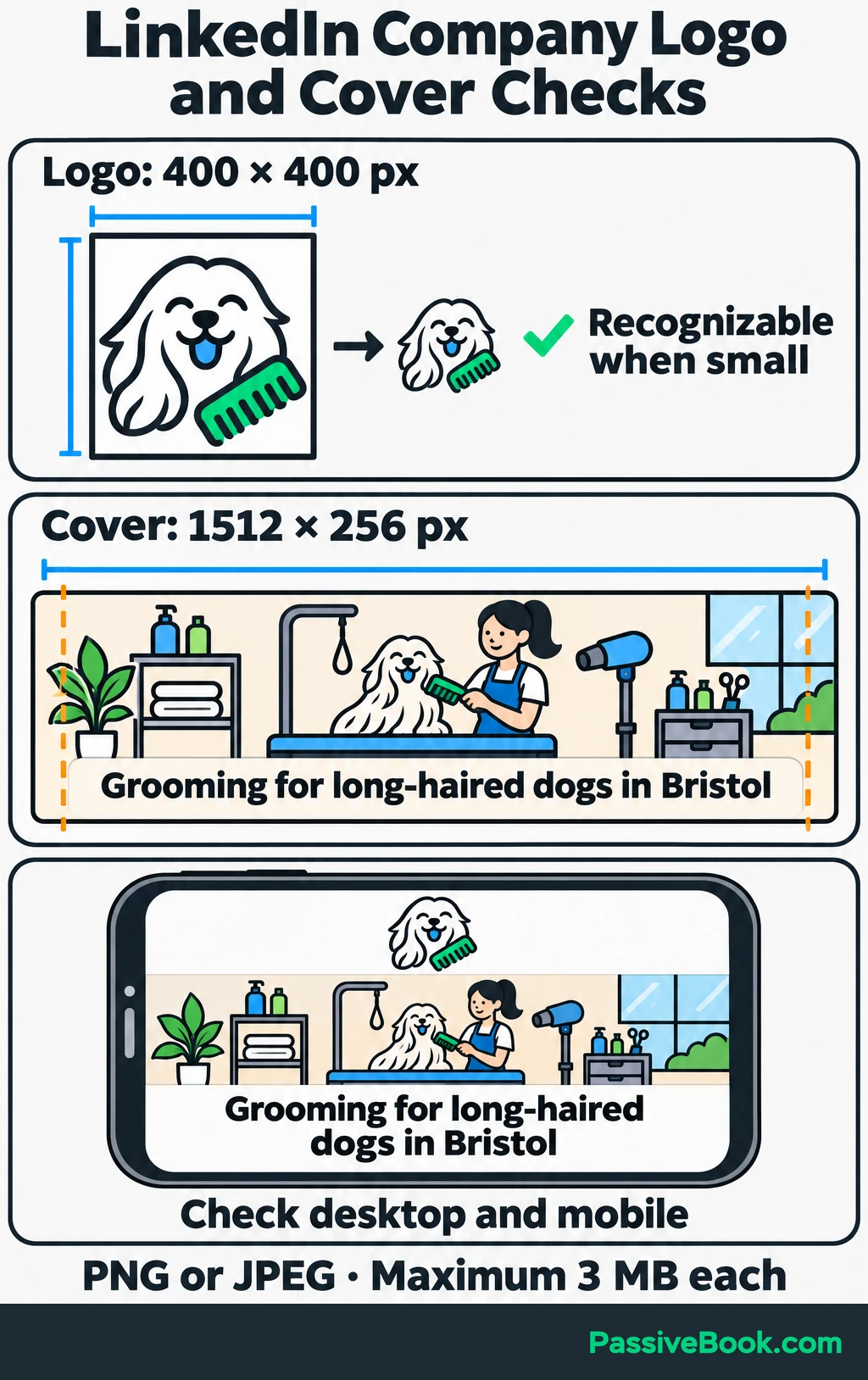
These are LinkedIn’s recommended Page image specifications.
Give the cover one job: reinforce your offer. For Cedar Coat Grooming, I would use a clear salon photograph with this short line:
Grooming for long-haired dogs in Bristol.
Skip the collage of services, opening hours, phone numbers, and tiny awards. A cover image has limited space, and mobile cropping is not interested in your layout ambitions.
Canva, a graphic design tool, is enough for this task. Keep essential details away from the edges, check the result on desktop and mobile, and repeat the offer in the tagline so the image doesn’t carry the whole explanation.
Write a Specific Tagline
Start with this pattern:
[Offer] for [audience] in [service area].
Include the location when it determines who can use the offer. If you sell online, use that space to clarify the product or customer instead.
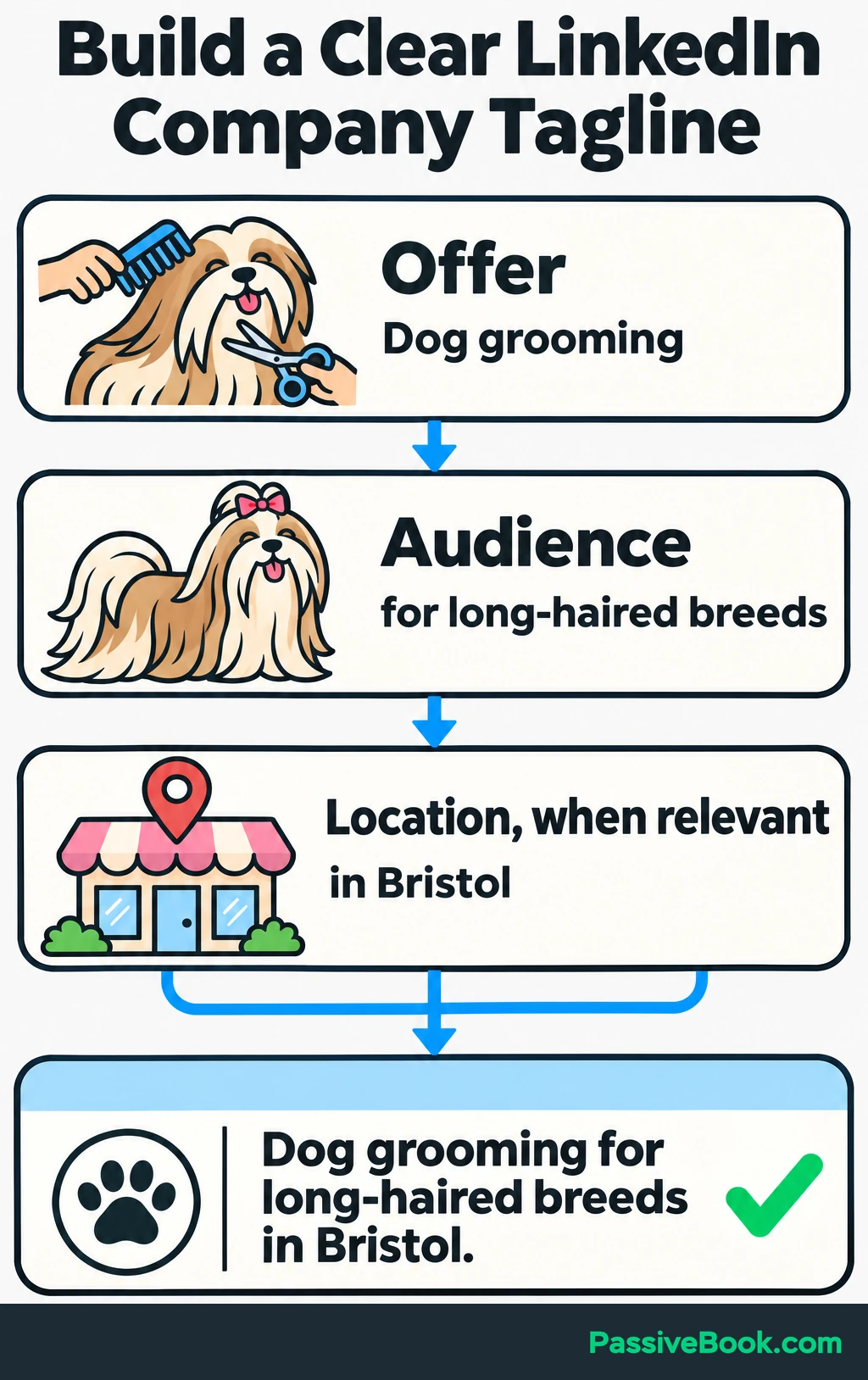
For Cedar Coat Grooming:
Dog grooming for long-haired breeds in Bristol.
That tells visitors what the business does, which dogs it serves, and where appointments are available.
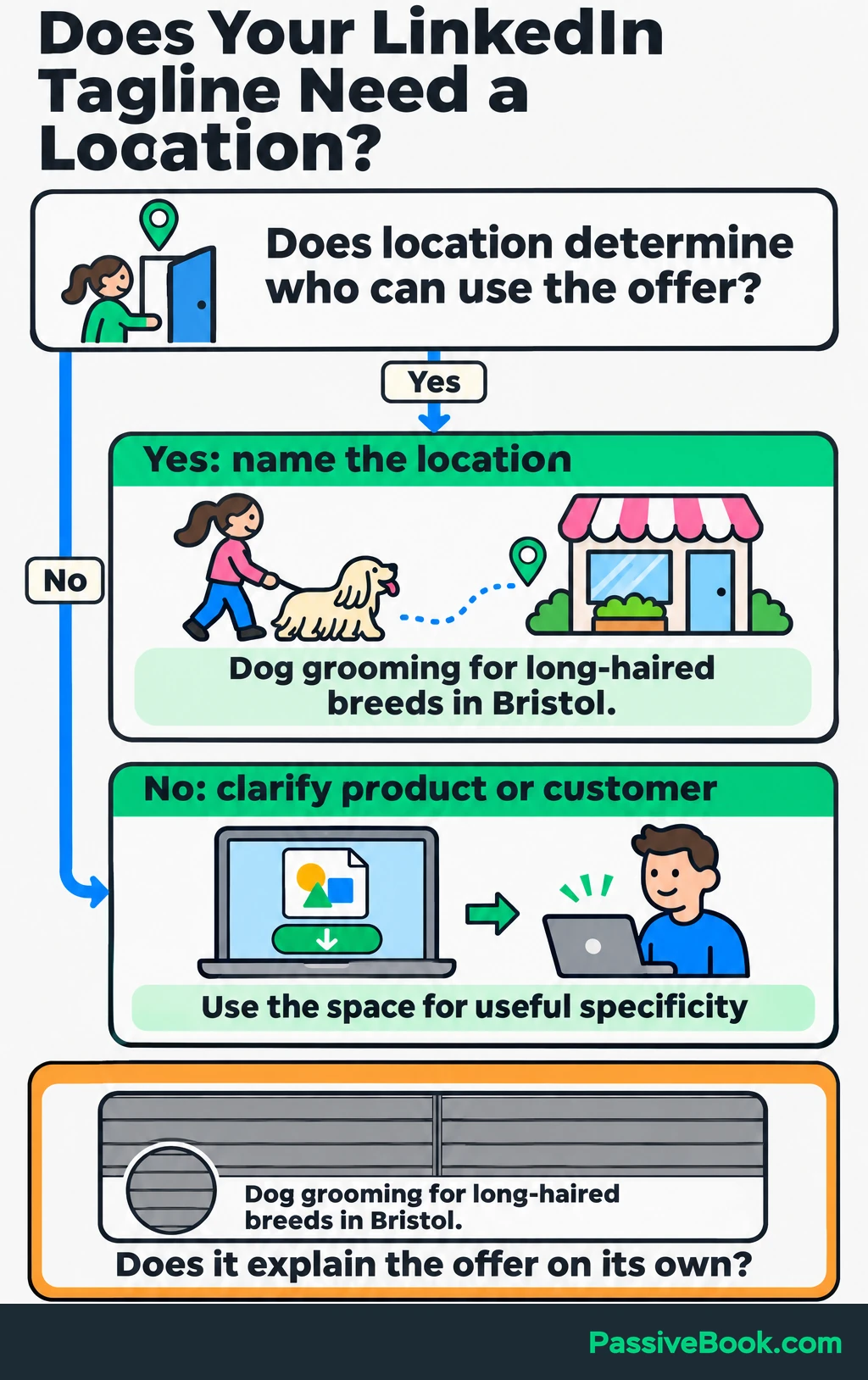
“Care for every coat” might work as a slogan, but it leaves those questions unanswered. I would choose the useful sentence.
Read your tagline without the logo or cover image. If it still explains the offer, it can do its job.
Write an About Section That Answers Customer Questions
Lead with what you sell and who it helps. Then explain how customers receive it, where you operate, why they might choose you, and what to do next.
I once drafted a description for a digital-product site that led with downloadable files and editable formats. Reading it back, I realized I had explained the packaging before the purpose. I moved the customer’s task into the opening sentence and kept the format details underneath.
I use the same check here: can a visitor understand the offer before reaching the second paragraph?
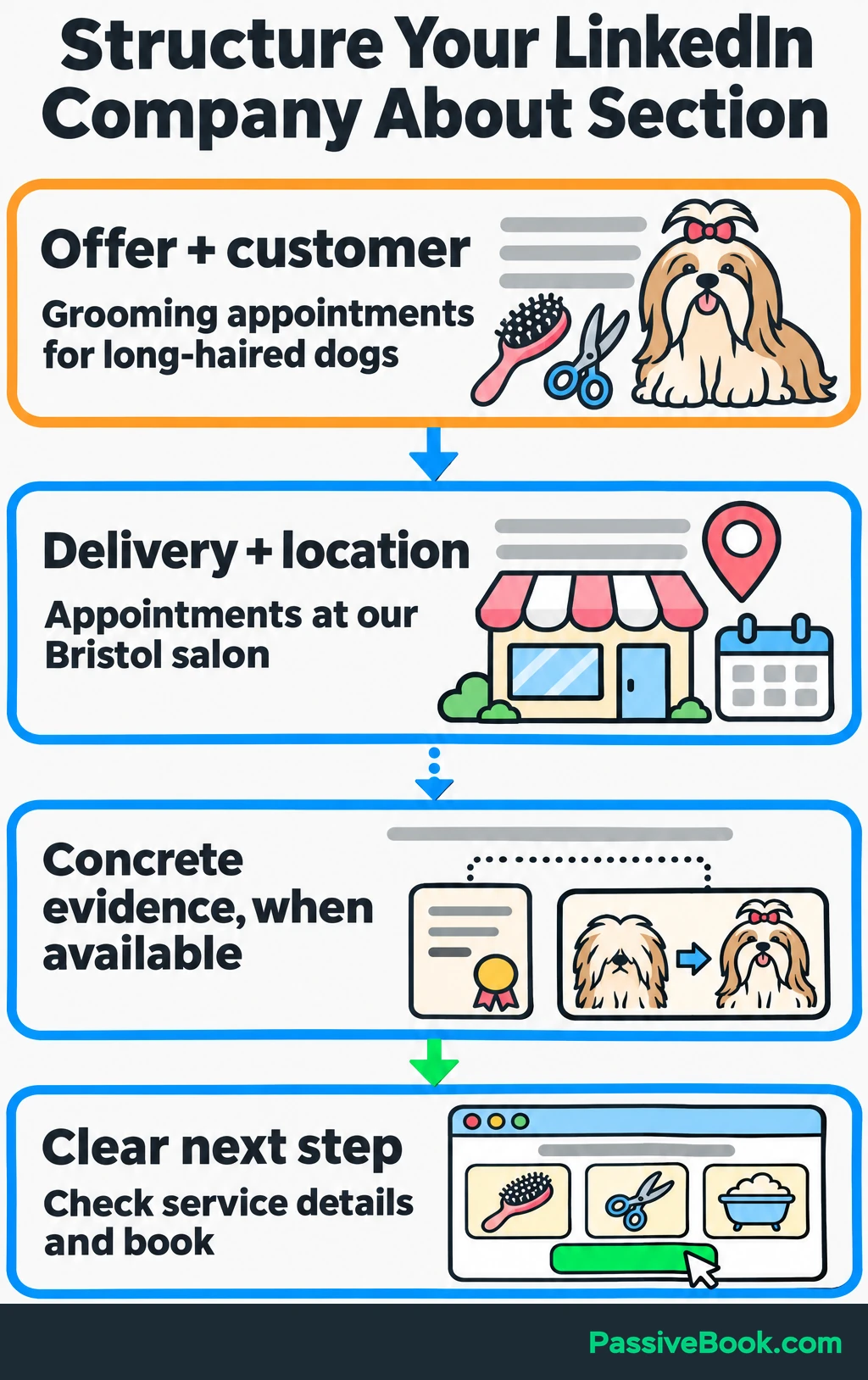
This template gives you a starting point:
[Business] provides [offer] for [audience]. [Explain delivery and location]. [Add a concrete reason to choose the business]. [Tell visitors what to do next].
Here is a complete About description for the running example:
Cedar Coat Grooming provides grooming appointments for long-haired dogs in Bristol, including baths, brushing, and trims.
Appointments take place at our Bristol salon. Our website explains the appointment options and what each includes, so you can compare services before booking.
Visit our website to check the service details and book an appointment.
That is enough to explain the offer without padding it with claims about being passionate, exceptional, or industry-leading.
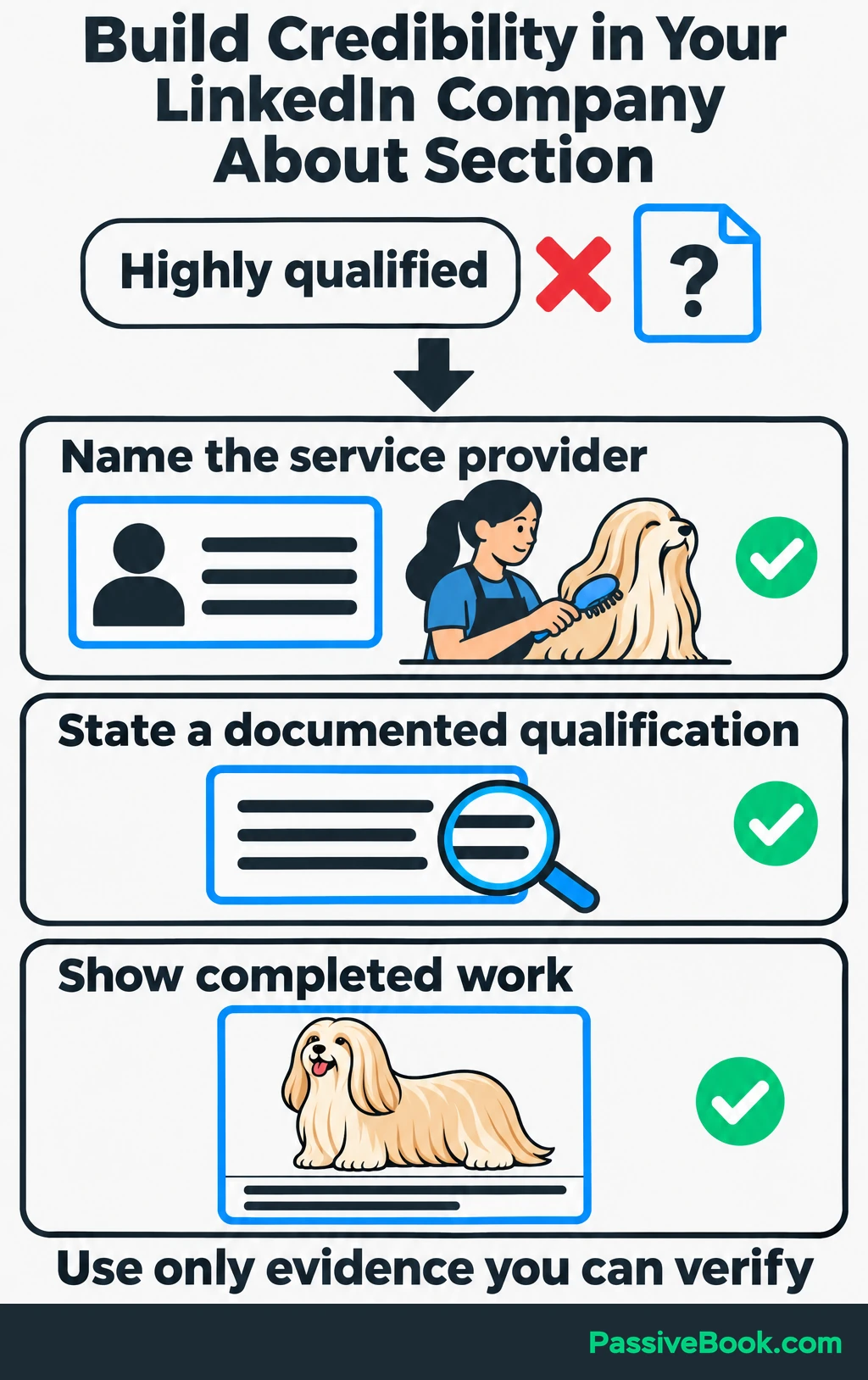
I would strengthen it with relevant evidence when available. Name the person providing the service, explain a documented qualification, or direct visitors to photographs of completed work. Don’t write “highly qualified” when you can state the qualification itself.
Use short paragraphs and familiar customer language. “Dog grooming” belongs naturally in this description. A string of near-identical search phrases does not.
Add specialties that match actual services, such as coat brushing or grooming for long-haired breeds. Include a public business phone number and founding year when they help customers assess or contact you.
If you’re still looking at a blank description, AI Social Copy Studio can turn your business details into a first draft. It writes the related Page copy together so your offer and next step stay consistent.
Free AI Social Copy Studio




Give Visitors One Clear Next Step
Choose the destination before writing the invitation.
If you want appointments, send visitors to service information and booking. If you want purchases, choose a relevant product or collection page. For applications, use the careers page or specific vacancy.
Then select a preset call-to-action label that fits the destination.
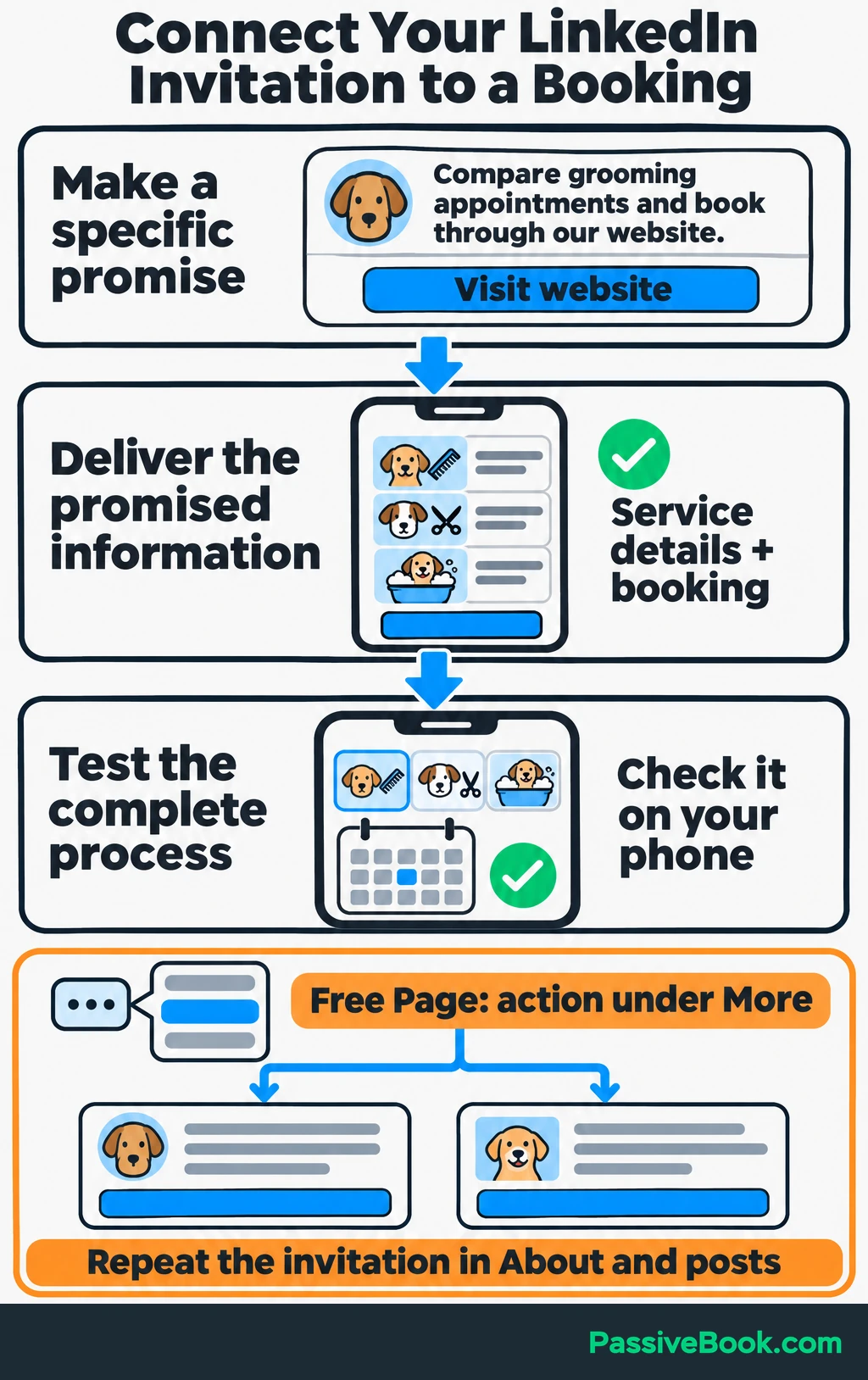
For Cedar Coat Grooming, I would choose Visit website and reinforce it with:
Compare grooming appointments and book through our website.
Free Pages place this action under More. Premium Company Pages can display it prominently at the top. That difference matters because a free Page’s button is easier to miss, so repeat the invitation in your About description and relevant posts. LinkedIn’s call-to-action options and placement
I would start with the free Page and a clear destination. Consider paying for greater button visibility only when you have evidence that LinkedIn is bringing relevant visitors.
Open the destination on your phone and follow the entire process. Can you find the promised information? Does the booking form work? Is the next step obvious?
If visitors need to ask questions first, enable Page messaging and assign someone to monitor the inbox. An unanswered message creates another unfinished step between interest and booking.
Feature Posts That Help Visitors Assess the Business
Featured posts should answer questions a new visitor has before choosing you.
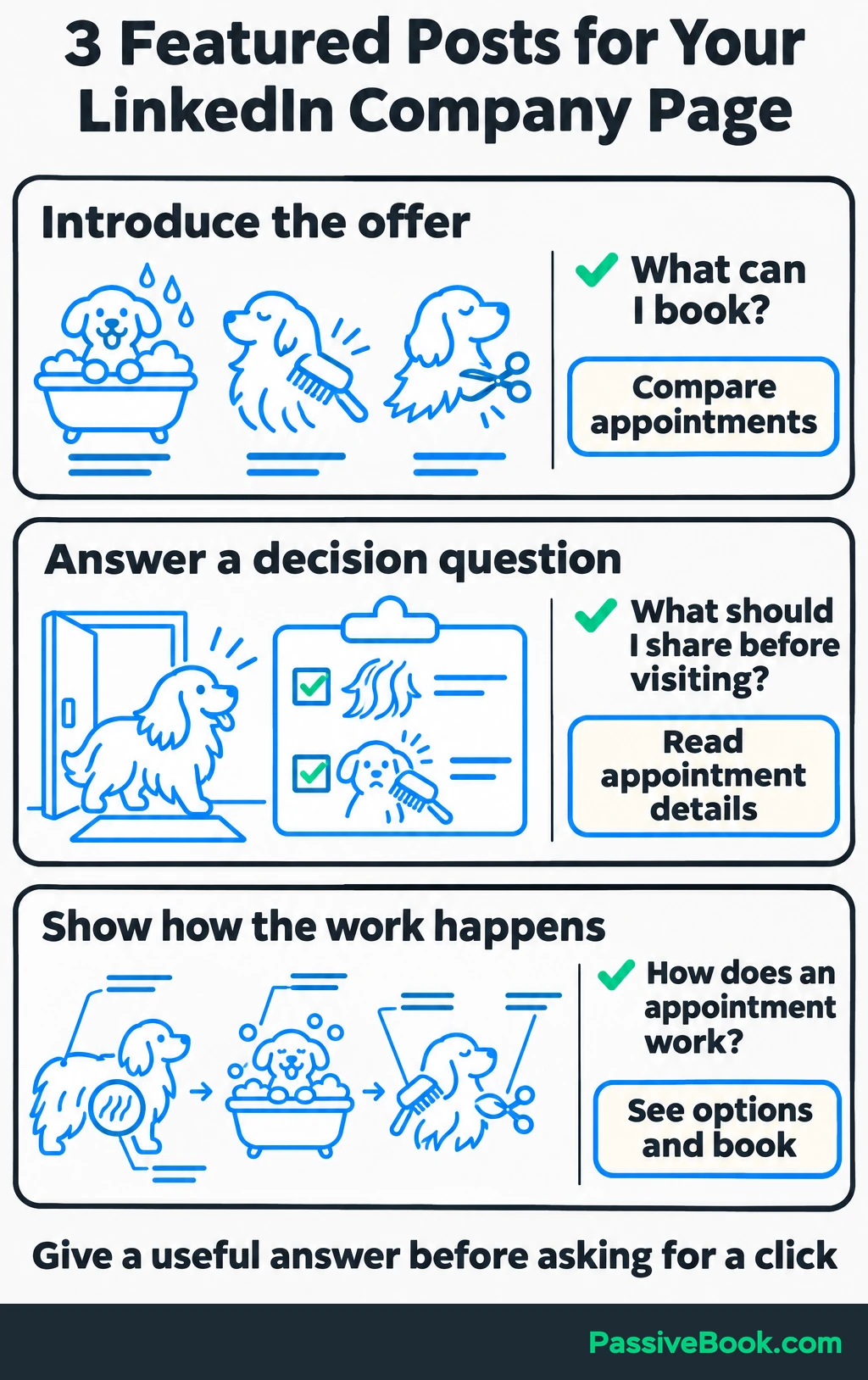
Start with three jobs:
- Introduce the offer and explain the available options.
- Answer a common question that affects the decision.
- Show how the business works.
For Cedar Coat Grooming, I would prepare these posts:
| Post | What it should contain | Useful invitation |
|---|---|---|
| Appointment introduction | Available grooming options and what each includes | Compare the appointments on our website |
| First-visit preparation | What to bring, what information to share, and how arrival works | Read the appointment details before booking |
| Appointment walkthrough | Real photographs and an explanation of the process | See the service options and book |
Publish the posts, then use the post’s More menu and select Feature. A super admin can feature eligible posts near the top of Home; job, event, and targeted posts are excluded. LinkedIn’s featured-post rules
Each post should give visitors a useful answer without requiring a click. For example, a preparation post might include:
When booking, tell us about your dog’s coat condition and any previous grooming difficulties. That information helps us discuss the appointment before you arrive.
For a walkthrough, explain what the photographs show. A picture of a finished groom can show completed work, but it doesn’t explain how the appointment runs.
Replace featured posts when services or instructions change. I would keep a useful introduction featured ahead of a recent post that gives a new visitor little help.
Which Additional Sections Does Your Page Need?
Add sections because they serve a real purpose. You don’t need every available tab to have a complete, credible Page.
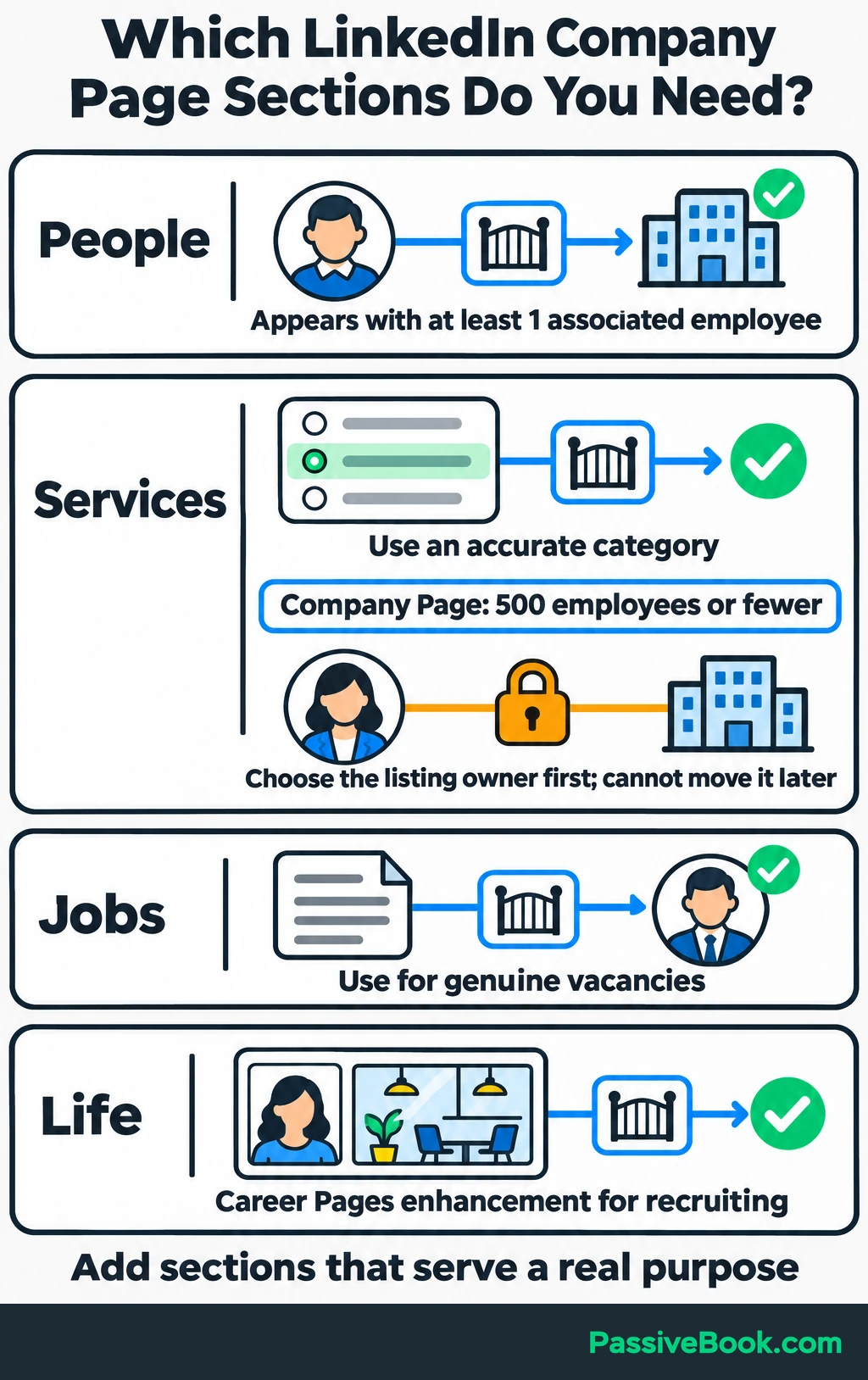
- People: Ask actual team members to link their current employment to the correct Page. The People tab appears when at least one employee is associated with it. A solo business doesn’t need to look like a large team.
- Services: Use this when LinkedIn offers a category that accurately fits your work. Don’t select an unrelated category just to fill the space.
- Jobs and Life: Use Jobs for genuine vacancies. Life content, available through the Career Pages enhancement, makes sense when you need a fuller presentation of the workplace for applicants.
Before adding Services, choose whether to list them on your personal profile or Company Page. LinkedIn doesn’t let you move the listing between them after setup. Only businesses with 500 employees or fewer can offer services through a Company Page. LinkedIn’s Company Page services requirements
For Cedar Coat Grooming, I would check whether a suitable grooming category exists. If it doesn’t, the About description and website can explain the offer perfectly well.
I would also leave hiring content until there is a hiring need. Customers checking appointment details don’t need a corporate culture project standing between them and the booking page.
Check the Finished Page as a Visitor
Review the Page outside the admin view on desktop and mobile.
Use this checklist:
- The logo matches the website and remains readable.
- The cover image survives mobile cropping.
- The tagline explains the offer and relevant location.
- The About description answers basic customer questions.
- Business details match the website.
- The destination link works and delivers what the invitation promises.
- Featured posts explain the offer, answer a question, or show the work.
Then ask a person unfamiliar with the business to answer these four questions:
What does this business offer?
Who is it for?
What gives you confidence in it?
What would you do next?
Let them answer before explaining anything. If you have to supply the missing information aloud, put it on the Page.
Put one super admin in charge of keeping details current. If others help, give publishers content admin access and people who only need reports analyst access.
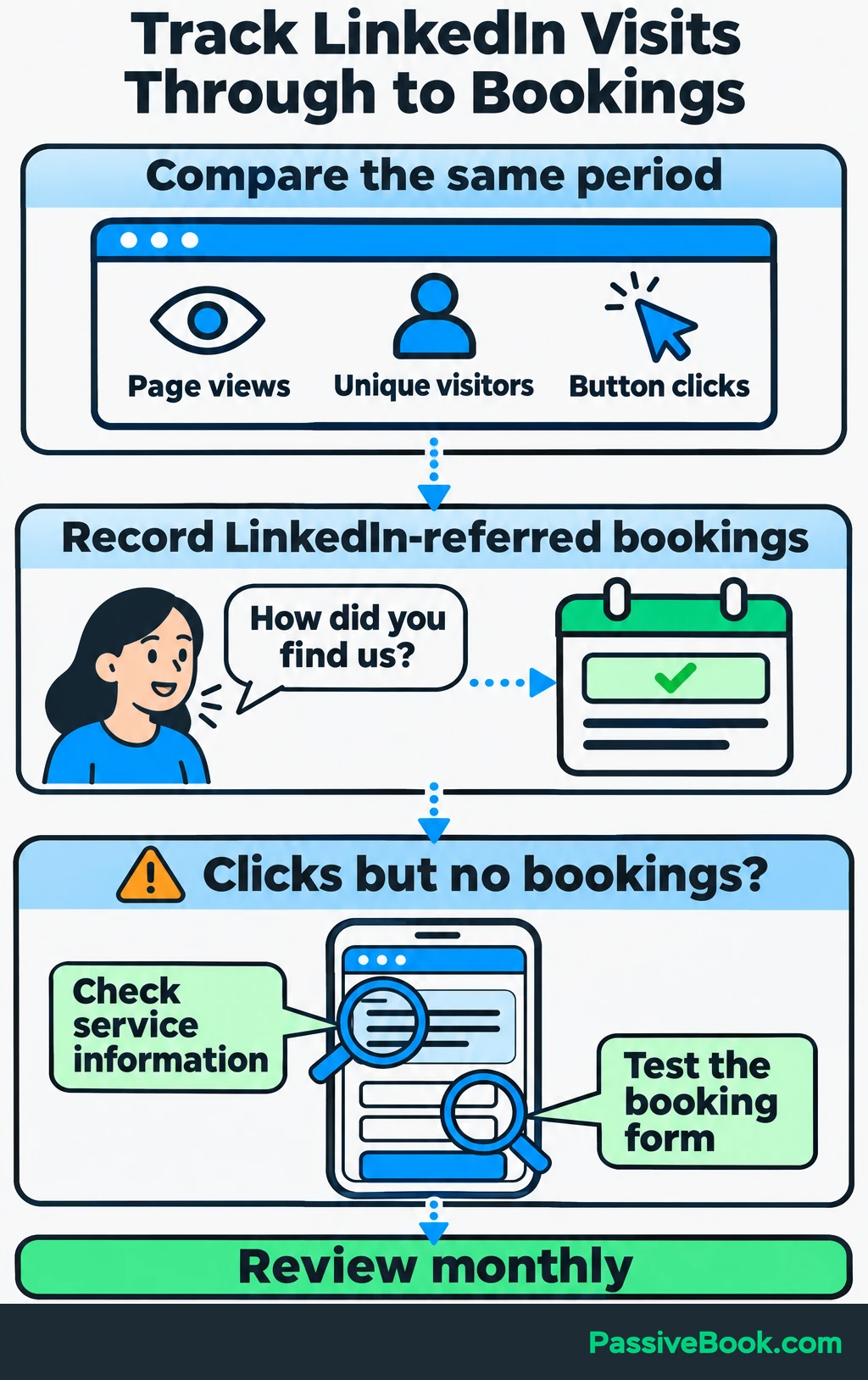
Once a month, compare Page views, unique visitors, and custom-button clicks in LinkedIn’s visitor analytics with inquiries, bookings, purchases, or applications from the same period.
For Cedar Coat Grooming, I would ask customers how they found the salon and record bookings referred by LinkedIn. Those bookings matter more than follower growth alone.
If visitors click but don’t book, check the service information and booking form. Update business details whenever they change.
What Next?
Write your tagline and opening About paragraph, then check that both lead naturally to the same destination page. That gives the rest of your Page a clear purpose.
Use the social buttons to share this guide when you want a practical checklist for getting a business Page ready for visitors.
Which customer question does your LinkedIn Page leave unanswered right now? Share it in the comments, and bring any other setup questions too.
Share this post with your friends & followers:

