Your products are live, but shoppers rarely find them through Google. You could rewrite descriptions, install another plugin or publish more posts, and each job could swallow the weekend.
The hard part is knowing which job deserves that time. An empty order list doesn’t tell you whether Google missed your pages, the wrong people visited or buyers couldn’t find the details they needed.
A useful WooCommerce SEO process connects those problems to specific fixes. This guide walks through improving one part of your catalog, helping shoppers reach it and using search and sales data to choose what to work on next.
Start With the Pages Most Likely to Produce Sales
I would begin with one category and its products. Choose a range you can keep available, with worthwhile margins and a clear reason for shoppers to buy.
For an established store, look first at pages already getting relevant search impressions or organic orders. They give you something concrete to improve. A new store can start with its strongest, most useful selection.
Work in this order:
- Fix anything preventing Google from accessing important pages.
- Improve the chosen category and its product pages.
- Publish a useful buying guide that connects to those products.
- Review the results before expanding to another category.
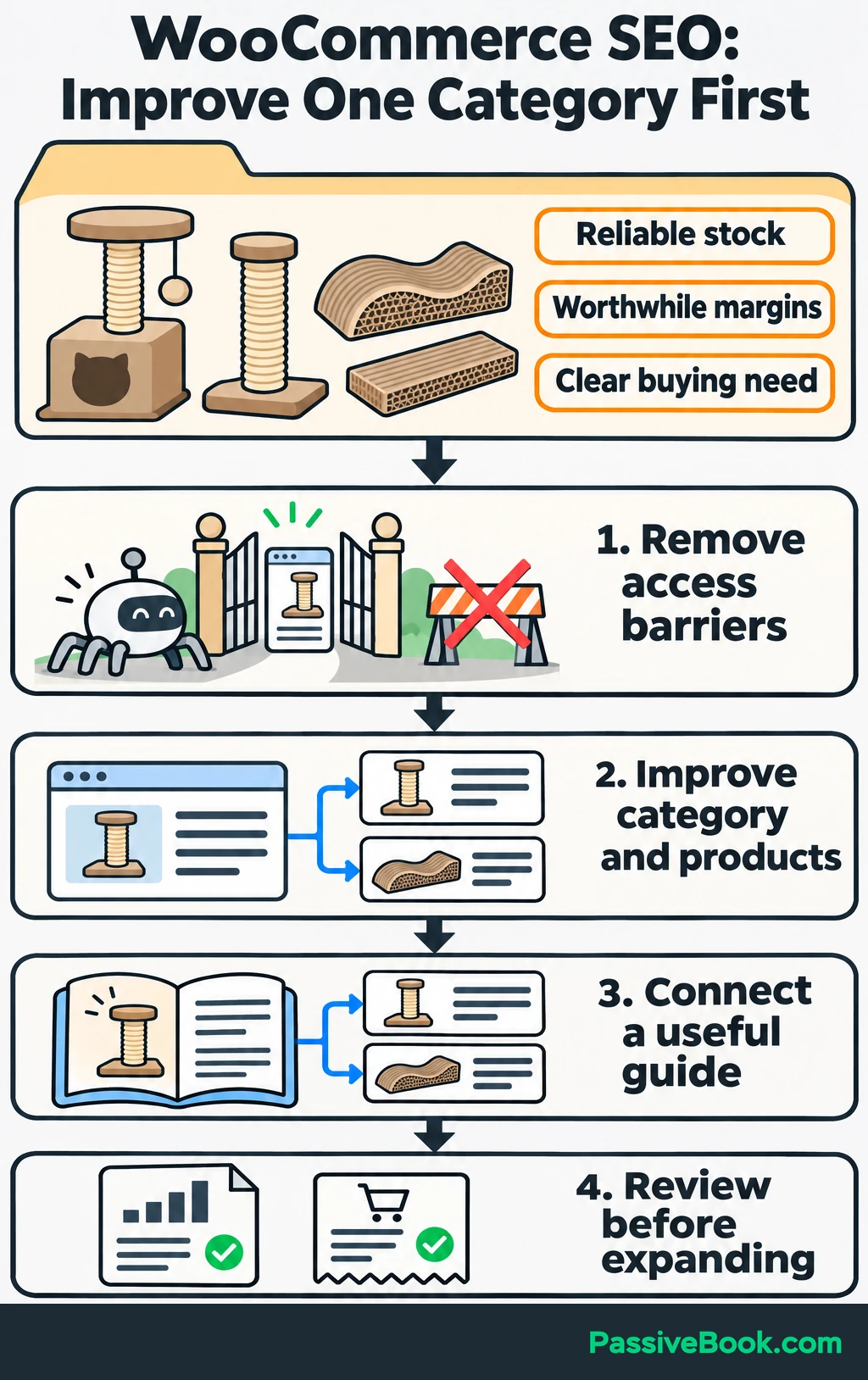
For the examples, imagine your store sells cat-scratching furniture: sisal posts, cardboard pads and replacement inserts. The product names, specifications, search phrases and calculations below are illustrative.
Keep the starting toolkit small:
- Google Search Console shows search queries, clicks and indexing information.
- Google Analytics shows visits and shopping activity once ecommerce tracking works.
- One SEO plugin manages page titles, descriptions and related settings.
You can handle keyword mapping, descriptions and internal links yourself. Get targeted help when you can’t resolve an indexing problem, plugins send conflicting product details to Google or checkout fails. Those are specific problems you can hire someone to solve.
Before editing, save the selected pages’ search and sales reports and record the change date. Give search changes time to appear: Google says some take hours and others take several months, and recommends assessing results over weeks.
Make Important Store Pages Accessible to Google
WooCommerce adds shopping features to WordPress, so your SEO checks need to cover both the website settings and the store pages.
Google needs to discover a page’s address, read its content (called crawling) and decide whether to add it to its search index. An indexed page can appear in search results, though indexing alone won’t earn it a useful ranking.
Start by inspecting one priority category URL and one product URL in Search Console. Read the recorded indexing status, then run the live test to check current accessibility. The saved report describes Google’s recorded version; the live test checks what it can access now.
If a page is blocked, check these common causes:
- The public store still requires a launch password.
- WordPress’s “Discourage search engines from indexing this site” option remains selected.
- The SEO plugin has applied an unintended
noindexinstruction, which asks search engines to leave the page out of results. - A rule in
robots.txt, the file that controls crawler access, blocks the page.
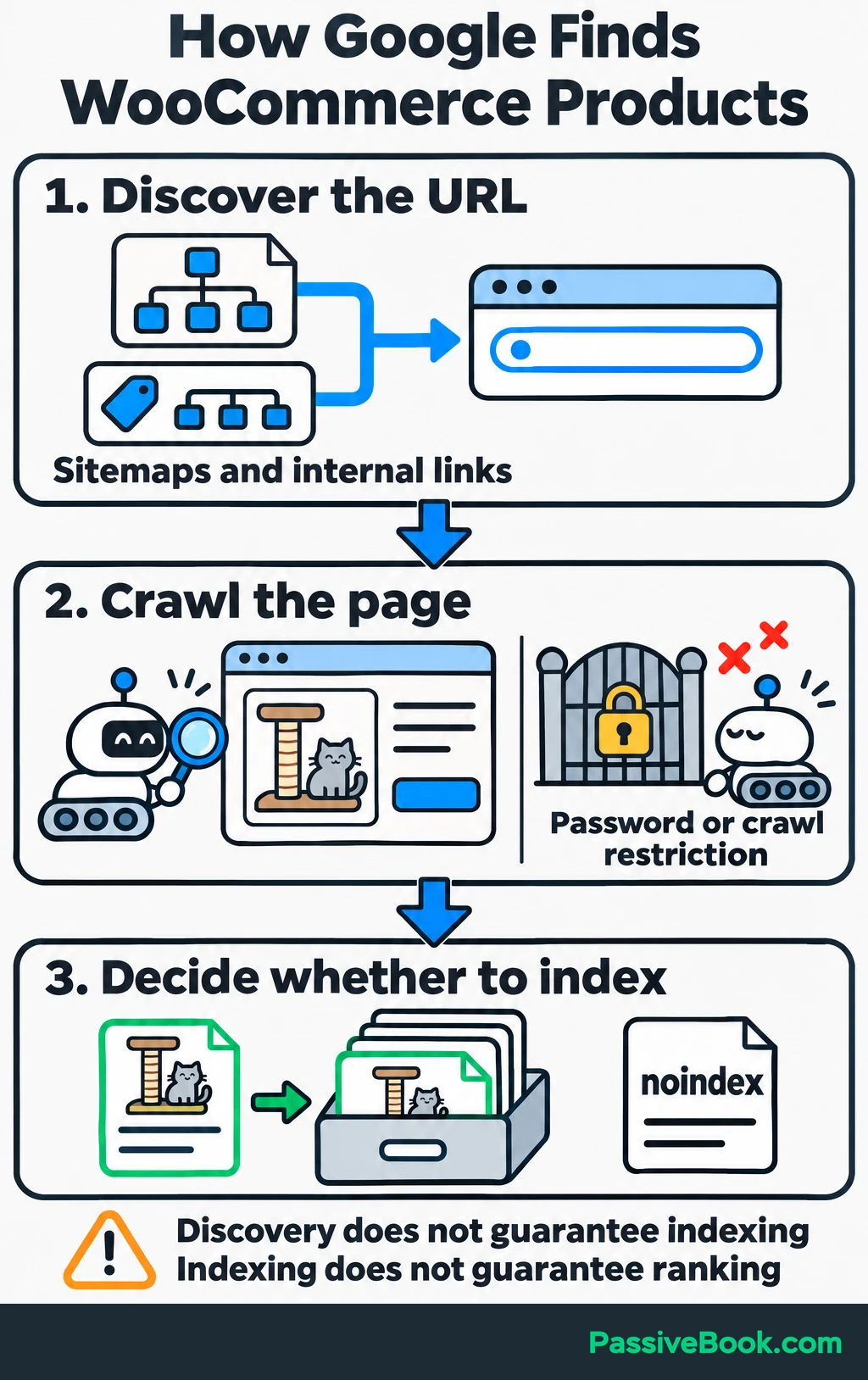
Remove accidental restrictions from the public storefront, serve it over HTTPS and keep your staging site private. Staging is a separate test copy where you can check consequential plugin or configuration changes before applying them to the store. Take a backup first.
I prefer Rank Math, but I would keep an existing SEO plugin that works. Moving plugins just to chase a greener score creates another project.
Use your chosen plugin to generate XML sitemaps: files listing the preferred store URLs you want search engines to discover. Submit the plugin’s sitemap address in Search Console and check that your important, indexable categories and products are included.
A sitemap helps discovery but doesn’t guarantee indexing. If a submitted product stays out of the index, inspect that URL and investigate the reason.
Match Keywords to the Right Store Pages
Start with your catalog rather than a keyword tool.
List the product types you sell, their meaningful differences and the questions people ask before buying. Materials, dimensions, compatibility and replacement parts can all reveal useful searches.
Then add relevant queries from Search Console and ideas from Google’s autocomplete. Search the candidate phrases in the market you serve and look at the results. Are shoppers being shown collections, individual products or explanations?
Match your page to that need:
| Search Phrase | Shopper Need | Destination URL | Page Type | Next Improvement |
|---|---|---|---|---|
| sisal cat scratching posts | Compare a selection of posts | /product-category/scratching-posts/ | Category | Show height, base dimensions and replacement options |
| Tallstead sisal scratching post | Inspect a named item | /product/tallstead-sisal-scratching-post/ | Product | Add dimensions, package contents and detail photos |
| how to choose a cat scratching post | Understand what to compare | /guides/choose-cat-scratching-post/ | Guide | Explain the buying checks and link to the selection |
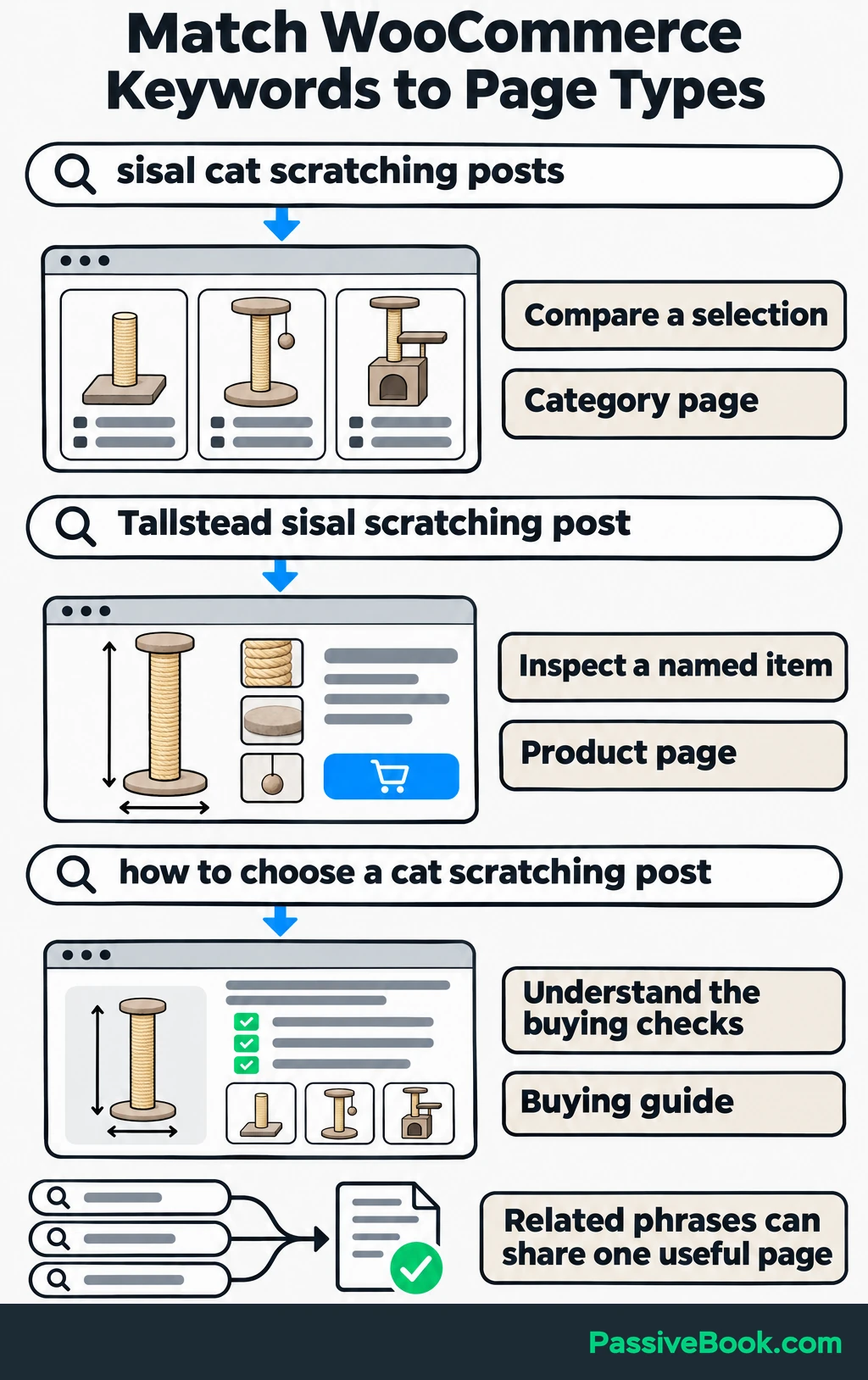
Closely related phrases can belong on one page. You don’t need separate collections for every rearrangement of “sisal scratching posts for cats.”
Separate pages need separate jobs. A replacement insert page, for example, should explain which products it fits.
I learned the cost of skipping market research with my jewellery store. I put about $1,200 into it, bought inventory and lost most of that investment when the stock didn’t sell. That experience shapes how I choose what to work on: first establish what people want and whether the offer makes sense.
For this store, that means checking the buying need before spending evenings optimizing a product nobody has a clear reason to choose.
Ubersuggest is an optional source of keyword ideas and demand estimates. I would pay for it only when the missing information affects a decision. A large search-volume number is easy to admire and surprisingly difficult to put in a parcel.
Build Categories That Help Shoppers Find Products
Organize your navigation around product groups shoppers recognize.
For the example store, a clear route would be:
Homepage → Scratching Posts → Tallstead Sisal Cat Scratching Post
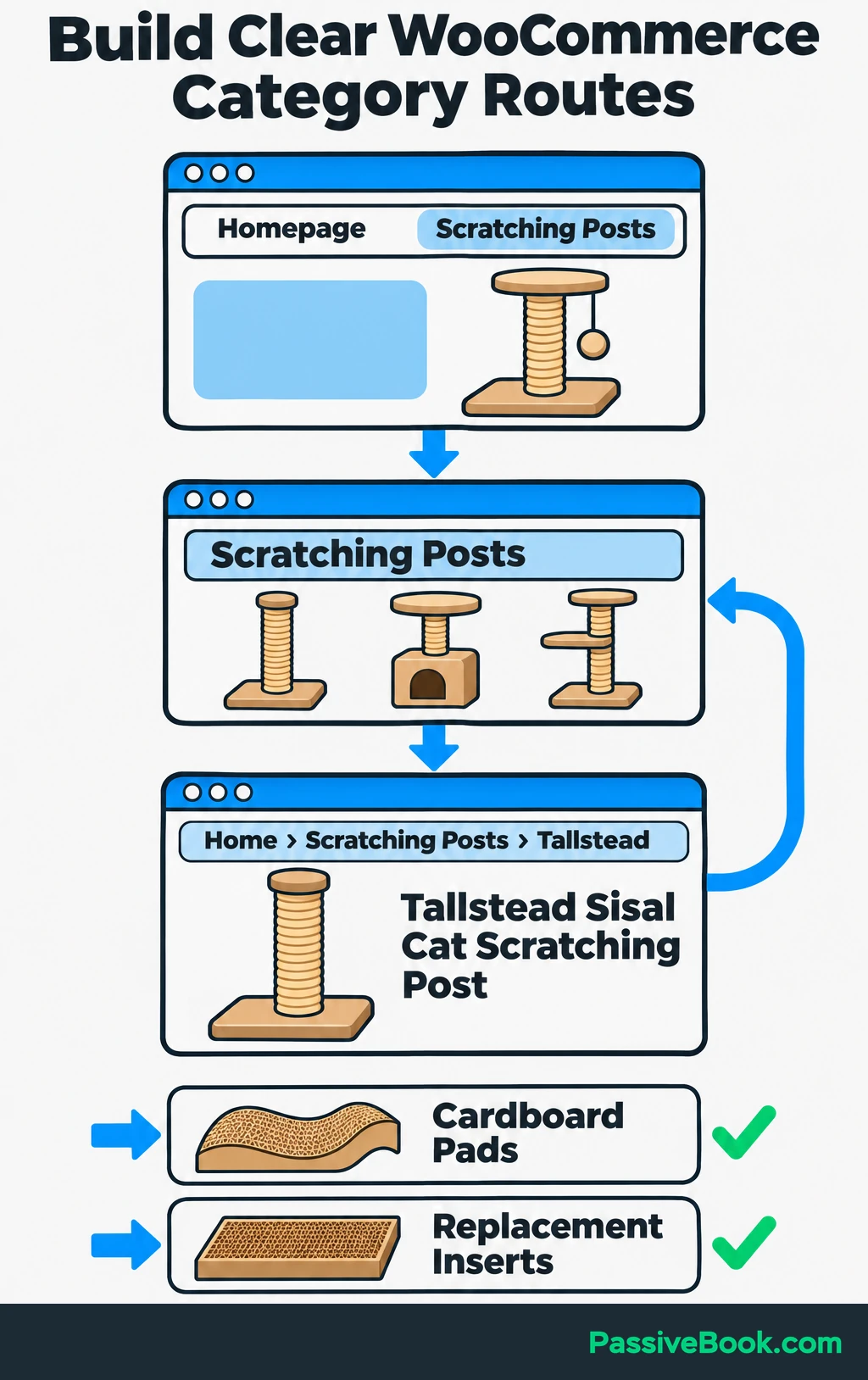
Cardboard Pads and Replacement Inserts would have their own categories. A shopper looking for a refill shouldn’t need to browse every piece of furniture.
Give each priority category:
- A clear main heading, such as “Sisal Cat Scratching Posts.”
- A distinct search title that describes the selection.
- A short introduction explaining what the range includes.
- Product cards that make useful differences easy to compare.
Keep the products prominent. Two helpful sentences above the selection usually do more for a shopper than six paragraphs of keyword variations.
Put additional buying guidance below the products or beside a relevant comparison. Explain height, floor space, surface material and replacement-part availability.
Link the main menu to categories and categories to products. Add breadcrumbs, the small navigation trail showing where the current product sits in the store. Descriptive links such as “replacement scratching inserts” also make the destination clear.
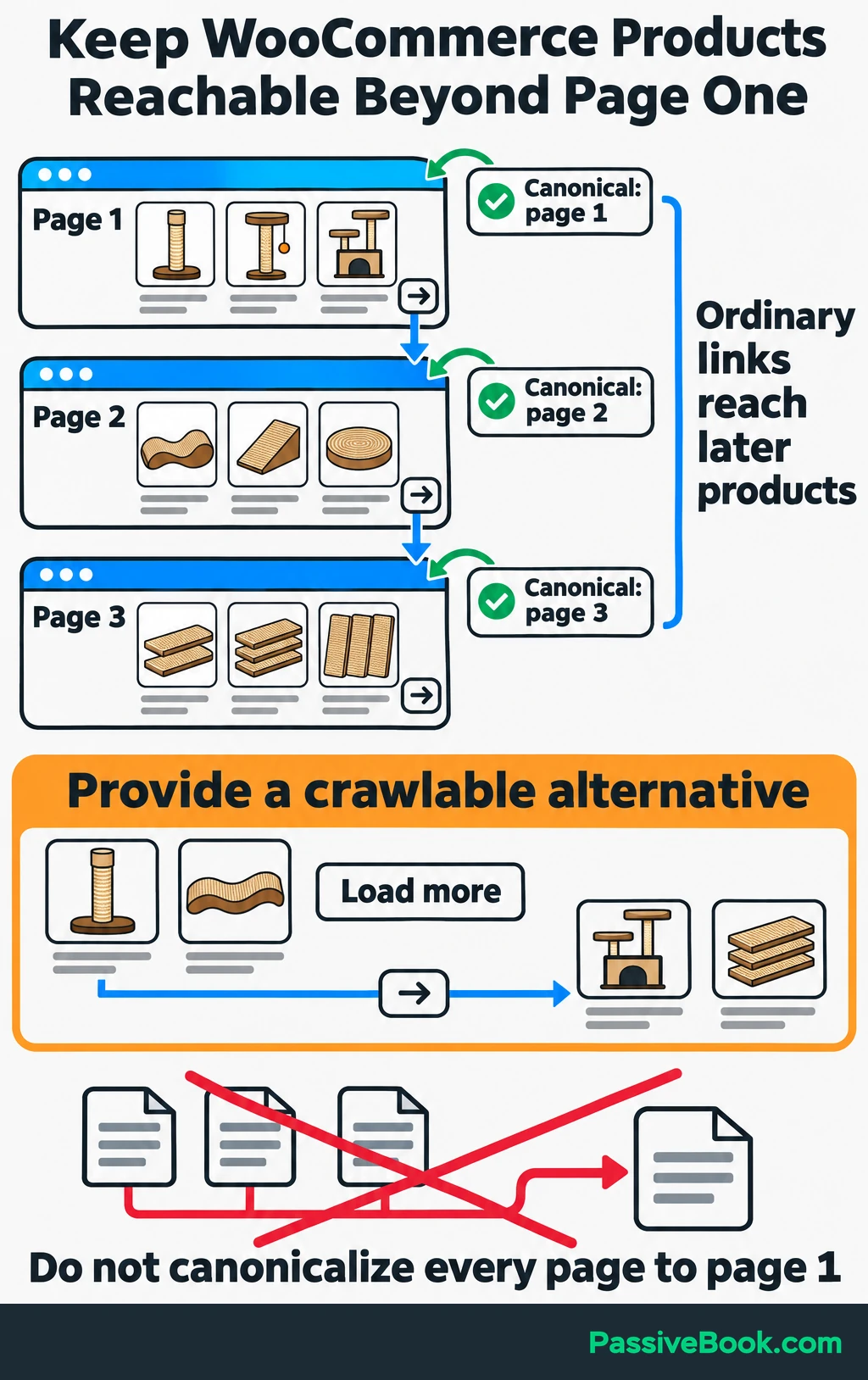
Check that products beyond the first results page remain reachable through ordinary links. A “Load more” button needs a crawlable alternative if it is the only route to later products.
For paginated collections, each page should have its own canonical URL—the preferred address for that page. Google advises against making page one the canonical for every page in a sequence.
Add another collection when it serves a distinct buying need and has a useful selection. A filter combination alone doesn’t earn a landing page.
Optimize Product Pages for Clicks and Purchases
Once shoppers reach a product, the page needs to identify it clearly and answer the questions that stand between interest and an order.
Write Clear Product Names and Search Previews
Use the main product heading to identify the item. Include a distinguishing attribute when it helps someone understand what they are viewing.
For the example product:
Tallstead 70 cm Sisal Cat Scratching Post
The SEO title, which you edit through your SEO plugin, can be slightly shorter:
Tallstead Sisal Cat Scratching Post | Store Name
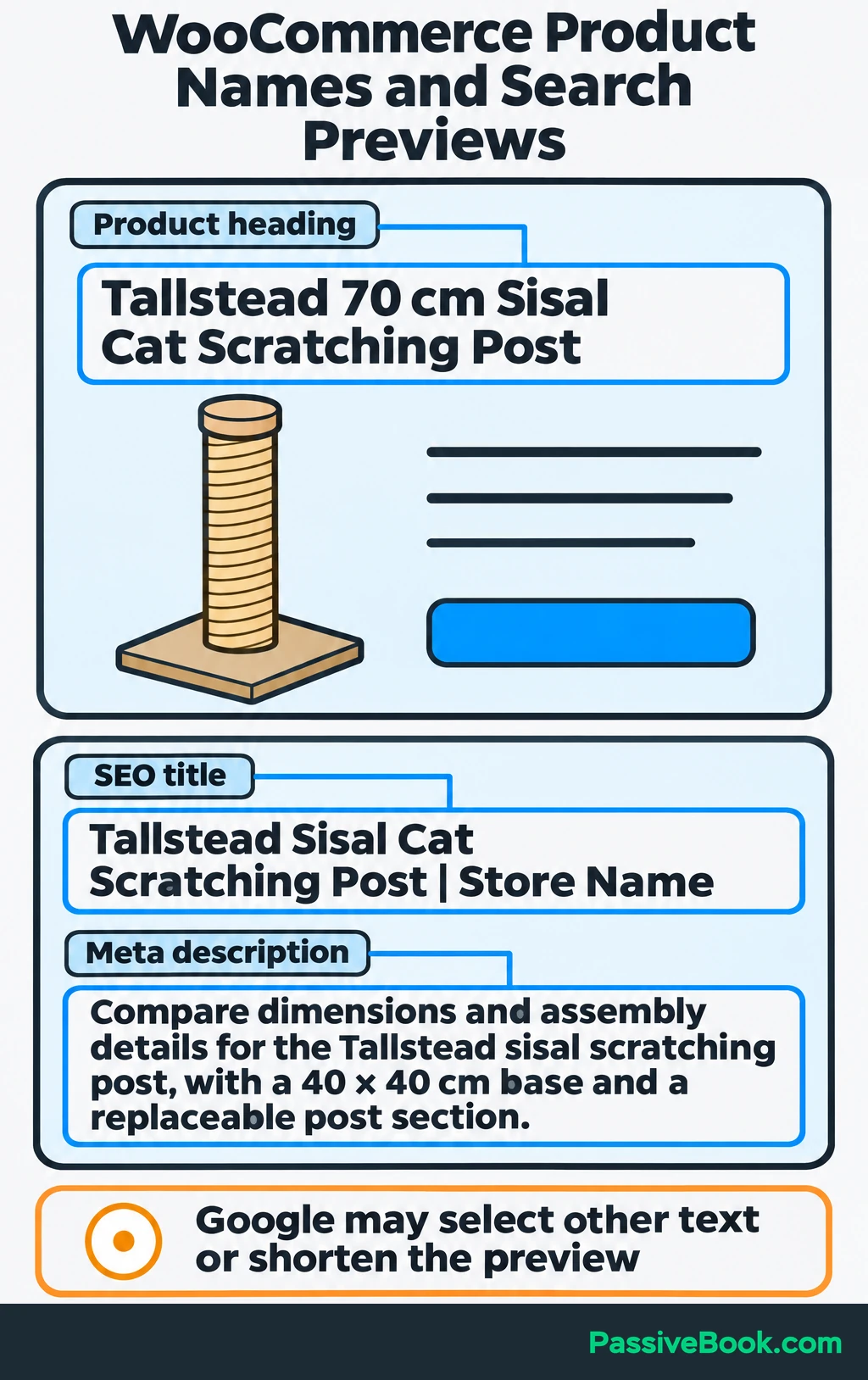
Write a separate meta description that gives shoppers useful reasons to inspect the item:
Compare dimensions and assembly details for the Tallstead sisal scratching post, with a 40 × 40 cm base and a replaceable post section.
Google may use other page text for the search snippet and shorten what it displays. Its snippet guidance favors accurate, page-specific summaries, so treat the description as a useful preview.
For new products, use short, descriptive URL endings, such as tallstead-sisal-scratching-post.
Keep established URLs unless changing them solves a meaningful problem. If you must move a page, use a permanent redirect to its replacement and update internal links and the sitemap. Tidying an address is rarely worth a migration project on its own.
Answer the Questions That Determine a Purchase
Replace vague supplier copy with details someone can use to choose.
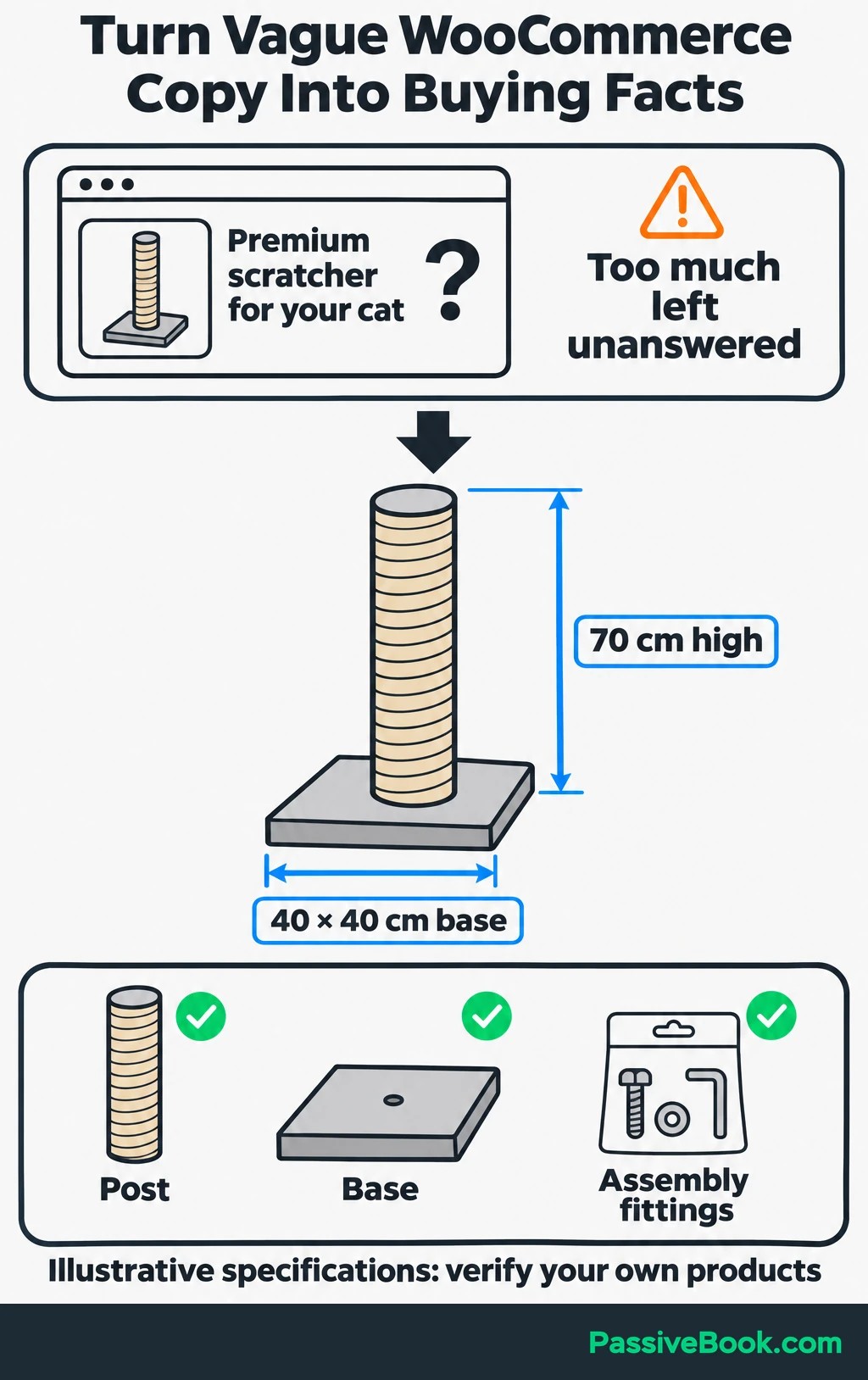
“Premium scratcher for your cat” leaves nearly everything unanswered. This gives the shopper something concrete:
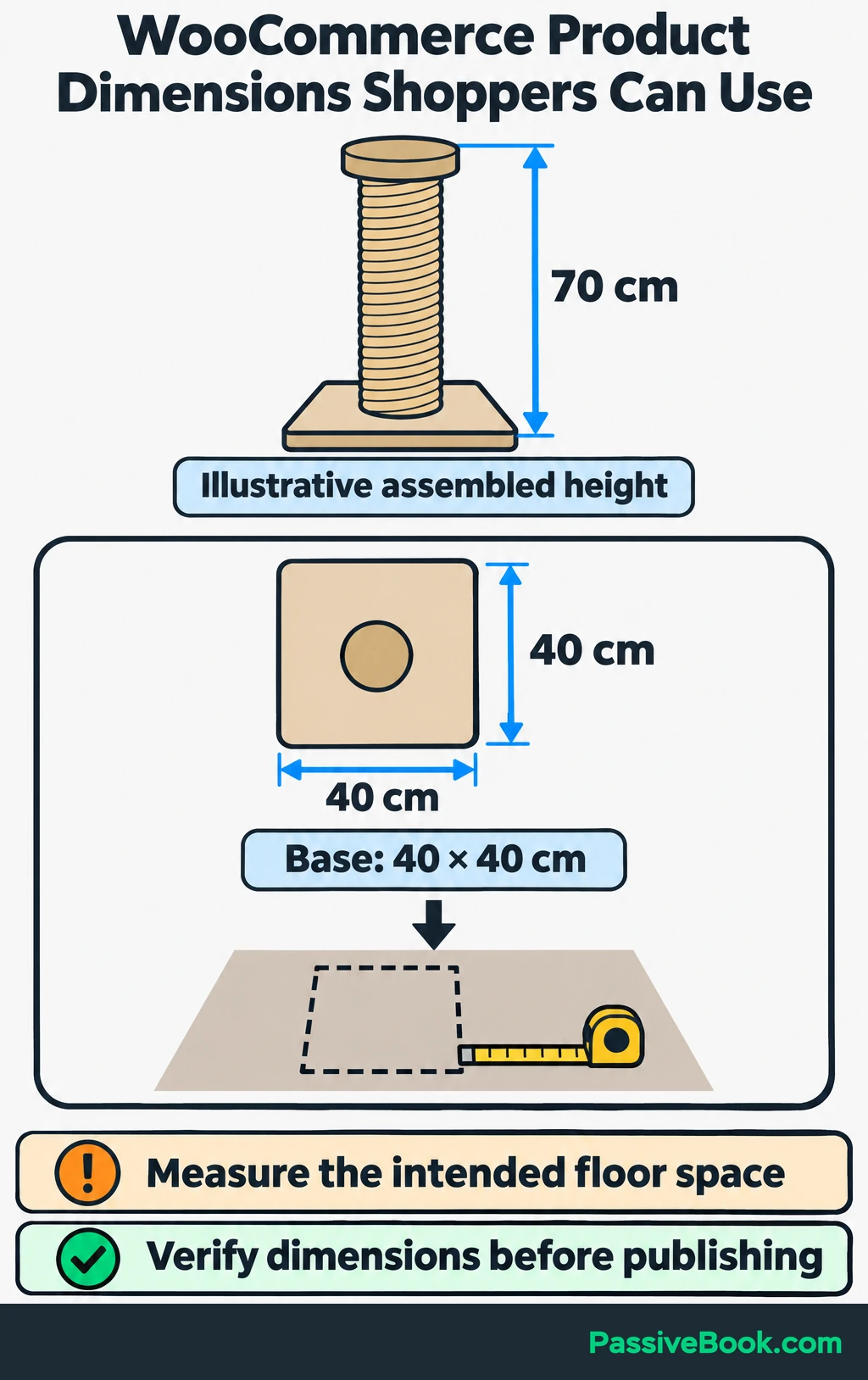
70 cm sisal scratching post with a 40 × 40 cm base. Includes the post, base and assembly fittings.
Put essential details near the price and purchase controls. Use the longer description for assembly, care, compatibility and other questions that need more space.
A useful product page should make these answers easy to find:
- What materials are used?
- What are the assembled dimensions?
- What comes in the package?
- What assembly or care is required?
- Which parts can be replaced?
- Which variation is currently selected?
- What will delivery cost, and what are the return terms?
Help the shopper apply those facts. Beside the base dimensions, suggest measuring the intended floor space. Beside the replacement-part information, link to the compatible part. Put a buying-guide link where someone may need help comparing options.
On a digital-product page I was reviewing, I had explained the benefits before clearly listing what the download contained. I knew the package, so the missing detail was easy to overlook. I moved the contents beside the purchase button and started checking pages against the questions a buyer would bring.
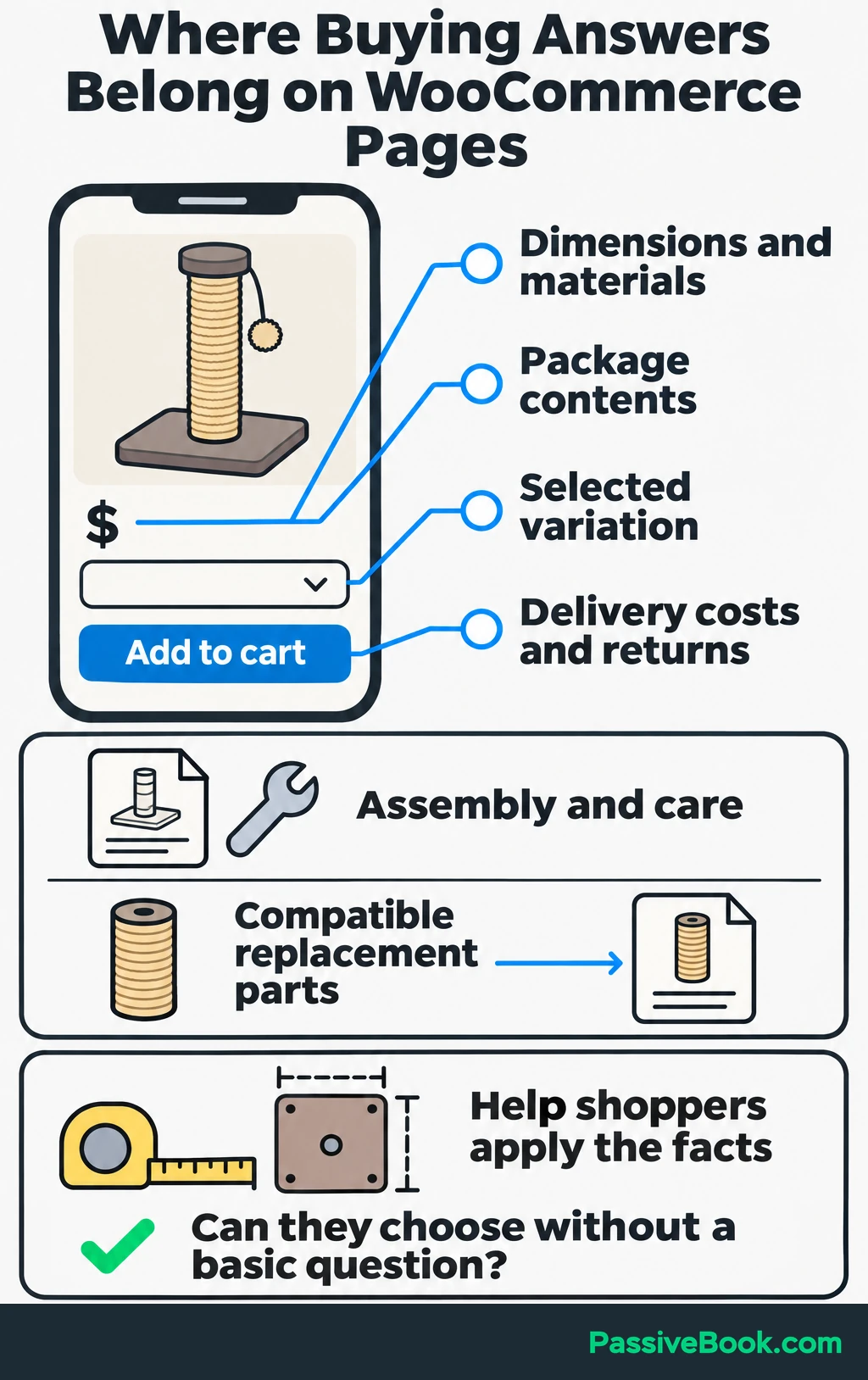
I use that same check here: can someone choose without sending a basic product question?
Use verified specifications, genuine reviews and accurate stock, delivery and returns information. Claims about stability, safety or durability need support beyond enthusiastic adjectives.
If the facts are ready but the wording is slowing you down, AI Copywriting Studio can turn your notes into a first draft. It also flags missing details so you know what to verify before publishing.

Free AI Copywriting Studio




Show the Details Shoppers Need to See
Plan photographs around buying questions.
For the scratching post, I would want to see the assembled item, the scratching surface, the base and the attachment points. A dimension diagram would help someone judge its size.
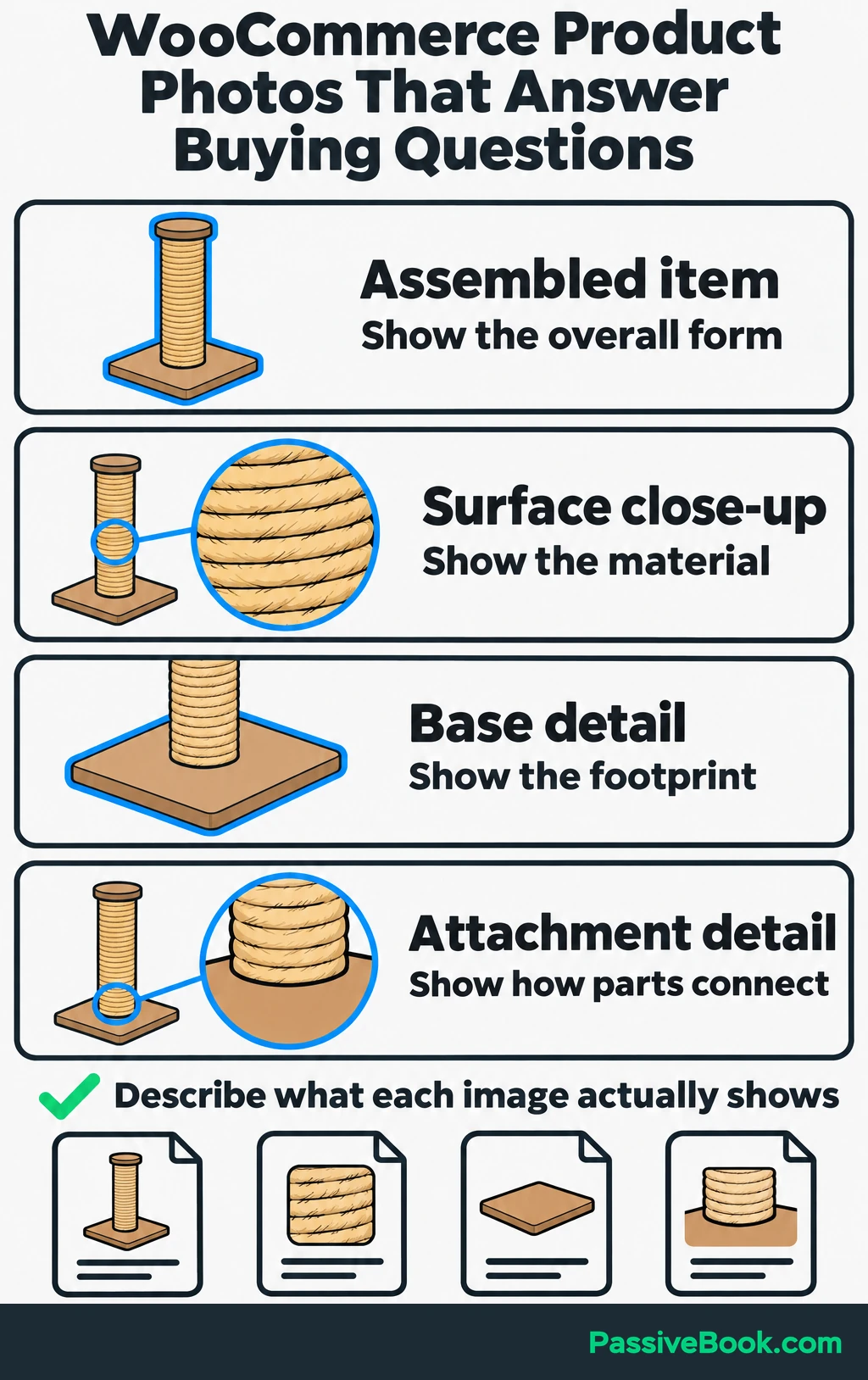
Place each detail photo near the information it explains. Name new files plainly, such as tallstead-sisal-post-base.jpg, rather than leaving them as camera-generated numbers.
Give informative images concise alt text, which provides a text alternative for people who cannot see them:
Sisal scratching post with a square base and removable top.
Describe what the image actually shows. A close-up of the attachment needs a description of that attachment, rather than the same sentence used across the gallery.
Purely decorative images should have empty alt text, as W3C’s image guidance explains. Product photography usually carries information, so give it the same attention as the written specifications.
Control Duplicate and Unwanted URLs
A store can produce several addresses for the same item or selection. Decide which pages deserve search visibility and which exist only to help someone shop.
Handle Variations and Filtered Collections Deliberately
For ordinary size or color choices of the same item, I would usually use a WooCommerce variable product: one product page with selectable options.
Create separate pages when the items represent distinct products and buying decisions. A complete scratching post and its replacement section need different explanations.
For duplicate or very similar URLs, a canonical tag signals which address you prefer Google to use. Keep internal links and sitemap entries pointed at that same address. Google treats canonical declarations as signals, so conflicting settings make your preference less clear.
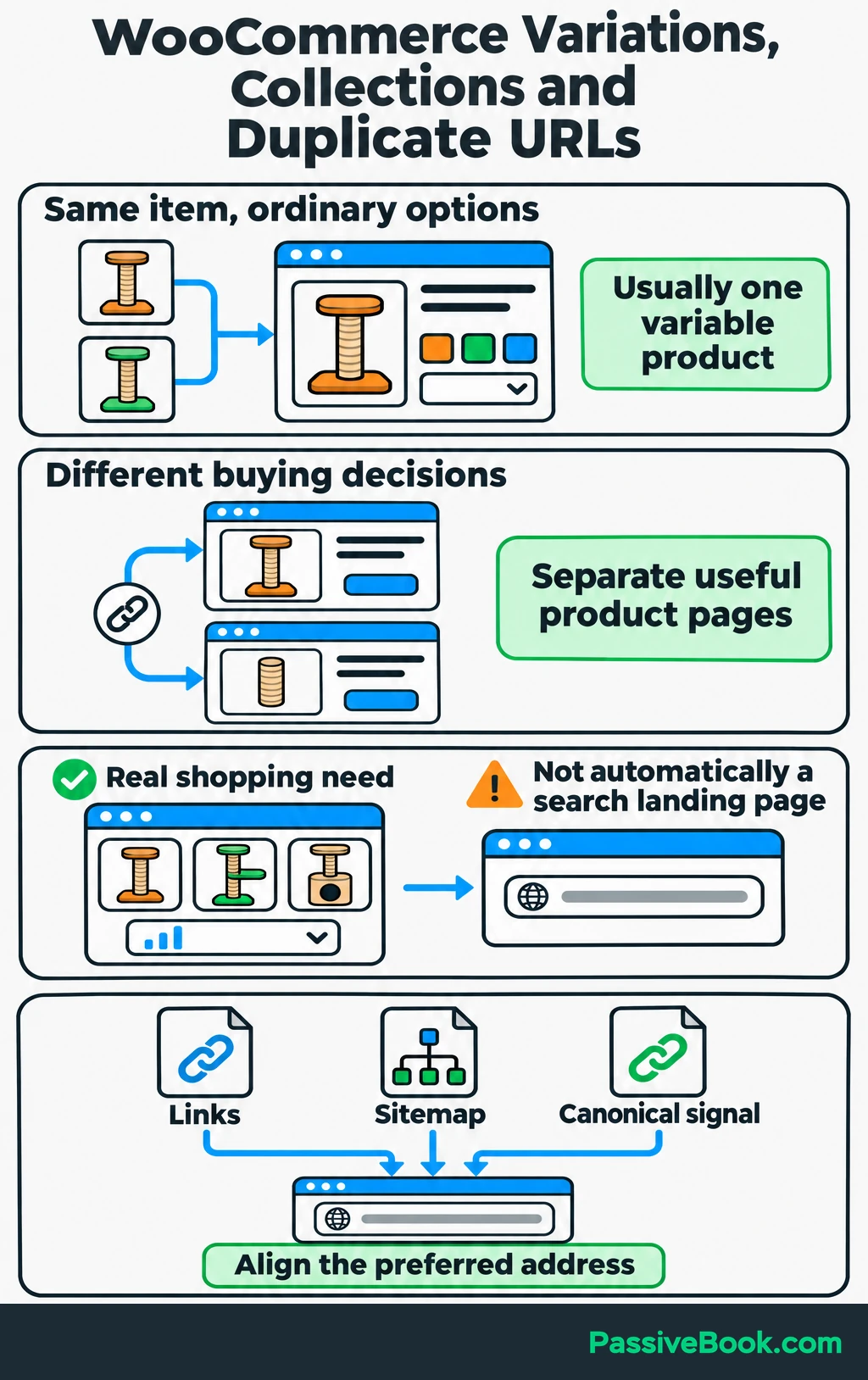
Review the URLs created by:
- Filters and sorting.
- Tracking parameters.
- Product tags.
- Internal search.
- Product variations.
A useful collection can remain indexable when it serves a real shopping need. But “sisal posts sorted by price” usually doesn’t need another search landing page.
Check that cart, checkout and account pages have appropriate noindex settings. Google must be able to crawl the page to read the instruction, so blocking crawling can prevent Google from seeing noindex. Account security still needs proper login protection.
Large filter-generated URL spaces need a separate crawling plan. If unwanted combinations are consuming substantial crawl activity, get help restricting those specific patterns while preserving access to products and useful collections. Avoid copying a broad blocking rule into a live store without checking what it matches.
Preserve Useful Pages When Products Change
Keep a temporarily unavailable product page live. Show its stock status clearly and offer relevant alternatives.
During a temporary shortage, keep the stock status consistent on the page and in the product data your plugins send to Google. If you use Google Merchant Center to manage your catalog for Google’s shopping listings, update it too. Google’s availability requirements distinguish items you aren’t accepting orders for from backorders you still accept.
A retired product page may also remain useful. Someone could need its dimensions, assembly instructions or replacement-part compatibility long after you stop selling it.
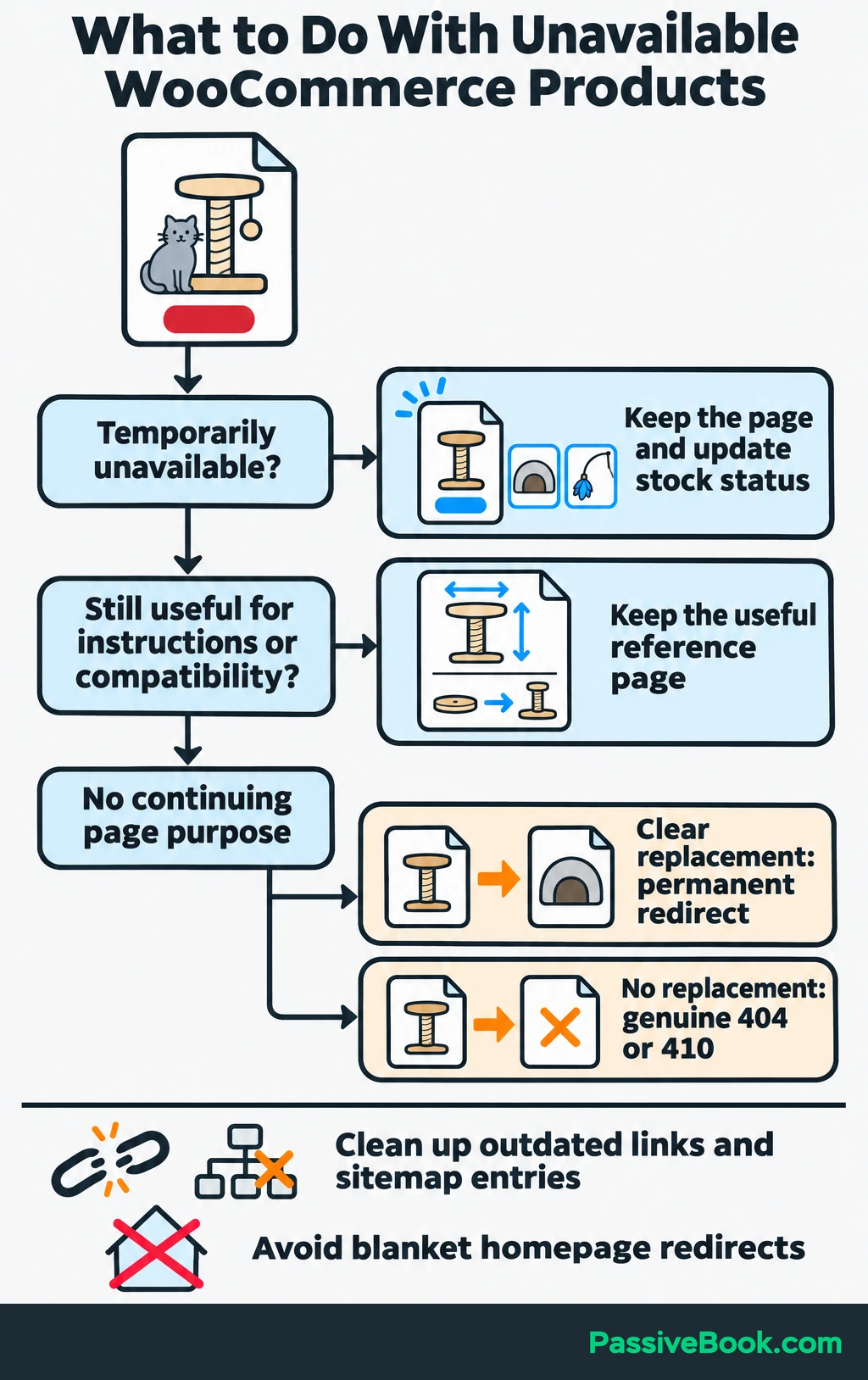
When the page no longer serves a purpose:
- Redirect it to a clear replacement when one exists.
- Otherwise return a genuine 404 or 410 response, which signals that the page is missing or gone.
- Remove outdated internal links and sitemap entries.
Google removes indexed URLs returning these error responses over time. Avoid sending every retired item to the homepage; a visitor following an old product link still needs a sensible destination.
Remove permanently discontinued products from your Merchant Center product data, even when you keep an informative page on the website.
Make Products Eligible for Richer Google Listings
Product structured data, often called product schema, describes your offer in a format search engines can read. It can make products eligible for listings that show details such as price and availability.
Check what WooCommerce, your theme and existing plugins already generate before installing another schema tool. Fixing a conflicting price is more useful than adding a second version of it.
Test a representative simple product and a variable product with Google’s Rich Results Test. Check that the detected names, images, prices, currency and availability match the visible offers.
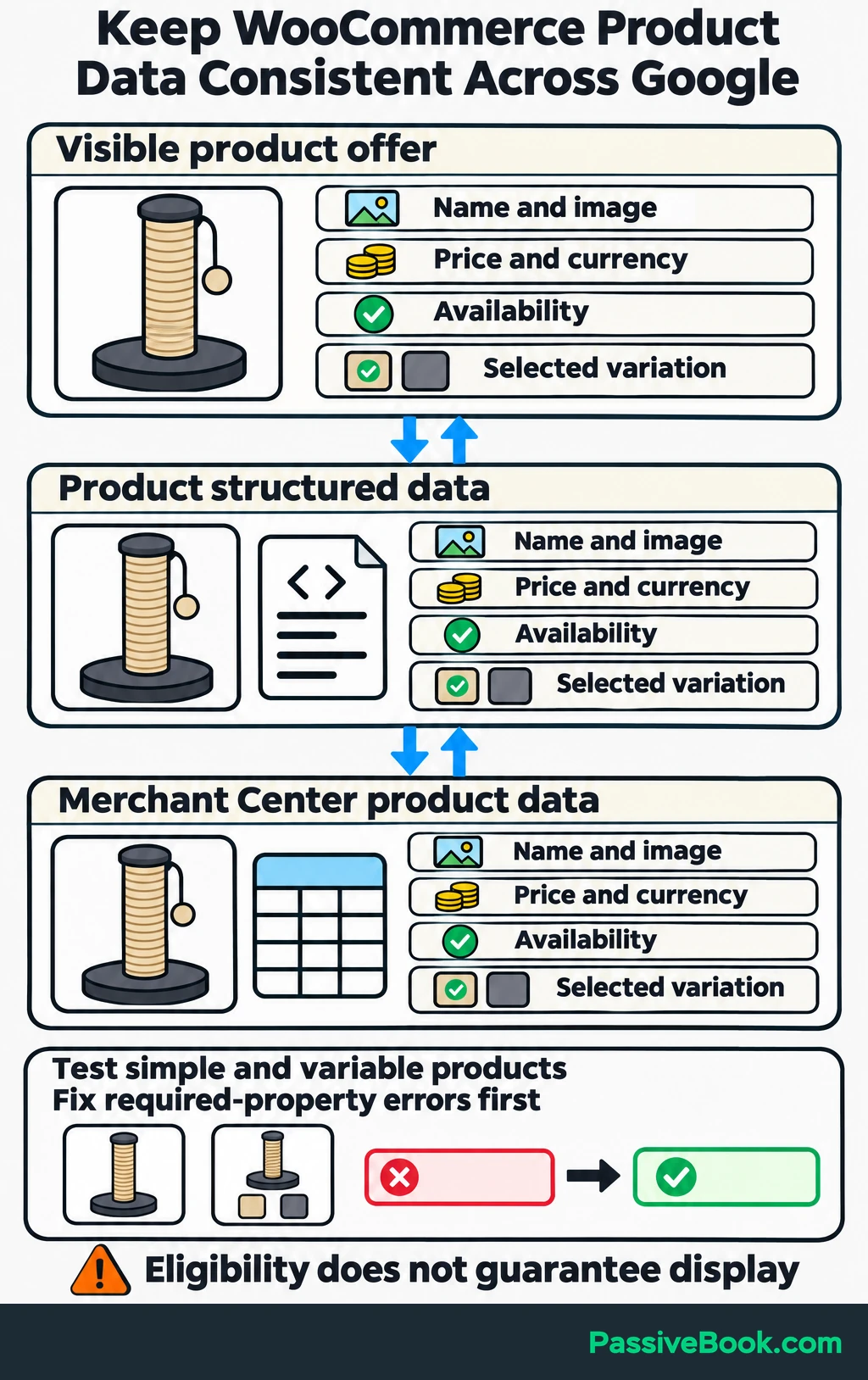
Fix required-property errors first. Google’s merchant-listing guidance separates critical errors from optional improvements.
For variations, check the grouping and the identifiers that distinguish each version. When all variations share one product page, use one canonical URL for the overall group and distinct URLs that preselect each variation. Those links should show the correct image, price, availability and purchase option. Google’s product-variant requirements explain this setup.
Once the product data is reliable, add eligible products to Google Merchant Center for free listings. Use a maintained WooCommerce integration to keep the catalog synchronized, then resolve disapprovals and provide shipping and returns information for the markets you serve.
Free listings can show eligible products across Google, but approval doesn’t guarantee display. Structured data and Merchant Center give Google complementary information; both need to reflect the offer a shopper can actually buy.
Improve Mobile Speed and Shopping Usability
Open the store on a phone and complete the shopping journey.
Start at a category, inspect a product, enlarge its images, choose a variation and add it to the cart. Check delivery costs and complete a test payment.
This catches problems a speed score cannot explain. A variation selector hidden behind a banner can stop a purchase even when the page loads quickly.
Then use PageSpeed Insights to diagnose representative category and product pages. Review real-user data when available and use the test results to identify likely bottlenecks.
Google’s Core Web Vitals cover three parts of the experience:
- LCP measures loading performance, including when the largest visible content appears.
- INP measures responsiveness when someone interacts with the page.
- CLS measures visual stability, including unexpected movement while the page loads.
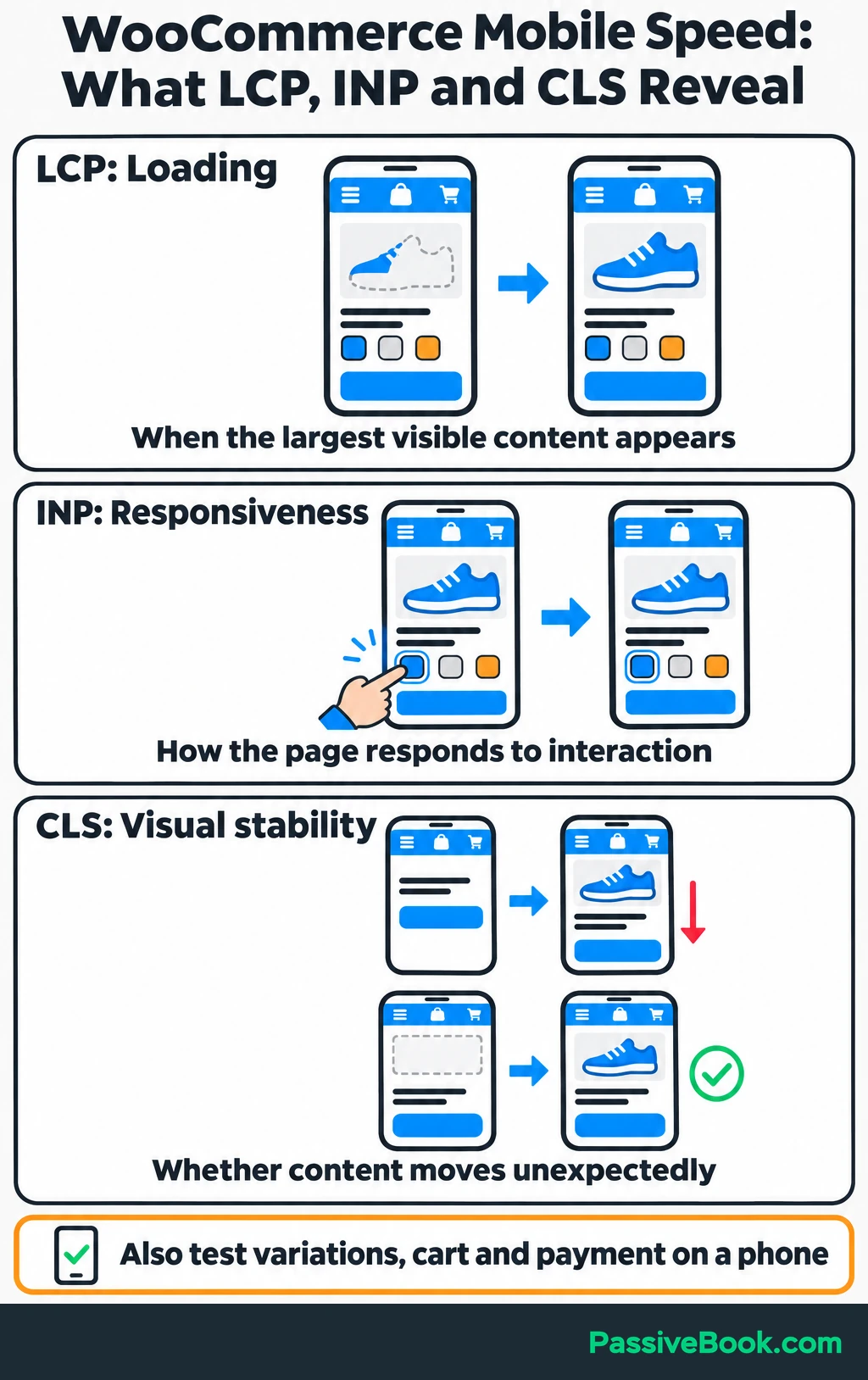
These measures describe loading, responsiveness and visual stability. Use them to choose a fix rather than chasing a score without a clear problem.
Common fixes include resizing oversized images, compressing files, reserving space for images, removing unnecessary scripts and investigating slow server responses.
I favor GeneratePress when choosing a WordPress theme, but I would keep a functioning WooCommerce-compatible theme unless testing shows a reason to replace it.
If caching is the identified need, WP Rocket is my preferred option. Check existing hosting features first, and confirm that cart, checkout and account pages stay out of shared page caching. WooCommerce identifies these pages as customer-specific and dynamic.
After performance changes, retest variation selection, cart totals and checkout. A faster page still needs to sell the correct item at the correct total.
Publish Useful Guides That Lead Shoppers to Products
Choose questions that connect naturally to what you sell.
For the example store, I would start with “How to choose a cat scratching post.” An unrelated pet topic might bring visits, but it gives those visitors a longer journey to a relevant product.
Answer the question before recommending an item. Explain how to compare dimensions, available floor space, scratching materials and replacement options. Then show which products meet the stated requirements.
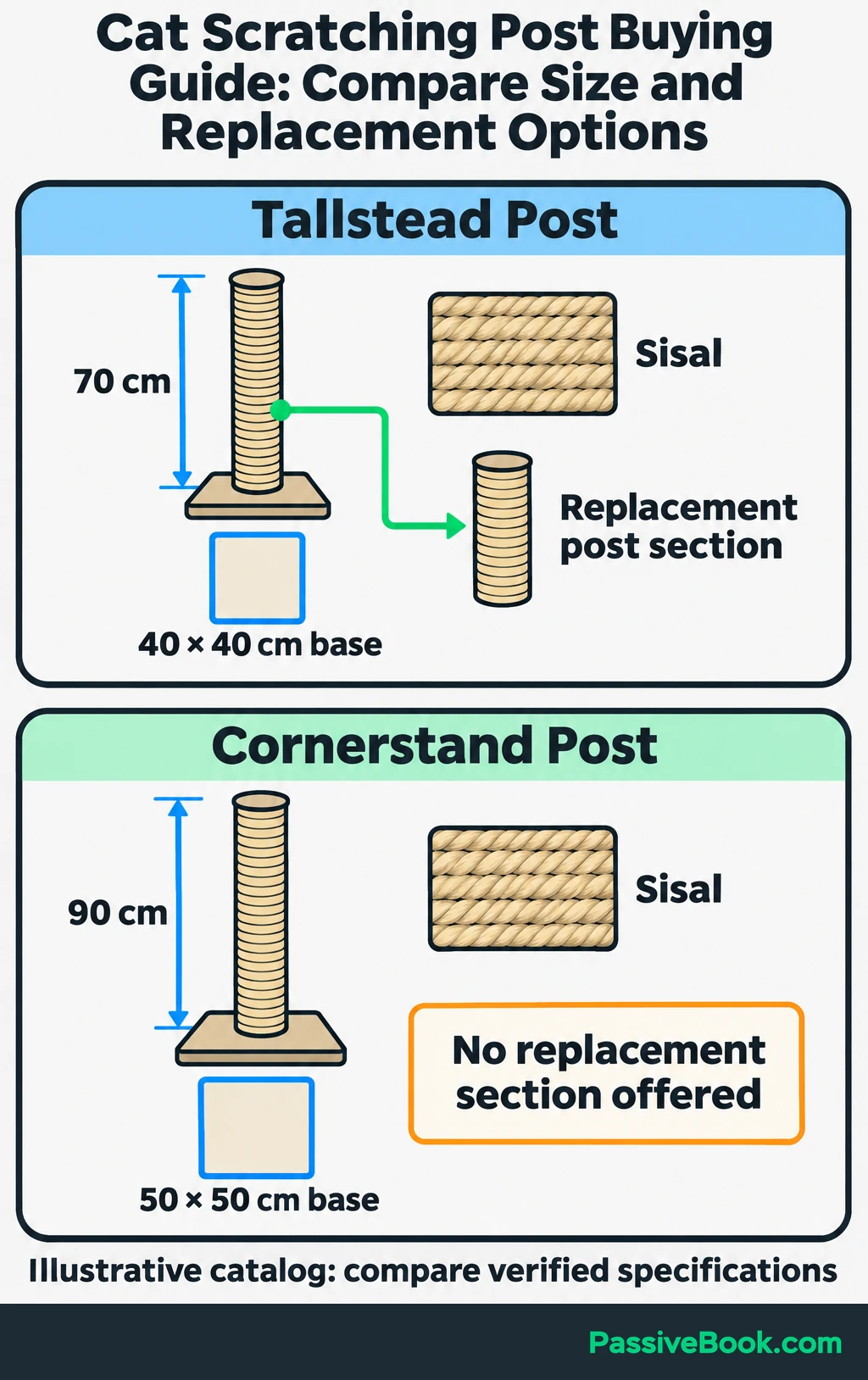
A compact comparison can make those differences easier to use. In the illustrative catalog, it might look like this:
| Stocked Product | Assembled Height | Base Dimensions | Scratching Material | Replacement Parts |
|---|---|---|---|---|
| Tallstead Post | 70 cm | 40 × 40 cm | Sisal | Replacement post section |
| Cornerstand Post | 90 cm | 50 × 50 cm | Sisal | No replacement section offered |
Add original photographs, dimension diagrams or documented comparisons where they resolve a buying question. Keep performance claims within what you can support.
If an existing guide already answers the question, improve it before creating another page on the same subject. I would choose one useful buying guide over a publishing schedule full of loosely related pet trivia.
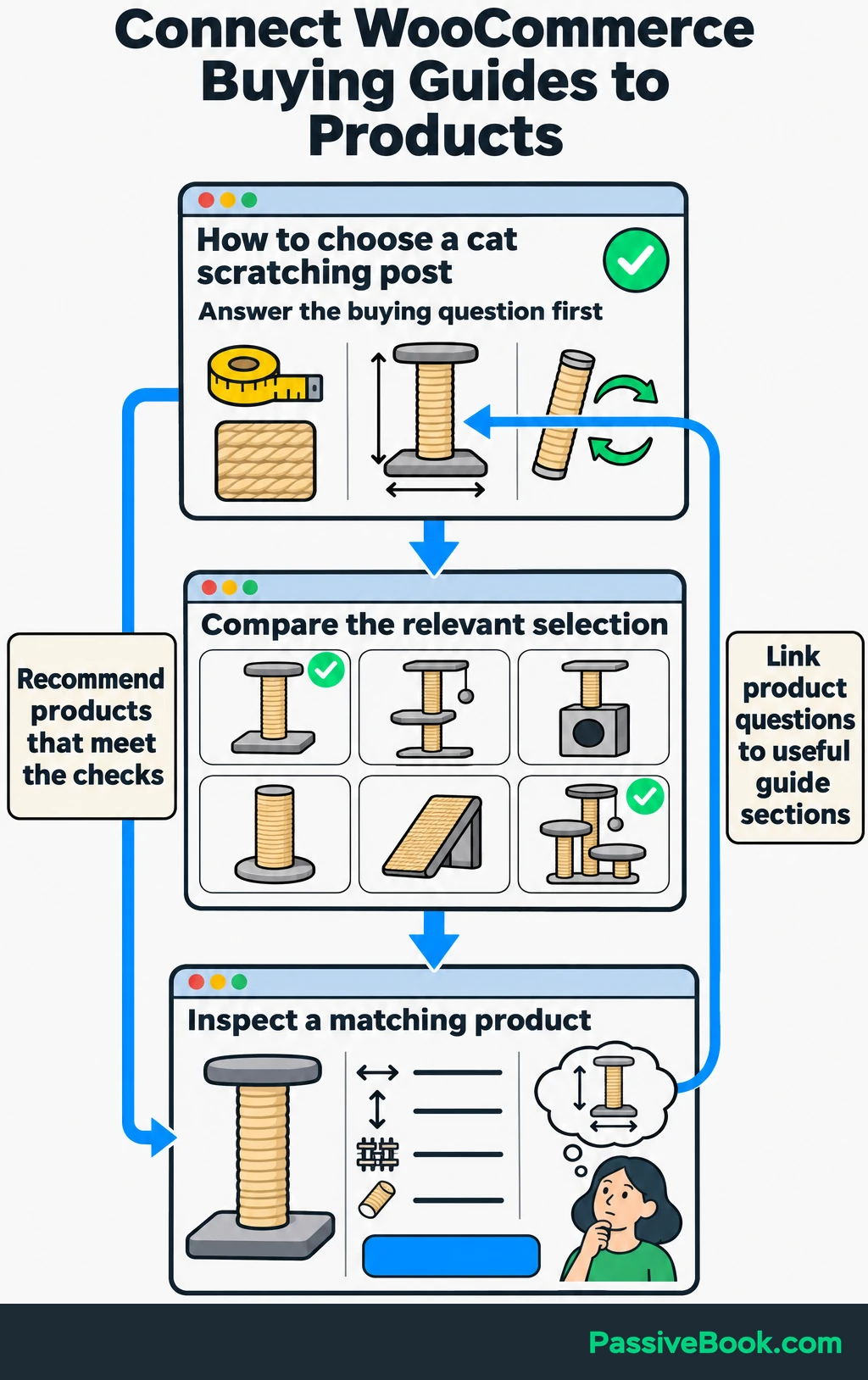
Link the guide to the relevant category and products, and link product-page questions back to the useful part of the guide.
For promotion, offer an illustrated guide to publications serving the same customers when it answers a question their readers ask. If you stock a manufacturer’s products, check whether it maintains a retailer directory.
Skip links sold for ranking purposes. When money or products compensate a publisher for a link, ask them to qualify it with rel="sponsored" or rel="nofollow", in line with Google’s link-spam policies.
Use Search and Sales Data to Choose the Next Improvement
Search data helps you understand how people find the store. Shopping data helps you understand what happens after they arrive. You need both to decide where another hour of work belongs.
Verify That Sales Tracking Works
A basic Analytics tag doesn’t automatically track shopping activity. Ecommerce tracking needs additional setup. Check whether your existing integration records product views, cart additions, checkout starts and purchases before adding another.
Complete a test order and verify:
- The transaction ID matches the WooCommerce order.
- The value and currency are correct.
- The order produces one purchase event.
- The earlier shopping events appear as expected.
Test each payment method customers use. If you have a consent banner, check that Analytics follows both the accept and decline choices.
Compare recorded purchases with WooCommerce orders before trusting the dashboard. Consent choices and other tracking gaps can leave some orders unrecorded in Analytics.
Diagnose the Constraint and Repeat
In Search Console, filter the report to your chosen category or product page. Review its queries, impressions, clicks and click-through rate—the share of impressions that produced clicks.
Separate searches containing your store or product brand from broader searches that could introduce new shoppers. Otherwise, growing brand awareness can hide weak visibility for the product selection itself.
Review the pages where search visits begin and the sales those sessions generate. In Analytics’ “Landing page” report, filter “Session default channel group” to “Organic Search,” then compare sessions, purchases and purchase revenue.
Check Organic Shopping separately when visits are classified there. Google’s channel definitions distinguish these traffic groups, so an Organic Search report alone may miss relevant unpaid shopping traffic.
Use the reports to choose a first investigation:
| Observed Problem | First Check | Next Action |
|---|---|---|
| A priority product is missing from Google | Recorded indexing status and live accessibility | Resolve unintended blocking, then inspect again |
| Relevant impressions produce few clicks | Search-query fit and the displayed preview | Clarify the title and check that the page meets the search need |
| Product visits rarely lead to cart additions | Product details, variation controls and visible costs | Answer missing questions and test adding the item |
| Cart activity rarely leads to purchases | Delivery costs, payment failures and checkout behavior | Surface costs earlier and fix the observed checkout problem |
These are starting points for investigation. Low click-through rate, for example, can also reflect ranking position and competing results, so inspect the actual searches before rewriting everything.
To see how traffic and sales connect, count organic sessions and the completed orders generated during those same sessions over the same reporting period.
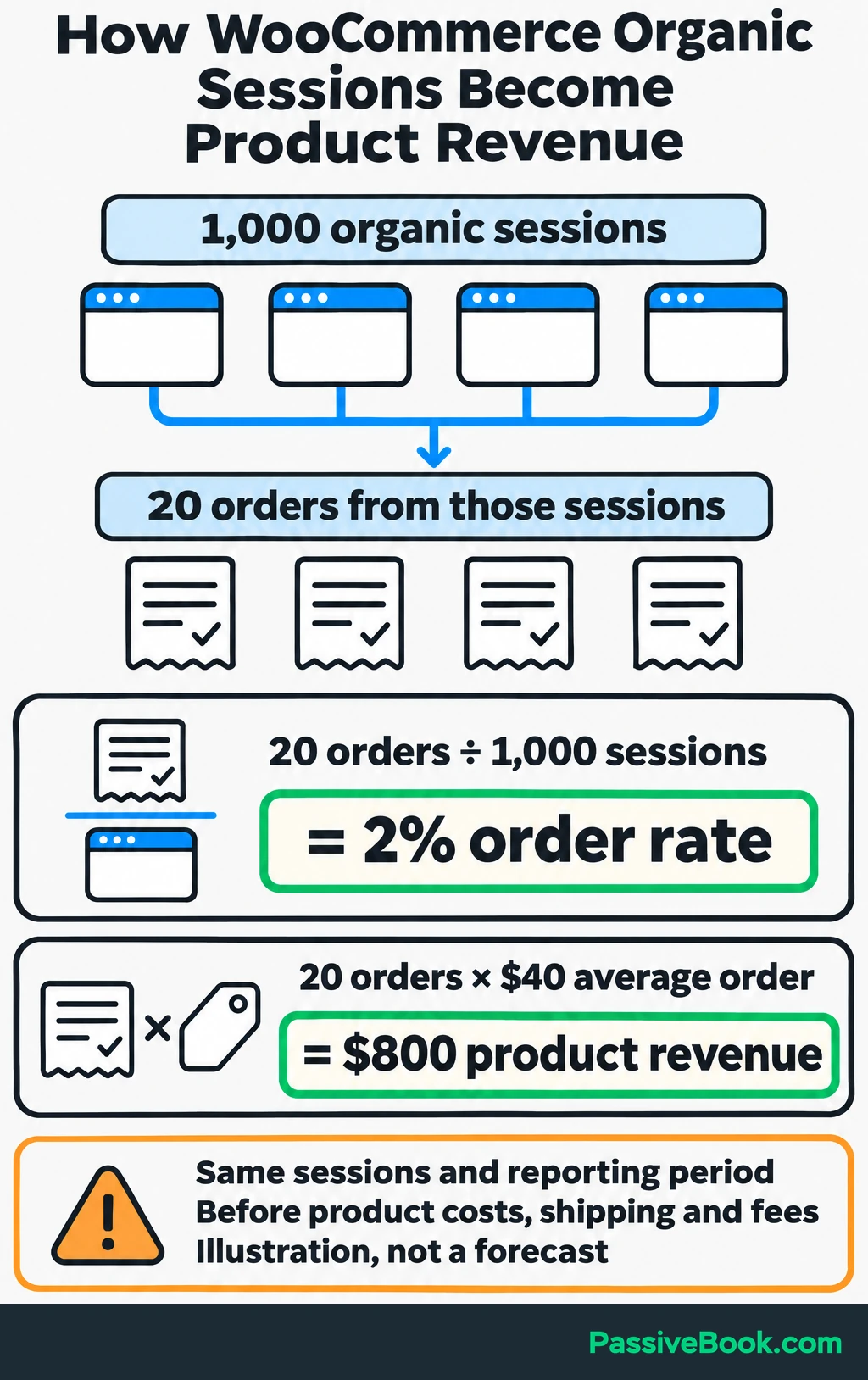
Suppose the example store receives 1,000 organic sessions and those sessions generate 20 orders:
20 orders ÷ 1,000 sessions = 2% order rate
If those same 20 orders average $40 in product revenue:
20 orders × $40 = $800 in product revenue
That revenue is before product costs, shipping expenses and fees. The figures illustrate the relationship, rather than a forecast: more qualified visits, a higher order rate or a larger average order can each change revenue.
Compare equivalent periods and note promotions, stock changes and seasonal demand. When orders are sparse, use a longer window rather than letting one extra purchase dictate your next month of work.
Keep a simple change log with the URL, change date, what changed and the relevant search and sales figures. Fix urgent breakages immediately, but let the amount of useful data determine when you judge ordinary improvements.
Then repeat the process with the next category. Add verified descriptions, internal links, images and structured-data checks to your new-product checklist so future listings start with the basics covered.
What Next?
Pick one category and inspect its URL in Search Console. Save its current search report, then choose the single problem most likely to block discovery or a purchase.
Use the social buttons to share this guide when a store-planning conversation turns into a shopping list of SEO tools. It gives that conversation a practical place to start.
Where does your store’s journey seem weakest: getting found, earning the click or completing the order? Tell me in the comments, and bring any other questions too.
Share this post with your friends & followers:

