You have products ready to sell, but few shoppers arrive from Google. Meanwhile, every paid campaign asks for more money before you know whether those visits will turn into orders.
The frustrating part is choosing what to fix. Product descriptions, keywords, site speed and blog posts all compete for the same spare evening, and busywork can look suspiciously like progress.
To make that evening count, this guide gives you a practical order for improving your store’s visibility in Google and helping the shoppers who find it choose what to buy.
Check That Google Can Index Your Store
Before rewriting product descriptions, check whether Google can access your important pages.
Google first discovers a page, then crawls it to read its content, and may add it to its index. Indexing makes a page available for search results. Ranking determines where it appears for a particular search.
Start with Google Search Console, Google’s free tool for checking search visibility and indexing. Verify ownership of your store, then paste one important category URL into its URL Inspection tool. Repeat with a product URL.
For each URL, compare the indexing report with a live test using Test Live URL. The report shows what Google found earlier; the live test checks current access.
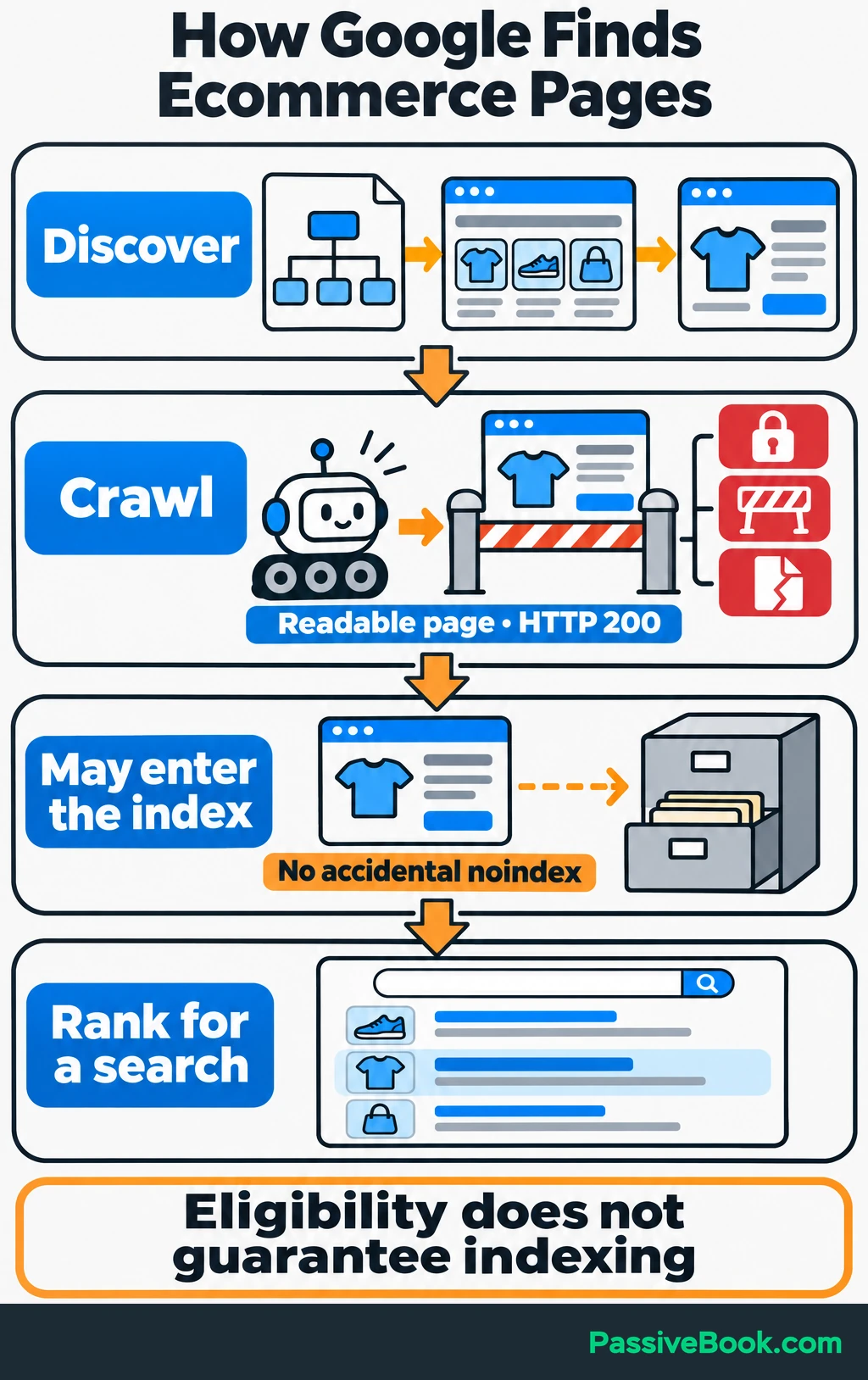
Look for three basic problems:
- A storefront password prevents public access.
- A crawler block prevents Google from reading a shopping page, or an accidental
noindexinstruction tells it to leave the page out of search results. - The URL returns an error instead of a working page with readable content.
Google requires accessible, indexable content and an HTTP 200 response—the server’s success code for the page. Meeting those requirements makes a page eligible for indexing; it does not guarantee inclusion. Google’s technical requirements.
Next, submit your platform’s XML sitemap in Search Console. This file lists the preferred pages you want search engines to discover. Use working URLs intended for search, and check any reported processing errors. A sitemap helps discovery but does not guarantee indexing. Google’s sitemap guidance.
I would investigate an excluded main category before worrying about duplicate URLs or account pages. Your goal is to get useful shopping pages considered, not make every URL in the report turn green.
Match Shopper Searches to the Right Pages
Start with what you sell and what customers ask before buying. List product types, sizes, materials, uses and common questions.
Then expand that list using:
- Queries already appearing in Search Console.
- Google’s suggestions for related searches.
- The categories and product names used by relevant competing stores.
- A keyword tool when demand estimates would help you compare choices.
Ubersuggest is the beginner tool I would try for that last job. I would skip a subscription until I had a specific research task for it. A tool bill is not evidence of an SEO strategy.
For the examples throughout this guide, imagine you run a store selling bread-baking supplies: proofing baskets, bread tins and dough scrapers. The searches, product names and copy below are illustrations, not measured keyword opportunities.
Before assigning a phrase to a page, search it in the market you serve. Look at the kinds of results Google shows. A selection of products suggests a category page. Results about a particular model suggest a product page. Instructions suggest a guide.
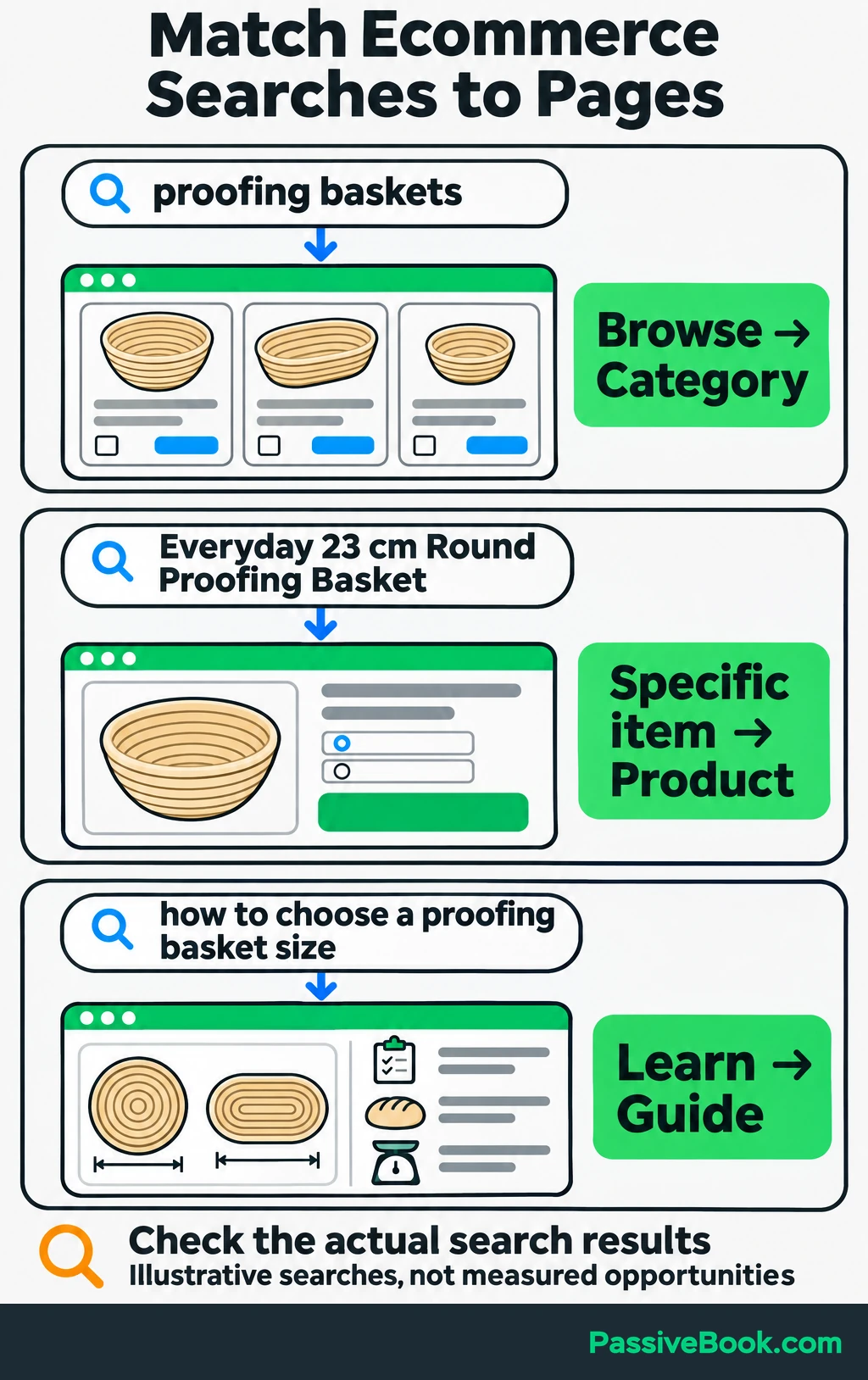
Group searches that express the same need, then choose one suitable destination for each group.
| Search Cluster | Shopper Intent | Destination URL | Page Type | Priority |
|---|---|---|---|---|
| “proofing baskets,” “bread proofing baskets” | Browse and compare baskets | /collections/proofing-baskets/ | Category | First: organize the main selection |
| “Everyday 23 cm Round Proofing Basket” | Check or buy a specific item | /products/everyday-round-proofing-basket/ | Product | Next: answer item-specific buying questions |
| “how to choose a proofing basket size” | Understand sizing before choosing | /guides/proofing-basket-size/ | Guide | After shopping pages: explain the sizing decision |
These are destination examples, not instructions to change your platform’s URL format.
For an existing store, I would start with relevant pages that have clear gaps and already receive impressions, meaning appearances in search results. For a new store, I would begin with core categories and important products.
Give preference to pages with available stock, worthwhile margins and a strong match between the search and your offer. Search-volume and difficulty estimates help compare possibilities, but they do not predict your sales or rankings. A longer phrase is not automatically easier.
My jewellery store taught me the cost of skipping demand research. I launched with roughly $1,200, accumulated unsold inventory and lost most of the investment. I had spent money choosing products before doing enough work to understand buyers.
That was a business failure, not an SEO experiment. But it informs where I start now: check what people want before spending hours polishing a page for it.
Organize Your Store Around How People Shop
Once you know which pages serve which searches, make those pages easy to reach.
Connect Categories and Products With Useful Links
Use recognizable product groups in your main navigation: “Proofing Baskets,” “Bread Tins” and “Dough Scrapers” for our baking store.
Link each important product from a browsable category. Google generally does not use your store’s search box, so products available only there can be missed during crawling. Google’s ecommerce navigation guidance.
Add subcategories when they make choosing easier. Two nearly identical products probably do not need a miniature department store built around them.
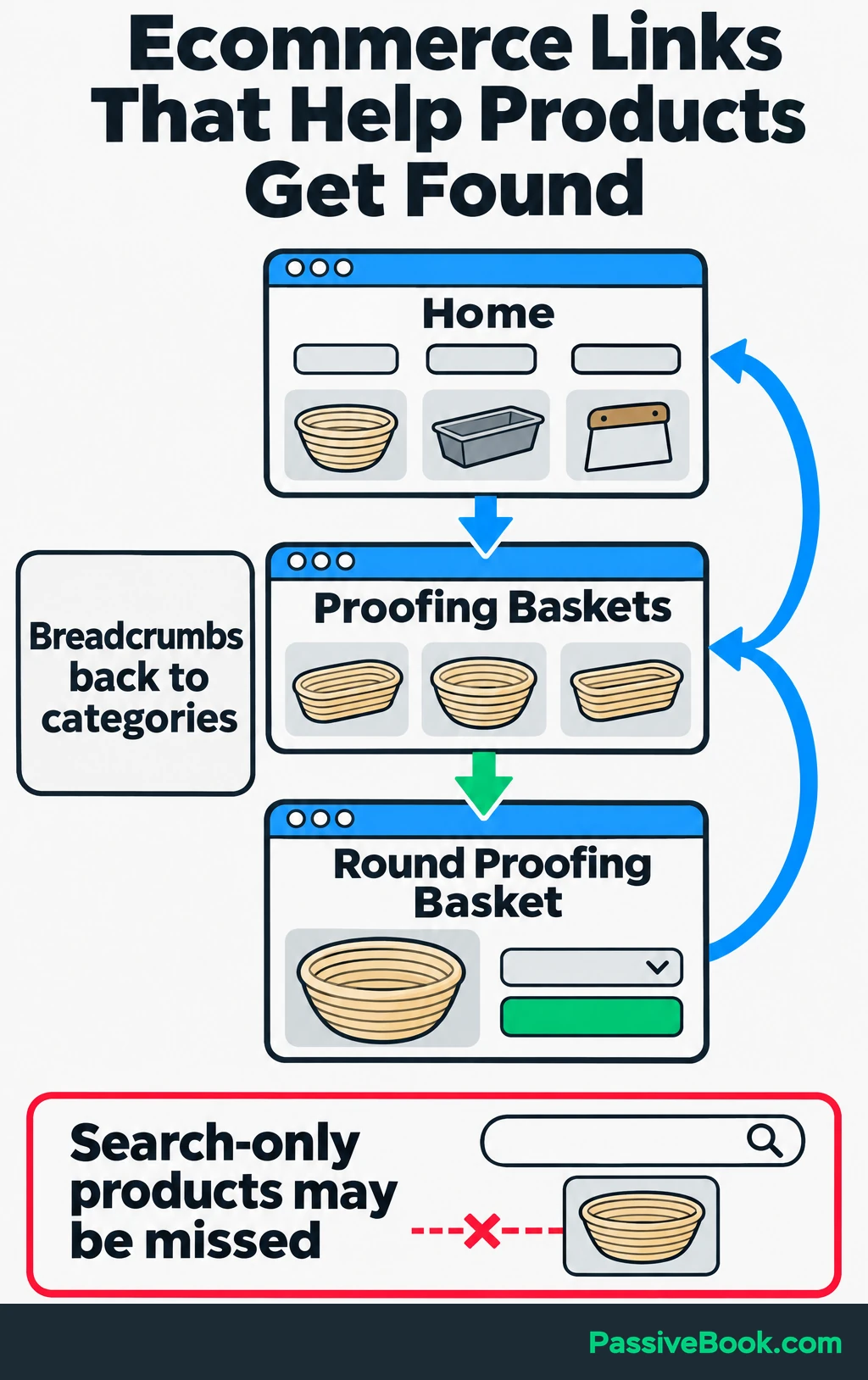
Breadcrumbs show the path back to broader categories, such as Home → Proofing Baskets → Everyday 23 cm Round Proofing Basket.
With “load more” or endless scrolling, ask your theme provider whether later products also have links Google can follow.
Keep useful existing URLs. When a page permanently moves, redirect its old address to the relevant replacement and update internal links.
Manage Filters and Duplicate URLs
Filters can generate many URLs. Give useful selections such as “oval proofing baskets” their own search pages when you stock enough choice.
Use platform settings to manage duplicate filter URLs. A canonical tag identifies your preferred version of duplicate or very similar pages. Google says it is less effective at limiting filter crawling than dedicated crawl controls. Google’s filter guidance.
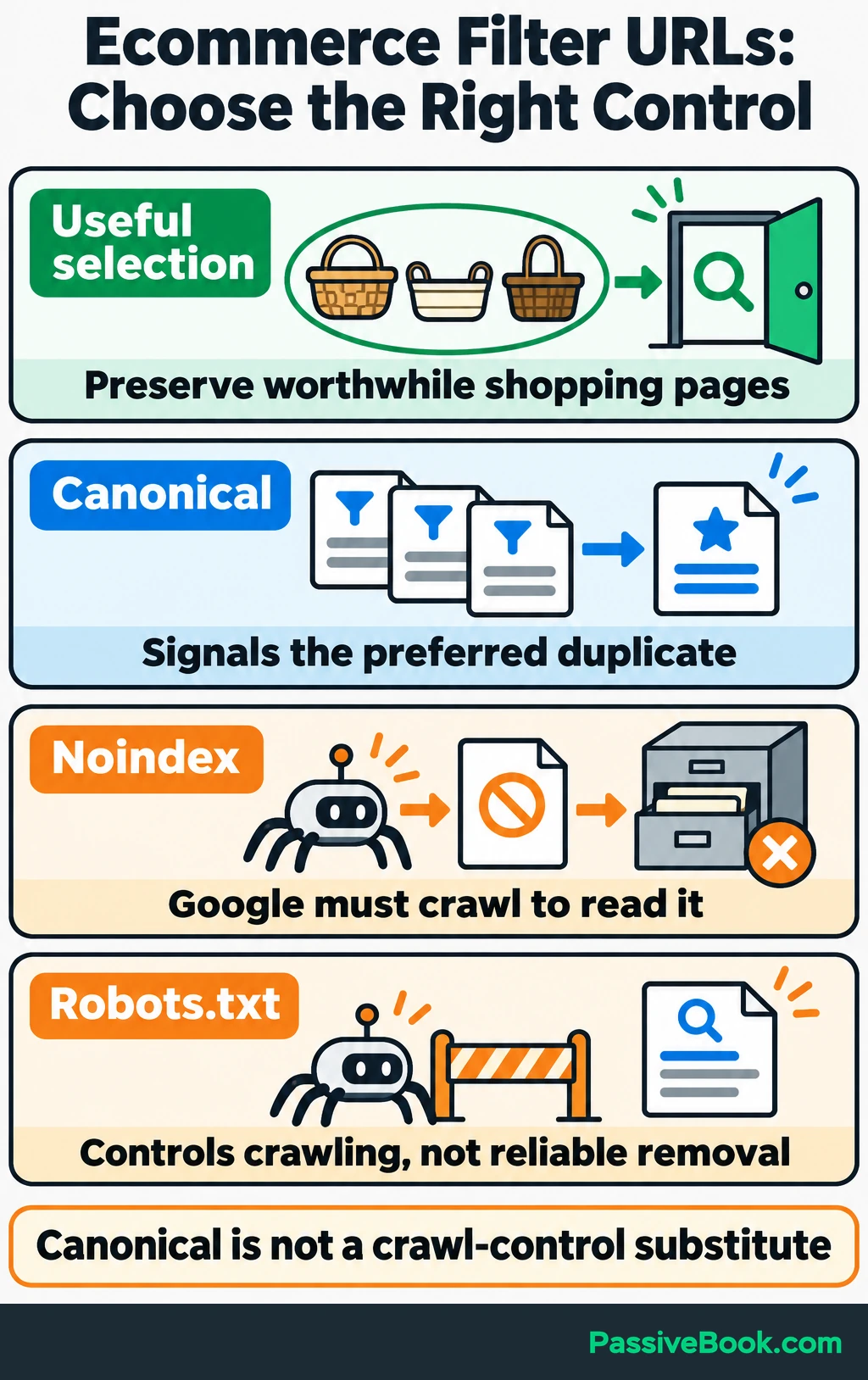
Cart, checkout, account and internal search pages are not SEO priorities. Where you use noindex, let Google crawl the page to read it. A robots.txt file controls crawling; blocking a URL there does not reliably remove it from search. Google’s noindex guidance.
Get technical help for rules beyond your platform’s settings. Show which unwanted URLs to address and which categories and distinct products to preserve.
Optimize Category Pages for Shopping Searches
A category page should help someone compare the products named in the search. Start with the selection itself.
If the page targets proofing baskets, display baskets and make their differences clear. A paragraph containing the right words cannot rescue a confusing assortment.
Give the page a distinct title and a clear main heading. The title describes the page for browsers and search engines; the H1 is the main heading shoppers see.
For our category:
- Page Title:
Proofing Baskets | Store Name - Main Heading:
Proofing Baskets - Selection Advice: Explain how to compare shape, dimensions, material and included liners.
- Product Cards: Show clear images, prices and the attributes shoppers need to compare.
Keep the product grid easy to reach. I would put a brief introduction above it and longer selection advice below it if that advice needs space.
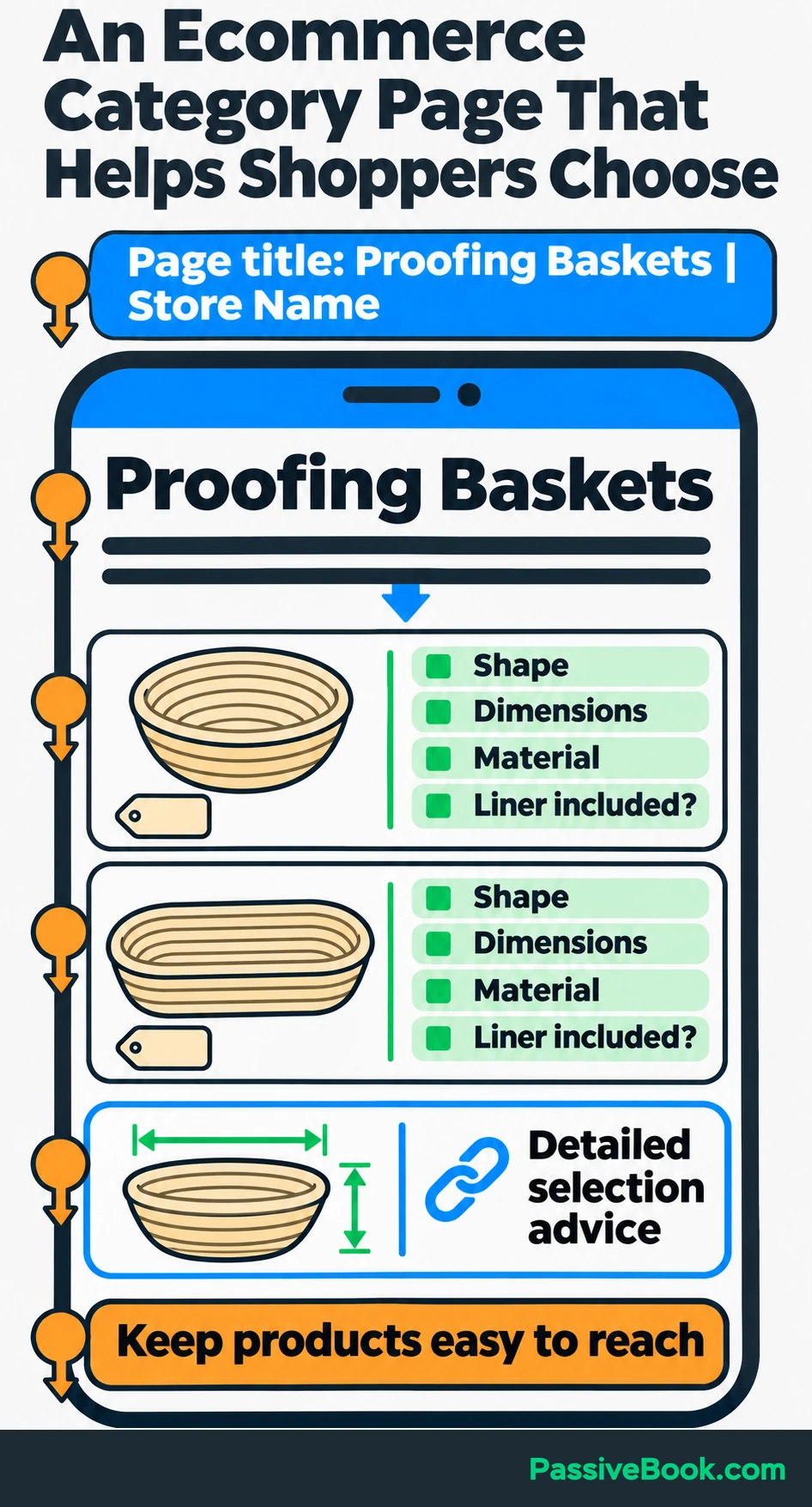
A short excerpt might read:
Compare round and oval proofing baskets by dimensions, material and whether a liner is included. Need help with sizing? Read our proofing basket size guide before choosing.
Only mention options actually available in the selection.
Write a page-specific meta description as well. This is a short summary that Google may use beneath your search result:
Compare round and oval proofing baskets by size, material and included liner. Find sizing advice to help you choose.
Google may choose relevant text from the page instead, so the description is not a fixed preview you control. Google’s snippet guidance.
I would stop writing when the important selection questions are answered. There is no useful reason to pad a category with generic paragraphs to reach a word count. If two categories offer almost the same selection for the same need, improve their distinction or consider combining them.
Build Product Pages That Answer Buying Questions
Category pages help people choose among products. Product pages should help them decide whether one item fits their needs.
Start with products you can sell and fulfil, and check their source information before writing.
Explain and Show the Product Clearly
Use a specific name that identifies the item and its defining attribute. Our illustrative H1 is “Everyday 23 cm Round Proofing Basket.” The page title can add the store name where useful.
Build the description from verified information:
- Dimensions: State what was measured and include any relevant internal or external measurements.
- Material: Name the confirmed material and any included components.
- Suitability: Explain supported uses and manufacturer capacity guidance.
- Care: Give the supplier’s verified cleaning and storage instructions.
- Package Contents: Make clear whether a liner or other pictured accessory is included.
Put size and compatibility information near the buying controls. Do not make someone scroll past your brand story to find out whether the product fits.
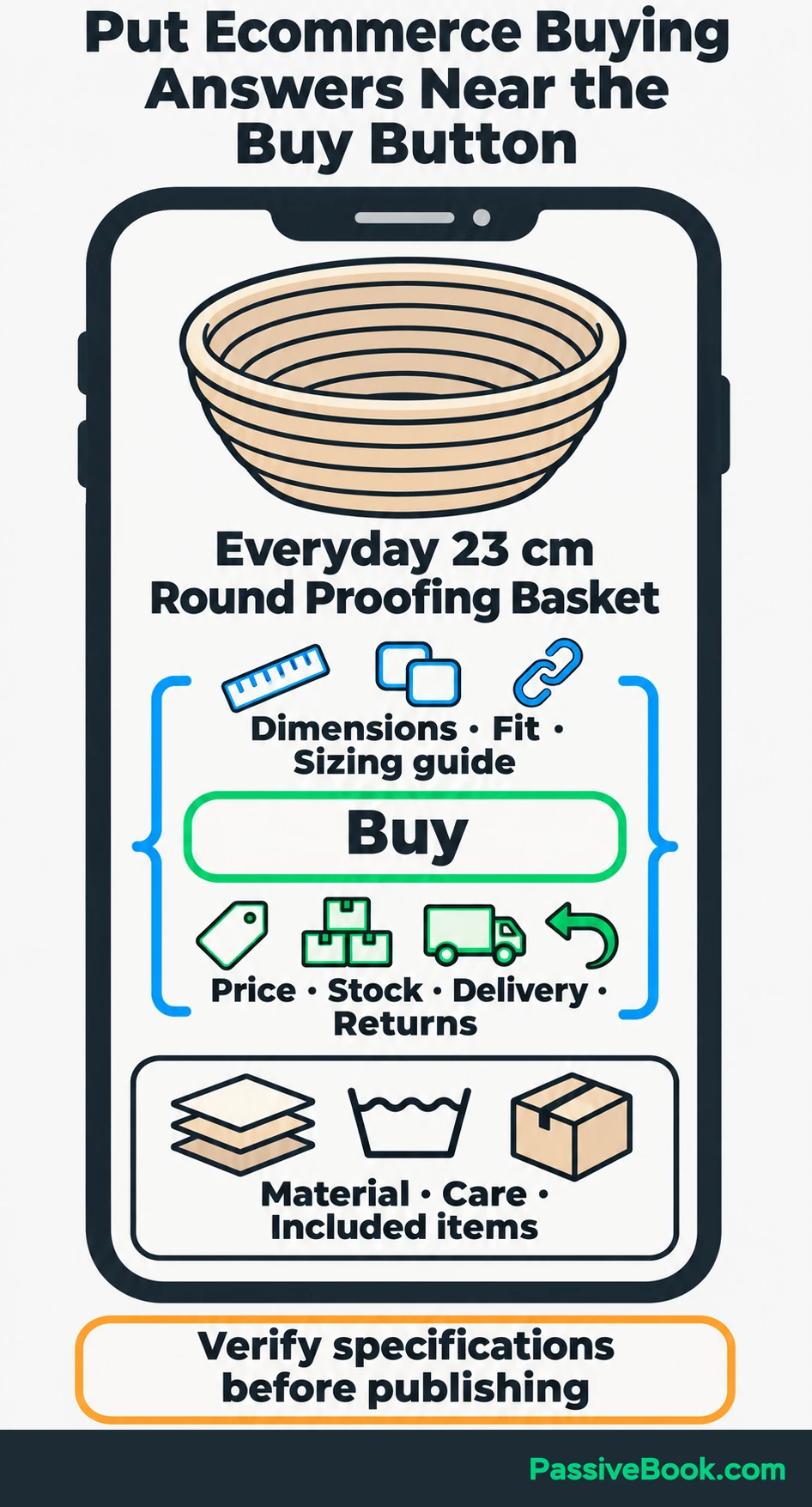
For the basket, link to the sizing guide beside the dimensions. Add manufacturer-supported dough-capacity guidance if available. If it is unavailable, do not turn a guess into a specification.
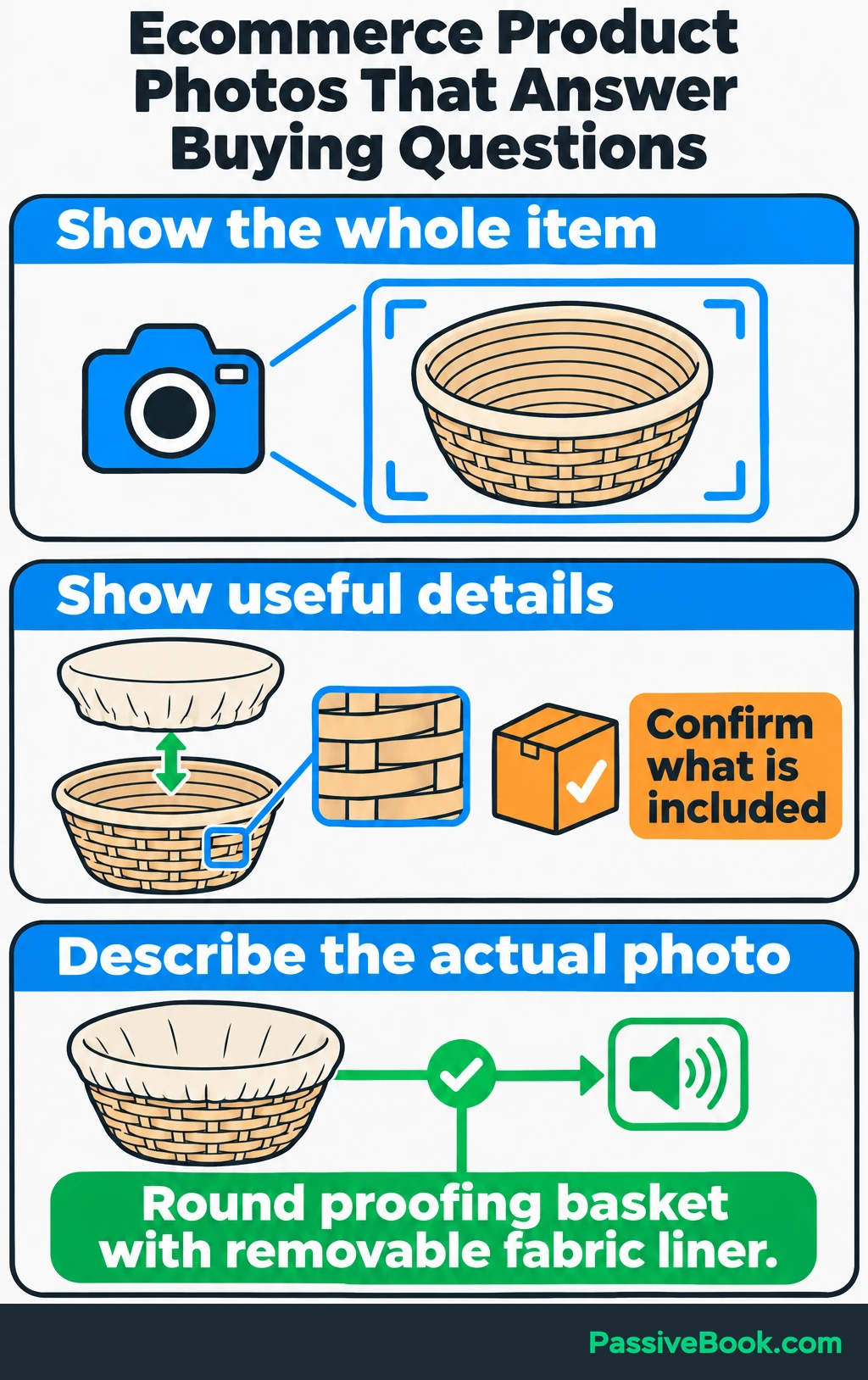
Show the whole product and useful details. Add alt text—a short description that helps people using screen readers understand the image. For a photograph that actually shows a liner, suitable alt text would be:
Round proofing basket with removable fabric liner.
Use descriptive filenames for new images, but write alt text to explain the image rather than repeat a list of keywords.
Make price, stock status, delivery information, returns and support easy to find. Add genuine customer reviews when available, and recommend complementary products only when they fit. A compatible liner earns its place; a random bread tin does not need to attend every basket purchase.
Write a product-specific meta description using the details that distinguish this item. Avoid copying the category description across the catalog.
I would start with one product, not rewrite the whole catalog at once. The copy tool below turns its verified details into a first draft, with missing information flagged for review.
Free AI Ecommerce Copy Studio




For a temporary stock gap, I would keep the page accessible, clearly mark the item unavailable and offer relevant alternatives. Update its product data too, so the visible page and machine-readable information agree.
Give Google Accurate Product Information
Structured data is product information written in a format search engines can read. Your store platform or an existing integration may already generate it, so check before adding another plugin or custom script.
For pages where shoppers can buy directly, check the product and offer data used for Google’s merchant listings—search appearances that can show details such as price and availability. Compare the name, image, price, currency and stock status with the visible page.
Use Google’s Rich Results Test to check representative product pages for structured-data errors. Include a simple product, one with options and an unavailable item if your catalog has them. Fix required-property errors, then check a few published pages before applying changes across the catalog. Google’s merchant-listing guidance.
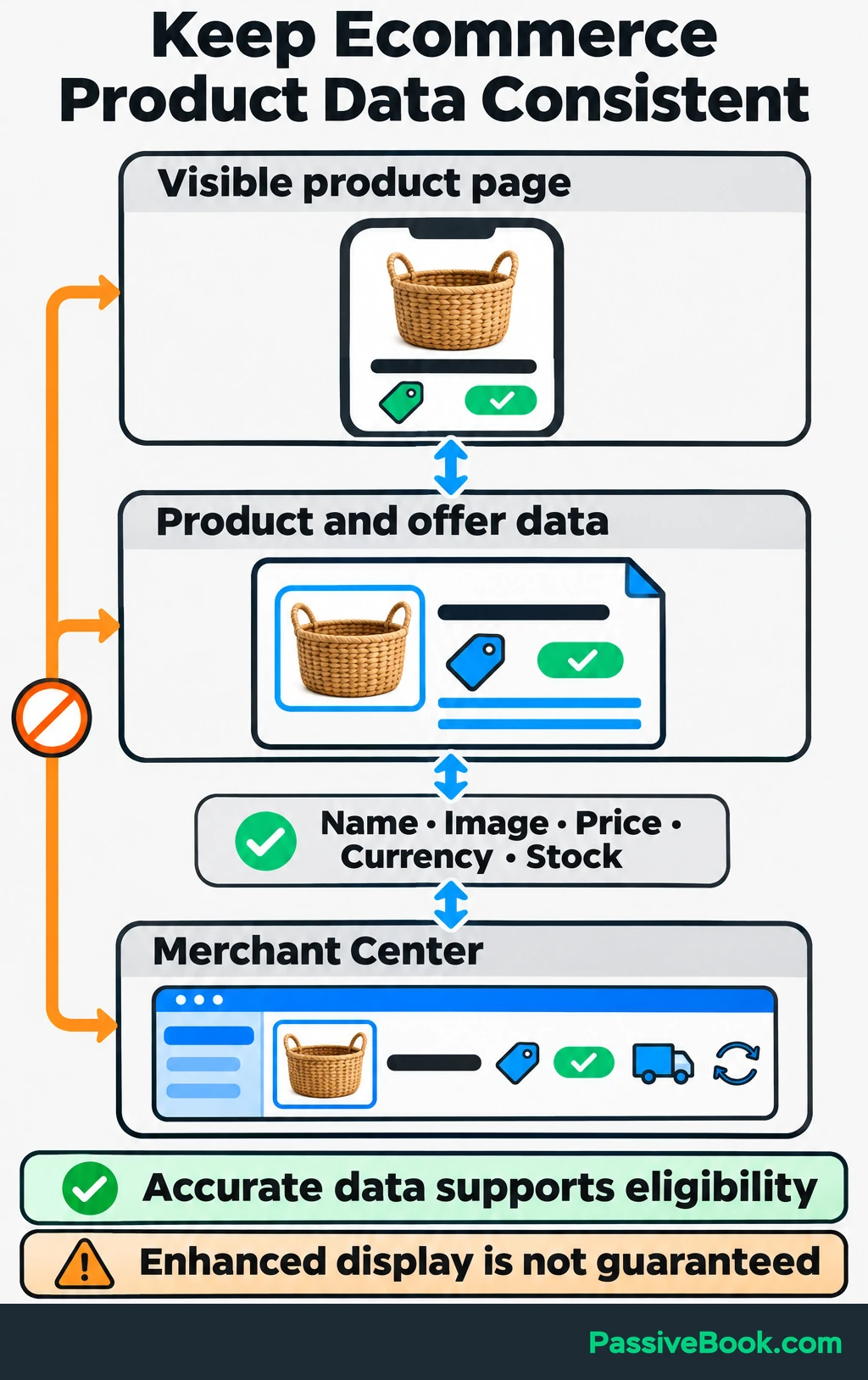
Correct data makes a page eligible for enhanced search appearances; their display is not guaranteed.
I would also connect eligible products to Google Merchant Center through a supported store integration. Merchant Center holds product information for Google’s shopping services, including unpaid listings.
Check reported eligibility problems and keep product URLs, prices, stock status, shipping and returns information synchronized. This provides another route to unpaid product visibility alongside ordinary search results. Google’s free-listing requirements.
Fix Mobile Shopping and Page-speed Problems
Test the store on a phone before studying a performance score.
Open a category, use its filters, choose a product option, read delivery information and complete a checkout test. Notice where the task becomes slow, confusing or impossible.
Then use PageSpeed Insights, Google’s page-performance tool, to investigate the affected category and product pages. Core Web Vitals measure loading speed, how quickly a page responds to interactions and unexpected layout shifts while people use it. Google’s Core Web Vitals guidance.
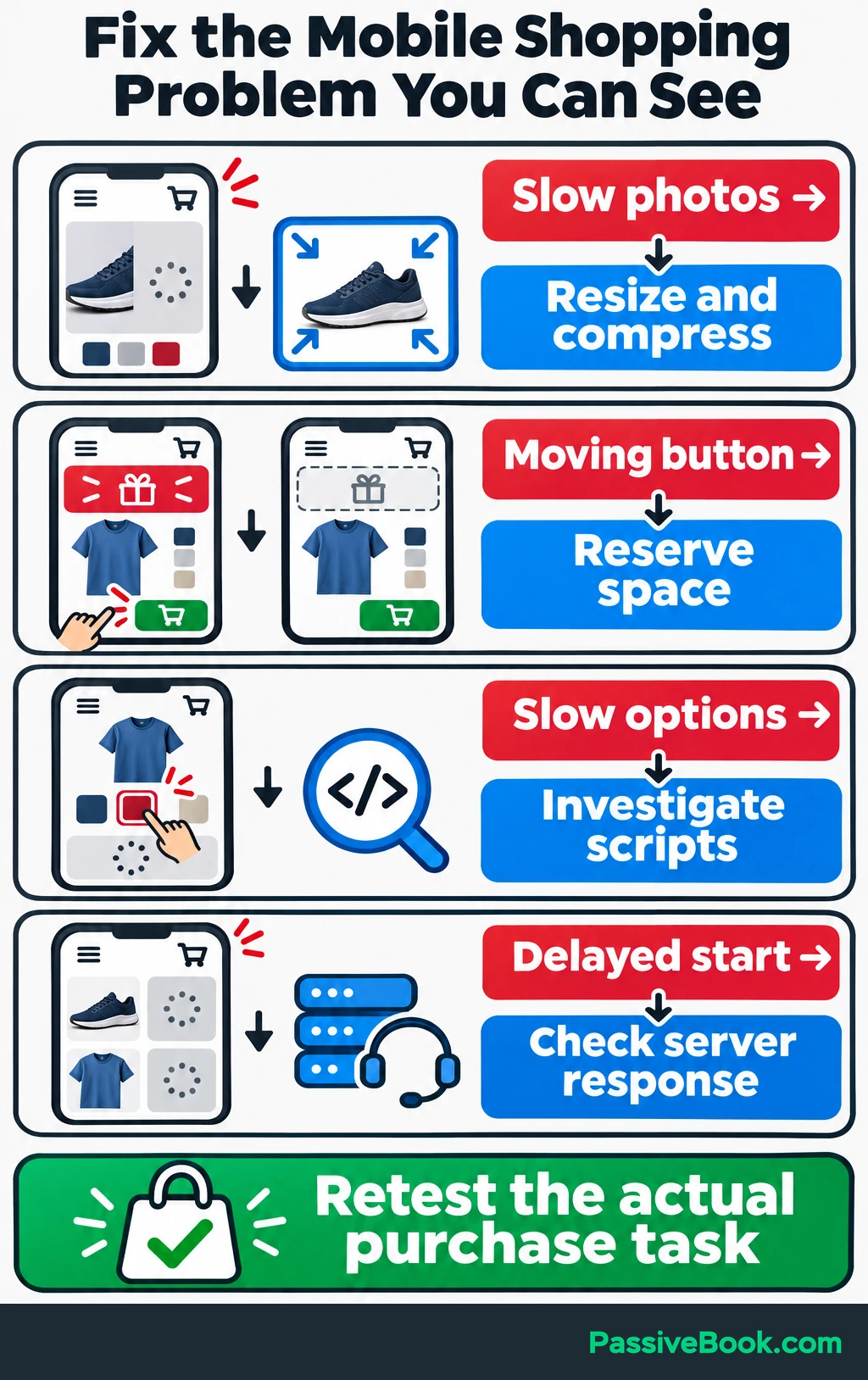
Match the fix to the observed cause:
| Observed Problem | Practical Fix to Investigate |
|---|---|
| Product photos take too long to appear | Resize oversized originals and serve compressed images suited to their display size |
| The buy button moves as a banner loads | Reserve space for images and banners |
| Filters or option selectors respond slowly | Check unnecessary scripts, apps and heavy theme features |
| The page waits before content begins loading | Ask the host to investigate server response time |
Prioritize shared templates because one fix may help many products. But retest the actual shopping task after a material change. A faster page with a broken option selector is still a broken shop.
When you need help, send the URL, what happened, the device used and the diagnostic result. “The basket selector freezes on my phone” gives support somewhere to start.
I would fix a delayed product image before spending an evening chasing a perfect tool score. The shopper has no interest in your certificate.
Publish Guides That Help Shoppers Choose
Once the core shopping pages work, answer the questions that need more room.
Start with questions about sizing, selection, comparisons or care that your category and product pages cannot comfortably explain. Customer enquiries are useful here because they reveal where the purchase decision gets stuck.
For the baking store, the first guide might explain how to choose a proofing basket size.
Teach the decision before introducing products. Explain how to compare:
- The loaf shape the shopper wants.
- The dough quantity they intend to prepare.
- The basket’s dimensions.
- Any manufacturer-supported capacity guidance.
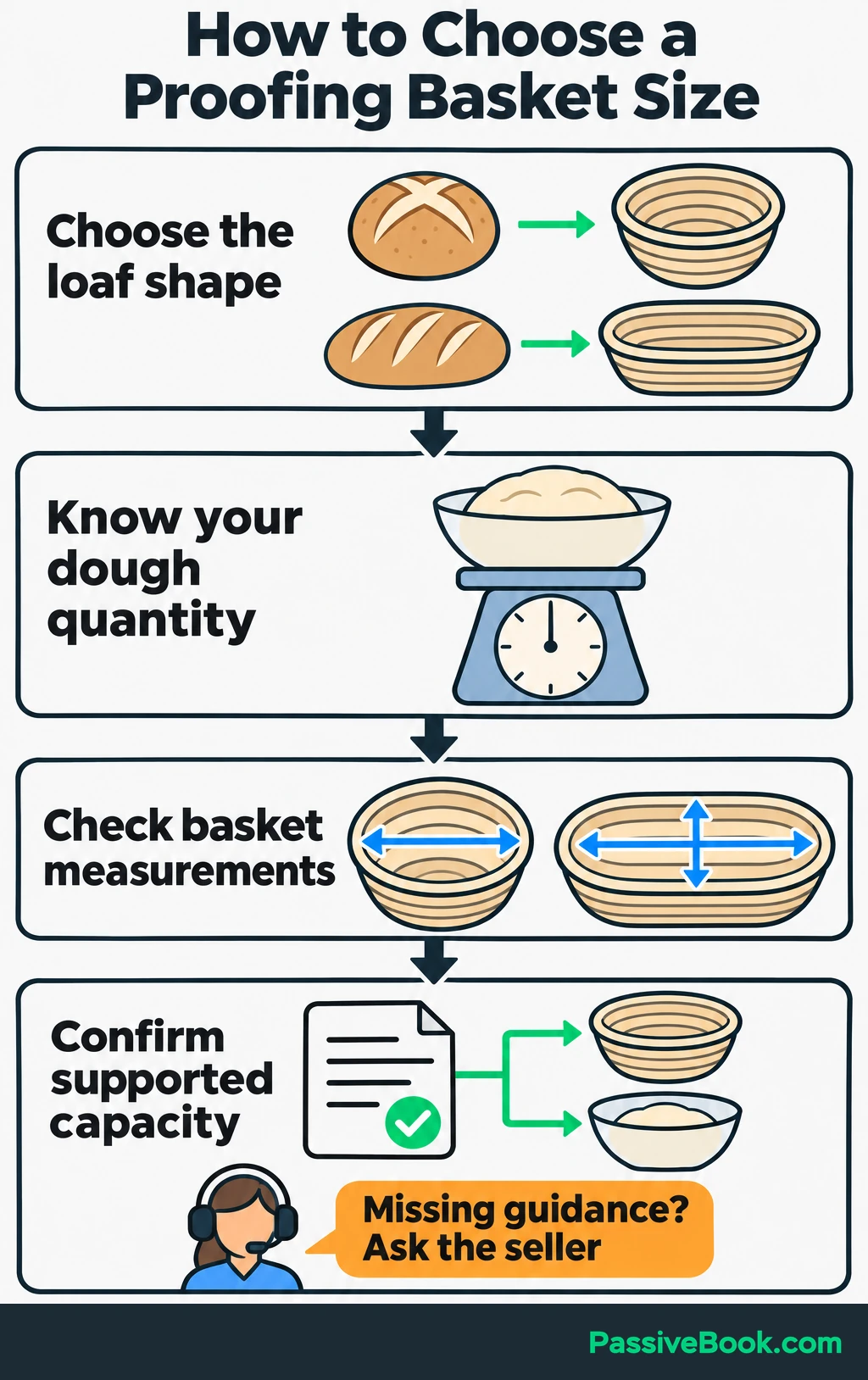
A useful passage could say:
Start with your usual dough quantity and intended loaf shape. Then compare the manufacturer’s capacity guidance for each basket. Where that guidance is missing, check with the seller rather than choosing from the product name alone.
Add original photographs that make the explanation easier to follow. You could show where basket dimensions are measured and how round and oval shapes differ.
Once the reader understands the choice, link to suitable baskets. Use descriptive link text such as “browse oval proofing baskets.” Link back from shopping pages with wording such as “choose a proofing basket size.”
I would improve a weak existing sizing answer before publishing another article on nearly the same question. Your calendar does not need five overlapping posts because an automation has five empty slots.
Publish when a distinct customer question deserves an answer, and keep that answer connected to the products it helps people choose.
Earn Relevant Links to Useful Pages
Begin with business relationships that already make sense.
If a supplier maintains a retailer directory and your store qualifies, request inclusion. If a publication has mentioned your store without linking, ask whether it can add the relevant URL.
You can also share a useful guide with a publication whose readers need it. For the baking store, that might mean introducing the illustrated sizing guide to an editor who covers bread-making equipment.
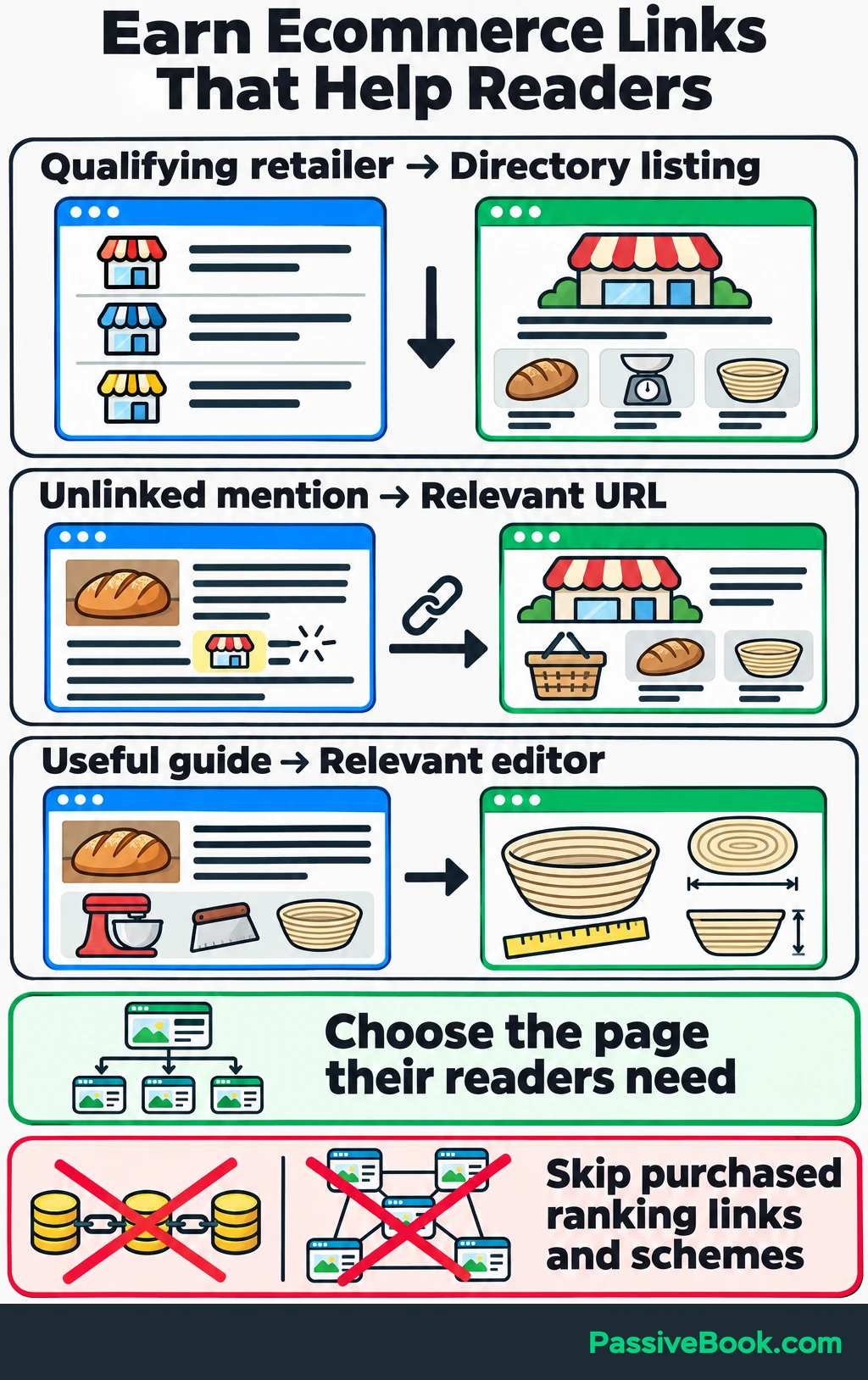
Explain the specific value:
The guide shows where to measure a proofing basket and what capacity information to check before buying.
That gives the editor something concrete to assess. “We published an amazing resource” gives them another email to delete.
Choose the destination based on what helps their readers. Sometimes that is the guide, and sometimes it is a category, product or homepage. I would judge the opportunity by relevance and usefulness rather than a promised link count.
Skip purchased ranking links, automated link schemes and excessive exchanges. Google treats these as link spam. Paid placements should use an appropriate link attribute, such as rel="sponsored" or nofollow, to identify the commercial relationship. Google’s link-spam policy.
Use Search and Sales Results to Choose the Next Improvement
Google Analytics 4 measures site visits and sales, but ecommerce tracking needs a store integration or other setup. Check a test order’s transaction, value and currency. Google Analytics ecommerce measurement guidance.
In Search Console, review a priority page’s searches, impressions and clicks. Check whether the searches match its products. Click-through rate is the share of those impressions that led to clicks.
To assess sales from unpaid search visits, review Organic Search sessions, purchases and revenue in Google Analytics’ Traffic acquisition report. Sessions are visits; totals can differ from Search Console clicks.
Use the pattern you observe to choose an investigation:
| Observed Result | Next Action |
|---|---|
| An important shopping page is missing from the index | Inspect the URL and test live access; fix any reported access or indexing errors |
| A page appears for unrelated searches | Compare its search queries with its assigned shopper need |
| Relevant impressions produce few clicks | Review search position, title, snippet and competing offers |
| Organic visits arrive but purchases do not | Check stock and delivery details, then test the purchase journey |
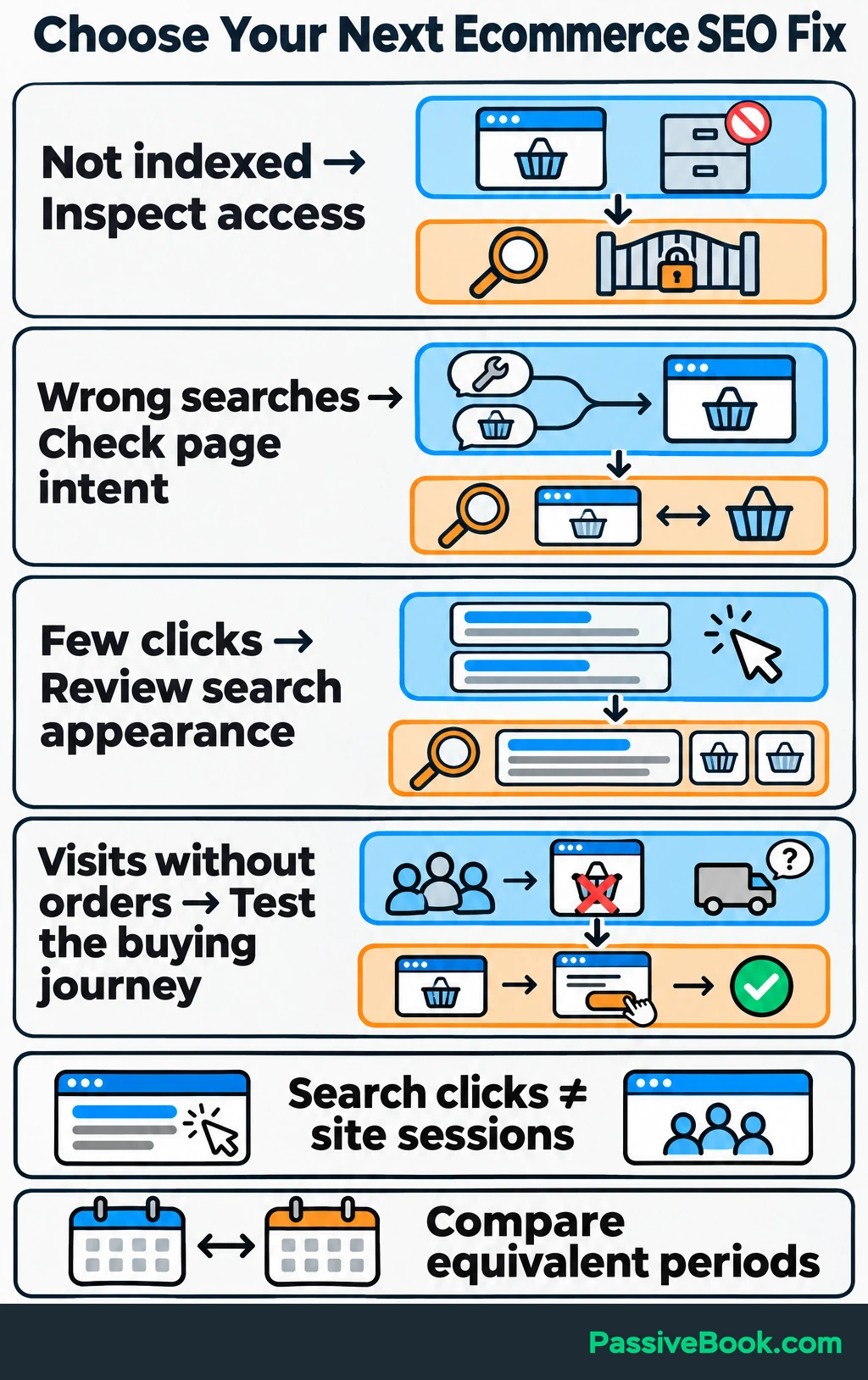
If the basket category attracts relevant visits but its products are unavailable, writing another sizing article would not be my first move. I would address the stock problem or make suitable available choices easier to find.
Log the URL, change and date. Compare equivalent periods, noting promotions, stock changes and seasonal demand; timing alone does not prove the edit caused a rise.
Google says effects can take hours to months and generally advises waiting a few weeks to assess search results. Google’s timing guidance.
I would review weekly, fix the largest unresolved problem and carry useful changes into similar pages.
What Next?
Inspect one important category URL in Search Console and write down the first problem worth fixing. If access is clear, map that category to its main shopping need and improve the selection advice or comparison details.
Use the social buttons to share this guide when you want to turn a scattered SEO task list into a clear order of work.
Which part of your store most needs attention: getting pages indexed, helping shoppers choose or turning visits into purchases? Tell me in the comments, and bring any other questions there too.
Share this post with your friends & followers:

