Your store needs features the current platform can’t handle, but its product pages already bring in customers from search. Moving feels risky because those visits depend on more than keeping the same domain.
A replacement store can look ready while old links break, product details disappear, or purchases stop appearing in analytics. Changing platforms does not make permanent SEO loss inevitable, but nobody can promise unchanged rankings or revenue. The process below gives you a way to protect what works, test the replacement, and decide when it is safe to send customers there.
1. Inventory the Store You Need to Preserve
For the running example, imagine you sell washable puppy beds in several sizes, with customer reviews and bed-care guides. The migration needs to preserve the pages people find and the information they need to choose a bed.
Build a URL and Content Inventory
Start by securing access to the current platform, domain settings, analytics, and existing redirects. You also need Google Search Console, which reports how your pages perform in Google Search and whether they are indexed. Confirm that you can export records and change domain routing. Discovering that a former developer controls the domain is an unpleasant launch-day activity.
Next, crawl the current store. A crawler follows links and records page content, technical settings, and HTTP status codes—the responses showing whether a page loaded, redirected, or returned an error.
Combine that crawl with:
- Platform exports and XML sitemaps.
- Landing pages from Search Console and analytics.
- Backlink records showing which pages other websites link to.
- Existing redirect rules and available server logs.
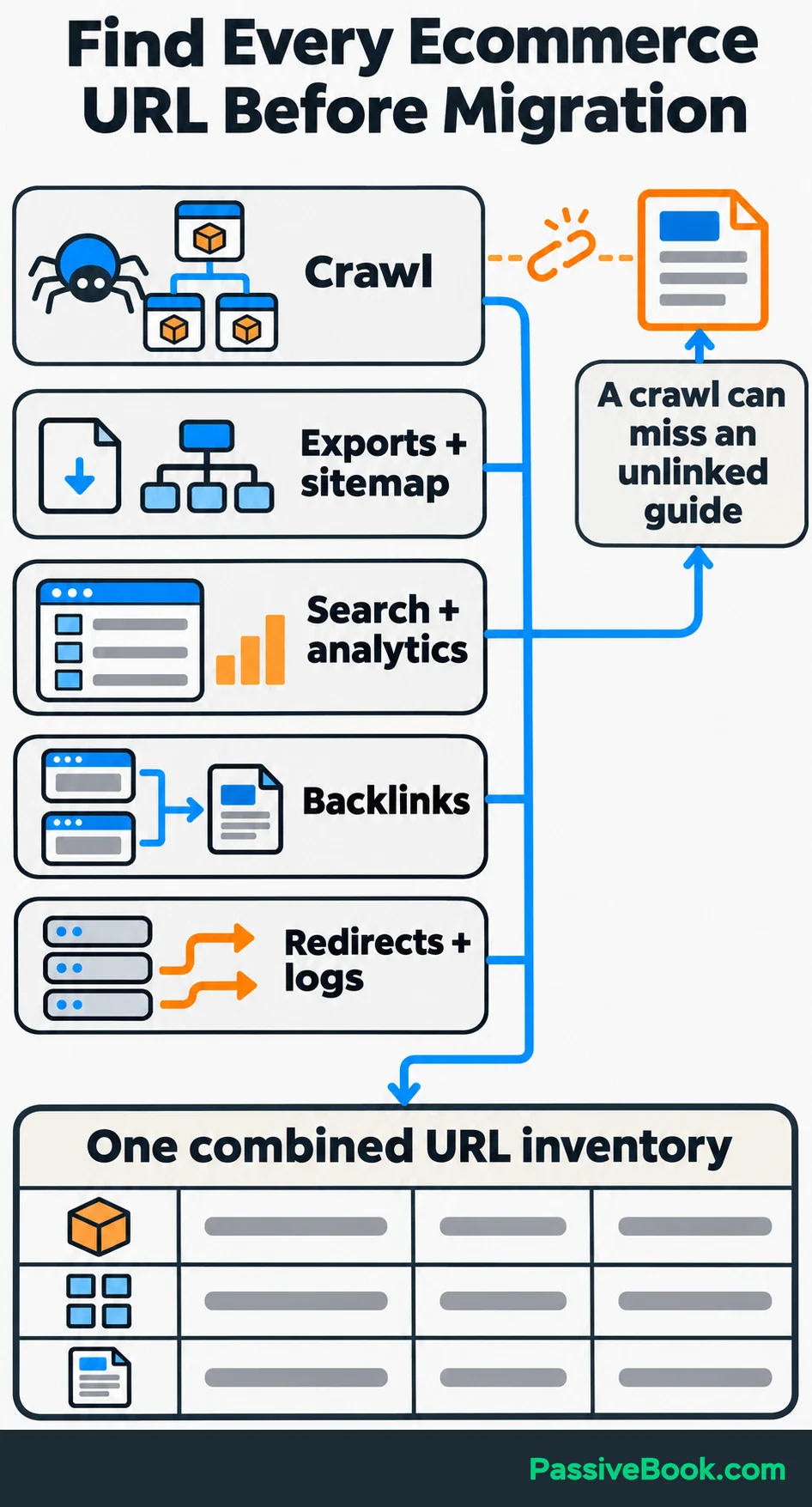
An XML sitemap lists the URLs you want search engines to find. These sources catch different pages: a crawl can miss a care guide with no internal links, while Search Console may still show people finding it.
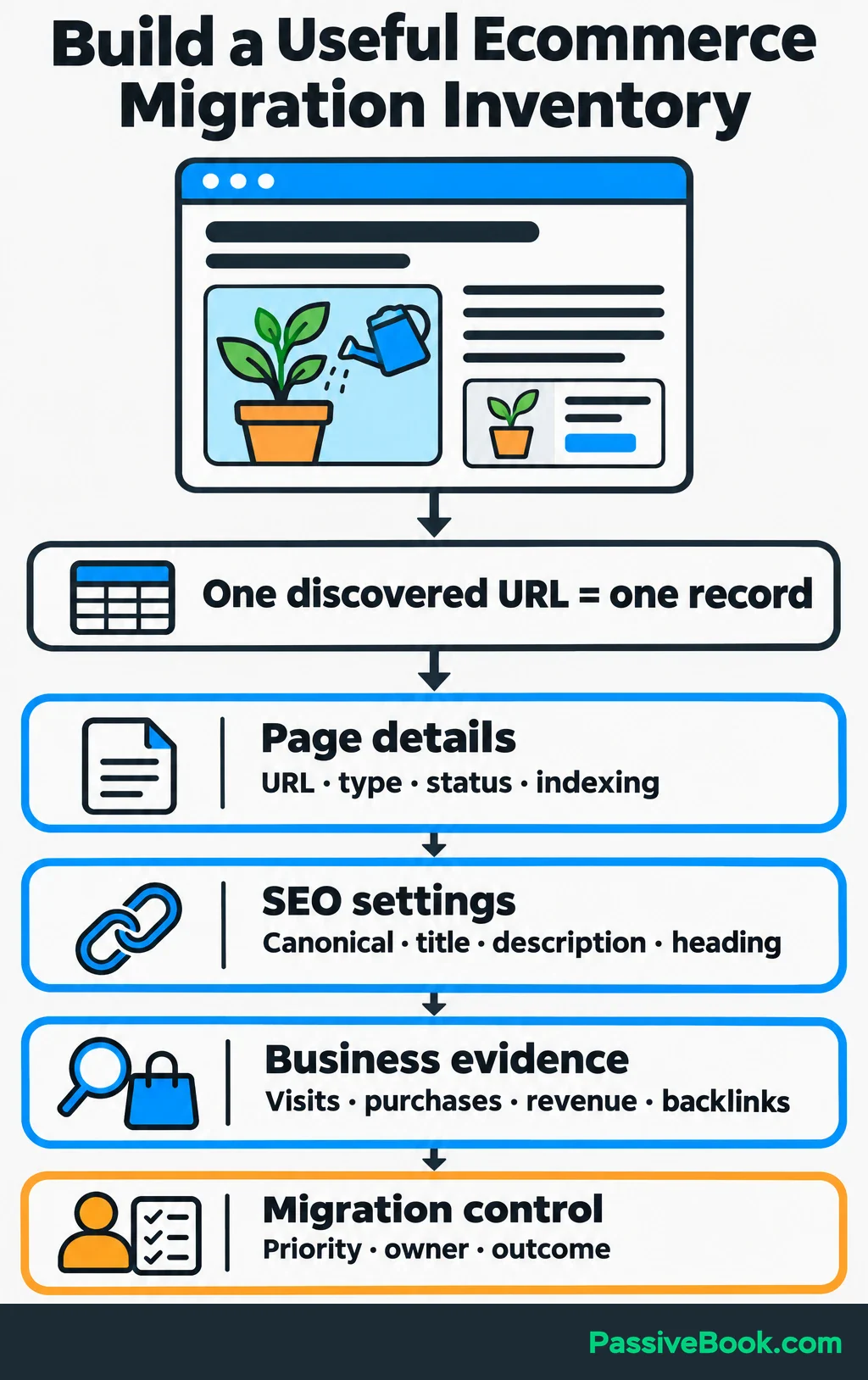
Keep one spreadsheet row per discovered URL, including products, categories, guides, important images, useful filtered pages, and historical redirect sources. Record these fields:
- Page Details: URL, page type, HTTP status, and whether the page allows indexing.
- SEO Settings: Canonical URL, title, meta description, and main heading.
- Business Evidence: Organic visits, attributed purchases and revenue, and known backlinks.
- Migration Priority: Review priority, responsible person, and eventual outcome.
A canonical URL is the address a page identifies as its preferred version. You will check those choices again before launch.
Save screenshots or rendered copies of representative pages too. An export tells you what was stored; a rendered page shows what shoppers could actually read.
Give pages earning visits, orders, or links extra manual attention, but record an outcome for every discovered address.
You can start with five important public pages before working through the full inventory. Save their baseline now so you can check for changes after the new store goes live.
Free Website Change Workbook




Save a Search and Sales Baseline
Export Search Console clicks, impressions, queries, and landing pages. From analytics, save organic sessions, purchases, conversion rates, and revenue. Export actual store orders separately so you can distinguish a reporting failure from a sales problem.
Record the dates, filters, currency, time zone, and metric definitions with each export. For conversion rates, keep the same definition before and after migration. A rate based on purchasing sessions cannot be compared fairly with one based on individual orders.
I would save several normal weeks and a comparable seasonal period where available. A promotion or holiday can make a simple week-before comparison misleading.
Break the reports down by product pages, categories, guides, and device. Storewide totals can hide a broken mobile product template behind steady desktop traffic.
2. Confirm the Destination Can Meet Your Requirements
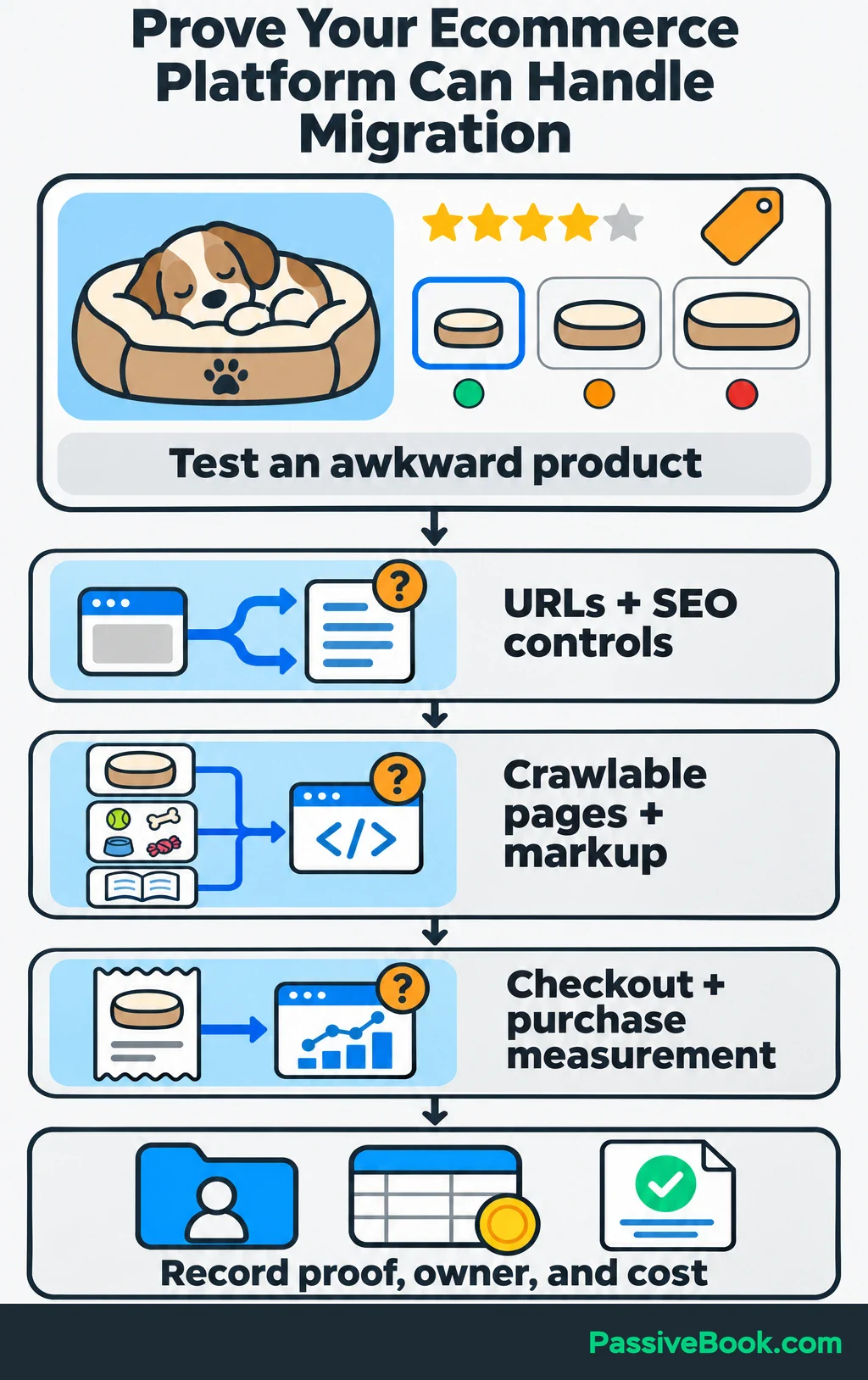
Test the destination before committing to it. Build a representative product, category, and guide page, then check whether you can:
- Keep existing URLs or redirect changed ones permanently.
- Set titles, descriptions, canonicals, and indexing rules.
- Provide crawlable navigation and product links.
- Generate appropriate structured data and XML sitemaps.
- Connect analytics and measure completed purchases.
Use an awkward product for the trial import: multiple sizes, different stock levels, reviews, and a discount. A platform demonstration featuring one uncomplicated product proves very little about your catalog.
Write down forced changes to paths, images, variants, and checkout. Assign someone to each requirement and include any development, extensions, or ongoing redirect hosting in the budget.
I prefer WooCommerce when ownership and WordPress control matter, and Shopify when hosted store operations are the better fit. For a migration, though, I would choose the platform that passes these tests over the one with the prettiest demonstration.
Keep the existing domain where practical, and postpone optional content rewrites, navigation changes, and redesign work. Google recommends changing one thing at a time and warns that rankings can fluctuate while it processes a move. Fewer simultaneous changes also make problems easier to diagnose. Google’s site-move guidance.
You can manage the work internally if your team can implement and validate these requirements. Buy targeted help where that ability runs out: custom redirects, international URLs, complex variants, or checkout attribution.
Assign owners for SEO, data transfer, development, tracking, and launch approval. One person can hold several roles, but every responsibility needs a name. Require outside specialists to deliver the URL map, configuration records, test evidence, and agreed post-launch support.
“SEO included” is not a deliverable you can check.
3. Map Old URLs and Prepare Permanent Redirects
Give Every URL an Explicit Outcome
Keep an existing address when the equivalent page can remain there. A platform move does not require giving every product a new URL.
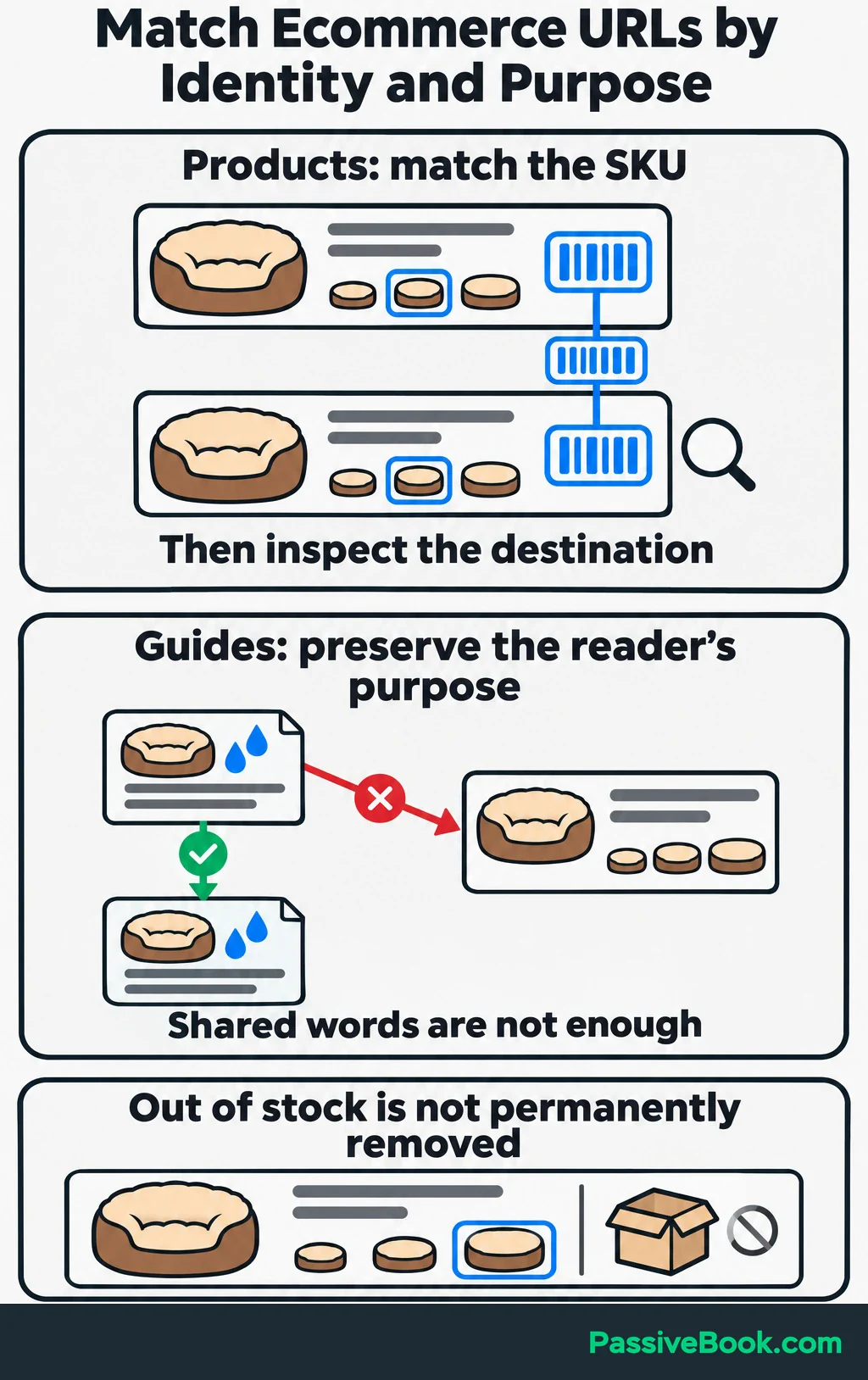
For changed products, match records using a stable identifier such as a SKU—the code that identifies a product or variant. Then review the destination manually. Similar product names are not enough.
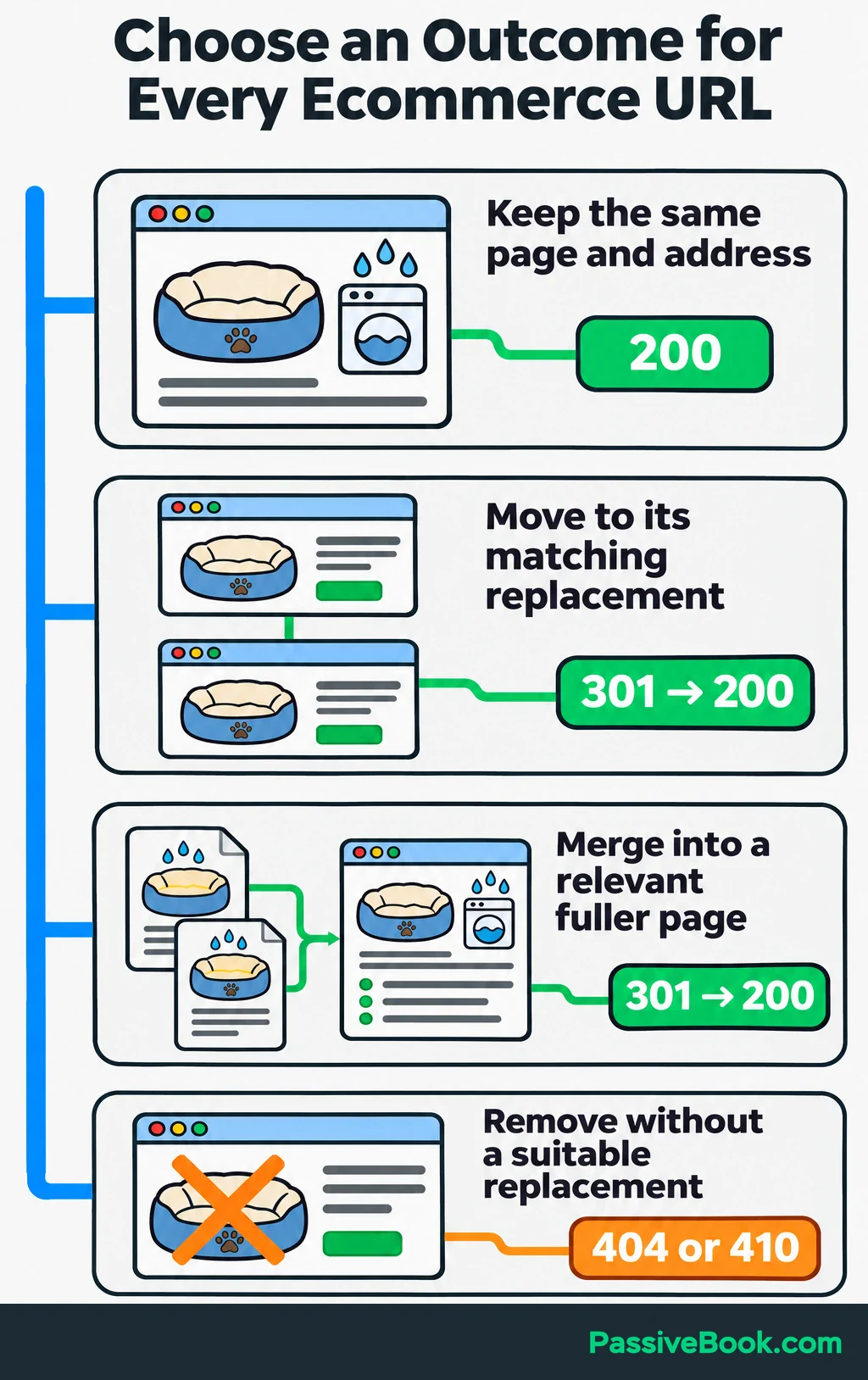
Categories and guides need matching by purpose. A guide about washing a puppy bed belongs at its replacement guide, not at a product that happens to mention washing.
Your mapping sheet should record the old URL, priority, outcome, destination, expected status, and actual test result. Here is a shortened example:
| Old URL | Planned Outcome | Final Destination | Expected Response |
|---|---|---|---|
/guides/wash-a-puppy-bed | Retain the guide | Same address | 200, with the guide visible |
/shop/washable-puppy-bed.html | Move the product | /products/washable-puppy-bed | 301, then a working product page |
/guides/bed-washing-tips | Merge into the fuller guide | /guides/wash-a-puppy-bed | 301, then the combined guide |
/shop/discontinued-bed-cover.html | Remove; no suitable replacement | None | 404 or 410 |
A 200 response means the request succeeded. A 404 means the page was not found, and 410 explicitly indicates that it is gone. For a permanently removed page without a relevant replacement, use the planned error status rather than displaying an error message with 200.
Keep temporarily unavailable products accessible, with accurate stock information. An out-of-stock puppy-bed size is not the same as a product you will never sell again.
Send Changed URLs Directly to Their Replacements
Use server-side 301 redirects for permanent page moves. Google also recognizes 308 as permanent. A canonical tag identifies a preferred address, but it does not send shoppers to that address. Google’s redirect guidance.
The intended journey is straightforward:
/shop/washable-puppy-bed.html
→ 301 redirect
→ /products/washable-puppy-bed
→ 200 response with the matching product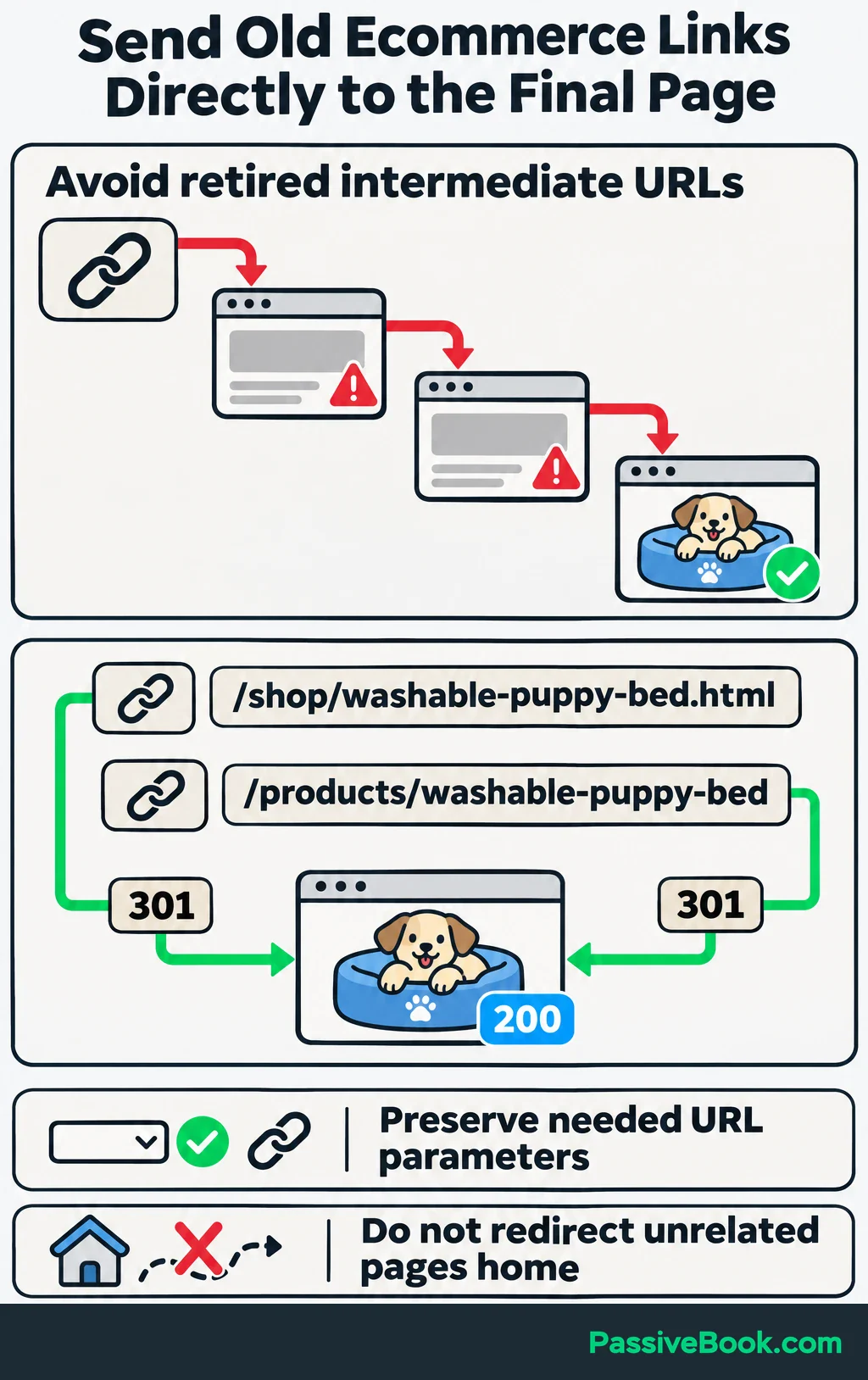
Update historical redirects so they reach the final destination directly. Otherwise, an older product link might travel through two retired addresses before reaching the new store.
Test the hostname versions, capitalization, trailing slashes, and URL parameters your store actually uses. Preserve parameters needed to select a size or carry attribution information.
Avoid sending unrelated missing pages to the homepage. Google may treat those redirects as soft 404s: the address effectively has no suitable replacement despite sending visitors somewhere else.
Keep migration redirects for at least one year, and longer when customers or external links still use them. Budget for the domain, certificates, and routing that keep them working. Google’s redirect destination and retention guidance.
4. Transfer Content and Store Data on Protected Staging
Preserve the Content That Earns Visibility
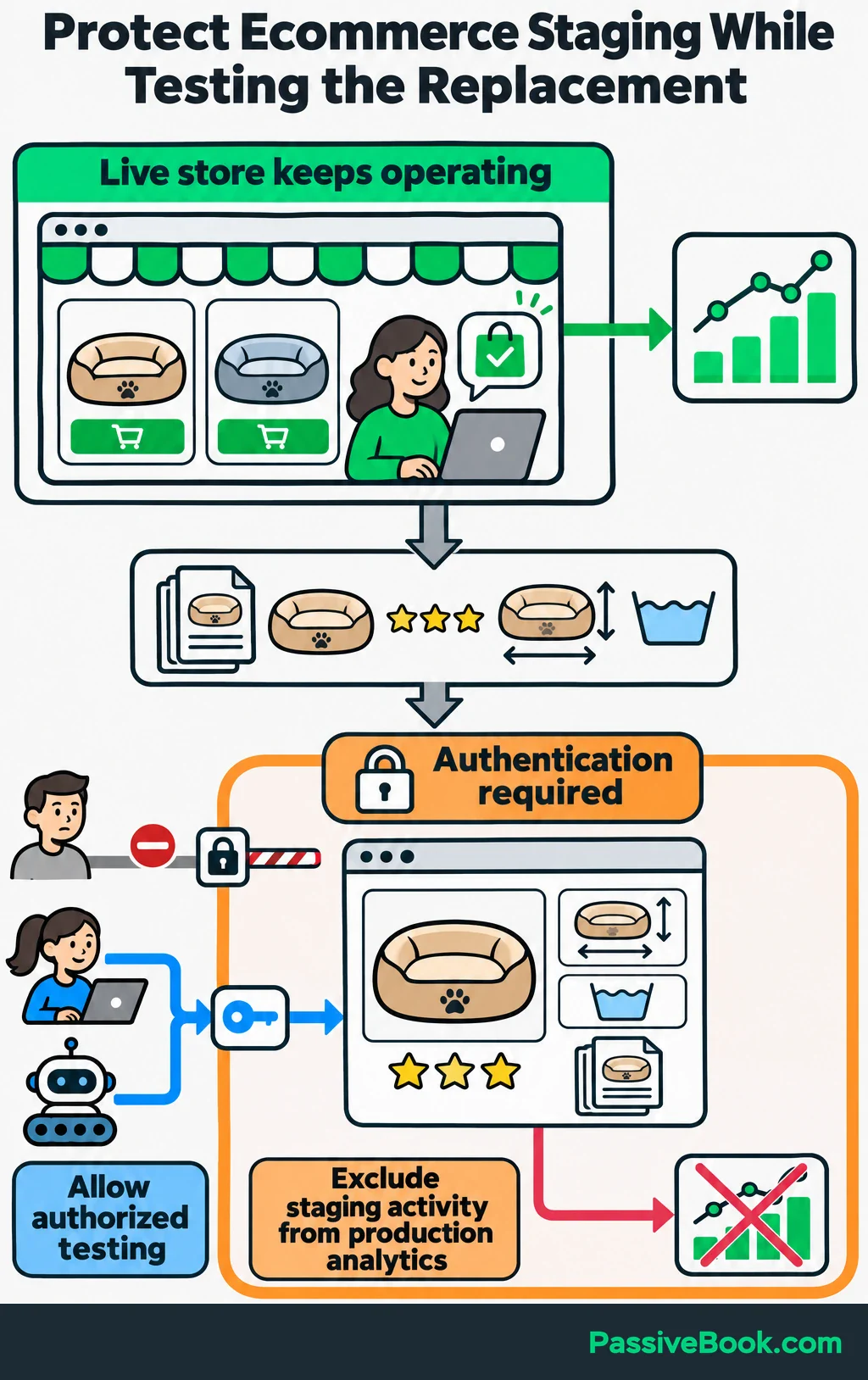
Build the replacement on staging—a separate test version—while the current store continues operating. Protect it with authentication, give your testing crawler access, and keep staging activity out of production analytics.
Transfer the content and settings that make each page useful:
- Product and category descriptions.
- Titles, meta descriptions, and headings.
- Images, descriptive alt text, and sizing charts.
- Customer reviews and care instructions.
- Guides and their links to related products.
On one of my digital-product sites, I changed a page template and checked the description field in the editor. It was intact, so I assumed the page was fine. The preview captions had disappeared from the rendered page. Comparing it with the saved version caught the loss, and I restored them before keeping the new template.
That is why I would compare rendered pages here too. A successful import does not prove that the new theme displays everything.
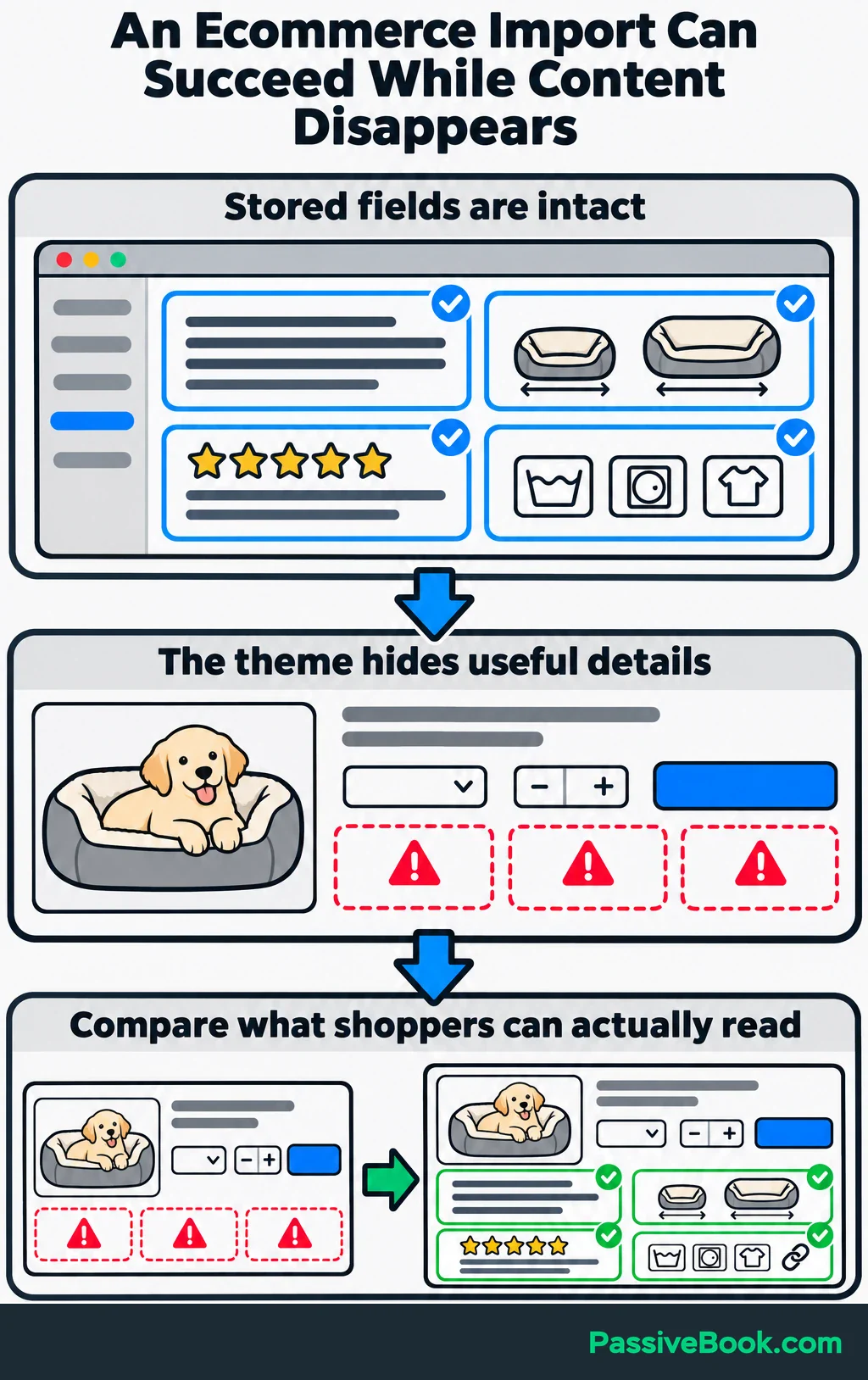
For the puppy-bed product, check the sizing guidance, washing instructions, reviews, and links from care guides. Those details should survive even if the layout changes.
Keep image URLs where practical. Where they change, arrange permanent redirects for the old asset addresses and confirm that replacement images load before retiring their original hosting.
Reconcile Catalog and Customer Records
Back up the source store and test a representative import before transferring everything.
Compare counts, then inspect actual records. Matching product totals will not reveal that every size variant inherited the same stock quantity.
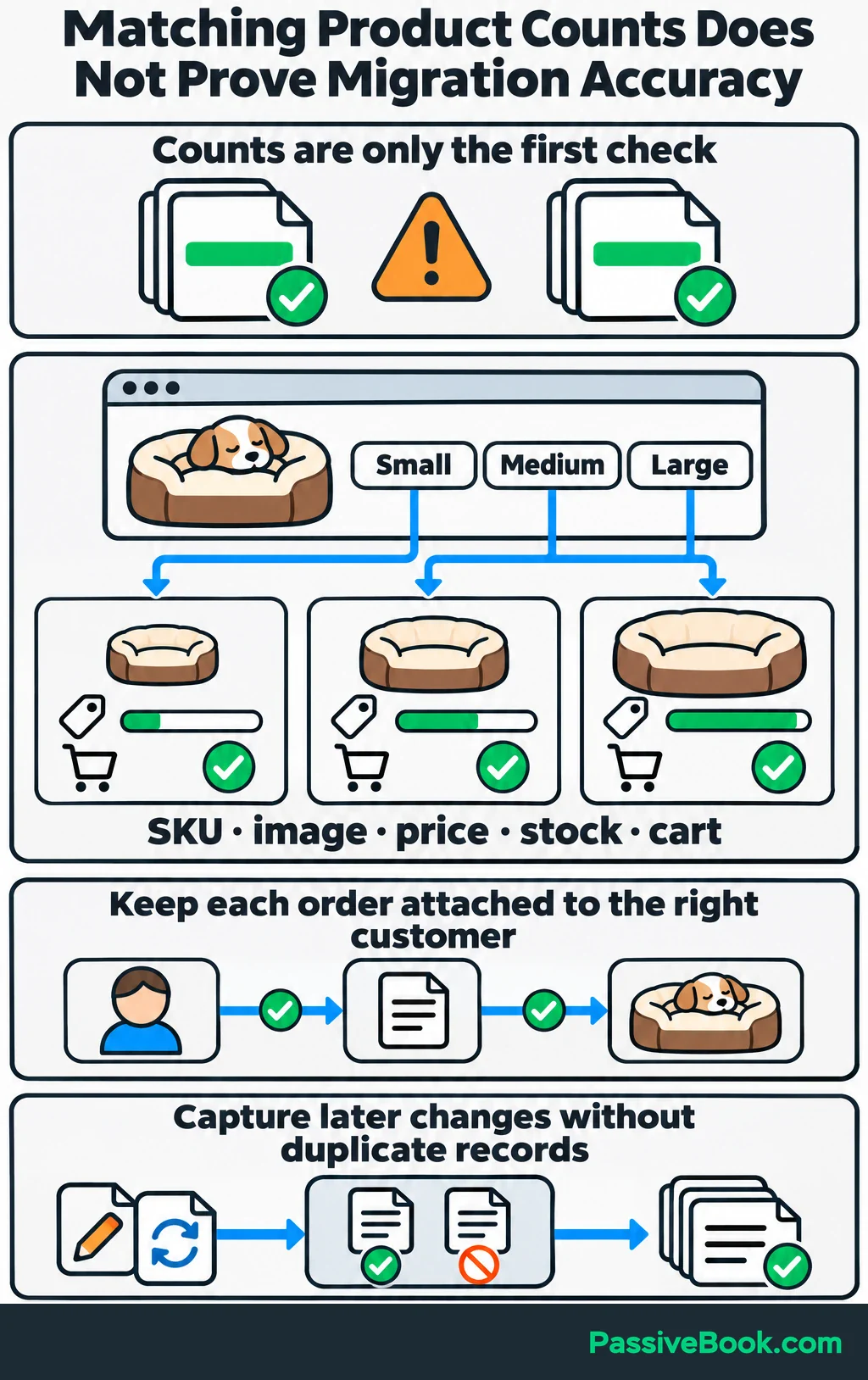
Check products, SKUs, prices, discounts, inventory, customers, reviews, and required order history. Confirm that orders remain attached to the right customers.
For the puppy bed, select each size and verify its image, price, stock, and cart behavior. Then inspect the corresponding imported record.
Ask the actual platform providers how customer passwords, subscriptions, and saved payment methods can move. Do not assume a catalog export includes them. Document any customer action, such as resetting a password or authorizing a payment method again.
Finally, plan how to capture orders and inventory changes made after the first export. The final synchronization needs a clear cutoff and a method that avoids duplicate records.
5. Recreate Crawlability and Indexing Signals
Keep Important Pages Reachable
Update menus, breadcrumbs, product recommendations, and guide links to the final URLs. Redirects should rescue old links, but your new store’s navigation should point directly to working pages.
Check that products can be reached through ordinary category links. A product should not require someone to type into site search or choose a filter before it becomes discoverable.
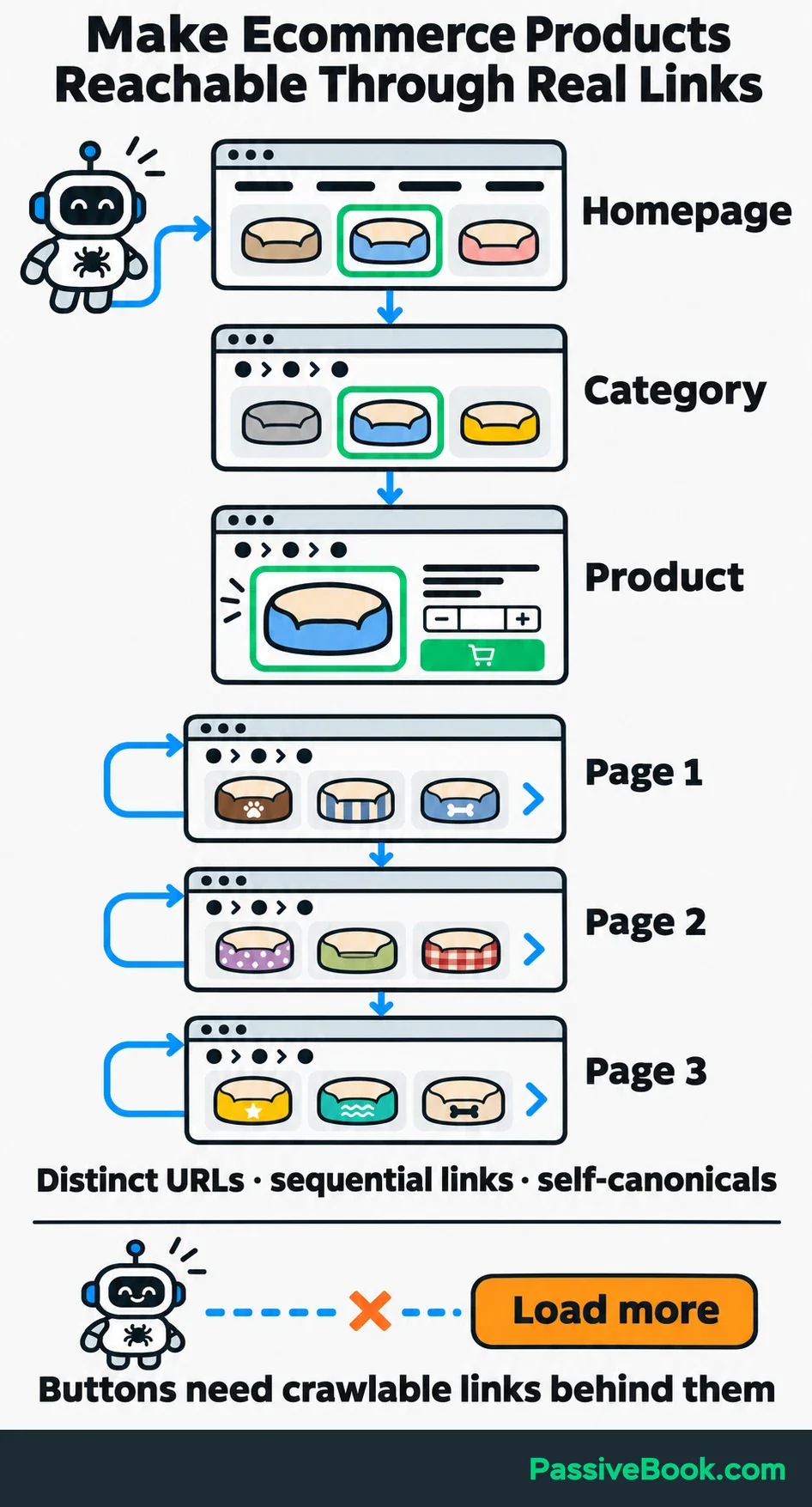
For longer categories, provide distinct page URLs and sequential links. Each paginated page should use its own canonical, rather than identifying page one as the preferred version of every page. Google’s crawlers do not click “Load more” buttons, so that interface needs crawlable links behind it. Google’s pagination guidance.
Inspect mobile pages and pages that rely on JavaScript. Confirm that the rendered version contains the product text and usable links.
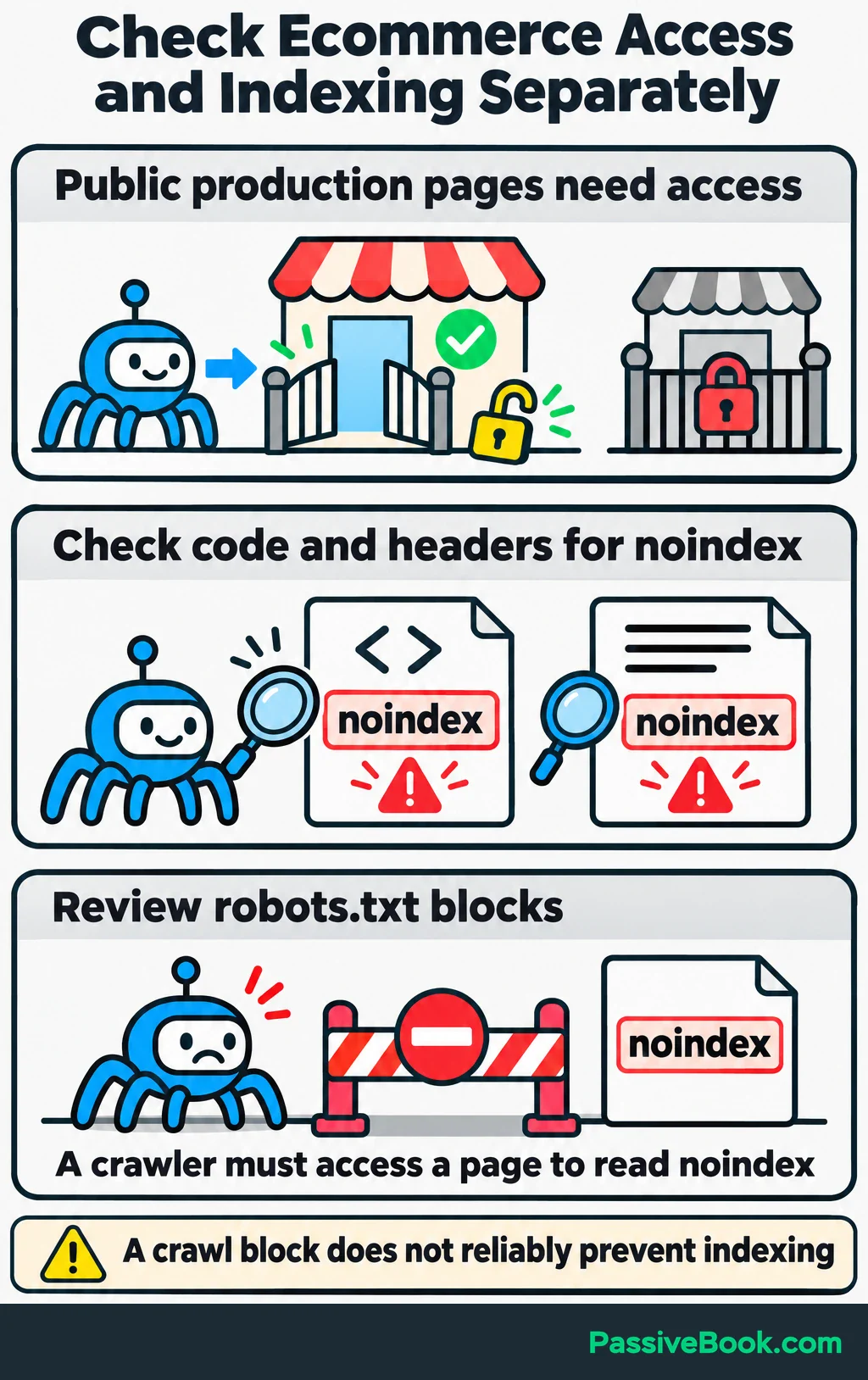
Prepare production indexing settings separately from staging protection. At launch, pages intended for search must be accessible without authentication and free of unintended indexing restrictions.
Check the page’s code and server response headers for noindex, which tells search engines not to index the page. Review robots.txt, the file that gives crawlers access instructions, for accidental blocks. Blocking crawling does not reliably prevent a URL from appearing in search, and Google must access a page to read its noindex rule. Google’s indexing-control guidance.
Align Canonicals and Sitemaps
Point canonical tags to the intended production pages, which should return 200 and allow indexing. The canonical page should identify itself as the preferred address.
Use those same preferred URLs in internal links and the production XML sitemap. Remove staging addresses, redirects, and error pages from that sitemap. These signals should agree rather than nominate different versions of the same content. Google’s canonicalization guidance.
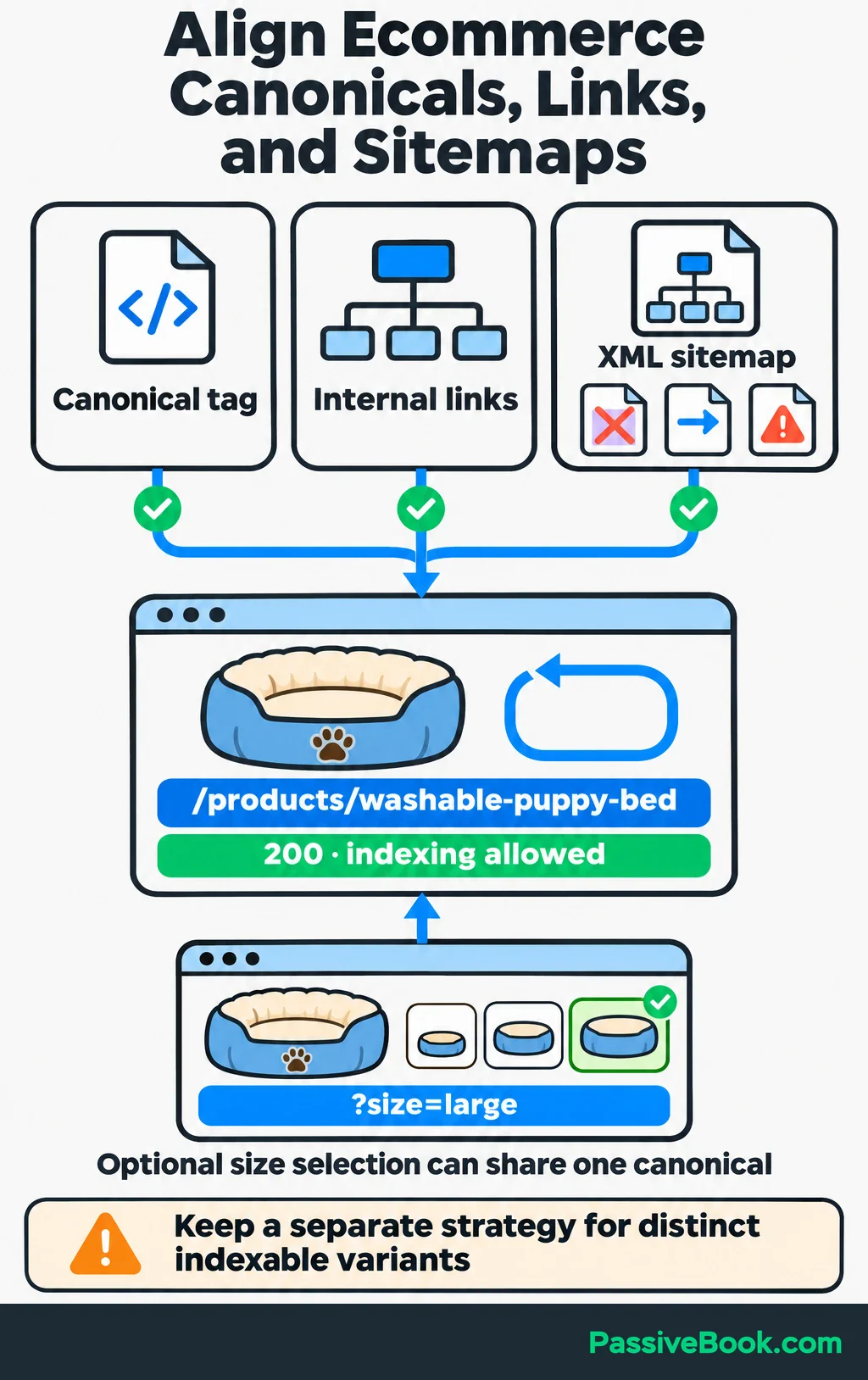
Review filters and variants separately:
- Preserve useful filtered landing pages that already have a deliberate search role.
- Control new sorting and filtering duplicates rather than allowing every combination to become a search landing page.
- Keep links that select a product size functional.
For optional size parameters on a shared product page, use the product URL without that parameter as the canonical. For example, /products/washable-puppy-bed?size=large can select the large bed while naming /products/washable-puppy-bed as preferred. Preserve a separate strategy where variants already have distinct indexable pages. Google’s product-variant URL guidance.
If you already use hreflang, the annotations connecting language or regional versions, update them to the final URLs too.
Restore Product Structured Data
Structured data is markup that describes page information in a format search engines can read. Recreate applicable product, offer, review, and breadcrumb markup.
Check the markup against what the shopper sees. The puppy bed’s price, currency, stock status, and reviews should agree with the displayed product and selected variant.
Validate representative templates with Google’s Rich Results Test and fix critical errors. Test the generated markup rather than assuming an enabled plugin means it is correct. Google’s merchant-listing requirements.
If you use Google Merchant Center to send product listings to Google, reconnect its product feed and update product and image links. Compare its prices and availability with the live store. A working feed complements on-page markup; it does not make checking the markup unnecessary.
6. Preserve Analytics and Purchase Attribution
Keep sending data to the existing analytics property, where your store’s reports are stored. Restore the tracking code, platform integrations, Search Console verification, and consent settings.
Check for duplicate tracking. A platform integration and a tag-manager setup can both send the same event if nobody decides which one owns it.
Test the customer journey in order:
- View a product.
- Select a variant and add it to the cart.
- Begin checkout.
- Complete a supported test purchase.
- Match the event with the resulting store order.
In Google Analytics 4 (GA4), open DebugView to see test events as they arrive. Inspect the purchase value, currency, item identifiers, and transaction ID. For the puppy-bed purchase, the reported item should match the selected size. Check that value equals the total item cost after discounts, accounting for quantities. Send shipping and tax separately, excluding them from value. See Google’s purchase-event validation guidance and purchase parameter requirements.
Each order needs a unique, nonempty transaction ID. Reload the confirmation page and check that the order is not counted again. GA4 uses transaction IDs to deduplicate purchases, and reusing an ID across different orders can undercount sales. Google’s transaction-ID guidance.
If checkout uses another domain that supports your tracking setup, configure and test cross-domain measurement. Both domains must use the same GA4 tag ID from the same web data stream. Do not assume you can install that tag on every payment provider’s domain. Google’s cross-domain requirements.
Also review unwanted referrals from payment providers and test the return to the store. A successful payment should not suddenly make the payment service appear to be the source of the customer.
7. Require Passing Tests Before Launch
Crawl the replacement store and compare it with the original inventory using your URL map. If the final addresses are not public yet, have the developer configure your test browser and crawler to reach the replacement at those addresses while keeping it protected.
Test every mapped URL against the release configuration. Bulk testing can check status codes, redirect destinations, and canonical values; manual review should focus on valuable pages and representative templates.
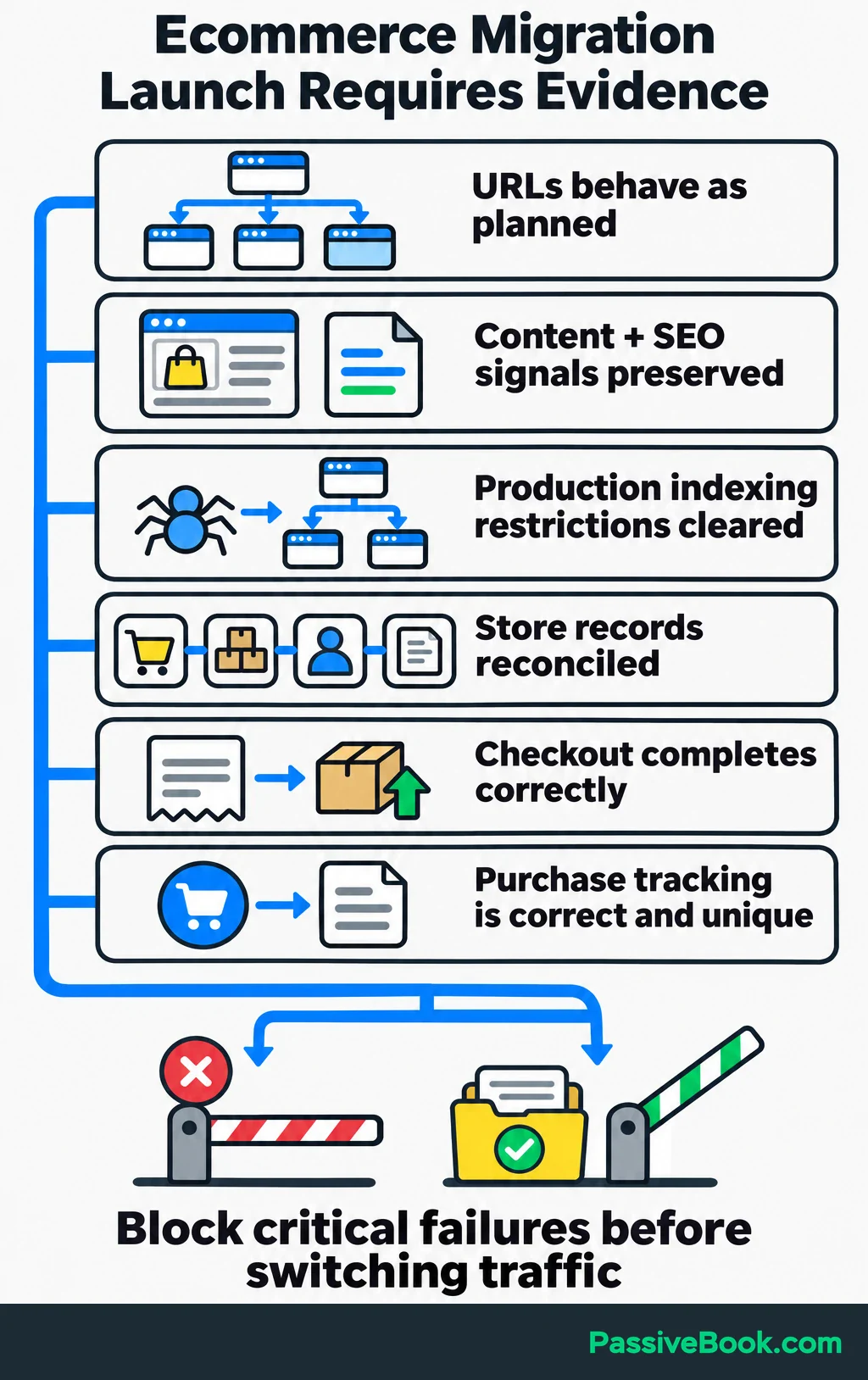
Use these conditions to decide whether launch can proceed:
| Area | Evidence Required |
|---|---|
| URL behavior | Retained pages return 200; moved pages redirect directly to relevant working destinations; removed pages return their planned status |
| Content and SEO | Priority content, metadata, images, internal links, canonicals, and structured data match the plan |
| Production indexing | Intended search pages will be crawlable and free of accidental noindex rules |
| Store records | Catalog, inventory, customers, and required orders reconcile with the source |
| Checkout | Actual payment methods complete orders with correct shipping, discounts, and stock updates |
| Measurement | Test purchases produce correct, nonduplicated events linked to store orders |
| Recovery | Backup access, restoration procedure, rollback owner, and treatment of new orders are documented |
Follow an old puppy-bed URL through the whole journey: redirect, size selection, cart, shipping, payment, confirmation, and order processing. Test returning-customer access too.
Compare representative mobile and desktop pages with the current store. Investigate severe loading or interaction regressions caused by images, scripts, themes, or integrations.
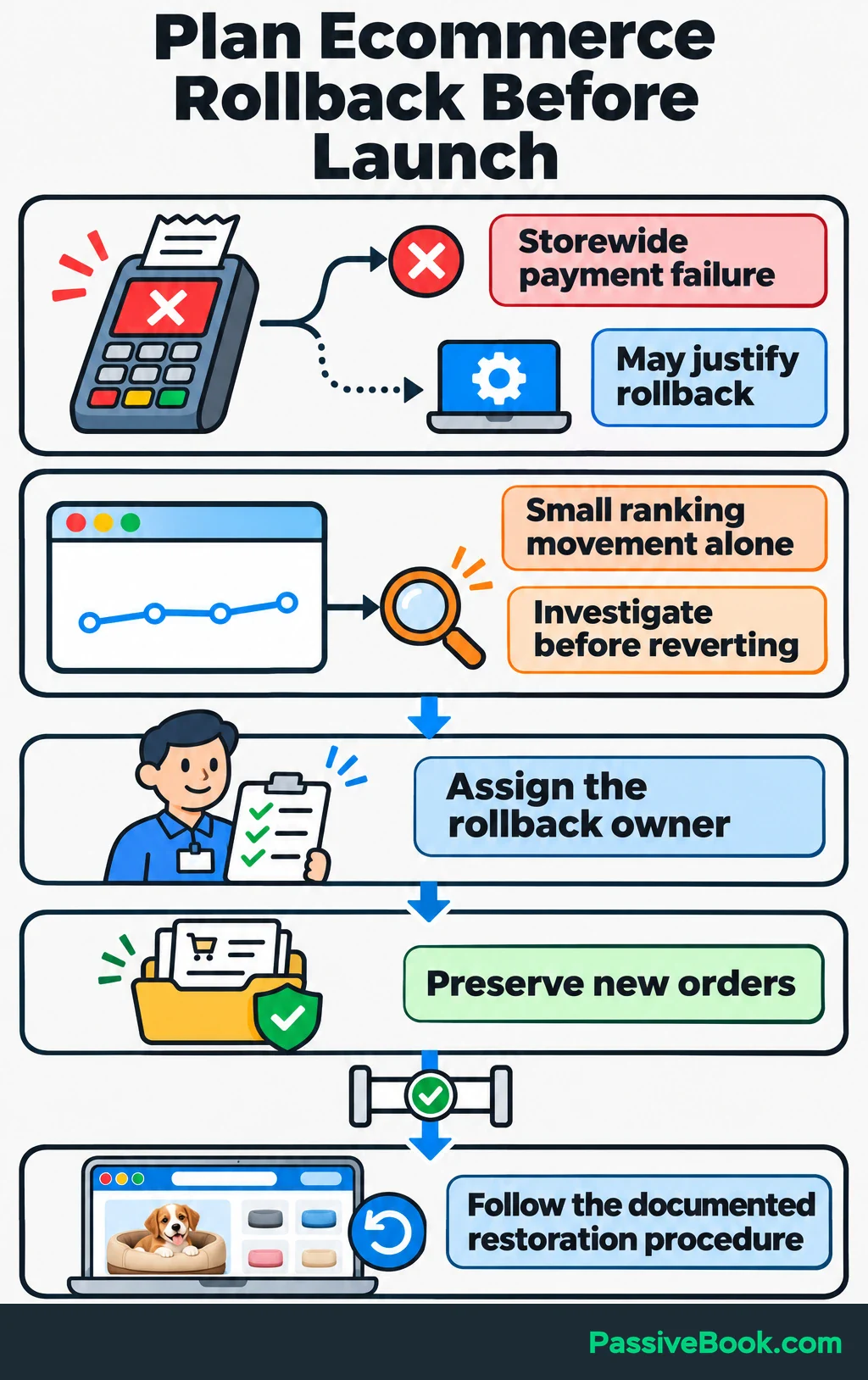
I would block launch for missing priority pages, broken redirects, accidental indexing restrictions, failed checkout, failed purchase tracking, or unreconciled records. Give minor issues an owner and deadline.
Define rollback triggers before the switch. A storewide payment failure may justify reverting; a small ranking movement alone is not enough evidence. The plan must explain how orders accepted after cutover will be preserved before restoring anything.
A backup that nobody knows how to restore is mostly a comforting file.
8. Switch Traffic With a Controlled Cutover
Choose a quieter trading window when the people responsible for fixing problems are available. Midnight is a poor choice if the only developer will be asleep.
Freeze conflicting changes and complete the final data synchronization. Establish which system accepts orders during the switch, including while different visitors may still reach different environments.
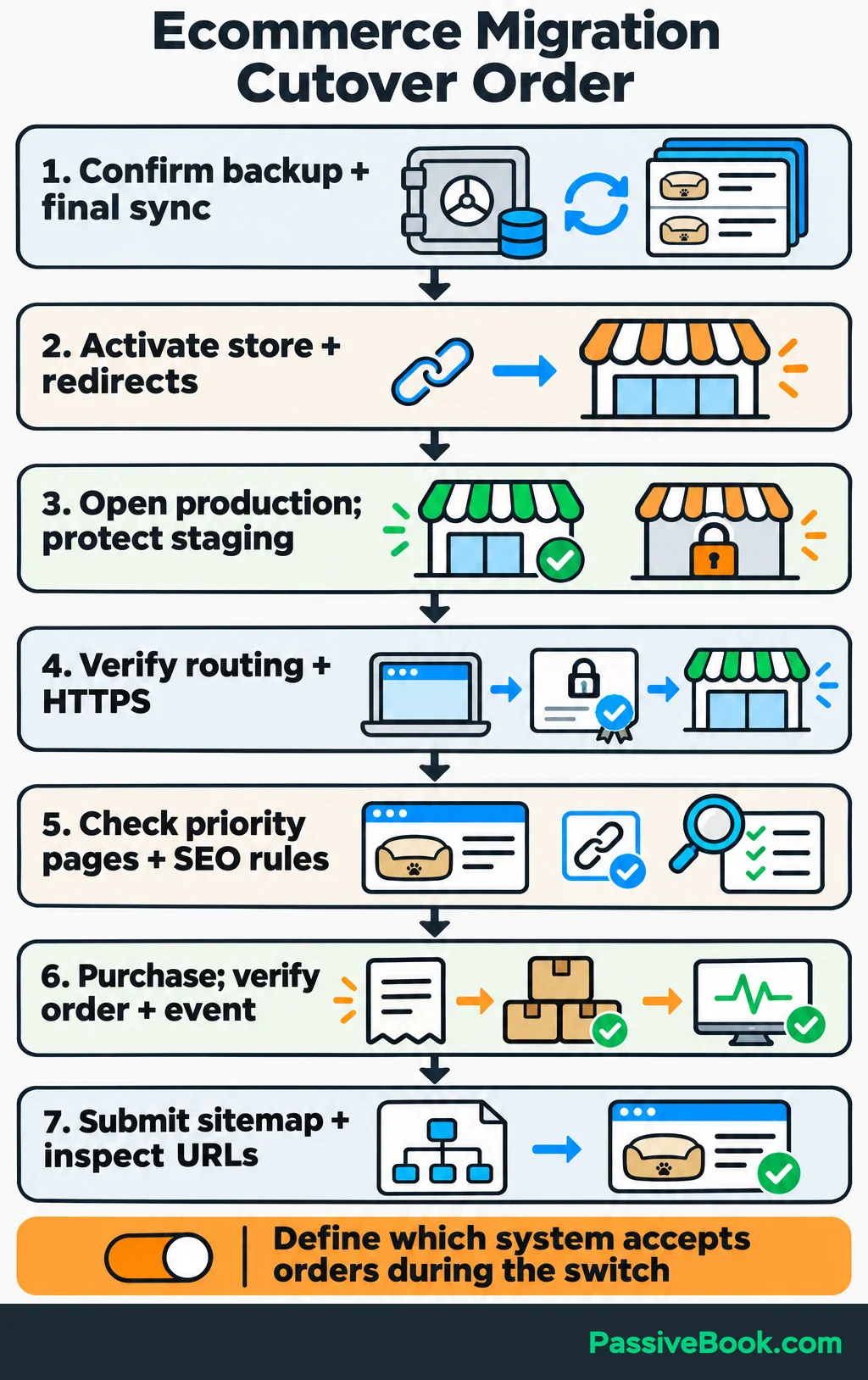
Work through the cutover in a fixed order:
- Confirm the final backup and data synchronization.
- Activate the replacement store and its redirects together.
- Remove production restrictions while keeping staging protected.
- Verify domain routing, HTTPS certificates, and public access from outside the development environment.
- Check priority landing pages, redirects, canonicals, and indexing rules.
- Complete a purchase and confirm the order, inventory change, and analytics event.
- Submit the production sitemap and inspect priority URLs in Search Console.
Use Search Console’s Change of Address tool only for an eligible domain or subdomain move. A same-domain platform migration or path change does not require it. Google’s Change of Address requirements.
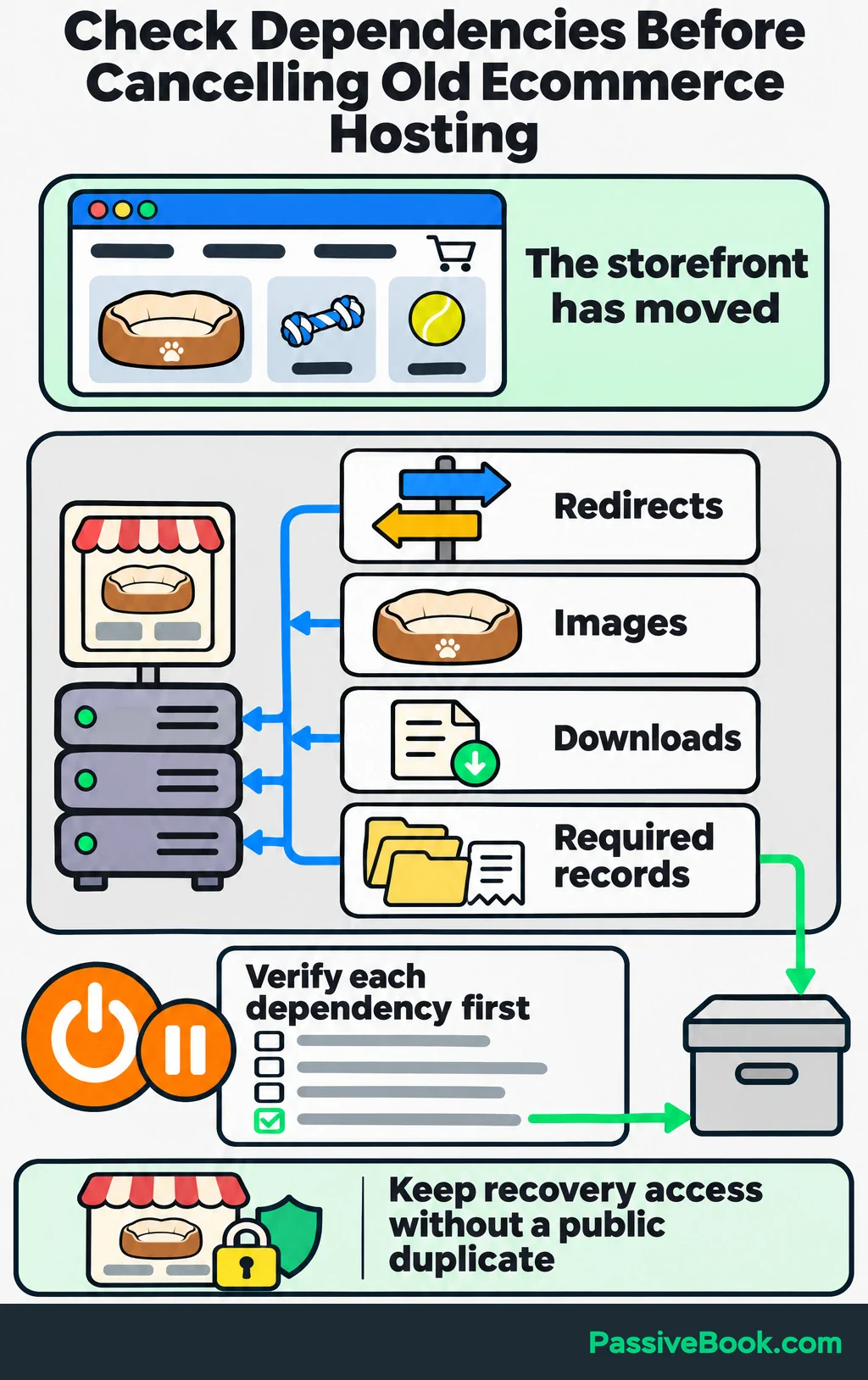
Keep the old environment recoverable until your recovery and record-retention needs are satisfied. Avoid leaving a publicly accessible duplicate store behind.
Before cancelling the old platform or hosting, check whether redirects, images, downloads, or required records still depend on it. Moving the storefront does not automatically move those dependencies.
9. Monitor the Live Store and Diagnose Declines
Check Technical Health and Orders First
In the first hours, watch availability, server errors, payments, incoming orders, inventory, and event collection. Repeat the crawl and URL-map tests against production because launch can introduce configuration differences that staging never had.
Then review indexing, Search Console clicks and impressions, organic landing-page sessions, purchases, and revenue.
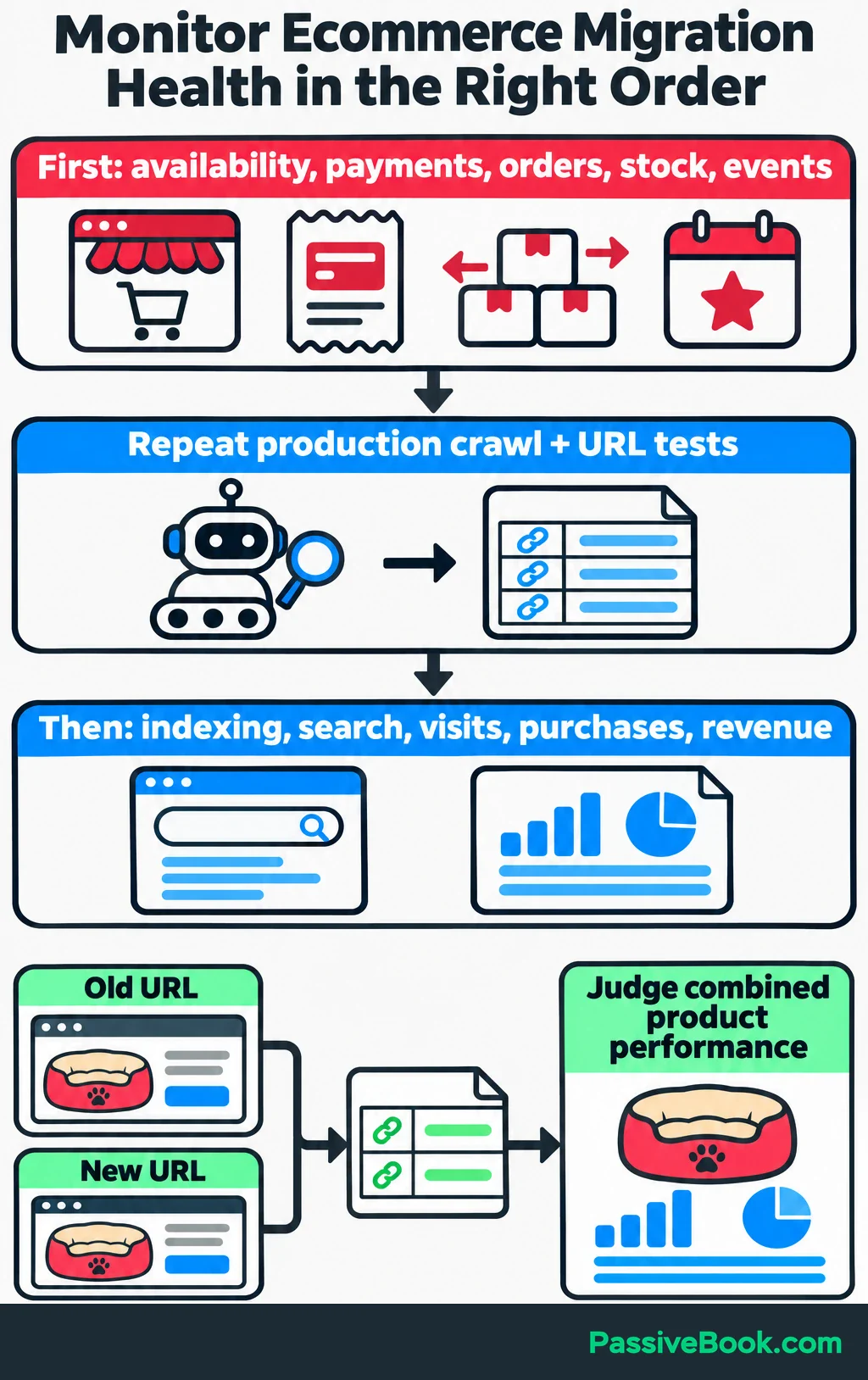
Combine old and new URLs in reporting through your map. If the puppy-bed product changes address, its old URL will naturally lose activity. Judge the product’s combined performance rather than treating the old path as a vanished business asset.
I would monitor daily during initial stabilization, with more immediate checks for payments and availability. Reduce the frequency once defects settle and comparisons become useful.
Keep one issue list with an owner, next action, and evidence. Fix storewide checkout failures and template-wide restrictions before polishing a low-value page.
Match the Fix to the Symptom
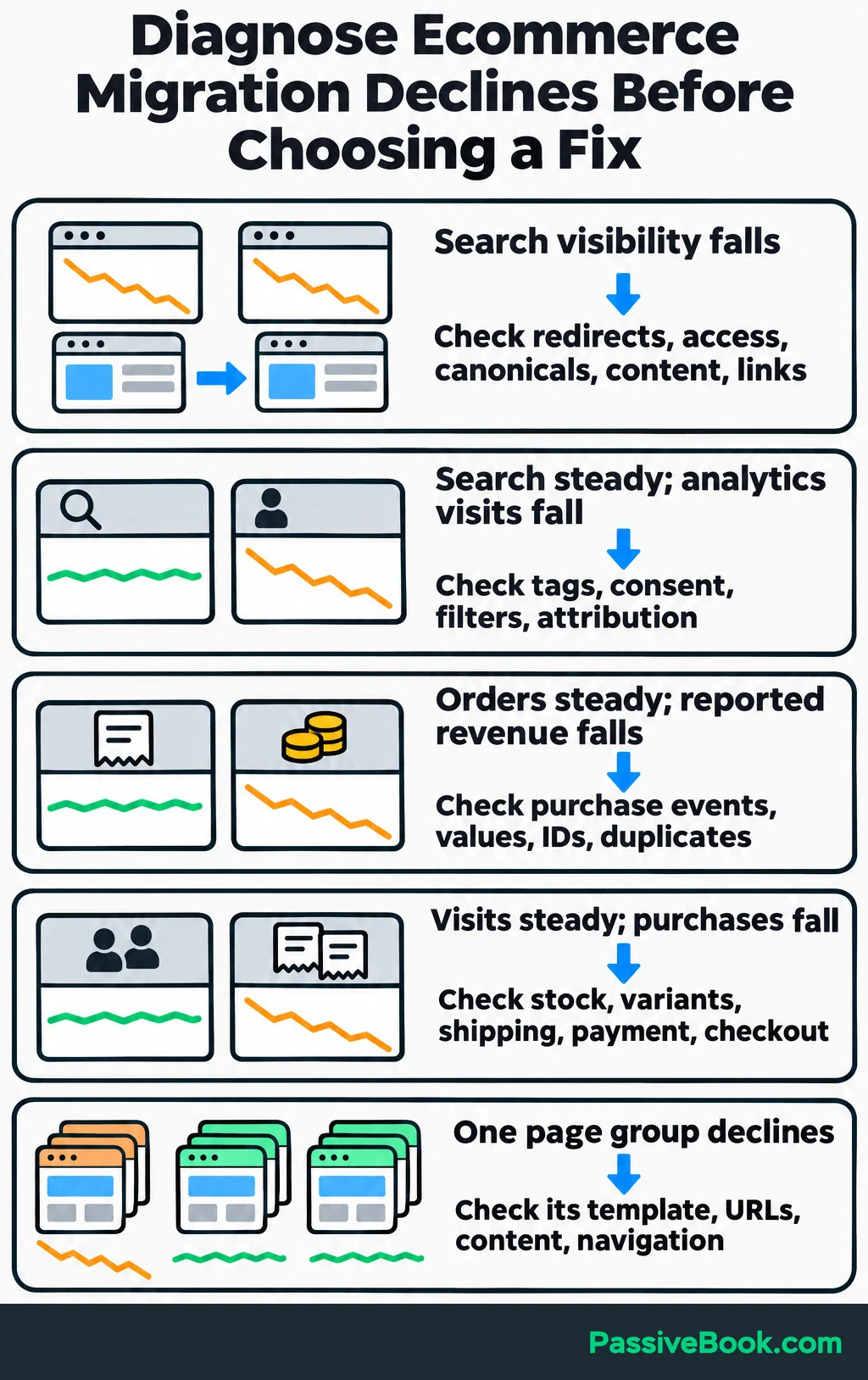
Different declines call for different investigations. Start with the evidence you have rather than calling every problem an SEO loss.
| What You Observe | What to Check First |
|---|---|
| Search clicks and impressions fall across moved products | Redirects, crawling access, canonicals, missing content, and internal links |
| Search Console clicks hold steady but analytics visits fall | Tags, consent behavior, reporting filters, and attribution |
| Analytics revenue falls but actual store orders remain steady | Purchase events, values, currencies, transaction IDs, and duplicate integrations |
| Visits remain steady but actual purchases decline | Stock, variant selection, shipping calculations, payment failures, and checkout usability |
| One page group declines while others remain stable | That group’s template, URL rules, content transfer, and navigation |
Use Search Console’s URL Inspection tool to investigate priority pages individually. Check the page Google sees, its indexing status, and its selected canonical.
Do not expect every discovered URL to be indexed. Retired addresses, redirects, and duplicate parameter URLs may properly stay out of search. Your concern is whether the intended canonical pages remain accessible and eligible.
Sitemap submission and indexing requests help Google discover changes, but they do not guarantee inclusion in search. Repeated requests are not a substitute for fixing the page. Google’s recrawling guidance.
Close the migration when priority URLs work, critical defects are resolved, records reconcile, and tracking follows the agreed measurement definitions. Performance should also be stable against a meaningful baseline.
Assign ongoing ownership for redirects and monitoring. Otherwise, a later hosting cleanup can quietly undo work you already paid to get right.
What Next?
Export your organic landing pages and match them to the current product, category, and guide URLs. That gives you a concrete starting list of pages that need protection before you choose a launch date.
Use the social buttons to share this checklist when migration planning turns into “we’ll check SEO afterward.” It gives that conversation a clear set of launch conditions.
Which part of your store would be hardest to restore if the move went wrong? Share it in the comments, along with any other migration questions.
Share this post with your friends & followers:

