Adding another language sounds simple until you compare the plans. One plugin charges for words, another needs a store extension, and a free language selector may leave you without translated pages that search engines can index.
The wrong choice can mean paying again, rebuilding pages, or discovering that customers receive English instructions after buying from a Spanish product page. To avoid rebuilding that journey later, this comparison explains which plugins suit different translation workflows, what their plans cover, and how to check the path from translated article to delivered product before you commit.
What Matters When Comparing Translation Plugins?
The best WordPress translation plugins solve different problems. Some help you publish translations yourself. Others generate drafts and deliver them through a cloud service.
I’ve based these recommendations on documented features, pricing, and workflows. The rankings are editorial judgments, and this comparison includes no controlled speed or translation-accuracy benchmarks.
Translation Workflow and Content Coverage
Decide who will maintain the translated wording before choosing the tool.
If you speak both languages, manual editing may be enough. If you need machine translation, choose a workflow that lets a fluent reviewer correct it easily. If you hire translators, look for assignments, restricted accounts, or useful export options.
Keep two decisions separate:
- Translation method: A person writes the wording, a machine generates it, or both work together.
- Translation storage: The wording lives in your WordPress database, a cloud service, or separate language sites.
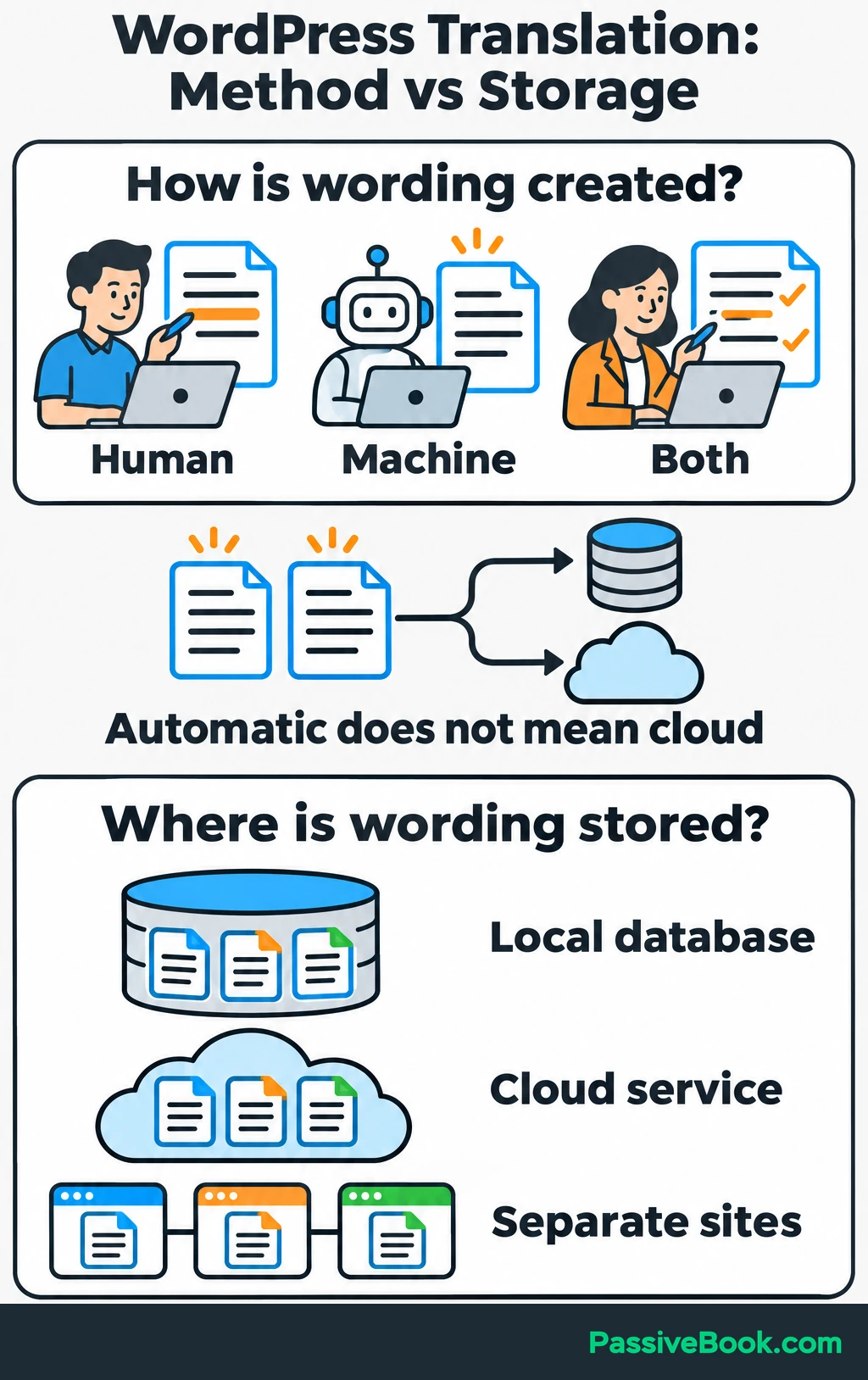
Automatic translation does not necessarily mean cloud storage. A plugin can generate machine translations and keep the results on your server.
Then list everything visitors need to understand:
- Publishing: Articles, navigation, categories, image text, and search results.
- Lead capture: Form labels, validation messages, confirmation screens, and follow-up emails.
- Sales: Product details, variations, cart messages, checkout, customer emails, and download instructions.
- Delivery: The actual product, including any PDF, workbook, or other file.
For the examples below, imagine you run a freshwater-aquarium blog and sell a downloadable tank-maintenance planner through WooCommerce. You want to add Spanish and German. All example figures are illustrative.
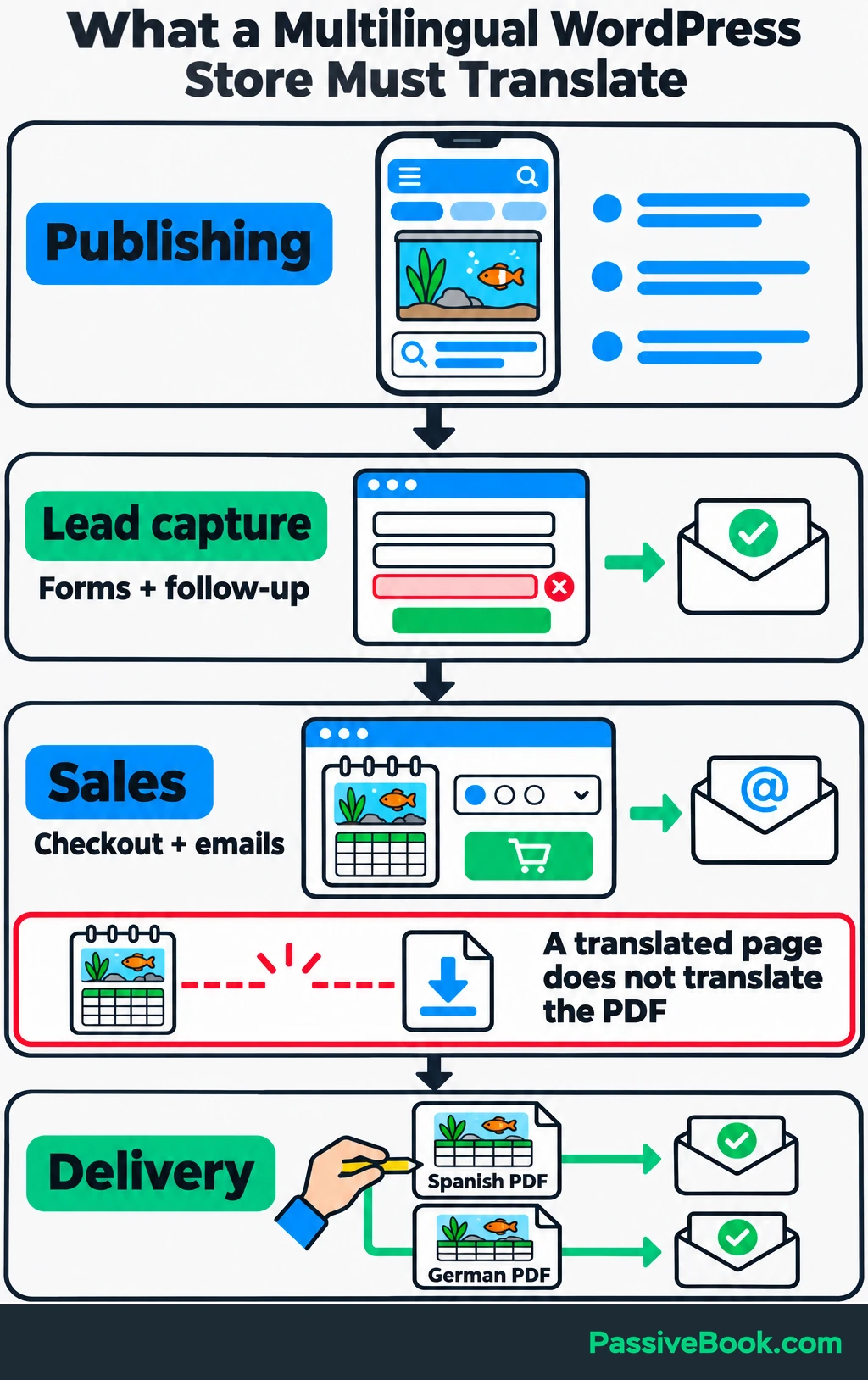
Translating the planner’s sales page will not translate the PDF. You need translated files and a clear way to deliver the correct version.
I learned a related lesson on a digital-product site after changing the product instructions. I updated the page but left the older wording inside the download. I started keeping a small list of every place the instructions appeared because editing from memory had already failed me. For a multilingual store, that list needs a column for each language.
Finally, check your actual stack. I use GeneratePress, GenerateBlocks, Rank Math, Fluent Forms, and WooCommerce, so those would go on my compatibility checklist. Use your own theme, editor, forms, caching tools, and store extensions to build yours.
Multilingual SEO
Start with a separate, crawlable URL for each language version. Google recommends this approach over changing a page’s language solely through cookies or browser settings. A visitor should be able to open and share the Spanish page directly. Google’s multilingual-site guidance
A language URL and a translated slug are different features.
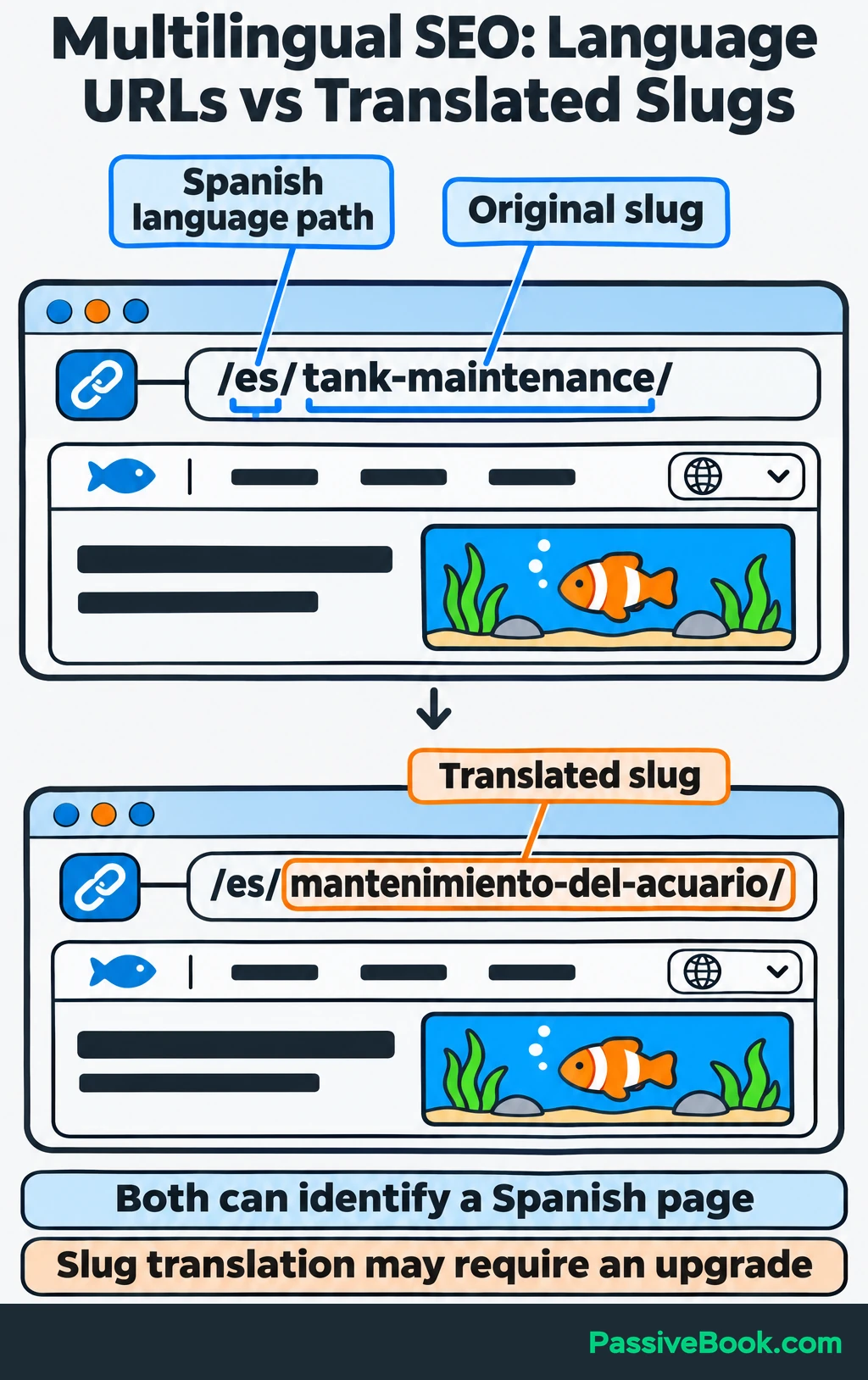
For example, /es/tank-maintenance/ already has a Spanish language path. Translating the final part to /es/mantenimiento-del-acuario/ may require a paid feature.
Your shortlist should support:
- Translated content: The main page content appears in the selected language.
- Search metadata: You can translate titles and descriptions.
- Equivalent-page links: Switching languages opens the matching article or product.
- Language signals:
hreflangtags tell search engines which URLs are alternate language versions.
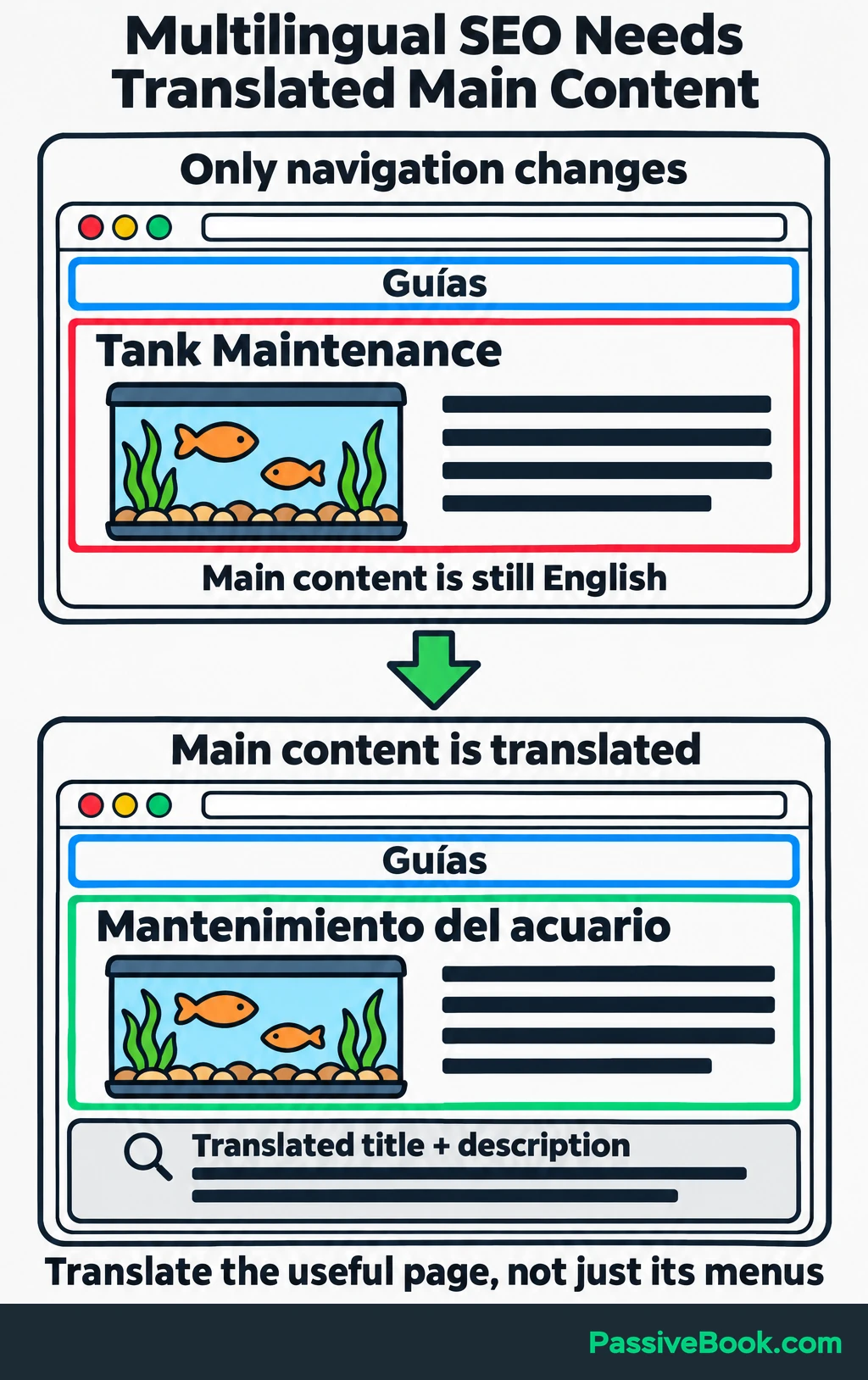
A fully translated page is not duplicate content simply because it covers the same subject in another language. Google’s guidance distinguishes translated main content from pages where only menus or other surrounding text change. Google’s localized-page guidance
I would prioritize complete, useful translations over buying an upgrade solely to translate a URL slug.
Total Cost and Translation Ownership
The license price is only one part of the bill. Add required extensions, machine-translation usage, human review, and the work needed to keep translations current.
Three common allowances buy different things:
- Generation credits: These pay for producing translated wording.
- Cloud word allowances: These limit how much translated content the service maintains.
- Traffic allowances: These limit translated page loads or requests during a billing period.
Before comparing plans, estimate the words you intend to translate. Include selected articles, product pages, and shared website text.
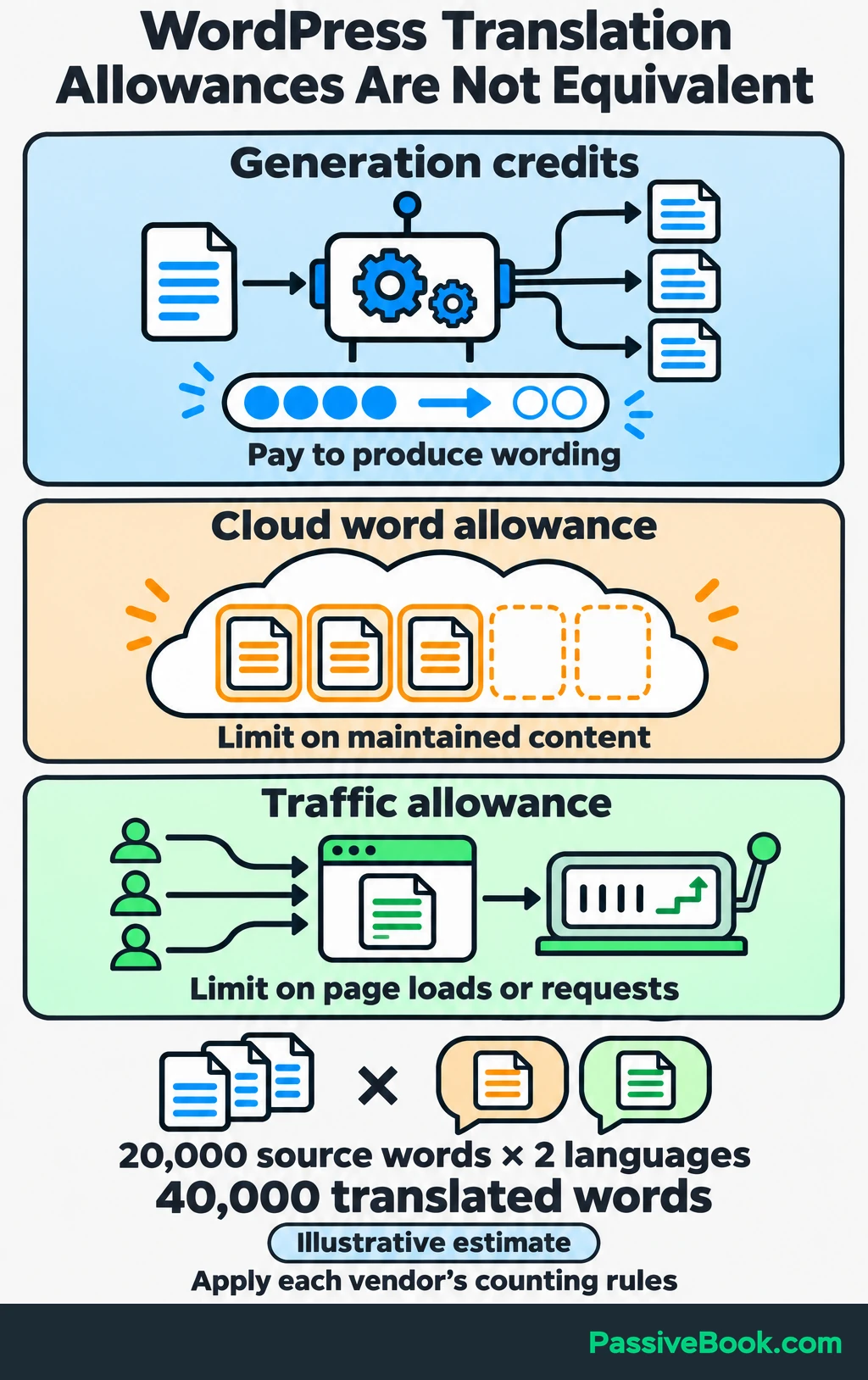
Suppose the aquarium site has 20,000 source words and you want each translated into Spanish and German:
20,000 source words × two additional languages = 40,000 translated words.
That gives you a starting estimate. Apply each vendor’s counting rules and leave room for new content.
For example, the TranslatePress allowance in the table below funds translation generation. Weglot’s allowance limits the translated content maintained through its service. Matching word counts do not make those plans equivalent.
Once two plans cover your languages and workflow, compare their costs over the same period. Include required add-ons and estimated usage charges rather than just the advertised license price.

Free Software Cost Calculator




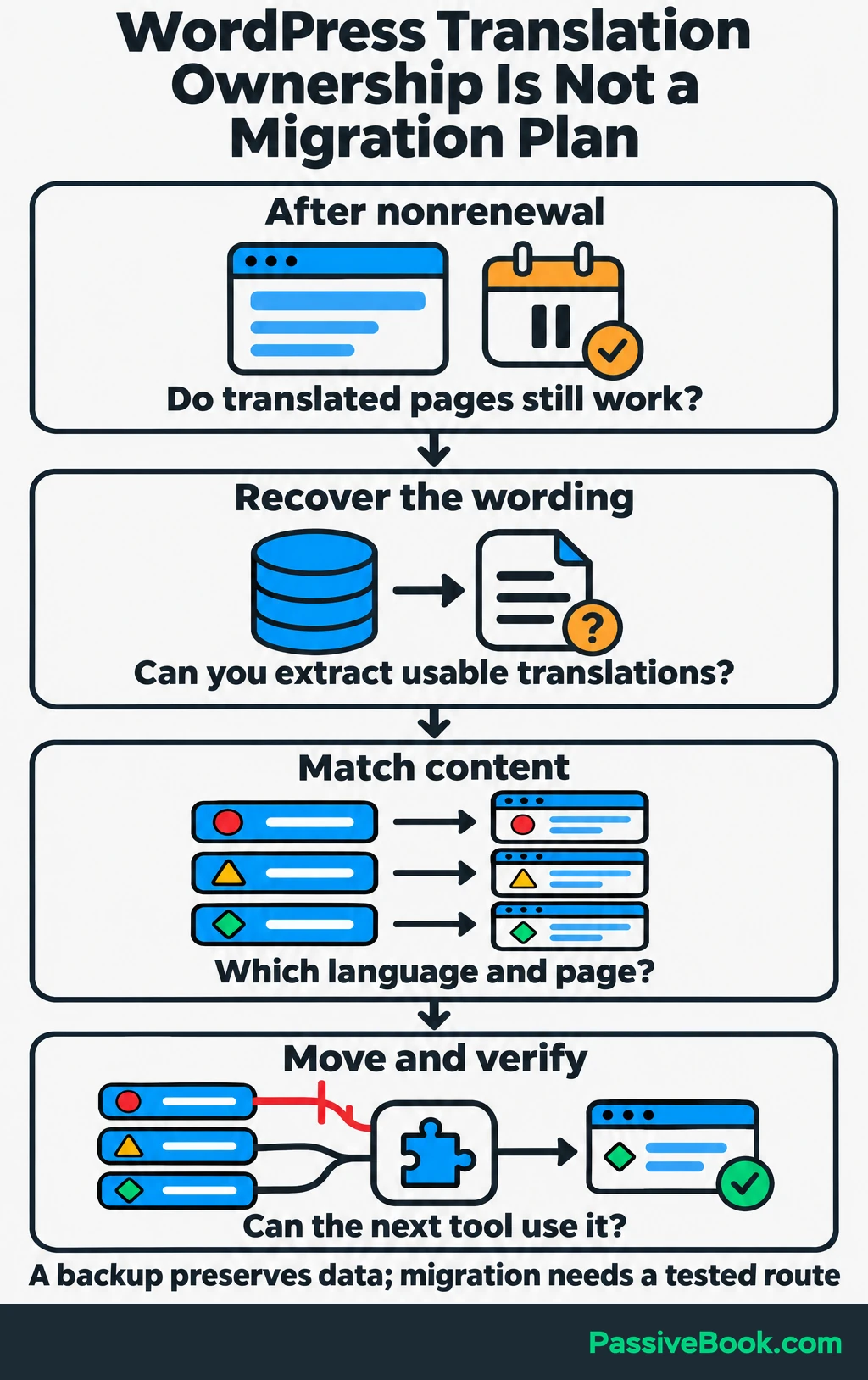
Also check what happens when you stop paying. Does the translated website keep working? Can you export the wording? Which plan includes export?
A database backup preserves stored data, but moving that data into another translation plugin can still require work. “Stored locally” is useful. It is not a migration plan.
Which WordPress Translation Plugin Should You Choose?
I would narrow the first round to these four:
- TranslatePress: Choose it if you want to edit translations while looking at the finished page and keep them in your WordPress database.
- WPML Multilingual CMS: Choose it for a WooCommerce store with more involved content, extensions, and translation assignments.
- Polylang: Choose it for free multilingual publishing when you can supply the translated wording yourself.
- Weglot: Choose it if you prefer automatic content detection and cloud editing, and its recurring cost fits your content volume.
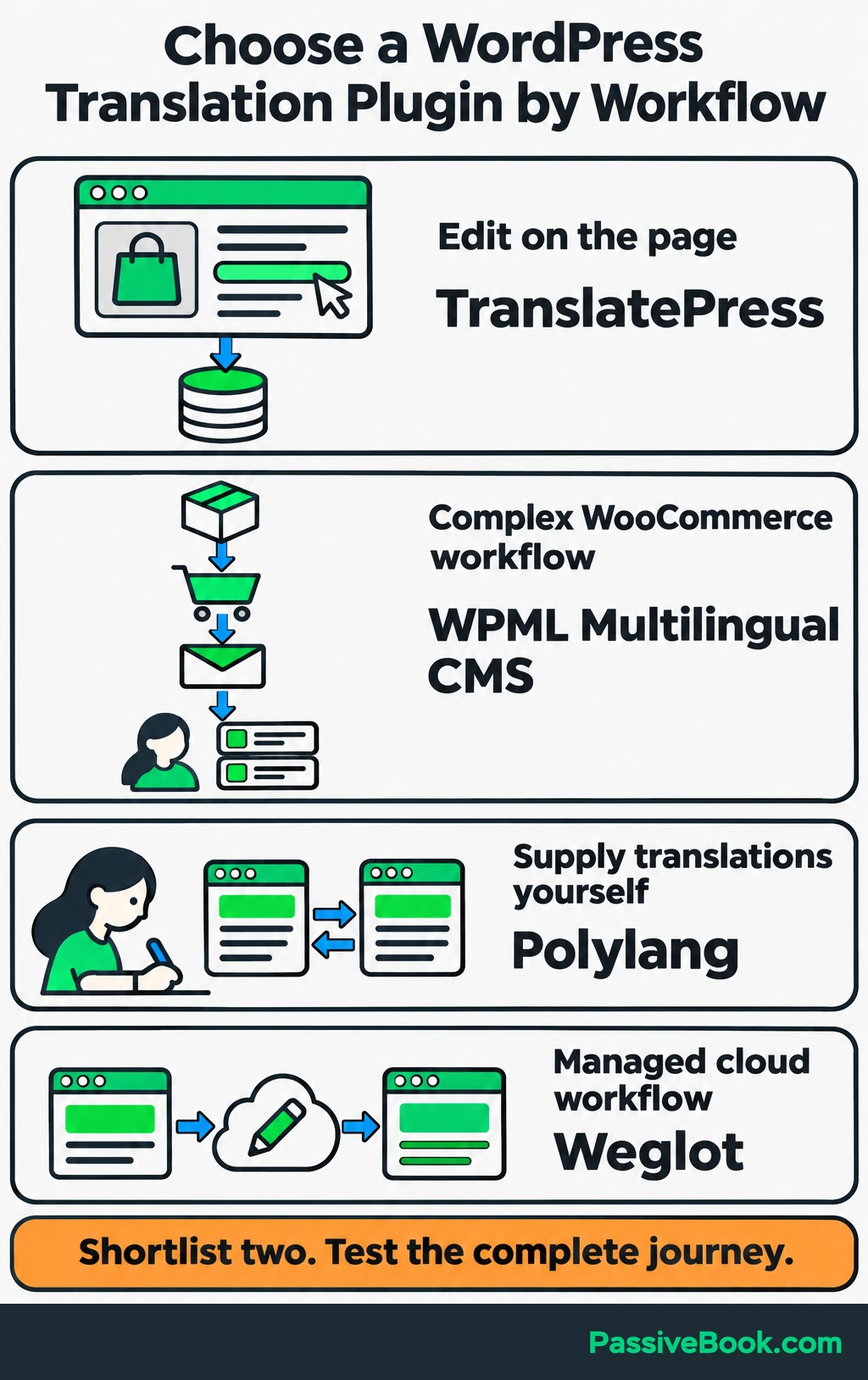
For the aquarium blog and planner store, I would test TranslatePress against WPML first. TranslatePress offers an appealing visual workflow, while WPML deserves a close look at the purchase and delivery stages.
The other nine options cover narrower needs, including larger cloud allowances, separate language sites, and simpler manual publishing.
The 13 Best WordPress Translation Plugins
The table keeps exact prices and key allowances together. Annual billing means paying for the year, even when a vendor advertises a monthly equivalent. Tax treatment is shown where the vendor states it, and the linked pages provide current purchase details. Some plans connect to DeepL, a machine-translation service. An API key lets the plugin use your account with that service.
| Plugin | Best Fit | Workflow and Storage | Free-Version Boundary | Relevant Paid Price | Principal Extra Cost or Restriction |
|---|---|---|---|---|---|
| TranslatePress | Editing translations on the page | Manual or automatic; local database | One additional language; 2,000 AI words | Personal: €99/year, one site; Business: €199/year | Personal includes 50,000 AI words; translator accounts and DeepL integration need Business |
| WPML | Complex WooCommerce stores | Manual or automatic; local content with translation-management tools | No free edition | Multilingual CMS: €99/year | Includes 22,500 AI words; further generation costs extra |
| Polylang | Manual multilingual publishing | Separate linked WordPress records; local storage | Manual publishing; WooCommerce integration sold separately | Pro: from €99/year excluding VAT; Business Pack advertised at €139/year excluding VAT, reduced from €198 | Pro alone does not include WooCommerce; DeepL uses your own API key |
| Weglot | A managed cloud workflow | Automatic detection with human editing; cloud service | 2,000 total translated words; one additional language | Starter: €150/year; Business: €290/year, excluding VAT | Starter allows 10,000 words and one language; Business allows 50,000 words and three languages |
| Linguise | Several languages within a cloud allowance | Automatic drafts with visual corrections; cloud service | One-month trial | Start: $165/year | One website, 200,000 translated words, unlimited languages and translated page views |
| GTranslate | Automatic translation without word caps | Free visitor widget or paid cloud delivery | No search indexing, manual corrections, or commercial use | Custom: from $12/month; Startup: $25/month; Business: $35/month | Custom’s entry configuration is bilingual; translated slugs require Business |
| ConveyThis | A larger free cloud allowance | Automatic drafts with text and visual editing; cloud service | 10,000 words, one additional language, 2,500 monthly page views | Starter: $120/year | Starter allows 60,000 words, one additional language, and 15,000 monthly page views |
| MultilingualPress | Separate language sites | Linked sites within WordPress Multisite | No current free edition in this comparison | Starter: €149/year; Professional: €499/year, including VAT | Starter covers two total languages; Professional covers six; machine translation has separate provider costs |
| Falang | Translations held in metadata | Manual editing with translation assistance; local storage | Core translation features; advanced assistance and WooCommerce email features require paid access | Standard: €79.90 for one site | Includes one year of support and updates; builder extensions and provider usage may add costs |
| WP Multilang | Keeping translations within existing records | Manual or automatic; local storage | Manual translation; automatic translation and translated slugs require Pro | Personal: $99 for one site | One year of updates and support; selected builder integrations require Pro |
| Multilanguage by BestWebSoft | Low-cost manual publishing | Manual or assisted editing; local storage | Basic posts, pages, categories, tags, and selector | Pro: $39/year per domain | Advanced content, builder, and SEO features require Pro |
| WPGlobus | Manual language fields in one record | Manual editing; combined language text stored locally | Core manual publishing; builder and store features require its paid successor | TIV Globus: €90 for a one-year plan | Uninstalling requires careful cleanup; subscription includes updates and support |
| Bogo | A simple translated blog | One WordPress post or page per language; local storage | Free manual publishing | Free; no paid tier needed for its documented core workflow | You supply translations; full store coverage needs separate verification |
1. TranslatePress: Best for Visual Translation Editing
TranslatePress would be my starting point if you want to correct wording while seeing the page around it.
Its visual editor lets you select visible text and enter a translation. Documented coverage includes forms, page-builder output, WooCommerce content, and language-specific image replacements. That last feature helps when an image contains English text. TranslatePress’s feature listing
For the aquarium planner, you could review the translated sales copy beside the product image, price, and purchase button. That makes it easier to notice a heading that wraps badly or a button label that no longer fits.
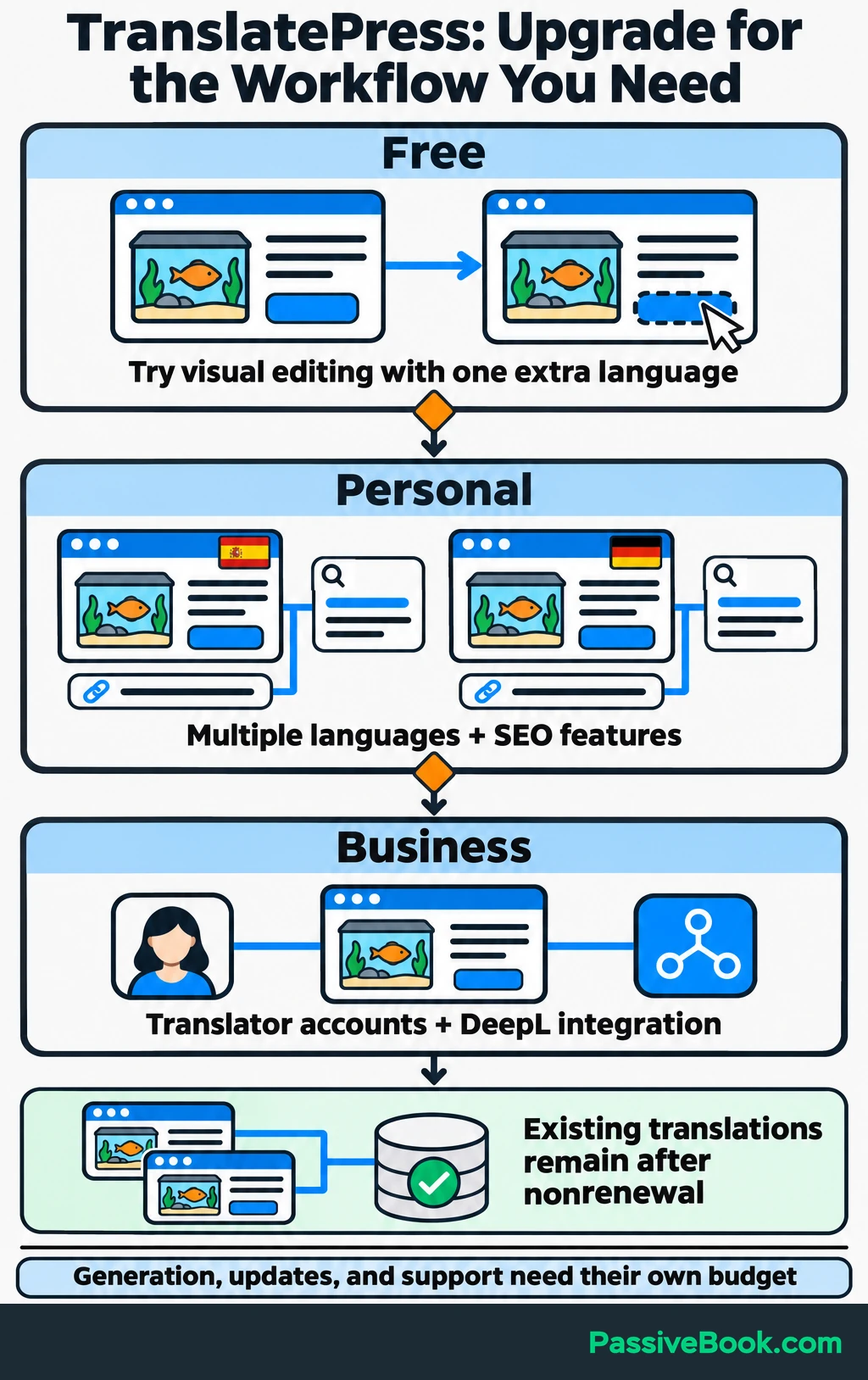
The free edition is useful for trying this workflow with one extra language. Personal is the relevant upgrade for Spanish and German, translated search metadata, and translated slugs.
I would move to Business only if translator accounts, its DeepL integration, or another Business feature solves a real need. Buying extra settings is an expensive hobby.
Translations stay in your database, and the vendor says you retain them after license nonrenewal. Continued premium updates and support require an active license. Budget separately for generation beyond your allowance.
2. WPML: Best for Complex WooCommerce Stores
WPML earns its place when translation involves more than editing ordinary pages.
Multilingual CMS includes translation management, string translation, page-builder support, and commerce support. String translation covers smaller pieces of text supplied by themes and plugins, such as labels and messages.
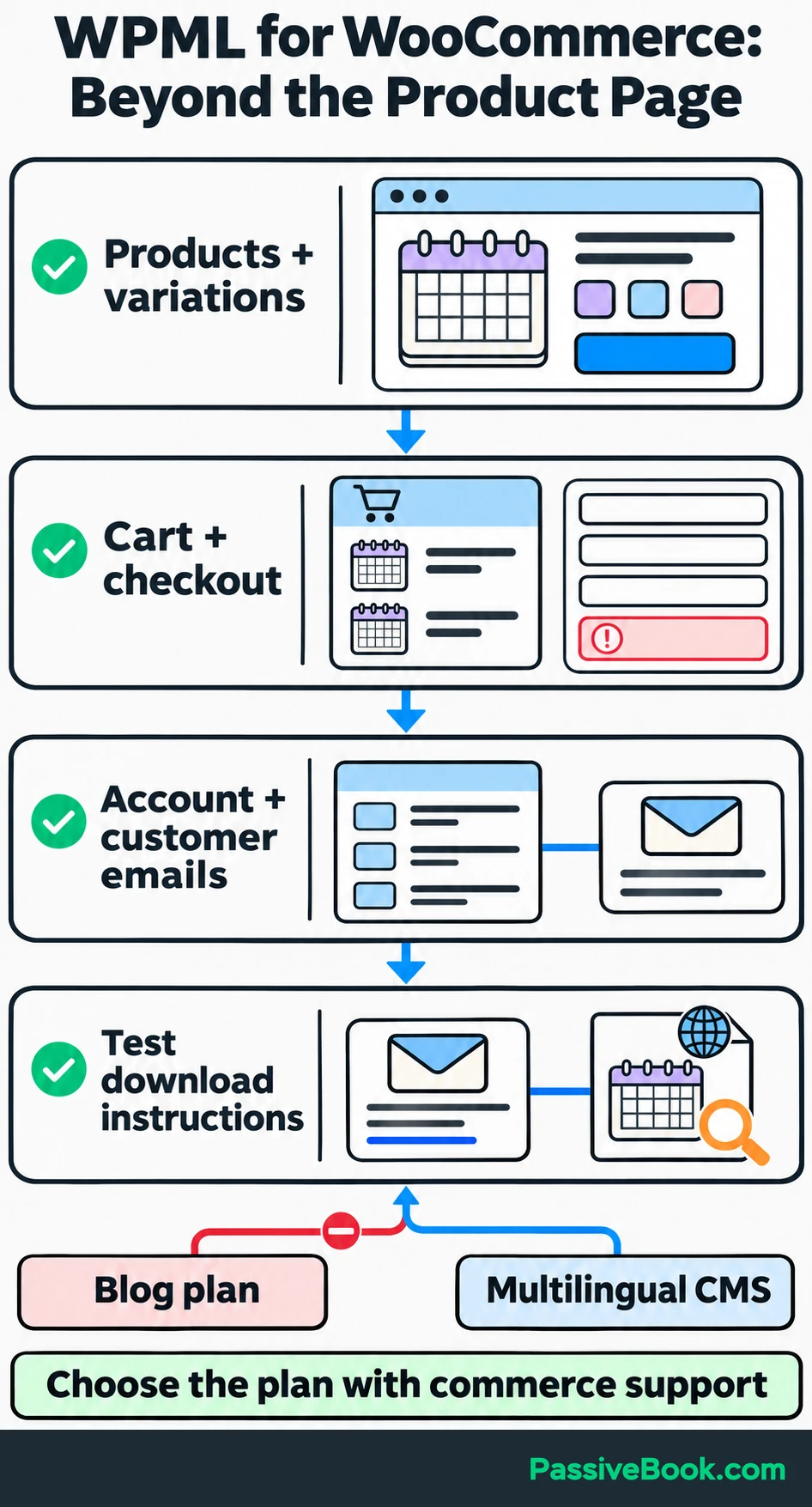
Its WooCommerce integration documents coverage across products, variations, cart, checkout, account pages, and customer emails. That breadth is why I would shortlist it for a store with several steps after the product page. WPML’s WooCommerce coverage
For the planner store, I would test the translated order email and download instructions early. Those steps matter more than whether the homepage greeting sounds elegant.
Choose Multilingual CMS for this job. The cheaper Blog plan leaves out the advanced translation editor, automatic translation, string translation, and commerce support.
WPML involves more configuration than a simple manual publishing tool, but that can be worthwhile when you need structured translation work. Published translations continue after nonrenewal, while updates and support require renewal. Additional machine translation also belongs in the budget.
3. Polylang: Best Free Option for Manual Multilingual Publishing
Polylang is my first free shortlist choice when you can provide the translations.
You create a language version of a post or page and link it to the original. The free plugin also handles translated categories, menus, and other publishing elements.
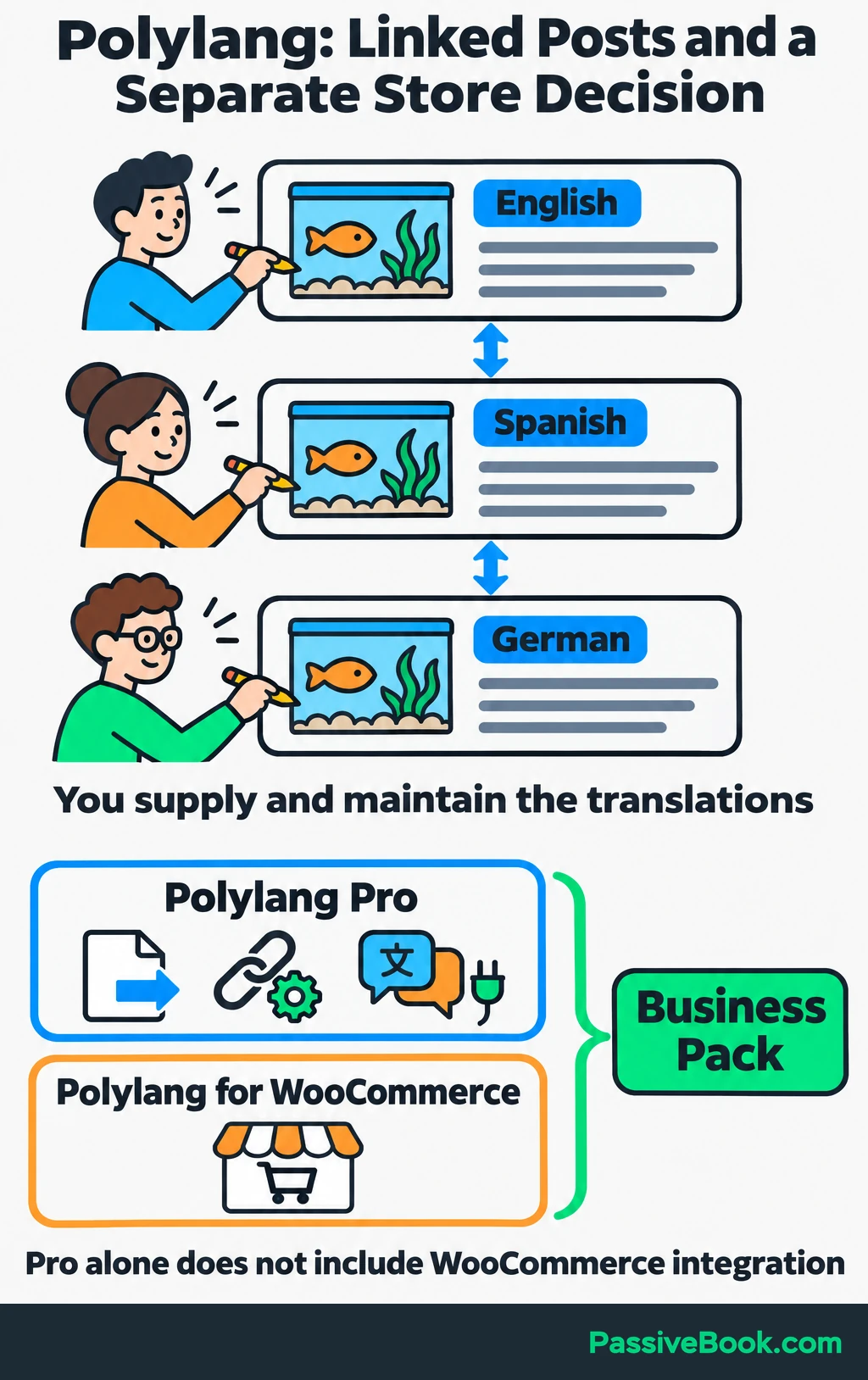
That approach suits selective expansion. You could translate your most useful aquarium guides first and leave older, less relevant articles in English.
Pro adds features such as import/export, extra slug controls, and DeepL integration. Its DeepL workflow uses your own API key, and the documented editor integration excludes Elementor.
The store decision is separate. Polylang Pro alone does not include Polylang for WooCommerce. For the planner shop, compare the Business Pack, which combines both products and covers store pages, customer emails, and cart synchronization.
I would choose Polylang for control over individual language versions. I would skip it if the main goal is automatic whole-site translation with very little publishing work. Separate translated posts are manageable, but somebody still has to maintain them.
4. Weglot: Best for a Managed Cloud Workflow
Weglot detects content, generates translations, and lets you correct them through cloud and visual editors. Its WordPress workflow includes language URLs, translated metadata, and multilingual SEO features.
This is appealing if you want fewer translation tasks inside WordPress. The tradeoff is an ongoing service bill tied to your requirements.
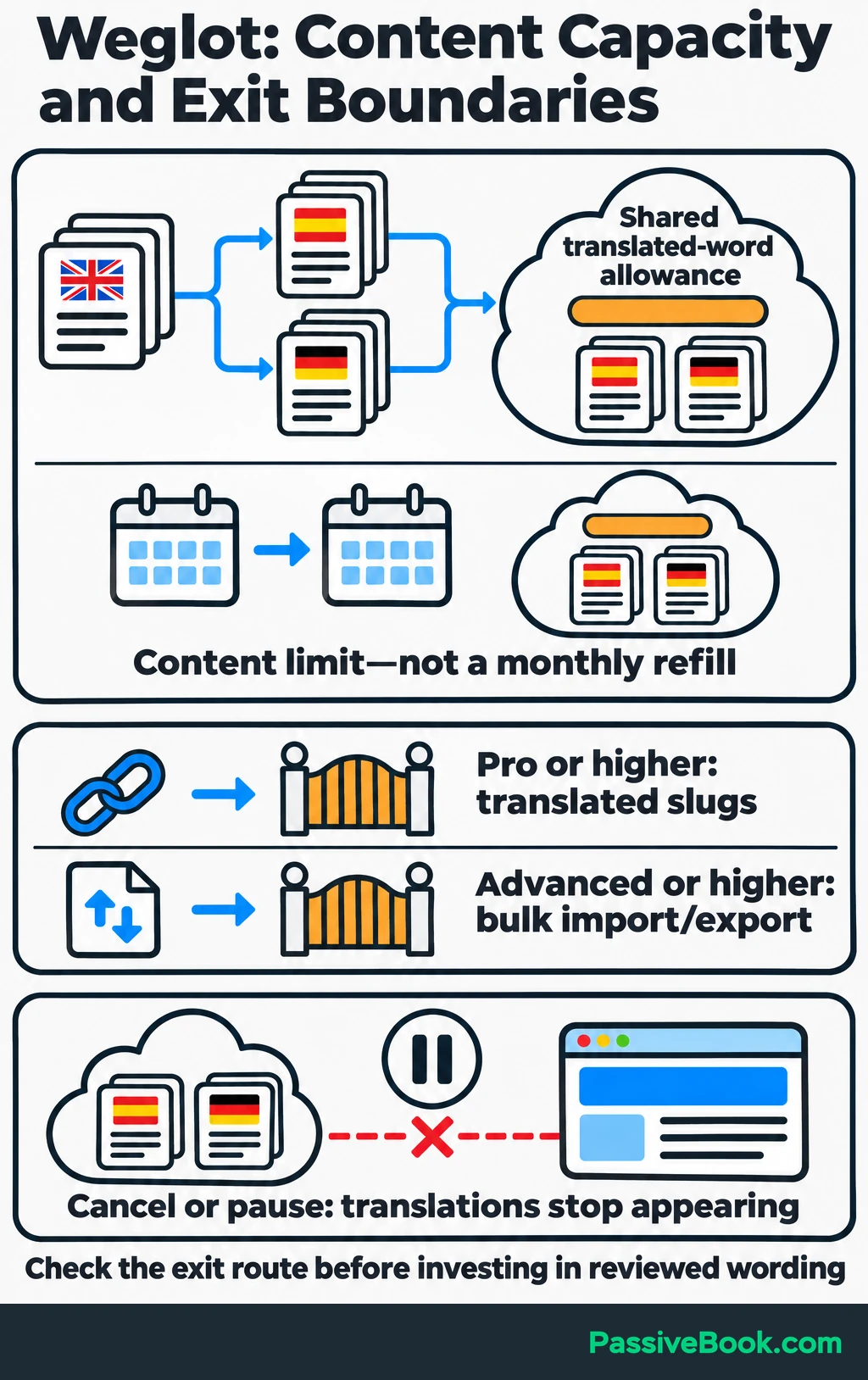
For the example’s estimated translated content and two additional languages, Business is the relevant plan in the table. Starter cannot cover both languages.
Weglot’s word allowance is a fixed content limit across translated languages. It does not refill each month. Translated slugs require Pro or higher, and bulk import/export requires Advanced or higher.
I would pay particular attention to that export boundary if you expect to invest heavily in reviewed translations.
Also understand the cancellation consequence: Weglot says canceling or pausing the service stops translations appearing on the website. Weglot’s cancellation explanation
I would choose it when the convenience earns its recurring cost. I would hesitate if keeping translated pages available without a service subscription is a firm requirement.
5. Linguise: Best for Multiple Languages Within a Cloud Word Allowance
Linguise is worth comparing when you want several languages and smaller cloud allowances feel restrictive.
It generates translations automatically and provides a front-end editor for corrections. Its WordPress integration also documents dynamic-content handling and WooCommerce email translation. Linguise’s WordPress features
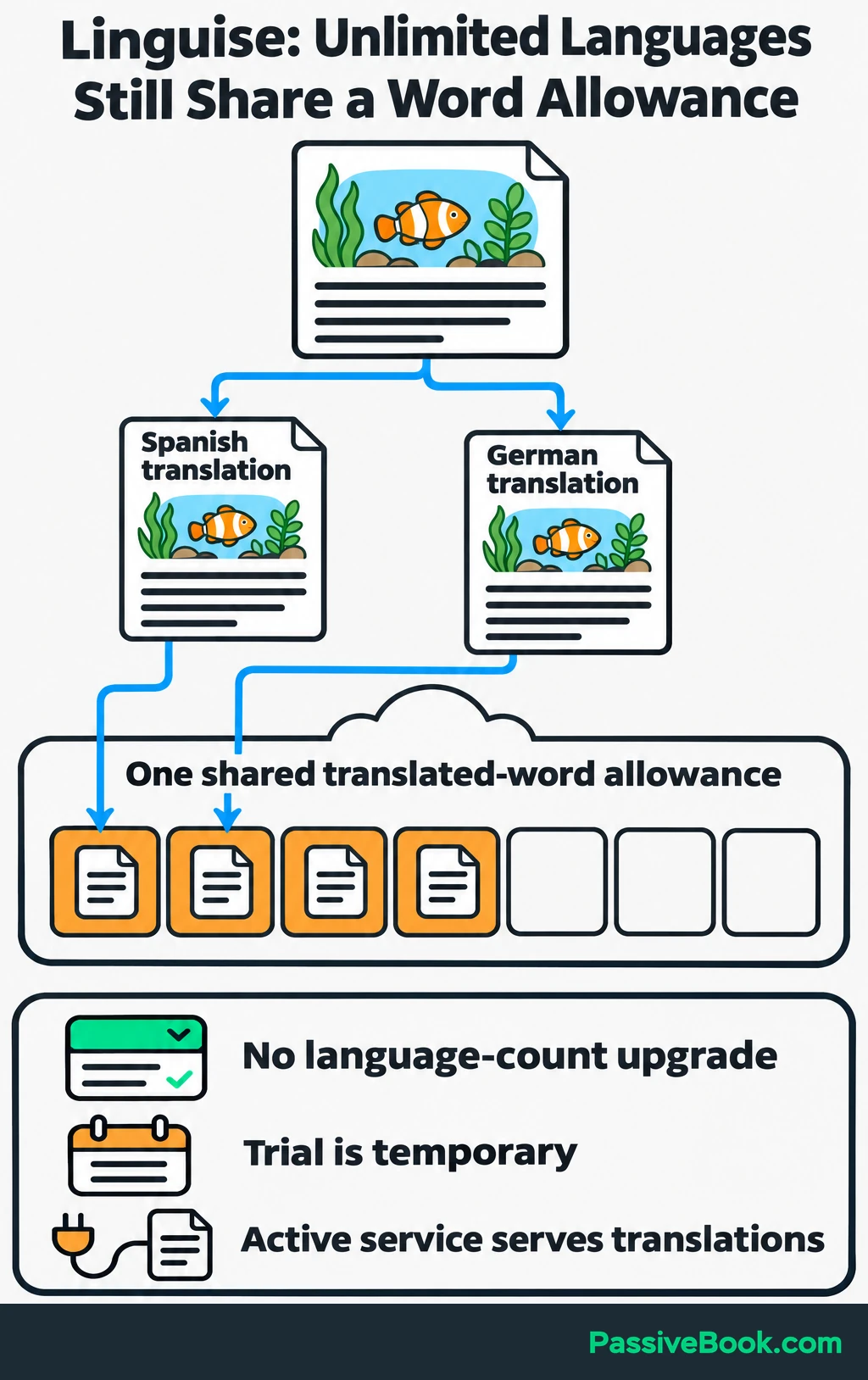
The entry paid plan combines a substantial translated-word allowance with unlimited languages and translated page views. That gives you room to test Spanish and German without a language-count upgrade.
Still, unlimited languages does not mean unlimited content. More translated versions consume the shared word allowance.
Its free offer is a trial, so do not build a long-term budget around a permanent free tier. An active subscription is required to serve translations, and optional advanced AI features can add costs. Linguise’s subscription requirements
I would shortlist it against Weglot when cloud management appeals to you, then compare the actual editing process and the full cost for your content.
6. GTranslate: Best for Automatic Translation Without Word Caps
GTranslate’s free widget and paid service solve different problems.
The free widget helps visitors read machine-translated content, but it does not provide the paid service’s indexable language pages or manual translation corrections. The published free-plan boundary also excludes commercial use.
That rules out the free option for the aquarium site’s planner business.
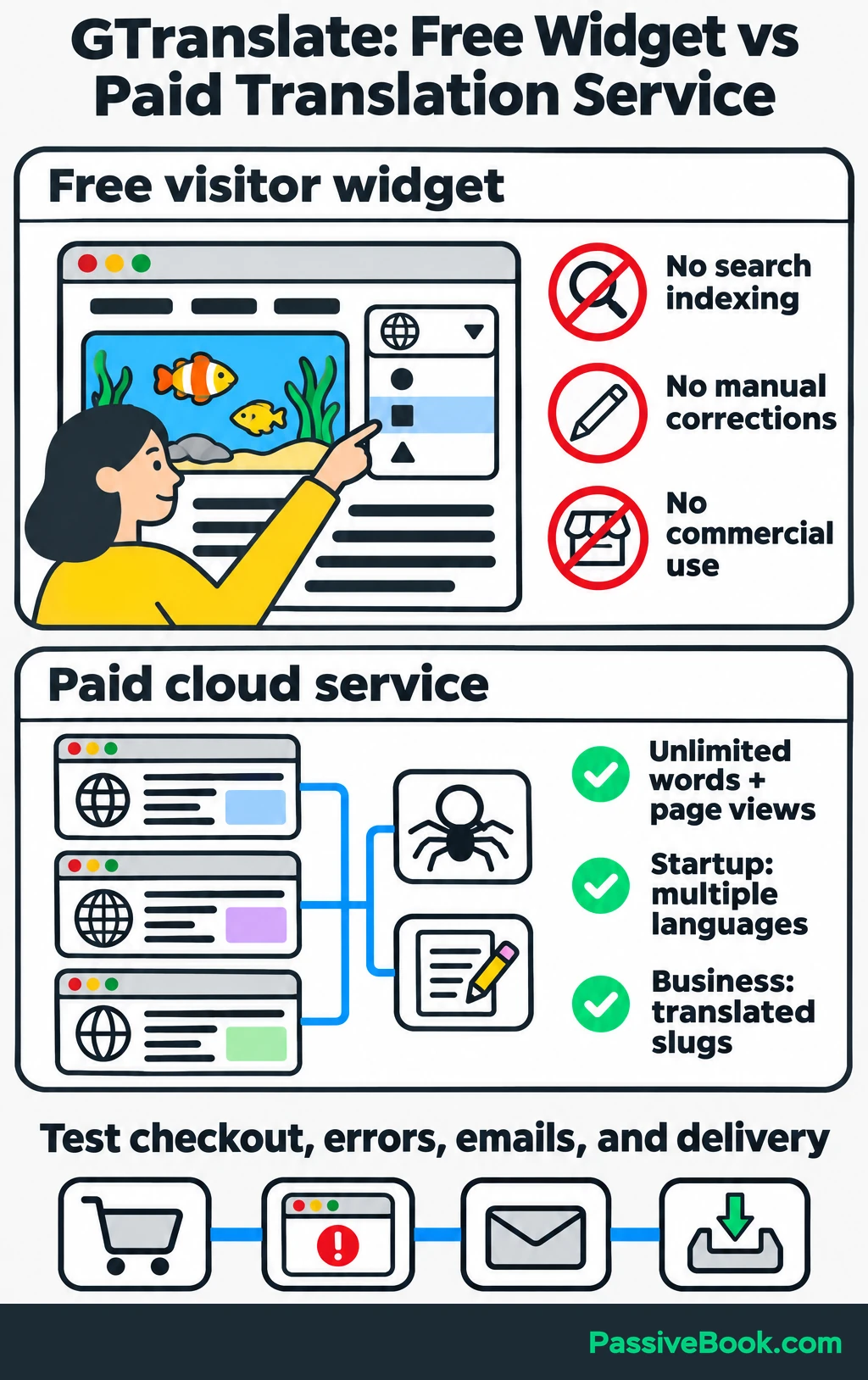
The paid plans advertise unlimited words and page views. I would compare Startup for the example’s multiple languages, or Business if translated URL slugs matter to the plan.
This makes GTranslate interesting when content-volume billing is the main obstacle. A large archive can change the economics of translation quickly.
I would still test the pages where wording and behavior matter most: product details, checkout errors, purchase confirmation, and download instructions. An unlimited allowance is useful only if the translated experience passes those checks.
Choose it for its billing model after confirming that you can make and preserve the corrections your website needs.
7. ConveyThis: Best for a Larger Free Cloud Allowance
ConveyThis offers a more generous free word allowance than several cloud alternatives in this list.
Its workflow combines automatic translation with text and visual corrections, and its documented features include dedicated language URLs, translated metadata, and hreflang.
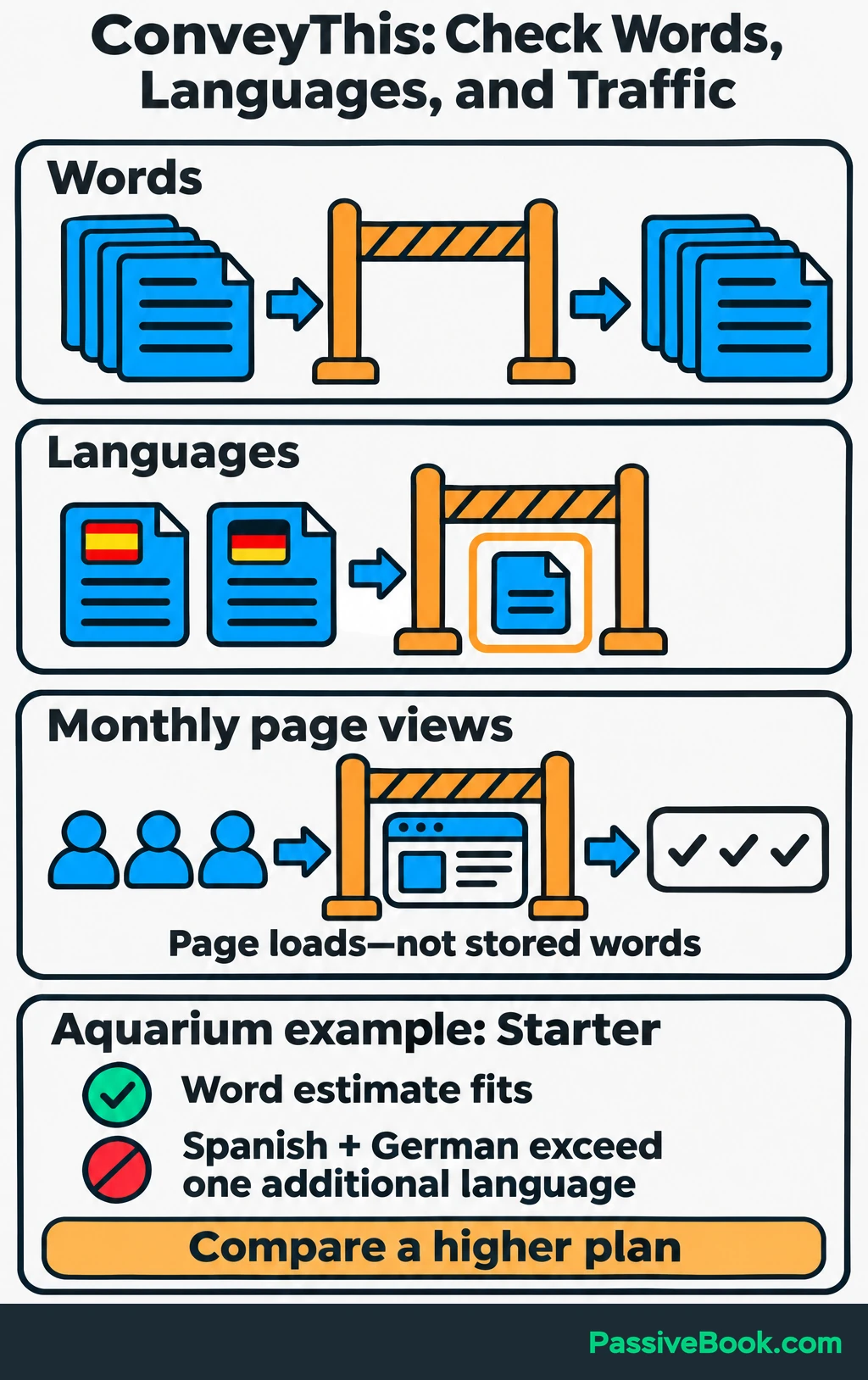
The free tier can suit a small site testing one additional language. But words are only one boundary. You also need to fit the language and monthly page-view allowances.
The aquarium example shows why that matters. Its estimated word count fits Starter, but Spanish and German exceed Starter’s language allowance. You would need to compare a higher plan.
ConveyThis defines monthly translation requests as page loads, so keep that traffic limit separate from the translated-word allowance.
I would use its free plan to assess a focused section of a website. Before rolling it out, compare the plan that covers all intended languages and expected translated traffic. The cheapest advertised plan may have little to do with your eventual bill.
8. MultilingualPress: Best for Separate Language Sites
MultilingualPress uses WordPress Multisite, where each language has its own site within a network.
That is a larger setup decision than installing a plugin on an ordinary single WordPress site. You need to manage the network and the relationships between its language sites.
The benefit is greater independence. Different language sites can have their own content and store setup instead of sharing every decision. MultilingualPress’s architecture
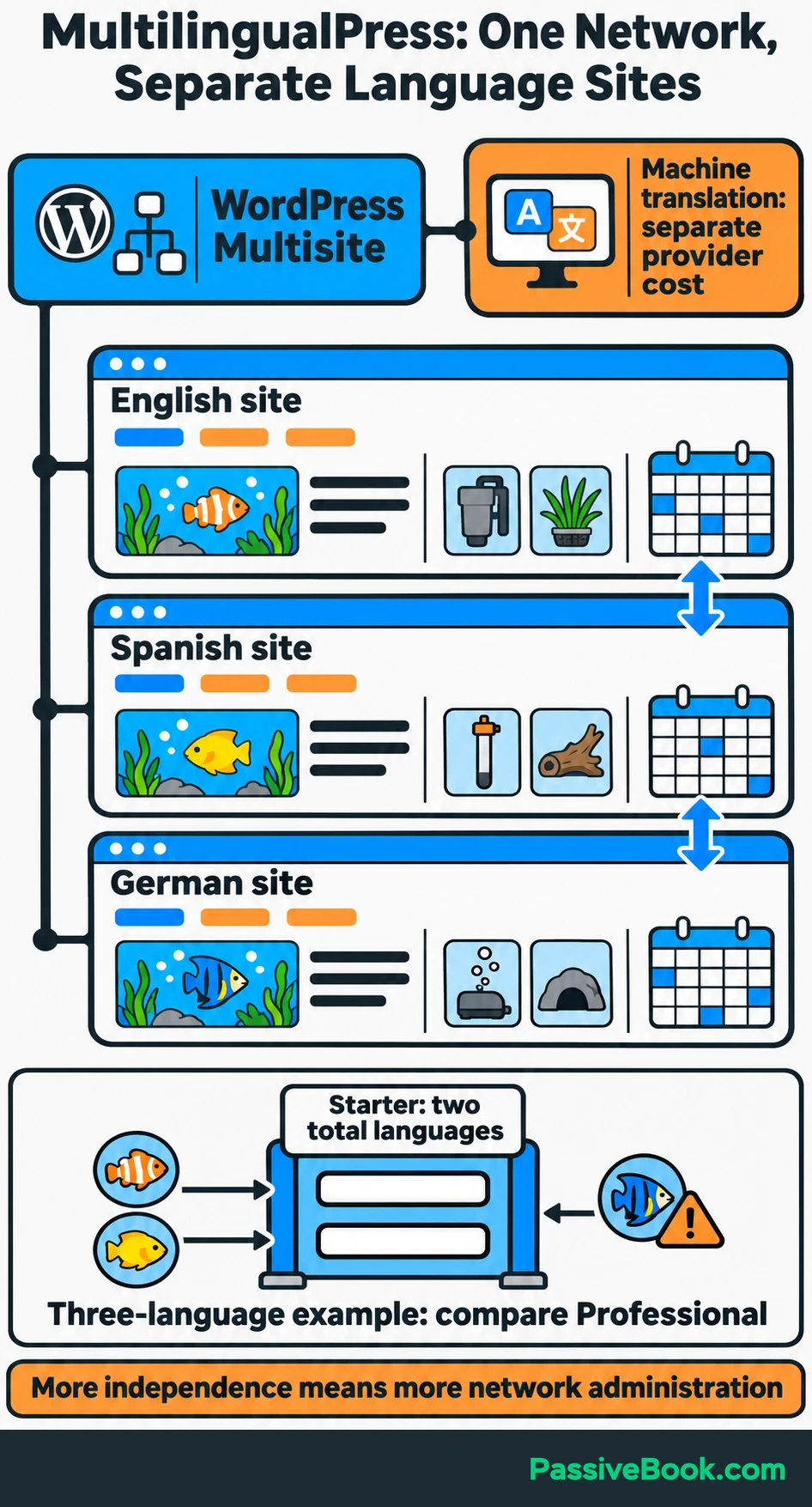
For the aquarium example, English, Spanish, and German require three language slots. Starter’s total-language allowance is too small, so Professional is the relevant comparison.
Automatic translation uses an external provider account, and provider usage is an additional expense.
I would choose this structure when independent language sites are part of the business plan. Perhaps different markets need different catalogs or publishing schedules.
For a blog and one downloadable planner, I would usually start with a simpler single-site tool. Multisite brings useful control, but it also gives you more to administer.
9. Falang: Best for Translations Stored in Metadata
Falang attaches translations to existing content as extra data, called metadata. It keeps the original wording intact rather than creating another post for every language.
Its documented coverage includes posts, menus, media text, permalinks, and core WooCommerce content such as products, variations, categories, and attributes. Falang’s feature listing
I would shortlist it if you like keeping one original content record and want to manage its translations alongside it.
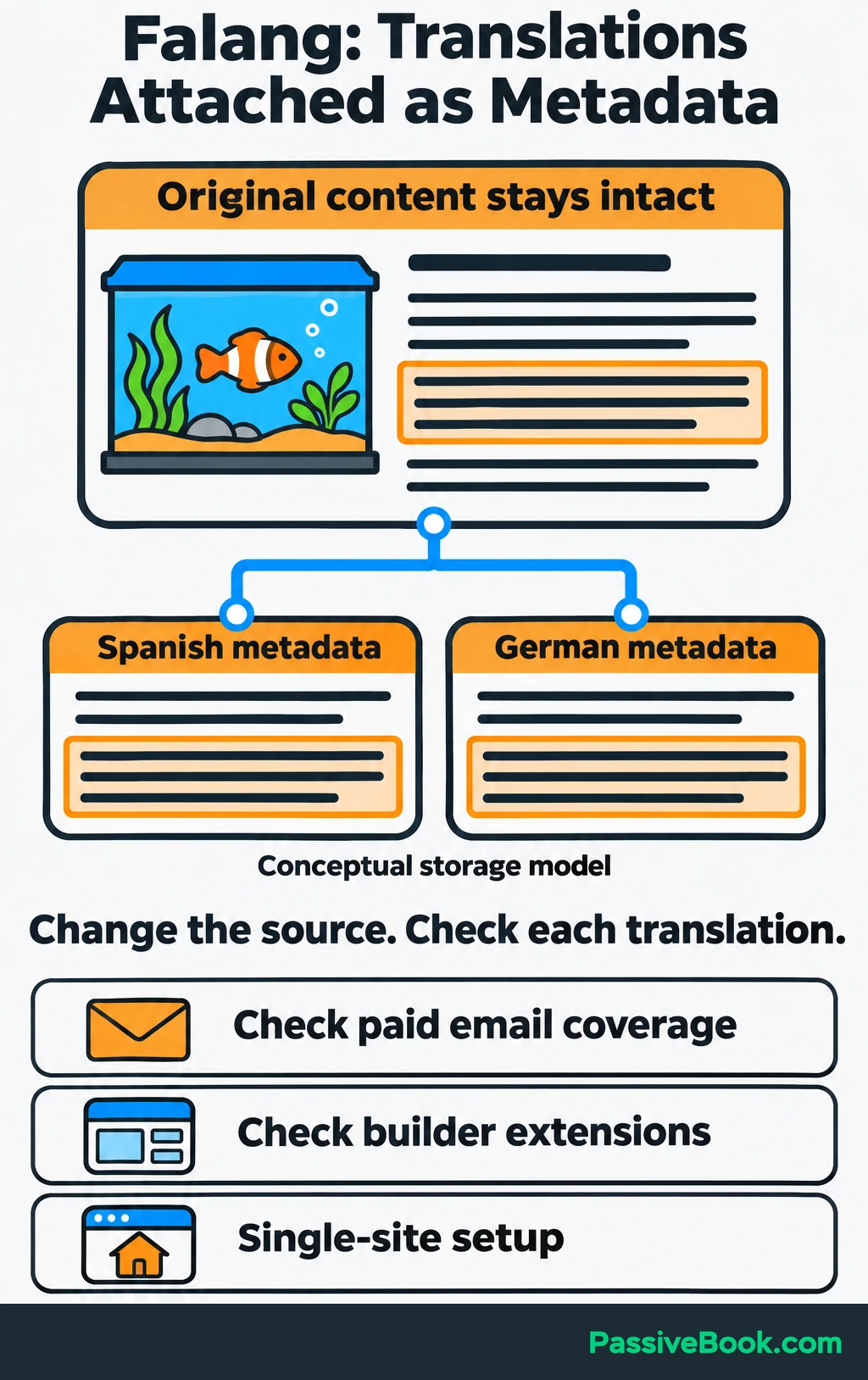
Paid features include WooCommerce email translation and assistance through services such as DeepL and ChatGPT. Standard includes a year of support and updates.
Check builder extensions before buying. A reasonably priced core plugin can become a different purchase once the extensions required by your layout are included.
Falang is intended for a single-site installation rather than WordPress Multisite. For the planner store, check product text and order emails on a private copy of your site. Then change the source wording to see which translations need updating.
10. WP Multilang: Best for Translating Existing Content Records
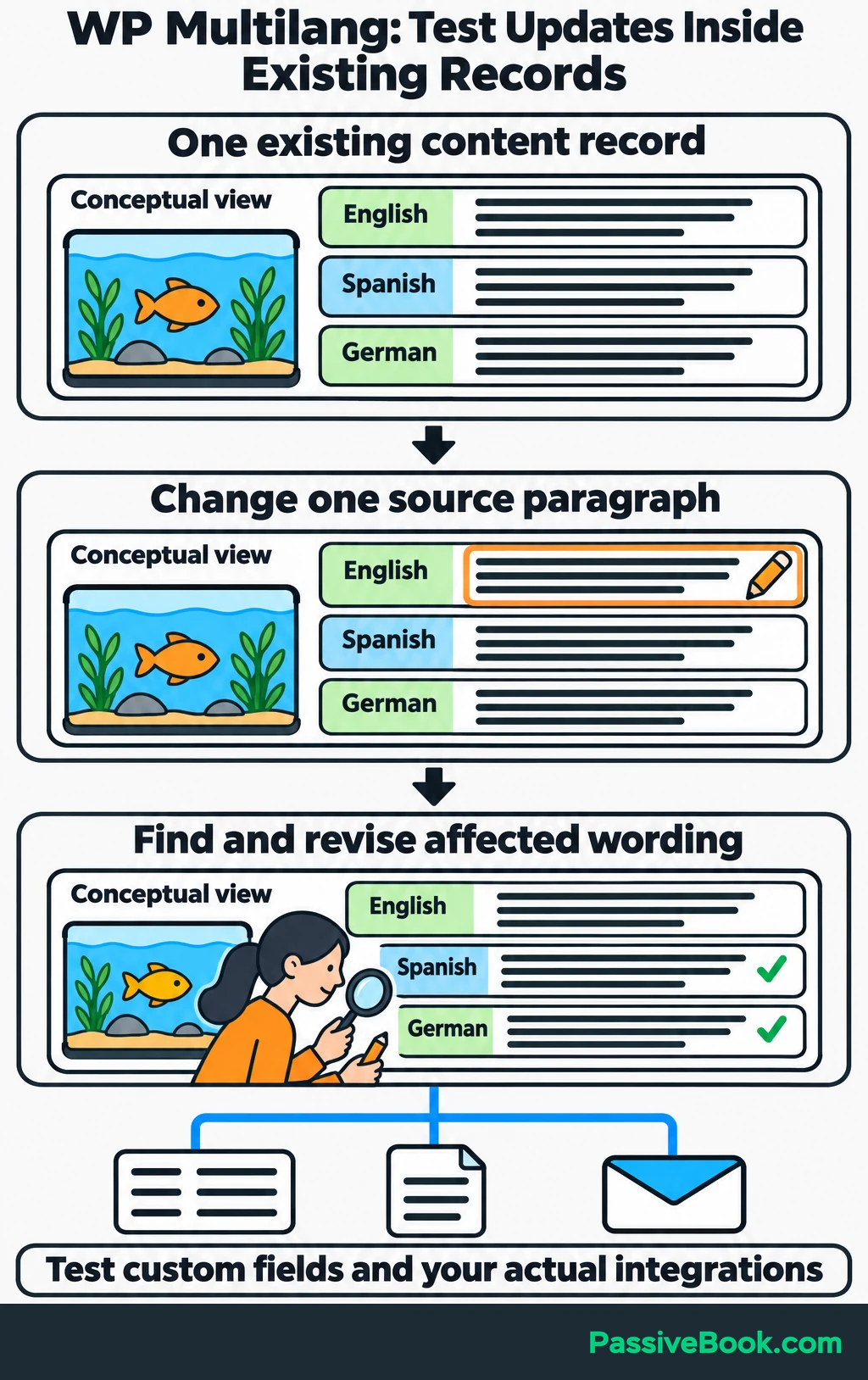
WP Multilang also keeps language versions within existing records instead of duplicating posts.
Its documented coverage includes post types, categories and other taxonomies, metadata, menus, widgets, and settings. The integration list includes WooCommerce, Rank Math, and Fluent Forms, which makes it relevant to the kind of WordPress setup I use.
WooCommerce features include product translation, customer-language emails, and cart synchronization. WP Multilang’s features and integrations
The free edition supports manual translation. Pro adds automatic translation, translated slugs, and selected builder integrations, including Elementor and Divi.
I would test custom fields and source updates before choosing this storage model. Open an existing article, change one paragraph, and see how clearly you can find the language versions that need attention.
For standard content, the workflow may fit well. Custom integrations can need additional configuration, so a long compatibility list should lead to a focused test of your setup.
11. Multilanguage by BestWebSoft: Best for a Low-cost Manual Publishing Setup
BestWebSoft’s Multilanguage plugin suits a straightforward manual publishing job.
The free version handles translated posts, pages, categories, tags, and a basic selector. Pro adds broader content support, separate menus, supported builders, advanced SEO controls, and Google automatic translation integration.
The modest annual license makes it worth considering when you need a small publishing setup and know which premium features matter.
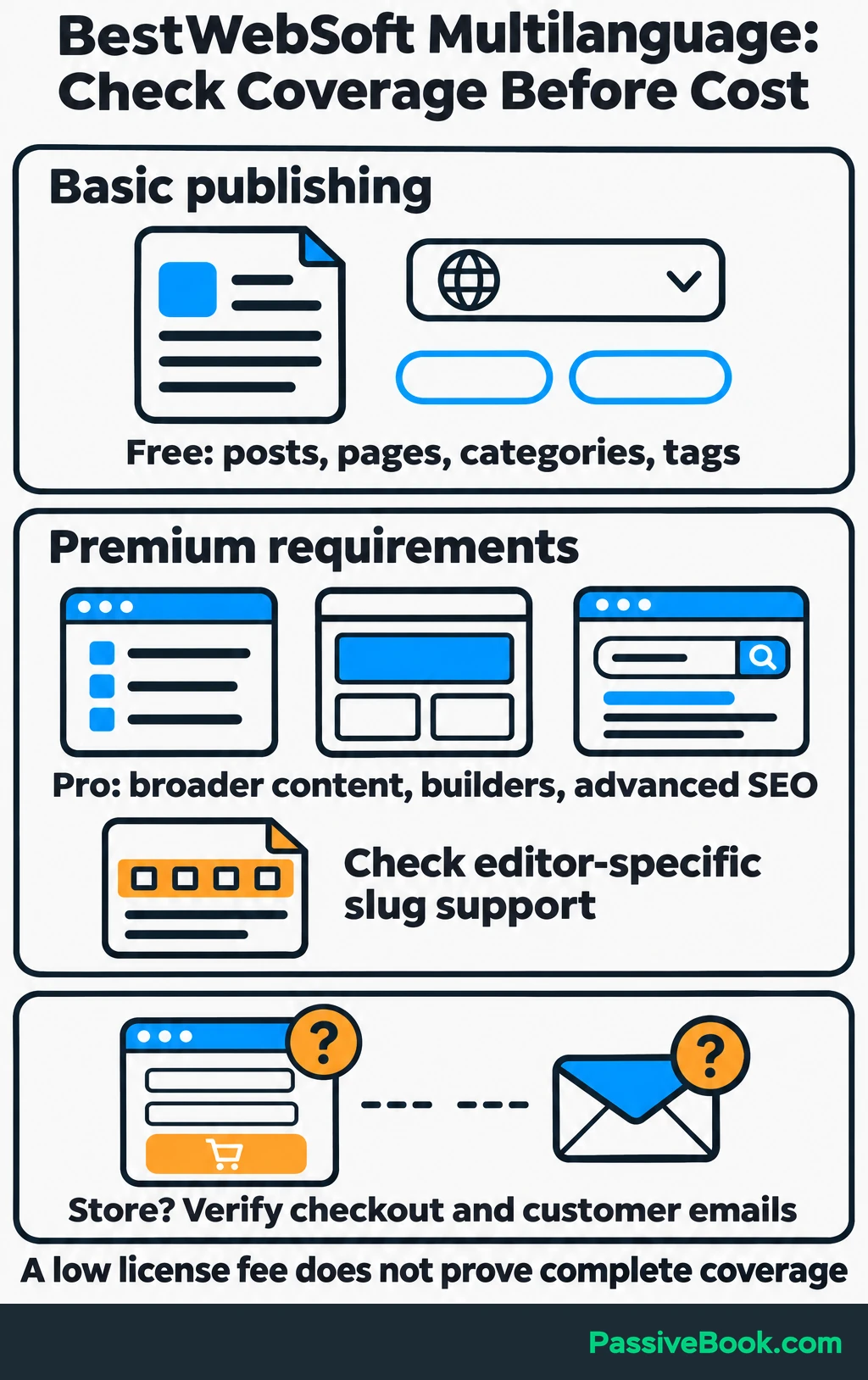
Read the editor-specific details before choosing it. The vendor identifies category and tag slug translation as a Classic Editor feature, and its Yoast integration belongs to Pro.
I would shortlist it for a simple translated content section. For the aquarium planner store, I would ask a specific question about checkout and customer emails before buying.
A low license fee is a useful advantage. Rebuilding the purchase journey later can cost more than the license saved.
12. WPGlobus: Best for Manual Language Fields in One Record
WPGlobus lets you enter translations together within a post or page. The free plugin provides language directories, a selector, and multilingual SEO fields through Yoast SEO. You supply the translated wording.
Its paid successor, TIV Globus, adds translated slugs, builder support, and WooCommerce coverage across products, checkout, and customer-language order emails.
The storage consequence deserves attention before installation. Language versions are stored together in a special format. If the plugin becomes inactive, the combined language text appears. Its cleanup tool removes all but one language. WPGlobus’s storage and removal requirements
I would keep a complete backup and test any migration before running cleanup. That step removes content you may want elsewhere.
Choose this approach if editing languages within one record suits you and you accept the exit work. If moving tools easily is a high priority, compare other storage models first.
13. Bogo: Best for a Simple Manually Translated Blog
Bogo keeps the publishing model simple: one post or page per language.
It works with WordPress language packs and links the translated versions. When you create a translation, Bogo copies the original post, and you replace the wording yourself. Add its language selector so visitors can move between versions.
The plugin is free and uses ordinary WordPress records without adding custom database tables. Support comes through its documentation and WordPress.org forum.
I would consider it for a small set of manually translated aquarium articles. If the task is publishing a reviewed Spanish guide beside its English original, a focused tool may be enough.
For the planner store, I would start with options that document the broader purchase journey. Bogo’s simple blog workflow does not, by itself, establish coverage for checkout and customer emails.
How to Test Your Shortlist Before Committing
Choose two candidates that meet your language, content, and budget requirements. Then compare them using the same small slice of your website.
Back up the site and use a staging copy—a private copy where you can test changes. Install one candidate at a time so you can tell which tool caused each result.
Check the Translated Visitor Journey
Translate a complete path through the website:
- An aquarium guide that introduces the planner.
- The planner’s product page.
- Navigation and a signup or contact form.
- Cart, checkout, and purchase confirmation.
- The customer email, download instructions, and translated planner file.
If your website has no store, test an article, navigation, and a signup or contact form instead. Check your test path on mobile too. Look for crowded buttons, text running outside boxes, and images that still contain English wording.
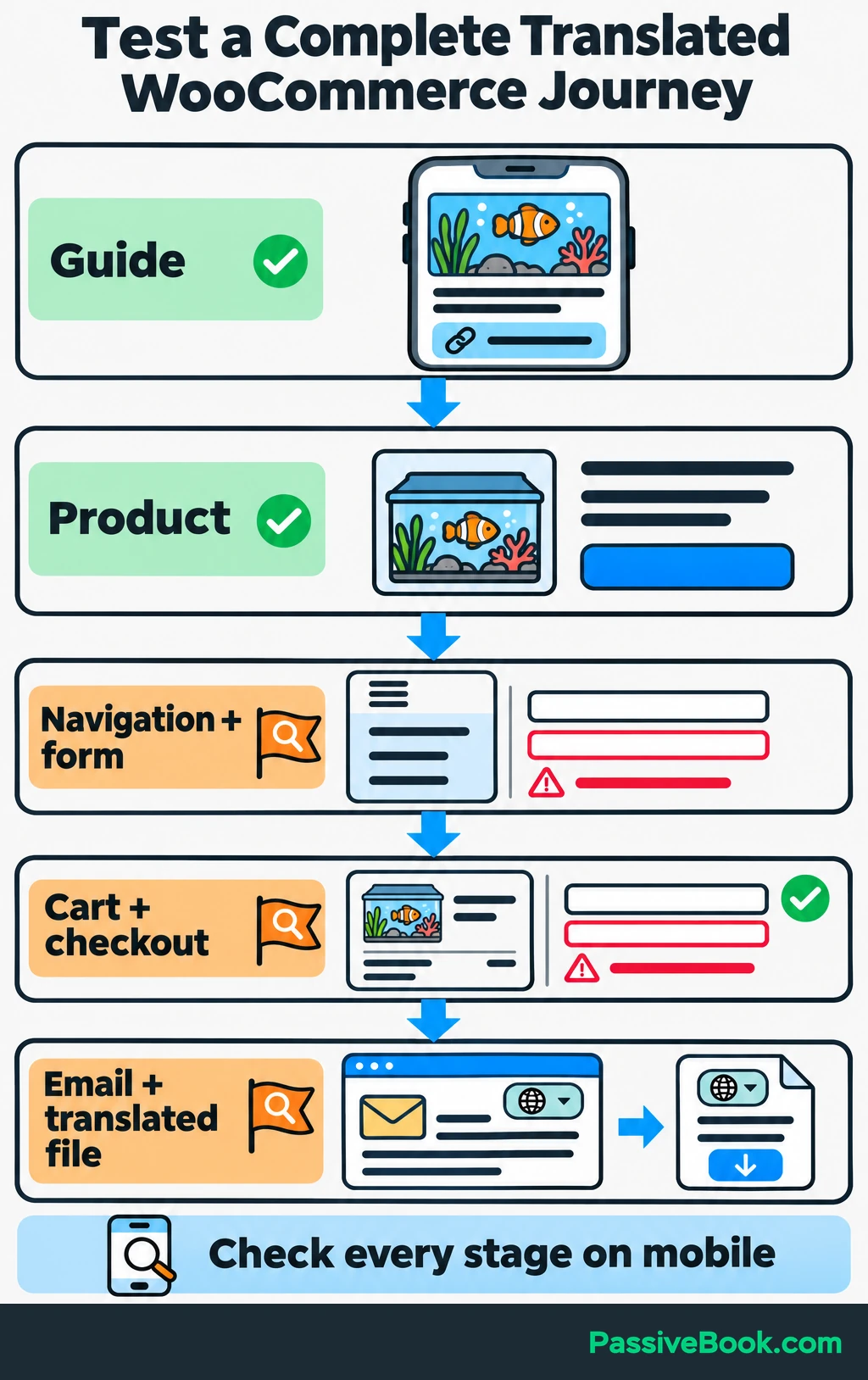
Trigger a form error and a checkout validation message. The happy path gets plenty of attention; the error message often gets left behind.
Ask a fluent reviewer to compare the same passages in both candidates. Give them a short terminology list so they can check recurring aquarium terms consistently.
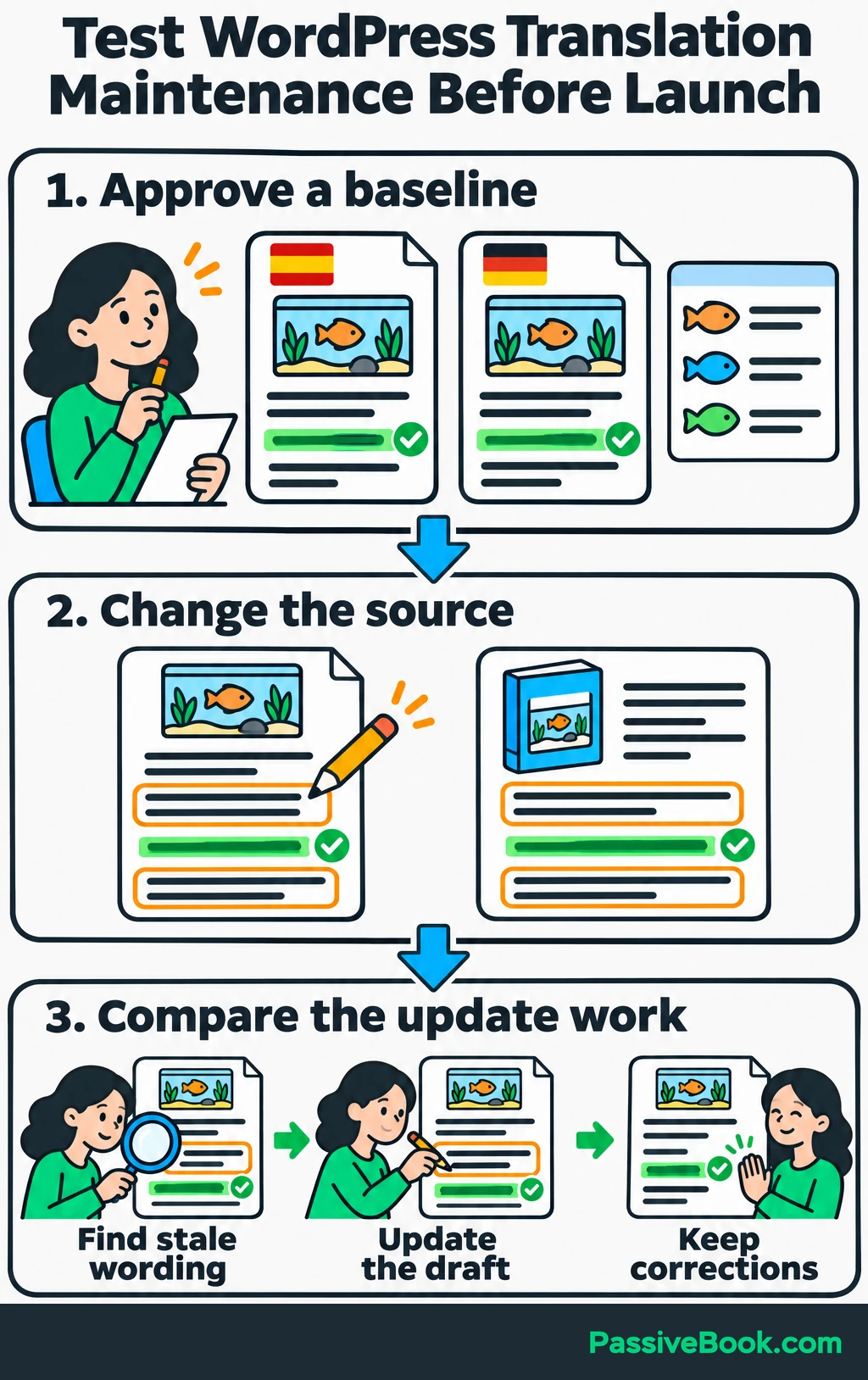
Then change a source paragraph and the product description. Compare how easily you can:
- Find stale wording: Identify translations affected by the edit.
- Update the draft: Revise only what changed.
- Keep corrections: Preserve wording the reviewer already approved.
This update test tells you what maintenance will feel like after launch.
Verify Multilingual SEO
Open each translated URL directly, without first choosing a language on the homepage.
Check that the intended language appears in the main content, page title, and description. Follow the language selector and confirm that it opens the equivalent page.
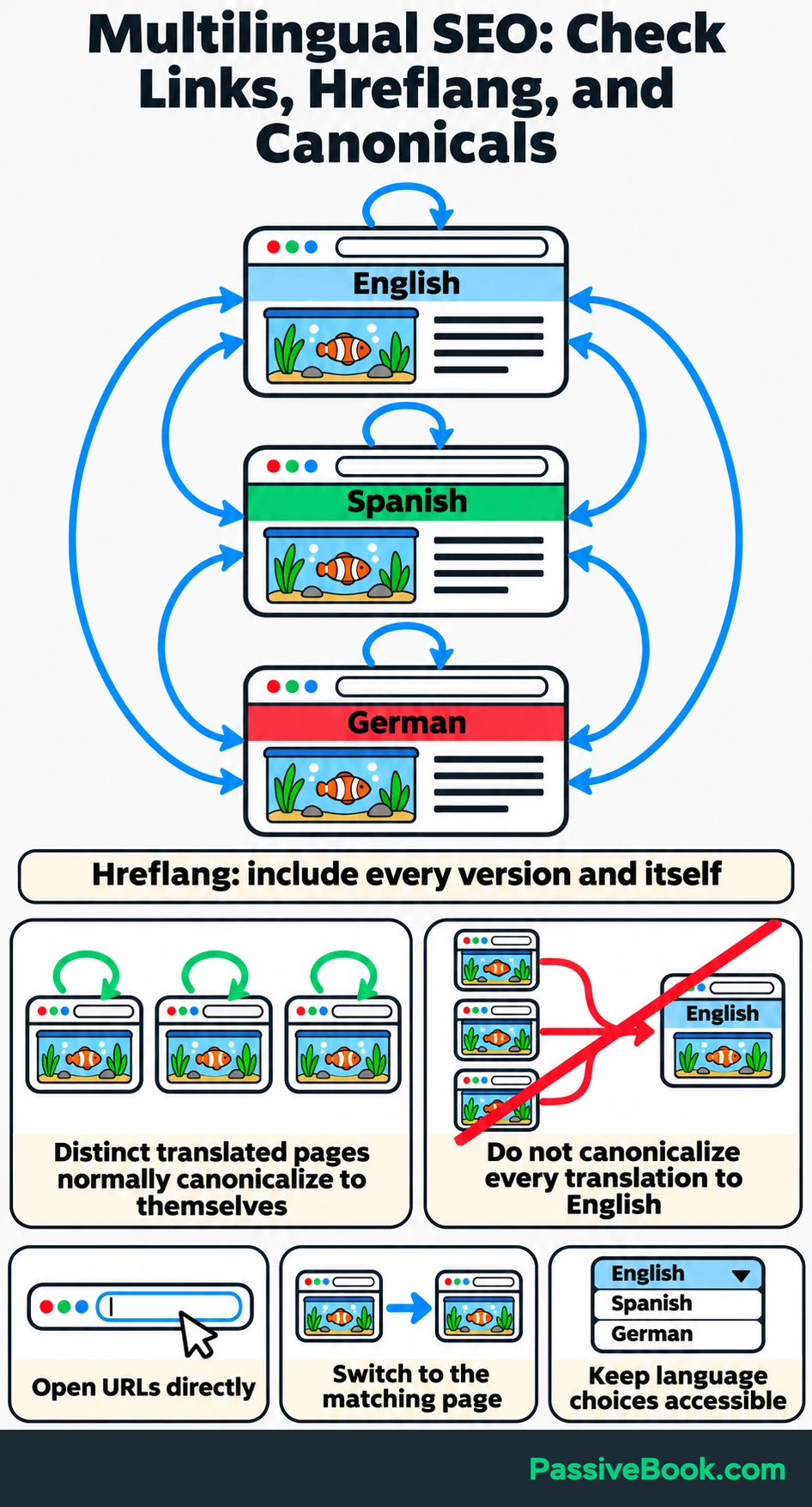
Also inspect the language and canonical signals:
- Reciprocal
hreflang: Each language version points to the others and includes itself. - Appropriate canonicals: Each distinct translated page normally identifies its own preferred URL.
- Accessible language choices: Visitors can reach another version through a visible selector.
A canonical identifies the preferred URL for a page. Do not point every translated page back to English merely because English was the original.
Avoid forced redirects that make another language version difficult to access. If this inspection feels too technical, ask the plugin’s support team to check the small test set before you publish the rest.
Measure Speed With Your Normal Caching
Measure the original site first, then test the same pages with each candidate.
Keep hosting, device, test location, and cache conditions consistent. Repeat the page loads rather than judging a plugin from one result.
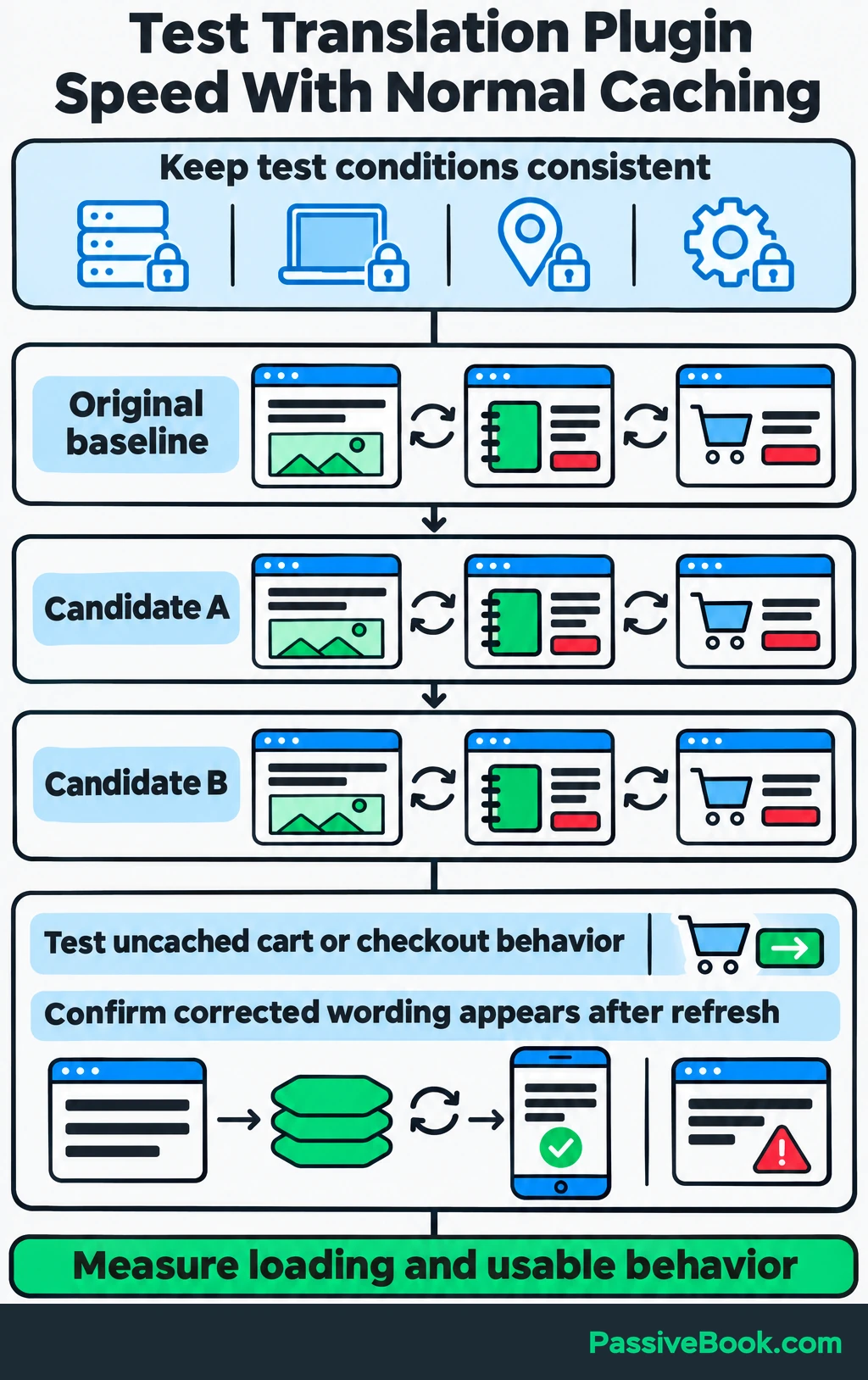
I would record:
- Article loading: An original article and its translated equivalent.
- Product loading: The planner page in each tested language.
- Shopping behavior: An uncached cart or checkout interaction.
- Publishing behavior: Whether a corrected translation appears after the cache refreshes.
Use your usual caching setup. If you run WP Rocket and Cloudflare, include them in the test rather than comparing an unfamiliar configuration.
Pay attention to usable behavior as well as scores. A translated page that looks fast in a report but serves yesterday’s corrected instructions still needs fixing.
Confirm Support and the Exit Route
Ask each finalist one concrete question about your website.
For the planner store, I would ask: “How do I deliver the Spanish planner file to a customer who checks out in Spanish, and which plan supports that workflow?”
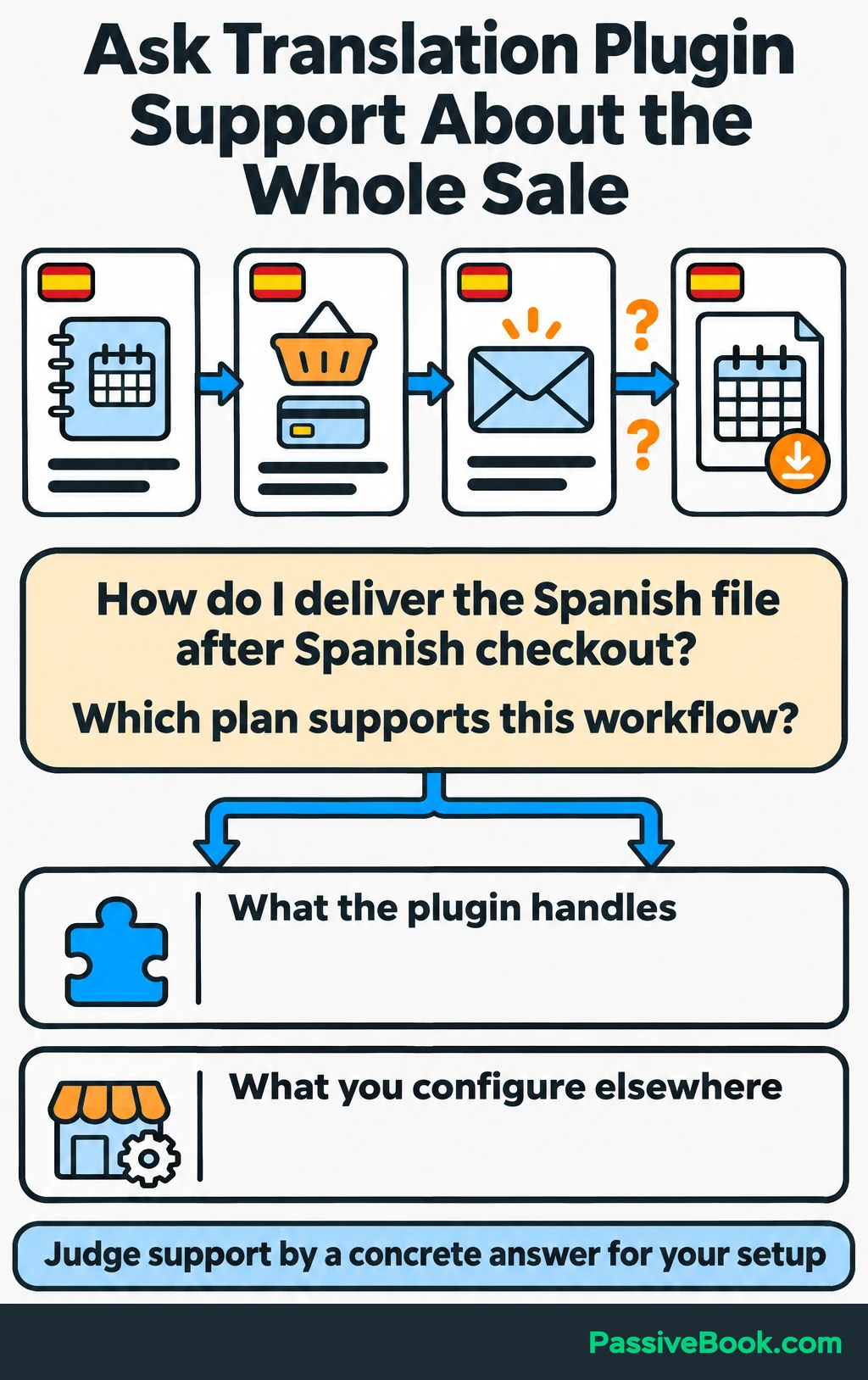
A useful answer should explain what the plugin handles and what you need to configure elsewhere.
Compare the support included in the plan you would actually buy. Access to premium support matters only if the team can help with your specific setup.
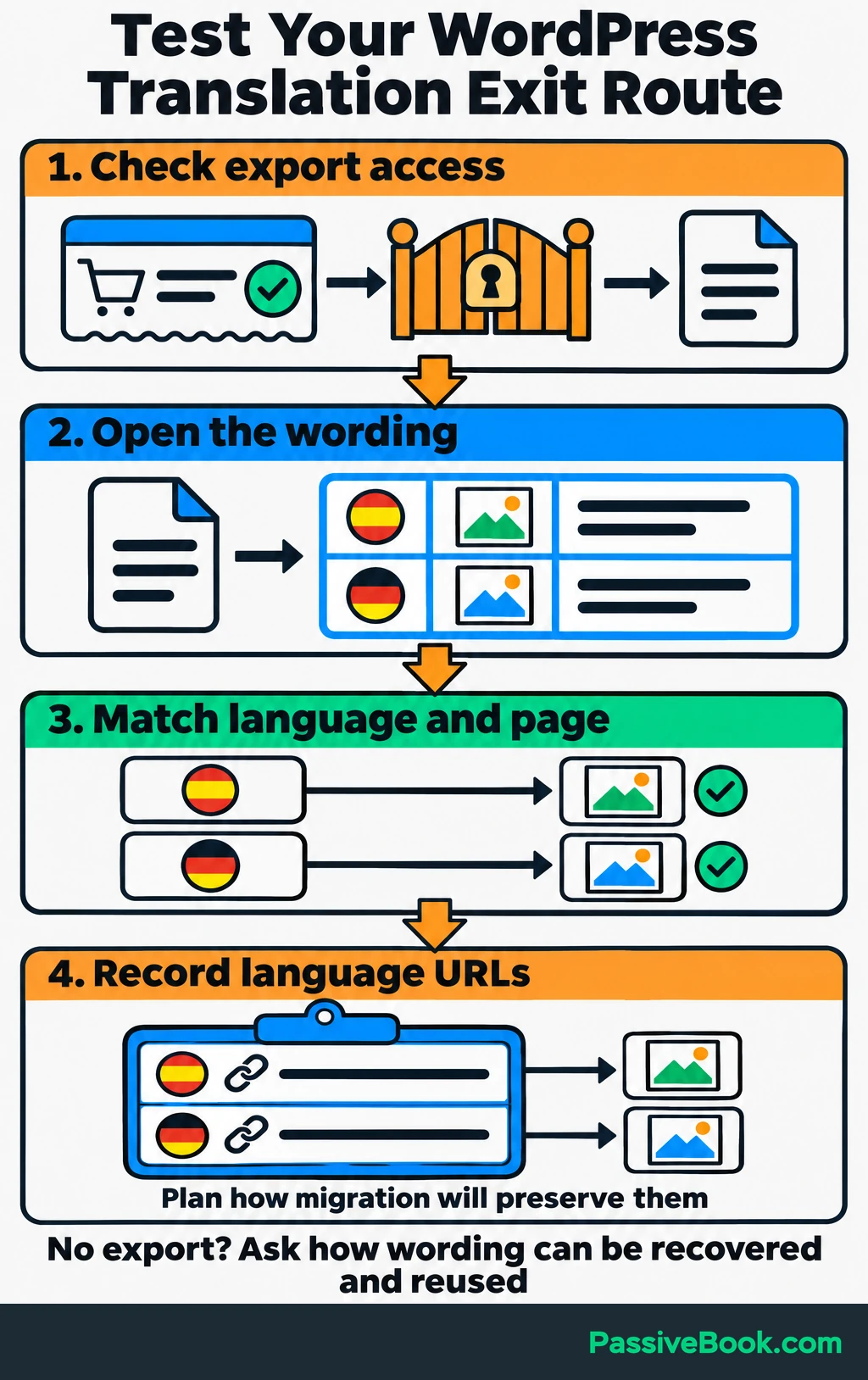
Then test any translation export included in your plan. Confirm that you can open the exported wording, identify its language, and match it to the correct pages. If export is unavailable, ask support how you can recover and reuse the translations before choosing the plugin. Keep a record of the language URLs that a future migration would need to preserve.
Choose the lowest-cost plan that passes the content, SEO, store, and maintenance checks. Launch one reviewed language journey before expanding. Adding another language is easier when the first one already works from article to download.
What Next?
List the pages, messages, emails, and files needed for one complete translated purchase today. Use that list to choose two plugins from the comparison and test them on a staging copy.
If this helped you narrow the choice, use the social buttons to share the comparison and make the next plugin decision less of a guessing exercise.
Which part of your website would be hardest to keep accurate in another language? Tell me in the comments, and bring any other questions about your shortlist.
Share this post with your friends & followers:

