Your site needs a backup, a faster sales page and a signup form that sends the promised download. But searching for a plugin turns each job into another list of choices and another possible subscription.
The hard part is knowing which tools belong together. Two plugins may duplicate the same work, while an important job still goes uncovered.
I’ve had to untangle that overlap on my own sites. These recommendations will help you choose a focused stack for protection, publishing, leads and sales, with clear reasons to pay, stay free or skip a tool.
Which WordPress Plugins Should You Choose?
For common website needs, my starting shortlist is UpdraftPlus for backups, Wordfence for security, Rank Math for SEO, WP Rocket for performance and Fluent Forms for inquiries.
Check what your existing setup covers before installing any of them. A suitable hosting backup can remove the need for another backup tool, and a working contact form doesn’t need replacing because a different builder has more features.
The best WordPress plugins fill a specific gap. They don’t earn their place by appearing on enough recommendation lists.
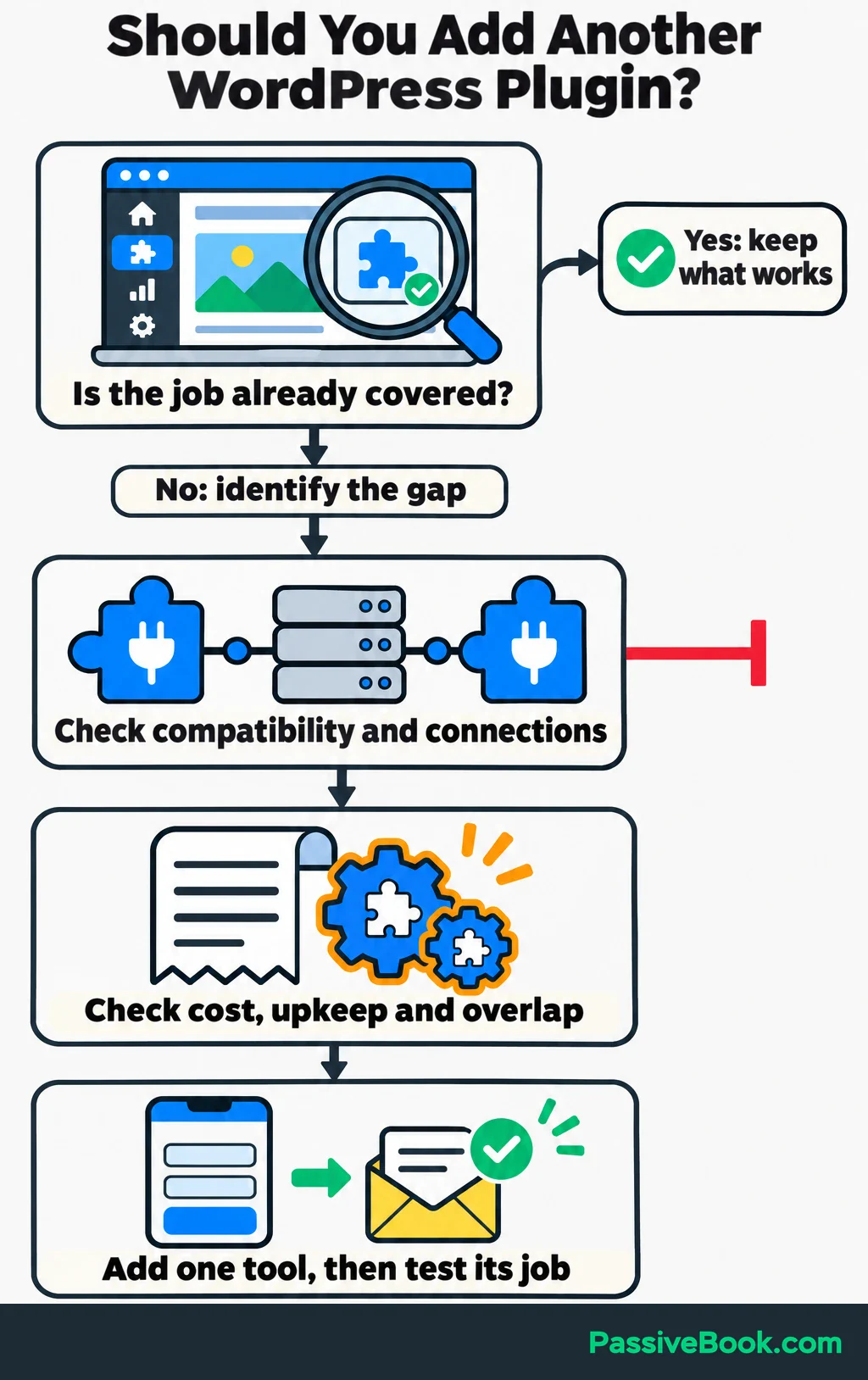
Before choosing one, check:
- Compatibility: Confirm support for your WordPress version and your server’s version of PHP, the programming language WordPress uses. Check essential connections, such as your payment processor or email platform.
- Maintenance: Read recent release notes and support threads. Look for useful responses to problems similar to yours.
- Total Cost: Compare renewal charges, website allowances, paid extensions and connected services. Email delivery and AI usage can cost extra even when the plugin is free.
- Overlap: Choose one primary page-caching system and one primary SEO plugin. For page building, I would choose either GenerateBlocks or Elementor.
- Practical Value: Name the task the plugin will handle and how you will check that it works.
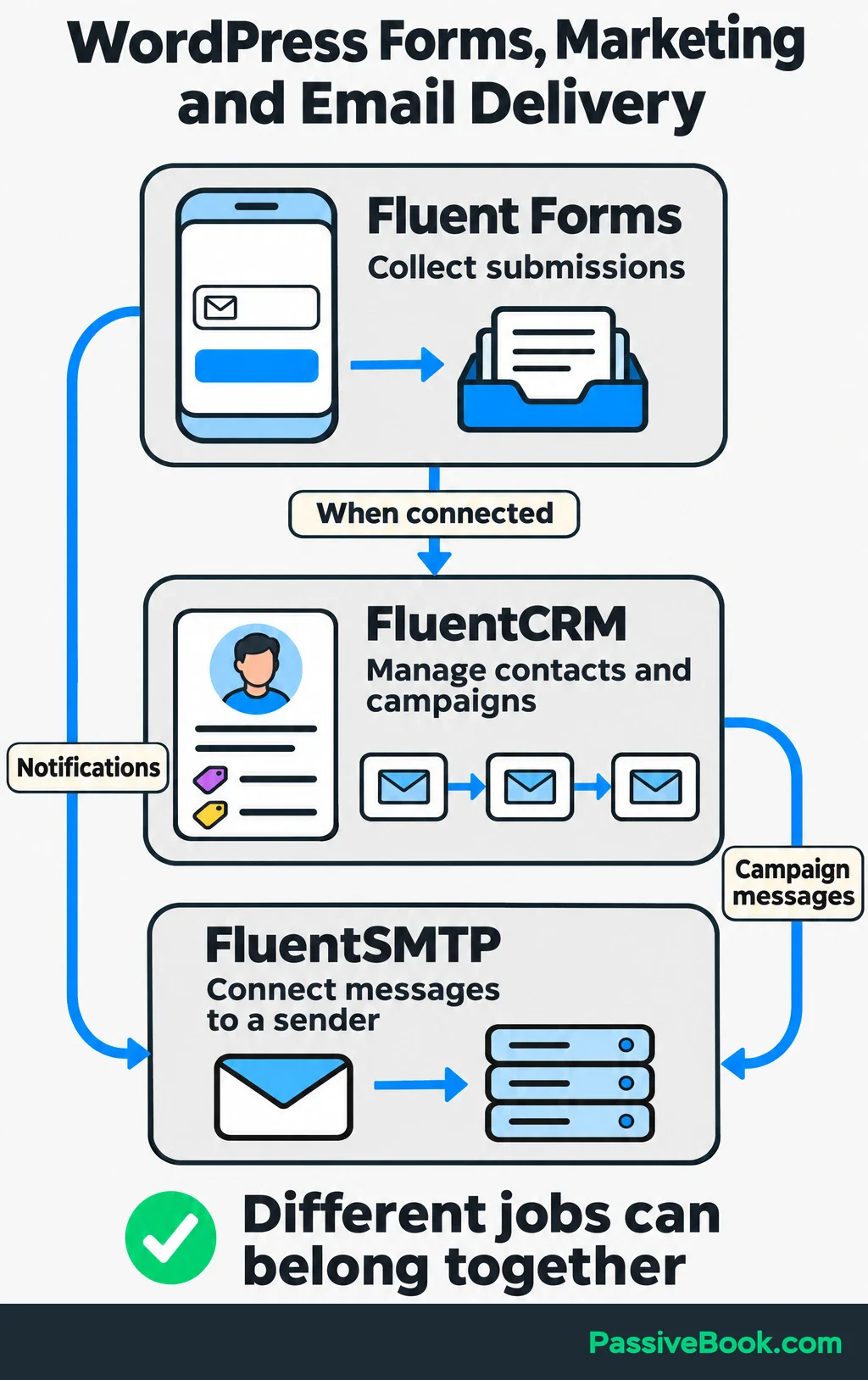
Forms, email marketing and email delivery are different jobs. A form collects a submission, an email marketing tool manages campaigns, and a delivery tool connects WordPress to a sending provider. Those tools can belong together.
I once kept two form builders on a product site because each powered an older page. When I changed a notification address, I updated one builder and missed the other. Consolidating the forms gave me one place to check. That experience now shapes how I choose tools: I count the settings I’ll have to remember, too.
Before paying for another plugin, compare the complete setups—not just the advertised prices. Count savings only from tools you can actually remove.
Free Software Cost Comparator




For the examples below, imagine you run a sewing tutorial website selling downloadable tote-bag patterns and offering a free fabric-cutting checklist. The examples are illustrative.
| Plugin | Main Job | Free or Paid Entry Point | Upgrade Trigger | Additional Costs | Main Reason to Skip It |
|---|---|---|---|---|---|
| UpdraftPlus | Scheduled backups and restoration | Free | Pre-update backups, incremental backups or multiple destinations | Remote storage beyond its free allowance | Hosting already provides suitable backups and tested recovery |
| Wordfence | Firewall, malware scanning and login protection | Free | Real-time firewall rules and malware signatures | Server resources for scans | An existing managed service already covers the required protection |
| WP Rocket | Page caching and performance controls | Paid | More website licenses | Optional image or CDN services | Your host already provides a suitable performance setup |
| LiteSpeed Cache | Server-integrated caching and optimization | Free | No paid plugin upgrade; assess connected services | Hosting and optional QUIC.cloud services | Your setup cannot use its server-level cache |
| Imagify | Image resizing, compression and format conversion | Free allowance | More image-processing capacity | A larger processing allowance | Images are already optimized by another service |
| GenerateBlocks | Layouts inside the WordPress block editor | Free | Specific Pro layout or dynamic-content features | An optional paid theme | Core blocks and your theme already handle the layout |
| Elementor | Visual page building | Free | Required theme, form, popup or store-design features | Optional add-ons and connected services | You prefer the native editor or already have a suitable builder |
| Rank Math | SEO metadata, sitemaps, schema and redirects | Free | A specific paid SEO feature | Optional AI services | Your current SEO plugin covers the work |
| Site Kit by Google | Google reporting inside WordPress | Free | No paid plugin tier | A consent service, if your chosen setup requires one | You prefer Google’s own dashboards |
| Fluent Forms | Contact and signup forms | Free | Multistep forms or required Pro integrations | Email delivery and connected services | Existing forms cover submission handling and follow-up |
| FluentSMTP | WordPress email delivery connections and logs | Free | No paid plugin tier | Sending-provider charges | A reliable delivery connection is already configured |
| WooCommerce | Products, checkout, orders and downloads | Free core | Subscriptions, bookings or other extension-based needs | Payment processing, extensions and hosting | Your existing checkout handles the offer |
| FluentCRM | Email campaigns and automation in WordPress | Free | WooCommerce purchase triggers or other Pro features | Sending services and hosting capacity | An external email platform already serves you well |
| Uncanny Automator | Workflows across plugins and services | Free | Pro triggers or ongoing external-app actions | Connected-service charges | Your existing tools already perform the complete task |
| AI Engine | A configurable website chatbot | Free plugin | A content-based knowledge base | Model-provider API usage and possible storage services | Help pages and a contact form meet support demand |
I wouldn’t judge a site’s speed or maintenance needs by plugin count alone. A plugin might affect public pages, scheduled tasks, database queries or only the admin area. Measure the pages and workflows that matter to your business.
The 15 Best WordPress Plugins by Use Case
1. UpdraftPlus: Best for Scheduled Backups
I would start with the free version of UpdraftPlus when you need scheduled file and database backups, remote storage and restoration. It supports destinations including Google Drive and Dropbox. Premium adds automatic backups before updates, incremental backups that save only changes, and the option to back up to several destinations. UpdraftPlus features
Choose the backup schedule by asking how much recent work you could afford to lose. A weekly schedule might cover a rarely changed information site, but it would leave too much order data exposed on a busy store.
For the sewing website, publishing a new tutorial and receiving pattern orders create different backup needs. Protect both the files and the database, where orders and other records live.
Keep a copy outside your hosting account and test restoration on a separate copy of the site. Also confirm how you would recover if you couldn’t sign in to WordPress.
I would skip another backup plugin when the host already provides suitable retention, independent access and a recovery process you have tested. A second backup system should solve a real weakness.
2. Wordfence: Best for Firewall and Malware Protection
Wordfence blocks malicious traffic with a firewall and scans files for malware. It also protects logins with two-factor authentication, which adds a second check beyond your password. Its free edition receives new firewall rules and malware signatures after a 30-day delay, while Premium receives them in real time. That distinction matters when deciding whether free coverage is enough. Wordfence’s free and Premium features
Start by protecting administrator logins, configuring the firewall and reviewing alerts that require action. Installing the plugin and ignoring every message leaves you with another unread inbox.
Compare its functions with your host’s security service. Ask what the existing service actually does: blocking traffic, scanning files and helping recover a compromised site are separate tasks.
For the pattern store, I would also check when scans run and whether they strain the hosting account. Review the site during a scan rather than assuming every slowdown comes from public-page features.
Wordfence belongs alongside maintained software, sensible account access and backups. It doesn’t remove those jobs. I would pay for Premium when immediate rule updates and its other protections address a gap in the existing setup.
3. WP Rocket: Best for Straightforward Paid Performance Optimization
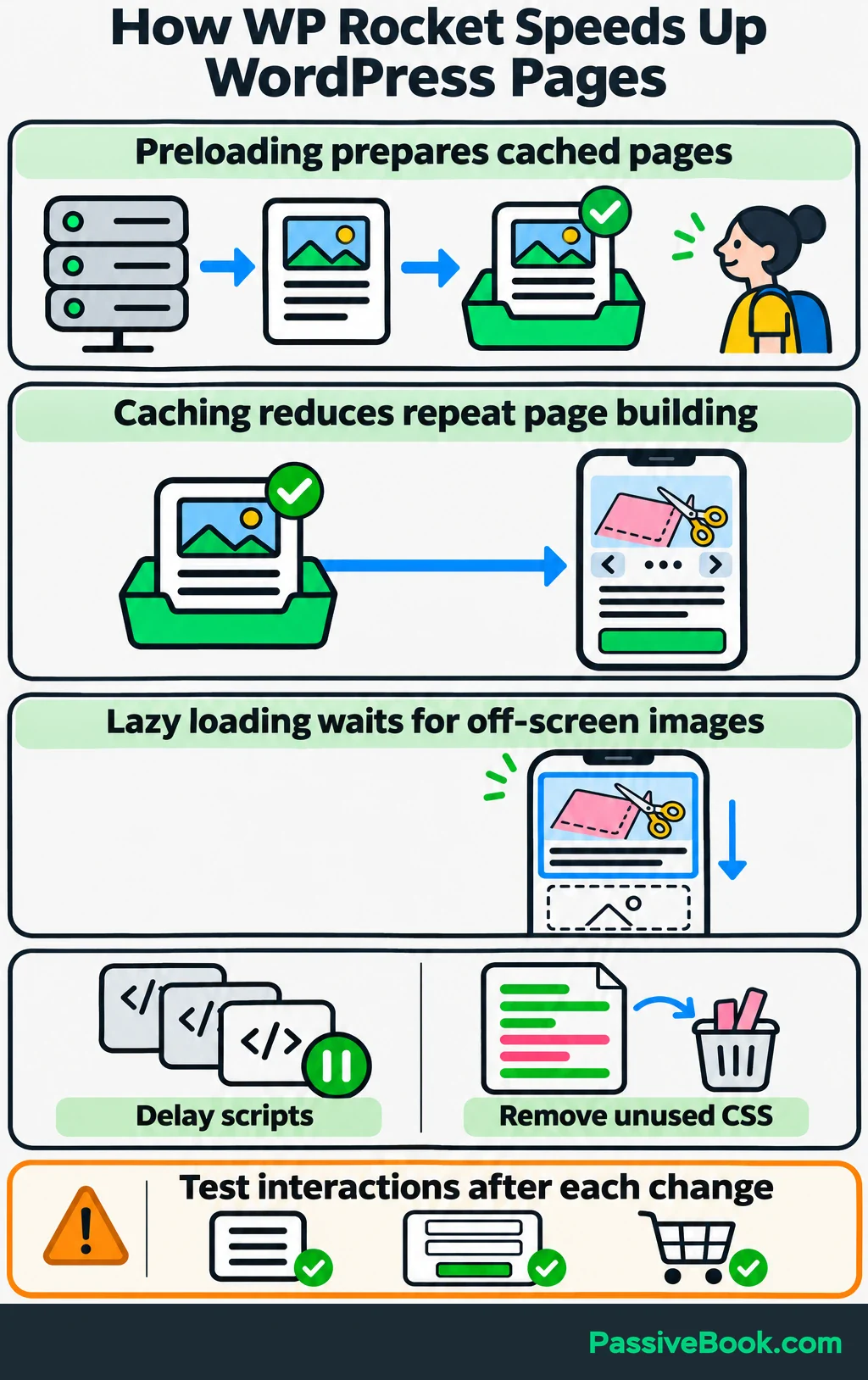
WP Rocket is my preferred paid option when I want caching and related performance controls together. It includes page caching, preloading, lazy loading, JavaScript delay and unused-CSS removal. WP Rocket’s features and licensing
Page caching stores a prepared version of a page so WordPress doesn’t have to rebuild it for every suitable visit. Preloading prepares those copies ahead of visits, and lazy loading waits to load off-screen images until they’re needed. JavaScript delay postpones scripts, while unused-CSS removal cuts styling code the page doesn’t use.
Check your host’s caching arrangement before buying. If it already handles the job well, another subscription needs a clear purpose.
I would record how the site loads and behaves, then enable extra optimizations one at a time. JavaScript delay can change when interactive features become available, so test menus, forms and purchase buttons after changing it.
On the sewing site, compare a tutorial and the pattern sales page, then complete a purchase. Check the cart, checkout, confirmation email and download access.
I’m happy to pay for simpler performance management. I’m less interested in spending an evening chasing a better score while wondering whether the buy button still works.
4. LiteSpeed Cache: Best Free Caching Option for Compatible Hosting
LiteSpeed Cache would be my first caching choice to investigate on suitable LiteSpeed hosting.
Its server-integrated caching requires a compatible setup: OpenLiteSpeed, a commercial LiteSpeed product, LiteSpeed-powered hosting or QUIC.cloud CDN. General optimization features can work on other servers, but installing the plugin alone doesn’t supply that server-level cache. LiteSpeed Cache requirements
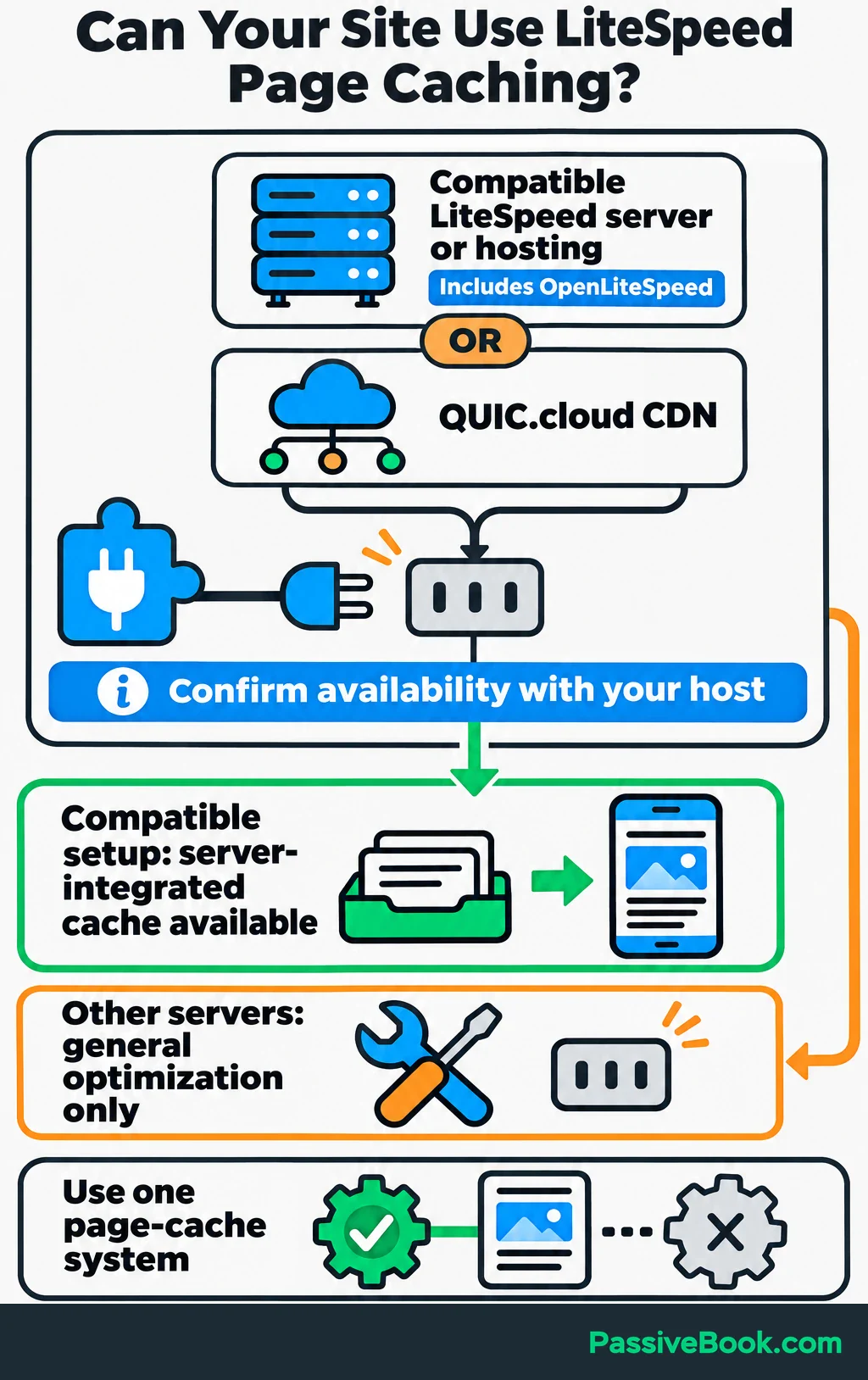
Ask your host whether the required caching is available and whether it has recommended settings. That answer is more useful than importing a stranger’s complete configuration.
The plugin is free, but hosting and selected QUIC.cloud services may add costs. I would choose it over WP Rocket when the hosting fits and I’m comfortable managing its controls.
Use one primary page-cache system. Also decide which service handles image compression, lazy loading and script optimization so you don’t enable the same work twice.
For the sewing site, test the same tutorial and purchase journey you would test with WP Rocket. Choose the setup you can maintain confidently.
5. Imagify: Best for Automatic Image Optimization
Imagify handles image work: resizing large uploads, compressing files, optimizing an existing media library and creating WebP or AVIF versions. Its free allowance offers a way to try that workflow before paying for more capacity. Imagify’s image-optimization features
This complements page caching because storing a page doesn’t make its photographs smaller.
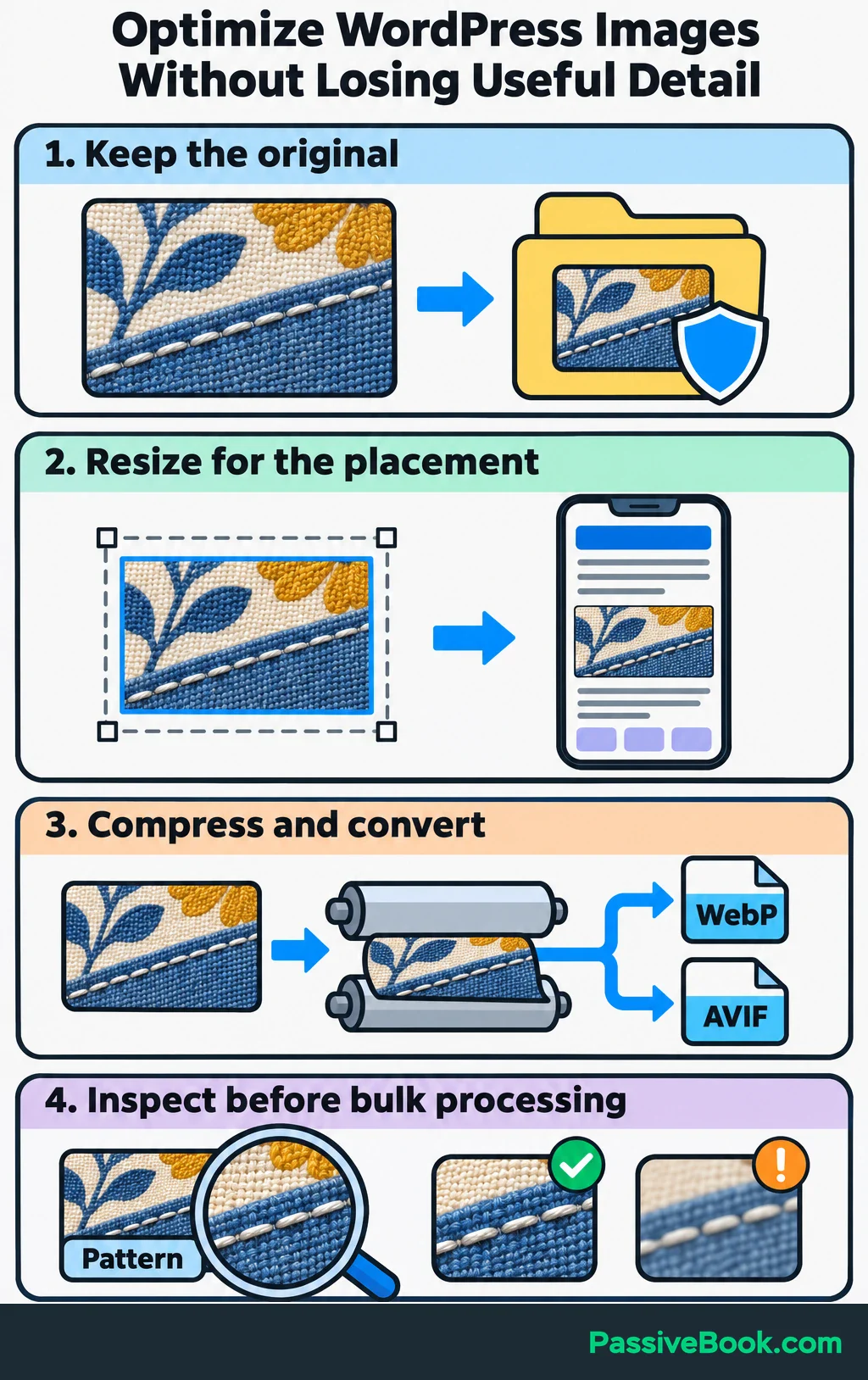
Start by sizing images for where they will appear. A tutorial photo displayed in a narrow content column doesn’t need the same dimensions as a large downloadable reference image.
Then test a small, representative group before processing the library. For the sewing site, inspect fabric texture, stitching and any text shown in pattern previews. Smaller files are useful, but readers still need to see where the seam goes.
Keep originals available so you can reverse the work.
I would choose a paid allowance by the volume of image data being processed, including an initial library cleanup. I would skip Imagify if the host or another service already produces suitable images and delivers the formats you need.
6. GenerateBlocks: Best for Layouts in the WordPress Block Editor
GenerateBlocks is my preferred layout tool alongside GeneratePress. It adds layout and styling controls inside the WordPress block editor, and it also works with other themes. The free version covers useful building blocks such as containers, grids, text and images. GenerateBlocks capabilities
I would start free for ordinary landing pages. Pro becomes worth considering when you need its extra controls, such as turning a list of materials saved with a pattern into a repeating layout.
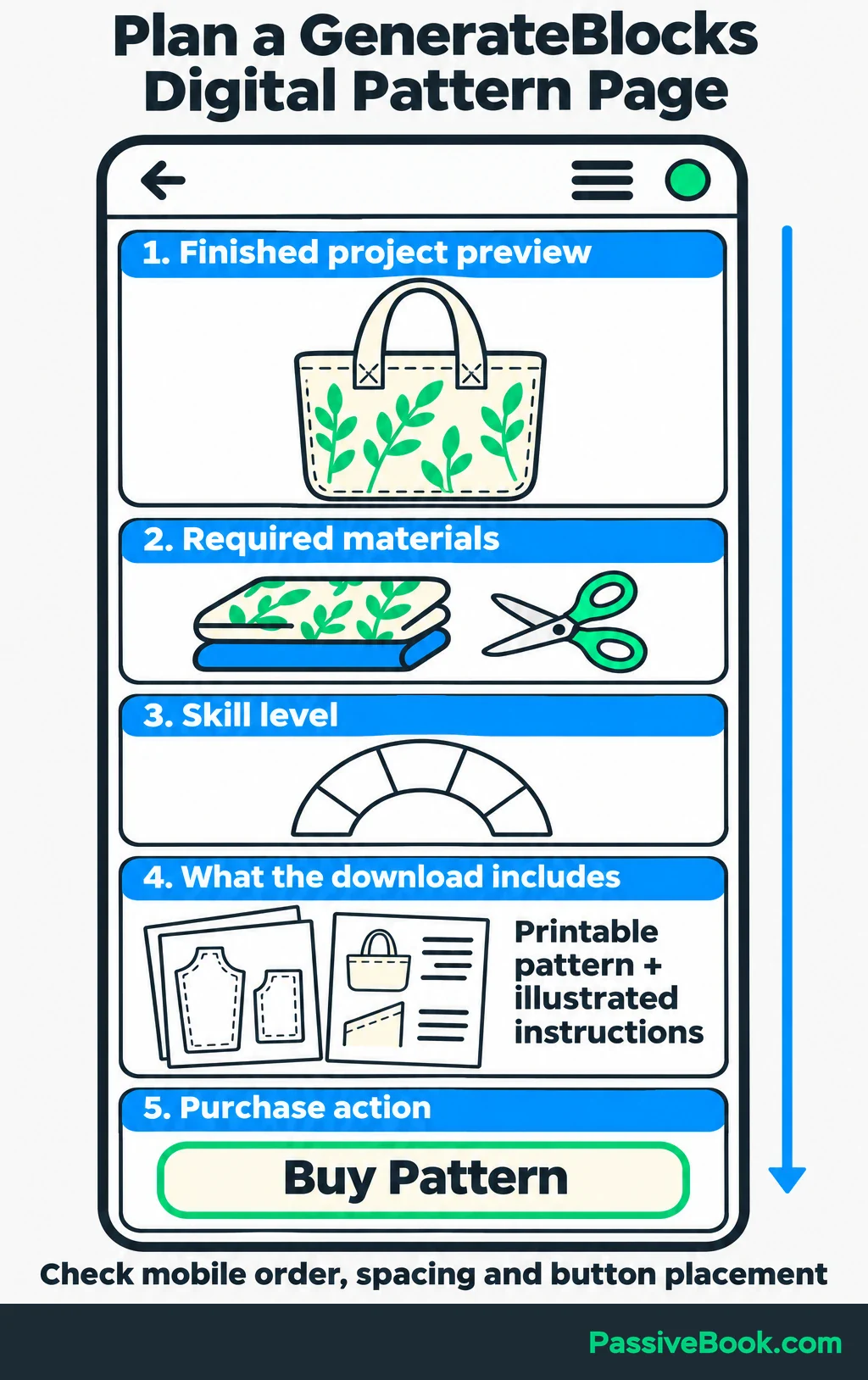
Plan the page before building it. Decide what the visitor needs to understand and where the next action belongs.
For the tote-bag pattern, that could mean a finished-bag preview, required materials, skill level, what the download contains and a purchase button. A short line such as “Includes the printable pattern and illustrated sewing instructions” does more work than another decorative section.
Check mobile reading order, spacing and button placement after building.
I like staying close to the native editor because it suits how I maintain my sites. If your theme and core blocks already produce the page you need, I would use them and skip the extra tool.
7. Elementor: Best for Visual Drag-and-drop Page Building
Choose Elementor when you prefer its visual editing workflow and want to arrange pages through drag-and-drop controls. I would try the free builder before committing to a paid plan.
Before paying, check whether your chosen plan includes the features your pages need, such as popups or store design. For forms, check whether it also saves submissions and connects to your email tool. “Includes forms” doesn’t answer every question about a lead-capture workflow. Elementor’s plan comparison
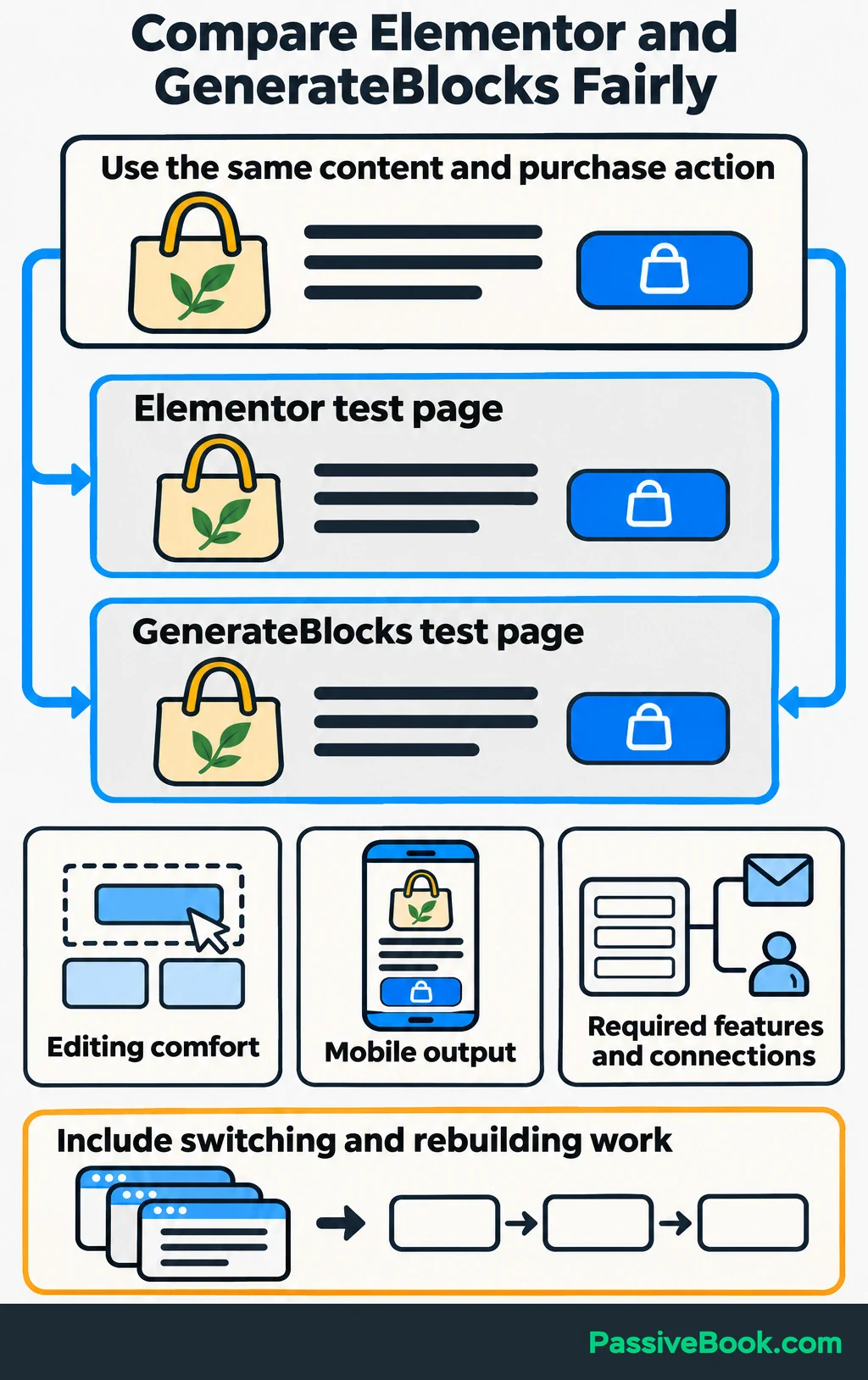
To compare it with GenerateBlocks, build the same pattern landing page in a test site. Use the same copy, photographs and purchase action, then assess editing comfort and mobile output.
I would choose GenerateBlocks for my own workflow, but Elementor can make sense when its editing approach helps you build and maintain pages more comfortably.
Before switching an established site, account for the pages you would need to rebuild. Also check whether Elementor’s forms already cover your requirements before paying for a separate form builder.
A builder earns its subscription through work you need to do regularly.
8. Rank Math: Best for Feature-rich Free SEO Controls
Rank Math is my preference over Yoast because its free feature set covers the SEO controls I want. These include titles and descriptions, XML sitemaps, supported schema, redirects and 404 monitoring. Rank Math’s free features
Use those controls after deciding what a page should help someone do. For a tote-bag tutorial, clarify whether the article teaches a complete project, explains one technique or introduces the paid pattern.
Then write a title and description that match the actual page. Add relevant schema, the structured information that helps search engines understand the content, without claiming details the page doesn’t support.
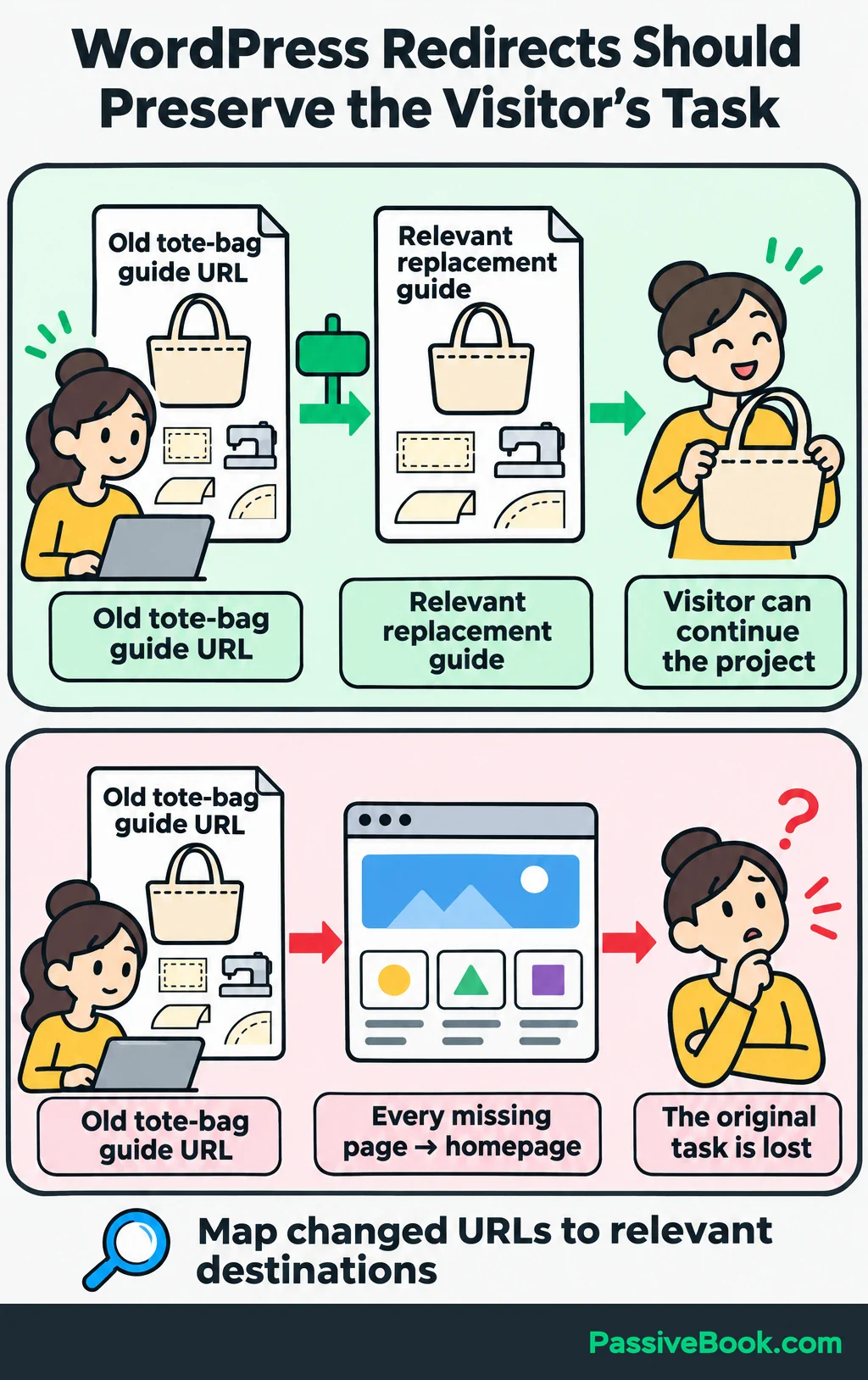
If you change a guide’s web address, redirect its old address to the new one. Don’t send every missing page to the homepage just to clear a report.
Keep one primary SEO plugin active. When replacing another tool, migrate existing metadata and inspect important pages before removing it.
I wouldn’t switch a working SEO setup merely to collect more features. Rank Math is my choice for a gap, a new site or a replacement with a concrete benefit.
9. Site Kit by Google: Best for Google Reporting Inside WordPress
Site Kit brings information from services such as Search Console, Analytics and PageSpeed Insights into WordPress. Its value is convenient access, so I would install it when that convenience makes regular review easier.
Begin with a decision rather than a dashboard. Which tutorials deserve updating? Which useful articles should link more clearly to the paid pattern?
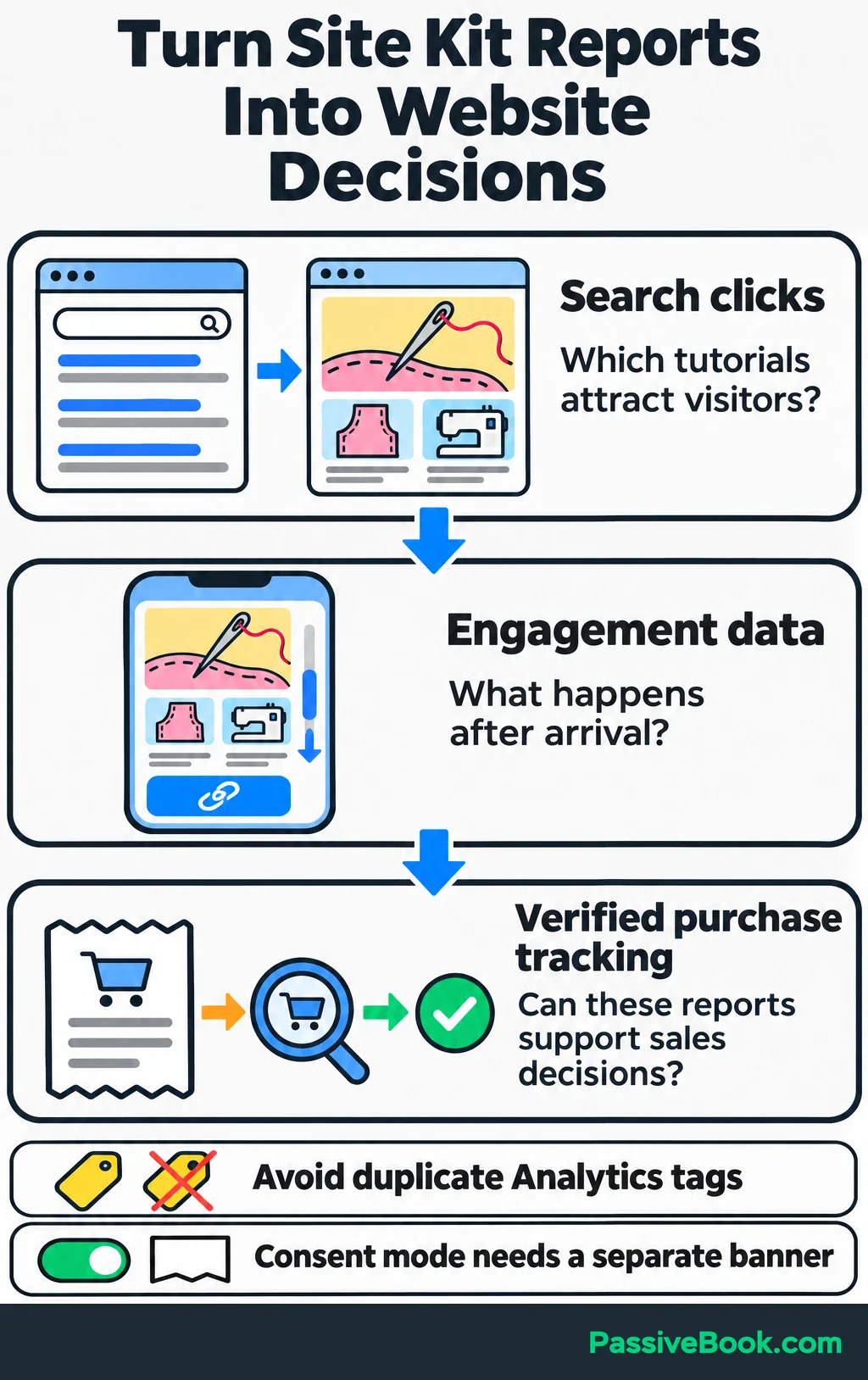
On the sewing site, search clicks can help identify articles attracting visitors, and engagement data can help you investigate what happens after arrival. Verify purchase tracking before using those reports to judge sales.
Check existing tracking before adding Analytics tags so you don’t duplicate the installation.
If you enable Analytics tracking, collect visitors’ consent where required. Site Kit can manage consent mode, which adjusts tag behavior based on consent choices, but it doesn’t supply the banner that collects those choices. Site Kit’s consent requirements
I would skip Site Kit if opening Google’s own dashboards already fits your routine. Another reporting screen is useful only when you use it to make decisions.
10. Fluent Forms: Best for Flexible Contact and Signup Forms
Fluent Forms is my preferred form builder. Its free edition includes conditional logic, submission handling and notification emails, so I would start there for a contact form. Pro adds features such as multistep forms and further integrations. Fluent Forms’ feature breakdown
Decide what should happen after submission before arranging fields.
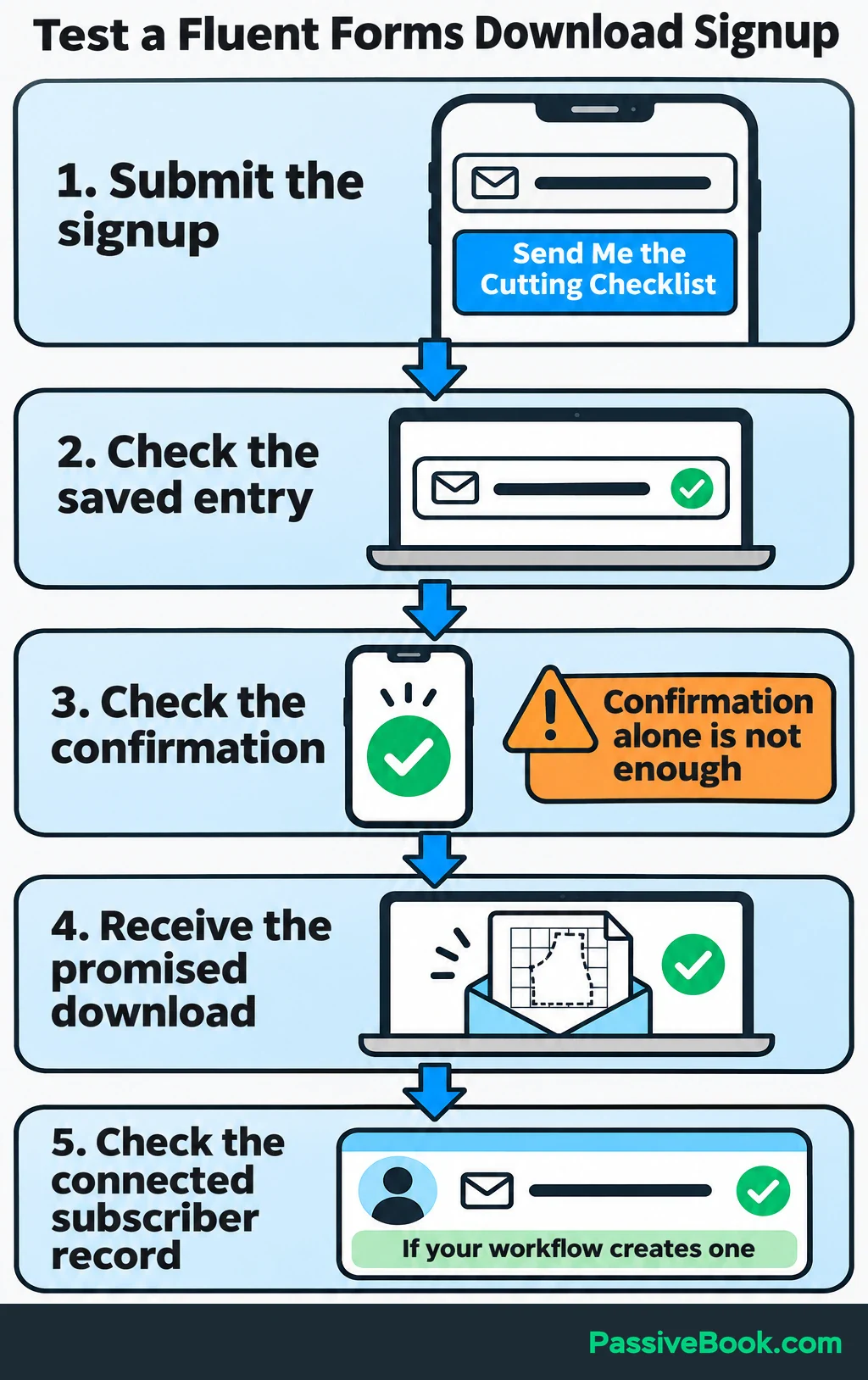
For a support form, you may need a saved message, an owner notification and a clear confirmation for the visitor. For the fabric-cutting checklist, you also need the promised download to reach the subscriber.
Keep that signup short. An email address may be enough; a postal address has no obvious job in delivering a PDF.
A useful button could say “Send Me the Cutting Checklist.” Then submit the form and check the saved entry, confirmation, delivered email and any subscriber record added to your email tool.
I would upgrade when a required field, integration or workflow calls for Pro. I would skip a separate builder when an existing page builder or email service already handles the complete process reliably.
11. FluentSMTP: Best Free Plugin for WordPress Email Delivery
FluentSMTP connects WordPress email to a sending provider and provides logs for investigating delivery problems. Supported services include Amazon SES, Mailgun and Postmark. The plugin is free, while provider charges remain separate. FluentSMTP’s providers and logging
I use FluentSMTP with Amazon SES. That suits my preference for keeping WordPress email connected to a separate sending service.
The distinction between tools matters here. Fluent Forms decides what a form notification contains, WooCommerce creates order messages, and FluentCRM manages marketing campaigns. FluentSMTP handles the delivery connection for messages routed through it.
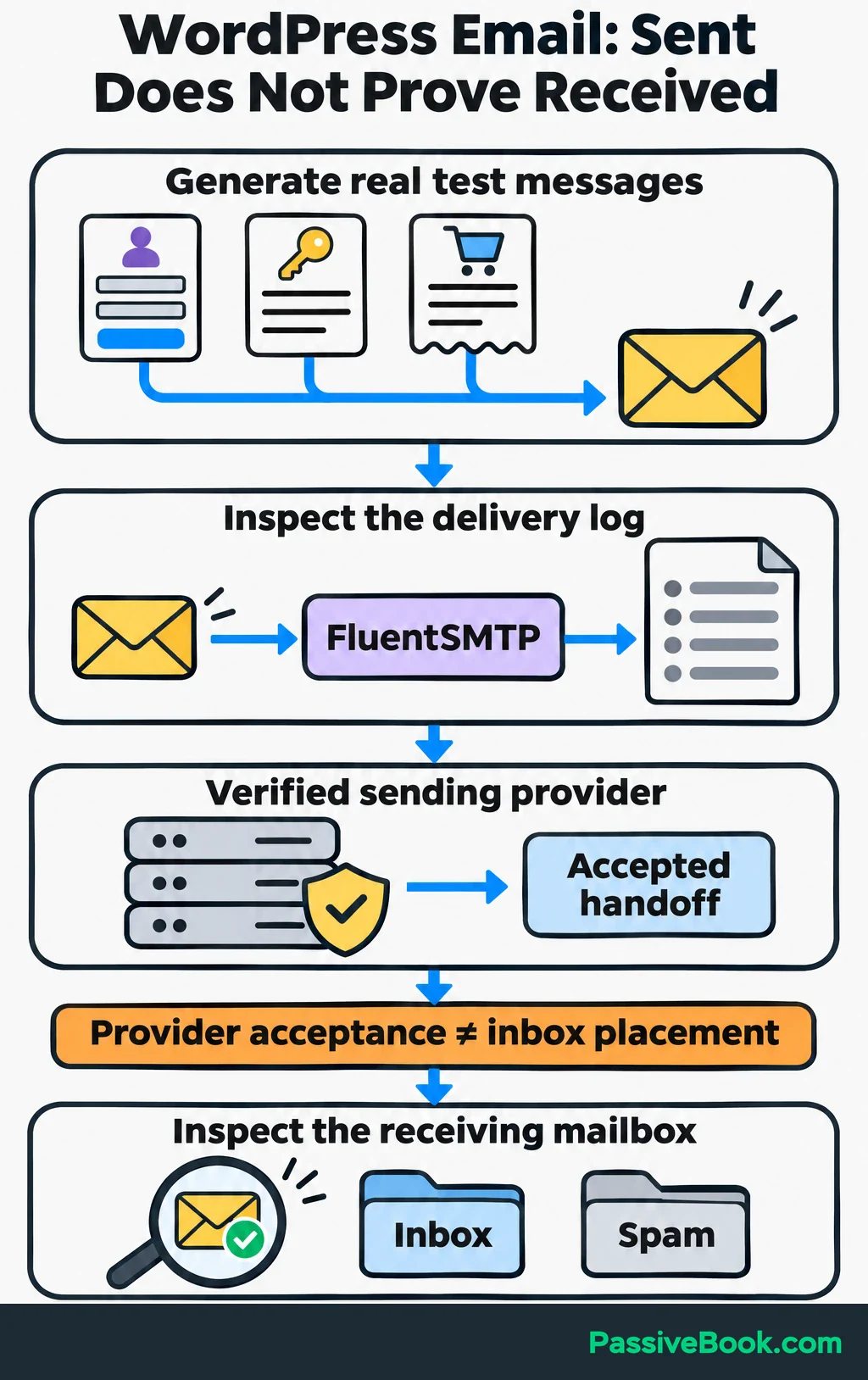
Complete the provider’s sender-verification requirements, then test real messages. Send a contact inquiry, request a password reset and place a test pattern order.
Check both the logs and the receiving inbox. A successful handoff to a provider doesn’t prove a message arrived where the recipient expected it.
I would keep an existing delivery setup if these messages already work reliably and you can investigate failures. Replacing a healthy connection creates configuration work without solving a problem.
12. WooCommerce: Best for Selling Through WordPress
WooCommerce is my choice for selling digital products directly through WordPress. Its free core handles products, a cart, checkout, orders and downloadable goods. Extensions add functions such as subscriptions, bookings and memberships. WooCommerce’s core capabilities
Define the offer and fulfillment before adding extensions. A downloadable tote-bag pattern needs a clear product description, payment collection and reliable file access. It doesn’t automatically need a membership system.
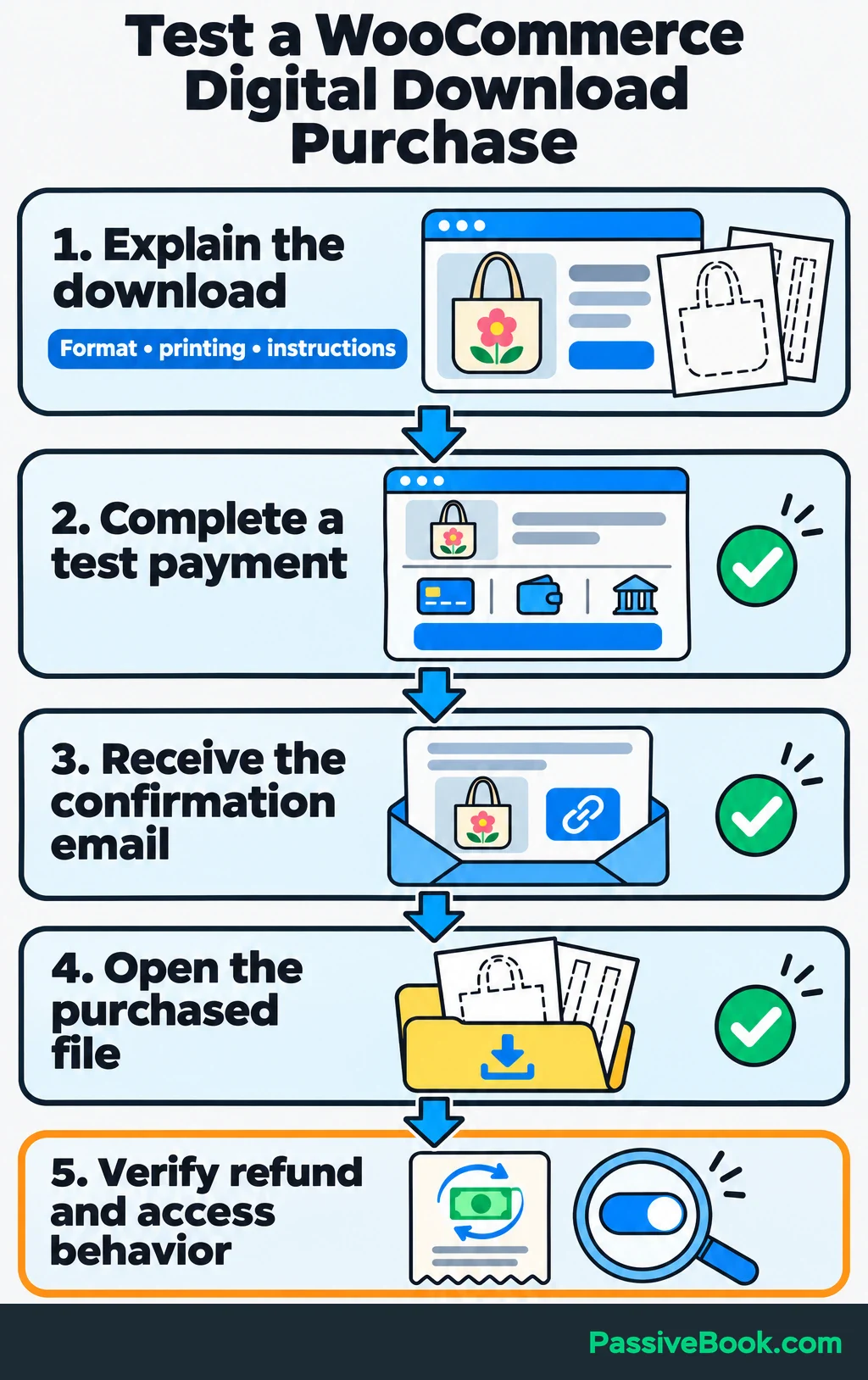
Configure the product as downloadable and explain what buyers receive. Include the file format, printing requirements and whether instructions are included.
Then test payment, the confirmation email and download access. Check the refund process and confirm what should happen to access afterward.
Budget for payment processing, hosting and any extensions the offer requires. Free core software still needs somewhere to run and a way to accept money.
I would keep an existing checkout if it already handles the product and fulfillment well. WooCommerce makes sense when running the store within WordPress gives you control you will actually use.
13. FluentCRM: Best for Email Marketing Inside WordPress
FluentCRM is my preferred tool for managing email marketing inside WordPress. It keeps contacts, lists, tags, campaigns and automations close to the website.
The free edition provides an entry point, but WooCommerce purchase-triggered automations require Pro. That matters if you want a purchase to change the emails a contact receives. FluentCRM’s free and Pro comparison
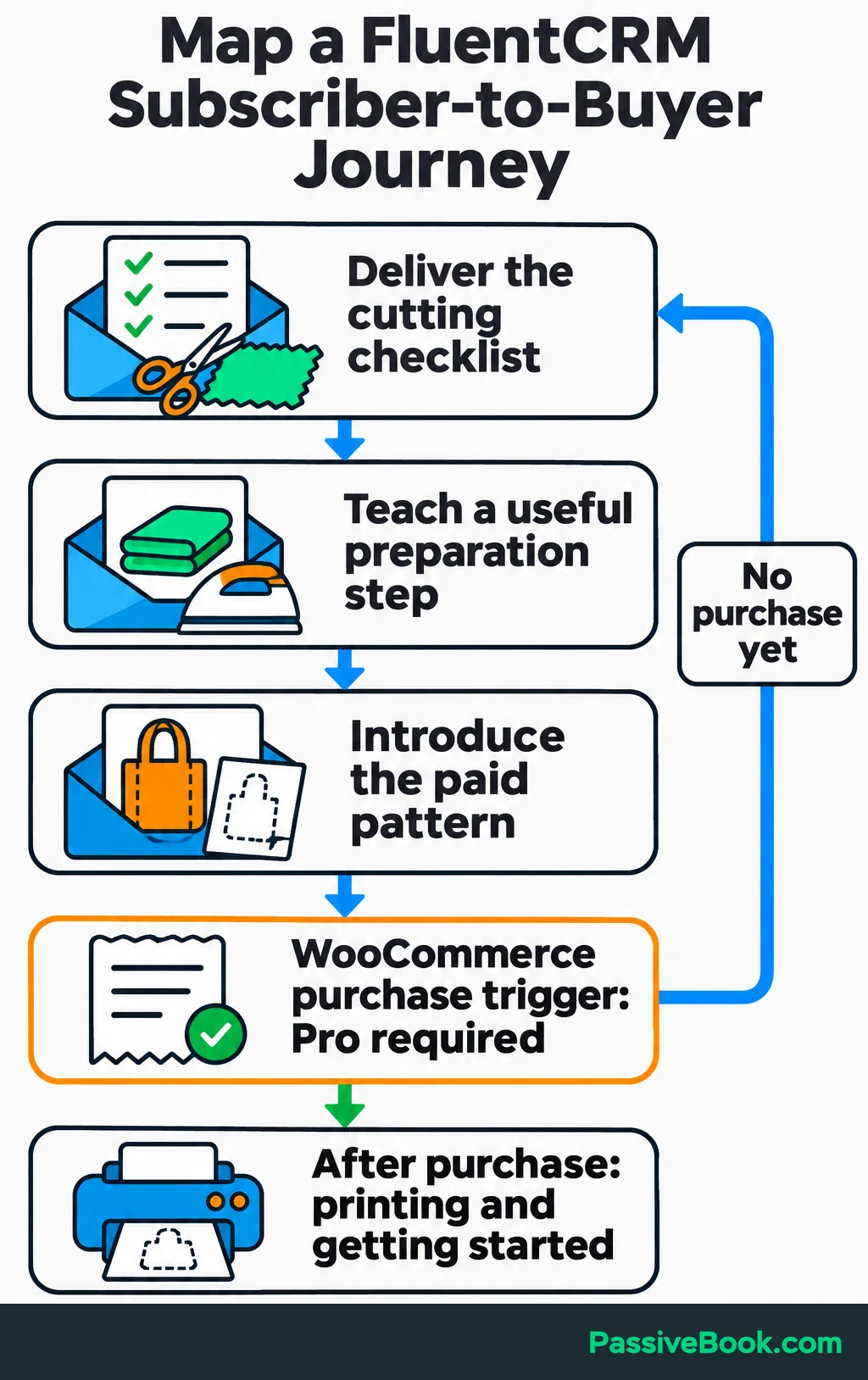
Map the subscriber journey before configuring it. For the sewing site, the sequence could deliver the cutting checklist, explain a useful preparation technique and introduce the tote-bag pattern.
If someone buys, the next useful message may explain printing or getting started. Check that your chosen edition supports the purchase triggers and actions needed to make that change.
FluentCRM licensing follows website count rather than subscriber count, which suits my preference for avoiding per-subscriber software charges. Hosting resources and sending services still need a budget.
I would choose it when you want email marketing within WordPress and can maintain the setup. If an external platform such as Kit or MailerLite already handles the journey well, keep that working system.
14. Uncanny Automator: Best for Connecting WordPress Workflows
Uncanny Automator connects triggers and actions across plugins and external services. A trigger starts the workflow, and an action performs the next task. You build these workflows as “recipes” and check their logs to see what ran.
Write the job in one sentence before opening the builder: “When a paid pattern order reaches the chosen status, add its order ID and product to Google Sheets.”
Check the exact event and buyer type. A trigger for a logged-in customer may not cover guest checkout; Uncanny Automator’s guest purchase triggers require Pro. WooCommerce triggers and plan requirements
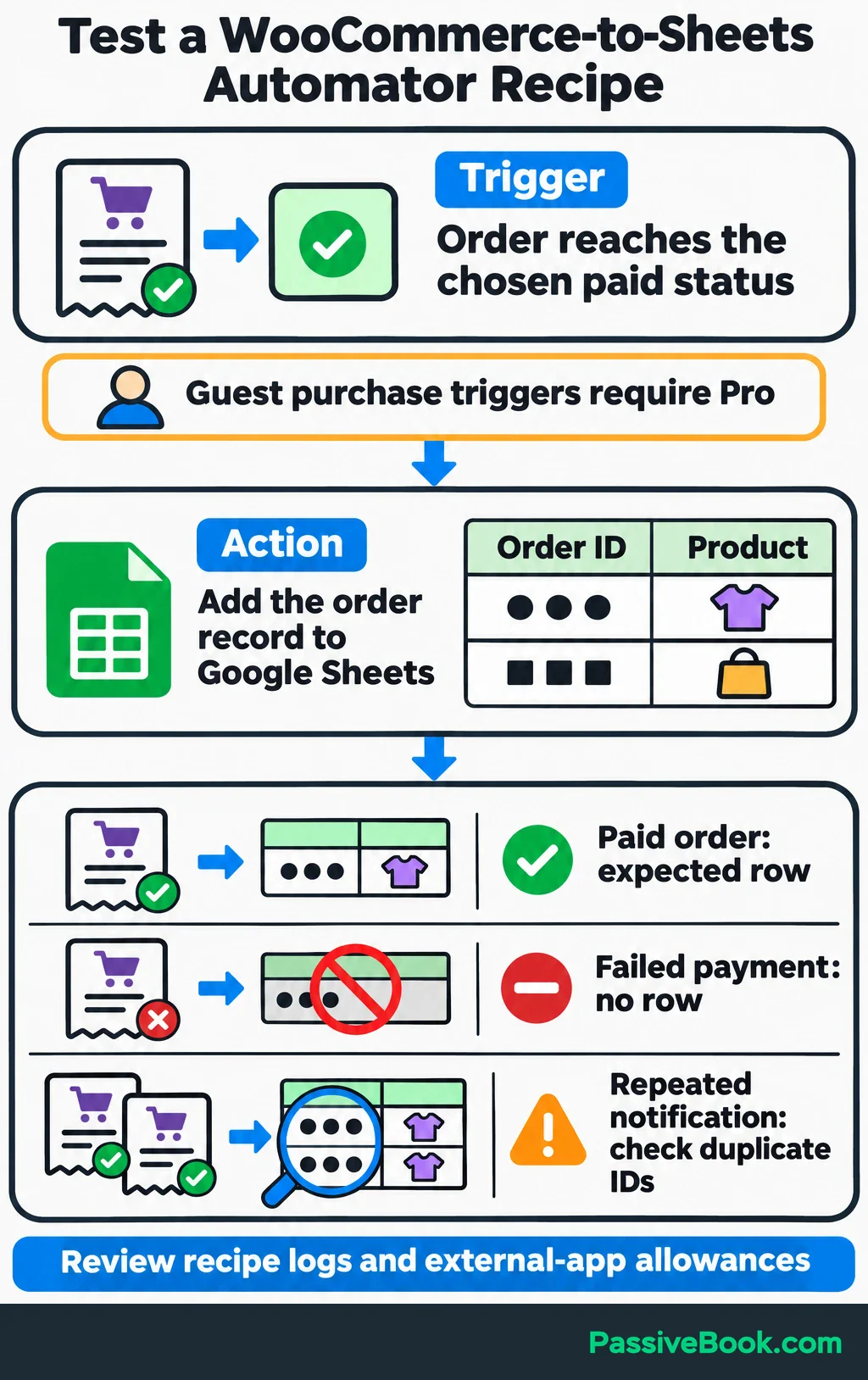
The free edition includes limited external-app credits, so ongoing workflows may require a paid plan. Connected services can charge separately.
Test a paid order, an unsuccessful payment and a repeat of the same order notification. Confirm that failed payments add no rows, and use the order ID to spot duplicate records.
I generally prefer n8n for broader workflows across my businesses, but Uncanny Automator is worth considering when most of the work lives in WordPress. Skip it when WooCommerce or your CRM already completes the task.
15. AI Engine: Best for a Configurable Website Chatbot
AI Engine makes sense when visitors have a recurring question that an on-site chatbot could help answer. Its free plugin supports configurable chatbots, while Pro adds a knowledge base drawn from your content and PDFs. Connecting a hosted AI model brings separate usage charges. AI Engine’s chatbot and knowledge-base features
I would start with one narrow support job. For the sewing site, the chatbot could help visitors find printing instructions or understand what a pattern download includes.
Use public product descriptions and help pages as its source material. Keep private order details outside that public knowledge base, and don’t assume a content chatbot can securely look up purchases.
Test questions whose answers you can verify, including questions the supplied pages don’t answer. Provide a contact route when the bot cannot help, and set usage limits before opening it to visitors.
I would skip the chatbot when clear help pages and a contact form meet demand. The useful upgrade is fewer unresolved questions. A floating chat bubble has no business value on its own.
How to Add Plugins Without Disrupting Your Site
Start with a current backup and a recovery route you know how to use. For changes affecting checkout, customer access or other essential functions, use staging: a separate copy of the site where you can test safely.
Before changing anything, record how the important pages and workflows behave. You need a clear baseline to tell whether the new setup helps.
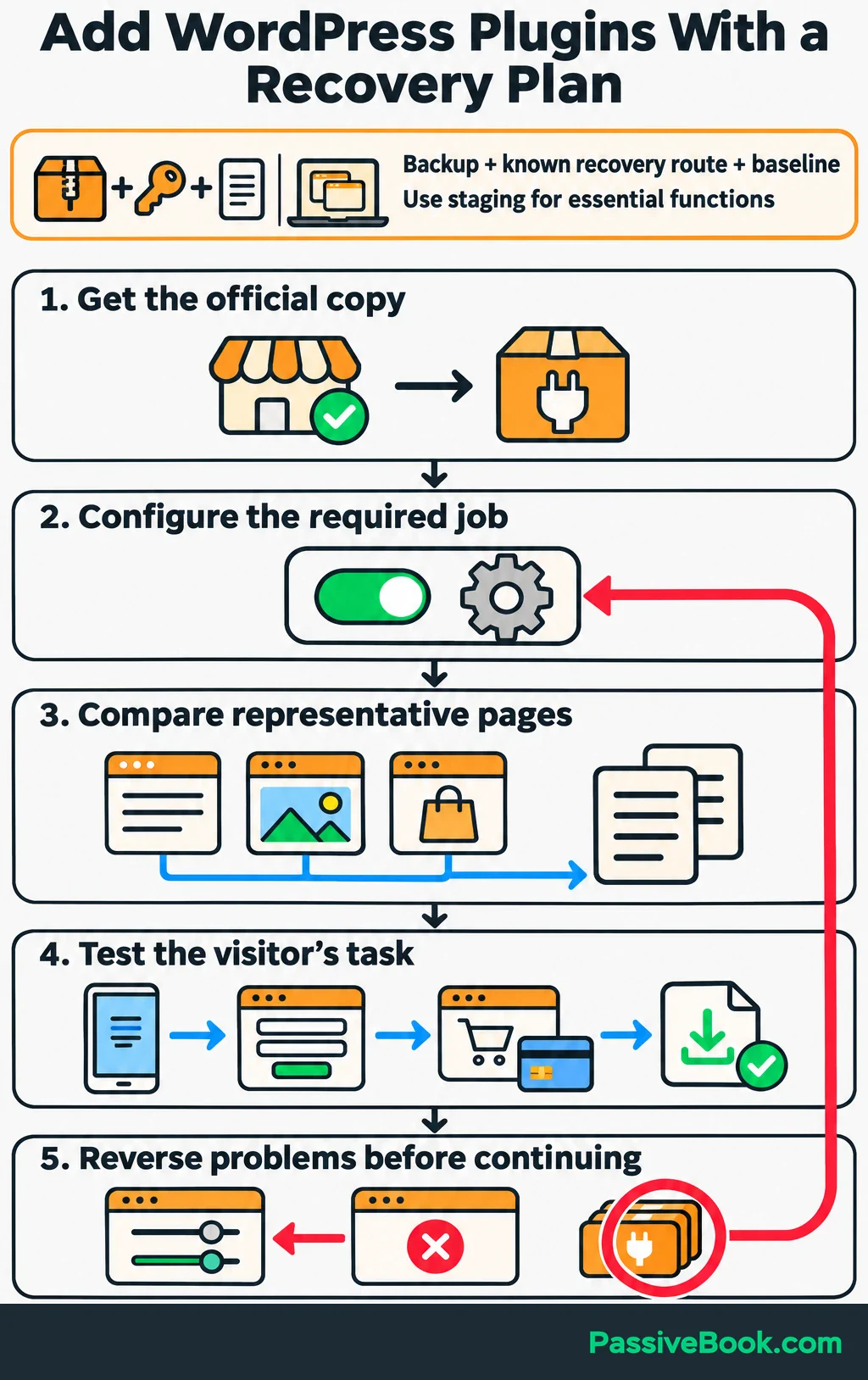
Then work through one change at a time:
- Get the Official Copy: Install from WordPress.org or the developer’s official distribution channel. Confirm compatibility and required connections before activation.
- Configure the Required Job: Enable the functions you need first. When replacing a tool, disable overlapping features deliberately and keep any settings needed for rollback.
- Compare Representative Pages: For performance changes, test the same pages under similar conditions. Include a typical article, an image-heavy page and a sales page where relevant.
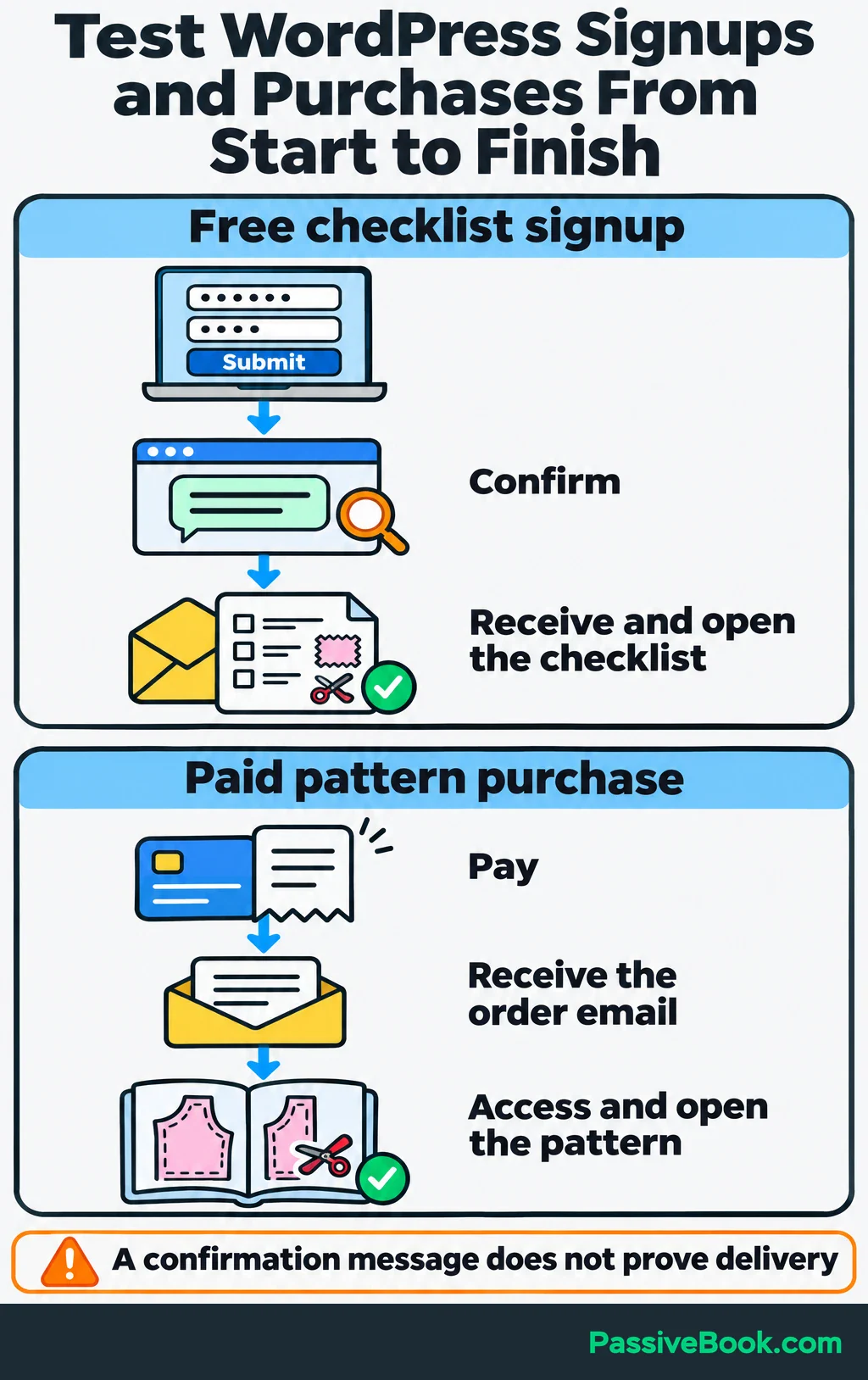
- Test the Visitor’s Task: Check mobile navigation, form submission and email delivery. For a store, complete a purchase and open the delivered download.
- Reverse a Problem Before Continuing: Revert the new setting or deactivate the added plugin, then retest the affected workflow. Don’t stack another change onto a failure you haven’t understood.
On the sewing site, a complete check would follow the cutting-checklist signup through delivery, then follow a pattern purchase through payment and file access. A confirmation message alone doesn’t prove either journey works.
Keep plugins updated and review backup failures, delivery failures and important automation logs. For changes to essential functions, check the release notes and test the affected task again.
Remove unused tools after checking dependencies and exporting records you need. Deactivation can be a useful first step while you confirm that nothing still relies on the plugin.
I would also keep a short note beside each paid tool: what it does, what it connects to and why it needs renewing. That makes the next subscription decision much easier than trying to remember why you bought it.
What Next?
List your installed plugins and write one job beside each. Choose one uncovered job or one duplicated function, then address it using the testing process above.
Use the social buttons to share this guide when you’re comparing stacks with others; the table gives you a practical starting point for deciding what earns a place.
Which plugin handles a task you would least want to take back manually? Tell me in the comments, and add any questions about choosing or simplifying your setup.
Share this post with your friends & followers:

