You publish a useful guide, then spend another half-hour copying its link into social posts. Meanwhile, the buttons on your website send visitors to your profiles when you wanted them to share the article.
These are different problems, but plugin lists often mix them together. That makes it easy to buy a large toolkit and still miss the feature you needed. The 21 options below show which jobs each plugin handles, where free versions stop, and where extra costs begin, so you can build a repeatable promotion system without collecting subscriptions.
Which WordPress Social Media Plugin Should You Choose?
For most small sites, I would start with AddToAny for free sharing buttons and Jetpack Social for automatic posting, provided Jetpack supports the accounts you need. Use WordPress’s built-in Social Icons block for links to your profiles.
If you want a paid sharing plugin, choose Novashare for a focused setup or Easy Social Share Buttons for more display controls. For Instagram feeds, compare Smash Balloon and Spotlight against the layout and content you actually want to show.
The best WordPress social media plugins solve four different jobs:
- Sharing buttons let visitors share your article with other people.
- Follow icons take visitors to your social profiles.
- Feeds display existing social content on your website.
- Automatic posting sends website content to your social accounts.
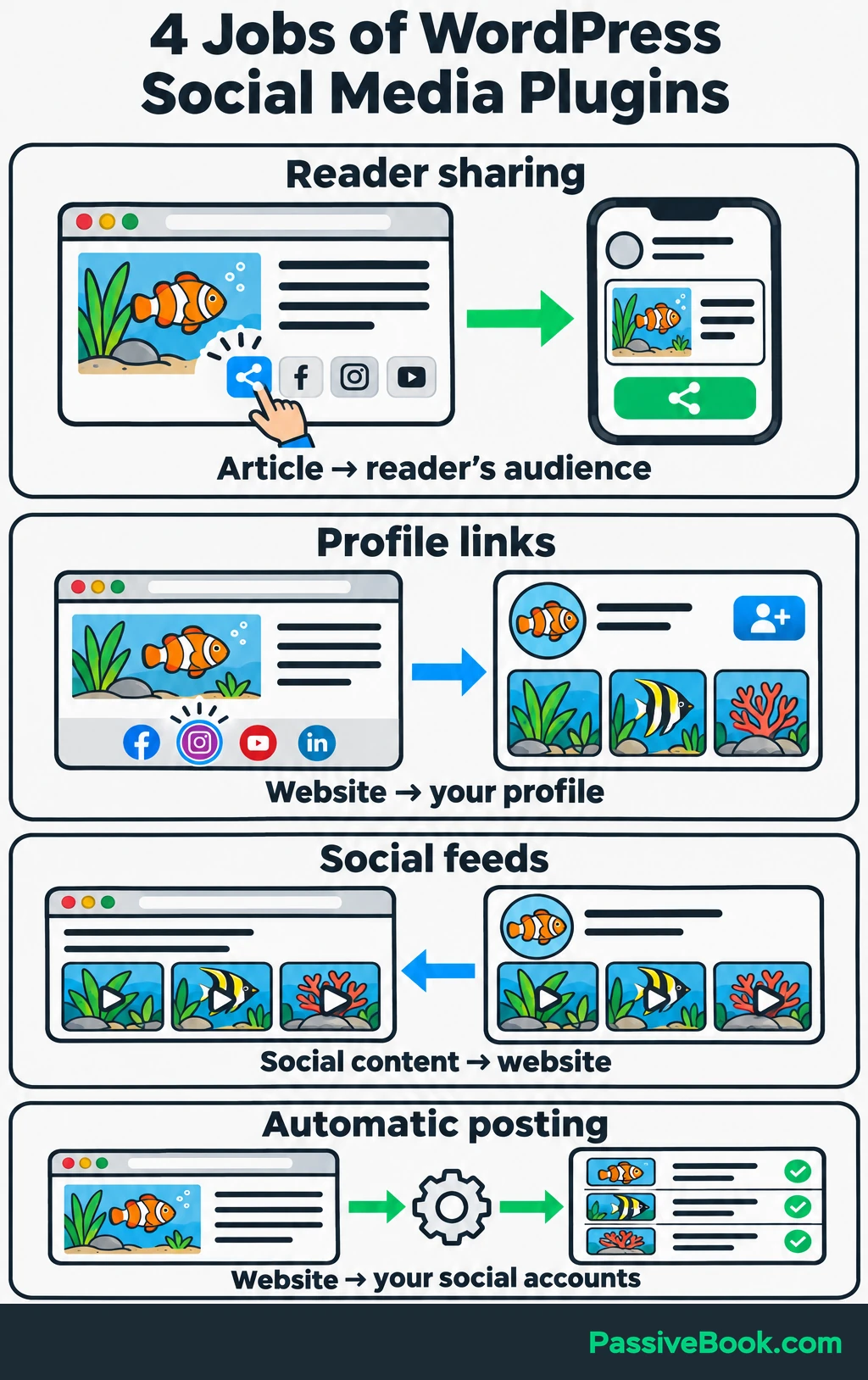
You can combine these jobs, but you rarely need several plugins doing the same one. A feed won’t distribute your latest article, and a row of Instagram icons won’t let readers publish it to Instagram.
My recommendations weigh documented features, costs, and the amount of setup each choice requires. My own WordPress stack includes Easy Social Share Buttons, but that doesn’t make it the right purchase for every site.
For the examples, imagine you run an aquarium-care blog selling printable tank-maintenance logs. You want readers to share guides, new articles to reach your existing social accounts, and an optional gallery to display tank-setup videos.
Here’s how all 21 options compare. Costs are in USD before tax. Paid licenses cover one website unless another allowance is shown. Prices appear here so you can compare the full bill in one place; use the linked pages for current offers and terms.
| Plugin and Job | Relevant Networks or Accounts | Useful Free Features | Recommended Edition and Cost | Renewal or External Costs | Main Tradeoff |
|---|---|---|---|---|---|
| Sharing: 1. AddToAny | Facebook, Pinterest, WhatsApp, LinkedIn, Bluesky, X, and others | Inline and floating buttons, image sharing, expanded sharing menu | Free | No paid plan required | Loads an external sharing script |
| Sharing: 2. Novashare | Major sharing destinations, including Facebook, Pinterest, LinkedIn, and X | No free edition | Personal: $19.95/year | Vendor lists a 15% renewal discount | Focused sharing features rather than a broad marketing suite |
| Sharing: 3. Easy Social Share Buttons | Facebook, Pinterest, WhatsApp, LinkedIn, X, and others; WooCommerce sharing | No ongoing free edition recommended here | Regular one-site lifetime price: $39; promotions may reduce it | Lifetime updates and support; separate premium add-ons excluded | Many settings to sort through |
| Sharing: 4. Social Snap | Sharing destinations and profile links, including Facebook, LinkedIn, and X | Basic sharing and follow controls | Free initially; Plus: $39/year for advanced statistics | Annual renewal at full price; Plus excludes automation add-ons | Check declared compatibility before paying |
| Sharing: 5. Monarch | Multiple sharing networks and social profiles | Included if you already have a qualifying membership | Elegant Themes annual membership: $89, unlimited websites | Annual membership renewal | Expensive if sharing is all you need |
| Sharing: 6. Social Media Share Buttons & Social Sharing Icons | Facebook, Pinterest, LinkedIn, X, Instagram profile links, and others | Icon designs, animations, floating placement, multiple actions | Free | Optional premium upgrade | Controls need clear purposes |
| Sharing: 7. Better Click To Share | X | Quote boxes through a block or shortcode | Free | No paid plan needed for basic quote sharing | Solves one narrow sharing task |
| Sharing: 8. Tasty Pins | Pinterest image saves | No free edition | Tasty Pins: $99/year | Annual subscription; settings and content editing become view-only without renewal | Image controls rather than automatic publishing |
| Feeds: 9. Smash Balloon Instagram Feed | Instagram Business or Creator accounts | Account feeds, multiple accounts, columns, spacing, follow button | Free for basic feeds; Basic: $49 introductory year; Plus: $99 introductory year, five sites | Basic renews at $98/year; Plus at $198/year | Hashtags, filtering, and moderation require Plus |
| Feeds: 10. Spotlight | Instagram Business or Creator accounts | Unlimited connected accounts and feeds, live preview, device controls | Free initially; Essentials: $59/year; Pro: $99/year | Vendor states subscription prices remain locked | Hashtags, moderation, and shoppable feeds require Pro |
| Feeds: 11. Smash Balloon Facebook Feed | Facebook Pages you administer | Text and links from Page posts | Basic for photos/video: $49 introductory year; Plus for albums/comments: $99 introductory year, five sites | Basic renews at $98/year; Plus at $198/year | Free version excludes photos and videos |
| Feeds: 12. Smash Balloon Feeds for YouTube | Public YouTube channels; playlists with an API key | Updating channel galleries and layout controls | Free for a channel; Basic for playlists: $49 introductory year | Basic renews at $98/year | A single video usually needs only a direct embed |
| Feeds: 13. Smash Balloon Feeds for TikTok | Connected TikTok accounts | Latest videos, thumbnail grid, click-to-play lightbox | Free initially; Basic: $49 introductory year; Plus: $99 introductory year, five sites | Basic renews at $98/year; Plus at $198/year | Word filters and advanced layouts require Plus |
| Feeds: 14. Feed Them Social | Instagram, Facebook, TikTok, and YouTube | Core feeds managed through one plugin | Free initially; Premium extension: $50/year | Annual renewal; Combined Streams costs extra | Several networks in one plugin doesn’t mean one mixed feed |
| Posting: 15. Jetpack Social | Facebook, Instagram, Threads, Bluesky, LinkedIn, Mastodon, Nextdoor, Tumblr | Automatic posting, unlimited shares, previews, resharing, scheduling | Social Free | Paid plan optional for connection-specific messages and custom media | No X or Pinterest support |
| Posting: 16. Blog2Social | Network and account support varies by plan; includes Facebook, Instagram, LinkedIn, and Pinterest options | Manual sharing | Smart: $84/year, billed annually; two users on one site or one user on two sites; three accounts per network | Annual subscription; X add-on billed separately | Free edition doesn’t provide automatic posting |
| Posting: 17. Revive Social | Facebook Pages and X free; additional destinations depend on paid tier | Recycling, intervals, age limits, exclusions | Free for supported destinations; Starter: $99 introductory year | Starter renews at $129/year; X API access is separate | Old articles need review before repeated promotion |
| Posting: 18. WordPress to Buffer | Buffer destinations; Instagram Business and Pinterest require Pro connector | Sends posts to supported Buffer queues | Free initially; Pro: $39/year | Buffer account required; paid Buffer plan may be needed; active annual license required for Pro functionality | Connector and publishing service are separate |
| Posting: 19. Uncanny Automator | Facebook Pages, Instagram Business, and other supported integrations | Registered free account includes 250 starter app credits | Basic: $199/year | Annual license; connected services may have their own charges | More setup than a dedicated posting plugin |
| Profiles: 20. WPZOOM Connect | Profile links including Instagram, YouTube, Facebook, and others | Blocks, widgets, shortcodes, Elementor placement, basic sharing | Free | Optional Pro upgrade | Easy to duplicate another plugin’s sharing controls |
| Profiles: 21. Simple Social Icons | Supported social-profile URLs | Widget styling and additional core block icons | Free | No paid plan needed | Limited to profile links |
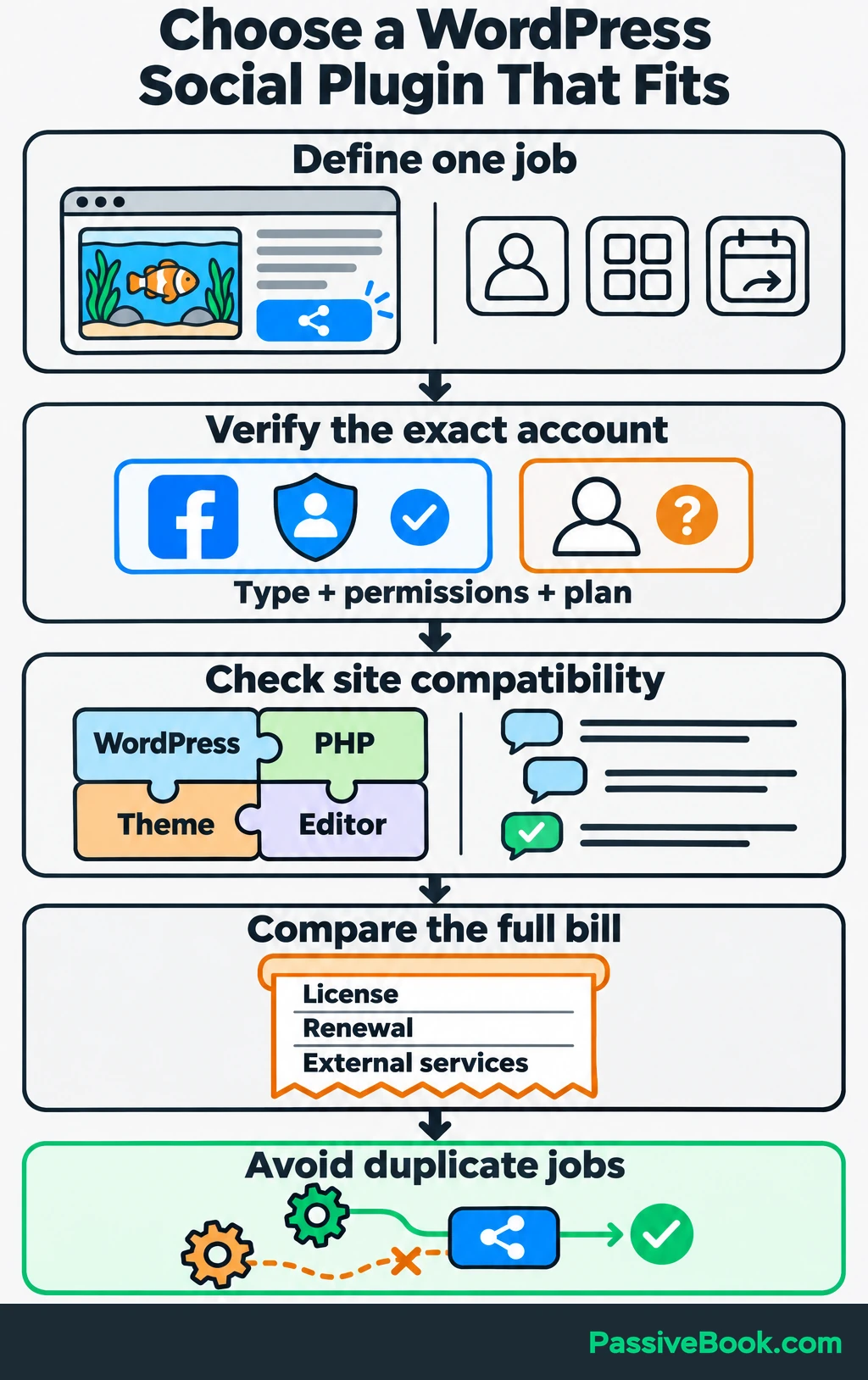
Before choosing, write down your exact destination: “Facebook Page I administer” is more useful than “Facebook.” Account type, permissions, and plan restrictions can decide whether a plugin fits.
Then compare the WordPress and PHP versions it supports with your site. Read recent reviews and support threads for problems involving your theme, editor, or required network. A familiar name is useful context, but a resolved connection problem tells you more than a five-star review saying “great plugin.”
Best WordPress Plugins for Social Sharing
Start with the destinations your readers are likely to use. Then compare button placement, image controls, styling, and price.
I would begin with a short sharing bar below the article. Add a floating bar only if it stays clear of the text and other mobile controls. Your guide should remain the easiest thing on the page to read.
1. AddToAny Share Buttons — Best Free Starting Point
AddToAny is my default starting point when the requirement is simply “let readers share this page.”
Its free edition provides inline buttons, floating buttons, image-sharing controls, and an expandable menu of destinations. You don’t need a publisher account to use it.
For the aquarium guide, I would show Pinterest, Facebook, and WhatsApp, then leave other services inside the expanded menu. That keeps the visible row short while preserving choice.
Check its externally loaded sharing script during your performance and privacy review. Free is an excellent price, but it doesn’t remove the need to check what loads on your pages.
2. Novashare — Best for a Focused Paid Sharing Setup
I would choose Novashare when you want paid support and a focused set of sharing controls.
It covers sharing buttons, follow buttons, and quote boxes that prepare a social post for readers to share. That gives you room to add a profile row or shareable quote without buying a much broader marketing suite.
The useful distinction is how many decisions you want to make. If your list ends at “buttons, sensible placement, and a design that fits,” Novashare deserves a close look.
I wouldn’t pay for it merely because a free plugin has more settings. Pay when its controls and support are worth the annual cost to you.
3. Easy Social Share Buttons — Best for Extensive Display Controls
Easy Social Share Buttons suits sites that need more control over where sharing appears and how it works. Its features include varied placements, Pinterest image sharing, WooCommerce sharing, profile links, and sharing analytics.
It’s part of my own WordPress stack. I’ve kept my setup narrower than the feature list because I don’t want every article to become a demonstration of the settings screen.
For the aquarium blog, I would enable an article sharing row and the image controls it needs. Extra prompts and placements would need a specific reason.
Choose it when you can name the controls you need. Its low purchase price shouldn’t become an excuse to enable everything.
4. Social Snap — Best for Sharing Statistics
Social Snap is worth comparing when you want more detail about how visitors use your sharing controls.
Start with the free sharing and follow features. Consider Plus when advanced statistics or share-count recovery would help you manage an existing site.
Keep the measurements separate. A share count reported by a network, a click on your button, a referral visit, and a purchase describe different events. Don’t report them as interchangeable wins.
Its free directory listing declares testing through WordPress 6.9.11. If your installation is newer, confirm support before committing to a paid setup. That declaration describes the vendor’s stated testing range, not a guaranteed failure beyond it.
5. Monarch — Best for Existing Elegant Themes Members
Monarch makes the most sense when you already pay for Elegant Themes and can use it through that membership.
It offers inline buttons, floating sidebars, image overlays, and triggered pop-ups or fly-ins. Those placement options can help with unusual layouts, but they also give you more ways to crowd a phone screen.
I would start with inline sharing and leave the triggered prompts off until there’s a clear reason to add one.
If sharing buttons are your only need, compare a standalone plugin first. An entire theme membership is a large purchase to solve a small button problem.
6. Social Media Share Buttons & Social Sharing Icons — Best for Configurable Icon Actions
This is the free plugin associated with UltimatelySocial. It gives you icon designs, animations, floating placement, and the option to assign several actions to an icon.
That flexibility needs careful labeling. A Facebook control might share an article or open your Page. An Instagram profile link takes the visitor to your account; it doesn’t publish the current guide there.
I would give each visible control one obvious purpose and skip animations initially.
Choose this plugin when you need its configurable icon behavior. For a plain article sharing row, AddToAny would be my simpler starting point.
7. Better Click To Share — Best for Shareable Quotes on X
Better Click To Share, formerly Better Click to Tweet, adds quote boxes through a WordPress block or a shortcode—a text tag you paste where the box should appear. Clicking a box opens X with the quote and article link prepared for the reader.
Use it for a takeaway that makes sense outside the surrounding paragraph. Place the box beside the explanation it summarizes.
For the aquarium guide, a short excerpt could be:
“Record each tank check as you finish it, so your maintenance log stays useful.”
I would install this specialist plugin only if quote sharing matters to the audience and the sharing plugin already selected doesn’t cover it. One useful quote is enough to start.
8. Tasty Pins — Best for Pinterest Image Controls
Tasty Pins gives you more control over what readers save to Pinterest. You can supply Pinterest descriptions, select preferred images, hide extra pin graphics from the visible article, and prevent selected images from being pinned.
Describe the image in its alt text, which screen readers read aloud. Write the Pinterest description in its separate field.
For the aquarium guide, you could make a tall checklist graphic available for saves while keeping the article’s normal photos easy to browse.
Check the vendor’s known compatibility exceptions before buying, especially for WooCommerce product images, Visual Composer, Schema Premium, and OptimizePress.
Tasty Pins controls reader saves. Scheduling your own Pins requires a separate workflow.
Best WordPress Plugins for Social Feeds
Add a feed when existing social content helps someone use a particular page. An updating video library can be useful; an unrelated feed beneath every article has a weaker case.
For the aquarium blog, I would place tank-setup demonstrations on a gallery page. I wouldn’t add a feed just to prove that the business has social accounts.
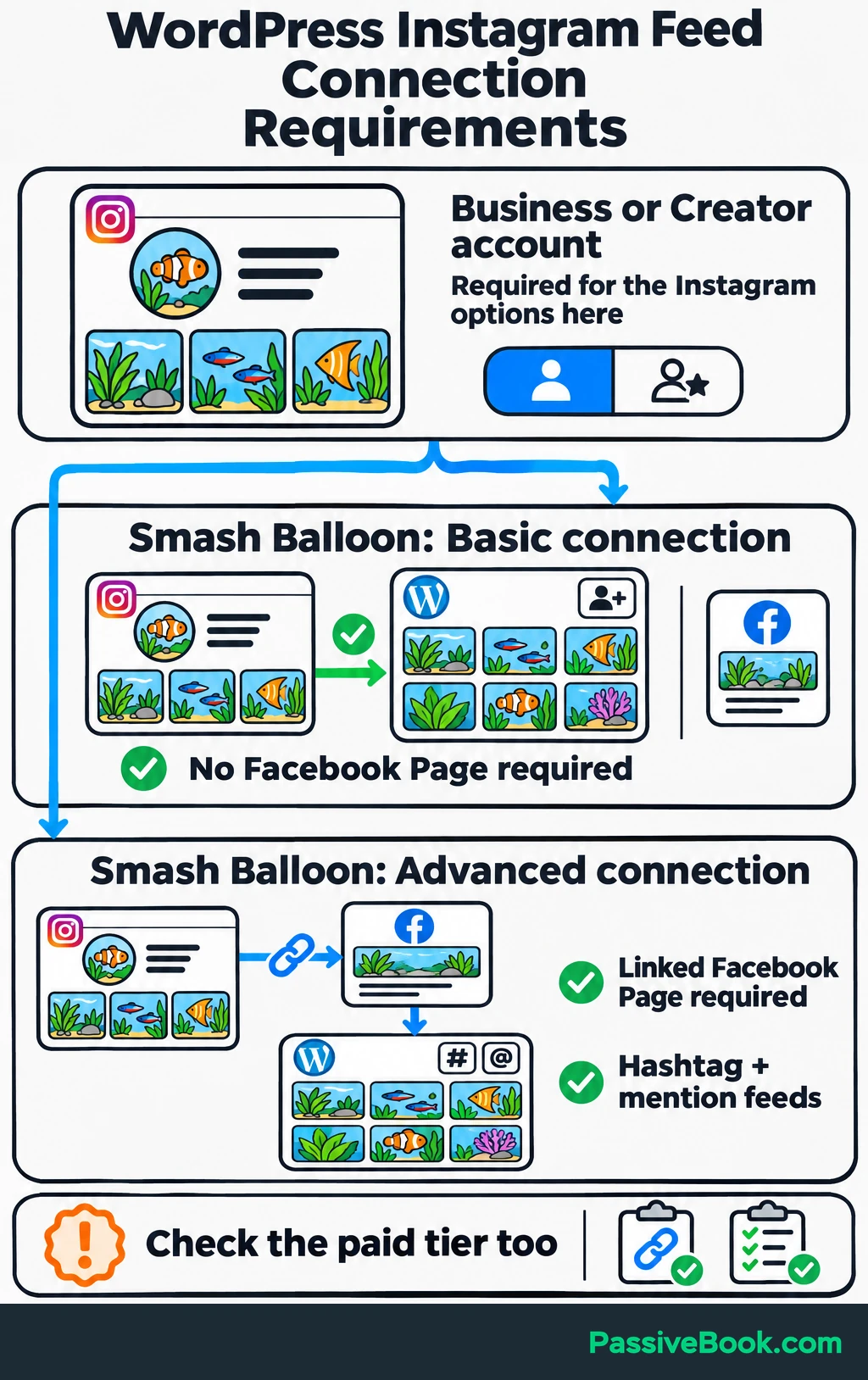
The Instagram options below require a Business or Creator account. Smash Balloon’s basic connection doesn’t require a Facebook Page, but its advanced connection for hashtag and mention feeds requires a linked Page. Check the connection requirements alongside the paid tier.
9. Smash Balloon Instagram Feed — Best for an Instagram Feed With Room to Expand
Start with Smash Balloon’s free Social Photo Feed plugin if you want to display posts from connected accounts. It includes multiple-account support, adjustable columns and spacing, and a follow button.
That is enough to test whether an Instagram gallery earns its place on the aquarium site.
Move to a paid edition for a feature you can name. Basic adds display features, while hashtag feeds, filtering, and visual moderation begin with Plus.
I would pay particular attention to moderation if the feed includes content beyond your own account. Choose the material you want visitors to see before choosing the prettiest layout.
10. Spotlight — Best for Visually Designing an Instagram Feed
Spotlight is a strong alternative when you want to build the feed while watching a live preview.
The free edition supports unlimited connected accounts and feeds, combines posts from accounts, and lets you adjust the display for different devices. That makes it a useful starting point for checking whether a gallery fits an existing page.
Essentials expands the display options. Pro adds hashtag feeds, filtering, moderation, and shoppable feeds.
I would compare Spotlight Pro with Smash Balloon’s relevant tier using the same requirements. Include renewal costs and website allowance in that comparison, because a cheaper introductory year doesn’t settle the longer-term choice.
11. Smash Balloon Facebook Feed — Best for Displaying a Facebook Page
Choose this when you already maintain a Facebook Page whose updates belong on your website.
The free Social Post Feed plugin displays text and links from a Page you administer. Photos and videos require Pro, so a free installation won’t provide the visual gallery many people expect.
Basic covers photos and videos. Album feeds and comments begin with Plus.
For the aquarium site, a text feed could display Page announcements. A gallery of tank photos needs the appropriate paid edition.
Confirm that you can authorize the correct Page before purchasing. Access through your personal Facebook login doesn’t automatically establish every permission the connection needs.
12. Smash Balloon Feeds for YouTube — Best for a Channel Gallery
The free YouTube plugin suits an ongoing channel library. It displays an updating gallery and gives you layout controls, so you don’t have to rebuild the page whenever another video appears.
That fits a tank-setup page containing a growing collection of demonstrations.
If you need a chosen playlist, compare the paid Basic edition and prepare a YouTube API key—the credential the plugin uses to request that playlist’s content.
For one demonstration inside one guide, I would use a direct video embed first. A gallery plugin earns its place when you need the library to organize and update itself.
13. Smash Balloon Feeds for TikTok — Best for Displaying Existing TikTok Videos
Start with the free edition if you already publish useful TikTok videos and want to show the connected account’s latest clips.
It shows a grid of video thumbnails. When a visitor clicks one, the video opens in a pop-up player on the same page. That gives you a straightforward way to bring existing demonstrations onto a relevant page.
Consider Plus when you need caption-word or hashtag filters, a carousel, or a masonry layout.
For the aquarium gallery, filtering could help keep unrelated clips out of the display. The feed still depends on having worthwhile videos to show. I wouldn’t start producing for another network merely to fill a website widget.
14. Feed Them Social — Best for Managing Several Feed Platforms
Feed Them Social deserves a look when you need feeds from several platforms and would prefer to manage them through one plugin.
Its free core supports Instagram, Facebook, TikTok, and YouTube. The Premium extension adds controls such as expanded display choices and load-more options.
There’s one distinction to settle before buying: displaying several separate feeds and combining networks into one mixed stream are different requirements. The latter needs the separate Combined Streams extension.
I would list the aquarium gallery’s required sources and layouts, then compare the full extension bill with individual feed plugins. Fewer plugin names doesn’t automatically mean a lower cost.
Best WordPress Plugins for Automatic Social Posting
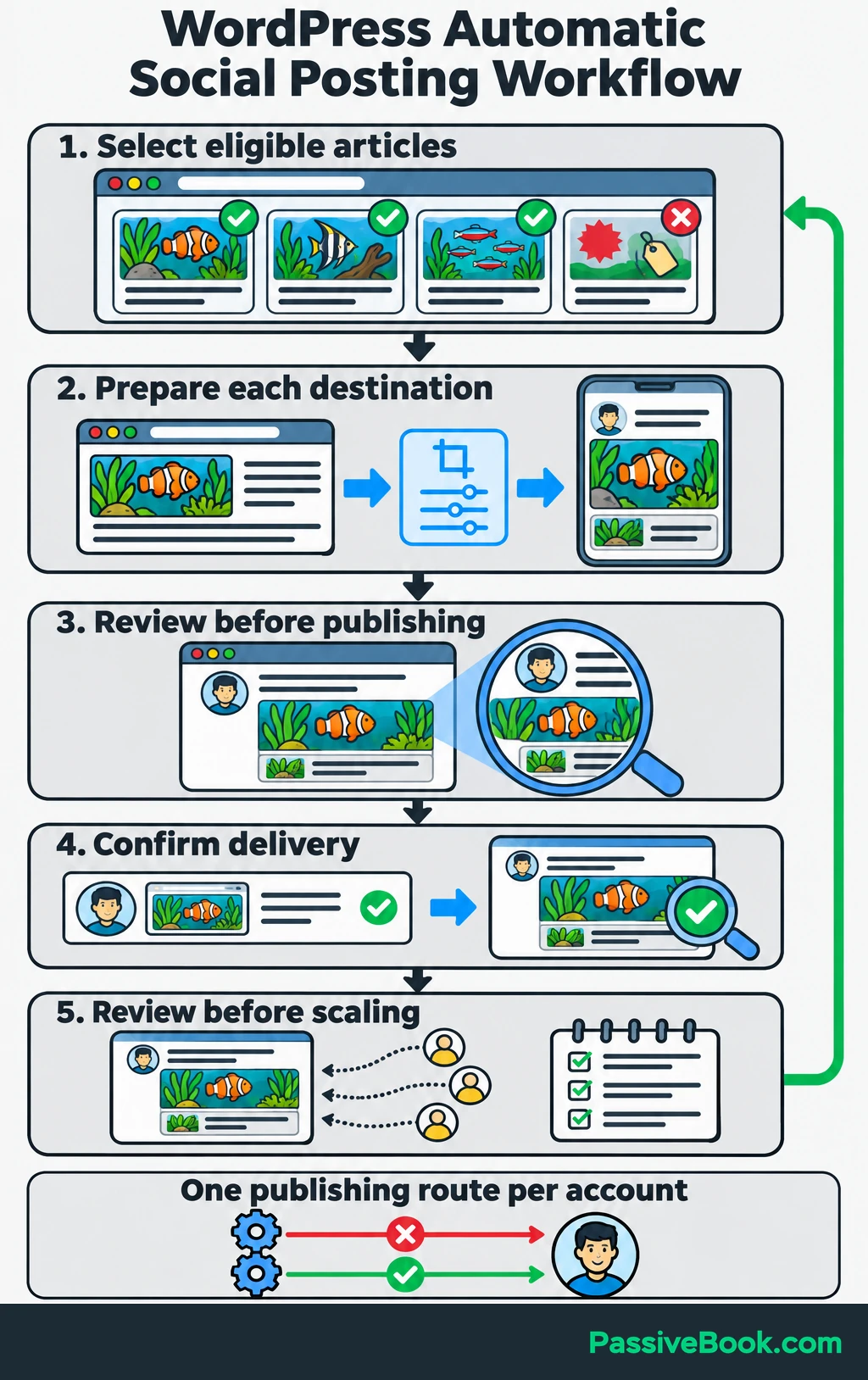
Choose the publishing workflow before choosing the tool:
- Decide which articles qualify for promotion.
- Prepare text and media that suit each destination.
- Review what will go out.
- Check that it arrived at the correct account.
- Review the results before increasing volume.
Assign one publishing route to each account. If Jetpack and another scheduler both send the same article to the same Page, you’ve automated a duplicate.
On a digital-product site, I once left “promote the article” as the final item in my publishing checklist. It kept returning as unfinished work because it bundled writing captions, choosing images, and publishing into one vague task. Splitting those decisions made it much easier to see what could run automatically.
A posting plugin handles delivery, but you still need to prepare the message. Start with one article and draft the copy for the account you’ll connect first.

Free AI Social Copy Studio




15. Jetpack Social — Best Free Option for Sharing New Posts
Jetpack Social is where I would start for free automatic posting when its supported destinations match your accounts.
The free plan includes automatic sharing, previews, unlimited shares, resharing, and scheduling published articles. It supports Facebook, Instagram, Threads, Bluesky, LinkedIn, Mastodon, Nextdoor, and Tumblr.
X and Pinterest aren’t on that list, so choose another route if either is essential.
Use the standalone Jetpack Social plugin when this is the feature you need. Consider a paid plan when each connection needs its own message, reusable templates, or custom media.
For the aquarium blog, begin with one eligible article and one connected account before extending the setup.
16. Blog2Social — Best for Scheduling Through a Social Calendar
Blog2Social fits a workflow where you want to see article promotion on a calendar and adjust messages for individual networks.
The free edition covers manual sharing. Smart adds automatic posting and scheduling, so don’t choose the free version expecting an unattended publishing system.
I would choose it when calendar planning saves regular work. Include the separate X add-on if that network is part of your schedule.
17. Revive Social — Best for Recycling Evergreen Articles
Revive Social, formerly Revive Old Posts, is useful when you have a library of articles that remain worth sharing.
The free plugin supports Facebook Pages and X, with controls for intervals, article age, and exclusions. Paid destinations and features depend on the tier.
For the aquarium blog, you could rotate durable guides and exclude expired offers or articles awaiting revision. I would begin with a small approved collection rather than letting the entire archive qualify.
For X, include the cost and allowance of your developer access. Revive Social uses the credentials you supply and doesn’t provide X API credits. That dependency can matter more than the plugin price.
18. WordPress to Buffer — Best for an Existing Buffer Queue
Choose WordPress to Buffer when Buffer already manages your social schedule.
The connector sends WordPress content into Buffer’s publishing queue. Its free directory listing uses the name “Social Media Auto Poster – Schedule & Publish to Buffer,” so check the WP Zinc developer when finding it.
Instagram Business and Pinterest support require the Pro connector. You also need a Buffer account, and your account count or queue needs may require a paid Buffer subscription.
I would check what you can accomplish with the free connector first. For Pro, remember that the annual license must stay active for continued functionality. It’s part of the operating cost, alongside Buffer itself.
19. Uncanny Automator — Best for Conditional Publishing Workflows
Uncanny Automator is the option I would examine when promotion depends on more than publishing an article.
A recipe connects an event to an action, and paid action conditions can decide whether that action runs. For example: when an aquarium-care article is published, post a Facebook Page update only if its category matches the one selected for promotion.
Registered free accounts receive 250 starter app credits. Each external app action uses a credit; this isn’t a fresh monthly allowance. Paid plans include unlimited app credits.
Basic covers this conditional workflow. If every new article should receive the same treatment, I would choose a simpler posting plugin first.
Best WordPress Plugins for Social Profile Icons
Try WordPress’s built-in Social Icons block before adding a dedicated plugin. Add the block, choose the services you use, and enter your profile URLs.
A separate plugin makes sense when you need another placement method, an unavailable icon, or more design control. It shouldn’t be necessary just to display a few ordinary profile links.
20. WPZOOM Connect — Best for Flexible Profile-icon Placement
WPZOOM Connect, formerly Social Icons Widget & Block, gives you several ways to place profile links: blocks, traditional widgets, shortcodes, and Elementor.
That flexibility is its main appeal here. You can use it for a styled row of active accounts without changing the rest of your page-building setup.
For the aquarium blog, I would place the profile row in the footer and link only to accounts you maintain.
Basic sharing buttons are also included, so check for overlap with the sharing plugin already selected. Pro adds features such as floating sharing bars and sharing analytics, but those don’t justify an upgrade if profile links are the whole requirement.
21. Simple Social Icons — Best for Straightforward Profile Links
Simple Social Icons is a free choice for profile links in a traditional widget area. It provides color, size, and alignment controls.
On WordPress 6.9 or later, it also extends the core Social Icons block with additional icon variations.
I would choose it when its widget placement or extra icons solve a specific gap. If the built-in block already includes your services and fits the layout, keep that setup.
The goal is easy access to your active accounts. A footer doesn’t need another settings page simply because one is available.
Set up Your Chosen Plugins and Check the Results
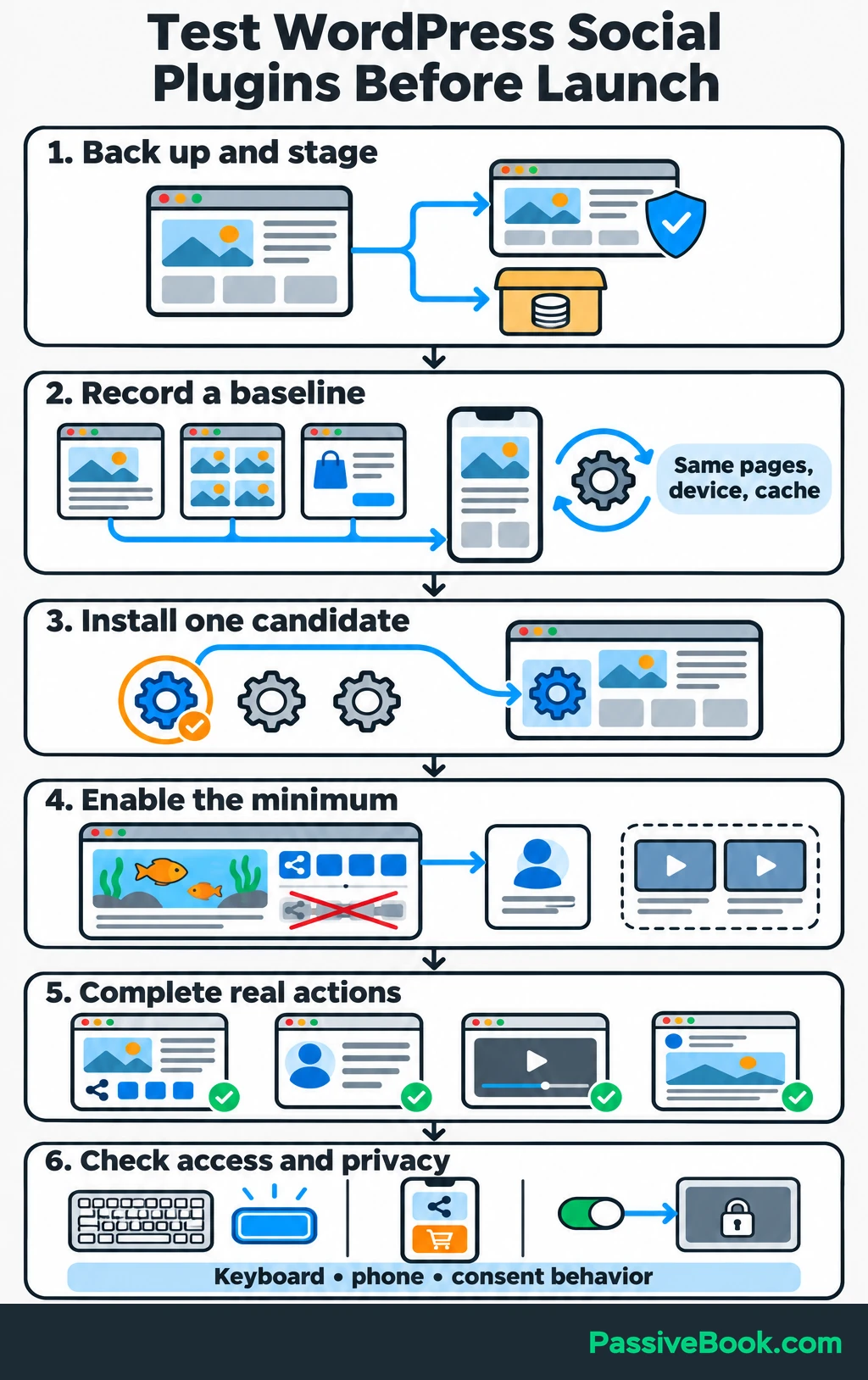
Start with a backup and a staging copy—a separate copy of your site where you can try changes before visitors see them. Install one candidate at a time so you can identify what caused a problem.
Use the same article, gallery page, and product page for your before-and-after checks. Keep the mobile device settings and cache conditions consistent, and repeat the checks enough to spot a clear change rather than trusting one loading result.
Then enable the smallest useful configuration:
- Keep one set of article sharing controls.
- Use one publishing route for each social account.
- Place feeds only on pages that need them.
- Leave your existing SEO plugin responsible for social preview titles, descriptions, and images.
I use Rank Math for SEO, but the practical point is ownership of the setting. Two plugins trying to supply the same preview information create unnecessary troubleshooting.
For the aquarium blog, this would be my complete starter setup:
| Job | Starting Choice | Configuration | Check Before Launch |
|---|---|---|---|
| Reader sharing | AddToAny | Short sharing row below guides | Correct article URL and usable controls on a phone |
| Article distribution | Jetpack Social Free | One supported account, then expand after a successful post | Correct account, caption, image, link, and timing |
| Profile links | Built-in Social Icons block | Active profiles in the footer | Every icon opens the intended profile |
| Video library | Free YouTube feed, only if needed | Compact gallery on the tank-setup page | Relevant videos, working playback, and feed refresh |
| Business result | Existing analytics and shop reports | Review social visits and maintenance-log purchases | Promotion supports useful visits or sales |
If Pinterest is the main distribution channel, I would use Pinterest’s native scheduler for planned Pins and consider Tasty Pins only when reader-save controls justify the cost. If Buffer already holds your schedule, use its connector instead of adding a second publishing route.
Test the action from beginning to end. Click a sharing button and inspect the prepared post. Open every profile link. Play a feed video and check whether newly published content appears after the expected refresh. Send one controlled social post and inspect it on the destination account.
Also check the page with a keyboard and on a phone. Controls need recognizable labels, visible focus, readable contrast, and enough space to use them. A floating bar that covers the maintenance-log purchase button is doing the business no favors.
Review third-party scripts, embeds, and tracking. For UK visitors, block cookies and similar device access that require consent until the visitor agrees. The Information Commissioner’s Office guidance explains how to collect that consent when no exception applies. Check that declining consent keeps those features blocked.
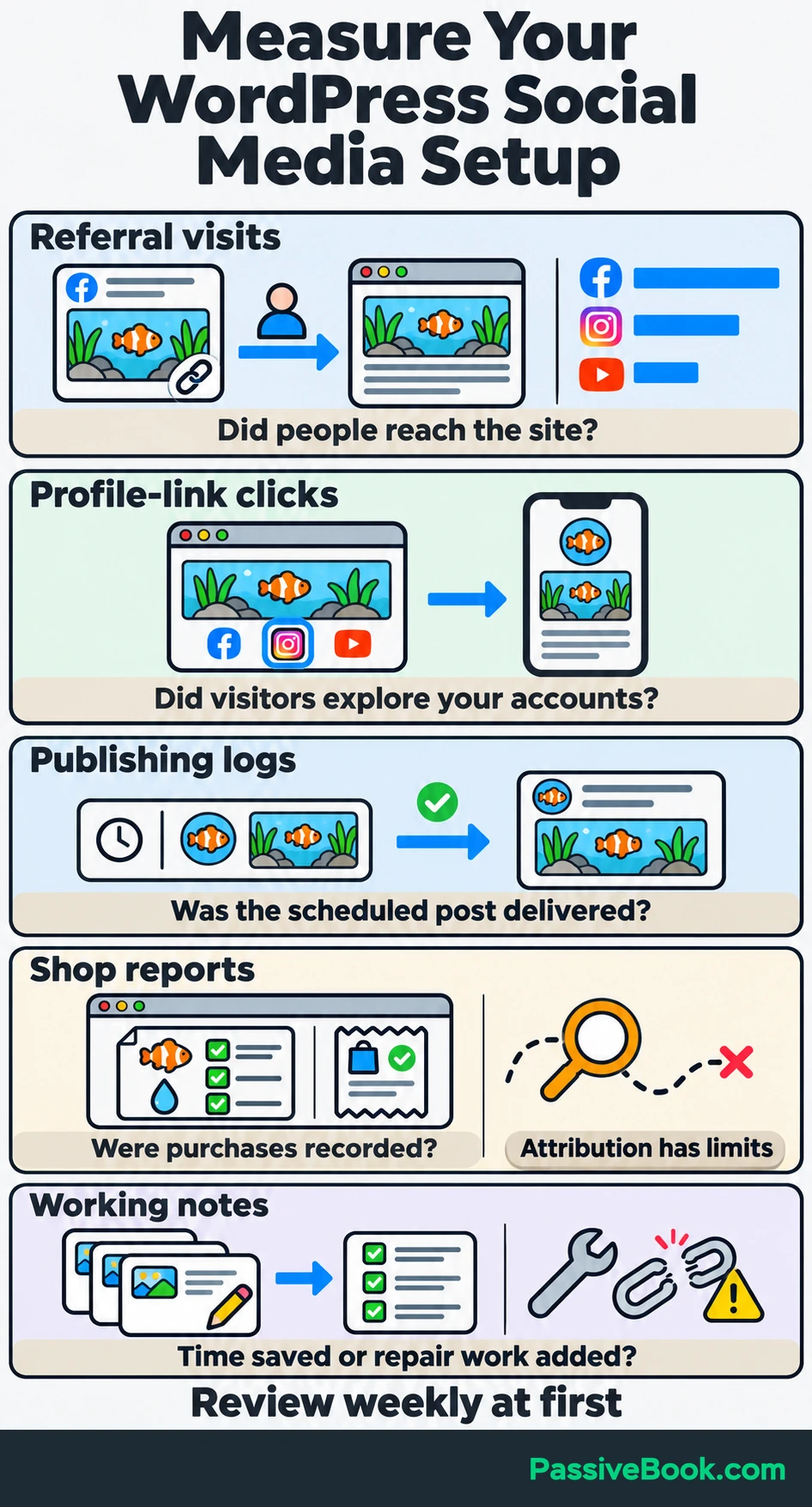
Once the setup is live, review results in tools you already have:
- Referral visits show whether social activity brings people to the site.
- Profile-link clicks show interest in your accounts.
- Publishing logs show whether scheduled posts were delivered.
- Shop reports show purchases, with attribution limited to what your tracking can observe.
- Your working notes show whether the setup saves time or creates repair work.
I would review these weekly at first. Keep paid features that solve a recurring problem, and remove unused candidates after choosing. Continue checking connection errors and updates, because a scheduled post that never arrives saves very little work.
What Next?
Choose one useful article and add the single feature it’s missing: reader sharing, a publishing connection, or a relevant feed. Complete one real action before extending the setup across your site.
Use the social buttons to pass this guide along when plugin comparisons start turning into a subscription pile.
Which part of your promotion still needs too much manual work? Share it in the comments, and bring any other questions about choosing your setup.
Share this post with your friends & followers:

