A slider looks tidy in the demo: sharp photos, readable captions, and buttons that sit exactly where they should. Then you replace the sample content with your own, and the headline wraps over the image on your phone.
Fixing that can take longer than choosing the plugin. And a polished preview tells you little about loading speed, license renewals, or how easily you can update the slides.
This comparison separates simple slideshows from tools for layered designs and advanced animation, so you can choose what your page needs without buying an ongoing design project.
Best WordPress Slider Plugins at a Glance
I would start with MetaSlider for a simple image slideshow or Smart Slider 3 for free slides with separate text and buttons. Choose a specialist when you need its post feeds, block editing, thumbnail navigation, or animation controls.
I run Passive Book on self-hosted WordPress, and I prefer economical tools that leave me less to maintain. These recommendations draw on vendor documentation and a published performance comparison. The practical checks later in this article help you decide whether a plugin belongs on your website.
First, check the layout rather than the label. Vendors often call one prominent slide a “slider” and several visible cards a “carousel,” but the terms overlap.
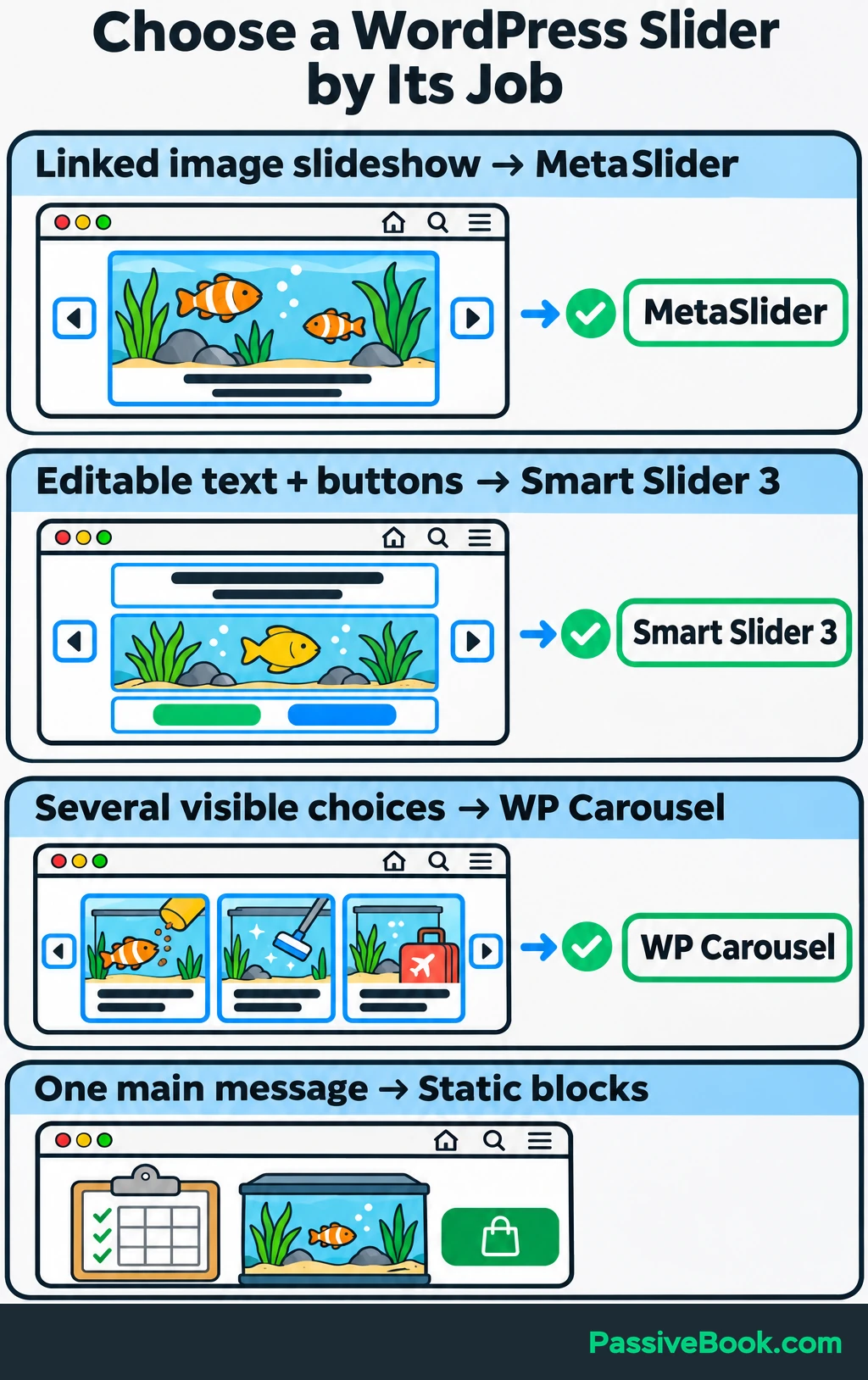
Your content source matters just as much. Manually selected images let you keep three cornerstone guides in place. An automatic post feed can show new articles without rebuilding the selection, but you still need to check what it displays.
For the examples below, imagine you run an aquarium-care website with feeding, tank-cleaning, and holiday-care guides. You also sell printable tank-maintenance logs. The guides need clear browsing, while the logs need a visible offer and a working purchase link.
The table puts prices in one place. Support terms refer to the paid plan shown, except for Getwid.
| Plugin | Best Use | Free Edition | Relevant Paid Plan | Site Allowance | Billing Model | Support Entitlement | Main Limitation |
|---|---|---|---|---|---|---|---|
| MetaSlider | Simple image slideshows | Yes; images and carousels | One-site Pro: $79/year list; $39.50/year advertised offer | 1 paid site | Annual | One year of premium support | Post feeds and animated layers require Pro |
| Smart Slider 3 | Free layered slides | Yes; text, buttons, images, video layers, and posts | Standard: $49 once | 1 paid site | One-time | Lifetime updates and support; updates last while development continues | Carousel/showcase layouts and advanced effects require Pro |
| Soliloquy | Focused image management | Yes; image sliders and an embedding block | Personal: $39/year list, $19.50 offer; Developer: $199/year list, $99.50 offer | Personal: 1; Developer: 25 | Annual | One year; Developer includes priority support | Carousels, dynamic feeds, and thumbnails require Developer or above |
| WP Carousel | Rows of post or product cards | Yes; block-based image, post, product, and video displays | Single Site Pro: $39/year | 1 paid site | Annual plan shown | One year of standard support and automatic updates | Free features differ between blocks and the classic builder |
| Getwid | Building slides with WordPress blocks | Yes; slider and carousel blocks | Free block collection; no paid upgrade required | Unlimited sites | Free | Documentation and public support forum | Adds a broader collection of blocks |
| Depicter | Customizing visual templates | Yes; basic builder, animations, and post data | Starter: $49/year list; $39/year advertised offer | 1 paid site | Annual | Premium support while subscribed | Expiry affects existing Pro designs |
| Slider Revolution | Advanced animation | Yes; SR7 requires a free account | Starter: €45/year | 1 premium site; free core on unlimited sites | Annual premium license | Ticket support while licensed; free help center | Premium templates, add-ons, and effects need an active license |
| LayerSlider | Custom transition design | No standalone free edition listed | Personal: $29/year or $87 once | 1 site | Annual or one-time | Annual: ongoing while subscribed; one-time: six months | Lifetime updates on the one-time plan do not include lifetime support |
| Master Slider | Thumbnail-led image browsing | Yes; image slideshows and starter samples | Pro Regular License: $39 once | 1 end product whose users are not charged for access | One-time | Six months, with future updates included | Pro compatibility listing stops at WordPress 6.7.x |
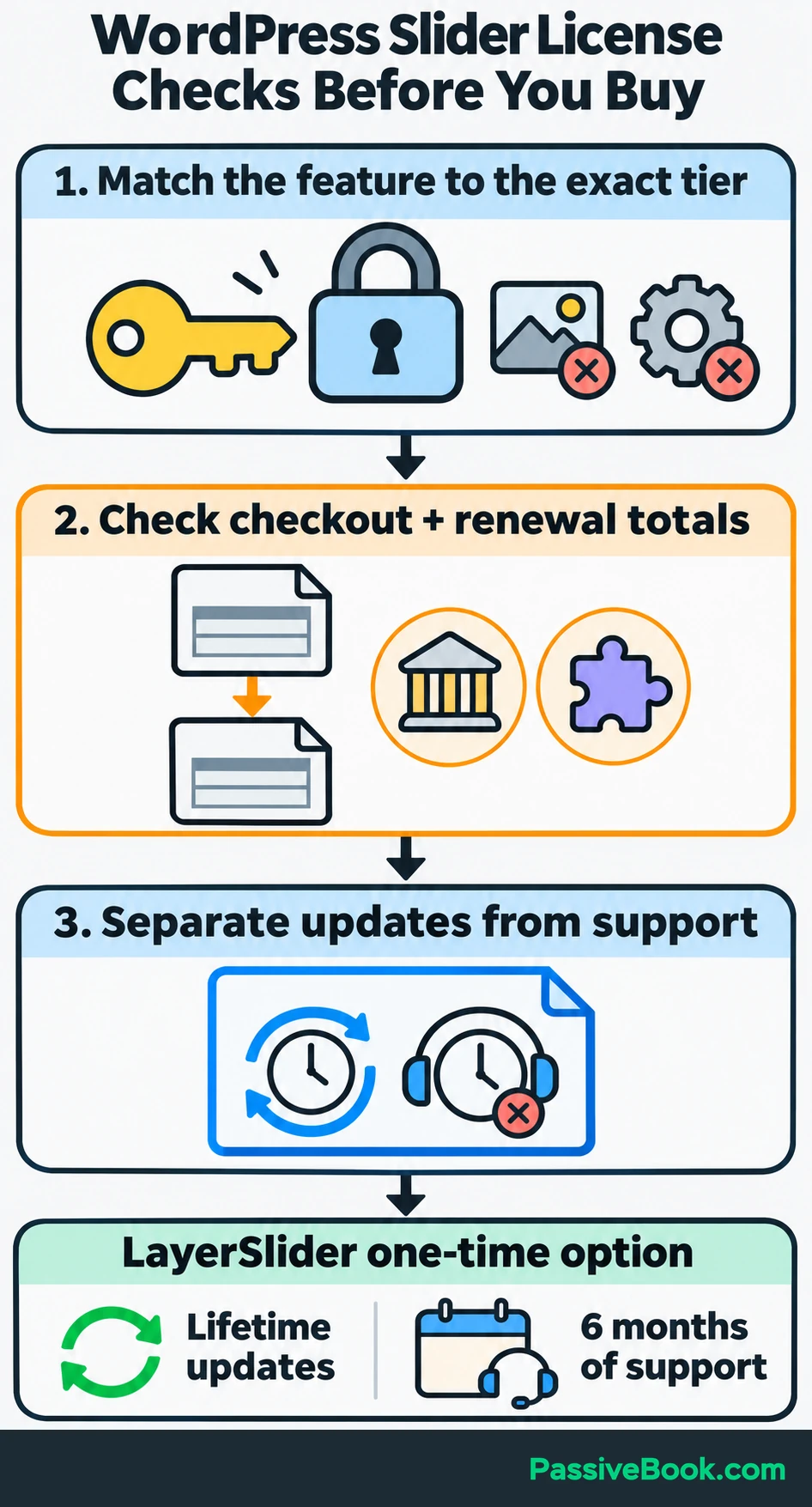
An advertised discount is separate from the regular price. Before paying, check the required tier’s checkout and renewal totals, including taxes and optional extras. A one-time payment can cover future updates while support ends much sooner.
Once two plugins meet your requirements, compare their costs over the time you expect to use them. The lowest first payment is not always the cheapest option.

Free Software Cost Calculator




Also decide whether the page needs rotation at all. Keep essential navigation and the maintenance-log offer accessible outside the slider. If the page has one main message, I would use a static featured section and build it with the blocks already on the site.
The 9 Best WordPress Slider Plugins
1. MetaSlider: Best for Simple Image Slideshows
Choose MetaSlider when you want to select images, arrange them, and add captions and links. You do not need to compose every slide on a design canvas.
The free edition supports image slideshows and carousels, and it works with the WordPress block editor. That makes it a sensible starting point for a small set of featured guides.
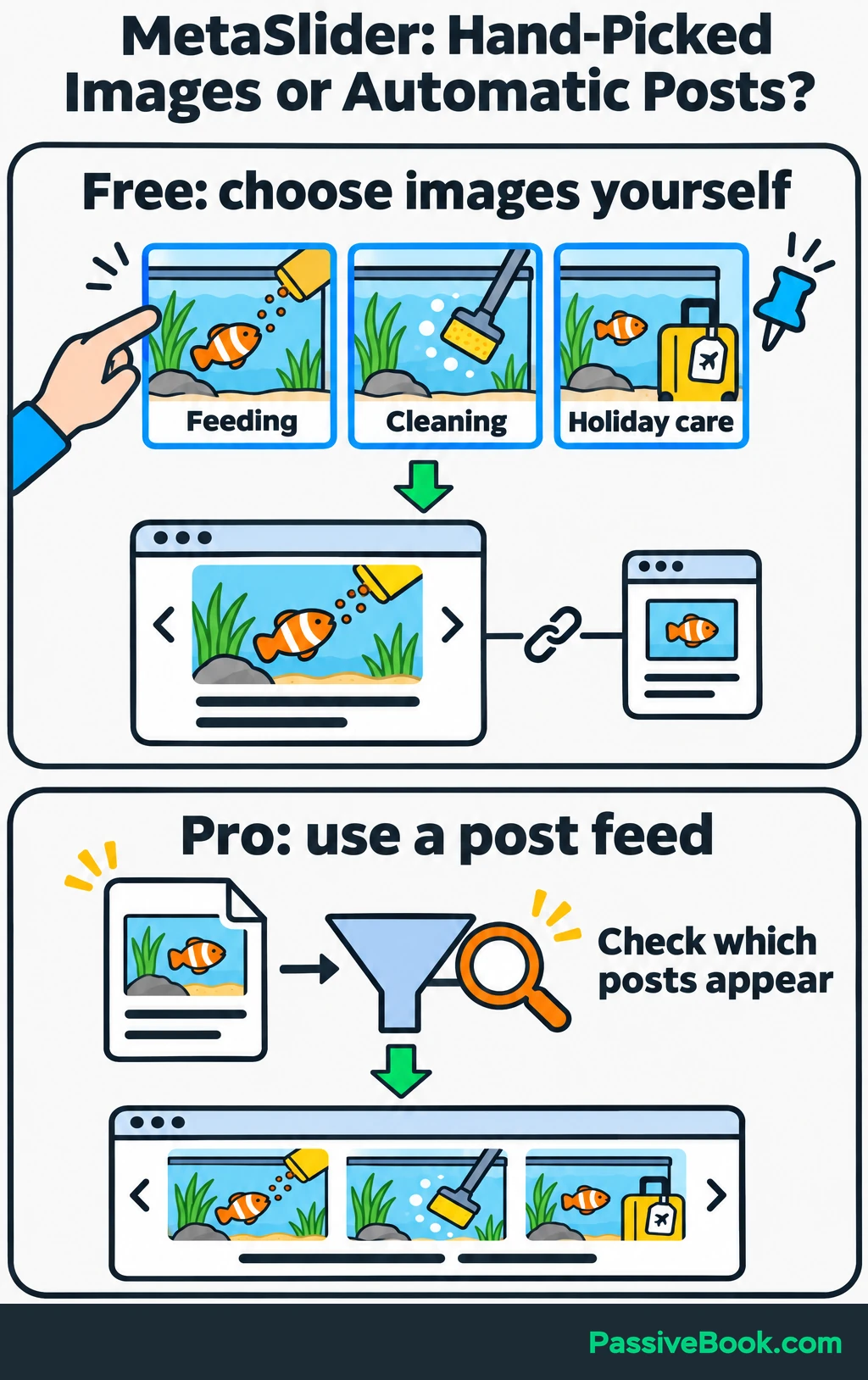
For the aquarium site, use three images with matching proportions and short linked captions:
- “Build a Feeding Routine”
- “Plan Your Tank-Cleaning Tasks”
- “Prepare for a Holiday”
The consistent crop matters more here than a clever transition. Visitors should recognize the choices quickly.
Pro adds post feeds, WooCommerce product slides, animated layers, scheduling, and more video sources. Pay for those when they solve a specific job, such as automatically displaying new guides.
I would choose Smart Slider 3 instead when arranging headings, paragraphs, and buttons is the main task. MetaSlider earns its place by keeping a basic slideshow straightforward.
2. Smart Slider 3: Best Free Option for Layered Slides
Smart Slider 3 is my first choice when the free version needs to do more than place a caption over a photograph.
Its visual editor supports separate headings, text, images, buttons, and YouTube or Vimeo layers. It also supports WordPress-post slides. Rows, columns, and device-specific controls give you room to adjust the layout for phones.
Separate elements make future edits easier. On a digital-product site, I once put the offer wording into a banner image. Changing a few words meant reopening the design, exporting another file, and replacing it in WordPress. I switched to editable page text because a routine copy change should stay routine.
For the maintenance logs, I would use a short heading such as “Keep Your Tank-Care Notes Together,” a brief description, and a separate “View the Printable Logs” button. On phones, stack the text and button where they remain easy to read.
Standard adds carousel/showcase layouts and advanced effects. Its payment model is attractive, but the extra design freedom also creates more decisions. Start free and upgrade for a feature you can name.
3. Soliloquy: Best for a Familiar WordPress Media Workflow
Soliloquy suits you if the main job is uploading and rearranging images in a focused interface. Its free edition includes a block for placing the finished slider on a page.
I would shortlist it alongside MetaSlider for a manually selected set of guide images. Try replacing a photo and changing a link in both, then keep the workflow you find easier.
The important buying detail is the feature tier. Personal is the entry paid plan, but carousel layouts, featured content, dynamic sliders, WooCommerce integration, and thumbnail navigation require Developer or above.
That changes the comparison. If your requirement is an automatically updated guide carousel, judge Soliloquy by the Developer plan in the table.
An expired license allows continued use, but updates and support stop. I would include renewal in the ongoing budget for a business website rather than treat the first payment as the full cost.
4. WP Carousel: Best for Rows of Post or Product Cards
Choose WP Carousel when visitors should see several choices together.
Its free blocks can display images, posts, WooCommerce products, and YouTube or Vimeo content. Device-specific controls let you change how many cards appear across the screen.
For the aquarium guides, I would begin with three visible cards on desktop and one on a narrow phone. Keep the title and navigation visible so visitors can tell there are more guides to browse.
The main buying trap is the editing workflow. You can build with blocks in the WordPress editor or use the classic builder, which gives you a shortcode—a short embed code—to paste into a page. Some options are free only in the blocks, so check the builder you intend to use before paying.
Pro adds features such as advanced filters, scheduling, and mixed-content carousels in the classic builder. Those can help with a larger library, but I would skip the upgrade for a simple row that the free blocks already handle.
5. Getwid: Best for Composing Slides in the Block Editor
Getwid makes sense when you want to build slides using familiar WordPress blocks.
Its free collection includes Content Slider, Image Slider, Media & Text Slider, Post Slider, and Post Carousel blocks. You can compose content manually or use a post-based block to update the selection as you publish.
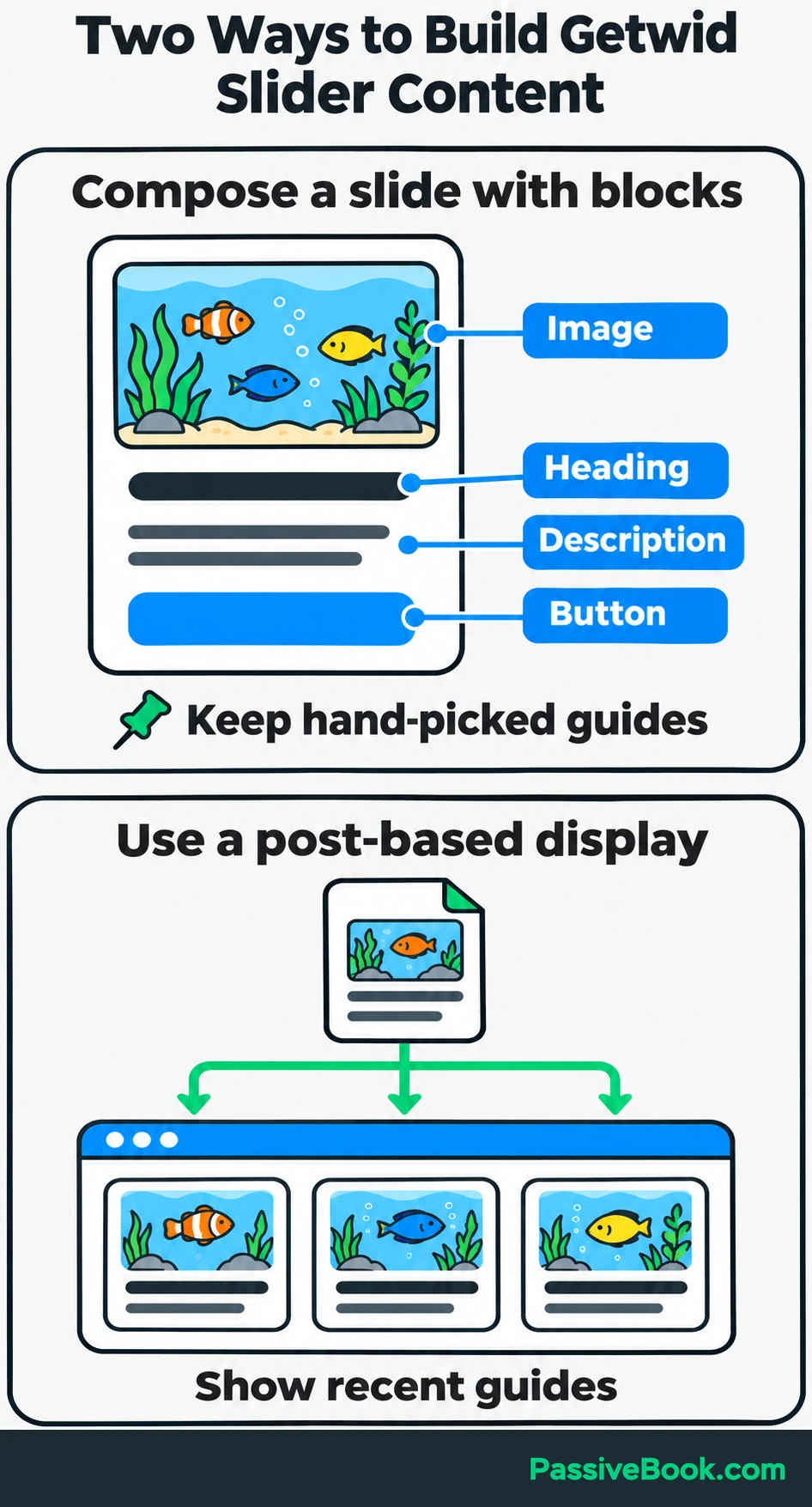
For a guide slide, combine an image, heading, short description, and button. Use a post-based display when the goal is to show recent guides rather than preserve three hand-picked ones.
Getwid includes many other blocks, so it fits especially well when you already use the collection. Disable unused blocks to keep the editor easier to navigate.
I already favor GenerateBlocks for general page building. I would add Getwid only if its slider blocks fill a clear gap.
Check its requirements before installation: the linked listing specifies WordPress 7.0 or higher and PHP 7.4 or higher. An older site needs that compatibility check before any design work begins.
6. Depicter: Best for Visual Template Customization
Depicter suits you when starting from a template feels easier than building a layout from scratch. It offers a visual editor, responsive controls, and integration with the block editor and major page builders.
The free plan includes the basic slider builder, basic element animations, and WordPress-post data. Starter adds features such as carousel building, WooCommerce integration, and advanced effects.
When adapting a template, replace the sample content first and then inspect the phone layout. A longer headline or a differently cropped image can change how the whole slide fits.
For the maintenance-log offer, I would remove decorative elements that compete with the description and purchase button. A template is a starting point, not a list of things you must keep.
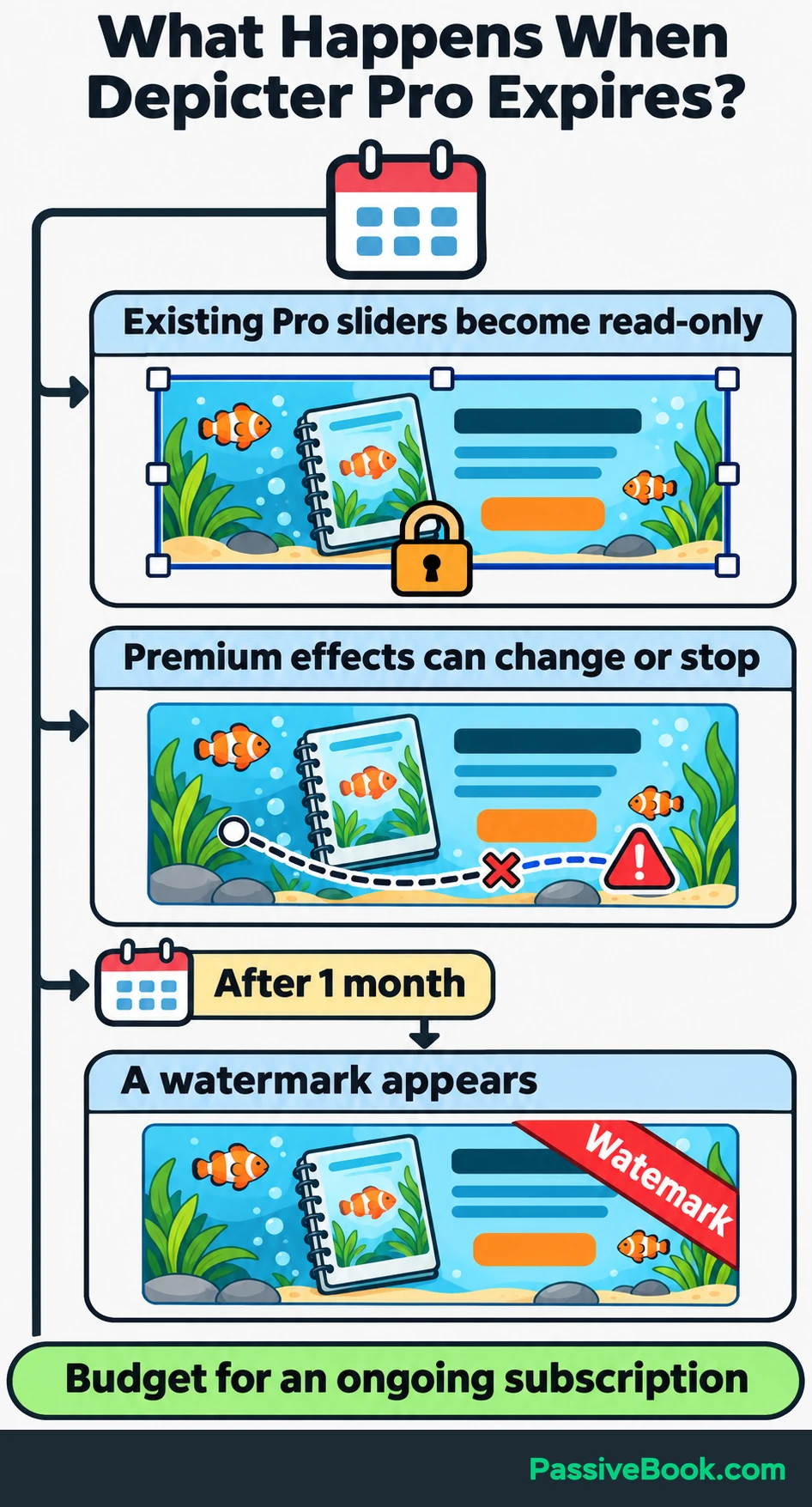
Renewal deserves particular attention. Depicter says existing Pro-made sliders become read-only after expiry, premium animations or effects can change or stop, and a watermark appears after a month. That affects the published design as well as editing access. See its subscription-expiry rules.
I would choose Pro only with an ongoing subscription budget.
7. Slider Revolution: Best for Advanced Animation
Slider Revolution belongs on your shortlist when coordinated animation is part of the presentation you need. Its visual editor handles sliders, carousels, and layered content modules without requiring code.
SR7 has a free edition with responsive editing, unlimited modules, and updates. It requires a free account. Premium templates, add-ons, effects, and ticket support require an annual license.
That gives you a way to explore the editor before paying, but free access does not remove the work of planning and reviewing a complex design.
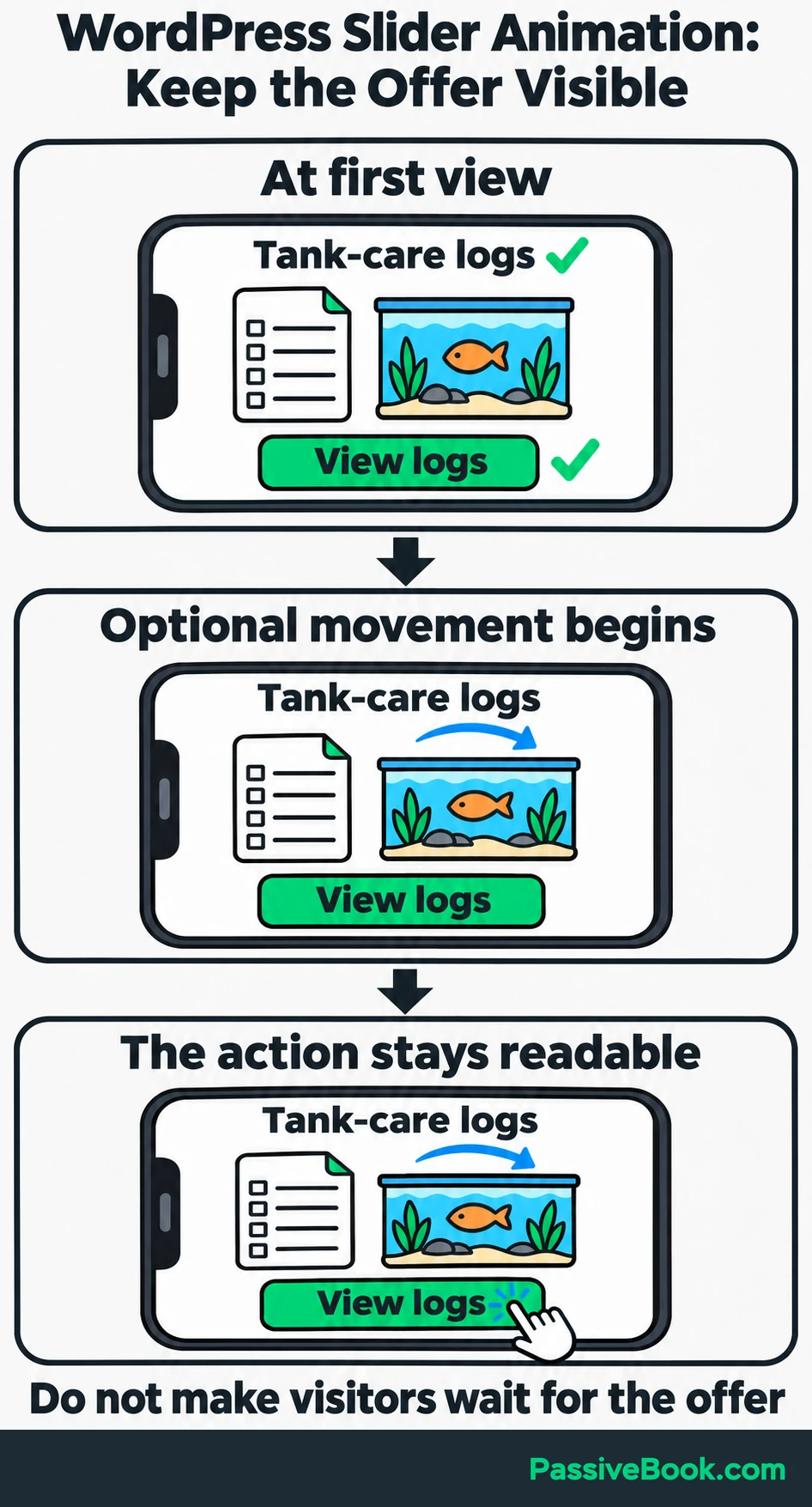
For the maintenance logs, keep the heading and button readable before decorative animation begins. I would skip a sequence that makes visitors wait for the offer to finish arriving.
When the subscription ends, premium access ends while the core plugin and its updates keep working.
My recommendation is narrow: choose it for a defined animation requirement. For three linked guide images, I would start with a simpler tool and spend the saved time on the guides.
8. LayerSlider: Best for Custom Transition Design
LayerSlider is worth comparing directly with Slider Revolution when you want control over how slides and their elements move.
It offers a visual transition builder, animated layers, responsive layouts, and combinations of static and dynamic content. Those tools suit a design where the transition itself has a purpose.
For an ordinary guide slideshow, I would use a restrained transition. Custom movement needs to improve the presentation enough to justify the extra setup and mobile review.
The payment choice is useful here. Both Personal options include premium templates and add-ons, but their support terms differ. The annual plan provides support while subscribed. The one-time option includes lifetime updates and six months of support.
I would choose around the help I expect to need, not just the appeal of paying once. A one-time license looks less economical if you need paid assistance to finish or maintain the design.
9. Master Slider: Best for Thumbnail-led Image Browsing
Master Slider is useful when visitors should choose an image through thumbnails or tabs. Its free edition includes starter samples, touch navigation, configurable controls, and image-positioning options.
For the aquarium guides, a thumbnail strip could let visitors select feeding, cleaning, or holiday care directly. Pair each image with a clear title rather than expecting the picture to explain the destination.
Pro adds animated layers and dynamic post or product sliders. Its Regular License covers one end product whose users are not charged for access; check the license terms if the slider will sit inside paid-access content.
Compatibility is the reason I would pause before buying Pro. Its marketplace listing stops at WordPress 6.7.x. A newer compatibility statement for the free edition does not establish compatibility for Pro.
That does not prove Pro will fail on a newer installation. It means you should get confirmation for the exact edition and your setup before spending money.
Which WordPress Slider Plugins Are Fastest?
MetaSlider is the strongest first trial for a basic slideshow based on the figures below. It loaded the smallest CSS and JavaScript files and had the lowest reported JavaScript processing time among these four plugins in Accelera’s original performance comparison.
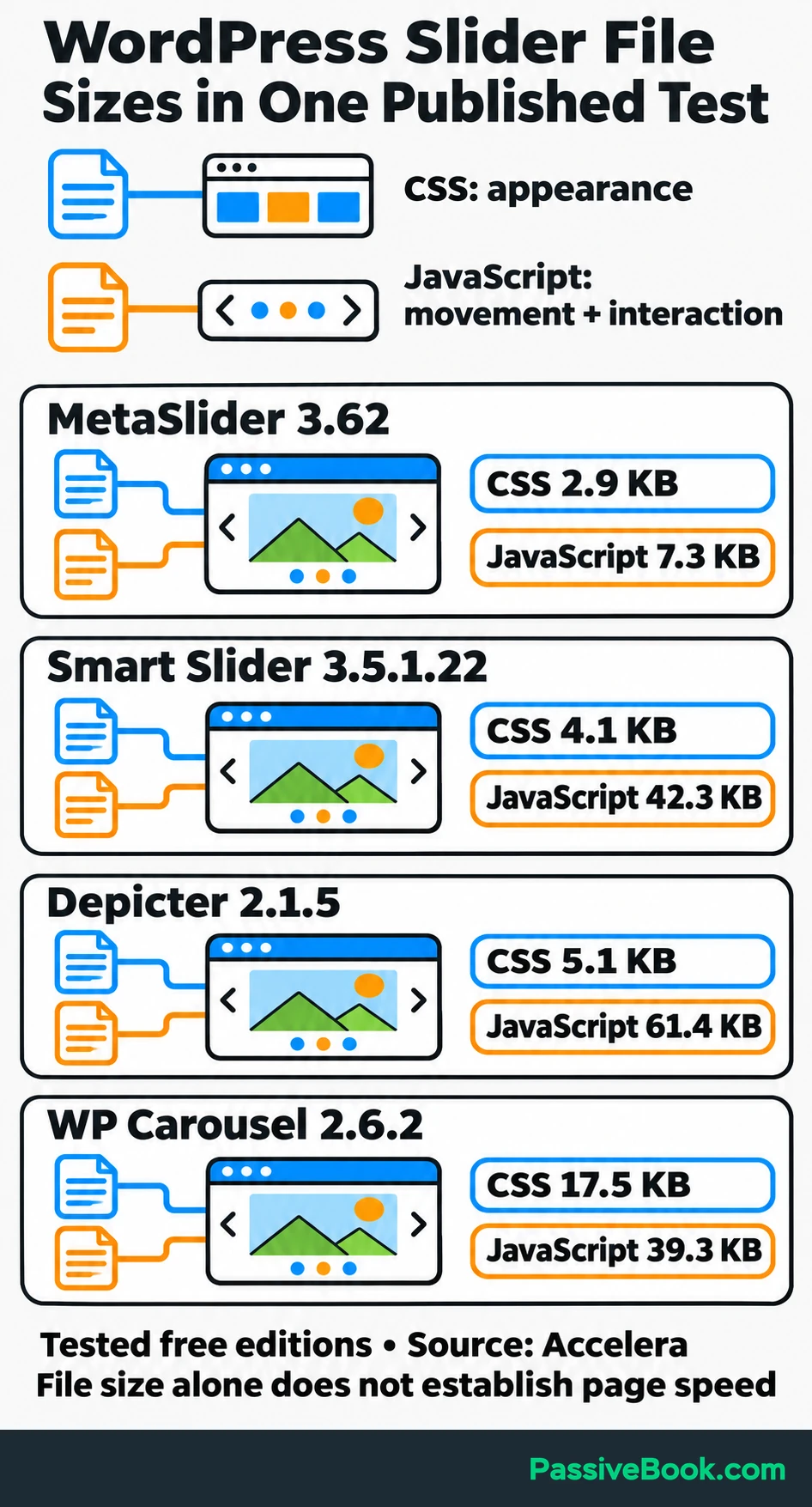
The test used two slides with the same images across plugins, placed below the fold. Arrows and autoplay were enabled, while lazy loading and preloading were disabled.
CSS files control the slider’s appearance, while JavaScript files make it move and respond to visitors. The sizes below show how much of each the plugin loads. CPU time is the processing time reported by PageSpeed Insights, Google’s page-performance testing tool.
| Tested Free Edition/Version | CSS Size | JavaScript Size | Reported JavaScript CPU Time |
|---|---|---|---|
| MetaSlider 3.62 | 2.9 KB | 7.3 KB | 57 ms |
| Smart Slider 3.5.1.22 | 4.1 KB | 42.3 KB | 270 ms |
| Depicter 2.1.5 | 5.1 KB | 61.4 KB | 1,491 ms |
| WP Carousel 2.6.2 | 17.5 KB | 39.3 KB | 314 ms |
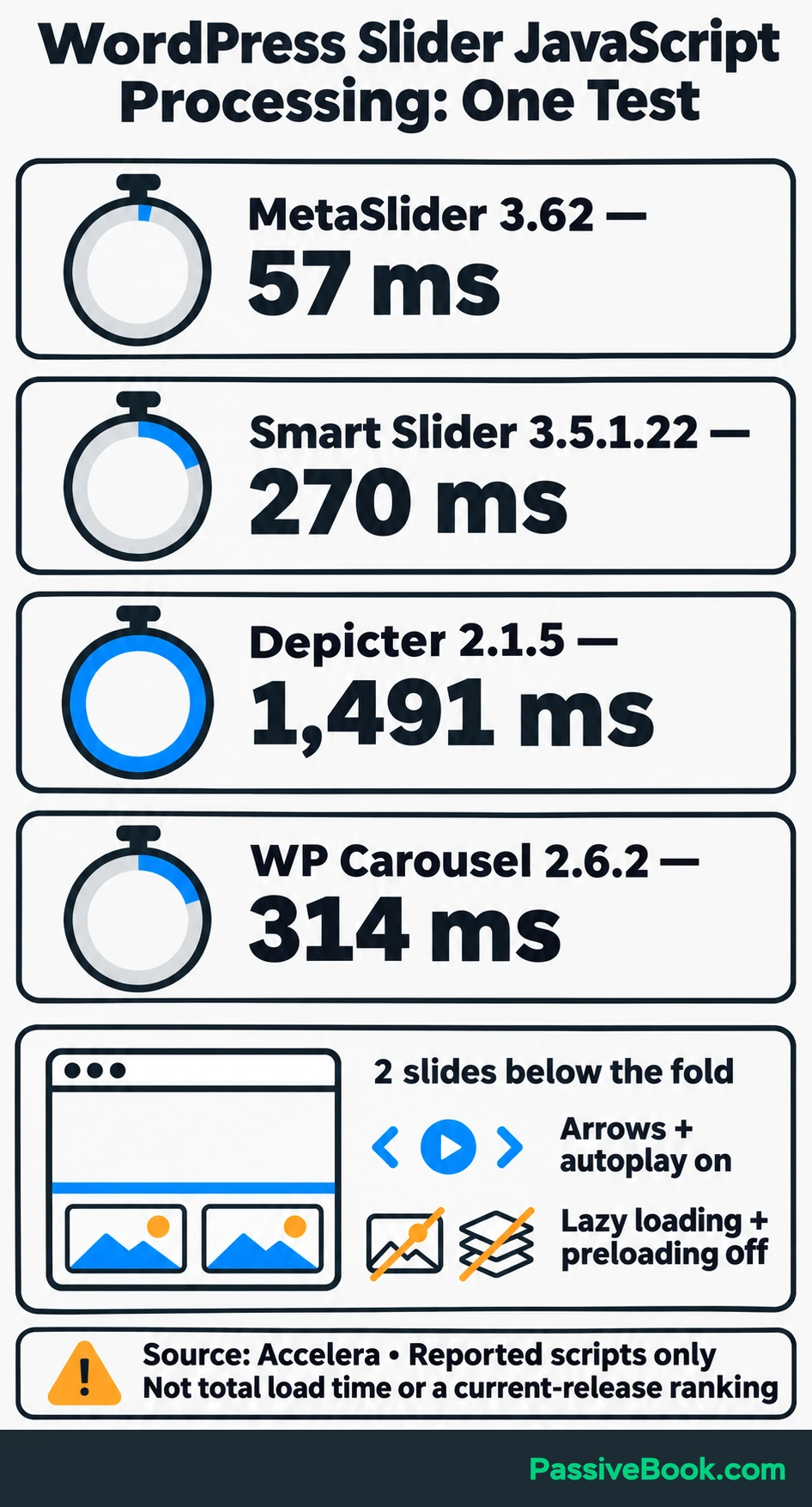
These results describe the named versions and configuration. CPU time includes only scripts PageSpeed Insights reported. They do not establish current-release, paid-edition, or homepage-hero performance, and they do not rank all nine plugins.
Use them to choose what to try first, then test the finished page on your site.
Check Your Shortlist on Your Own Website
Build One Representative Slider
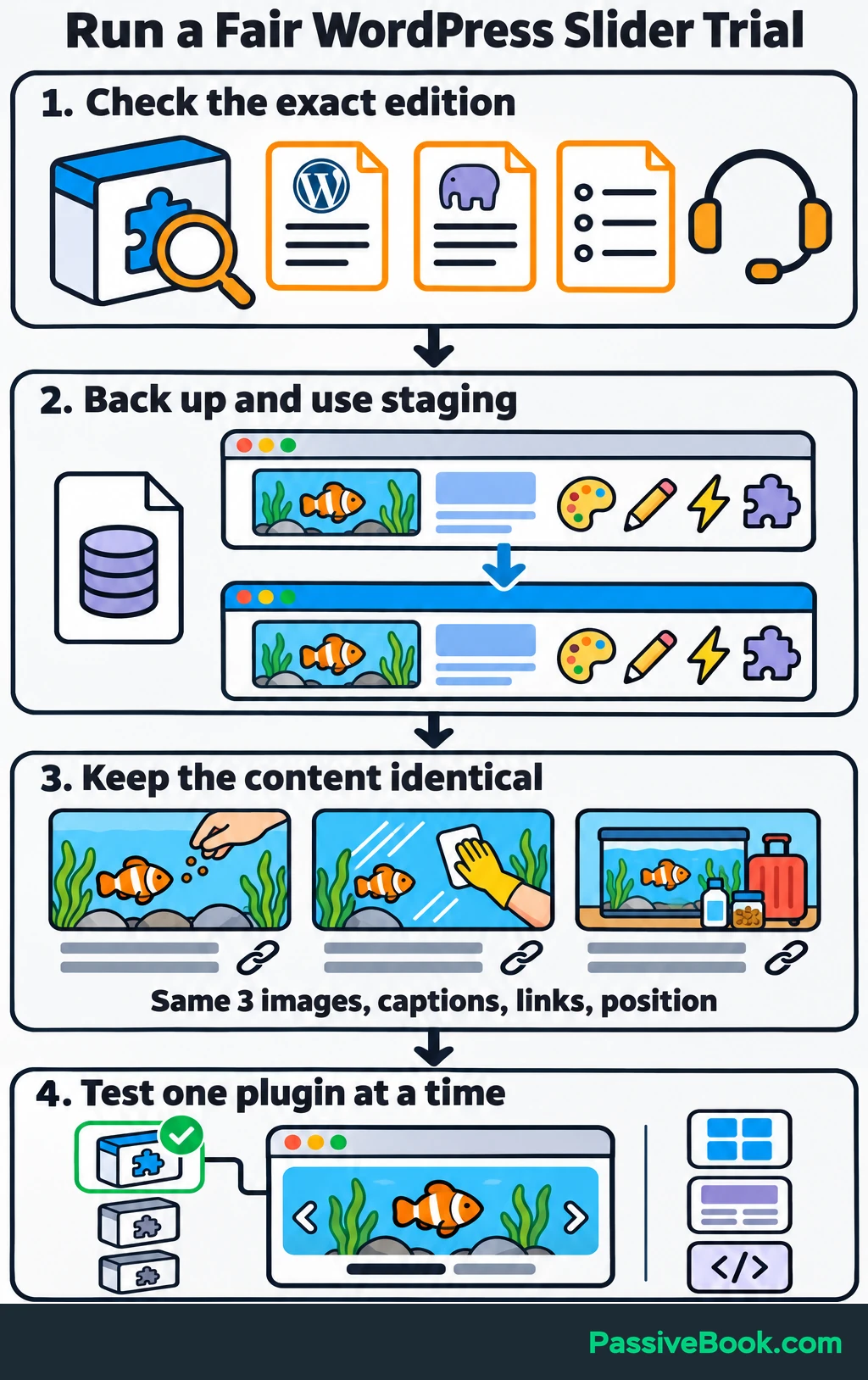
Start with the exact free or paid edition you intend to use. Check its WordPress and PHP requirements, recent changelog, and support channel before installation.
Then back up the website and use staging—a private test copy—with your usual theme, editor, caching, and other plugins active. Test one shortlisted slider plugin at a time.
Keep the comparison small and repeatable:
- Select three images and give them matching dimensions.
- Use the same captions, destinations, and slider position.
- Add the slider through your editor’s block, widget, or shortcode.
- Replace an image, revise a caption, and change a link.
- Try the feature that might justify paying, such as a post feed or layered offer.
For the aquarium site, that means the same feeding, cleaning, and holiday-care guides in each basic trial. If the shortlist includes a layered builder, also check how easily you can revise the maintenance-log promotion.
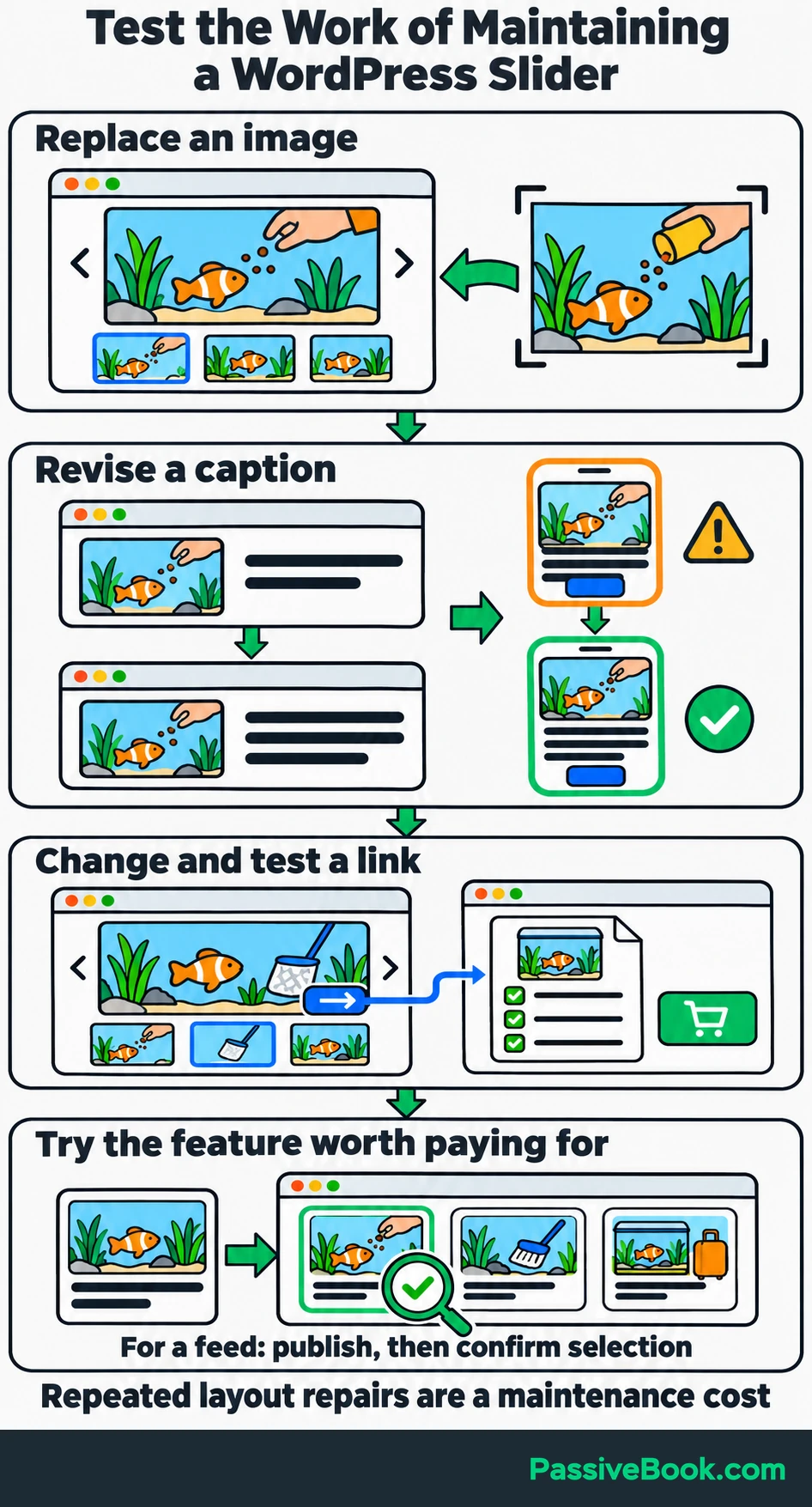
Notice the editing work as well as the result. If a minor wording change requires repairing the phone layout every time, you have found a maintenance cost.
For a post feed, publish a test article and confirm that the intended selection updates. An automatic feed should earn its place by removing work you would otherwise repeat.
Check Mobile Usability
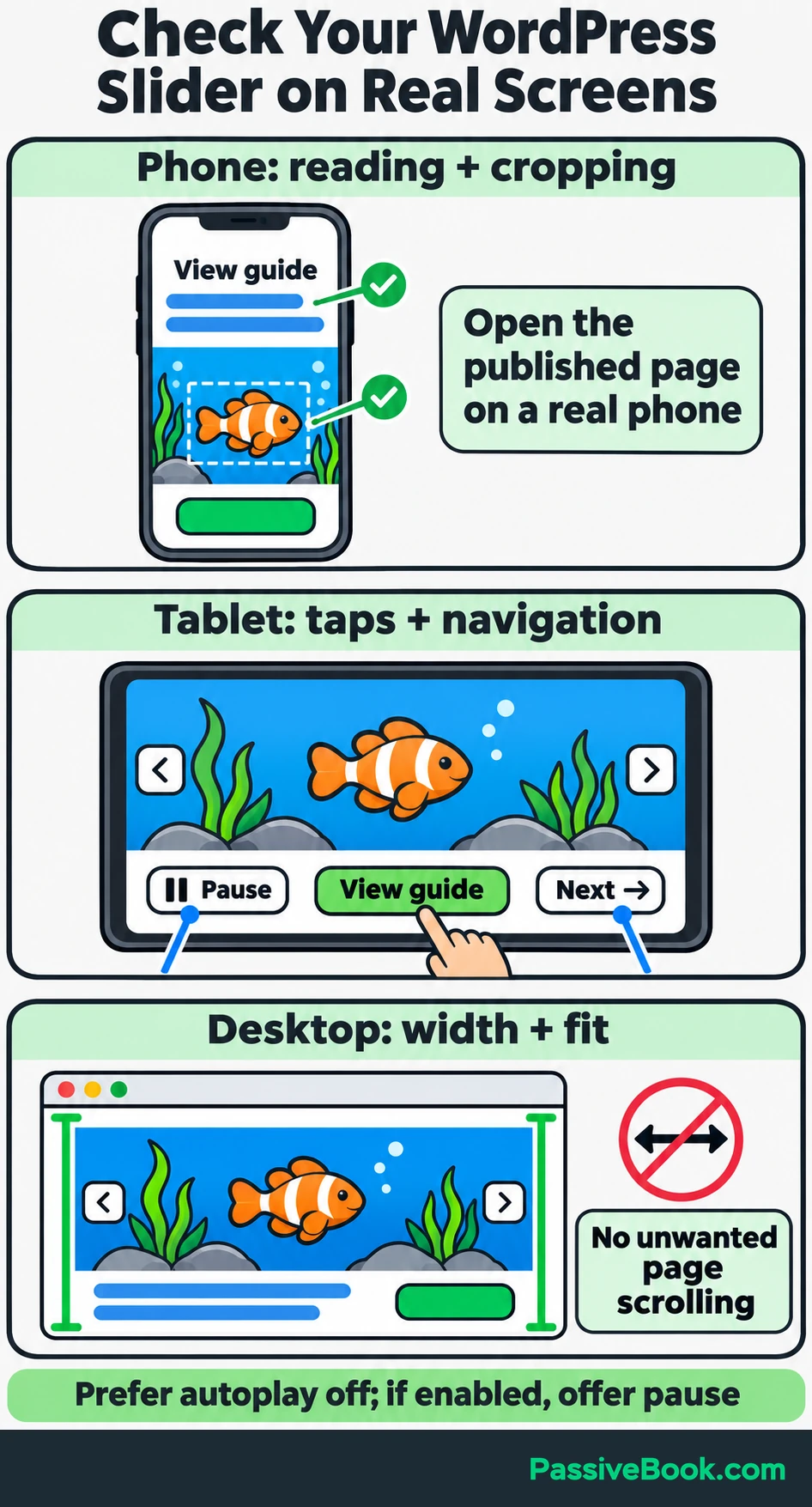
Inspect narrow-phone, tablet, and desktop layouts, and open the page on a real phone. Editor previews are useful, but visitors use the published page.
I would leave autoplay off unless the page has a clear reason for movement. If you enable it, provide an easy way to pause.
Check these parts of the finished design:
- Reading: Text remains readable and fits without covering the subject.
- Cropping: Important parts of each image stay visible.
- Buttons: Links are easy to tap and do not overlap controls.
- Navigation: Visitors can see how to browse without guessing.
- Page Width: Nothing creates unwanted horizontal scrolling.
Then test with a keyboard. You should be able to reach and operate the controls, see where focus is, and leave the slider without getting trapped. Controls need labels that explain their action, such as “Next slide,” and screen-reader users need to know when the slide changes. These checks follow W3C’s carousel accessibility guidance.
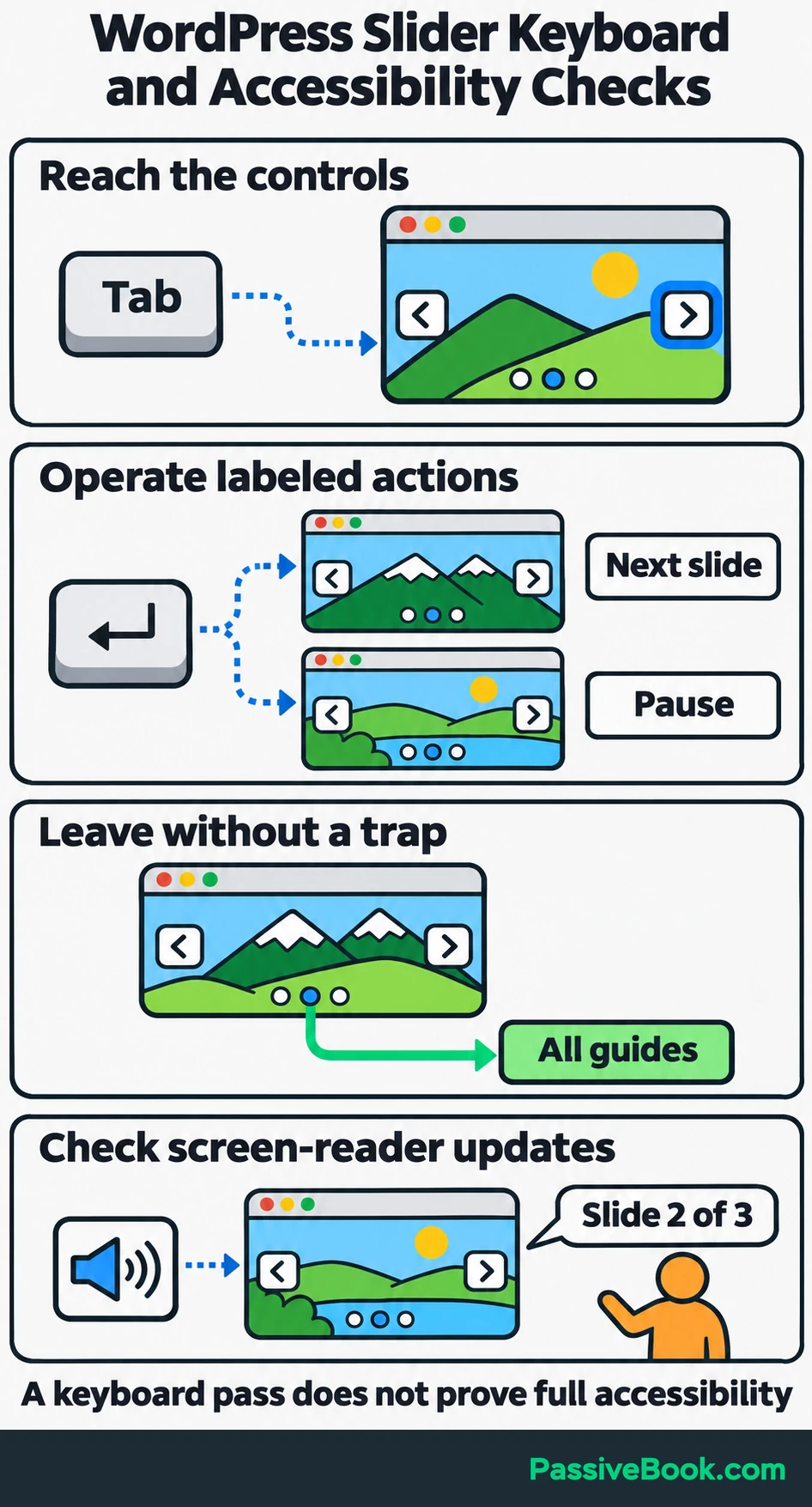
A successful keyboard check alone does not establish full accessibility. For a business-critical slider, get help checking screen-reader behavior if you cannot assess it yourself.
Finally, compare the slider with a static section containing the same links. Keep the version that makes the guides and printable logs easier to reach.
Check Loading and Search Visibility
Test the page before adding the slider, then test it again with the slider under the same mobile conditions. Repeat the comparison so one unusually quick or slow run does not decide the purchase.
Look beyond the overall score. Watch how long the main content takes to appear, whether the page shifts as images load, and whether controls respond promptly.
Before changing plugins, fix the content you are asking the browser to load:
- Resize images for their displayed size and compress them.
- Reserve enough space for the slider so the page does not jump.
- Keep the initially visible hero image loading promptly.
- Defer hidden slide images where the plugin supports it.
- Remove video backgrounds and effects that do not help the page.
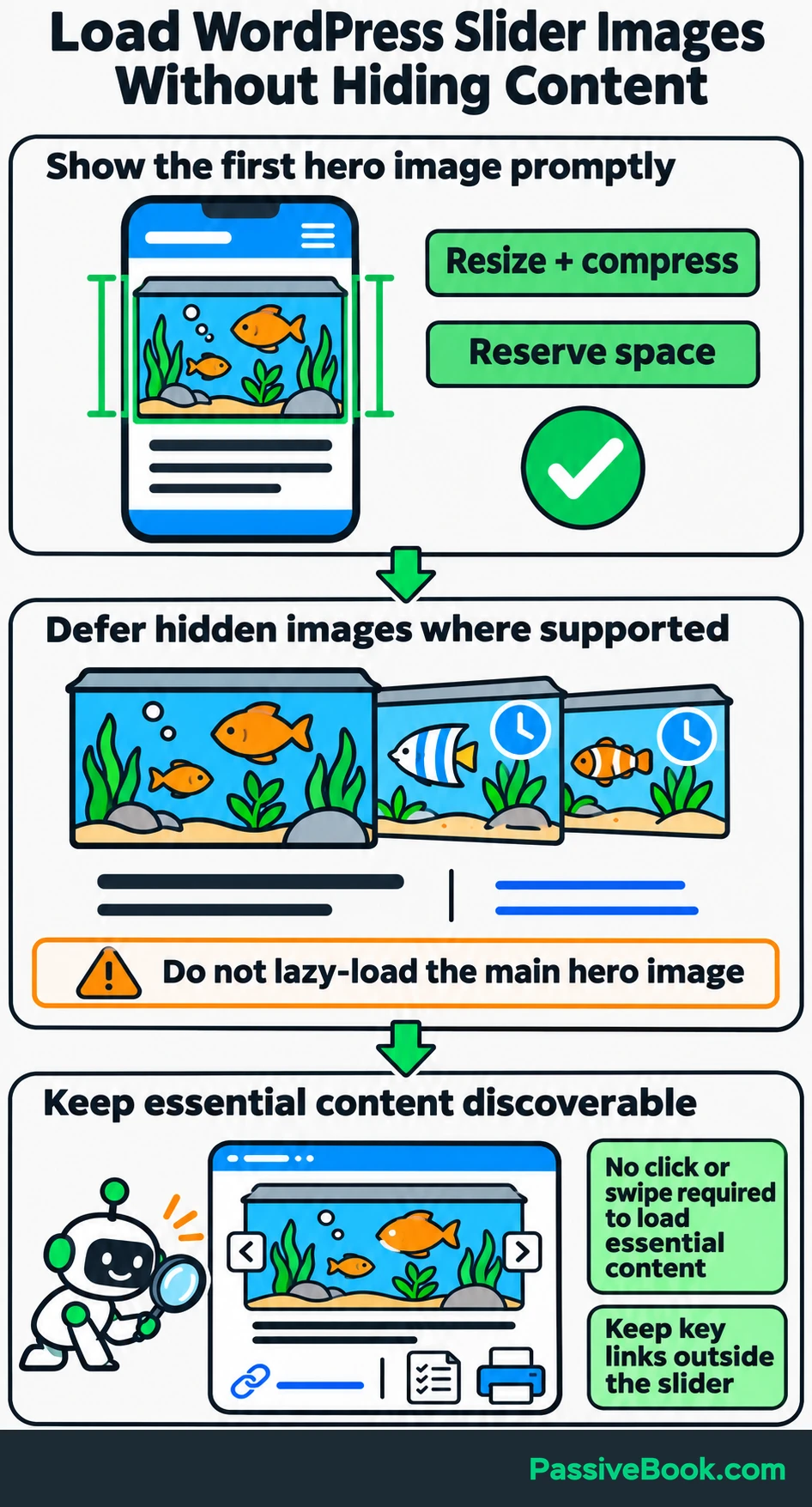
Lazy loading delays content until it is needed, so avoid applying it to the main image visitors should see immediately. Essential slide content also needs to load without a click or swipe because Google Search does not interact with the page to reveal it. See Google’s lazy-loaded content guidance.
Keep headings and descriptions as editable text rather than baking them into images. Use descriptive links and image alternatives that match each image’s purpose. The main navigation and maintenance-log offer should remain available outside the rotating content.
Then repeat the functional checks with caching and script optimization enabled. In my WordPress setup, that means checking with WP Rocket active. Use your actual settings because a slider has to work with the rest of your website.
If something breaks, isolate the setting or plugin causing it on staging before changing the live site. Once the checks pass, remove unused trial plugins and keep the selected plugin, slides, links, and required license maintained.
What Next?
Create one three-slide draft on staging: start with MetaSlider for linked images or Smart Slider 3 for separate text and buttons. Check it on your phone before spending time on effects or buying an upgrade.
Use the social buttons to share this comparison when plugin choices start eating into publishing time.
Which feature would make a slider worth maintaining on your site? Leave your answer—and any other questions—in the comments.
Share this post with your friends & followers:

