Your host includes “security,” a plugin offers malware scanning, and another promises a firewall. But if your site gets infected, who actually fixes it?
That gap matters when your website takes orders or delivers paid downloads. An alert can tell you something is wrong while leaving the repair entirely in your hands.
Comparing those promises gets harder when scanning and cleanup appear together in a feature list but require different plans. This comparison shows what 17 plugins prevent, detect and repair, where free coverage stops, and which paid options help get an infected site working again.
Which WordPress Security Plugin Should You Choose?
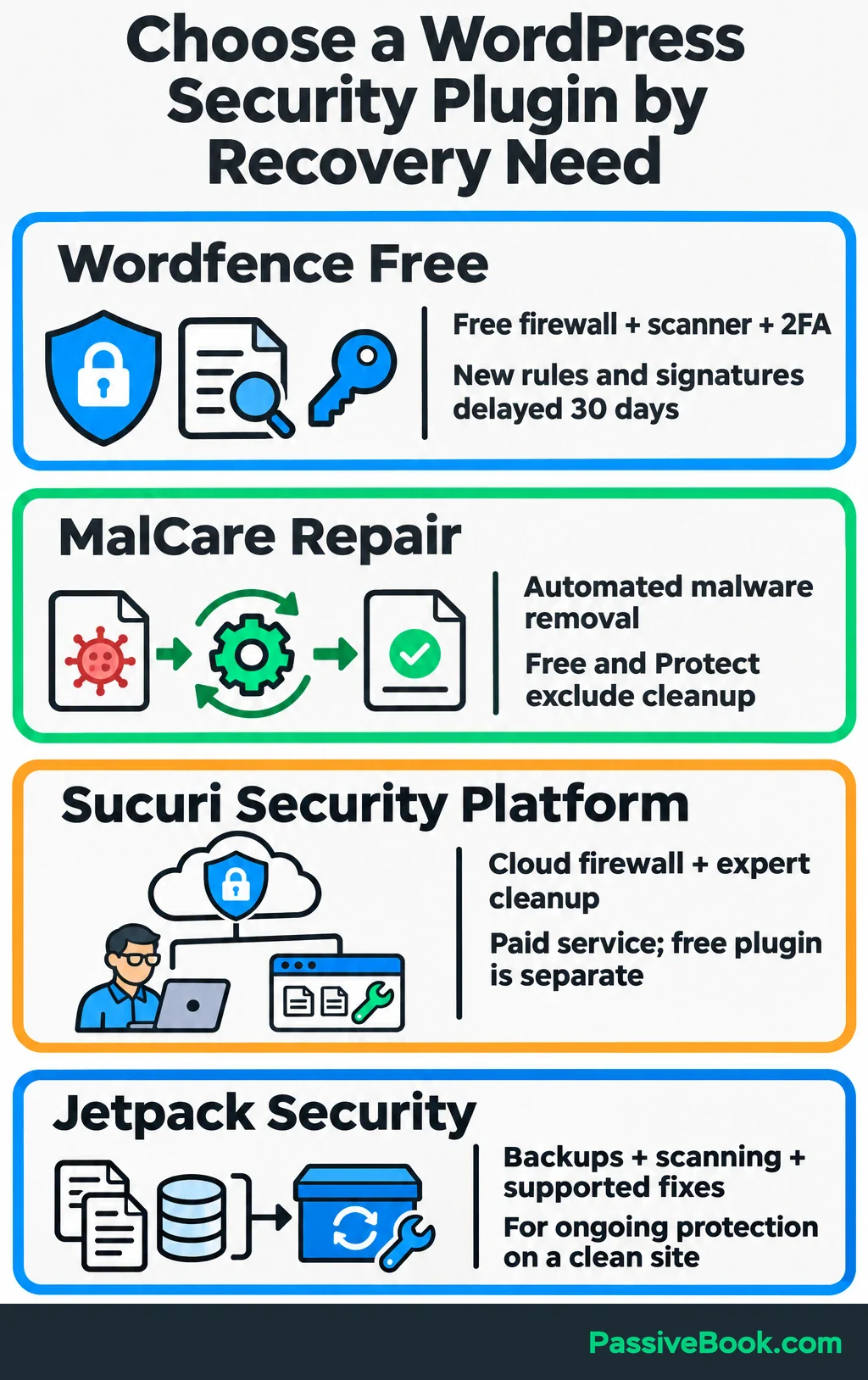
I would narrow the best WordPress security plugins to four starting choices:
- Best Free Starting Point: Wordfence Free combines a firewall, malware scanner and two-factor authentication, or 2FA, which adds a second check when you sign in. Its main compromise is a 30-day delay on new firewall rules and malware signatures.
- Best for Automated Cleanup: MalCare Repair includes malware removal. Free and Protect detect infections but leave removal out.
- Best for Expert Cleanup: Sucuri’s paid Security Platform combines a cloud firewall with manual cleanup by its security team. Installing its free plugin does not buy that service.
- Best When You Also Need Backups: Jetpack Security combines backups, malware scanning, firewall protection and fixes for supported threats.
The comparison table below links to each vendor’s plans and shows where those differences affect the bill.
Before installing anything, ask your host what it already covers. “We scan for malware” and “we remove malware for you” are very different answers. Also ask whether backups include both files and the database, how long they’re kept, and who handles a restore.
For the examples here, imagine your site publishes sewing tutorials and sells downloadable tote-bag patterns through WooCommerce. You need to protect publishing accounts, keep checkout working and deliver purchased files. A tool that blocks a genuine payment notification can cause trouble even while its dashboard looks reassuring.
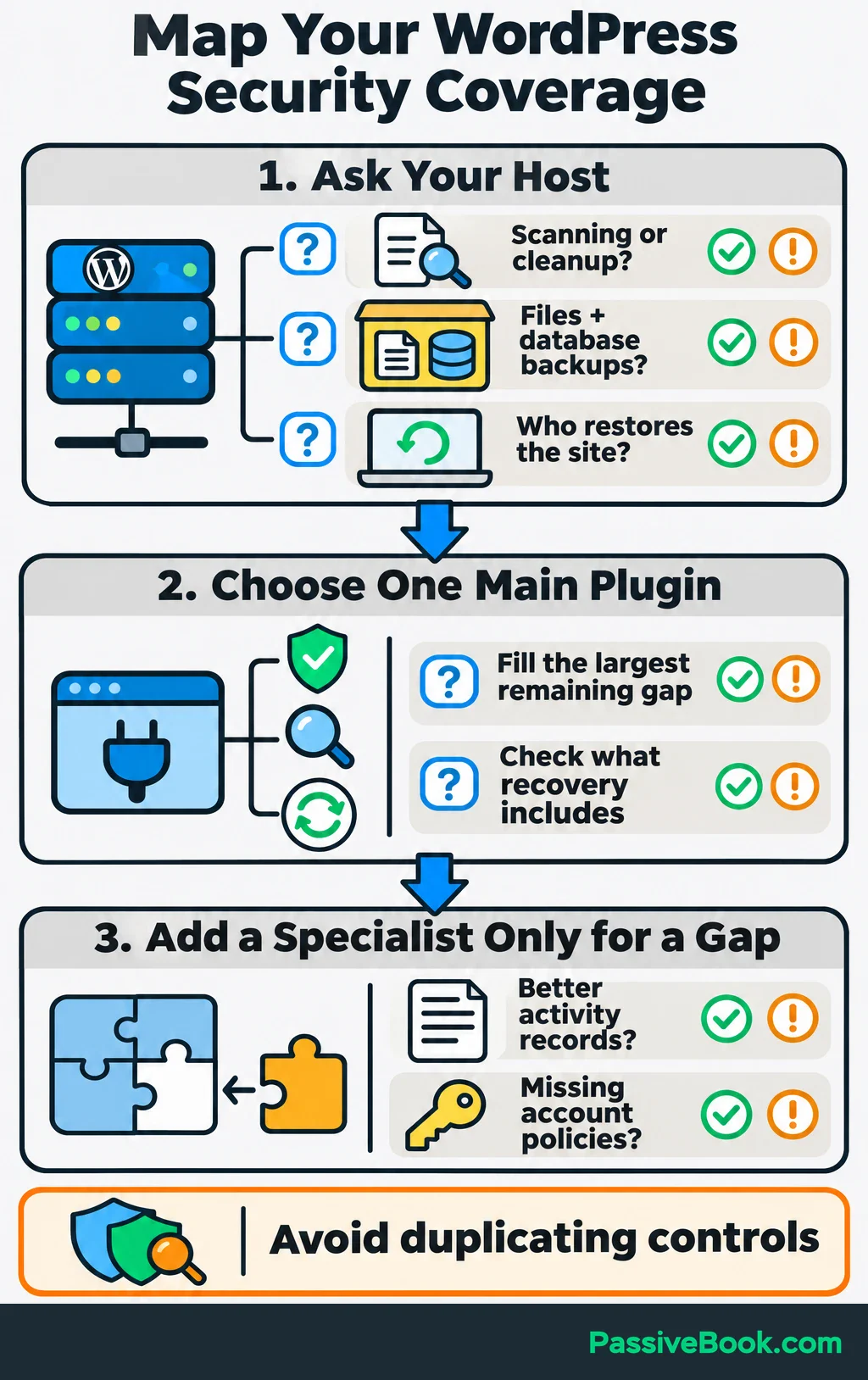
I would start that site with one primary security plugin. Add a specialist only when it fills a clear gap, such as better account policies or records of product changes. Seventeen recommendations are choices to compare, not a shopping list.
These recommendations reflect documented capabilities and my judgment about their usefulness. I haven’t run detection benchmarks or speed tests across all 17 products.
How to Compare WordPress Security Plugins
Compare the jobs first. “Hardening” means restricting features an attacker could misuse, such as editing plugin files through the WordPress dashboard. Feature lists often mix several kinds of protection together:
- Firewall: Filters requests sent to your website and blocks those that match attack rules. You may see this called a web application firewall, or WAF.
- Malware Scanner: Looks for malicious code or other signs of infection.
- Vulnerability Monitoring: Flags known weaknesses in installed software.
- File-Change Monitoring: Reports modifications, including legitimate changes from updates.
- Account Protection: Adds controls such as login limits and 2FA.
- Recovery: Repairs files, removes malware, restores backups or supplies expert help.
A changed file is evidence to investigate. It does not establish that the file is malicious, and a vulnerability warning does not establish that someone has exploited it.
When I reviewed protection across my own WordPress sites, I could name the tools I used more easily than I could explain who would handle an infection. I had to look up that last part. Since then, I’ve treated “what happens after an alert?” as a buying question, not something to discover during an outage.
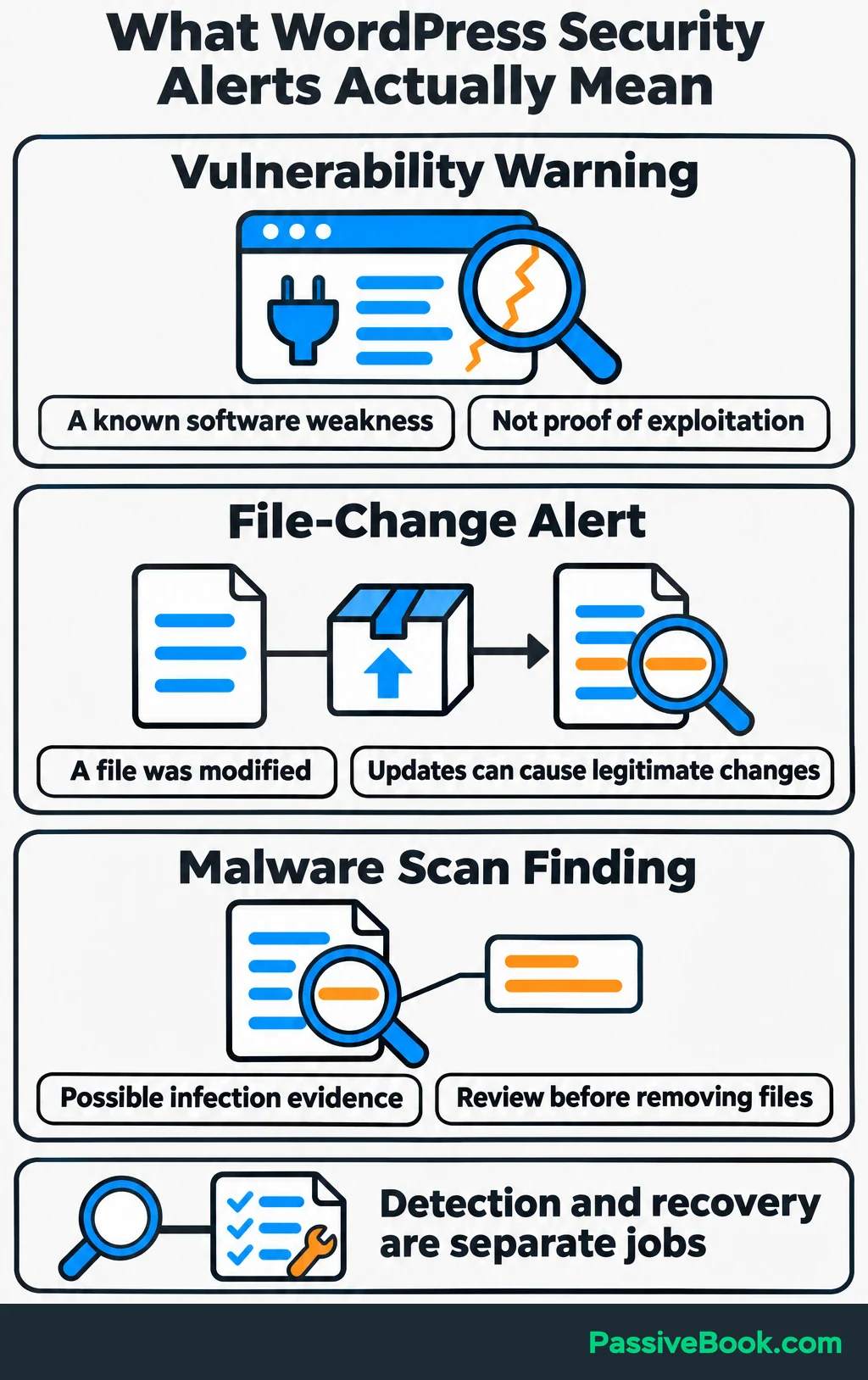
Recovery deserves its own comparison. Replacing a modified WordPress file with an official copy can help, but it does not investigate stolen accounts or every possible backdoor. A backup restore returns the site to an earlier state, which can also remove newer orders. Expert cleanup is a separate service with its own scope.
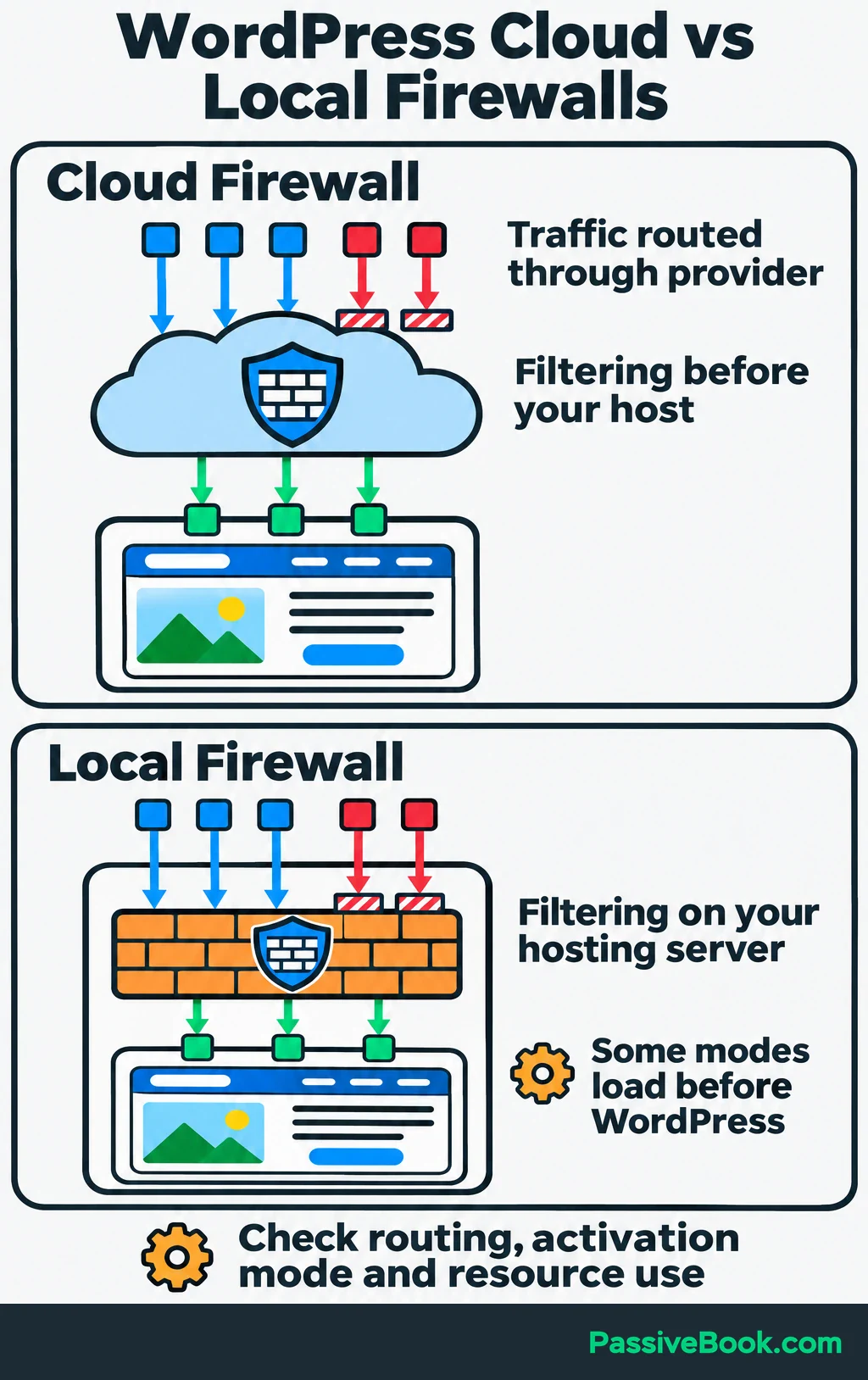
Where protection runs matters too. A cloud firewall filters traffic routed through the provider’s servers before passing it to your host. This arrangement is called a reverse proxy. A local firewall runs on your hosting server, although some can load before WordPress. Wordfence’s optimized mode does that. Neither approach wins merely because its name sounds more impressive. Wordfence firewall modes
For performance, look at scan location, scheduling and resource controls. Local scans use hosting resources. Offsite analysis moves work elsewhere but still needs site data. Test your own pages and checkout before deciding whether the overhead is acceptable.
The table keeps exact prices in one place. Annual figures are shown unless stated otherwise, with introductory and regular prices listed separately. Check the linked plans before buying; offers, local pricing and taxes can change the total.
Once two plans cover the protection you need, compare what you would actually pay. Include any separate backup or cleanup purchases rather than comparing plugin prices alone.

Free Software Cost Calculator




Rows 1–11 cover broader protection options. Rows 12–17 cover specialist jobs.
| Plugin | Primary Role | Free Coverage | Malware Scanning | Firewall Type | Cleanup Arrangement | Paid Price and Site Allowance | Performance Considerations | Main Trade-Off |
|---|---|---|---|---|---|---|---|---|
| Wordfence Security | Firewall, scanning and accounts | Firewall, scanner, 2FA | Free; new signatures delayed 30 days | Local WAF | Supported file repairs; expert response with Care | Premium $149/year; Care $590/year; one site | Local scans; resource controls available | Free threat updates arrive later |
| MalCare | Scanning and automated removal | Weekly scans, basic firewall, login protection | Files and database; frequency varies | Local enforcement with cloud intelligence | Repair adds automated removal; Fortify adds manual fixes | Protect $99, Repair $299, Fortify $499/year; one site | Analysis offsite; site data must transfer | Lower plans exclude cleanup |
| Sucuri Security | Managed cleanup and cloud protection | Auditing, integrity checks, remote scanning | Remote checks; platform adds server-side scanning | Paid cloud reverse proxy | Platform includes unlimited manual cleanups | Basic Platform $229/year; one site | Cloud filtering; configure routing and caching | Free plugin lacks the paid protection service |
| Jetpack Security | Backups and security bundle | Brute-force protection; manual firewall rules | Paid file scanning; excludes database | Local WAF with automatic paid rules | Supported one-click fixes and backup restores | €107.40 first year; €227.40 regular annual total; one site | Remote services; check backup transfers | Unsuitable as an existing-infection cleanup purchase |
| All-In-One Security | Hardening and account controls | Login limits, 2FA, firewall, file monitoring | Premium | Local firewall | Premium removal advice/support; confirm hands-on scope | Personal $44.50 first year; renews at $89/year; two sites, before applicable tax | Test blocking rules and file checks | Free lacks malware scanning |
| Defender Security | Protection within WPMU DEV | Hardening, login controls, on-demand scans | Free on demand; Pro scheduling | Local IP blocking and login controls | Expert cleanup purchased separately | Pro Basic $50/year; one site; one-time cleanup $250/site | Schedule scans around busy periods | Pro subscription and expert removal are separate |
| Shield Security | Bot filtering and account protection | Bot controls, vulnerability checks, core scanning, 2FA | Advanced detection in Plus | Local bot/IP filtering | Plus backups and restores; expert cleanup not confirmed | Plus $149/year; one site | Monitor scan work and backup activity | Plus features may overlap existing tools |
| Really Simple Security | HTTPS and preventive settings | HTTPS controls, hardening, vulnerability checks, 2FA | Not included; vulnerability checks only | Local firewall in Pro | Arrange malware cleanup elsewhere | Personal $49 first year; $69 regular annual price; one site | Enable needed modules; test redirects | Does not provide a malware recovery service |
| Security Ninja | Security checks and guided fixes | Configuration tests, vulnerability/core checks, basic rules | Pro | Local filtering; Pro adds cloud IP intelligence | File repairs; expert cleanup not confirmed | Pro $119/year; one site | Local scans; test scheduled work | Passing checks does not prove complete cleanup |
| BulletProof Security | Server rules and file protection | MScan, login controls, database backups | Free and Pro | Local server rules | Pro AutoRestore and quarantine | Pro $69.95 once; unlimited installations and lifetime upgrades | Requires compatible server rules | More technical setup and recovery decisions |
| CleanTalk Security | Low-cost security service | Free plugin download; service subscription required | Executable files and database | Local WAF with service intelligence | Signature-based curing; expert cleaning separate | Advertised from $9/site/year; expert cleaning $149 | Monitor scan workload and logs | Separate purchase from CleanTalk Anti-Spam |
| NinjaFirewall WP Edition | Dedicated request filtering | Firewall, integrity monitoring, alerts | File monitoring, not full malware analysis | Local, before WordPress in Full WAF mode | Arrange cleanup separately | WP Edition free | Requires compatible Unix-like hosting | No complete scanner-and-recovery package |
| Anti-Malware Security and Brute-Force Firewall | Known-threat scanning and removal | Registered definitions and known-threat removal | Local scanning | Targeted exploit/brute-force controls | Removes recognized threats; other findings need review | Free per installation; donation-supported extras | Large scans can take time | Requires hands-on judgment |
| Patchstack | Known-vulnerability mitigation | Vulnerability alerts and update management | No infection scanning | Targeted local virtual-patch rules | Arrange cleanup separately | Developer $828/year, 25 sites; individual-site offers through partners | Targeted rules; check existing host coverage | Direct bundle is oversized for one site |
| WP Activity Log | Records of user and site changes | Activity logging | None | None | Investigation records only | Premium $139/year; Enterprise $189/year; one site | Set retention and watch database growth | Records events without blocking or cleaning attacks |
| WP 2FA | Authentication policies | Required 2FA, app/email codes, backup codes | None | None | Account recovery codes, not malware removal | Premium $79/year; one site | Test each login and recovery flow | May duplicate existing authentication |
| Limit Login Attempts Security | Focused login protection | Login limits, lockouts, allowlists, 2FA | None | Local login controls; paid cloud assistance | No malware cleanup | Personal €15 first year; €30 regular annual total; one domain | Personal covers 50,000 cloud-filtered login requests/month | Protects login rather than the whole site |
Whichever option you choose, keep WordPress, themes and plugins updated, use strong unique passwords, limit administrator access and maintain recoverable backups. Plugins support those habits; they cannot make abandoned software safe indefinitely. WordPress security guidance
Security Suites and Broader Protection Options
1. Wordfence Security — Best Free Firewall and Scanner Combination
Wordfence Free would be my default starting point when the budget is tight and hosting allows it. It combines several useful jobs without requiring separate plugins for scanning, firewall protection and 2FA.
Its scanner also compares supported files with official repository versions, and you can replace modified files with clean originals. That is useful repair functionality, but it still leaves you responsible for understanding the findings. Wordfence’s documented capabilities
Premium earns its place when immediate firewall-rule and malware-signature updates justify the annual cost. Care serves a different need: someone installs, configures, monitors and responds for you.
The main practical concern is scan workload. On limited hosting, use resource controls and confirm scans finish. Complete firewall optimization too. Installing the plugin and completing its strongest supported firewall setup are separate steps.
2. MalCare — Best for Automated Malware Cleanup
MalCare makes sense when you want malware analysis away from your hosting and a clear upgrade path to removal. Its scanner examines files and the database using analysis on MalCare’s infrastructure. That still requires transferring site data, so I would avoid interpreting “offsite” as “no activity on your server.” MalCare’s scanning architecture
Choose the plan by the response you need:
- Free: Weekly scanning and basic prevention.
- Protect: Daily scans and stronger prevention, without cleanup.
- Repair: Scans every 12 hours and automated malware removal.
- Fortify: Hourly scans and included manual security fixes.
Repair is the relevant comparison if automated cleanup is your reason for buying. Protect does not become a cleanup plan because it has a paid label.
Also distinguish an expert’s response time from a completed repair. A promise to begin helping within a set period does not establish when your site will be clean.
3. Sucuri Security — Best for Managed Cleanup With a Cloud Firewall
Sucuri is my pick when the buying priority is expert cleanup plus filtering before traffic reaches hosting.
Its free plugin provides auditing, integrity checks, hardening and remote malware checks. The paid Security Platform supplies the cloud firewall and manual cleanup service. You can therefore install “Sucuri Security” in WordPress while still lacking the protections that made you consider the brand.
Scanning has a similar distinction. Remote checks inspect what the website serves publicly. The platform’s server-side scanner examines website files for problems those checks can miss. Enable that additional coverage rather than assuming the remote scan sees everything. Sucuri’s server-side scanner
Expect more setup than a local plugin because Sucuri must receive traffic before your host does. If you already use Cloudflare, ask Sucuri how to configure both services before changing where your domain sends visitors.
4. Jetpack Security — Best Security and Backup Bundle
Jetpack Security is worth comparing when backups are also missing. Real-time backups, restores, malware scanning and spam filtering can make one subscription easier to manage than several separate purchases.
For the sewing-pattern shop, I would first compare its included 10 GB backup storage with the size of the site and the hosting backup service. Paying twice for equivalent backups leaves less money for protection you actually lack.
The important scanning limit is that Jetpack checks specified website files but does not scan the database. Its documentation describes daily and on-demand scans, and one-click fixes cover supported threats. It also says Scan is not intended as a service for cleaning a site already infected when purchased. Jetpack Scan coverage
I would choose it for ongoing protection and recovery on a clean site. For an active infection, I would choose a service that explicitly accepts that cleanup job.
5. All-In-One Security — Best for Free Hardening Controls
All-In-One Security, usually shortened to AIOS, suits owners who want control over login limits, 2FA and preventive settings. Free includes a firewall that runs on your server and file-change monitoring; malware scanning requires Premium.
I would enable its stronger blocking settings gradually. A higher security score is less useful if customers cannot recover passwords or complete checkout. Start with account protection, then test each additional restriction.
Premium includes scanning and removal-related support, but I would confirm the hands-on cleanup scope before buying it specifically for incident response.
Existing customers also need to address TeamUpdraft’s October 2026 security incident. The vendor instructs account holders to change their vendor-account password and reset existing account 2FA. Sites ever connected to UpdraftCentral Cloud need its compromise checks, including sites already disconnected. These are account and connected-service instructions, not a claim that every AIOS installation was compromised. TeamUpdraft’s incident instructions
6. Defender Security — Best for Existing WPMU DEV Users
Defender fits most naturally when you already manage sites through WPMU DEV’s Hub. Keeping security reports in a management system you use can be more practical than adding another dashboard.
Free provides hardening recommendations, login limits, 2FA, malicious-IP blocking and on-demand malware scans. Pro adds scheduled scanning and automated reports. Defender’s free capabilities
That makes the upgrade useful when manual scans keep slipping off your list.
Expert malware removal is a separate service. I would compare the plugin and cleanup purchase together if having someone handle an infection is a requirement. A low plugin subscription does not necessarily mean a low total recovery cost.
7. Shield Security — Best for Integrated Bot and Account Controls
Shield is worth considering when bot filtering and account protection are your biggest gaps. Free includes bot controls, vulnerability checks, core-file scanning, and email or authenticator-app 2FA.
Plus adds advanced malware detection, passkeys and backups. Passkeys let users authenticate through a supported device or security key rather than relying on a reusable password. Shield’s edition comparison
I would compare those additions with what the site already has. If your host provides good backups and your primary plugin already enforces suitable authentication, some of the upgrade’s value disappears.
For the sewing site, Shield becomes more interesting when unwanted automated registrations and account abuse consume attention. Keep professional incident response as a separate decision: backup and repair features do not by themselves establish that an analyst will investigate a compromise.
8. Really Simple Security — Best for HTTPS and Preventive Hardening
Really Simple Security helps with HTTPS configuration, vulnerability detection, account protection and safer WordPress settings. Its free version includes 2FA and SSL-related controls. Pro adds firewall controls, security headers and further vulnerability-management features.
I would choose it when those configuration jobs are missing and malware detection and recovery are covered elsewhere. It is less suitable as the only security purchase when your main question is, “Who removes an infection?”
HTTPS protects the connection between a visitor and your site. Enforcing it does not remove malicious code already stored on the website.
Test redirects and account pages after changing HTTPS settings, especially if your hosting or Cloudflare already controls them. One deliberate configuration is easier to troubleshoot than several tools trying to correct each other.
9. Security Ninja — Best for Security Checks and Guided Fixes
Security Ninja suits owners who want a clearer picture of weak settings and vulnerable software. Free includes configuration tests, vulnerability scanning, core integrity checks, event logging and basic firewall rules.
Pro adds malware scanning, scheduled scans, stronger login protection and 2FA. I would pay for those added jobs if they replace work I otherwise forget, rather than upgrading simply to clear more dashboard warnings.
Its “Cloud Firewall” name needs care. The documented feature combines request filtering with cloud-supplied IP intelligence; the label alone does not make it an external reverse proxy like Sucuri’s cloud firewall. Security Ninja’s firewall explanation
Use the findings to prioritize fixes. Correcting settings or repairing files is useful, but it does not establish that every part of an infected site has been investigated.
10. BulletProof Security — Best for Owners Comfortable With Server Rules
BulletProof Security filters traffic using .htaccess, a file of rules for compatible web servers. It also offers the MScan malware scanner, login controls and database backups. Pro adds AutoRestore, quarantine and real-time file monitoring. BulletProof’s edition features
The one-time license is attractive if you manage several compatible sites. But I would not choose it on price alone. You need to understand enough about your hosting to confirm that its server rules work and to reverse a change if necessary.
Its database backups also do not replace a backup of the complete site, including files.
AutoRestore protects files by restoring known versions and quarantining changes. That is useful automation, but someone still needs to investigate why an unwanted change happened. I would skip this option if my priority were handing the whole incident to a managed security team.
11. CleanTalk Security — Best Low-cost Paid Security Service
CleanTalk Security offers a broad feature set at a low advertised starting price: malware scanning, firewall protection, vulnerability checks, login controls and activity records.
It is a separate subscription from CleanTalk Anti-Spam. Buying spam filtering does not automatically buy the security service.
Its scanner checks server-side executable files and WordPress database tables. Recognized infections can be cured automatically, while removal and quarantine actions require confirmation. Professional cleaning is a separate purchase.
I would shortlist it on a small budget if I were comfortable reviewing flagged files and approving removal decisions.
For the sewing-pattern shop, that means knowing who will respond if a scan flags a file used by checkout or download delivery.
Specialist Plugins for Specific Security Gaps
These six tools cover narrower jobs. They can complement broader protection, but they are not interchangeable replacements for a firewall, malware scanner and recovery arrangement.
12. NinjaFirewall WP Edition — Best Dedicated Free Local Firewall
NinjaFirewall WP Edition is a strong candidate when request filtering is the specific gap. It can inspect requests before WordPress loads, and it includes file-integrity monitoring and security notifications.
It runs on your hosting server. Confirm compatible Unix-like hosting and successful activation of Full WAF mode; Microsoft Windows is unsupported.
I would use it when the host supports the configuration and scanning, 2FA and recovery are already covered. I would not casually enable it alongside another local firewall. Coordinate the setup with your host so you know which tool handles each request and where to look when something gets blocked.
13. Anti-Malware Security and Brute-Force Firewall — Best for Hands-on Known-threat Removal
This plugin is useful for scanning and removing recognized threats, provided you register it and download current definitions. Without those definitions, its findings are much less actionable.
The distinction between “Known Threats” and “Potential Threats” matters. Legitimate PHP can trigger a potential-threat warning, so deleting everything flagged can break the site.
I would use it when I could inspect findings or get qualified help. I would skip it as my only recovery plan if I wanted someone else to make those decisions.
It offers a hands-on repair workflow with donation-supported extras. That is a different proposition from paying a team to investigate and resolve an infection.
14. Patchstack — Best for Vulnerability-specific Protection
Patchstack focuses on known weaknesses in WordPress software. Its free coverage identifies vulnerabilities, while paid protection applies targeted rules against exploitation.
A virtual patch blocks requests that exploit a weakness without replacing the vulnerable code. It buys protection while you arrange the actual software update; it does not remove the need to update. How Patchstack virtual patching works
I would ask the host whether Patchstack protection is already included before purchasing it separately. Individual-site offers go through partners and resellers, while the direct Developer bundle covers multiple sites.
For one sewing-pattern shop, compare the actual partner purchase you need. Dividing an agency bundle by 25 does not make the unused licenses useful.
15. WP Activity Log — Best for Investigating User Changes
WP Activity Log helps answer what changed, when it changed and which account made the change. Free provides activity logging; Premium adds notifications, reports and advanced filters.
For the sewing shop, those records could help investigate an unexpected product edit or administrator action. They provide a starting point for checking what happened rather than guessing from the current page.
I would add it when several people publish or manage the store and existing logs are inadequate. A solo site with useful logging already built into its main security service may not need another plugin.
Set a retention period and watch database growth. Enterprise adds external storage and log mirroring, but the basic buying decision remains simple: do you need better records? Logs do not block exploits or remove malware.
16. WP 2FA — Best for Enforcing Two-factor Authentication
WP 2FA is useful when existing protection lacks suitable authentication policies. Free supports required 2FA, authenticator-app codes, email codes and backup codes.
Premium adds passkeys, trusted devices, more detailed role policies and WooCommerce integration.
I would protect administrators first, then extend enforcement where it makes sense. On the sewing site, publishing access and store-management access deserve attention before changing the login experience for every customer.
Save recovery codes and test them before enforcing a policy widely. Also choose one authentication system for each login flow. Two plugins asking for verification can create a support problem without giving you a clear security benefit.
If your main plugin already provides the policies you need, I would skip the extra installation.
17. Limit Login Attempts Security — Best for Focused Login Protection
You may recognize this plugin by its established “Reloaded” directory address. Its current name is Limit Login Attempts Security.
Free includes failed-login limits, lockout records, allowlists and built-in 2FA. Paid plans add cloud-assisted login protection. The request allowance counts login traffic handled by that service; see the table for the Personal plan’s limit.
I would choose it when login abuse is the missing layer and broader protection is already handled. If Wordfence, Shield or another primary plugin already supplies suitable login limits and 2FA, I would keep those controls in one place.
Login protection has a clear boundary: it helps defend account access. It does not inspect the whole site for malware or provide cleanup after an infection.
How to Install Your Chosen Security Plugin Safely
Preserve a Recovery Route Before Activation
Start with a backup of both files and the database, keep a copy separately from the website, and confirm how to restore it. A backup stored only inside the same site leaves you dependent on that site remaining accessible. WordPress backup guidance
Keep hosting access available independently of your WordPress login. You need a way to recover if an authentication or firewall setting locks you out.
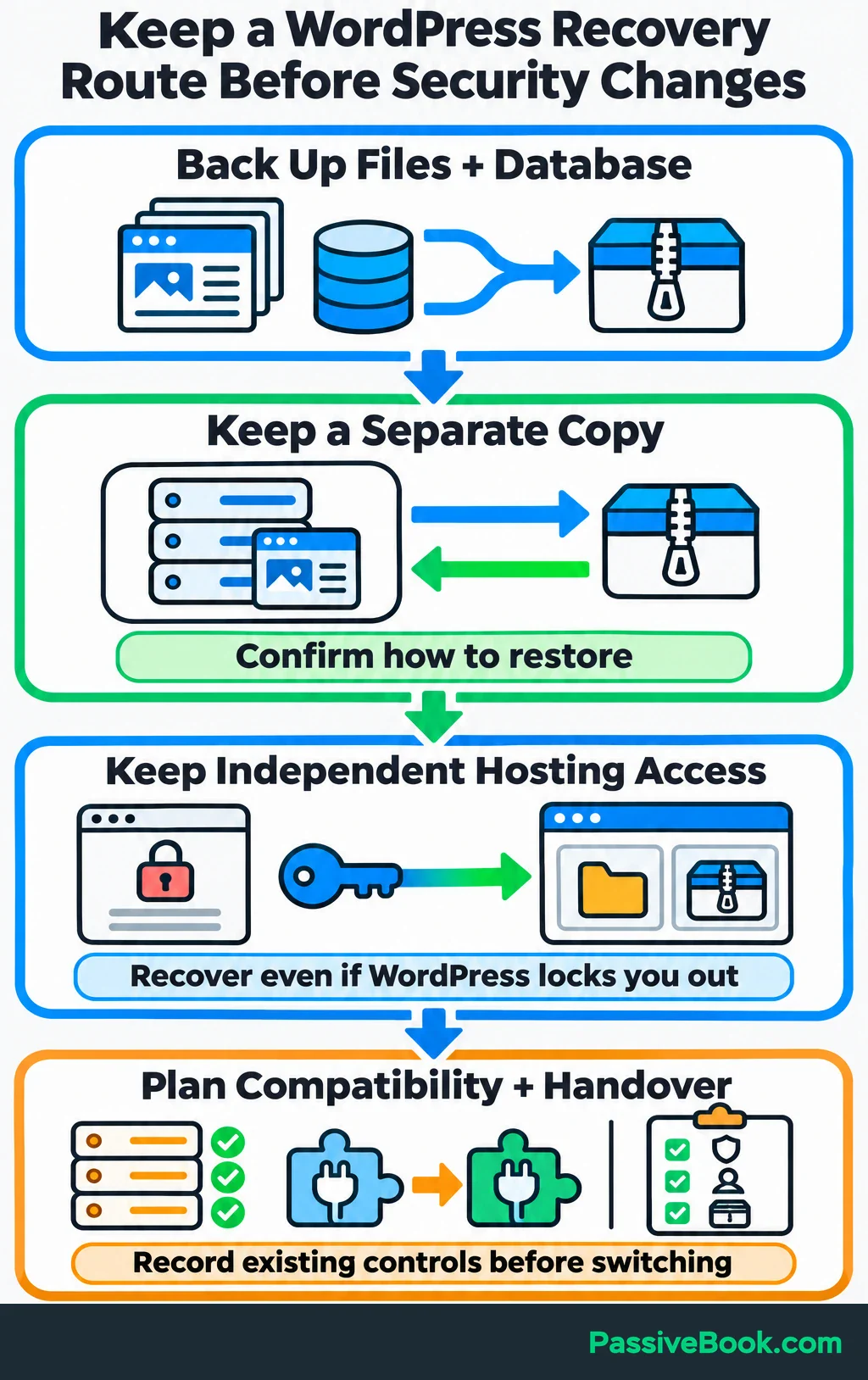
Before activation:
- Check Compatibility: Confirm current WordPress and PHP support, hosting restrictions and any required server features.
- Record Existing Controls: Note which tools handle firewalls, login limits, 2FA and backups.
- Install Officially: Download from WordPress.org or the vendor’s official distribution, then connect the required license or account.
- Prepare the Change: If replacing another tool, plan the handover so overlapping controls are removed deliberately and needed protection remains covered.
For the sewing shop, choose a quiet maintenance period and have a test purchase ready. You want time to check the buying process before returning to normal work.
Enable Protection in Stages
Finish the firewall’s activation process and confirm its protection status. A cloud firewall also needs traffic routed through it. An account connection alone does not prove traffic is being filtered.
Then establish a working baseline:
- Run the first scan and review findings before deleting or replacing anything.
- Enable 2FA for your own privileged account and save recovery codes somewhere secure.
- Test a fresh login and the recovery method.
- Extend account protection to other privileged users.
- Send a test notification and confirm it reaches a monitored inbox.
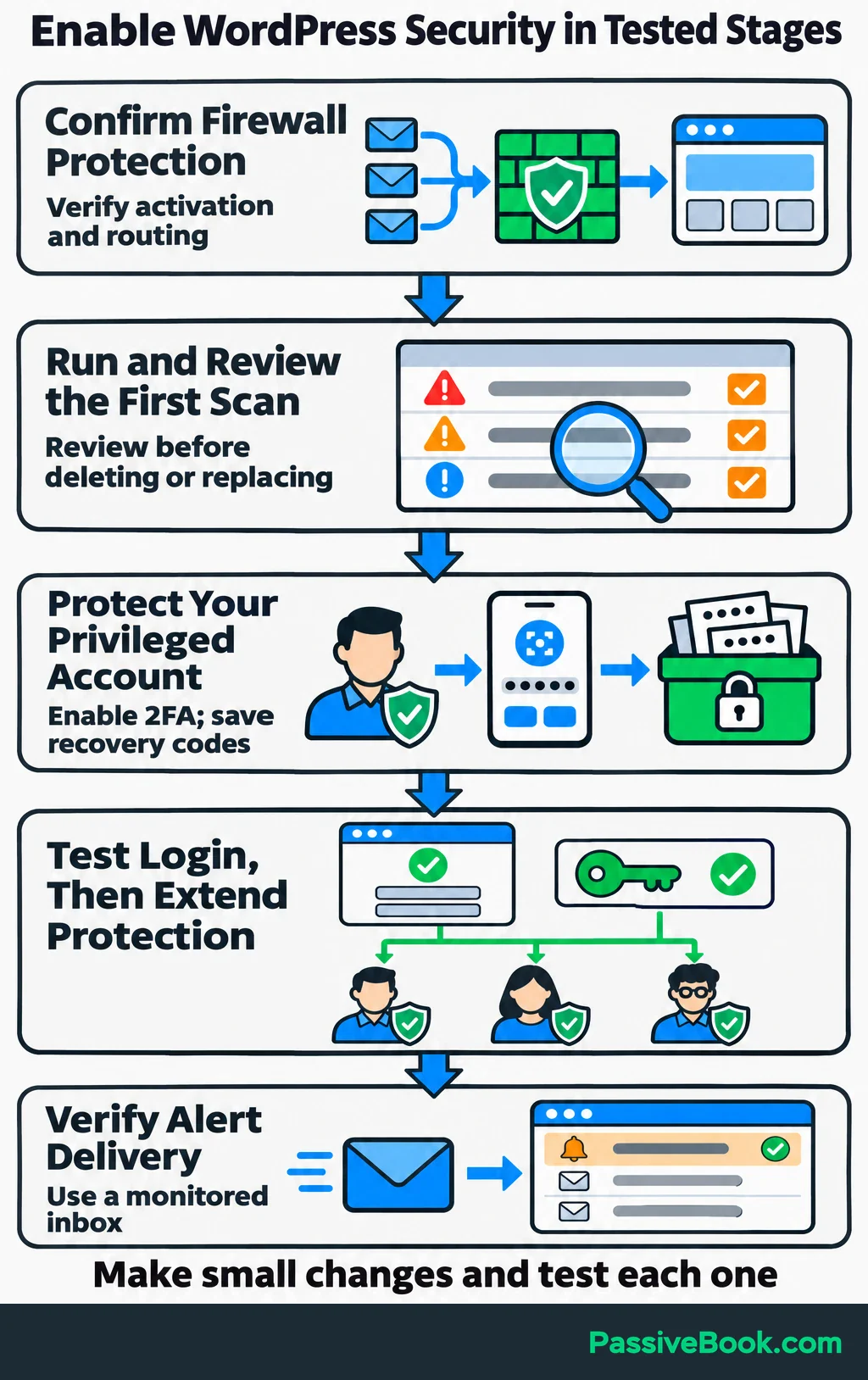
I would avoid switching on every advanced restriction at once. If something breaks, a small change gives you a much shorter list of possible causes.
Keep alerts focused enough to act on. A useful infection warning should not disappear into a pile of routine notices you have trained yourself to ignore.
Test Normal Site Use and Ongoing Operation
Test the actions people need to complete, not just whether the homepage opens.
For the sewing-pattern shop, that means:
- Publishing: Sign in with the account used for tutorials, save a draft and upload an image.
- Account Recovery: Request a password reset and check the full process.
- Forms: Submit the contact or signup form and confirm delivery.
- Checkout: Complete a test purchase using the payment provider’s supported test method.
- Downloads: Confirm the order reaches the correct status and the purchased pattern is available through the promised delivery route.
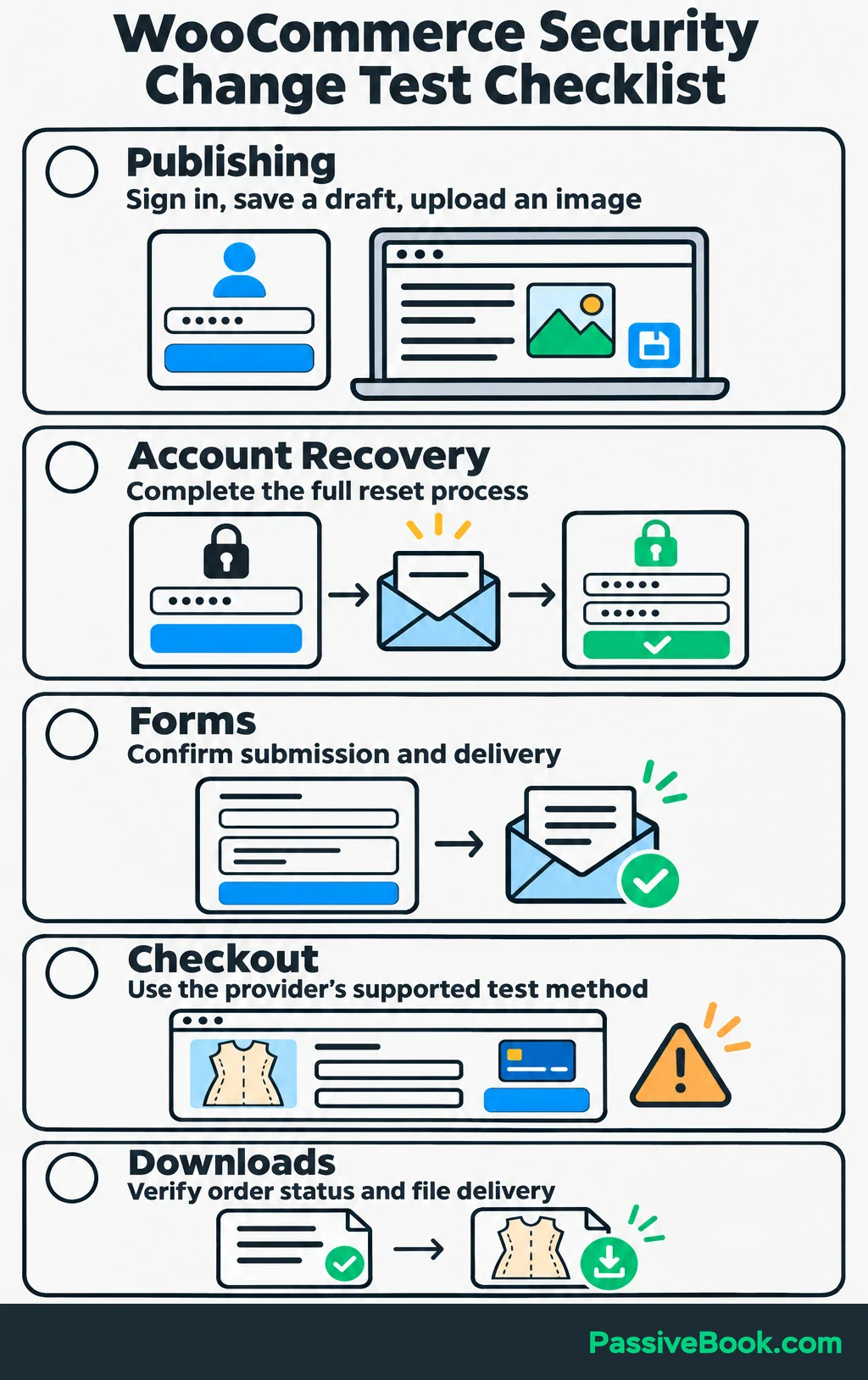
Also compare normal page behavior before activation and during a scan. Review hosting resource use and confirm scheduled scans actually finish. A scanner that repeatedly stops halfway through is not delivering the coverage you expected.
If a legitimate action gets blocked, check the relevant log and use the narrowest supported exception. Avoid disabling broad protection just to make one request work.
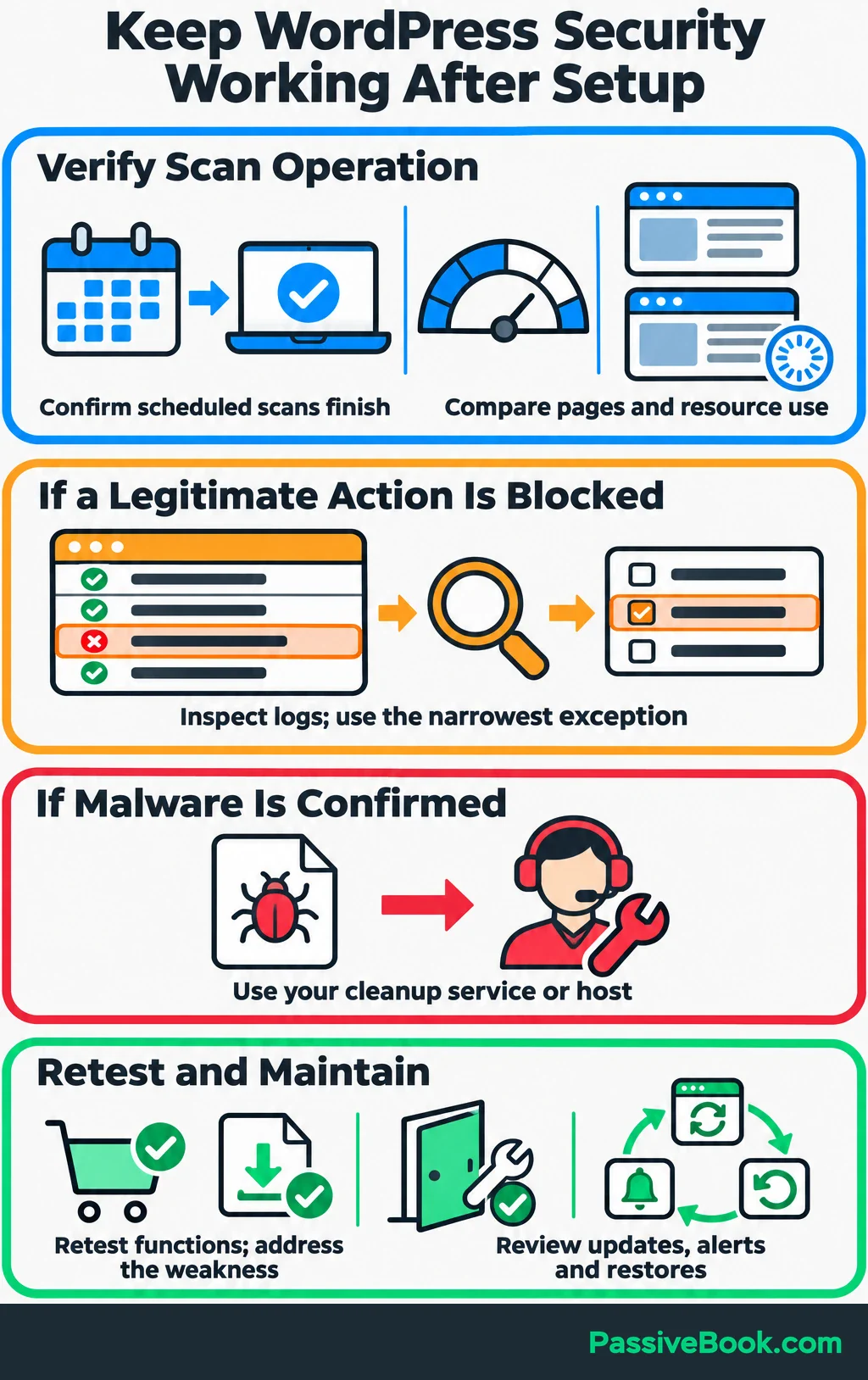
Keep updates, alert reviews and restore checks in a small recurring maintenance routine. You do not need to watch a security dashboard all day, but you do need to know that the system still works.
For confirmed malware, use your chosen cleanup service or hosting support before making destructive changes. After repair, verify the site’s normal functions again and address the access or software weakness that allowed the incident.
What Next?
Ask your host to confirm its firewall, malware-removal and backup coverage, then choose the plugin that fills the largest remaining gap.
Use the social buttons to share this comparison when the difference between scanning and cleanup could make a security purchase easier to judge.
Which gap matters most on your site: prevention, account access or recovery? Tell me in the comments, and bring any other questions about choosing or setting up your protection.
Share this post with your friends & followers:

