Your homepage needs a clear introduction, links to your best guides and a product offer. Yet choosing the tool to build it can take longer than planning the page.
Every builder looks capable in a demo. The harder questions come later: does that plan include your signup form, can you change the mobile layout, and what happens if you switch?
Finding those limits after launch can mean another subscription or pages to rebuild. This comparison shows what six builders include, where free versions stop and how to test your finalists for everyday editing, speed and compatibility before you commit.
Do You Need a WordPress Page Builder?
Start with the editor already included in WordPress. You can use its blocks to arrange headings, images, columns and buttons without installing a separate builder.
WordPress’s Site Editor lets you change headers, footers and site templates, but it requires a block theme—a theme built for editing the whole site with blocks. Having blocks in the post editor alone does not mean your theme supports the Site Editor. WordPress explains the distinction here.
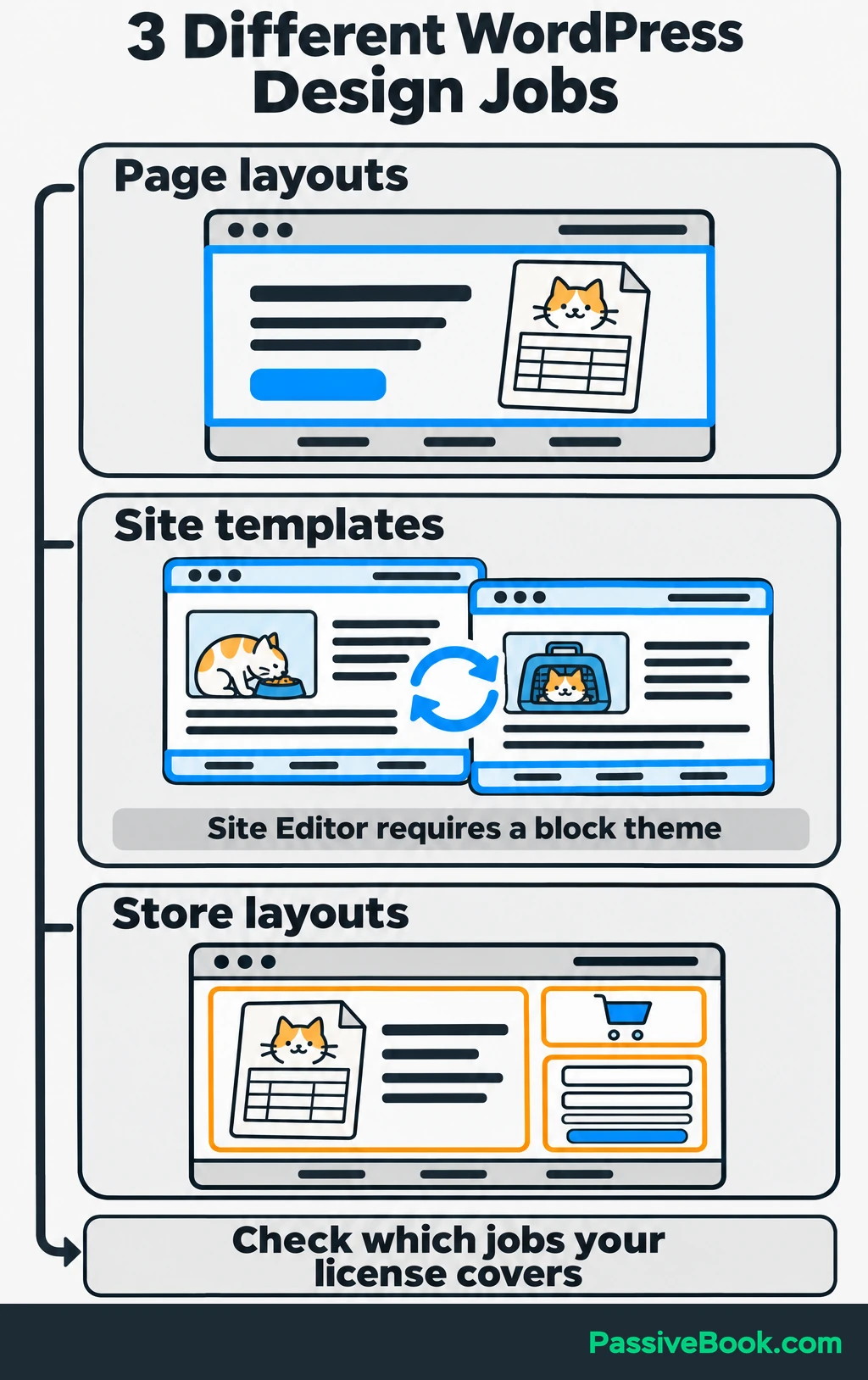
Before comparing plugins, separate three jobs:
- Page Layouts: Arrange the content on a particular page, such as an introduction beside a product image.
- Site Templates: Control shared structures, such as the header and the layout surrounding every blog post.
- Store Layouts: Customize product pages, carts and checkout pages in WooCommerce, the plugin that adds an online store to WordPress.
A license that covers custom pages may leave the other two jobs to your theme or a higher plan.
The editing approach matters, too. GenerateBlocks adds design blocks inside WordPress’s editor. Elementor and the other dedicated builders below provide their own visual interfaces. Your theme usually controls the surrounding site, but some builders can take over headers, footers and other shared layouts.
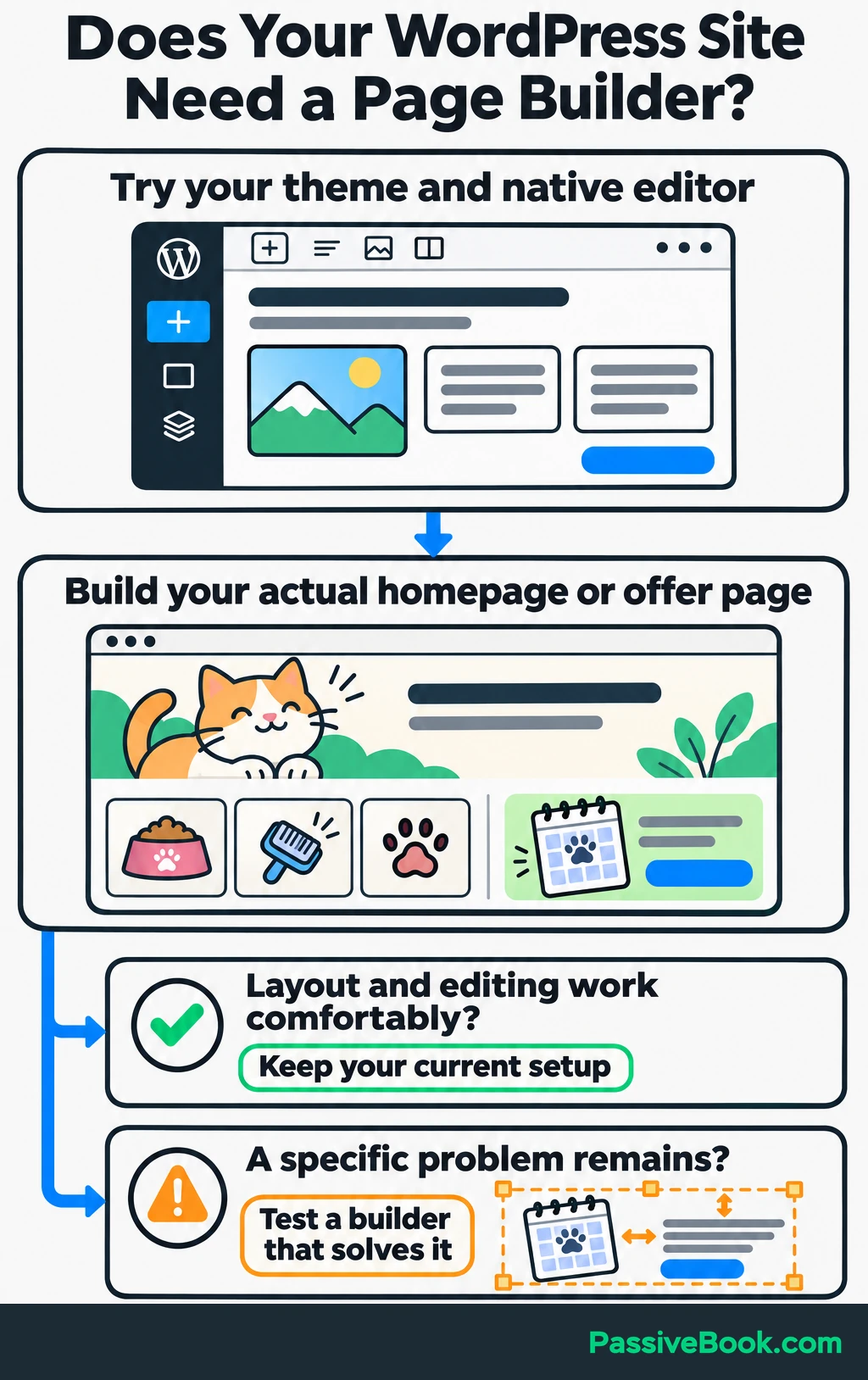
For the examples, imagine you run a cat-care blog selling a printable sitter handover planner. You need a homepage, reusable care-guide layouts and a planner landing page.
I would keep ordinary care-guide content in the native editor. Then I would check whether the existing theme and editor can comfortably produce the homepage and planner page. Add a builder when you can name the layout or editing problem it solves.
You do not need another plugin merely because your site has a homepage. WordPress has heard of those.
Best WordPress Page Builders Compared
My shortlist starts with three choices:
- GenerateBlocks: My first choice when you want to build within WordPress’s block editor.
- Elementor: Worth testing when you prefer arranging custom pages in a separate visual editor.
- Breakdance: Worth considering when you need integrated forms, popups and wider site design.
Beaver Builder, Divi and SeedProd become stronger candidates when content fallback, lifetime licensing or a dedicated landing-page workflow matters more.
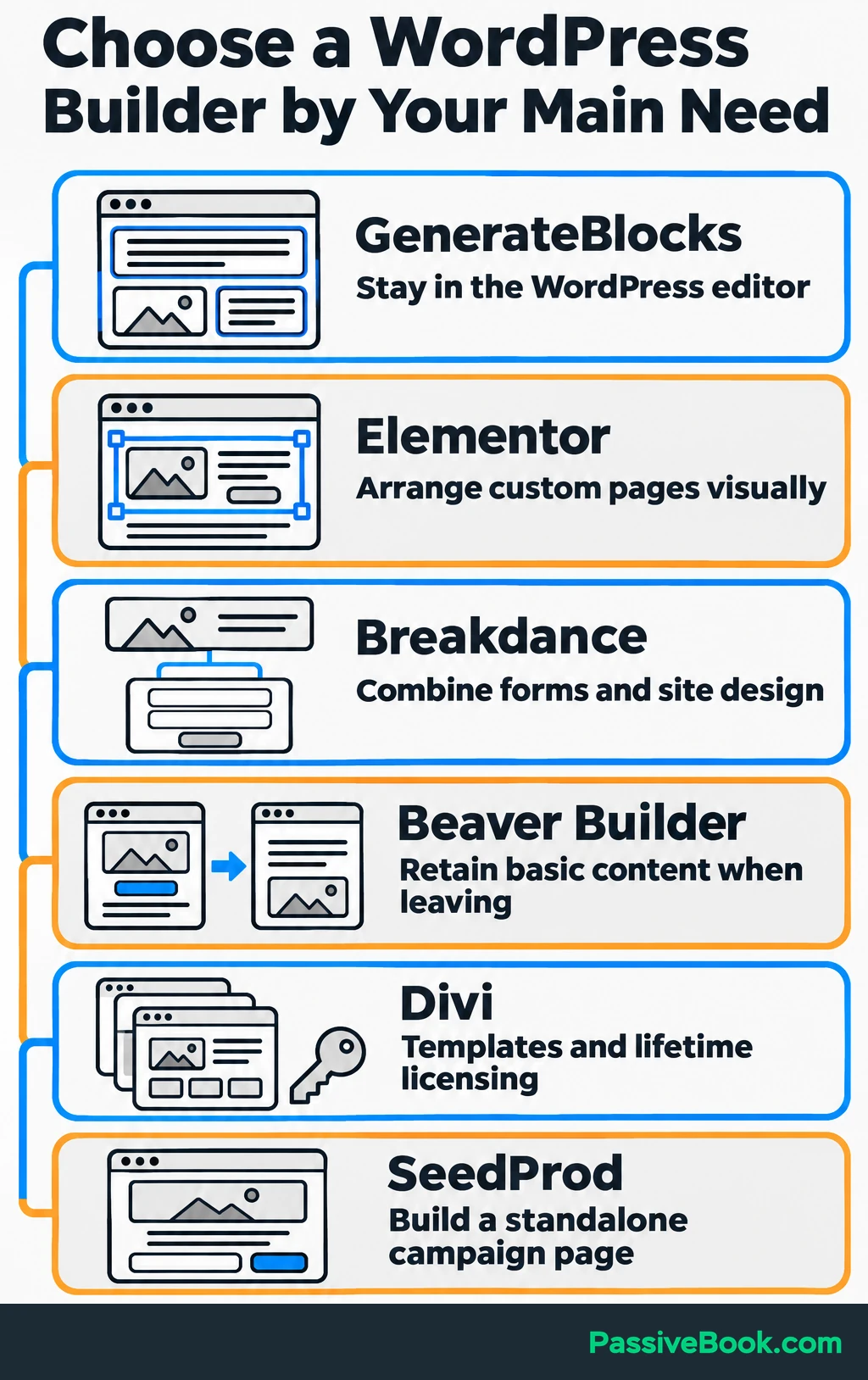
The table compares documented capabilities and selected plans. All amounts are USD. Annual figures mean a yearly payment, not a monthly subscription. SeedProd figures show regular annual prices rather than introductory discounts; Elementor figures are its published annual rates. Check the linked sources and checkout for current charges and renewal terms.
| Builder | Editing Approach | Best Fit | Free-Version Boundary | Relevant Paid Plan and Site Allowance | Annual or Lifetime Cost | Site-Template Support | Main Drawback |
|---|---|---|---|---|---|---|---|
| Elementor | Separate visual editor | Custom page design | Core widgets and responsive editing; no Theme Builder | Essential or Advanced Solo; one site each | Essential: $60/year; Advanced Solo: $84/year | Theme Builder in both selected paid plans | Essential excludes several marketing and store features |
| GenerateBlocks | WordPress block editor | Content sites using blocks | Free layout blocks; broader template controls depend on theme/setup | GeneratePress One; one site | $99/year | Headers, footers, post and archive templates through the complete GeneratePress setup | Free blocks alone do not replace theme controls |
| Breakdance | Separate visual editor | Pages, forms, popups and store design together | Restricted features; forms store entries but lack email sending and marketing integrations | Pro; one site or unlimited sites | $99.99/year for one; $199.99/year unlimited | Pro supports custom site templates | More functions to recreate if you switch |
| Beaver Builder | Front-end visual editor | Basic content retention after deactivation | Lite provides basic layout modules | Starter; one site | $89/year | Beaver Themer included in Starter | Content fallback does not preserve the finished design |
| Divi | Visual builder, with theme or standalone plugin | Ready-made layouts and lifetime licensing | No free edition | Standard Divi; unlimited sites | $89/year or $249 once | Theme Builder included | Lifetime access still leaves design maintenance and migration work |
| SeedProd | Separate drag-and-drop editor | Standalone campaign pages | Free marketing pages; built-in email integrations require payment | Basic: one site; Plus: three sites | Basic: $79/year; Plus: $199/year, regular prices | Plus and above include theme building | Standalone pages need styling to match the surrounding site |
The best WordPress page builders are the ones that cover your actual requirements with manageable editing and maintenance. A longer feature list earns its price only when you use the extra features.
Elementor: Best for Flexible Visual Page Design
Choose Elementor when you want to arrange custom pages visually and adjust their presentation for different screen sizes.
Its free edition provides core content widgets and responsive editing. That makes it a sensible starting point for testing a homepage or sales-page layout while your theme handles the surrounding site.
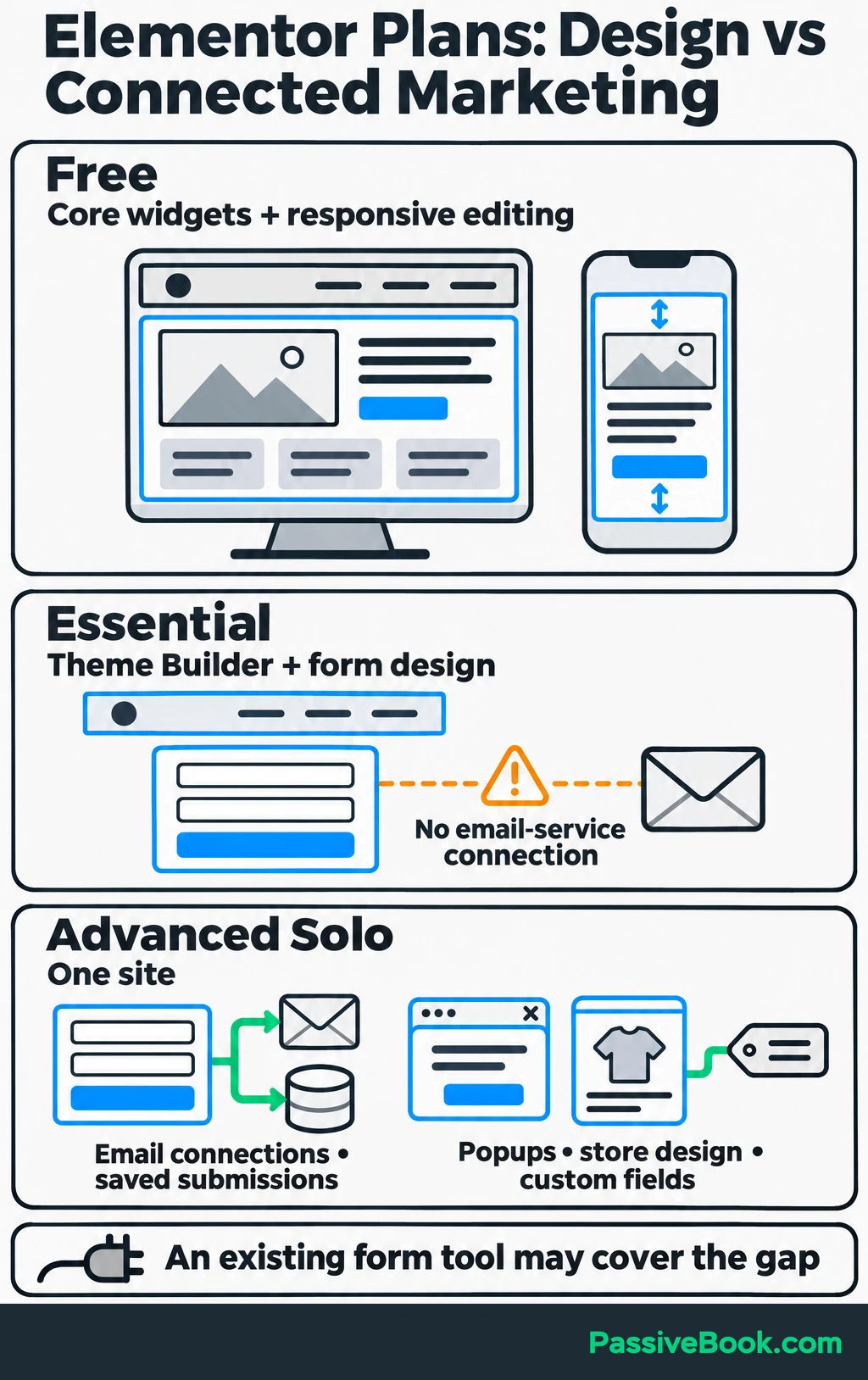
Essential includes Theme Builder and form design, but excludes saved form submissions, connections to email services, popups and WooCommerce Builder. Advanced Solo adds those capabilities for one site, plus connections to custom fields—extra details stored with posts or products. Elementor’s feature comparison shows these differences.
For the planner page, an existing signup form may remove the need to buy Elementor’s form integrations. But if you want Elementor itself to connect the form to your email service, Essential does not cover that requirement.
I would test the free editor before choosing a paid plan. Build the main section, change the mobile spacing and try a routine revision. You are choosing an editing workflow as well as a collection of widgets.
The trade-off is learning a separate interface. I would also skip third-party widget packs until a required feature is missing. Each addition gives you another product to maintain.
GenerateBlocks: Best for Building Within the WordPress Editor
GenerateBlocks is my starting recommendation for a content site whose owner wants to keep working in WordPress’s editor.
Its blocks provide the pieces for custom layouts, including containers, grids, text, images and buttons. It works with themes beyond GeneratePress, so installing it does not require changing your theme.
On Passive Book, I use GeneratePress with GenerateBlocks. I prefer that workflow because I can work on content and page layouts within the WordPress editor. That preference is not a comparative speed test.
Start by learning how sections contain smaller elements, then adjust width, spacing and alignment. For the cat-care homepage, you could build a row of care categories followed by a planner promotion. Save a finished section as a pattern, a group of blocks you can insert again.
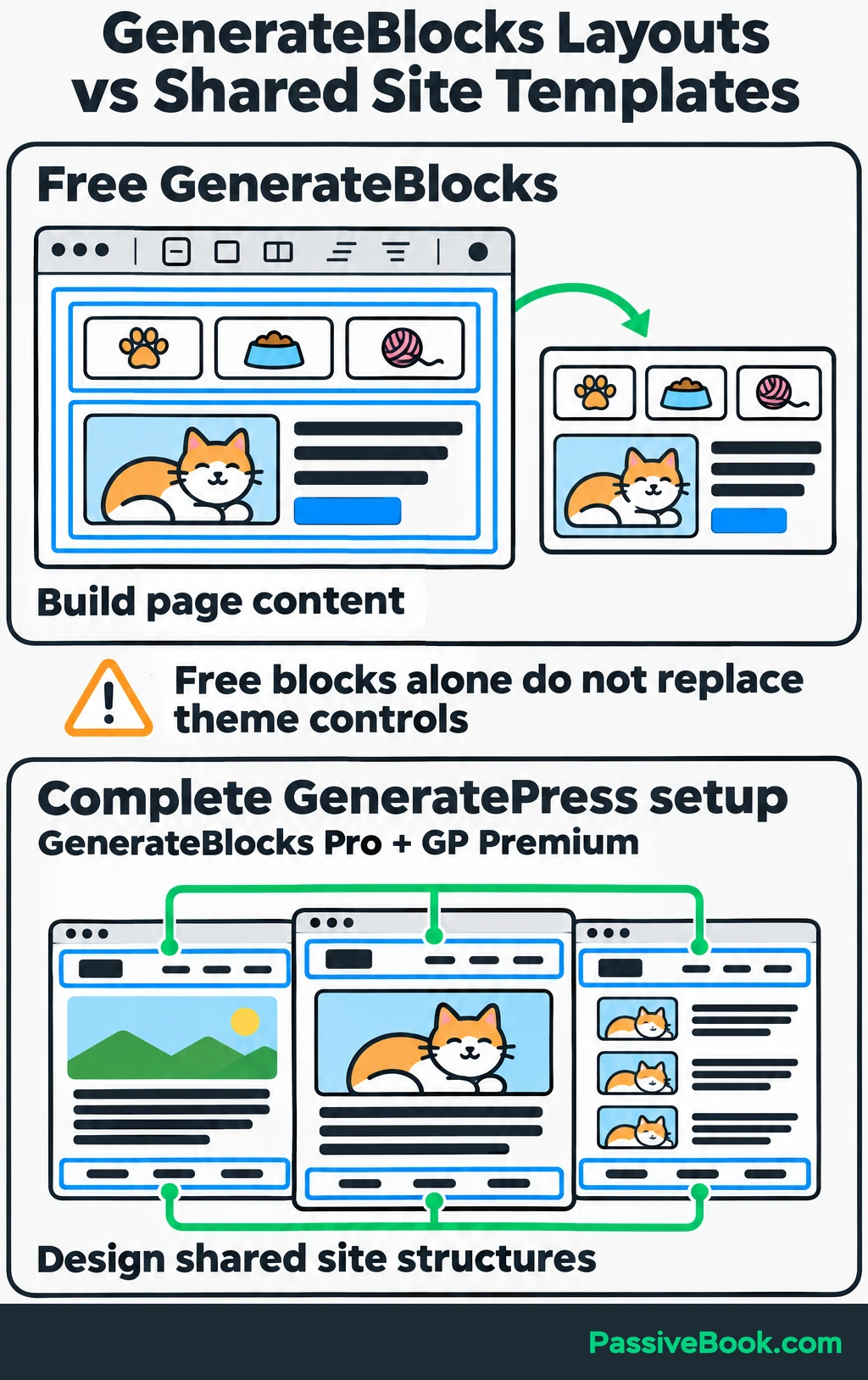
GeneratePress One combines GenerateBlocks Pro with GP Premium, the paid add-on for the GeneratePress theme, and other tools. Together, they let you design headers, footers and templates for posts and archive pages, such as category listings.
The distinction matters: the free block plugin alone does not take over every part of your theme. Stay free for content layouts when that is enough, and evaluate the complete package when you need shared site structures.
Breakdance: Best for Integrated Forms and Site Design
Breakdance makes the most sense when your requirements extend beyond arranging page content. Its paid builder brings together site templates, forms, popups and WooCommerce design.
On an existing site, check whether Breakdance is set to keep or disable your theme. Disabling it puts headers, footers and templates under Breakdance’s control. Keeping it lets the theme supply layouts unless Breakdance overrides them, and theme styles can affect your pages. Breakdance explains the two modes.
That can simplify your tool choices, but count a bundled feature as a saving only when it replaces something you need. An unused popup builder has saved you precisely nothing.
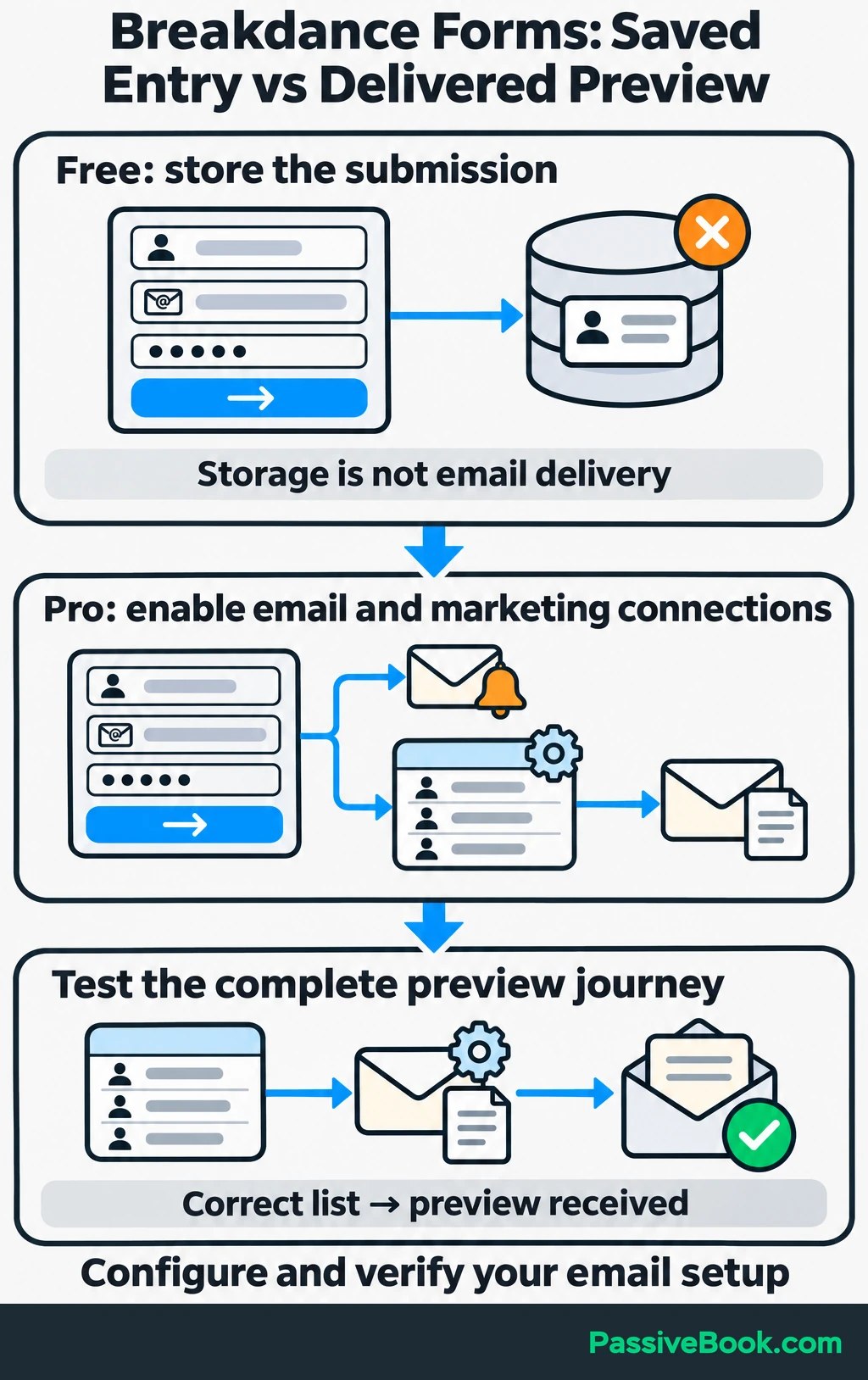
The free edition allows unlimited sites with restricted features. Its forms can store submissions, but sending submissions by email and using marketing integrations require Pro. Custom WooCommerce page designs also require Pro. Breakdance states that the purchase price remains your renewal price.
For the planner page, test the whole preview-signup process. Does the form add the subscriber to the correct list, and does the promised preview arrive? A form that looks finished can still leave half the job undone.
I would keep an existing form or email tool if it already handles that process well.
The switching cost grows when one builder controls your pages, templates, forms and popups. Choose Breakdance for the functions you need together, and include their replacement work in your decision.
Beaver Builder: Best for Retaining Basic Content After Deactivation
Beaver Builder deserves a place on your shortlist when you want front-end visual editing and a documented fallback for page content.
Lite includes basic layout modules. Starter adds the paid page builder, Beaver Themer, WooCommerce support and the optional Beaver Builder Theme. You do not have to use its theme simply because it is included.
Its useful distinction appears when you deactivate the builder. Beaver Builder copies a stripped-down HTML version of the layout into WordPress’s native editor. Basic content remains, though the page may look different. Its deactivation documentation describes that fallback.
That gives you something to work with if you leave. It does not promise that the planner page will keep its columns, spacing, forms or complete design.
I would choose it when that content fallback matters and its editing approach suits the page. Before paying, check that your selected package includes the modules and integrations you need. Retaining text later is useful, but you still need a workable page now.
Divi: Best for Template-led Design With a Lifetime License
Divi is worth considering when you want to adapt ready-made layouts and prefer the option of a lifetime builder license.
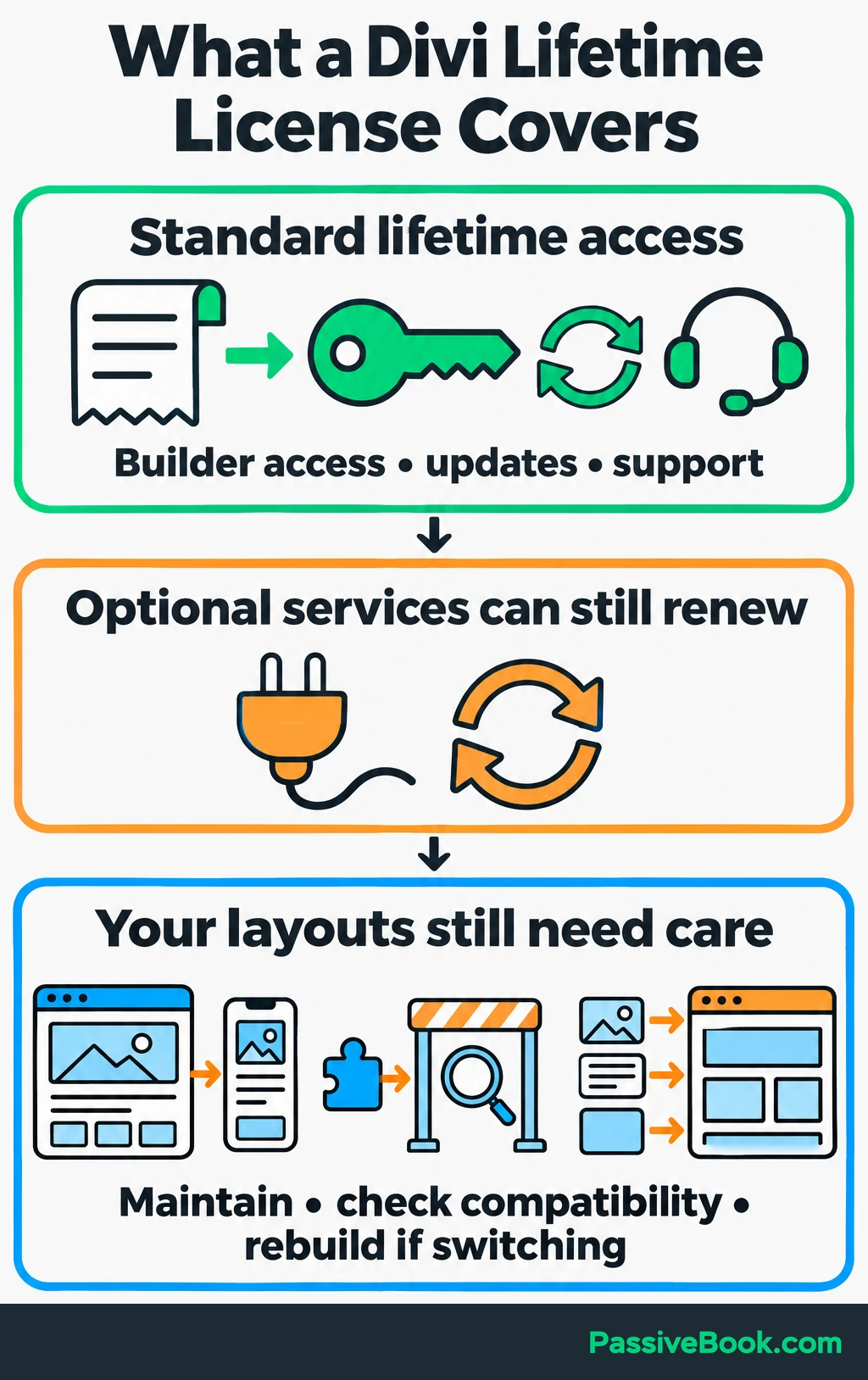
The Divi theme includes the builder, and a standalone builder plugin lets you use it with another theme. Standard lifetime access includes updates and support. Optional Pro services have separate recurring charges.
Start with a layout whose structure fits your page. For the cat-care homepage, look for a clear introduction, room for guide categories and a product section. The demo’s industry matters less than whether its sections match those jobs.
Then replace the content and check typography, mobile spacing and reusable sections. A template should shorten the work, not dictate what your business needs to say.
If your design requires third-party Divi modules, confirm their Divi 5 compatibility before buying them.
I would consider lifetime access only after testing the editor. It removes recurring builder payments, but it does not remove the work of maintaining Divi layouts or rebuilding them elsewhere. A lifetime license is a payment arrangement, not a reason to keep a tool you dislike.
SeedProd: Best for Standalone Landing Pages
Choose SeedProd when the immediate job is a dedicated campaign page rather than a wider site redesign.
Its standalone landing pages operate independently of the active theme and omit the theme’s usual header and footer. That gives the planner campaign its own layout, though you will need to match fonts, colors and other details yourself. SeedProd describes how these standalone pages work.
The free edition can build marketing landing pages as well as coming-soon and maintenance pages. Built-in email-service integrations require a paid plan, so confirm whether your existing form setup covers that gap.
Basic suits paid landing-page features without those email integrations. Plus adds email integrations and full-site building; WooCommerce templates require Elite.
I would shortlist SeedProd when the surrounding site already works and the campaign page needs a separate workflow. If GenerateBlocks or another builder already produces the planner page you need, I would skip adding a second builder for the same job.
Is a Free Page Builder Enough?
Yes, when the free builder, your theme and your existing plugins cover the complete page.
“Complete” means more than looking like the demo. You need readable mobile layouts, working buttons and forms, and a way to make ordinary changes without rebuilding the section.
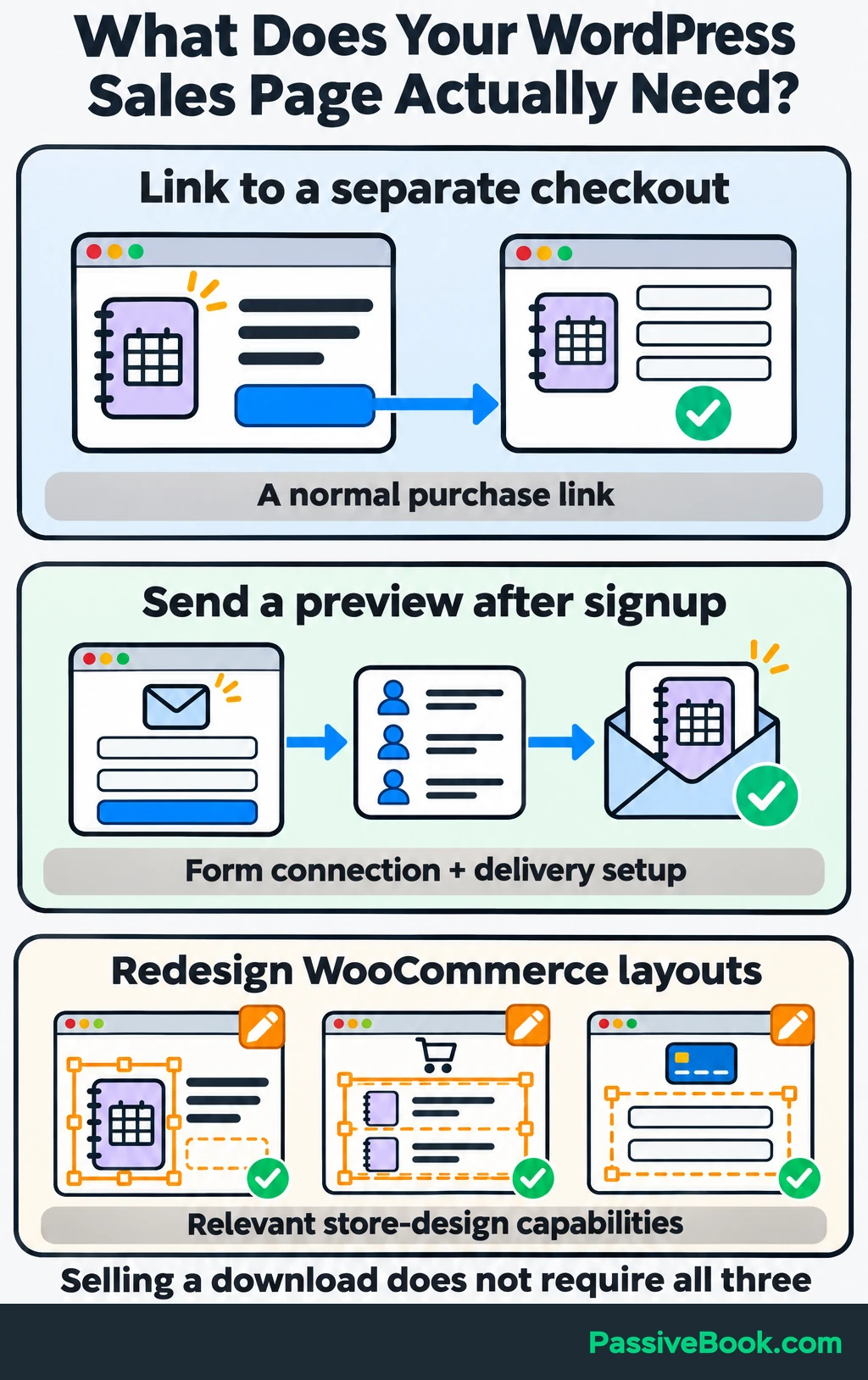
For the planner page, separate these requirements:
- Purchase Link: A button sends visitors to a separate checkout, such as Gumroad. You need a normal link and suitable page copy.
- Preview Signup: A form delivers a one-page preview through your email setup. You need a working form connection and delivery process.
- Custom Store Design: You want to redesign WooCommerce product, cart or checkout templates. You need the relevant store-design capabilities.
Linking to checkout does not require buying a WooCommerce design package. Nor does selling a download automatically mean your page builder must handle the transaction.
Pay when you can identify the missing capability or show how the paid workflow makes repeated editing easier. I would pay to remove a recurring obstacle. I would skip an upgrade bought “just in case.”
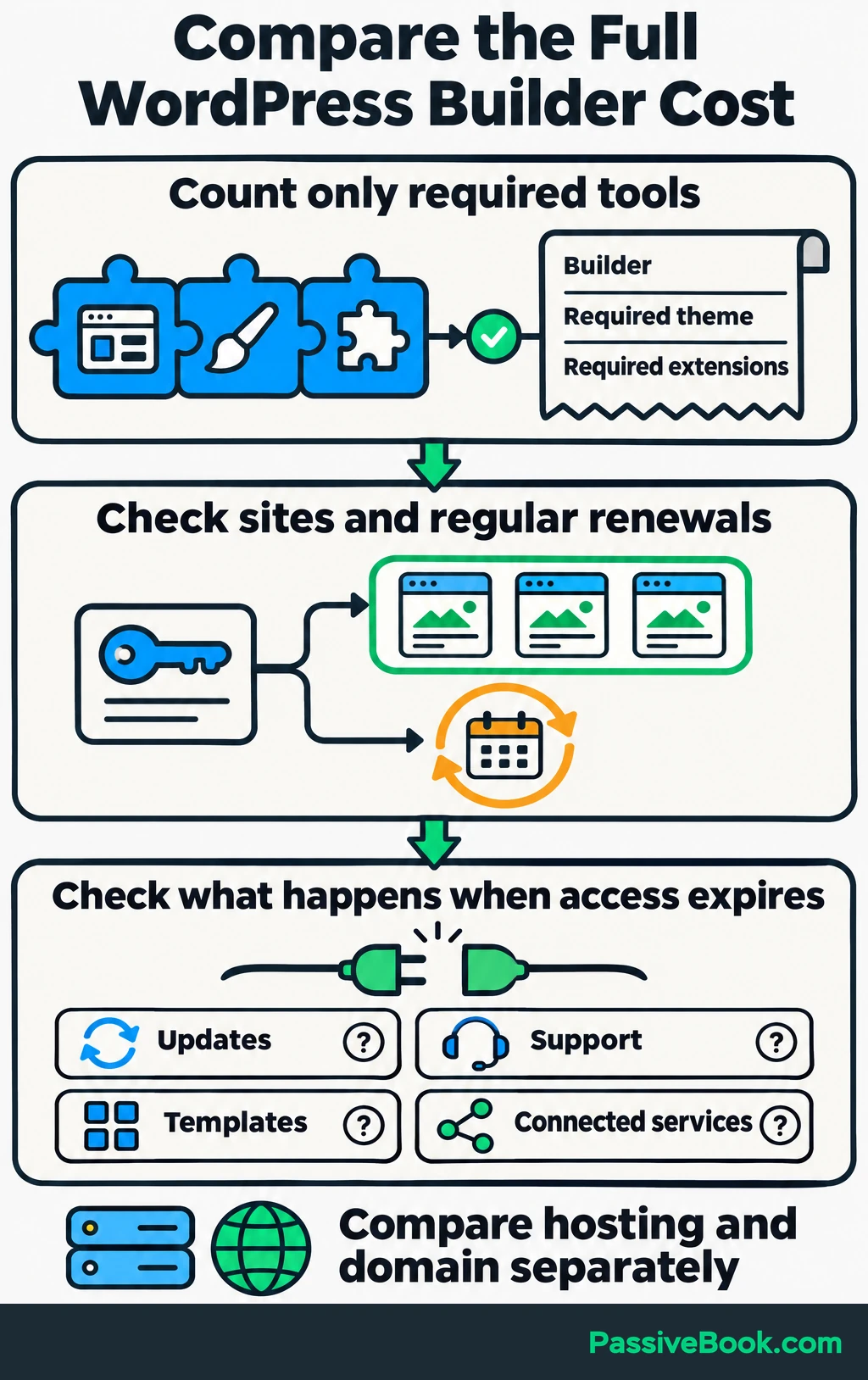
Compare the complete required package: builder, necessary theme, extensions, site allowance and regular renewals. Keep hosting and domain costs separate so the plugin comparison stays clear.
Once two tools fit, compare their costs over several years. Also check what happens when a subscription expires, especially access to updates, support, template libraries and connected services. Budget for the parts your working site will continue to need.
An annual plan and a lifetime license need the same comparison period. Add the required extras to each option before deciding which costs less.

Free Software Cost Calculator




Test Your Shortlist Before Committing
A feature comparison can narrow the choice. Building and revising one representative page tells you whether you can live with it.
Build the Same Representative Page
Choose two candidates. For an existing site, take a backup, confirm that you can restore it and create a staging copy—a separate version where changes do not affect visitors.
Test each builder separately. Start from equivalent copies so one candidate is not carrying the other’s plugins and settings.
Use a free edition or vendor demo to explore the editor. If a required feature is paid, assess that feature with the relevant license before committing your wider site.
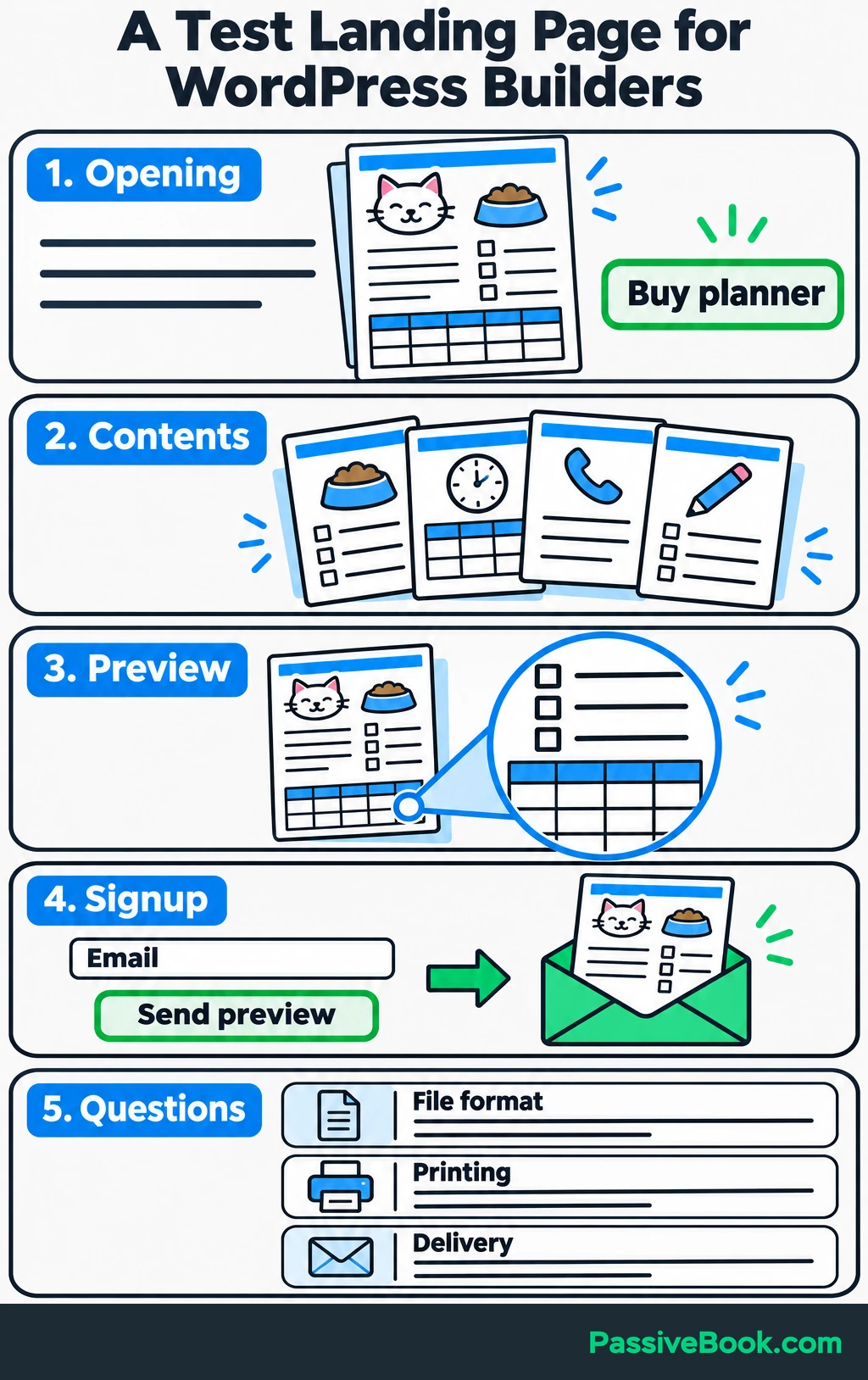
Build the same planner landing page in both tools:
- Opening Section: A short explanation of the planner, a product image and a purchase button.
- Contents Section: Feeding notes, daily routines, contact details and space for sitter instructions.
- Preview Section: An image showing part of the printable.
- Signup Section: A form offering a one-page preview.
- Questions Section: Practical answers about the file format, printing and delivery.
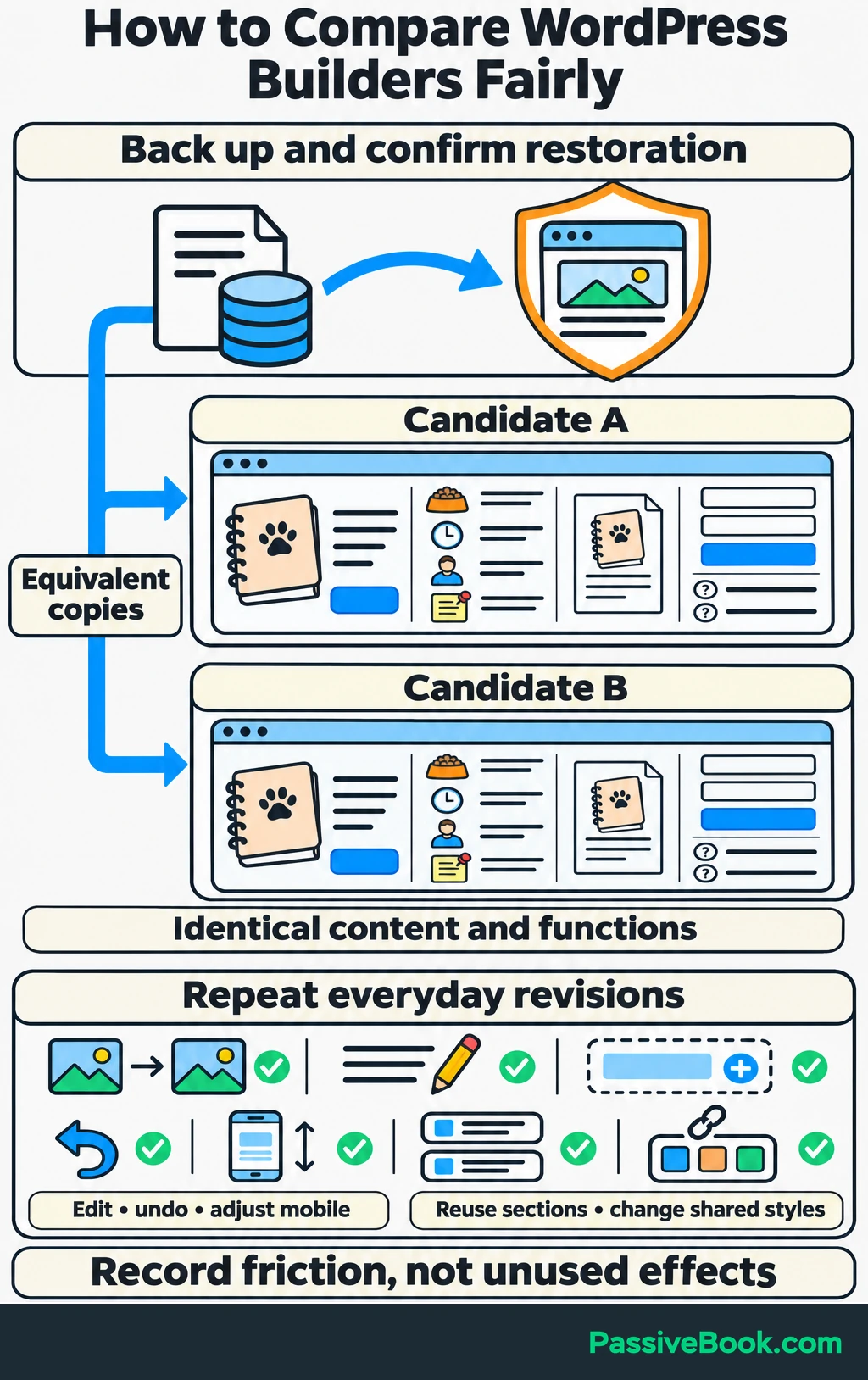
Use identical copy, images and functions. Otherwise, you may prefer the better content and credit the editor.
Once the page exists, replace an image, correct a sentence, add a section and undo a mistake. Adjust mobile spacing, reuse a section and change a shared style.
These are the jobs you will repeat after launch. Record where you get stuck and whether the solution is something you can remember. I would favor the editor that makes those ordinary revisions manageable over one with impressive effects I will never use.
Check Performance and Mobile Usability
Compare published pages under equivalent conditions: hosting, image files, caching and other active plugins.
Use Google’s PageSpeed Insights tool to check each page’s mobile performance, then repeat the checks and investigate recurring problems. Do not choose a winner because one run produced a slightly higher score.
Core Web Vitals cover loading, responsiveness and visual stability. They help you spot whether the main content appears promptly, interactions respond and page elements shift unexpectedly. Google explains these measures here.
A vendor demo’s result does not predict your finished page. Your images, fonts, forms, effects and other plugins also form part of what visitors load.
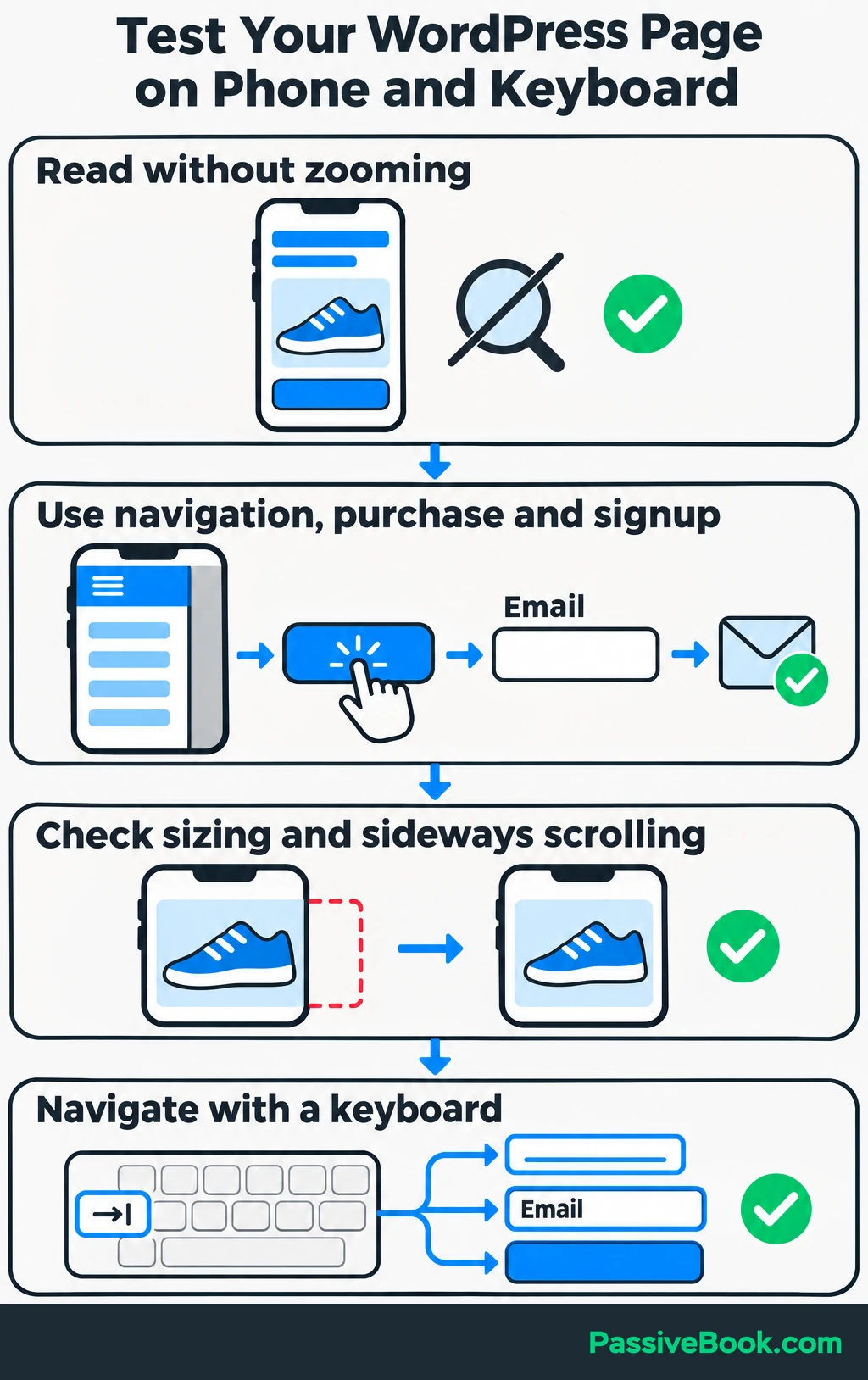
Use a phone as well:
- Read the opening without zooming.
- Open the navigation and follow the purchase link.
- Complete the preview form.
- Check buttons, image sizing and unwanted sideways scrolling.
Reduce oversized images and unnecessary effects before deciding that the builder needs replacing.
Also move through the page with a keyboard. Check that you can reach and use links and forms, see which control has focus, and read text against its background. Give form fields visible labels. W3C’s accessibility checks provide a useful first review.
A polished mobile preview is encouraging. A working page is the requirement.
Check Compatibility and Switching Effort
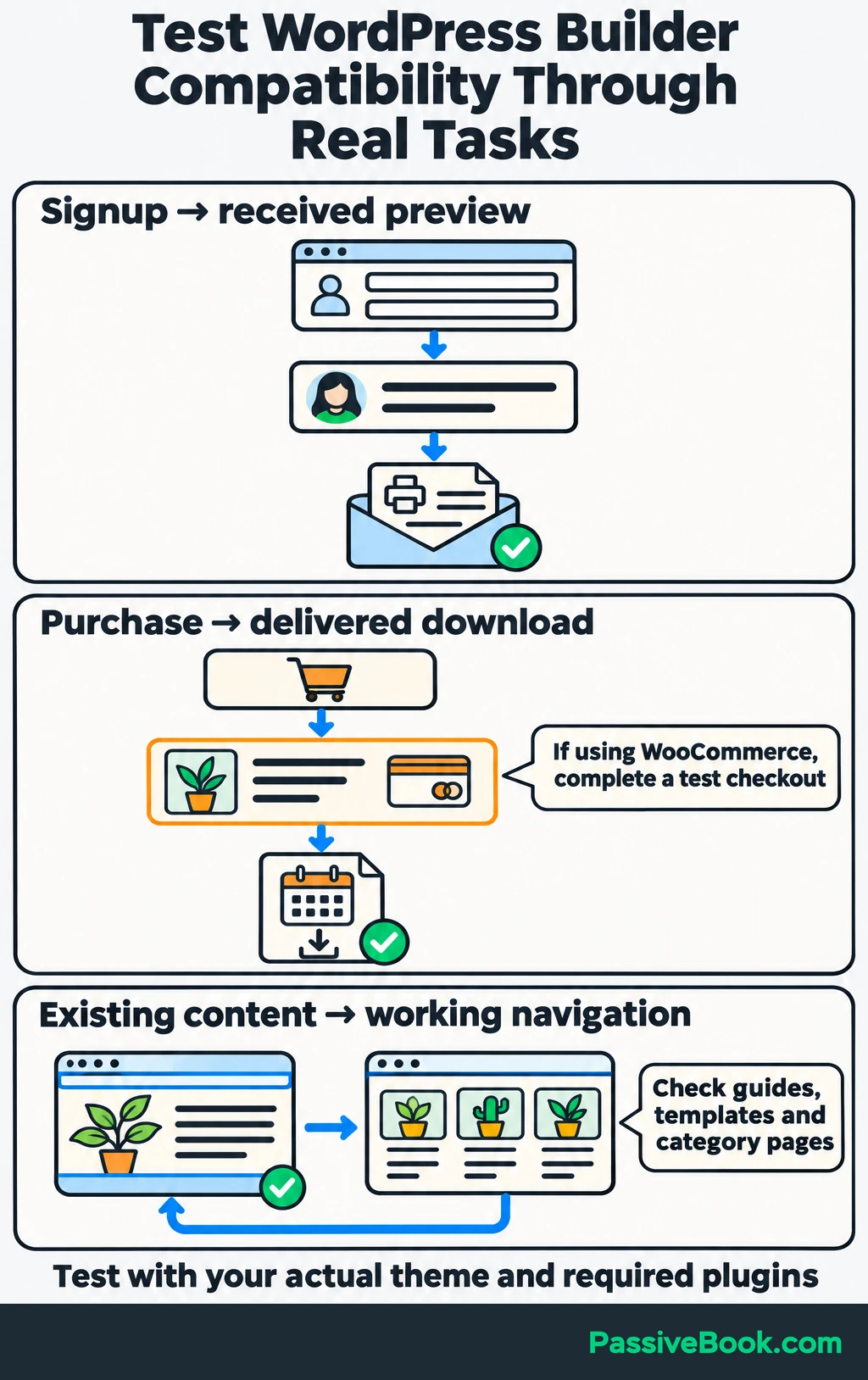
Test the builder with the theme and plugins your site needs.
Submit the preview form and confirm that the email arrives. Follow the purchase link. If you use WooCommerce, complete a test checkout and check the download delivery.
Inspect an ordinary care guide, its surrounding template and the category page. A new planner layout should not leave you with broken navigation elsewhere.
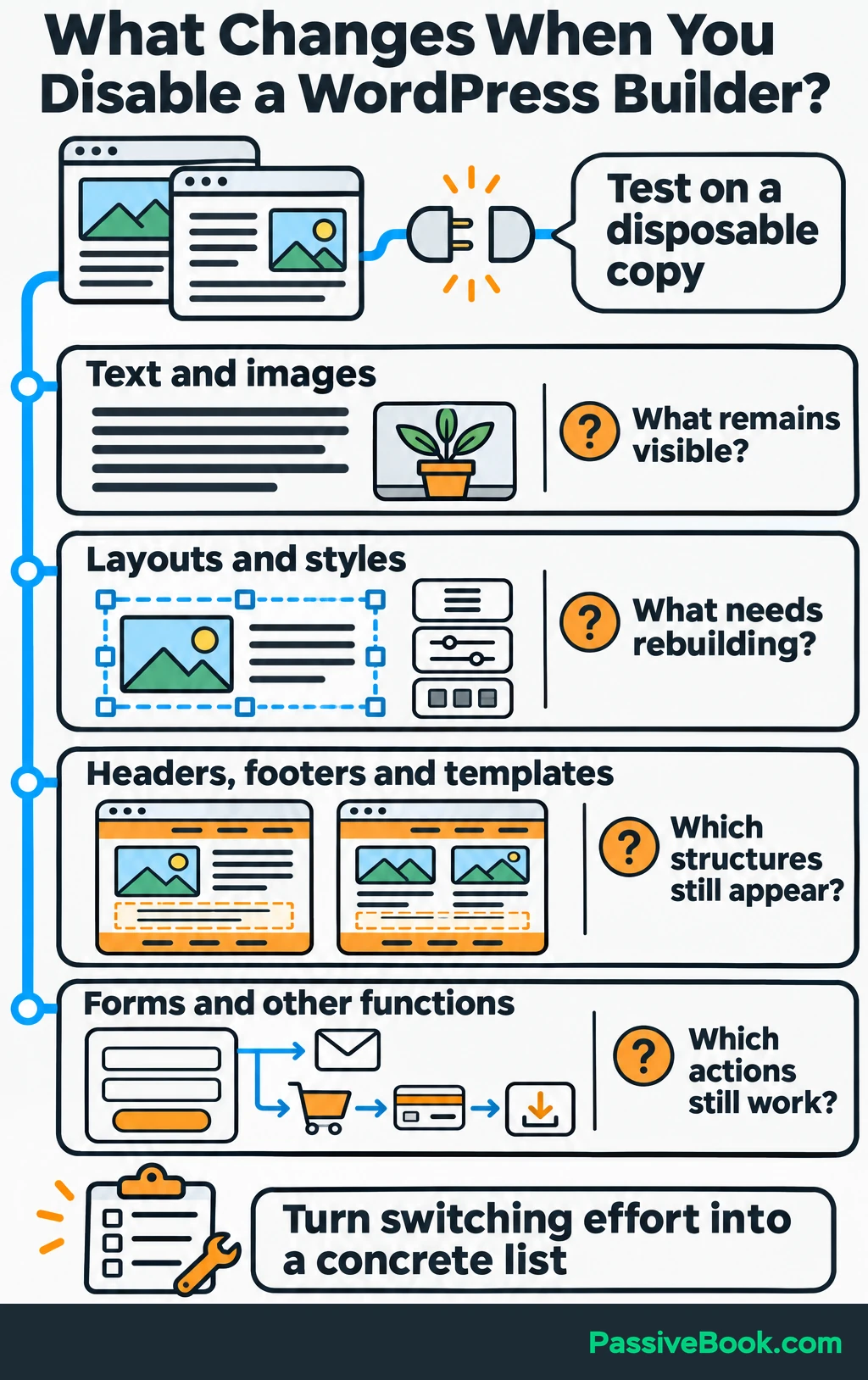
Then use a disposable copy to deactivate the builder. Record:
- Which text and images remain visible.
- Which layouts and styles change.
- Whether headers, footers and templates still appear.
- Whether forms and other functions still work.
This is how you put a practical size on switching effort. “Some rebuilding required” becomes a list you can assess.
I would keep routine articles in the native editor where practical and use one primary builder for custom layouts. That gives you fewer editing systems to remember and fewer page dependencies to untangle later.
Install Your Chosen Builder and Publish Your First Page
Install the plugin from the official WordPress directory or your vendor account, then activate any required license. Follow the vendor’s instructions for required companion plugins.
Set shared colors and typography before polishing individual sections. Then finish the tested planner page.
On one of my digital-product pages, I caught myself adjusting the layout while the offer was still vague. I had a tidy section and no clear reason for it to exist. Now I settle what each section needs to explain before spending time on its spacing.
For your page, that means making the planner’s contents, preview and next action clear before adding decoration.
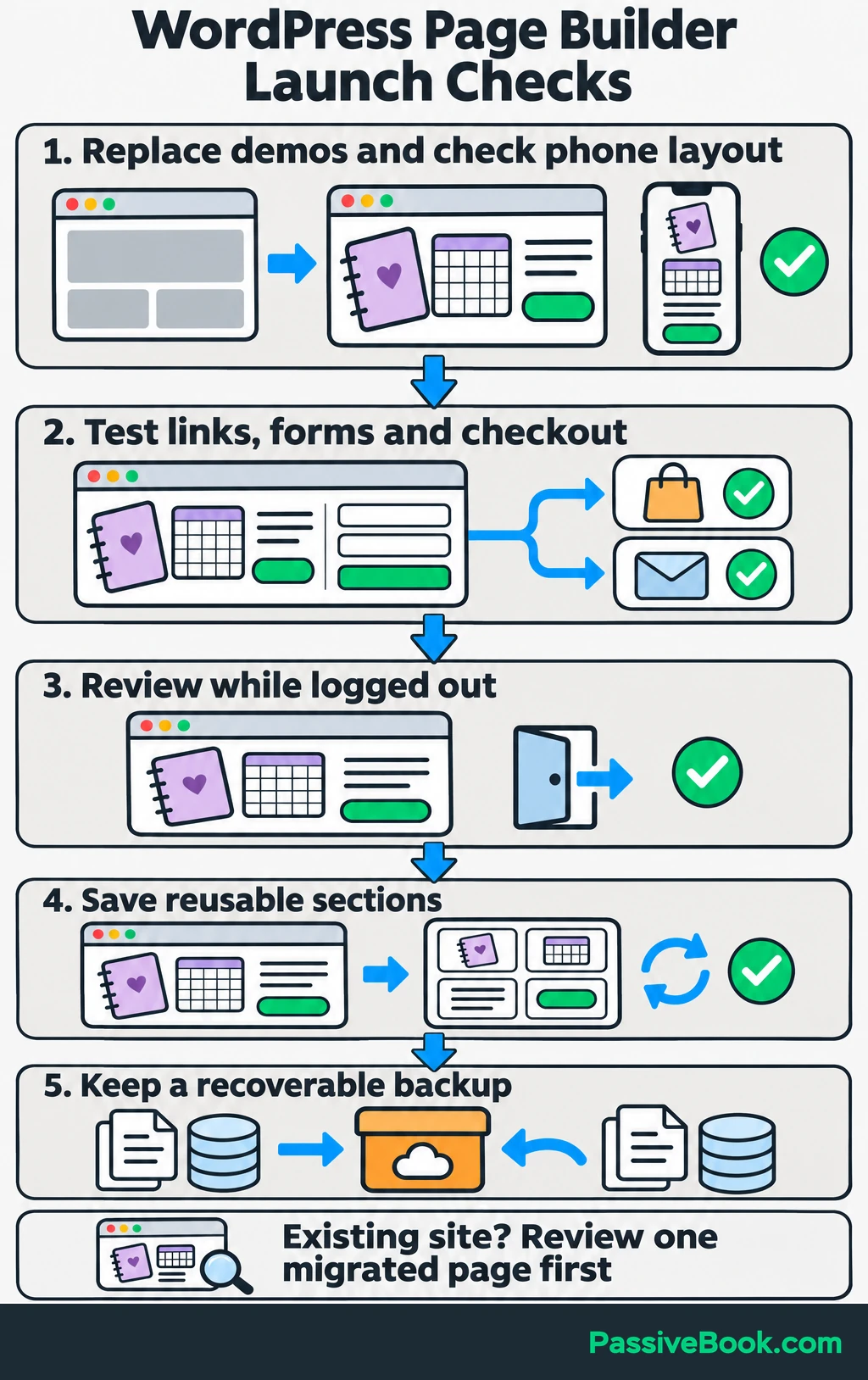
Before publishing:
- Replace all demo content and check the phone layout.
- Test links, forms and the route through checkout.
- Review the published page while logged out.
- Save useful sections for reuse.
- Keep a recoverable backup.
If you are changing an existing site, migrate one representative page first and review it before moving the rest. Remove unused trial builders after checking that no pages or functions depend on them.
Use staging to check major builder updates before applying them to the live site. The point of choosing a manageable tool is to keep the site manageable after launch, too.
What Next?
Write down the page-building jobs your current setup cannot handle comfortably, then choose two candidates that cover them. Build the same small test page before buying a wider license.
Use the social buttons to share this guide when the builder comparison starts turning into another week of browsing demos.
Which matters most for your choice: editing ease, cost, performance or the work of switching later? Leave your answer—and any other questions—in the comments.
Share this post with your friends & followers:

