Your image plugin reports smaller files, but the page still feels slow on your phone. Meanwhile, another plugin promises better compression, modern formats and faster delivery. Switching sounds tempting until you remember the hundreds of images already on your site.
The recommendations draw on documented features and pricing; they aren’t a claim that I tested all 11 plugins. The risk is spending time or credits on a tool that duplicates what you already have. This comparison matches each plugin to the problem it handles, explains what you’ll pay for and shows how to check whether visitors receive smaller images that still look good.
Which WordPress Image Optimization Plugin Should You Choose?
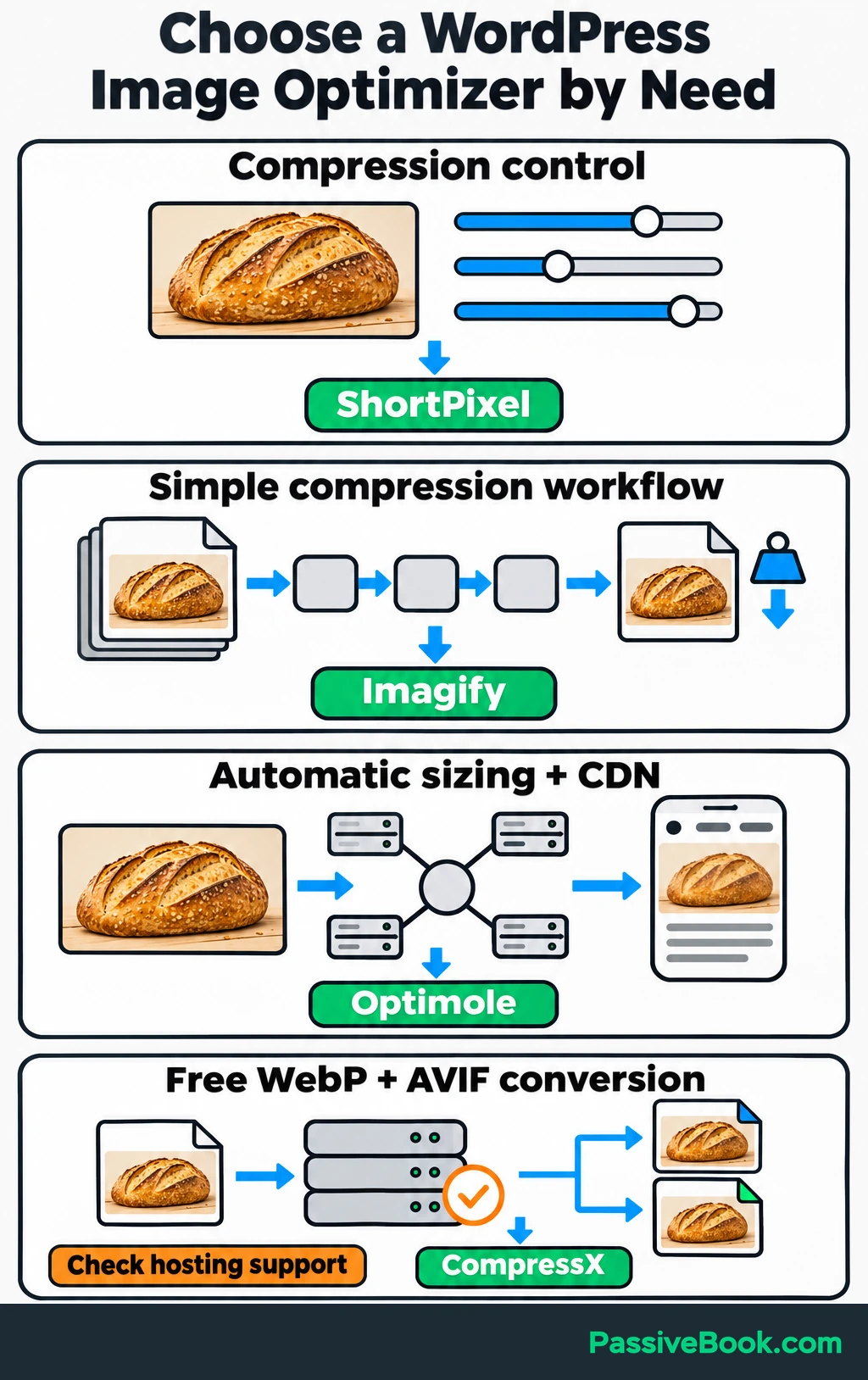
For most sites, I would start with four options:
- ShortPixel: Choose it when you want control over compression quality and flexible payment options.
- Imagify: Choose it when you want a simple compression and conversion workflow.
- Optimole: Choose it when images need automatic resizing for different screens and CDN delivery.
- CompressX: Choose it when free WebP and AVIF conversion is your main need and your hosting supports it.
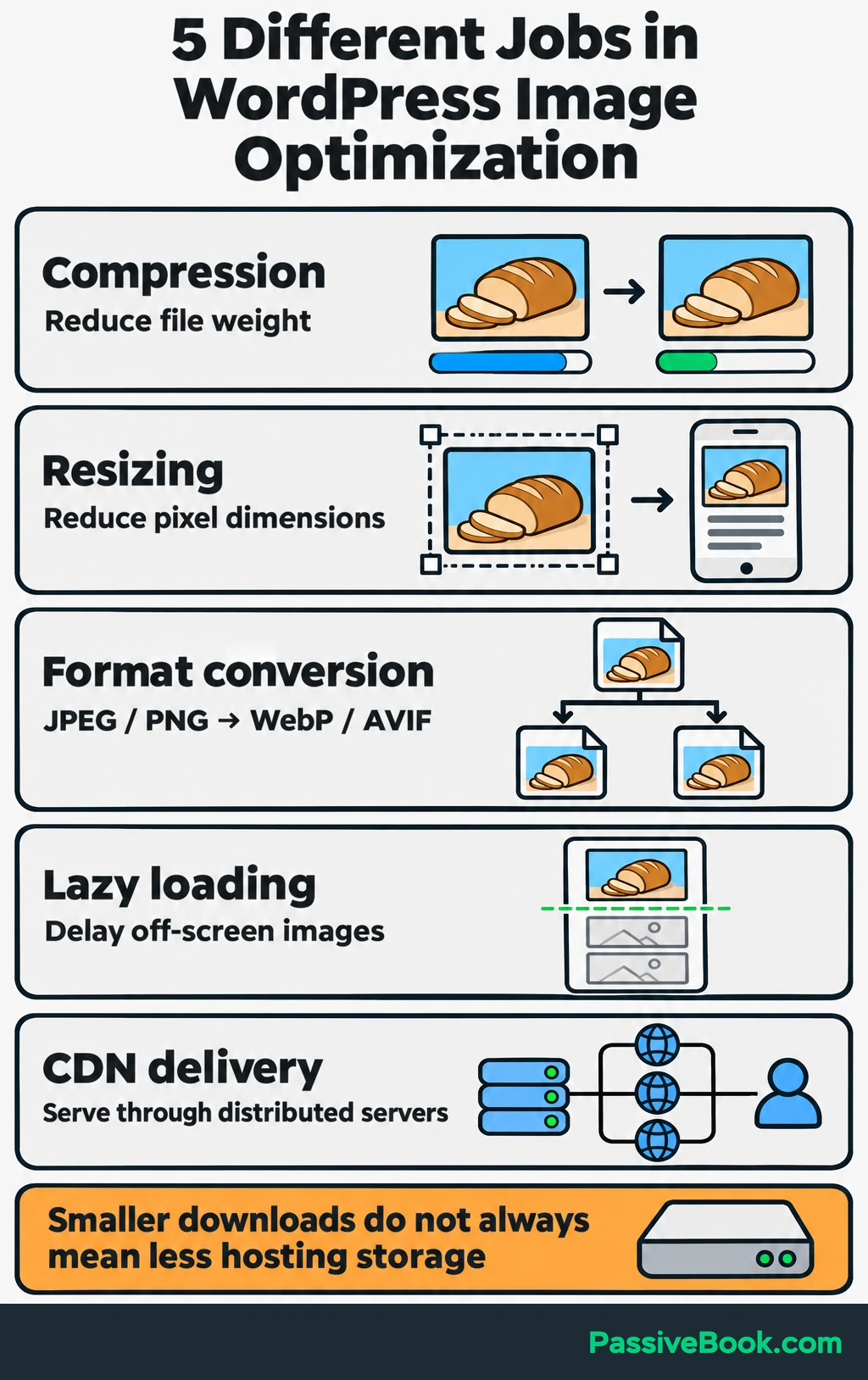
The best WordPress image optimization plugins handle different parts of the job. Before comparing them, separate these five functions:
- Compression: Reduces file weight. Lossy compression discards some image detail; lossless compression preserves the image’s pixels.
- Resizing: Reduces pixel dimensions. A huge photograph can remain unnecessarily heavy even after compression.
- Format conversion: Creates versions in WebP or AVIF, newer image formats that can produce smaller files than JPEG or PNG. Compare the delivered size and appearance rather than assuming either format always wins.
- Lazy loading: Delays images farther down the page until visitors approach them.
- CDN delivery: Serves images through a content delivery network, which uses servers in different locations.
For photographs, I would start with moderate lossy compression. Use lossless processing when preserving exact pixels matters, or when lossy settings damage useful detail. Resizing and format conversion remain separate choices, even when a plugin puts them on the same settings screen.
Also check where the result lives. Some plugins return optimized files to your hosting account. Others transform images as visitors request them through a CDN. Both can reduce downloads, but CDN optimization alone doesn’t necessarily reduce your hosting storage.
Throughout this guide, imagine you run a home-baking blog selling printable bread-making planners. Your site contains bread photographs, illustrated folding instructions and a transparent logo. Those three image types give you a useful way to judge quality without testing every file.
The table puts prices and allowances together so you can compare the full commitment. Dollar amounts are in US dollars, and taxes may apply. Use the linked official pages for current terms.
Thumbnails are the extra image sizes WordPress creates from an upload. “API processing” means the plugin sends images to the provider’s servers and retrieves the optimized files. “No” under lazy loading means the plugin doesn’t supply that function; your existing setup may already handle it.
| Plugin | Recommended Use | Stored Files or CDN Delivery | WebP / AVIF Availability | Included Lazy Loading | Free Allowance | Paid Price or Billing Basis | Principal Restriction |
|---|---|---|---|---|---|---|---|
| ShortPixel | Compression quality control | Optimized files stored locally; optional CDN | Both available with credits, including free credits | No | 100 credits/month | Unlimited: $9.99/month; non-expiring credit packs from $19.99 | Thumbnails and generated formats use extra credits; CDN usage is metered separately |
| Imagify | Simple compression workflow | External processing; optimized files returned to hosting | Both on free and paid plans | No | 20MB/month; 2MB maximum per image | Growth: $5.99/month for 500MB; Infinite: $11.99/month, with monthly billing | Quota counts input file sizes, including processed thumbnails |
| Optimole | Automatic sizing and image delivery | CDN transformations; paid offloading is separate | Both on free and paid plans | Yes, free | 2,000 visits/month | Visit-based subscription; Starter includes 48,000 visits/month. Compare monthly billing with the annual total | Visits mean unique daily users; continued delivery depends on an active account |
| EWWW Image Optimizer | Unlimited local lossless compression | Local optimization; paid API and Easy IO CDN available | Free WebP; paid Easy IO adds AVIF delivery | Yes, free | Unlimited local processing | Standard: $8/month or $80/year; includes 50GB CDN bandwidth and a separate premium compression allowance | Local processing requires compatible hosting utilities and permissions |
| CompressX | Free local format conversion | Locally stored converted files | Both free on compatible hosting | No | No conversion-credit quota for its free local workflow | Free local conversion | Hosting must support the chosen format and supply processing resources |
| Smush | Compression and lazy loading together | Stored-file optimization; Pro adds CDN delivery | Both require Pro | Yes, free | No monthly compression-credit quota; files over 5MB skipped | Pro Basic: $50/year for one site, with 50GB CDN bandwidth | Free version optimizes resized versions by default; full-size compression requires Pro |
| TinyPNG | Intermittent uploads and usage billing | API processing; optimized files stored locally | Both available through the credit system | No | 500 credits/month | Under pay-per-compression billing, the next 9,500 compressions cost $0.009 each | Every processed size counts; conversion adds another credit per size |
| Image Optimizer by Elementor | Existing Elementor One subscribers | External processing; optimized files stored locally | Both included in the trial and paid plans | No | Trial of up to 200 optimizations; 10MB maximum upload | Standalone subscriptions have annual allowances and annual billing; One uses shared credits | Generated sizes count individually; trial optimizations and One credits use different units |
| Converter for Media | Modern formats while keeping originals | Alternatives stored locally; Pro offers remote conversion | Free WebP; AVIF requires Pro | No | Free local WebP conversion without a paid process allowance | Pro starts at $5/month for 10,000 conversion processes, before tax | Each size and output format counts separately; server configuration can affect delivery |
| reSmush.It | Free compression for personal sites | API processing; optimized files stored locally | Neither generated by its API | No | Personal-use compression with a 5MB file limit | Contact the provider for commercial terms | Free personal-use terms don’t automatically cover a business site |
| WP-Optimize | Sites already using WP-Optimize | Stored-file image optimization | Free WebP; no advertised AVIF conversion | Premium only | Free compression, bulk processing and WebP conversion | Starter: $49/year for up to two sites, before applicable tax | Other performance modules can overlap with existing caching and minification |
Before buying, estimate two workloads: your existing library and your usual new uploads. A plan that comfortably handles each month’s photographs may be too small for the first bulk run.
On one of my digital-product sites, I went looking for a cover image in the uploads folder and found its smaller versions beside it. The media library had made the job look smaller than it was. Now I count the files a service will process, rather than the number of pictures I remember uploading.
Check selected thumbnails, conversion outputs and the provider’s billing unit. Credits, megabytes and visits describe different costs.
Once you have two plugins that cover the missing function, compare their costs over the same period. Use your estimated workload and the providers’ current terms rather than the lowest advertised prices.

Free Software Cost Calculator




The 11 Best WordPress Image Optimization Plugins Compared
1. ShortPixel Image Optimizer: Best for Compression Control
ShortPixel would be my first choice when image quality needs more than a single automatic setting.
It offers Lossy, Glossy and Lossless compression, along with resizing, bulk optimization and WebP/AVIF generation. Glossy is another lossy option designed for photographs where detail matters. It gives you a useful middle choice to inspect rather than forcing a choice between maximum compression and lossless processing.
For the baking blog, compare Lossy and Glossy on a photograph showing a dark, textured bread crust. Check whether the smaller version still shows the detail that makes the photograph useful.
Keep original-image backups enabled before processing the library. ShortPixel replaces working files with optimized versions, and those backups let you restore them.
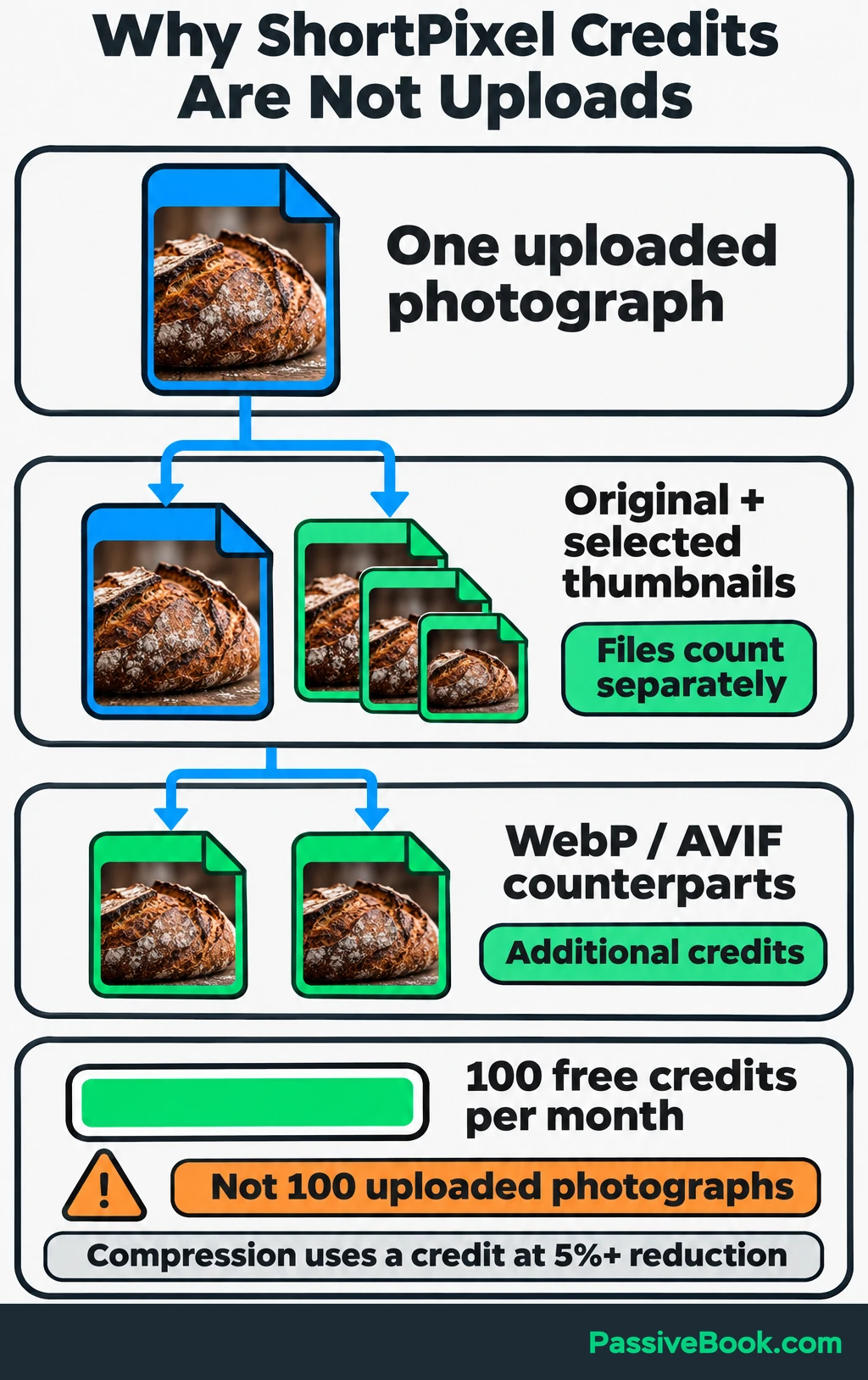
Its free allowance is useful for a sample, but it isn’t a promise to process 100 uploaded photographs. Originals and thumbnails count separately, and WebP or AVIF counterparts require additional credits. Compression uses a credit when it reduces a file by at least 5%.
I would choose ShortPixel for its controls and purchasing flexibility. I would skip generating every possible output until I knew which versions the site would actually serve.
2. Imagify: Best for a Simple Compression Workflow
Imagify is the option I would shortlist when compression and modern formats are missing from an otherwise adequate performance setup.
Its Smart Compression handles the quality decision automatically, and optional lossless processing gives you an alternative for sensitive images. It also resizes large uploads and runs bulk optimization in the background. WebP and AVIF conversion are available without upgrading.
Processing happens on Imagify’s servers, and the optimized files return to your hosting account. Keep its backup option active so you can restore originals.
The main budgeting trap is its megabyte allowance. Imagify counts file sizes before optimization, including the thumbnails you process. Reprocessing with another compression mode consumes quota again, so test a few representative files before applying a setting to the whole library.
For the baking blog, I would try Smart Compression on the bread photograph and inspect the illustrated instructions separately. Convenience is valuable, but readable instructions still get the final vote.
3. Optimole: Best for Automatic Resizing and CDN Delivery
Optimole makes sense when the problem extends beyond file compression. It adapts image dimensions to visitors’ devices, compresses them, delivers WebP or AVIF through its CDN and includes lazy loading.
That delivery workflow doesn’t require replacing your stored originals. For the baking blog, it can supply an appropriately sized bread photograph to a phone while keeping a larger version available for a wider screen.
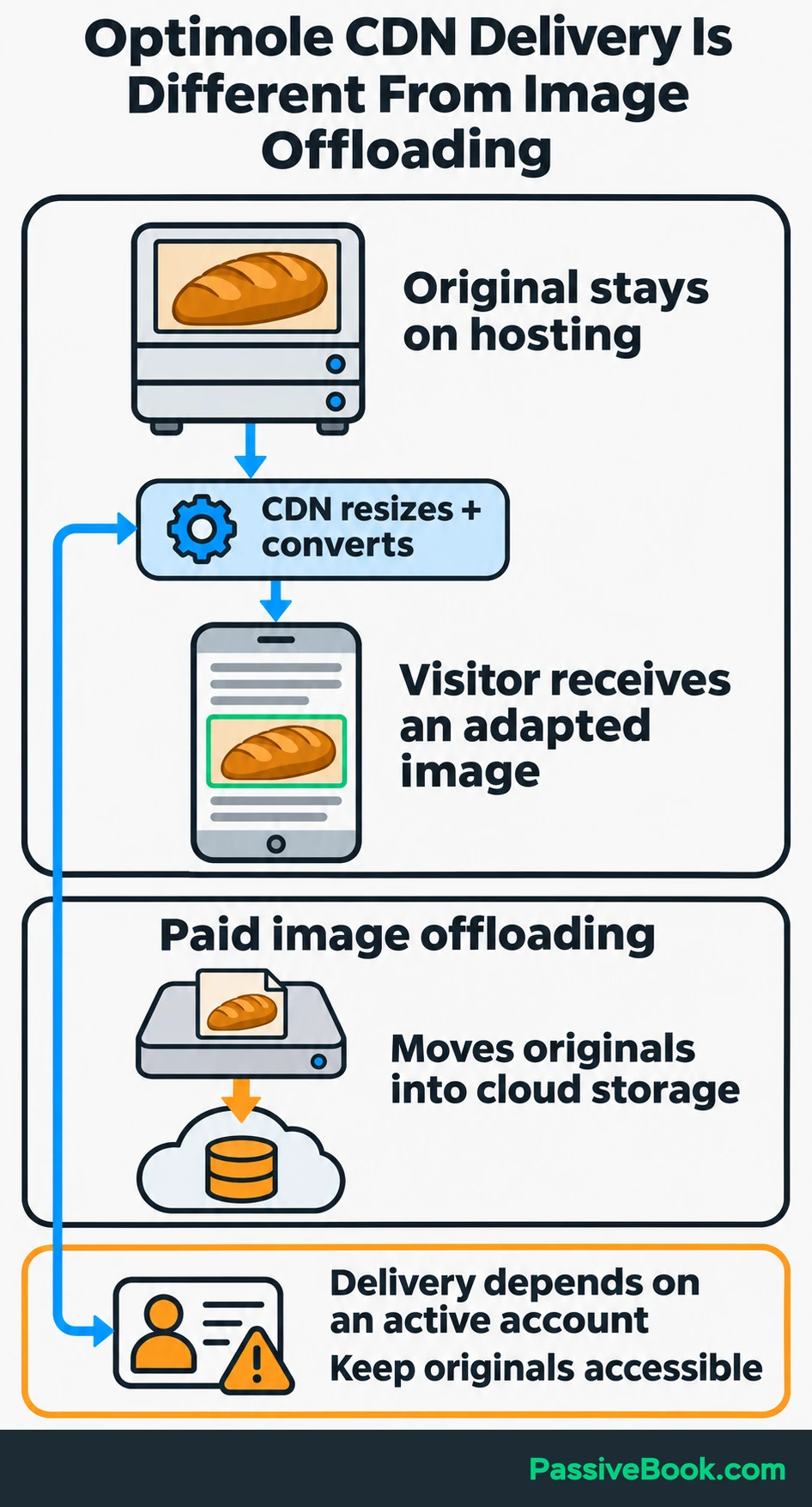
Its paid image offloading feature does a different job: it moves originals into cloud storage. Don’t confuse that with ordinary CDN delivery when estimating hosting space.
I would watch the visit allowance closely. Optimole counts unique daily users, so its usage total can differ from the monthly visitor figure in your analytics.
There is also an ongoing delivery commitment. Optimole documents that optimized images can stop loading when an account is suspended after exceeding its allowance. Keep originals accessible, and verify image loading when changing or cancelling the service. Optimole’s suspension guidance.
Choose it for automatic sizing and delivery when that convenience fits your traffic budget.
4. EWWW Image Optimizer: Best for Unlimited Local Lossless Optimization
EWWW’s free local workflow is appealing when you want to process a library without buying a recurring compression quota.
It supports lossless JPEG, PNG, GIF and SVG optimization, plus resizing, bulk processing, WebP conversion, lazy loading and local backups. Those functions cover a lot of ground before you consider a subscription.
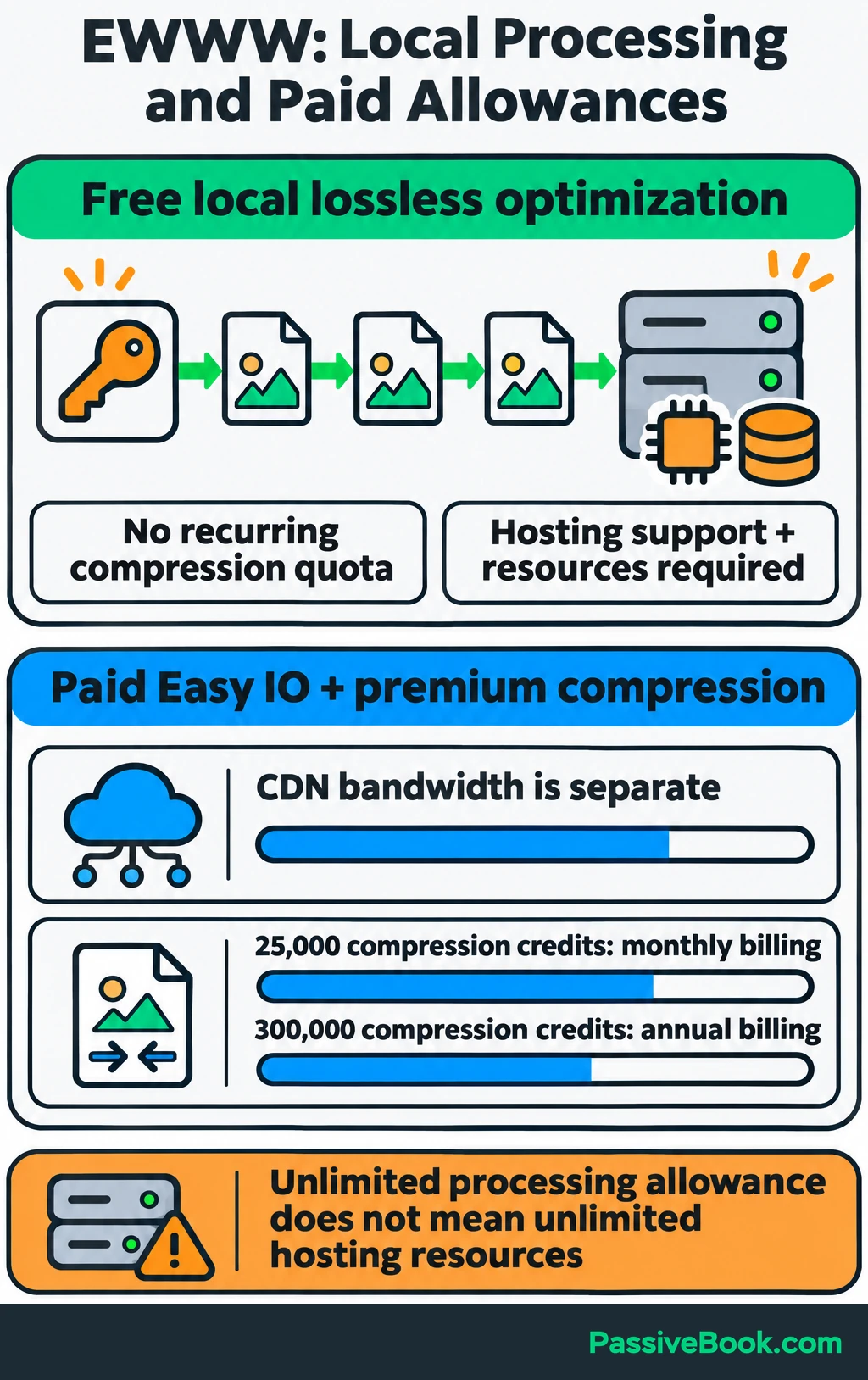
I would ask your host whether EWWW can run image-processing programs on your server before planning a large batch. If your host blocks them, EWWW’s free external service covers lossless JPEG optimization and WebP conversion, but doesn’t replace every local feature.
“Unlimited” describes the processing allowance, not an unlimited supply of hosting resources.
The paid Standard package adds Easy IO CDN delivery and WebP/AVIF support. Its CDN bandwidth and premium compression allowance are separate: monthly billing includes 25,000 premium compression credits, while annual billing includes 300,000.
Choose free local mode when avoiding usage charges matters and your host supports it. Consider the paid service when stronger compression or CDN delivery solves a separate need.
5. CompressX: Best for Free Local WebP and AVIF Conversion
CompressX is where I would start when you want modern formats without paying a conversion service.
Its free workflow creates WebP and AVIF alternatives locally, processes existing images and handles future uploads automatically. It can also compress files already uploaded in WebP or AVIF format.
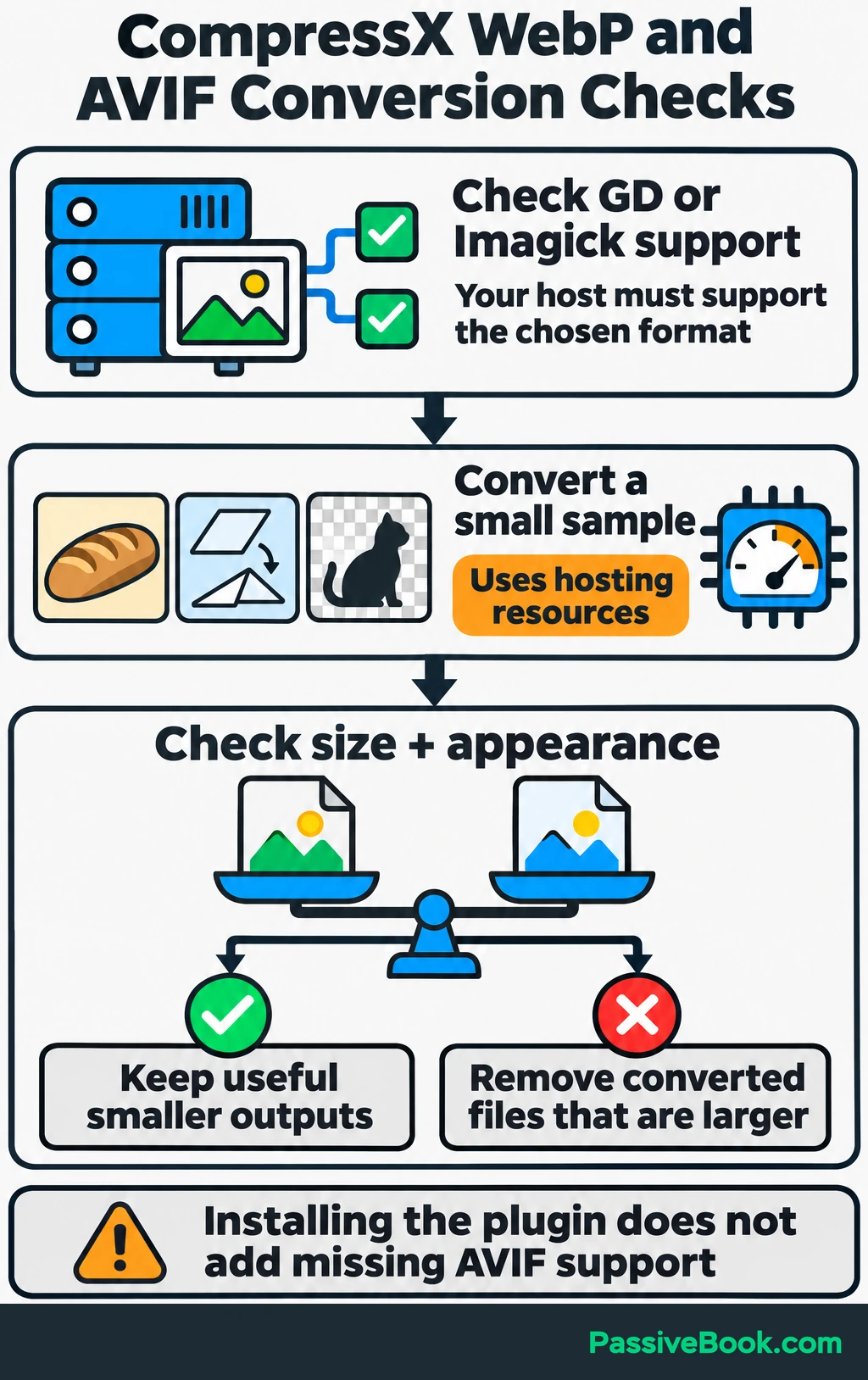
First, check whether your host’s GD or Imagick image library supports your chosen output format. Having the plugin installed doesn’t add missing AVIF support to the server. CompressX’s image-library requirements.
Local conversion also uses your hosting resources, so begin with a small batch. I would avoid launching a large conversion job just before sending traffic to a new article.
Enable its option to remove converted files that are larger than their originals. A newer format has to earn its space.
For the baking blog, compare the photograph, instruction graphic and transparent logo separately. Choose CompressX when conversion is the missing function, then leave lazy loading and delivery with the tools already handling them well.
6. Smush: Best for Compression and Lazy Loading in One Interface
Smush combines automatic upload optimization, bulk compression, directory optimization and lazy loading. That makes it a reasonable choice when you want those controls together.
Its free version has two restrictions that matter to this decision: it skips files over 5MB and optimizes resized versions by default. Full-size image compression requires Pro. WebP/AVIF delivery and its image CDN also require Pro.
Those limits can explain why an image remains heavy even though a bulk job appears complete. Check the actual file used on the page, especially if a bread tutorial displays full-size photographs.
I would consider free Smush when its compression and loading features fill the gaps in your setup. If modern formats are essential, compare the Pro commitment from the start.
And if your existing performance plugin already handles lazy loading, disable one implementation. Two switches labelled “lazy load” don’t create twice the benefit. They create another thing to untangle when an image disappears.
7. TinyPNG: Best for Pay-as-you-go Compression
TinyPNG suits sites with occasional uploads because its API billing follows usage. The plugin supports automatic and bulk compression, resizing, selective thumbnail processing and WebP or AVIF conversion.
Connect an account, then choose the image sizes your pages actually use. Selective processing matters because each size can consume credits.
Here is an illustrative monthly workload for the baking blog. Count each uploaded original and four selected thumbnails, then count one additional converted format for every processed file:
- Compression: 40 uploads × five sizes = 200 credits.
- Conversion: 200 processed files × one additional format = 200 more credits.
- Total: 400 credits, assuming successful processing.
That fits within the listed free monthly allowance if the account has no other processing that month. Estimate the existing library separately.
I would choose TinyPNG for intermittent use when the file count is predictable. Before bulk processing, keep an independent backup and check how many sizes are selected. The upload count alone is a poor budget.
8. Image Optimizer by Elementor: Best for Elementor One Subscribers
Elementor’s Image Optimizer is a standalone plugin, so you don’t need to build your pages with Elementor to use it.
It offers lossy and lossless compression, resizing, background bulk processing, original-image backups and WebP/AVIF conversion. Those are useful features regardless of which editor built the bread tutorial.
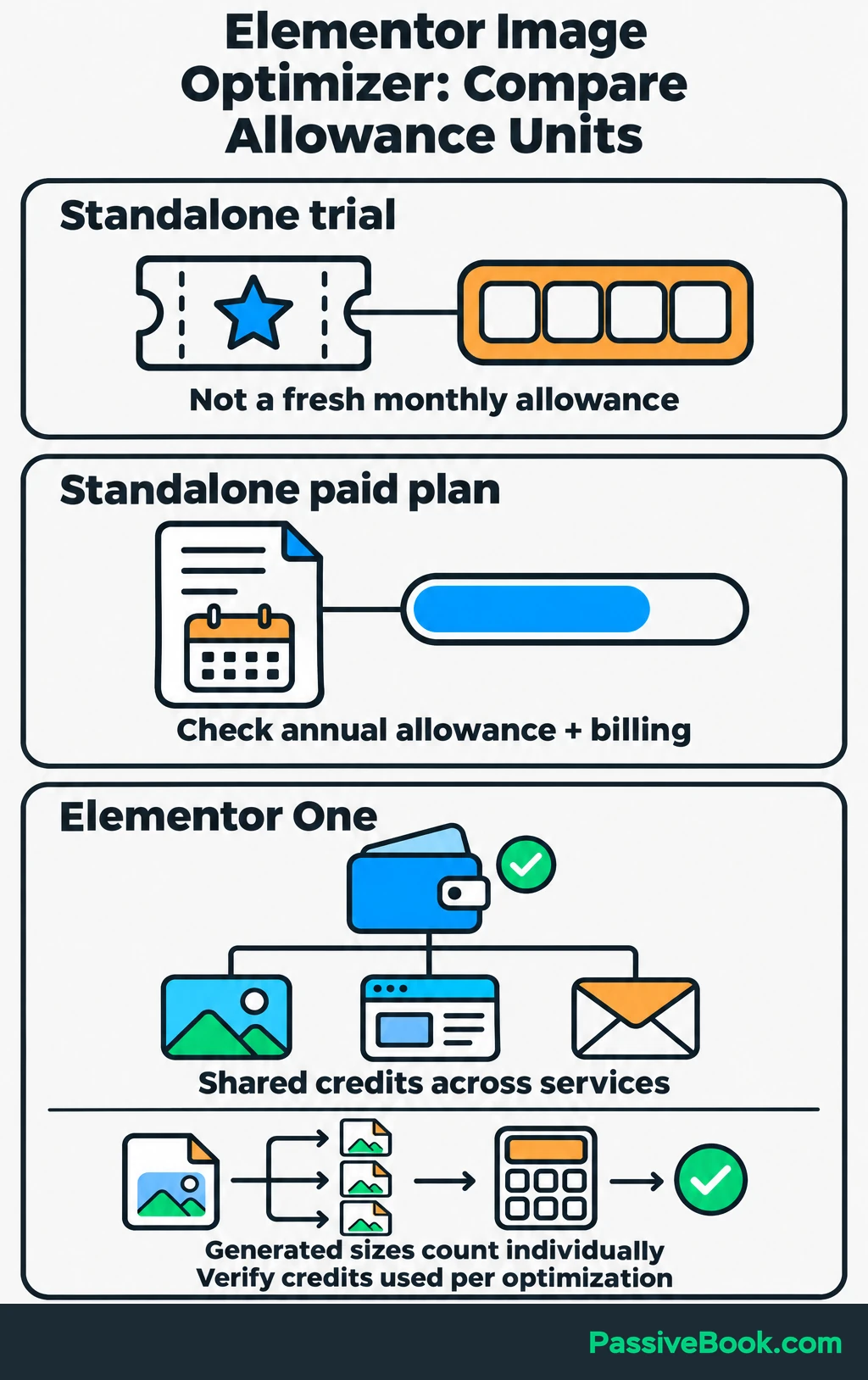
The strongest reason to shortlist it is an existing Elementor One subscription. One includes shared credits across several services, so check your available allowance before buying another image subscription.
Before estimating how much of your library One will cover, check how many shared credits each optimization consumes. A shared credit balance and a standalone image allowance aren’t directly comparable.
The standalone free offer is a trial, rather than a fresh monthly allowance. Generated image sizes also count individually, so compare the full library workload with the annual plan allowance.
I would use included capacity before adding another bill, provided the sample images pass inspection. For a separate purchase, compare the annual checkout and renewal totals with the other compression-focused options.
9. Converter for Media: Best for Serving Modern Formats While Retaining Originals
Converter for Media creates alternative formats while leaving original files unchanged. WebP is free, and AVIF requires Pro.
It serves an available format according to browser support, falling back to WebP or the original when needed. That makes it useful when conventional images are already resized and compressed, but modern-format delivery is still missing.
Check server compatibility before committing. Some Nginx setups need configuration changes from the hosting provider. Ask the host to confirm support before buying Pro if the plugin reports a delivery problem.
Its paid allowance counts conversion processes. One file converted to both WebP and AVIF uses two processes, and thumbnails are separate files.
For the baking blog, I would consider it when the existing setup already handles resizing and lazy loading. Keep those functions where they are, and let Converter for Media handle format delivery. Adding another format-rewriting tool alongside it would make troubleshooting harder.
10. reSmush.It: Best for Free Compression on Personal Sites
reSmush.it handles automatic and bulk JPEG, PNG and GIF compression through an external API. It includes adjustable quality, exclusions and original-image restoration.
Its narrow role is straightforward conventional-format compression. The API doesn’t generate WebP or AVIF, so it won’t fill that gap.
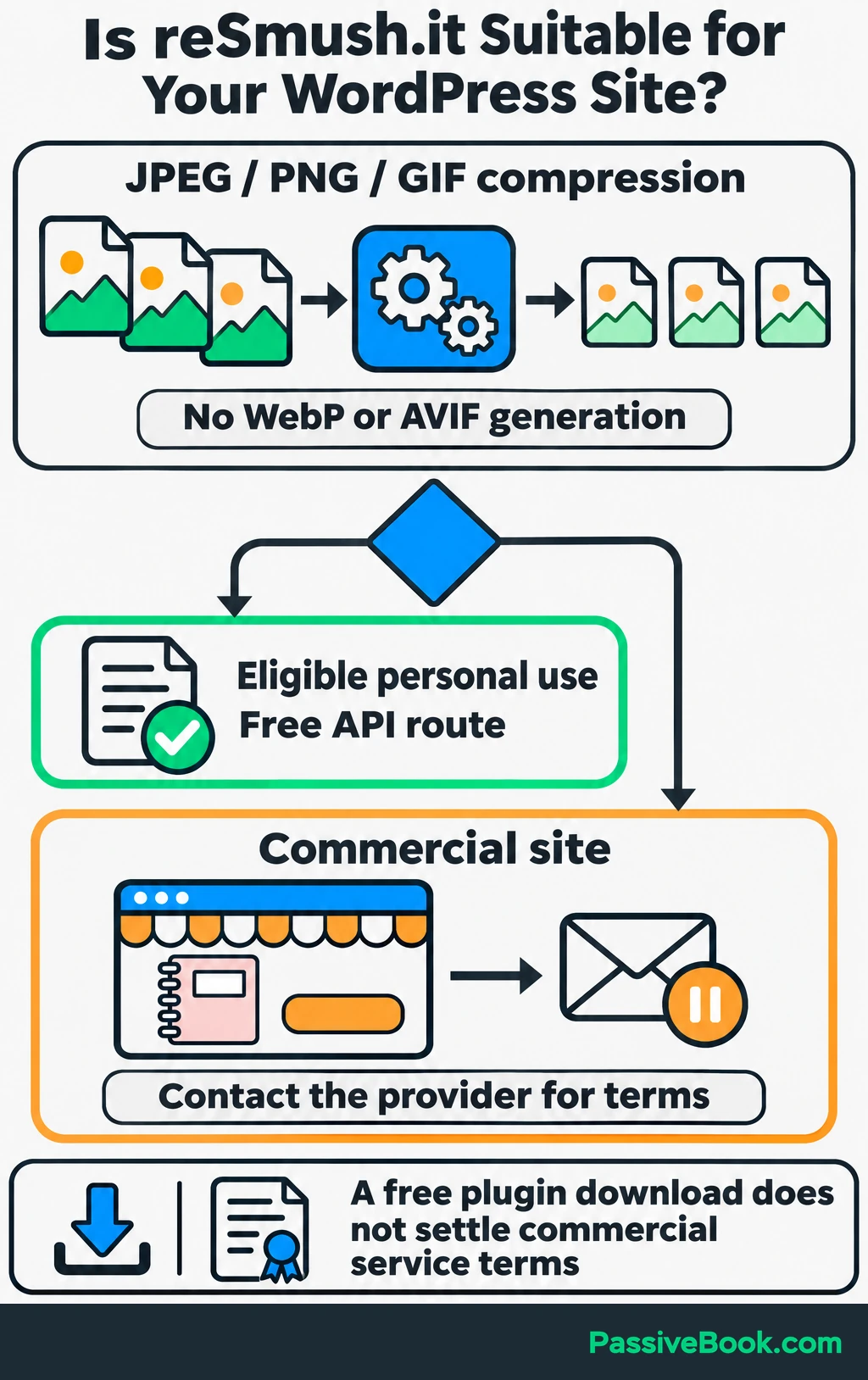
The bigger issue for a business is the service terms. Free API use is for personal use, and the provider asks commercial users to contact it for a suitable arrangement.
That means I wouldn’t assume the baking blog qualifies simply because traffic or planner sales are small. A free plugin download doesn’t settle the service’s commercial terms.
Choose it for an eligible personal site when conventional formats meet your needs. For the planner business, I would resolve commercial access first or choose another option with clearer self-service terms for that use.
11. WP-Optimize: Best for Sites Already Using WP-Optimize
If WP-Optimize is already installed, inspect its image module before adding another plugin.
It provides lossy and lossless compression, automatic upload processing, bulk optimization, original restoration and WebP conversion. Compression, bulk processing and WebP conversion are free; its own image lazy loading requires Premium.
That may already cover what your pages need. I wouldn’t buy Premium solely to add lazy loading if an existing tool handles it correctly.
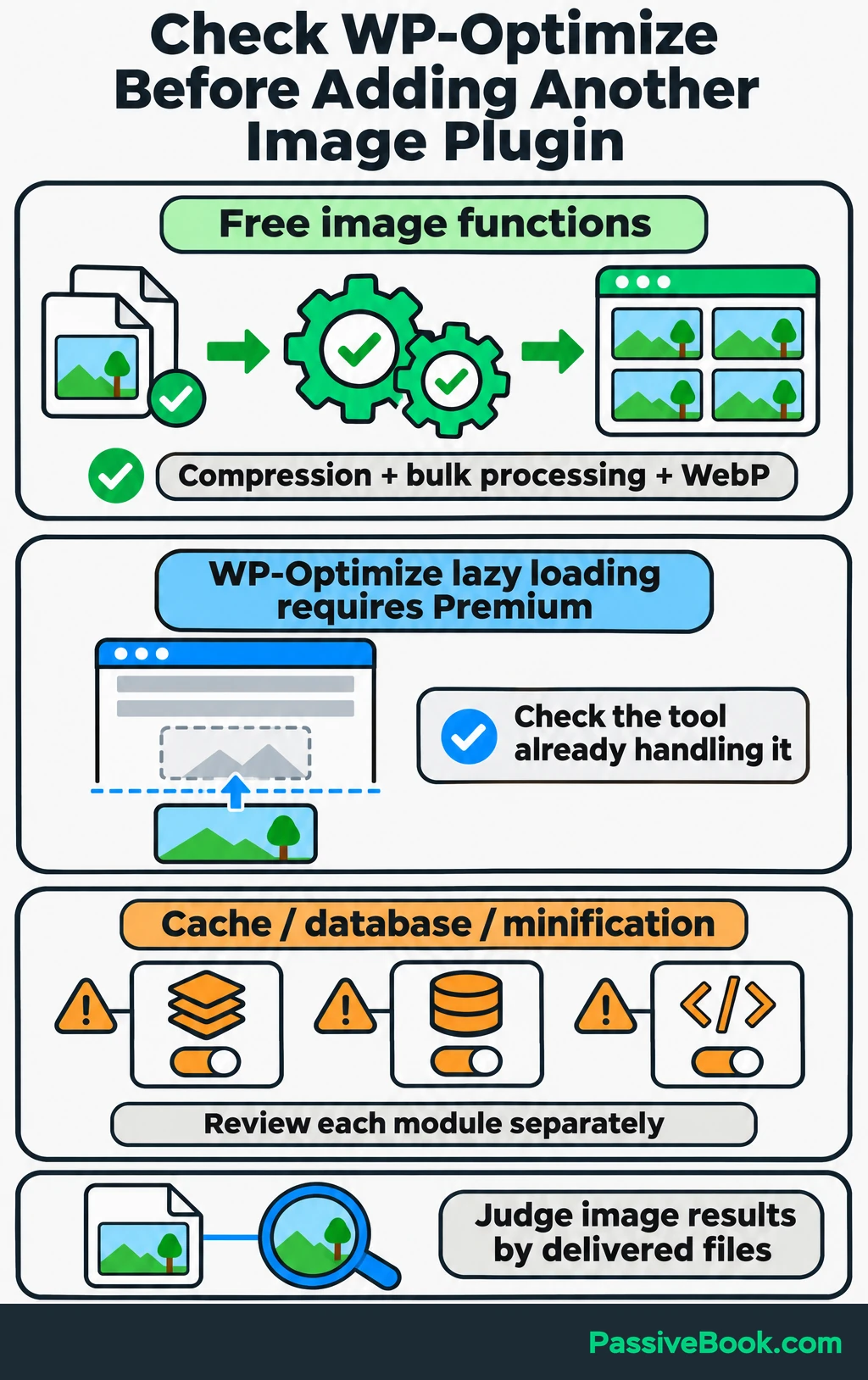
WP-Optimize also includes caching, database and minification features. Check those against your current setup before enabling them. On a site already using WP Rocket, switching on another caching system deserves a separate decision.
Judge the image module on the files visitors receive. A faster page after changing cache settings doesn’t demonstrate that WP-Optimize compressed its images better.
I would keep it when its image functions meet the requirement and the sample looks good. Another plugin needs to solve a specific remaining problem to justify the extra maintenance.
Set up Your Chosen Plugin Safely
Back up Originals and Record a Baseline
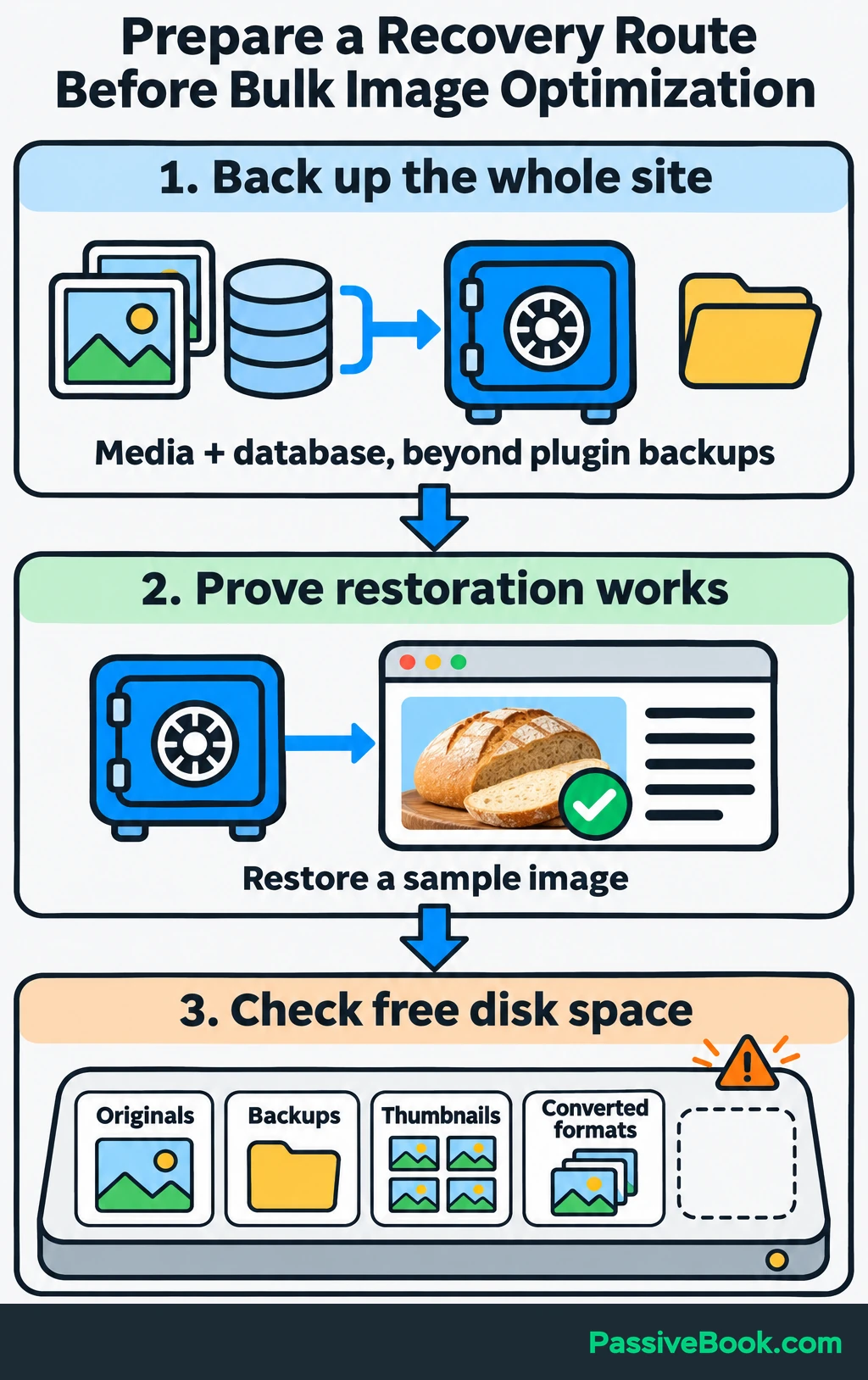
Back up your media files and database before a bulk operation. Confirm that you can restore a sample image. If your host offers staging, use that separate test copy of your site to try the settings.
A plugin’s original-image backup is useful, but I still want an independent site backup. It gives you a recovery route if the problem involves more than one photograph.
Check free disk space too. Originals, backups, thumbnails and converted formats can coexist. Smaller downloads can arrive with a larger uploads folder.
Next, choose two pages to measure: the homepage and an image-heavy tutorial. For the baking blog, use the homepage and a bread-making guide containing photographs and folding instructions.
Before changing settings, record:
- Image downloads: The transferred image bytes during a defined page visit.
- Appearance: Screenshots at useful mobile and desktop sizes.
- Loading results: Run Google’s PageSpeed Insights test in mobile mode. Record Largest Contentful Paint (LCP), which measures when the largest visible image or text block appears. Record Cumulative Layout Shift (CLS) for unexpected layout movement.
- Existing problems: Missing images, awkward crops, delayed loading or moving content.
Keep the tested URLs and conditions with those notes. Otherwise, you may end up comparing a simple homepage with a long tutorial and calling the difference progress.
Assign Each Image Function to One Tool
Check your theme, page builder, performance plugin, host and CDN before enabling image features.
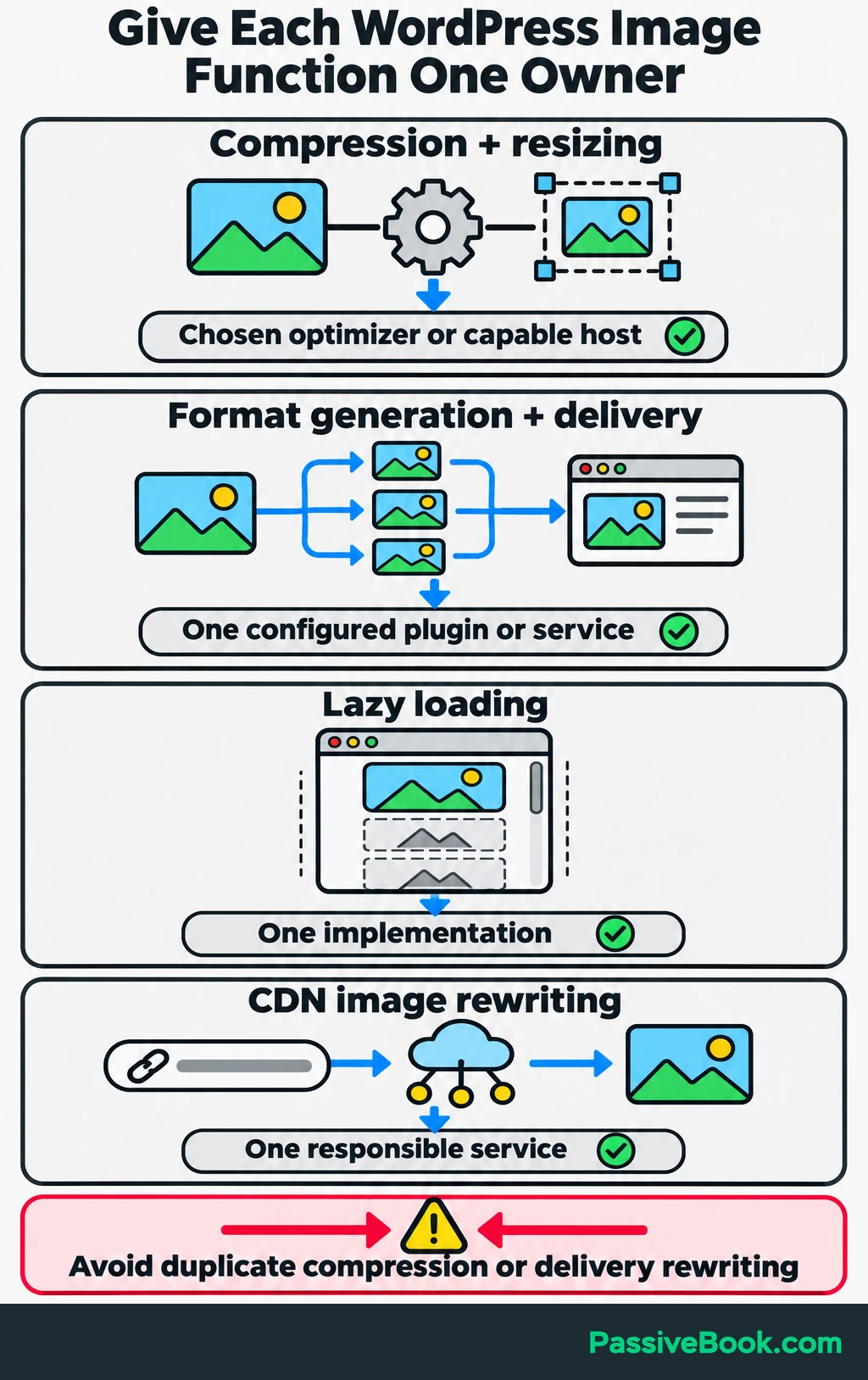
Give each function one owner. Compression can belong to one tool and lazy loading to another, but avoid letting two services repeatedly compress files or rewrite the same image delivery.
On Passive Book, I use WordPress, WP Rocket and Cloudflare. That existing stack is my starting point for any image-plugin decision. I check which functions are active before adding another set of switches.
Write down the assignments:
- Compression and resizing: The chosen optimizer, unless hosting already provides the required processing.
- Format generation and delivery: One configured plugin or image service.
- Lazy loading: One implementation, with visible priority images excluded.
- CDN image rewriting: One service responsible for the delivered image URLs or responses.
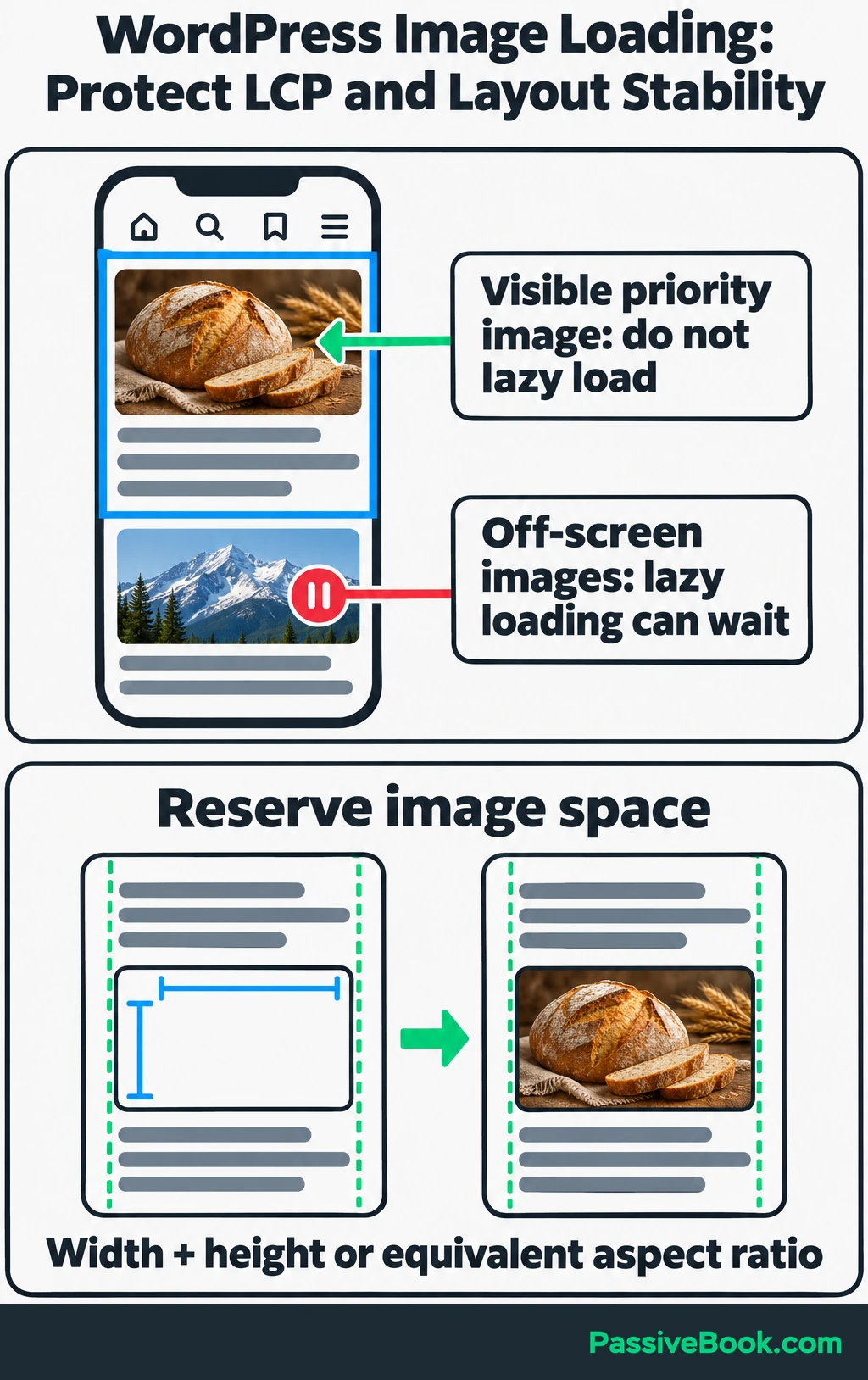
Keep the main visible image out of lazy loading, particularly when it is the page’s largest content element. Delaying that image can worsen LCP. Google’s LCP loading guidance.
Also reserve space for images through correct width and height information or an equivalent aspect ratio. That prevents surrounding text from moving as the image loads. Google’s layout-shift guidance.
Test a Small Batch Before Optimizing the Library
Process a few representative images before spending credits across the library.
For the baking blog, choose:
- Bread photograph: Look for lost crust texture, muddy shadows or strange colour changes.
- Folding illustration: Check thin lines, labels and small arrows.
- Transparent logo: Inspect edges and transparency against the backgrounds where it appears.
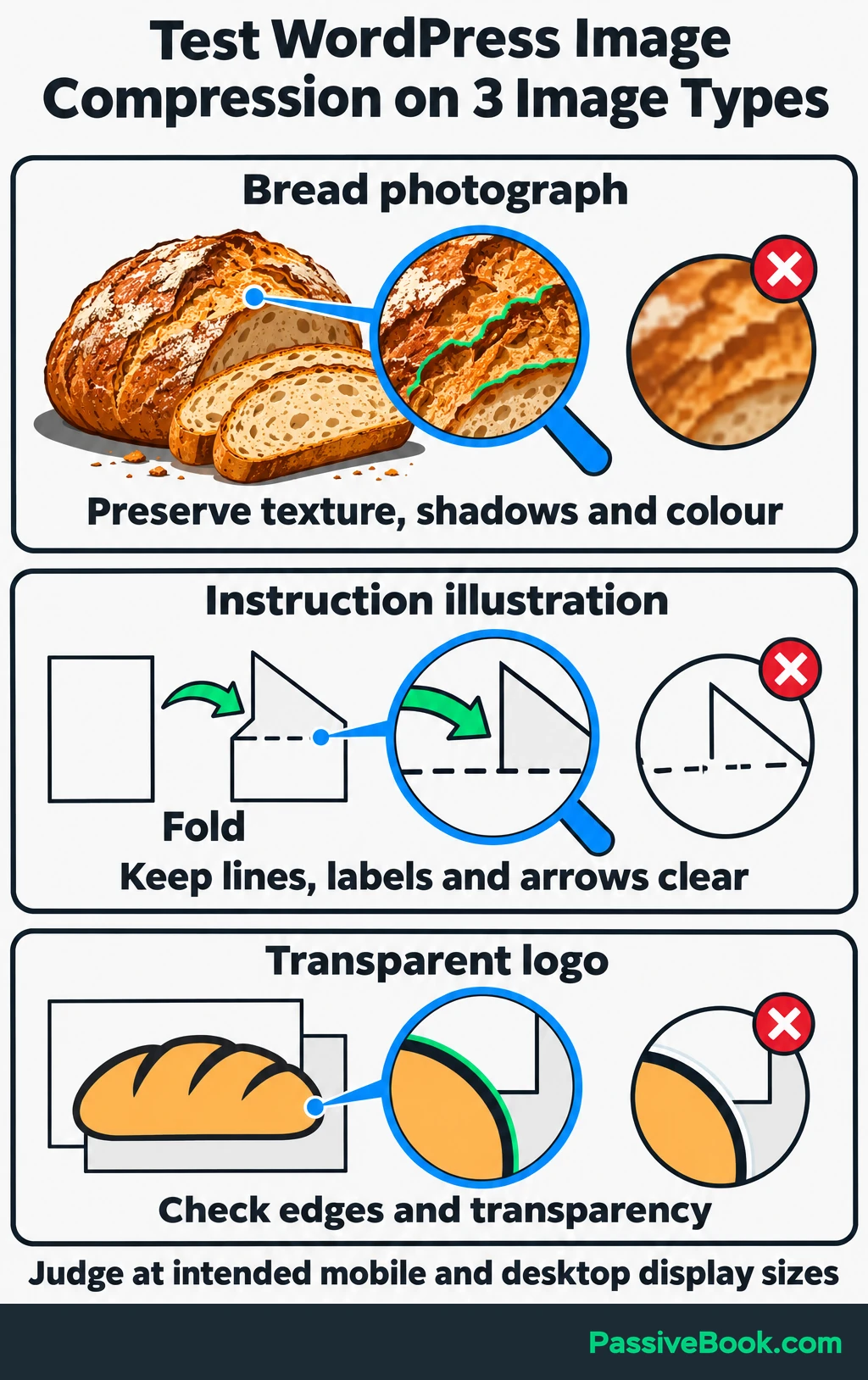
View them at their intended display sizes on mobile and desktop. Enlarging an image far beyond its normal use can distract you from what visitors actually see.
Start photographs with moderate lossy compression. Increase quality or use lossless processing if useful detail deteriorates. Test graphics separately because a setting that works on bread crust may damage small instructional text.
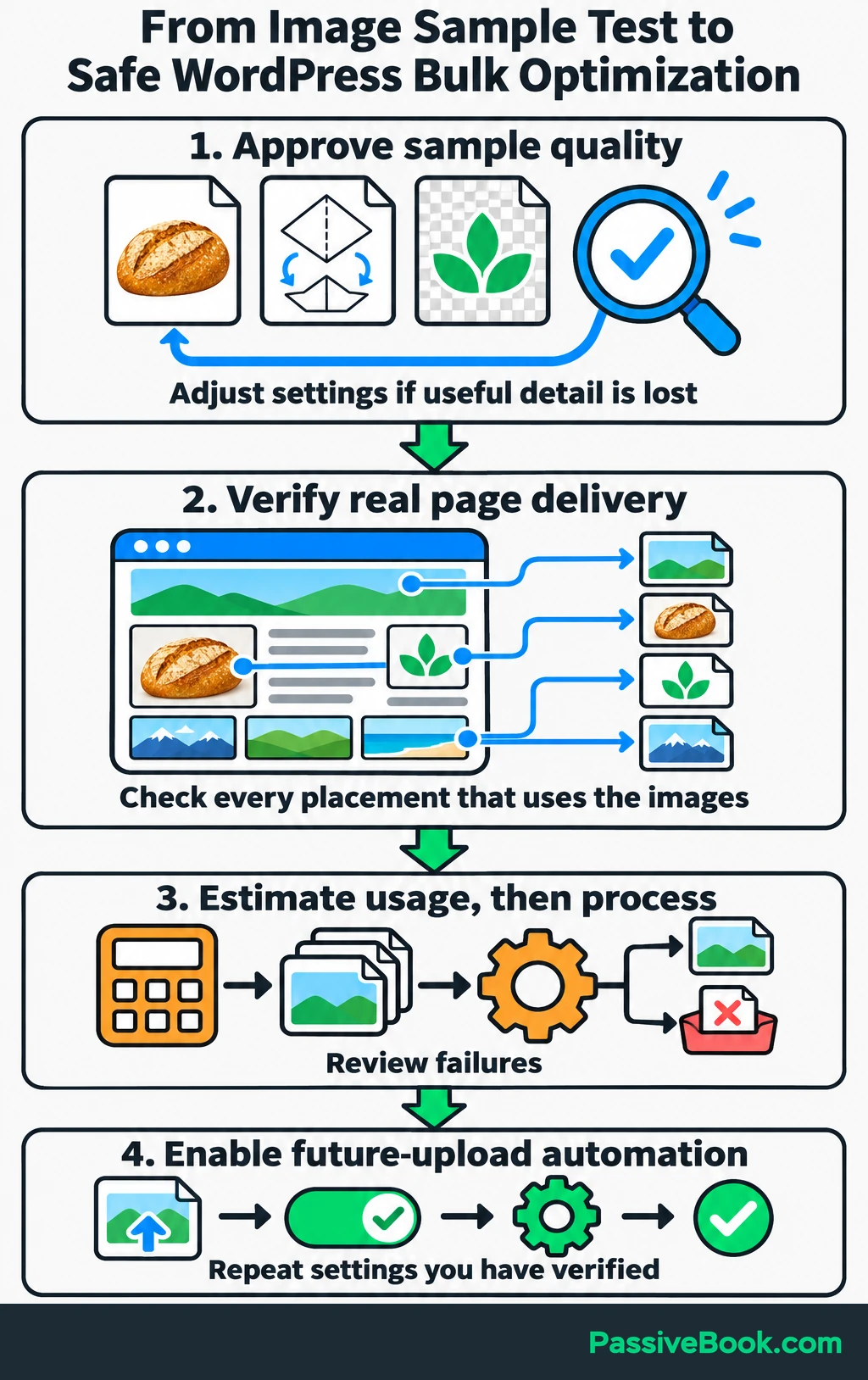
Then check where those images appear: article bodies, archive thumbnails, galleries, related-post cards and page-builder backgrounds. A converted file sitting in storage helps nobody if the page still downloads the old version.
Once the sample passes, estimate bulk usage, process the library and review failures. Enable automatic optimization for future uploads after you have confirmed the settings. Automation is useful once you trust what it repeats.
Check Whether Your Pages Actually Improved
Clear the relevant page and image caches, then inspect what the browser downloads.
In your browser’s developer tools, open the Network panel, filter for images and reload the page. Check the response format, transferred bytes and image dimensions. Some delivery methods keep a .jpg URL while returning WebP or AVIF, so the filename alone doesn’t prove which format arrived.
Define what you measure before comparing bytes. For example, record all image transfers from a fresh load followed by a full scroll. Repeat the same action afterward. Comparing a fully scrolled page with an untouched lazy-loaded page gives you a misleading saving.
Repeat mobile PageSpeed Insights tests on the same URLs before and after the change. Use several runs and compare the middle result rather than celebrating the fastest one.
Copy this recording sheet for your own checks. No results have been measured or reviewed in these example rows.
| Page | Settings | Delivered Format | Image Bytes | Visual Quality | LCP | CLS | Display Problems |
|---|---|---|---|---|---|---|---|
| Homepage — before | Existing setup | Not checked | Not measured | Not reviewed | Not measured | Not measured | Not inspected |
| Homepage — after | Record plugin, quality and loading settings | Not checked | Not measured | Not reviewed | Not measured | Not measured | Not inspected |
| Bread tutorial — before | Existing setup | Not checked | Not measured | Not reviewed | Not measured | Not measured | Not inspected |
| Bread tutorial — after | Record plugin, quality and loading settings | Not checked | Not measured | Not reviewed | Not measured | Not measured | Not inspected |
LCP and CLS matter more than a plugin’s headline savings counter because they describe aspects of the page visitors experience.
Read immediate test results alongside real-user data. PageSpeed Insights field data covers the previous 28 days and needs enough samples. After a change, that report still includes earlier visits, and a missing field report establishes neither a pass nor a failure. Core Web Vitals also includes INP, which measures responsiveness to interactions, so image compression alone cannot establish an overall pass. Google’s PageSpeed Insights explanation.
If image downloads shrink but LCP stays slow, investigate what happens before and after the download. A slow server response, late image discovery or delayed rendering can keep the largest element waiting.
I wouldn’t switch plugins just because the score refuses to move. First confirm that the chosen tool reduced the delivered images without damaging them. Then fix the remaining delay.
What Next?
Choose one image-heavy page and record its current image downloads before installing anything. That gives your plugin choice a clear job and gives you evidence to keep or reject it.
Use the social buttons to share this comparison when your next site-speed discussion turns into a pile of plugin recommendations. The useful question is which missing function each tool would handle.
Which image task does your current setup still struggle with: compression, sizing, modern formats or delivery? Tell me in the comments, and bring any other questions with it.
Share this post with your friends & followers:

