A reader wants to support your work. You need somewhere to send them, but choosing a donation plugin brings up questions a payment button doesn’t answer. Can they give monthly? Will PayPal work? What does “free” cost after each payment?
Those details matter because you’ll be the person answering when a receipt goes missing or a supporter wants to cancel. This comparison helps you find a plugin that fits the support you want to accept, weigh its ongoing costs, and test the payment process before inviting readers to contribute.
Choose a Tip Jar or a Fundraising System
Choose a tip jar when readers want to support content you already publish. You need a clear invitation, a reliable payment form, and a way to acknowledge the payment.
Choose a fundraising system when you also need campaign goals, donor histories, reports, and somewhere supporters can manage their details. Either approach can accept recurring payments when the plugin, plan, and payment gateway support them. The gateway connects your form to a service such as Stripe or PayPal, which processes the payment.
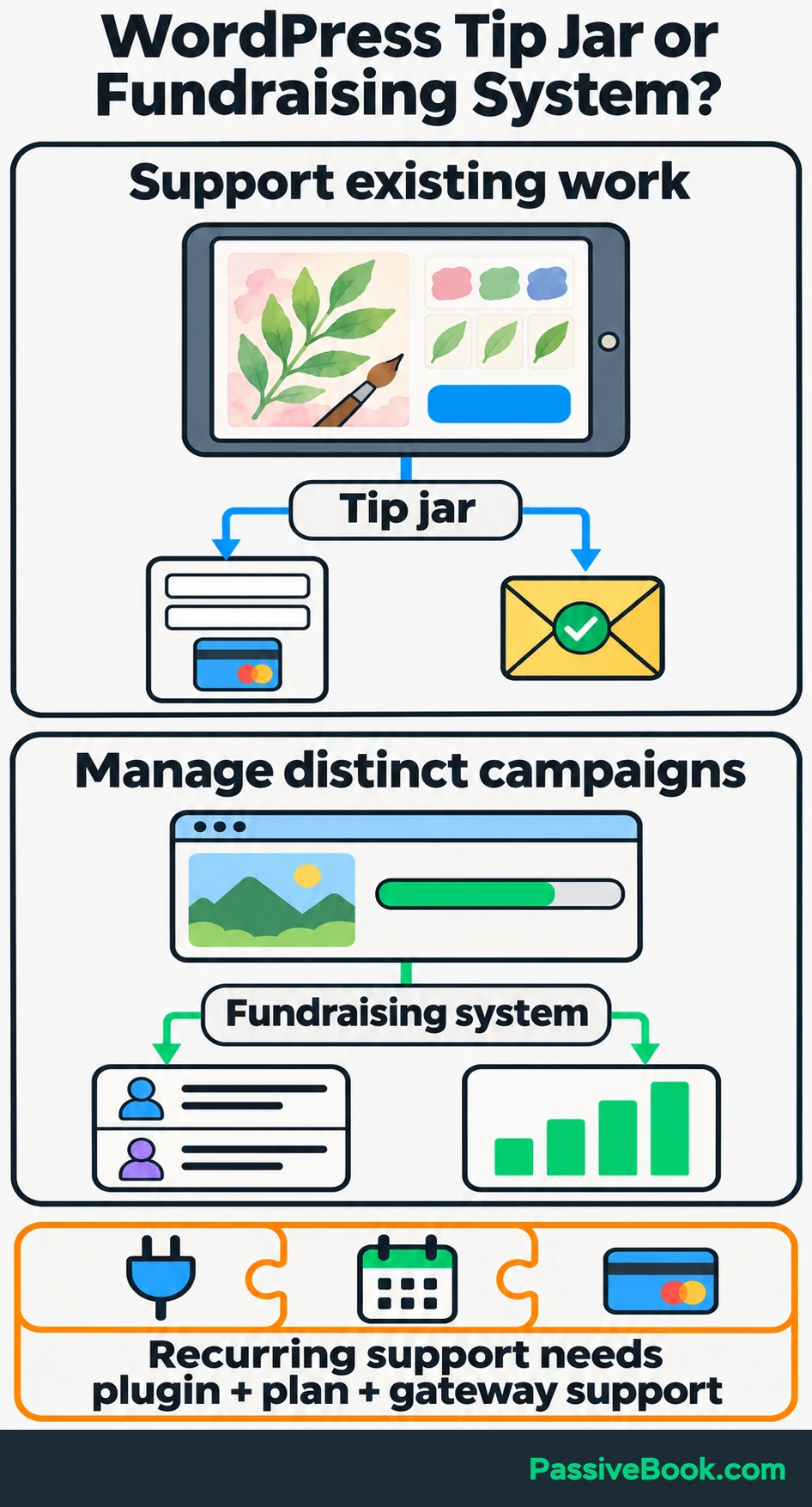
For the running example, imagine you publish free watercolor lessons and sell printable practice sheets. You want an optional reader-support page. I would start with a tip jar because you’re supporting an existing publishing business. A campaign dashboard earns its place only when you have campaigns to manage.
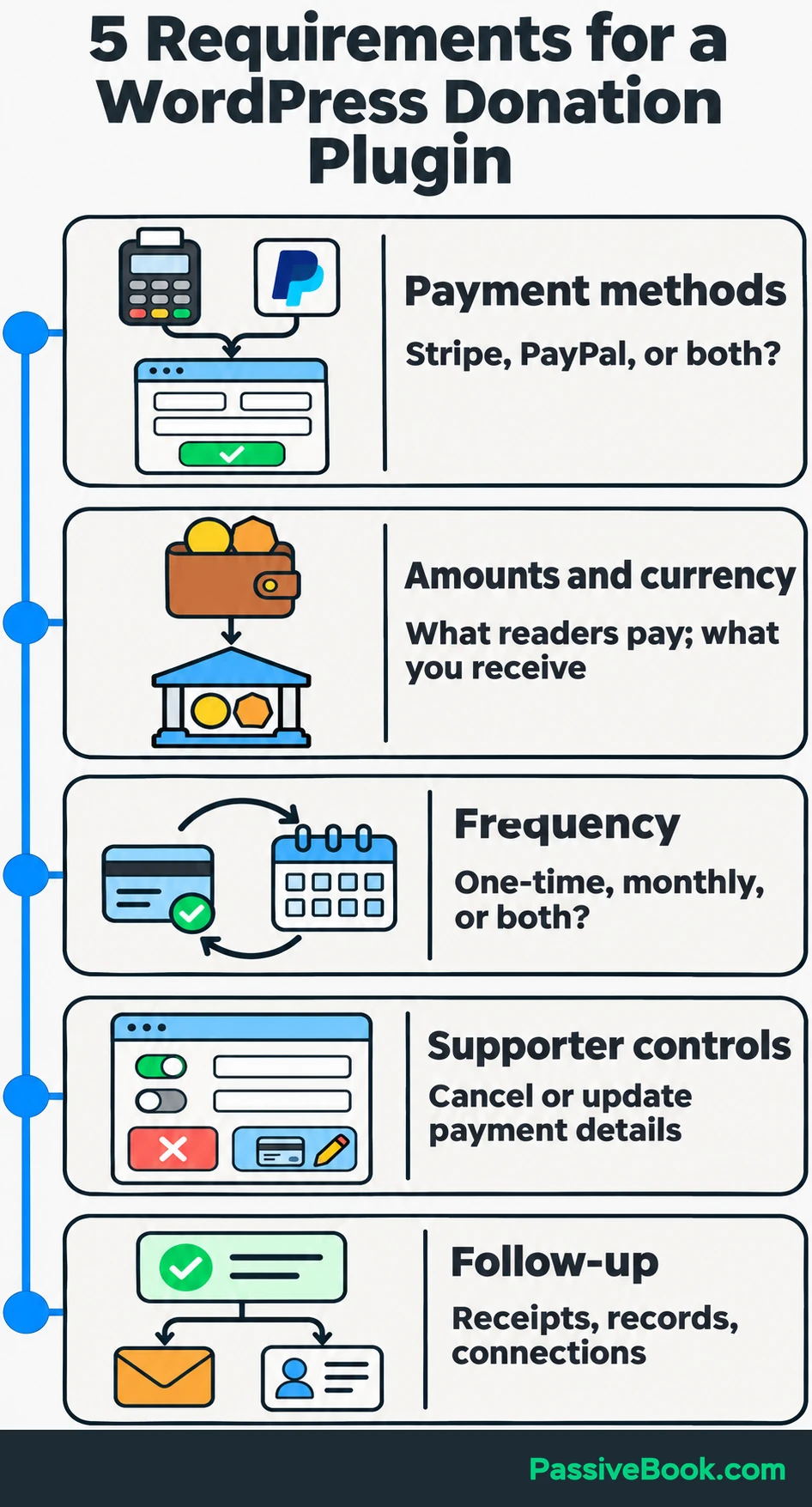
Before comparing WordPress donation and tipping plugins, write down five requirements:
- Payment Methods: Cards through Stripe, PayPal, or both.
- Amounts and Currency: The currency readers pay in, the currency you receive, suggested amounts, and whether readers can enter their own amount.
- Frequency: One-time support, monthly support, or a choice between them.
- Supporter Controls: How people cancel recurring payments or update a payment method.
- Follow-up: Receipts, contribution records, and any email or customer-management connection.
Be specific. “Supports PayPal” doesn’t answer “Can someone choose monthly PayPal support on this form?”
Also confirm that the processor accepts your country and activity before buying a license. Stripe distinguishes tips for goods, services, or content already provided from donations committed to a specific charitable purpose, and regional restrictions apply. Optional support for your lessons should be described accurately when opening the account. Stripe’s tips and donations requirements.
The Best WordPress Donation and Tipping Plugins Compared
My starting shortlist is WP Simple Pay for a Stripe tip jar, Charitable for campaign fundraising, and GiveWP for extensive donor management. If your existing form plugin already meets your requirements, check that first.
Prices are in USD. Check the linked pricing pages for current offers and renewal terms. These recommendations compare documented features and costs; they do not come from hands-on checkout, performance, or security testing.
The additional fee column covers the plugin or platform’s charge. Payment-processor charges remain separate, and recurring payments can bring additional billing charges.
| Plugin | Best Fit | Form Type | Stripe/Card Support | PayPal Support | Recurring-Payment Requirements | Additional Plugin/Platform Fee | Relevant License or Subscription Cost |
|---|---|---|---|---|---|---|---|
| WP Simple Pay — 4.4/5, 117 reviews | Standalone Stripe tip jar | Hosted Stripe Checkout in Lite; embedded forms with paid plans | Stripe cards | No PayPal integration | Lite supports subscriptions; Plus adds a one-time/recurring toggle and supporter subscription controls | Lite: 3%; valid paid license: 0% | Free Lite. Personal: $49.50 first year, $99/year renewal. Plus: $99.50 first year, $199/year renewal |
| Donations via PayPal — 4.7/5, 27 reviews | Basic PayPal support button | Button leading to PayPal | No Stripe integration | Yes; checkout through PayPal | No integrated recurring-giving controls documented | No additional plugin fee | Free |
| Fluent Forms — 4.8/5, 808 reviews | Support payments alongside other forms | Custom forms embedded in WordPress | Stripe in free and Pro | Pro required | Free Subscription field for Stripe; Pro for PayPal subscriptions | Free Stripe: 1.9%; Pro: 0% | Free version. One-site Pro: $63 first year; $79 regular annual price |
| WPForms — 4.8/5, 14,388 reviews | Sites already using WPForms | Custom payment forms | Stripe in Lite | PayPal Commerce in Lite; Business account required | Lite supports subscriptions; Pro adds advanced payment choices | Lite, Basic, Plus: 3%; active Pro or higher: 0% | Free Lite. Pro: $199.50 first year, $399/year renewal |
| Charitable — 4.9/5, 219 reviews | Campaign goals and fundraising reports | Campaign pages and donation forms | Stripe cards | Yes | Plus or higher for recurring donations | Lite: 3%; paid plans: 0% | Free Lite. Basic: $69 first year, $149/year renewal. Plus: $99 then $199/year. Pro: $199 then $399/year |
| GiveWP — 4.6/5, 708 reviews | Extensive donor records and reporting | Donation forms and campaign pages | Stripe included in free | Included in free | Paid recurring-giving functionality | Generally 2% on free one-time Stripe donations; no GiveWP surcharge on PayPal or recurring gifts; valid paid license removes it | Free core. Advertised one-site software bundle: $350/year; no separate introductory price shown |
| Donation Platform for WooCommerce — 4.9/5, 99 reviews | An existing WooCommerce store | Donation forms using WooCommerce payments | Through compatible WooCommerce gateways | Through compatible WooCommerce gateways | Separate subscription plugin and a compatible recurring-payment gateway | No platform fee | Free plugin; required WooCommerce extensions may cost extra |
| Donorbox — 4.8/5, 34 reviews | Hosted fundraising embedded in WordPress | Embedded or popup hosted form | Stripe | PayPal | Recurring giving available through the hosted service and supported gateway | Standard donation forms and fundraising pages: 2.95% | Free WordPress connector. Standard: no monthly subscription charge; some integrations cost extra |
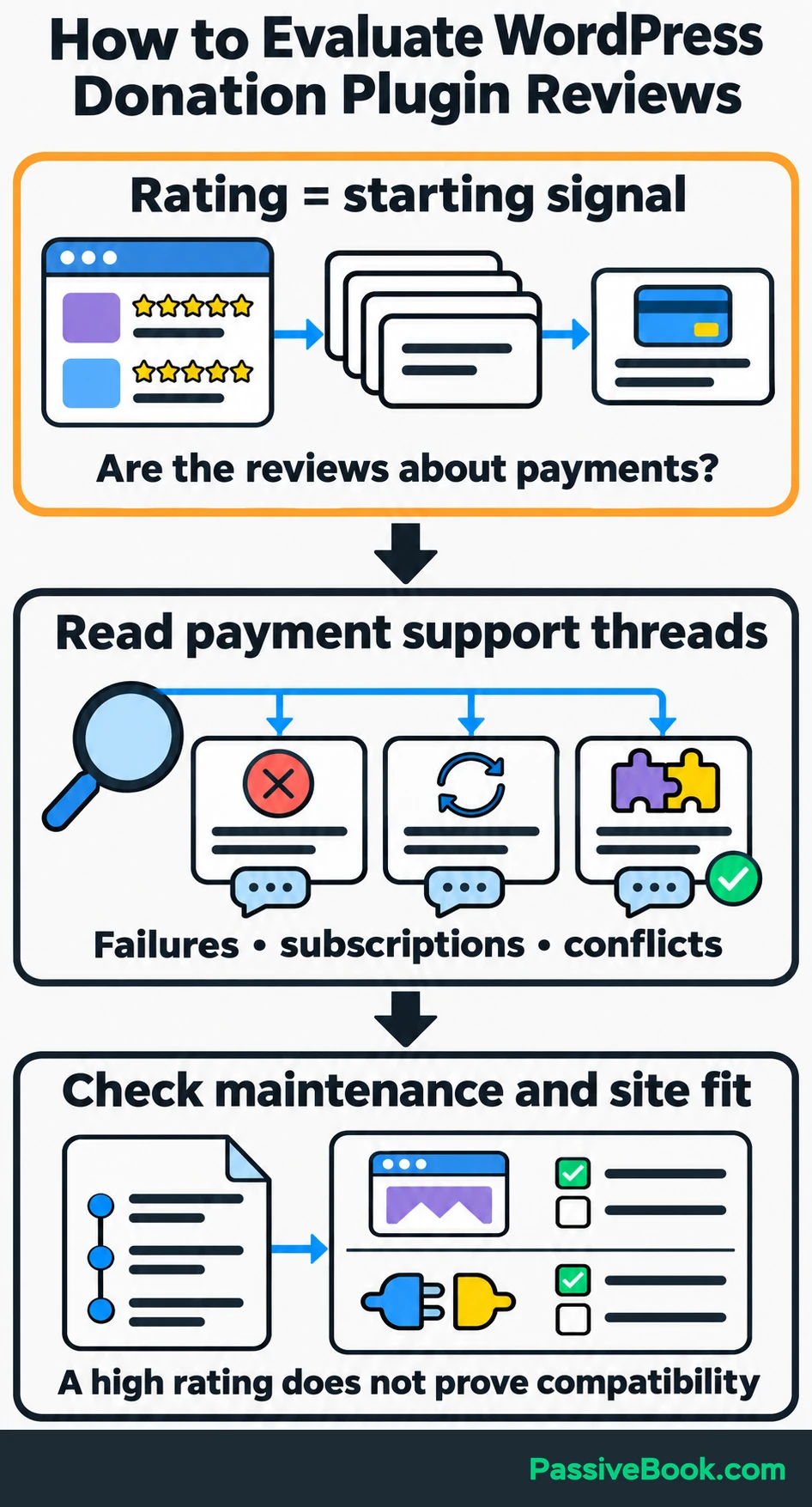
Use ratings to investigate your shortlist, rather than to declare a winner. WPForms has far more reviews than the smaller plugins, but many concern general forms rather than donation checkout.
Open the directory listing and read recent payment-related support threads alongside the release history. I would look for clear responses to failed payments, recurring-payment problems, and conflicts with other plugins. A high average rating cannot establish compatibility with your particular site.
WP Simple Pay: Best for a Stripe Tip Jar
WP Simple Pay is my first choice when you want a support form without installing a shopping cart or a fundraising system.
Lite accepts one-time payments and subscriptions through Stripe Checkout. That makes it a useful starting point when suggested payment amounts are enough and you’re comfortable sending readers to Stripe to finish paying.
Personal adds embedded forms, custom fields, and supporter-entered amounts. Plus adds the choice between one-time and recurring payments on a form, supporter-managed subscriptions, and renewal reminders. I would choose the tier around those controls, rather than upgrade simply because monthly payments sound like a premium feature.
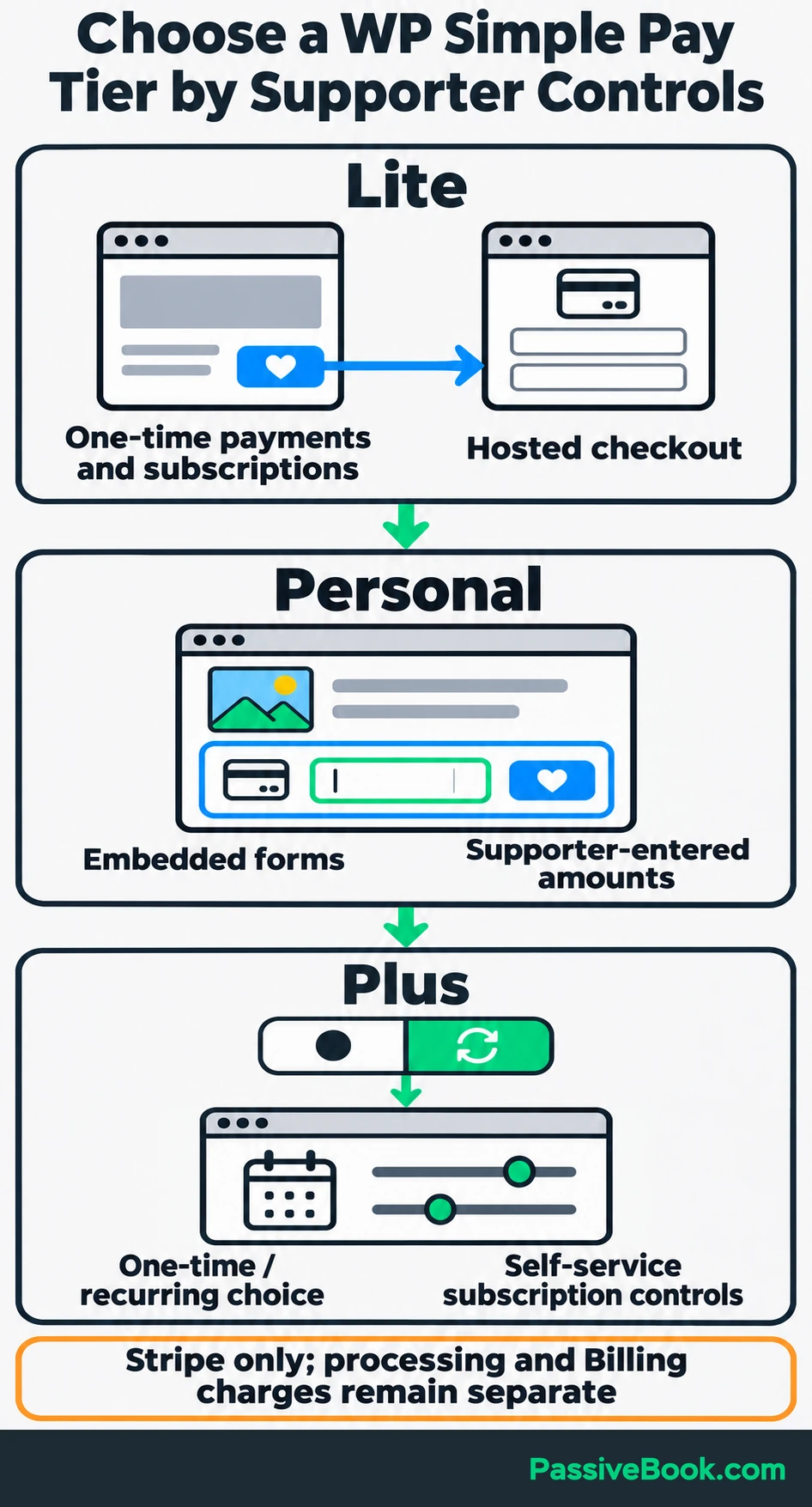
For the watercolor blog, Personal becomes useful when readers should choose their own tip amount. Plus deserves consideration when monthly supporters should manage subscriptions themselves.
Watch the license status. WP Simple Pay adds its 3% fee to Lite payments and to payments made with an invalid or expired paid license. Stripe processing fees remain, and its subscription functionality also uses separately billed Stripe Billing. WP Simple Pay’s fee rules.
I would skip it if PayPal is essential. This is a Stripe-focused choice.
Donations via PayPal: Best for a Basic PayPal Button
Donations via PayPal suits a small, specific job: place a PayPal donation button inside a page, post, or widget area.
You can set the currency, purpose, return page, and button image. Readers complete checkout through PayPal, and you use PayPal’s records to manage the payments.
For the watercolor support page, this could be enough if you want to offer one optional payment route and already manage your business through PayPal. There is no reason to build a campaign system just to collect occasional thanks.
The limit is what happens around the payment. I would choose another option when you need integrated donor reporting, recurring-giving controls, or payment-triggered follow-up inside WordPress.
The plugin is free, but PayPal processing charges still apply. Use the fee schedule for your account’s country when budgeting.
Fluent Forms: Best for Flexible Support Forms
Fluent Forms is my first stop when a site already uses it for other forms. Its free version includes Stripe payments and recurring payments through a Subscription field, with the additional fee shown in the table.
Pro removes that Stripe fee and adds PayPal, including recurring payments. This gives you room to combine payment choices with other useful fields without introducing a separate form builder.
I use Fluent Forms for forms and lead capture. On one site, I started building a new form in a second plugin before checking what the existing builder could handle. I moved it back because maintaining two builders added work without improving that form. That experience is why I check the installed tools first; it isn’t a claim that I’ve processed donations through Fluent Forms.
Its native FluentCRM connection is also useful if you already manage contacts in WordPress. A customer relationship management tool such as FluentCRM keeps contact details and follow-up activity together.
For the watercolor page, I would begin with the amount, email address, and payment choice. Add a question only when its answer changes something you will do.
WPForms: Best for Sites Already Using WPForms
WPForms is another sensible reuse choice. Lite supports Stripe payments, including subscriptions, and PayPal Commerce payments with a PayPal Business account.
The detail to check is how supporters choose their payment frequency. With Lite’s PayPal Commerce integration, a form can handle one-time payments or recurring payments. Pro adds the controls needed to offer both on the same form.
PayPal subscriptions also use PayPal checkout rather than the guest credit-card fields. That distinction matters if you expect a visitor to start monthly support by entering a card directly into those fields. WPForms’ PayPal payment controls and subscription restrictions.
I would use Lite to test a straightforward support offer on a site already running WPForms. Before upgrading, check the actual tier: Basic and Plus still carry the additional payment fee. Pro removes the fee and includes Zapier, a service that connects forms to other apps. Elite adds webhooks for sending form data directly to another system.
If your main requirement is donor history across fundraising campaigns, I would move to Charitable or GiveWP rather than keep extending a general form.
Charitable: Best for Campaign-based Fundraising
Charitable is my pick when fundraising campaigns are the main job. It brings together campaign pages, goals, donor records, and reports, with Stripe, PayPal, Square, and offline payment options.
Basic suits one-time fundraising when its included features cover your needs. Plus is the relevant step up for recurring donations, annual receipts, email-marketing integrations, and fee relief—the option to ask supporters to cover processing costs.
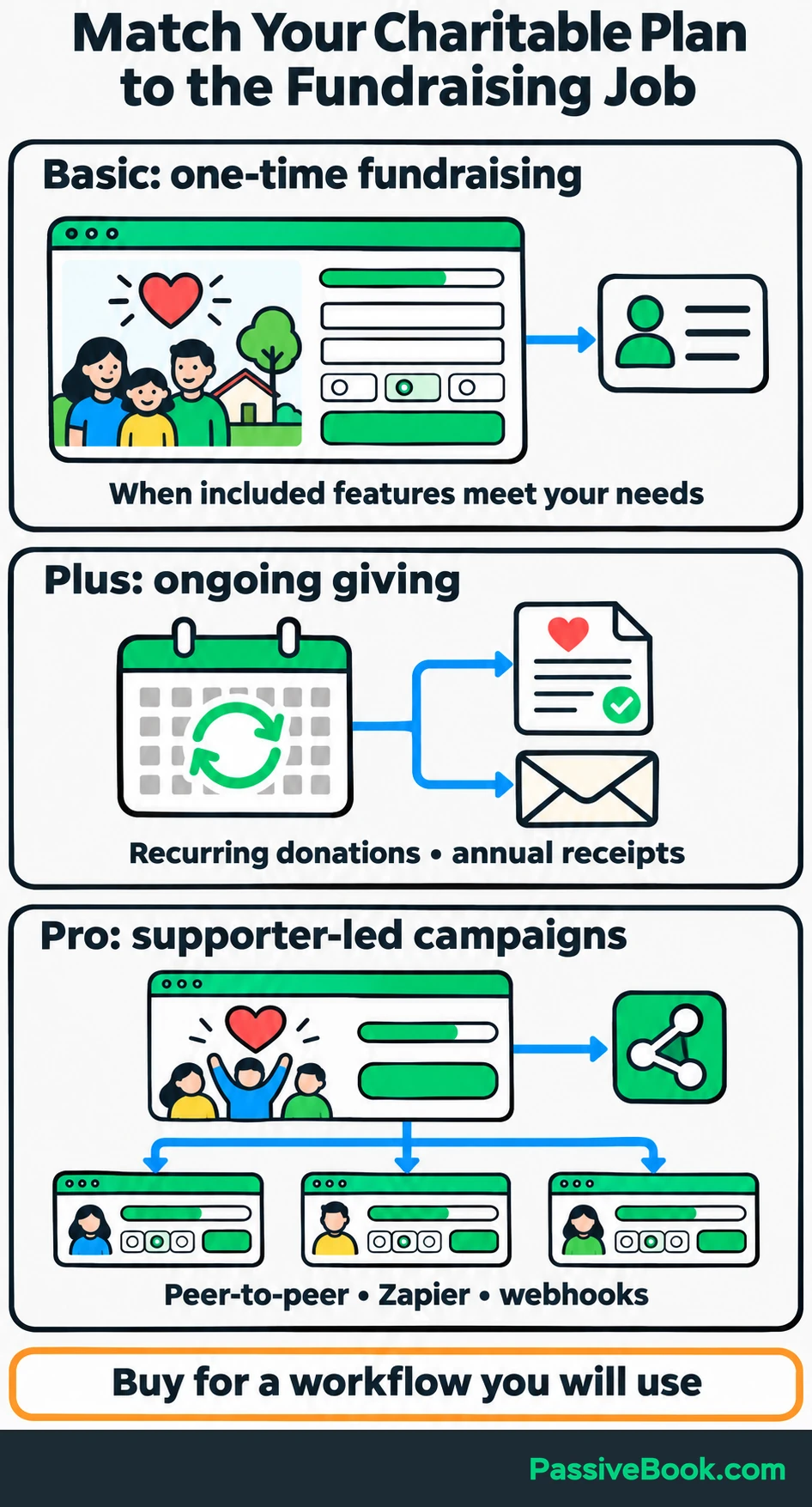
Pro adds peer-to-peer fundraising, where supporters raise money through their own pages, plus Zapier and webhooks. I would pay for those features when there is a clear campaign or workflow ready to use them.
For the watercolor blog’s ordinary support page, that is more system than I would start with. It becomes a stronger fit if the site begins running distinct fundraising projects and needs to report on each one.
Charitable Lite adds a 3% transaction fee, while paid plans remove Charitable’s fee. Processor charges remain. Charitable’s fee explanation.
I would shortlist Charitable ahead of a general form builder when campaign management matters more than flexibility across unrelated forms.
GiveWP: Best for Extensive Donor Management
GiveWP deserves a close look when you need to manage an ongoing fundraising operation. Its free core includes customizable donation forms, donor histories, reports, a donor dashboard, and Stripe and PayPal gateways.
The reason to choose it is the work after checkout. You can review a supporter’s giving history and let them access their records, rather than treat every payment as an isolated form submission.
Recurring giving requires paid functionality. The advertised bundle in the table includes Give alongside The Events Calendar, LearnDash, and Kadence. I would judge that cost against the fundraising features you need. Extra products have little value if you won’t use them.
The free Stripe gateway generally adds 2% to one-time donations. That surcharge does not apply to PayPal or recurring donations, and some Stripe account countries are exempt. Check those conditions before buying a license purely to remove the fee. GiveWP’s Stripe fee conditions.
Also compare its current WordPress and PHP requirements with your hosting before committing. For a simple reader-support page, I would usually choose a smaller setup.
Donation Platform for WooCommerce: Best for an Existing WooCommerce Store
This is worth considering when WooCommerce already handles your sales.
For the watercolor blog, the attraction is clear: practice-sheet purchases and reader support can use the same commerce system. The donation plugin is free and adds no platform fee, but payment processing and any required extensions remain separate.
Enable compatibility mode when keeping ordinary products alongside donations. This prevents the plugin’s donation wording from spreading across the normal storefront. Then test both a practice-sheet purchase and a support payment.
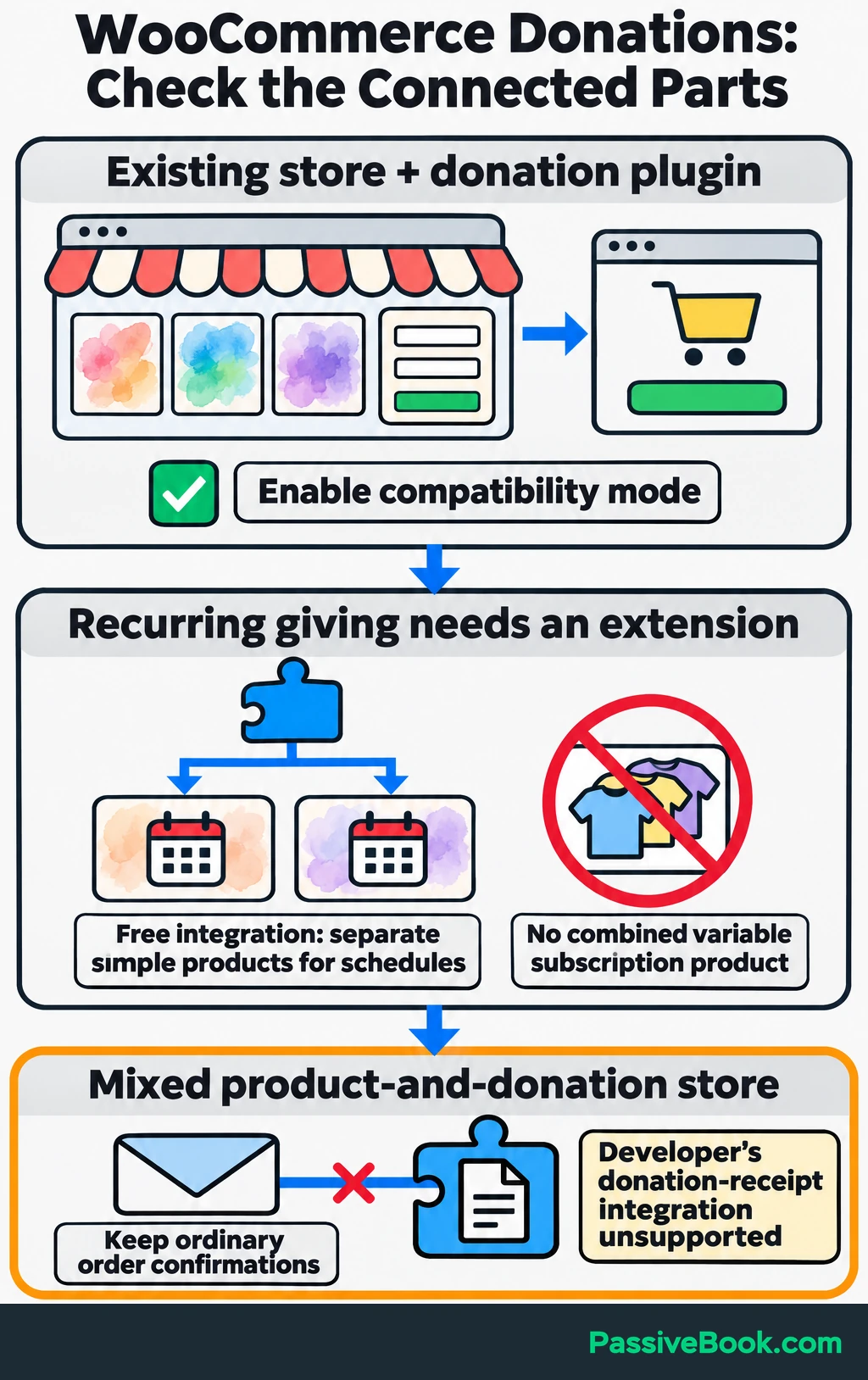
Recurring donations need another subscription plugin. The documented free Subscriptions for WooCommerce integration supports Stripe and PayPal, but it requires separate simple products for different schedules. You cannot put several giving schedules into one variable subscription product with that free integration. Recurring-donation dependencies.
Automatic PDF donation receipts need a separate receipt plugin. The developer does not support its donation-receipt integration in stores that also sell regular products. For the watercolor store, I would keep ordinary order-confirmation emails. Donation receipt limitations.
I would choose this when it reuses a working store. I would skip installing WooCommerce solely to add a small tip jar. A free plugin can still leave you maintaining several connected parts.
Donorbox: Best for Hosted Fundraising Embedded in WordPress
Donorbox suits you if you want WordPress to display the form while a hosted service manages the fundraising account.
You embed a form or show it as a popup, connect Stripe or PayPal, and manage donor records in Donorbox. Its documented workflow includes recurring giving, automatic receipt emails, CSV exports, and donor account access.
Standard has no monthly subscription charge, but its percentage fee continues as donations grow. Some integrations also carry monthly charges, so price the follow-up workflow alongside the form.
For the watercolor blog, I would compare that ongoing percentage with the annual cost of a suitable WordPress plugin. Donorbox may be a reasonable convenience purchase. “Free connector” simply describes the WordPress plugin, not the full cost of accepting support.
When Is a Paid Plugin Worth It?
A paid plugin is worth buying when it provides a feature you need, removes enough transaction fees, or saves repeated work that you would otherwise have to do.
Start by comparing equivalent setups. A fixed-amount payment form and a form with custom amounts, monthly support, and self-service cancellation do different jobs. Their license prices alone won’t tell you which is better value.
For fee savings, count only the annual payment volume that would incur the fee being removed. Then divide the annual license and required extension costs by that fee rate.
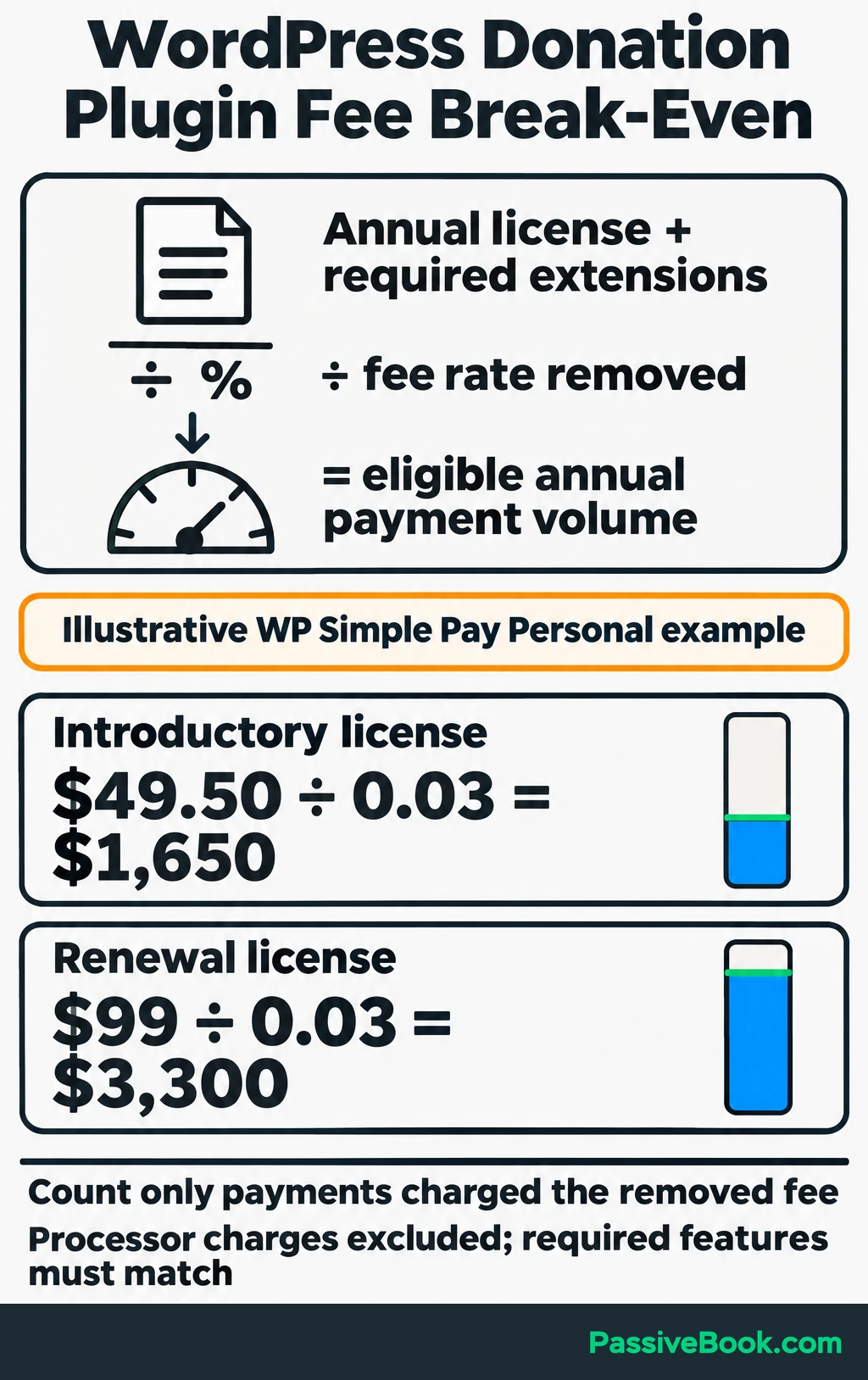
For example, suppose the watercolor blog receives an illustrative $2,000 in one-time support payments through WP Simple Pay Lite. Its 3% plugin fee would be $60, before Stripe’s charges.
Using the Personal license prices in the comparison table:
| Comparison | Annual Eligible Payment Volume Needed to Offset the License |
|---|---|
| First-year Personal license versus Lite’s 3% fee | $1,650 |
| Personal renewal versus Lite’s 3% fee | $3,300 |
These are cost thresholds, not forecasts of reader support. The comparison assumes Personal meets the blog’s requirements and excludes processor charges, which apply to both options.
At the illustrative $2,000 volume, the introductory license saves a little on plugin fees. The renewal would cost more than those fees alone. That makes the renewal price part of the buying decision from the start.
Your own support volume and renewal price will change those thresholds. Compare two setups that meet your requirements before paying to remove a fee.

Free Software Cost Calculator




I would still pay earlier for a needed feature, such as supporter-managed subscriptions on WP Simple Pay’s Plus tier. Someone cancelling monthly support should not have to wait for you to finish dinner.
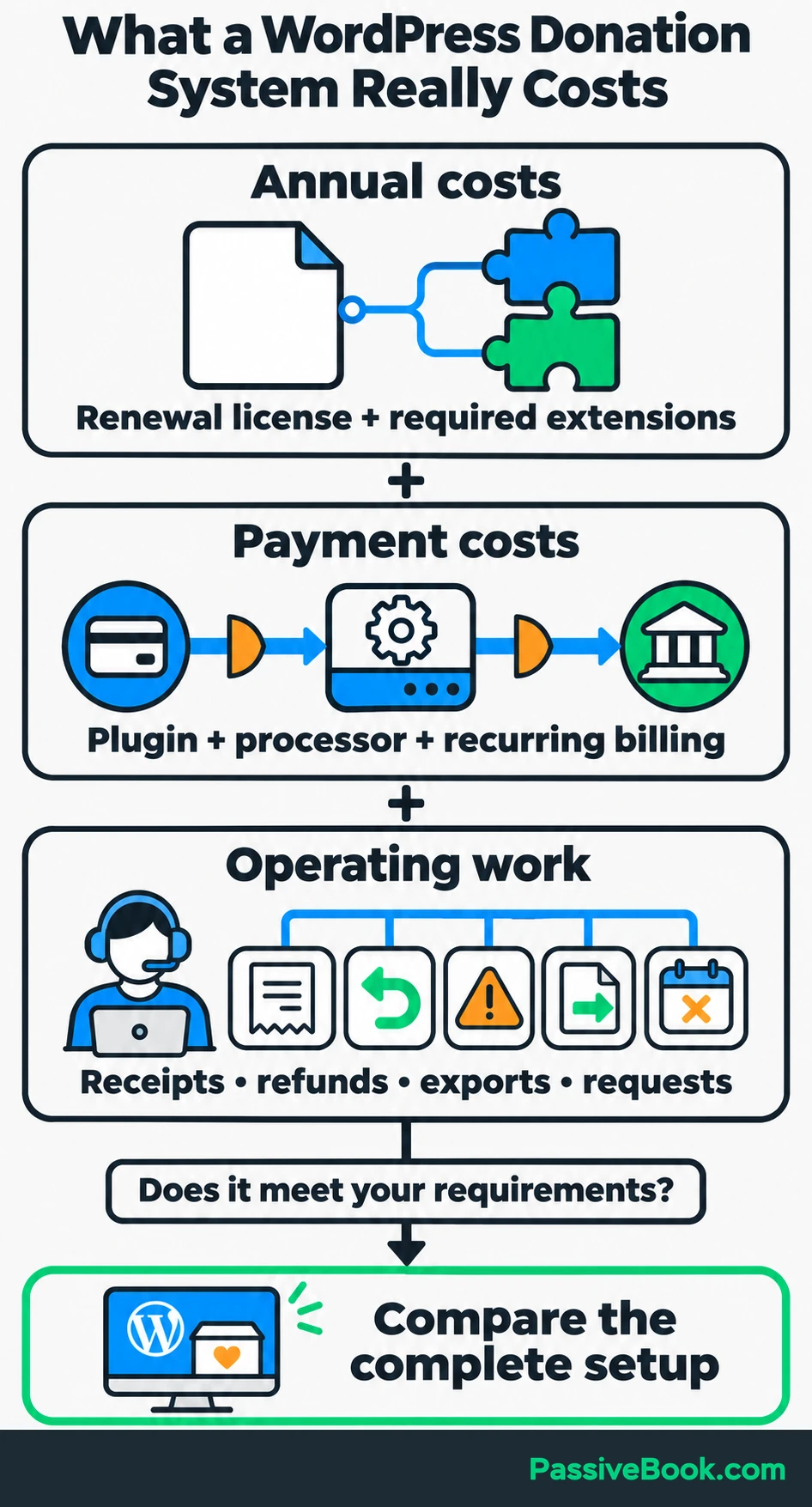
Before buying, add up the full setup:
- Annual Costs: The renewal license and required extensions or connectors.
- Payment Costs: Plugin fees, processor charges, and applicable recurring-billing charges.
- Operating Work: Receipt checks, refunds, failed payments, exports, and supporter requests.
A cheaper license that leaves you copying payment records every week is not automatically the cheaper system.
Install and Test Your Chosen Plugin
Choose one shortlisted plugin and build the smallest version that meets your requirements. Get one payment route working before adding another.
For the watercolor blog, I would begin with a one-time support form. Monthly support can follow once its cancellation, renewal, and failure handling have also passed testing.
Check Compatibility Before Installation
Confirm that your WordPress account and hosting allow plugin installation. Then compare the plugin’s current WordPress, PHP, and dependency requirements with your site.
Back up the site and use a staging copy—a private test version—to install the plugin from its official source. Keep payment connections in test mode there.
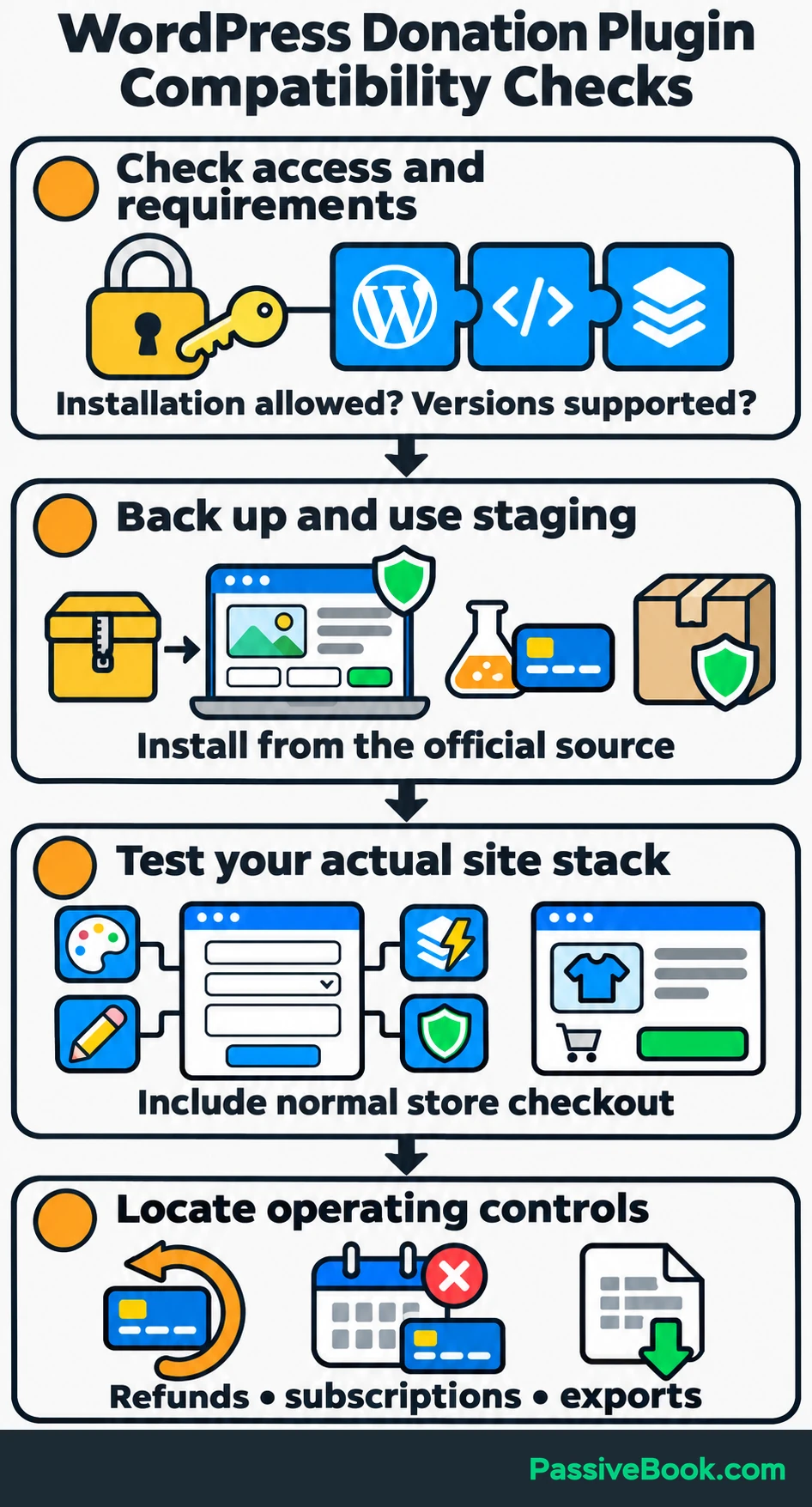
Check the form with the theme, editor, caching, and security plugins you actually use. A form that works in a stripped-down demo has only passed the demo.
Before committing, find where you will:
- Issue Refunds: In WordPress, the processor dashboard, or the hosted service.
- Manage Subscriptions: Cancel support and update payment methods.
- Export Records: Download the payment and supporter information you need.
For a WooCommerce setup, include normal product checkout in these checks. The support form should fit into the store without disrupting purchases.
Connect Your Payment Account
Complete the processor’s verification and connect the account that should receive the money. Check the recipient carefully, especially if you manage several sites.
Choose the supported currency, payment methods, and giving frequencies. Keep sandbox and live connections separate so a staging form cannot accidentally process real payments.
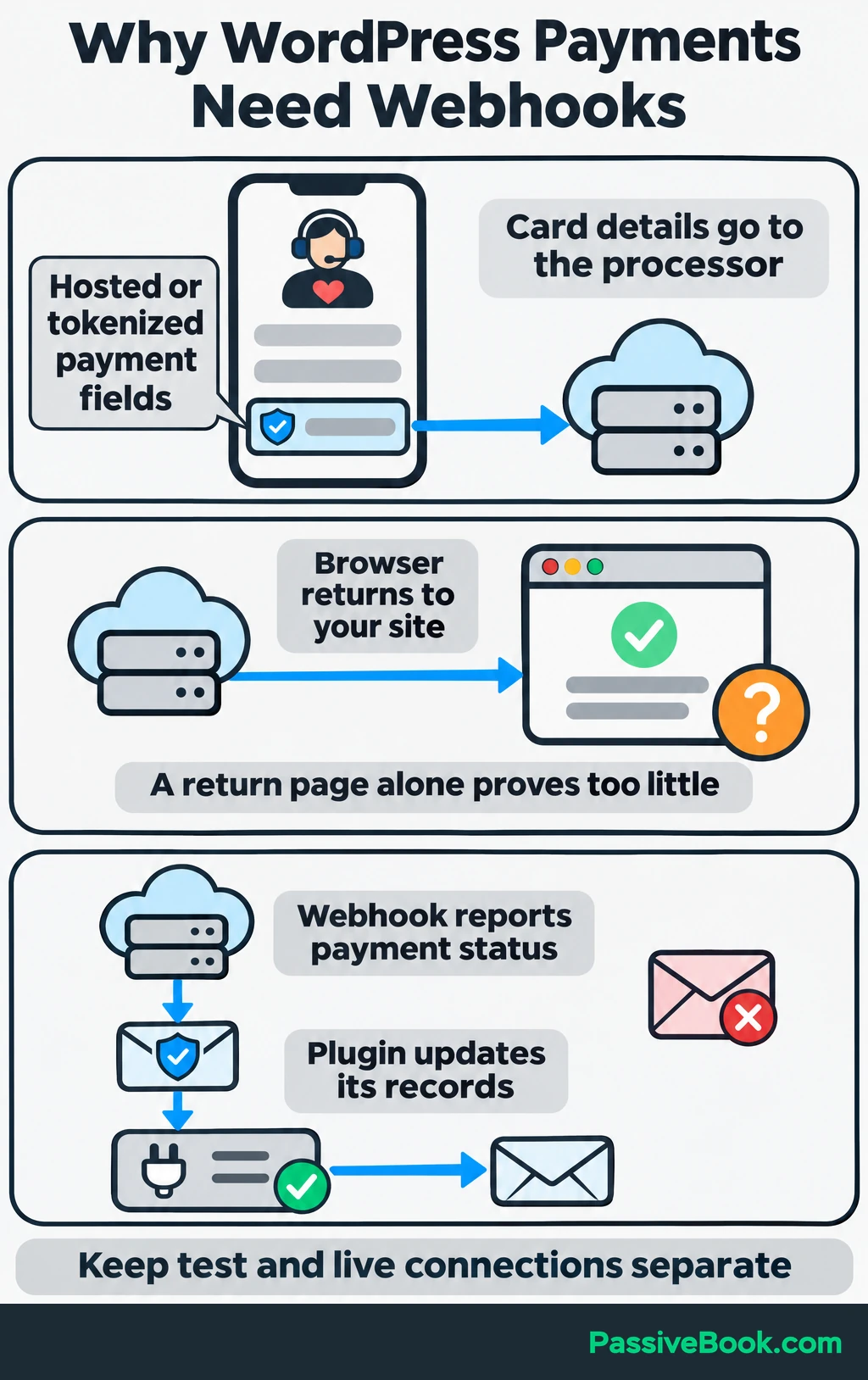
Enable the gateway’s payment notifications or webhooks. A webhook is a message the processor sends to your site when a payment succeeds, fails, renews, or changes status. Your plugin needs those messages to keep its records accurate.
This is why a successful-looking return page is not enough evidence that the plugin recorded a completed payment.
Use HTTPS and processor-hosted or tokenized card fields, which send card details to the processor rather than through ordinary form fields on your server. Complete the payment-card security validation your processor requires; using a payment plugin does not remove that responsibility. Stripe’s integration security guidance.
Build Your Support Form
Explain what the payment supports, then make the amount and frequency easy to understand.
For the watercolor page, a short invitation is enough:
“Support the free watercolor lessons. Choose an amount below if you’d like to contribute.”
Offer a few suggested amounts and a custom amount if your plugin supports it. Keep the displayed currency visible, and show the total before payment.
If monthly support is available, make the choice explicit. “Monthly support” is clearer than “Become a supporter” beside a recurring charge. Explain where people can cancel.
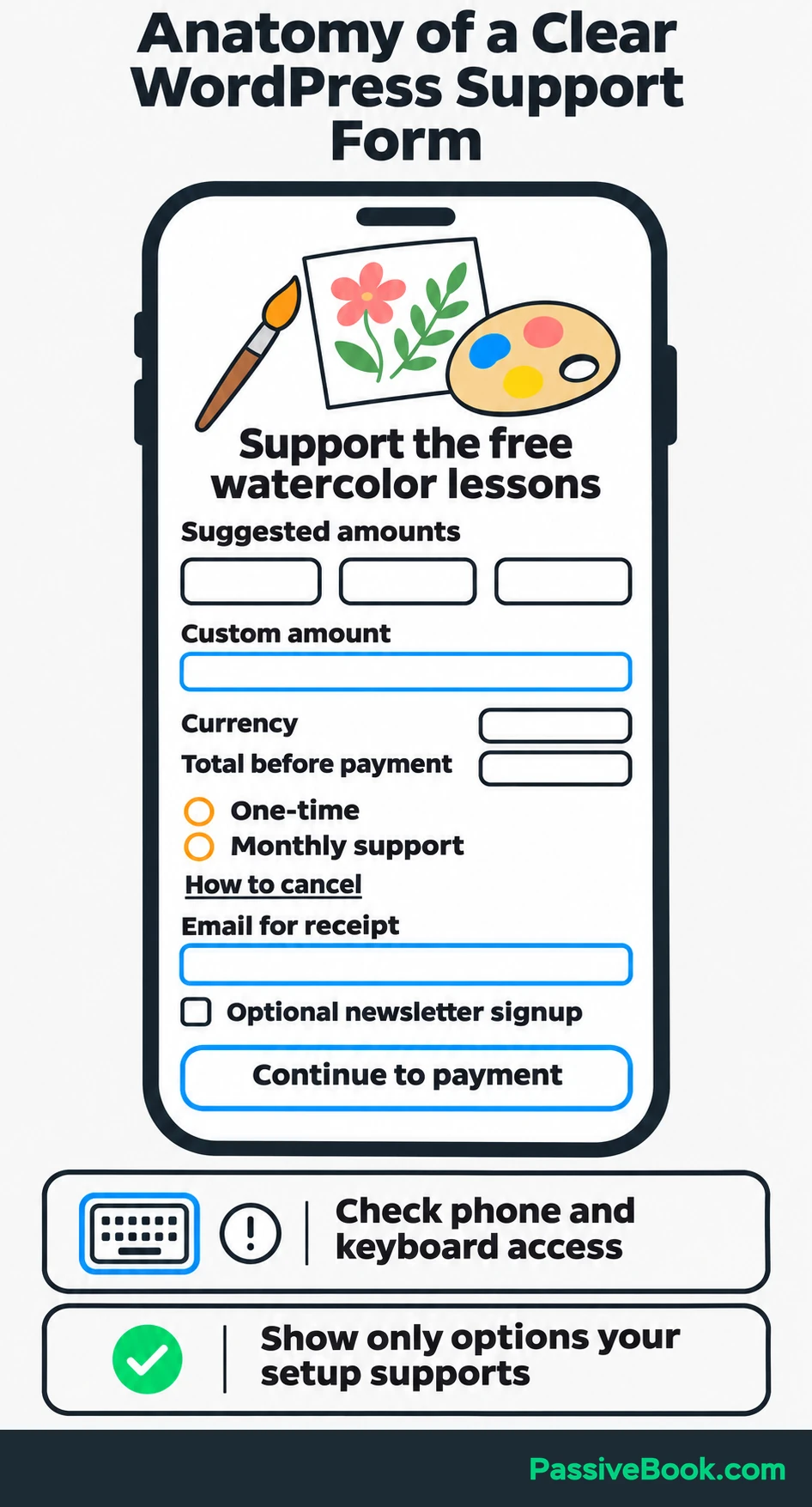
Collect only the information you need. An optional tip rarely justifies a long questionnaire. Include a contact address for payment problems, and check the form on a phone and with keyboard navigation. Field labels and errors should make sense without relying on color alone.
Set up acknowledgments after confirmed payment. For the watercolor blog, that could mean a receipt and a contribution-log entry.
If you connect a customer-management tool or an automation service such as Make or n8n, use a confirmed-payment event. A submitted form can still lead to a declined payment.
Configure the automation to track each payment’s unique transaction ID and send follow-up only once for that ID. Subscription renewals should create new payment records without creating a new contact every month.
Keep any optional newsletter signup separate from the payment confirmation. Also distinguish an ordinary payment acknowledgment from a charitable tax receipt; the software’s receipt template does not establish eligibility.
Test Checkout Before Publishing
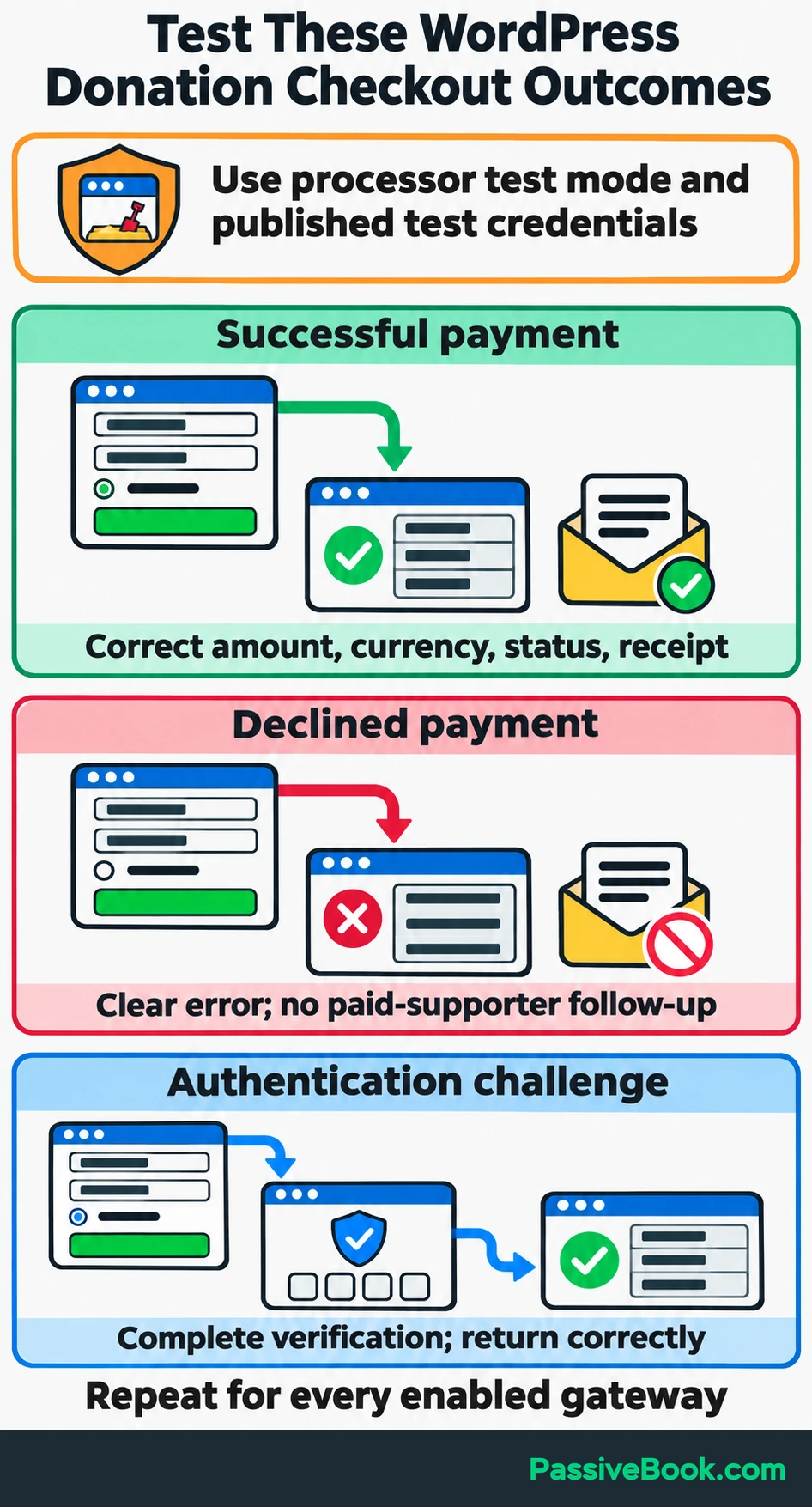
Use the processor’s test environment and published test credentials. Stripe prohibits testing in live mode with real payment details. Its test tools let you simulate successful payments, declines, and authentication challenges without moving money. Stripe’s testing guidance.
Test every gateway you intend to enable. Stripe working correctly tells you nothing about the PayPal connection.
Use this checklist:
| Test | What Should Happen |
|---|---|
| Successful payment | Correct amount and currency, completed status, clear confirmation, and receipt delivery |
| Declined payment | Understandable error, no false success message, and no paid-supporter follow-up |
| Authentication challenge | The supporter can finish authentication and return to the expected result |
| Refund | The refund appears in the processor and relevant plugin records |
| Monthly support | Subscription creation, renewal, cancellation, and failed-payment handling work as expected |
| Repeated notification | One payment produces one payment record and one intended acknowledgment |
| Confirmation-page refresh | Refreshing the page does not repeat follow-up or create another payment |
For recurring support, use the plugin or processor’s supported subscription-testing tools to check renewal behavior. Don’t stop after the first payment succeeds.
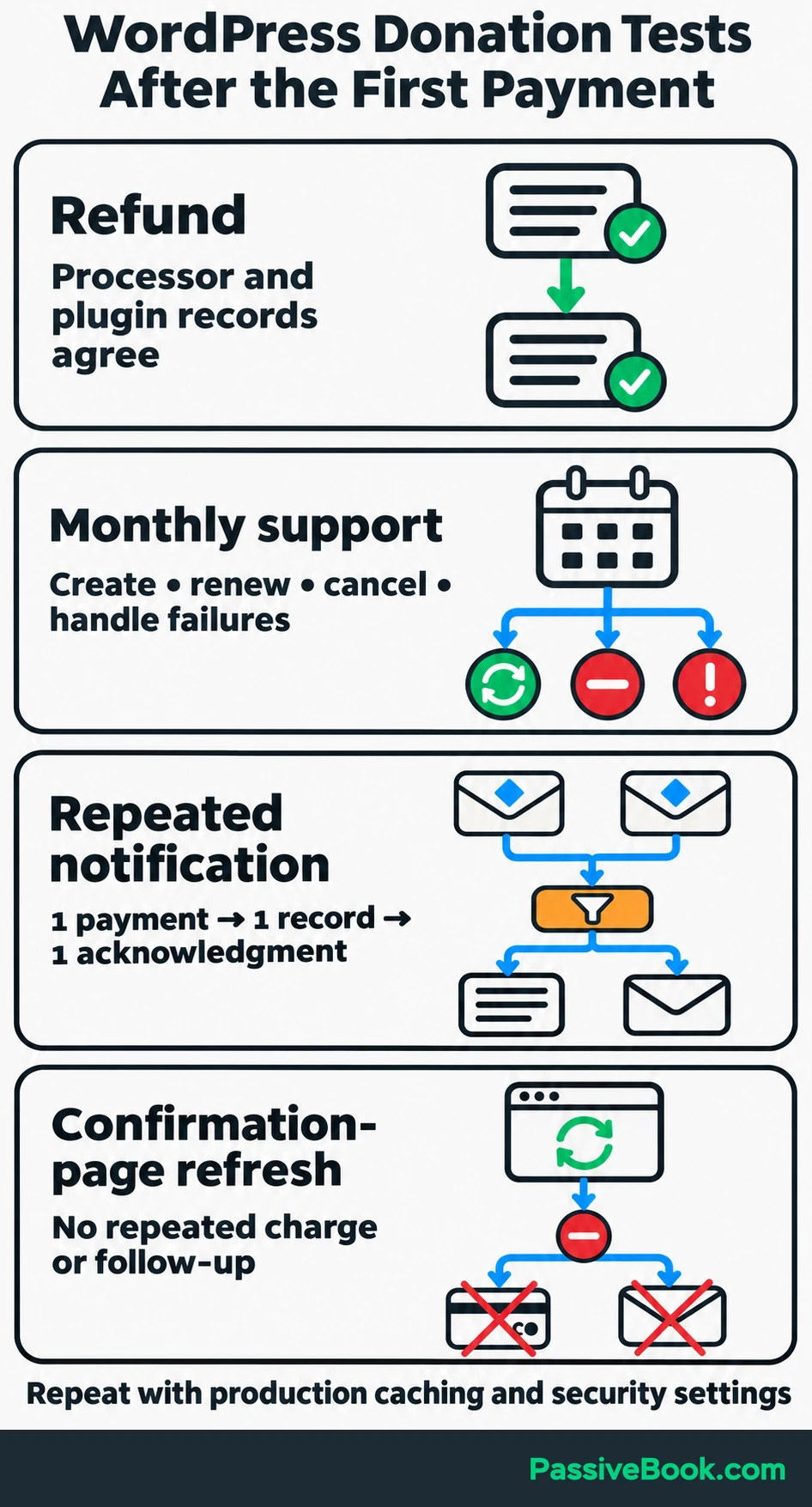
Repeat the relevant checkout checks with production caching and security settings enabled. Then confirm the live recipient account, live payment connection, and live notification settings before publishing.
For the watercolor blog, the launch check should cover the whole journey: someone follows a lesson, opens the support page, pays, and receives the right acknowledgment. If practice sheets are sold through the same checkout, verify that purchase too.
Keep payment-failure alerts enabled and check that receipts arrive. Renew licenses required by your setup, and repeat the affected checkout tests after payment-related updates. A working payment form needs occasional checks, even when most of the daily work is automated.
What Next?
Write down your required gateway, payment frequency, and supporter controls, then use the comparison table to shortlist one plugin. Build its smallest working form on staging before buying extra features.
Use the social buttons to share this guide when you want a second opinion on the costs and checkout requirements behind your choice.
Which requirement will decide your plugin choice: simple setup, monthly support, PayPal, or donor management? Leave your answer in the comments, and bring any other questions there too.
Share this post with your friends & followers:

