A buyer asks for a missing download, two people reply, and another request sits untouched. You need a clear place for each issue, an owner and a way to keep the conversation going.
Choosing the tool gets confusing because a ticket portal, a shared inbox and a chat widget solve different problems. Their free plans also stop at different points.
This comparison puts those differences beside the features and costs that matter, so you can choose a support setup that handles requests from the first message through to resolution.
Which WordPress Support Plugin Should You Choose?
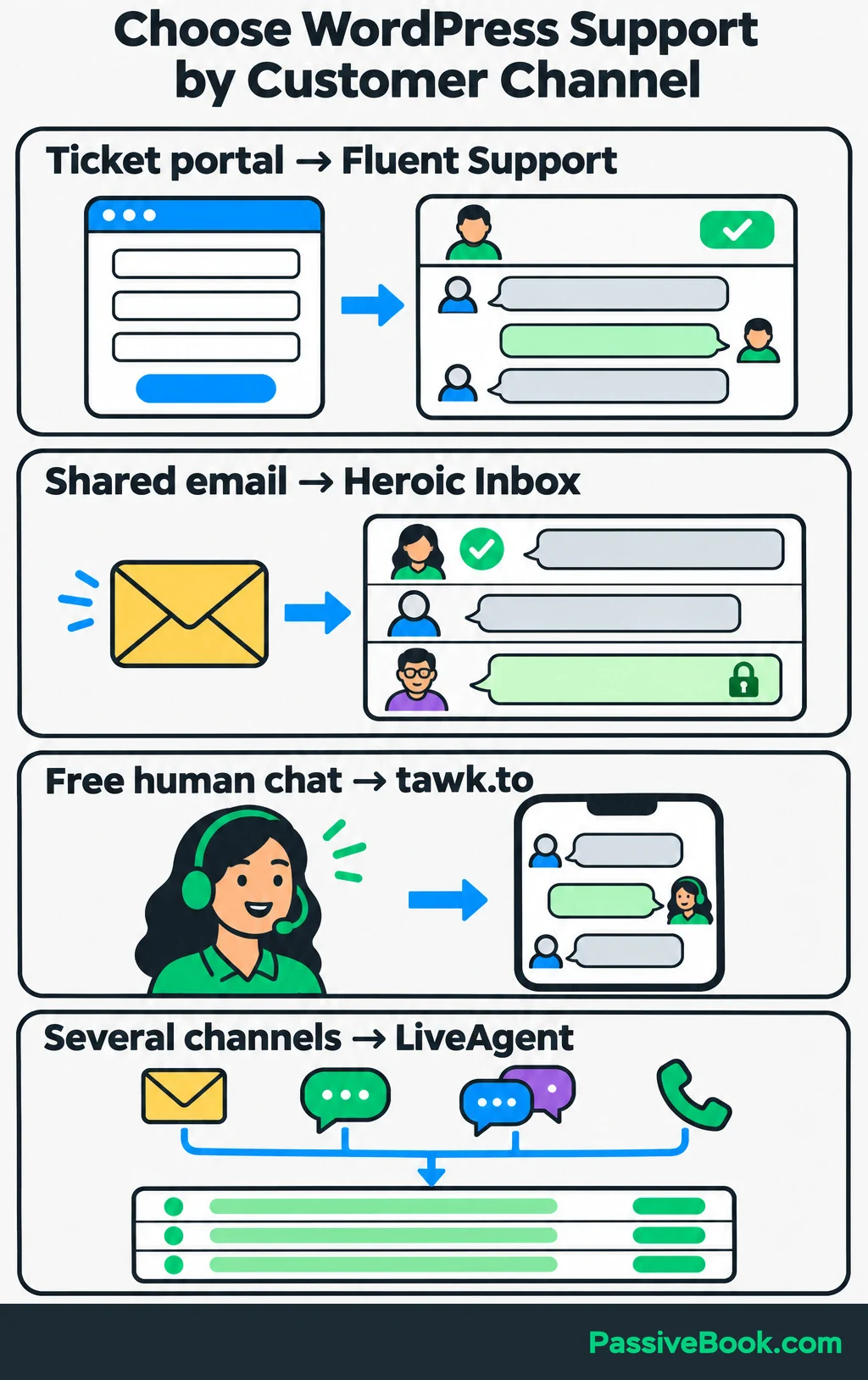
My starting pick is Fluent Support if you want a ticket portal inside WordPress. But I would choose a different tool when email or live chat drives the work, or when support needs to connect to an existing CRM—a system that stores customer records and past interactions.
Use these four picks to narrow the list:
- Ticket Portal: Fluent Support for requests that need an owner, a status and follow-up inside WordPress.
- Shared Email: Heroic Inbox when customers already email your support address and you want to manage those conversations in WordPress.
- Free Live Chat: tawk.to when you want hosted human chat without a core software subscription.
- Several Support Channels: LiveAgent when email, chat, social messages and calls need one queue.
Start with how customers contact you. Ticketing keeps unresolved issues visible. A shared inbox lets several people handle the same support address. Live chat helps with immediate questions, and help articles answer recurring ones. Several tools combine these functions, but you do not need to enable everything.
Also decide where you want to work:
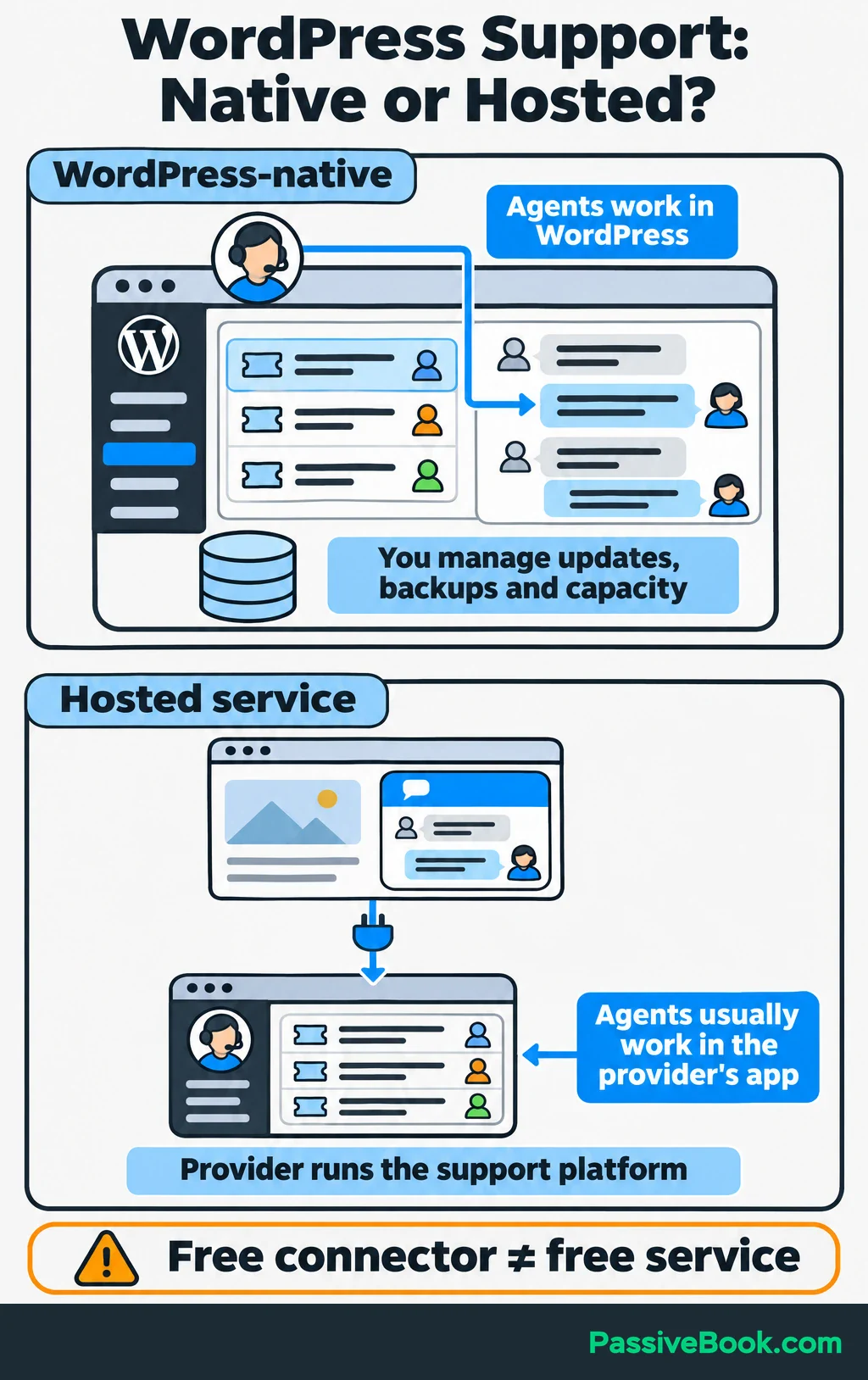
- WordPress-Native: Tickets or conversations live on your hosting, and agents work inside WordPress. You handle updates, backups and hosting capacity.
- Hosted Service: The WordPress plugin connects your site to another application. Agents usually work there, and the provider runs the support platform.
A free connector does not mean the connected service is free.
For a concrete example, imagine you sell downloadable beginner watercolor workbooks through WooCommerce, the plugin that adds a store to WordPress. Buyers sometimes need help finding their downloads, and they often ask which printing settings to use. That shop will be our example throughout.
I would give missing-download requests an owner and a visible status, then put printing instructions in a help article. Chat becomes useful when you can answer it and follow up on missed conversations.
The table compares documented features and published pricing. These are recommendations based on workflow fit, rather than a hands-on performance ranking. Email piping means converting incoming emails into tickets or attaching replies to existing ones.
All prices below are regular USD prices, with temporary promotions excluded. Monthly rates marked “billed annually” require annual payment. Use the linked pricing pages for current terms.
| Plugin | Best Fit | Native or Hosted Operation | Free Limits or Trial | Relevant Paid Tier and Billing Unit | Automation | Key Integrations | Main Tradeoff |
|---|---|---|---|---|---|---|---|
| Fluent Support | Customer ticket portal | Native | Unlimited tickets, agents and customers; one business inbox; web ticket intake | Pro: $129/year for one site, unlimited agents and 10 business-email piping connections | Pro workflows and assignment rules | WooCommerce and FluentCRM | Incoming email processing requires Pro |
| SupportCandy | Custom ticket fields and workflows | Native | Unlimited tickets, agents and customers | Personal: $79/year for one site, including all extensions and integrations | Paid workflows, routing and response-target rules | Paid WooCommerce integration | More fields and rules take more work to configure |
| Heroic Inbox | Shared email inside WordPress | Native | No free edition | Essential: $199/year for one site and two mailboxes; Plus: $499/year for three sites and five mailboxes; Pro: $749/year for five sites and 10 mailboxes; unlimited users and tickets | Plus adds workflows and saved replies | Gmail, Outlook and IMAP/SMTP; WooCommerce and Easy Digital Downloads on Pro | Useful team features sit above Essential |
| Awesome Support | A helpdesk built from selected extensions | Native | Free core ticketing; incoming email needs an extension | E-Mail Support: $49/year for one site; Standard bundle: $149/year for one site | Email rules and additional automation through extensions | WooCommerce and Easy Digital Downloads through add-ons | Several extensions can complicate maintenance |
| Support Genix | Tickets and help articles together | Native | Unlimited tickets, agents and customers; knowledge base included | Developer: $99/year for five sites; Personal lifetime: $149 once for one site | Pro adds advanced automation; AI needs a provider key | Basic WooCommerce; Pro adds Slack, Easy Digital Downloads and Tutor LMS | Email intake and advanced integrations require Pro |
| Help Scout | Hosted shared inbox and self-service | Hosted | Five users, one inbox, 10 help articles and 100 contacts helped/month | Standard: $25/user/month; Plus: $45/user/month, both billed annually | Standard has basic workflows; Plus adds advanced workflows and round-robin routing | WordPress Beacon; HubSpot, Jira and Salesforce on Plus | Seat charges grow with the team |
| LiveAgent | Email, chat, social and phone together | Hosted | 30-day free trial | Starter: $15/agent/month, billed annually, up to five agents; Team: $29/agent/month, billed annually, up to 15 | Ticket rules; Team adds service-level agreement rules | WordPress chat connector; social and phone channels on Team | Broader channel coverage may exceed your needs |
| Tidio | WooCommerce chat with optional AI | Hosted | 50 billable conversations/month and 10 seats | Starter: $24.17/month, billed annually, for 100 billable conversations; Growth starts at $49.17/month, billed annually, for 250 | Growth adds automatic assignment and macros; separate AI and Flows allowances | WooCommerce carts, order history and product cards | Human conversations, AI and Flows use separate allowances |
| LiveChat | Staffed live-chat support | Hosted | Free connector; service trial available | Essential: $19/user/month; Growth: $79/user/month, both billed annually | Essential includes workflows; Growth adds shared saved replies and team reporting | WordPress and WooCommerce | Collaboration needs can push you into Growth |
| tawk.to | Free hosted human chat | Hosted | Core chat, ticketing and knowledge base; unlimited agents, chat volume and sites | Whitelabel: $29/month per property; AI Assist starts at $29/month per property | Chat triggers; optional paid AI agents and workflows | WordPress connector | You still need people to answer and follow up |
| HubSpot | Support connected to an existing CRM | Hosted | Up to two users with basic chat and ticket tools | Starter begins at $20/month per Core Seat; Professional starts at $90/month per Service Seat billed annually, plus required $1,500 one-time Professional onboarding | Advanced helpdesk automation requires Professional or Enterprise | HubSpot CRM, WordPress forms and chat | The full helpdesk requires a substantial upgrade |
Do not treat every “WooCommerce integration” as the same feature. Displaying a chat bubble on a product page is different from showing an agent the buyer’s order history.
For the watercolor shop, seeing the relevant purchase could save a separate order lookup. That makes order context worth checking before comparing subscription totals.
The 11 Best WordPress Customer Support Plugins
1. Fluent Support: Best for a WordPress-native Ticket Portal
Fluent Support is my first shortlist choice when you want customers to submit tickets through your site and agents to manage them inside WordPress.
It supports assignments, priorities, internal notes and customer history. The free plugin allows unlimited tickets, agents and customers, so you can start with a portal without buying seats.
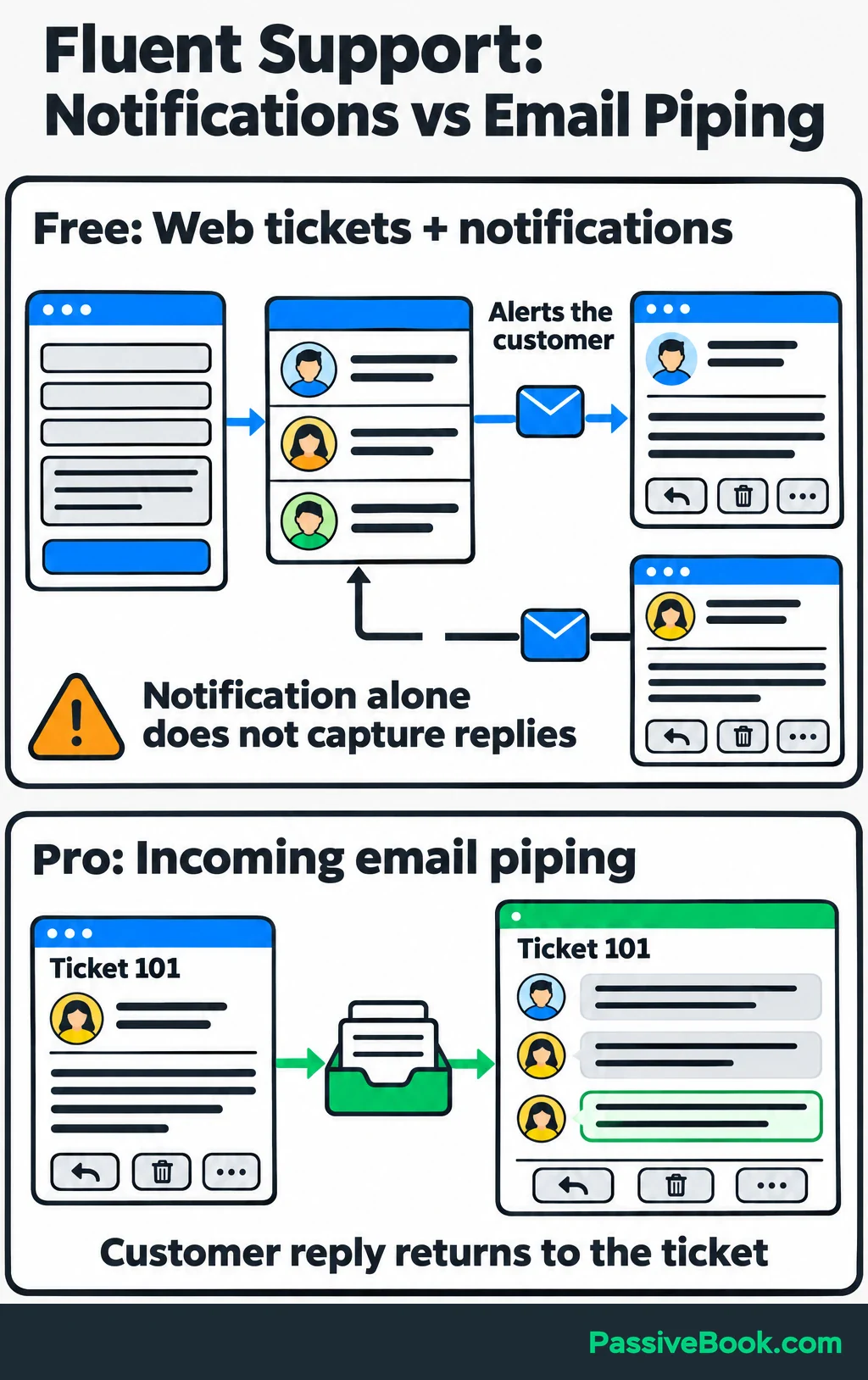
The important upgrade is incoming email processing. Free includes web-based tickets and one business inbox, while Pro adds email piping, multiple inboxes, workflows and advanced integrations. An email notification alerts someone to a ticket; it does not capture an incoming request or attach a customer’s reply. Fluent Support’s edition comparison
For the watercolor shop, I would consider Pro when buyers need to reply by email and agents need WooCommerce purchase details beside the ticket.
I already use FluentCRM for email marketing, Fluent Forms for forms and FluentSMTP with Amazon SES to send website emails. That makes Fluent Support worth considering alongside my existing tools, but it is not evidence that I have tested this plugin.
My choice here would rest on the portal, email handling and order context. I would skip chat until there is a clear reason to add it.
2. SupportCandy: Best for Customizable Ticket Workflows
SupportCandy suits requests that need more structure than a subject line and a message.
Its free edition includes unlimited tickets, agents and customers, along with custom fields, categories, statuses, agent roles and filters. It also includes an AI assistant and chatbot. To use them, connect your OpenAI or Gemini account with an API key; the provider bills you separately for usage. SupportCandy’s free capabilities
The paid package adds email piping, workflows, reporting, commerce integrations and service-level agreement rules. Those rules let you set response or resolution targets.
I would choose it when different request types need different handling. For example, a download problem might need an order reference, while a printing question only needs the workbook name. The paid WooCommerce integration lets customers select an order or product and gives agents access to order details.
Keep the form short. I would add a field only when its answer changes what happens next. A beautifully organized ticket form can still be an excellent way to annoy a buyer.
3. Heroic Inbox: Best for Shared Email Inside WordPress
Heroic Inbox makes sense when your customers already use a support email address and you want to preserve that experience.
You connect Gmail, Outlook or another mailbox through IMAP/SMTP. Your team can assign conversations, leave private notes and see when another agent is replying. Customers keep emailing the same address.
The buying decision turns on the feature tiers in the comparison table. Essential provides the shared inbox, but Plus adds workflows, saved responses and reporting. WooCommerce and Easy Digital Downloads customer context require Pro.
For the watercolor shop, Essential may cover shared email. I would compare Plus for reusable printing replies and Pro for viewing purchases beside the conversation.
I would choose Heroic Inbox for email-centered support inside WordPress. If a customer ticket portal is essential, I would favor one of the ticket-first tools. Heroic KB, its knowledge-base companion, is a separate product, so include it separately if you want that setup.
4. Awesome Support: Best for Adding Specific Helpdesk Extensions
Awesome Support lets you start with core ticketing and add particular features.
The free plugin covers ticket submission, attachments, custom fields, agent permissions, email notifications and basic time tracking. That is enough to explore a portal before buying extensions. Awesome Support’s core features
Incoming email requires the E-Mail Support extension. It checks a dedicated support mailbox and turns new messages and replies into ticket activity. That dedicated mailbox matters because the extension processes the messages it finds there.
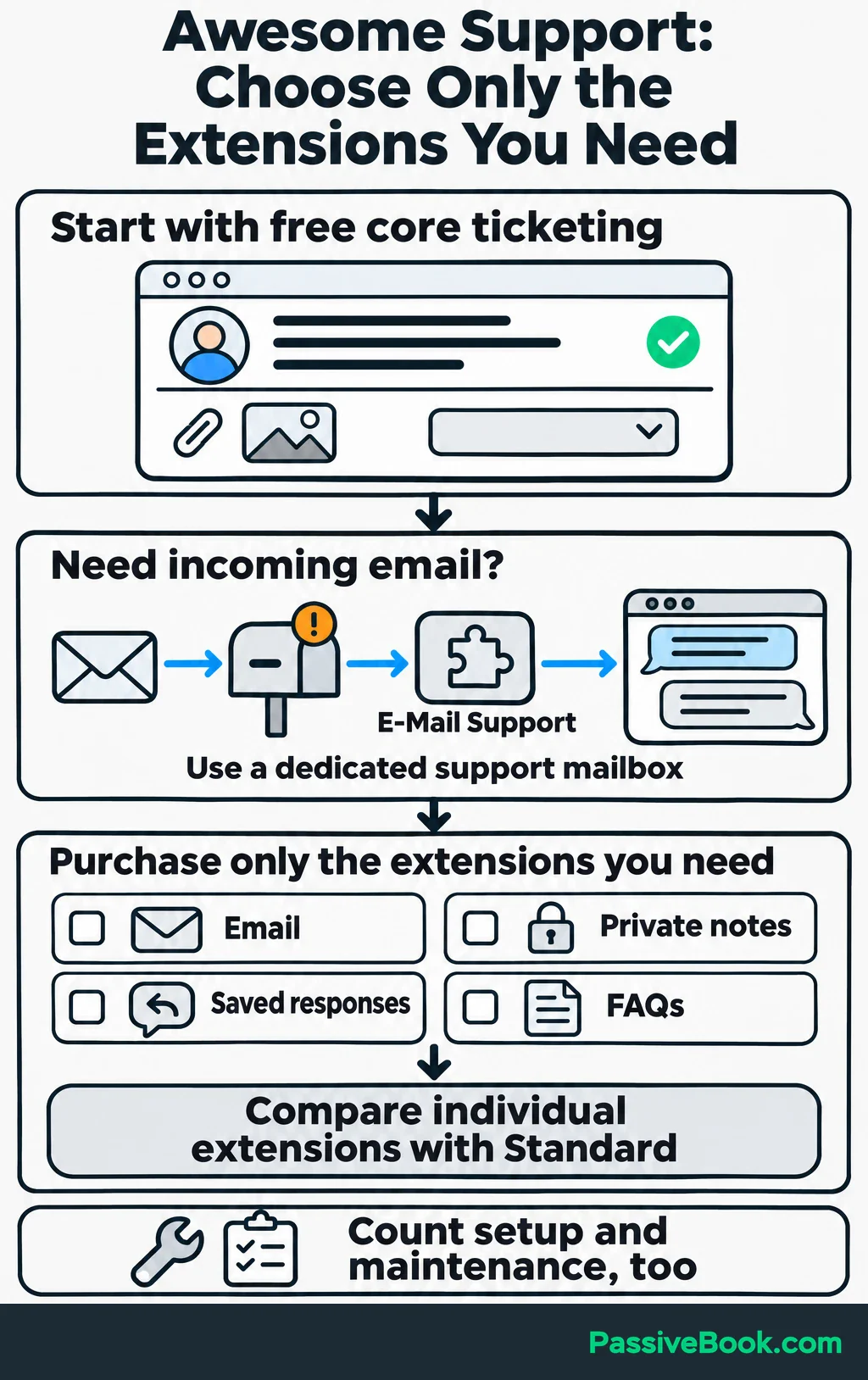
I would compare individual extensions with the Standard bundle before buying. Standard includes email support, private notes, saved responses and FAQs, so buying those separately may make little sense.
This is a reasonable choice when one or two extensions complete your workflow. If your shopping list keeps growing, compare Fluent Support and SupportCandy again. The license total is only part of the cost; you also have to configure and maintain the pieces.
For store support, confirm that your selected extension or bundle includes the order information you need.
5. Support Genix: Best for Tickets and a Built-in Knowledge Base
Support Genix is worth considering when you want tickets and help articles in the same system.
Its free edition includes unlimited tickets, agents and customers, plus a knowledge base, saved replies, basic assignment and basic WooCommerce integration. Pro adds email-to-ticket intake, advanced automation and integrations such as Slack, Easy Digital Downloads and Tutor LMS.
That combination fits the watercolor shop well. Printing instructions belong in a searchable article, while a missing download belongs in a private ticket with an owner.
The AI reply, documentation and chatbot features need your own OpenAI or Claude API key. The plugin license does not cover the provider’s usage charges. Its listing also explains that optional AI and third-party connections can send information outside WordPress. Support Genix’s features and service disclosures
I would start with a short, useful help article and test ordinary ticket handling first. AI can help draft an answer, but it cannot make incorrect download instructions useful.
6. Help Scout: Best for a Hosted Shared Inbox With Self-service
Help Scout moves the working inbox outside WordPress and gives you a hosted help center and website support widget called Beacon.
The free plan is useful for a small operation: five users, one inbox, one help center with 10 articles and 100 contacts helped per month. Multiple replies to the same person count once within that month. If you reach the allowance, further replies are blocked until the next cycle or an upgrade. Free Beacon supports help articles and email contact; live chat requires a paid plan. Help Scout’s free-plan rules
There is also an important connector distinction. The free WordPress plugin is maintained by BoldGrid. It can embed Beacon on Free, but its separate contact form requires paid API access. WordPress connector requirements
I would choose Help Scout when a hosted inbox and self-service content are the priority. Standard adds basic workflows. I would consider Plus when you need advanced rules or round-robin assignment, which gives new conversations to agents in turn. Automated AI resolutions cost extra.
For a growing team, compare the seat total before committing. A free starting point can lead to a different bill once everyone needs paid access.
7. LiveAgent: Best for Email, Chat, Social, and Phone Support Together
LiveAgent is my shortlist pick when customers use several active support channels and your team needs one working queue.
The WordPress connector adds chat to your site, while agents manage connected conversations as tickets in the hosted application.
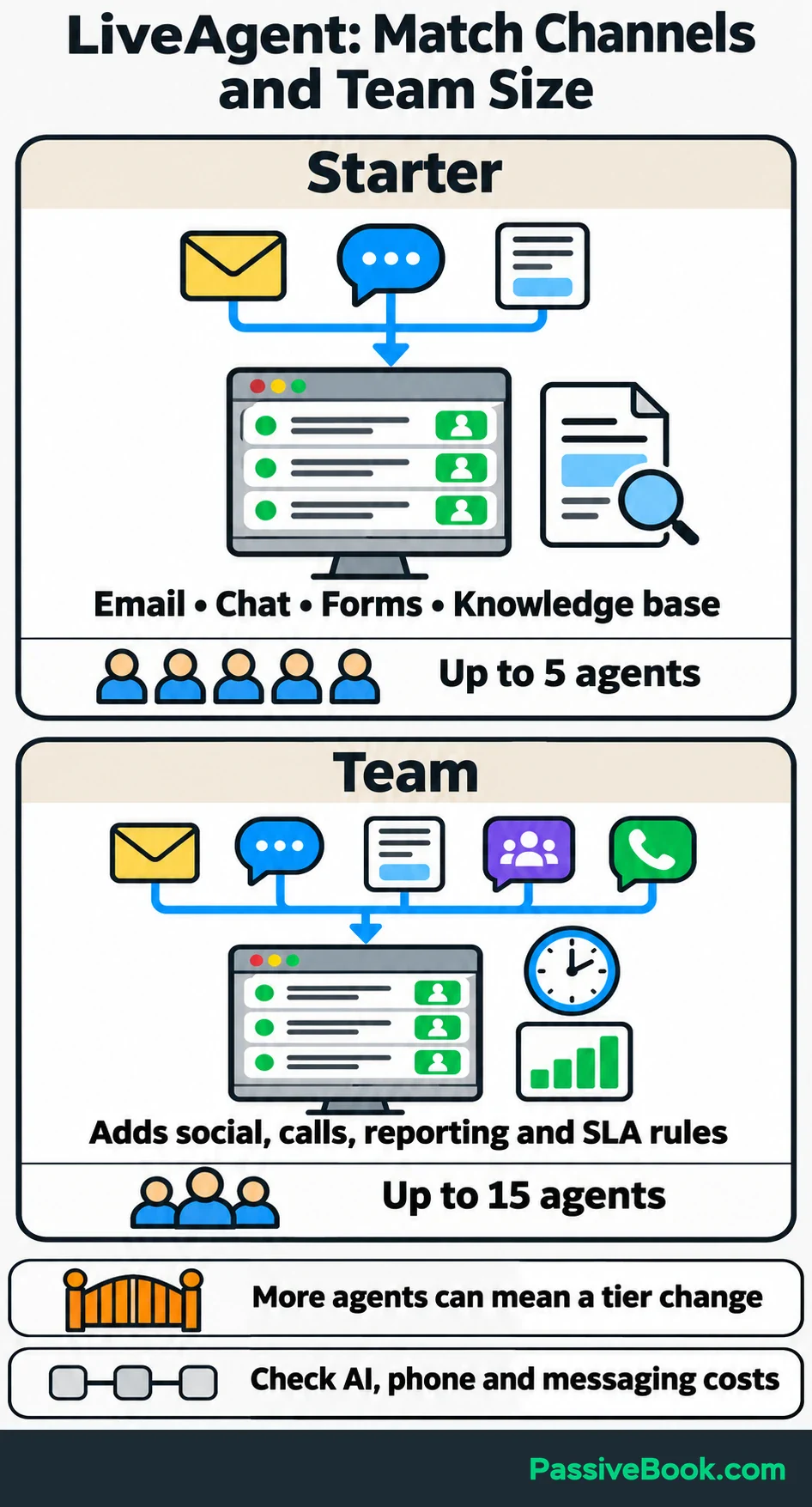
Starter covers email, chat, forms and a knowledge base. Team adds social channels, calls, reporting and service-level agreement rules. The agent caps also matter: adding people beyond a plan’s limit can require a tier change.
AI features use an external provider, so allow for provider usage charges. Phone and messaging services can carry their own costs too.
I would choose LiveAgent when the broader channel coverage solves an existing problem. For the watercolor shop’s email-only download requests, I would compare simpler inboxes and native ticketing first.
The useful question is whether all those channels need support now. Buying phone support because you might offer it someday is an expensive form of optimism.
8. Tidio: Best for WooCommerce Chat With Optional AI Automation
Tidio is a strong candidate when live conversations and store context belong together.
Its WooCommerce connection can show visitor carts and purchase history, and agents can send product cards in a conversation. That is more useful for shopping assistance than a widget that simply happens to appear on a store page. Tidio’s WordPress integration
Its pricing needs careful reading because it counts different kinds of work separately.
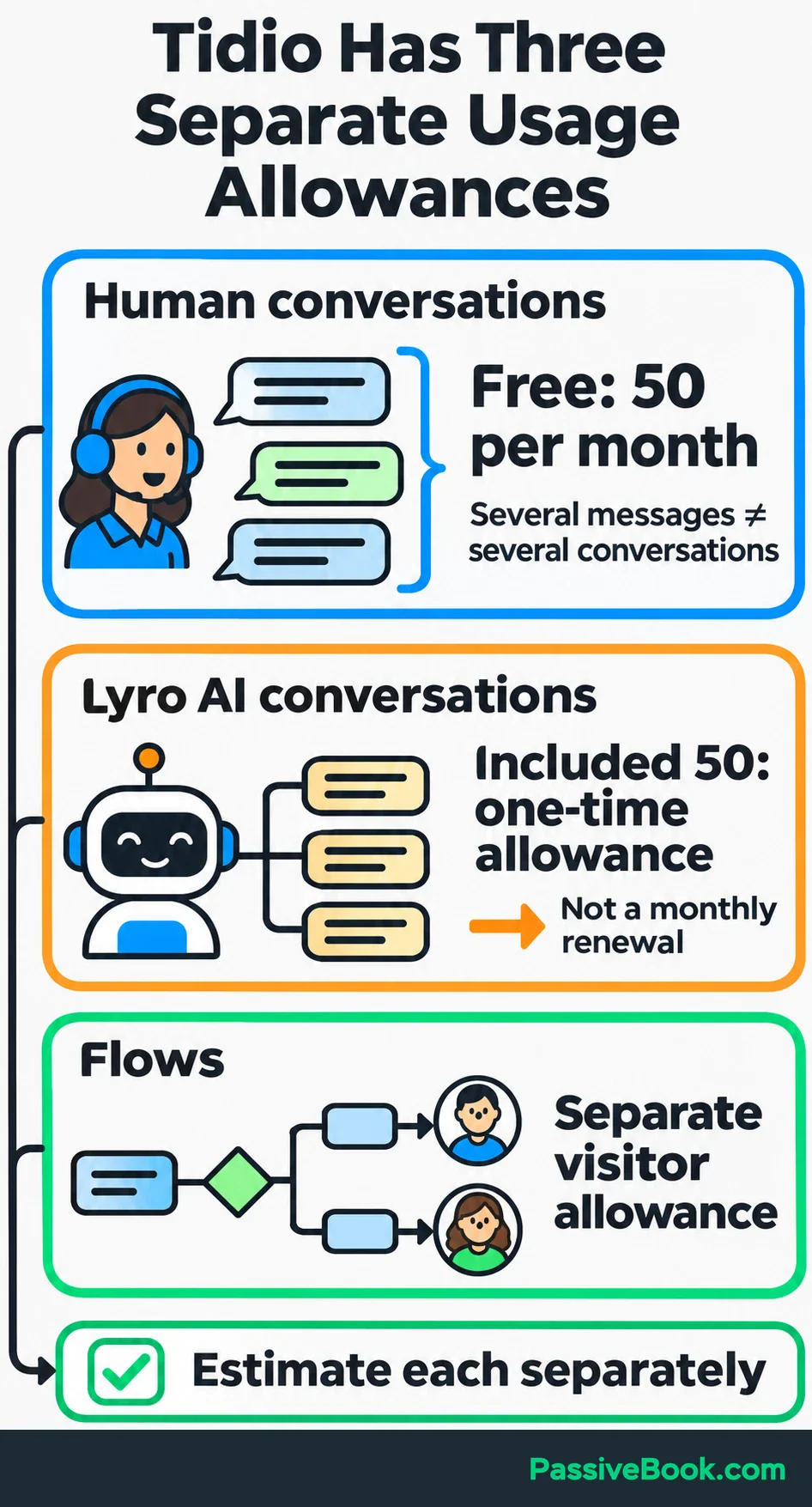
A billable conversation includes a human agent’s reply or a conversation the agent starts. Several messages within that thread do not each become another billable conversation. The free plan includes 50 of these conversations per month and 10 seats.
Lyro AI conversations and visitors reached through Flows, Tidio’s automation builder, have separate allowances. The included 50 Lyro conversations are a one-time allowance, so do not budget as though they renew every month.
I would choose Growth when automatic assignment and macros—reusable actions or replies—are necessary. Before subscribing, estimate human conversations, AI conversations and Flows usage separately. One neat-looking monthly price does not describe all three.
9. LiveChat: Best for a Staffed Live-chat Operation
LiveChat suits a site where customers regularly need an immediate answer and someone is available to provide it.
The hosted service adds live chat, offline message capture and commerce connections such as WooCommerce. The free WordPress connector needs a service account. LiveChat’s main pricing page now presents Text’s Essential and Growth plans, which are the plans compared here. Existing LiveChat customers have a separate legacy pricing page.
Essential includes chat, an inbox and ticketing system, workflow automation and limited AI allowances. Growth adds shared saved responses, unlimited chat history, supervision and team reporting.
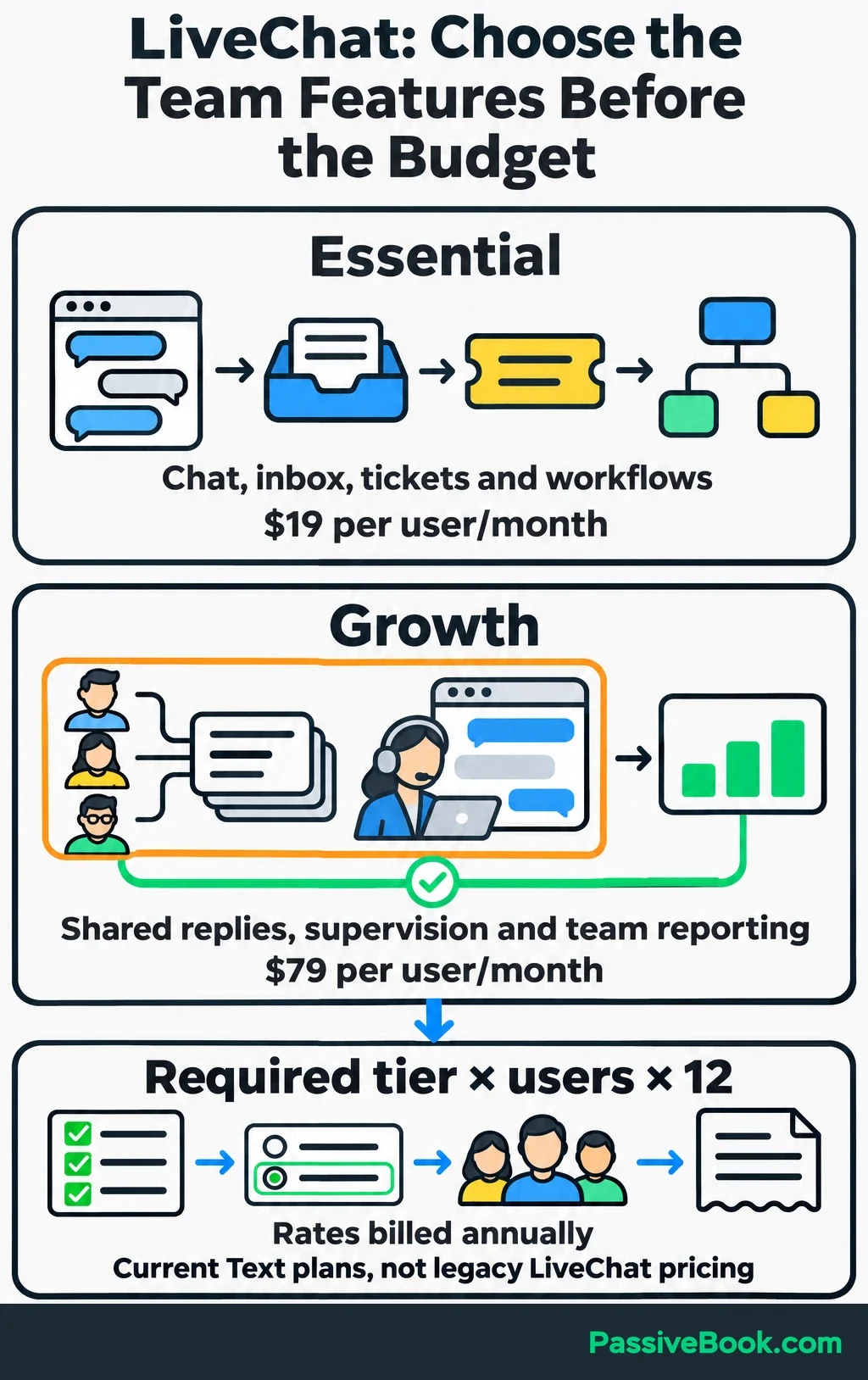
I would choose the required collaboration tier before multiplying the price by users. If your team needs shared answers and supervision, the entry price is not the number to build the budget around.
For the watercolor shop, LiveChat becomes more compelling if buyers regularly ask questions while choosing a workbook. It is less compelling when most requests arrive after purchase and customers can wait for an email reply.
Compare tawk.to when free human chat meets the need. Choose a ticket-first helpdesk when the real challenge is keeping unresolved issues visible across several days.
10. Tawk.to: Best for Free Hosted Live Chat
tawk.to is my first option to compare when you want human chat and want to keep subscription spending low.
Its core hosted software includes chat, ticketing and a knowledge base, with unlimited agents and messaging. The WordPress plugin connects your site to that service. tawk.to’s free WordPress offering
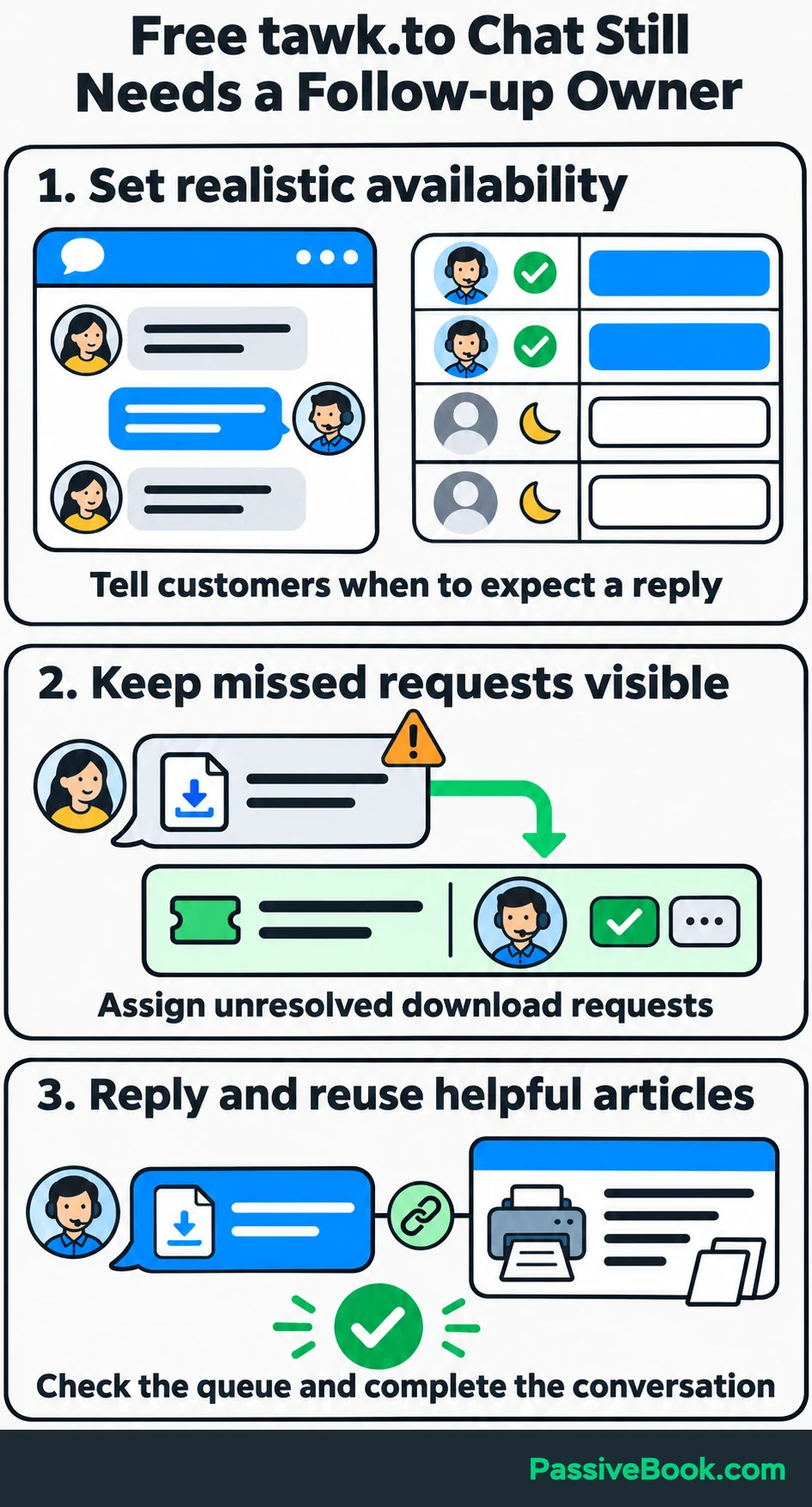
For the watercolor shop, you could publish printing instructions in the knowledge base and turn unresolved download conversations into assigned tickets.
The core service carries tawk.to branding. Whitelabel is the optional upgrade for removing that branding, using custom domains and sending branded ticketing emails. AI Assist is a separate paid option.
I would begin with the free human workflow and see whether it covers the job. Branding removal can wait until it has a clear business reason.
The larger cost may be your time. Set realistic availability and decide who checks missed conversations. Free software does not create a person who can answer while you are doing something else.
11. HubSpot: Best for Support Tied to an Existing HubSpot CRM
HubSpot makes the most sense when your business already keeps customer records there.
Its WordPress plugin connects forms, live chat and contact activity to the hosted CRM. That can help support stay connected to earlier customer interactions.
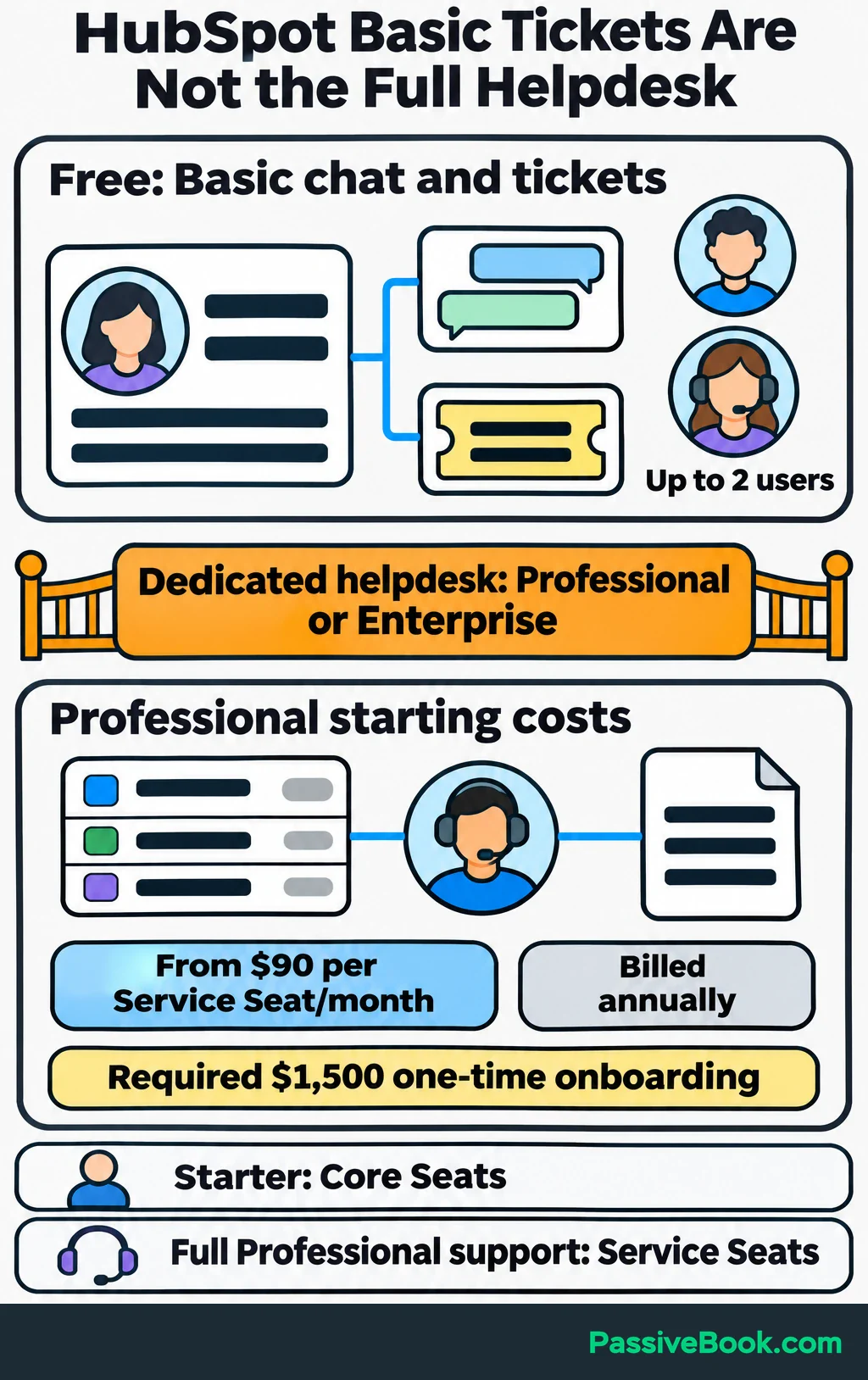
But basic ticket tools and the full helpdesk are different buying decisions. Free supports up to two users, while the dedicated helpdesk workspace requires Service Hub Professional or Enterprise. HubSpot’s helpdesk eligibility
Seat types matter too. Starter uses Core Seats, while full Professional support functionality requires Service Seats. The comparison table includes the Professional onboarding charge because leaving it out would badly understate the starting cost.
I would choose HubSpot for continuity with an existing CRM and a clear need for its support features. I would not move the watercolor shop into a larger software stack just to answer download questions.
If support is the only problem you are solving, compare a dedicated helpdesk before paying for a broader upgrade.
How Much Will Your Support Workflow Cost?
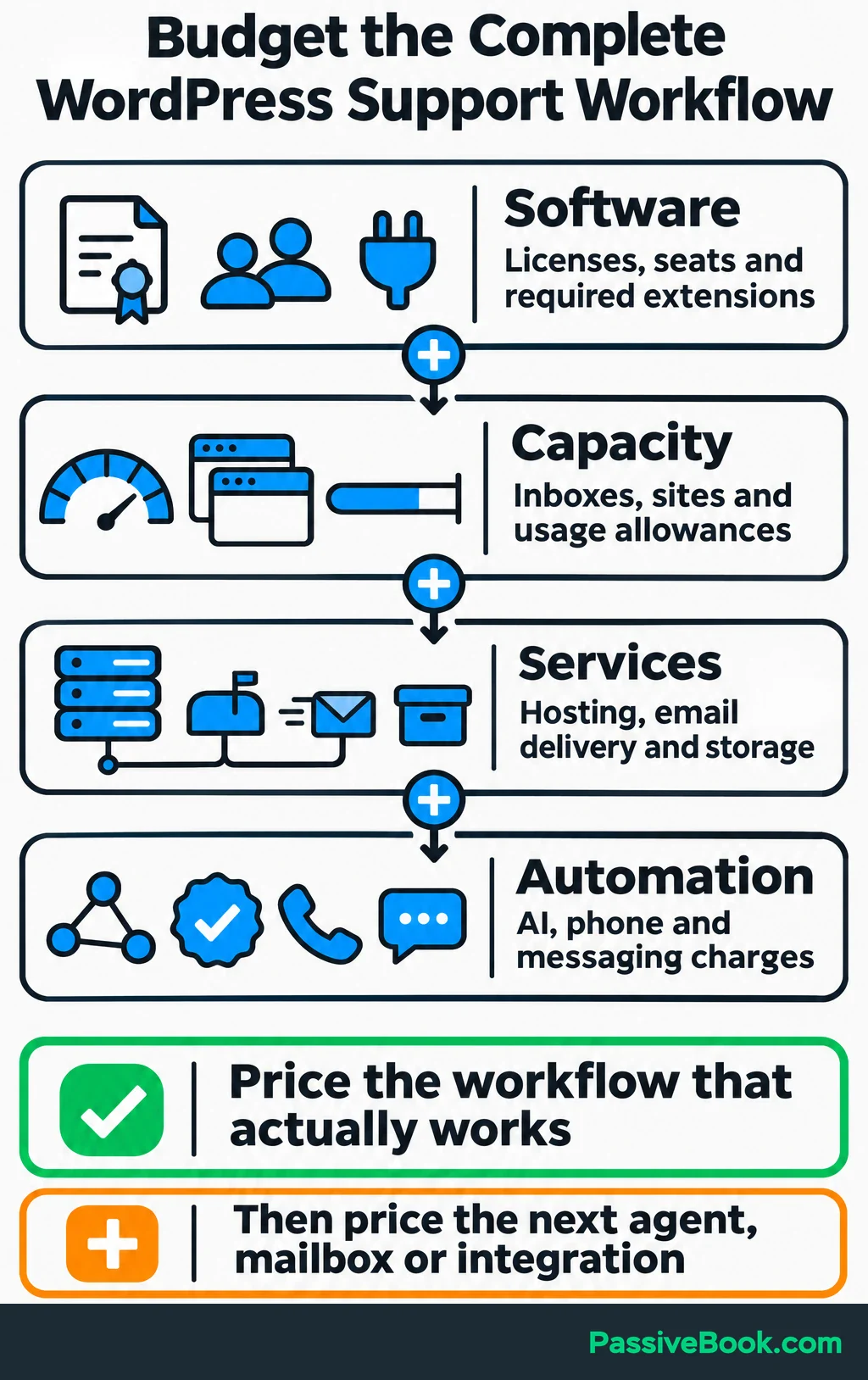
Price the lowest configuration that completes the work. That means a customer can submit a request, someone owns it, an agent replies, and the customer’s reply returns to the same issue.
Your budget should include:
- Software: Site licenses, agent seats and required extensions.
- Capacity: Inboxes, websites, conversation allowances and the next likely usage tier.
- Services: Hosting, business email, outgoing email delivery and attachment storage.
- Automation: AI-provider usage, paid AI resolutions and external phone or messaging charges.
Then price the next likely change. It might be another agent, another mailbox or access to WooCommerce order history.
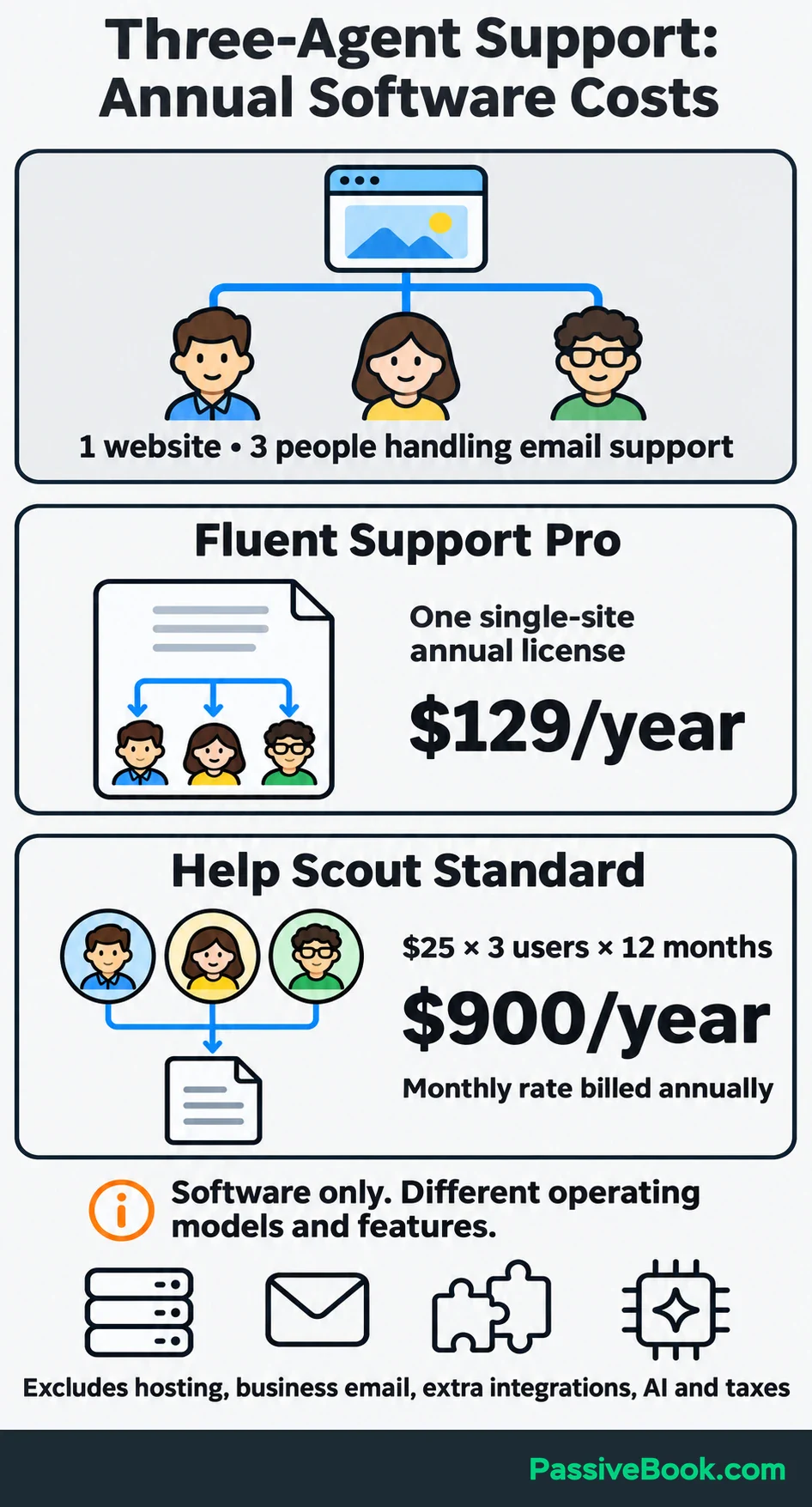
For the watercolor shop, suppose three people need to handle email support for one website. The table below compares their annual software charges using the regular prices above. Price any extra integration needed to show WooCommerce orders separately:
| Configuration | What the Calculation Counts | Annual Software Charge |
|---|---|---|
| Fluent Support Pro | One single-site license covering all three agents | $129 |
| Help Scout Standard | Three paid users for 12 months: $25 × 3 × 12 | $900 |
These totals cover different operating models and feature sets. They exclude hosting, business email, additional integrations, AI and taxes.
I prefer controlling recurring software spending, so I would examine the native option first. But self-hosting is not automatically cheaper once you include maintenance and the time it takes you to run it.
Your agent count, required extras and billing terms can change the comparison. Put your two shortlisted setups side by side using the costs that apply to your business.

Free Software Cost Calculator




The cheaper configuration still needs to pass the workflow check. For this shop, I would confirm incoming email, order context, assignment and customer replies before making the decision.
Also remember that “unlimited agents” describes licensing. Your hosting still has to handle the workload, database and attachments.
Test Your Chosen Plugin Before Switching Support
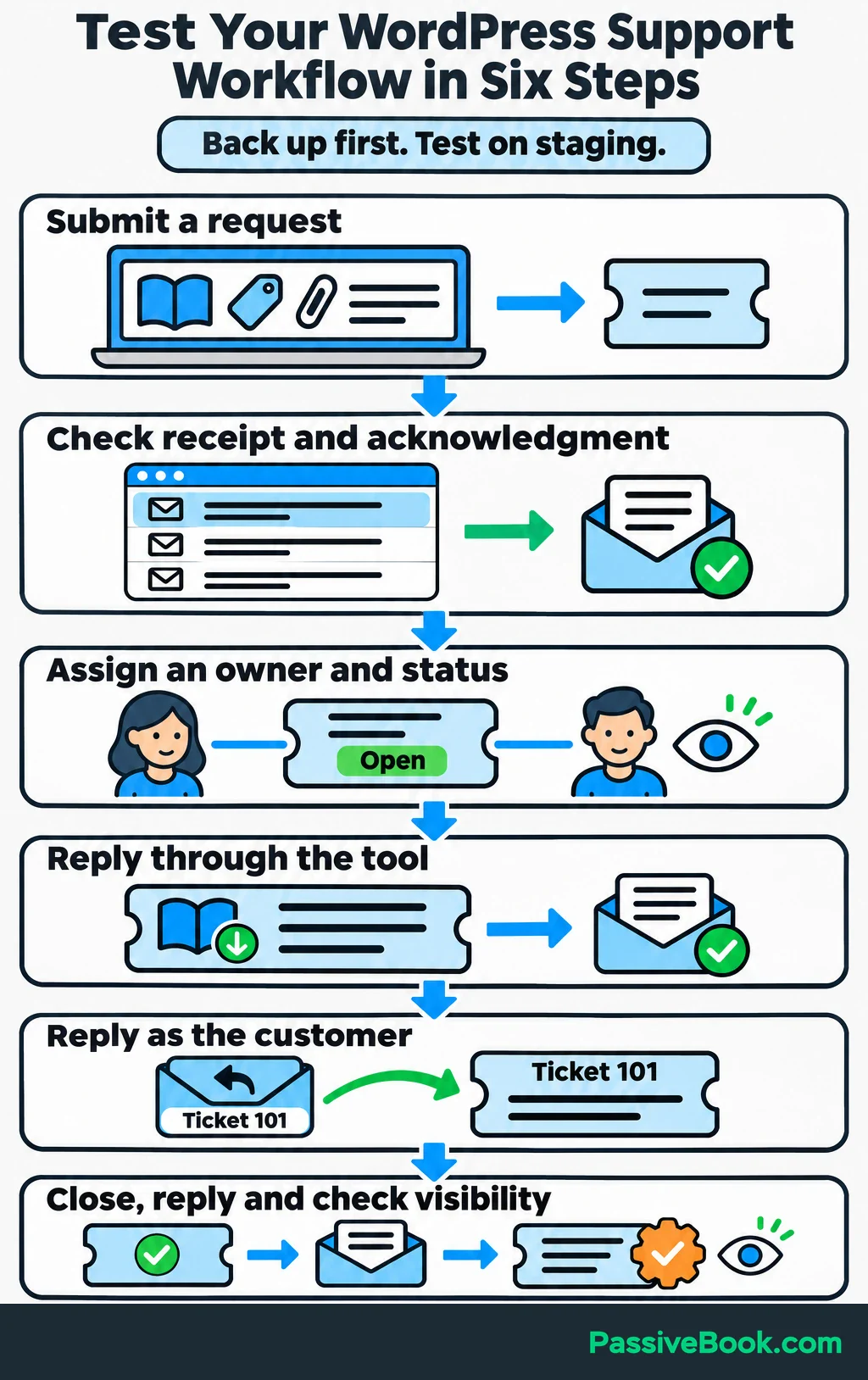
Start with a backup and a staging copy of your site. A staging site is a separate copy where you can try changes before customers encounter them.
Check the current WordPress and PHP requirements, recent maintenance and support documentation. Then test the plugin alongside your checkout, caching and security tools. A feature list cannot tell you how that combination behaves on your site.
I would use the watercolor shop’s missing-download request to test the complete process.
- Capture the Request: Submit “I bought the beginner workbook, but I can’t find the download” through the intended form or support address. Include an order reference and a small attachment.
- Check Delivery: Confirm that the request appears in the queue and the customer receives the expected acknowledgment.
- Assign an Owner: Give it to one agent and choose a status such as “Open.” Another agent should be able to see who is handling it.
- Reply Through the Tool: Send the download instructions and confirm they reach the customer.
- Reply as the Customer: Answer from the customer’s email account and check that the message returns to the same ticket or conversation.
- Close and Reopen: Resolve the issue, then send another customer reply. Confirm that it reopens or becomes visible according to your chosen rules.
Configure outgoing email delivery and incoming email processing separately. On my WordPress sites, I use FluentSMTP with Amazon SES for outgoing mail. That handles sending; it does not turn incoming messages into tickets.
If you add chat, test what happens when nobody answers. The missed conversation needs a visible follow-up route, and the customer should understand when to expect a response.
Next, save the recurring answer you will actually use. For printing questions, an excerpt might read:
Open the workbook PDF in your PDF reader and choose “Actual size” or 100% scale. Check the paper size against the workbook instructions before printing.
Link that reply to the full printing article, and keep both consistent.
On one of my digital-product sites, I changed a file-access instruction in a help article but left the old wording in a saved email. The next reply sent the buyer back to the wrong place. I now check the saved answer whenever its linked instructions change.
Once the basic process works, add assignment rules. I would keep AI-generated replies under human review until I had checked how they handle missing information and when they pass a request to a person. Refunds and account-access changes deserve particular care.
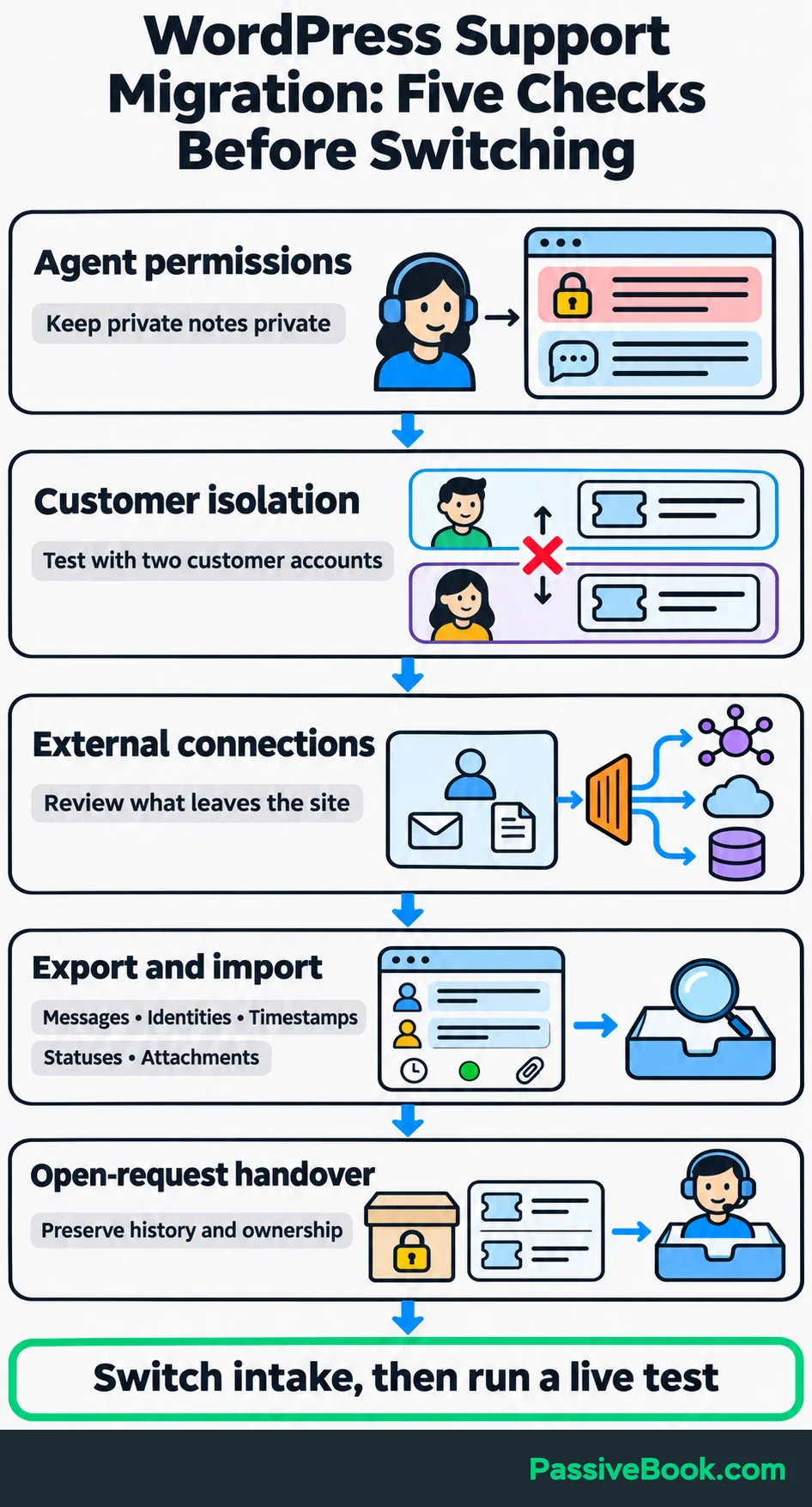
Before switching, finish these checks:
- Agent Access: Give agents the permissions they need and verify that private notes stay private.
- Customer Privacy: Use two separate customer accounts and confirm that neither can view the other’s tickets.
- External Connections: Review what customer information leaves the site when you enable AI or other integrations. Native storage does not keep every connected action inside WordPress.
- Export and Import: Try a representative export and any required import. Check messages, customer identities, timestamps, statuses and attachments.
- Open Requests: Preserve the original archive and decide where existing conversations will be completed.
Switch the live intake channel only after submission, delivery and follow-up work. Then send one real test through the live setup and check it from both sides.
What Next?
Write down one support request your current setup handles badly, then trial two tools against that exact request.
Use the social buttons to share this comparison when you are choosing a support system together; it helps put features, upgrade needs and costs in the same discussion.
Which part of your support process loses the most time or requests? Tell me in the comments, and bring any other questions too.
Share this post with your friends & followers:

