You update a plugin and checkout stops working. Your backup list shows yesterday’s copy, but the shop has taken orders since then.
Now you have two problems: getting the site working and keeping the sales that arrived after that backup. A restore button alone doesn’t tell you how either will go. This comparison helps you weigh that recovery work alongside automation, storage and cost, then check whether your chosen plugin can bring back the pages, files and orders you need.
What to Look for in a WordPress Backup Plugin
Start with what you need to recover. WordPress needs both its files and its database. Files include images, themes, plugins and locally stored product downloads. The database holds posts, settings, customer accounts and orders in tables that group related records. Saving one without the other leaves an incomplete recovery plan. WordPress explains these two backup requirements.
On one of my digital-product sites, I kept a separate folder of product originals and mentally counted that as protection. Then I checked what it left out: customer access, product settings and order history. Those originals were useful, but they couldn’t rebuild the business side of the site.
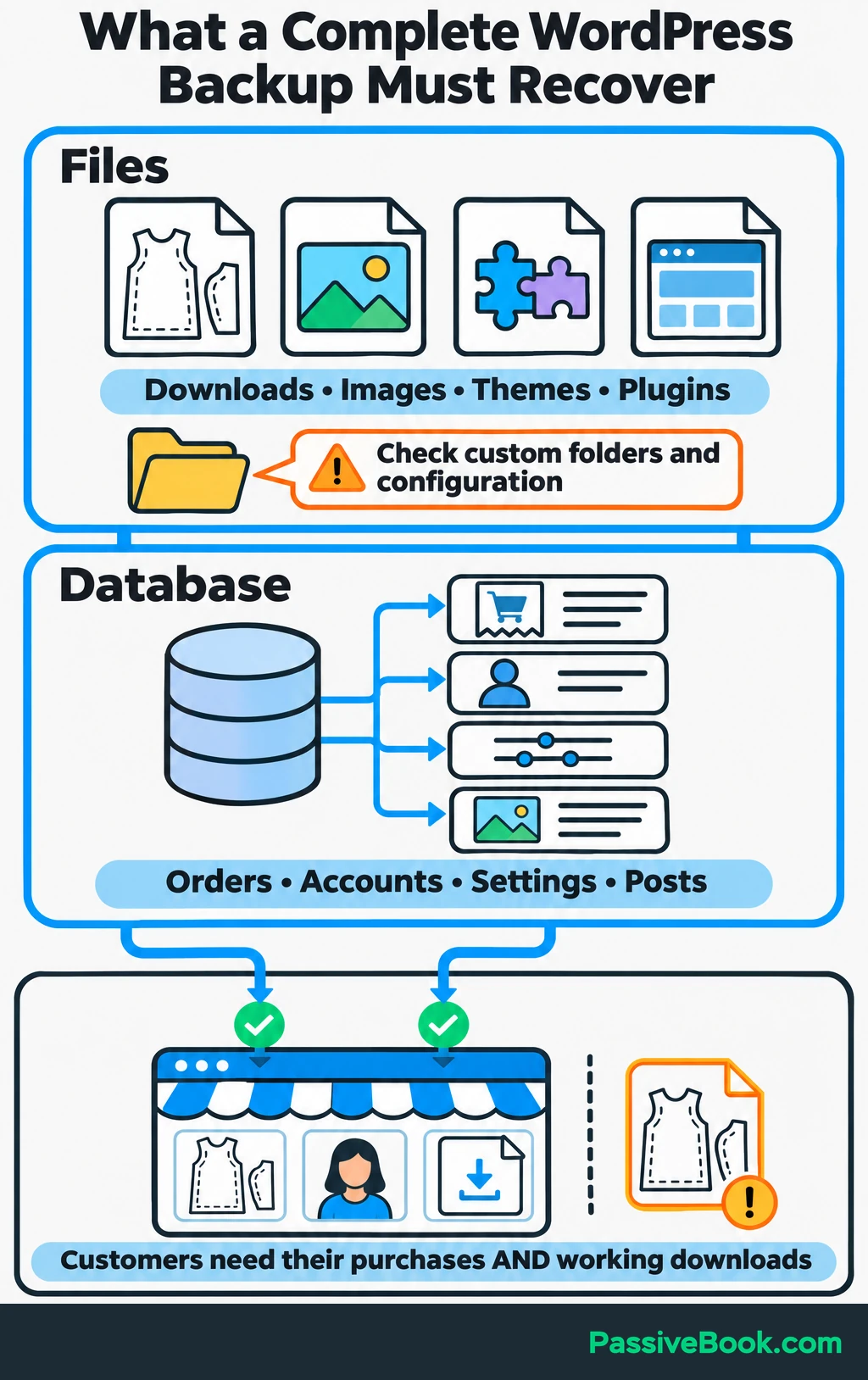
Imagine you sell downloadable sewing patterns using WooCommerce, a plugin that adds a shop to WordPress. I’ll use that shop throughout. Recovering the homepage would be a start, but customers also need their purchases and working download links.
These are the checks I would make before choosing a plugin:
- Coverage: Include the files and database tables your site actually uses. Check exclusions, custom folders and configuration files. A pattern PDF stored outside the usual uploads folder needs particular attention.
- Frequency: Choose the longest gap between backups you can accept. If losing an hour of orders would create a serious problem, daily backups won’t meet that need.
- Retention: Decide how far back you need to recover. Frequent backups protect recent activity, while a longer history helps when you discover a problem weeks later. You may need both.
- Storage: Keep a copy outside your hosting account. A backup beside your website can disappear with the same server failure or account compromise.
- Recovery: Find out what happens when WordPress admin won’t open. You may need a replacement WordPress installation, an installer that runs outside WordPress or an external service dashboard. Even an external dashboard needs a working server to restore onto.
- Total Cost: Compare the required plan, site allowance, storage, retained history and included support. Check your hosting backups first; they may already cover part of the job.
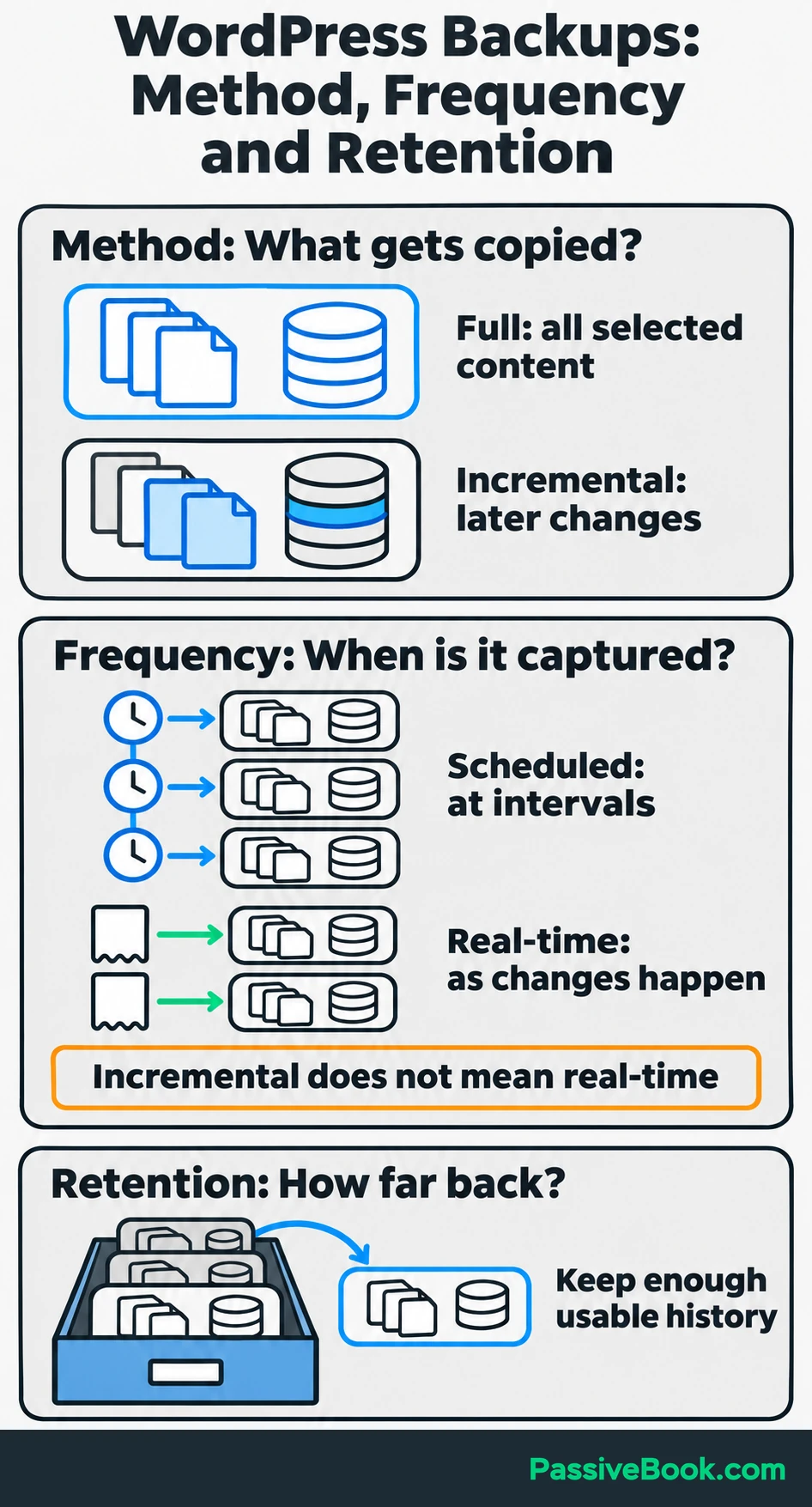
Also separate backup method from backup frequency. A full backup copies all selected content. An incremental backup copies later changes, which can reduce repeated work and storage. “Incremental” does not mean “real-time,” which captures changes as they happen rather than waiting for a scheduled backup.
Migration moves your site to another location, and staging creates a copy for testing changes. A staging-to-live feature copies tested changes back to the public site. A staging copy on your existing server still shares that server’s risks.
11 Best WordPress Backup Plugins Compared
The best WordPress backup plugins solve different recovery problems. I’m comparing documented capabilities here, without claiming firsthand restore-speed tests or measured support quality.
If you want a short list, I would choose:
- Free Scheduled Offsite Backups: UpdraftPlus.
- Managed Recovery and Hosted Test Restores: BlogVault.
- Real-time WooCommerce Protection: Jetpack VaultPress Backup.
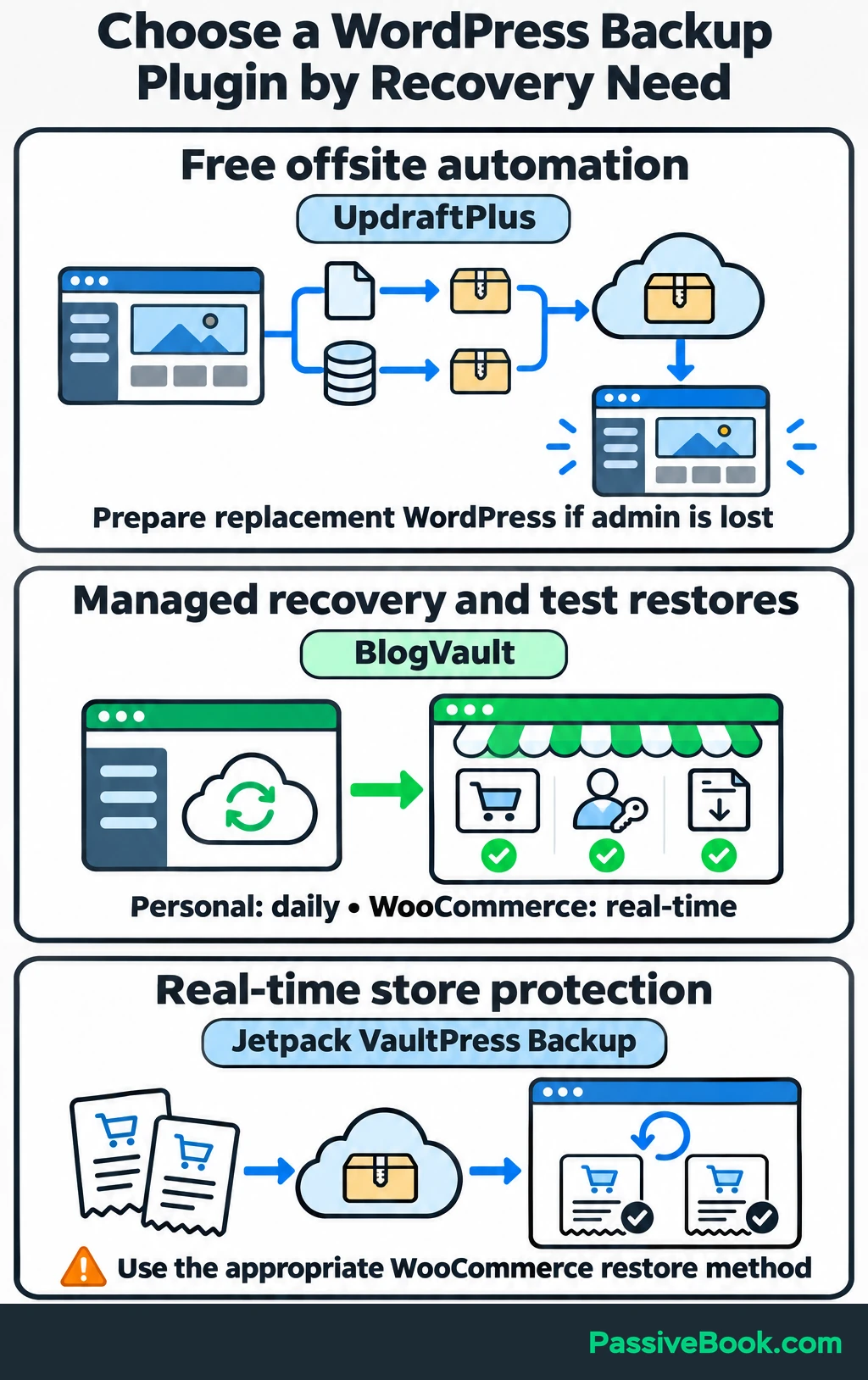
The table keeps prices in one place. Dollar amounts are USD, and annual prices are billed yearly unless stated otherwise. Promotions and stated tax treatment are labeled. Follow the plan links for current totals and renewal terms; a listed regular price alone does not establish your renewal bill.
Once two plugins meet your recovery needs, compare what you would actually pay. Include any required storage or support charges, not just the plugin license.

Free Software Cost Calculator




For plugins that use your own storage, check which services they support, such as Google Drive, Dropbox or Amazon S3. Some also transfer files to a separate server using FTP or SFTP; SFTP encrypts that transfer. Storage costs are separate, and retained history depends on your settings and available space.
| Plugin and Best Fit | Free Scheduled Backups and Destination Limits | Relevant Paid Plan, Site Allowance, and Annual Cost | Storage and Retention | Recovery Without WordPress Admin | Migration Availability |
|---|---|---|---|---|---|
| UpdraftPlus — free offsite automation | Every two hours or less often; one destination, including Google Drive, Dropbox or S3 | Personal: $70/year before applicable tax; two sites | Personal includes 1GB UpdraftVault; configurable retained copies; additional capacity costs extra | Reinstall WordPress and the plugin, or restore manually | Free backup-and-restore migration; direct site-to-site workflow in Premium |
| WPvivid — free backups plus staging | Every 12 hours or less often; one remote destination, including Drive, OneDrive, Dropbox, S3 or SFTP | Blogger Pro: $49/year; two domains; $99 one-time option also offered | Use your storage provider; configurable retention | Prepare replacement WordPress and WPvivid, then supply the complete archive set | Free migration; advanced selection and cloud workflows in Pro |
| BlogVault — managed recovery | No ongoing free backup tier | Personal: promotional $49.50/year; regular $99, one site. WooCommerce: promotional $249.50/year; regular $499, one site | Included storage; Personal supports sites up to 20GB with 30-day history; WooCommerce supports up to 100GB with 365-day history | External dashboard and Emergency Connector using FTP and database access | Included |
| Jetpack VaultPress Backup — real-time store protection | No ongoing free backup tier | Standalone: €59.40 upfront for the first year (€4.95/month equivalent); listed regular rate €8.95/month, or €107.40/year equivalent; one site | Starts with 10GB and a 30-day archive | External dashboard with server access; complete failure may require fresh WordPress or manual recovery | Included backup migration workflow |
| Duplicator — portable recovery and host changes | Lite backups are manual; local archives or separately paid Duplicator Cloud | Basic: regular $79/year; two sites; one selected third-party destination | Provider storage is separate; optional Duplicator Cloud starts at $29/year for 2GB; configure retained copies | Saved archive plus standalone installer; paid recovery launcher depends on a surviving local archive | Manual migration in Lite; easier import workflows in paid editions |
| BackWPup — multiple free destinations | Hourly through monthly; multiple destinations per job, including Dropbox, S3-compatible storage and FTP | Starter: $49/year; two domains | Provider storage is separate; retention can differ by destination | Standalone restore application requires Pro | Pro |
| ManageWP Worker — several sites in one dashboard | Monthly backups to included service storage | Premium Backup: $2/site/month, billed monthly; $24 per site over 12 months | Offsite storage included; 90-day history | External service dashboard; FTP fallback when Worker is disconnected | Premium Backup |
| Total Upkeep — protection around updates | Scheduled backups; FTP/SFTP available free; Drive and S3 require Premium | Premium: $30/year ($2.50/month equivalent); sites directly owned by you or your business | Provider capacity is separate; configure retained copies | Separate restoration script | Free migration between WordPress installations |
| WP STAGING — update testing plus backups | One daily local backup; newest automatic copy retained | Business: advertised €139/year before VAT; three sites | Business supports external providers and configurable retention; storage capacity is separate | Business needs replacement WordPress or another prepared route; standalone recovery requires Developer or Agency | Paid plans; Business also includes staging-to-live |
| Backup Migration — smaller archives | Daily, weekly or monthly; remote options include Drive and Dropbox; free archives limited to 4GB | Premium yearly option: $45; two sites | Premium includes 5GB BackupBliss storage for the first year; capacity limits how much history fits | Restore into a working replacement WordPress installation | Free |
| Backuply — inexpensive bundled storage | Free backups are manual; Google Drive and FTP available | Cloud: $18/year, one site; Personal Pro: $39/year, one site | Both include 10GB cloud storage; paid entitlements add backup rotation | Manual file restoration and database import through hosting tools | Free; Pro adds more cloud destinations |
1. UpdraftPlus: Best for Free Scheduled Offsite Backups
UpdraftPlus is where I would start if you want automatic offsite backups without buying a plugin subscription.
The free edition backs up files and the database, supports separate schedules, and restores selected components such as plugins, themes or the database. It also includes migration with URL replacement. Its shortest scheduled interval is two hours. The free plugin listing documents these capabilities.
Premium becomes useful when you want incremental backups, automatic backups before updates, more storage destinations or premium support. I would upgrade for a specific need rather than assume a paid license makes every recovery easier.
If the site cannot load, plan to install fresh WordPress and UpdraftPlus before importing your backups. Free backups exclude WordPress core, and custom root configuration needs separate attention.
Existing users also need to account for TeamUpdraft’s October 2026 security incident. Account holders should follow its password-reset guidance. Premium users should complete the vendor’s site checks. So should anyone whose sites were previously connected to UpdraftCentral Cloud, TeamUpdraft’s service for managing WordPress sites remotely. UpdraftVault storage users must reconnect and confirm uploads. The vendor says plugin downloads were unaffected and free users without a TeamUpdraft account need no incident-specific action. Follow the official incident guidance.
2. WPvivid: Best for Free Backups With Staging
WPvivid is my alternative when you want free backups and somewhere to test changes.
Its free edition combines scheduled file and database backups, remote storage, restoration, migration and staging in a subdirectory. That gives you a practical way to try an update before applying it to the live site.
The main scheduling tradeoff is the 12-hour minimum interval in the free version. That could suit a slowly changing site, but I wouldn’t choose it for the sewing-pattern shop if several hours of orders would be difficult to reconstruct.
Pro adds incremental backups, advanced schedules, database encryption and staging-to-live workflows.
For recovery elsewhere, prepare WordPress and WPvivid and upload every part of the backup. Neither edition restores .htaccess or wp-config.php, which hold server rules and WordPress configuration. If you’ve customized these files, keep separate copies and check which settings belong on the new host. These are documented restoration requirements, and they matter when moving between hosts.
3. BlogVault: Best for Managed Backups With Hosted Test Restores
BlogVault is the option I would shortlist when managing storage and rebuilding a broken installation feels like another job you don’t want.
It includes offsite storage and incremental backups, and recovery starts from an external dashboard. Its standout feature is Test Restore: you can open a backup as a temporary website on BlogVault’s servers before changing your live site.
That makes checking the recovered site more approachable. You can inspect pages, login and downloads before committing to a production restore.
If WordPress cannot run, BlogVault’s Emergency Connector can restore the site using your FTP and database login details.
Choose the plan carefully. Personal provides daily backups, while real-time order protection belongs to the WooCommerce tier. For the sewing-pattern shop, that higher tier is the relevant comparison if daily recovery points leave too many sales exposed.
4. Jetpack VaultPress Backup: Best for Real-time WooCommerce Backups
Jetpack VaultPress Backup would be my first shortlist choice when ongoing orders make scheduled snapshots feel too far apart.
You can install the standalone backup plugin without the full Jetpack suite. Cloud storage and external recovery access are included, and each subscription covers one site. It does not support WordPress Multisite.
The restore method matters for a store. Jetpack says its standard restore dialog keeps WooCommerce orders and products current. Restoring individual WooCommerce tables through the backup file browser replaces their contents, which can remove records added after that backup. Use the appropriate WooCommerce restore method.
Add server credentials while the site is healthy. A complete failure may still call for fresh WordPress or manual recovery.
Also check custom database tables and download locations against supported backup contents. “Real-time” is valuable, but it does not mean every file anywhere on your server is covered.
5. Duplicator: Best for Portable Backups and Host Changes
Duplicator is the tool I would consider when you want a recovery package you can carry to another host.
Lite creates manual backups and supports restoration and migration. Its portable archive and standalone installer are useful when the original WordPress installation is gone.
The catch is automation. Lite does not schedule backups, and third-party storage destinations require a paid plugin license. It can connect to separately paid Duplicator Cloud storage.
For regular business protection, I would pay for scheduling or choose a free plugin that already includes it. Remembering to click “back up” is a fragile system.
Keep the archive and installer outside the hosting account. Duplicator’s paid Disaster Recovery launcher is a different route: it needs a complete, unfiltered backup stored locally on the site. Those recovery requirements mean the launcher alone cannot cover the loss of that local copy.
6. BackWPup: Best for Free Backups to Multiple Destinations
BackWPup earns its place when you want one backup job to send copies to more than one destination without paying for that feature.
The free edition supports schedules from hourly through monthly and can combine destinations such as Dropbox, S3-compatible storage and FTP. Each destination has its own retention settings.
That lets you keep different histories in different places. Just allow enough storage for the copies you intend to retain.
Free restoration accepts manually uploaded archives. Pro adds direct restoration from remote destinations, migration, encryption and a standalone restore application for recovery when WordPress is unavailable. The plugin’s edition comparison explains that split.
I would choose it for flexible storage arrangements. I would pay for Pro if its standalone recovery route removes manual work I would otherwise struggle to complete.
7. ManageWP Worker: Best for Backups Across Multiple Sites
ManageWP makes sense when your problem is keeping track of several websites.
The Worker plugin connects each site to a central service dashboard. You can review backups there instead of signing into every WordPress installation.
The free backup runs monthly and includes offsite storage and restoration. That is useful for a rarely changed site, but I would skip monthly protection for an active shop. A long retained history does not make the latest backup more recent.
Premium Backup adds hourly scheduling, on-demand backups, downloads and cloning or migration.
Prepare FTP credentials for recovery when Worker disconnects. Also understand that ManageWP restores do not delete files added after the backup. Its restore documentation states this behavior, so restoring an earlier copy alone does not guarantee removal of every malicious file after a compromise.
8. Total Upkeep: Best for Backups Before Software Updates
Total Upkeep appeals to me when updates are the main source of worry.
The free plugin supports scheduled backups, FTP/SFTP storage, backups before updates and rollback after failed updates. It also handles migration between WordPress installations.
I like the connection between taking a backup and making a risky change. An automatic backup before an update is more dependable than a reminder you might ignore.
Premium adds Google Drive and S3 destinations and individual-file restoration. Buy it if those features fit your storage or recovery needs.
Before trusting automated rollback, confirm that a complete backup finishes successfully on your hosting account. Prepare the separate restoration script too. It runs from the server’s command line, so confirm you have that access and can use it before relying on this recovery route.
9. WP STAGING: Best for Combining Update Testing With Backups
WP STAGING suits a workflow where you test changes before putting them in front of customers.
The free edition creates staging copies, supports manual backups and same-site restoration, and keeps the newest automatic daily backup locally.
That local copy is useful for a quick rollback, but it needs an independent copy elsewhere to cover server loss.
Business is the relevant paid tier when you want flexible backup schedules, remote storage and staging-to-live workflows. The cheaper Personal tier does not provide that same combination.
Standalone recovery belongs to Developer and Agency. With Business, plan for a replacement WordPress installation or another prepared recovery route after complete server loss.
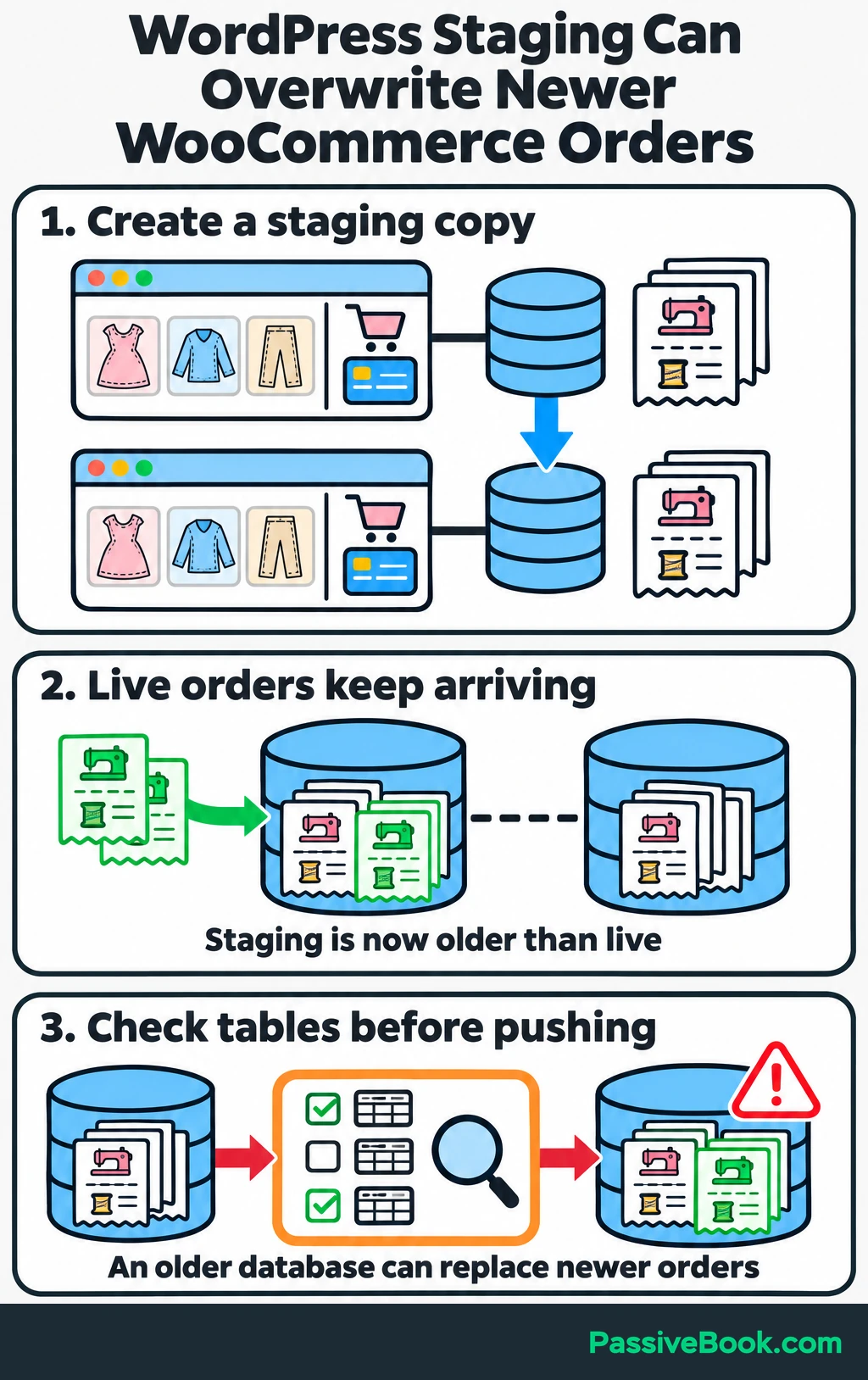
For the sewing-pattern shop, I would use staging to test a checkout update and check which tables a push will replace. An older staging database can overwrite newer live orders if you publish it carelessly.
10. Backup Migration: Best for Simple Backups up to 4GB
Backup Migration by Inisev is worth considering for a small site that needs straightforward backup, restore and migration features.
Its free edition supports scheduled backups and remote destinations, including Google Drive and Dropbox. The important limit is the backup archive size: free archives can be up to 4GB. That is separate from how much space your storage account provides. The plugin listing explains the limit and included features.
Premium supports larger backups. Its bundled storage allowance applies to the first year, so account for storage beyond that period.
I would choose this for a site whose archives fit comfortably within the free limit. I would look elsewhere if managing archive size becomes a recurring task.
WordPress core is excluded by default. Include it in the backup selection if you need those files in the archive, and prepare a working WordPress installation for the plugin-based restore workflow.
11. Backuply: Best for Low-cost Bundled Cloud Storage
Backuply is appealing when you want an inexpensive package that includes storage.
The free plugin handles manual file and database backups, restoration, migration, Google Drive and FTP. Automatic scheduling requires a paid plan.
The Cloud plan is the budget option I would compare first. It includes storage, automatic backups, rotation and premium support without requiring the Pro plugin. Personal adds Pro destinations such as SFTP, Dropbox, OneDrive and S3.
There is one setup detail to get right: activate the Cloud license and add Backuply Cloud as a storage destination before expecting automatic backups to work.
If WordPress admin cannot run, manual recovery involves restoring files and importing the database separately through hosting tools. Keep that access available and make sure the included storage can hold the history you need.
Schedule Automatic Backups Outside Your Hosting Account
Choose your acceptable loss window before choosing a schedule. Ask how much recent work you could reconstruct, and how long that reconstruction would take.
For the sewing-pattern shop, a pattern PDF may stay unchanged for weeks. Orders and customer access can change throughout the day, so they need more frequent protection.
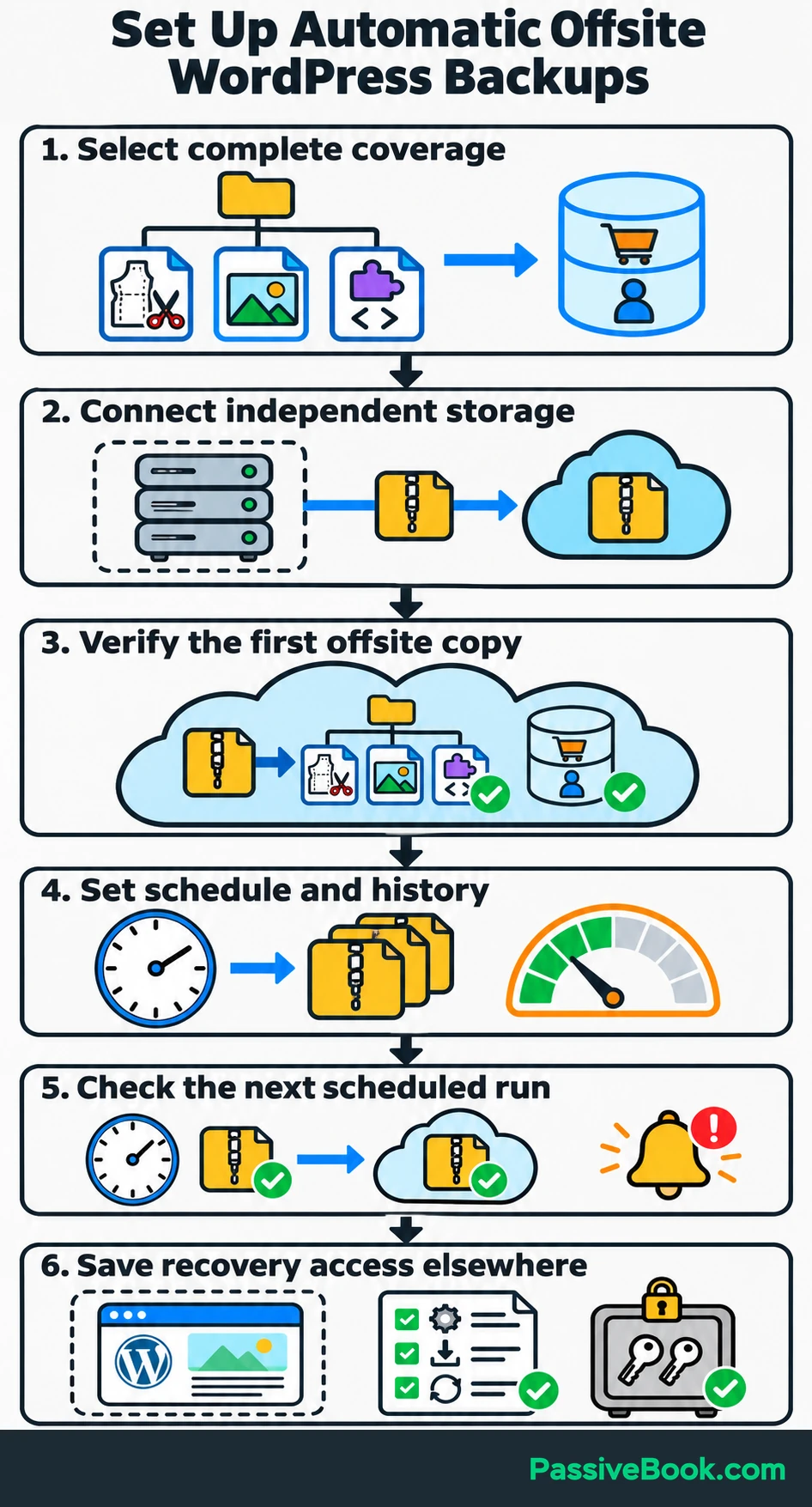
Here is the setup process I would follow:
- Install your selected plugin and include the required files and database tables. Check the actual folder containing your downloadable products.
- Connect storage outside your hosting account, or activate the service’s included offsite storage.
- Run the first complete backup and confirm it reached that destination.
- Set the automatic schedule and retained history.
- Enable available failure alerts, then confirm the next scheduled backup completes.
- Save recovery instructions and required account access somewhere outside the website.
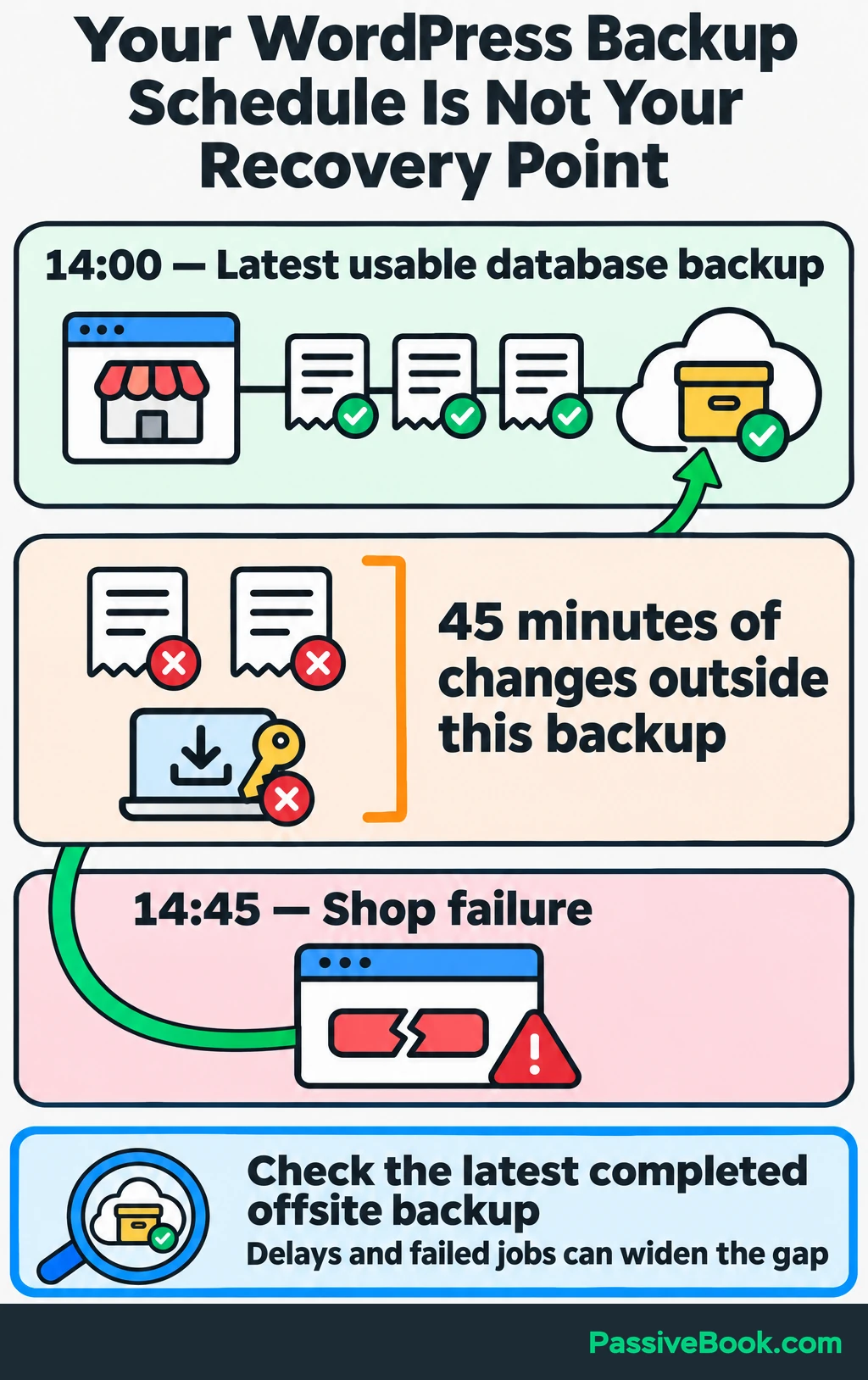
The backup’s actual recovery point matters more than the schedule label. Suppose the latest usable database backup contains changes through 14:00 and the shop fails at 14:45. Those 45 minutes of changes sit outside that backup.
If the shop cannot accept that gap, choose more frequent protection. Check the age of the latest completed offsite backup too: delays or failed jobs can leave a bigger gap than the schedule suggests. Calling a daily job “automatic” does not solve it.
For an illustrative shop that can tolerate up to an hour of lost activity, I would start with:
| What Needs Protection | Starting Backup Plan | What to Check |
|---|---|---|
| Orders, customer accounts and settings | Hourly database backups, or real-time protection for a smaller acceptable gap | The selected plan supports that frequency and includes the relevant store tables |
| Pattern PDFs, images and other site files | Daily backups, plus an extra backup after adding or revising a pattern | The new file appears in remote storage and can be recovered |
| Site before a major update | An additional complete backup before making the change | The backup finishes before the update starts |
| Recovery history | Aim for 30 days of usable recovery points as a starting policy | Storage capacity supports the intended history |
That is a starting policy, not a reason to buy a particular tier. Increase protection where lost changes would create more work than you can accept. A rarely edited site may need less frequent backups.
Retention also needs storage. Keeping more copies only works while the destination has room, so review capacity after adding large downloads or increasing backup frequency.
Restrict access to archives and use encrypted transfers. Backups contain customer records and site credentials, so a publicly accessible download link creates a second problem while you are trying to prevent the first.
Test a Restore Before Relying on Your Backup Plugin
A completed backup job tells you an archive was created. A restore test shows whether you can use it to recover your site.
Prepare an isolated test installation and block public access. Disable customer emails, live payments and outgoing automations so the recovered copy cannot contact buyers or process real transactions.
Then follow the recovery route you would use during the failure you care about. If your concern is losing WordPress admin, practice without relying on the original dashboard.
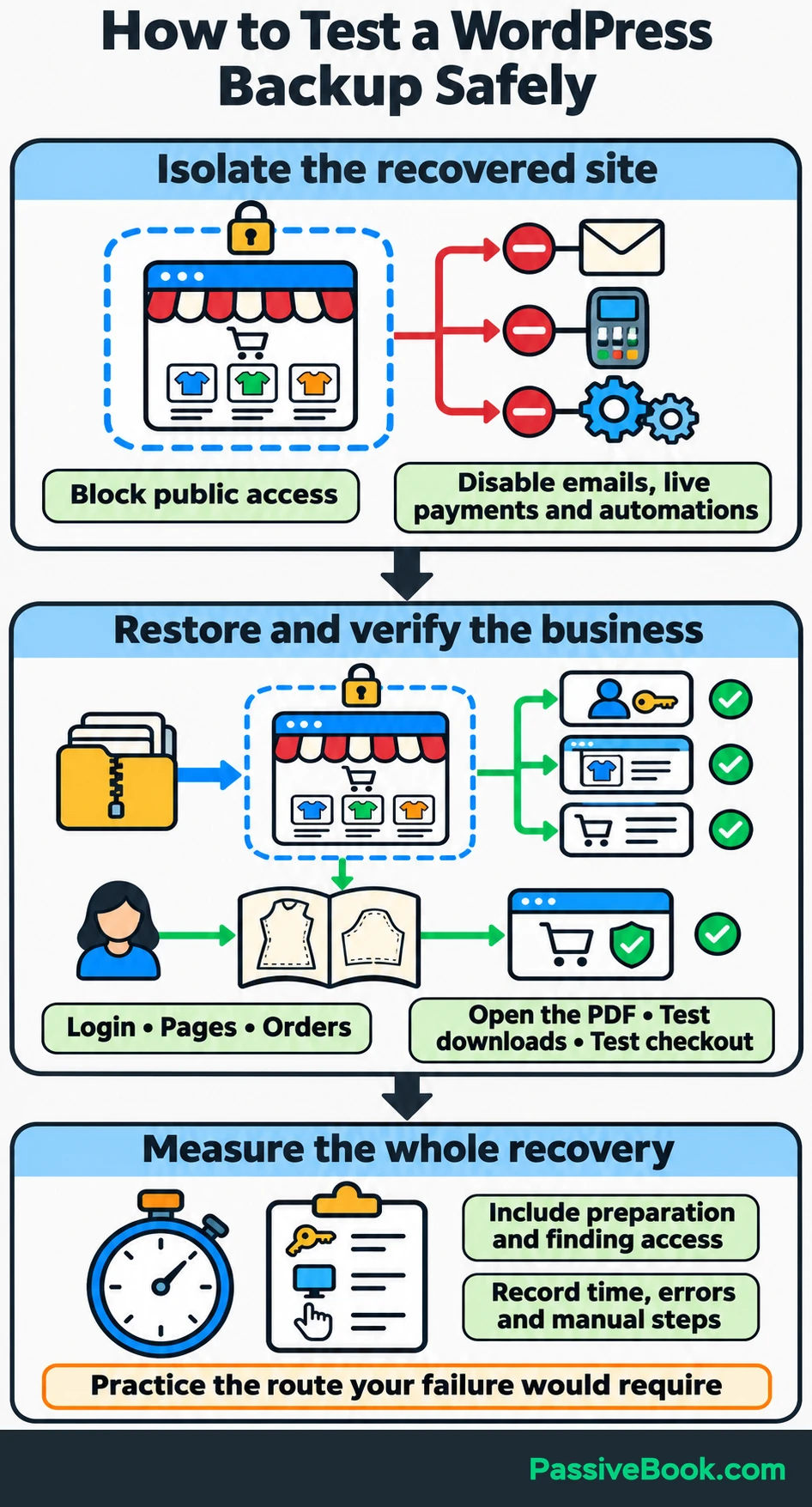
For the sewing-pattern shop, I would work through this check:
- Choose a backup and note its recovery point.
- Restore it into the isolated installation, including every required archive part.
- Log in with an administrator account.
- Open the homepage, product pages and images.
- Check that expected orders exist at the backup point.
- Open a recovered sewing-pattern PDF and test the customer download path.
- Check checkout in test mode if the recovered site includes the store.
A product page can look fine while its download points to a missing file. That is why I would open the pattern itself.
Record the elapsed recovery time, errors, required credentials and manual steps. Include time spent preparing the destination and finding access details. That work counts when you are trying to reopen a shop.
Use the result to make your decision. If recovery takes longer than you can accept, simplify the process, prepare the missing access or choose a service that removes those steps.
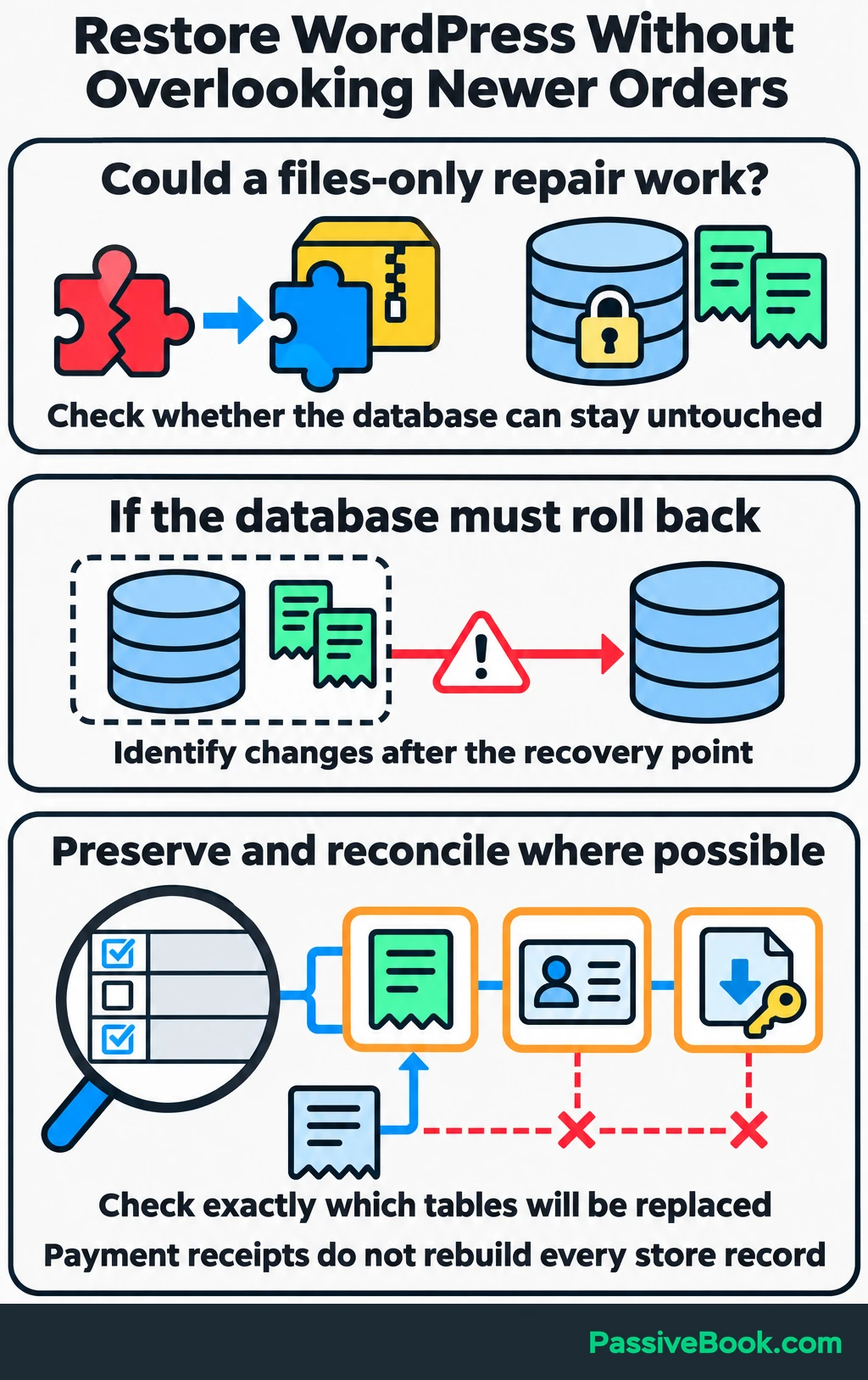
Before restoring the live site, I would check whether you can restore only the broken plugin or files and leave newer orders untouched. If a database rollback is needed, identify changes created after the selected recovery point. Preserve them where possible and check exactly which files and database tables will be replaced.
For the shop, that means accounting for newer orders before rolling back its database. Payment receipts can help with reconciliation, but they do not automatically rebuild customer accounts, download permissions or every store record.
After a successful test, repeat it when you change hosts, storage providers or the backup workflow. Between tests, review failure alerts and available capacity so automation continues producing usable recovery points.
What Next?
Check the date and location of your latest complete backup, then put a restore test on your calendar. If you have no offsite copy, make that your first task.
Use the social buttons to share this comparison when the conversation turns to protecting a WordPress site. Choosing a plugin is easier when everyone knows what recovery will require.
Which part of recovering your site would be hardest right now: finding a recent backup, restoring it or preserving newer orders? Tell me in the comments, and bring any other backup questions along.
Share this post with your friends & followers:

