A customer buys your download, then gets another email asking them to buy it. Your checkout worked and your email sequence worked, but the handoff between them failed.
That is the awkward part of choosing automation tools. A plugin can support both WooCommerce and your email platform without supporting the exact connection you need. Finding that out after setup means paying for another upgrade or rebuilding the workflow.
The comparisons below show which tools fit which jobs, where their free versions stop, and what to test before trusting them with subscribers and orders.
Check That the Plugin Supports Your Complete Workflow
Write down what should happen before browsing WordPress automation plugins. Name the event that starts the work, the checks that control it, and the actions that follow.
Throughout this article, imagine you run an aquarium-care website selling a downloadable freshwater maintenance planner through WooCommerce, the WordPress store plugin. You also offer a free maintenance checklist.
The signup workflow might read:
Checklist requested → create or update the contact → record the signup source → deliver the checklist → start welcome emails for subscribed contacts.
The purchase workflow has a different job:
Planner payment confirmed → identify the buyer → mark them as a planner customer → stop further planner promotions.
A trigger starts the workflow. A condition decides whether it should continue, and an action does the work. For example, “has not bought the planner” is a condition you would check before sending a planner promotion.
I once used a catch-all “customer” tag, a label attached to a contact, on a digital-product site. It looked tidy until I needed to exclude buyers of one particular product. The tag told me they had bought something, but not what. I had to return to the order records, so I now name buyer tags after the product they represent.
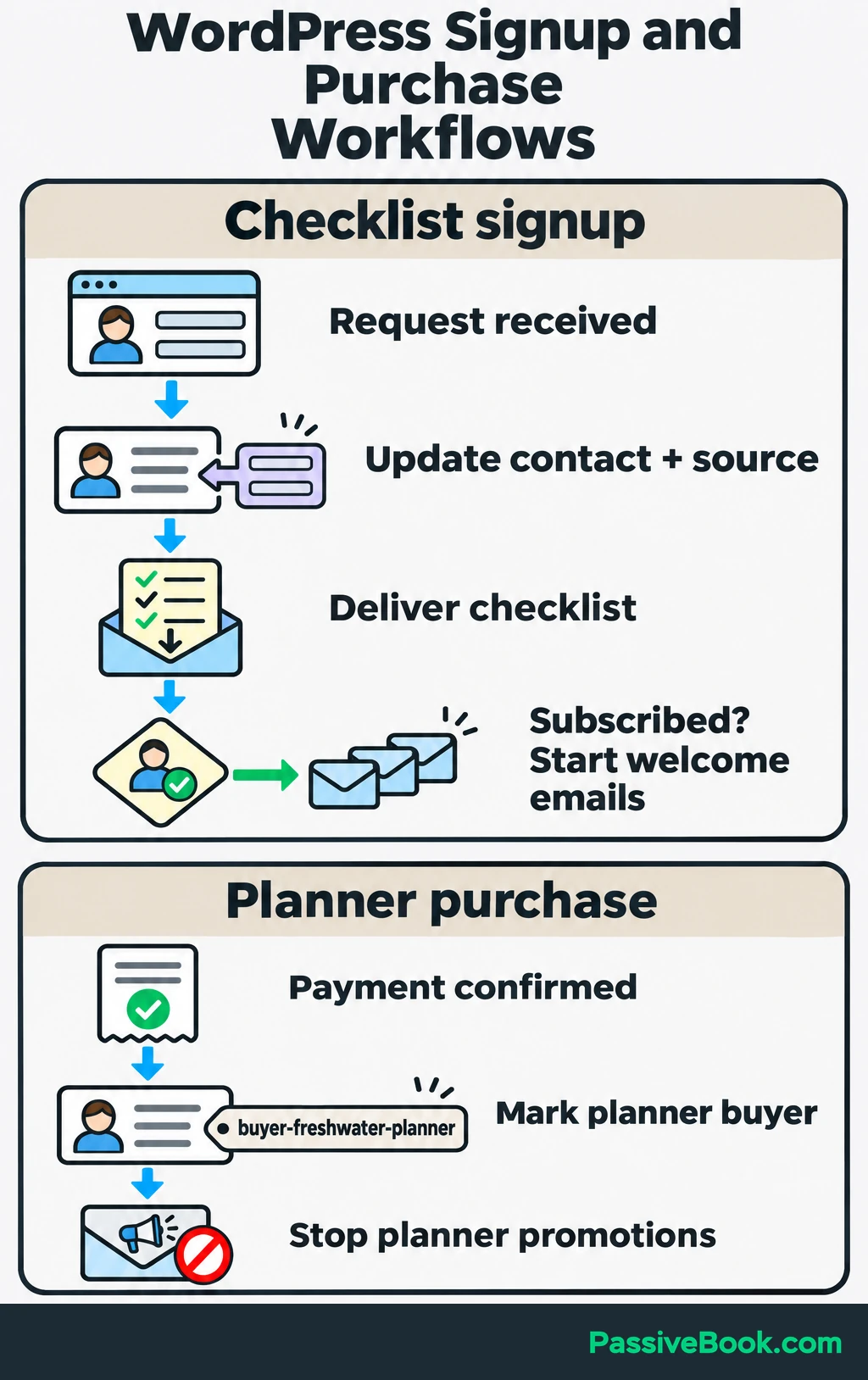
For your planner, a tag such as buyer-freshwater-planner gives the email workflow a clear fact to check.
Before choosing a plugin, confirm these details:
- Exact event: Can it detect a guest form submission, or only activity from a logged-in user?
- Payment status: Does the trigger represent a confirmed payment, or merely an order being created?
- Available fields: Can it pass the email address, product ID, signup source, and order or submission ID?
- Required action: Can it update an existing contact and stop the relevant promotion?
- Required tier: Are both ends of the connection included in the plan you intend to buy?
Check direct connections first. Fluent Forms can send form submissions directly to FluentCRM for contact management and email, so that handoff does not automatically need another connector. The WooCommerce purchase workflow has separate requirements, covered in the FluentCRM profile below.
Also decide where you want the work to run. WordPress-based workflows use your hosting resources. Cloud-managed workflows depend on an outside service. Either arrangement can send information to connected apps, so running a plugin locally does not mean all its data stays local.
Finally, check compatibility with your WordPress and PHP versions, recent releases, relevant support replies, and export options. If an essential capability remains unclear, send the vendor your exact workflow. “Does this work with WooCommerce?” is too broad to settle a purchase.
If you know which task you want to automate but have not worked out all the rules, draft the workflow first. That gives you a specific plan to check against each plugin’s capabilities.

Free AI Automation Planner




Which WordPress Automation Plugin Should You Choose?
My starting point would be the job you need done:
- Connect WordPress events: Shortlist Uncanny Automator and AutomatorWP.
- Move fields from one tool to another: Start with Bit Integrations.
- Build branches and timed steps inside WordPress: Consider Bit Flows.
- Use a cloud-managed workflow engine: Consider OttoKit.
- Manage contacts and email inside WordPress: Compare FluentCRM and FunnelKit Automations.
- Connect WordPress to a CRM you already use: Check WP Fusion. A CRM (customer relationship management system) stores contact details and customer activity.
For the aquarium website, I would first assess Fluent Forms, FluentCRM Pro, and an email delivery service. That combination addresses the signup and purchase follow-ups. I would add a general connector only when a specific handoff remained uncovered.
These recommendations compare documented capabilities and setup requirements. They are not a ranking based on comparative speed or reliability tests.
The first five rows below are workflow connectors. The final three are customer-automation specialists. In the last column, logs show what happened; recovery features help you act when something fails. They are different capabilities.
Some tools call workflows recipes. A webhook sends data from one system to another when an event happens. An API is a connection that lets software request or send information.
All prices are USD. Exact prices and allowances appear here so you can compare them in one place. Displayed offers are separated from regular listed prices, and a regular price should not be treated as a confirmed renewal quote. Follow the pricing links for current terms.
| Plugin | Best-Fit Job | Processing Location | Useful Free Scope | Relevant Paid Price and Site Allowance | Conditions, Delays, and Webhooks | Execution Visibility or Recovery |
|---|---|---|---|---|---|---|
| Uncanny Automator | Connect events across WordPress plugins and external apps | WordPress recipes, with connected external services | WordPress automation, outgoing webhooks, and 250 external-app action credits with a free account | Basic Legacy: $199/year, 1 site. AI + Automation Basic: displayed $240/year offer; normal annual equivalent $300, 1 site | Free outgoing webhooks; paid conditions, delays, schedules, and incoming webhooks | Recipe logs; advanced webhooks include logging and retries |
| AutomatorWP | Combine free events with selected paid extensions | WordPress | Free core and selected triggers/actions, including guest events | Personal Pass: $149/year, 2 sites; all add-ons; bills yearly until cancelled | Filters; delays and webhooks through extensions | Execution logs; check recovery behavior for the chosen action |
| Bit Integrations | Transfer mapped fields to a destination | WordPress; runs during the triggering request | Selected form and WooCommerce triggers, conditions, outgoing webhooks | 1-site Pro: displayed $35/year, regular $39; lifetime offer $99, regular $132 | Free conditions and outgoing webhooks; incoming webhooks in Pro; choose another builder for timed branches | Paid integration logs, success/error tracking, and failure email alerts |
| Bit Flows | Build branching, multi-step workflows locally | WordPress | Multi-step workflows, unlimited tasks, selected connections, logs, and re-execution | 1-site Starter: displayed $59/year, regular $99; lifetime offer $159, regular $299 | Conditions, routers, delays, loops, API requests, and webhooks | Detailed logs, failed-task notifications, and task re-execution |
| OttoKit | Run workflows through a managed cloud service | OttoKit cloud, connected through its WordPress plugin | 250 tasks/month and 20 workflows | Pro: $108/year, 5,000 tasks/month, 5 WordPress connections. Business: $228/year, unlimited WordPress connections | Pro conditions, delays, and scheduling; branching paths require Business; webhooks supported | Step history; listed log retention is 3 days on Free and 15 days on Pro |
| FluentCRM | Manage contacts, campaigns, and welcome emails | WordPress; delivery through a sending service | Contacts, campaigns, Fluent Forms integration, and basic automation | 1-site Pro: $129/year regular; displayed $103 first-year offer | Timed email automation; Pro adds WooCommerce conditions, advanced branching, and outgoing webhook actions | Automation activity; Pro email logs; delivery logs through the sending setup |
| FunnelKit Automations | Manage WooCommerce customer follow-ups | WordPress; external email/SMS delivery services | Basic cart recovery, contact records, and prebuilt post-purchase recipes | Standalone Automations: displayed $99.50/year, regular $149; 1 site | Paid conditional branches, smart delays, and incoming/outgoing webhooks | Contact journeys and activity logs |
| WP Fusion | Synchronize WordPress with an existing supported CRM | WordPress synchronization plus the connected CRM | Core user synchronization, tagging, and tag-based content access | Personal: $297/year, 1 site. Plus: $427/year, 1 site, including six Pro add-ons | WordPress tagging/access rules; campaign conditions and delays live in the CRM; return updates depend on CRM support | WordPress sync activity and CRM records; campaign history lives in the CRM |
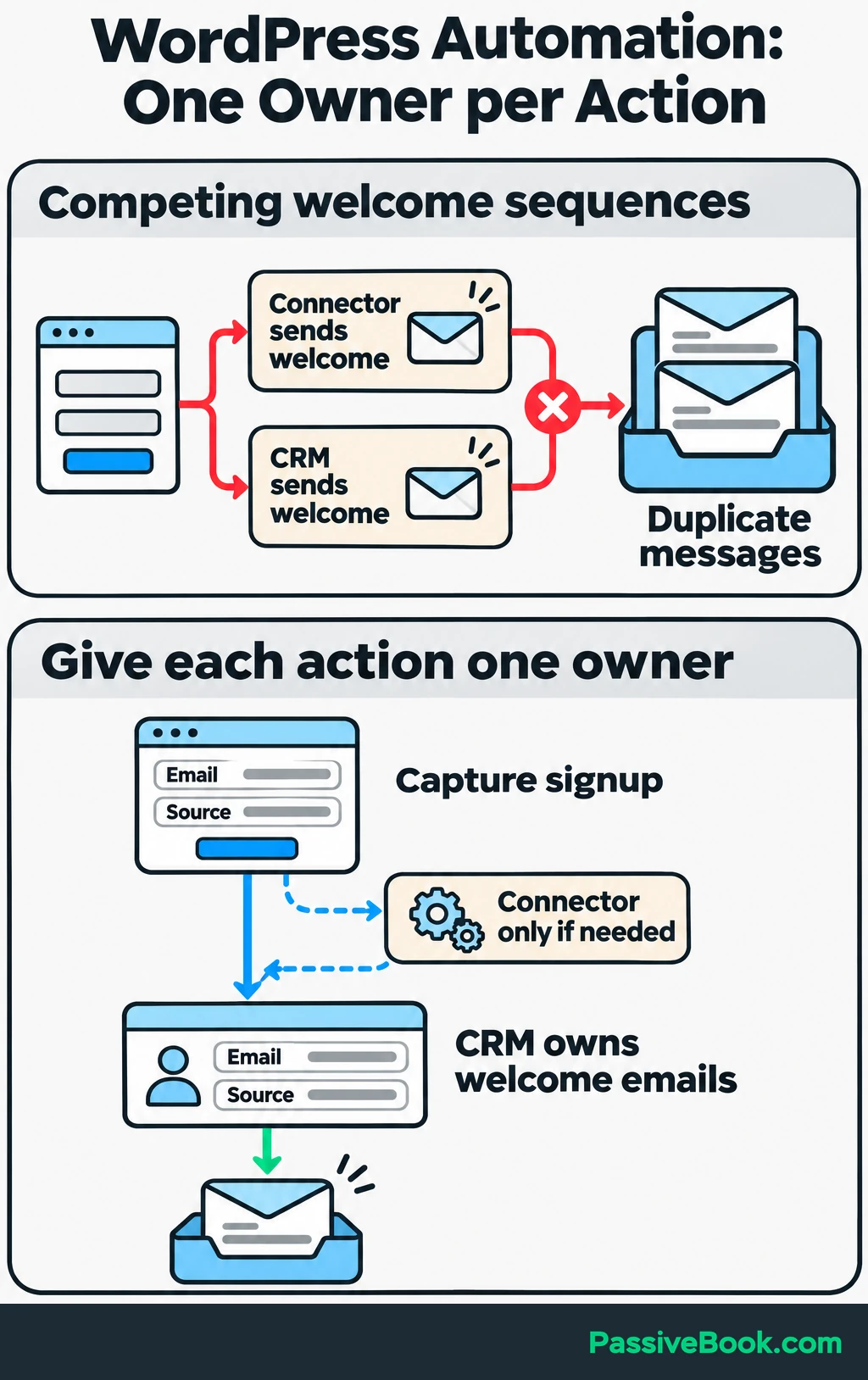
You may need a marketing plugin and a connector, but you do not need several tools doing the same job. Give each action one owner. If FluentCRM sends the welcome emails, a connector should pass it the necessary information rather than start a competing sequence.
WordPress Workflow Automation Plugins Compared
Uncanny Automator: Best for Connecting WordPress Events
Uncanny Automator belongs on your shortlist when activity in one WordPress plugin needs to cause an action elsewhere. Its connections include WooCommerce, Fluent Forms, LearnDash, and Google Sheets.
The free version includes WordPress automation and 250 credits for external-app actions when you create a free account. Those credits are a starting allowance, so check how many actions your workflow uses before relying on the free version. Official free-version scope
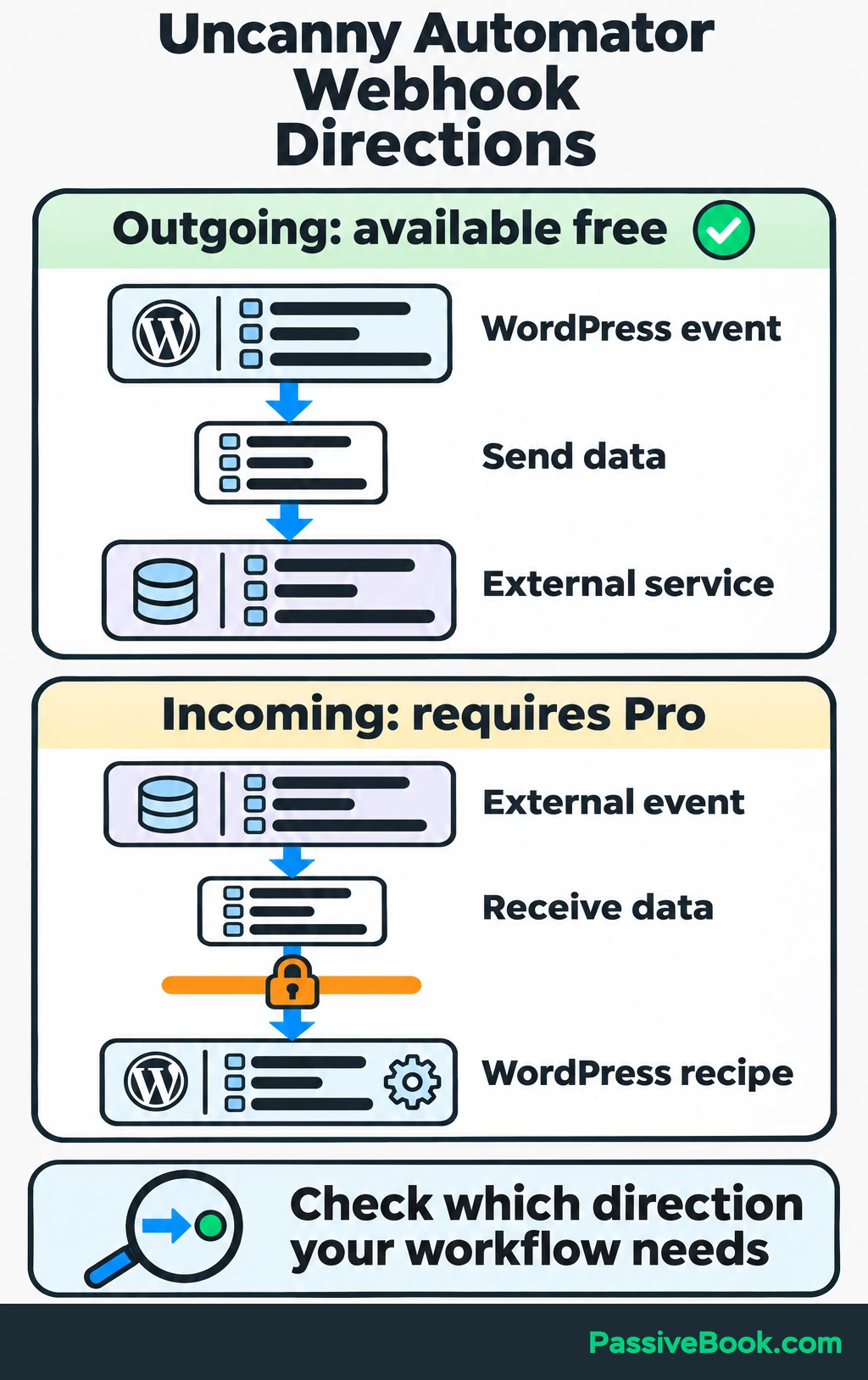
Paid recipes add conditions, delays, schedules, and loops. Sending webhooks is free; receiving them requires Pro. Official webhook capabilities
Advanced webhook support includes logging and retries.
I would choose the recipe-only Legacy plan when connecting plugins is the requirement. The AI + Automation plan adds a different set of capabilities, with separate Agent usage allowances. Buy those because you need them, rather than because they sit beside the recipe builder.
Setup means selecting the event, identifying the affected person, and mapping values into the action. For the aquarium planner, confirm that the purchase event supplies the buyer’s email and the relevant product information, including for guest purchases.
AutomatorWP: Best for Mixing Free Events With Paid Extensions
AutomatorWP is worth comparing when its free events and selected extensions cover your workflow at a lower total cost.
It supports multiple triggers and actions, logged-in users and guests, and execution logs. Representative connections include WooCommerce, Fluent Forms, and FluentCRM.
The useful distinction is between supporting an integration and including the particular event you need. Its catalog, for example, lists basic Gravity Forms submissions as free, while adding a Google Sheets row requires Pro. Official trigger and action catalog
Before building anything, list every required event and action alongside its extension. Then compare buying individual add-ons with the all-add-on pass.
I would choose it when that list produces a clear saving. I would skip it if working out the necessary extensions becomes more complicated than the workflow itself. A cheaper license is less appealing when you cannot tell what it covers.
Bit Integrations: Best for Straightforward Data Transfers
Bit Integrations fits a clear handoff: an event happens in WordPress, and selected fields need to reach another tool.
Its free sources include WPForms, Contact Form 7, Elementor Forms, and WooCommerce. Free capabilities include conditional logic and outgoing webhooks. Pro adds incoming webhooks and custom triggers and actions.
You authorize the destination, match source fields to destination fields, and set any conditions. One source can feed several destinations through separate integrations.
The vendor documents that integrations run within the same request that fires the trigger. That makes form and checkout response time a useful part of your test when an external destination is connected. Free features and execution model
I would consider it for sending planner-order details to a supported destination. I would choose a fuller workflow builder when the process needs waiting periods, several branches, or a sequence of dependent steps. Field transfers and customer journeys are different jobs.
Bit Flows: Best for Branching Workflows Inside WordPress
Bit Flows gives you a visual canvas for multi-step workflows inside WordPress. It supports conditions, routers, delays, loops, API requests, and webhooks.
A router splits a workflow into different paths. For the aquarium website, you might need one path for checklist subscribers and another for planner buyers, with different actions on each.
The free version includes multi-step workflows, unlimited tasks, detailed logs, failure notifications, and task re-execution. Listed free connections include WooCommerce triggers and Google Sheets actions. Human approval tools require Pro. Official free and paid capabilities
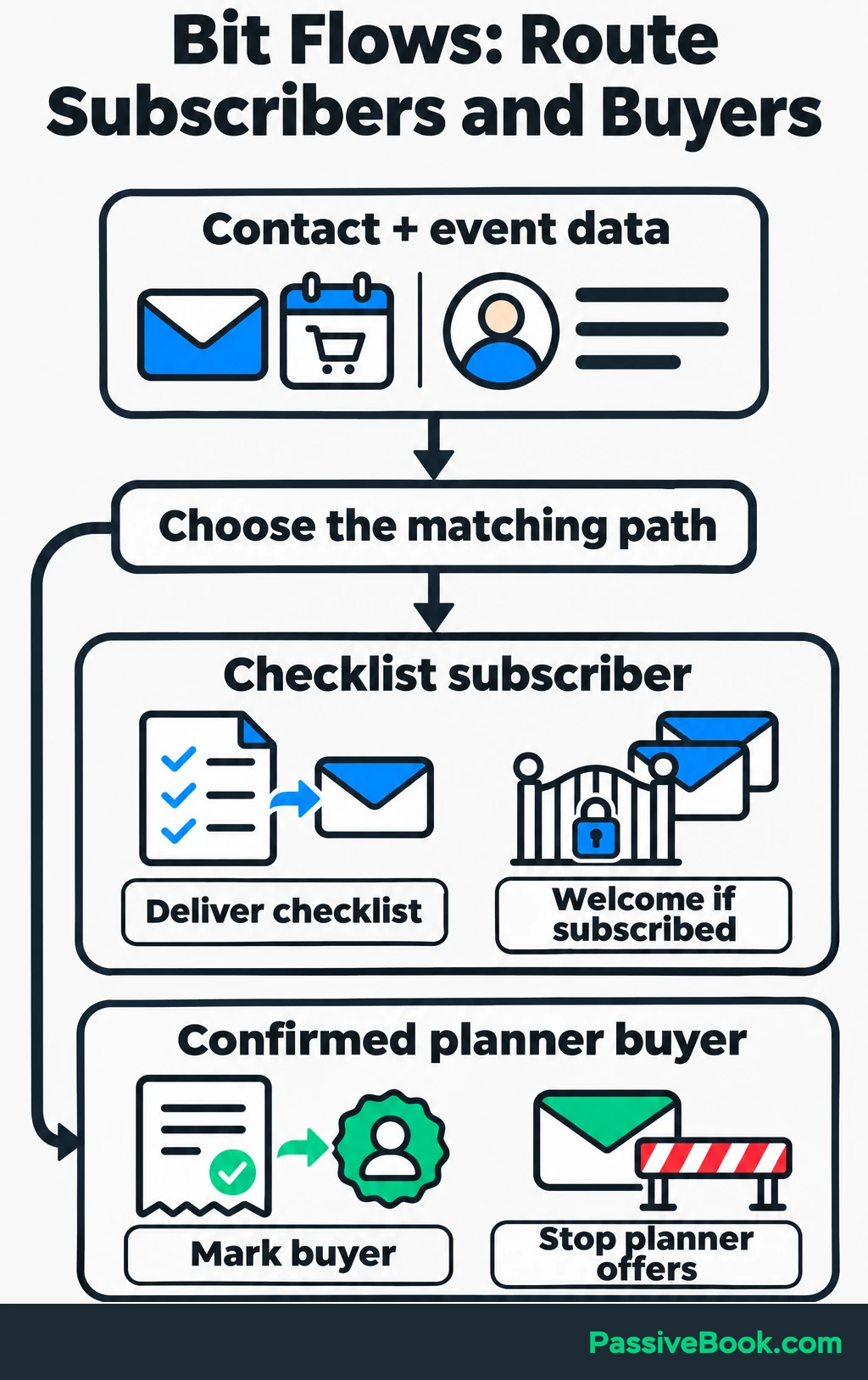
I would consider it when the branching itself is useful and you want to manage that work in WordPress. The paid tiers share their feature set and differ by site allowance.
Setup requires following the data through each branch. Built-in connections are the easier starting point; custom API connections also require you to authorize access and match the returned fields to the inputs needed by later steps.
Unlimited licensed tasks still consume hosting resources. Start with one workflow before moving every business process onto the same server.
OttoKit: Best for Cloud-managed Workflows
OttoKit uses a WordPress plugin to connect your site to its cloud platform. You also need an OttoKit account. Supported connections include WooCommerce, Fluent Forms, FluentCRM, and Google Sheets. Official architecture and connections
I would shortlist it when you want an outside service to manage workflow processing. You still need to connect accounts, map fields, test outcomes, and watch usage.
Pay attention to its distinction between conditions and branches. A condition can decide whether an action runs. Branches and paths divide work into different routes, and those require a higher tier than Pro.
For the aquarium website, passing a checklist request into a contact system may be straightforward. A larger workflow with separate routes for several products may change the plan you need.
The other decision is task usage. OttoKit counts completed actions, so one submission can consume several tasks. Its log-retention window also matters: check failures often enough that the evidence is still available when you investigate.
Email and Customer Automation Plugins Compared
FluentCRM: Best for Email Automation Within WordPress
FluentCRM manages contacts, tags, campaigns, and email automation inside WordPress. It is the tool I would assess first when the main job is welcoming subscribers and managing later product offers.
I use Fluent Forms and FluentCRM, with FluentSMTP connecting WordPress to Amazon SES, the service that sends the emails. That is my established stack, and it explains my preference.
The free version includes the Fluent Forms connection and basic automation. Pro adds WooCommerce triggers, purchase-based conditions, advanced branching, and outgoing webhook actions. Official free-versus-Pro comparison
For the aquarium website, I would build the workflow this way:
- A checklist request creates or updates the contact and records its source.
- The requested checklist is delivered, and eligible subscribed contacts enter the welcome automation.
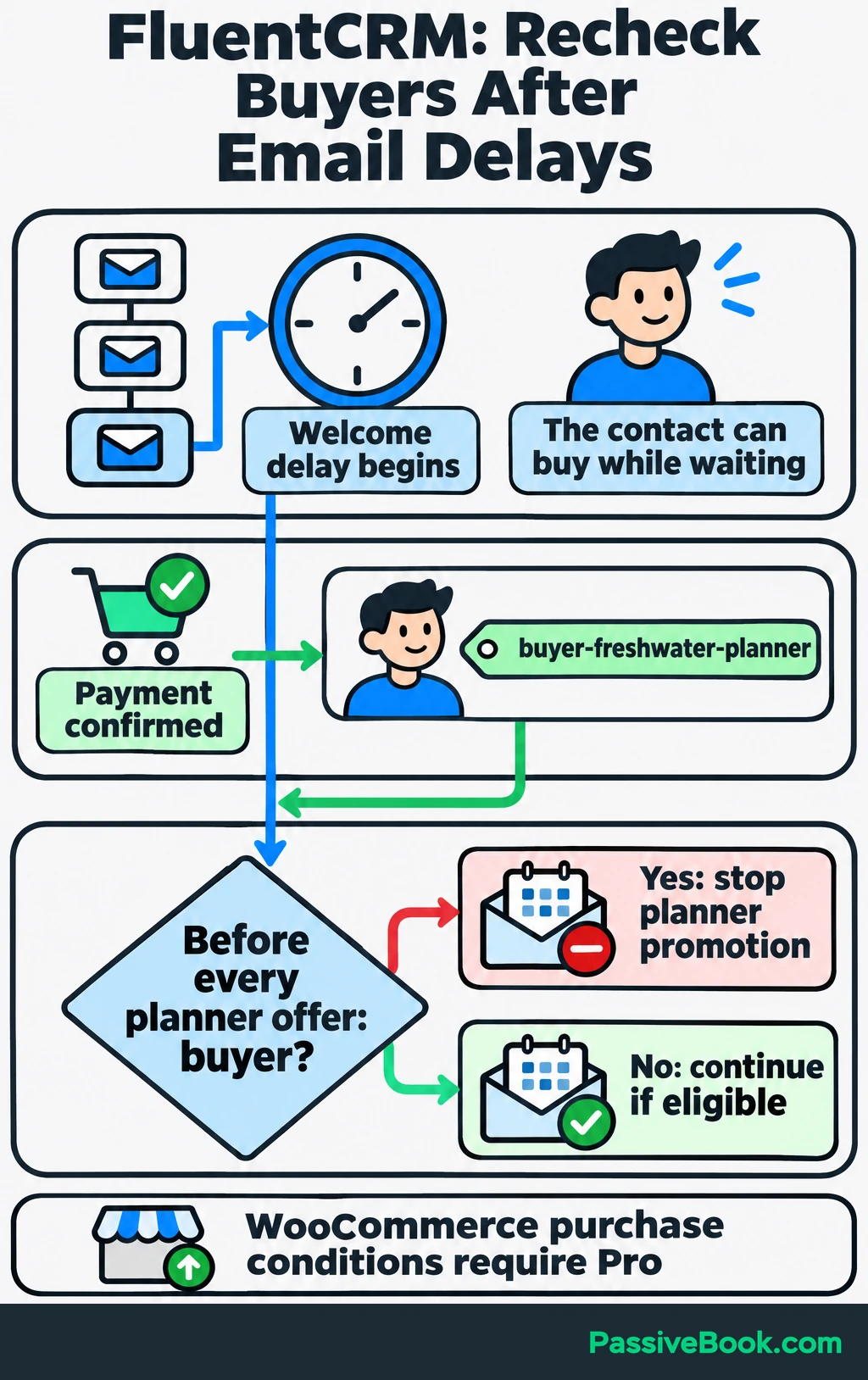
- A confirmed planner purchase marks the contact as a planner buyer.
- The promotional automation removes planner buyers from the sequence and checks buyer status again before later planner offers.
That last check matters when someone purchases during a delay.
Setup also includes scheduled processing and delivery. Connect a dedicated email sending service through a delivery plugin such as FluentSMTP, and budget the sending charges separately. FluentCRM’s license is based on website count rather than subscriber count, but sending more email can still increase delivery costs.
FunnelKit Automations: Best for WooCommerce Follow-ups
FunnelKit Automations deserves a close look when store follow-ups are the center of the job.
Its free version supports basic abandoned-cart recovery, contact records, and prebuilt post-purchase recipes. Pro adds fuller segmentation, broadcasts, SMS automation, and premium connections.
FunnelKit Automations and Funnel Builder are separate products. You can buy the automation tool without buying a checkout-building bundle. Official product and free-version distinctions
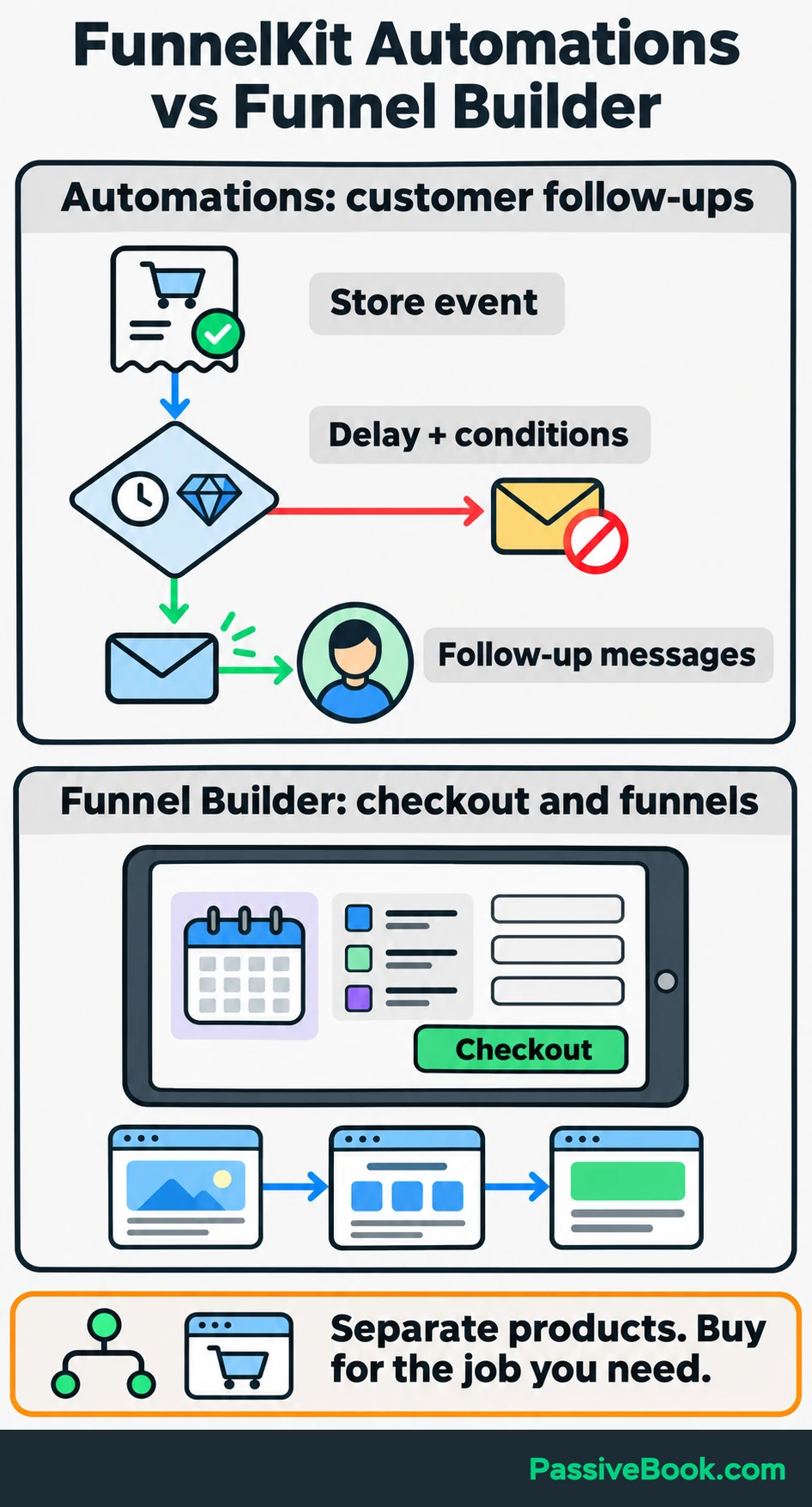
Paid Automations includes conditional branches, smart delays, contact journeys, and activity logs. For the planner, the important rule is that buying the product ends its promotional reminders.
I would compare it directly with FluentCRM for the marketing job, then choose one to own the messages. Check the store events, recipient rules, delivery services, and exit conditions before choosing.
A bundle makes sense when you also need its checkout or funnel features. Buying extra products because the discount looks impressive is an expensive way to acquire more settings.
WP Fusion: Best for Connecting an Existing CRM
WP Fusion fits a different situation: you already use a supported CRM and want WordPress activity reflected there.
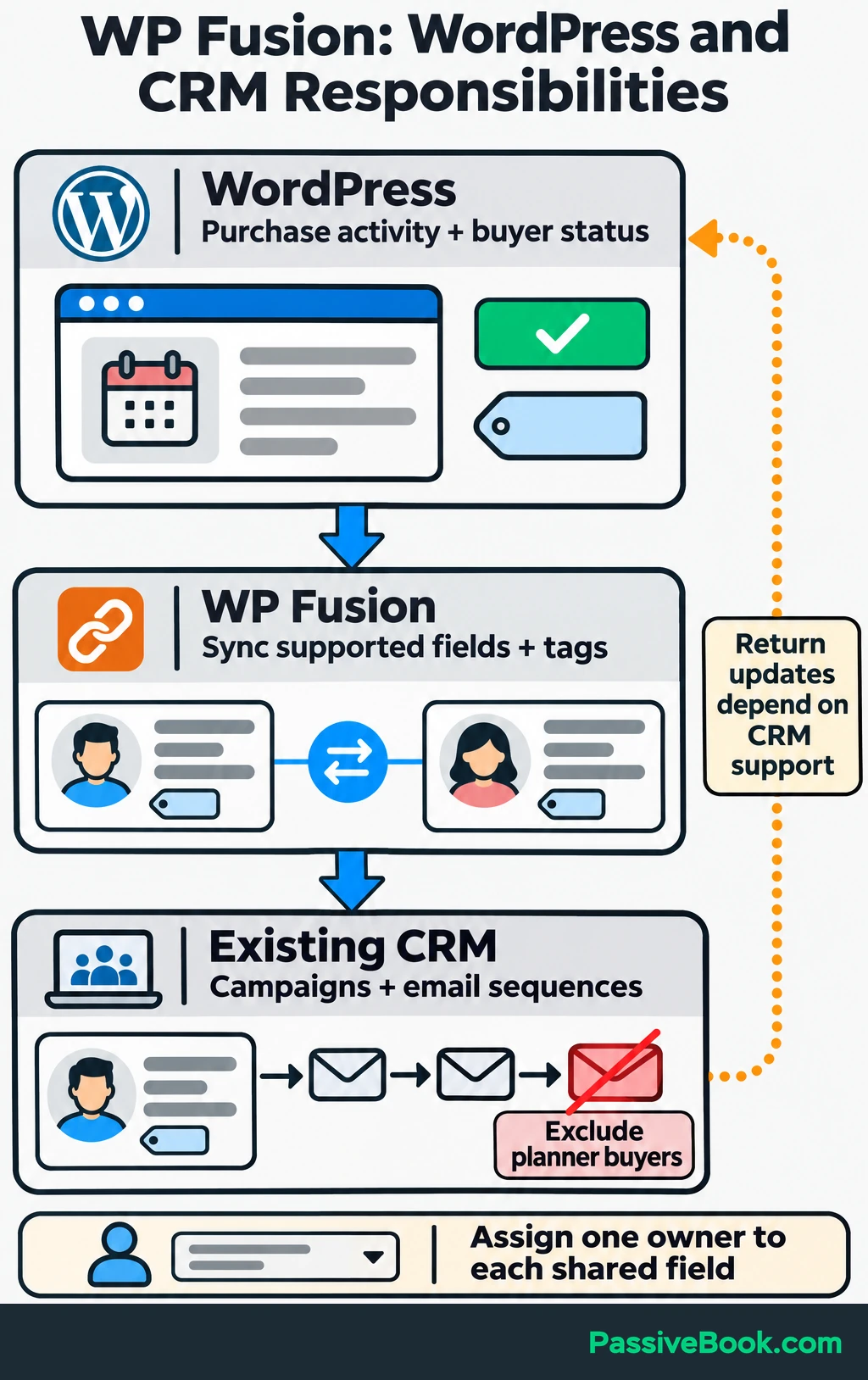
It synchronizes user information and tags, applies tags through supported plugin activity, and can control content access through tags. The connected CRM manages campaigns and email sequences.
Lite covers core synchronization and tagging. Paid plans add plugin integrations, while Plus adds tools such as abandoned-cart tracking and enhanced ecommerce.
Check your chosen CRM carefully. Automatic updates from the CRM back to WordPress depend on its capabilities, and ecommerce support also varies. Official CRM compatibility details
I would choose WP Fusion when it preserves an existing CRM setup that already works. I would not buy it just to avoid choosing an email platform; it is the bridge to that platform.
For the planner, decide which system controls buyer status and each shared field. Then use the buyer status to stop promotions in the existing CRM. Two systems overwriting the same field is not useful automation.
What Will Your Automation Cost?
Add up the whole workflow, not just the connector license.
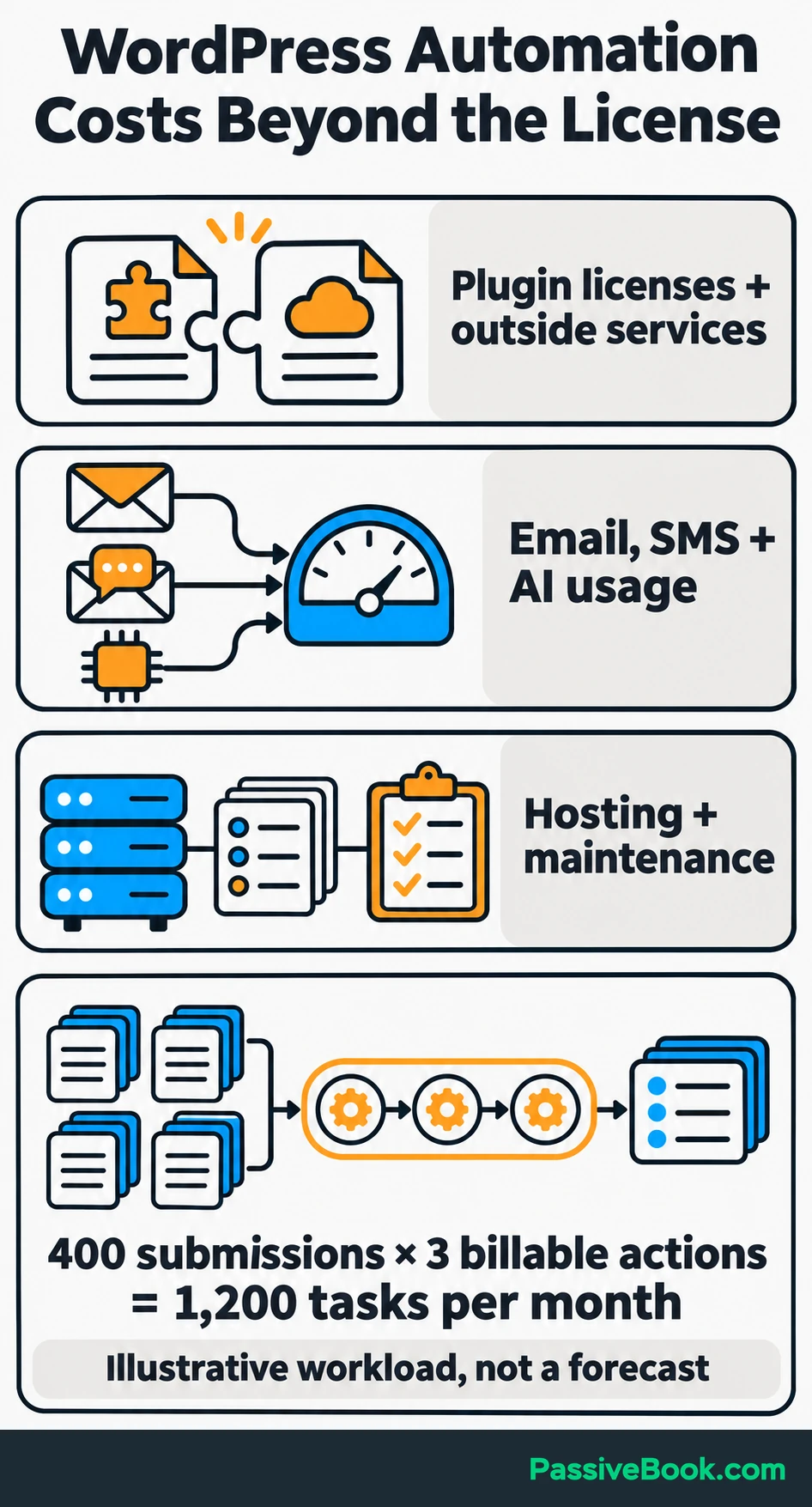
Your total may include:
- Plugin licenses: The automation tool and any required upgrades to connected plugins.
- Outside services: A CRM, cloud workflow platform, or another destination subscription.
- Message delivery: Email and SMS sending charges.
- AI usage: Model calls or separate usage allowances.
- Hosting: Resources needed for queues, contacts, logs, and scheduled work.
- Maintenance: Setup, failure checks, updates, and repairs.
Keep introductory charges and confirmed renewal charges in separate columns in your own budget. If a renewal amount is unclear, settle it before buying.
Usage-based plans need a second calculation. Count the billable actions performed for the submissions that actually reach those actions.
For illustration, suppose your aquarium checklist gets 400 submissions per month and each submission completes three billable OttoKit actions:
400 submissions × 3 actions = 1,200 tasks per month.
That exceeds the Free allowance in the comparison table and fits within Pro’s allowance. This example counts only those three actions; additional workflows need their own budget.
Compare that workload with a plugin licensed for unlimited executions. The license may avoid per-task charges, but hosting, message delivery, and connected services still cost money. A lifetime license does not turn the rest of the stack into a free service.
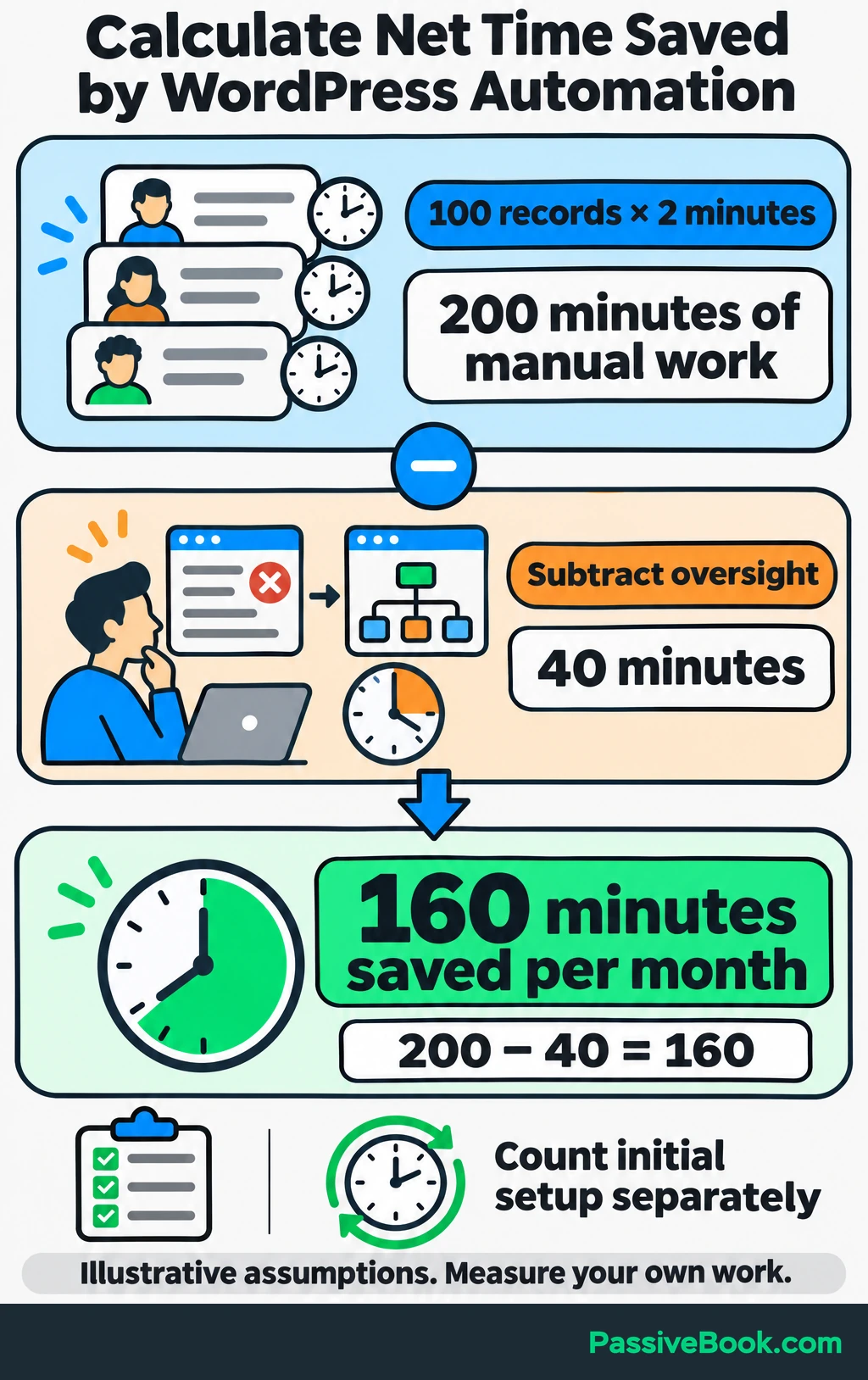
Then estimate the time saved after oversight.
Suppose you manually process 100 records each month, taking two minutes per record. Automation removes that work, but checking failures and maintaining it takes 40 minutes:
100 records × 2 minutes = 200 minutes of manual work.
200 − 40 minutes of oversight = 160 minutes saved per month.
These are illustrative assumptions, not measured or typical results. Track your own work for a week before assigning it a value, and count initial setup separately when estimating payback.
I would automate a repetitive, stable task first. A process you change every afternoon is still being designed.
Test One Workflow Before Relying on It
Start with a backup and controlled test records. If you use a staging copy, disable customer messages and disconnect live destinations that should not receive test data.
Give yourself a clear expected result for each test. “The automation ran” is too vague. “The existing contact received the planner-buyer tag and left the planner promotion” is something you can verify.
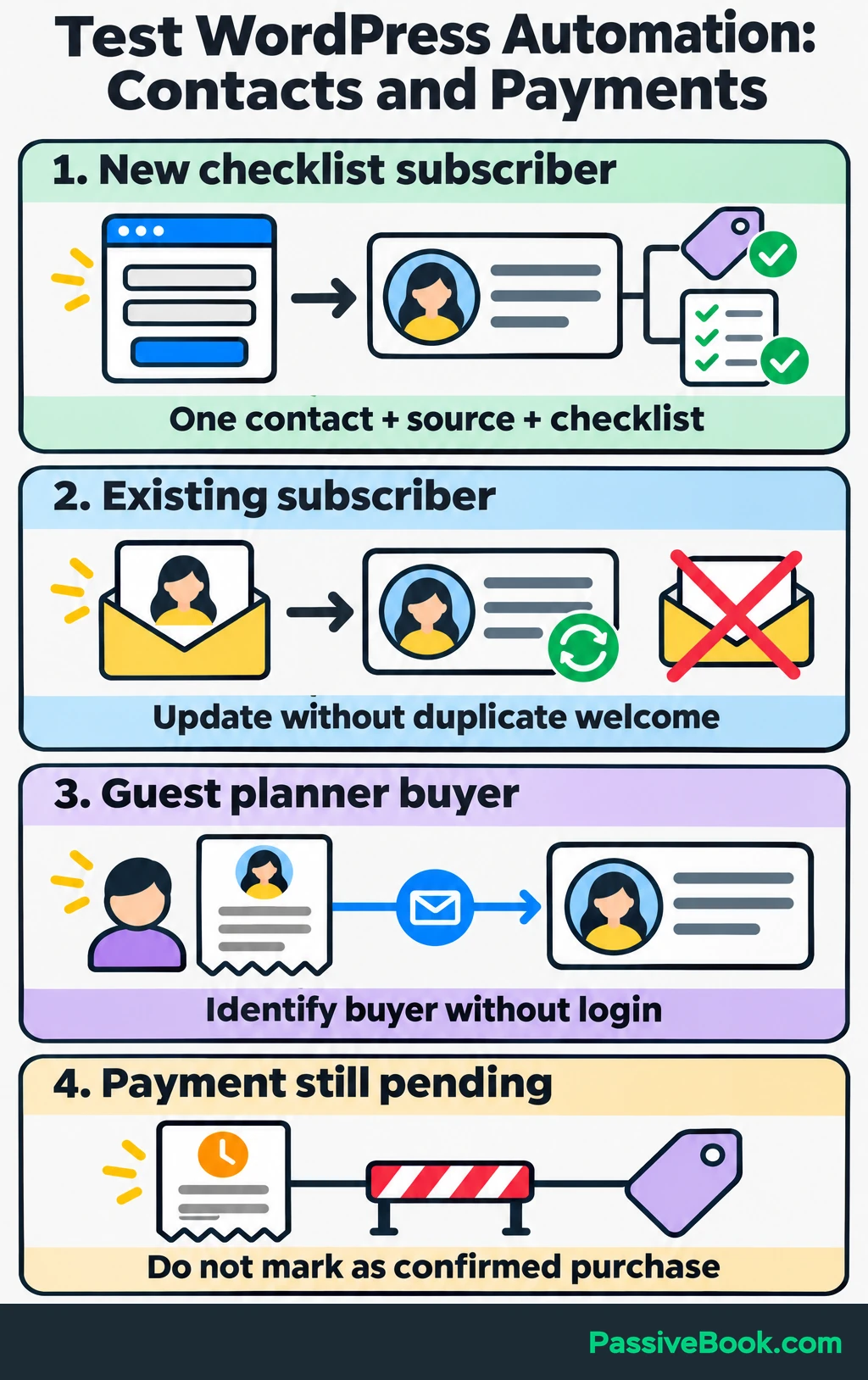
For the aquarium workflow, use this test list:
| Test | Expected Result |
|---|---|
| New checklist subscriber | One contact is created, the source is recorded, and the requested checklist arrives |
| Existing subscriber requests the checklist | The existing contact is updated without an unwanted duplicate welcome sequence |
| Guest buys the planner | The buyer is identified without needing a WordPress login |
| Payment is still pending | The order is not treated as a confirmed planner purchase |
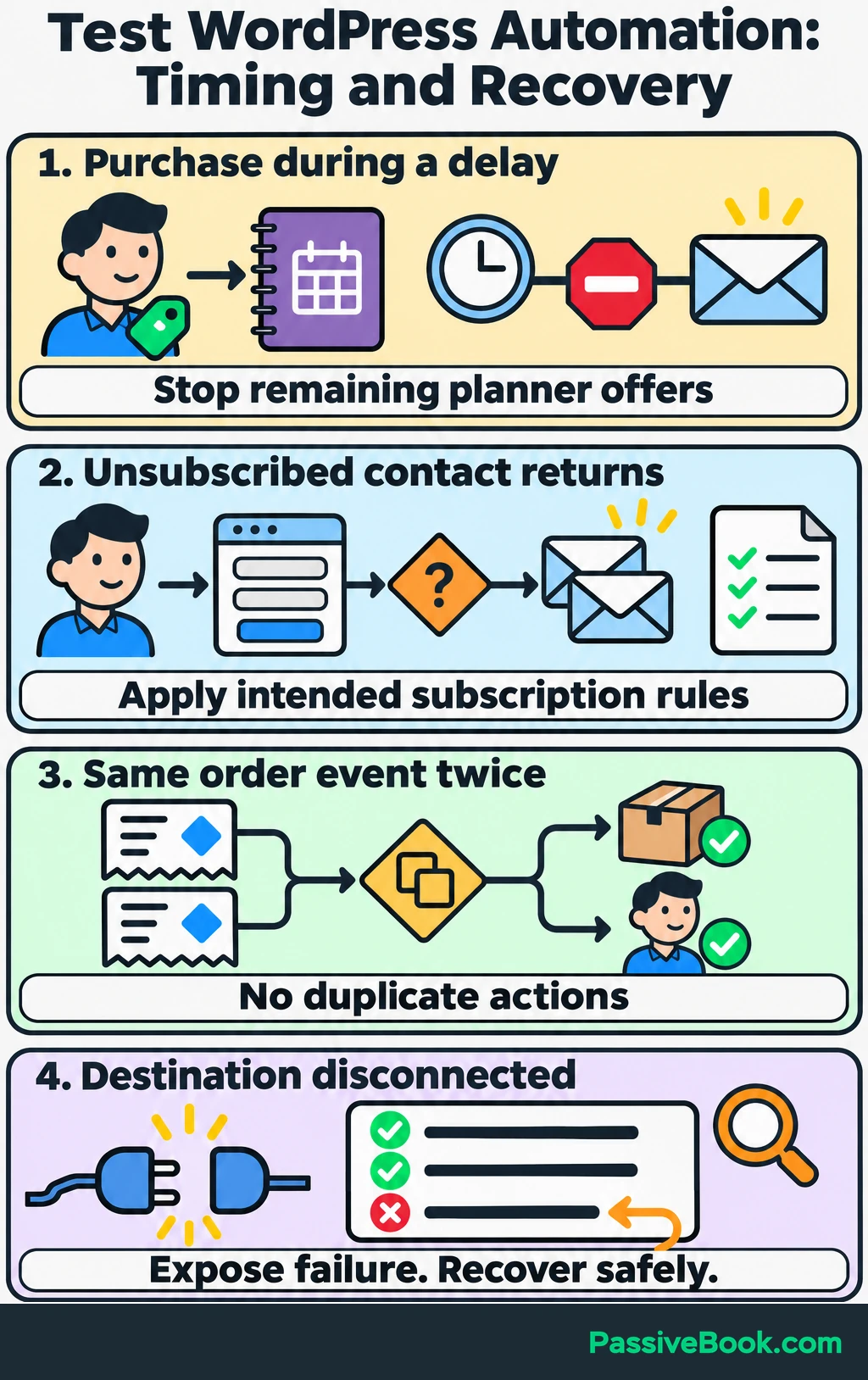
| Subscriber buys during a welcome delay | Remaining planner promotions are stopped |
| Previously unsubscribed contact submits again | The workflow follows the intended subscription and consent rules |
| The same order event arrives twice | No duplicate message, fulfillment action, or unnecessary contact is created |
| Destination account is disconnected | The failure becomes visible and can be recovered without repeating successful actions |
Map the email address, signup source, product ID, and order or submission ID explicitly. Check the destination record as well as the automation log. A completed step is only useful if it changed the right record.
Next, check delayed work. Default WP-Cron checks for due tasks on page loads, so a quiet site can run scheduled work late. When timing matters, ask your host to configure a reliable scheduler. WordPress scheduling documentation
Compare form and checkout responsiveness with the workflow active. Also inspect queued tasks and log growth. You want to know whether work completes after the initial test, not just whether the setup screen shows a green tick.
Keep credentials and automation controls restricted to people who need them. Maintain updates and recoverable backups, and record which accounts each connection uses.
If you add AI, start with a draft or approval step. An AI-generated announcement for the planner can wait for review. Payment confirmation and buyer exclusions should follow explicit rules.
Before expanding, write down:
- Pause procedure: How to stop the workflow and what happens to queued actions.
- Recovery procedure: Where failures appear and how to retry safely.
- Stored setup: Where mappings, tags, rules, and available exports are recorded.
- Responsibility: Who checks failures and rechecks the critical workflow after relevant updates.
Start with a failure review you can maintain around your day job. Automation earns its place when you can trust its result and understand how to fix it.
What Next?
Write one workflow today, including the event that starts it and the condition that stops it. Then check whether your existing plugins already cover the whole job before buying another tool.
Use the social buttons to share this comparison when a plugin discussion needs a clearer view of features, costs, and setup.
Which handoff would you most like to stop doing manually? Leave it in the comments, along with any questions about choosing the right tool.
Share this post with your friends & followers:

