A plugin says it tracks conversions, but the checkout report sits behind a paid upgrade. Another promises privacy, yet you still need to understand what it collects. You can spend an afternoon comparing dashboards and still feel unsure about installing anything.
I use WordPress, Google Analytics and Search Console, and I’ve caught myself reviewing traffic without connecting it to a useful business action.
That gap is what this comparison tackles: choosing a plugin that shows where visitors come from, what they read, and whether those visits lead to signups or sales. The installation guide then helps you check that those actions are being recorded properly.
Choose Between GA4 and Independent Analytics
The first choice is the system that will collect your data.
GA4 plugins connect WordPress to Google Analytics 4, Google’s current analytics platform. Some install the tracking code, some bring reports into WordPress, and others add events for forms and purchases. An event is simply a recorded action, such as a successful form submission.
Independent analytics plugins collect their own statistics. They may keep that data in your WordPress database or send it to a separate hosted service.
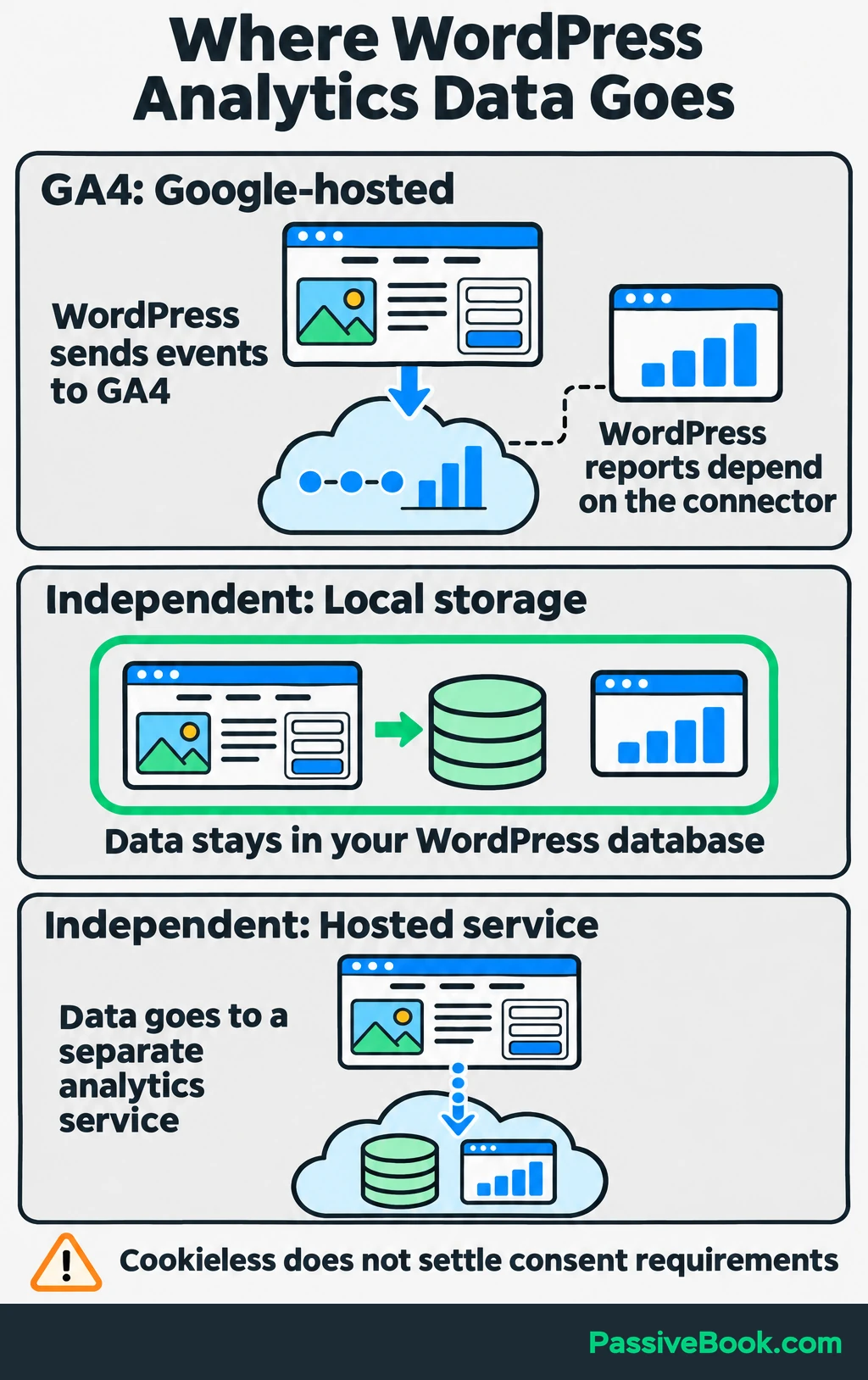
I would choose GA4 when you want Google Analytics reporting and its integrations. I would choose independent analytics when simpler reports or different storage arrangements better suit your business. Start with one primary system so you have a clear place to review results.
Before comparing subscriptions, write down the questions your reports must answer:
- Which sources bring visitors?
- Which pages do those visitors enter through and read?
- Which visits produce successful signups?
- Which visits produce purchases, and how much revenue do those purchases represent?
For the examples below, imagine you run a home coffee brewing blog. You offer a free brew checklist and sell a printable tasting journal through WooCommerce.
A traffic report can show that your pour-over guide attracts readers. A goal can count completed checklist requests. Revenue attribution goes further and connects journal sales to recorded sources or campaigns. These are different capabilities, and you should pay for the one you need.
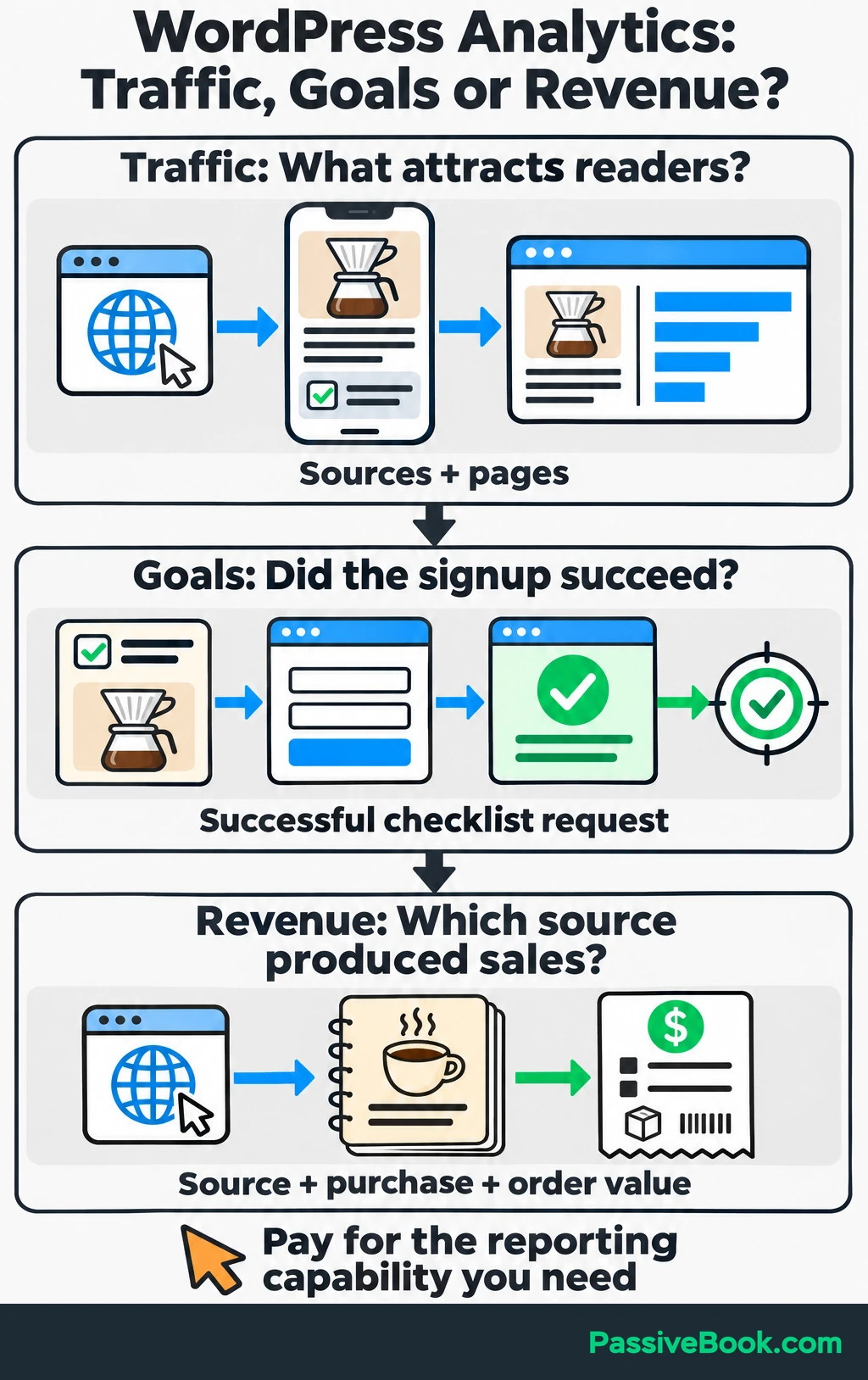
When I changed my own review process, I started putting the business question above the traffic chart. That made the missing information obvious. A popular article deserved attention, but popularity alone didn’t tell me what to improve next.
Before paying, check your shortlisted plugin against your WordPress version, PHP version, form builder and checkout. PHP is the software your server uses to run WordPress. Also compare renewals, site allowances, traffic limits and separate service subscriptions.
Two plugins may support the actions you need but have different costs after the introductory offer ends. Compare both over the time you expect to use them before choosing a paid plan.

Free Software Cost Calculator




Privacy needs the same care. Cookieless tracking does not automatically settle consent requirements. France’s CNIL, for example, ties its audience-measurement exemption to conditions including limited purposes, anonymous statistics and restrictions on combining data. Match your setup to the rules that apply to your visitors and the data you collect. CNIL’s exemption conditions
The Best WordPress Analytics Plugins at a Glance
My starting shortlist is small:
- Site Kit for free GA4 reporting inside WordPress.
- Independent Analytics for straightforward local traffic reports.
- Burst Statistics for free local goals.
- Analytify or MonsterInsights when paid GA4 form and store reports will save you work.
- Plausible when you want hosted independent analytics.
- Microsoft Clarity when you need to investigate how people use a page.
The recommendations below are editorial choices based on official features and terms. The numbers help you navigate the entries within each group.
The table keeps prices in one place. “Introductory” means the discounted purchase price; renewal terms appear separately. Dollar amounts are US dollars, and other currencies remain as displayed by the providers. Follow the linked product pages for current offers.
| Plugin | Best Use Case | GA4 Relationship | Report Location | Signup and Purchase Support | Free Coverage and Paid Cost | Storage and Privacy Controls | Setup Work |
|---|---|---|---|---|---|---|---|
| 1. Site Kit | Free Google services dashboard | Connects GA4 | WordPress and GA4 | Selected form and store integrations | Free | Google-hosted analytics; consent integration | Connect Google services and enable supported events |
| 2. MonsterInsights | Guided business reports | Uses GA4 | WordPress and GA4 | Forms and ecommerce require Pro | Lite free; Pro $199.50/year introductory for five sites, renewing at $399/year | Google-hosted analytics; privacy settings and consent setup | Connect GA4 and configure integrations |
| 3. Analytify | Page reports across two sites | Uses GA4 | WordPress and GA4 | StartUp includes forms and WooCommerce add-ons | Free version; StartUp $99/year promotional for two sites; regular $199/year | Google-hosted analytics; consent setup | Connect GA4 and activate required add-ons |
| 4. ExactMetrics | Reports across several sites | Uses GA4 | WordPress and GA4 | Forms and ecommerce require Pro | Free version; Pro $199.50/year introductory for five sites, renewing at $399/year | Google-hosted analytics; privacy and access controls | Connect GA4 and configure integrations |
| 5. GA Google Analytics | Installing the GA4 tag | Installs GA4 | Google Analytics | Business events need additional setup | Free; Pro Personal $20/year for one site | Google-hosted analytics; Pro adds exclusions and opt-out | Enter measurement ID; configure business events separately |
| 6. Google Analytics for WooCommerce | Free store-event tracking | Sends events to GA4 | Google Analytics | Store events included; forms separate | Free | Google-hosted analytics; separate consent interface | Connect GA4 and test payment return flow |
| 7. Independent Analytics | Simple local reports | Independent | WordPress | Supported forms and ecommerce in Pro | Free traffic reports; Pro Standard $49/year for one site, renewing at the purchase price | WordPress database; cookieless | Activate; configure Pro integrations if needed |
| 8. Burst Statistics | Free local goals | Independent | WordPress | Free goals; detailed plan chart puts revenue and store funnels in Business | Free; Creator €43.61/year; Business €88.11/year, each for one site | WordPress database; cookieless option and retention controls | Choose collection mode and configure goals |
| 9. WP Statistics | Detailed local traffic reports | Independent | WordPress | Premium events and goals; store revenue integration not confirmed | Free core; Premium $119/year for one site, advertised as introductory with full-price renewals | WordPress database; IP masking and hashing settings | Review collection, exclusions and retention |
| 10. Koko Analytics | Compact traffic dashboard | Independent | WordPress | Pro custom events; store revenue integration not confirmed | Free core; Pro €59/year for one site | Local storage; can operate without cookies | Activate; configure custom events if needed |
| 11. SlimStat Analytics | Visitor logs and goals | Independent | WordPress | One free goal and WooCommerce sales after setup | Free core; Pro regularly $49/year for one site; check for introductory offers | WordPress database; collection and cleanup controls | Configure collection, goal and store integration |
| 12. Matomo Analytics | Extensive self-hosted reporting | Independent | WordPress | Goals and supported ecommerce; premium form analytics | Free core; selected extensions cost extra | Local storage; anonymization, opt-out and retention settings | Check server resources and configure reporting |
| 13. Statify | Basic pageview counts | Independent | WordPress | No core signup or sales attribution | Free | Local storage; no cookies or visitor identifiers | Activate and choose retention |
| 14. Plausible | Hosted analytics with WordPress integrations | Independent | Hosted dashboard and WordPress | Goals and forms; Business for revenue attribution | Free connector; Starter $9/month; Business $19/month at the 10,000-monthly-usage tier | EU-hosted; cookieless | Connect account and enable required integrations |
| 15. Simple Analytics | Simple hosted reports | Independent | Hosted dashboard | Custom events for business actions | Free hobby plan; paid self-service displays €20/month at 100,000 monthly pageviews | EU-hosted; cookieless | Connect service and configure successful-action events |
| 16. Jetpack Stats | Existing Jetpack publishing workflow | Independent | WordPress and Jetpack | Publishing and subscriber reports; verify required business attribution | Free core; paid starts at €7.95/month billed yearly for 10,000 monthly views; first-year discount, full-price renewals | Hosted service; review collection and consent settings | Connect Jetpack and review reports |
| 17. Clicky Analytics | Real-time visitor activity | Independent | Hosted service and WordPress | Pro adds goals and revenue tracking | Free connector and limited service; Pro $79.99/year for up to 10 sites and 30,000 combined daily pageviews | Hosted service; cookieless tracking and anonymization controls | Enter site credentials and configure goals |
| 18. StatCounter | Visitor navigation paths | Independent | Hosted dashboard | Premium conversion tracking | Basic free; Premium starts at €9/month for 20,000 monthly sessions; recordings extra | Hosted service; plan-based detailed retention | Connect project and configure conversions |
| 19. Microsoft Clarity | Heatmaps and recordings | Separate behavior tool | Clarity dashboard | Investigates behavior alongside conversion reports | Free plugin and service | Microsoft-hosted; masking and consent signals | Connect project, check masking and consent |
Setup work describes the documented tasks. Every option still needs a tracking check before you trust its reports.
GA4 Plugins for WordPress
Choose from this group when Google Analytics will be your underlying reporting system.
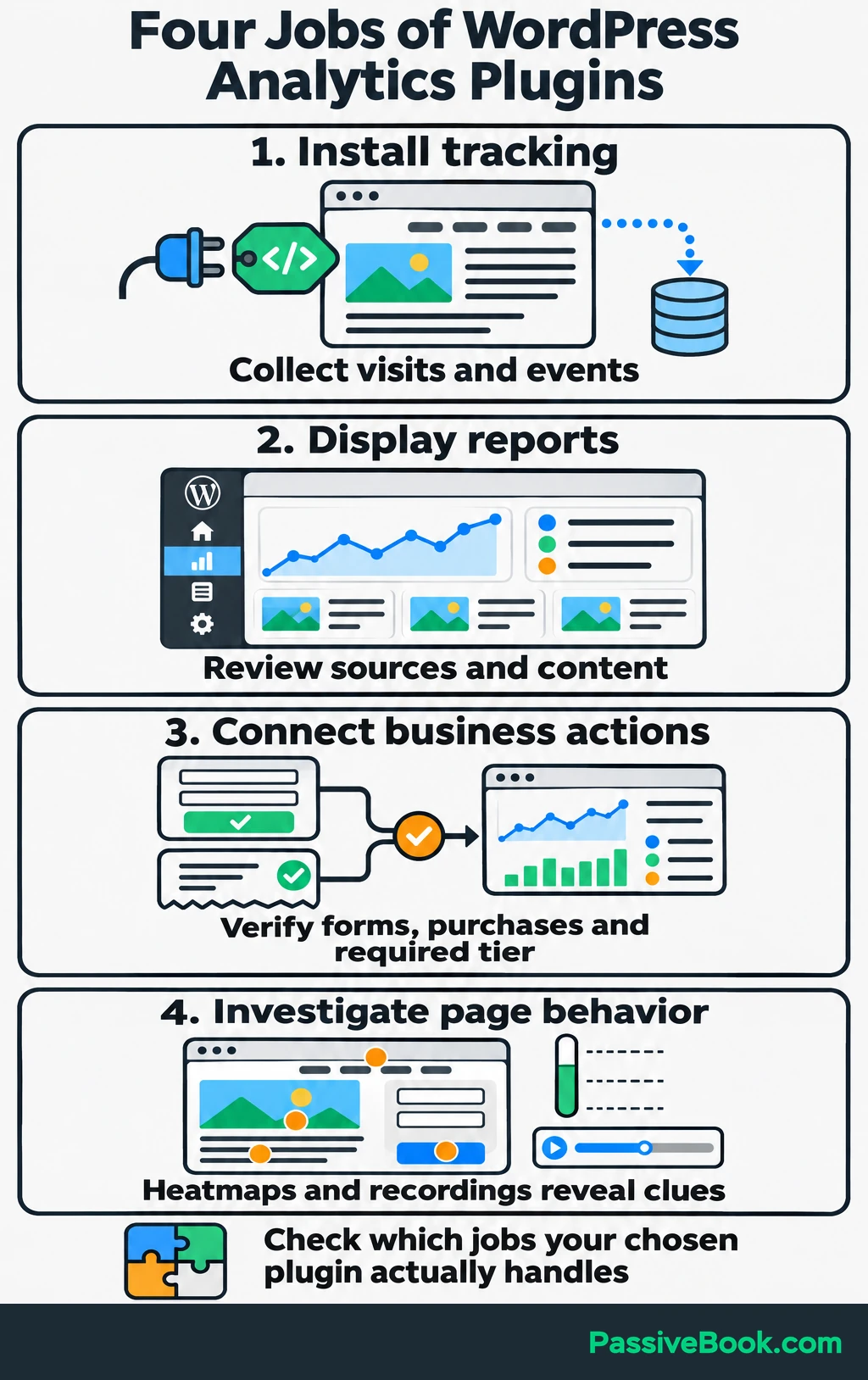
The useful distinction is how much work the plugin handles: installing tracking, displaying reports or recording business actions. Paying for a dashboard can be worthwhile, but the required integrations should earn the subscription.
1. Site Kit by Google — Best Free Google Services Dashboard
Site Kit is where I would start if you want Google Analytics and Search Console information inside WordPress without a paid reporting subscription.
It gives you sitewide and page-specific information, while Google Analytics remains available for deeper analysis. That suits a weekly review of traffic sources and useful articles.
Its plugin conversion tracking supports selected integrations, including WooCommerce, WPForms, Contact Form 7 and Easy Digital Downloads. Check the supported actions against your actual form and checkout rather than assuming every plugin is covered.
Site Kit also supports consent mode through WP Consent API and a compatible consent-management plugin. You still need an interface that asks visitors for permission and passes their choices to the tracking system.
2. MonsterInsights — Best for Guided GA4 Reports With Business Integrations
MonsterInsights makes sense when you want acquisition, content, form and ecommerce reports gathered inside WordPress.
For the coffee blog, that could mean reviewing which sources bring checklist submissions and which pages contribute to journal sales. Having those reports together can save you from repeatedly building the same view in GA4.
The plan distinction matters: forms and ecommerce tracking require Pro. The cheaper Plus plan does not provide the same business tracking.
I would pay for Pro when its supported integrations and reporting workflow remove a recurring job. If you only need traffic counts and top pages, start with Site Kit and keep the subscription money until you have a specific reporting gap.
3. Analytify — Best for GA4 Page Reports Across Two Sites
Analytify is worth comparing when you regularly review individual articles inside WordPress.
Page reports help connect an article with its traffic and acquisition data. StartUp also includes WooCommerce, forms, campaign tracking and automated-email add-ons, so its value extends beyond a pageview dashboard.
For the running example, you could review the pour-over guide and then inspect the supported signup and store reports before deciding what to update.
The two-site allowance is useful if you manage another website. Budget separately for renewal, though: Analytify’s terms describe renewal discounts against the original price, so the promotional purchase price is not a dependable renewal budget. Analytify’s renewal terms
4. ExactMetrics — Best for GA4 Reporting Across Multiple Sites
ExactMetrics belongs on your shortlist when you need WordPress reports, supported business integrations and a license covering several sites.
Pro includes forms and ecommerce tracking across five sites. Agency expands coverage to 25 sites and adds controls intended for managing reporting access and client licenses.
I would compare it directly with MonsterInsights using the integrations you need and the reports you will actually open. Both rely on GA4 for measurement.
For one small blog, a larger license allowance may offer no practical benefit. For a portfolio of websites, it can change the cost substantially. Count the sites you will use during the subscription period before choosing a tier.
5. GA Google Analytics — Best for Adding GA4 Without WordPress Reports
GA Google Analytics suits a simple preference: install the tracking tag in WordPress and read the reports in Google Analytics.
You enter your GA4 measurement ID, the code beginning with G- that identifies where your site’s events should go. The plugin adds the tracking code without another reporting interface inside WordPress.
The free version can be enough for that job. Pro adds controls such as role exclusions, multiple tracking-code configurations and a visitor opt-out interface.
The important boundary is business-event setup. Installing the base tag does not establish successful checklist submissions or completed journal purchases. Choose this plugin when you are comfortable handling those events separately or already have a suitable integration doing that work.
6. Google Analytics for WooCommerce — Best Free GA4 Store Connector
This is a sensible choice when WooCommerce events matter more than having sales reports displayed inside WordPress.
The integration sends supported product, cart, checkout and purchase actions to Google Analytics. You can then analyze the store there without buying a separate WordPress reporting dashboard.
Check the payment journey before choosing it. Its documented purchase tracking requires the payment gateway to return the customer to the thank-you or order-received page.
It also needs a separate solution for the checklist form. Give one integration responsibility for each event sent to your GA4 property, especially purchases. Two plugins both claiming credit for the same order make a cheerful report and an unhelpful business decision.
Local Analytics Plugins That Work Without GA4
These plugins collect their own statistics and show reports inside WordPress.
Local storage gives you control over the database, but it also makes analytics part of your hosting, backup and maintenance work. Include the analytics tables in backups and choose how much history to retain.
7. Independent Analytics — Best for Straightforward Local Reporting
Independent Analytics is my first shortlist choice for readers who want clear traffic reports without creating an external analytics account.
The free version covers pages, referrers, geography and devices. It uses cookieless tracking and stores analytics in your WordPress database.
That is enough to answer readership questions such as which sources send visitors and which brewing guides attract attention.
Pro adds campaign reports, supported form tracking, ecommerce, user journeys and scheduled email reports. Those features become useful when you need to connect checklist requests or journal sales to recorded sources.
I would start free while readership is the main question, then upgrade when a named business report is missing from the weekly review.
8. Burst Statistics — Best for Free Local Goal Tracking
Burst stands out because its free version includes goals.
Start by deciding what proves completion. For the checklist, that might be a confirmation page reached after a successful form submission. Configure the goal around that completion rather than a click on the submit button.
Use a collection mode that supports goals. Essentials mode omits them.
There is a pricing-page conflict worth checking before purchase: the Creator card lists store features, but the detailed comparison reserves revenue tracking and WooCommerce funnels for Business. I would budget for Business when those store reports determine the choice, and confirm the included features before paying.
Free goals remain the strongest reason to try Burst first.
9. WP Statistics — Best for Detailed Local Traffic Reports
WP Statistics suits owners who want broad content and visitor reporting stored on their own server.
The free core covers traffic sources, content, location and devices. That gives you more ways to inspect readership without connecting a Google Analytics account.
Premium adds campaign analytics, custom events and goals, outbound-link tracking, Search Console integration and advanced scheduled reports.
The distinction I would check is sales reporting. A custom event can count a completed action, but that does not automatically create an integrated WooCommerce revenue report with products, order values and attribution.
Choose WP Statistics for its traffic and content reporting. If store revenue is the deciding requirement, confirm the complete purchase-reporting workflow first.
10. Koko Analytics — Best for a Compact Traffic Dashboard
Koko Analytics is appealing when you want a short answer to a short list of questions.
Its free dashboard covers visitors, pageviews, content and referrers inside WordPress. It works without an external analytics service and can operate without cookies.
Pro adds geography, devices, custom events, campaign tracking and email reports.
I would choose the free version for readership trends. For checklist completion, use a custom event tied to a successful action if you upgrade.
Keep the distinction between interaction tracking and store reporting clear. Recording a journal-page click tells you that someone showed interest. Recording a purchase requires an event connected to the completed order, and revenue reporting needs the relevant purchase data.
11. SlimStat Analytics — Best for Visitor Logs and Configurable Goals
SlimStat is worth considering when you want detailed activity logs, filtering and control over collection.
Its free features include one goal and WooCommerce sales reporting after setup. The store integration requires WooCommerce 8.3 or newer.
That creates a useful starting arrangement for the example: use the goal for checklist completion and configure the store integration for journal sales.
Pro adds broader campaign reporting, multiple goals, funnels, visual heatmaps, exports and scheduled reports. A funnel shows progress through a sequence, such as article visit, signup page and successful submission.
I would choose SlimStat when I expected to investigate individual paths and collection settings. For a quick weekly traffic check, I would favor a simpler dashboard.
12. Matomo Analytics — Best for Extensive Self-hosted Analytics
Matomo offers the broadest self-hosted reporting option on this shortlist for readers who want segmentation, campaigns, goals and ecommerce in one system.
The WordPress plugin stores data locally and supports WooCommerce, Easy Digital Downloads and MemberPress. It also provides anonymization, opt-out and retention settings.
For the coffee business, it can cover traffic, checklist goals and journal purchases without GA4. Features such as heatmaps, recordings, funnels and form analytics require premium extensions.
The decision includes hosting resources. Matomo warns that running analytics alongside WordPress can use significant server capacity, and it recommends a separate deployment or Cloud for high-traffic sites and large multisite networks.
I would choose it for a clear need for deeper reporting and ownership, with time allocated to maintenance.
13. Statify — Best for Basic Pageview Counts
Statify is the option I would choose when the requirement is basic site-view reporting.
Its compact dashboard shows views, common referring sources and target pages. It stores data locally without cookies or visitor identifiers.
It counts views rather than unique visitors. That difference matters when comparing its numbers with another system.
Its core dashboard also does not provide signup or ecommerce attribution, so it cannot answer every question in the coffee example.
Check retention during setup. The default is two weeks, and records older than your selected period are deleted. That is fine for a short view of activity, but choose a longer period if you need to compare content performance across months.
Hosted Analytics Plugins That Work Without GA4
These plugins connect WordPress to a separate analytics service.
The connector may be free while the service requires payment. Compare the subscription’s traffic allowance, features and retained history together, because a free plugin alone tells you little about the ongoing cost.
14. Plausible Analytics — Best for Hosted Analytics With WordPress Integrations
Plausible is my hosted shortlist choice when you want independent, cookieless reporting and useful WordPress integrations.
Its plugin supports forms, downloads, goals and ecommerce, and it can display reports inside WordPress. That gives the coffee blog a route from readership reporting to checklist submissions and journal sales. Plausible’s WordPress capabilities
Choose the service tier carefully. Business includes ecommerce revenue attribution, funnels and API access, which allows other software to retrieve reporting data.
Also count usage correctly: Plausible’s subscription allowance includes pageviews and custom events. Form submissions, downloads and other tracked events can therefore increase billable usage beyond the pageview total. Plausible’s subscription rules
15. Simple Analytics — Best for Simple Hosted Reporting With a Hobby Plan
Simple Analytics suits readers who want a hosted dashboard with little reporting clutter.
Its WordPress connector can support automated tracking for actions such as outbound links and downloads. Successful checklist submissions and other business actions need suitable custom events.
The free hobby plan includes one user, five websites and one month of history, with a required badge. That history limit is the main decision for me. A month can show recent activity, but it cannot support a year-over-year content review.
I would use the hobby plan for a small personal project where recent traffic is enough. For an ongoing business, choose a plan with the history and event reporting your review process requires.
16. Jetpack Stats — Best for an Existing Jetpack Publishing Workflow
Jetpack Stats makes the most sense when Jetpack already forms part of your publishing workflow.
It provides accessible reports on content, referrals and audience activity inside WordPress. The free core covers any site type, has no traffic limit and retains full history. Paid reporting adds campaign, device, region and city details. Jetpack’s free and paid coverage
I would keep it for publishing questions when those reports already meet the need.
For the coffee business, check the distinction between subscriber information, store summaries and attribution. Seeing subscriber or order totals does not establish which recorded campaign produced a successful checklist request or purchase. Make that specific report a requirement if it determines your choice.
17. Clicky Analytics — Best for Real-time Visitor Activity
Clicky suits owners who want to inspect visitor actions as they happen.
The WordPress connector inserts Clicky’s tracking code and provides dashboard statistics. The service offers reports on visitors, content, referrers and individual actions.
The free service covers one site and up to 3,000 daily pageviews, with 30 days of history. Pro adds goals and revenue tracking. Heatmaps require Pro Plus or above.
I would choose Clicky when real-time activity is useful to an actual task, such as checking a newly published campaign or investigating a visitor path.
For routine weekly decisions, I care more about retained history and useful goals than watching another visit appear. Live numbers can become an expensive form of desk decoration.
18. StatCounter — Best for Visitor Navigation Paths
StatCounter is worth comparing when you want to inspect entry pages, exit pages and the routes visitors take through a site.
Its official connector adds the service to WordPress. Premium includes conversion tracking, while session replay and heatmaps extend the behavior tools through their relevant allowances and plans.
Basic covers 5,000 monthly sessions with 14-day detailed retention. Premium starts with a larger session allowance and three-year retention.
Separate detailed visitor records from long-term summary charts when judging those limits. They answer different questions.
I would also price the complete behavior setup before subscribing. Recordings cost extra, and heatmaps require Premium Plus, so the starting Premium price does not represent every tool shown in the product’s marketing.
Behavior Analytics to Complement Your Main Tracker
Traffic and conversion reports help you spot a problem. Behavior tools help you investigate what happened on the page.
Add one when you have a specific question to answer, such as why readers reach a form but struggle to complete it.
19. Microsoft Clarity — Best Free Heatmaps and Session Recordings
Microsoft Clarity provides free heatmaps and session recordings.
For the coffee example, use it after your main tracker reveals a problem on the checklist or journal page. A heatmap can show where visitors click and scroll, and recordings can reveal repeated attempts to use an element.
Treat those observations as clues. Repeated clicks on a form may justify checking its mobile layout or error messages. They do not prove why every visitor left.
Check sensitive-content masking before collecting recordings, especially around forms, account pages and checkout. Configure consent signals too: full Clarity functionality for visits from the EEA, UK and Switzerland requires valid consent signals. Clarity’s regional consent requirements
Keep WooCommerce orders as the sales record while using Clarity to investigate usability.
Install Your Choice and Verify Tracking
A plugin can be the right choice and still produce an incomplete report.
The installation is finished when you have checked the actions you care about. Use one complete visitor journey to make that check manageable.
Check Compatibility and Existing Tracking
Check analytics plugins, theme settings, code snippets and any tag manager, which controls tracking scripts from one place.
Before changing the live site:
- Back up WordPress and any locally stored analytics history.
- Test the chosen plugin on a staging copy with your forms, checkout, caching and consent setup.
- Check current WordPress, PHP and integration requirements.
- Check whether uninstalling the old plugin deletes its stored reports.
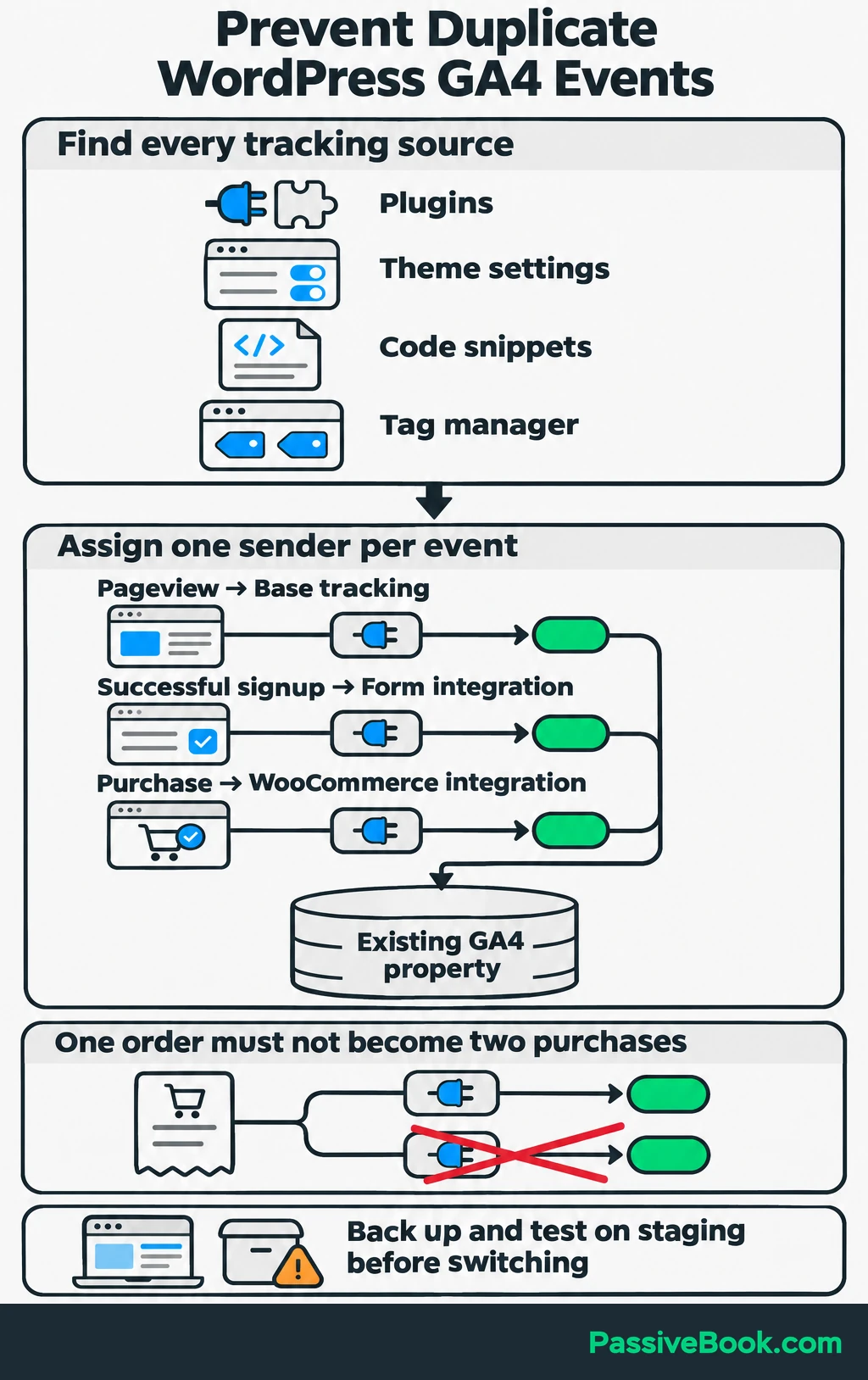
When replacing a GA4 connector, keep the existing property—the place Google Analytics stores your reports—unless you intend to start collecting data separately.
For the coffee blog, record which integration sends each event to prevent duplicate tracking:
“This integration sends GA4 pageviews. The selected form integration sends successful checklist submissions. The WooCommerce integration sends purchases.”
Connect Your Reports and Define Successful Actions
Connect the intended property or hosted account, then confirm the website, timezone and currency.
For local analytics, also configure retention, internal-traffic exclusions and report access. Your own editing sessions should not dominate the readership report.
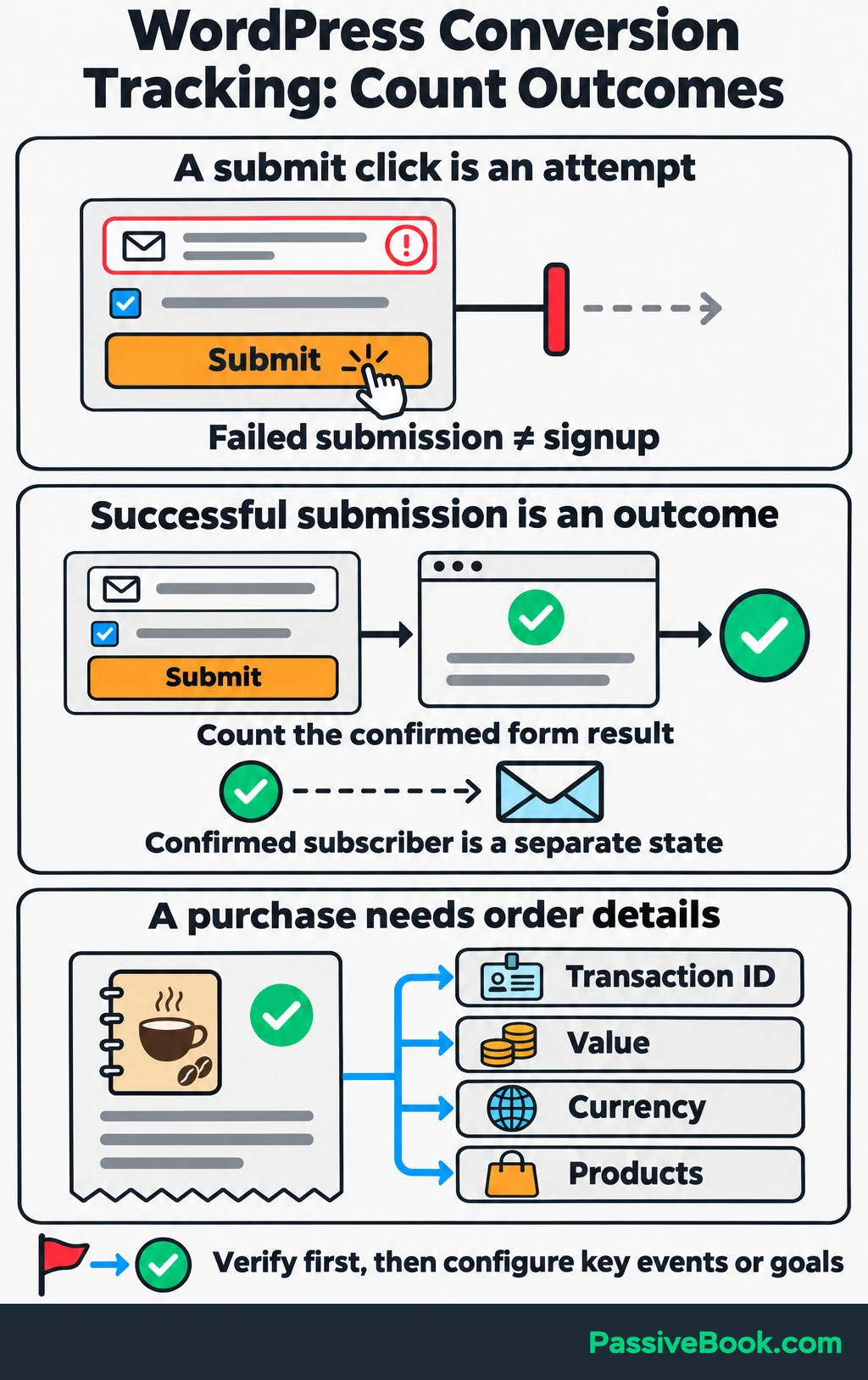
Next, define what counts as success. Use supported integrations first because they can connect events to the form or checkout’s actual result.
| Measurement | What Should Trigger It | What to Verify |
|---|---|---|
| Article visit | The pour-over guide loads | Correct page and one intended pageview |
| Checklist signup | The form confirms a successful submission | Correct form; failed attempts do not count |
| Journal purchase | A confirmed order reaches the integration’s purchase trigger | Transaction ID, value, currency and product details |
| Campaign source | A visitor arrives through a tagged external link | Expected source and campaign appear |
A submit-button click is an attempt. A successful submission is the outcome you want to count. If you use email confirmation, keep “form submitted” separate from “confirmed subscriber.”
For purchases, inspect the details as well as the event count. GA4’s ecommerce specification covers transaction and item information needed for useful purchase reporting. Google’s ecommerce event requirements
In GA4, a key event is an event marked as important to the business. Verify purchase tracking and mark successful signups as key events if needed. These settings apply to future reporting, so configure them before reviewing results. In an independent system, configure the equivalent goals.
Test a Complete Visitor Journey
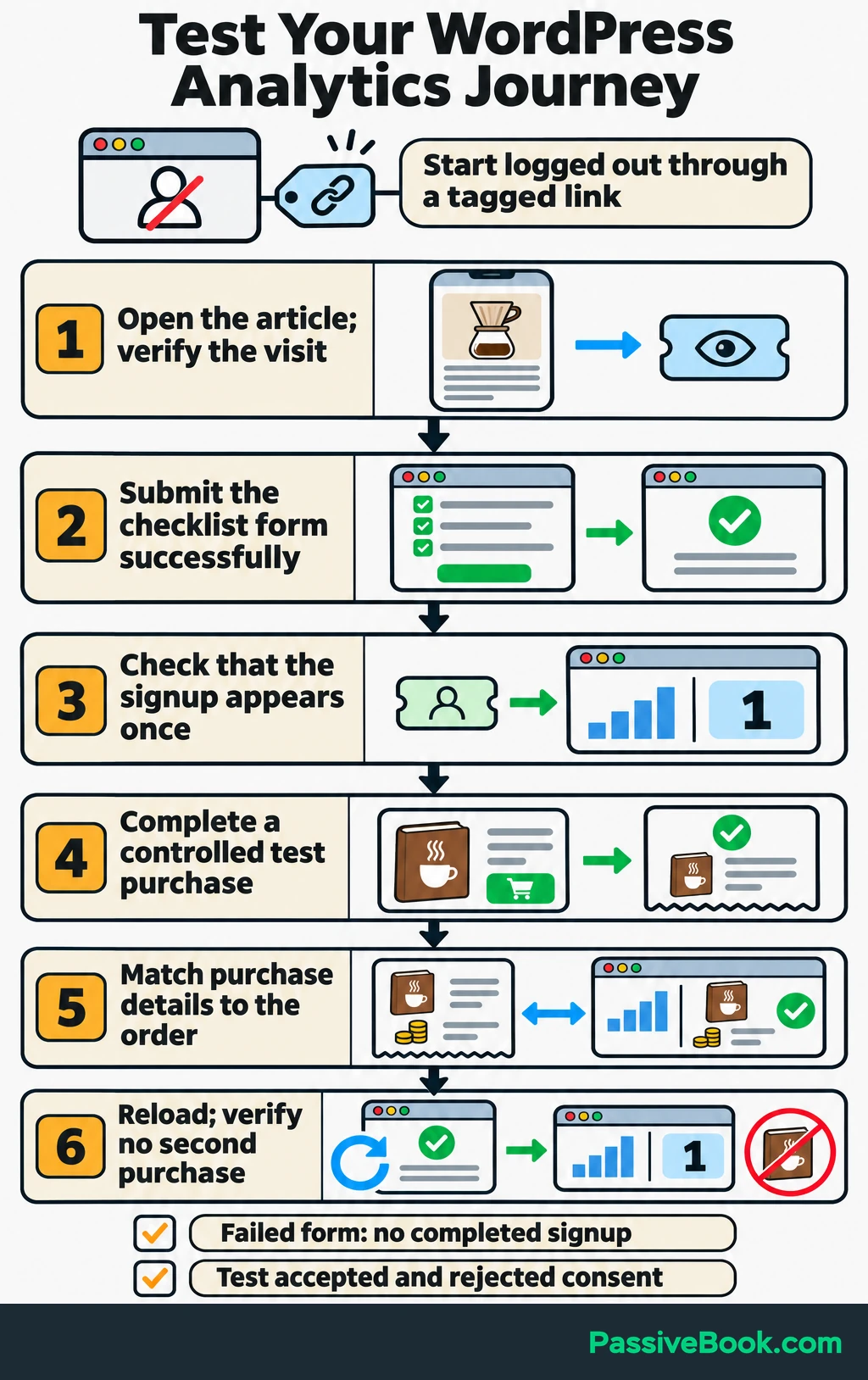
Open a logged-out browser session and visit through a tagged campaign link. Campaign tags are extra URL details that identify where a visit came from.
For the coffee blog, an illustrative link could end with:
?utm_source=pinterest&utm_medium=social&utm_campaign=brew_checklistUse those tags on the relevant external campaign link. Then follow the whole journey:
- Open the pour-over article and check that the visit appears.
- Follow the checklist offer and submit the form successfully.
- Confirm that the expected signup event or goal appears once.
- Complete a controlled test purchase of the tasting journal.
- Inspect the purchase details and compare them with the WooCommerce order.
- Reload the order confirmation and check that it does not create a second purchase.
Also try an unsuccessful form submission. It should not count as a completed signup.
For GA4, inspect your test session with Tag Assistant, Google’s tracking-check tool, and enable debug mode for your device. Then watch for your events in DebugView, GA4’s live report for test events. For independent analytics, use the available event diagnostics or reports.
Test both accepted and rejected consent. Google notes that DebugView may not display events when analytics consent has been denied, so use your consent tool’s diagnostics to inspect that state. Google’s DebugView guidance
After launch, compare recorded signups with successful form submissions and purchases with WooCommerce orders. Investigate gaps using collection rules, consent choices, payment flows and differences in what each system counts.
Compare performance before and after activation under similar conditions on an article, signup page and checkout.
Finally, save a weekly report connecting sources and landing pages to signups and purchases. I would automate its delivery once the test journey works, if the tool supports it. Repeat tracking checks whenever forms, checkout or tracking changes.
What Next?
Write down one action your analytics must record correctly, then shortlist two plugins that support it. Use the table to compare the required tier and test that action before committing to a subscription.
Use the social buttons to share this comparison when plugin costs and tracking promises are making the choice harder than it needs to be.
Which question would make your analytics more useful: where visitors come from, which pages help them, or what leads to a sale? Leave your answer in the comments, and bring any setup questions too.
Share this post with your friends & followers:

