Your FAQ needs three expandable answers, but the plugin search gives you design libraries, paid FAQ search features and promises about SEO. Now a small page improvement has become another buying decision.
Choose poorly and you could spend more time fixing the layout than writing the answers.
Choose more features than you need and you also inherit another tool to maintain. This comparison weighs built-in accordions and five plugins against your editor, budget and FAQ needs, so you can choose a suitable option and check it before using it across your site.
Do You Need a Separate Accordion Plugin?
For a short FAQ, you may already have everything you need.
WordPress 6.9 introduced a built-in Accordion block. It supports styling, and its panels accept other blocks, so an answer can include text, a list or an image. That removes a common reason to install another plugin. WordPress’s release guide covers its introduction.
On WordPress 6.9 or later, add an Accordion block in the block editor (also called Gutenberg) and try it with your actual content. If you already build pages in Elementor, try its Accordion widget first.
My usual setup includes WordPress, GenerateBlocks and WooCommerce. I prefer to solve a small layout problem within that setup before adding another tool. A different icon is rarely a good reason to take on another plugin.
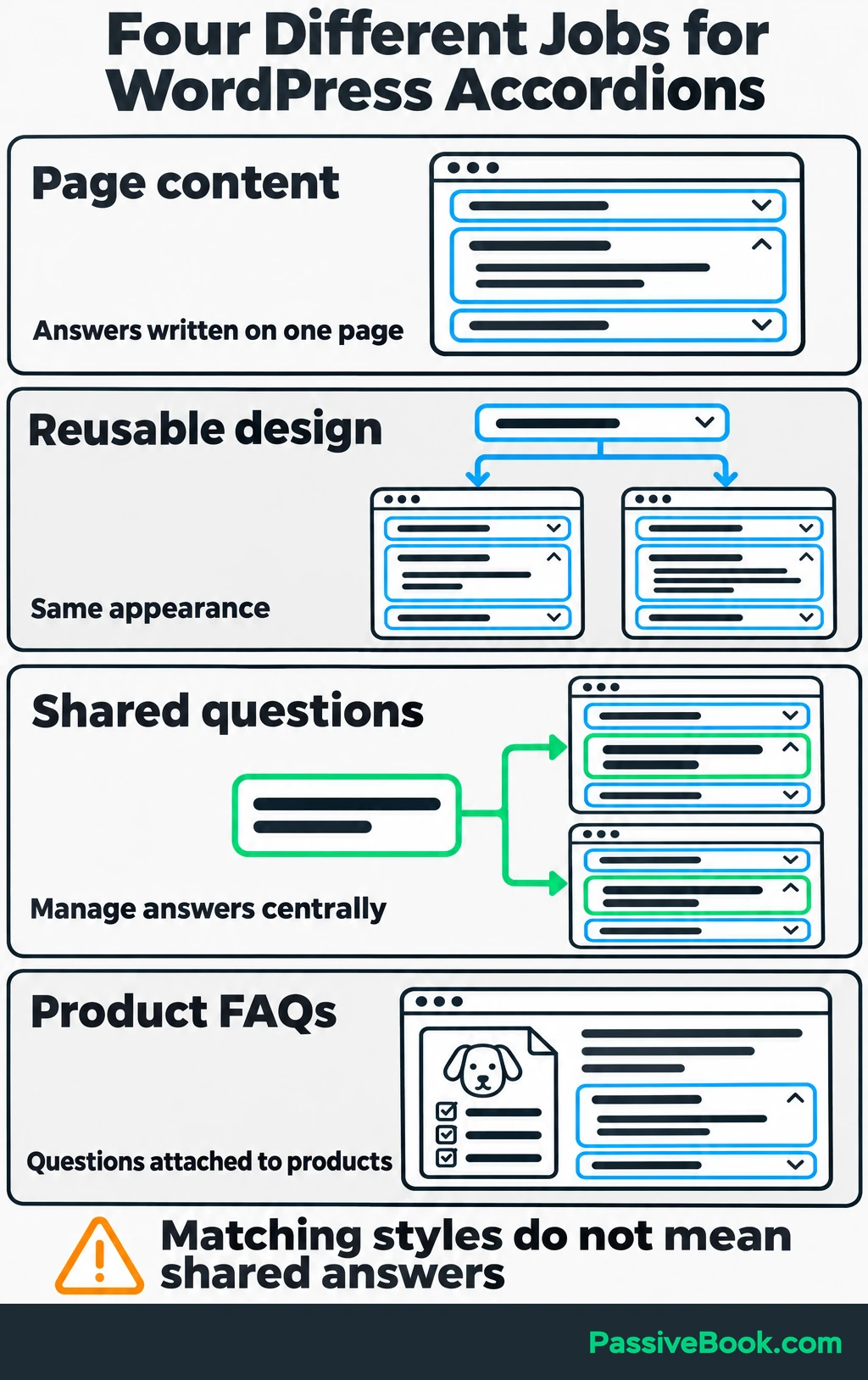
An accordion helps visitors open the answers they need without scrolling through every answer. But keep essential buying information visible. What a product includes should not require a small treasure hunt.
Before choosing a plugin, separate these jobs:
- Page Content: A few expandable answers written directly on one page.
- Reusable Design: The same colors, spacing and layout used elsewhere.
- Shared Questions: Answers managed in one place and displayed in several places.
- Product FAQs: Questions attached to individual WooCommerce products or product groups.
These capabilities are different. Repeating a design does not necessarily mean that editing one answer updates every copy.
I learned this on a download page where I had repeated the purchase-access instructions elsewhere on the site. After changing the delivery process, I found an older answer still published on another page. The styling matched perfectly. Unfortunately, the instructions did not.
Throughout this article, imagine your site sells a printable dog-sitter handover pack. Its product page needs answers about file formats, printing and accessing purchases. Three local answers may need only a basic accordion. A shared support library is a different job.
The Best WordPress Accordion Plugins Compared
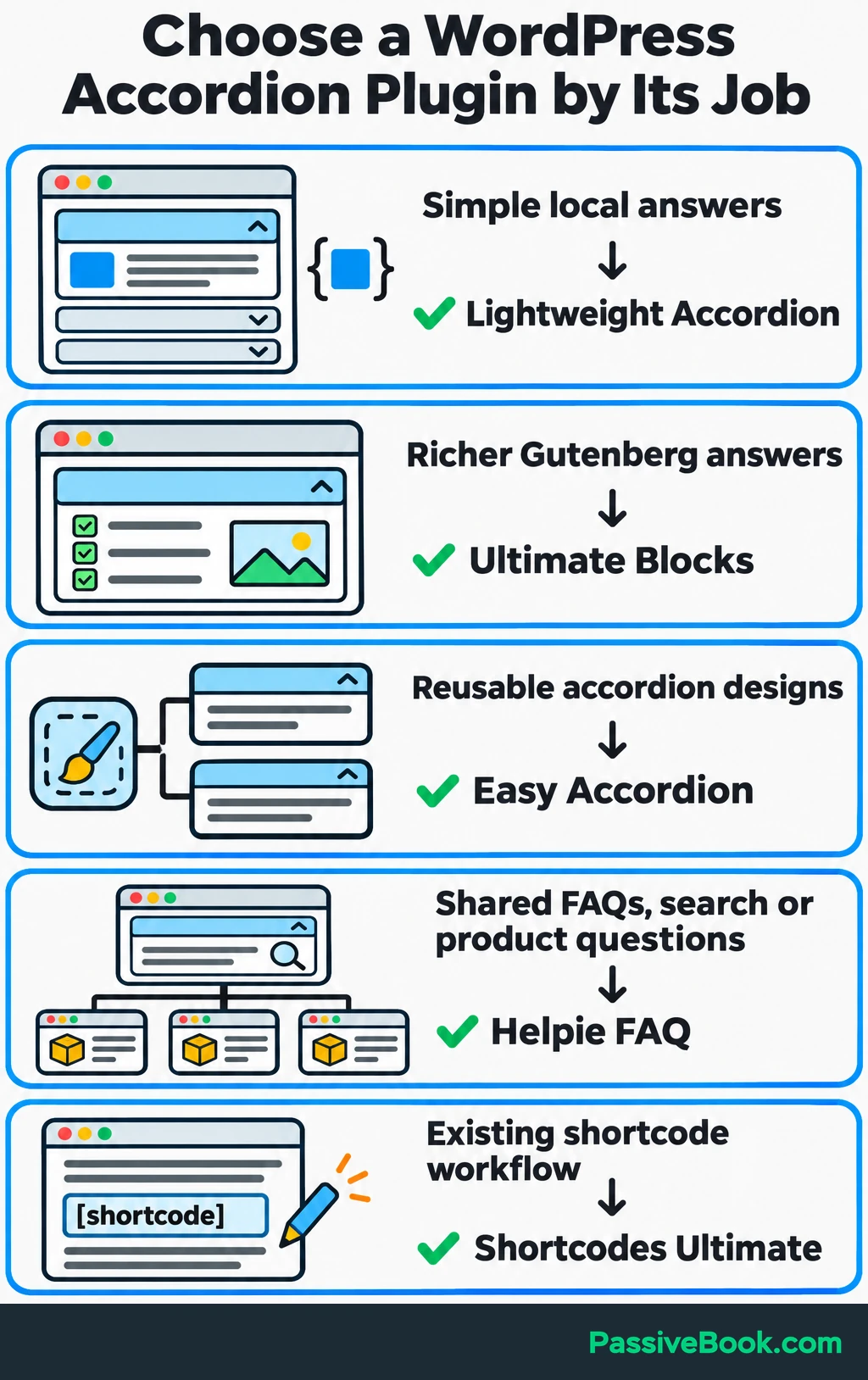
The best WordPress accordion plugins fit the way you already edit your site. Choose the editor and placement first, then compare the extra features. Where a plugin uses a shortcode, you paste a bracketed instruction into a page to display the accordion.
These recommendations draw on developers’ documented features and workflows. The installation checks below help you assess performance, keyboard use and compatibility on your own site.
| Plugin and Developer | Best Use | Editor or Embedding Method | Useful Free Features | Relevant Paid Upgrade | Single-Site Price | Main Tradeoff |
|---|---|---|---|---|---|---|
| Lightweight Accordion — Andy Feliciotti | Simple expandable answers | Gutenberg block or shortcode | Colors, borders, initial-open controls and grouping | No paid upgrade needed for these controls | Free | A focused toggle tool rather than a searchable FAQ library |
| Ultimate Blocks — Ultimate Blocks / DotCamp | Rich answers written in Gutenberg | Accordions (UB) block, formerly Content Toggle | Nested blocks, colors, icons and initial-open controls | Accordion search with highlighted matches | Free; Pro Starter: $39/year | Adds a broader block collection |
| Easy Accordion — ShapedPlugin LLC | Consistent, reusable accordion designs | Gutenberg, Classic Editor and builder embedding | Core accordions, visual controls and reusable templates | Live search, category filters, toggle-all and individual-item styling | Free; Pro: $29/year | More design controls to learn and maintain |
| Helpie FAQ — Essekia | Searchable FAQ collections and WooCommerce questions | Gutenberg, shortcodes and Elementor integration | Central questions, categories, inline search and individual-product FAQs | Assign FAQs across all products or selected product categories | Free; paid offer: $38.99 after a seven-day trial; billing interval and site allowance are unclear, so confirm both before subscribing | More structure than a few local answers require |
| Shortcodes Ultimate — Vova | Existing shortcode-based pages | Visual shortcode generator; Classic and block editors | Accordion container, expandable items, icons and initial-open controls | Extra styles and premium support | Free; Pro: $49/year | Switching away creates a shortcode conversion task |
The advertised paid prices above are in USD before taxes and checkout adjustments, with temporary promotions excluded. Ultimate Blocks Starter includes one year of updates and priority support, and its annual plans renew at the same price unless canceled. Easy Accordion’s annual single-site plan includes one year of updates and standard support.
If a paid feature makes your shortlist, compare what you will actually spend over the time you expect to use it. A lower first payment does not always mean a lower total cost.

Free Software Cost Calculator




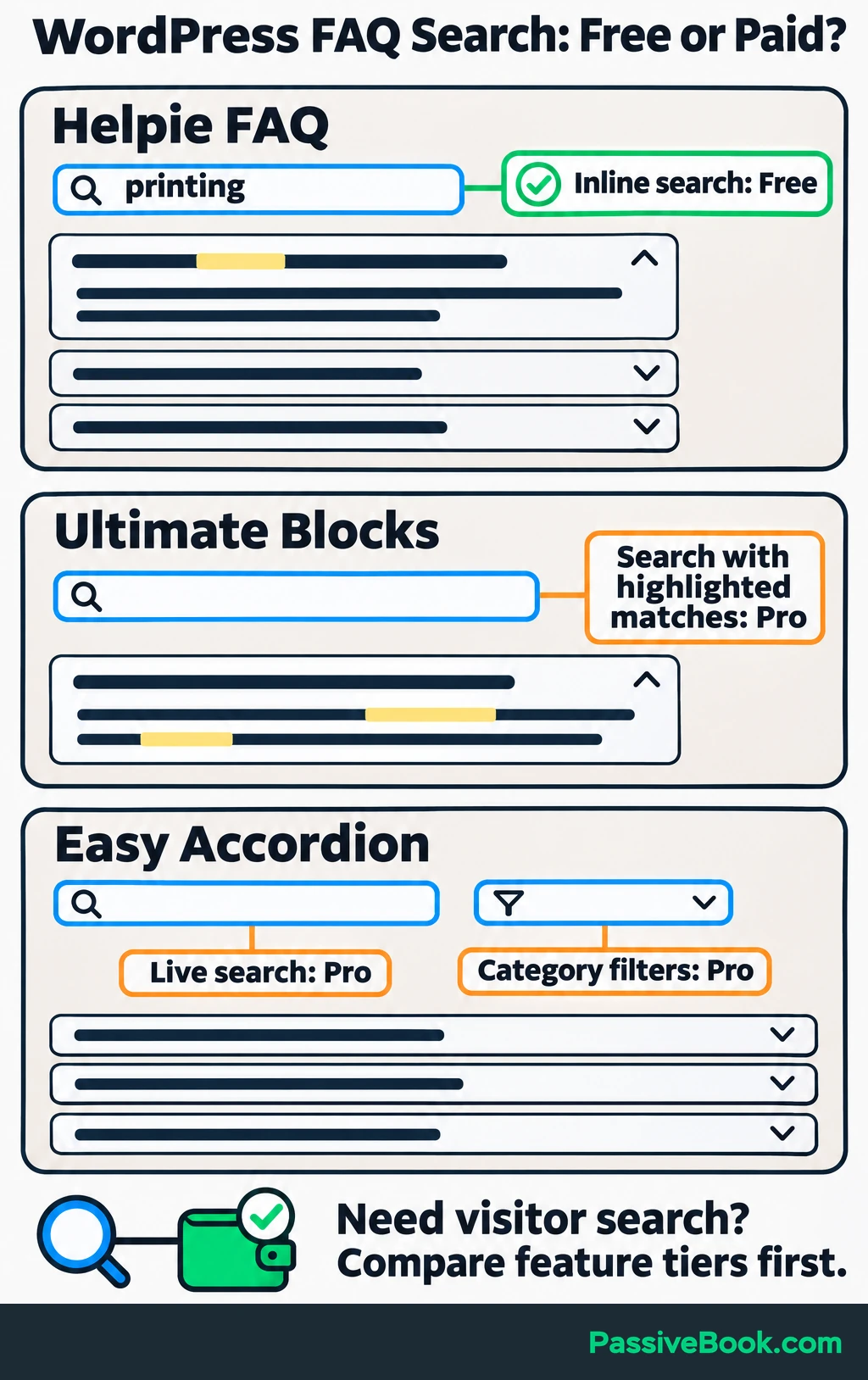
For a short FAQ, I would prioritize readable mobile controls, reliable keyboard operation and an editing process you understand. Professional-looking answers do not inherently require a paid plan.
I would also skip an upgrade sold mainly on FAQ schema, the markup once used to qualify for expanded FAQ listings in search. Google stopped displaying FAQ rich results starting May 7, 2026. That particular search benefit is gone. Google’s deprecation announcement confirms the change.
1. Lightweight Accordion: Best for Simple Free Accordions
I would shortlist Lightweight Accordion when you want a few expandable sections without building a separate FAQ collection.
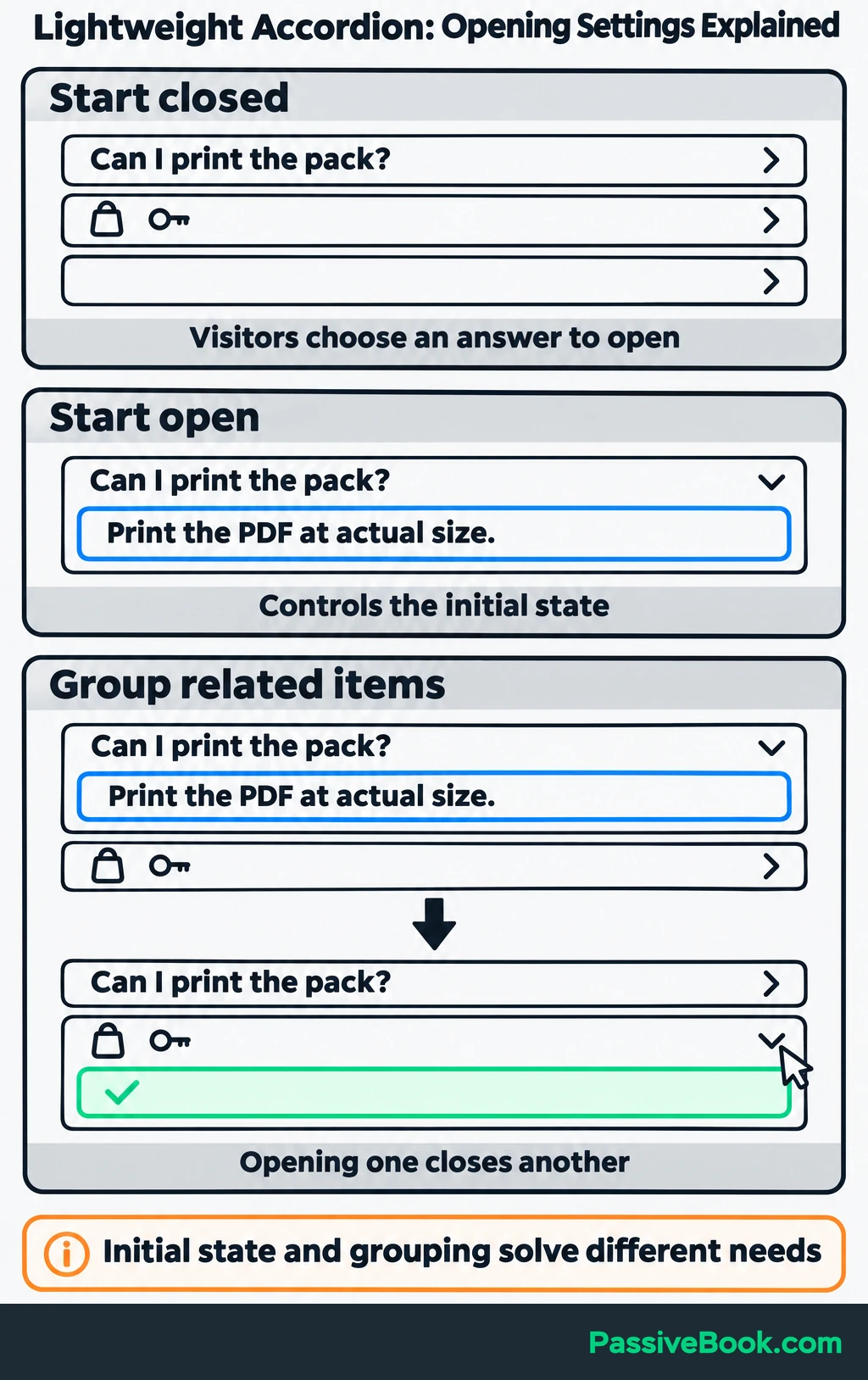
It provides a Gutenberg block and shortcodes for the Classic Editor. Free controls cover colors, borders, whether an answer starts open, and grouping that closes another item when you open one.
Its basic expansion uses the browser’s native HTML details element rather than JavaScript. That is a useful implementation detail for a focused toggle tool, although it does not establish a measured speed advantage over every alternative. Lightweight Accordion’s official listing explains the approach and controls.
For the handover pack, this suits a printing answer placed directly on the product information page:
“Print the PDF at actual size so the writing spaces keep their intended size.”
The tradeoff is its simpler content workflow. I would choose Helpie FAQ instead when questions need central management or visitors need search.
2. Ultimate Blocks: Best for Gutenberg Accordions With Richer Content
Ultimate Blocks suits answers that need more than a paragraph.
Its free Accordions (UB) block lets you add lists or images inside an answer. You also get color controls, initial-open settings and icons positioned on either side of the heading. Search with highlighted matches belongs to Pro. Ultimate Blocks’ feature page distinguishes those options.
For the handover pack, the printing answer could include a short preparation checklist and a preview image. You would edit those pieces directly in Gutenberg.
However, WordPress’s built-in Accordion also accepts blocks. Rich content alone is therefore a weak reason to install Ultimate Blocks.
I would choose it when its additional controls solve a real problem or when you already use other blocks from the collection. For three plain answers, I would try the built-in option first. The main tradeoff is adopting a broader toolkit for a small requirement.
3. Easy Accordion: Best for Reusable Accordion Designs
Easy Accordion is my shortlist choice when consistent presentation matters across several pages.
Its free edition covers core accordion creation, visual controls and reusable templates, with support for Gutenberg, the Classic Editor and builders including Elementor. Pro adds live FAQ search, category filters, a toggle-all control and styling for individual items. Easy Accordion’s official listing separates the main free and paid capabilities.
You could create one restrained design for the handover pack’s download and printing answers, then use that design elsewhere.
Keep the earlier distinction in mind: reusing the appearance and sharing centrally managed answers are separate requirements. Decide which you need before building several pages.
I would start free and upgrade only for a named feature, such as visitor search. More styling choices can be useful, but a plain FAQ should not become a weekend design project. Match your existing fonts and colors, then stop adjusting the corners.
4. Helpie FAQ: Best for Searchable FAQs and WooCommerce Product Questions
Helpie FAQ makes more sense when you need to manage questions as a collection.
The free edition supports centrally managed FAQs, categories and inline search. You can display questions through Gutenberg, shortcodes or its Elementor integration. It also supports an FAQ tab with questions for individual WooCommerce products.
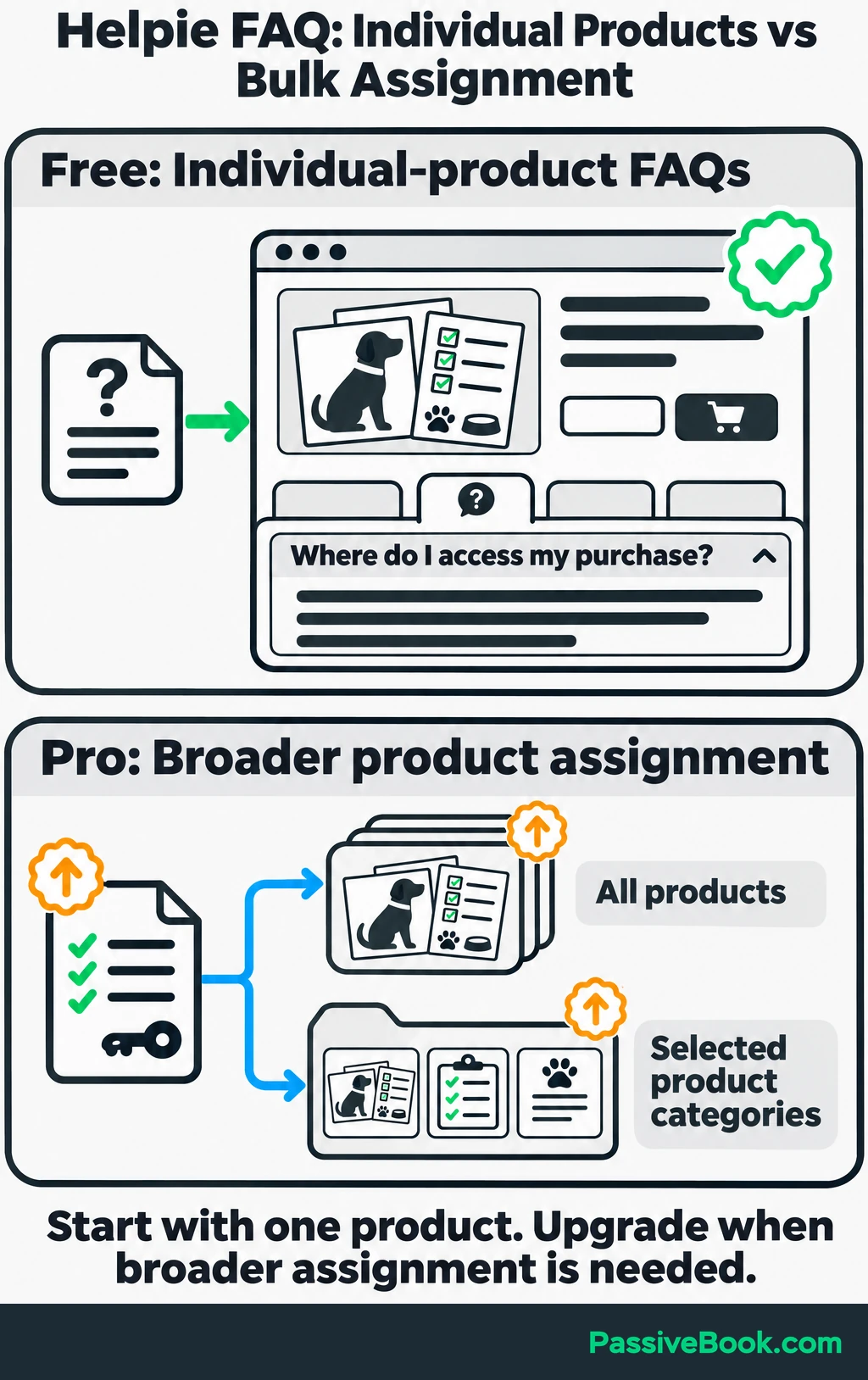
Pro adds assignment across all products or selected product categories. Helpie FAQ’s official listing explains that distinction.
For the handover pack, I would start with free individual-product FAQs. If you later sell several downloads with the same access instructions, broader assignment may become worth paying for.
This is also the strongest fit here when visitor search is a requirement and your budget is tight. You do not need a paid plan merely to make the FAQ searchable.
The tradeoff is maintaining a structured collection. That work earns its place when questions are shared or numerous. For three answers used once, a local accordion is easier.
5. Shortcodes Ultimate: Best for Existing Shortcode-based Pages
I would choose Shortcodes Ultimate mainly for a site that already uses its content elements or relies on a Classic Editor workflow.
Its visual generator lets you configure and preview an accordion before inserting its shortcode. The free version includes icons and controls for whether an answer starts open. Pro adds more accordion styles. The accordion documentation shows those options.
For the handover pack, you could generate the FAQ visually and then edit its questions and answers. Keep the bracketed shortcode instructions intact as you make changes.
On a new Gutenberg page, I would prefer a block-based option because the editing process is easier to see.
The main cost here can arrive when you leave. Shortcode-based content needs checking and conversion when switching plugins. That is manageable on an established site, but I would not introduce it casually for one small FAQ.
How to Install and Check Your Chosen Accordion Plugin
Start with one candidate and one small FAQ. That gives you enough real content to judge the plugin before you repeat its layout across the site.
Check Compatibility Before Installation
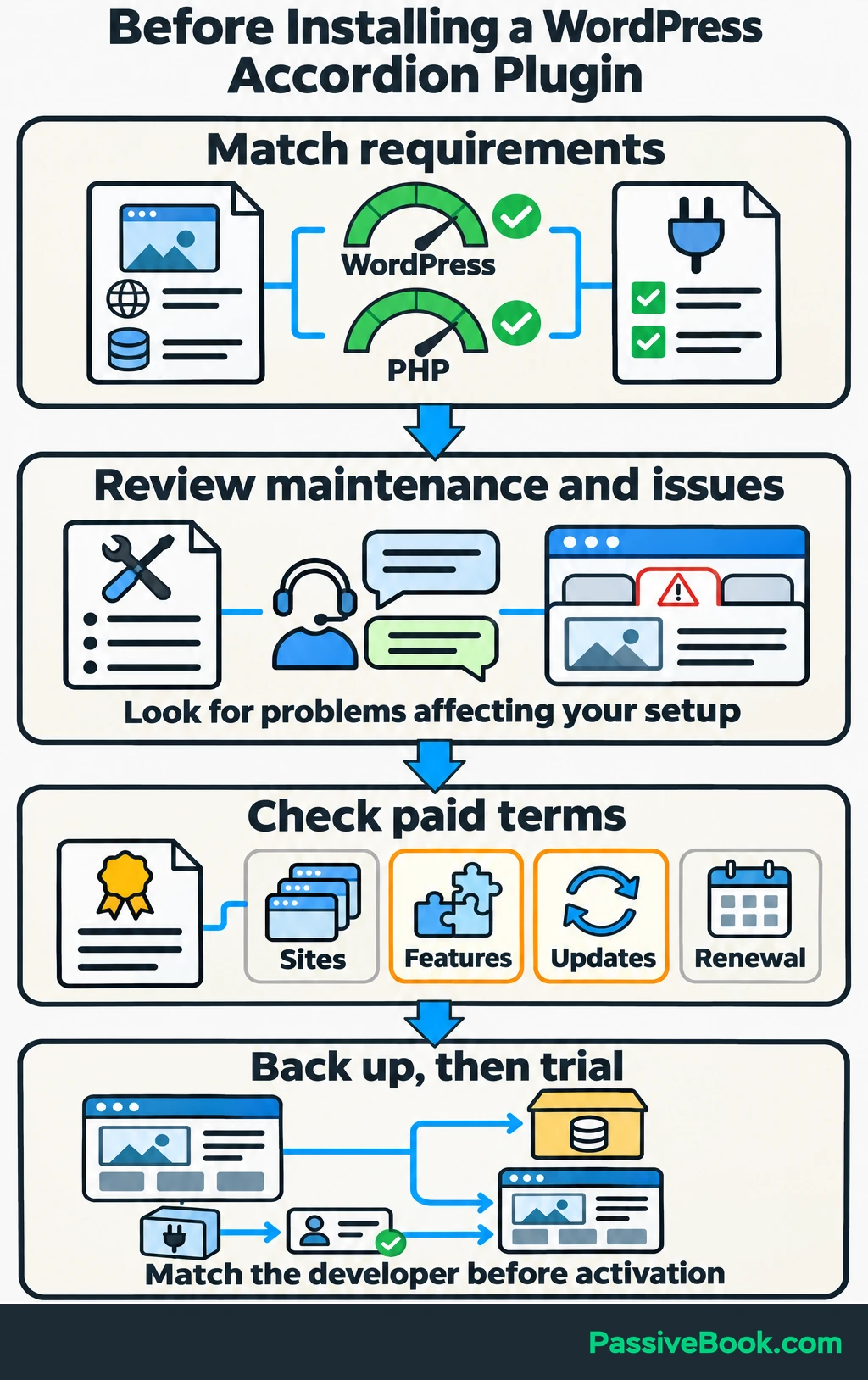
Compare the plugin’s required WordPress and PHP versions with your site. WordPress runs on PHP, and your host’s control panel or WordPress Site Health information can help you find its version.
Use the official listings above to review:
- Requirements: Your site meets the stated WordPress and PHP minimums.
- Maintenance: The recent changelog shows ongoing fixes or development.
- Relevant Issues: Support discussions reveal whether people are reporting problems with your editor, theme or WooCommerce setup.
- Paid Terms: The license covers your required sites, features, updates and renewal period.
Look at how support questions are handled, not just the number of stars. A detailed report about broken product tabs matters more to this decision than a general compliment about attractive colors.
Back up the site before installation. If your host provides staging, use that private copy for the trial.
Search for the free candidate from the Plugins screen in WordPress and match its developer name to the table. Select Install Now, then Activate. For a paid version, use the developer’s official download and follow its activation instructions.
Build a Small FAQ in Its Intended Location
Add the accordion through the workflow you chose: a block, widget or shortcode. Put it where visitors will actually use it.
For the handover pack, start with these three headings:
- “Which file formats are included?”
- “Can I print the pack?”
- “Where do I access my purchase?”
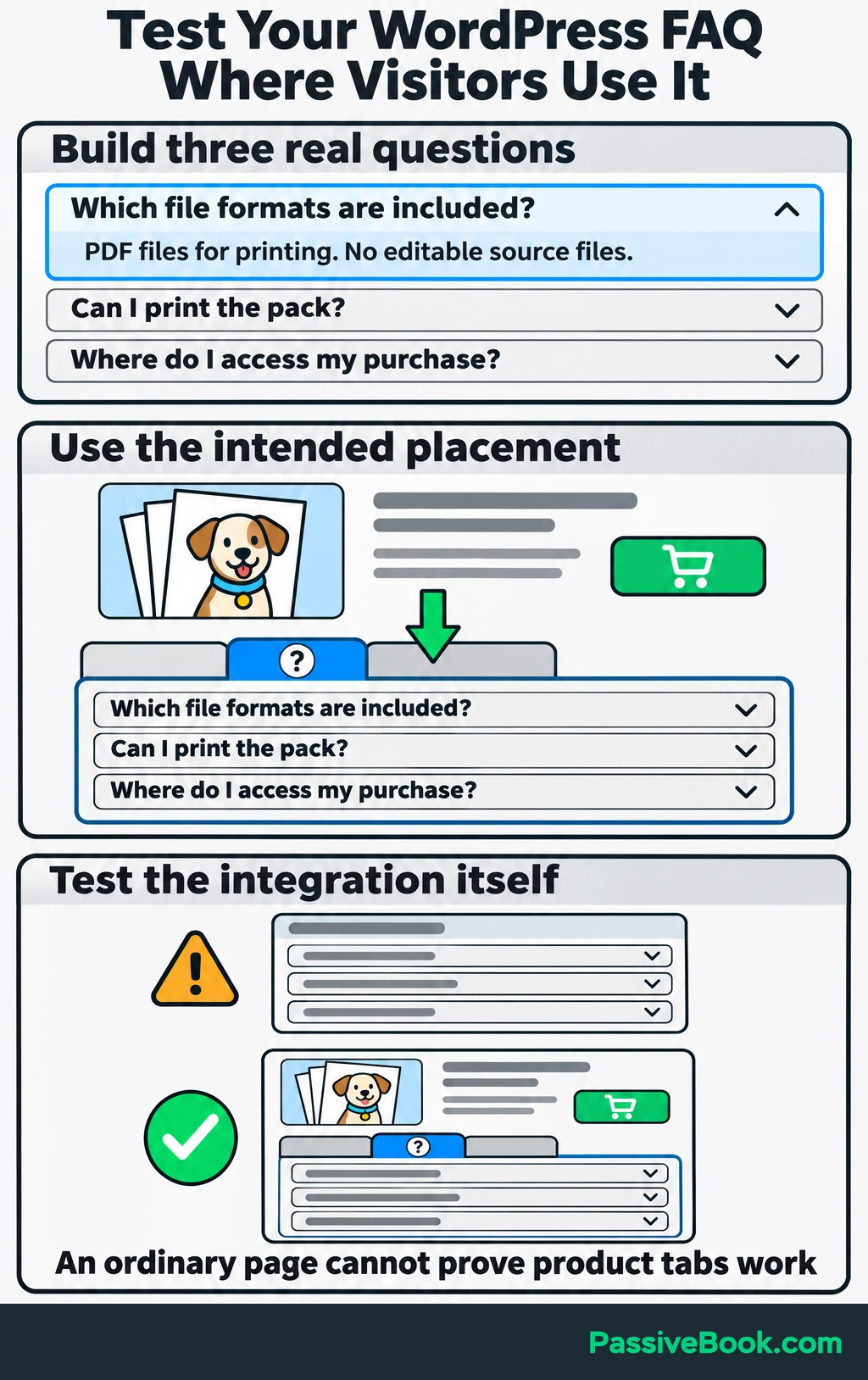
If the pack contains printable PDFs without editable source files, the first answer could begin:
“The pack includes PDF files for printing. Editable source files are not included.”
Match the site’s typography, spacing and colors. Use click or tap activation, and make the question heading an obvious control. I would allow several answers to stay open when readers may want to compare them.
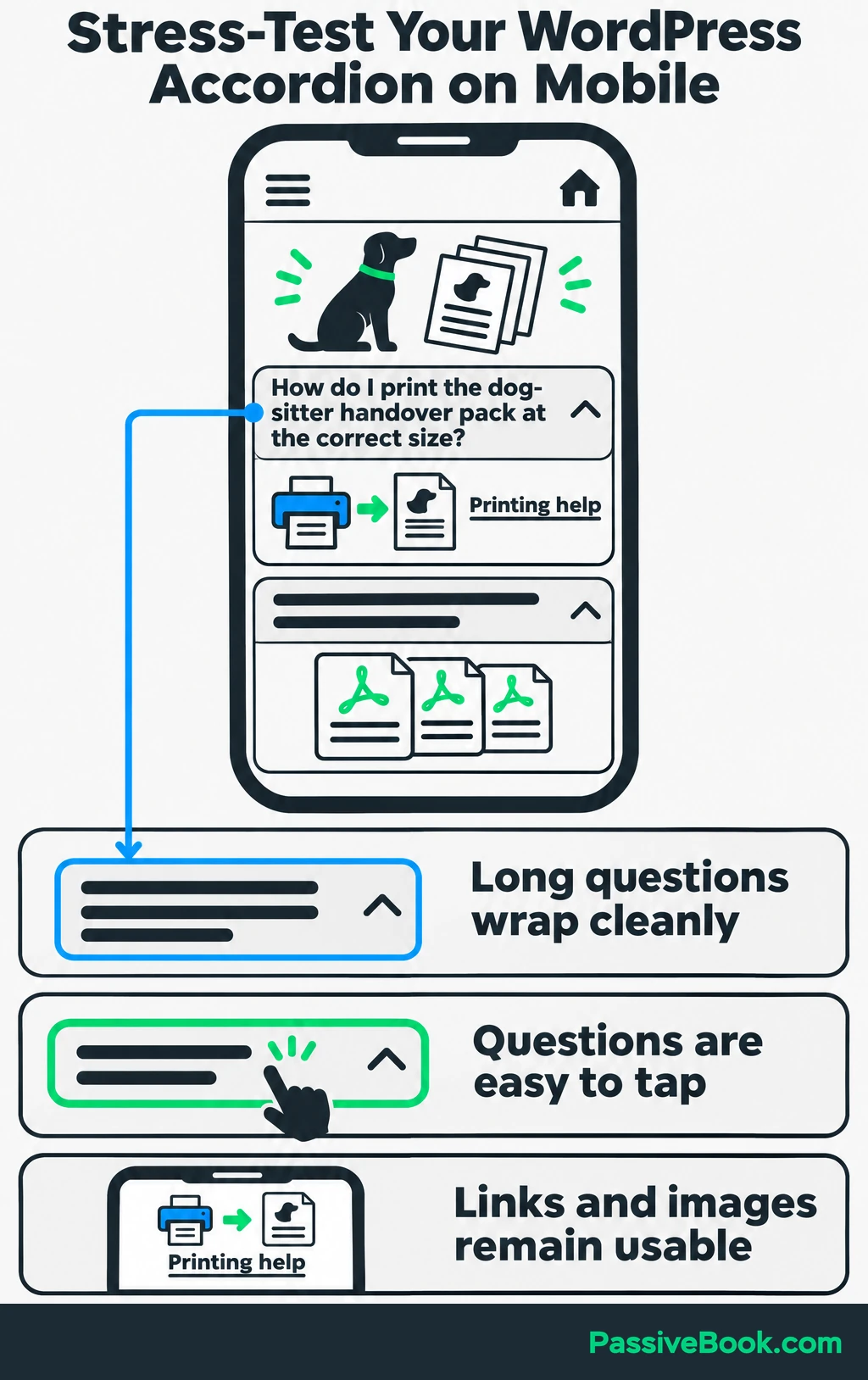
If you chose a WooCommerce FAQ tab, build it on a test product. Putting a generic accordion on an ordinary page will not tell you whether the product-tab integration works.
Preview the result on a phone. Include a long question, a link and any image you expect to use. Check that headings wrap cleanly and the controls remain easy to tap.
Test the Published Page Before Wider Use
Check the published page while logged out. The editor preview cannot tell you everything about the finished experience.
Start with the keyboard. Press Tab and confirm that you can see which control has focus. For button-based accordions, Enter and Space should operate the headings, and Tab should reach links and other available controls. These are core interactions in the W3C accordion pattern.
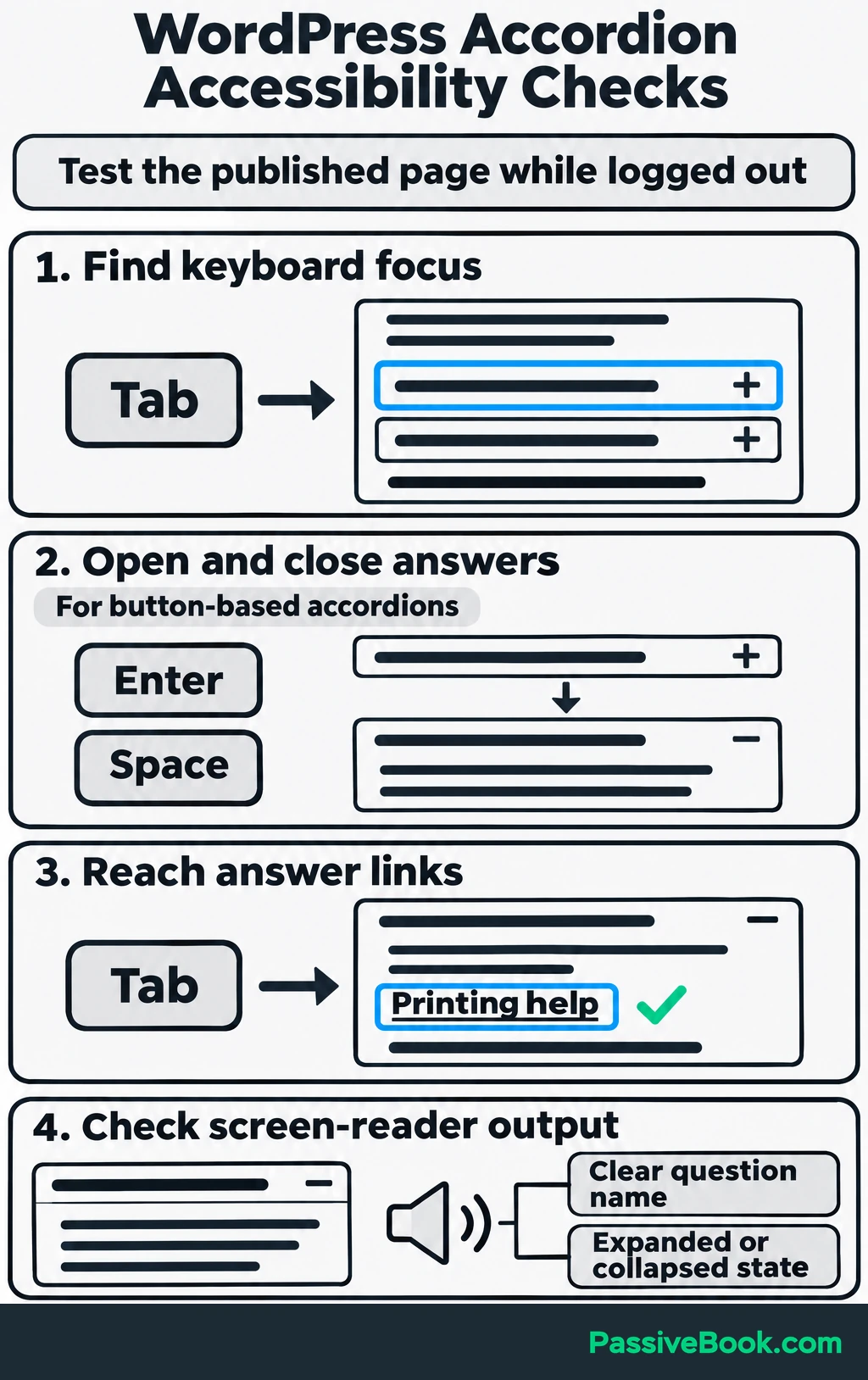
Then check with a screen reader, such as VoiceOver or NVDA. Each control should have a clear name, and its expanded or collapsed state should be announced. Do not assume that a working mouse click proves the rest works.
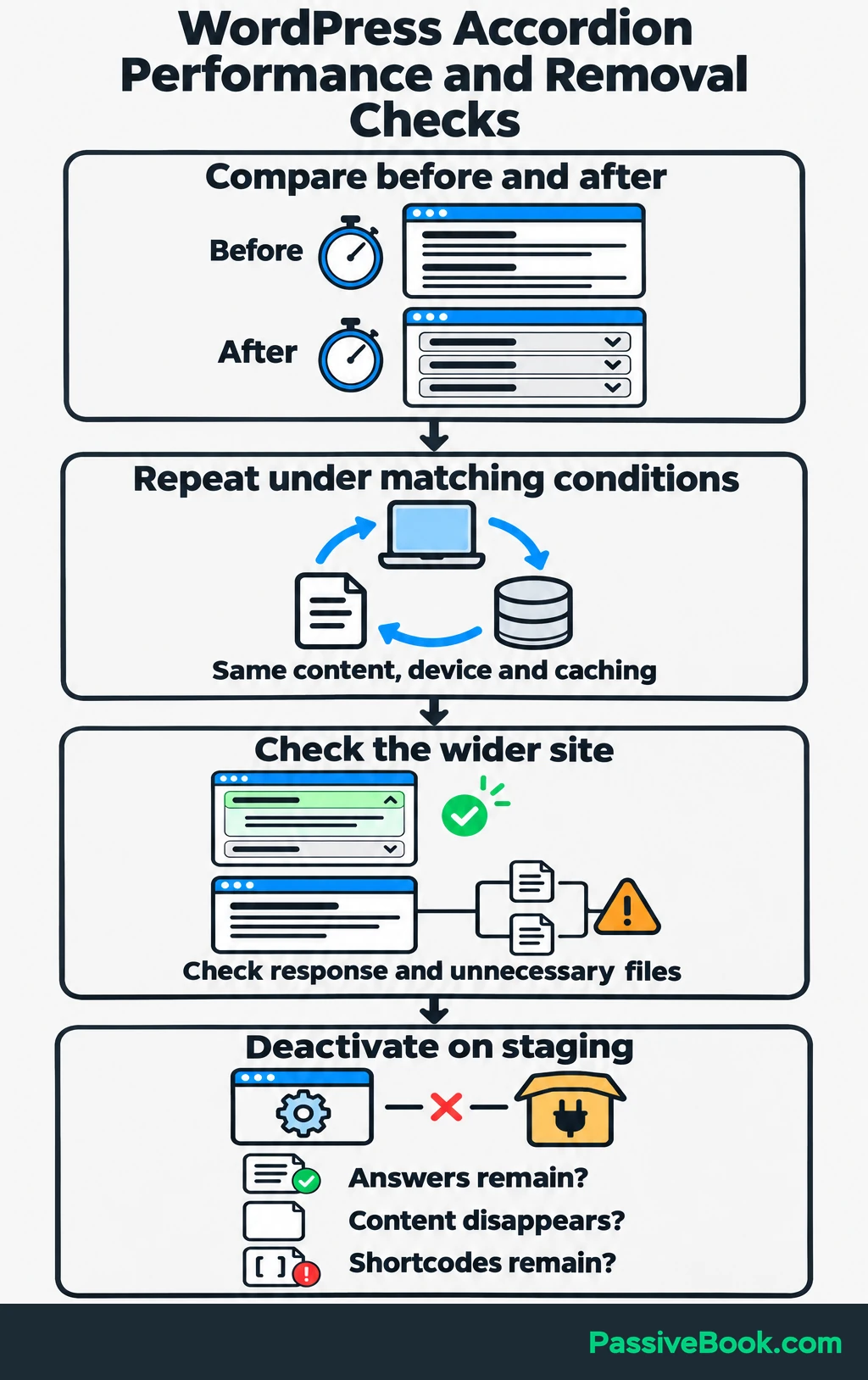
For performance, compare the same page before and after adding the accordion under matching conditions. Keep the content, device and normal caching settings consistent. Repeat the comparison so one unusual load does not decide the result.
Look for practical differences:
- Loading: The FAQ and surrounding page appear without a noticeable new delay.
- Interaction: Answers respond promptly when opened and closed.
- Other Pages: Pages without accordions avoid unnecessary new plugin files where possible.
If panels stop responding, clear the relevant caches and check any JavaScript delay settings. I would pay particular attention to those settings when using WP Rocket. On staging, temporarily disable the relevant optimization, then isolate theme or plugin conflicts if the problem remains.
Finally, deactivate the candidate on staging and inspect the page. Check whether the answers remain readable, disappear or leave visible shortcodes.
Keep an editable copy of your questions and answers outside the plugin. Choose the option whose editing workflow, published behavior and eventual removal you can maintain comfortably.
What Next?
Add three real questions to a draft page and try your editor’s built-in accordion first. If it leaves a specific gap, choose one plugin from the table and run the checks before using it elsewhere.
Use the social buttons to pass this comparison along when a plugin discussion needs a clearer answer about what is free and what is worth paying for.
Which requirement matters most on your site: simple editing, shared answers, visitor search or product FAQs? Tell me in the comments, and bring any other questions about choosing or setting one up.
Share this post with your friends & followers:

