Your customers can buy a course on their phones, but returning to a lesson may mean digging through emails for the link. An app icon sounds useful. A separate app project sounds expensive.
Then come the promises: offline access, notifications and one version for every device. The catch is that those features need different kinds of work, and they don’t behave the same everywhere. This guide explains which features could make your course easier to use, how they work across devices and when the extra development is worth paying for.
How Does a PWA Work?
A progressive web app is a website built to offer app-like features, such as installation, its own window and selected offline functions. It remains a web application and uses a browser engine even after installation. MDN explains this relationship between web and app experiences.
“Progressive” means the core service works through a web address, and supported features add to that experience. Customers can use the website without installing it.
Imagine you sell a beginner watercolor course. Customers return to painting instructions and practice checklists. We’ll use that example to see when a PWA would help—and when an ordinary mobile website would do the job.
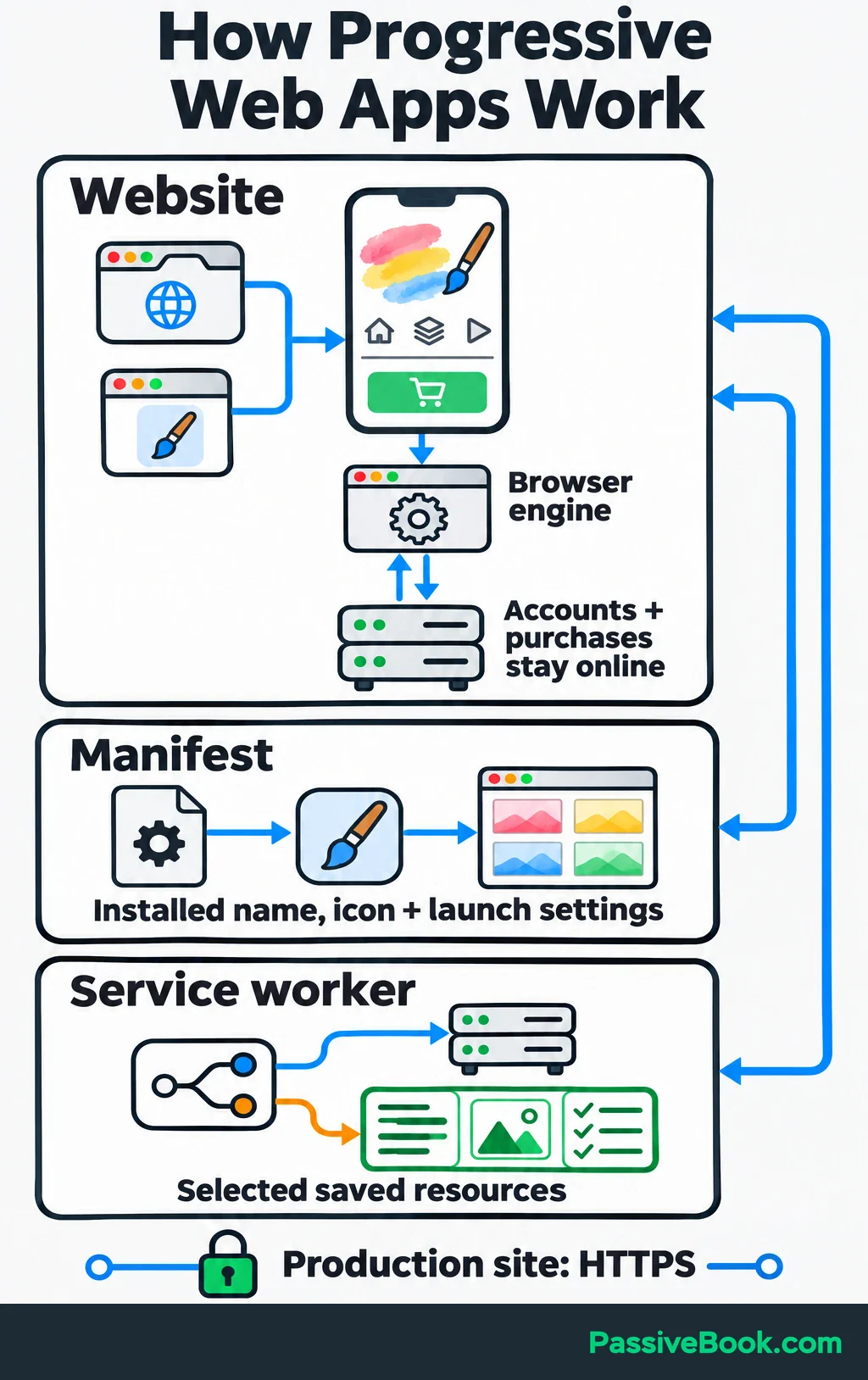
Its pages provide the content, navigation and controls, while your server and connected services still handle accounts, purchases and other online tasks.
Two parts often sit alongside that website: a web app manifest and a service worker. They have different jobs. The manifest describes the installed experience, while the service worker can help deliver saved content without a connection.
The production site needs HTTPS, the secure connection used by modern websites. Service workers require it outside local development.
The Web App Manifest Describes the Installed Experience
A web app manifest is a small settings file written in JSON, a format for storing named values. It tells supporting browsers things such as:
- What name to show.
- Which icons to use.
- Which address to open when the app launches.
- Whether it should open in a standalone window.
These settings help the browser present and configure the installed app. MDN’s manifest reference describes the available settings.
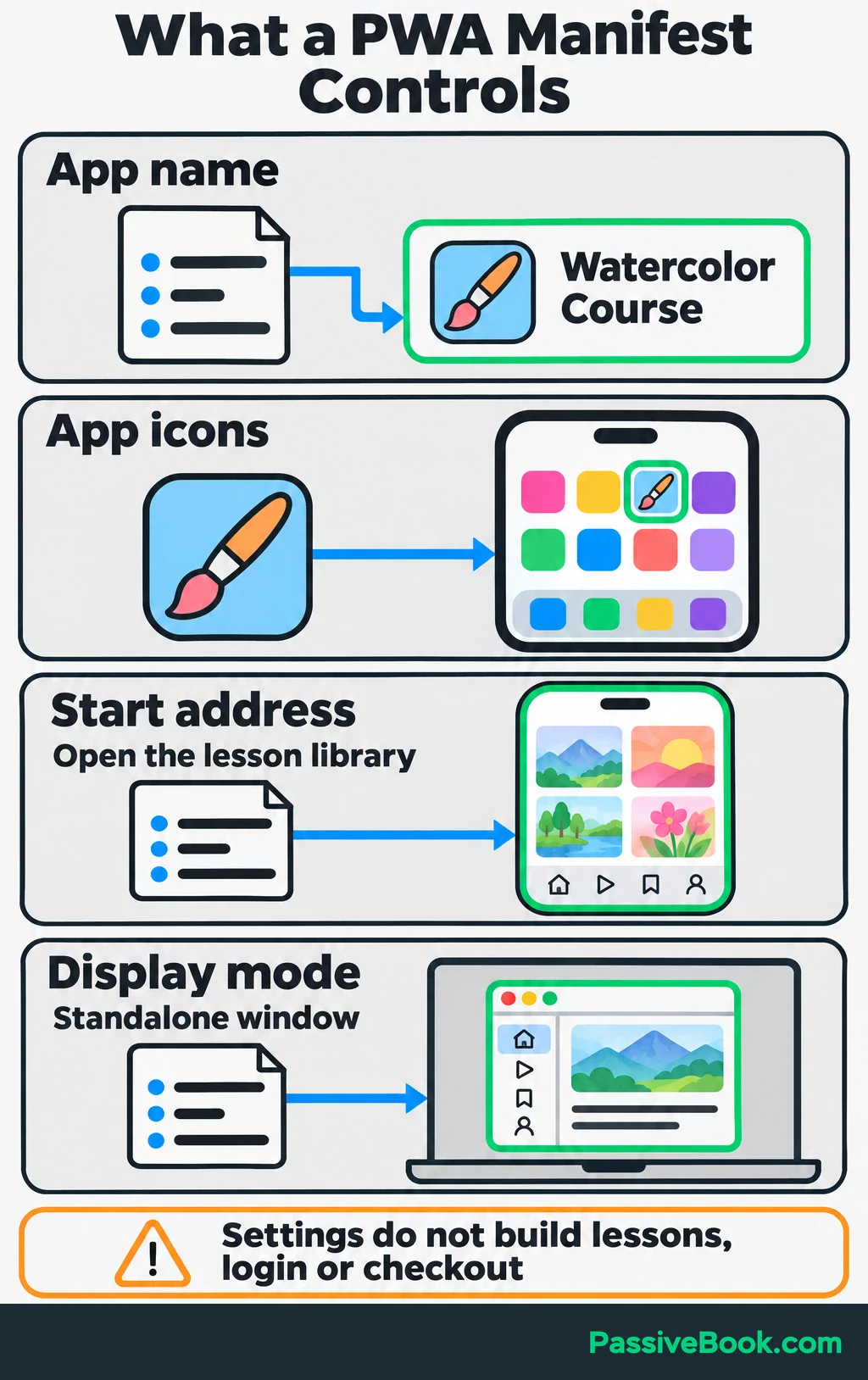
For your watercolor course, the manifest could supply a paintbrush icon and open the app at the lesson library.
It does not create that library, build a login system or connect your checkout. Those functions still belong to the website. Think of the manifest as instructions for presenting the app, rather than the app’s contents.
A Service Worker Enables Selected Offline Functions
A service worker is code that runs separately from the webpage. It can handle requests for pages, images and other resources, and decide whether to get them from the server or a cache.
A cache is a collection of resources saved on the customer’s device. Offline access works only when the app deliberately saves what a task needs and can serve those resources without a connection.
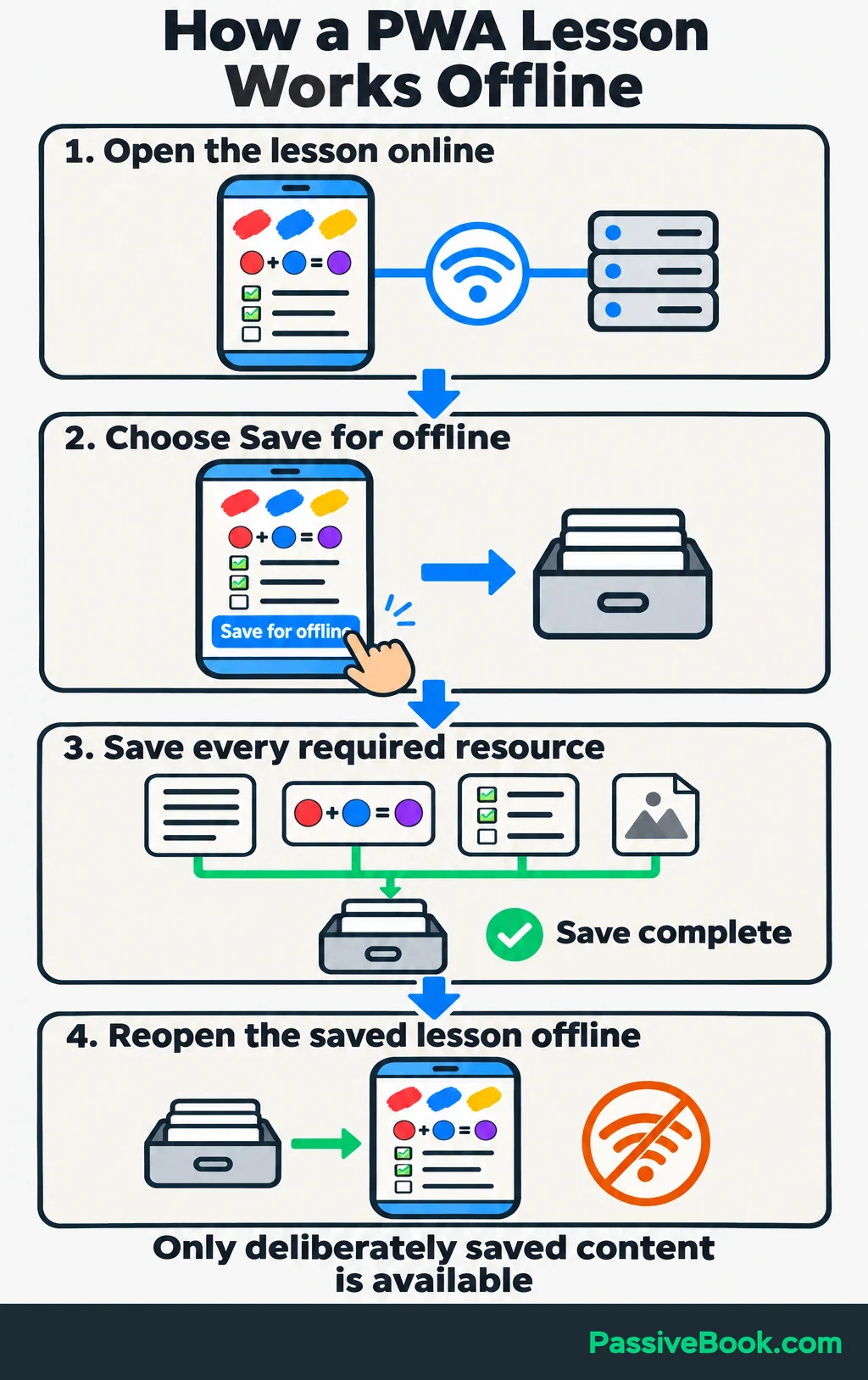
Here’s how that could work for your course:
- A customer opens the color-mixing lesson while connected.
- They choose “Save for offline.”
- The app saves the lesson text, diagrams, checklist and files needed to display them.
- Later, the customer reopens that saved lesson without internet access.
Unsaved lessons and online payments still need a connection. The app should say so clearly:
“This lesson isn’t saved on this device. Connect to the internet to open it.”
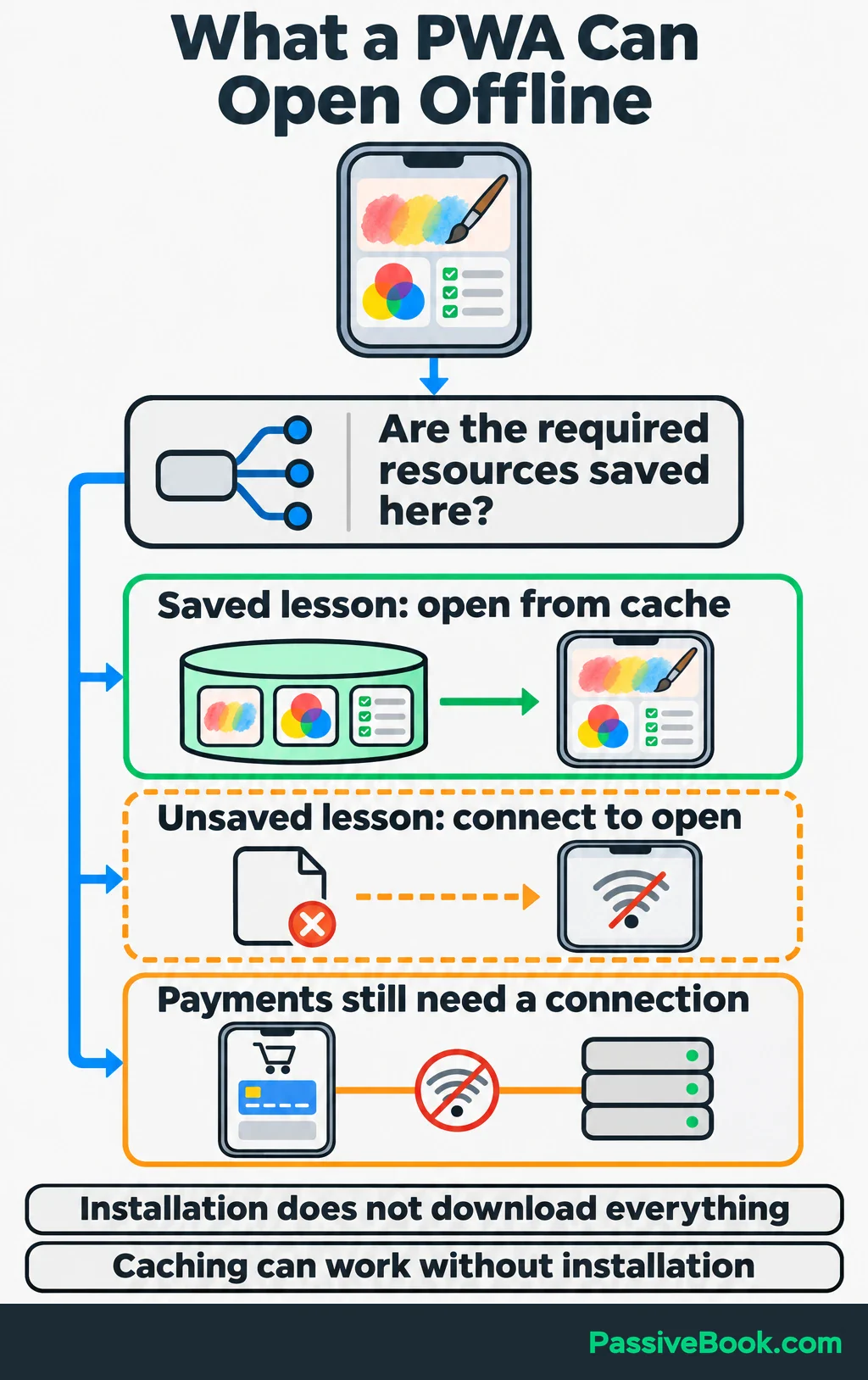
Installing a PWA does not automatically download everything, and caching can work without installation. A service worker is also not a universal requirement for installation.
Service workers can support push notifications and certain background tasks, but browsers start and stop them as needed. They are not scripts that run continuously after someone closes the app. Google’s service-worker guide explains these capabilities and their lifecycle.
How Do PWAs Compare With Websites and Native Apps?
Responsive design makes a website’s layout fit different screen sizes. PWA features add behavior such as installation and planned offline access. A good PWA still needs responsive design, so these are complementary choices.
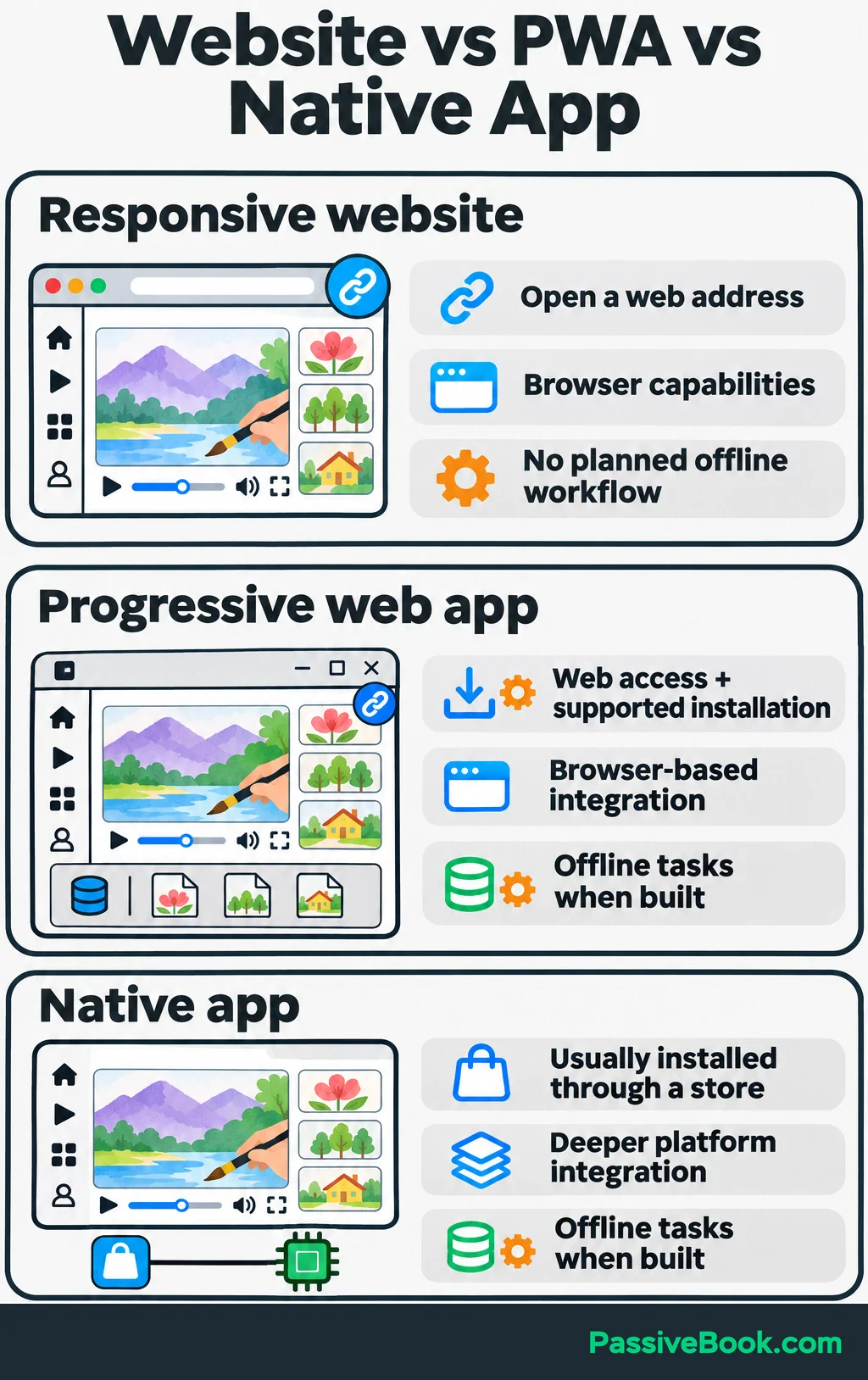
A native app runs in a platform-specific app environment, such as Android or iOS. It can offer deeper access to the operating system, but whether that matters depends on what customers need to do.
| What You’re Comparing | Responsive Website Without Added PWA Capabilities | PWA | Native App |
|---|---|---|---|
| Access and distribution | Open a shareable web address | Open a web address; some PWAs can also be packaged for app stores | Usually found and installed through an app store |
| Installation | No app installation required; browsers may offer shortcuts or site windows | Can offer an installed experience on supporting devices | Installed as an application for a supported platform |
| Offline functions | No deliberately built offline workflow | Selected tasks work offline when their resources and behavior are implemented | Selected tasks work offline when implemented |
| Device integration | Uses features available through the browser | Uses browser features, with some additional installed-app integration | Can access deeper platform features, subject to permissions |
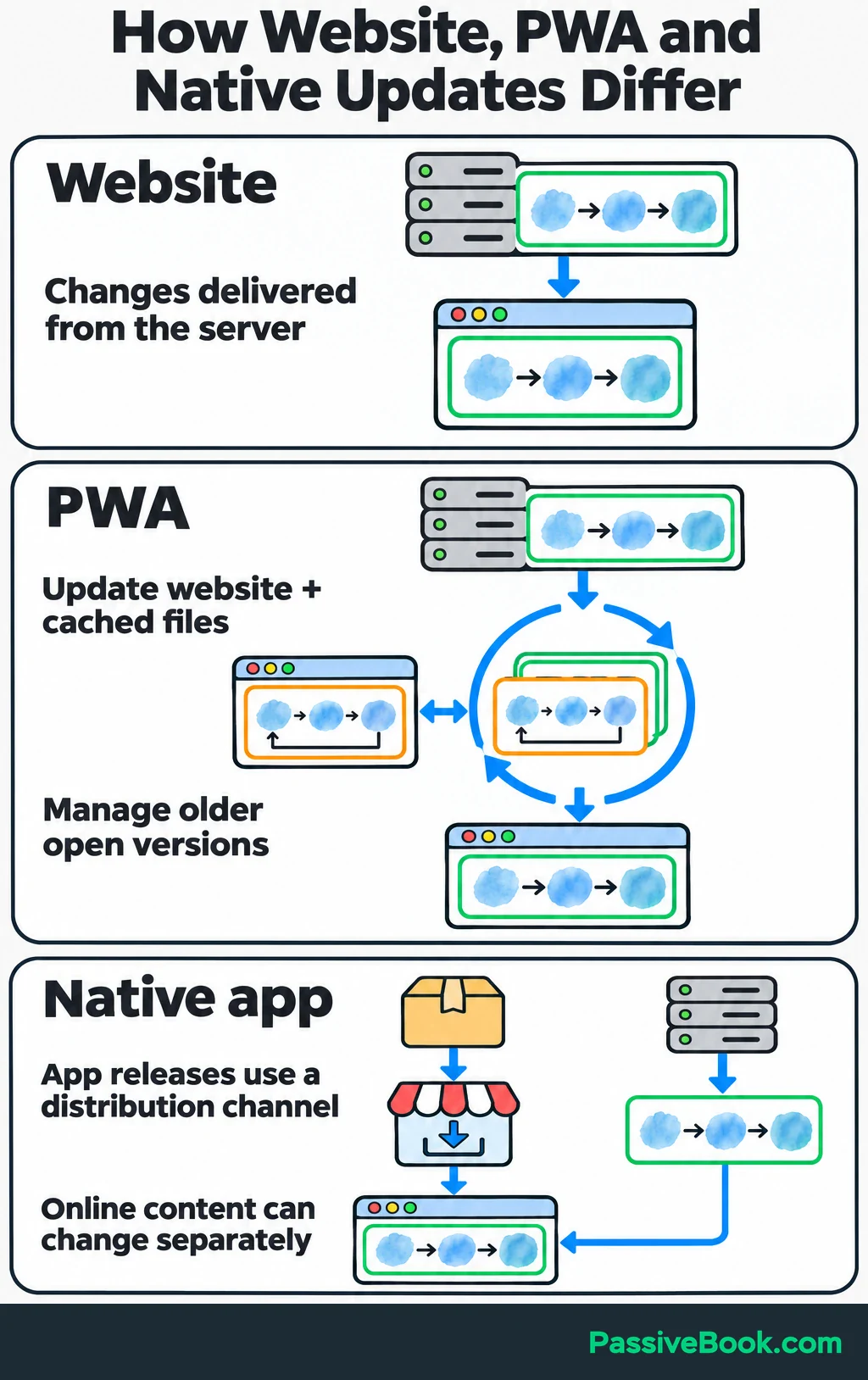
| Updates | Website changes are delivered from the server | Website changes plus managed updates to cached files | App releases normally use the distribution channel; online content can change separately |
I wouldn’t choose between these by asking which is “fastest.” I would compare the actual tasks on the devices customers use. A small lesson library and an app that needs continuous background location tracking have very different requirements.
I ran into a simpler version of this while reviewing one of my digital-product libraries on my phone. I kept returning through the purchase email because the site buried the library link. I moved that link into the main navigation before considering installation.
That experience informs where I would start with the watercolor course: make lessons easy to find, controls easy to tap and checkout straightforward. Adding a manifest won’t fix those problems. A slow checkout with an icon is still a slow checkout.
Where Do PWAs Work?
Check three things separately: whether customers can open the website, whether they can install it and whether each required feature works.
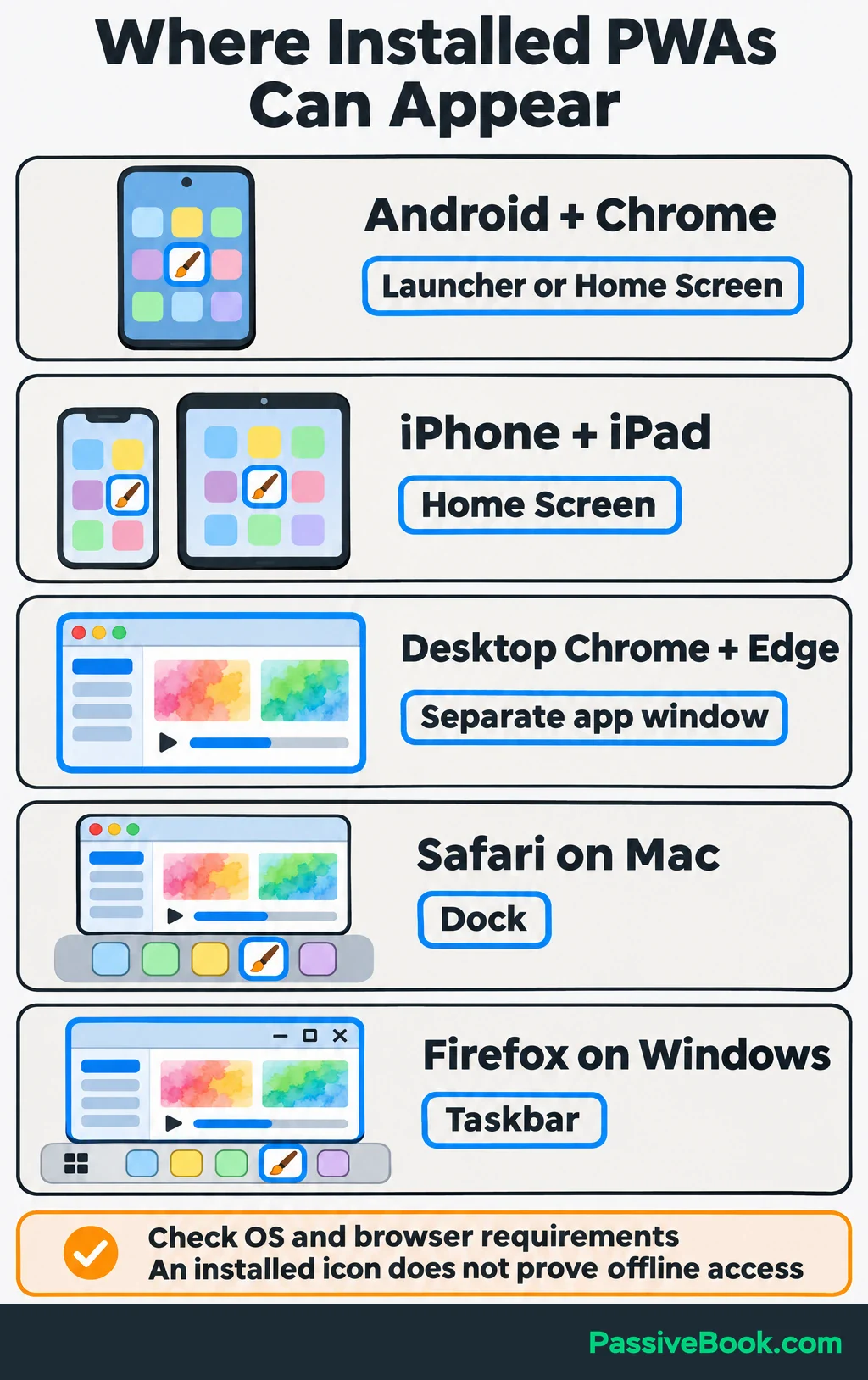
The same website code can serve phones, tablets and computers, but each browser and device may support different app features.
| Device/Browser | Installed Experience | Important Feature Conditions |
|---|---|---|
| Android with Chrome | Installable web apps can appear in the launcher or on the Home Screen | Offline content must be implemented; installation alone does not save it |
| iPhone and iPad | Web apps can be added to the Home Screen | Web push requires iOS/iPadOS 16.4 or later, Home Screen installation and permission requested after a direct action such as tapping a subscribe button. WebKit documents these requirements |
| Desktop Chrome and Edge | Installed web apps can open in separate windows | Test any required device access or background behavior in the relevant browser |
| Safari on Mac | Webpages can be saved as web apps and opened from the Dock | Requires macOS Sonoma 14 or later; adding the app does not create offline functionality |
| Firefox on Windows | Websites can open in dedicated web-app windows and be pinned to the taskbar | Available from version 143, or version 150 for Microsoft Store installations. Mozilla explains the Windows support |
These installation options vary by browser and operating system. Some browsers can also turn ordinary websites into app windows, so an installed icon alone does not prove that a site has useful offline features.
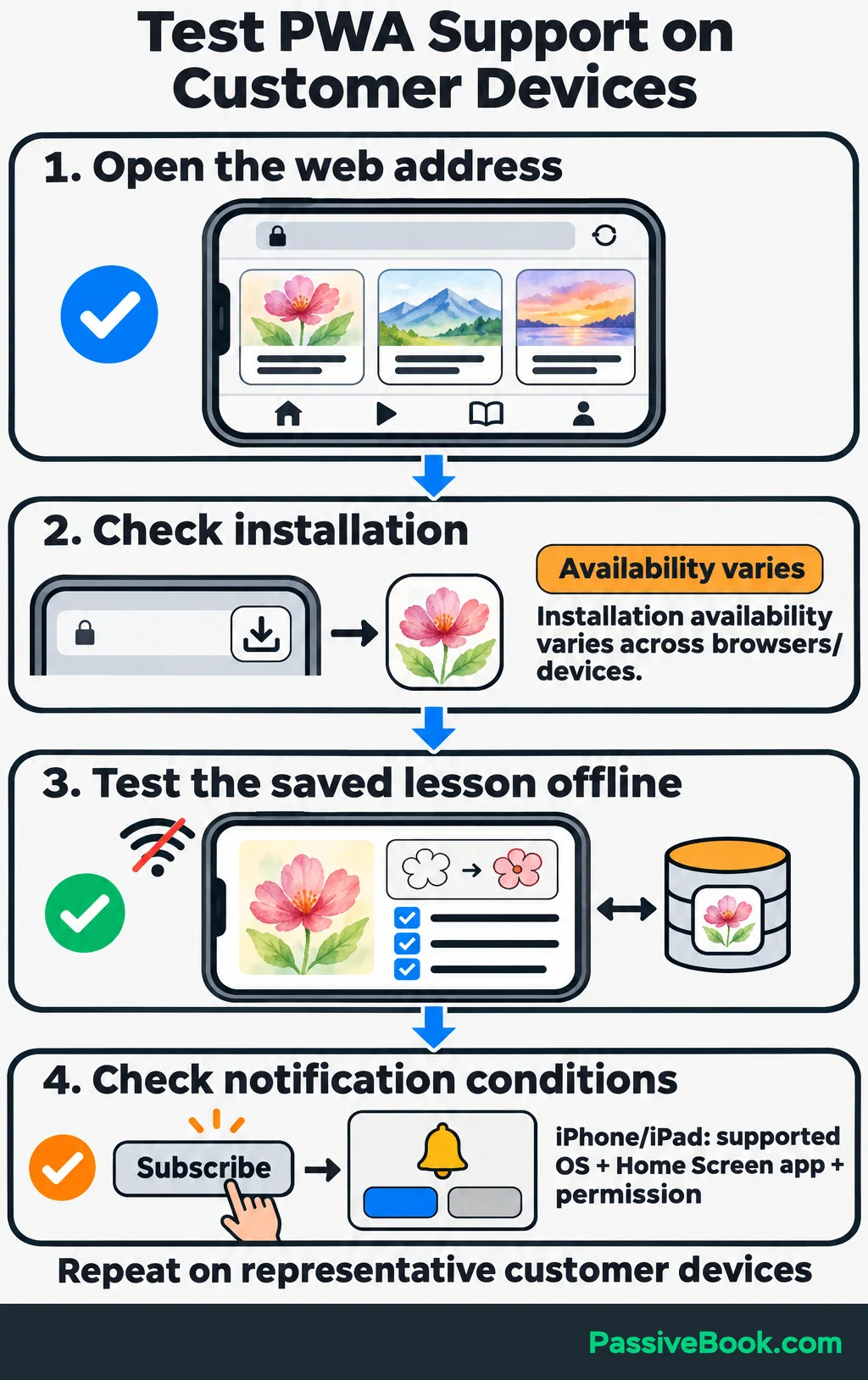
For the watercolor course, I would test saved lessons on an iPhone and an Android phone before promising mobile offline access. If most customers use one particular device, give that device priority in testing.
Notifications deserve their own check. Being able to install the course app does not mean every customer can receive reminders under the same conditions.
Are Progressive Web Apps Safe?
A PWA can be safe, but the label does not certify its owner or its code. Its safety depends on how the service is built and maintained.
HTTPS protects communication between the browser and the server against interception and tampering. It does not prove that a business is honest or remove weaknesses in its application. Google explains what HTTPS protects.
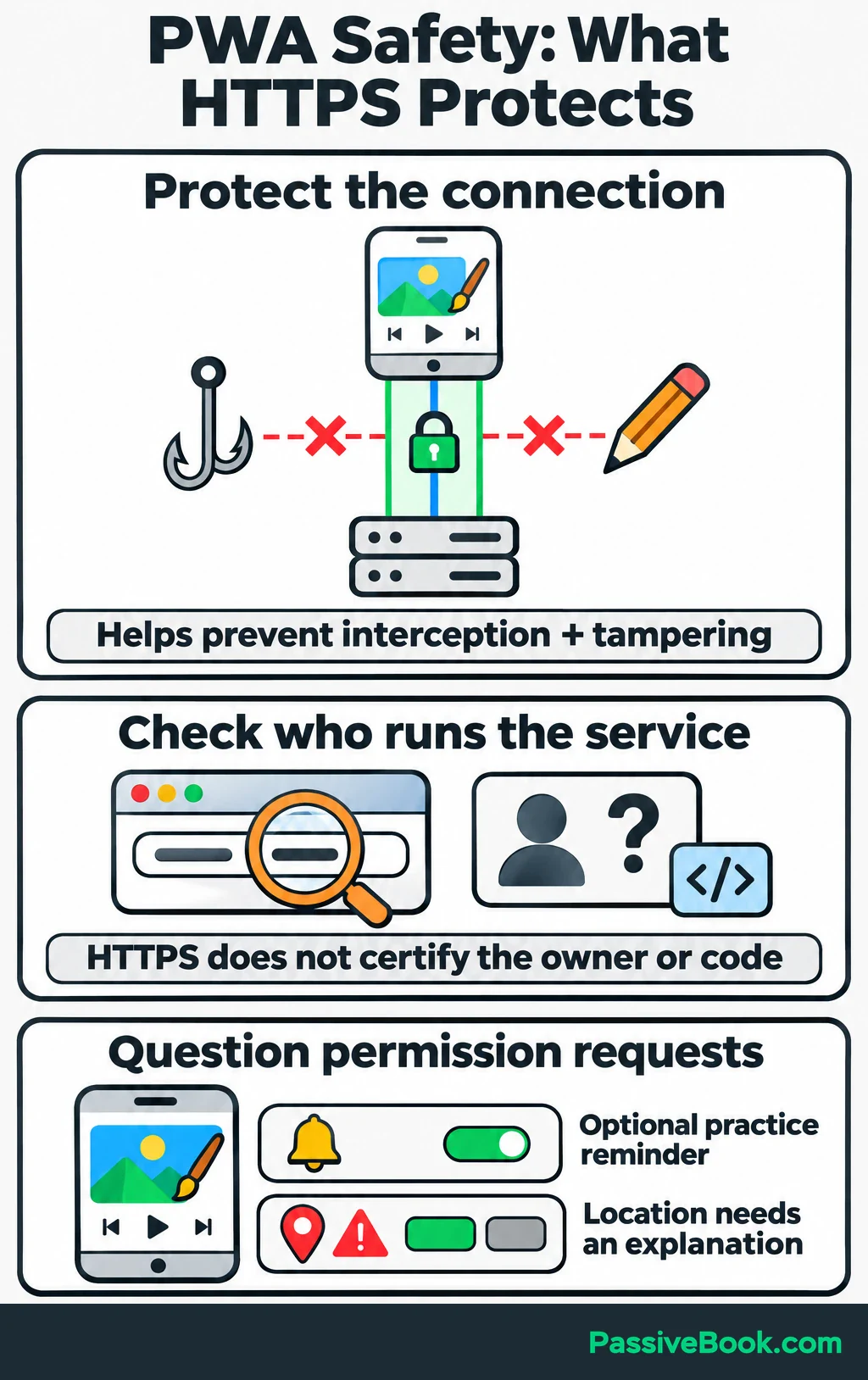
Before using or installing a PWA, check the domain and consider whether its permission requests make sense. A painting lesson might reasonably ask to send an optional practice reminder. It needs a good explanation before asking for your location.
If you own the service, offline storage needs deliberate rules. For the course, I would require the developer to:
- Keep payment details and private account data out of offline caches.
- Define what happens to account-specific saved content after sign-out.
- Prevent one customer’s cached account information from appearing to another.
- Maintain security updates for the website, dependencies and service worker.
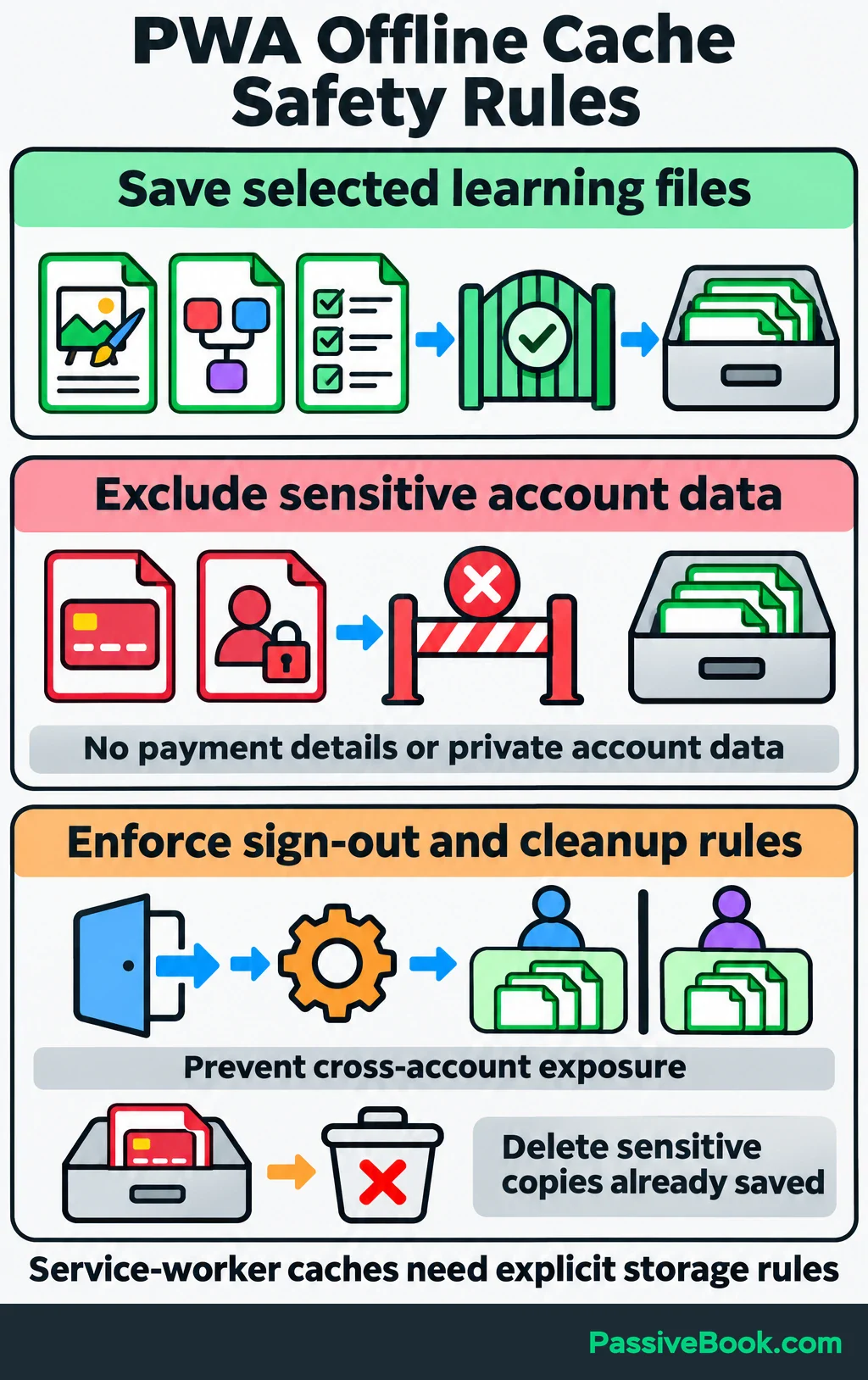
A service-worker cache does not automatically follow the website’s usual instructions about what browsers may store. The developer must explicitly exclude sensitive data and delete any sensitive copies already saved. OWASP explains the offline-storage security risk.
For your course, “save this painting lesson” should be a narrow feature. It should not become “save every response the account receives.”
What Does Building and Maintaining a PWA Involve?
Start with a mobile website that already works well. Check whether your platform supports the manifest and service worker your proposed features need.
On self-hosted WordPress, a PWA plugin may handle some setup. I would still check it with your course, login and payment tools. With a hosted course platform, confirm that it permits the custom pages and scripts before commissioning work.
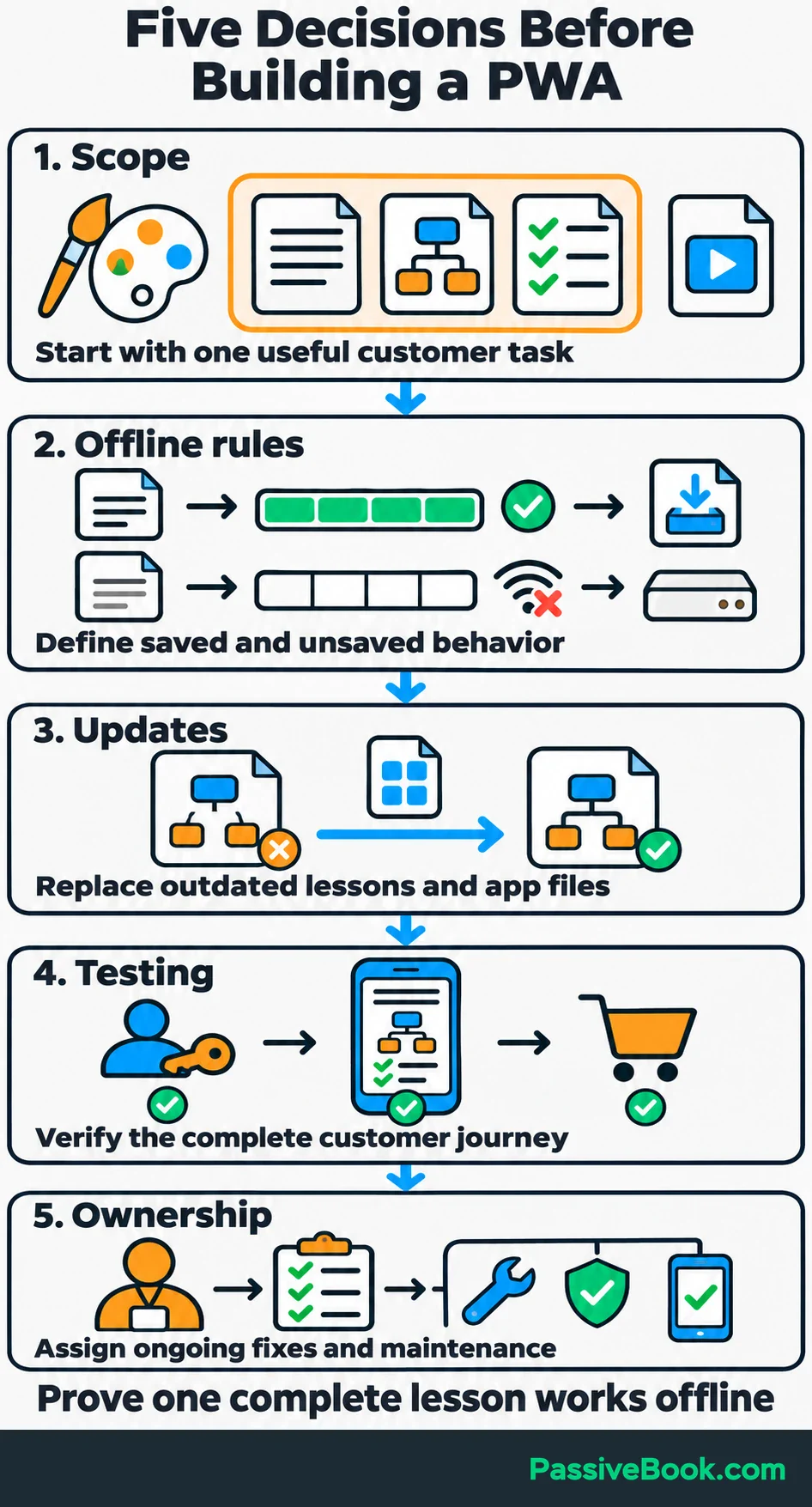
I would organize the project around five decisions:
- Scope: Name the customer task. For the course, start with opening the installed lesson library and saving selected text lessons, diagrams and checklists. Leave offline video for a separate decision.
- Offline Rules: Specify what gets saved, how customers know saving finished and what happens when they open unsaved content.
- Updates: Decide how corrected lessons replace old copies and how app changes reach people who still have an older version open.
- Testing: Test the complete customer journey on representative devices, including sign-in, installation, offline use and checkout.
- Ownership: Agree who fixes failures, maintains the code and checks browser changes after launch.
Before commissioning the full project, ask for a working version with one lesson. Open its link, install it and save the lesson. Close the app, disconnect and reopen the saved lesson, including its diagrams and checklist. An offline title above a blank lesson is not a successful result.
Reconnect and check that corrected lessons replace old copies. Sign out and confirm that saved account content follows the agreed policy. Then test a purchase from the installed window.
Save important course progress to the server when connected, because browser storage can be cleared by the customer or removed by the browser. MDN explains browser storage removal and its conditions.
Offline progress tracking also needs to show unsent changes and save them to the server on reconnection without losing or duplicating them. I would leave it out of a first version unless customers need it.
Budget separately for the initial build and ongoing hosting, security updates, cache maintenance and device testing. Reusing your website may save work, but compare PWA and native-app quotes for the same functions, integrations, supported devices and maintenance period. “PWA development” alone is too vague to price.
Is a PWA Right for Your Business?
A PWA makes sense when customers repeatedly perform a web-based task and installation or offline access removes a clear inconvenience.
For the watercolor course, returning to saved instructions while painting is a credible use case. The customer has a reason to come back, and the saved lesson remains useful without a live connection.
I would choose based on the main problem:
- Choose a PWA: Customers return to the same library or tool, and a home-screen launch or selected offline task would help them use it.
- Improve the Website First: Customers struggle with loading, navigation, reading or checkout. Fix those problems before adding app features.
- Consider Native Development: An essential device capability, background task or distribution requirement cannot be delivered reliably through your customers’ browsers.
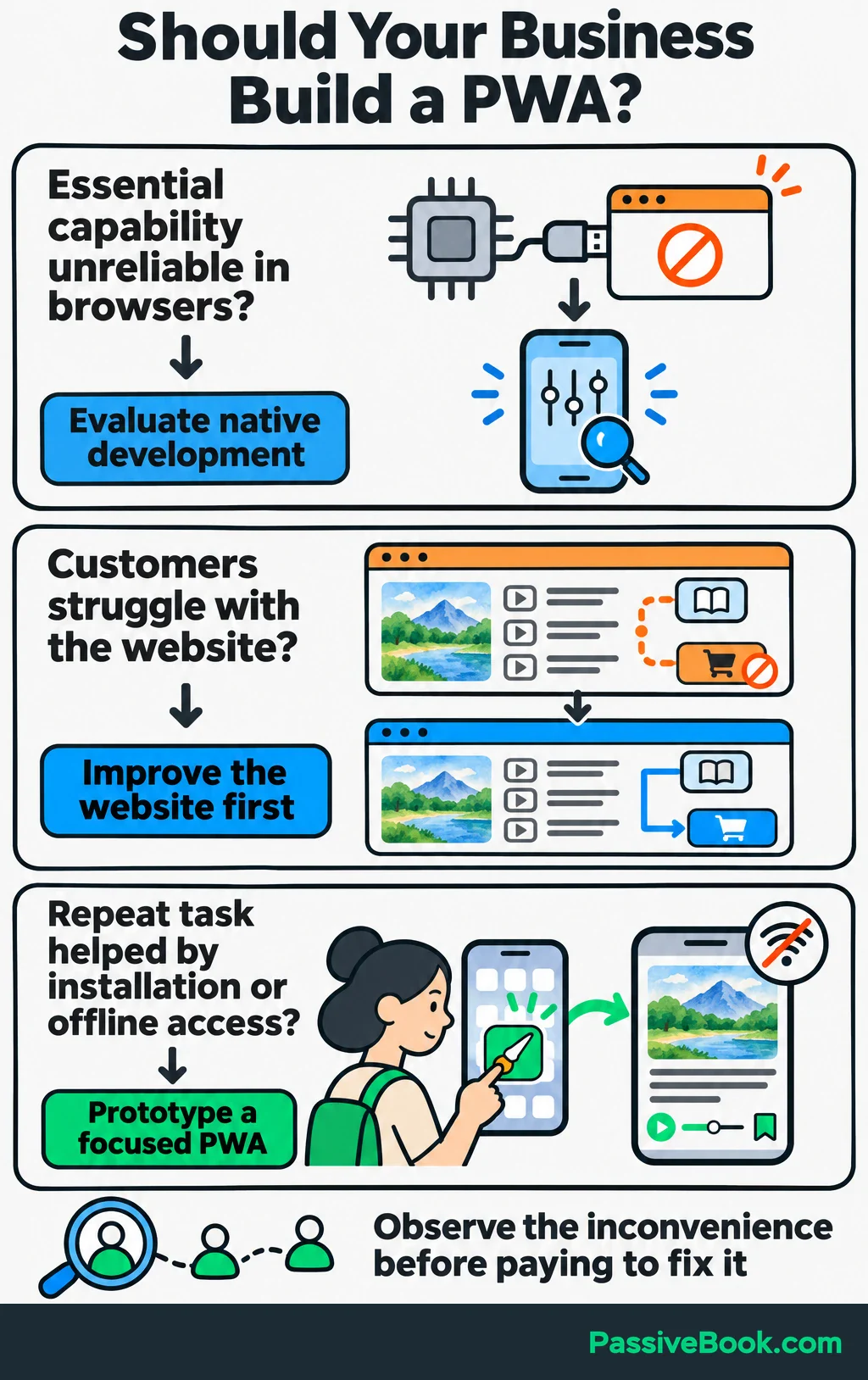
Before spending money, ask a few returning customers to show you how they currently use the service. Watch where they lose time. Then test whether the proposed feature removes that specific problem.
For the course, I would begin with one saved lesson and a clear route back to the library. I would skip push notifications until customers have a useful reason to request them.
An install count would tell me whether people added the app. I would also look at whether they return and use the saved lessons. That is closer to the reason for building it.
What Next?
Write down one task customers repeat on your website, then describe the inconvenience a PWA could remove. For the watercolor course: “Reopen a saved painting lesson when the internet drops.” Use that sentence to judge a small prototype or request a focused quote.
You don’t need to specify a whole app to take the next step. Turn that one customer task into a brief that explains what to build and how to check it.
Free AI Coding Task Assistant




If this helped you separate useful app features from an expensive wish list, use the social buttons to share it and make that decision easier for others.
Which task on your site would become more useful with installation or offline access? Leave your answer in the comments, and bring any other PWA questions with it.
Share this post with your friends & followers:

