A product image disappears from your shop, but you only notice when you open the page days later. Meanwhile, you’re checking a competitor’s prices every morning and finding nothing new.
Both jobs need attention, but neither deserves a permanent slot on your calendar. The difficulty is getting alerts for changes that matter without hearing about every rotating banner.
A small monitoring setup can take over those checks. This guide shows you how to choose what deserves an alert, keep costs under control, and test that the warning reaches you.
Choose the Pages and Changes Worth Monitoring
To monitor a website, add a page URL to a change-detection tool, select what to watch, schedule checks, and connect notifications. Then test a meaningful change and confirm the alert arrives.
Before choosing a tool, finish this sentence: “If this changes, I will…”
That gives each monitor a job. You might investigate an unexpected edit, restore a missing image, or review a competitor’s discount. If you cannot name a response, I would leave that page off the list.
Match the check to your question:
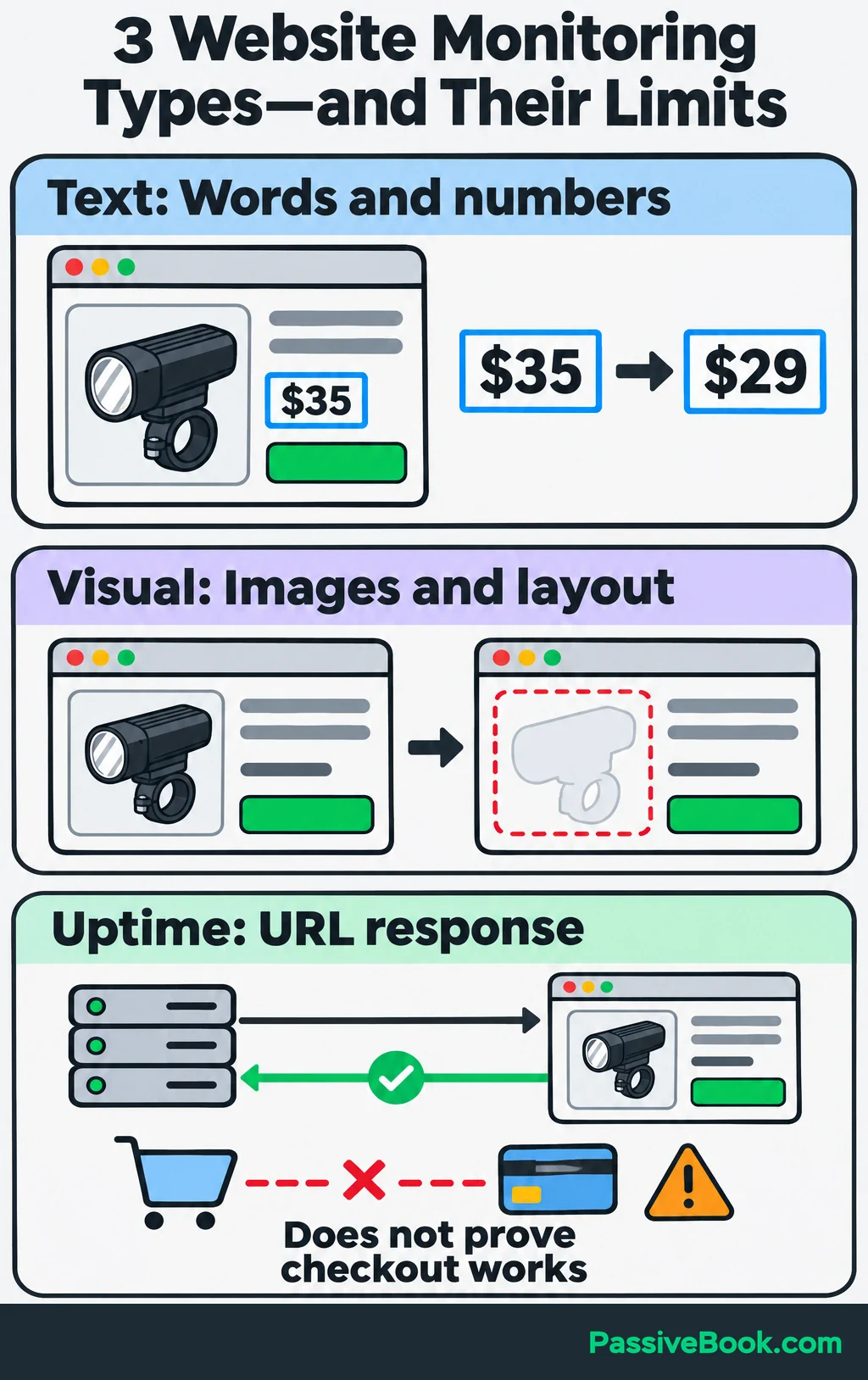
- Text monitoring watches words and numbers, such as prices, descriptions, or stock messages.
- Visual monitoring watches appearance, such as a missing photo or a shifted button.
- Uptime monitoring checks whether a URL responds successfully. It does not complete a purchase or prove that checkout works.
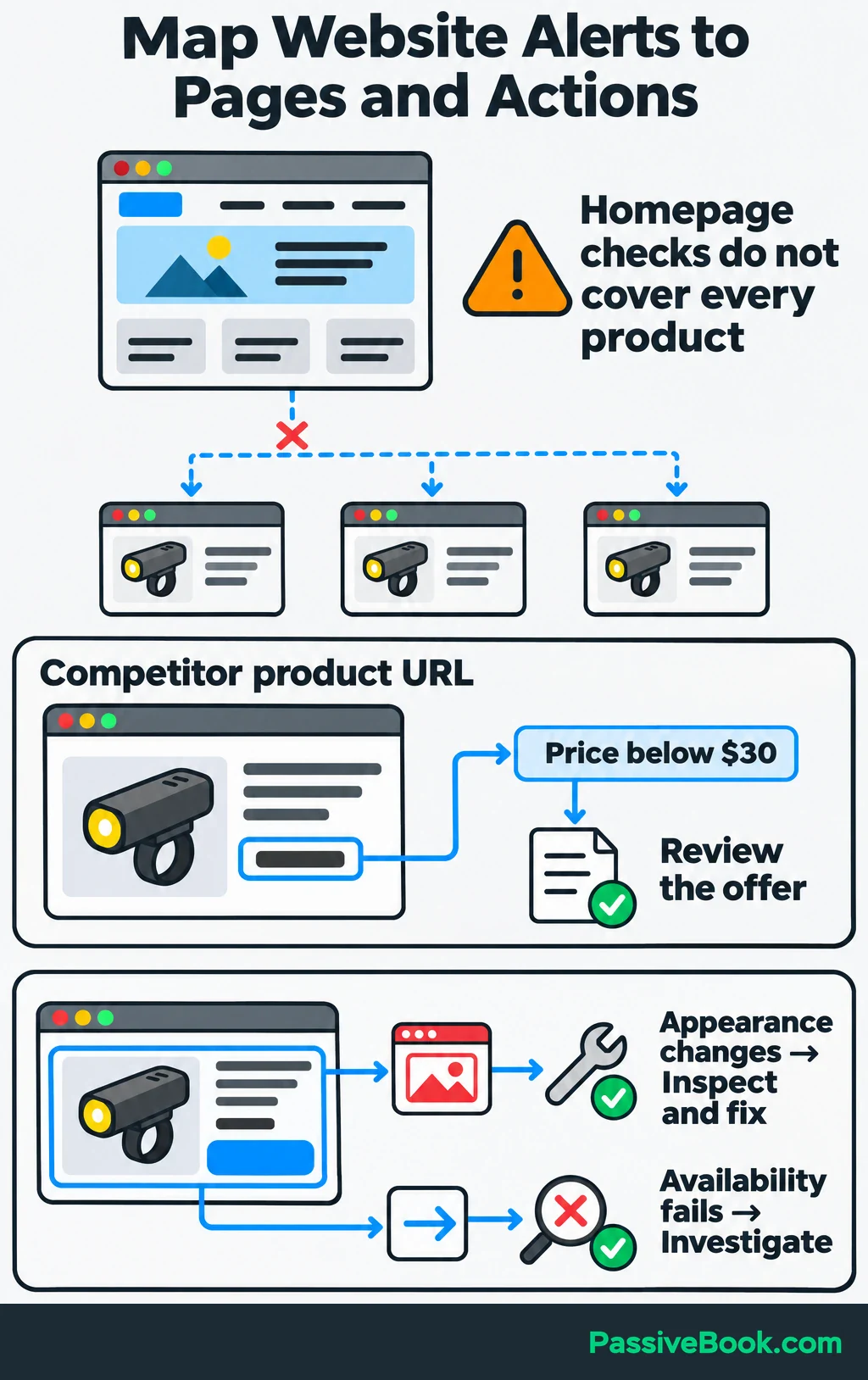
For the running example, imagine you sell commuter cycling accessories. You want to watch a competitor’s bike-light price and your own product page. These sample addresses show how to plan the coverage.
| Page URL | Watched content | Monitoring type | Alert trigger | Response |
|---|---|---|---|---|
https://rival.example/products/bike-light | Current selling price | Text | Changed price is below $30 | Review the offer before deciding whether to respond |
https://shop.example/products/bike-light | Main image and purchase-button area | Visual | Appearance changes | Inspect the page and fix an unintended change |
https://shop.example/products/bike-light | Whether the URL responds | Uptime | Availability check fails | Investigate the reported error |
Add important URLs individually. Watching the homepage does not automatically cover every product page.
Keep search performance separate, too. Use Google Search Console for indexing and search-performance questions, and Google Analytics for visits. A page-change alert tells you what changed on the page; it does not tell you whether your rankings or traffic fell.
Choose a Monitoring Method That Fits Your Budget
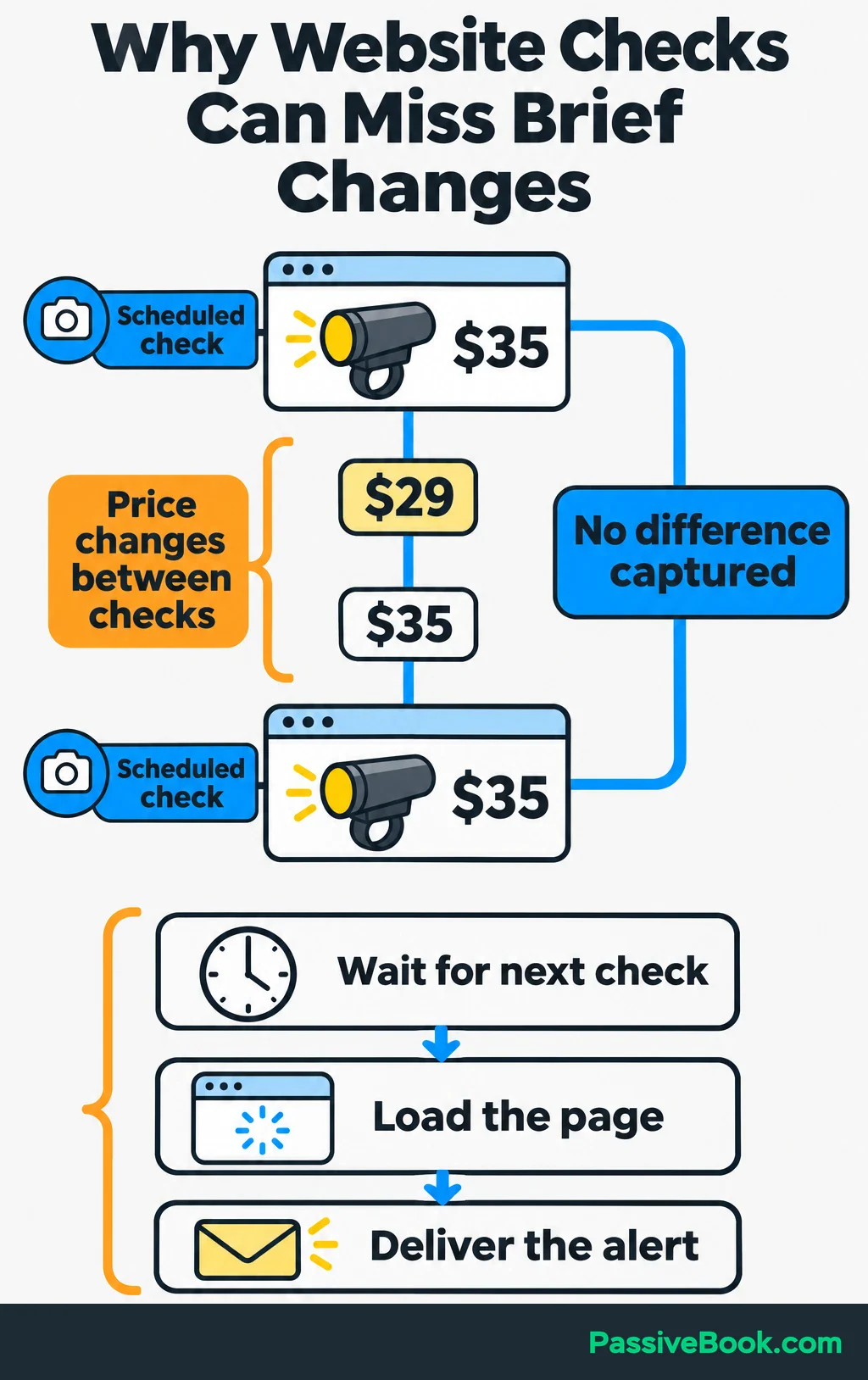
Choose a schedule based on when you would act: a routine competitor update can wait until later that day, but an unavailable product page deserves a faster warning.
Changes can appear and disappear between checks, and page loading and notification delivery add time.
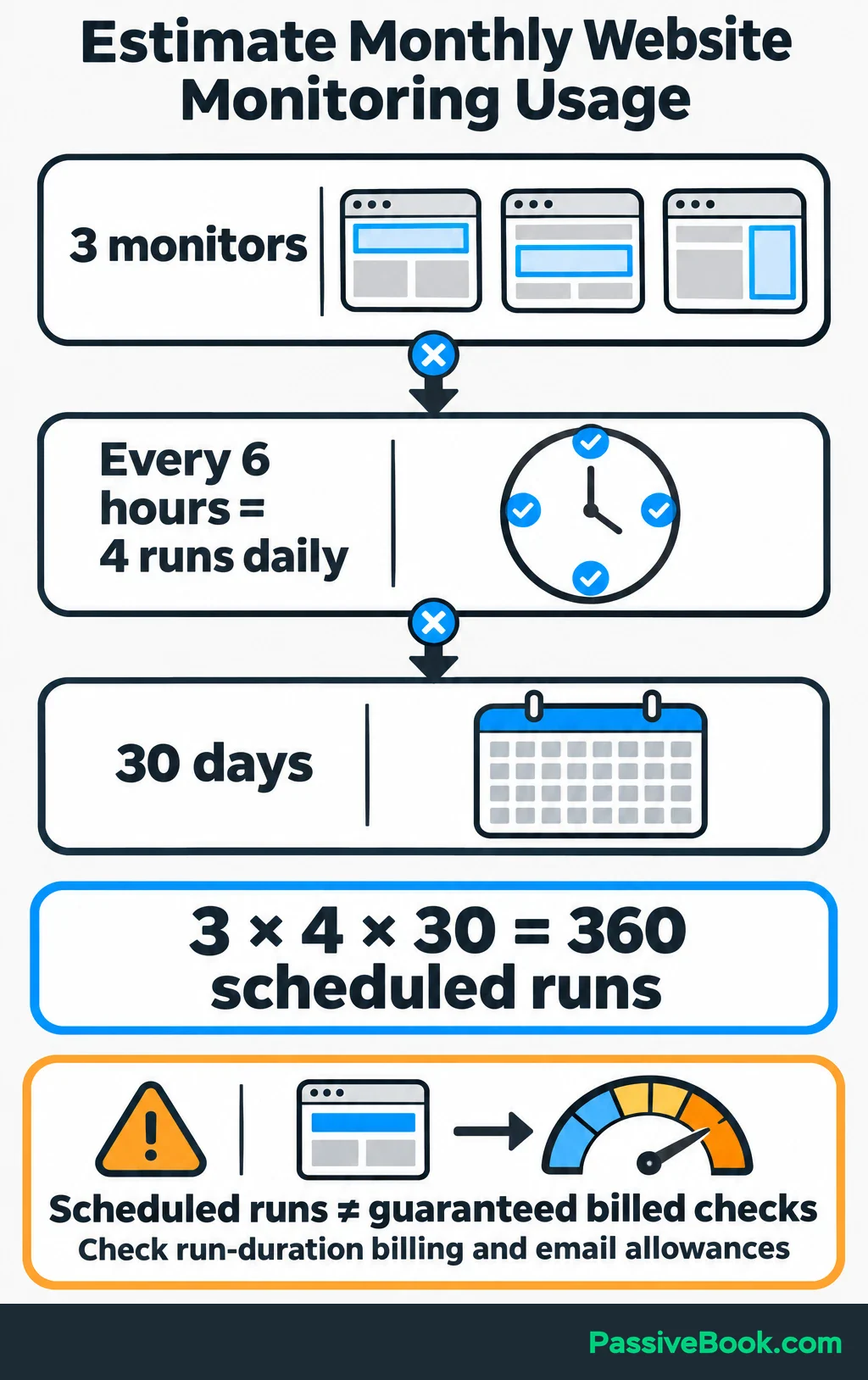
To estimate monthly usage, count each change monitor’s scheduled runs. Three monitors checked every six hours each run four times a day. Over 30 days, that is:
3 × 4 × 30 = 360 scheduled runs
Calculate other schedules separately, then check how the provider bills each run.
| Method | Suitable changes | Where checks run | Schedule and usage limits | Monthly price |
|---|---|---|---|---|
| Distill cloud, Free | Selected text, prices, stock messages | Distill’s servers | 25 monitors overall, up to five in the cloud; six-hour minimum cloud interval; 1,000 cloud checks and 30 email alerts monthly | $0 |
| Distill browser extension, Free | Text changes while your computer is available | Your browser | Unlimited local checks; shares the account’s monitor and email allowances | $0 |
| Sken.io Basic | Text or visual changes in a selected area | Sken.io’s servers | 500 checks monthly; intervals as short as one minute | €3 |
| UptimeRobot Free | URL availability and expected keywords | External servers | 50 monitors with five-minute checks; commercial use permitted | $0 |
Check the current Distill allowances, Sken.io plans, and UptimeRobot free-plan scope before choosing. Distill counts cloud runs in ten-second units, so slower runs can consume multiple checks. Its email limit covers both local and cloud monitors.
Hosted Monitoring for Checks While Your Computer Is Off
Hosted monitoring runs on the provider’s servers, so checks continue when your laptop is shut.
I would start with Distill for text and price conditions, or Sken.io for visual changes. Choose one; the walkthroughs below show alternative setup paths. Pay for faster checks only when the extra speed gives you time to act.
Local Monitoring While Your Computer Is Running
Distill’s browser extension runs local checks only while your computer is awake and the browser is running. I would use it for low-priority pages during working hours, but skip it for overnight coverage if you close your laptop.
Confirm each monitor’s execution device; installing the extension does not move existing cloud monitors to your browser.
Add a Page and Select Exactly What to Watch
Paste the complete page URL and inspect the first capture before saving anything.
Check that it shows the intended product variation, currency, and region. Wait for delayed content to load. A price for the wrong model is accurate monitoring of the wrong thing.
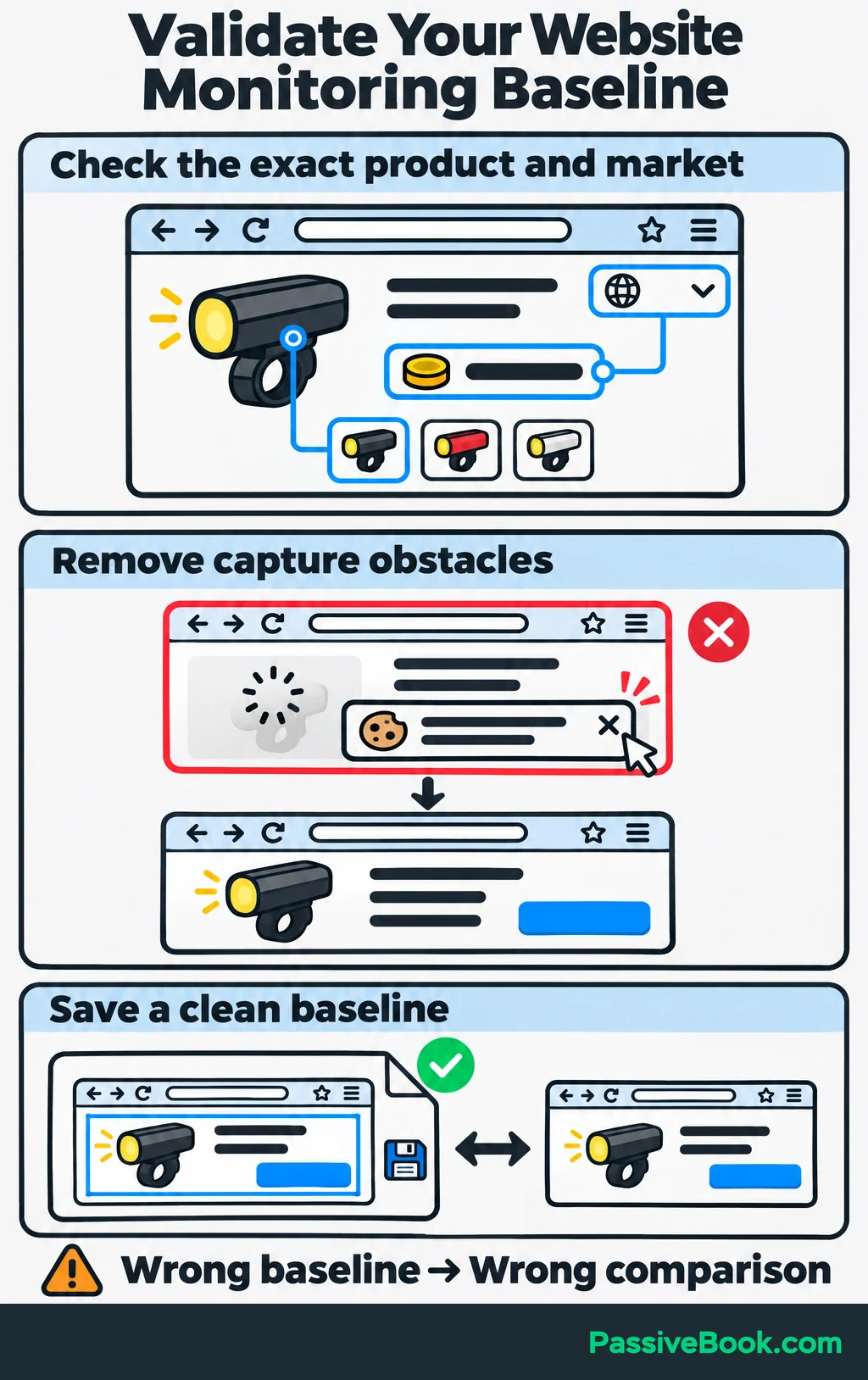
The initial capture becomes your baseline—the saved version used for comparison. Resolve cookie overlays, loading screens, empty selections, and access errors before activating the monitor.
Then set the interval you chose for that page and confirm where its checks run.
Watch Text, Prices, or Stock Messages
For a text monitor in Distill:
- In Distill’s web app, choose “Add monitor,” select “Web Page,” and paste the URL.
- Choose “Monitor Parts of Page,” then select the content you want checked.
- Inspect the extracted-text preview.
- Narrow or adjust the selection until it contains only what matters.
- Save the monitor and set its schedule and execution device.
For the competitor’s bike light, the preview should contain the current selling price, such as:
$35.00
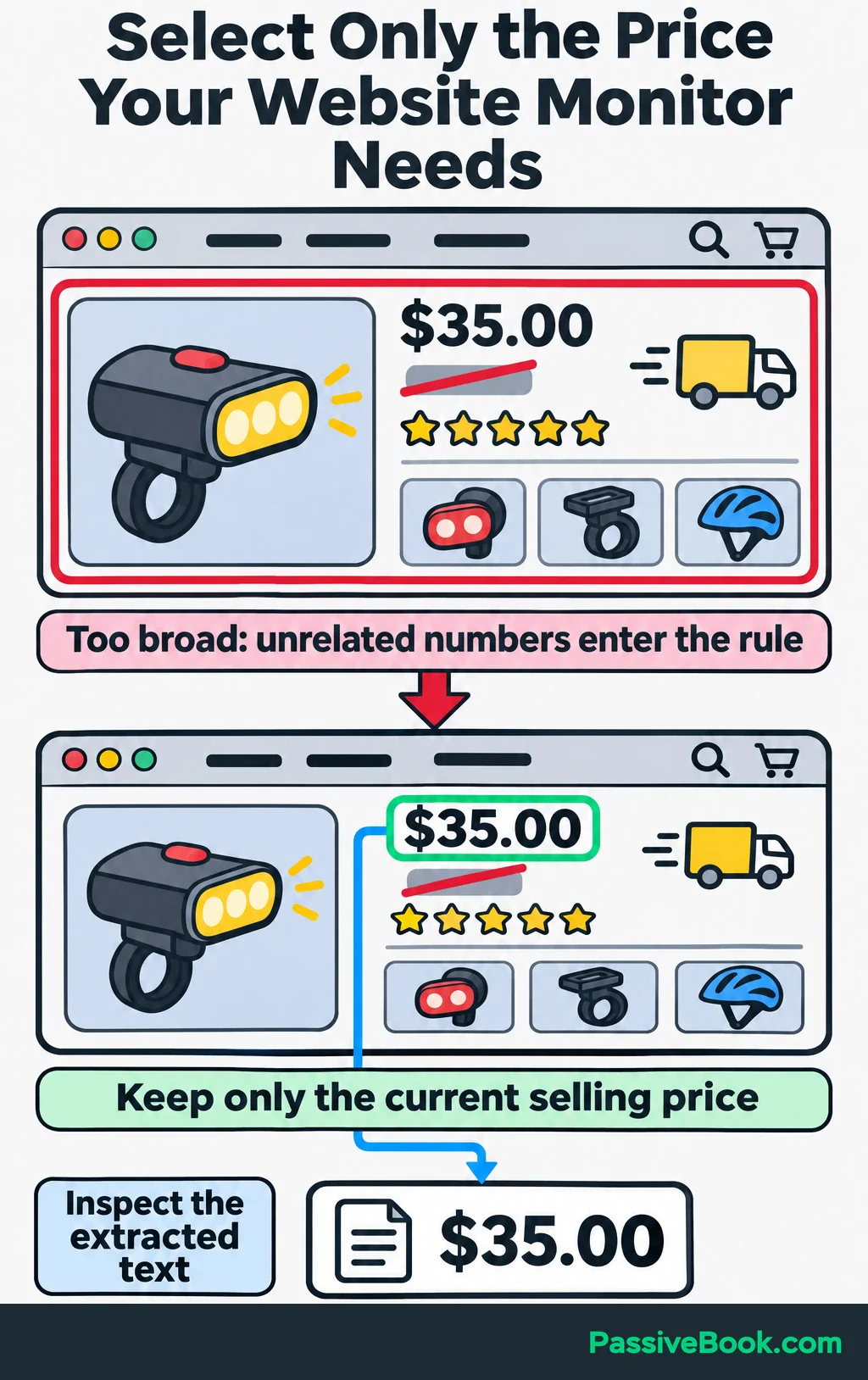
Exclude the crossed-out price, delivery charge, review count, and recommended products. Those numbers can confuse a price condition later.
For wording changes, select the smallest stable area containing the relevant message. If you care about stock, watch the stock line. If you care about an unexpected product-description edit, select that description.
Distill calls its point-and-click selection tool a “Visual Selector,” but using it to select text does not make the monitor a screenshot comparison.
Watch Images and Page Layout
Use visual comparison when the change would be obvious to your eyes but might leave the text untouched.
In Sken.io, add the URL, choose visual comparison, and draw a box around the area that matters. The tool compares rendered appearance and highlights differences between captures.
For your bike-light page, include the main product image and purchase-button area. Leave out the rotating promotion banner and unrelated recommendations.
Keep capture dimensions and loading conditions consistent. A different page width can move elements, and an unfinished load can make an image look missing.
When an alert arrives, use the highlighted difference to locate the change. Then open the live page to decide what needs fixing. A screenshot can show that a button moved; it cannot establish that the button works.
Configure Useful Alert Rules and Notifications
A useful alert needs two things: a change worth your attention and a destination you actually check. Configure both before treating the monitor as finished.
Define What Should Trigger an Alert
Begin with any change inside a tightly selected area. Add a condition when only certain changes deserve a notification.
For the competitor’s price monitor, add a rule that checks whether the current selected price is below $30. Open “Edit Options,” choose “Add Condition,” and use these settings:
- Text being evaluated:
Text, meaning the current selected text. - Numerical condition:
has number less than (<). - Threshold:
30.
A change from $35 to $29 qualifies. A change from $35 to $34 does not.
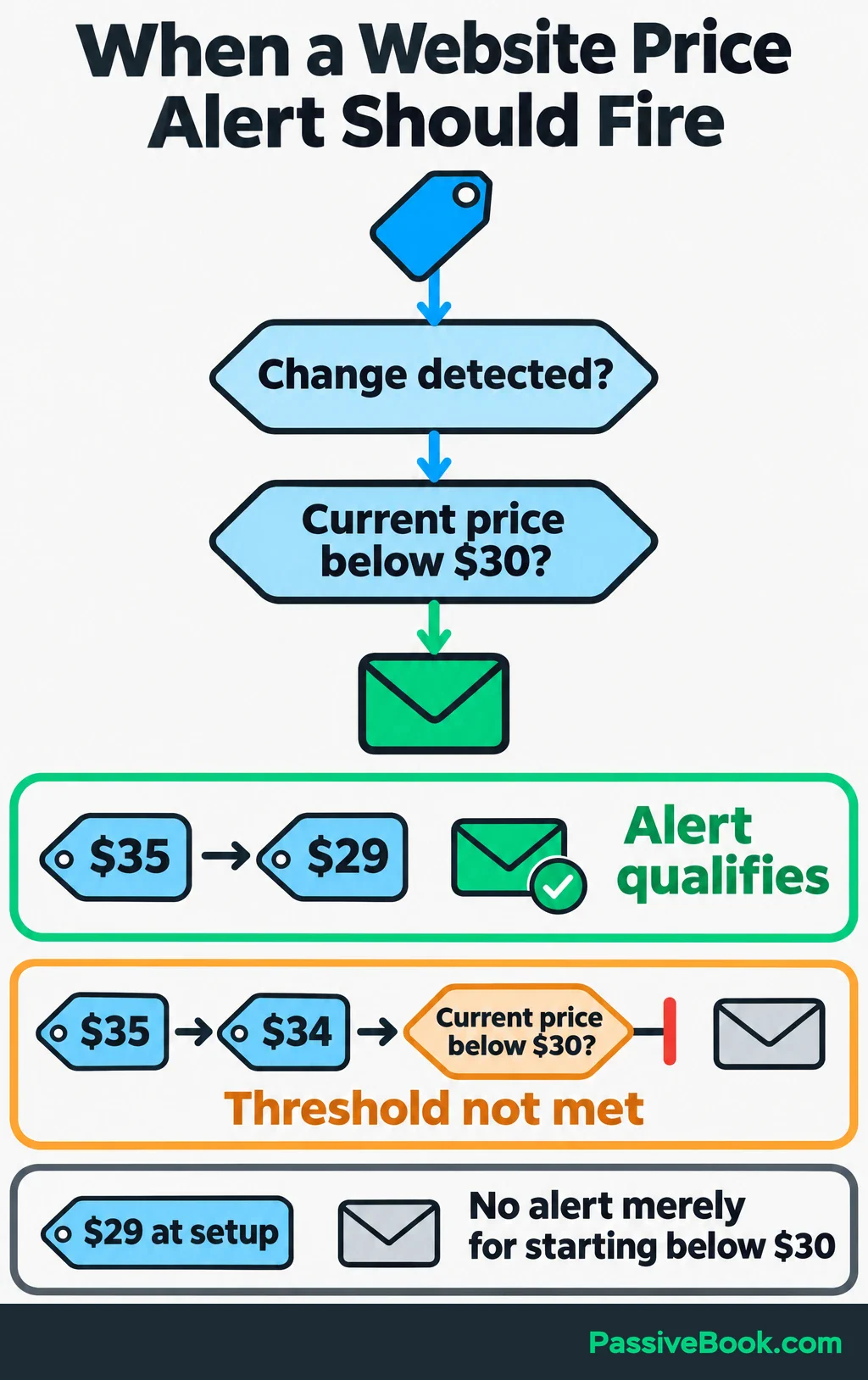
Distill evaluates conditions after detecting a change. A price already below the threshold at setup does not trigger an alert just by being there.
Select one price, because any number in the selected text can satisfy the condition. In the condition settings, match the page’s number format so decimals and thousands separators are read correctly.
For stock monitoring, use the exact message that signals availability, such as “In stock.” Avoid a loose match for “stock,” because “Out of stock” contains it too.
For visual monitoring, remove irrelevant areas first. If the tool offers a sensitivity setting, test that it still catches a missing image or a meaningful button-area change before turning it down.
Connect a Notification Channel You Check
Start with email. Verify the destination and attach the email action to each monitor.
Name monitors so you can understand them without opening the dashboard:
- “Competitor bike-light price”
- “Shop bike-light image and button”
- “Shop bike-light availability”
When reviewing an alert, check the affected URL, detection time, and captured comparison. Those details tell you whether you are looking at the right page and a change that still needs attention.
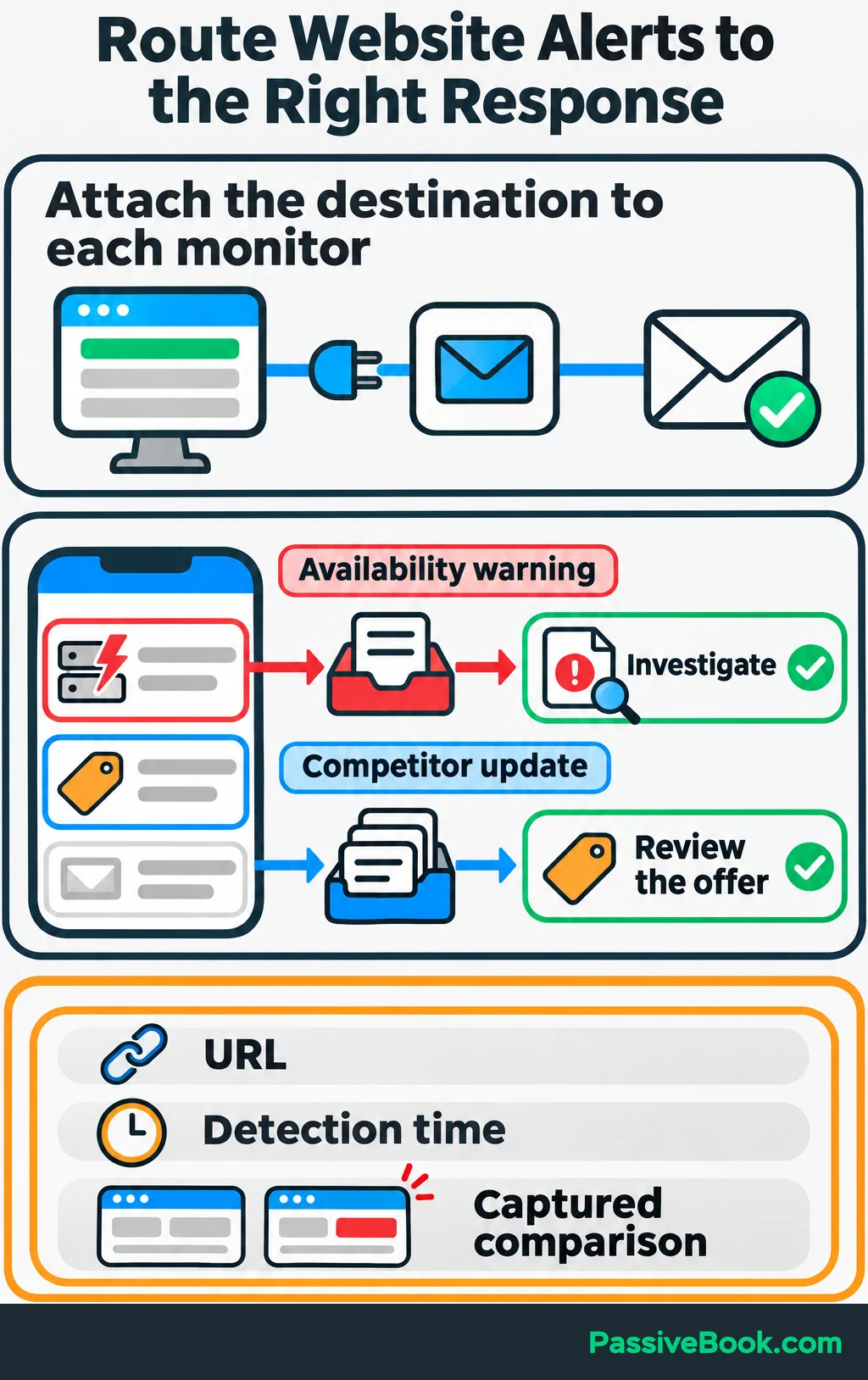
Keep availability alerts easy to distinguish from routine competitor updates. For example, route downtime warnings to a prominent inbox label and leave competitor messages for your next review.
Sken.io also supports Slack and webhooks. A webhook sends alert data to another app or workflow. I would only add one when it serves a defined response, such as using Make or n8n—tools that connect apps—to create a task. An email is enough if you are the person who will investigate.
Record the response beside each monitor. “Review the competitor’s offer” is useful. “Receive notifications” is merely a description of your future inbox.
Add Uptime Alerts for Your Own Website
A change monitor and an uptime monitor answer different questions. In UptimeRobot, add a website monitor, also called an HTTP(S) monitor. It checks from an outside server whether your page responds.
For the cycling shop, use the full bike-light product URL:
- Create a website or HTTP(S) monitor.
- Enter the product-page address.
- Review which responses count as successful and how long the check waits before timing out.
- Assign your notification contact to this monitor.
- Enable both downtime and recovery alerts.
Creating a contact alone does not connect it to a monitor.
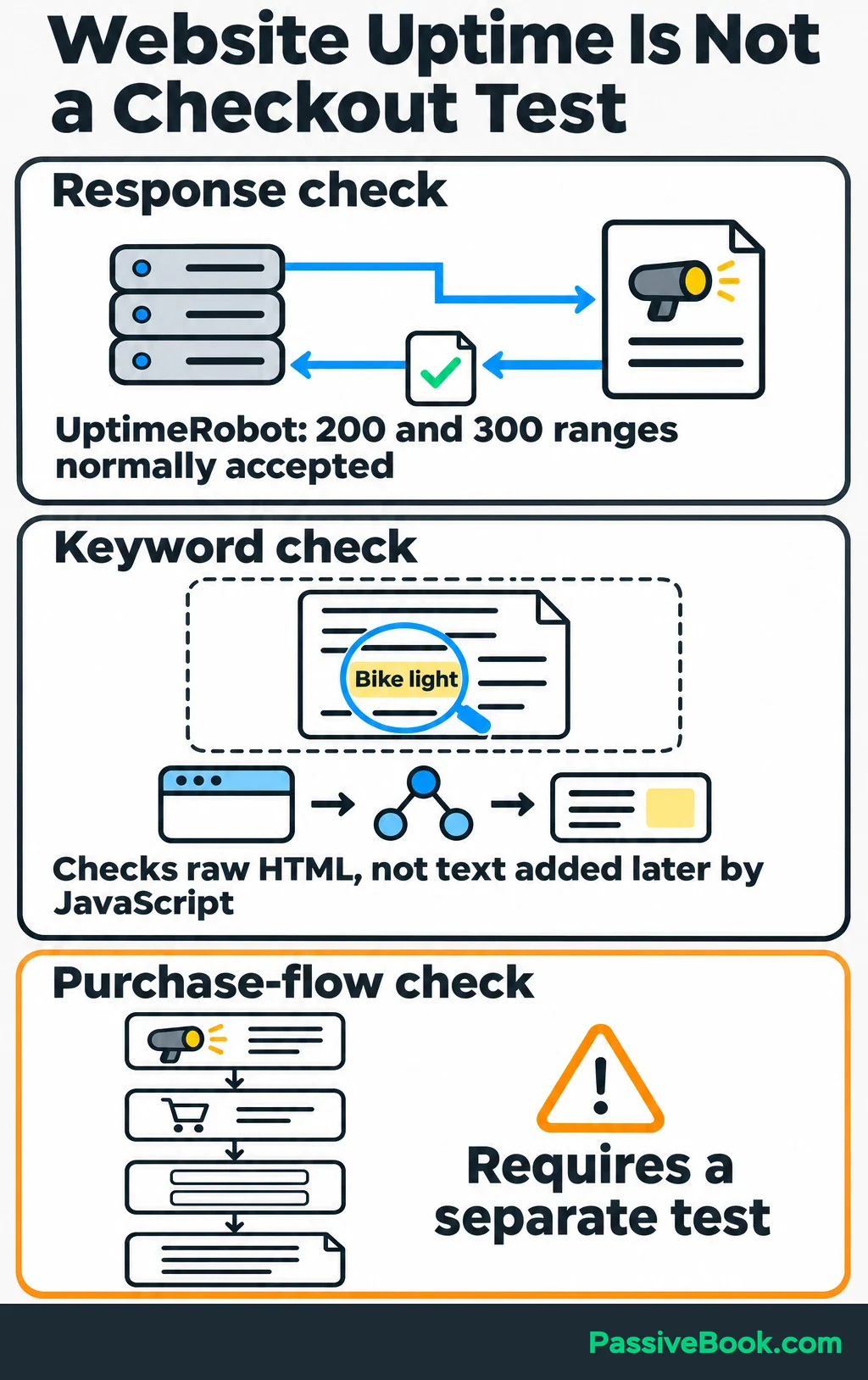
UptimeRobot normally treats responses in the 200 and 300 ranges as successful. These include successful responses and redirects, so review the accepted responses for your page. Its availability rules explain response codes, timeouts, and failure confirmation.
A page can respond successfully while showing an error or missing content. Add a keyword monitor if you also want to check for an expected phrase, such as the bike light’s product name.
UptimeRobot checks the raw HTML returned by the server, rather than content added later by JavaScript. Search for your chosen phrase using your browser’s “View Page Source” before relying on it. Its keyword-monitoring requirements explain this distinction.
Neither a successful response nor a present product name proves that a purchase will complete. If checkout is the concern, it needs a separate purchase-flow check.
Test Detection and Alert Delivery Together
A test email proves that email delivery works. It does not prove that the monitor captures the right content or recognizes the change you care about.
Use a harmless page you control to test the full route:
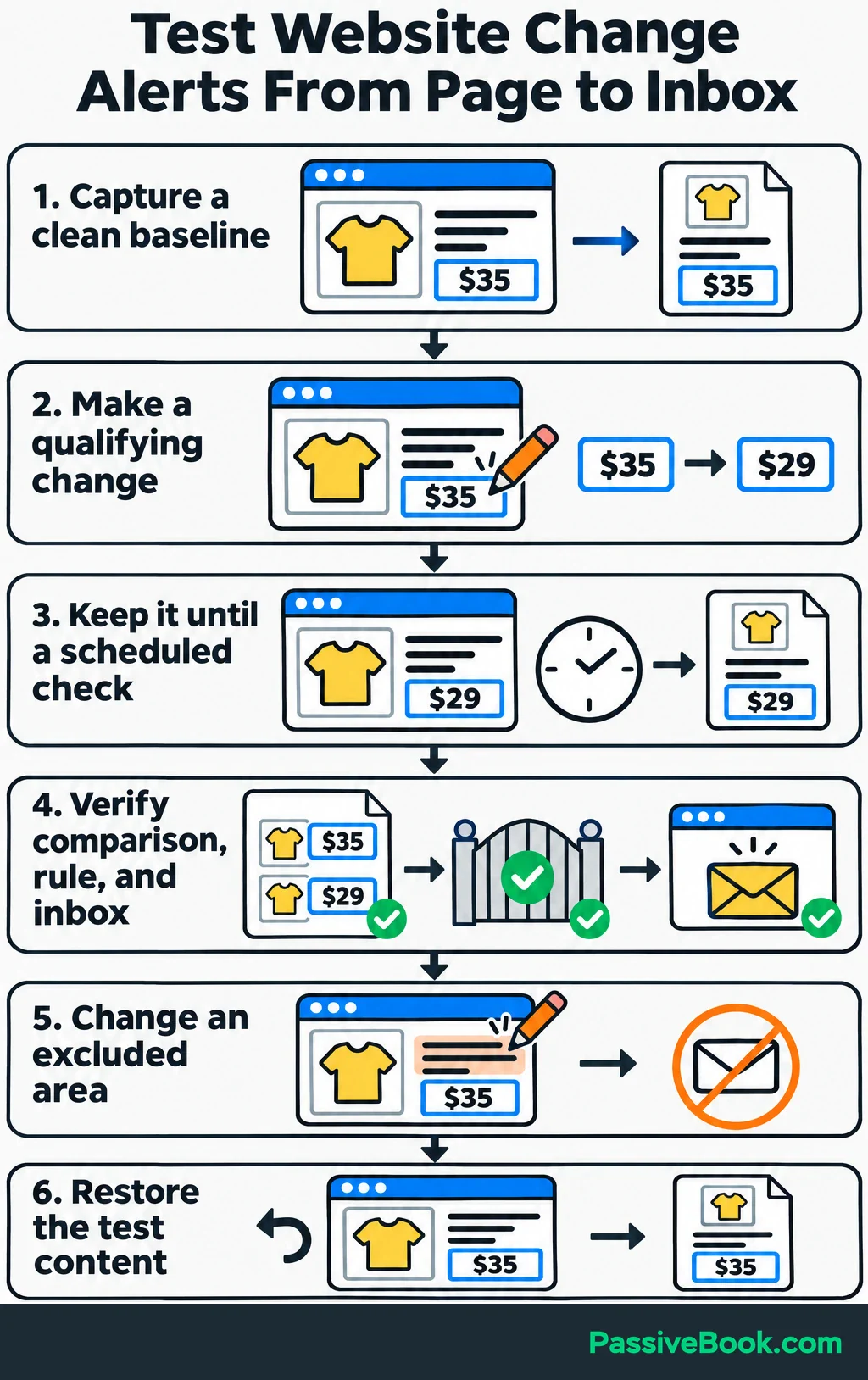
- Capture the correct baseline.
- Change the selected text or image.
- Leave the change in place until a scheduled check runs.
- Confirm that the captured comparison contains it.
- Check that the rule qualifies the change and the notification arrives.
- Change something outside the selected area and confirm it does not trigger the targeted alert.
- Restore the test content.
For the competitor’s page, inspect the real capture and use Distill’s condition tester with custom sample data. Try changed prices of $29 and $34, and confirm that only $29 passes the below-$30 rule.
That tests the price logic. A controlled page using the same rule lets you also test detection and delivery, because you cannot edit the competitor’s page.
Test uptime separately with a disposable page you control. Confirm it starts as available, then unpublish it so its URL returns a 404 response. Wait for the downtime notification, republish it, and confirm the recovery alert.
Check the actual response: some sites redirect removed pages or display an error page while still returning a successful status. For keyword monitoring, remove and restore the expected test phrase instead.
I would consider the setup ready only after the intended change reaches the intended inbox. A green dashboard alone is a rather quiet rehearsal.
Fix Noisy or Missing Alerts
Start with the captured evidence. It helps you distinguish a bad selection from a failed check or a notification problem.
| Problem | What to inspect | What to change |
|---|---|---|
| Alerts arrive for trivial changes | The highlighted differences | Narrow the selection, exclude moving content, or correct the trigger |
| A visible change was missed | Latest check time and saved capture | Enable the monitor, restore its execution device, or fix an empty or broken selection |
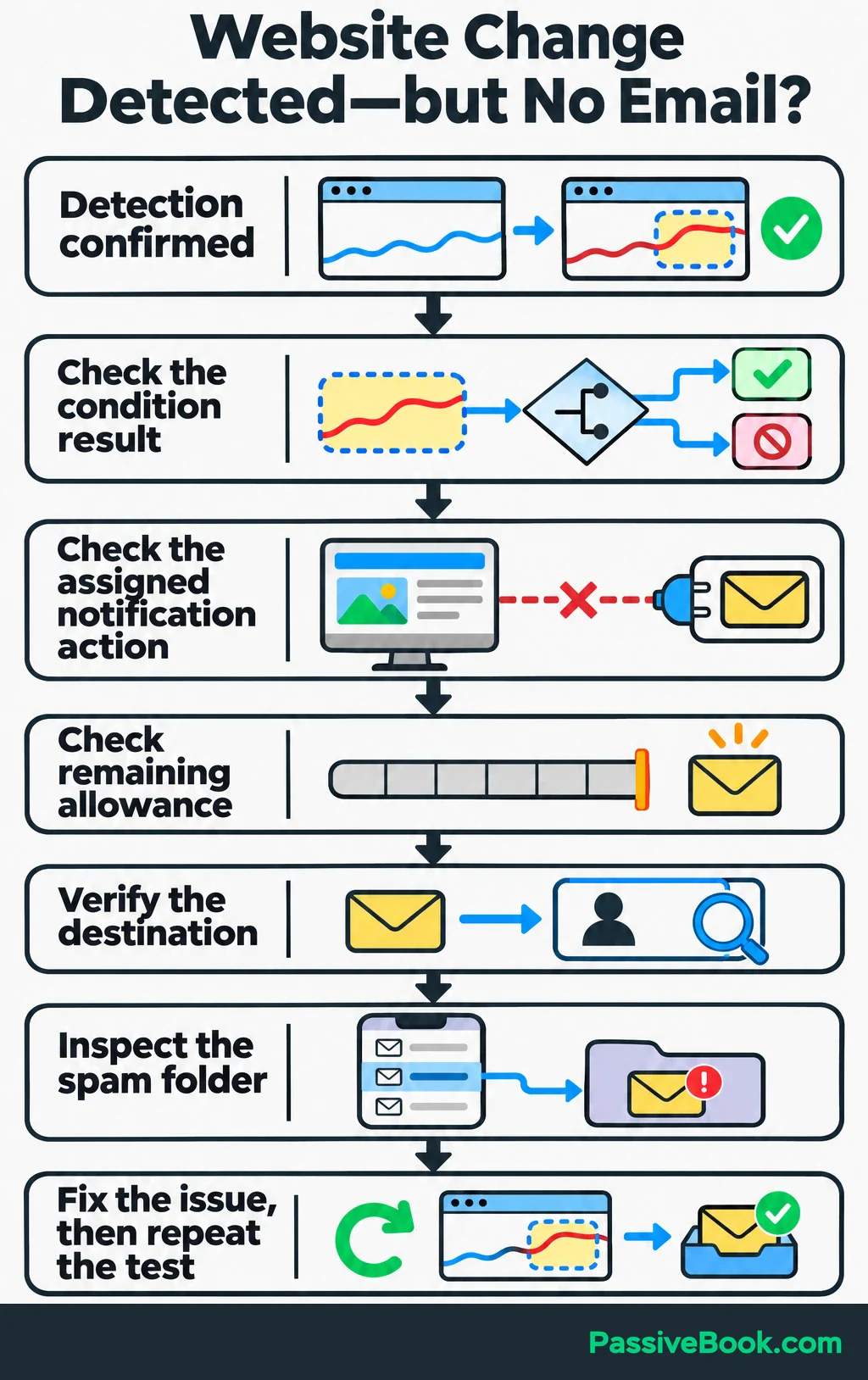
| A change was detected but no message arrived | Condition result and notification action | Correct the rule, assign the destination, check remaining allowance, and inspect spam |
| Uptime says “down” but the page opens | Reported error, monitoring region, and access from another network | Investigate regional access, bot protection, or an actual availability problem |
For noisy alerts, fix the selection before reducing frequency. Checking an irrelevant banner less often still gives you irrelevant alerts.
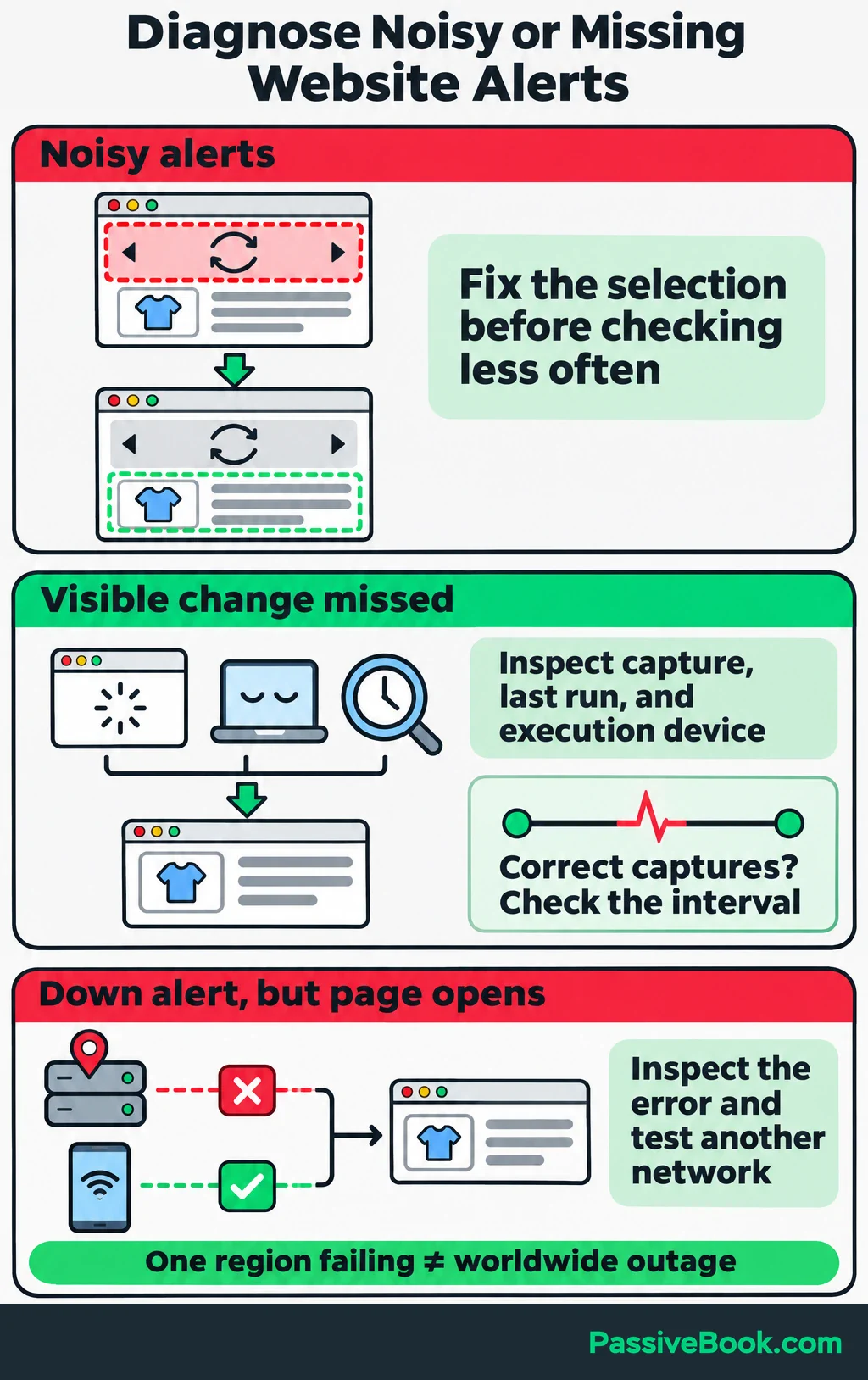
For a missed change, compare the monitor’s capture with what your browser shows. The tool may have captured a loading screen, encountered an access block, or lost its selection after a redesign. If its captures are correct but the change happened between scheduled checks, a shorter interval may be necessary.
For a detected change without a message, work forward through the route: condition result, assigned notification action, remaining allowance, destination, and spam folder.
For an unexpected downtime warning, try the page over another network, such as mobile data. A browser loading successfully does not rule out a monitoring-region failure or a block on automated requests. One region’s failure also does not establish a worldwide outage. UptimeRobot’s troubleshooting guidance explains these differences.
After a redesign or notification change, inspect a fresh capture and repeat the relevant test. During a regular review, check recent successful runs, remove monitors that no longer support an action, and revisit usage when adding pages.
The aim is fewer manual checks. A collection of alerts you have trained yourself to ignore defeats that purpose.
Once the alerts are useful, compare the time you spent checking pages with the time you still spend reviewing them. That gives you a practical way to judge any monitoring fee.
Free Automation Value Calculator




What Next?
Choose one important URL and write down the exact change that would make you act. Set up that monitor, connect email, and complete one controlled detection-and-delivery test before adding more pages.
Use the social buttons to share this guide when you want to help cut repeated page checks and build alerts worth opening.
Which website change would most deserve your attention right now? Tell me in the comments, and bring any setup questions there too.
Share this post with your friends & followers:

