A customer pays for a download, but the file never arrives. Your homepage still looks fine, and you don’t discover the problem until a support email lands.
That’s the awkward part of running a website: looking after the pages doesn’t cover everything the business needs. Updates, account access, payments and email delivery all need attention, but checking them by hand every day becomes another job.
A useful website management system makes those responsibilities clear and brings failures to your attention. Here’s how to build one, choose what to automate and decide which work deserves outside help.
What Is Website Management?
Website management is the ongoing work that keeps your website secure, available, accurate, easy to use and useful to your business.
Technical maintenance covers updates, backups, security and repairs. Broader management also includes reviewing content, testing what visitors can do and using traffic and sales data to choose improvements.
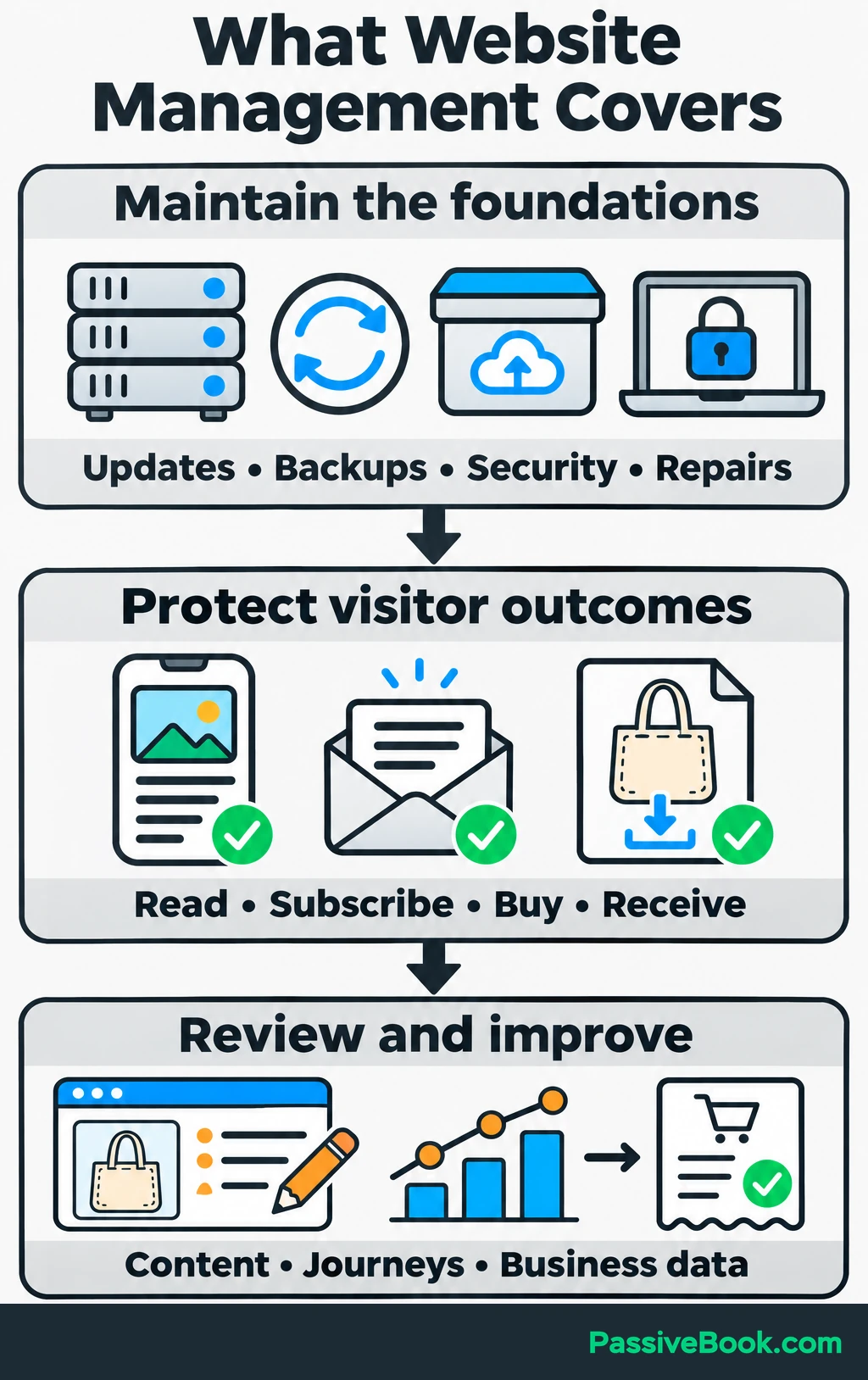
Providers use these labels differently, so compare their task lists before comparing their prices.
You don’t need advanced coding skills to handle routine management. You need access to the right accounts, a repeatable checklist and a clear point at which you call for help.
To make the process concrete, imagine you run a home-sewing blog selling downloadable tote-bag patterns. Visitors need to be able to:
- Read a tutorial.
- Subscribe for a sample pattern.
- Buy a paid pattern.
- Receive and open the correct download.
Those are the activities your management system needs to protect.
Document Your Website’s Services and Responsibilities
Start by listing the services your website relies on. This gives you somewhere to look when a renewal notice arrives or something stops working.
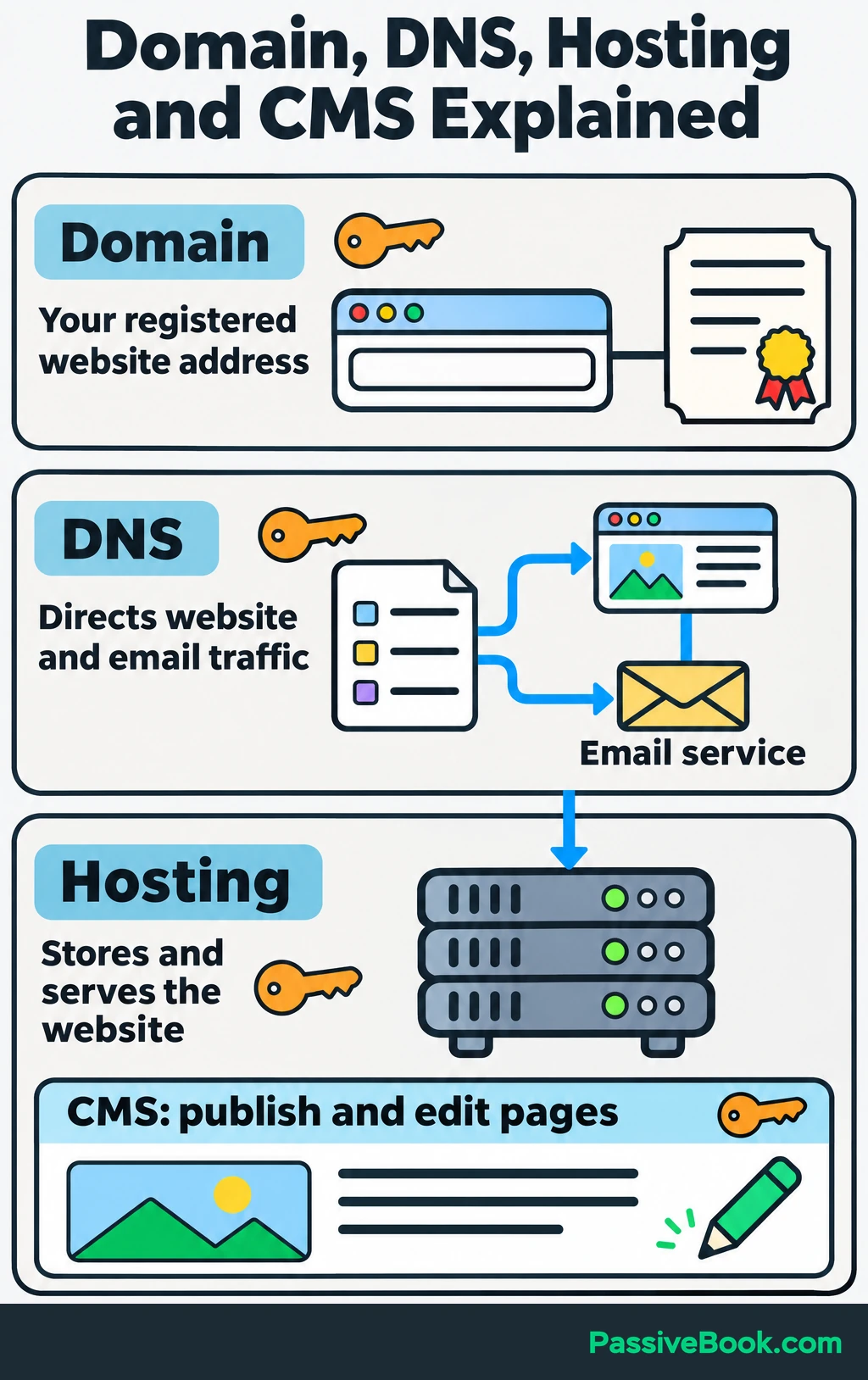
Three terms often cause confusion:
- Domain: Your registered website address.
- DNS: The records that direct your domain’s website traffic, email and other services.
- Hosting: The service that stores and serves your website.
Your CMS, or content management system, is the software you use to publish and edit pages. WordPress is one example.
Create a service inventory in a spreadsheet or a planning tool such as Notion. Include the service, purpose, account owner, renewal date, renewal cost, recovery method and support contact. Keep passwords and recovery codes in a password manager.
For the sewing site, the inventory needs to cover more than publishing:
| Service | What It Supports | Responsibility to Confirm |
|---|---|---|
| Domain registrar | Keeps the website address registered | Who checks renewal, billing and recovery details? |
| DNS provider | Directs website and email traffic | Who can safely change records? |
| Hosting and CMS | Serves tutorials and product pages | Who handles server and website software updates? |
| Payment service | Collects pattern payments | Who investigates failed payments? |
| Email delivery service | Sends confirmations and download messages | Who checks failed delivery? |
| File delivery system | Gives buyers the purchased pattern | Who fixes missing files or access problems? |
| Analytics accounts | Records visits and business actions | Who verifies tracking and reviews results? |
Put a person’s name against each responsibility, even when that person is you.
For Passive Book, I use self-hosted WordPress, DigitalOcean for hosting and Cloudflare for DNS and security. That’s my setup, but the same inventory works for a hosted website platform. The division of work changes, so ask what your provider handles instead of assuming “managed” covers everything.
Check automatic renewal settings, payment details and recovery contacts while you have each account open.
Protect Your Website
Protection starts with controlling access, keeping recoverable copies and making changes in a way you can undo.
Secure Accounts and Connections
Use a unique password or passkey for each essential account, and enable multifactor authentication wherever available. It adds another check when you sign in. These are core recommendations in the Australian Cyber Security Centre’s small-business handbook.
Protect your recovery email account too. Store recovery codes somewhere you can reach if your usual sign-in method fails.
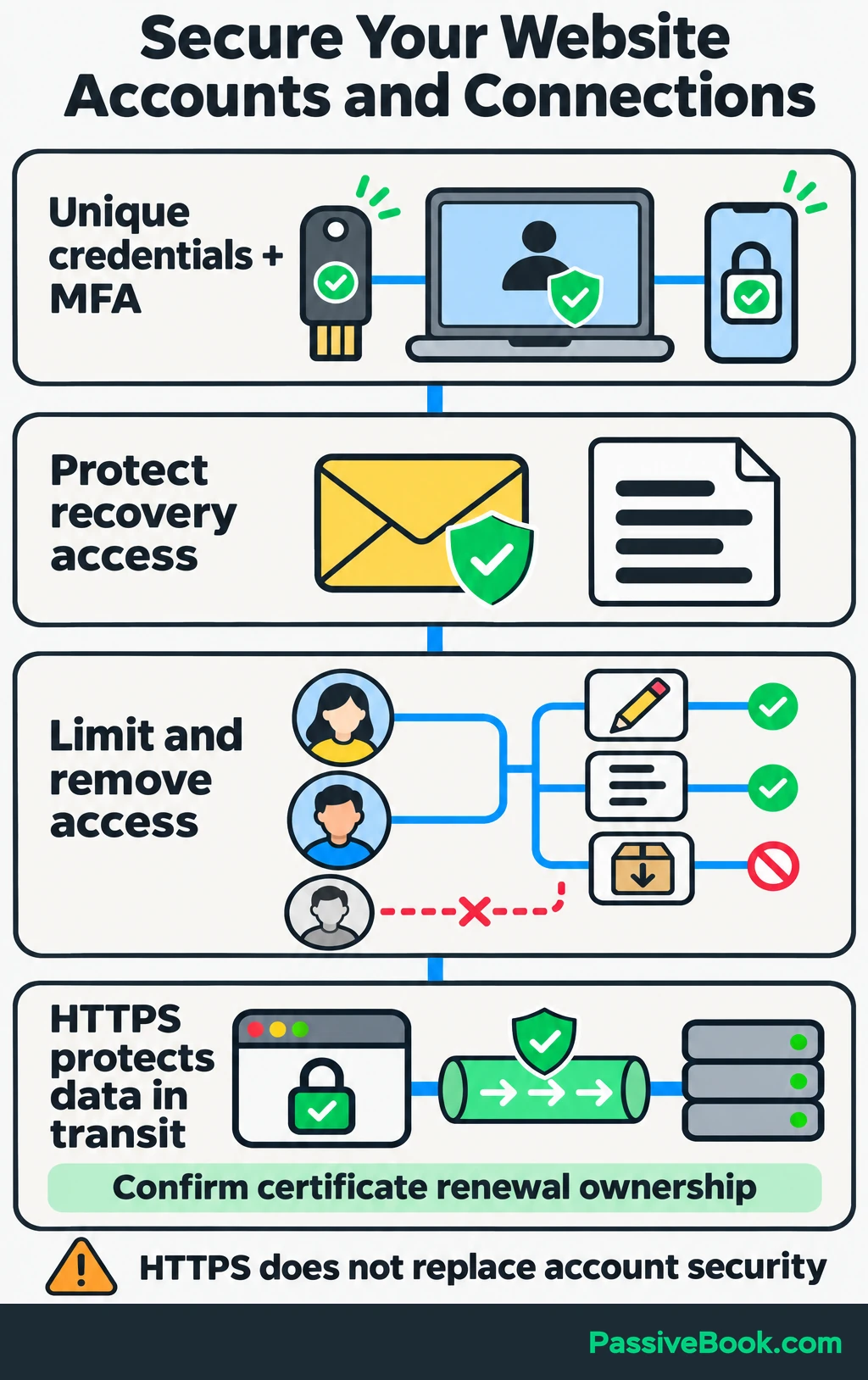
Give contributors individual accounts with only the permissions their work requires. A writer usually doesn’t need permission to install software or change billing.
When someone leaves, remove their access. Review unused integrations and remove unsupported or unnecessary extensions.
Your website should also load over HTTPS without certificate warnings. HTTPS protects information travelling between the visitor and the website, but you still need secure accounts and maintained software. Confirm who handles certificate renewal.
Create Backups You Can Restore
A backup needs everything required to rebuild the site. For WordPress, that means its files plus the database containing your content, settings and records, as the official backup handbook explains.
Choose the schedule by asking how much recent work you could afford to lose. A site receiving orders throughout the day needs more frequent backups than a brochure site that changes occasionally.
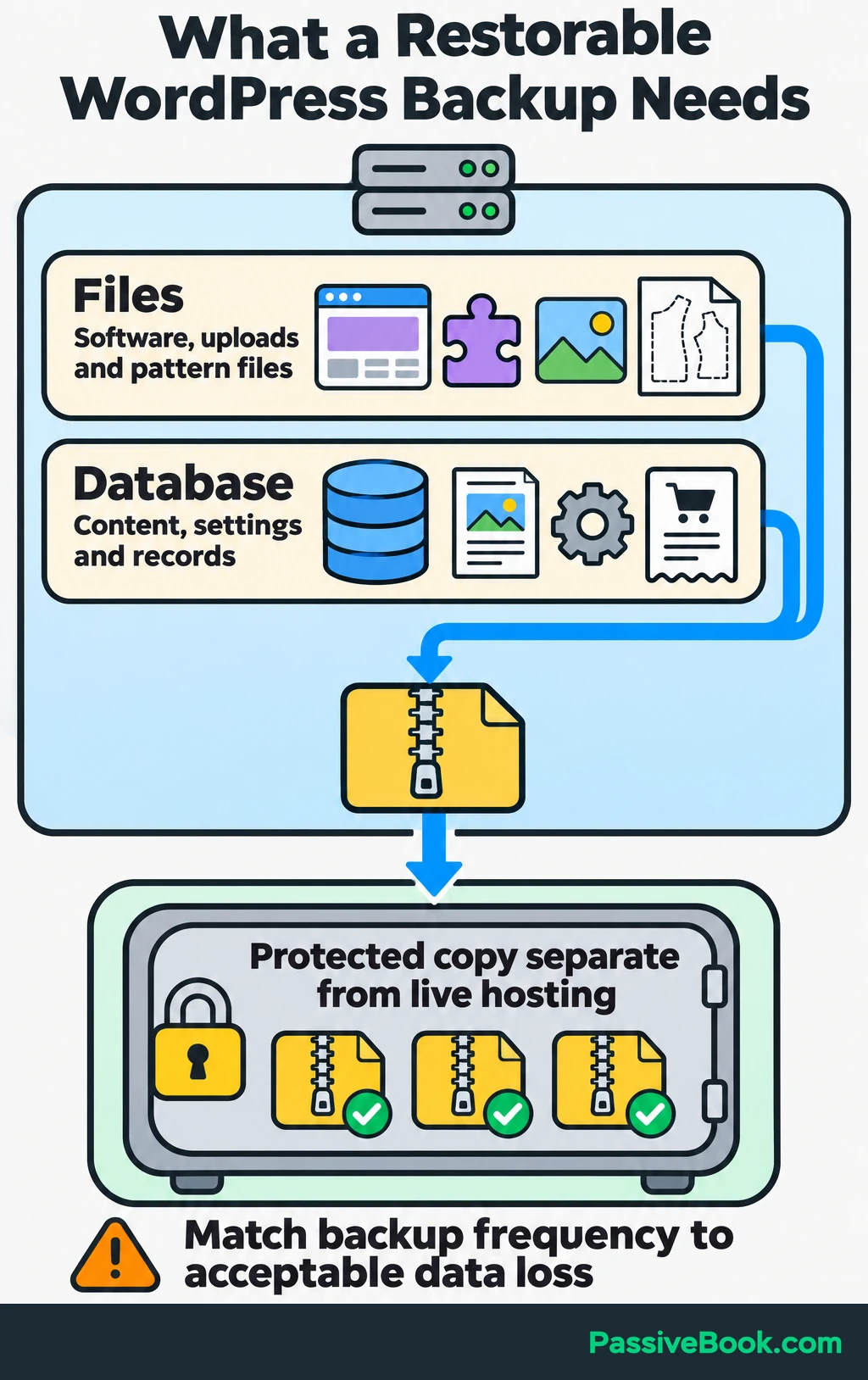
Keep several backups saved at different times, known as recovery points. Store a protected copy separately from the live hosting environment. Check whether scheduled backups actually complete.
Then test a restore in an isolated environment. Record:
- Who can perform the restore.
- Where the backup is stored.
- The steps and access required.
- How long recovery takes.
- What must be checked afterward.
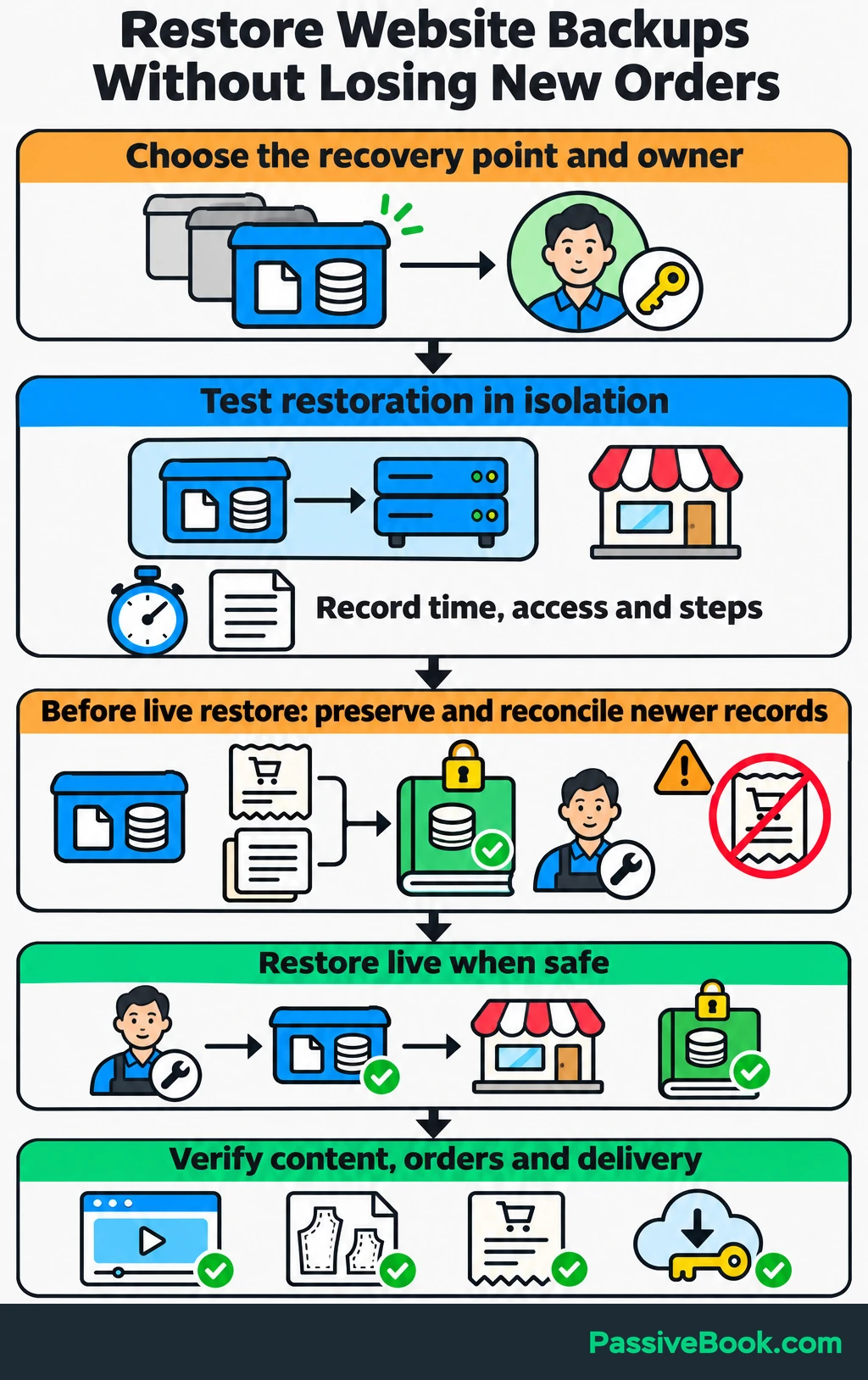
For the sewing site, a successful restore includes working tutorials, pattern files, purchase records and download access.
Before restoring a live shop, have the maintainer preserve and reconcile orders and submissions received after the backup. Otherwise, fixing yesterday’s problem could erase today’s business.
Update Software Safely
Find out who updates the CMS, theme, extensions and server software. A host may maintain the server while leaving website plugins to you.
Apply security fixes promptly, following the affected software’s guidance. Routine review dates shouldn’t delay an urgent fix.
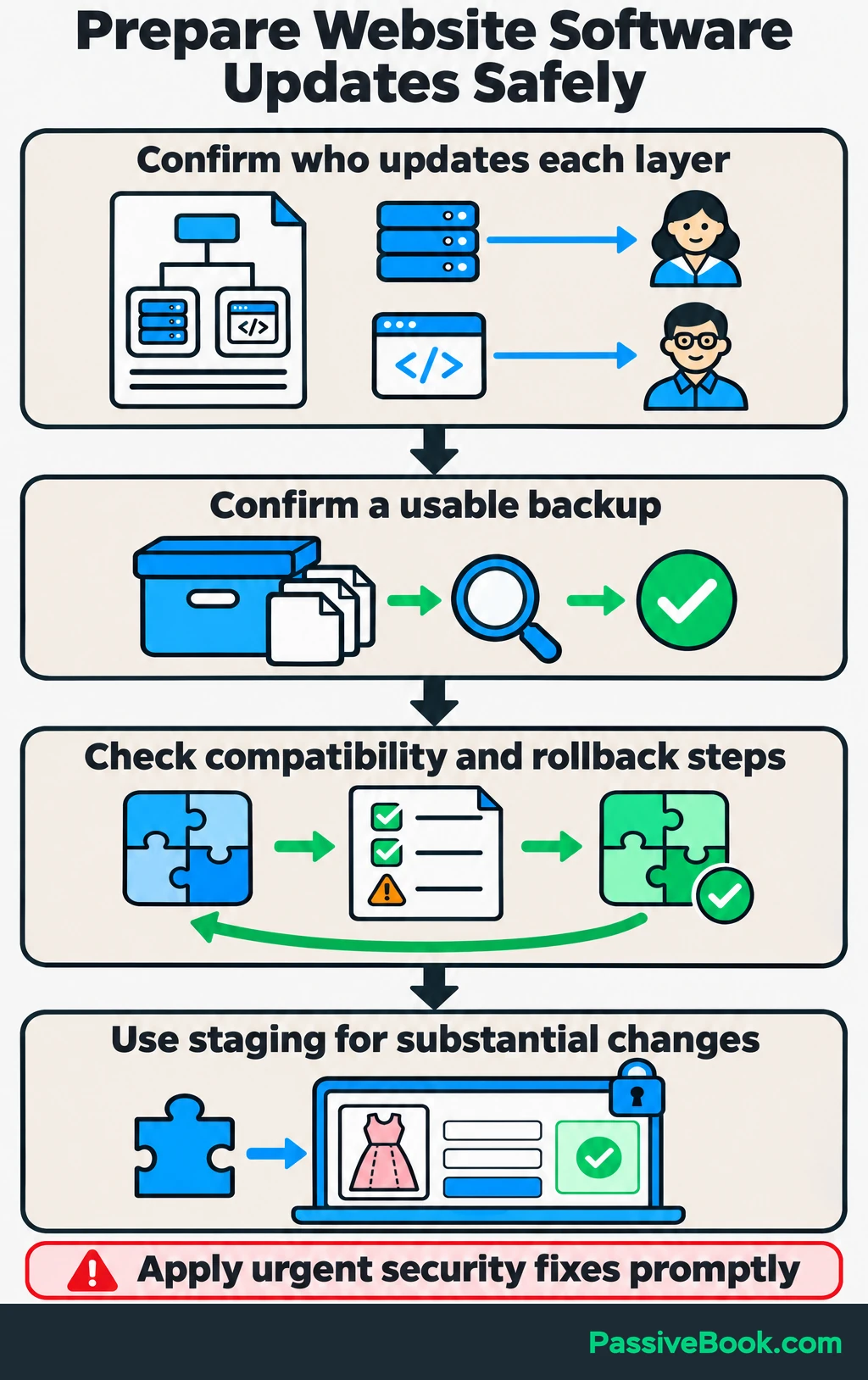
Before an update, confirm you have a usable backup, check compatibility information and know how to undo the change. For substantial changes, use staging: a private test copy of the site.
I would give checkout, membership and email integrations extra attention because a small change can interrupt several connected steps.
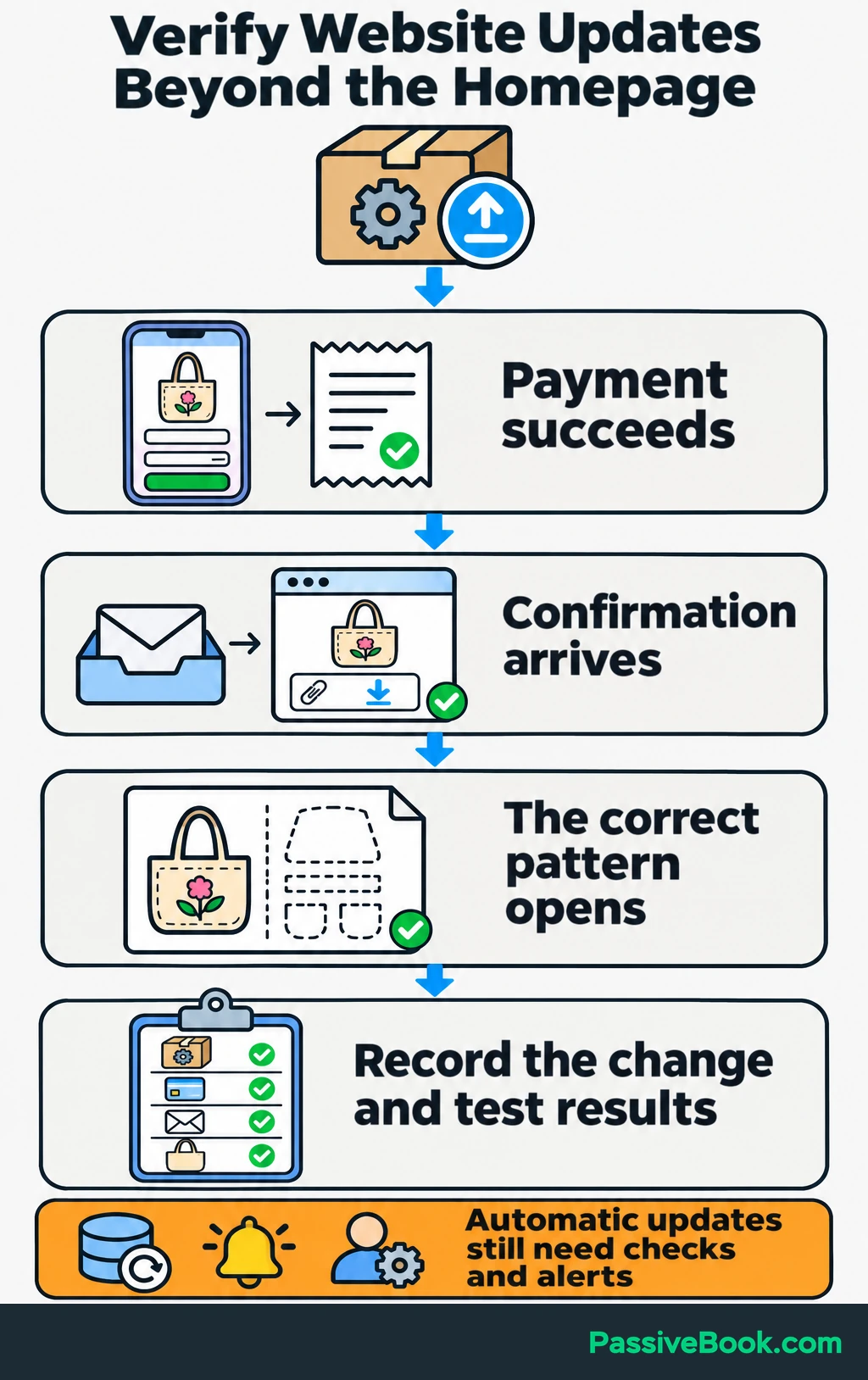
After updating, test representative pages and the functions affected. For a checkout change on the sewing site, that means payment, confirmation email and delivery of the correct pattern.
Record what changed and whether the checks passed.
Supported automatic updates can handle routine work, but pair them with backup checks, failure notifications and verification. Assign updates that need compatibility review to the person responsible for technical maintenance.
Check That Visitors Can Use Your Website
A website can be online while its most useful features are broken. Test the actions that matter to visitors.
Monitor Availability and Test Essential Journeys
Set up external availability monitoring so a service outside your website checks whether it responds. UptimeRobot can run these checks and send alerts.
Choose the checking frequency around the consequences of an outage, and send alerts to someone who can respond. An alert sitting in an unread inbox is an expensive decoration.
Availability checks don’t replace hands-on testing. Walk through navigation, sign-ups, purchases, confirmations and delivery on mobile and desktop.
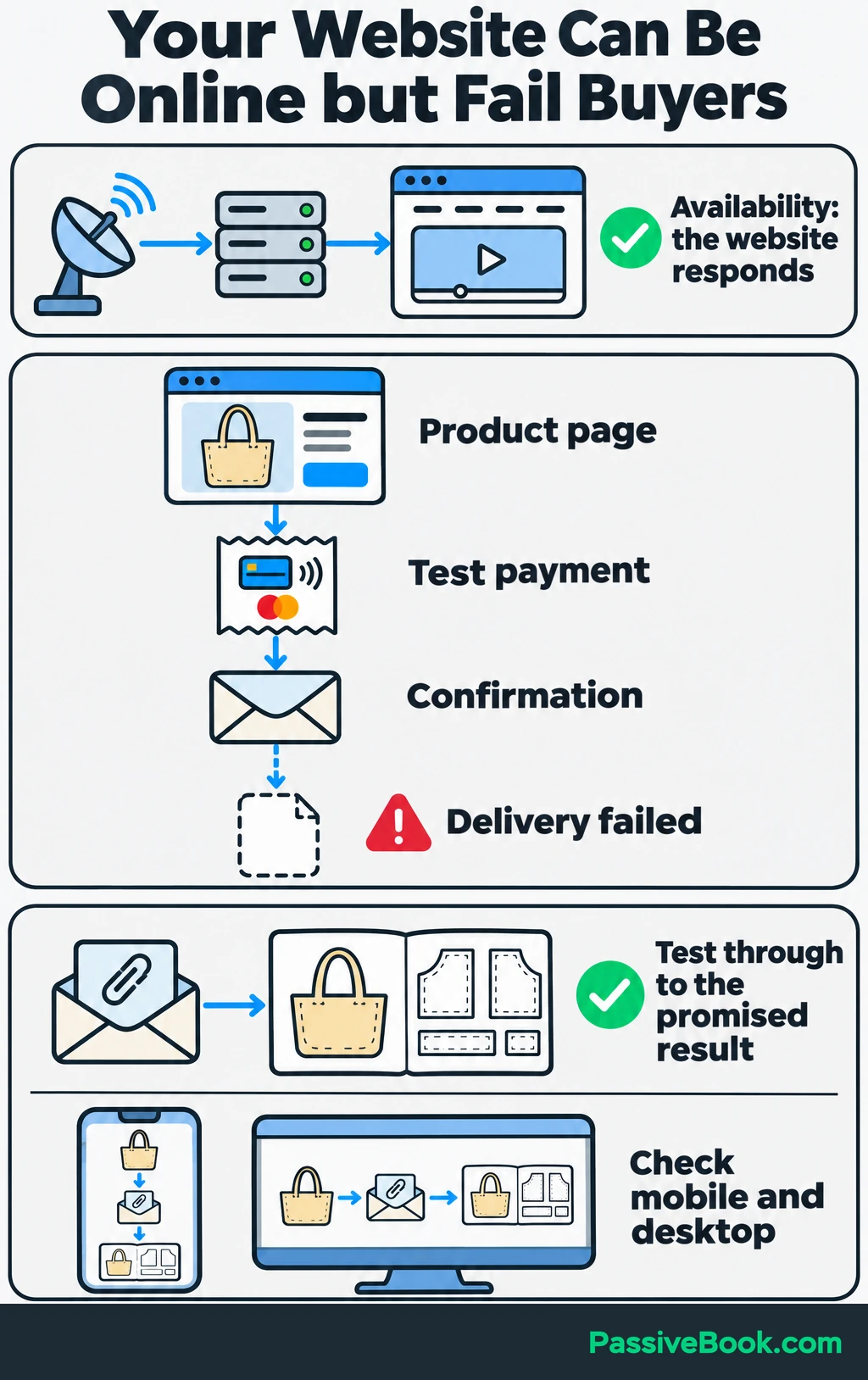
On one of my digital-product sites, I checked that a revised form accepted an email address and considered the job finished. The promised file was missing from the follow-up message. The form worked, but the offer didn’t.
That changed where I stop testing. For your site, follow the visitor through to the promised result.
Use your payment service’s supported testing method for purchase checks. On the sewing site, open the delivered pattern and confirm it matches the product bought.
Include an initial accessibility review:
- Can you reach links, menus and form controls with a keyboard?
- Can you see which item has keyboard focus?
- Do form fields have clear labels and understandable errors?
- Is text readable against its background?
- Do meaningful images have suitable text alternatives?
W3C’s preliminary accessibility checks explain these checks. Passing them is a useful starting point, but it doesn’t establish full accessibility or legal compliance.
Fix Performance Bottlenecks
Test a representative article, product page and checkout with PageSpeed Insights. Start with the largest relevant problem the report identifies.
That might mean resizing an oversized tutorial image, removing an unnecessary script or asking the host to investigate a slow server response.
Make one focused change, retest the same pages and check that purchases and personalised content still work.
PageSpeed Insights combines simulated tests with real-visitor measurements when enough data is available. Use the simulated diagnostics to investigate problems and the real-visitor results to assess loading, responsiveness and page movement. Missing visitor data isn’t a pass. Google explains the distinction here.
For WordPress, I use the GeneratePress theme to control the site’s design and the WP Rocket plugin to speed up page loading. I would still diagnose a slow page before buying another performance plugin. A new subscription won’t resize the enormous image you uploaded.
Respond to Outages and Security Incidents
Write a short response procedure before you need it. Keep the service inventory and support contacts accessible even when your website is down.
When a problem appears:
- Check from another connection, such as mobile data.
- Identify which pages or functions are affected.
- Check the relevant provider’s status information.
- Record the time, symptoms, error messages and recent changes.
- Contact the person responsible, including what you already checked.
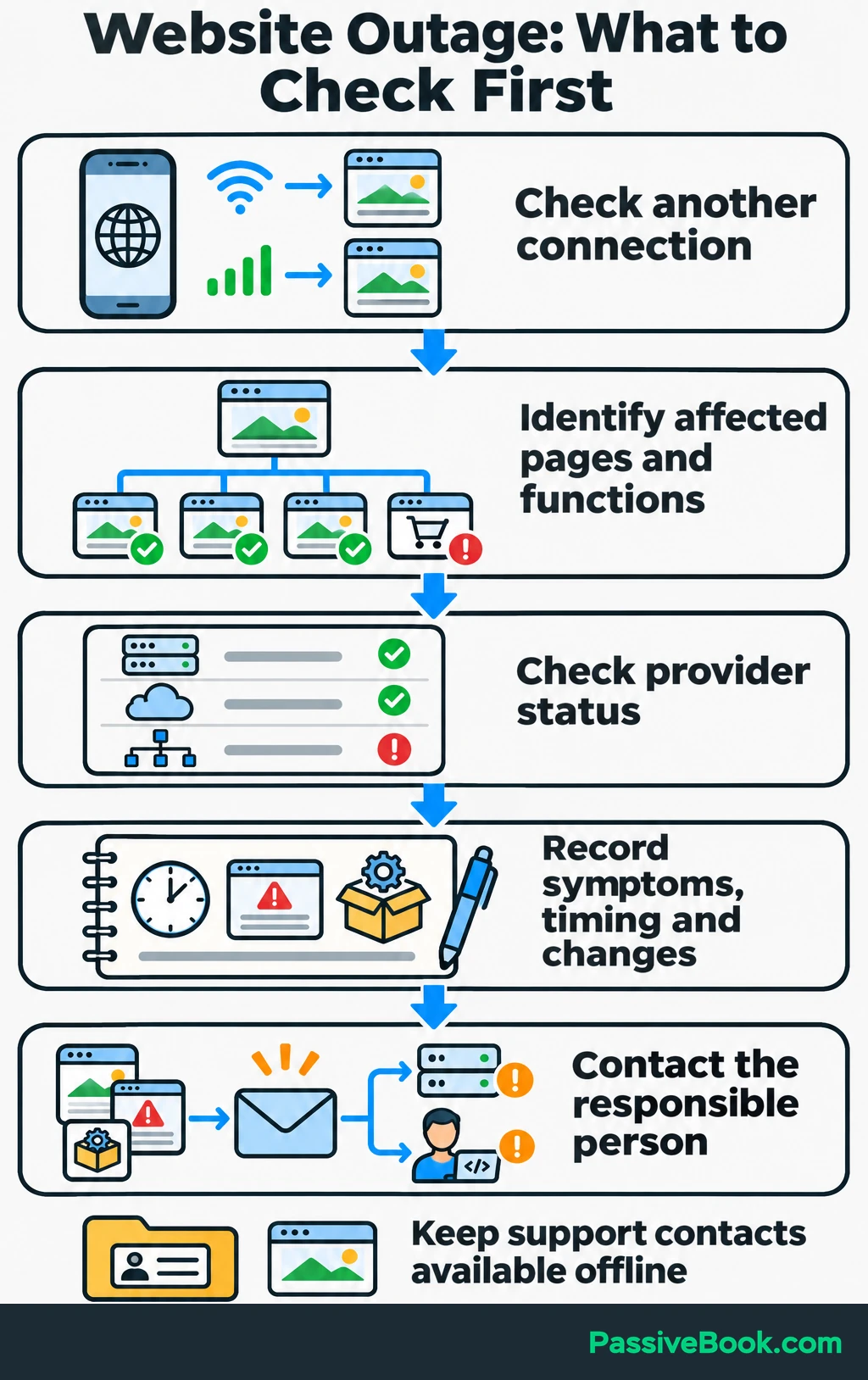
If a recent change caused the failure, follow the documented steps for undoing it or ask the maintainer to handle it. Contact the host about hosting failures and the responsible developer about problems with website software.
For suspected compromise, contact the host or a qualified security specialist, restrict affected access and preserve available logs before destructive cleanup. Evidence preservation is part of the Australian Cyber Security Centre’s incident-response guidance.
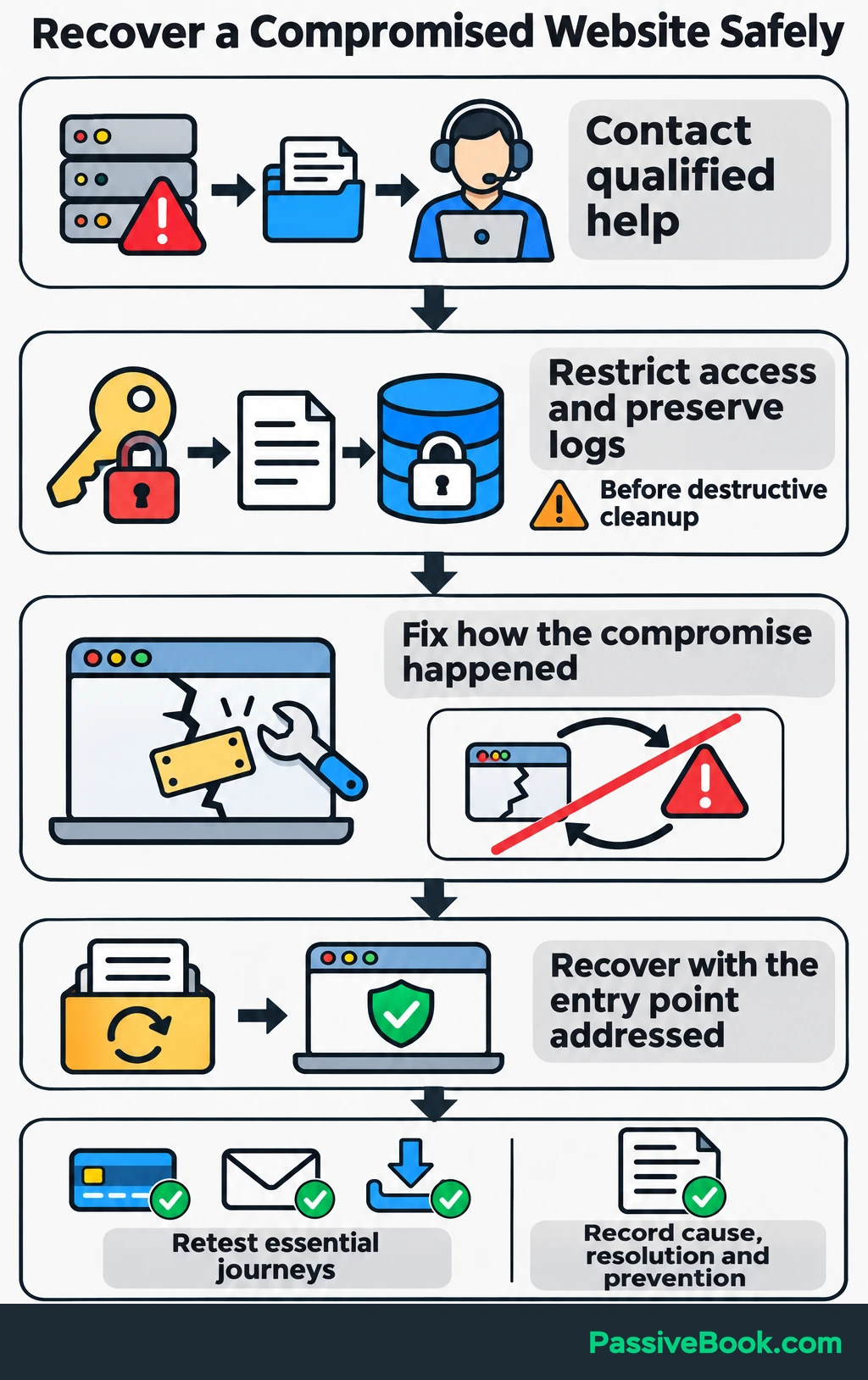
Recovery needs to address how the compromise happened before the site reopens. Restoring an old copy without fixing the entry point can leave the same problem waiting.
After recovery, repeat the essential visitor checks. Record the cause, resolution and preventive action so the next incident starts with better information.
Keep Content Accurate and Useful
Maintain a page list with an owner, last review date and next review trigger. A trigger could be a product change, a reader reporting an error or a service you recommend changing its features.
Review pages closest to business decisions first: product pages, pricing, contact details, popular articles and pages that help people buy.
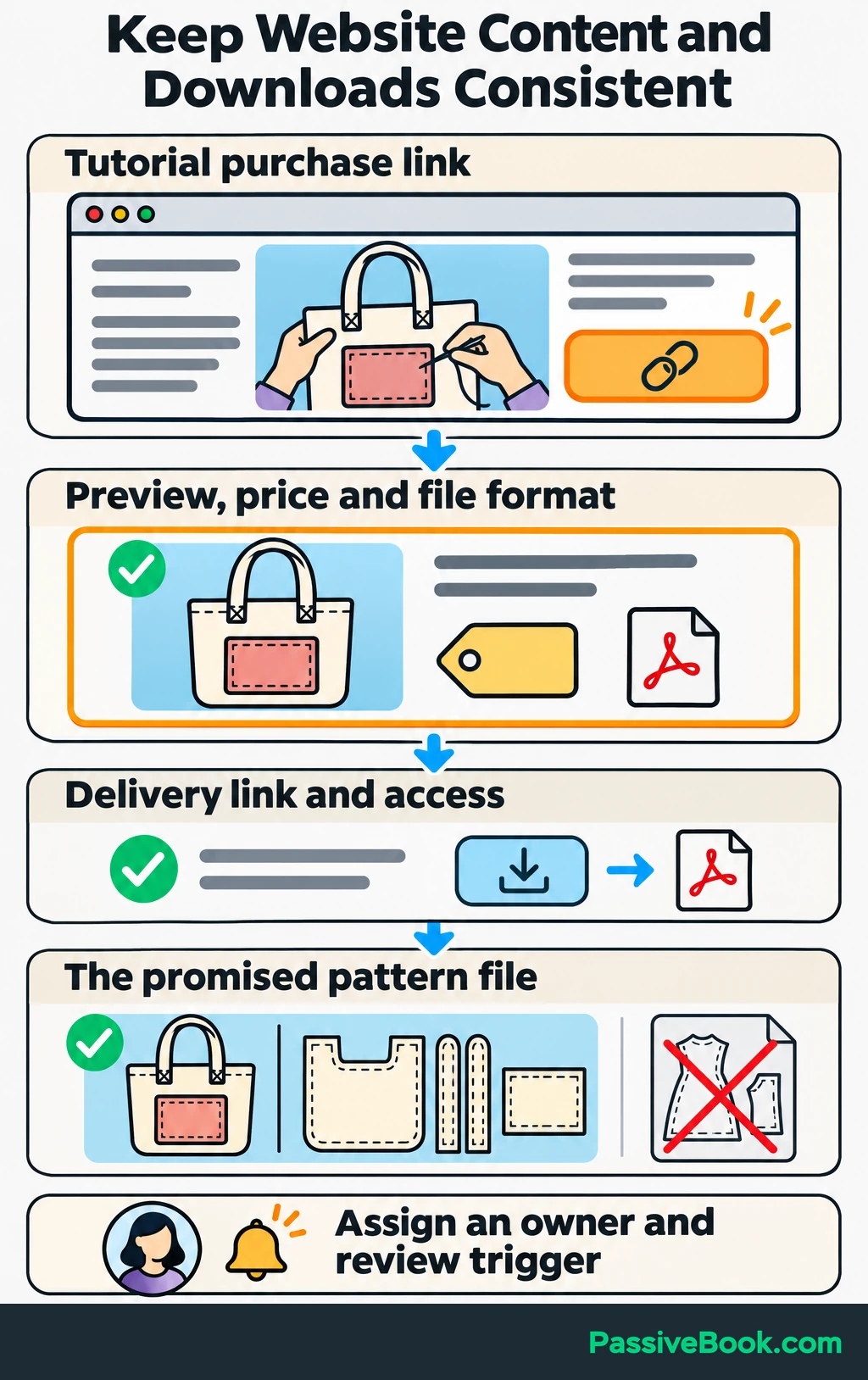
For the sewing site, check the tutorial’s purchase link, product preview, price, file format and delivered pattern together. Updating the sales page while leaving an old file attached creates a different kind of maintenance problem.
Before publishing or revising a page, check:
- Facts and claims.
- Headings and reading order.
- Links, images and downloads.
- Mobile presentation.
- The next action you want the reader to take.
I would fix a misleading product description before polishing an article that already does its job.
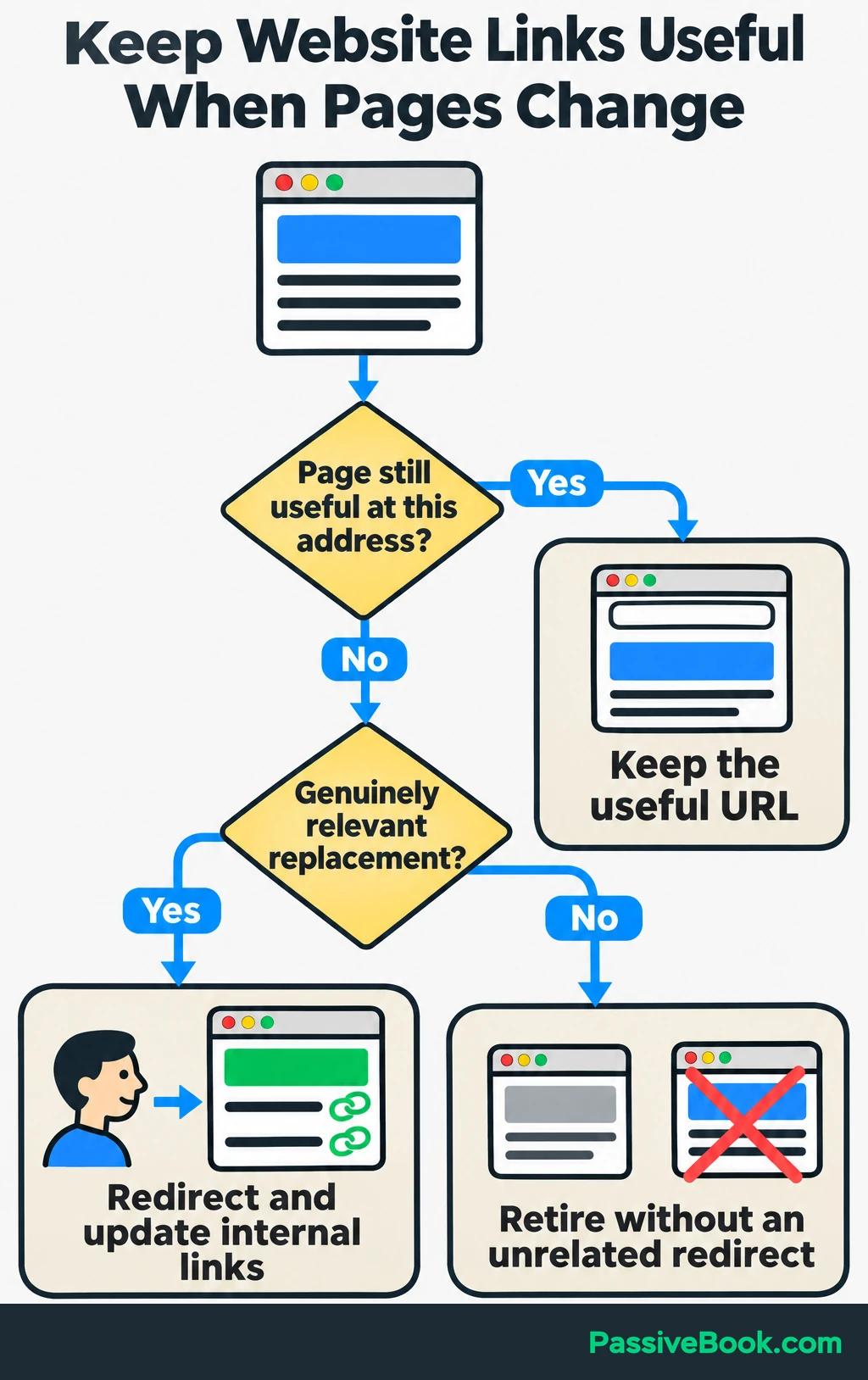
Keep useful URLs where practical. If a page moves, update internal links and redirect the old address to a genuinely relevant replacement. If you retire a page without a suitable replacement, don’t send visitors to an unrelated page just to avoid an error.
Use Website Data to Choose Improvements
Decide what success means before choosing reports.
For the sewing site, useful outcomes include completed purchases, successful pattern delivery and subscriptions for the sample pattern. Payment and order records remain the reference for actual sales.
Use Google Search Console’s performance report to see how often your pages appear in Google Search, which search terms they appear for and how many clicks they receive. Use Google Analytics or your platform’s existing analytics to understand visits and completed business actions.
Configure purchase and sign-up tracking, then verify it with test completions. A click on “Buy” shows intent; it doesn’t establish that payment succeeded.
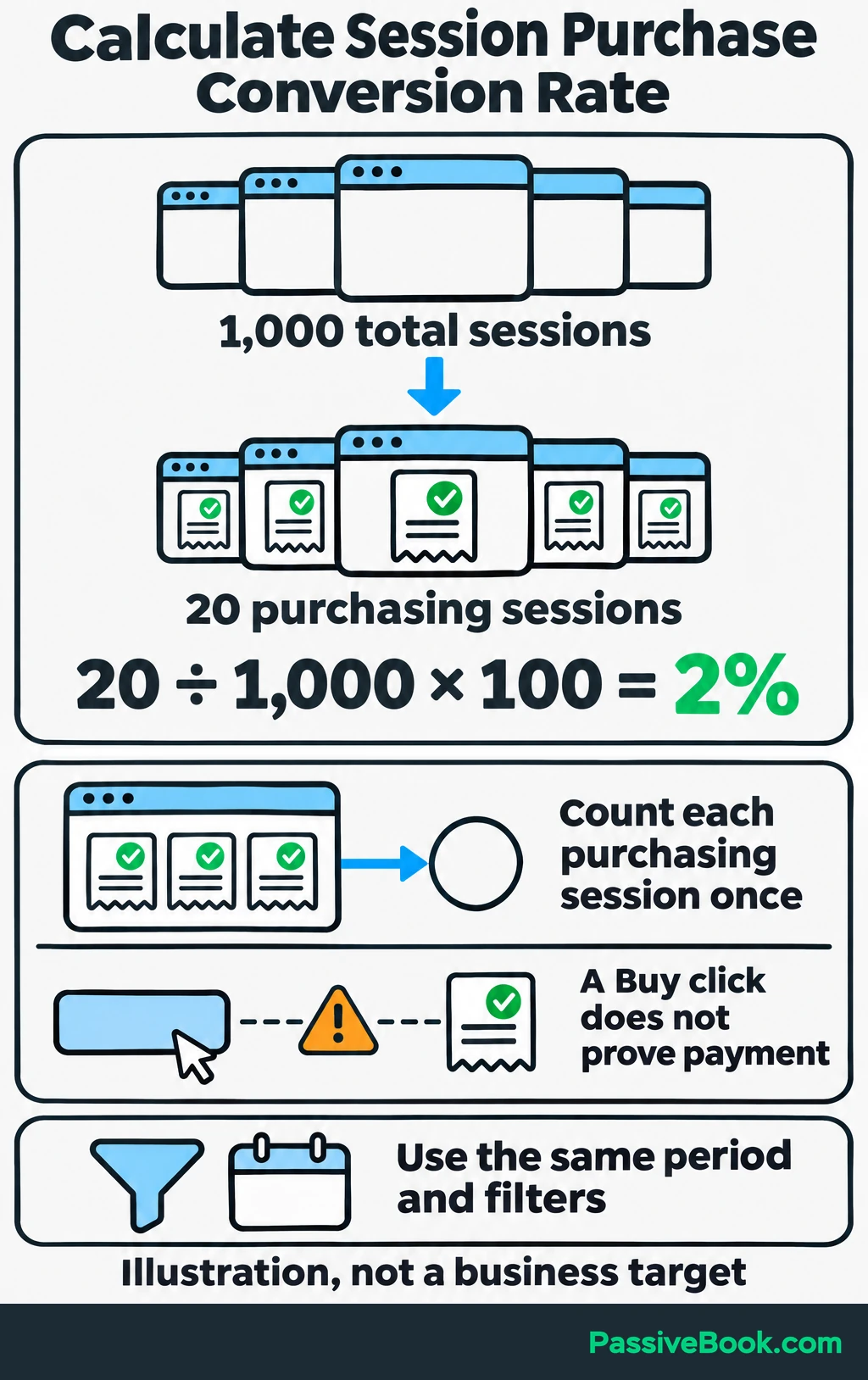
To calculate the session purchase conversion rate, count visits with at least one completed purchase. Your analytics tool calls each recorded visit a session. Count each purchasing session once, even if it includes multiple purchases, and divide by all recorded sessions in the same reporting period with the same filters.
For illustration:
20 purchasing sessions ÷ 1,000 total sessions × 100 = 2%.
That’s a worked calculation, not a target for your business.
Use the symptom to choose your next check:
| What You Notice | What I Would Check First |
|---|---|
| Google Search clicks fall | Which pages and queries changed, and whether affected pages remain indexed |
| Visits hold steady but purchases fall | Checkout function, offer details and changes in traffic sources |
| Payments succeed but customers report missing patterns | Confirmation messages, download links and file permissions |
| Sign-ups suddenly disappear from reports | A test subscription and the tracking setup |
Compare equivalent periods and consider seasonal demand, traffic mix and tracking changes before deciding what caused a change.
Fix broken functions first. Then choose one improvement, record when you made it and review the outcome it was meant to affect. If checkout works but buyers repeatedly fail to receive patterns, delivery deserves attention before another sales-page redesign.
Keep names, email addresses and other personal information out of analytics URLs and events. Google prohibits sending personally identifiable information to Analytics, as its data-safeguarding guidance explains. Configure privacy notices and consent controls for the requirements that apply to your site.
Build a Recurring Website Management Routine
The routine should make unfinished work visible. It should also work whether you do the tasks yourself or pay someone else.
Put Tasks on a Reusable Checklist
Use a checklist with the task, trigger or frequency, owner, tool, completion evidence and escalation contact.
Here’s a starting schedule you can adapt:
| Trigger or Frequency | Task | Useful Completion Evidence |
|---|---|---|
| Automatic, with alerts | Monitor availability and scheduled backup failures | Alert delivery tested; failures assigned for action |
| After a significant change | Test affected pages and visitor journeys | Result recorded alongside the change |
| Weekly | Review updates, backup results and essential journeys | Successful backup confirmed; sign-up and purchase checks recorded |
| Monthly | Review content, performance, traffic, conversions and costs | Specific corrections or one chosen improvement added to the task list |
| At a scheduled recovery review | Restore a backup in isolation | Restore time and verification results recorded |
| At an access review or contributor departure | Check accounts and integrations | Departed users and unnecessary access removed |
| Before renewals | Check service need, renewal price and billing details | Renewal approved or cancellation assigned |
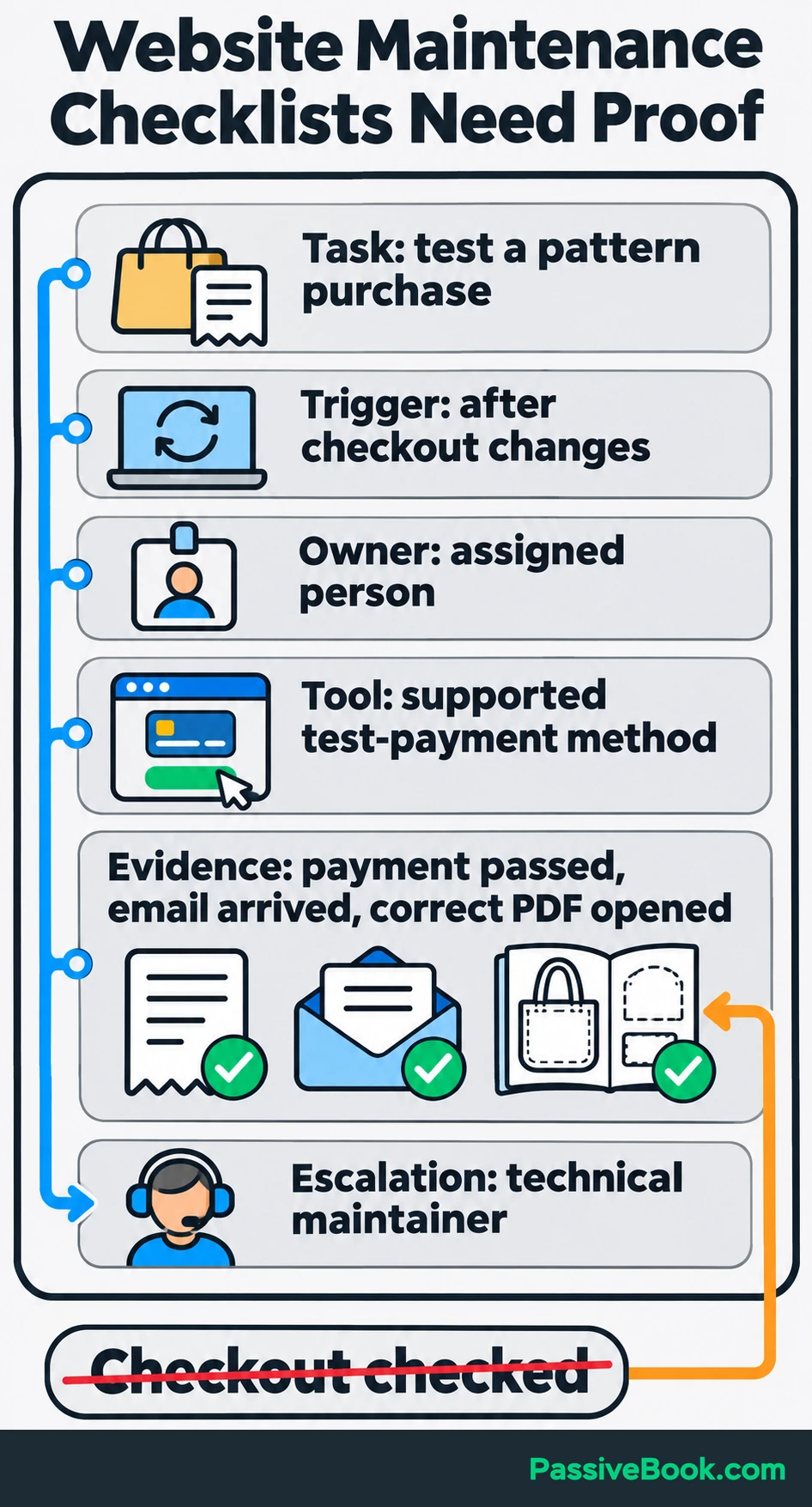
Choose restore-test and access-review intervals around your site’s activity and recovery needs. Repeat relevant checks after major changes, and handle urgent security fixes when notified.
For the sewing site, “checkout checked” is weak evidence. A useful entry says:
Test payment succeeded, confirmation arrived and the purchased tote-bag PDF opened correctly.
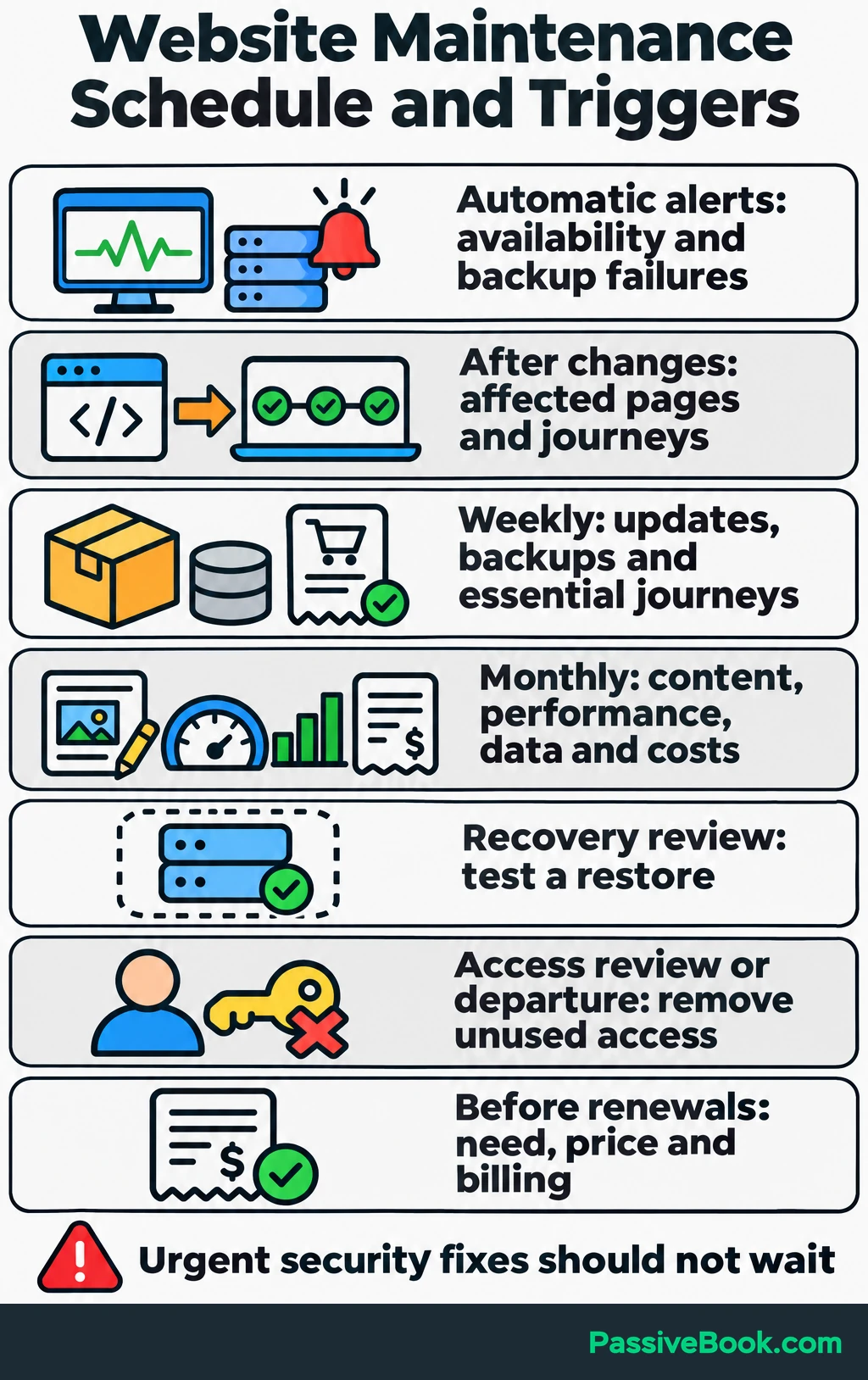
That tells the next person what was actually verified.
The checklist records what needs doing, but some tasks also need instructions. Start with one recurring check and document how to run it, what counts as done and when to ask for help.

Free AI Operations Writer


Automate Repeatable Work and Surface Failures
Start with features already included in your platform or hosting: scheduled backups, supported updates, monitoring, renewal reminders and report delivery.
Add a tool only when a task remains uncovered.
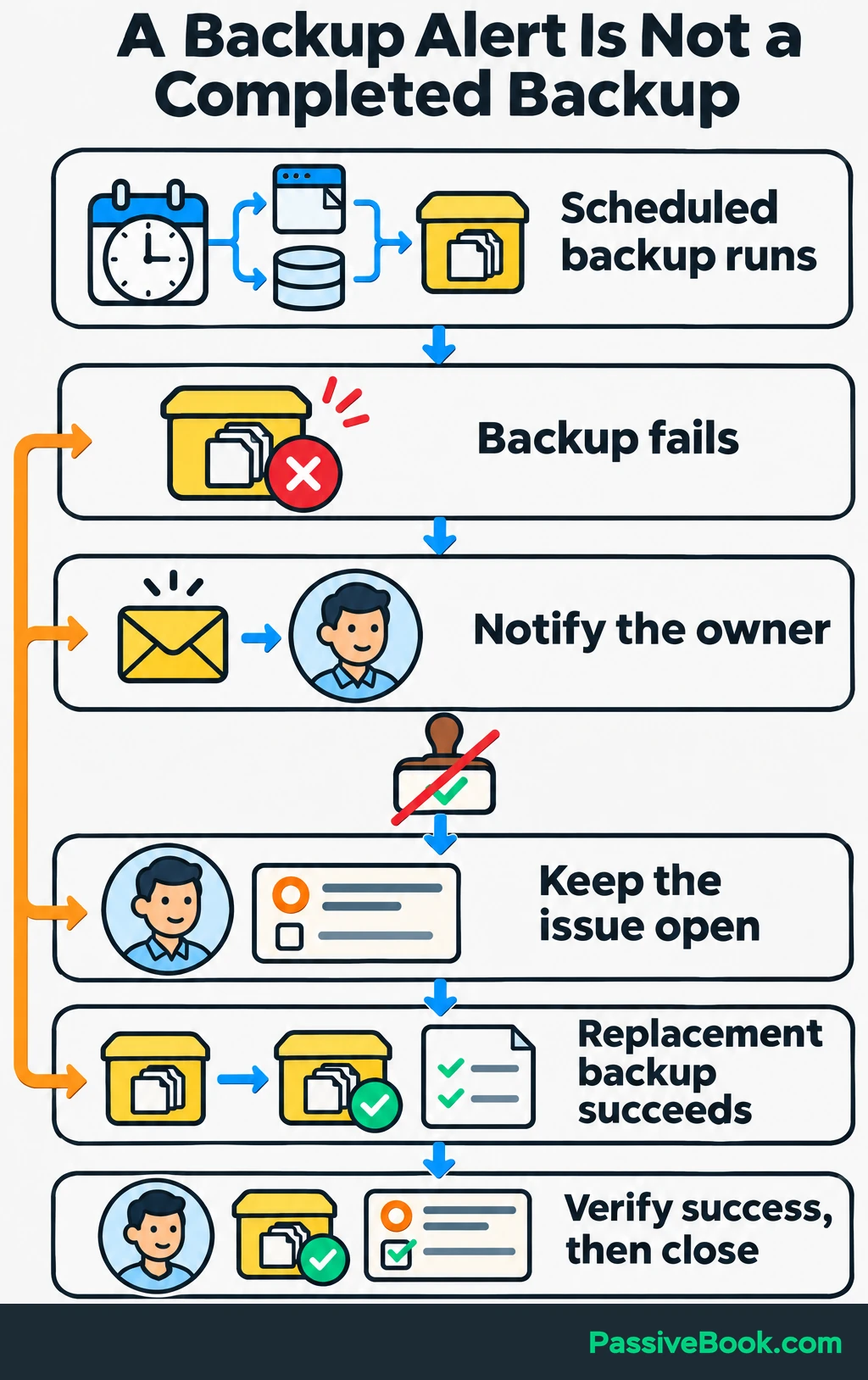
Each automated job needs an owner, a way to confirm completion and failure notifications where supported. Keep unresolved failures in one task list.
The tools serve different purposes:
- Backups: Provide recovery points.
- Availability monitoring: Detects when the site stops responding.
- PageSpeed Insights: Helps diagnose performance problems.
- Analytics: Helps you choose business improvements.
I use n8n to connect tools and automate workflows, but custom automation isn’t a requirement for managing a website. I would use a platform’s built-in backup notification before building a separate workflow to send the same message.
For the sewing site, a failed-backup alert should reach the responsible person, and the issue should stay open until a replacement backup succeeds. Sending the alert completes the notification job. It doesn’t complete the backup.
How Much Does Website Management Cost?
Separate operating expenses from management labour.
Operating expenses include domain renewal, hosting or platform subscriptions, required extensions, backups and monitoring. Management labour covers the time spent checking, updating, troubleshooting and coordinating support. Content and development work may be additional.
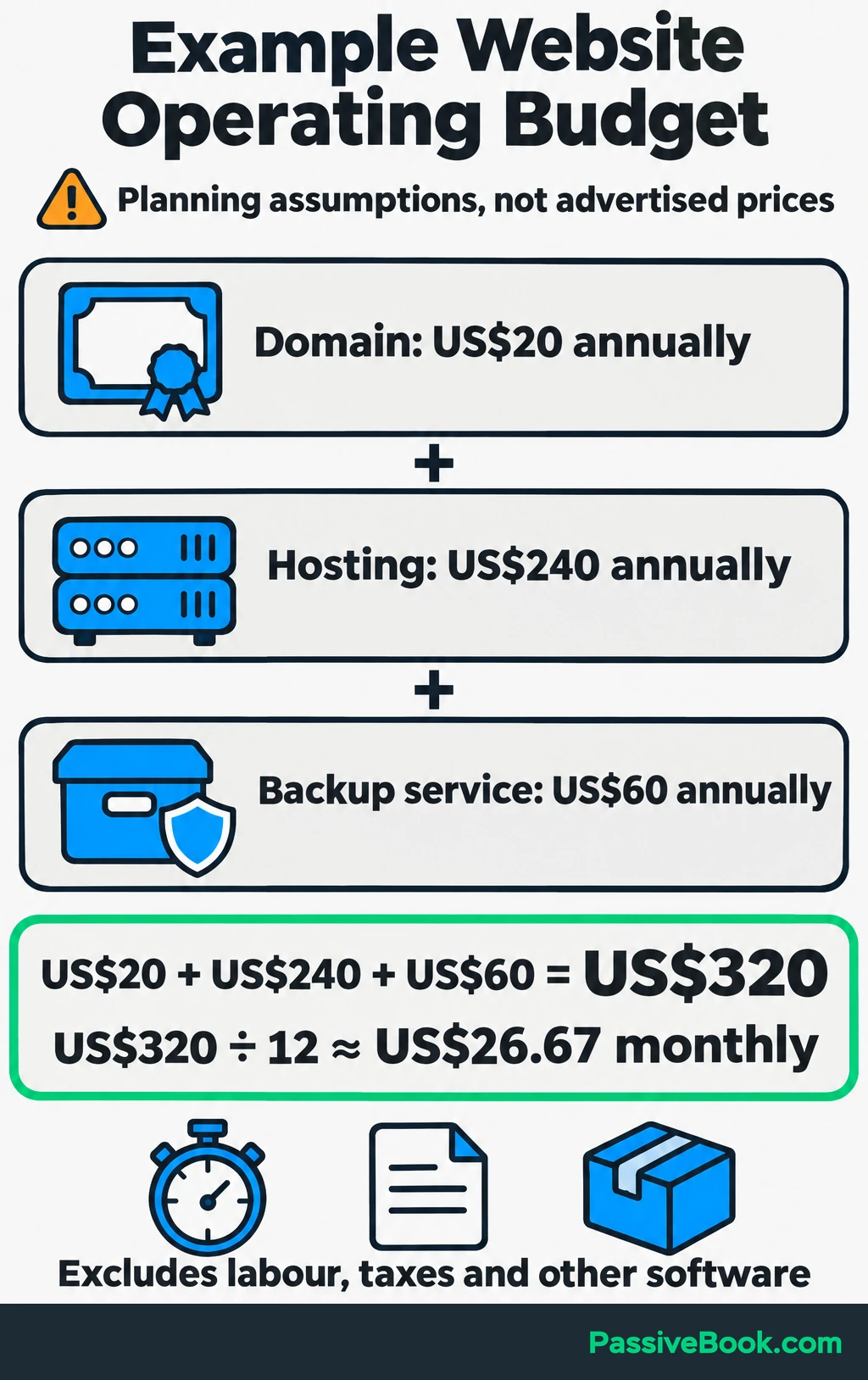
For a simple planning example, assume you pay for a domain, hosting and a separate backup service. These are budgeting inputs, not advertised prices:
| Expense | Assumed Annual Cost |
|---|---|
| Domain renewal | US$20 |
| Hosting | US$240 |
| Backup service | US$60 |
| Total | US$320 |
US$320 divided by 12 is about US$26.67 per month. This excludes labour, taxes and other software.
Use renewal prices when making your own budget. Check billing commitments, usage charges and services already included elsewhere. If hosting includes suitable backups, don’t automatically add another backup bill.
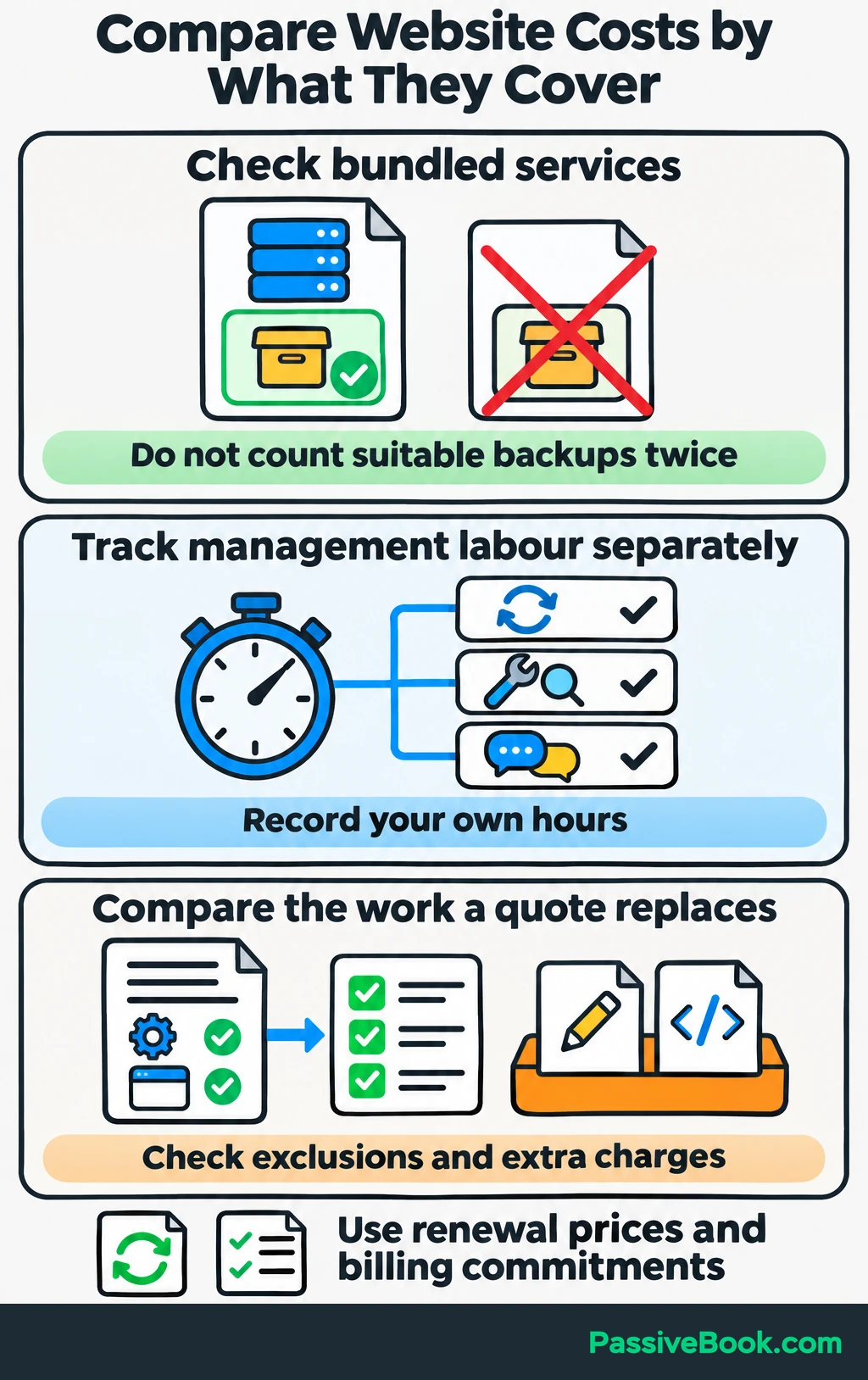
Paid management fees depend on the work included. As a published example, Pronto lists a US$99 monthly WordPress technical-support plan covering hosting and maintenance. Edits to page content and design are excluded. That illustrates a scope difference, not a market average or endorsement. See its current pricing and exclusions.
Record your own hours separately. Compare a provider’s quote with the tasks it would actually replace, including any hosting or software bundled into the fee.
A cheaper quote can still leave you doing the work you wanted to delegate.
Should You Manage Your Website Yourself or Hire Help?
I would choose the arrangement around the work you can reliably complete and the response coverage your business needs.
Choose the Arrangement That Covers the Work
| Arrangement | When I Would Choose It | What You Still Own |
|---|---|---|
| Self-management | You can follow the routine, verify recovery and respond to alerts | The checklist, business decisions and calling specialists when needed |
| Hybrid | You want to retain content and business decisions while delegating technical work | Reviewing reports, approving changes and checking business outcomes |
| Ongoing management | Essential tasks repeatedly go unfinished or you need coverage you cannot provide | Account ownership, scope decisions and oversight |
For many small online businesses, I would start with a hybrid arrangement.
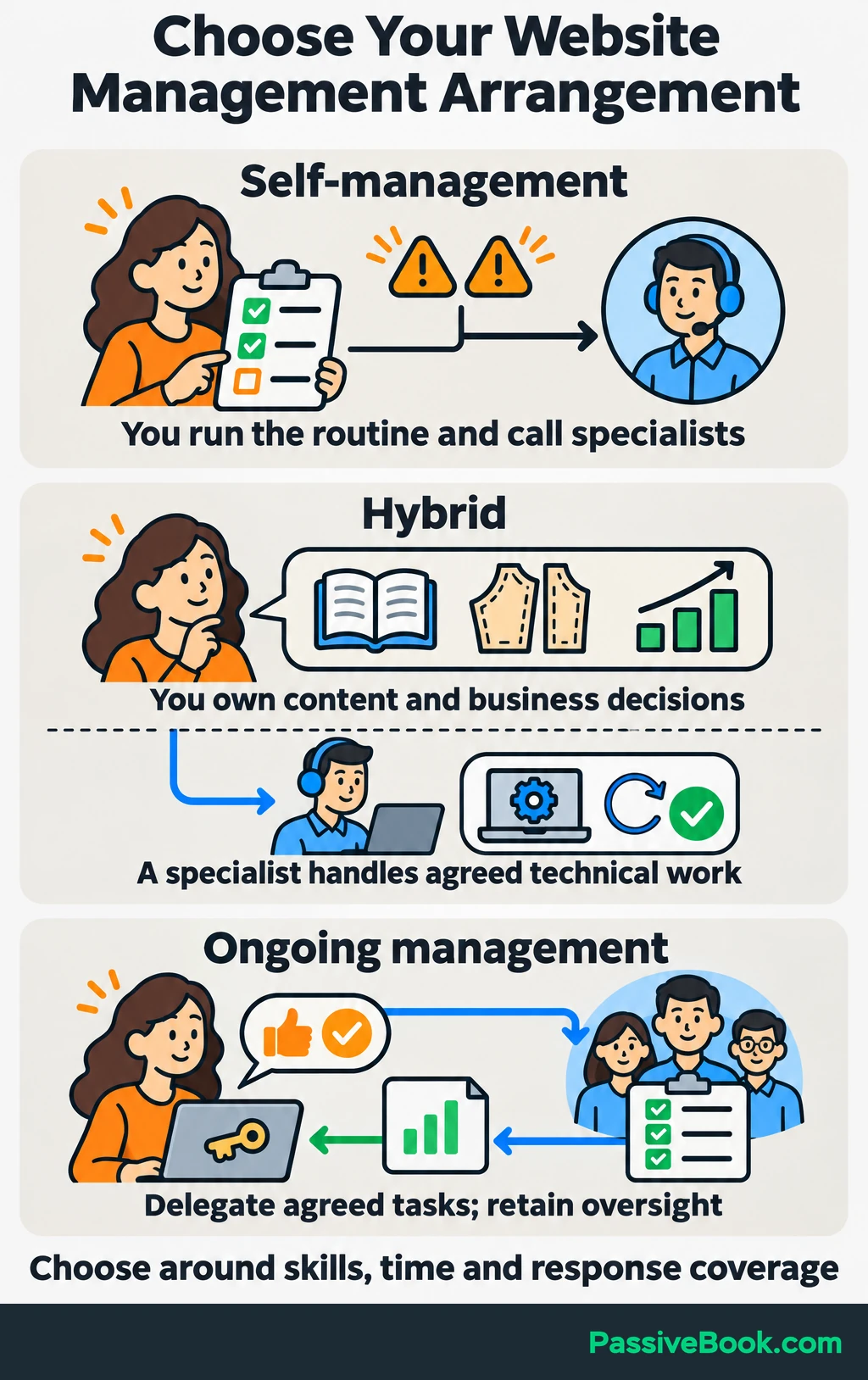
On the sewing site, you review tutorials, patterns and sales. A specialist handles agreed updates, recovery checks and technical incidents.
Hire for the gaps that matter. Someone who maintains a simple publishing site may need different experience from someone who manages payments and digital delivery through WooCommerce, the WordPress shop plugin.
You can manage a website responsibly without personally fixing every technical problem. You still need to know who owns each task.
Check the Provider’s Scope and Handover Terms
Ask for a written scope before granting access.
It should explain update testing, backup frequency and retention, restore assistance, monitoring, editing allowances, exclusions and extra charges.
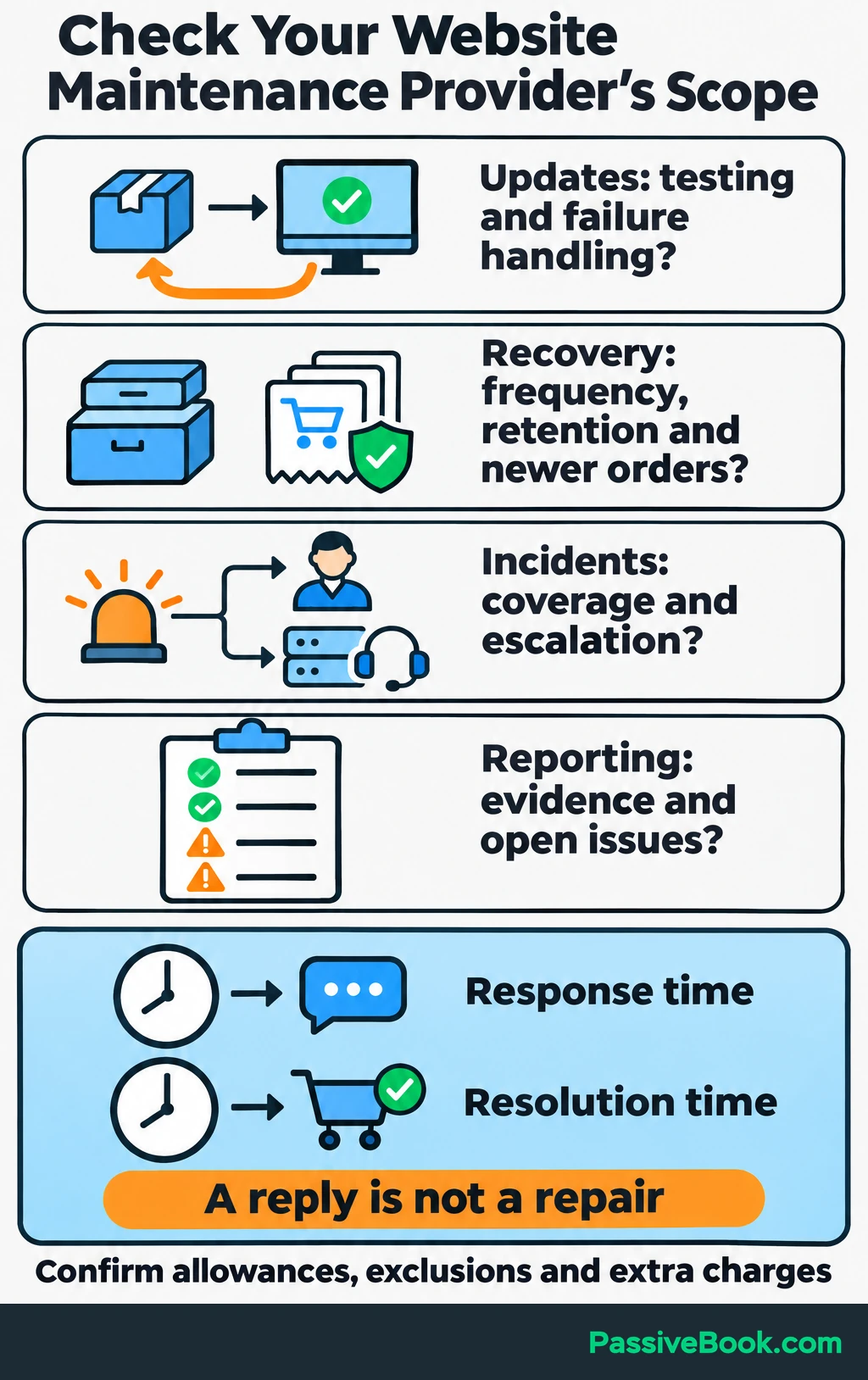
Ask the provider:
- Updates: Which changes do you test, and what happens when an update fails?
- Recovery: How far back can you restore, and how do you protect newer orders?
- Incidents: What emergency coverage do you provide, and who contacts the host?
- Reporting: What evidence will I receive of completed work and unresolved problems?
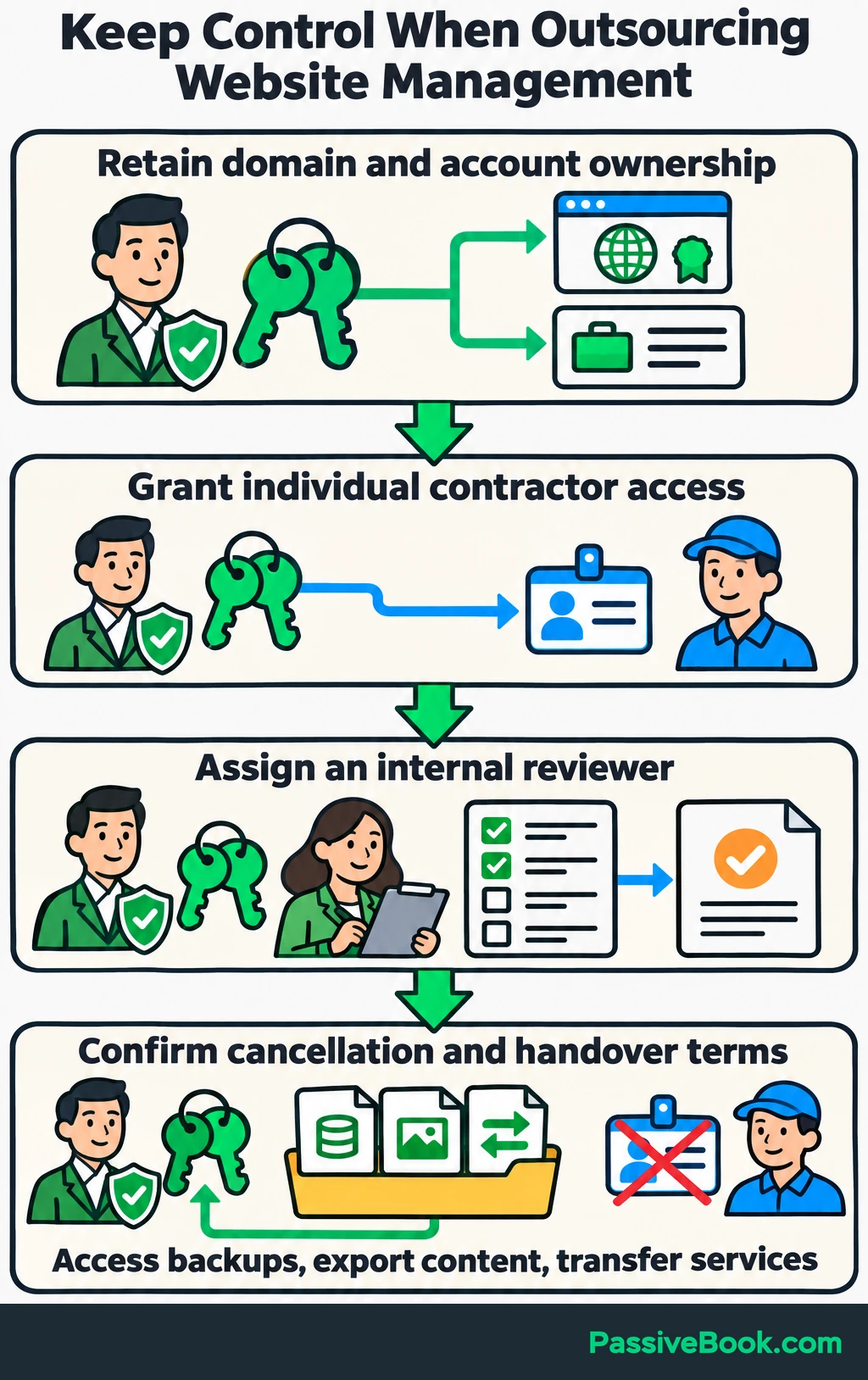
- Handover: Can I access backups, export content and transfer services when the agreement ends?
Distinguish response time from resolution time. “We reply within four hours” doesn’t say when your checkout will work again.
The FTC’s service-provider security guidance recommends putting security expectations in writing and verifying that providers meet them. I would apply that principle to the maintenance checklist too.
Retain ownership of the domain and essential business accounts. Give contractors individual access, and confirm cancellation and handover terms before work begins.
Finally, assign one internal owner to review reports and approve business changes. Outsourcing works better when someone checks that the agreed work happened.
What Next?
List the services behind your website and put a name beside every essential task. Then test one visitor journey all the way through to its promised result.
Use the social buttons to share this guide when a shared maintenance checklist would help keep a website dependable.
Which part of managing your site would you most like to hand off, and why? Share your answer or any other questions in the comments.
Share this post with your friends & followers: