You remember finding the answer to a business question, but now you can’t find the note. The source is in a browser bookmark, the product idea is in a document, and neither tells you where you stopped.
So the next work session begins with another search. That’s frustrating when you only have an evening to finish an article or improve a product. This walkthrough follows one pet-care project to show how Obsidian can keep its research, decisions, and unfinished work together between sessions.
Is Obsidian a Good Fit for Your Business?
I would choose Obsidian for work where you need to keep information, think through it, and reuse it later. Research, article drafts, product decisions, and business procedures all fit.
Its basic container is a vault: a folder on your device containing notes and supporting files. Notes use Markdown, which is plain text with simple formatting marks. Other text editors can open them, though Obsidian’s special views and plugin features may not carry across. That gives your writing a useful exit route. How Obsidian stores data.
You can use Obsidian commercially for free without an account. A Commercial license is optional, and Sync and Publish are separate paid services. You don’t need those services to start using the app for your business. Obsidian’s commercial-use announcement.
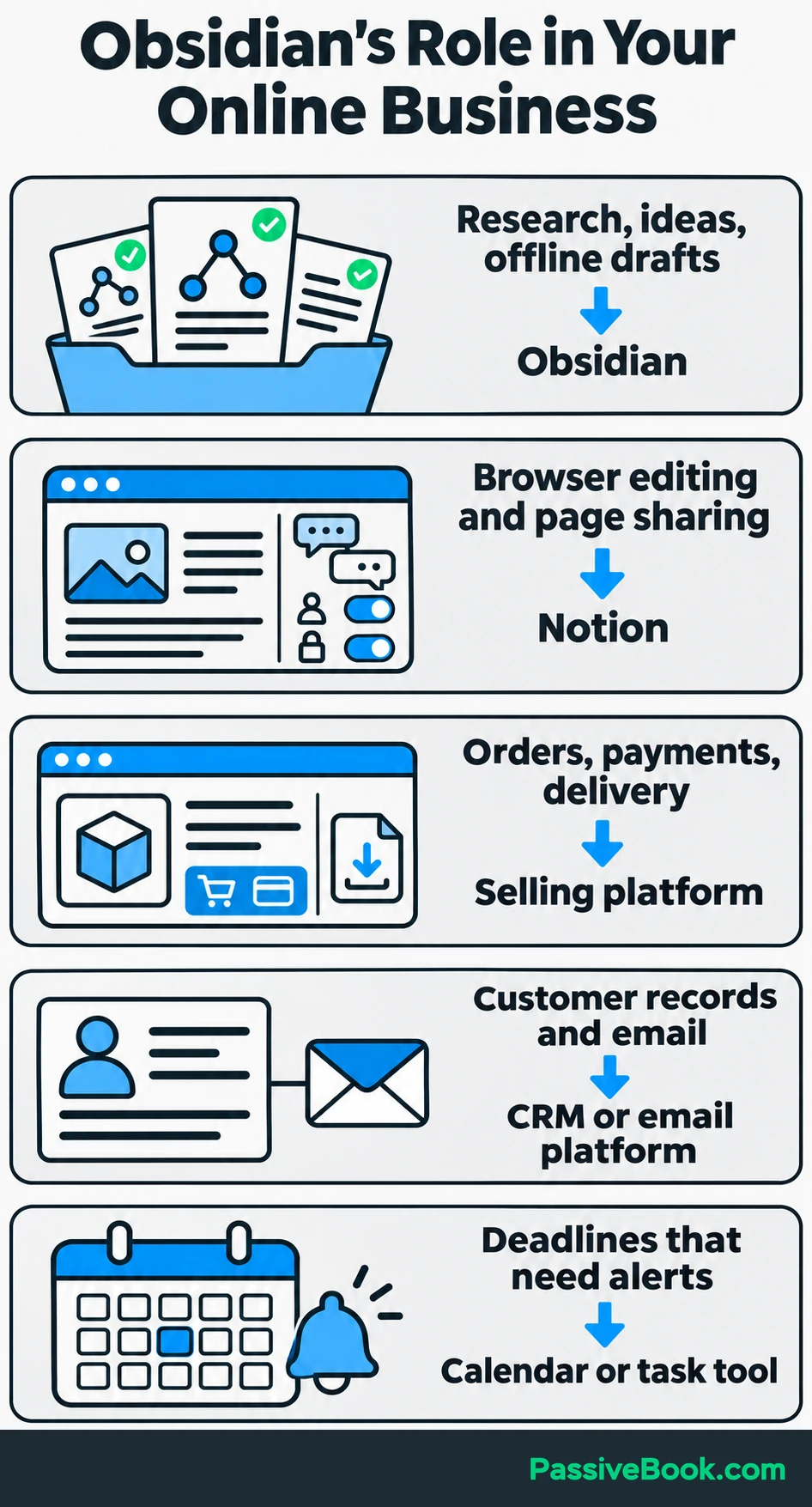
The main decision is where your work needs to happen:
| What You Need | What I Would Choose |
|---|---|
| Private research, connected ideas, and drafts available offline | Obsidian |
| Browser editing and sharing individual pages with different people | Notion |
| Orders, payments, and product delivery | Your selling platform |
| Customer records and email activity | Your CRM or email platform |
| Deadlines that must alert you | A calendar or task tool with reminders |
Obsidian runs through installed desktop and mobile apps, including offline. It has no official browser editing workspace. Sync moves files between devices, while Publish puts selected notes on a website for people to read. Paying for either doesn’t turn the vault into a browser editor. Obsidian’s application requirements.
If browser access and selective sharing determine your choice, I would use Notion. Its page permissions let you control access to particular material. You can also keep private research in Obsidian and use an existing team workspace for assignments and approvals.
For the walkthrough, imagine you run an indoor-cat care blog and sell a printable cat-sitter handover pack. We’ll follow one question through research, an article, a product revision, and a publishing procedure.
Create a Simple Business Vault
Start with one piece of active work. You can judge the setup after it helps you finish something.
Organize Around Active Work
Install Obsidian, choose to create a new vault, and name it after your business. Put it somewhere you can find and include in your backup system.
Bring in only what the first project needs. Importing every document you’ve ever saved creates a sorting job before you’ve gained anything.
Use these folders:
| Folder | What Belongs There |
|---|---|
Inbox | A question, rough idea, or source you haven’t reviewed |
Knowledge | Research and explanations you expect to reuse |
Projects | Work with a finish line, such as an article or product revision |
Procedures | Instructions for tasks you repeat |
Attachments | Images, PDFs, and other supporting files |
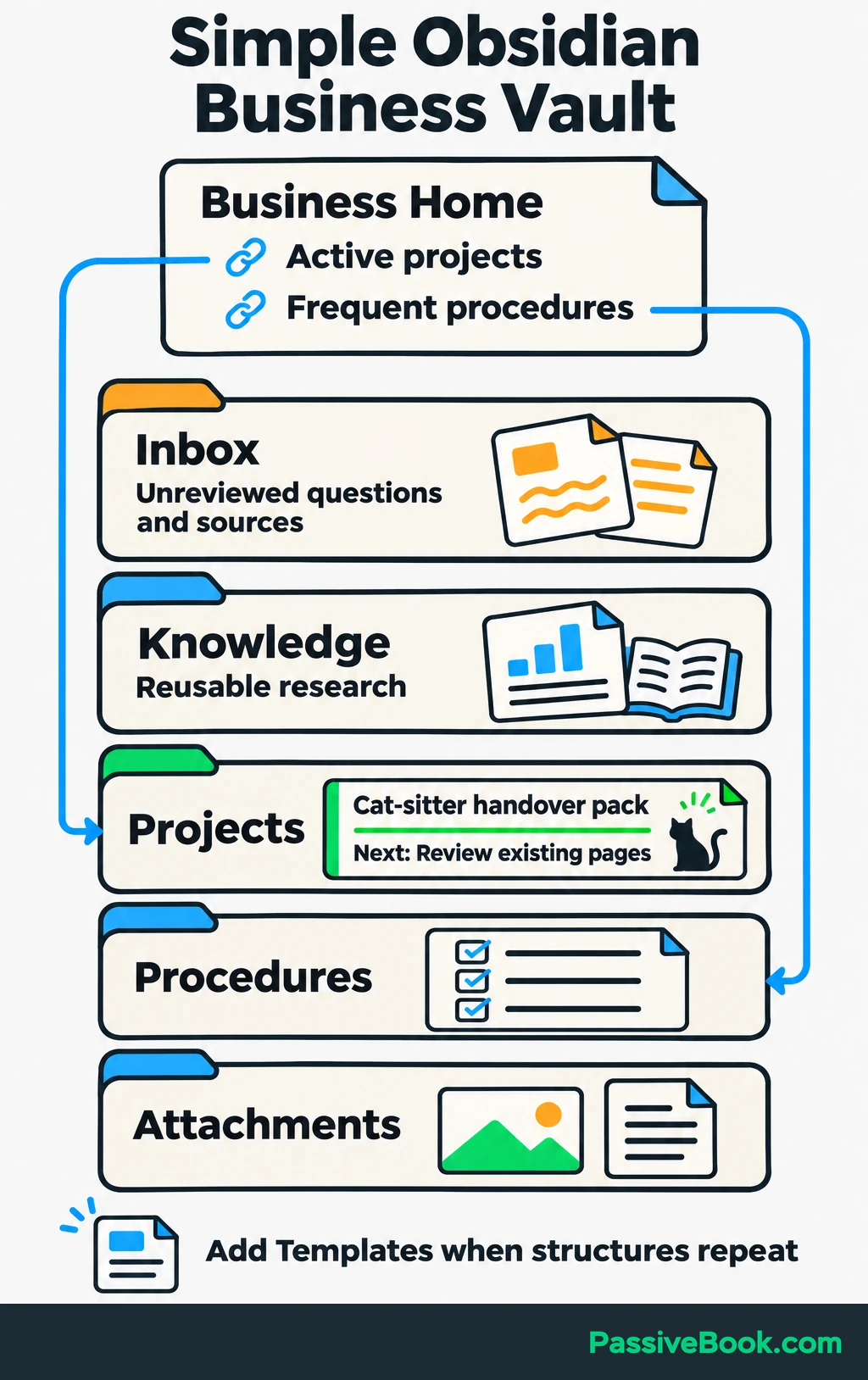
Add Templates when you start reusing note structures.
Next, create a note called Business Home. Link it to active projects and the procedures you open often. Keep it short enough that you can spot the current work immediately.
For our example, create Cat-sitter handover pack in Projects. Begin with its purpose and the next action:
Purpose: Improve the existing printable pack so a cat sitter can find the owner’s routine instructions quickly.
Next action: Review what information the current pack asks the owner to provide.
Link that project from Business Home.
Finally, tell Obsidian to place new attachments in Attachments and update links when you rename notes. In settings, look for Default location for new attachments and Automatically update internal links.
Rename notes inside Obsidian so those updates can happen.
Protect the Vault Before Relying on It
Set up automatic backups that retain earlier versions. Include the whole vault, its attachments, and the hidden .obsidian folder, which holds vault settings.
Keep a recoverable copy outside the working device. A second folder on the same laptop won’t help if the laptop disappears.
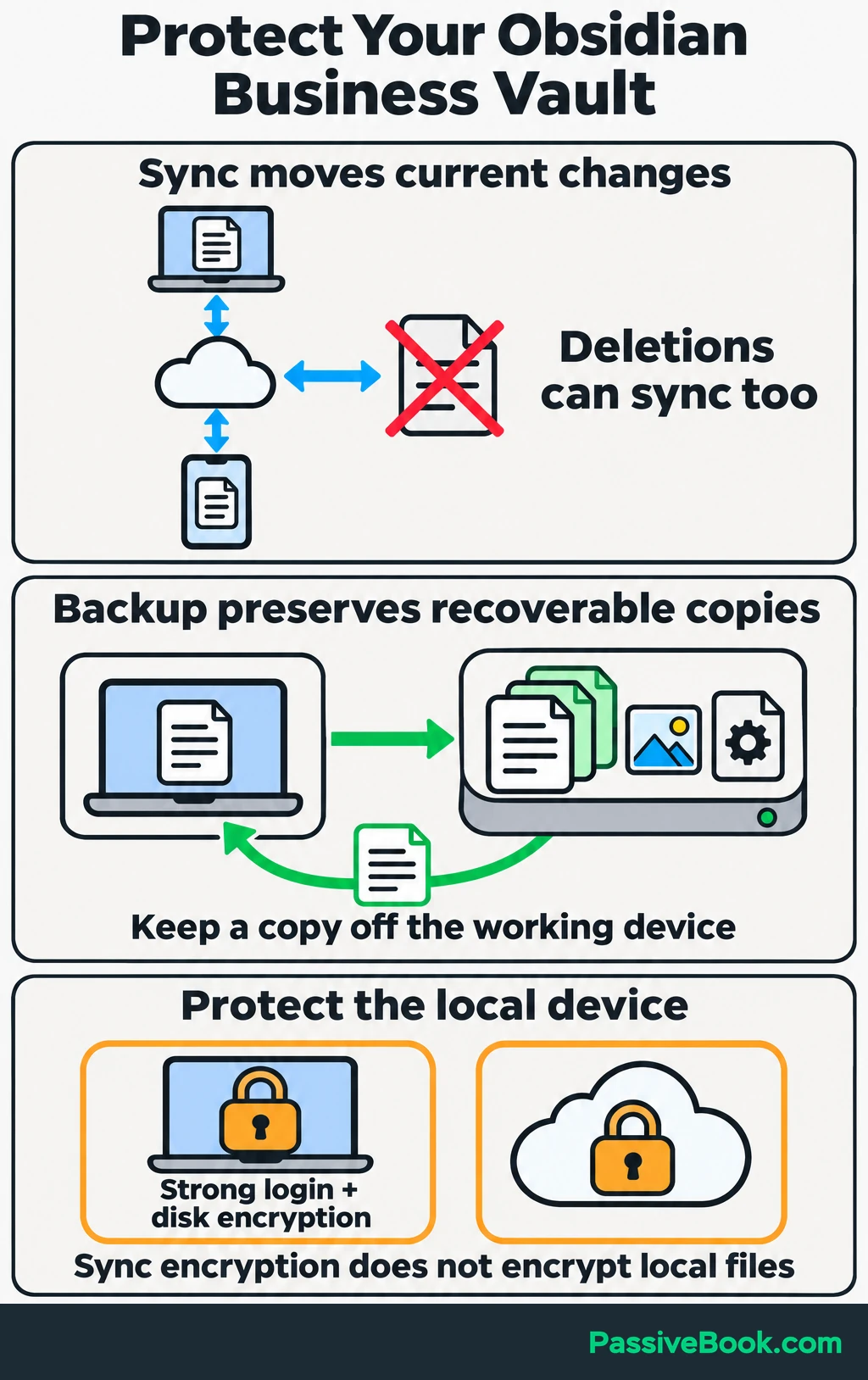
Then test recovery:
- Create a disposable note and add a small attachment.
- Let the backup run.
- Restore the note and attachment into a separate folder.
- Open both restored files.
Sync and backup do different jobs. Sync carries current changes between devices, including deletions. An independent backup preserves copies you can recover. Obsidian makes this distinction in its backup guidance.
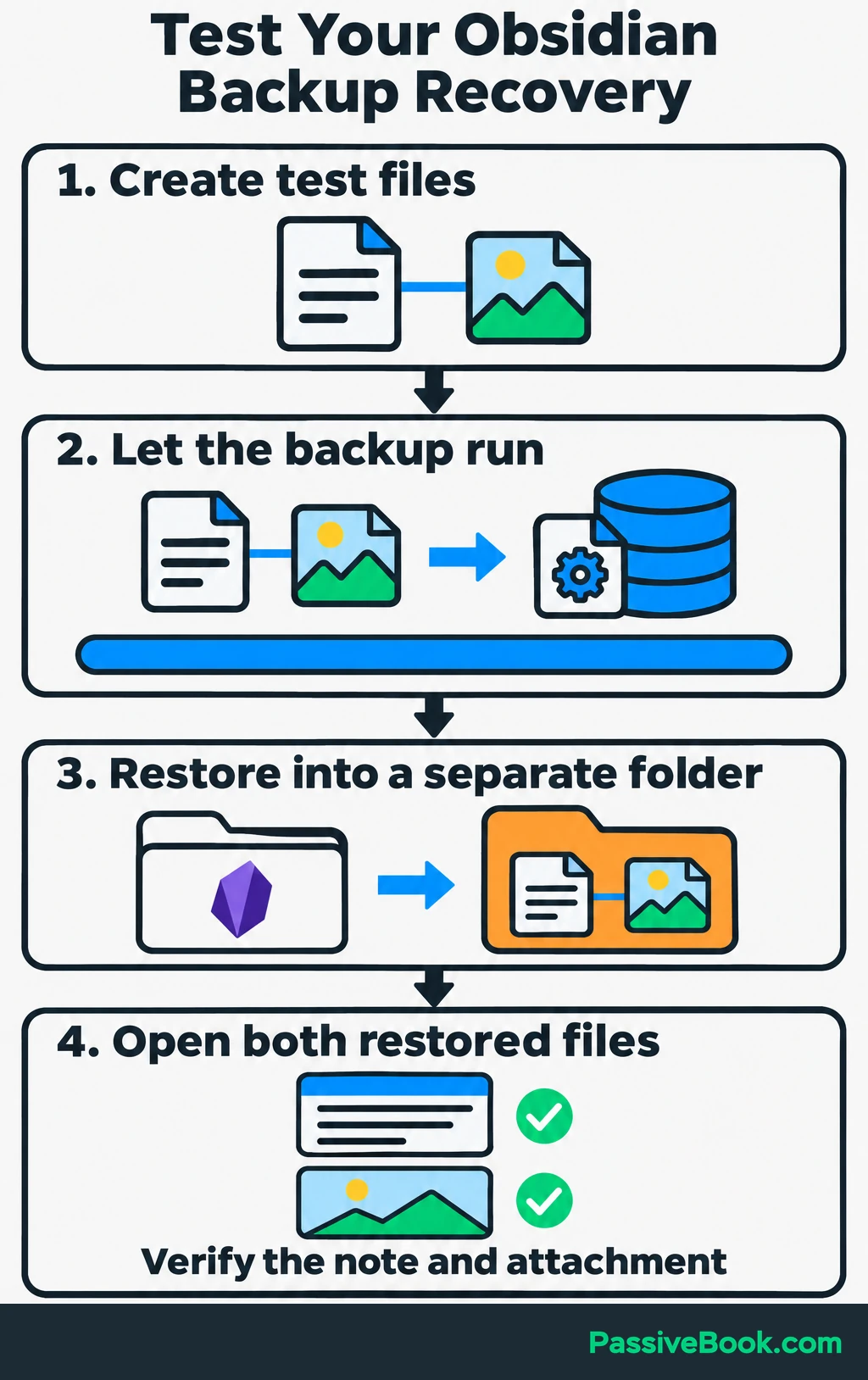
Also protect the device itself. Use a strong login and disk encryption, and avoid copying identifying customer information into research notes. Obsidian doesn’t encrypt the local vault, even when you use end-to-end encryption for its remote Sync copy. Obsidian’s encryption boundaries.
For the handover-pack business, your vault needs decisions about the printable’s layout. It doesn’t need customers’ home addresses or completed sitter instructions.
Capture and Connect Reusable Business Knowledge
Capture information with a reason to keep it. A descriptive title and a sentence about its use will usually help more than a pile of tags.
Start by searching the vault. If a relevant note exists, extend it rather than creating another version of the same explanation.
For our example, create a note titled What information should I leave for a cat sitter?
A useful research note records:
- Question: What are you trying to understand?
- Findings: What does each source actually support?
- Source: Where did the information come from, and what date matters to interpreting it?
- Business Implication: What might this change in your content or product?
- Next Action: What needs checking or doing?
Keep quotations visibly separate from your own interpretation. If you haven’t checked a source, leave the finding unfinished.
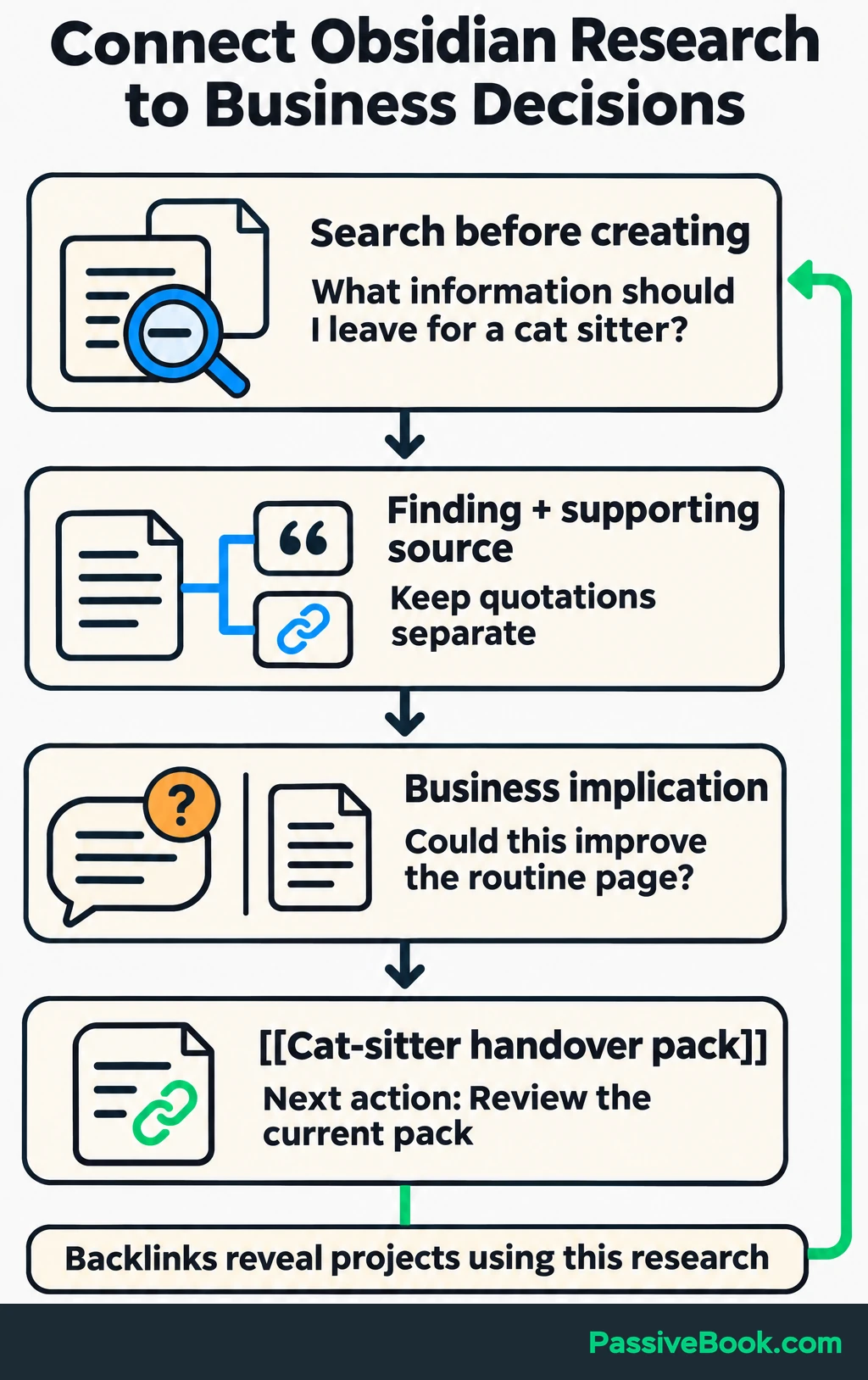
At Passive Book, I’ve returned to an article draft and found a useful source link with no note about which claim it supported. I had to reread the page before I could use it. Now I write the supported point beside the link while it’s fresh. That’s the habit I would bring into an Obsidian research note.
You can learn the formatting as you write:
| Type This | What It Does |
|---|---|
## Findings | Creates a heading |
- Key point | Creates a bullet |
- [ ] Check the source | Creates an unchecked task |
To connect the question to the product, type [[ and select Cat-sitter handover pack. Obsidian inserts an internal link:
[[Cat-sitter handover pack]]Explain the connection beside it:
This question could inform the pack’s routine-summary page and a supporting article.
Then add a link to the question note from the product project. To see which notes point to the question, open the question note and select Backlinks in the right sidebar. These incoming links let you trace which projects use the research.
That becomes useful when several projects rely on the same research. Update the reusable explanation once and let projects link to it. Copying it into five places gives you five places to forget.
If real customer questions start repeating, record the pattern and where you observed it. Keep individual customer records in the system that already manages them.
Create Content and Products From Linked Notes
The next step is to turn useful information into a defined piece of work. Give each deliverable a project note so its evidence, decisions, and unfinished actions stay together.
Build a Reusable Project Brief
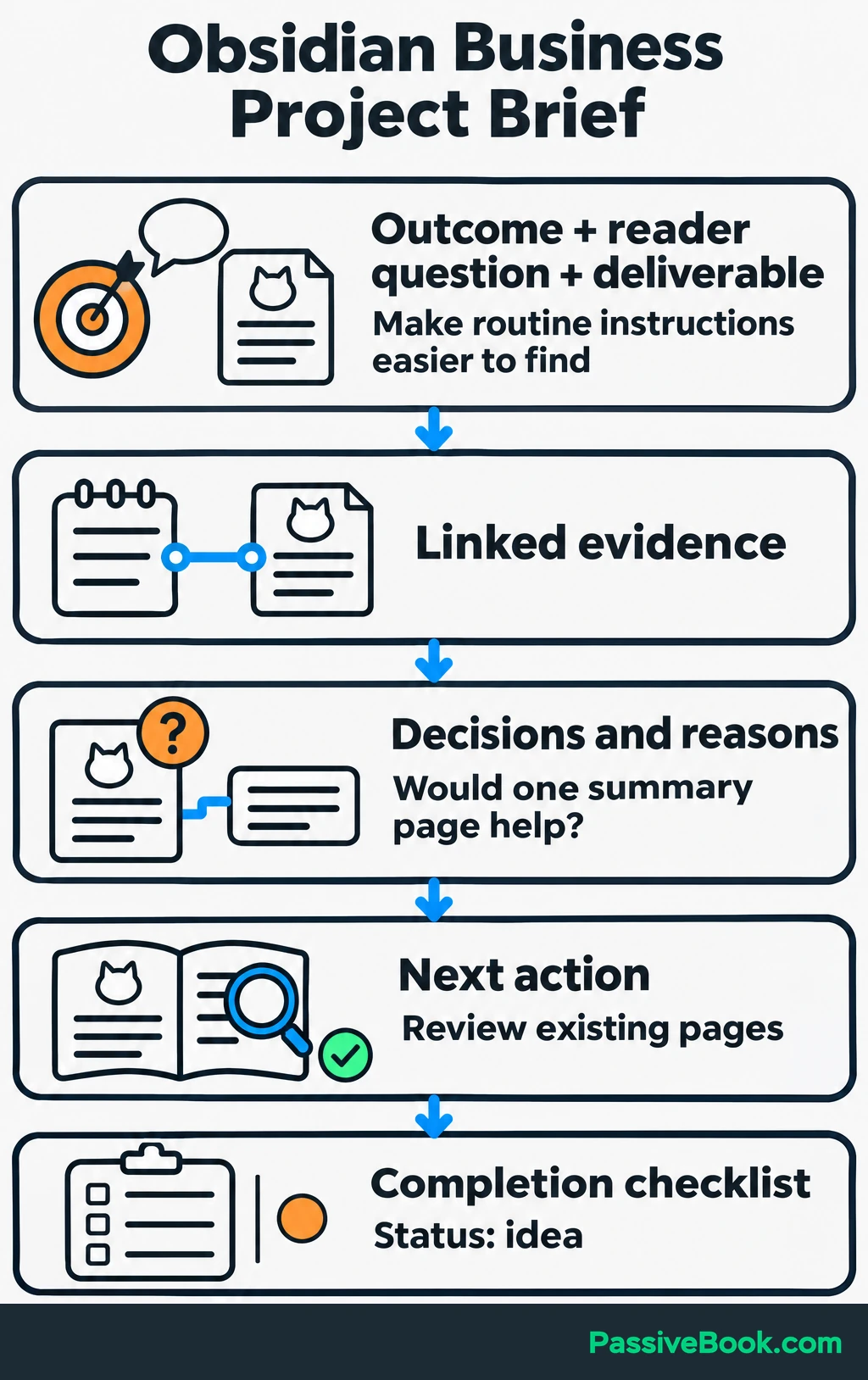
A brief should let you reopen a project and understand what you’re making, why it matters, and what comes next.
Enable the built-in Templates feature, create a Templates folder, and select that folder in the Templates settings. Save a note called Project brief there.
Include space for:
- Intended Outcome: What should exist when the work is done?
- Reader Question: What problem does it address?
- Linked Evidence: Which knowledge notes support it?
- Deliverable: What will you publish or change?
- Decisions: What have you chosen, and why?
- Next Action: What can you do next?
- Completion Checklist: What must be true before you call it finished?
Put {{title}} and {{date}} in the template wherever you want the note title and insertion date to appear automatically. To reuse the brief, create and name a project note. Open the command palette with Ctrl+P on Windows/Linux or Cmd+P on Mac. Choose Templates: Insert template, then select Project brief.
For the handover pack, a short excerpt might read:
Intended outcome: Improve the existing printable pack so a cat sitter can find the owner’s routine instructions quickly.
Linked question:
[[What information should I leave for a cat sitter?]]
Decision needed: Would a one-page routine summary make the pack easier to use?
Next action: Review the existing pages and sketch the proposed summary.
Give the project a simple status: idea, drafting, review, or complete. A plain line is enough at first.
Use checkboxes for its actions and keep the current project linked from Business Home. Put any deadline that needs an alert in your calendar too.
If you’d rather start with your own work than fill in a blank template, the AI Obsidian Note Assistant can turn your rough notes into a linked project, supporting knowledge note, and Business Home. You’ll get Markdown files to open in Obsidian, without adding plugins.

Free AI Obsidian Note Assistant




Turn Research Into an Article
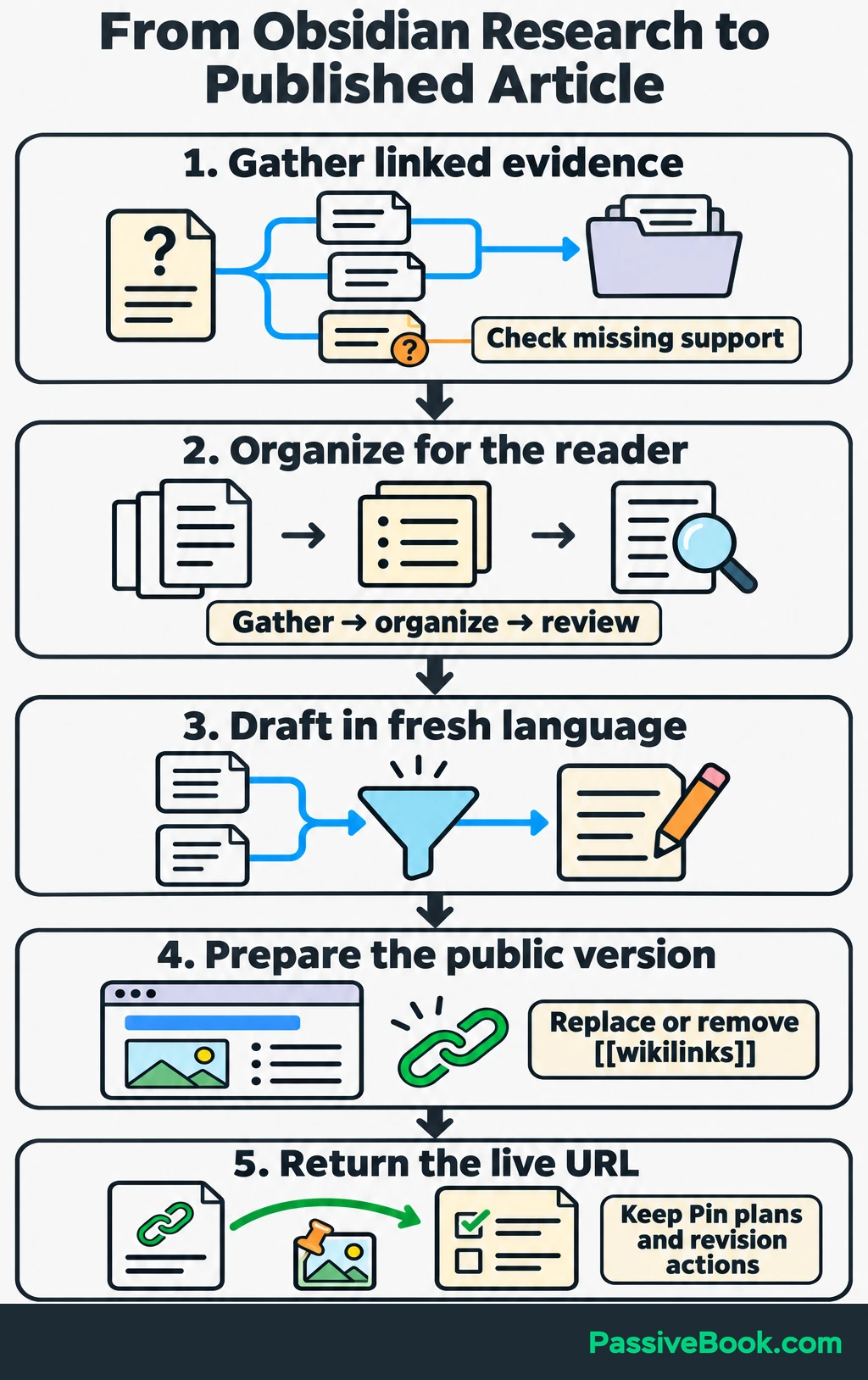
Begin with the question the article must answer. Then gather the linked notes, identify missing evidence, and arrange the answer before drafting.
For an article about organizing cat-sitter instructions, I would:
- Link the question note and the handover-pack project.
- Review the sources and flag anything that still needs checking.
- Arrange the article around the reader’s task: gather their instructions, organize them, and review whether they’re easy to find.
- Draft the explanation in fresh language.
- Add a relevant mention of the printable where it helps the reader.
Use the notes to decide what belongs in the article. Pasting them together usually preserves the order you researched things, which may be a poor order for explaining them.
Keep evidence and your application separate. If a source recommends leaving written feeding instructions, record that recommendation beside its link. Putting those instructions on a one-page summary is your design choice unless the source also supports that layout.
When the draft is ready, transfer it to your publishing platform. I would use WordPress for the blog. Replace internal [[wikilinks]] with suitable public links or remove them, and preview headings, images, lists, and spacing.
After publishing, return the live URL to the article’s project note. Add feedback when it changes a decision: perhaps a reader points out an unclear instruction, so you create a revision task.
At Passive Book, publishing a blog post also means preparing its Pinterest Pins. For the cat-care article, I would keep each Pin’s message and destination URL in the article’s project note so that work is ready to pick up after publishing.
Keep traffic reports in your analytics tools. Save the finding that changes the work, such as a topic to investigate or a page to revise, with a link back to the report.
Turn the Same Knowledge Into a Product Improvement
An article can explain a problem while a product helps someone complete the task. Linked notes let both draw on the same research.
In the product project, define the problem, proposed change, scope, and completion criteria before opening your design tool.
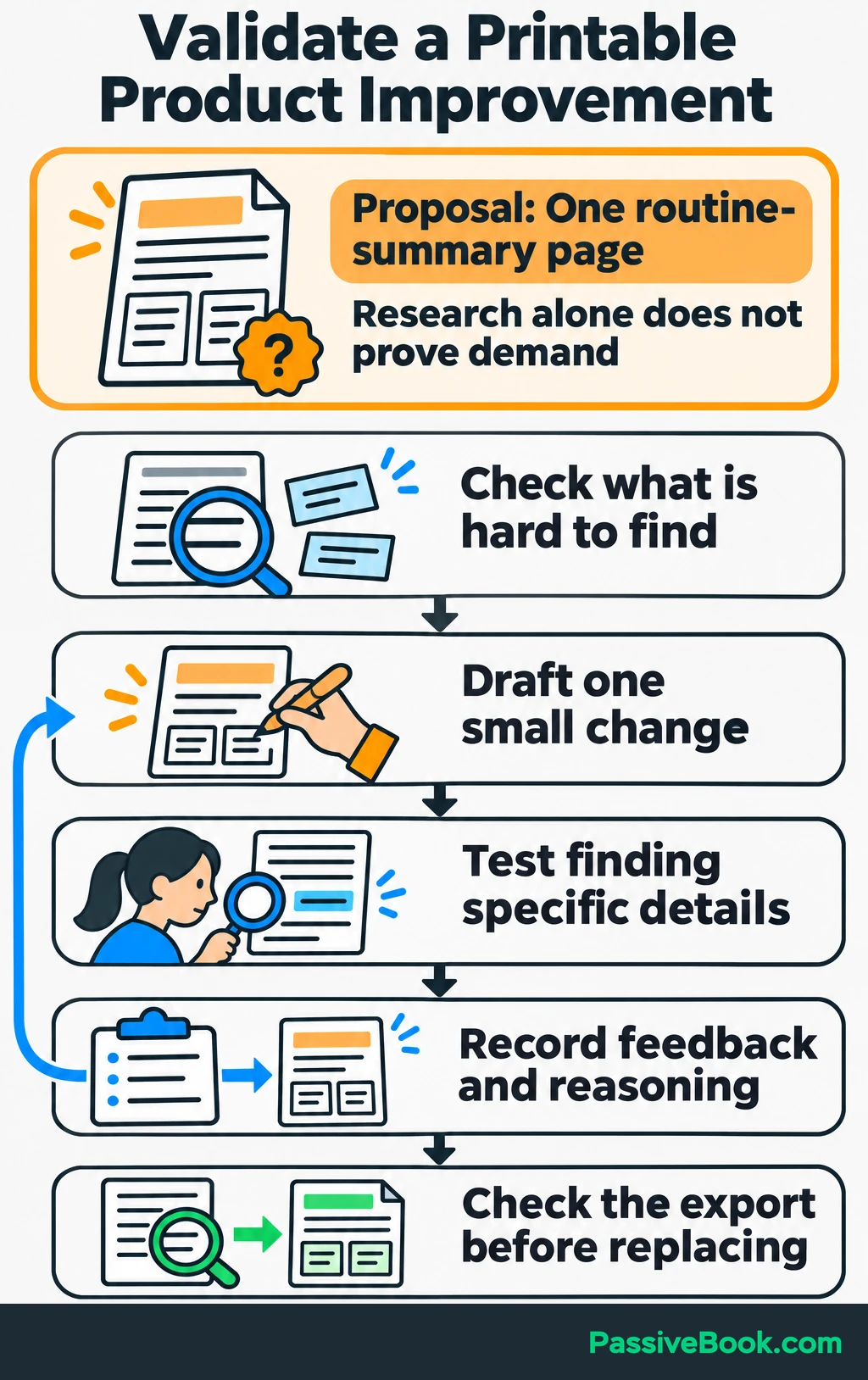
For the handover pack, the proposed requirement is:
Add a one-page routine summary with space for the owner’s instructions.
That’s a proposal to check. The existence of a research note doesn’t prove that buyers want another page.
I would keep the first revision small:
- Check the Need: Review the existing pack and relevant feedback for information that is hard to find.
- Draft the Change: Lay out one summary page in Canva.
- Test the Layout: Ask someone to locate specified details using sample entries.
- Record the Decision: Note what they found easily, what confused them, and what you changed.
- Complete the Revision: Check the exported printable before replacing the delivered file.
Record actual feedback beside the requirement when you have it. Don’t overwrite the reasoning with “done,” because the next revision may raise the same question.
Keep checkout and delivery in WooCommerce, Gumroad, or your existing selling platform. Save the product link and any unresolved improvement ideas in Obsidian.
Document Repeatable Business Procedures
Write a procedure after you’ve completed the task. You’ll have real steps and exceptions to document.
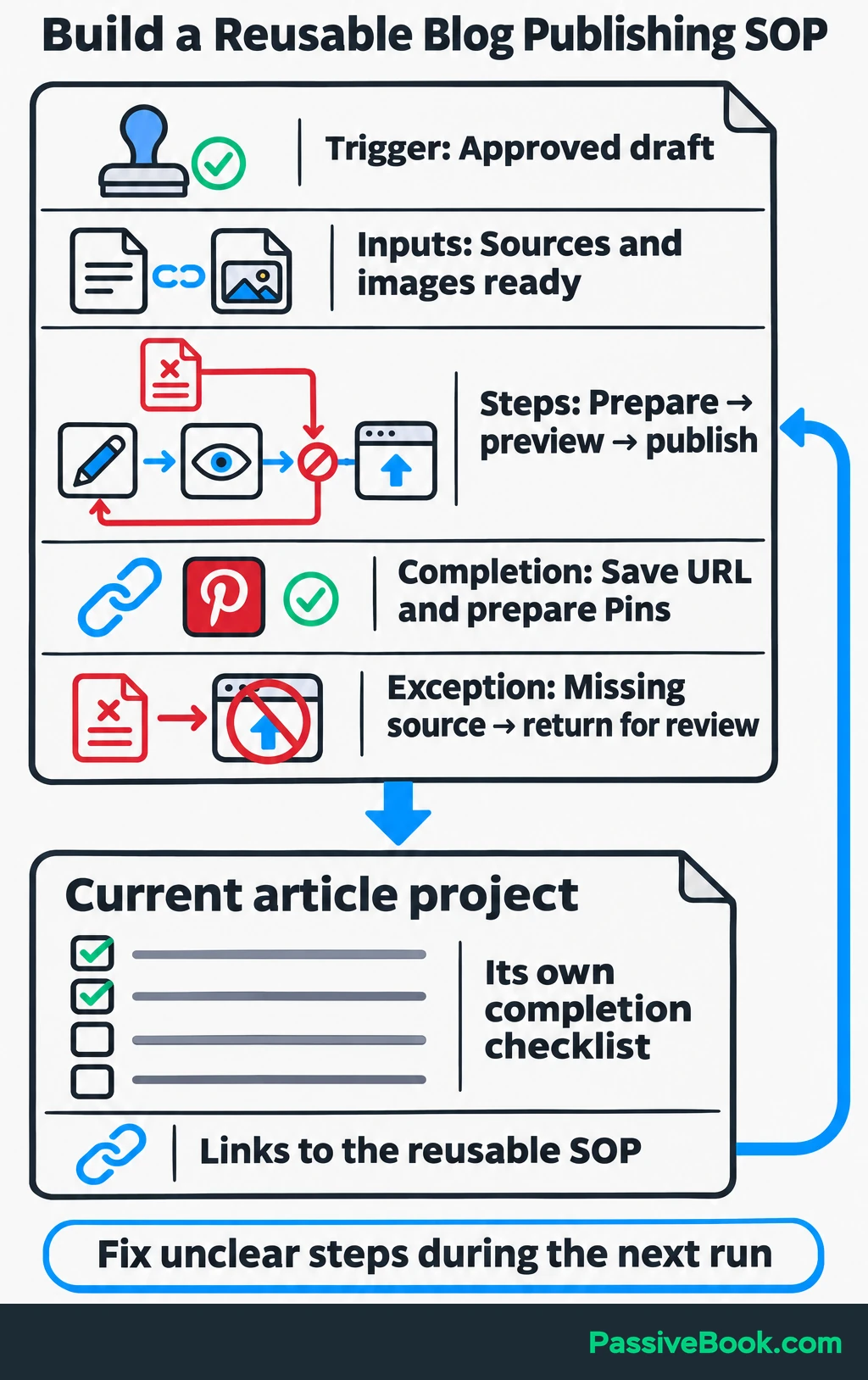
A standard operating procedure, often shortened to SOP, should explain:
- Trigger: What starts the task?
- Inputs: What must be ready?
- Steps: What happens, and in what order?
- Completion Check: How do you know it worked?
- Exceptions: What should happen when something is missing or wrong?
For Publish a cat-care article, the trigger could be an approved draft with sources and images ready.
The steps would cover preparing that draft in WordPress, checking links and media, previewing the page, publishing, recording the live URL, and preparing the Pinterest materials.
Include the decisions that someone could otherwise get wrong. For example:
If a source needed for a factual claim is missing, return the draft for review before publishing.
Keep these reusable instructions in the procedure note. The current article’s project note should hold its own completion checklist and link to that procedure.
On the next article, follow the instructions as written. Fix any missing step or vague phrase while the problem is obvious. “Check everything” is a wish wearing a checkbox.
Save the structure as a procedure template once it works. If another person will use it, add an owner and review date so there’s a clear person to contact when the process changes.
Access Your Business Notes Across Devices and Teams
Choose access based on the work you need to do. Reading your own notes on a phone, reviewing a draft with an editor, and publishing public documentation are different jobs.
Sync Your Own Devices
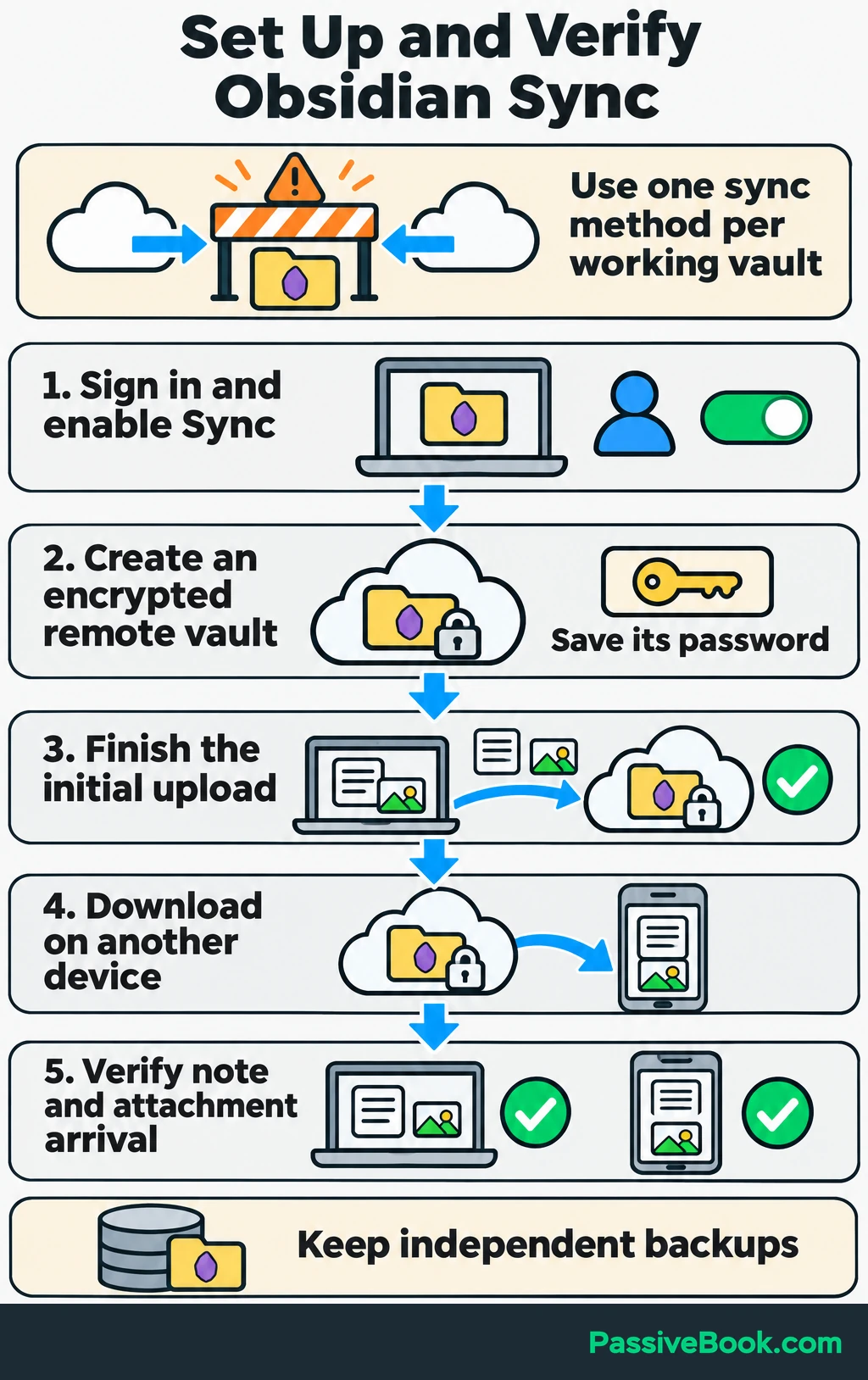
Choose one sync method that supports every device you need.
I would use Obsidian Sync when I wanted the simplest supported option across desktop and mobile. It’s a paid service, but it avoids much of the setup involved in third-party methods.
If you already have a suitable cloud service, check its compatibility before using it. A method that works on a laptop may need extra tools or have limitations on a phone. Obsidian’s sync options guide explains those differences.
Before connecting anything, check whether another service already syncs the working vault. Some desktop folders are managed by iCloud or OneDrive without much ongoing attention from you. Obsidian warns that using competing sync services on the same files can cause conflicts. Guidance on switching sync methods.
With Obsidian Sync, the basic setup is:
- In your original vault, sign in to your Obsidian account and enable the built-in
Syncfeature. - In Sync settings, create a remote vault—the copy held by the Sync service. Choose end-to-end encryption and save its password in your password manager.
- Connect the original vault to it and let the initial upload finish.
- On each additional device, use Obsidian’s Sync setup to download that same remote vault.
- Create a test note with an attachment and confirm both arrive on the other device.
Once the test works, you can capture a question on your phone and continue working on it from your computer. The backup you configured earlier still has a separate job.
Share the Material Collaborators Need
For occasional feedback, I would hand off a selected draft through Google Docs or an existing Notion workspace. Comments and simultaneous editing are useful when you’re reviewing the same wording.
Return the approved decision and final document link to the Obsidian project note. That preserves the outcome without copying every comment.
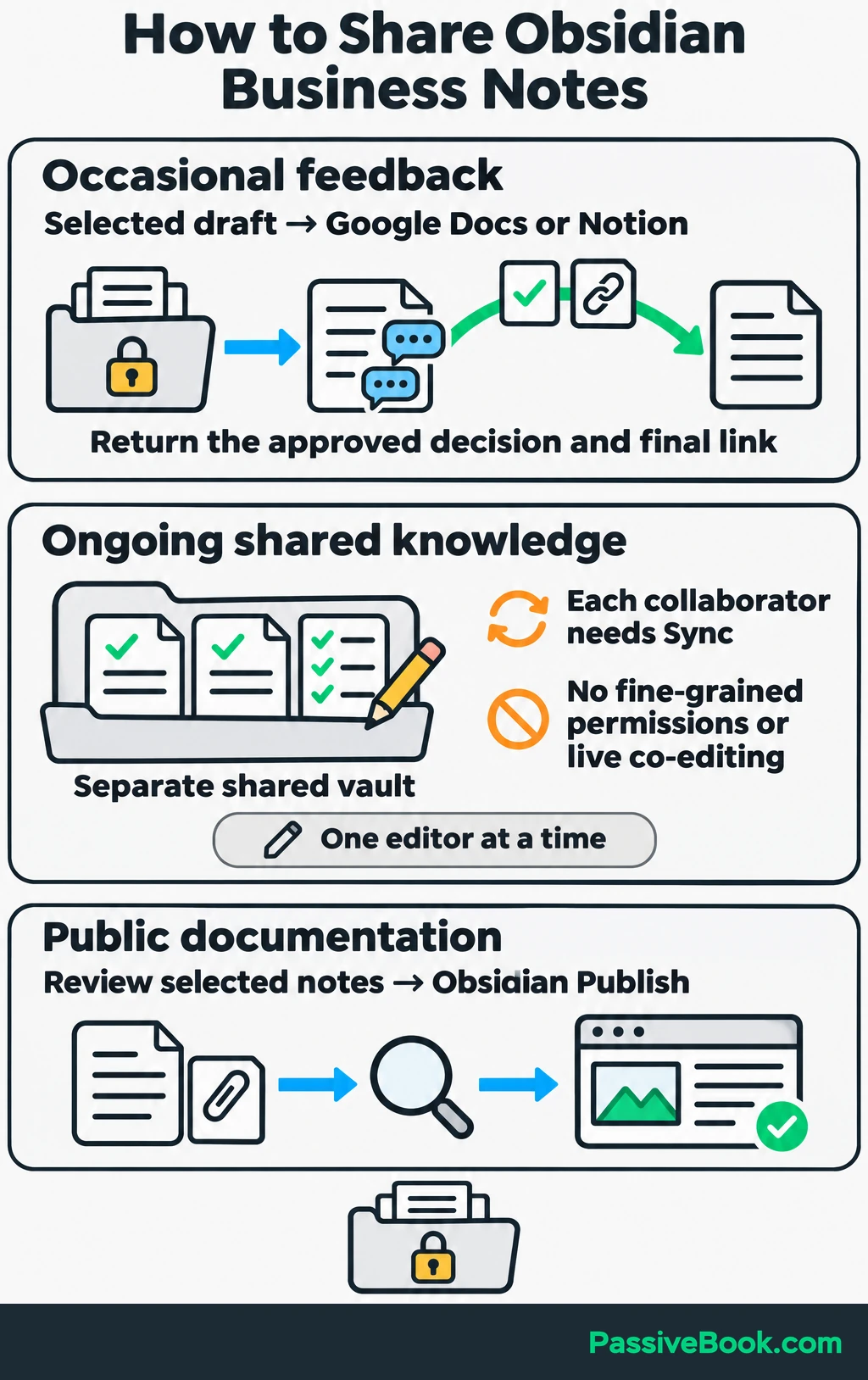
A separate shared vault makes sense when collaborators need ongoing access to the same knowledge. Every collaborator needs an active Sync subscription, and shared vaults lack fine-grained permissions and live co-editing. Assign one person to edit a shared note at a time. Shared-vault capabilities.
Keep the shared vault limited to material everyone involved should access. For our example, an editor might need article procedures and approved research, while private business planning stays elsewhere.
If selected notes should become a public documentation website, consider Obsidian Publish. Review the selected notes and linked attachments before publishing.
I would keep the existing WordPress blog where it is. Publish earns a place when you have a separate documentation need; it doesn’t need to become another project simply because it’s available.
Keep the Vault Useful Without Overbuilding It
Review the Inbox during an existing planning session. Connect useful captures to current projects, move reusable explanations into Knowledge, and delete material with no clear use.
Update Business Home when priorities change. Move finished projects into an archive when they clutter active work, but preserve their decisions and links.
You’ll eventually notice repeated bits of information such as status or project type. These can become properties: named fields attached to a note.
For example, an article note could have a type of article and a status of review. Obsidian’s built-in Bases feature can use those properties to filter, sort, and edit a project list. Add it when maintaining the Home note becomes cumbersome. What Bases can do.
I would skip community plugins during the first project. Add one when you can name a repeated problem it solves.
That also keeps the trust decision clear. Community plugins inherit Obsidian’s access and can access files and the internet, so install only plugins whose authors you trust. Obsidian’s plugin security guidance.
The same rule applies to automation. If you already use n8n or Make to connect your business apps, consider capturing approved feedback as new Markdown files in Inbox. The workflow must be able to write to the vault folder; an app connection alone won’t give it access to files on your laptop. Check that new notes arrive correctly before allowing it to change existing notes.
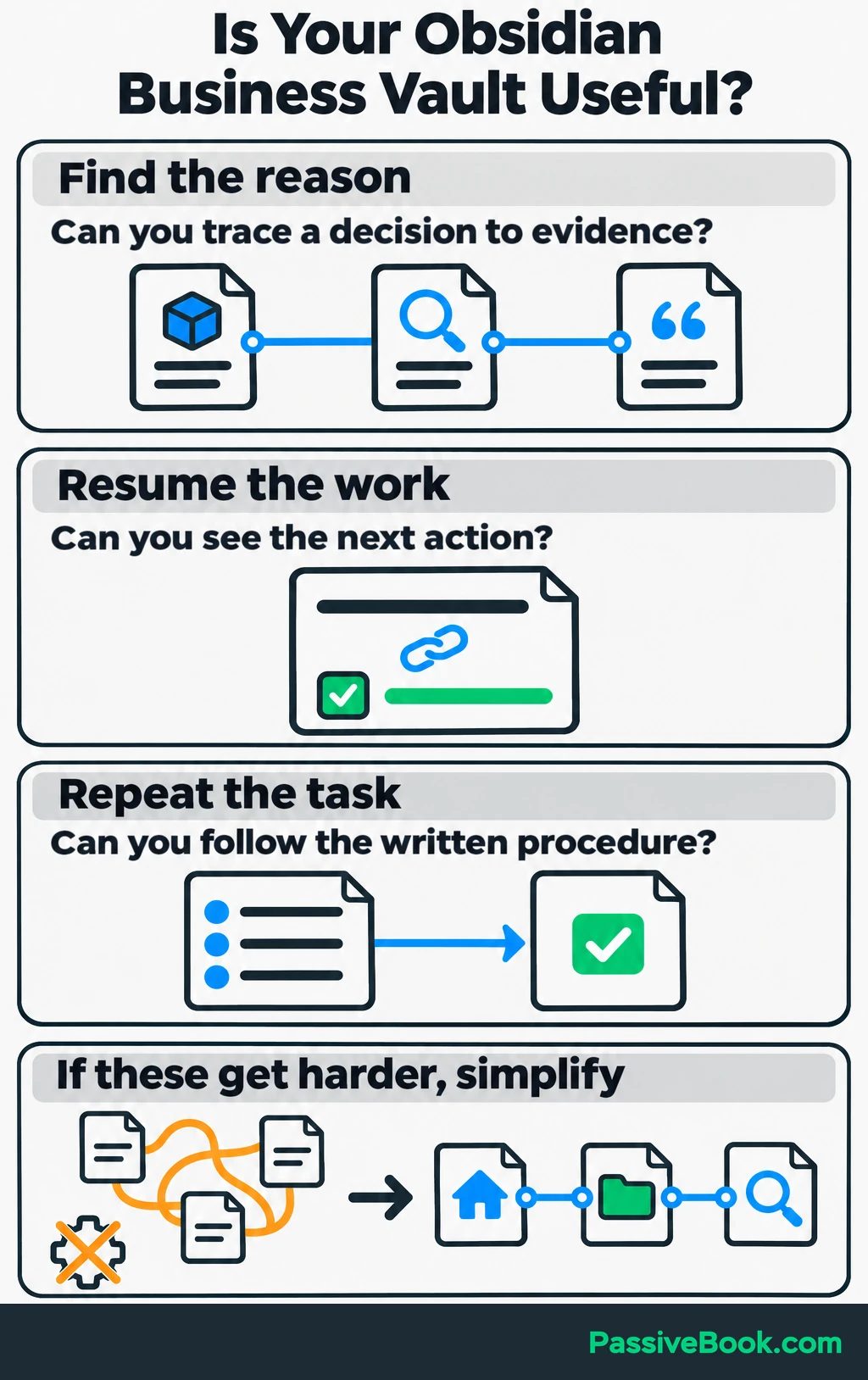
Judge the vault by three practical checks:
- Find the Reason: Can you locate the evidence behind a product or content decision?
- Resume the Work: Can you open a project and see its next action?
- Repeat the Task: Can you follow a procedure without rebuilding it from memory?
If the structure makes those harder, simplify it. A knowledge system should help you finish business work. Maintaining the knowledge system is a remarkably easy substitute.
What Next?
Create one vault and add one unfinished project with its purpose, supporting notes, and next action. Set up and test its backup before making it your main working copy.
Use the social buttons to share this guide if the question-to-project workflow would help your business circle put saved research to work.
Which piece of business work do you most often have to reconstruct before you can continue? Leave it in the comments, along with any other questions about using Obsidian.
Share this post with your friends & followers:

