You saved the guide, wrote a note about it, and bookmarked the original page. Now you need the answer, but you can’t remember which copy has your latest changes.
That uncertainty makes a small task take longer. You search again, reread the source, and wonder why you bothered saving it. This guide shows how to keep searchable answers connected to their sources in Notion, so you can check what’s current and reuse it without piecing together scattered copies.
Decide What Your Knowledge Base Should Answer
Before creating folders or choosing a template, list the questions you keep asking. Start with five that would save you another search or help you finish a recurring task.
For our running example, imagine you run a small online shop selling watercolor cat portraits. Two useful questions are:
- Where are the print provider’s current file requirements?
- How do I check a portrait file before ordering?
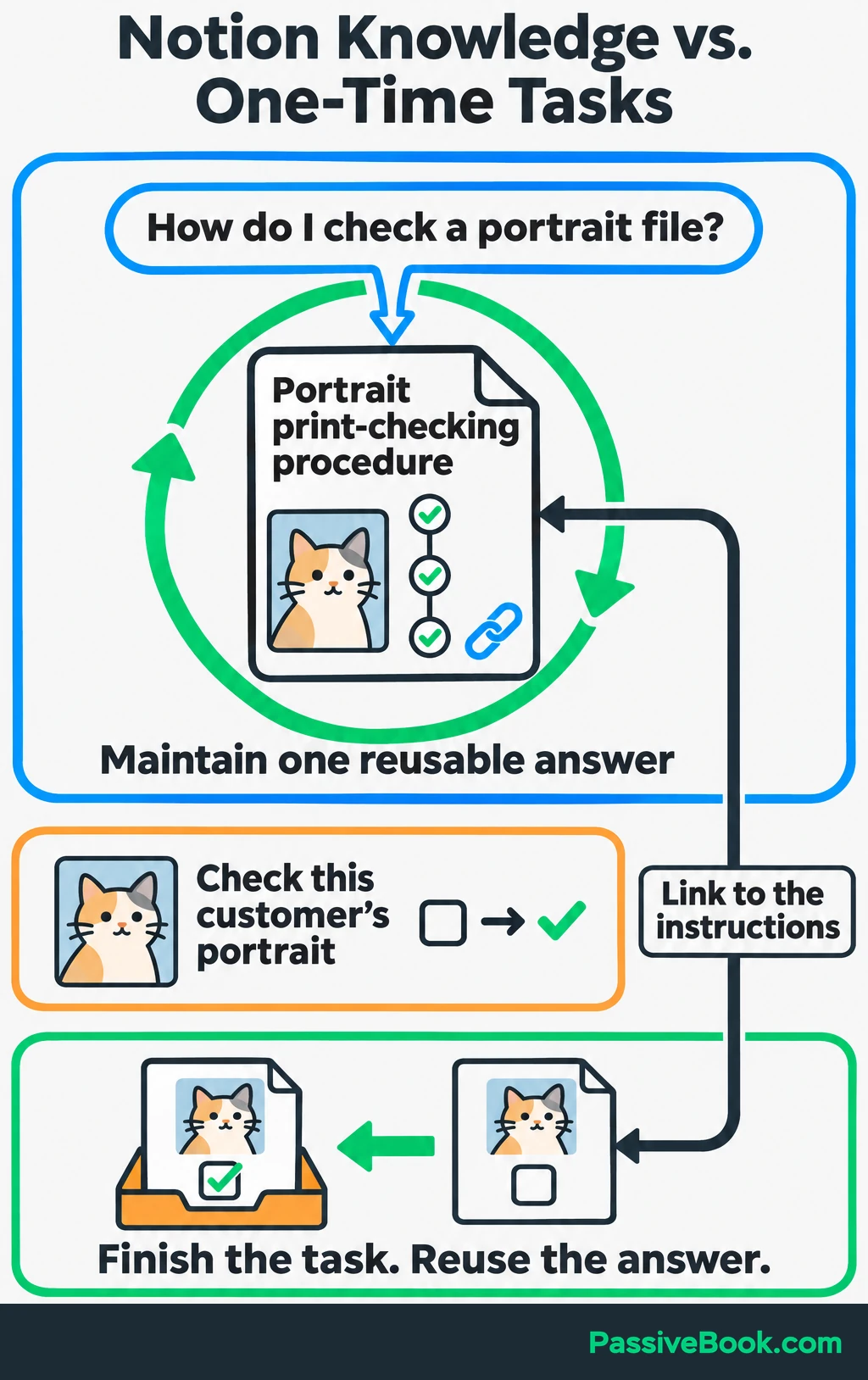
Those questions tell you what belongs in the knowledge base: reusable research, procedures, and decisions.
Keep active work in your project or task system. “Portrait print-checking procedure” is reusable knowledge. “Check the file for this customer’s portrait” is a task with an end.
A source of truth means each reusable answer has one maintained home. Other pages link to that answer, and the answer links to its supporting sources. You know where to update it when something changes.
I would start with Notion Free for an individual setup. Check the limits before moving attachments or inviting others: Free caps uploads at 5 MB per file and limits blocks in workspaces with two or more members. Blocks are the pieces of content on a page, such as paragraphs and images. See Notion’s plan comparison for current details.
Move only a handful of frequently used notes first. You need to test whether this system helps you use information before giving it your entire archive.
Build a Home Page and One Knowledge Database
Create the Home Page
Create a private page called “Knowledge Home.” Inside it, create a full-page database called “Knowledge” with a table layout. Choose a database rather than a simple table so each entry can hold its own page.
Home provides navigation. Knowledge stores the reusable entries.
Open a database entry and write inside it. Its properties hold short labels, such as its topic and status, while the page body holds explanations, steps, sources, images, and files.
Add a link from Home to your existing project or task system. It can stay in another tool. Moving between a task and its instructions matters more than putting everything in one app.
Before adding private information, check access to Home, Knowledge, and any parent pages. New subpages inherit their parent’s permissions, so creating a page inside a shared area can give others access. Give contributors only the access they need, following Notion’s permission rules.
Add Properties That Support Retrieval
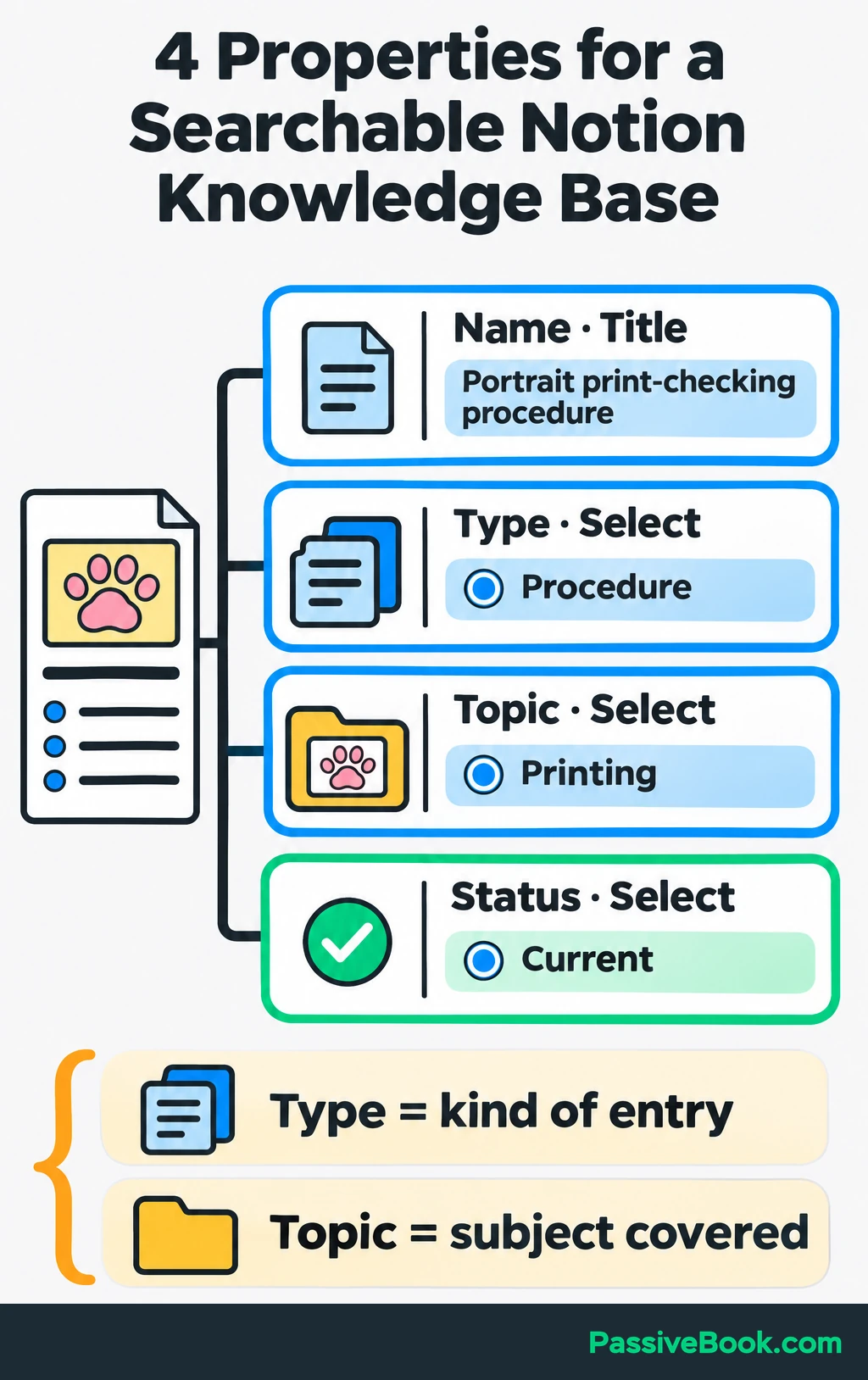
Use four properties to start. Rename the existing title column to “Name” if needed, then add the other three.
| Property Name | Notion Property Type | Purpose | Example Value |
|---|---|---|---|
| Name | Title | Identify the answer or resource | Portrait print-checking procedure |
| Type | Select | Describe the entry’s purpose: Research, Procedure, or Decision | Procedure |
| Topic | Select | Group entries by subject | Printing |
| Status | Select | Separate Inbox, Current, and Archived entries | Current |
Type and Topic do different jobs. “Research” tells you what kind of entry you’re opening. “Printing” tells you what it covers.
Choose titles you would recognize during a search:
- “Portrait print-checking procedure”
- “Portrait print requirements — research notes”
“Useful stuff” is quick to type and expensive to find.
Keep the topic list short. Reuse “Printing” rather than adding “Print,” “Print files,” and “Printer research” as separate topics.
Put sources and the last substantive review date inside each page for now. Add more properties when you need to filter or sort by them. You don’t need a column for every fact you might someday collect.
Create Inbox and Current Knowledge Views
Views let you see selected entries without moving them into separate databases.
Create these three views using the database’s view controls and filters:
| View Name | Filter | What You Use It For |
|---|---|---|
| Inbox | Status is Inbox OR Status is empty | Find captures that still need processing |
| Current knowledge | Status is Current | Browse answers ready to use |
| All entries | No filters | Find anything, including archived or incomplete entries |
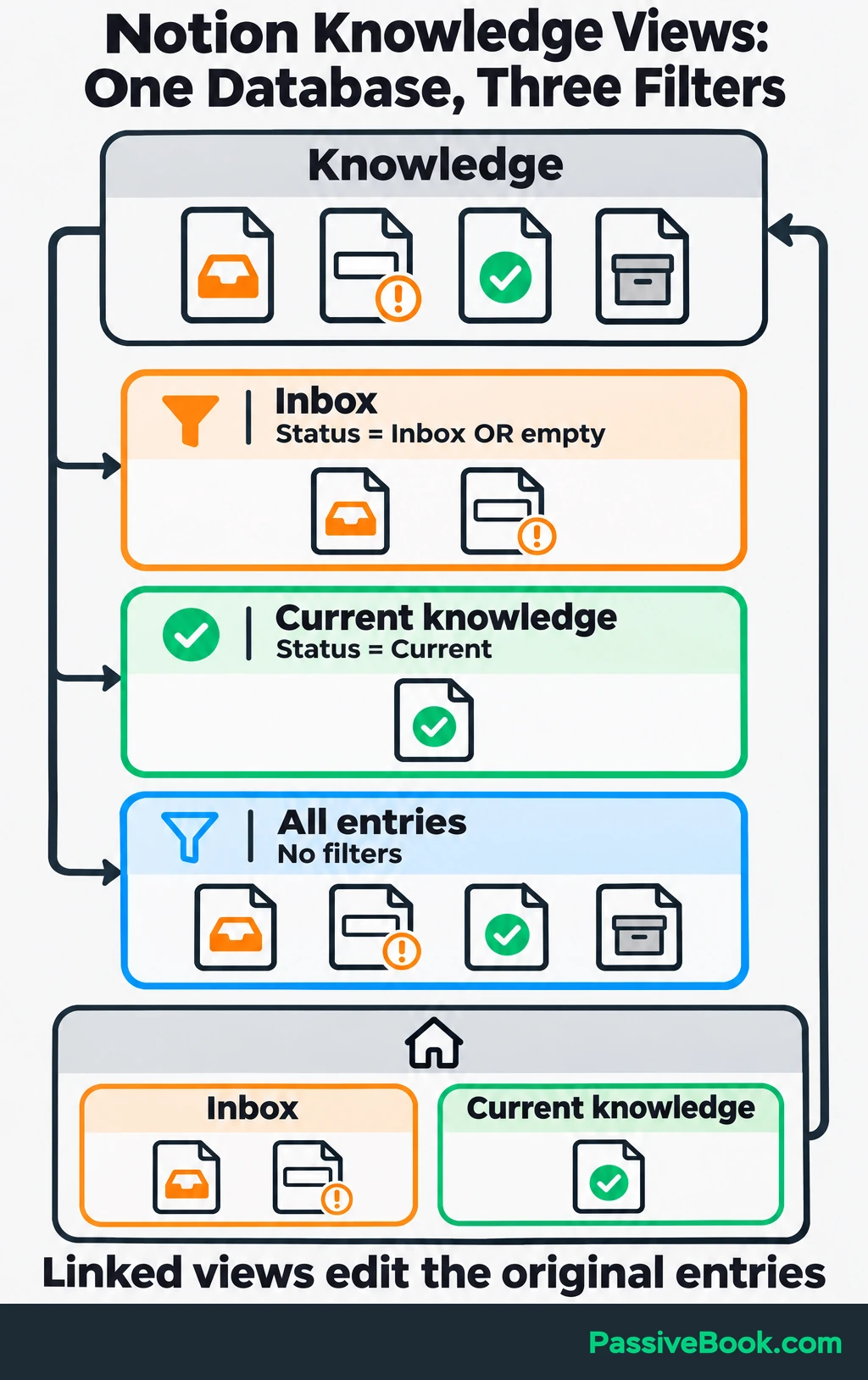
The empty-status condition catches entries that arrived without a status. Otherwise, a saved note could disappear from your usual review view before you process it.
On Home, add linked views of the existing Knowledge database. Type /linked, choose the linked-view option, and select Knowledge. Show an Inbox view and a Current knowledge view there.
Both linked views show the original entries, so edits made through Home update Knowledge. Each view can have its own filters and layout.
If you’d rather start with the views already connected, you can duplicate the Business Knowledge Hub. It includes worked examples showing how to link research, procedures, and decisions without maintaining the same answer twice.

Free Business Knowledge Hub




Capture New Information in the Inbox
Capture should be quick enough that you’ll do it while busy. Each new entry needs:
- A recognizable title.
- Its original source or the context in which you learned it.
- One sentence explaining why it deserves a place in your system.
- Status set to Inbox.
For the portrait shop, you could save the print provider’s file guide with this note:
Keep these requirements so I can check future portrait files before ordering.
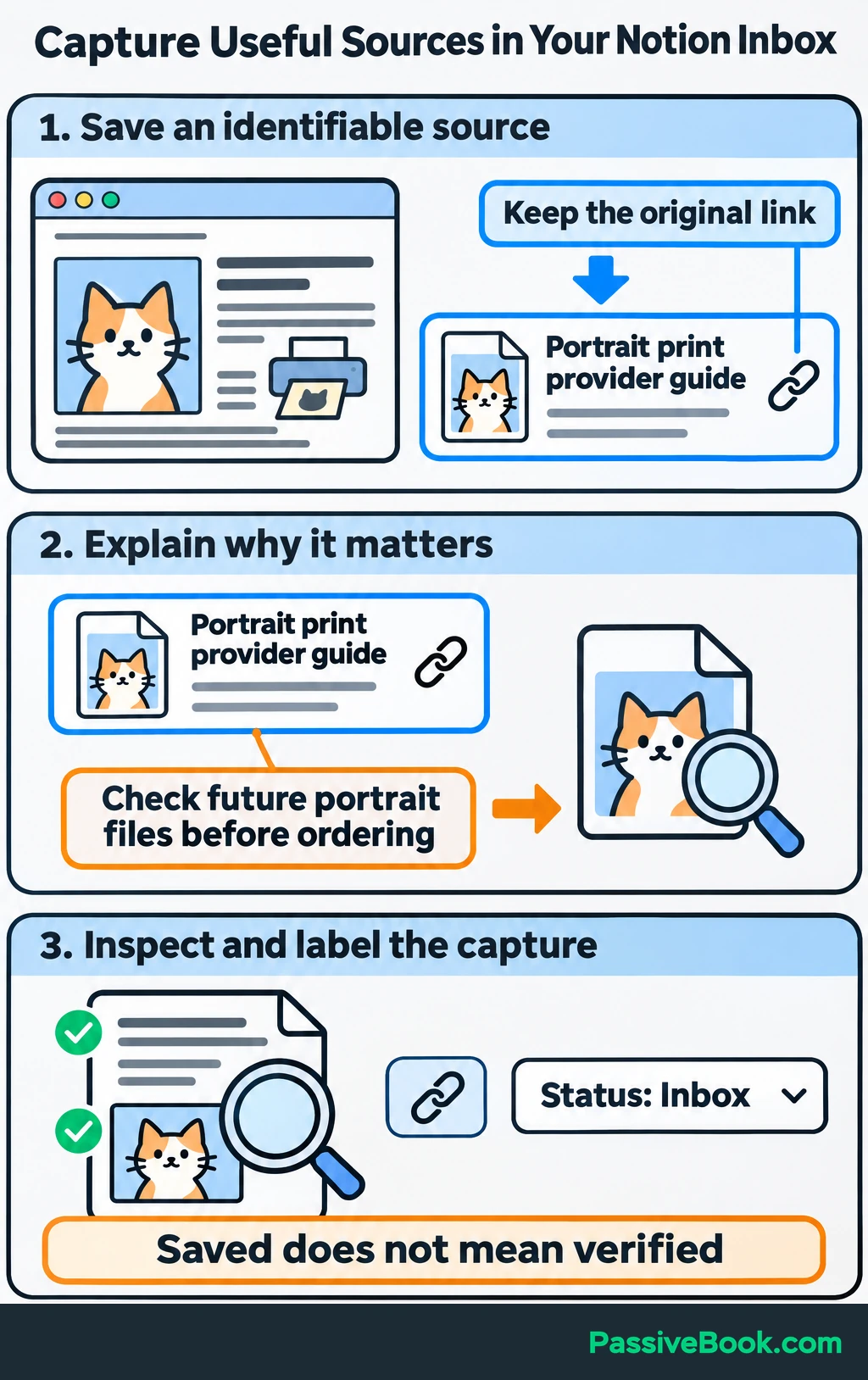
That sentence gives the capture a purpose. Without it, you may return to a long page and have no idea which part mattered.
Use Notion Web Clipper, a browser extension, to save web pages to Knowledge. On your phone, share a page from the browser to the Notion app and choose Knowledge.
Open the saved entry afterward. Check that the relevant text or images came across, keep the original address, add your context sentence, and set its status. Saving a page gets it into the system; it still needs your judgment.
Bring existing notes across in small batches as you need them. Check transferred text and attachments before removing original copies. I would leave an old archive alone until something in it becomes useful again.
Turn Captured Material Into Reusable Answers
Create a Simple Knowledge Page Template
A template gives new entries the same useful prompts, so you don’t have to remember what to include.
Open the dropdown beside the database’s New button and choose New template. Name it “Knowledge entry” and set Status to Inbox.
Add these prompts to its body:
- Question answered: What question should this page resolve?
- Short answer: What does the reader need to know first?
- Details or steps: What explanation or actions support the answer?
- Original sources: Where did the information come from?
- Related knowledge: Which maintained pages help someone use this?
- Last checked: When was the answer checked against its sources?
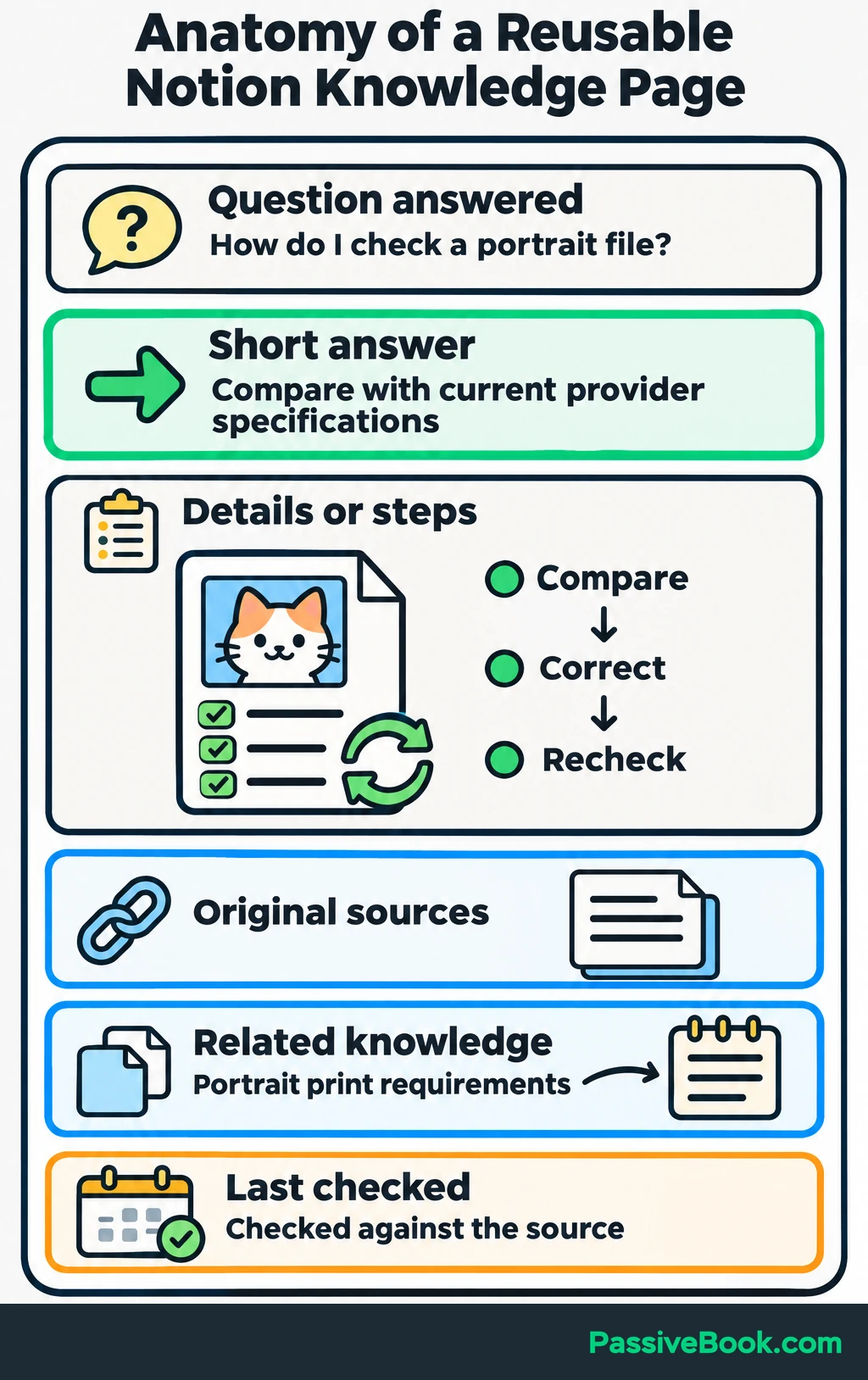
Choose this template when creating a new entry. Give the entry its own descriptive title and replace the prompts with useful content.
Put the answer near the top, then shape the details around the entry’s purpose:
- Research: Record the useful findings and their evidence.
- Procedure: Give ordered steps and a clear completion condition.
- Decision: Record the choice and why you made it.
For “Portrait print-checking procedure,” the opening could be:
Question answered: How do I check a portrait file before ordering?
Short answer: Compare the file with the print provider’s current specifications before submitting it.
Follow that with a compact procedure:
- Open the provider’s current specifications for the print product you’re ordering.
- Compare the portrait file’s dimensions, format, and other listed requirements.
- Correct mismatches and check the file again.
- Record the specification source and the review date.
The completion condition is simple: the file meets the provider’s listed requirements for that product.
Keep the actual requirements in the linked research note. That gives you one place to maintain changing values.
Process Each Item Before Marking It Current
An Inbox entry is something you saved. A Current entry is something you have checked and prepared for reuse.
Start by reading the capture and deciding whether to keep, merge, or delete it. Search for an existing answer before creating another maintained page.
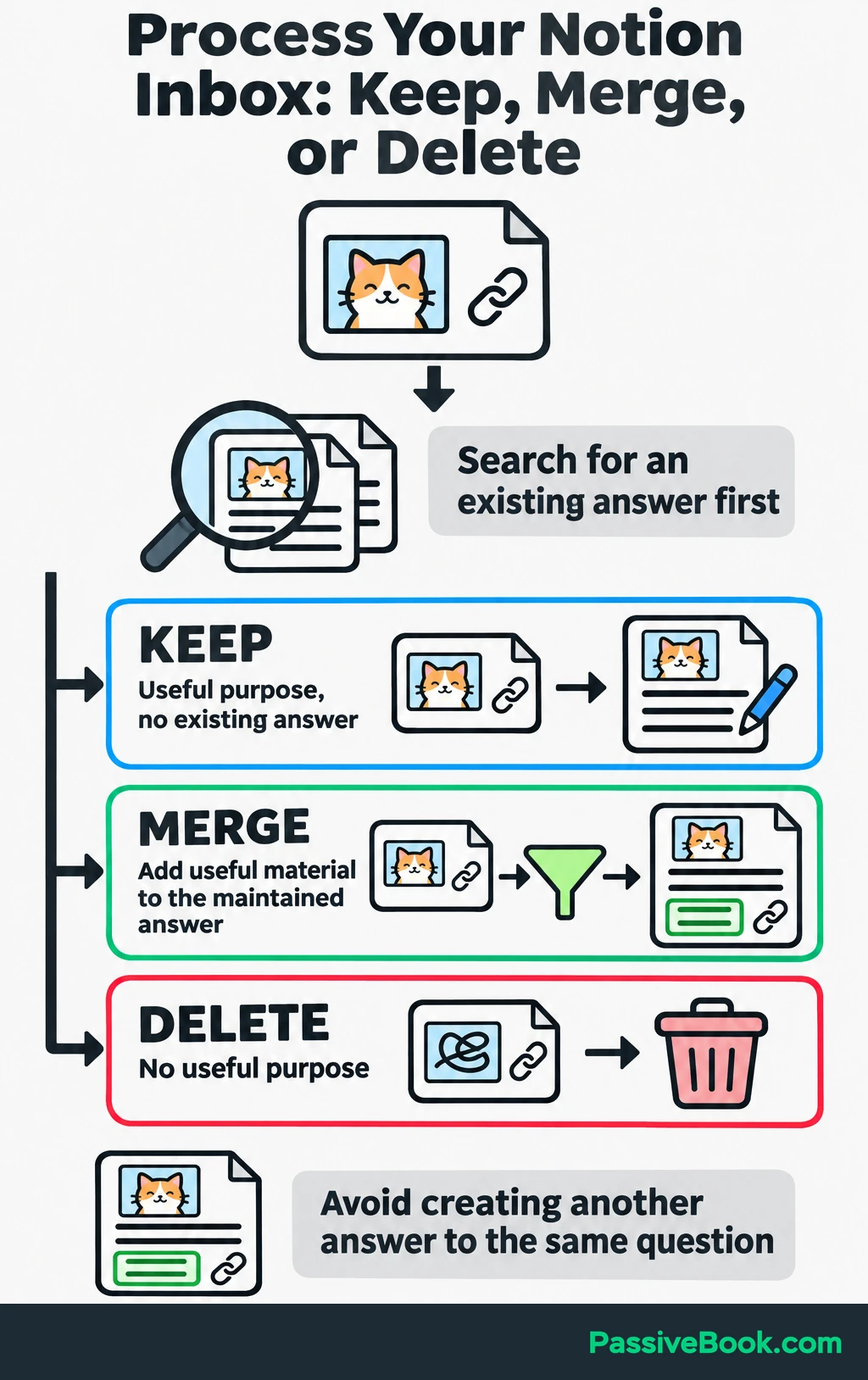
Then write the takeaway in your own words. Keep what the source says separate from your own choice. A supplier’s required file format and your preferred export preset belong together, but they aren’t the same kind of information.
For the portrait shop, turn the captured guide into “Portrait print requirements — research notes.” Group the material by the questions it answers:
- Which dimensions apply to this print size?
- Which file formats does the provider accept?
- Which other settings does the provider require?
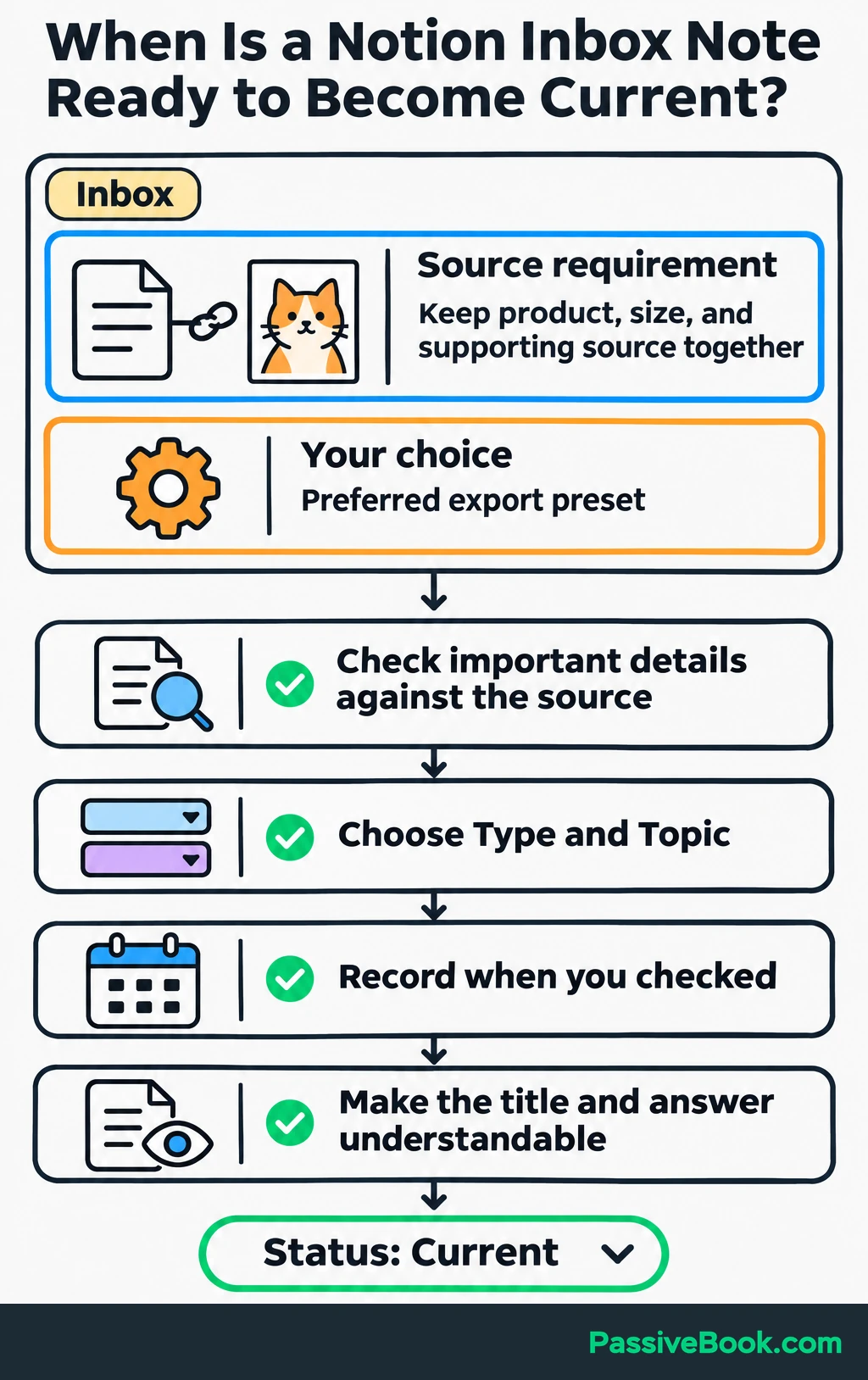
Place each answer beside its supporting source. Retain conditions that change how it applies, such as the selected print product or size.
Before changing Status to Current:
- Check important details against the original source.
- Choose the Type and Topic.
- Record when you checked the information.
- Confirm that the title and opening answer make sense without rereading the whole capture.
When the next portrait order arrives, put it in your existing project or task system and link it to the research note and checking procedure. Completing the order leaves those reference pages available for the next one.
Find and Reuse Knowledge Quickly
Choose the search method based on what you remember. Search can surface Inbox or Archived entries, so check Status before relying on an answer.
| What You Remember | Where To Look | Portrait Shop Example |
|---|---|---|
| Part of a title or a property value | Database search | Search “print requirements” |
| A phrase inside the page body | Workspace search | Search for a file-setting term recorded in the note |
| The subject or kind of entry | A filtered view | Show Topic = Printing and Type = Procedure |
Database search checks entry titles and property values, while workspace search can find text inside pages. Workspace search excludes comments, so move an important answer from a discussion into the page itself.
Give essential attachments a short text description too. “Provider specifications for portrait prints, including dimensions and accepted formats” is more useful than an unexplained PDF.
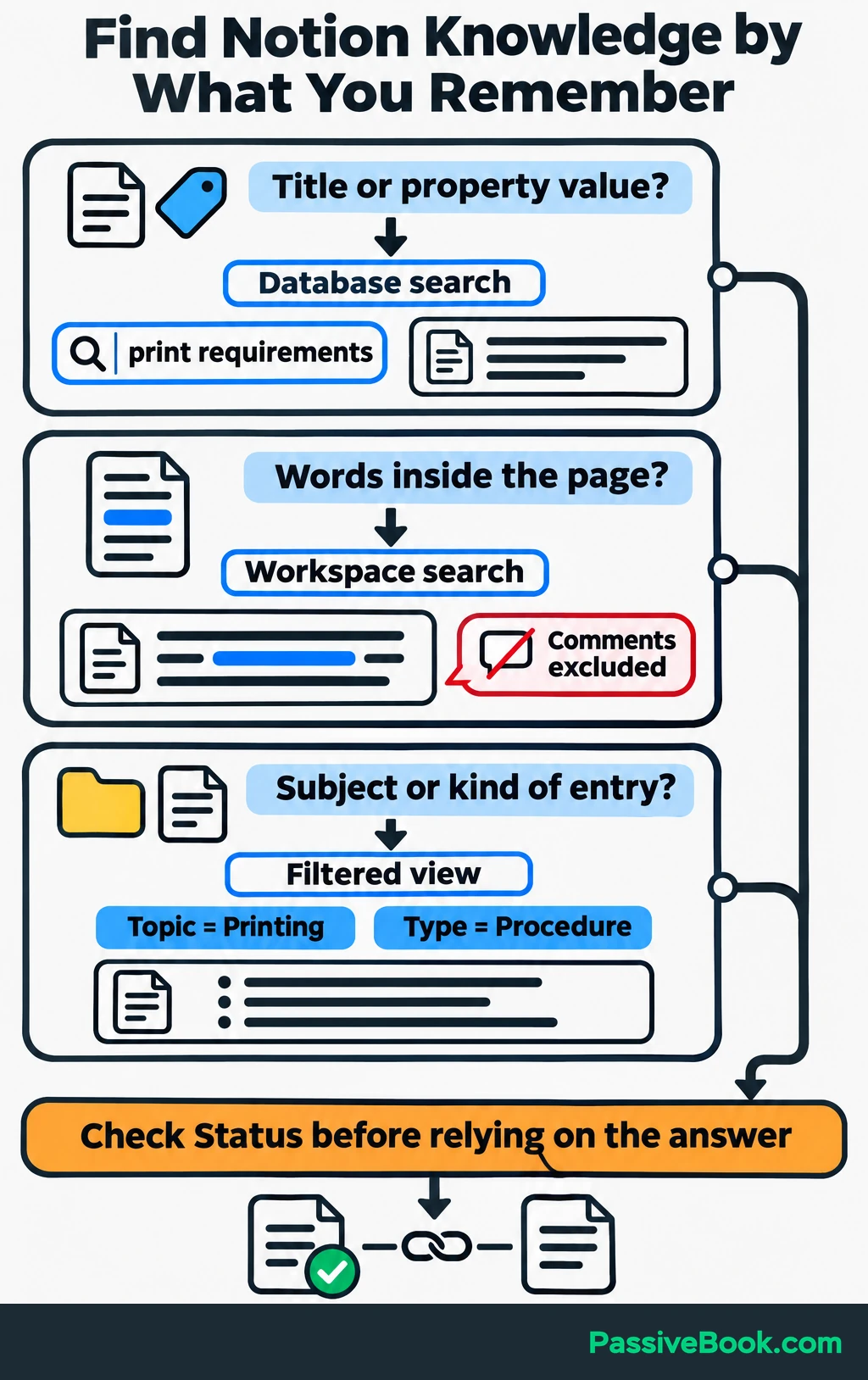
When using knowledge in a project, link to the maintained page. Pasting instructions into every order creates several places you might later need to update.
You can mention a related Notion page by typing @ and choosing its name. Notion creates a backlink, which helps you see which accessible pages refer to that answer. Use these links where the connection helps someone act, such as linking the print-checking procedure to its requirements.
Test retrieval with a real task. From Home, try to:
- Find the print requirements.
- Open their original source.
- Locate the current checking procedure.
If you stall, fix the title, summary, or navigation where the problem occurred. A new dashboard is rarely the first thing I would try.
Add a topic-specific view only when you repeatedly need the same subset of entries.
Keep One Current Answer You Can Trust
Start with a weekly Inbox review and adjust it to your capture volume. Delete what has lost its purpose, merge overlapping notes, and process the useful material.
Maintained pages need attention when their sources change, instructions fail, or you next rely on them. For information that needs scheduled checks, add a Date property called “Review due.”
Create a Needs review view with both conditions:
- Status is Current.
- Review due is on or before today.
Use that view to decide what to check. For the portrait shop, open the provider’s current guide and compare it with the saved requirements. Update the research note and any affected steps in the procedure.
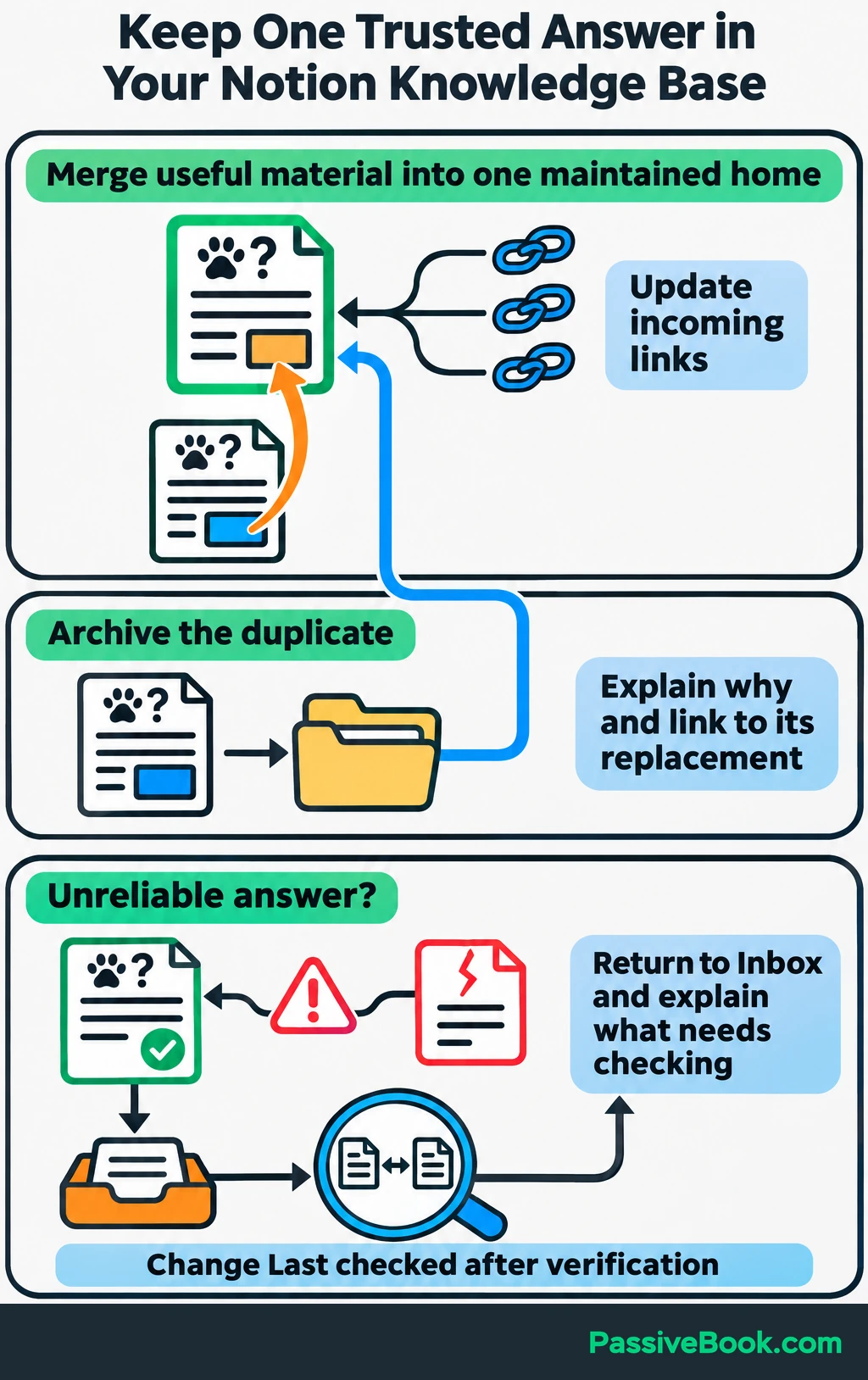
Only then change Last checked. Fixing a spelling mistake doesn’t mean you verified the instructions.
If two pages answer the same question, choose one maintained home. Move across anything useful, update links to point there, and archive the other page with a short explanation and a link to its replacement.
If a Current answer becomes unreliable before you can fix it, move it back to Inbox and explain what needs checking. It shouldn’t remain among the answers you treat as ready to use.
For shared procedures, name one person responsible for keeping each page useful. You can write that name in the page body until an Owner property would help you filter the work.
I would judge this system by whether you can find an answer, see why it’s trustworthy, and update it in one place. The number of notes is a poor scorecard.
Keep Important Knowledge Accessible Outside Notion
Export important knowledge and save the files outside Notion. HTML suits a browsable copy, while Markdown keeps text easy to edit elsewhere. Include database data as CSV and retain uploaded files.
Open sample pages and attachments from the export. For the portrait shop, check that the procedure is readable and the supplier source is identifiable without the original workspace.
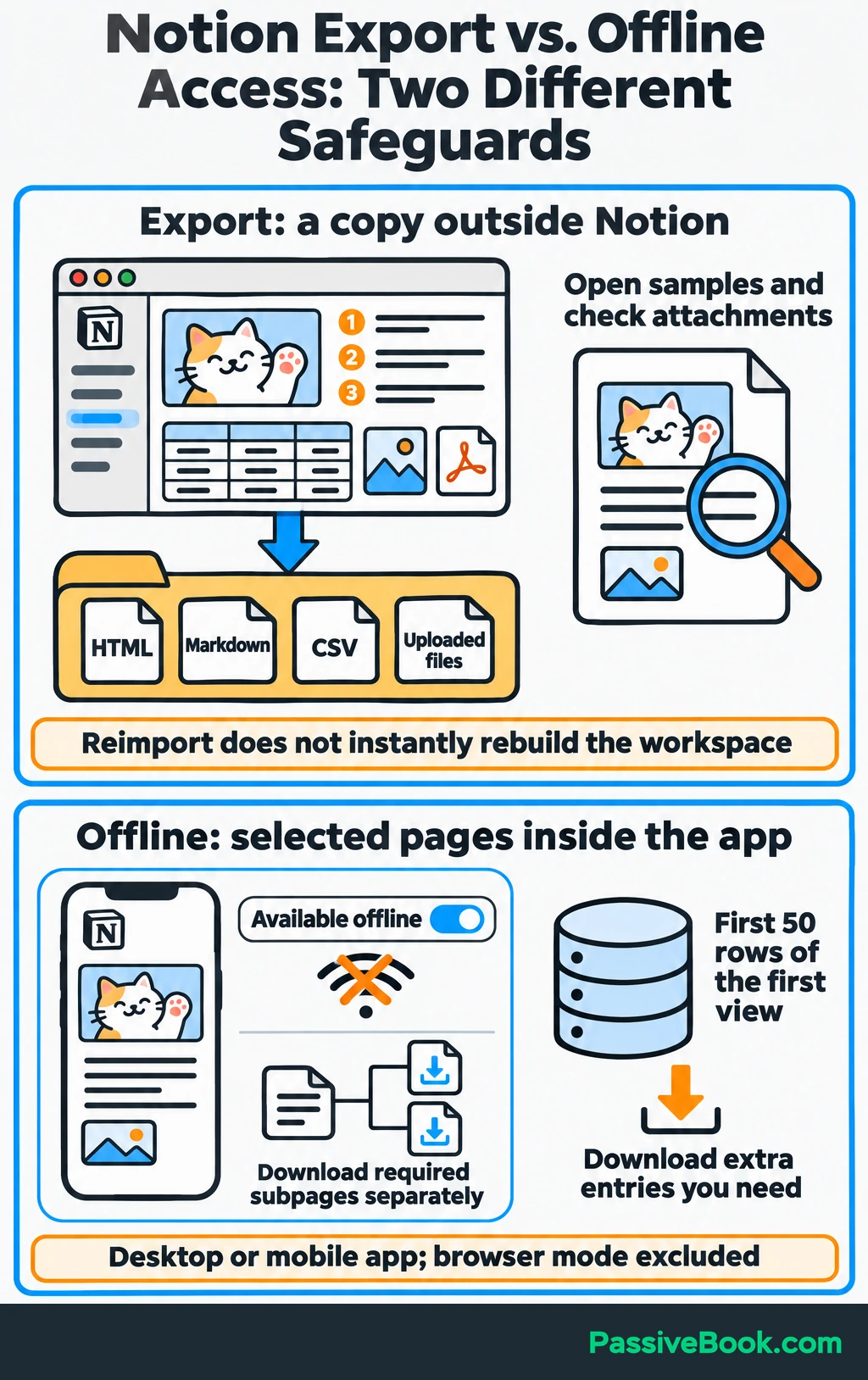
Treat the export as a portable copy of your information. Reimporting it cannot instantly recreate the workspace, according to Notion’s backup and restoration guidance.
Offline access solves a different problem: using selected pages without a connection. In the desktop or mobile app, open each essential page and turn on Available offline.
Download required subpages separately. A database download initially includes the first 50 rows of its first view, so download additional entries you need. Browser access doesn’t provide this offline mode; see Notion’s offline availability rules.
Before expanding the setup, complete one full cycle:
- Capture a useful source.
- Turn it into a Current answer.
- Retrieve it and use it in a project.
- Update the maintained page when needed.
- Open its exported copy.
That small trial tells you whether Notion fits your working habits. I would finish it before buying a large template or building automations around an untested process.
What Next?
Write down one question you looked up twice recently, then create its answer in a small Knowledge database. Use that page during your next real task before importing more notes.
Use the social buttons to share this guide if a smaller, searchable workspace would make your next planning discussion more useful.
Which repeated question would you put in your knowledge base first? Share it in the comments, and bring any other questions about the setup too.
Share this post with your friends & followers:

