You need to correct one instruction in a PDF, combine a few worksheets, and sign an agreement. Then the software asks you to subscribe before you know whether it can do all three.
Some free tools only add text on top of a page, and some paid plans put the feature you need in a higher tier.
Choosing by brand or monthly price can mean paying twice. This comparison helps you match free and paid editors to your documents, compare their license costs, and check that saved files still work before you pay.
Which PDF Software Should You Choose?
For free editing of existing text, I would start with PDFgear. For offline page management and OCR on Windows, I would choose PDF24 Creator. For filling and signing an ordinary agreement on a Mac, I would try Preview before installing anything else.
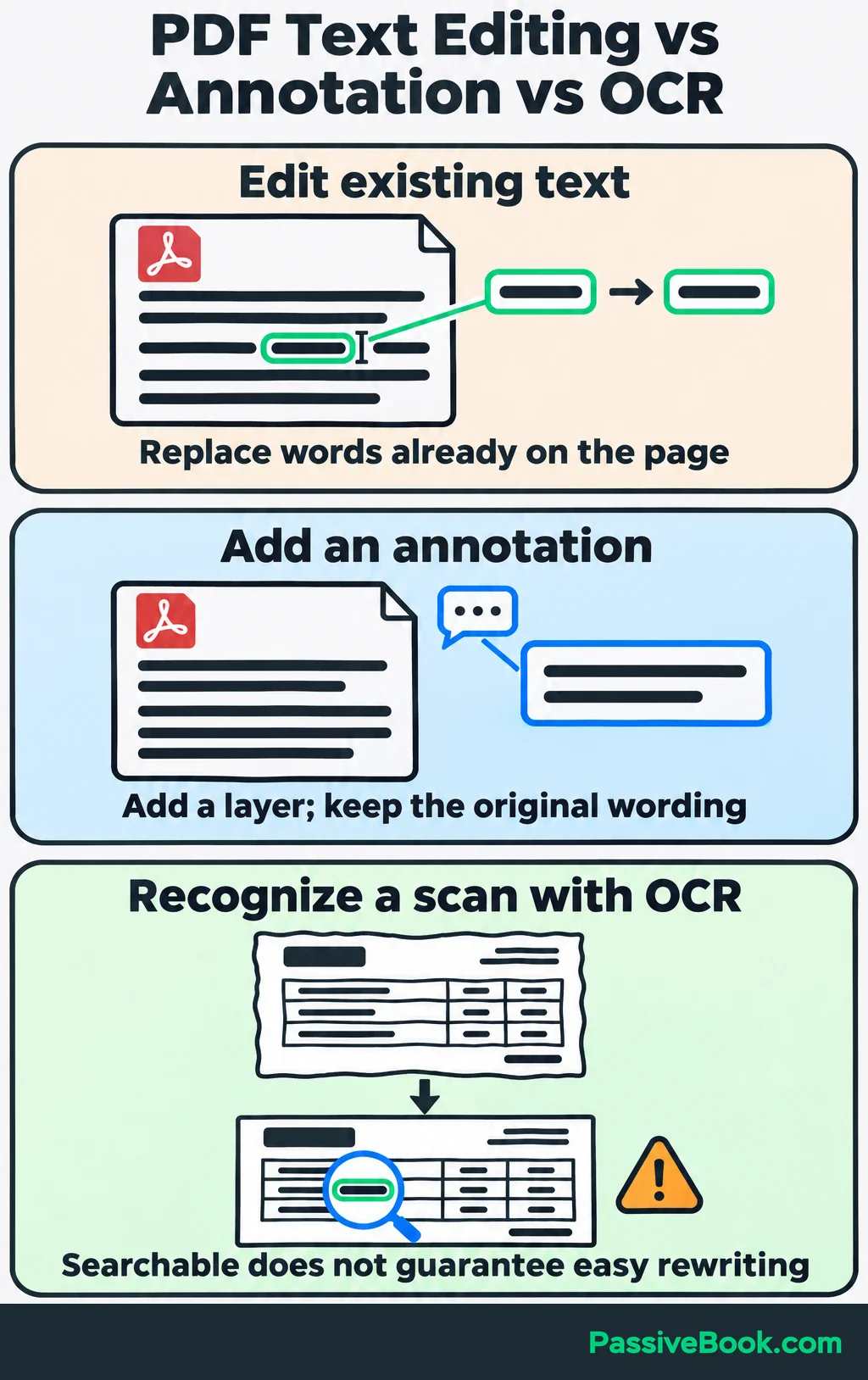
The best PDF software depends on what “editing” means in your work:
- Existing Text: You need to replace words already in the document. Adding a text box or comment is a different feature.
- Scanned Documents: OCR, or optical character recognition, turns pictures of words into searchable text. That does not automatically make the original page easy to rewrite.
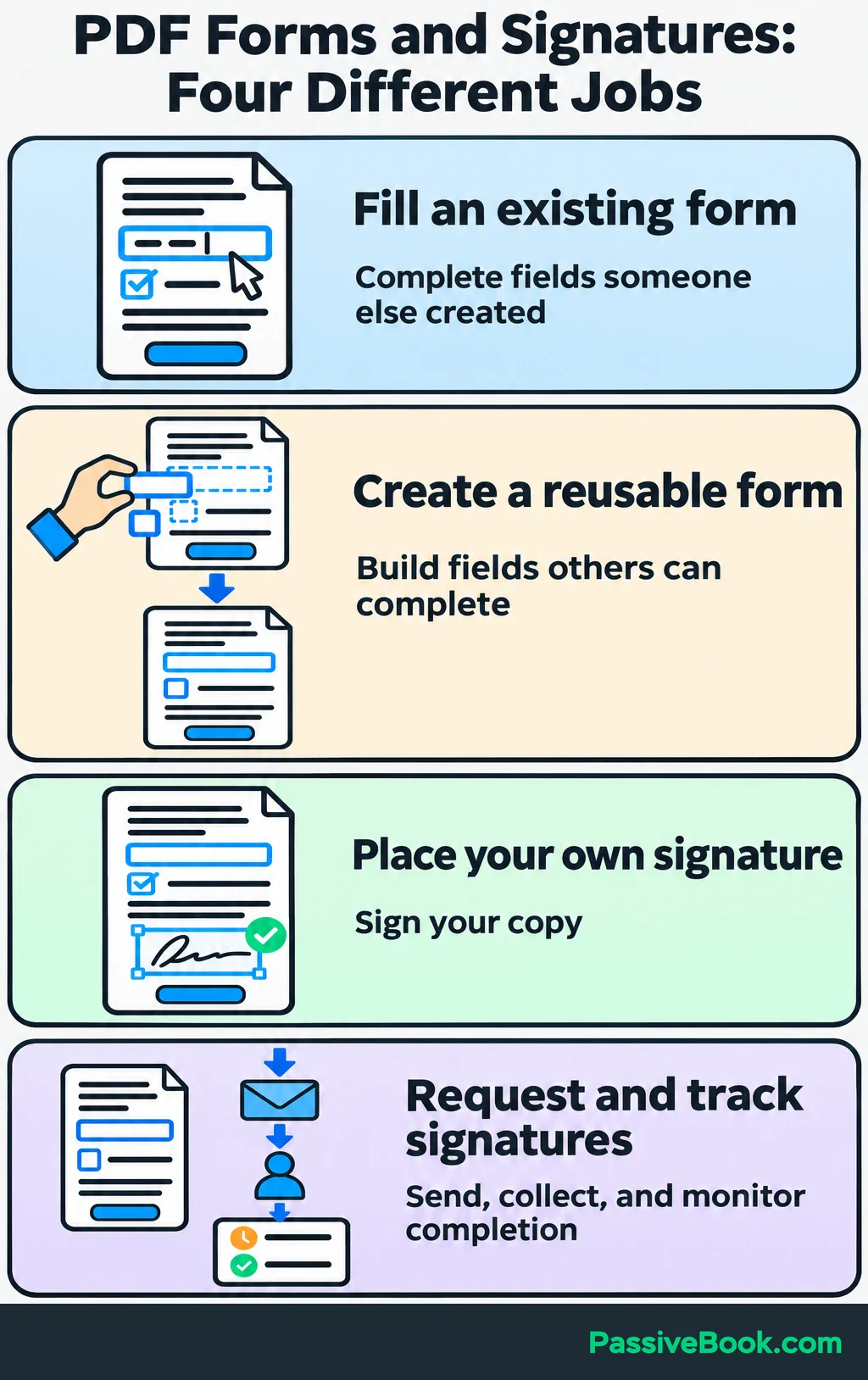
- Forms: Filling someone else’s fields differs from creating reusable fields that customers can complete.
- Signatures: Placing your own signature differs from sending an agreement, collecting another person’s signature, and tracking its status.
Check your operating system first. A bargain Windows license is not much help when your working computer is a Mac.
You may not need an editor at all. Free Acrobat Reader supports viewing, comments, form completion, and personal signing on Windows, Mac, iOS, and Android.
The table compares documented features and license terms. I have not personally tested these editors for speed, OCR accuracy, or ease of use.
Prices below are regular individual or single-user prices, rather than introductory offers. Dollar amounts are USD; PDF Expert and Sejda amounts are EUR. Regional pricing and taxes vary, so use the linked pages to check your checkout total.
| Product and Edition | Platforms | Existing-Text Editing | OCR | Page Management | Form Filling or Creation | Personal Signing or Signature Requests | Price and Commitment |
|---|---|---|---|---|---|---|---|
| PDFgear desktop | Windows, Mac | Yes | Searchable scans and text extraction | Merge, split, reorder | Windows: completion; Mac: completion and creation | Personal signatures | Free |
| PDF24 Creator | Windows | Use another editor for direct wording changes | Makes scans searchable | Merge, split, rearrange, compress | Reusable-field creation not assessed here | Signature tools; tracked requests not assessed here | Free for personal and business use |
| Apple Preview | Mac | No; annotations and added text only | Recognizes scanned text on supported macOS versions | Combine, delete, reorder | Fill existing forms | Personal signatures | Included with macOS |
| Sejda Web / Desktop | Browser; Windows, Mac, Linux desktop | Yes, for text-based PDFs | Separate OCR tool | Merge, split, organize | Fill forms; Web editor also creates fields | Personal signatures | Free allowances; paid Web €8.50/user/month or Desktop+Web €71/user/year |
| PDF-XChange Editor / Editor Plus | Windows | Yes | Standard in Editor; enhanced in Plus | Merge, split, organize | Fill in Editor; create and edit fields in Plus | Personal signatures; digital signatures detect later changes | Editor from $62; Plus from $79 once, with one year of updates |
| PDF Expert yearly / lifetime | Yearly: Mac, iPhone, iPad; lifetime: Mac only | Yes | Yes | Combine and organize | Form completion | Personal signatures | €84.99 billed annually; €149.99 once for Mac-only lifetime |
| Foxit PDF Editor / Editor+ | Windows, Mac, web; mobile apps with Editor+ | Yes | Yes | Merge, split, organize | Fill and create | Personal signing; Editor+ adds requests and tracking | Editor $129.99/user/year; Editor+ $159.99/user/year |
| Adobe Acrobat Pro | Windows, Mac, plus web/mobile tools | Yes | Searchable and editable scans | Merge, split, organize | Fill and create | Personal signing, requests, and tracking | $19.99/month, annual commitment billed monthly; $239.88 over 12 months |
For the examples below, imagine you sell downloadable beginner sourdough baking workbooks. You need to correct instructions, combine worksheets, search scanned supplier invoices, and complete an agreement with a contractor. Those four jobs give you a more useful shopping list than “something like Adobe.”
Best Free PDF Software
PDFgear: Best for Free Text Editing
PDFgear would be my first free option when you need to change words already in a PDF.
Its Windows edition documents text and image editing, annotation, page organization, conversion, and OCR. That covers several useful jobs without buying a desktop editor.
For the workbook, you could replace:
“Record the feeding time below.”
with:
“Record the feeding time and room temperature below.”
Then check whether the longer instruction still fits. The ability to replace text matters, but so does the saved layout.
Both Windows and Mac document OCR capabilities. The Mac edition also documents fillable-form creation, while the Windows page describes form completion and signature placement.
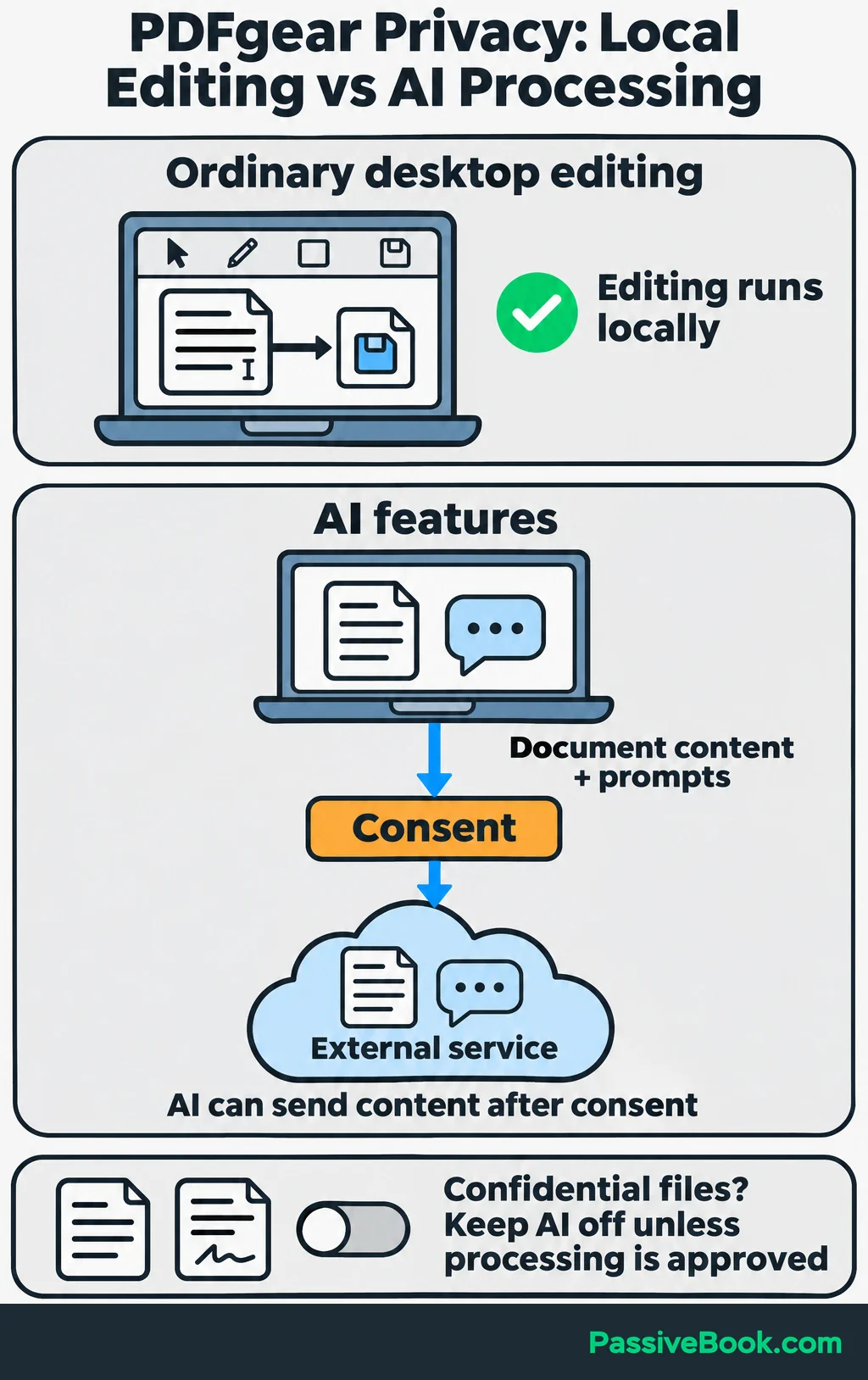
Ordinary desktop editing runs locally. PDFgear’s privacy policy says AI features can send document content and prompts to an external service after consent. I would leave those features off for confidential invoices or agreements unless that processing is approved.
I would try PDFgear before paying for routine corrections. The decision to upgrade should come from a failed requirement in your files.
PDF24 Creator: Best Free Offline Toolkit for Windows
Choose PDF24 Creator when most of your work involves pages rather than sentences.
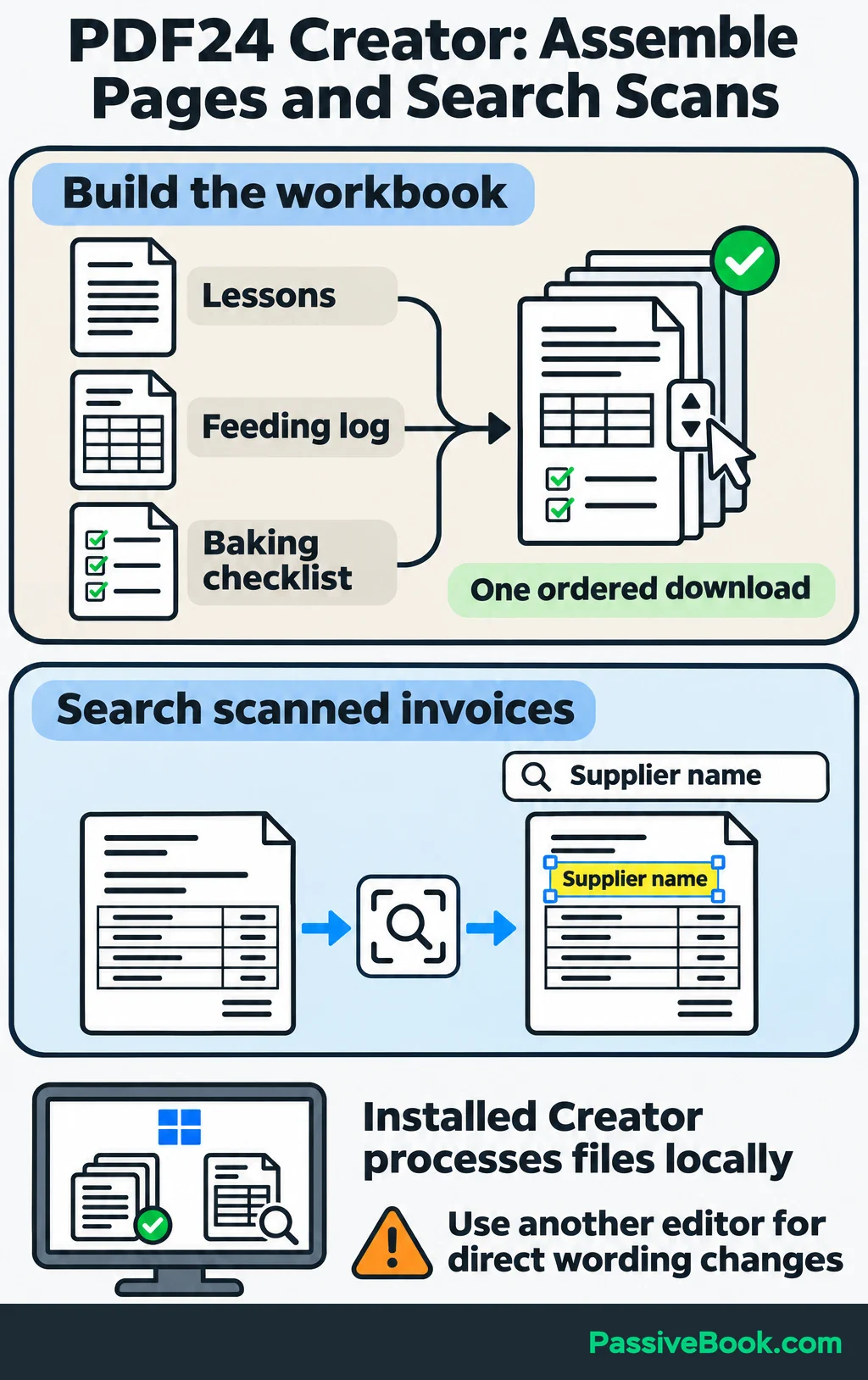
It can combine files, split documents, change page order, compress PDFs, and add a searchable text layer to scans. The Windows application processes files locally and is free for business use.
Start by deciding what the finished document should contain. Then assemble those pages and check their order.
For the sourdough workbook, that might mean combining the lesson pages, feeding log, and baking checklist into one download. For supplier invoices, OCR lets you search for a supplier’s name instead of opening scans one by one.
I would use another editor for direct wording corrections. PDF24’s text-editing guidance points toward conversion to Word, which adds a conversion step and another layout check.
Creator is a sensible companion to a text editor. Just distinguish the installed Windows application from PDF24’s separate browser service when local processing matters.
Apple Preview: Best for Basic Mac Paperwork
If you already use a Mac, try Preview for the agreement before shopping for software.
You can fill existing fields, add text where needed, place your own signature, and save the document. Preview also handles comments, highlights, and combining or rearranging pages.
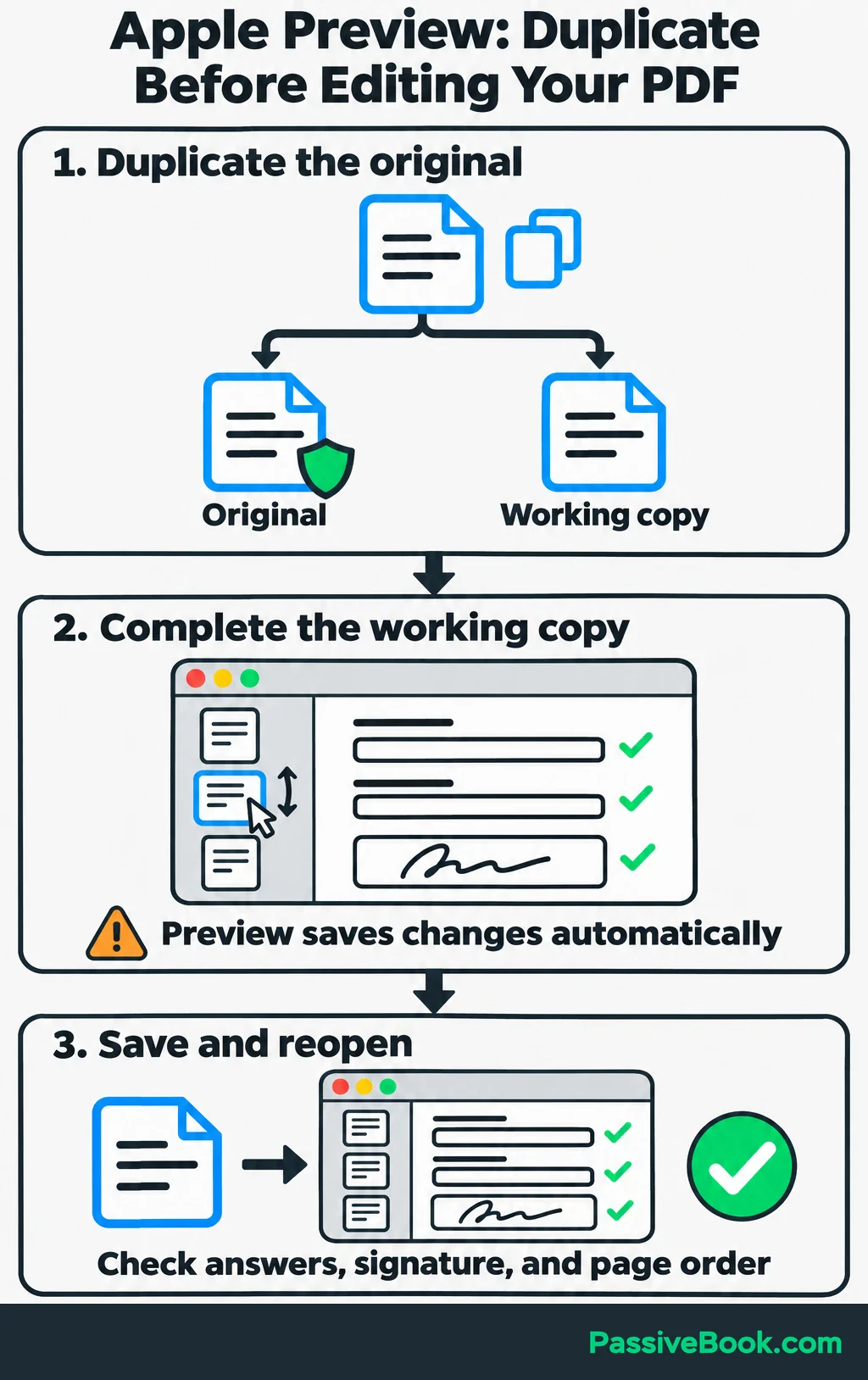
That covers the contractor agreement if your job is simply to complete your details and sign. It does not replace a service that sends requests and tracks the contractor’s response.
Preview cannot rewrite the workbook’s existing body text. For that, return to the source document or use a direct-text editor.
It can also recognize text in an image-based PDF through its Embed Text export capability. The option appears only when the document has no previously recognized text. Check that it is available on your installed version before choosing Preview for scanned invoices.
Duplicate your originals before combining pages because Preview saves changes automatically. Accidentally improving the only copy is still accidentally changing the only copy.
Sejda: Best for Occasional Browser Edits
Sejda is worth considering when you need a small correction and do not want to install software.
Its free online editor supports existing-text changes, annotations, form fields, and personal signatures. The free editor allows documents up to 200 pages and 50 MB, with three tasks per hour.
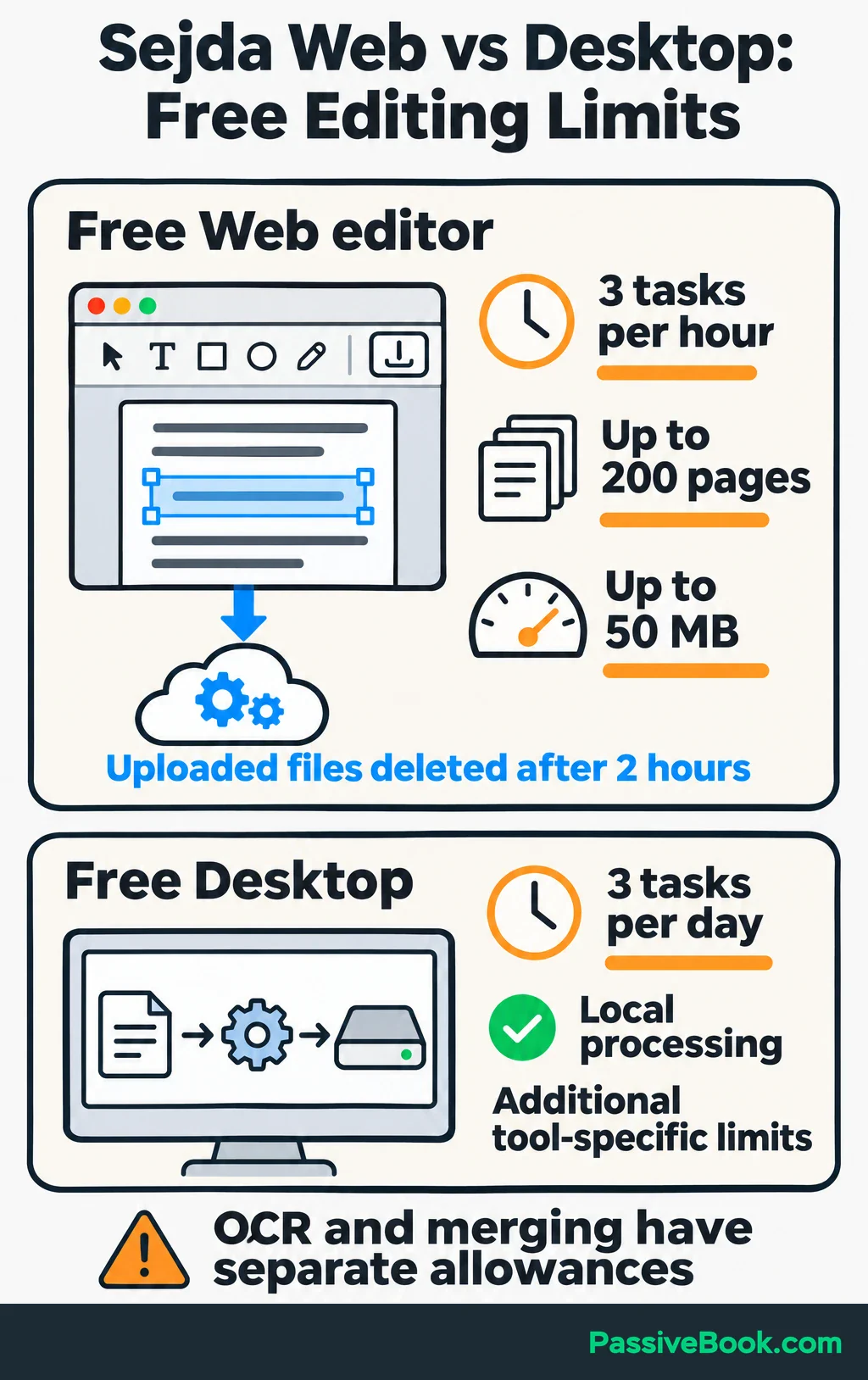
That can suit an occasional workbook correction. It is less appealing when your afternoon involves a queue of separate documents.
Those editor limits do not apply to every Sejda tool. Check the allowance for OCR or merging before starting a larger job.
Web files are uploaded for processing and automatically deleted after two hours. Sejda Desktop processes files locally on Windows, Mac, or Linux, and its free allowance is three tasks per day with additional tool-specific limits.
For recurring use, compare the plans in the table. The monthly Web subscription does not include Desktop, so choose based on where your files need to be processed.
Best Paid PDF Software and Adobe Alternatives
PDF-XChange Editor: Best Perpetual-license Option for Windows
PDF-XChange Editor is the paid option I would shortlist first for regular Windows editing without a recurring subscription.
Editor covers text editing, comments, page organization, and standard OCR. Editor Plus adds reusable-form creation, enhanced OCR, and document comparison.
Choose the edition by the work. Correcting workbook instructions points toward Editor. Creating a reusable workshop registration form with fields for names, dates, and attendance choices points toward Plus.
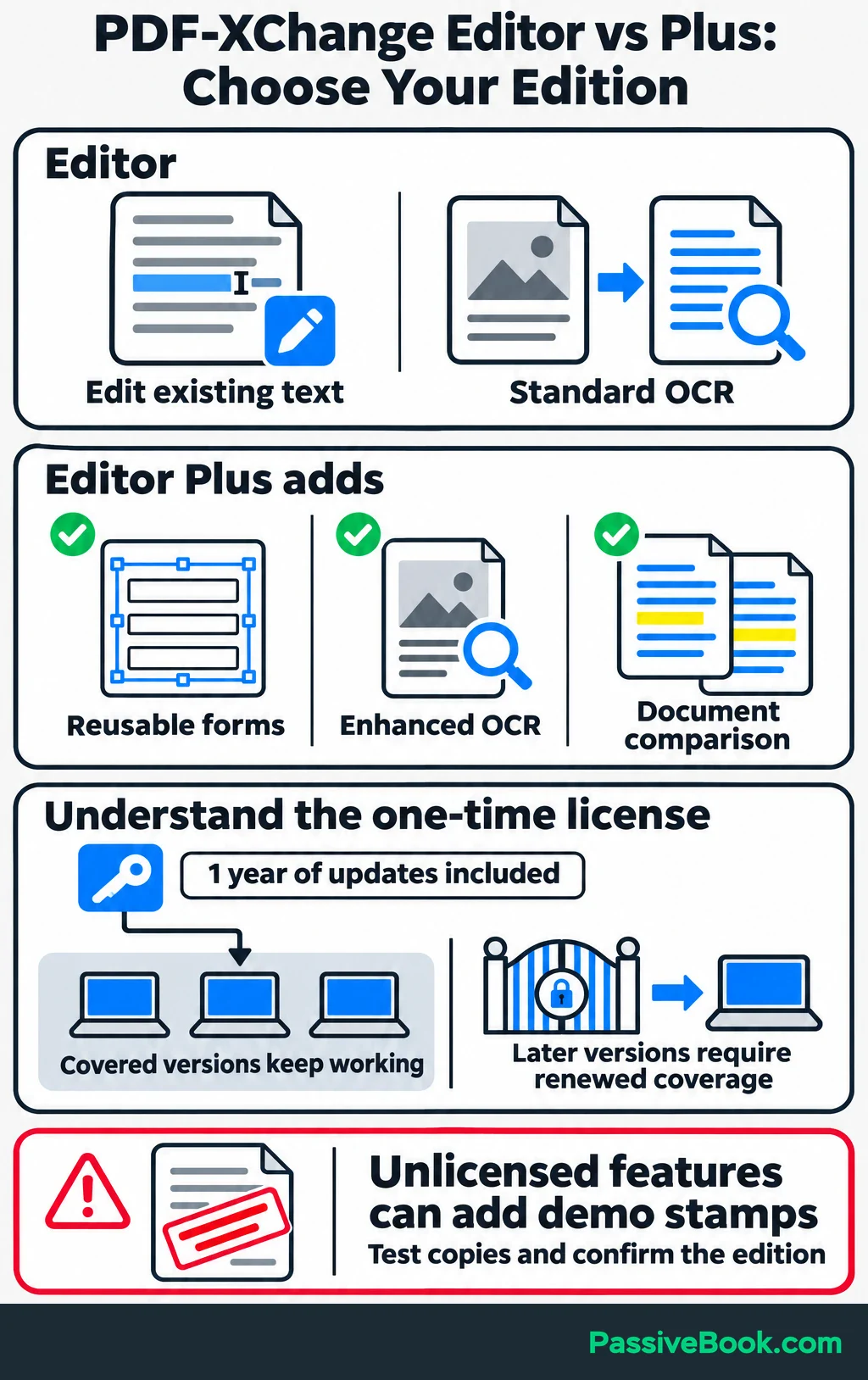
The one-time license keeps working for versions released during your included year of updates. Later versions require renewing that coverage, so keep your installer and license details.
Be careful during evaluation: unlicensed paid features can add demo stamps. This also applies when an Editor license holder uses a Plus-only feature.
I would test on copies and confirm the required edition before buying. A one-time purchase is useful only if it includes the features you intend to use.
PDF Expert: Best for an Apple-device Workflow
PDF Expert makes sense when documents regularly move between your Mac, iPad, and iPhone.
Its paid tools include text, image, and link editing, OCR, conversion, annotation, form completion, and personal signing. The yearly subscription covers all three Apple device types, while the lifetime option covers Mac only.
I would choose the subscription when reviewing workbook drafts on an iPad and finishing them on a Mac is part of the actual routine. Owning several Apple devices does not, by itself, make that subscription useful.
For Mac-only work, compare the lifetime option with your expected years of use. It includes continuing support and bug fixes, but additional new features may cost extra.
PDF Expert can help you complete and sign the contractor agreement. If collecting the contractor’s signature and tracking completion are purchase requirements, choose a tool built for that workflow.
Foxit PDF Editor: Best Paid Adobe Alternative for Business Workflows
Foxit is my shortlist choice when you want business editing and forms across Windows and Mac.
Standard PDF Editor covers text and image editing, OCR, Office conversion, page organization, forms, and document comparison. That is a useful set for correcting workbooks and maintaining searchable invoice records.
Editor+ adds mobile apps and integrated signature requests with tracking. Its included eSign allowance is 150 envelopes per year. An envelope holds the documents sent together for signing.
For the contractor agreement, that upgrade becomes relevant when you want to send the document and follow its progress within the same service. Personal signature placement alone would not justify it.
I would compare the exact Foxit edition you need against the corresponding Acrobat plan. Comparing Foxit’s entry price with Adobe’s advanced tier can hide the cost of the signature workflow you actually require.
Adobe Acrobat Pro: Best for Advanced PDF Workflows
Acrobat Pro earns a place when advanced PDF work keeps returning.
Its tools bring together text editing, conversion, OCR, forms, signature collection, document comparison, and redaction—the permanent removal of sensitive content. That breadth matters when you routinely move between those jobs or need to fit an established Adobe process.
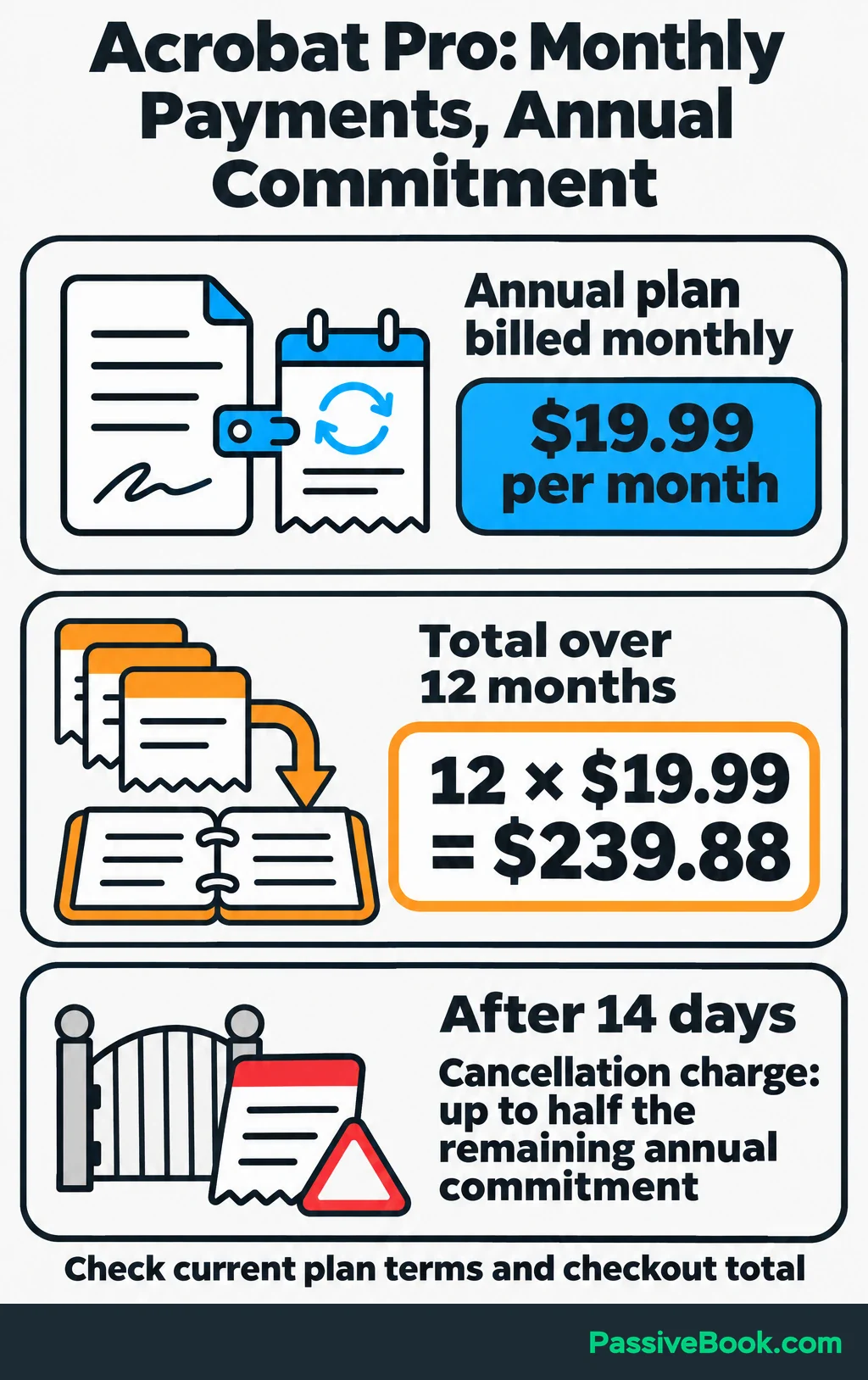
For occasional workbook corrections, I would start elsewhere. For repeated scan editing, version comparison, and removal of sensitive information, Pro deserves a proper trial.
Also compare Acrobat Standard. Its annual plan billed monthly costs $14.99 per month and covers editing, conversion, page organization, and signing. Pro adds capabilities including editable scans, comparison, and redaction.
The billing distinction matters: monthly payments on an annual plan still mean an annual commitment. Adobe’s plan terms list a cancellation charge of up to half the remaining annual commitment after 14 days.
I would pay for Acrobat when a required feature or an established process saves enough repeated work to justify it. Familiar branding alone is an expensive purchasing rule.
How to Test a PDF Editor Before Paying
A feature list tells you what to try. Your own files tell you whether the tool is suitable.
Shortlist two products that support your operating system and essential tasks. Then give both the same copies of representative documents.
Use the following checks as pass-or-fail requirements.
- Correct Existing Text: Replace an instruction with a slightly longer sentence. Save the PDF and check the font, spacing, and line wrapping. Confirm that you changed the original wording rather than placing another sentence over it.
While assembling a digital-product bundle, I once corrected an exported PDF but left the source unchanged. My next export brought the old wording back. Now I correct the source first, then generate the replacement download. A capable editor cannot rescue a process that keeps recreating the mistake. - Change an Image and Assemble Pages: Replace the workbook cover image and combine the lesson pages with the worksheets. Check image quality, page size, orientation, and order. Test links that send readers to another page.
- Check OCR Output: Run OCR on a scanned supplier invoice and search for the supplier’s name. Compare recognized amounts, invoice numbers, and decimal points with the scan. If you also need Word conversion, test that separately from searchable-PDF output.
- Save and Reopen Forms: Complete the contractor agreement, save it, close it, and reopen it. Check that the answers and signature remain visible. If reusable fields matter, create a small form and fill it in another reader.
- Complete a Signature Request: When collecting signatures is essential, send a harmless test document to another address you control. Check the recipient experience, completion status, and downloadable signed copy.
- Inspect the Final File Elsewhere: Open the saved result in another PDF reader and, when relevant, on another device. Check text, images, links, form answers, signatures, and printing.
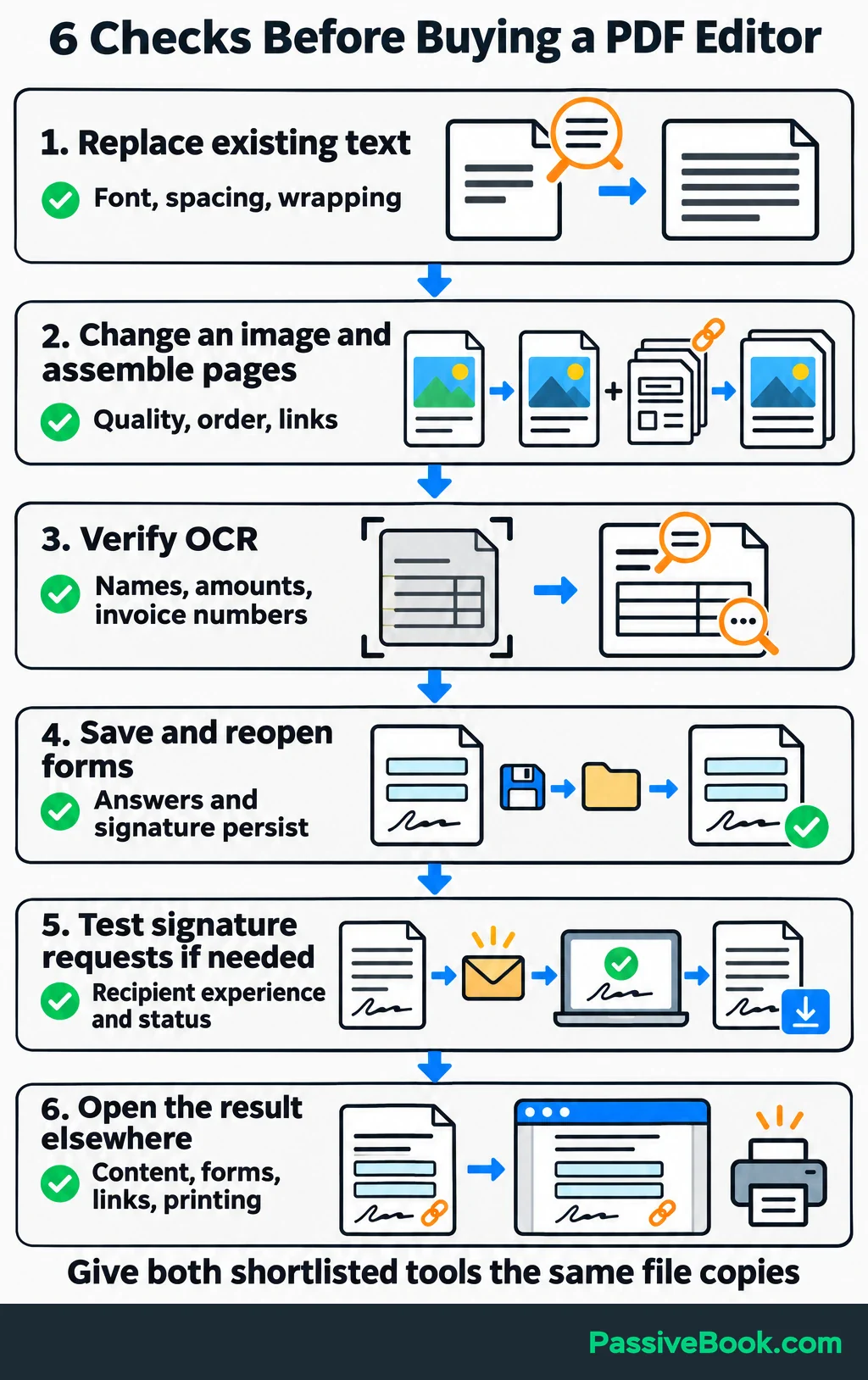
For the sourdough business, those checks cover a complete document cycle: correct the lesson, assemble the download, search a scanned invoice, and finish an agreement. A tool does not need to win every category. It needs to complete the jobs you will actually give it.
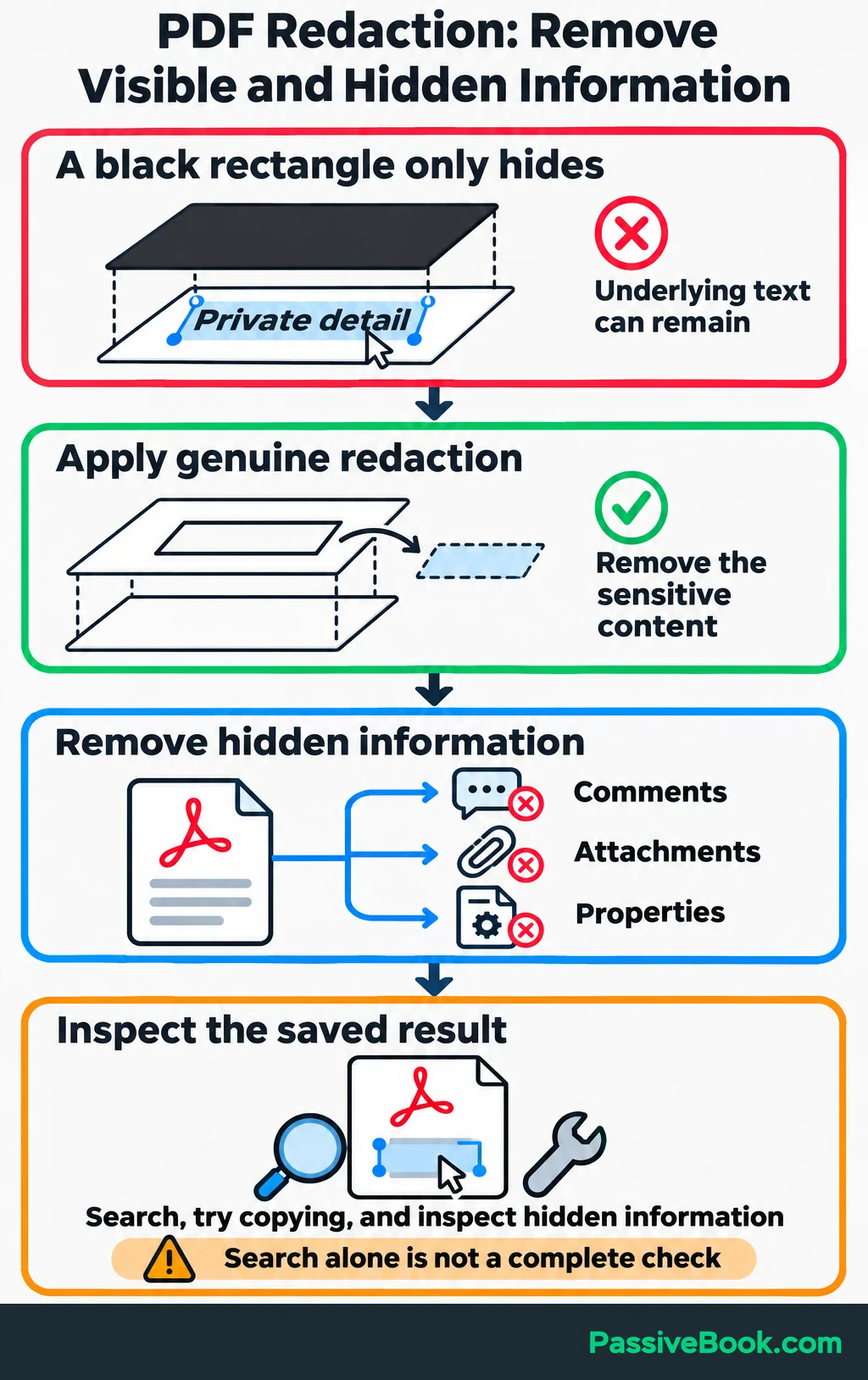
For confidential documents, use an approved local workflow when uploads are restricted. Before sharing a file with sensitive details removed, apply genuine redaction and remove hidden information. A black rectangle can leave the underlying text intact; Adobe’s redaction guidance explains permanent removal and sanitization.
Check the saved result by searching for and trying to copy the removed text, and inspect comments, attachments, and document properties. Search alone is not a complete check for hidden information.
Finally, compare what you must pay to complete the whole workflow:
- Users and Devices: Confirm who can use the license and which computers or mobile devices it covers.
- Billing Commitment: Separate a monthly subscription from an annual agreement paid in monthly installments.
- Updates and Renewal: Check what happens when maintenance or a subscription ends, and whether new features cost extra.
- Signature Allowances: Confirm that the included sending allowance matches your agreement volume.
- Finished Output: Look for watermarks, missing fonts, broken links, lost form answers, or damaged layouts.
Choose the lowest-cost tool that passes your required checks. If PDFgear handles your corrections and Preview handles your paperwork, you already have a workable answer. Upgrade when a specific task requires it.
Once two editors pass, compare their costs over the months you expect to use them. A monthly payment, annual commitment, and one-time license can lead to different totals.

Free Software Cost Calculator




What Next?
Take one PDF you need to finish and test it in two suitable tools from the table. Save both results and reopen them in another reader before committing to a paid plan.
Use the social buttons to share this comparison and make the next PDF software decision a little less expensive.
Which document task causes you the most repeated work? Tell me in the comments, and bring any other questions about choosing an editor.
Share this post with your friends & followers:

