You spot a live conversation you want to hear, but hesitate before joining. Will your microphone turn on? Can everyone see you? And what happens if you accidentally tap the wrong control?
Those small unknowns can keep you outside a useful discussion. Hosting adds another worry: keeping the conversation moving without letting it turn into an open-mic endurance event. The walkthrough below explains the phone and browser controls for finding a Space, listening quietly, asking for a speaking turn, and hosting a focused conversation with a clear ending.
Choose Your Device
X Spaces, formerly Twitter Spaces, lets you join live audio conversations without a camera. Entering as a listener does not activate your microphone.
Choose your device based on what you want to do:
| Device | Listening | Speaking | Hosting |
|---|---|---|---|
| iPhone app | Join a live Space or play a recording | Request a turn and wait for approval | Press and hold the post composer, then select Spaces |
| Android app | Join a live Space or play a recording | Request a turn and wait for approval | Look for Spaces in the composer menu; try the browser route below if missing |
| PC or Mac browser | Open a Space link to listen | Use the mobile app to request a speaking turn | Look for Create a Space; see the browser route below |
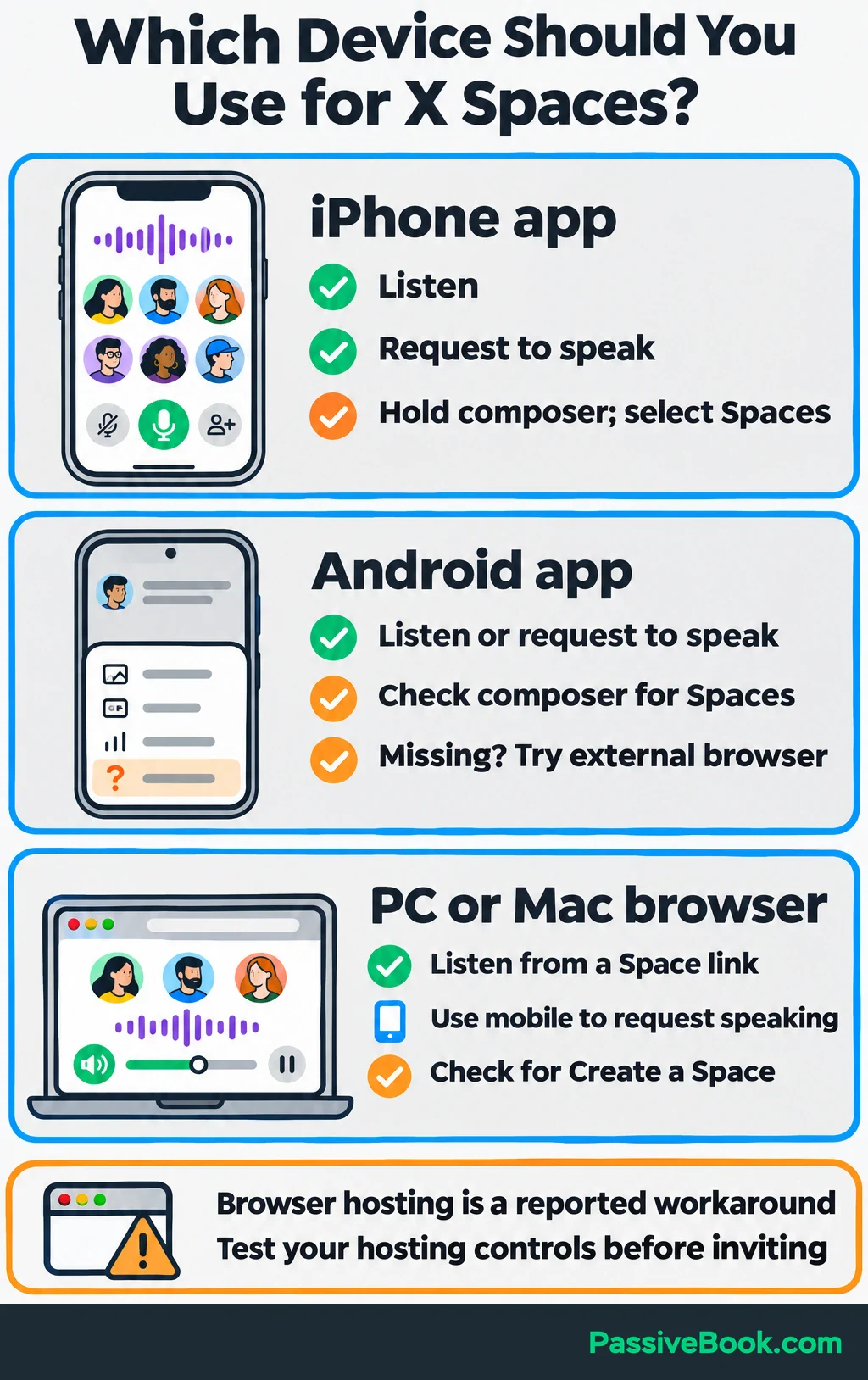
X’s documented device support describes browser access as listening only. An X Lite user’s account of missing Android hosting controls describes their experience with X Lite, reports missing hosting controls in the rebuilt Android app, and gives a browser workaround.
That account does not establish what every installation offers. Open the creator on your intended device before announcing an event.
How to Find a Live or Upcoming X Space
Start with a shared link or the purple live indicators at the top of Home. A Space link can appear in a post, a direct message, or an invitation elsewhere. On a computer, open it in your browser.
To find conversations beyond your feed:
- Search X for your topic and words such as “Space” or “live discussion.”
- Open relevant announcement posts and check the host’s profile.
- Follow hosts whose conversations you want to hear again.
For the examples throughout this guide, imagine you run a pet-travel blog that sells printable trip planners. You are preparing a Space called “Packing for Your First Weekend Away With a Dog.” The plans and excerpts below are illustrations.
You could start by searching for discussions about traveling with dogs, then listen before deciding what your own conversation should cover.
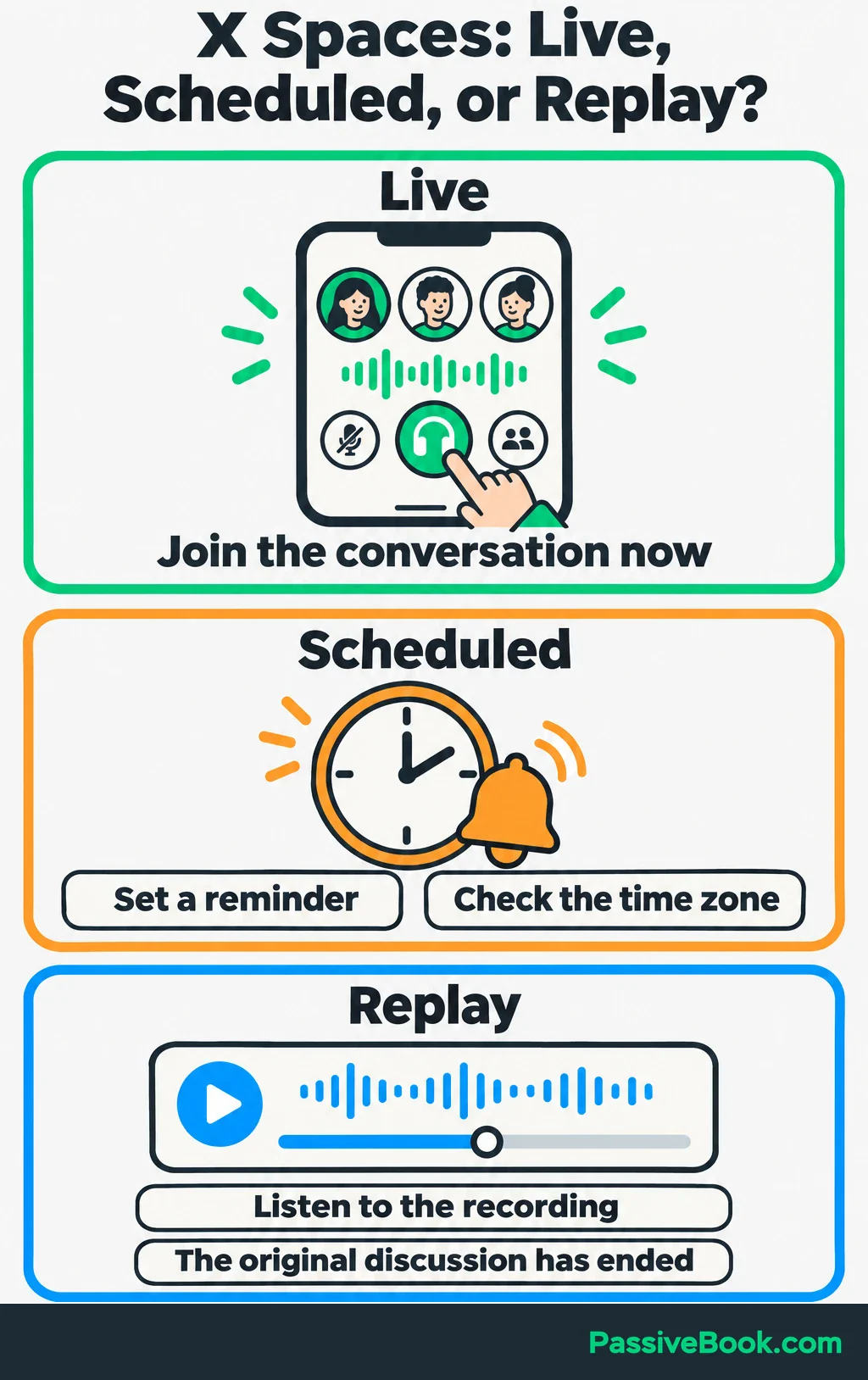
Check the event’s status before joining:
- Live means the conversation is happening now.
- Scheduled means it has not started.
- A recording is a replay, so you cannot join its original discussion.
For a scheduled Space, select the reminder option on its card. Check the date and time zone so you do not clear your lunch break for an event happening after dinner.
How to Join and Listen
Open the Space card and select Start listening. The host leads the conversation, speakers have microphone access, and listeners hear the discussion.
Once inside, you can adjust your volume or use an emoji reaction for a brief response. Select Leave whenever you are finished. Leaving as a listener does not close the Space.
Your presence is normally public, so do not treat the participant list as private. X explains public participation and hosting visibility in its hosting guidance.
To follow along as text, look for Turn on captions in the Space’s options. Captions can help when audio is hard to follow, though automatic text can mishear names and unfamiliar words.
For your first visit, I would simply listen. Notice how the host introduces people, handles pauses, and moves between questions. You do not need to contribute to make the visit useful.
How to Listen Anonymously
On iPhone, open the Space’s entry screen before joining:
- Enable Listen anonymously.
- Select Start listening anonymously.
- Listen without showing your listener identity to other participants.
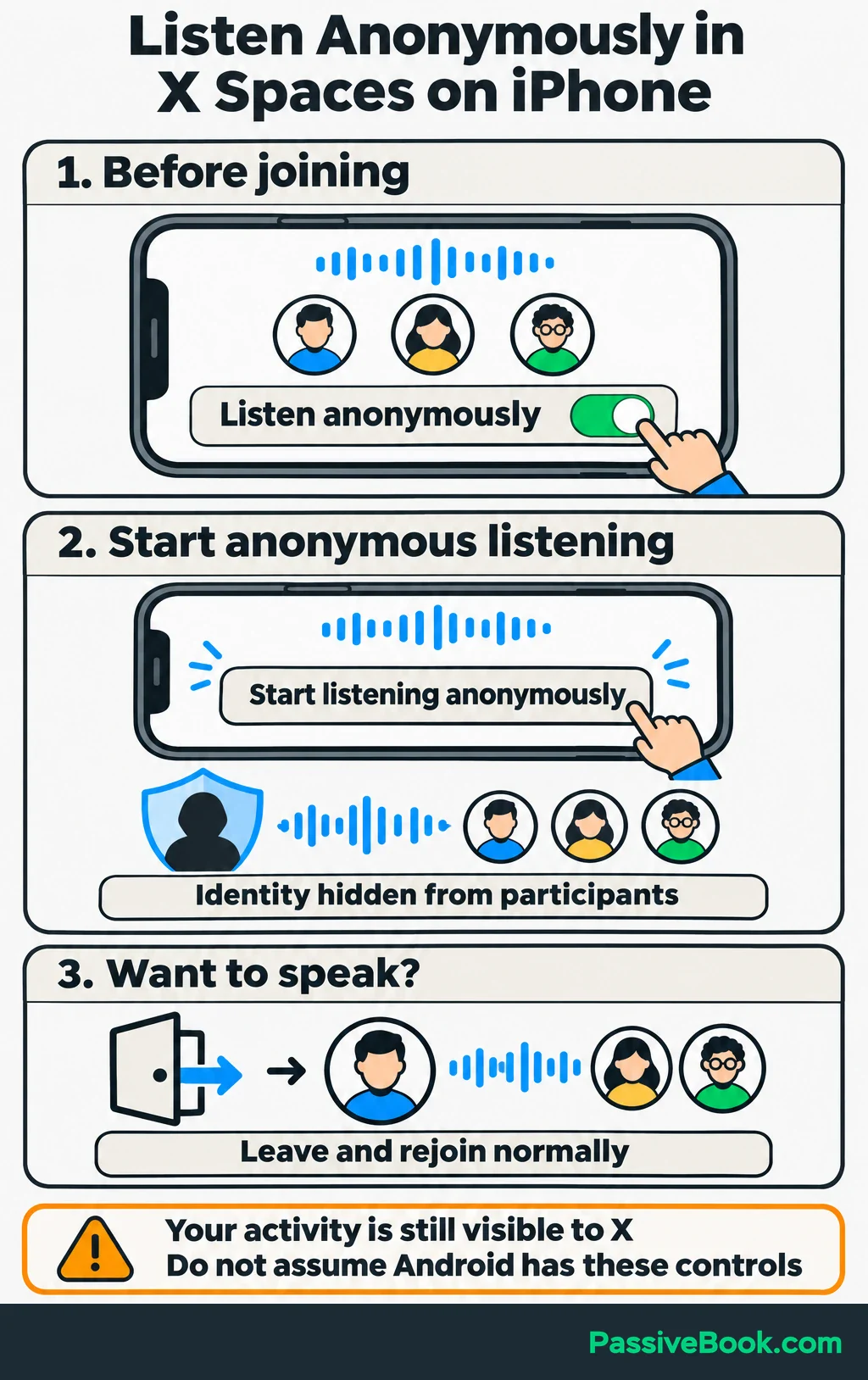
To request a speaking turn, leave and rejoin normally. Anonymous listening hides your identity from other participants; it does not make your activity invisible to X. Do not assume Android has the same entry controls.
How to Request a Speaking Turn
Use the X mobile app and join normally while signed in.
- Select Request.
- Wait for the host to approve you.
- Allow microphone access if your phone asks, and give the connection a moment.
- Unmute when invited, then mute again after speaking.
Approval gives you microphone access, but it is still polite to follow the host’s speaking order.
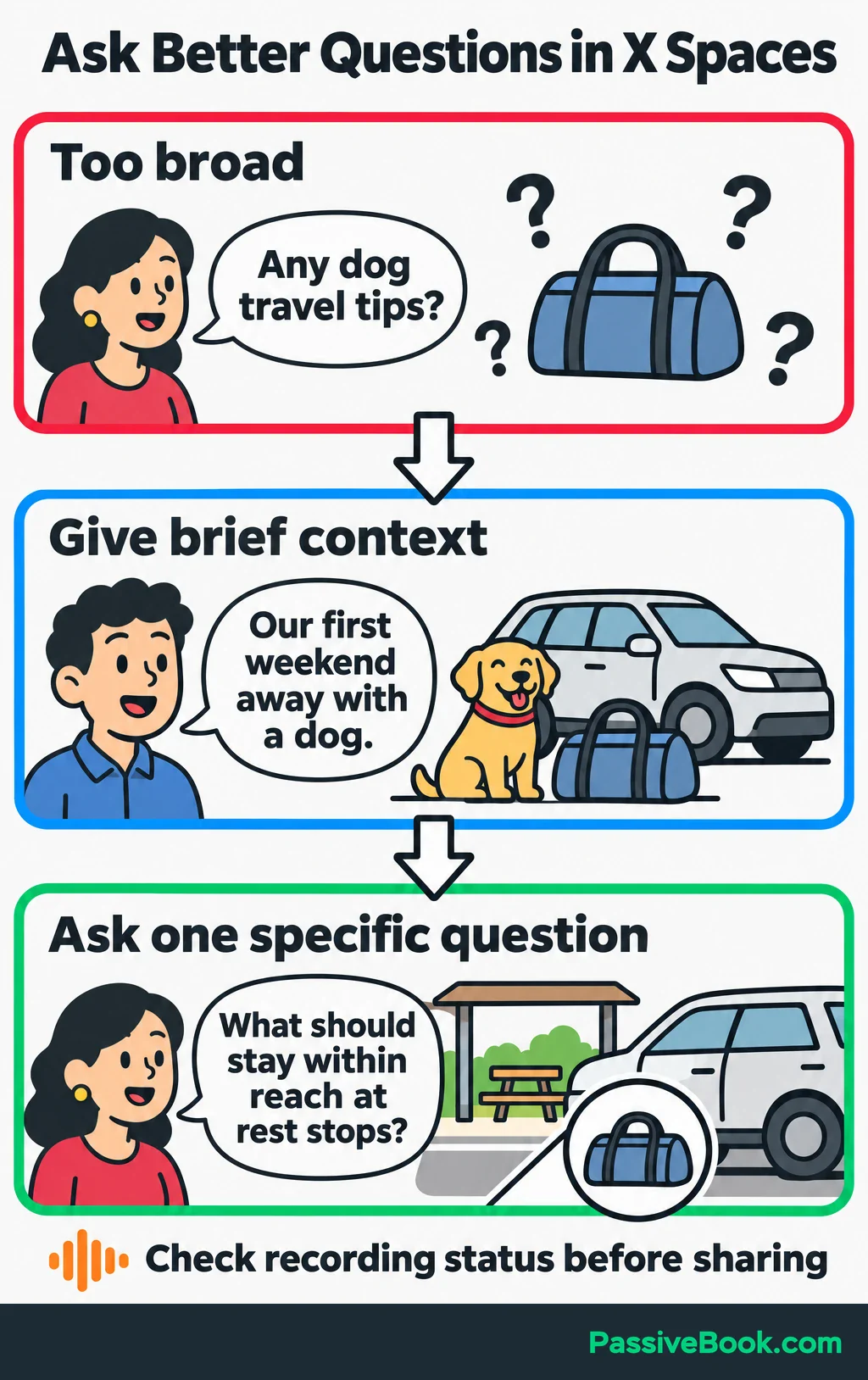
Prepare one short question with enough context for a useful answer. As a listener in someone else’s pet-travel Space, you might ask:
“I’m planning our first weekend trip with our dog. What do you pack separately so you can reach it during a rest stop?”
That gives people something specific to answer. A long account of every previous trip usually does not.
Before speaking, check for the recording indicator. Your contribution can appear in a public replay. Share only what you are comfortable saying publicly, then hand the conversation back to the host.
How to Create Your First X Space
Prepare One Focused Conversation
Choose one question you can explore within a clear time limit. Prepare three prompts and decide when you will finish.
When I planned a customer Q&A for a digital product, my notes drifted from setup into pricing and troubleshooting. I had packed several conversations into one session. Cutting the plan back to the setup question made it easier to lead. I would apply the same limit to a first Space.
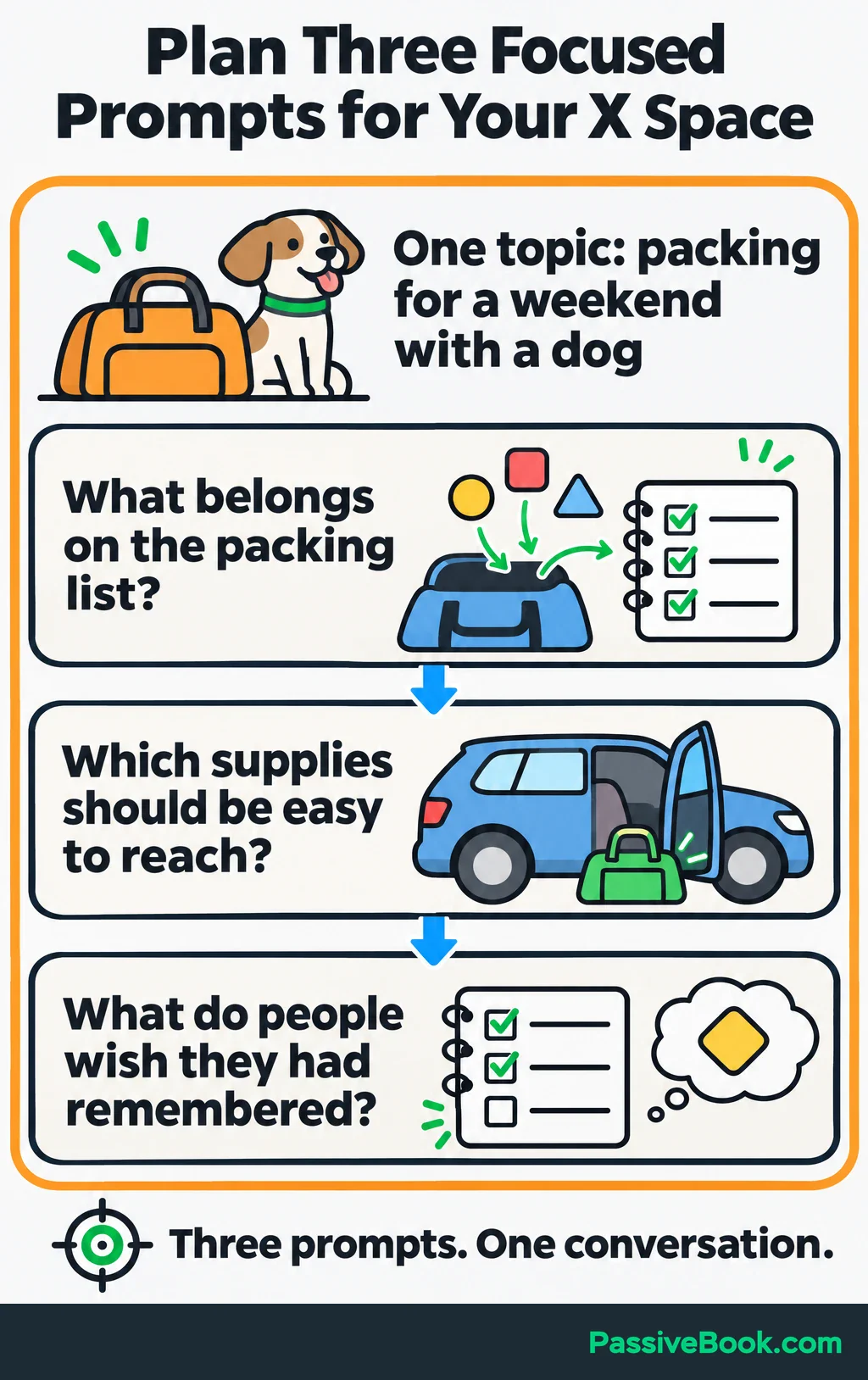
For the pet-travel example, prepare prompts about:
- What belongs on the packing list.
- Which supplies should be easy to reach during stops.
- What people wish they had remembered.
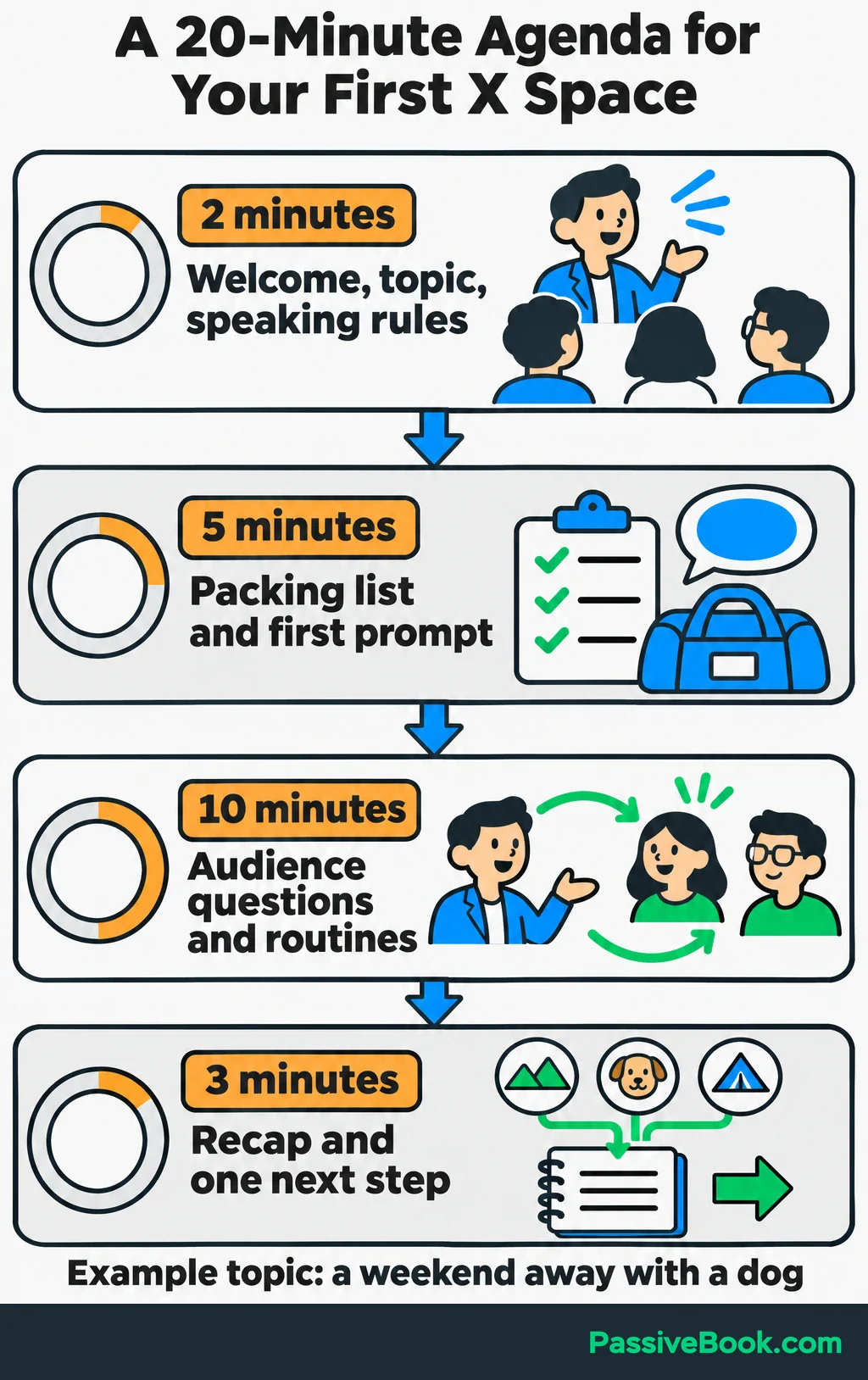
A simple 20-minute agenda gives those prompts somewhere to go:
| Time | What to Cover |
|---|---|
| First 2 minutes | Welcome listeners, explain the topic, and state the speaking rules |
| Next 5 minutes | Discuss the packing list and your first prepared prompt |
| Next 10 minutes | Take questions and compare packing routines |
| Final 3 minutes | Recap useful ideas and give one next step |
Choose a quiet place, charge your phone, and check your connection and microphone. Your existing phone microphone or headphones are enough to begin.
Start with your prepared material even if attendance is small. Waiting silently for a crowd gives the people who arrived very little reason to stay.
Open the Creator
Use an account with public posts. Protected accounts cannot host. X’s standard hosting guidance lists no Premium subscription or follower-count prerequisite.
On iPhone, press and hold the post composer on Home, then select Spaces. X documents the same composer route for Android; if the control is missing, try the browser route.
On a computer, look for Create a Space in the sidebar or under More.
On a phone, open the Space creator in an external browser such as Chrome or Safari. Keep it in the browser rather than opening it inside X’s in-app browser.
Confirm that the creator loads and offers the controls you need before inviting anyone.
Name, Record, and Schedule the Space
Give the conversation a title that tells people what they will discuss. “Packing for Your First Weekend Away With a Dog” is clearer than “Pet Chat.”
For a controlled opening, keep speaking access limited to invited speakers where that setting is available. This controls microphone access; it does not make the Space private.
Next, decide whether you want a replay. Enable Record Space before starting if you do. A recording lets people hear the conversation later, and it becomes publicly available after the session. X’s recording guide explains recording and replay controls.
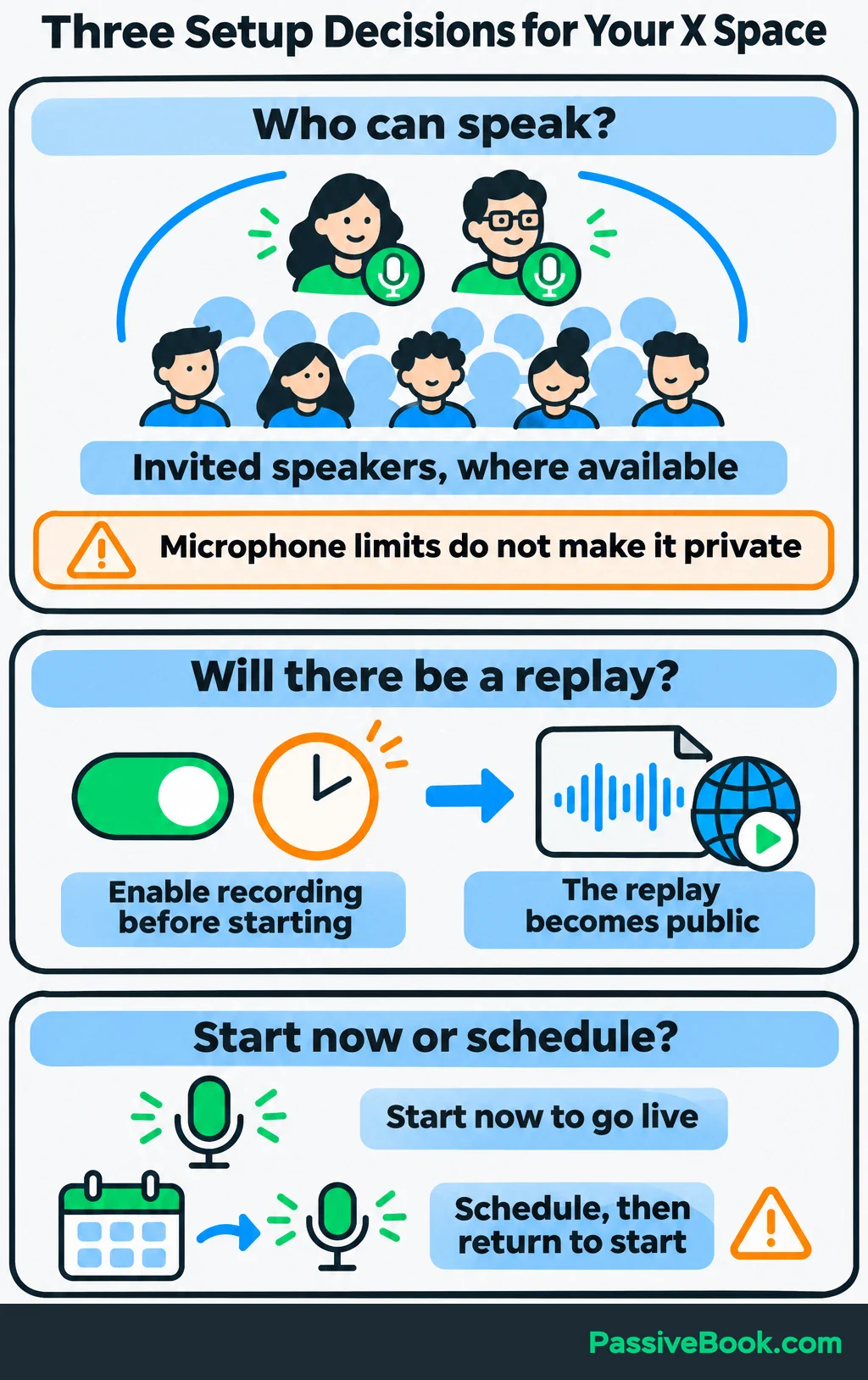
Then choose:
- Start your Space to go live.
- Schedule for later to select a date and time.
Scheduling does not replace starting the event. Return to the scheduled Space when you are ready to begin.
Share its link with the topic, time zone, and reason to attend. A short invitation could promise a discussion about packing essentials and keeping supplies handy during stops. Point interested people toward the reminder option.
I would invite one relevant guest before promoting the event widely. Having someone ready to answer the first question makes the opening easier to manage.
With your topic and event details ready, prepare the messages you’ll use to invite people. Keep them focused on what you’ll discuss and who will find it useful.

Free AI Live Event Writer




How to Run and Moderate the Conversation
Welcome Listeners and Manage Speaking Turns
Once connected, unmute and explain what the session covers, when it ends, and how people can contribute.
For example:
“We’re comparing packing routines for a first weekend away with a dog. We’ll finish in 20 minutes. Request to speak, ask one question, and let others finish.”
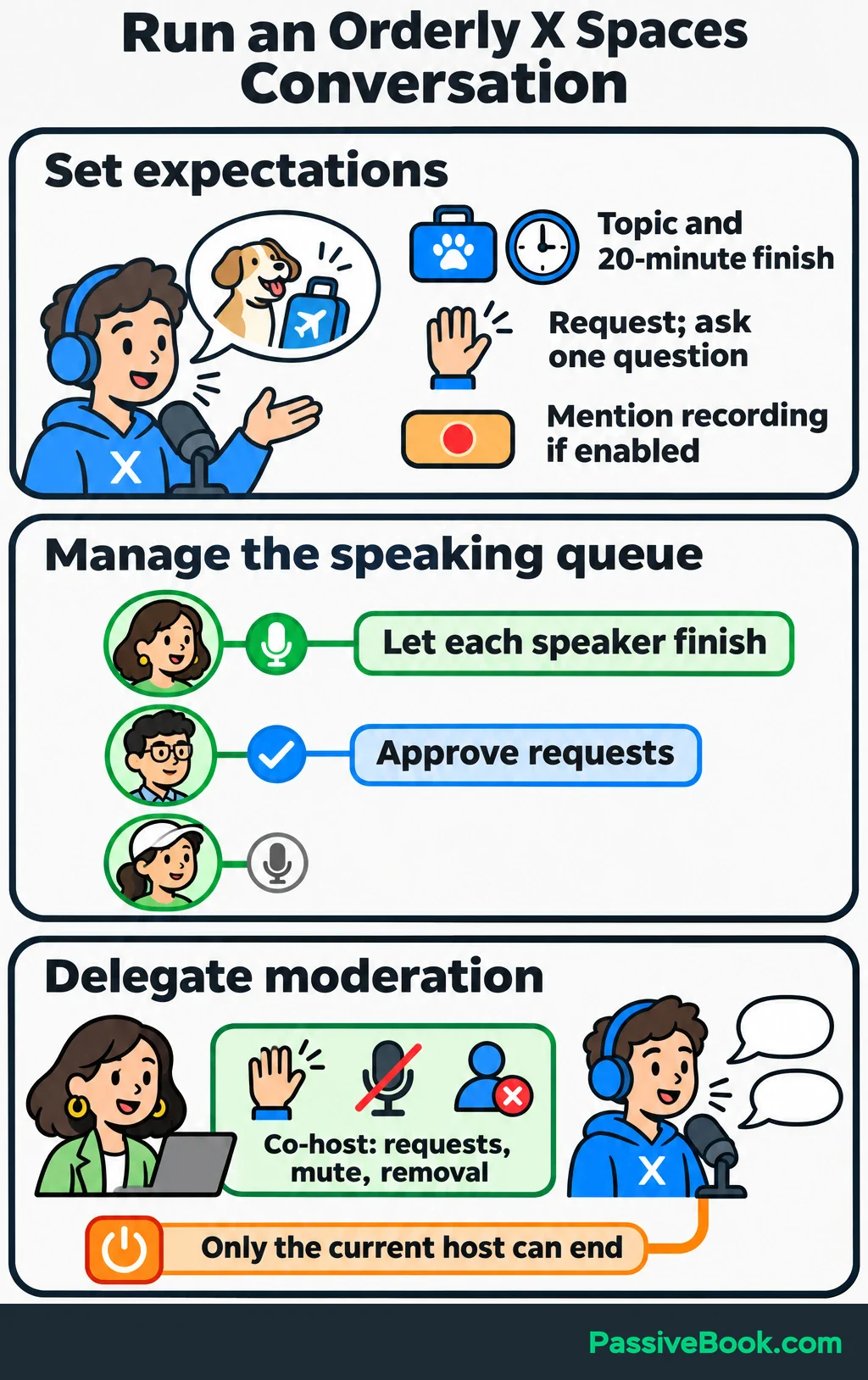
If you are recording, mention that in your welcome.
Open the participant controls to approve speaking requests or invite a speaker. A trusted co-host can help manage requests, mute audio, and remove participants while you lead. Co-hosts cannot end the Space unless they take over as the primary host.
Ask one prepared question and allow time for an answer. Then follow up on something concrete: “Where do you keep that bag during the drive?”
Briefly recap when newcomers arrive, but keep moving. Restarting the introduction for every new listener will consume the session.
You can also bring a relevant post into the discussion. Open the post’s share control and choose Share to Space. For the pet-travel example, share a post containing the packing checklist so people can see the items being discussed.
Handle Interruptions and Abuse
Open a participant’s profile or participant menu to choose the appropriate control:
- Mute: Stop their microphone audio.
- Remove speaking access: Return them to listening so they cannot keep speaking.
- Remove: Take them out of the current conversation.
- Block or report: Address persistent abuse or a rule violation.
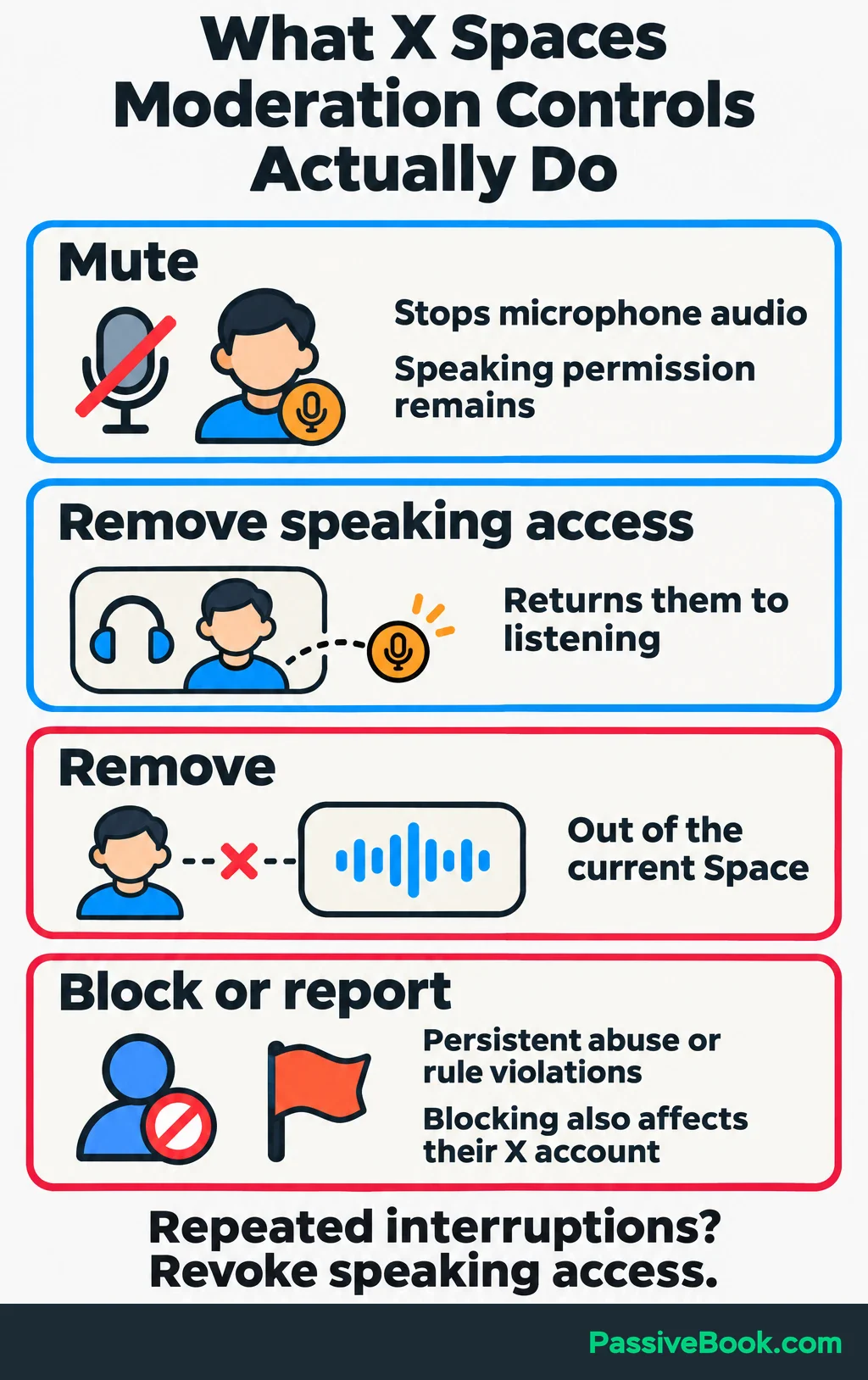
Muting alone does not revoke speaking permission. If someone repeatedly interrupts, remove their speaking access rather than repeatedly muting them.
Blocking also blocks that person’s account on X.
For an ordinary tangent, a short redirect is usually enough:
“Let’s bring this back to packing for the trip so we can finish the questions.”
For abuse, use the controls. You do not owe a disruptive participant a live debate about your moderation decision.
How to End the Space
Give a closing warning, let the current speaker finish, and recap the useful answers. Then offer one relevant next step.
For the pet-travel example, share a post linking to your printable trip planner. Explain what it helps people organize so listeners can decide whether they need it. One clear invitation is enough.
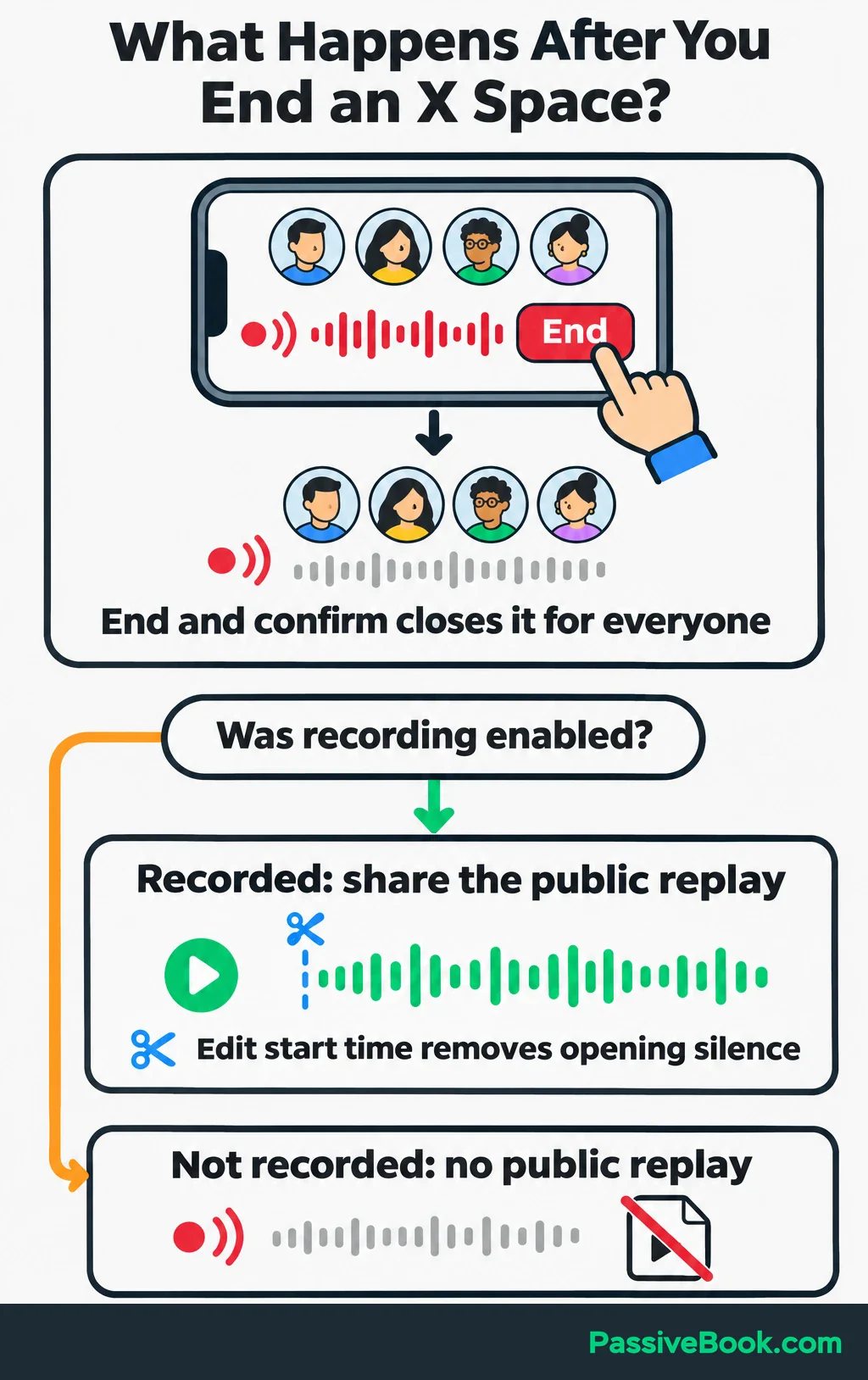
Select End and confirm to close the live conversation for everyone.
If you recorded it, share the replay and use Edit start time to remove opening silence. An unrecorded session has no public replay.
Before moving on, note one thing to improve: shorter introductions, a clearer opening question, or more time for audience questions.
I spent six months chasing followers on a side-niche Twitter account around 2022, and the follower growth did not turn into useful business results. That experience was outside Spaces, but it shapes how I would judge one: useful questions and relevant follow-ups matter more than a flattering attendance number.
Check whether the conversation helped people and gave them a sensible reason to continue with you. Then decide whether another session deserves space in your calendar.
Fix Common Access and Audio Problems
The Space or Hosting Controls Are Missing
First, reopen the host’s current link. Check whether the event is upcoming, live, or finished. An old announcement may lead to a conversation that has already ended.
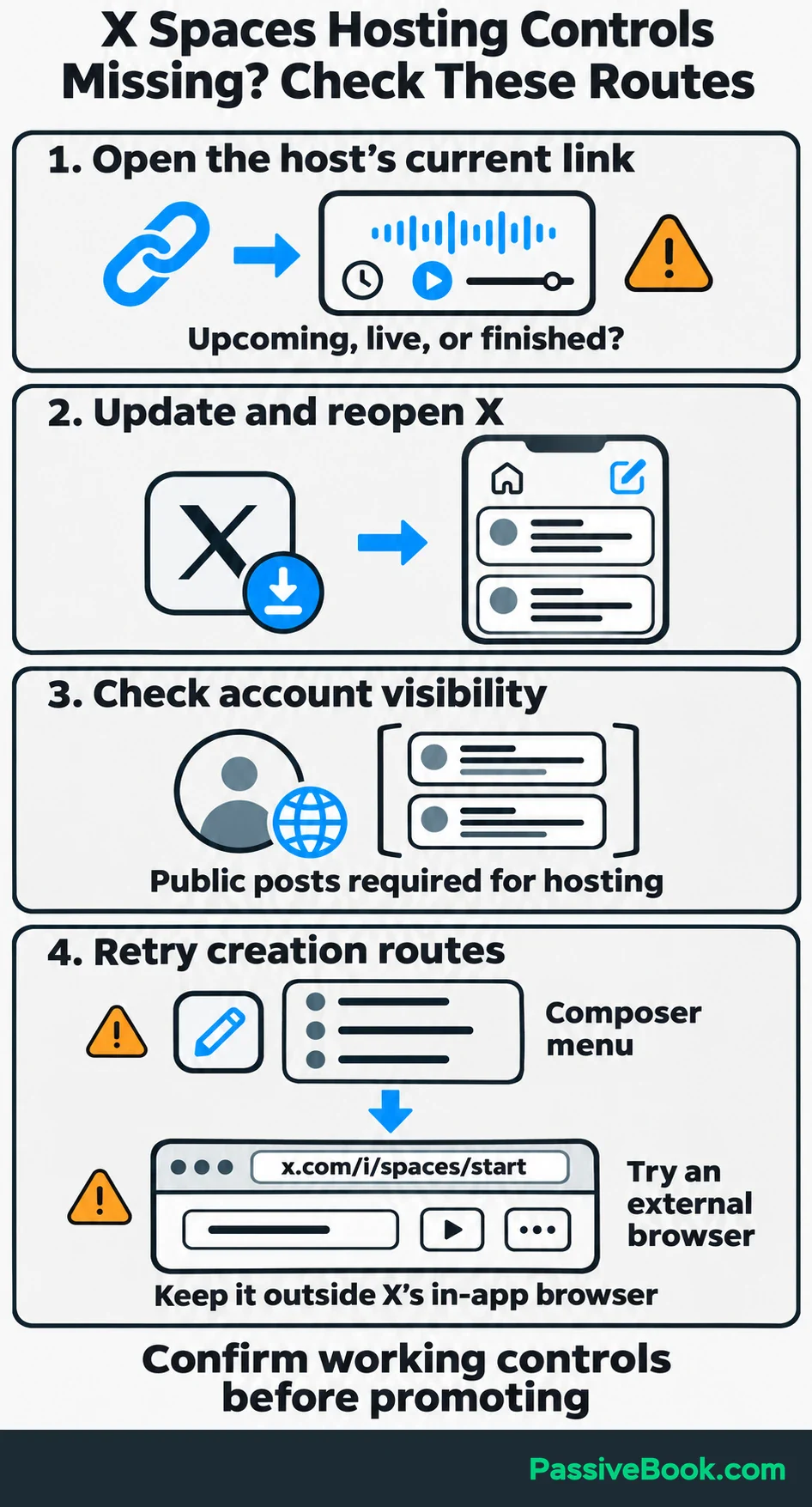
If the expected controls are missing:
- Update and reopen the X app.
- For hosting, confirm that your posts are public.
- Retry the creation routes described above, including the external browser.
If you still cannot open a creator, establish a working device before promoting the event.
You Cannot Hear or Be Heard
For missing sound, check your volume, Bluetooth output, and internet connection. Your audio may be playing through headphones sitting in another room. Leave and rejoin if those checks do not help.
If others cannot hear you, check three things:
- The host has approved you as a speaker.
- Your microphone control is unmuted.
- X has microphone permission on your phone.
For browser hosting, also check the site’s microphone permission and selected input device. In Chrome, allow microphone access for X and confirm that Chrome is using the microphone you intend to speak into.
Fix the simplest likely cause first. Buying a new microphone is an expensive way to discover that the old one was muted.
What Next?
Open one relevant Space and spend ten minutes listening. Find the request control, check whether it is recorded, and notice how the host manages turns before planning your own session.
Use the social buttons to share this guide when you invite people to their first Space—it can help them arrive knowing how to listen or contribute.
Which part would you want to practise first: joining, speaking, or keeping a conversation on track? Leave your answer, along with any other questions, in the comments.
Share this post with your friends & followers:

