You have products ready to sell, but Pinterest’s setup keeps mentioning catalogs, tags and advertiser accounts. You wanted a place to display your products, and now you’re wondering whether you need to pay for ads.
The bigger risk is spending an afternoon connecting your shop, then discovering that your products aren’t eligible or shoppers can’t reach the right listing. This guide walks through a Pinterest storefront setup, including eligibility, costs and automatic product updates, so you can get shoppers from a Pin to a working checkout.
What Is a Pinterest Storefront?
A Pinterest storefront is a display of your products on your business profile. Your catalog supplies product details, Pinterest creates Product Pins, and you save those Pins to public boards so visitors can browse them. Product Pins can show information such as price and availability. Pinterest explains how product displays work.
The buying route looks like this:
- A shopper discovers your Pin or visits your profile.
- They open a product and follow its link.
- They buy through your online store.
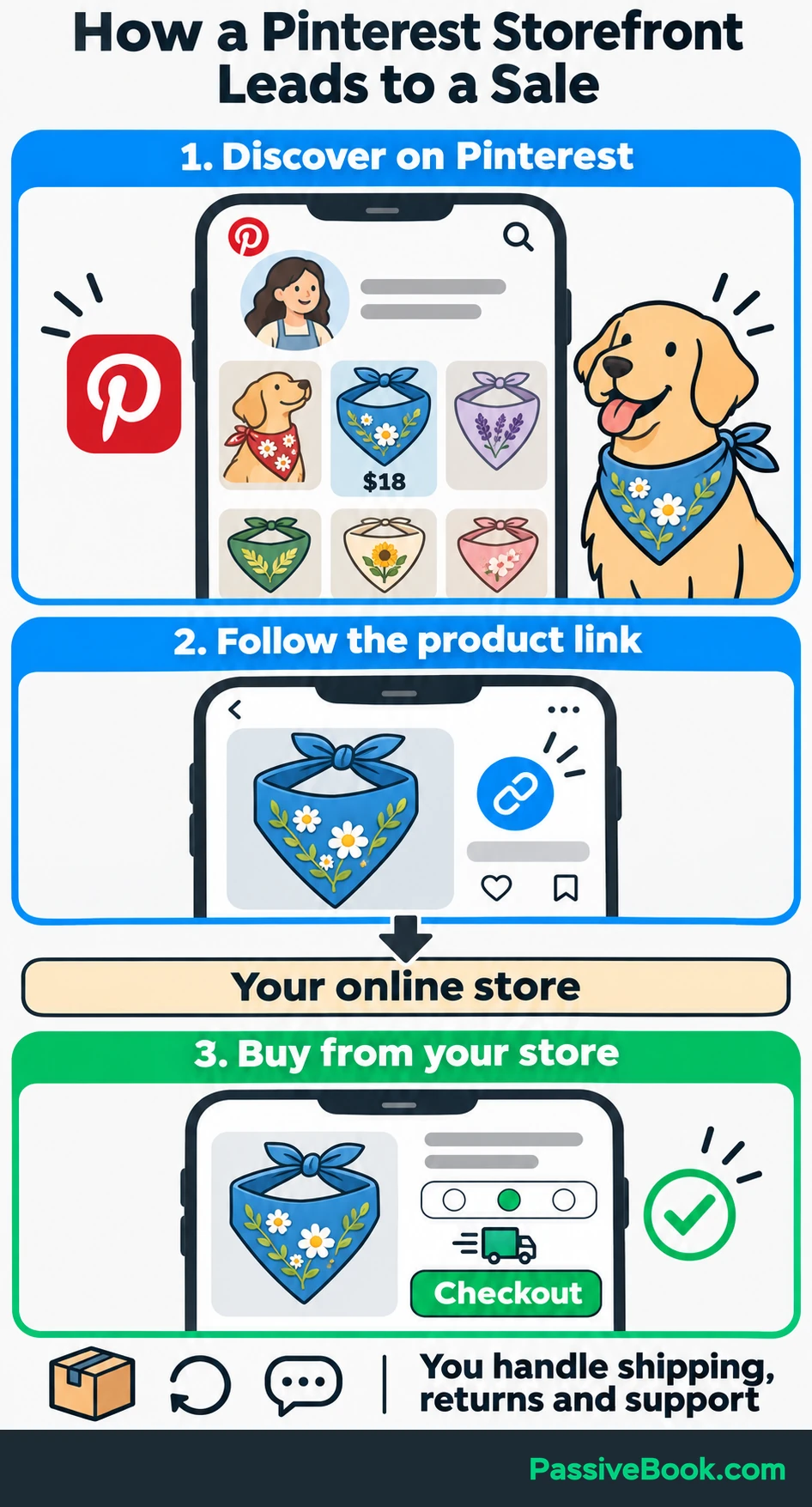
Your website handles checkout, and your business handles shipping, returns and customer service. Pinterest gives shoppers another way to find you.
Throughout this guide, imagine you run an online shop selling washable, embroidered dog bandanas through your own website. The product details, prices and sample wording are illustrations.
How Much Does a Pinterest Storefront Cost?
A Pinterest business account is free. You can publish Pins and build your profile without purchasing ads. Pinterest’s business account guidance confirms this.
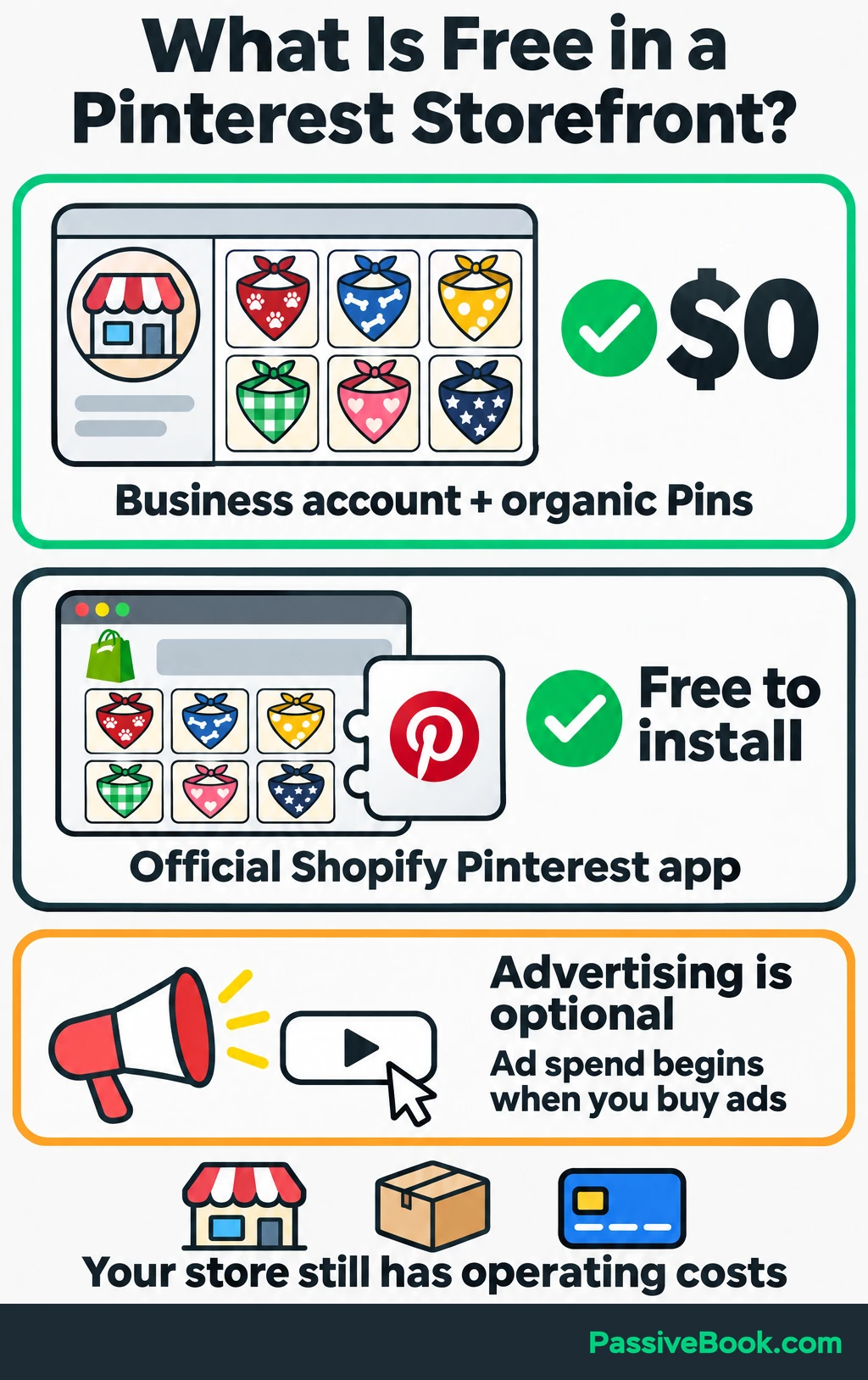
Your shop still has its usual costs:
| Expense | What to budget for |
|---|---|
| Store platform or hosting | Your existing Shopify subscription or WordPress hosting |
| Domain | Keeping your store’s web address registered |
| Payment processing | Fees charged when customers pay through your store |
| Products and fulfillment | Materials, packaging, shipping and returns |
| Product connection | Any extra feed service or paid extension you choose |
Separate costs you already pay from costs Pinterest adds. If your shop is already running, you don’t need to count its entire hosting bill as a new Pinterest expense.
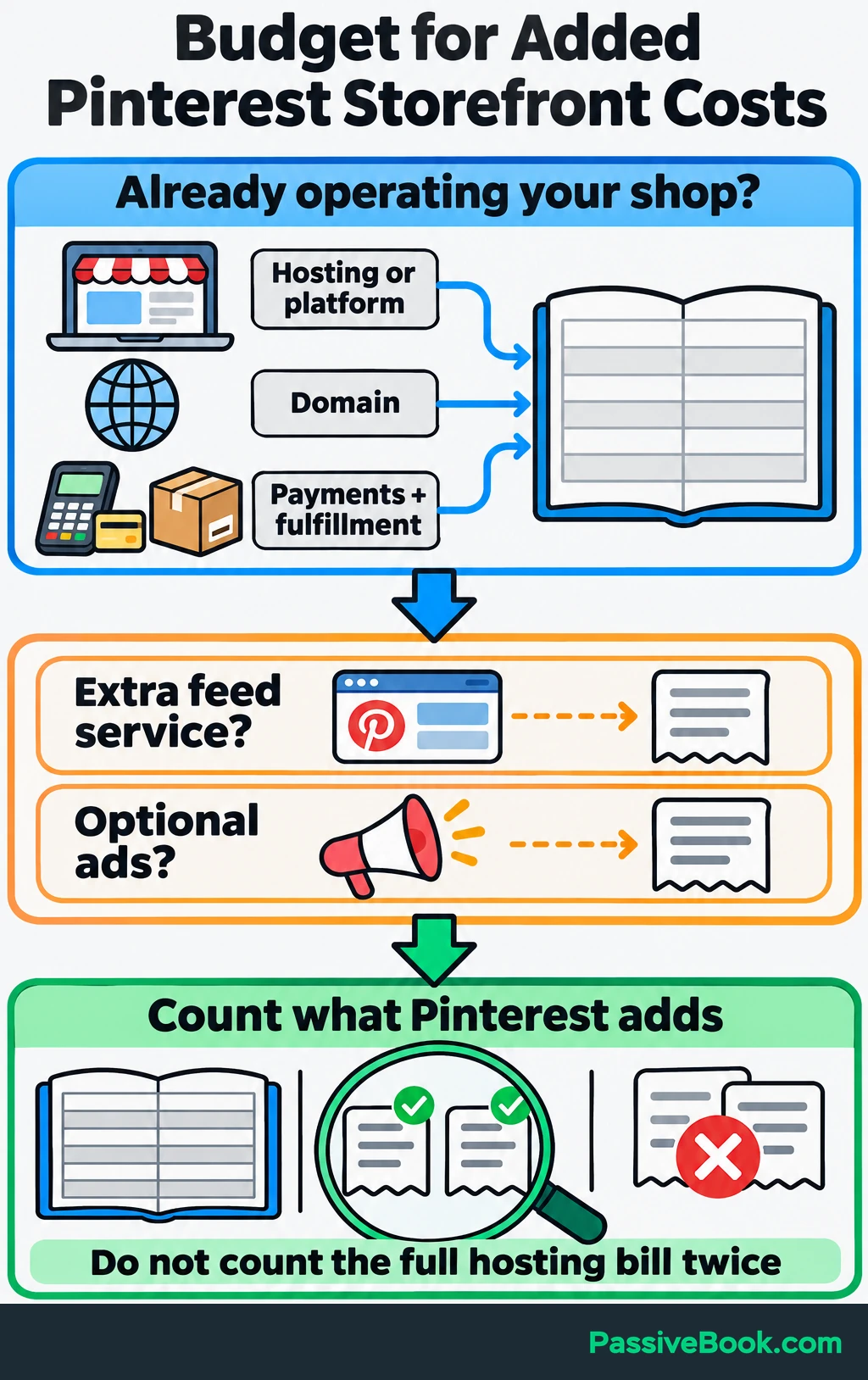
The official Shopify Pinterest app is free to install, and Pinterest charges through it when you purchase ads. Advertising is optional. The app listing explains its charges.
I would start with unpaid, or organic, Pins and the connection your store already supports. Don’t buy another subscription before you’ve checked whether you need it.
1. Check Whether Your Store Qualifies
Check eligibility before preparing images or building a feed. A polished profile won’t make an ineligible store or product qualify.
First, confirm that Pinterest shopping tools and your chosen integration support your business country. Check Pinterest’s shopping availability, then confirm availability for the Shopify or WooCommerce connection if you plan to use one.
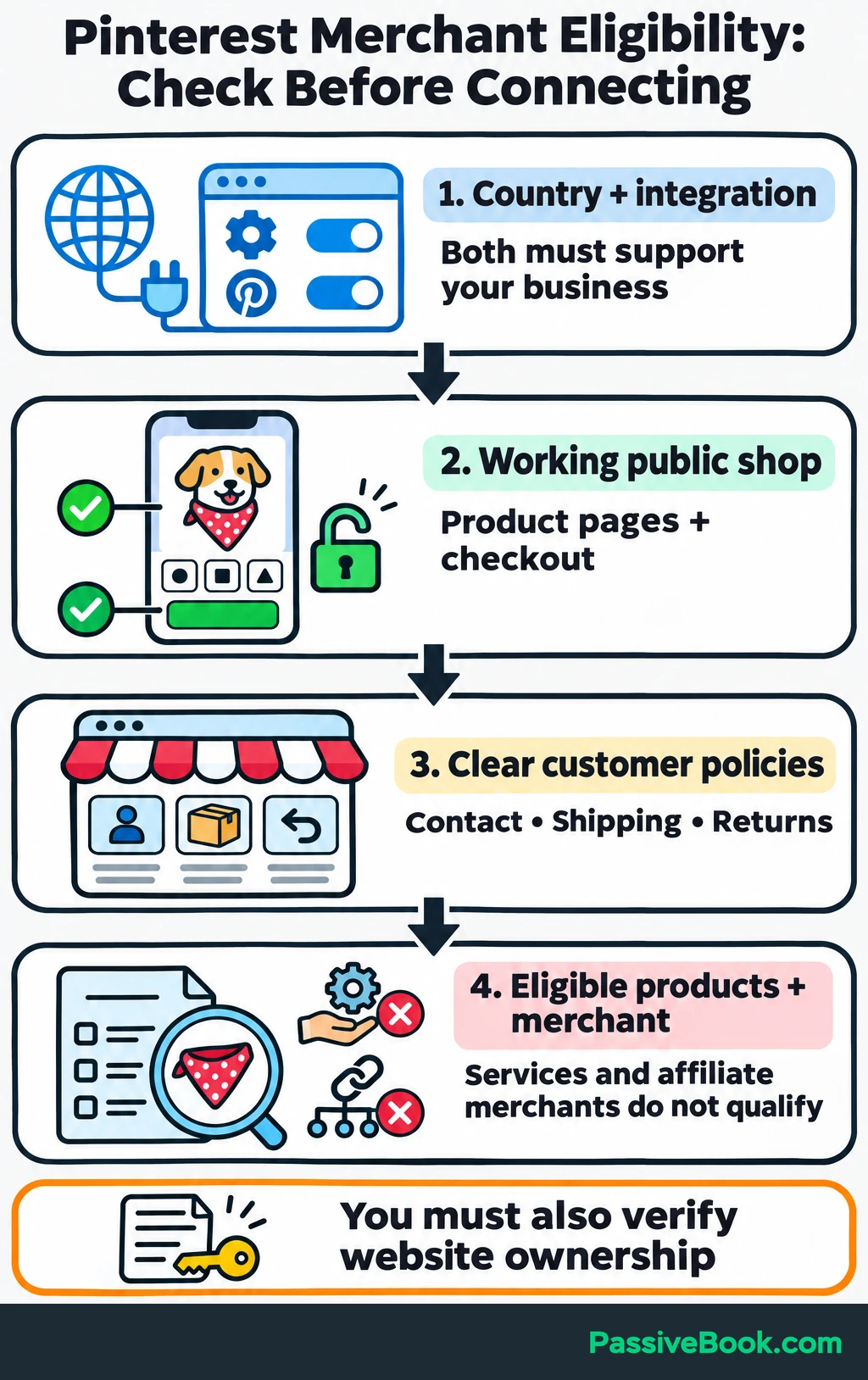
Next, review your website:
- Each product has its own working page.
- Customers can view products without registering.
- Checkout works.
- Contact details are easy to find.
- Shipping information explains where you deliver and what shoppers can expect.
- Your return policy clearly explains whether you accept returns and how they work.
Check your actual products against the merchant rules too. Services don’t qualify for this product workflow, and affiliate marketers don’t qualify as merchants. A dog bandana and a pet supplement can face different restrictions, even though both serve pet owners. Pinterest’s merchant guidelines set out these requirements.
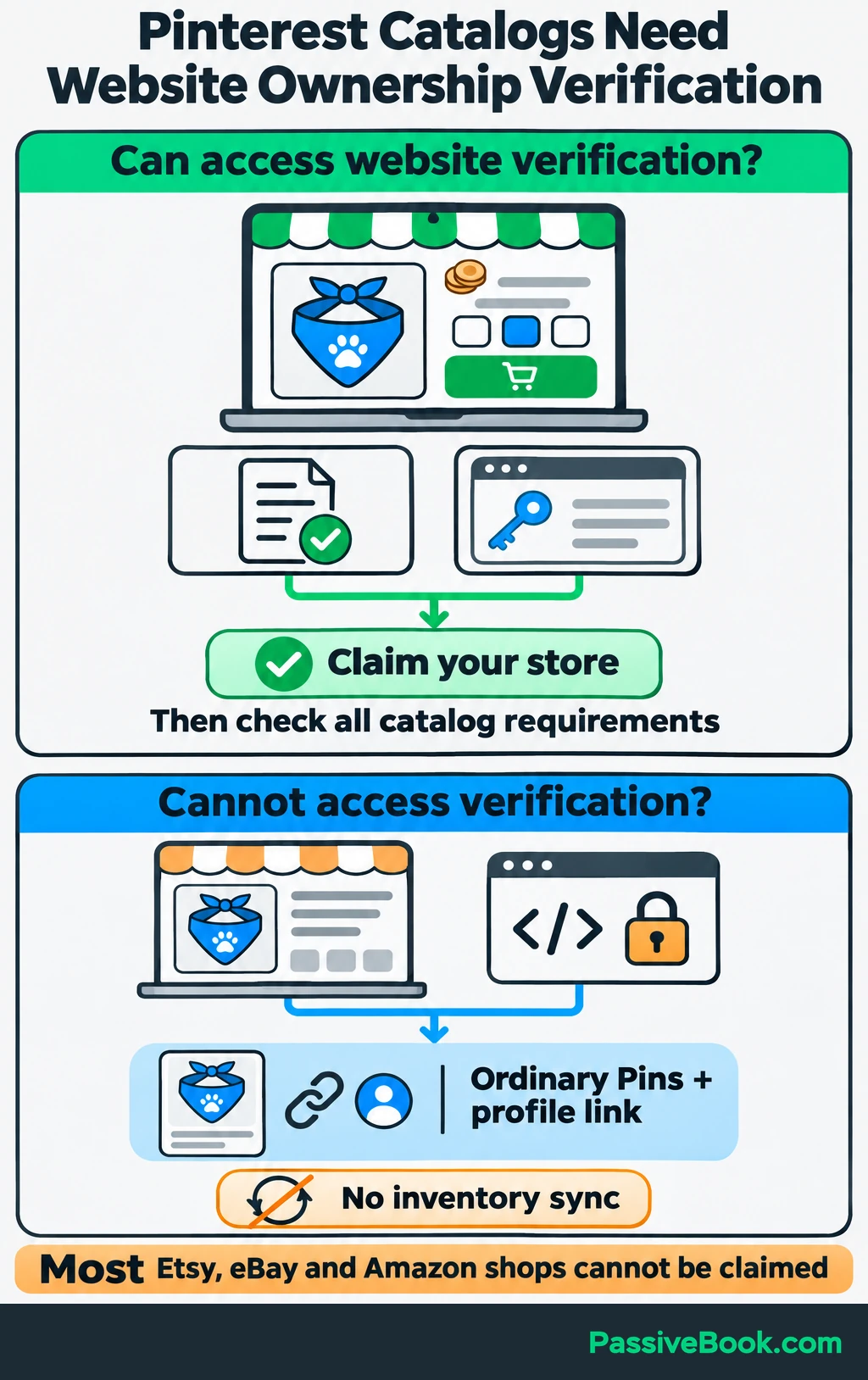
You also need to be able to verify ownership of your website. Most shops hosted on Etsy, eBay and Amazon cannot be claimed because sellers don’t control the required website code.
If you can’t use catalogs, you can still publish ordinary Pins linking to compliant listings and add your store URL to your profile. That gives shoppers a route to buy, but it won’t sync your inventory.
For the bandana shop, I would finish the size guide, shipping details and return policy before connecting anything.
2. Create Your Pinterest Business Account
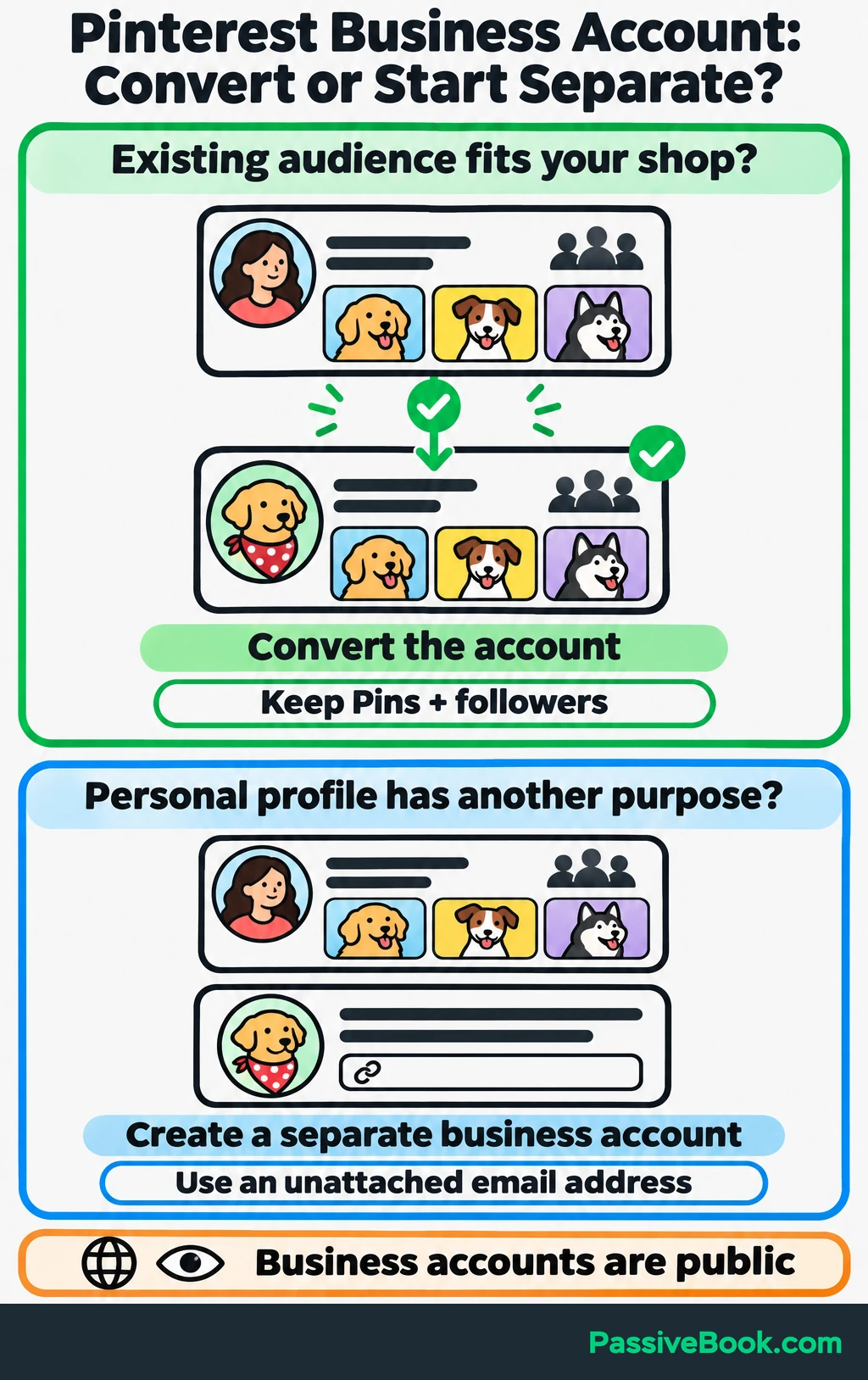
In a desktop browser, open Pinterest’s sign-up page and choose “Create a business account.” Sign up with an email address that isn’t already attached to another Pinterest account, then enter your business details.
You can also convert a suitable personal account. Conversion keeps your existing Pins and followers, but business accounts are public.
I would create a separate account if your personal profile serves a different purpose. A shop profile should make it easy to understand what’s for sale.
Add:
- Your shop name.
- A recognizable logo or profile image.
- A short description of what visitors can buy.
- Your store URL.
The bandana shop’s description could say:
Washable embroidered dog bandanas in sizes for small and large dogs. Browse designs and check our size guide before ordering.
Complete onboarding without launching an ad campaign. Use this same business account when you claim your website and connect your products.
3. Connect Your Product Catalog
A catalog is Pinterest’s collection of your product information. A feed is the file or connection that supplies it.
Choose one connection for your existing store. Keep prices, stock, images and product links in your store’s records, then let the connection send those details to Pinterest.
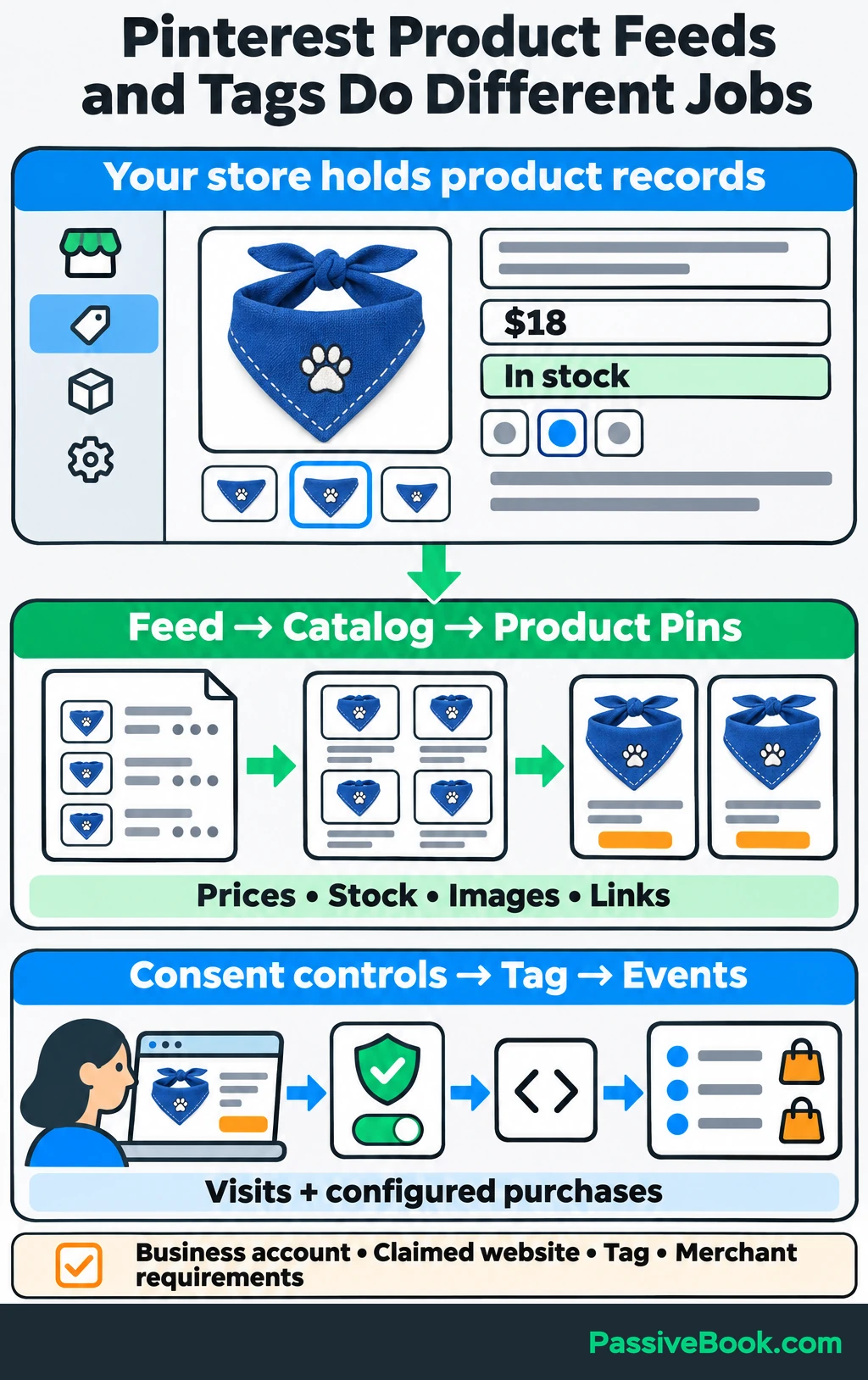
Before connecting a retail catalog, you need a business account, a claimed website, an installed Pinterest tag and a website that meets Pinterest’s merchant requirements. The tag is website code that reports activity such as visits and purchases. It doesn’t supply your inventory; the feed does that.
Supported integrations can handle several of these tasks during setup. Pinterest lists the catalog prerequisites and feed requirements here.
Configure the tag with your site’s consent controls before sending tracking events. Pinterest specifically requires legally compliant consent before sending tag events when operating in the EU. Its tag guidance explains this requirement.
Connect a Shopify Store
Use the official Pinterest app published by PINTEREST inc. The connection also requires an advertiser account for Pinterest’s advertising and tracking tools, but creating one doesn’t require launching a campaign.
- Install the app from the Shopify App Store.
- Connect the Pinterest business account you intend to use for your shop.
- Complete the advertiser-account setup as the account owner.
- Follow onboarding to connect your website and products.
- Review the resulting catalog status.
The app can claim your website, install Pinterest tracking and connect your product feed to generate Product Pins. Check that each part has completed rather than assuming installation finished everything.
If you previously installed the Pinterest tag manually or through another tool, remove that installation before relying on the app’s version. Otherwise, you may end up with duplicate tracking.
For missing products, check that they’re active and available to the Pinterest sales channel in Shopify.
Connect a WooCommerce Store
Install and activate Pinterest for WooCommerce. To begin setup in WordPress, open “Marketing,” then “Pinterest.”
- Connect your intended Pinterest business account.
- Select or create the advertiser account requested during onboarding.
- Finish the tracking setup.
- Complete website verification.
- Enable product syncing and save your settings.
Review the catalog status after setup. The first sync can take up to 24 hours, so give it time before trying to reconnect everything.
For the bandana shop, check that the expected designs and size variants appear. Seeing one blue bandana doesn’t tell you whether every purchasable size reached Pinterest.
If you already sell through WordPress, I would use this connection before considering a move to another platform. Changing your whole store to add one traffic channel creates a much bigger job.
Connect Another Store With a Product Feed
Start by claiming your website through Pinterest’s website-claim settings. You can add its verification HTML tag, upload its HTML file or add a DNS TXT record through the service managing your domain.
Choose the method you can access, apply the supplied verification details and return to Pinterest to verify. A website can belong to only one Pinterest account at a time, so check an older account if verification reports an existing claim.
Next, install your account’s Pinterest tag across your website and verify that a page visit registers, subject to your consent settings.
Then prepare your feed. Pinterest supports CSV, TSV, supported XML and Google Sheets formats. Include these product attributes:
| Attribute | Illustrative value |
|---|---|
id | bandana-blue-m |
title | Blue Embroidered Dog Bandana – Medium |
description | Washable blue cotton dog bandana with embroidered paw design, medium size. |
link | https://example.com/products/blue-bandana?size=medium |
image_link | https://example.com/images/blue-bandana-medium.jpg |
price | 18.00 USD |
availability | in stock |
item_group_id | bandana-blue |
Replace the example URLs with accessible pages and images on your store. The destination must show the matching product and its details.
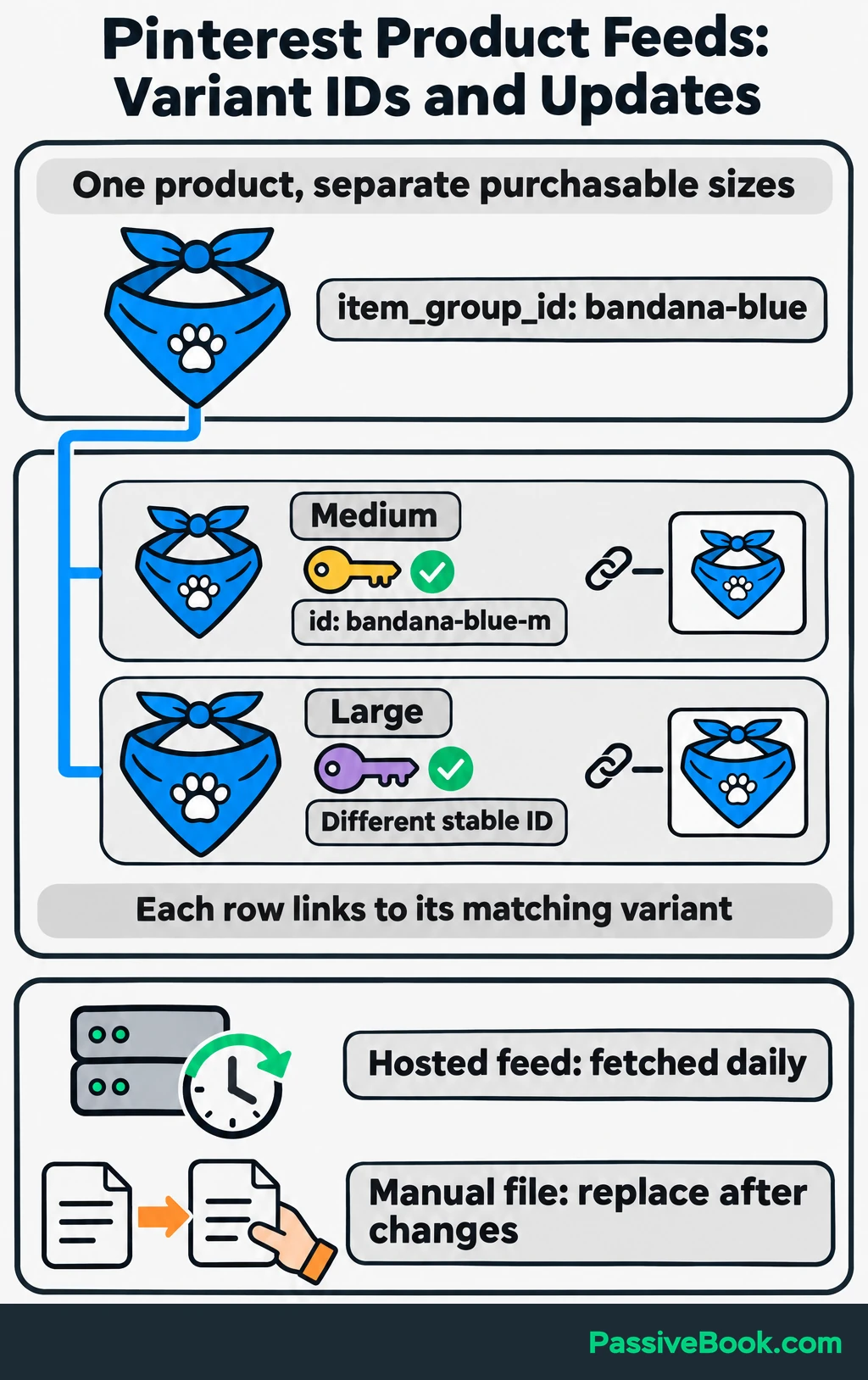
Give each purchasable variant its own row and stable ID. The medium and large blue bandanas need different IDs, while their shared item_group_id connects them as variants of one product. That grouping field is required when a product has multiple variants.
To add your feed, open “Catalogs and product groups” and choose “Add data source.” Provide a directly downloadable hosted feed URL or upload your file.
Select the country where you sell, the feed language and the product currency carefully. Country and language cannot be changed afterward.
Check the formatting before submission: choose “Test your data source,” paste a sample including the column headers, then choose “Validate data source.” Fix any reported errors. To submit, choose “Create Pins” for a hosted feed or “Upload” for a file.
Pinterest fetches hosted feeds daily. A manually uploaded file needs to be replaced when listings change. Pinterest’s data-source guidance explains these settings and update methods.
I would choose an automatically updated hosted feed if your store can generate one. A spreadsheet you must remember to replace is another recurring task.
4. Resolve Catalog Errors
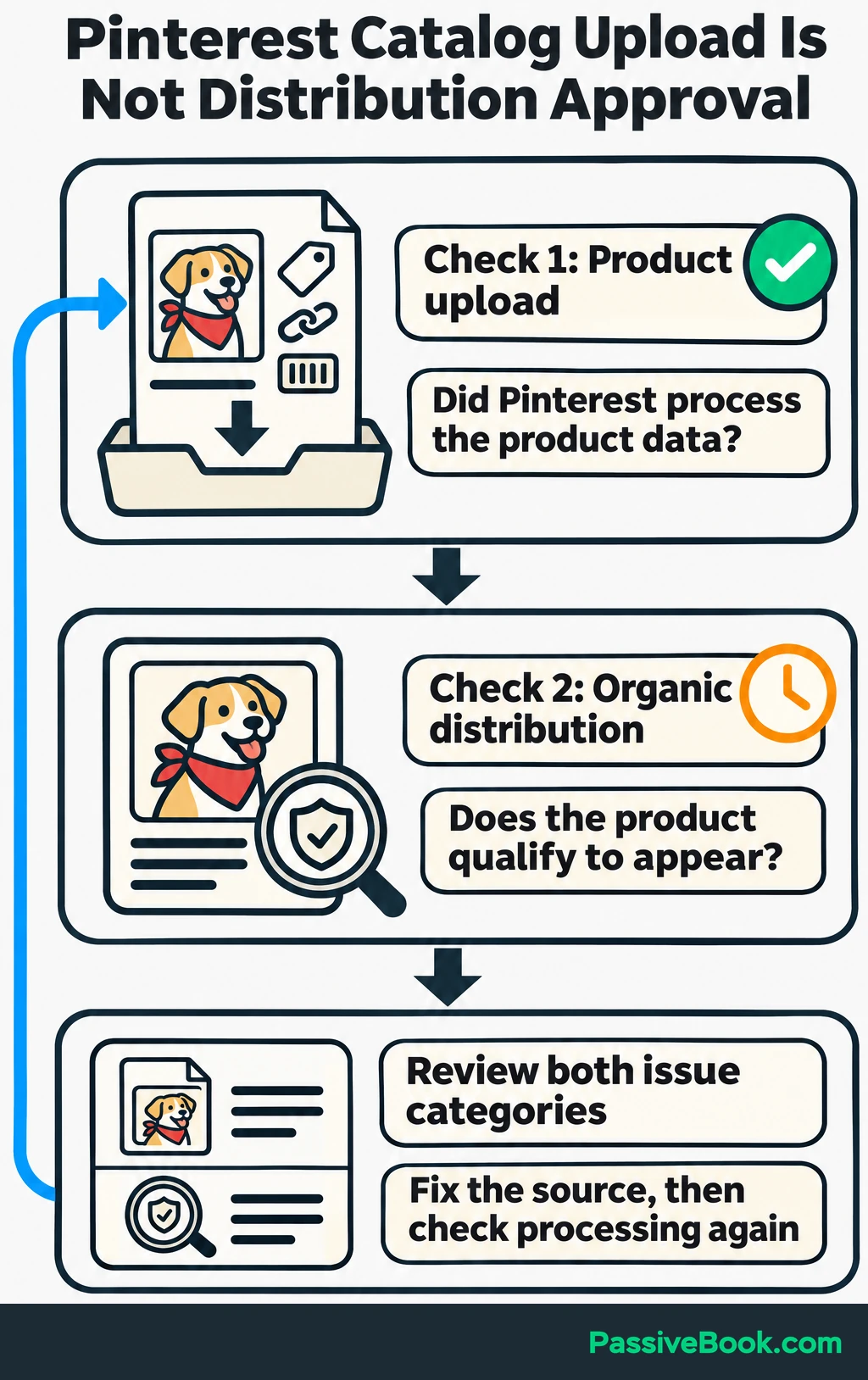
Open your catalog’s diagnostics and check two things separately:
- Whether the products uploaded successfully.
- Whether those products qualify for organic distribution.
A successful upload doesn’t guarantee that every item can appear organically. Pinterest reports upload issues and distribution issues separately. Its diagnostics guidance explains the distinction.
Use the reported problem to decide what to fix:
| Problem | What to check | Correction |
|---|---|---|
| Missing required information | A product row has no description, price or image URL | Fill in the missing value in your store or feed |
| Duplicate IDs | Two different variants use the same id | Give each variant a unique, stable ID |
| Product links use another domain | The feed points to an old store address or unclaimed website | Use matching product pages on your claimed store |
| Images won’t load | The image URL is broken, private or blocked from Pinterest | Supply a working image URL Pinterest can access |
Correct the original product record or feed, then review the next processing result. Creating another catalog won’t repair the source of the error.
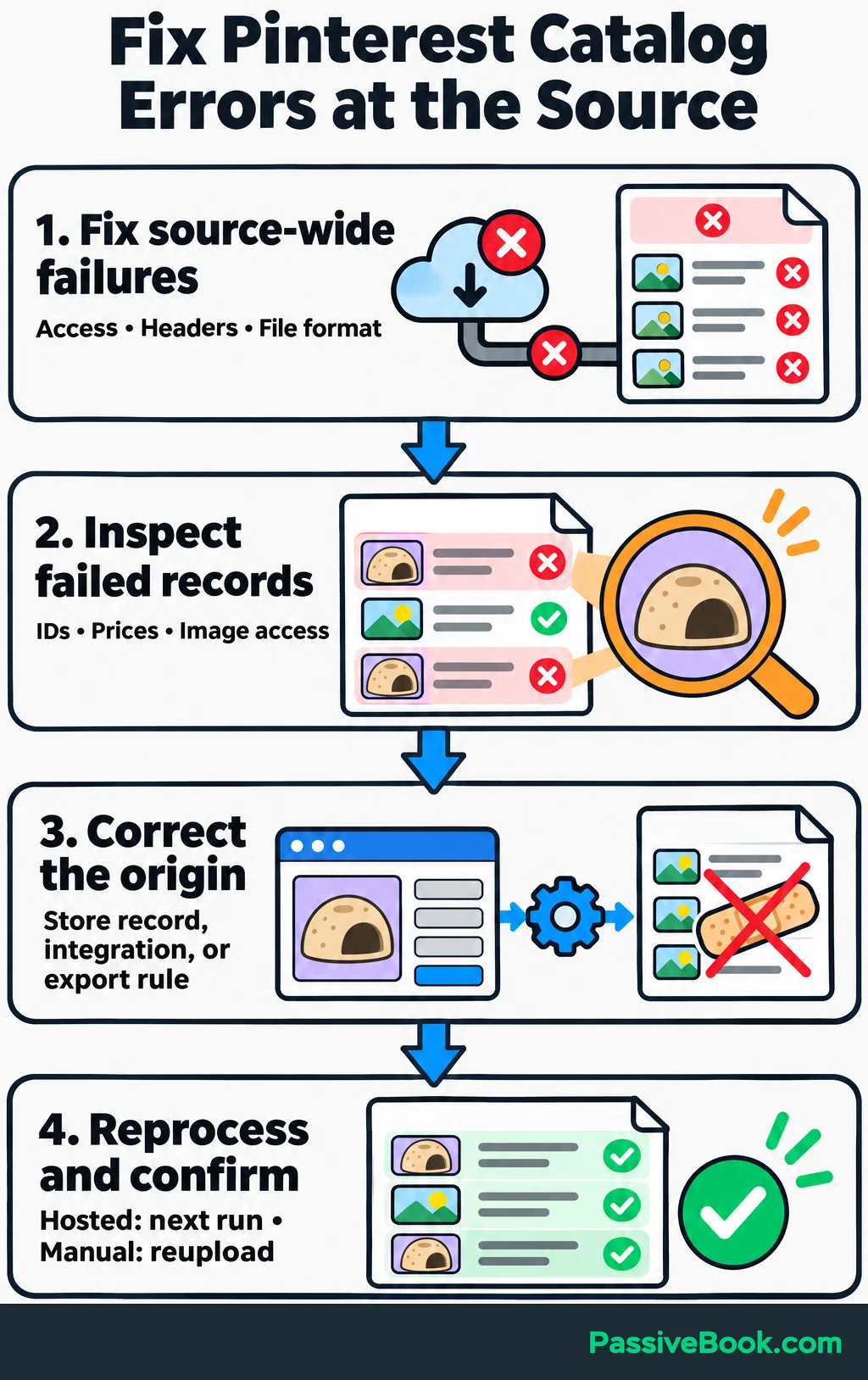
Keep product information updated at least every seven days to maintain distribution, and send changing prices and availability promptly. Daily syncing helps only when the source itself is current.
For the bandana shop, a sold-out medium size should become unavailable in the store’s records and then flow through the connection. Don’t leave Pinterest advertising stock that exists only in your spreadsheet.
5. Showcase Your Products on Your Profile
Once your Product Pins are ready, save them to public boards on your profile. This is what makes your products browsable there.
Create a board with a clear name such as “Washable Dog Bandanas,” then save the relevant Product Pins to it. You can add more specific boards when you have enough products to make them useful.
I would skip names like “Things We Love.” A visitor should understand what’s inside before opening the board.
Catalog product groups and public boards serve different jobs. Product groups help manage catalog items and campaigns. They don’t replace saving your products to public boards.
View your profile as a visitor and confirm that the boards and intended Pins appear publicly.
6. Test the Path From Pin to Checkout
Before publishing more Pins, test one complete buying route on your phone.
Open the blue bandana Pin from your public profile and compare it with the store listing:
- Does the image show the right design?
- Do the price and availability match?
- Does the link open the correct product?
- Is the medium size selected, or is the size selector easy to use?
- Can you find measurements and delivery information without hunting?
Then complete a test order using your store’s supported testing process. Check shipping charges, payment, confirmation messages and inventory handling.
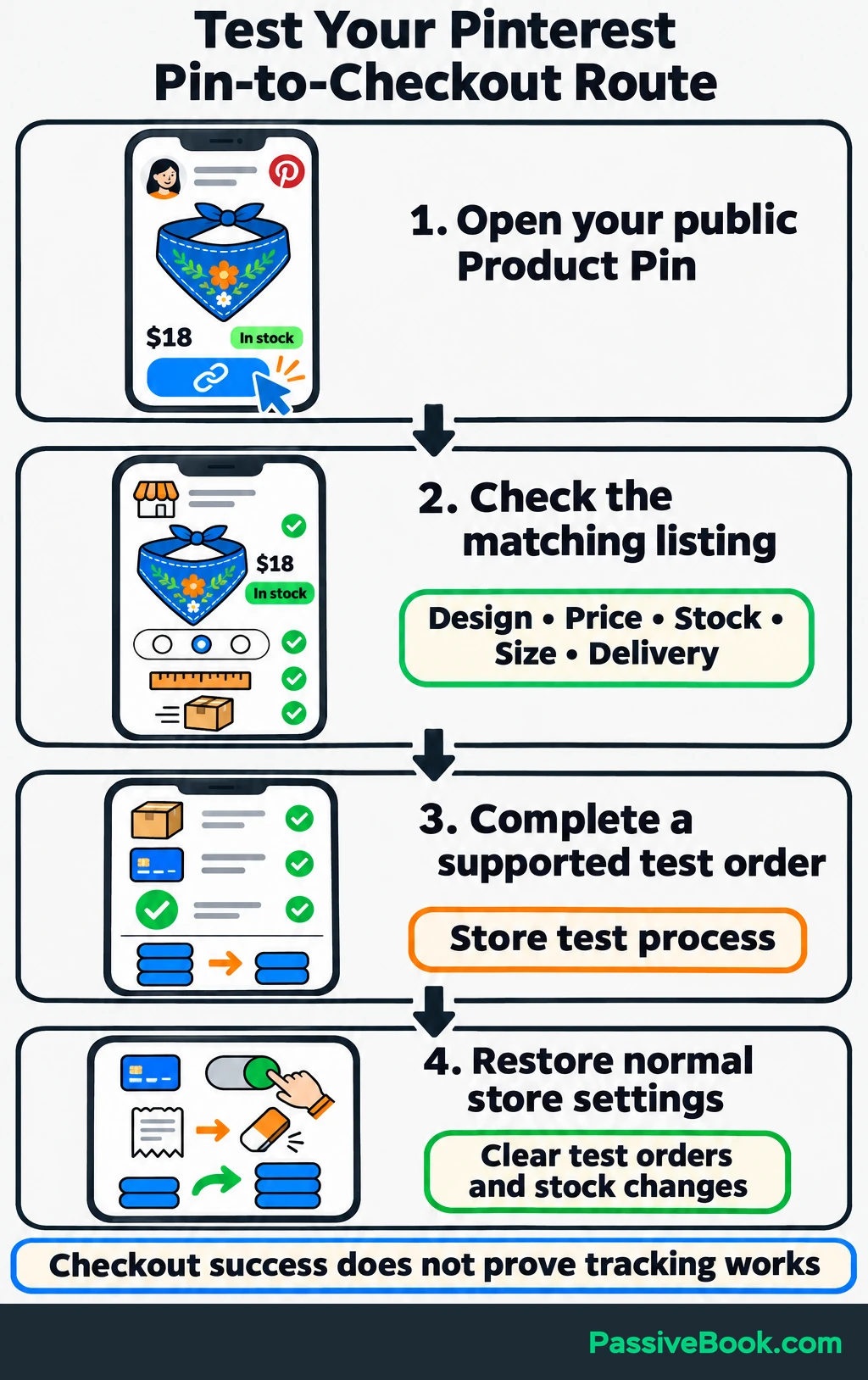
Restore normal payment settings afterward and clear any test orders or stock changes as appropriate.
Verify tracking separately. A successful order proves checkout works, but it doesn’t prove Pinterest received the intended events. Check the tag’s event-testing tools for the page visit and any purchase event you configured.
I would finish this test before making another batch of graphics. More traffic won’t improve a broken checkout.
7. Publish Pins That Attract Shoppers
Start with the product and the shopping question it answers. Then choose an image and wording that help someone assess it.
Search Pinterest for relevant phrases and read the suggestions for clues about how people describe products. Use terms that match what you sell rather than adding every phrase you find.
For the bandana shop, useful angles might include washable fabric, embroidered designs and fit. Show the actual product clearly, including how it looks when worn.
Use a vertical image with a 2:3 ratio, such as 1000 × 1500 pixels. Pinterest recommends this format in its creative guidance. Canva is enough to crop your product photos and add a short, readable caption.
Here’s a compact example:
- Image: A clear photo showing the blue bandana’s embroidery and fit.
- Title: Washable Embroidered Dog Bandana
- Description: A blue cotton bandana with embroidered paw detail, available in several sizes. Check the neck measurements and care instructions before choosing your size.
- Destination: The blue bandana’s product listing.
- Board: Washable Dog Bandanas.
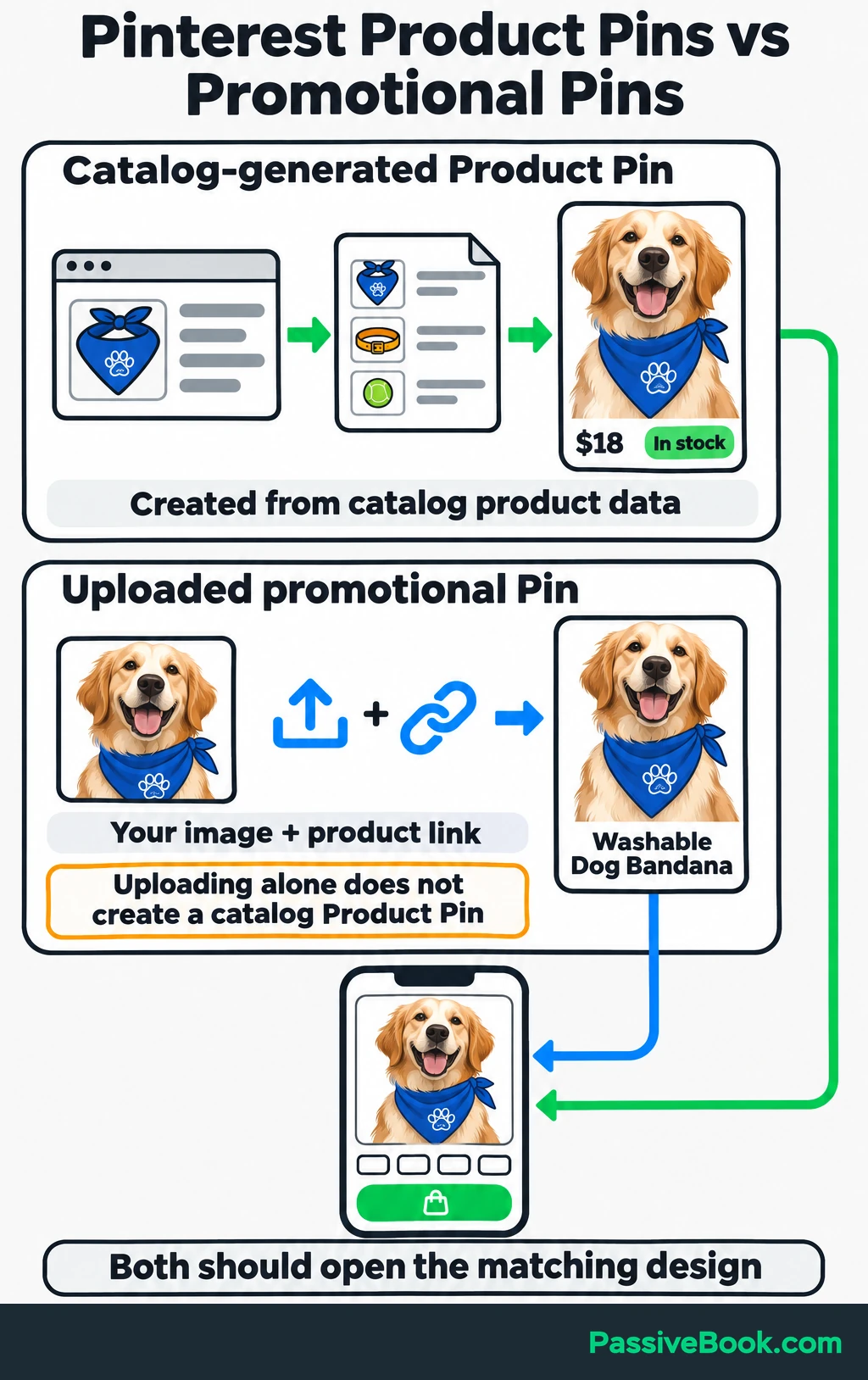
A shopper who clicks for one design should land on that design.
You can use your existing listing as the starting point instead of writing every Pin from scratch. Our AI Skill turns those product details into a coordinated set of shop and Pin copy.
Free AI Pinterest Studio




In my own Pinterest work, I’ve wasted time polishing a graphic before deciding where the visitor should go next. I now choose the destination page first. For your bandana shop, that means checking the listing before designing the Pin around it.
Use catalog-generated Product Pins alongside additional promotional Pins. Uploading a graphic with a product link doesn’t by itself create a catalog Product Pin.
Prepare distinct images from your existing product photography and schedule standard Pins with Pinterest’s native scheduler. I wouldn’t pay for a separate tool just to do that job.
8. Measure Visits and Sales
Start with outbound clicks. They measure actions that take people beyond Pinterest, while Pin clicks measure opening a Pin for a closer view. Pinterest defines these metrics in its analytics guidance.
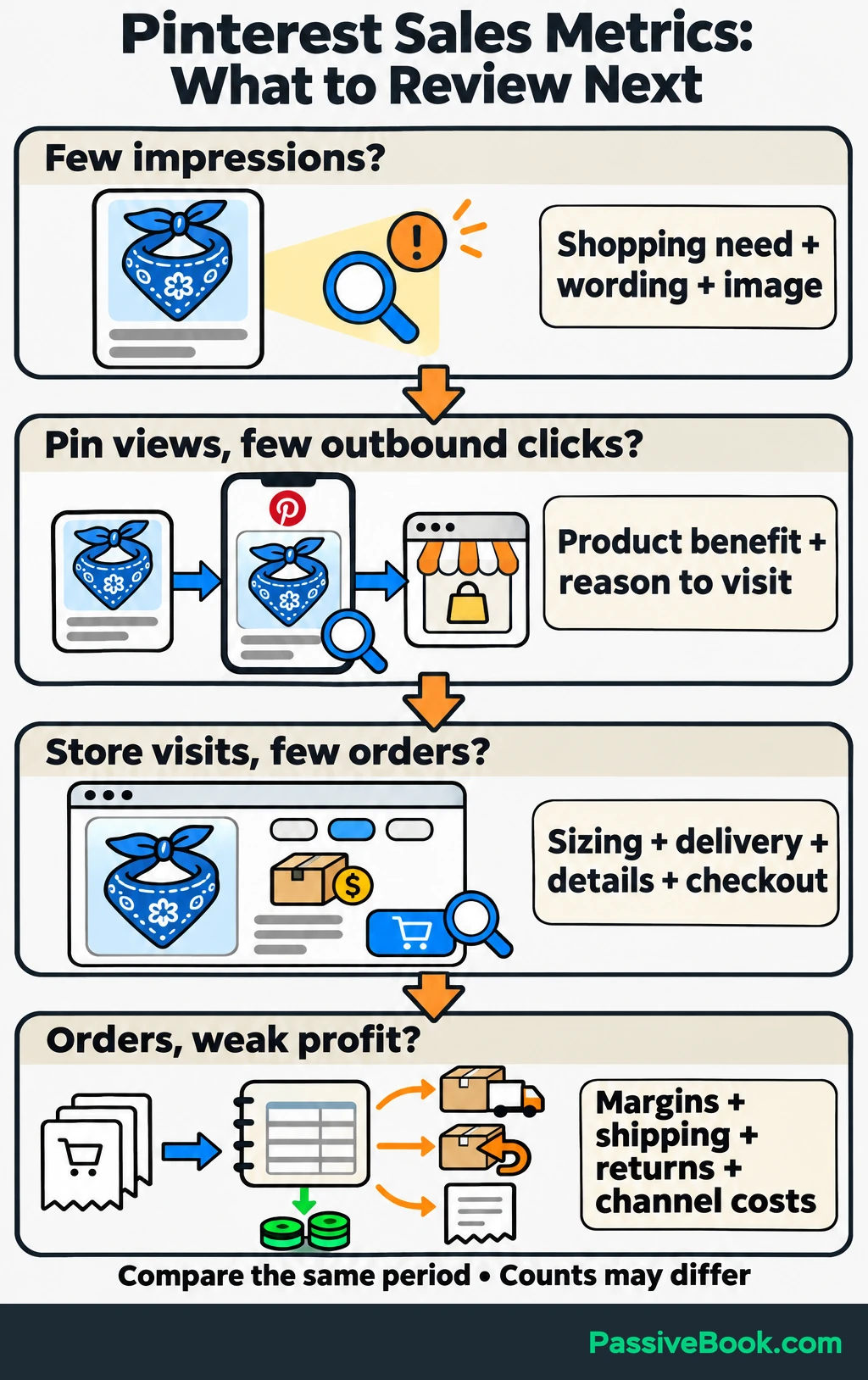
Compare outbound clicks with visits, orders and revenue attributed to Pinterest in your store analytics over the same period. These figures won’t match exactly, but comparing them helps you decide whether to review the Pin, the product page or checkout.
| What you see | What I would review next |
|---|---|
| Few impressions | Whether the topic, wording and image clearly match a shopping need |
| People view Pins but rarely visit | Whether the Pin shows a useful product benefit and gives a reason to open the listing |
| People visit but rarely buy | Sizing, delivery costs, product details and checkout |
| Orders arrive but profit is weak | Product margins, shipping, returns and extra channel costs |
For the bandana shop, visits to the blue design without purchases are a reason to inspect that listing. Perhaps the sizing explanation needs work, but check the page and buyer feedback before deciding.
Pinterest drives meaningful referral traffic to Passive Book. That experience gives me a reason to keep working on the channel, but it isn’t evidence of storefront sales.
Judge your shop through orders, profit after added costs and the time required to maintain it. Catalog syncing can automate product updates. It can’t guarantee customers.
What Next?
Check whether your store and products qualify, then choose the connection that fits your existing website. Aim to get one product through the whole route—from catalog to public board to a tested checkout—before expanding.
Use the social buttons to share this guide when you want to help make Pinterest setup a shorter job.
Which part of your store’s buying route needs the most work before you send shoppers to it? Tell me in the comments, and bring any other questions too.
Share this post with your friends & followers:

