Your store already has product photos, prices and a working checkout. Now you want those products to appear on Pinterest without buying ads or spending every evening publishing Pins.
The confusing part is getting the pieces connected. A Business account, a claimed website and an uploaded catalog each do a different job, and a successful upload doesn’t mean every product can appear in shopping results. This guide walks you through those connections, the costs to expect and the checks that show whether a shopper can get from your Pin to the right product.
What Does Pinterest Ecommerce Setup Cost?
A Pinterest Business account is free, and so are product listings. Pinterest takes no sales commission. Advertising is optional, and shoppers complete their purchases on your website or app. These are Pinterest’s stated shopping costs and checkout arrangements.
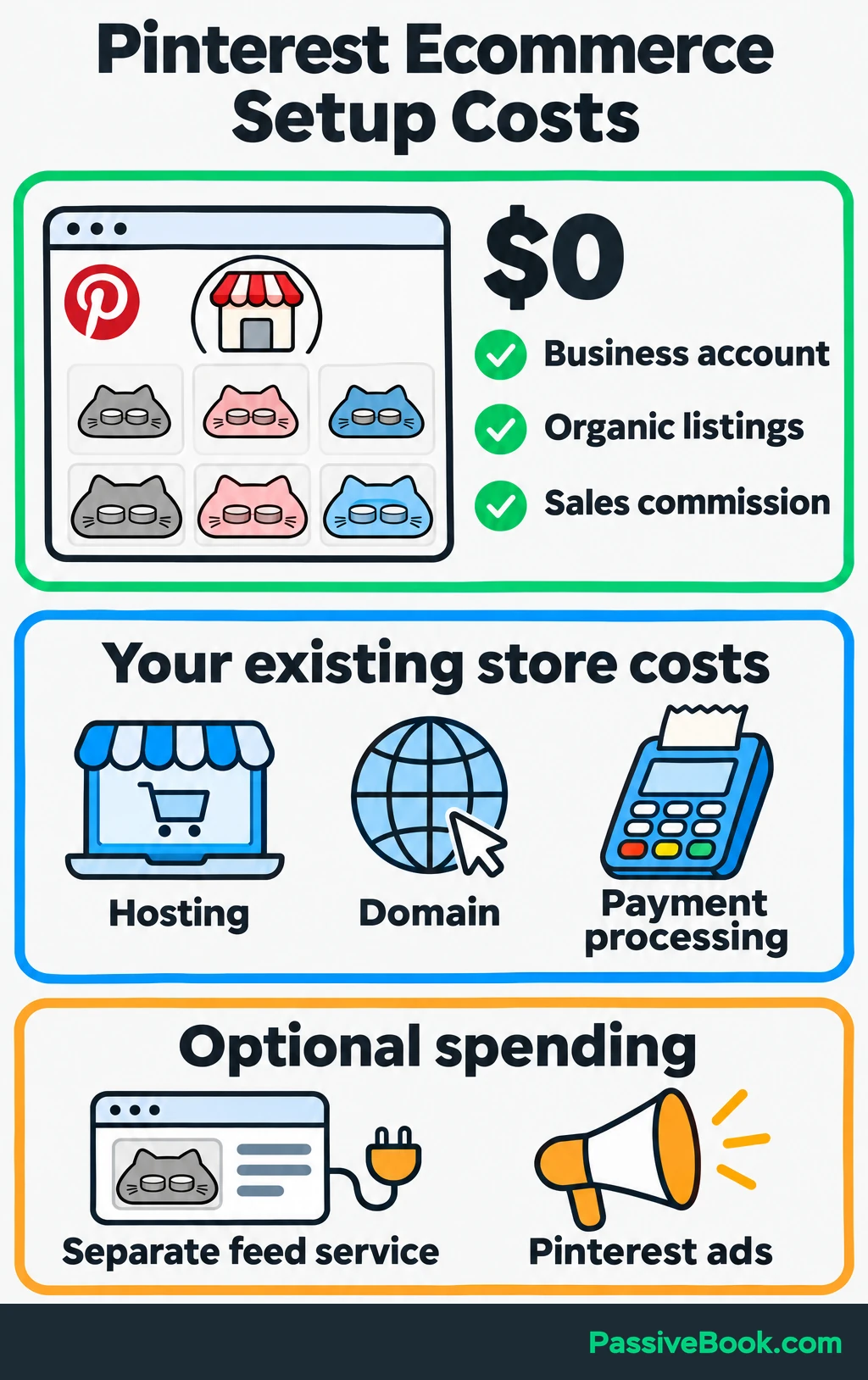
Your store still has its usual running costs.
| Expense | Required or Optional | Provider |
|---|---|---|
| Pinterest Business account and organic product listings | Required for this setup; free | |
| Storefront or website hosting | Required; usually an existing expense | Shopify, a WooCommerce hosting provider or your current platform |
| Domain | Required for a storefront you control; may already be included | Your domain registrar or store provider |
| Payment processing | Usually charged when you accept payments | Your payment processor |
| Separate feed service | Optional; use only if your store cannot supply a suitable feed | A feed plugin or service |
| Pinterest advertising | Optional |
I would start with your existing store and its official integration. Paying for another feed tool before checking what your store already provides is an excellent way to automate a monthly bill.
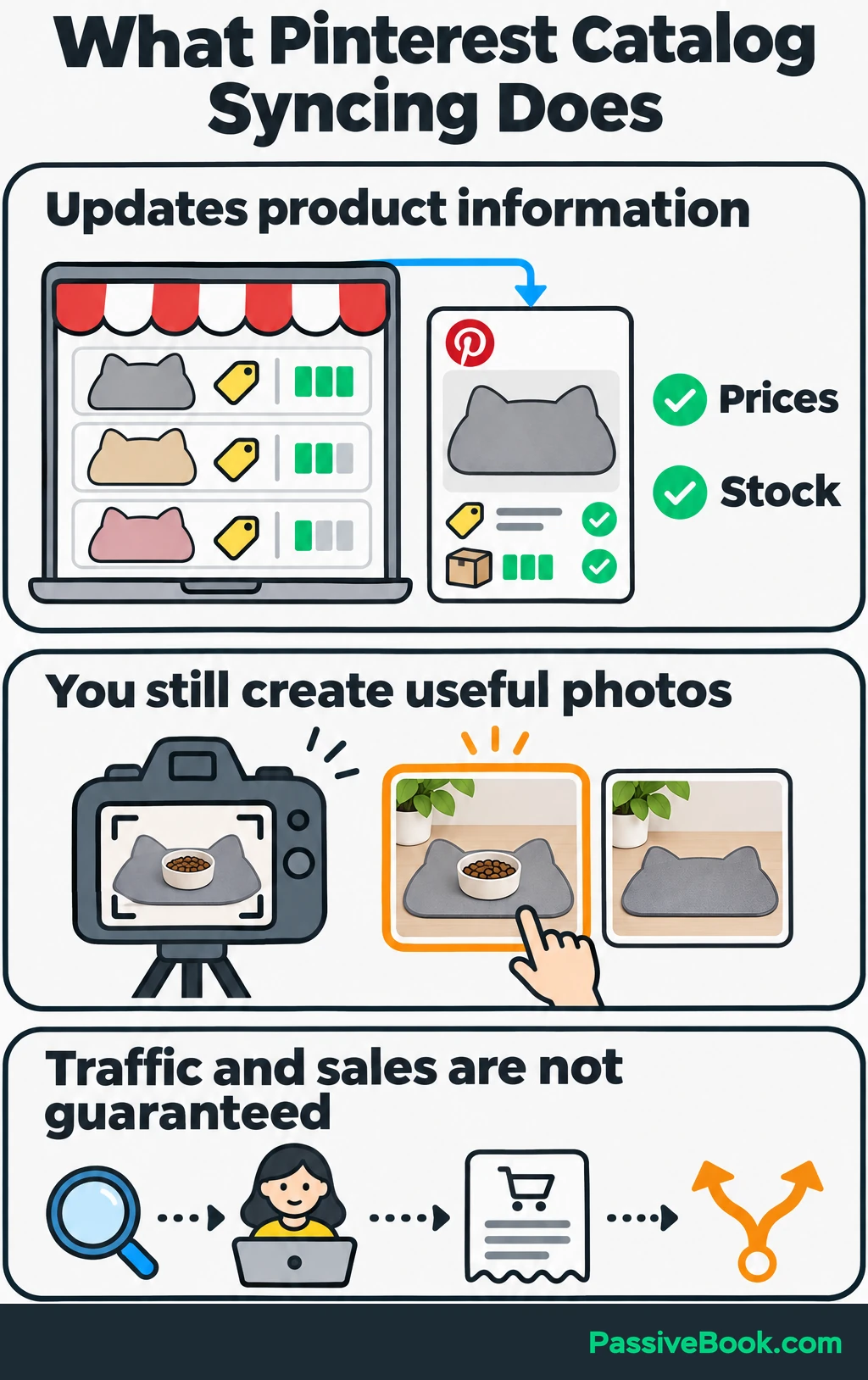
Catalog syncing can keep prices and stock information updated. It doesn’t create useful photographs or guarantee visitors and sales.
Throughout this guide, imagine your store sells washable cat feeding mats in different sizes and colors. The product details, identifiers, URLs and prices are illustrative.
1. Create Your Pinterest Business Account
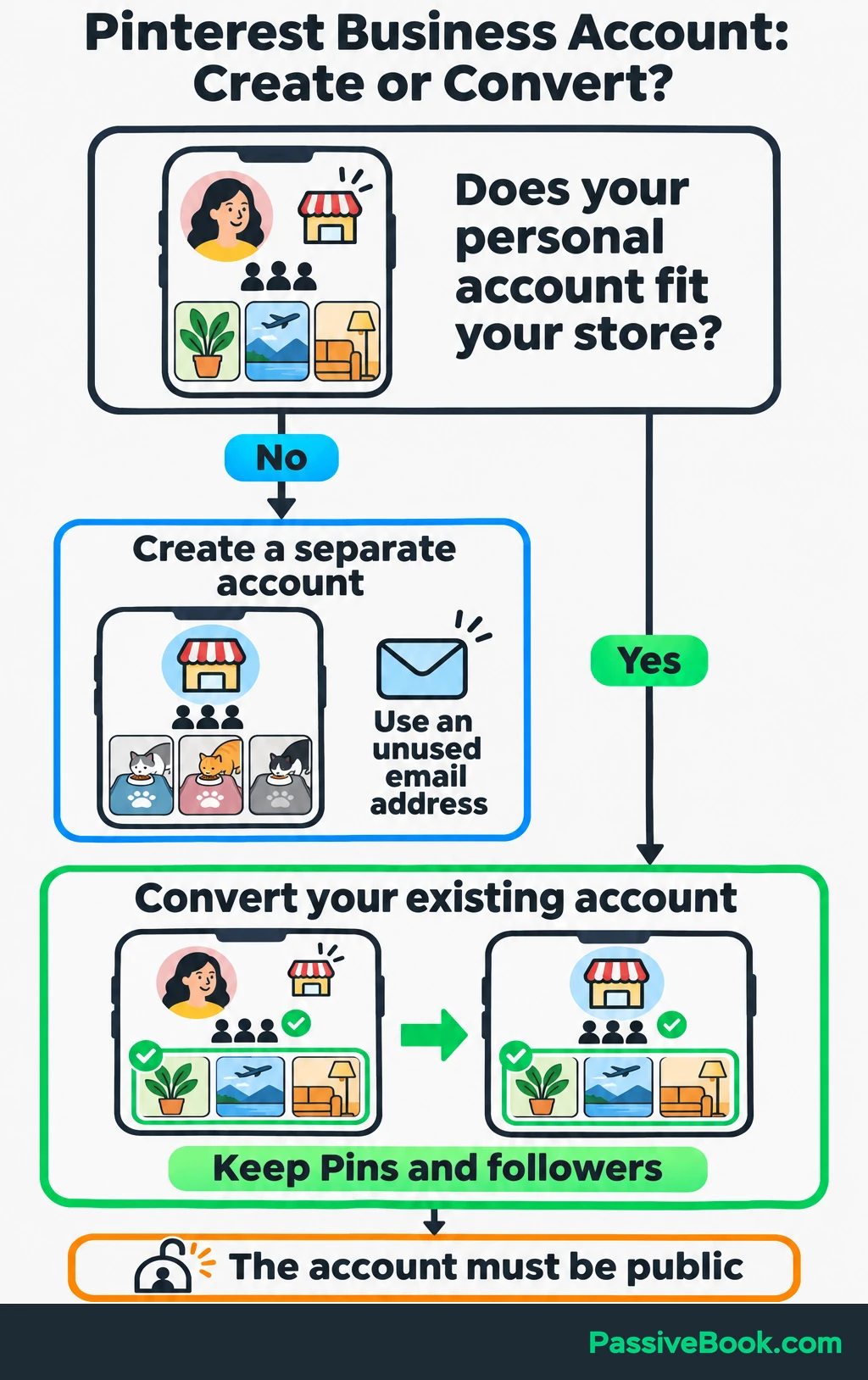
Choose between creating a separate Business account and converting an existing personal account.
I would create a separate account if your personal profile is full of unrelated interests. Convert it if its name, audience and existing Pins already fit the store. Conversion keeps your Pins and followers, but the account must be public.
To create a new account:
- Open Pinterest in a desktop browser and sign out of any existing account.
- Start registration by clicking Sign up, then Create a business account.
- Enter an email address that another Pinterest account isn’t using, along with the other requested details.
- Complete the business profile and describe your business.
- Select your advertising preference. You can start without running ads.
To convert an account, sign in and open Account management in settings. Under Convert to a business account, choose Convert account, then complete the business details.
Next, make the profile recognizable. Add your store name, logo, website and a short description of what you sell.
For the feeding-mat store, that description could be:
Washable cat feeding mats for tidier mealtimes, available in everyday colors and two sizes.
That tells a visitor more than “Thoughtfully designed essentials for modern living.” The cat is unlikely to appreciate the brand positioning either.
2. Check Your Store’s Shopping Eligibility
Before installing anything, check whether Pinterest retail catalogs and your chosen store integration support your business location. Pinterest’s retail-catalog guide, linked in the feed section below, includes availability guidance.
Then check the store itself. Product pages should be public, complete and ready for someone to buy.
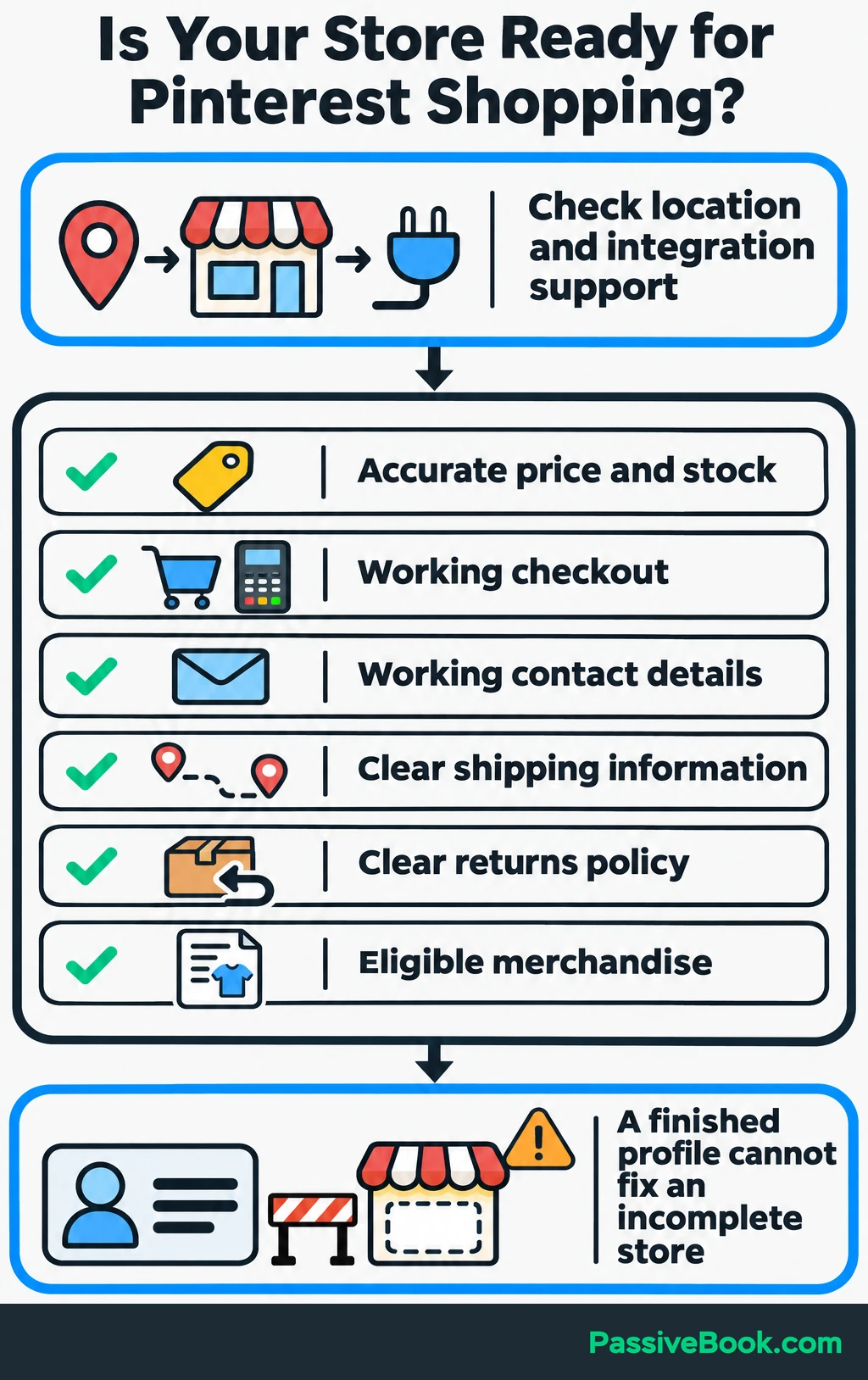
Review these points:
- Product information: Prices, currency and stock status match what shoppers can purchase.
- Checkout: A customer can select a product, add it to the cart and pay.
- Contact details: Visitors can find a working way to contact the business.
- Shipping information: Delivery destinations, costs and expected times are clear.
- Returns: The policy explains whether you accept returns and how the process works.
- Product eligibility: Your merchandise meets Pinterest’s shopping rules.
Pinterest reviews merchants and their products against its merchant guidelines. A finished profile cannot make an incomplete store eligible.
For the mat store, check each sellable size and color. The small blue mat needs its own accurate price, stock information and photograph. A complete main product page doesn’t guarantee that each variation has all those details.
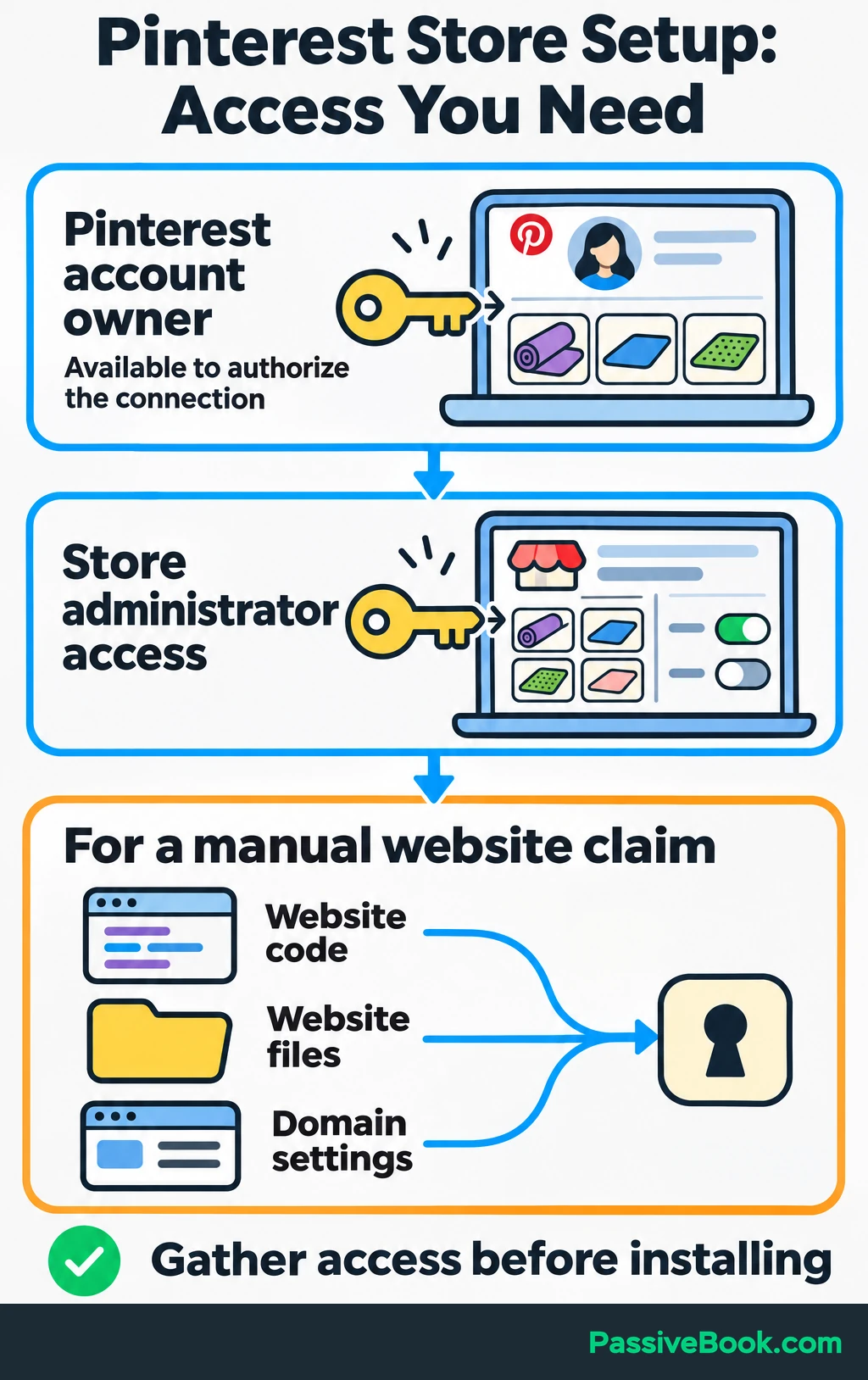
Gather the logins and permissions before continuing. You’ll need the Pinterest account owner available and administrator access to your store. For a manual website claim, you’ll also need access to the website’s code, files or domain settings. Having those ready saves a setup session from becoming a password-recovery project.
3. Claim Your Store’s Website
Claiming proves that you control the website and connects content saved from that site with your Pinterest profile.
Only one Pinterest account can claim a particular website. If an old account already owns it, resolve that claim before connecting the store. Most Etsy, Amazon and eBay storefronts cannot be claimed because sellers lack the required website control. These restrictions are covered in Pinterest’s website ownership rules.
If you use Shopify or WooCommerce, let the official integration handle claiming during Step 4. Afterward, return to Pinterest and confirm that it succeeded.
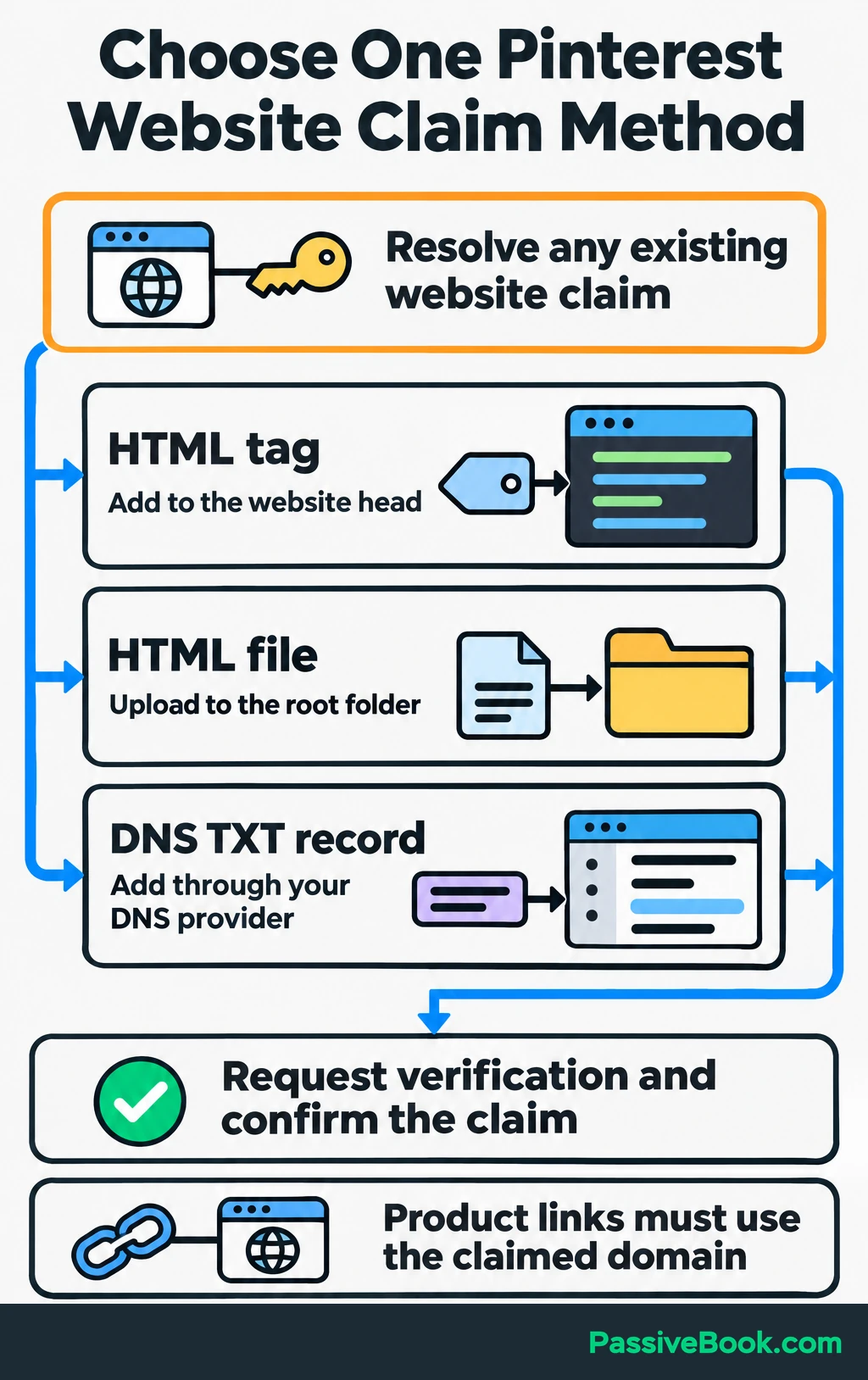
For another storefront, open Pinterest’s website-claiming controls and choose a verification method you can manage:
- HTML tag: Add Pinterest’s supplied verification tag to your website’s
<head>section. - HTML file: Upload the supplied file to the website’s root folder.
- DNS TXT record: Add the supplied text record through the provider that manages your domain’s DNS.
Choose one method. You don’t need all three.
After adding the verification item, return to Pinterest, enter the website address and request verification. Wait until Pinterest confirms the claim before treating it as complete.
Check that your product links use the claimed store domain. An old staging address or a previous domain can leave you with a verified website and a catalog pointing somewhere else.
If you sell only through a marketplace you cannot claim, this particular catalog workflow won’t fit. Establish that before spending time building a feed.
4. Connect Your Product Catalog
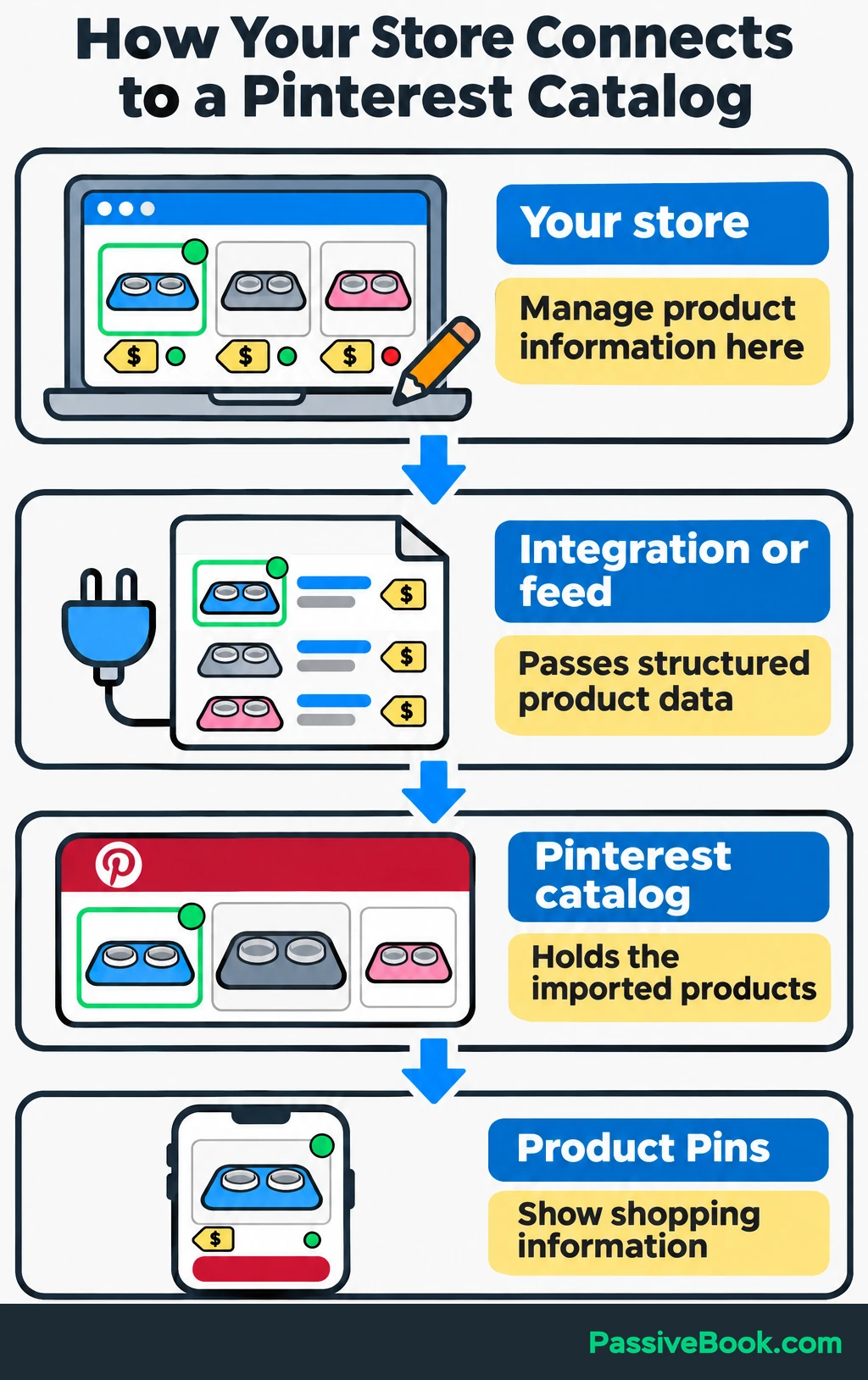
Your catalog is the collection of products Pinterest holds. A feed is the structured product information used to create and update that collection.
Choose the route that matches your existing store. Keep prices, inventory and product details managed there, then let the integration or feed pass those updates to Pinterest.
Pinterest lists the Pinterest tag among its retail-catalog prerequisites. The tag records actions on your website, such as purchases. Setting it up requires an advertiser account, Pinterest’s account for ads and tracking. Creating that account does not require launching a campaign.
Before tracking begins, disclose Pinterest tracking and third-party data sharing, provide the required opt-out information and obtain any legally required consent. These obligations appear in Pinterest’s Ad Data Terms. Make sure your consent controls cover the integration’s tracking.
Connect a Shopify Store
Use the official Pinterest app published by PINTEREST inc. It is free to install, and Pinterest charges when you purchase ads.
Connect while signed in as the Pinterest account owner. Pinterest says Business Manager permissions alone cannot authorize this connection. Its Shopify connection requirements also call for an advertiser account.
Work through the connection as follows:
- Install the official Pinterest app from your Shopify administration.
- Review the requested permissions and connect the intended Pinterest Business account.
- Select or create the advertiser account.
- Complete the website-claiming, tracking and catalog connection prompts.
- Make the products you want to list active and available to the Pinterest sales channel.
- Check the catalog’s processing status.
The app connects the product feed and generates Product Pins. It also installs the Pinterest tag and Conversions API, which sends conversion information from the store to Pinterest.
If you previously installed a Pinterest tag manually or through another tool, remove the earlier installation when switching to the app. Overlapping installations can complicate tracking.
For the mat store, confirm that both sizes of the blue mat are available to the channel. A product existing in Shopify doesn’t, by itself, confirm that Pinterest receives it.
Connect a WooCommerce Store
Install and activate the official Pinterest for WooCommerce extension. Open its setup screen in your WordPress administration.
Then:
- Connect the Pinterest Business account you intend to use.
- Grant the requested permissions and confirm the business details.
- Select or create the advertiser account.
- Complete conversion tracking and website claiming.
- Confirm that product syncing is enabled.
The extension generates and maintains the feed. The first synchronization can take up to 24 hours, so check its catalog status before deciding that the connection failed. These details are explained in WooCommerce’s Pinterest integration documentation.
Inspect the imported variations. You should be able to identify the small blue mat separately from the large blue mat, with the right price and availability for each.
The extension supports simple and variable products. Grouped and subscription products are excluded by default, so check support before troubleshooting a missing product of either type.
If your store already runs on WooCommerce, I would use this route before considering a separate feed service. There’s little benefit in adding another system to maintain the same product information.
Connect Another Store With a Product Feed
First, check whether your platform can generate a Pinterest-compatible feed automatically. I would choose an automatically maintained hosted feed over repeated manual uploads.
Pinterest retrieves hosted feeds daily. A manually uploaded file needs another upload when its information changes.
Before submitting the feed, create an advertiser account in Pinterest’s Business Manager, under Ad accounts. Install the Pinterest tag through a supported store integration, or open Conversions in Pinterest’s business menu and follow the manual installation prompts. For a manual installation, add the tracking code to every page and set up purchase events to send the order value and currency.
Your feed can use CSV, TSV, supported XML or Google Sheets. Keep the required field names exactly as specified. Each sellable variation needs a separate row and a shared item_group_id connecting it to the other variations.
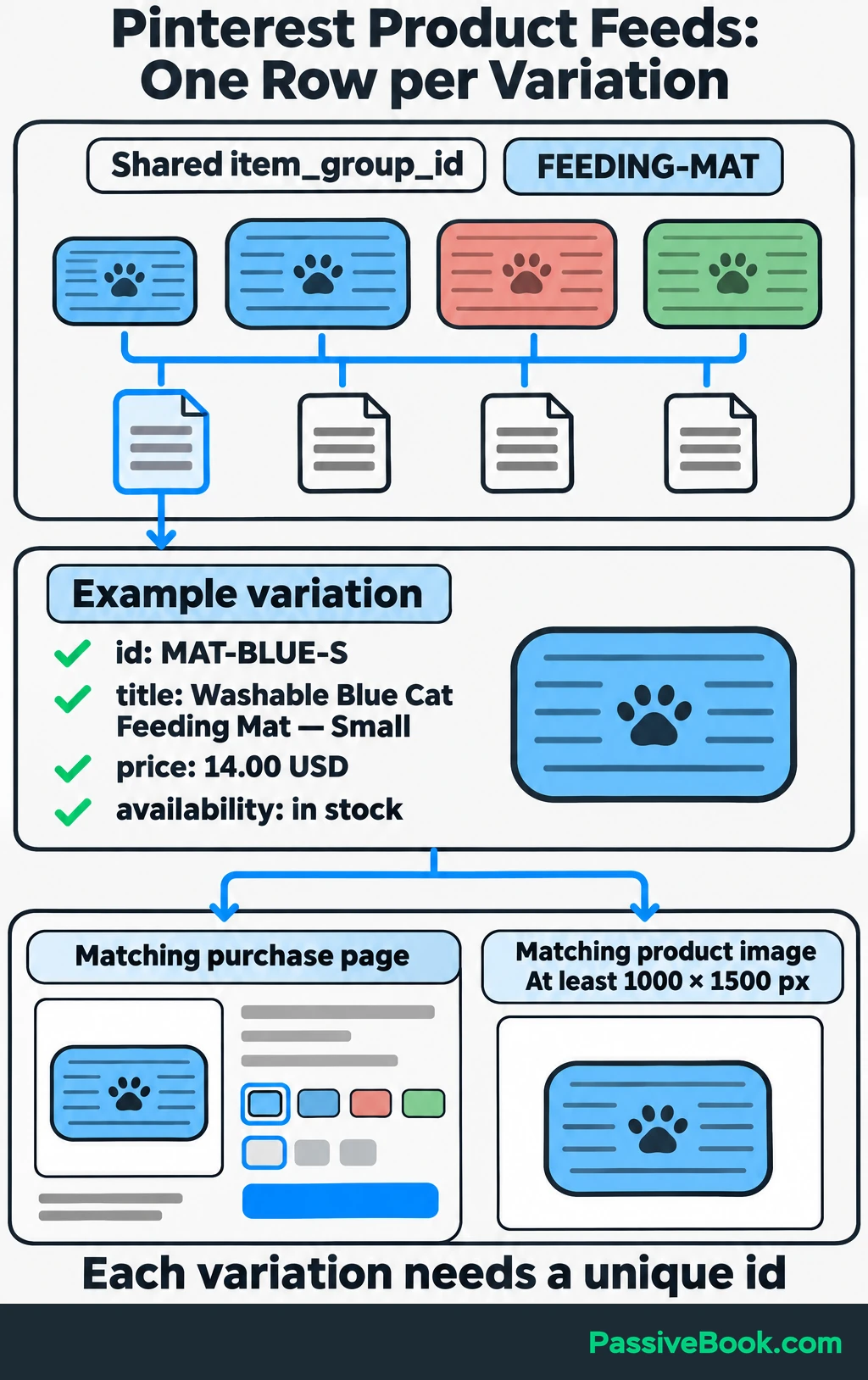
Here is how one mat variation maps to the feed:
| Field | Purpose | Example |
|---|---|---|
id | Unique variation identifier | MAT-BLUE-S |
item_group_id | Groups sizes and colors of one product | FEEDING-MAT |
title | Product name, including variation | Washable Blue Cat Feeding Mat — Small |
description | Plain-text product details | Small blue washable mat for placing beneath cat food and water bowls. |
link | Matching purchase page | https://example.com/products/feeding-mat?variant=MAT-BLUE-S |
image_link | Direct product-image address | https://example.com/images/mat-blue-s.jpg |
price | Numeric price and currency | 14.00 USD |
availability | Supported stock status | in stock |
Replace the example URLs with working addresses on your store. Supply accessible main product photographs at least 1000 × 1500 pixels. Pinterest provides the full feed fields and image requirements.
Once the feed is ready:
- Have the Pinterest account owner open Catalogs and product groups and choose Add data source.
- Choose the hosted-feed or manual-upload option and supply the source.
- Select the selling country, language and currency.
- Test a sample containing the column headers and at least one product row.
- Correct validation errors, submit the source and review processing.
Choose the country and language carefully because they cannot be changed afterward. The country should reflect where those products are sold. Pinterest explains these restrictions in its data-source submission requirements.
For the mat store, validate the small blue variation first. Once that row works, check that the other sizes and colors follow the same structure.
5. Confirm Your Product Pins Are Ready
A catalog import creates Product Pins with shopping information such as price and availability. Your next job is to check both the imported information and whether the products can be distributed.
To review your catalog diagnostics, open Catalogs and product groups, select your catalog and choose Diagnostics. Check both tabs:
- Ingestion issues: Whether Pinterest could read and upload the products.
- Distribution issues: Whether uploaded products are eligible to appear organically or in ads.
“Uploaded successfully” is only part of the check.
Use the error message to find the source of the problem.
| Symptom | Likely Cause | Correction |
|---|---|---|
| Pinterest cannot retrieve the feed | Broken URL, blocked access or incorrect feed credentials | Restore access and check the submitted address and credentials |
| Product image does not load | Image URL is broken or blocks Pinterest’s access | Supply a working, accessible image URL |
| A product fails because its description is missing | The store or feed has an empty description | Complete the description in the source |
| Price validation fails | Price uses unsupported formatting or lacks a valid value | Use a valid numeric price and currency, such as 14.00 USD |
| Product destination fails a domain check | Link points outside the claimed store domain | Correct the destination and confirm the website claim |
| Shopify product is missing | Product is inactive or unavailable to the Pinterest channel | Activate it and make it available to that channel |
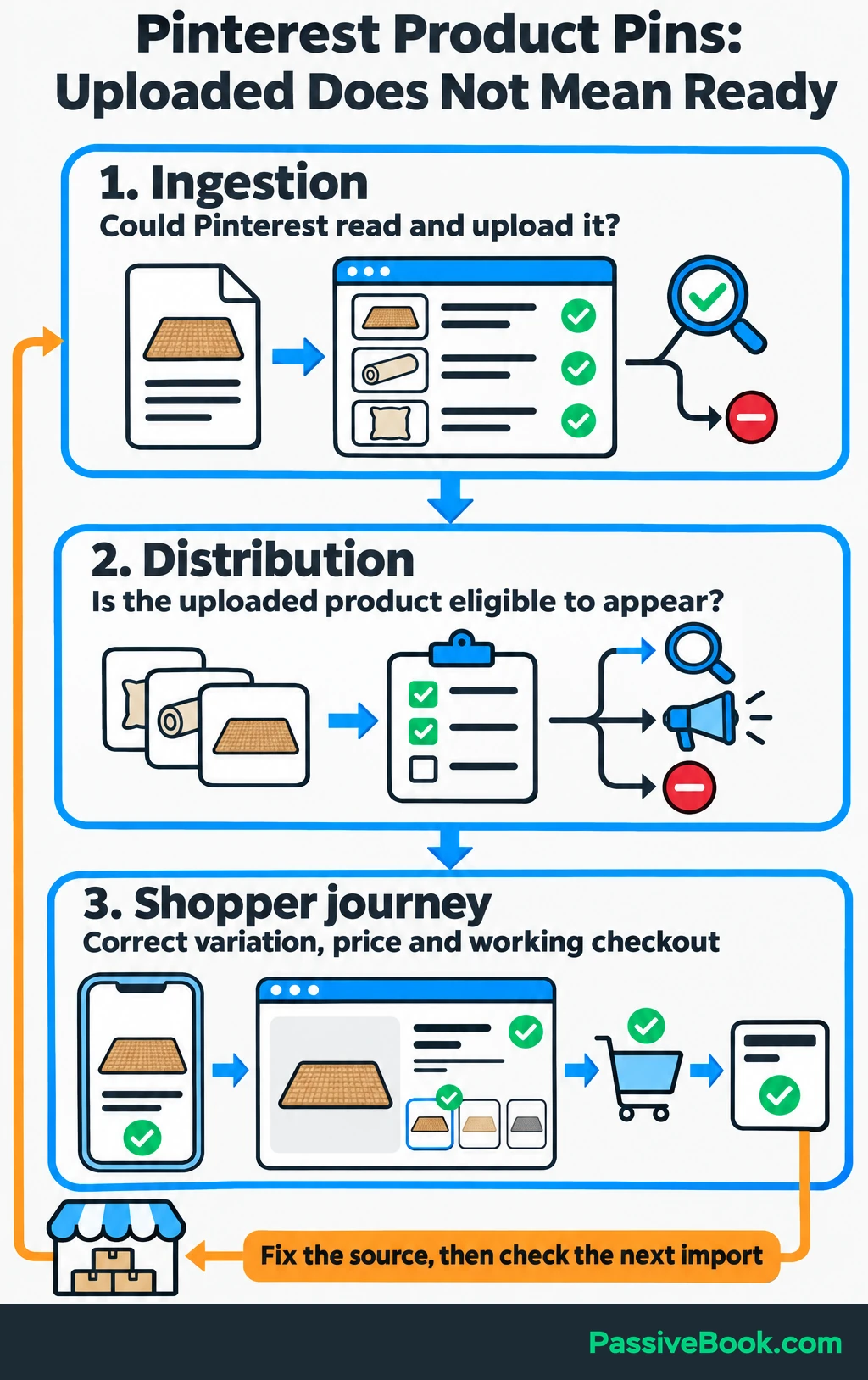
Fix errors in the store or source feed, then check the next import. Otherwise, a temporary correction can disappear when the source sends its old information again.
Next, open an imported Product Pin on your phone. Check its image, title, size, color, currency, price and stock status. Follow the link and confirm that:
- The page shows the advertised mat.
- The advertised variation is selected or easy to select.
- Its price agrees with the Pin.
- The cart and checkout work.
On my websites, I’ve caught myself spending time polishing the image while giving its destination page a quick glance. Following the whole visit has become my check against that habit. For your store, the visit needs to end at a product someone can actually buy.
Test tracking as well. In Pinterest’s Conversions area, use Test events to check whether page visits, cart additions and a test purchase are recorded. Alternatively, use Pinterest Tag Helper, a Chrome extension that checks the tracking code. Confirm the purchase value and currency, and investigate repeated purchase events.
Finally, don’t hold up approved products while waiting for a Verified Merchant badge. Merchant approval and the Verified Merchant Program are separate, and the latter has additional requirements.
6. Publish Your First Product-focused Pins
Catalog syncing keeps shopping information current. Publishing additional Pins gives you more ways to show the product in use.
Start with one relevant public board and a clear product photograph. Write a title that identifies the item, explain a useful feature and link to its matching purchase page.
I would begin with a vertical 2:3 image, such as 1000 × 1500 pixels. Use readable text if it helps explain the photograph, but keep the product easy to see.
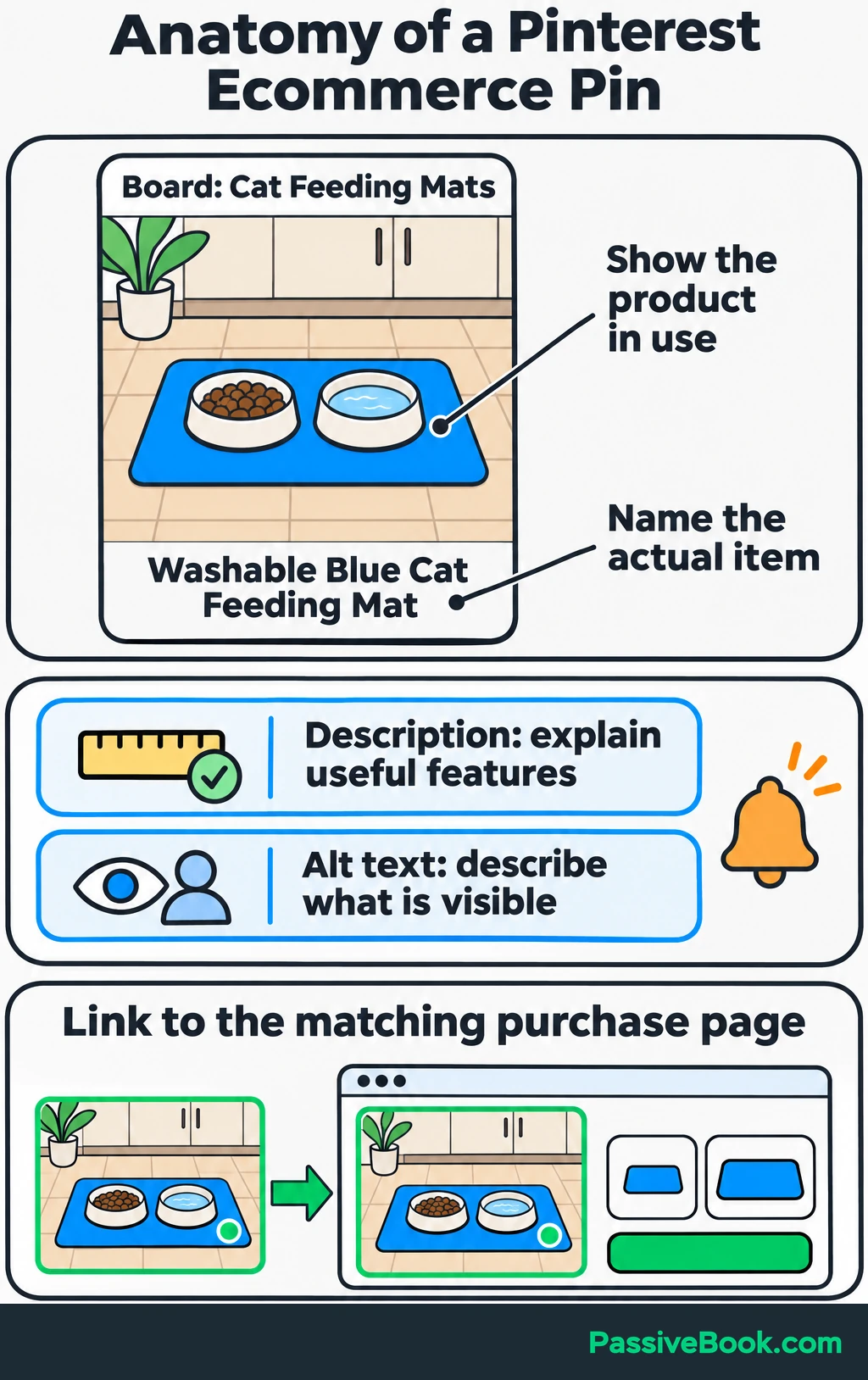
For the feeding-mat store, the first Pin could look like this:
| Element | Example |
|---|---|
| Board | Cat Feeding Mats |
| Image | The blue mat beneath food and water bowls, with its edges visible |
| Title | Washable Blue Cat Feeding Mat |
| Description | Give food and water bowls a washable place to sit. Explore the blue cat feeding mat in small and large sizes, and check the measurements before choosing yours. |
| Destination | The blue mat’s purchase page |
| Alt text | Blue rectangular cat feeding mat beneath a food bowl and water bowl on a kitchen floor. |
Alt text should describe what the image shows. Keep the sales pitch in the description.
If the product page is ready but the wording is slowing you down, our AI Skill can draft the Pinterest copy from details you already have. Start with one product and use the pieces you need.
Free AI Pinterest Studio




Reuse photographs you already have. A clear view of the mat beneath bowls and a closer view of its surface give you two useful ways to present it. Canva is enough for adding a short caption or arranging a vertical design.
You don’t need to appear on camera. Prepare a small batch of distinct images and use Pinterest’s native scheduler to publish standard Pins later. I would skip a paid scheduling tool until you have a specific need the built-in scheduler cannot meet.
7. Monitor Your Pinterest Sales Channel
Start with a weekly review, and check again after changing a domain, integration, permissions or product URLs.
During each review, confirm that the latest catalog import succeeded and look for new errors. Keep corrections in the store or source feed.
Maintain daily automatic updates where supported. Pinterest’s catalog diagnostics says products need updates every seven days, while its manual-upload guidance gives a 30-day window for organic distribution. I would use the shorter interval: refresh a manual feed at least weekly and whenever prices or stock change.
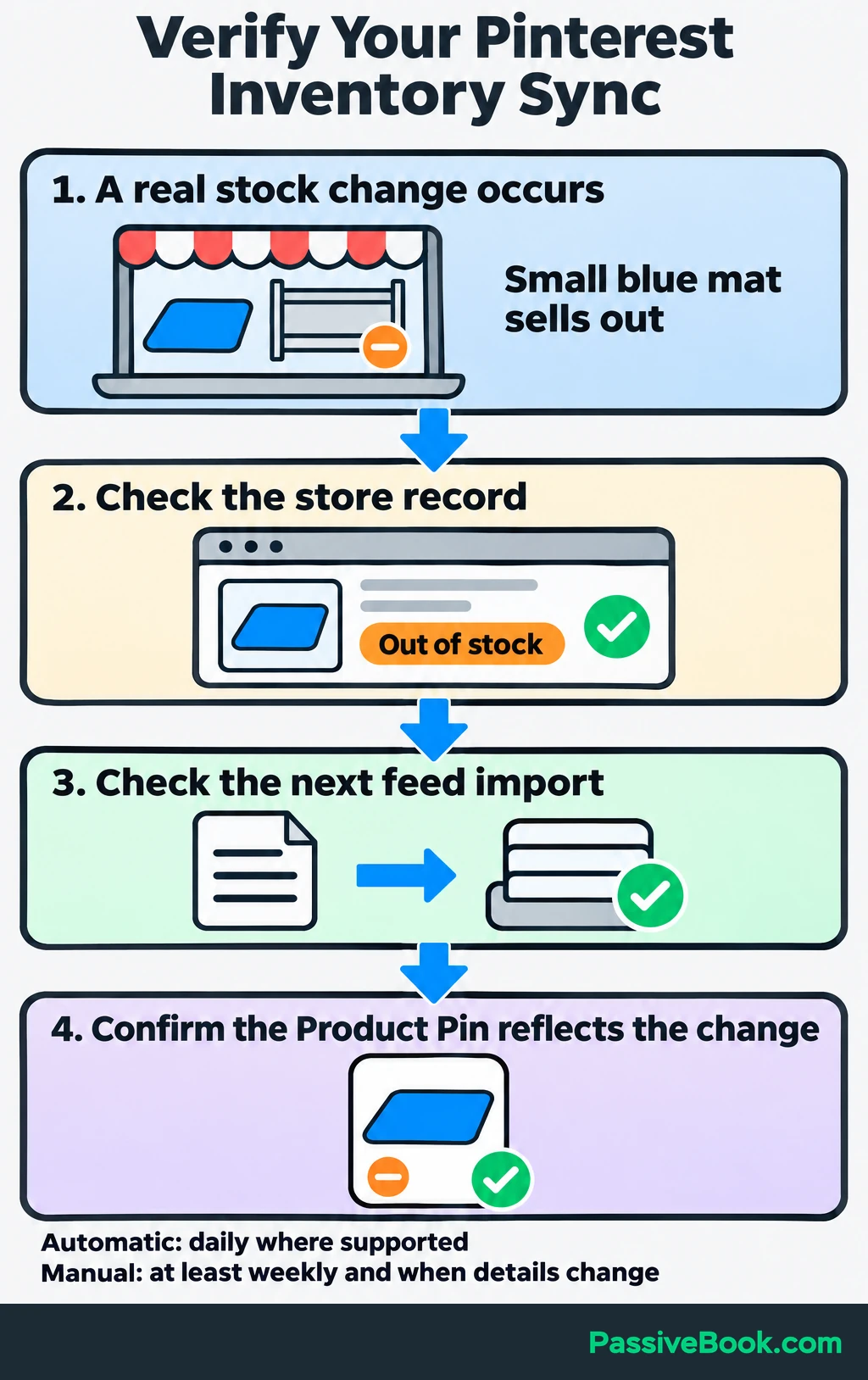
When you make a genuine price or stock change, follow it through the system. If the small blue mat sells out, check the updated store record, the next feed import and the Product Pin. That gives you evidence that syncing works beyond the initial connection.
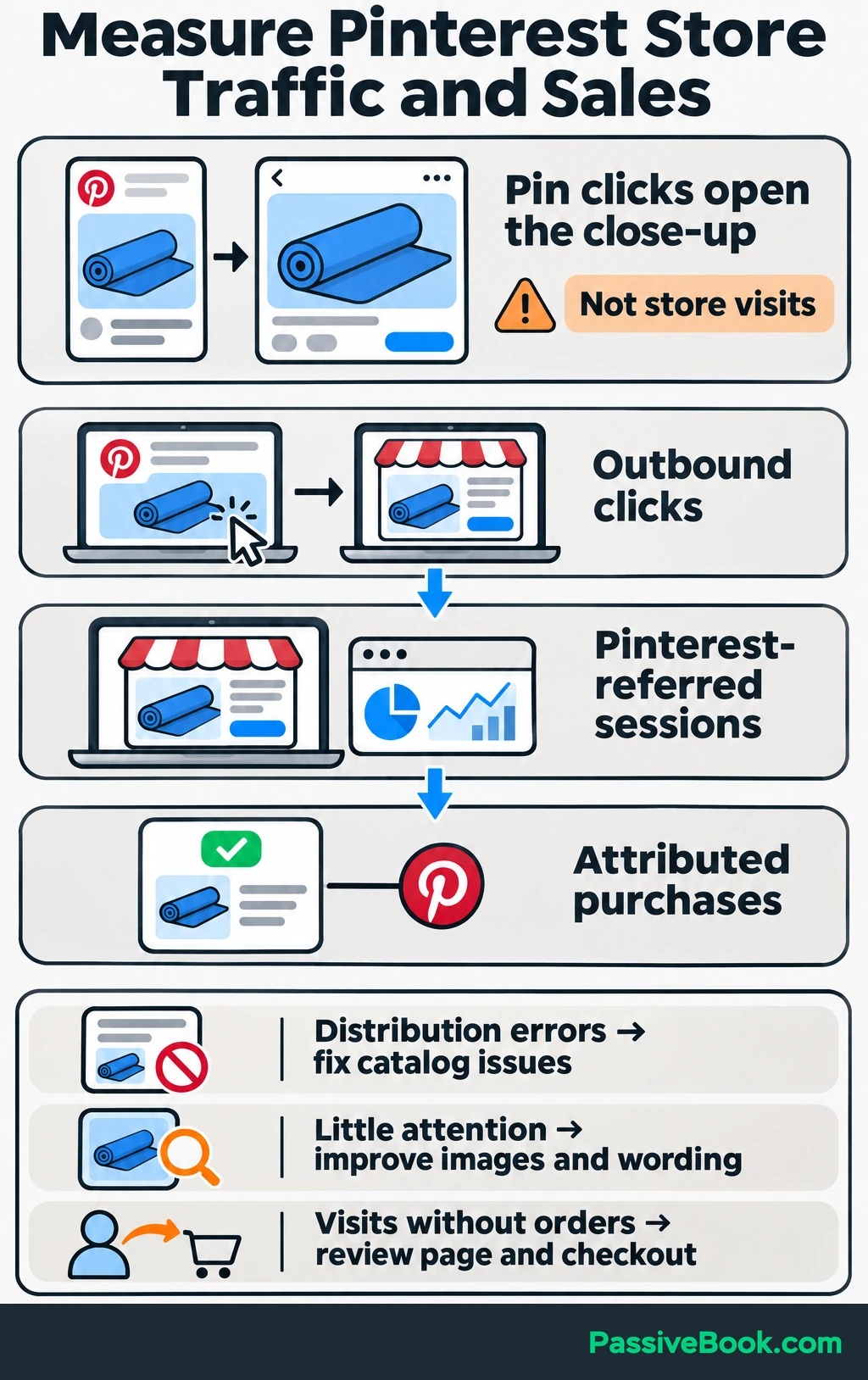
Then review useful store activity:
- Outbound clicks: Actions that take people away from Pinterest.
- Pinterest-referred sessions: Visits recorded by your website analytics.
- Purchases: Orders your store analytics attributes to those visits.
Pin clicks open the Pin’s close-up view, so don’t treat them as store visits.
Pinterest sends meaningful referral traffic to my Passive Book blog. That blogging experience is why I pay attention to where visitors go after clicking. For an ecommerce store, I would judge the channel by product-page visits and purchases alongside the effort needed to maintain it.
Let the evidence choose the next task. Distribution errors call for catalog fixes. Eligible products receiving little attention may need clearer images or wording. Visits without purchases call for a closer look at the product page, delivery costs and checkout.
An automated feed earns its place by keeping information accurate. Further investment should earn its place through useful store activity.
What Next?
Check one product page today: its price, stock, photographs, shipping details and checkout. Then use that product to test your Pinterest connection from catalog import through to purchase.
Use the social buttons to share this guide and make the setup checks easier to return to.
Which part of your store’s Pinterest setup needs the most attention? Leave your answer, along with any other questions, in the comments.
Share this post with your friends & followers:

