Your store says a product is sold out, but Pinterest still shows it as available. Or you upload your inventory and get an error report instead of products people can find.
Either way, you now have another place to check before you can trust what shoppers see. That defeats the point of connecting your store in the first place.
A useful setup should carry product changes from your store to Pinterest with little repeat work. Here’s how to get that connection working, check whether your products can appear without ads, and keep the catalog accurate as your inventory changes.
Check Your Account and Store Eligibility
A catalog lets Pinterest create Product Pins from your store’s product data. These Pins can show prices, availability, and links to buy from your website. You supply that data in a feed, a file containing product records.
Before preparing a feed, check that you have:
- A Pinterest business account. You can create one or convert a personal account.
- Access to retail catalogs for your account and region.
- A claimed store website.
- The Pinterest tag installed on your website.
- A working store that meets Pinterest’s merchant requirements.
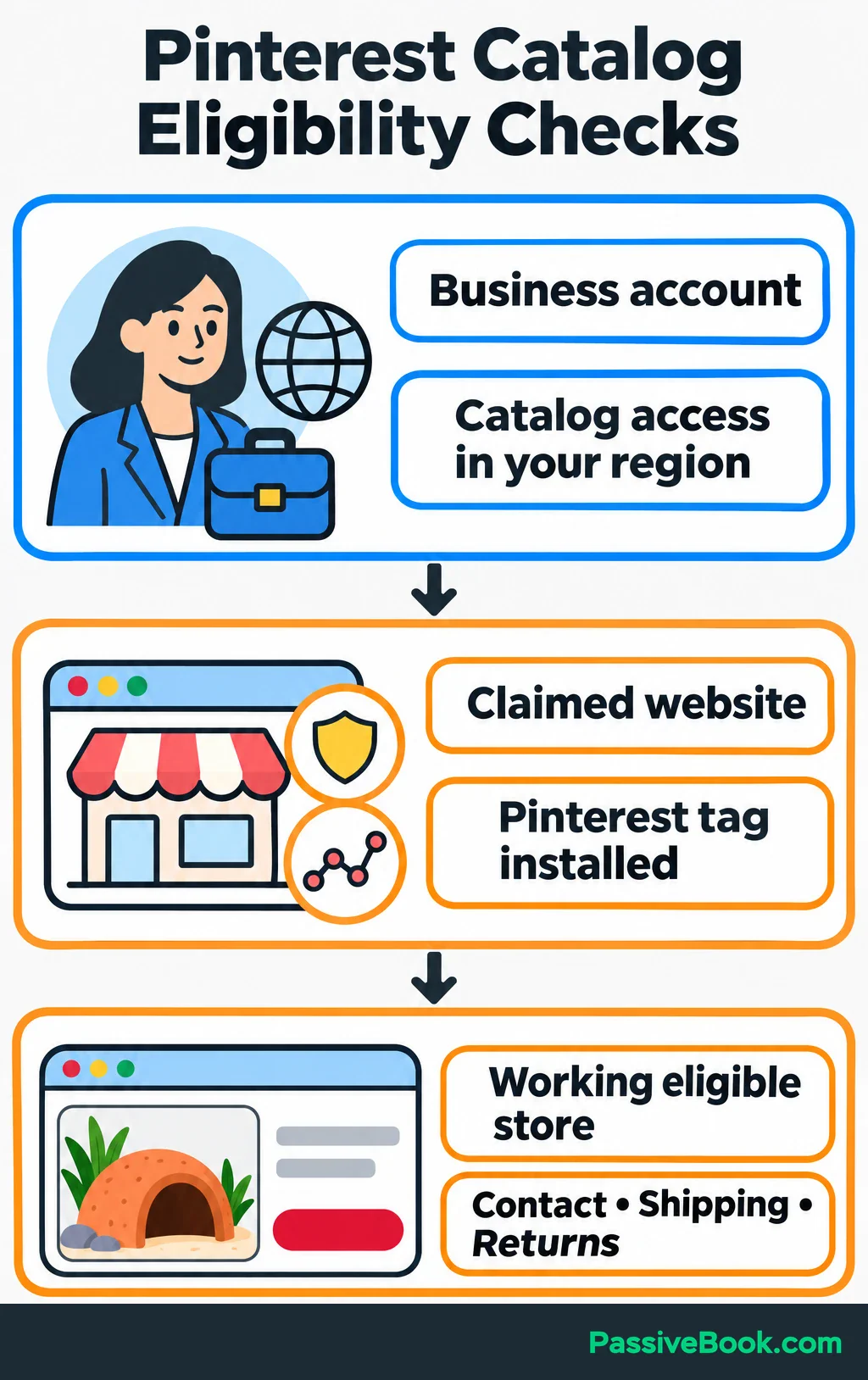
These are part of Pinterest’s retail catalog requirements. Check them first so you don’t spend an afternoon formatting products for an account that cannot submit them.
Claiming your website proves that you control it. Your store integration may handle this, or you can add Pinterest’s verification tag to your site, upload its verification file, or add a TXT record through your domain provider. Return to Pinterest and complete verification.
Most Etsy, eBay, and Amazon storefronts cannot be claimed because you don’t control their underlying website. A marketplace shop alone usually won’t meet this requirement.
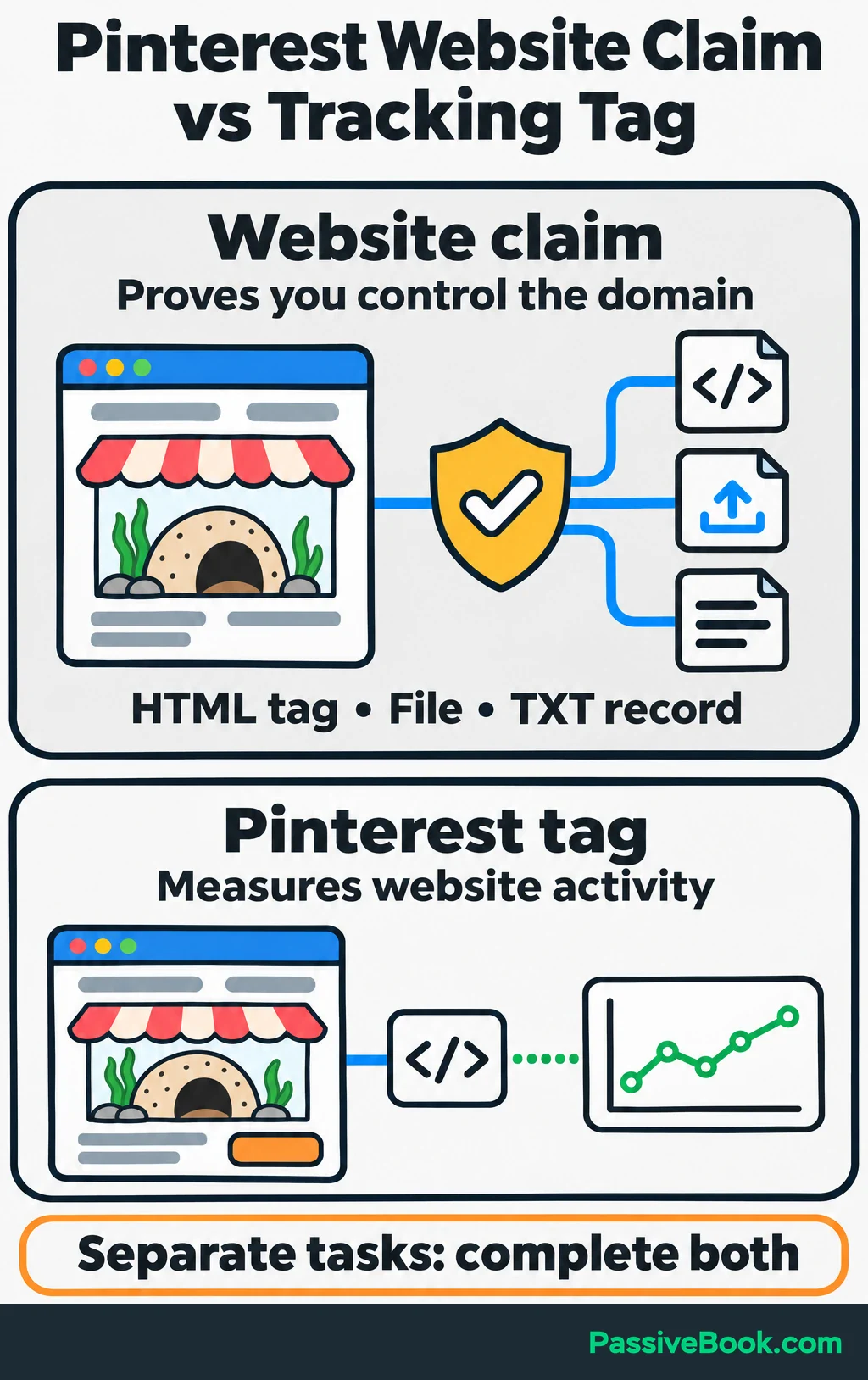
The Pinterest tag is separate from website verification. It records website activity for measurement. Install it through your store integration where possible; otherwise, add its base code across your website.
Finally, check the buying experience. Contact details, shipping information, and return terms should be easy to find. Visitors must be able to view products without registering. Submit eligible products you sell directly, rather than affiliate offers.
Throughout this guide, imagine you run a small store selling ceramic aquarium caves. Its products and details are illustrations.
Choose a Catalog Connection You Can Maintain
I would start with the official integration for your existing store, provided it supports your products. Moving platforms just to connect Pinterest creates a much larger project.
Adding products to Pinterest is free, Pinterest takes no sales commission, and advertising is optional. Customers buy on your website, where your usual store and payment costs still apply. Pinterest explains these costs in its shopping guidance.
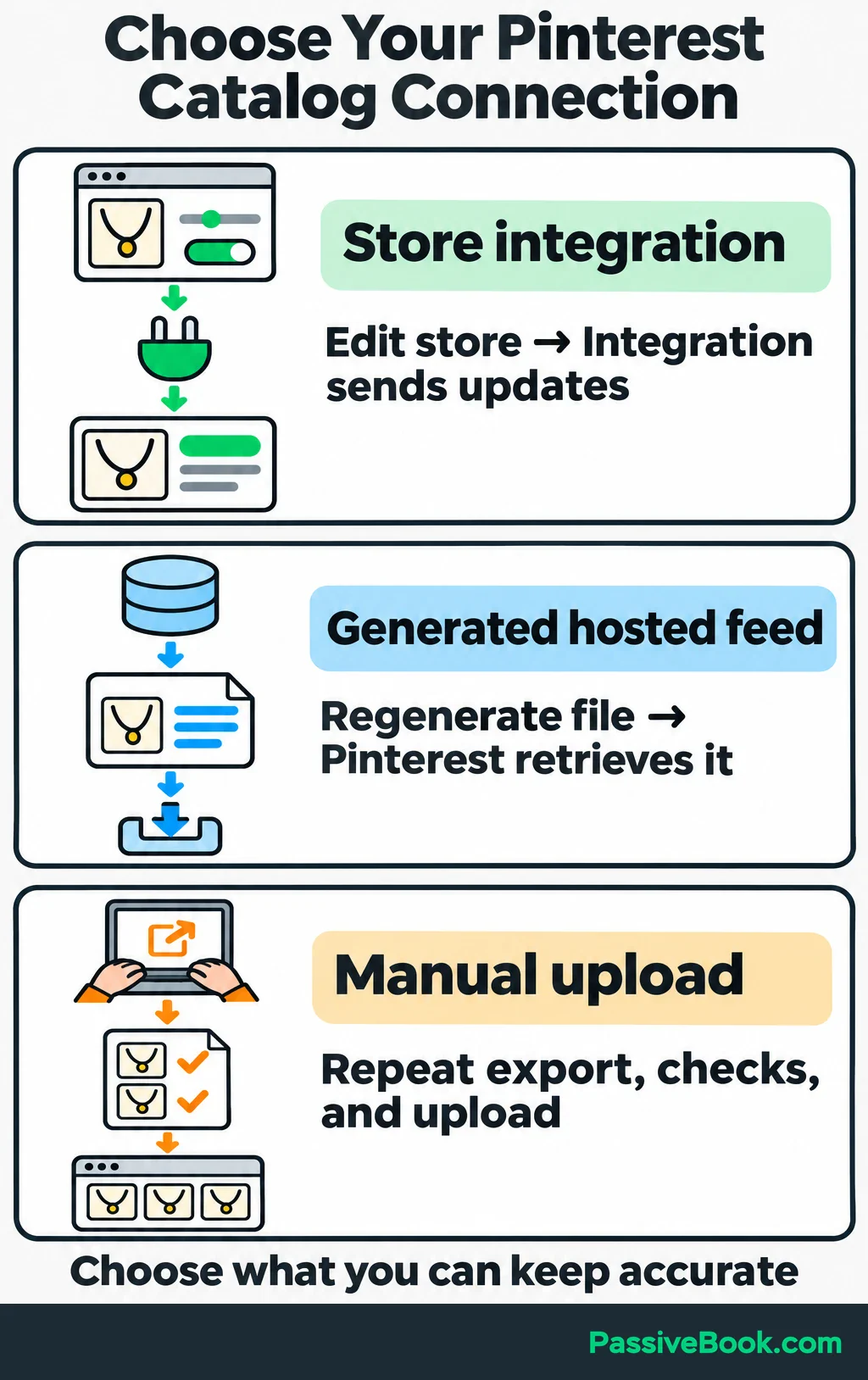
The connection method determines how much work remains after setup.
| Method | Setup | Update Responsibility | Cost |
|---|---|---|---|
| Supported store integration | Install the official app or extension and connect your account | You maintain store records; the integration sends updates | Official options may be free; your store costs remain |
| Automatically generated hosted feed | Configure a product export at a permanent download URL | Your store regenerates the file and Pinterest retrieves it | Depends on your export tool and hosting |
| Manual file uploads | Export products into a supported file and upload it | You repeat the export, checks, and upload | Can avoid a feed subscription, but requires your time |
Pinterest’s official Shopify app is free to install and supports daily catalog updates. For WordPress stores, Pinterest for WooCommerce automatically generates and maintains a product feed.
Some integrations create and submit a hosted feed for you. Pinterest calls the connected feed a data source. Check for that existing source before adding another one for the same inventory.
When I ran my jewellery store, I kept a stock sheet alongside the website. Updating one didn’t update the other, so I had two places to check before trusting a number. That is the extra job I would avoid here.
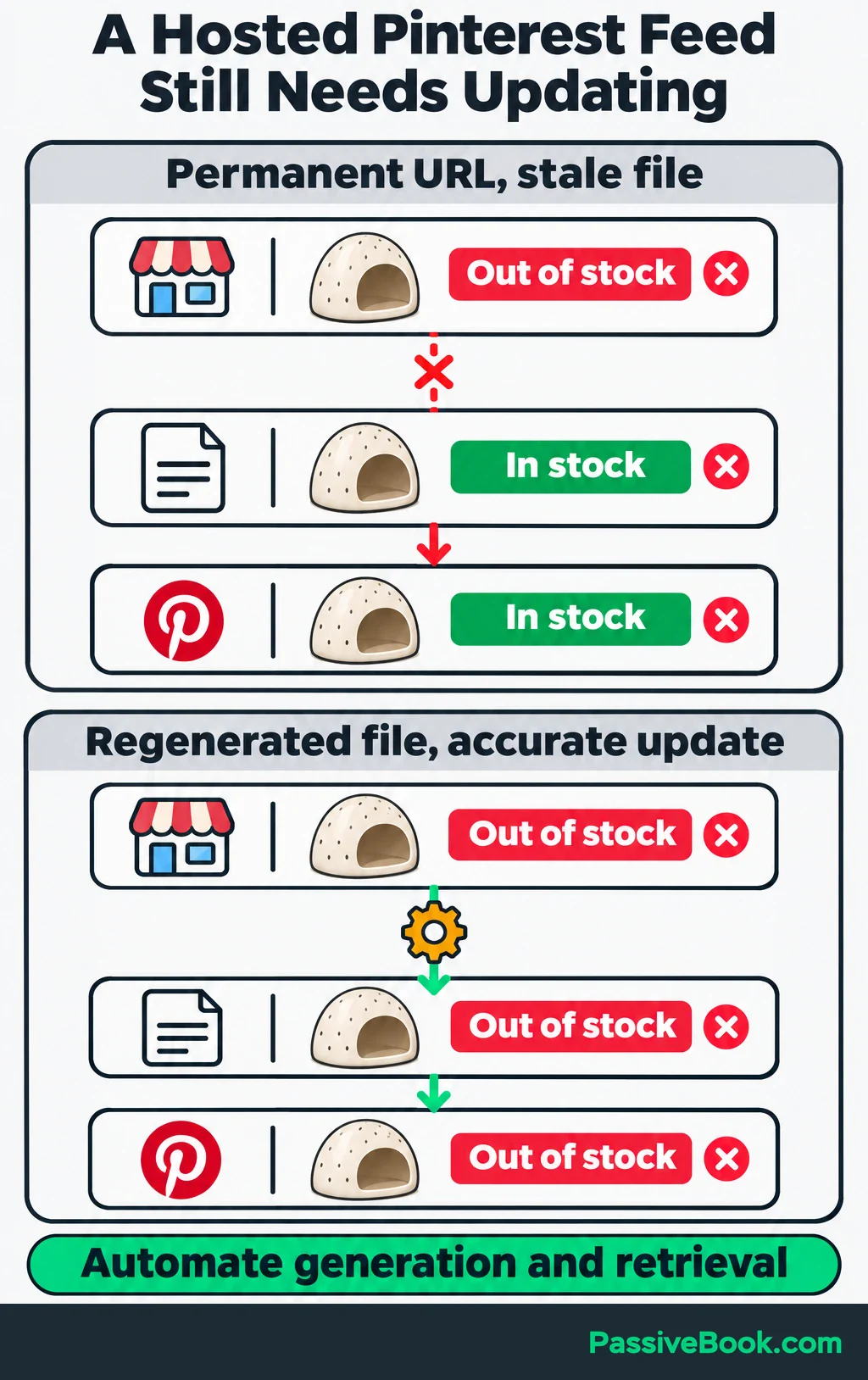
Keep your store’s product records as the place where you make corrections. A hosted file only saves work if something regenerates it. A permanent URL pointing to last month’s inventory is still last month’s inventory.
I would use manual uploads only when the assortment changes slowly and someone can reliably maintain them. Buy another feed tool only when it removes work your existing connection cannot handle.
Prepare Accurate Product Data
Start by checking how your store fields map to Pinterest’s fields. With an integration, correct the original product record or its export settings rather than keeping a separate Pinterest spreadsheet.
Use this reference when checking the output:
| Attribute | Required Status | Format | Aquarium-Cave Example |
|---|---|---|---|
id | Required | Unique, stable product identifier | CAVE-BLUE-L |
title | Required | Product name, including variant details | Ceramic Aquarium Cave — Blue, Large |
description | Required | Plain text describing the item | Blue ceramic cave, 12 × 8 × 7 cm. |
link | Required | Direct URL to the matching product | https://shop.example.com/caves/blue-large |
image_link | Required | Direct URL to the main product image | https://shop.example.com/images/cave-blue-large.jpg |
price | Required | Numeric amount and currency code | 29.00 USD |
availability | Required | in stock, out of stock, or preorder | in stock |
item_group_id | Required for variants | Shared parent identifier | CERAMIC-CAVE |
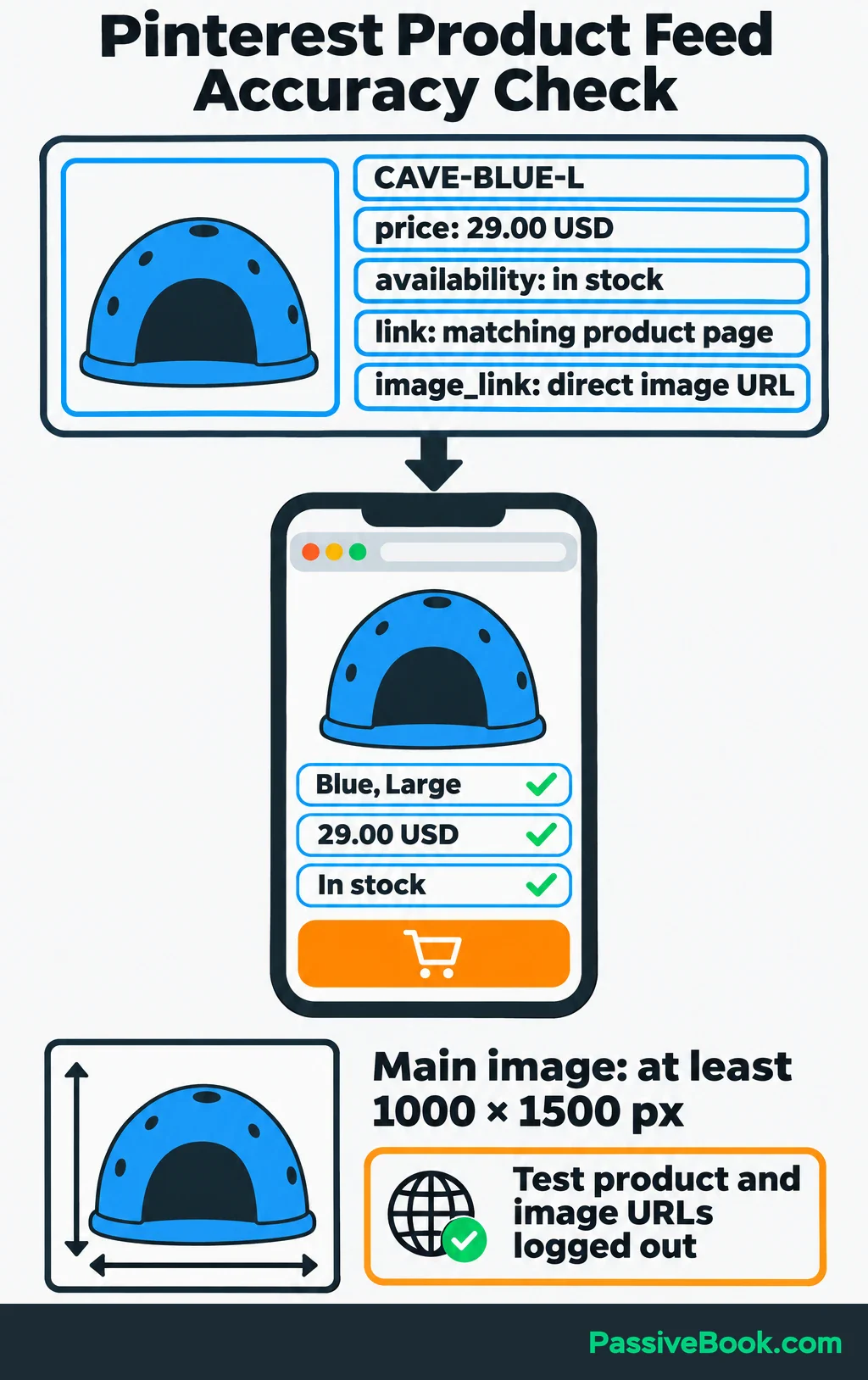
Pinterest specifies main images of at least 1000 × 1500 pixels and must be able to download them. Use a clear image of the actual item rather than a placeholder. These fields and formats come from Pinterest’s product data specification.
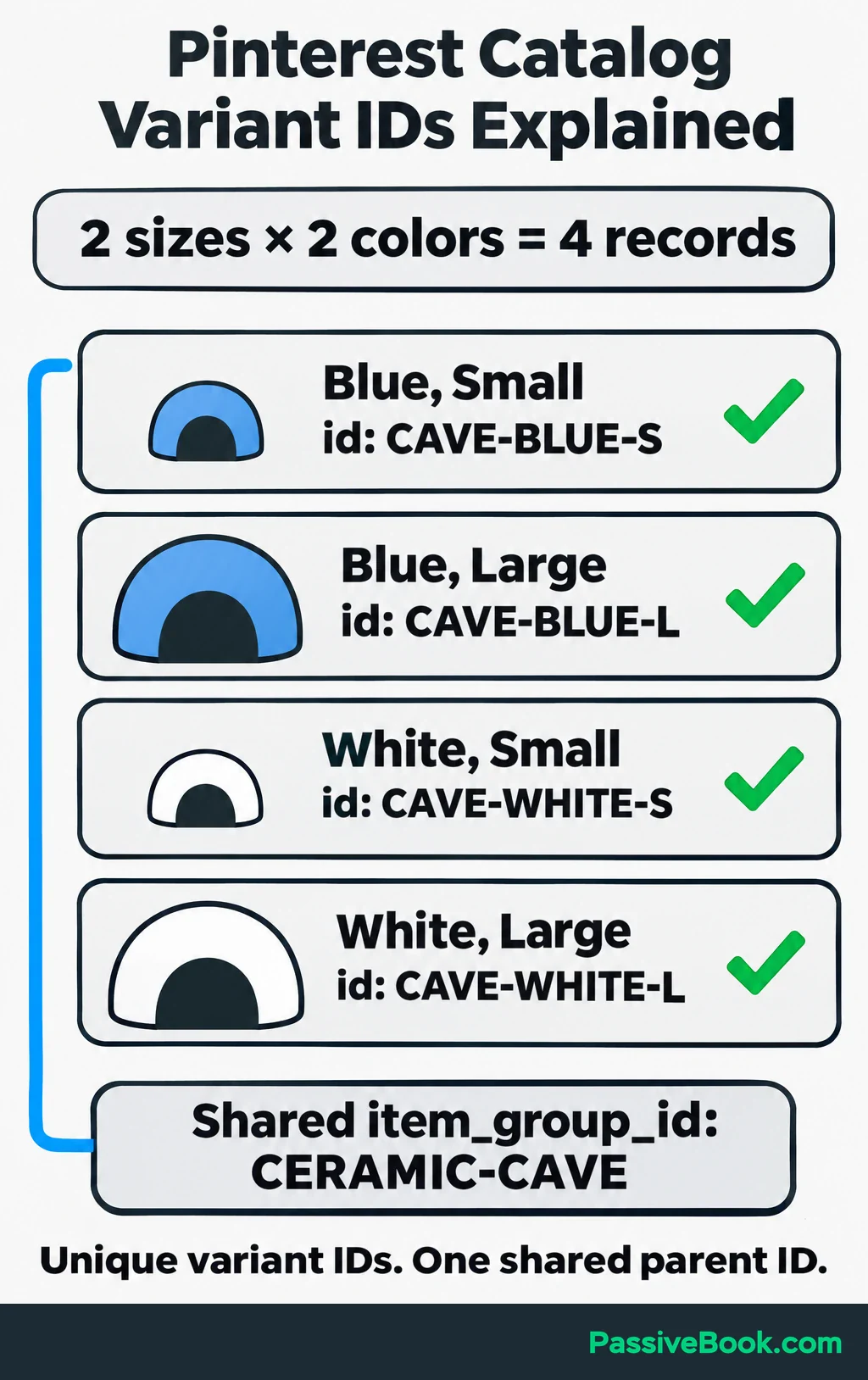
Each sellable variant needs its own record. Two sizes in two colors produce four records, each with a different id and the same item_group_id.
For the blue, large cave, check that its image, price, stock status, and destination all describe that version. If the link opens a shared product page, the intended variant should be clear and its details should agree with the feed.
Write titles that identify the item. “Ceramic Aquarium Cave — Blue, Large” gives shoppers more to work with than “Ocean Hideaway.”
Use descriptions for dimensions, materials, and the product’s actual cleaning instructions. Include relevant attributes such as brand, size, and color. Use product_type for your own categories, such as Aquarium caves, so you can filter product groups later.
For a spreadsheet feed, export as CSV (comma-separated values) with UTF-8 encoding. Keep the required column headers exactly as specified, and put values containing commas inside double quotes. Check that spreadsheet software hasn’t changed your IDs.
Before submission, open a few product and image URLs while logged out. An image visible only inside your store dashboard won’t help Pinterest.
Connect Your Product Source to Pinterest
Connect Through Your Store Integration
Install the official integration and authorize the Pinterest business account you intend to use. Check the account name before granting access, especially if you manage several accounts.
Then complete onboarding:
- Confirm the store domain and finish website verification.
- Complete the Pinterest tag setup.
- Choose which eligible products to publish.
- Enable product synchronization.
- Check that Pinterest contains the expected catalog and data source.
Inspect the initial synchronization result rather than assuming that installing the app finished the job. WooCommerce, for example, provides a catalog synchronization summary with errors and required actions.
Compare the submitted inventory with what you expected. If a product is missing, check whether it is published to the Pinterest channel and whether the integration supports its product type.
Add a Hosted Feed or Upload a File
The account owner must add the first data source. People with delegated admin or catalog access can add further sources after that first source is approved.
To connect your feed on desktop, open Catalogs and product groups and select Add data source. Choose Provide URL link for a hosted feed or Upload manually for a file on your computer.
Give the source a recognizable name and supply its format, selling country, language, and currency. Choose the country and language carefully: Pinterest says these cannot be changed afterward, and the country affects where the products are distributed. See its data-source requirements.
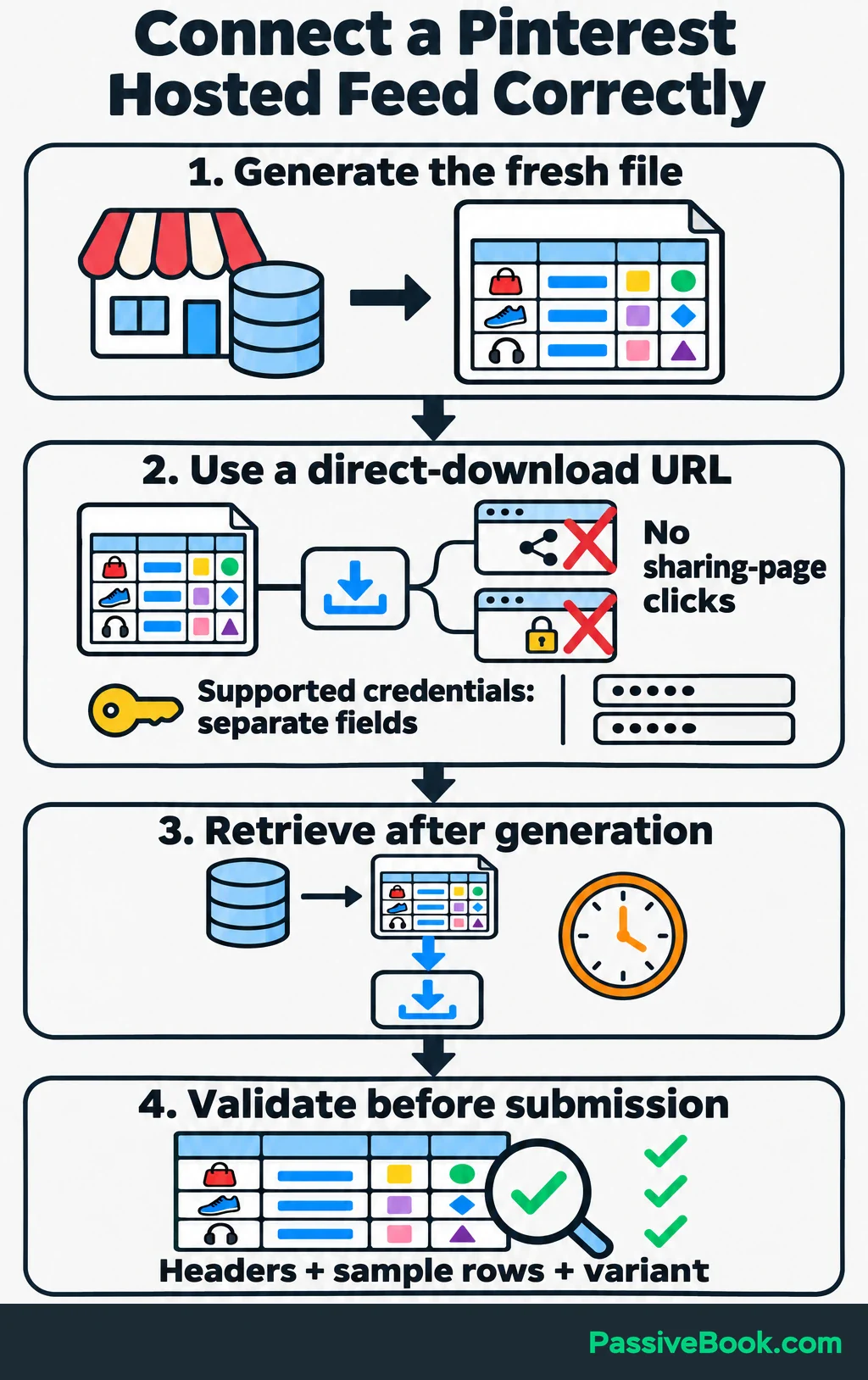
For a hosted feed, use a direct-download URL. Pinterest must be able to fetch the file without clicking through a sharing page or signing into your dashboard. If the feed uses supported username-and-password protection, enter those credentials in the separate fields.
Schedule retrieval after your store generates the file. Otherwise, Pinterest may collect yesterday’s export immediately before today’s becomes available.
For a manual upload, select your exported file. In either route, use the validation tool to test representative rows together with their header. Include a variant so you test more than the simplest product.
Correct reported problems, submit the source, and record its name. You’ll use that name to find its processing results.
Confirm Product Eligibility and Fix Errors
First, compare the intended assortment with the uploaded records. Count variants separately: the aquarium cave offered in two sizes and two colors should contribute four records.
Then inspect one variant’s image, price, availability, and destination.
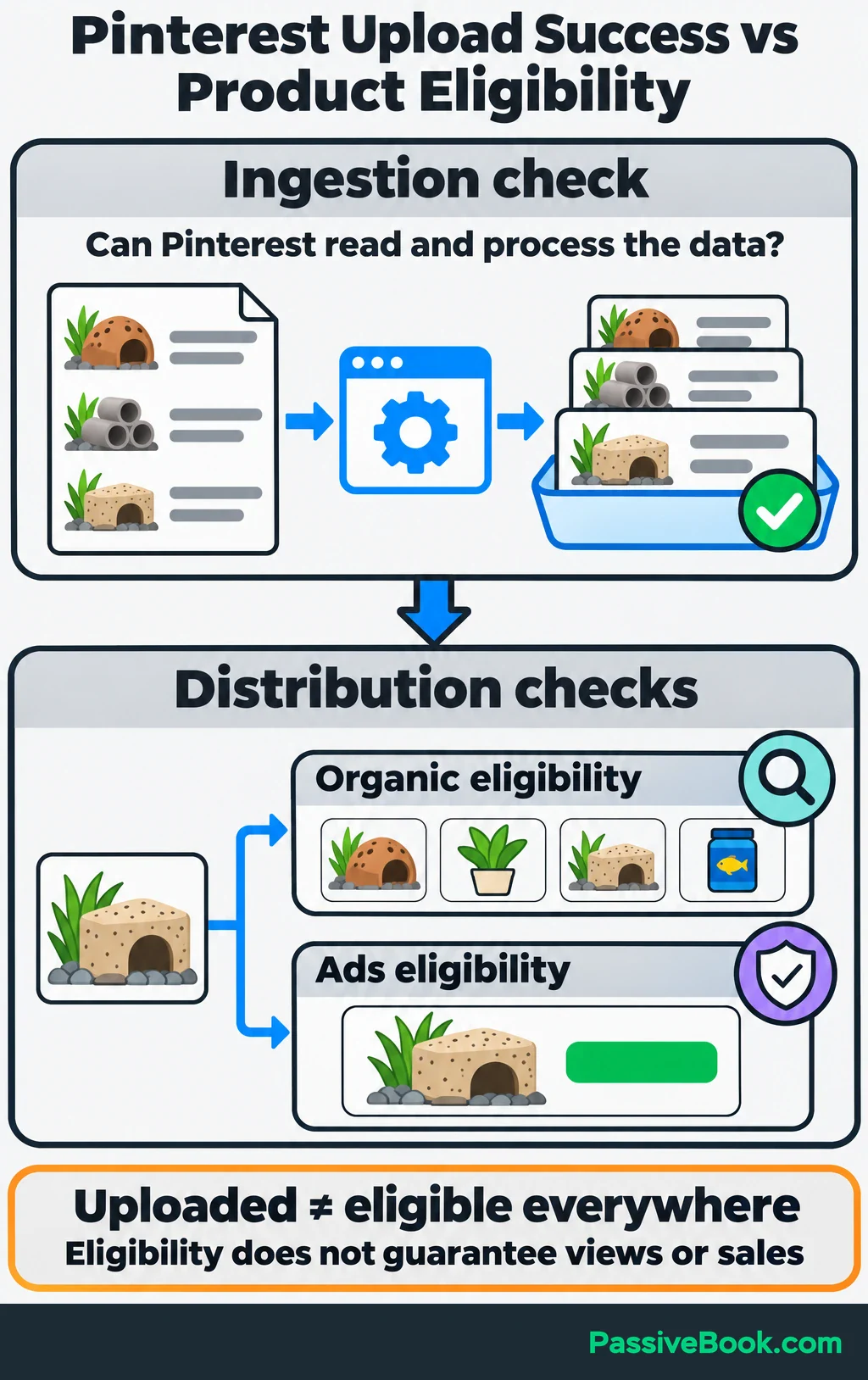
Pinterest separates two kinds of catalog checks:
- Ingestion issues: Whether Pinterest could read and process the submitted data.
- Distribution issues: Whether uploaded products qualify to appear without ads (organic distribution), in ads, or both.
A successful upload does not mean every product is eligible for organic distribution. Eligibility also doesn’t promise impressions or sales. Pinterest’s catalog diagnostics shows these checks separately.
When the Feed or Individual Records Fail
Fix problems affecting the whole source first. There is little value in polishing a description while Pinterest cannot download the file.
Next, fix failed product records and then address warnings according to their stated effect.
| Symptom | Check | Correction | Confirmation |
|---|---|---|---|
| Pinterest cannot download the feed | Direct URL, credentials, and server access | Supply a working download URL and allow Pinterest to fetch it | The next processing result shows a successful download |
| File fails validation | Headers, encoding, delimiters, and broken rows | Restore the required headers and export a correctly formatted file | Validation passes and processing accepts the records |
| Duplicate IDs appear | Repeated rows or overlapping sources | Give each variant a unique ID and remove duplicate submissions | The affected IDs no longer show duplicate errors |
| Price errors block products | Amount, currency, and agreement with the product page | Correct the store price or export mapping | The record processes and shows the intended price |
| Images cannot be loaded | Direct image URL, file validity, and access restrictions | Publish an accessible image and update its URL | The image error clears and the correct image appears |
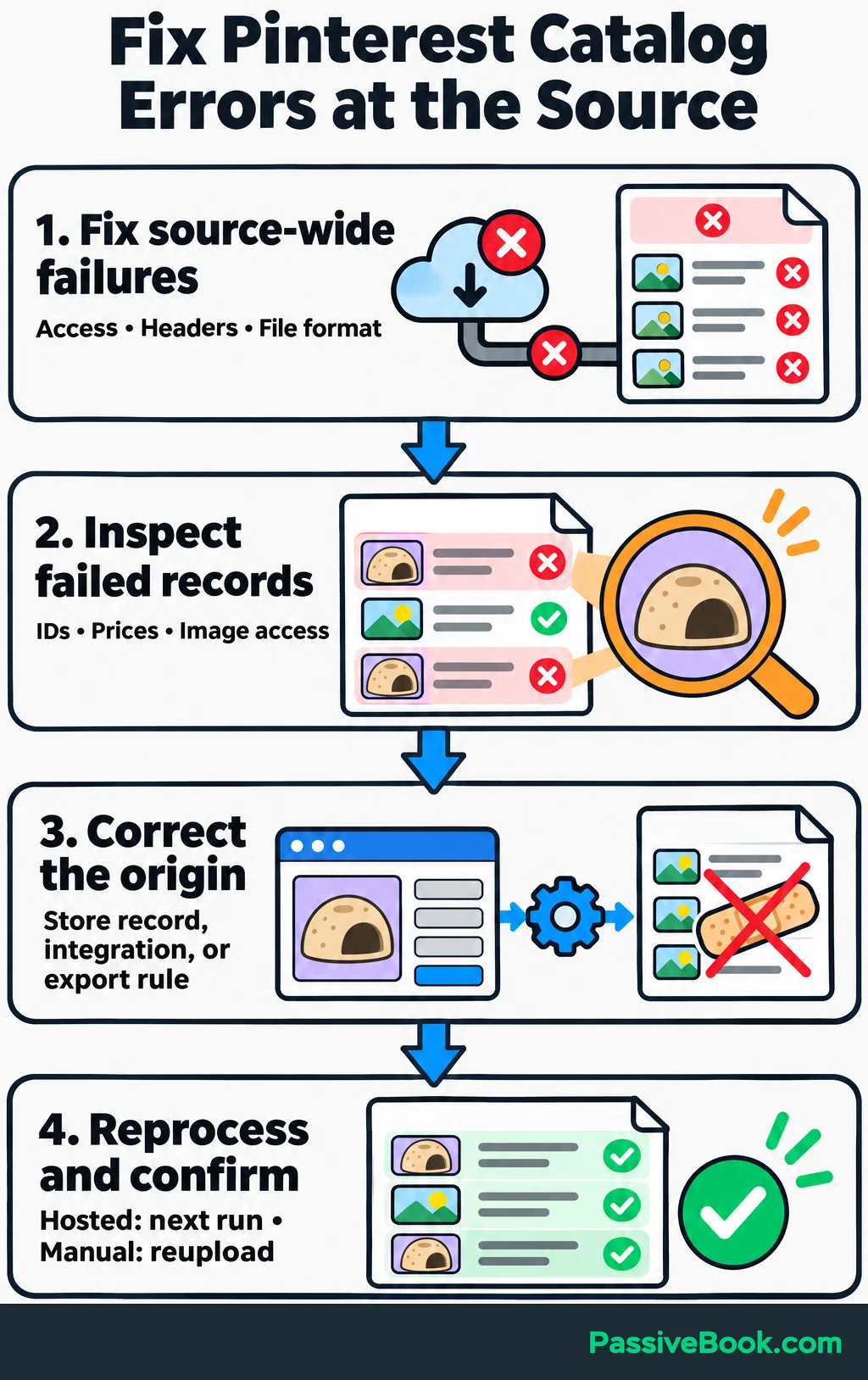
Use the explanation attached to the error rather than guessing from the symptom. Pinterest publishes common data-source errors and corrections.
Export the affected product details when several records share a problem. If every large cave has an invalid price, inspect the variant mapping before editing each row by hand.
Make the correction where the error started: the store record, integration setting, or export rule. Editing only the generated file is temporary if the next export overwrites your work.
For hosted feeds, check the next scheduled processing result. For manual feeds, upload the corrected file into the existing source. Confirm that the affected IDs now process successfully.
When Uploaded Products Are Ineligible
Read the distribution issue and check which placement it affects. An ads restriction and an organic restriction are different problems.
Follow the stated correction. Common areas to inspect include:
- Agreement between the feed and product page.
- Whether product links use the claimed domain.
- Website quality and merchant-policy compliance.
- Whether the product itself is eligible.
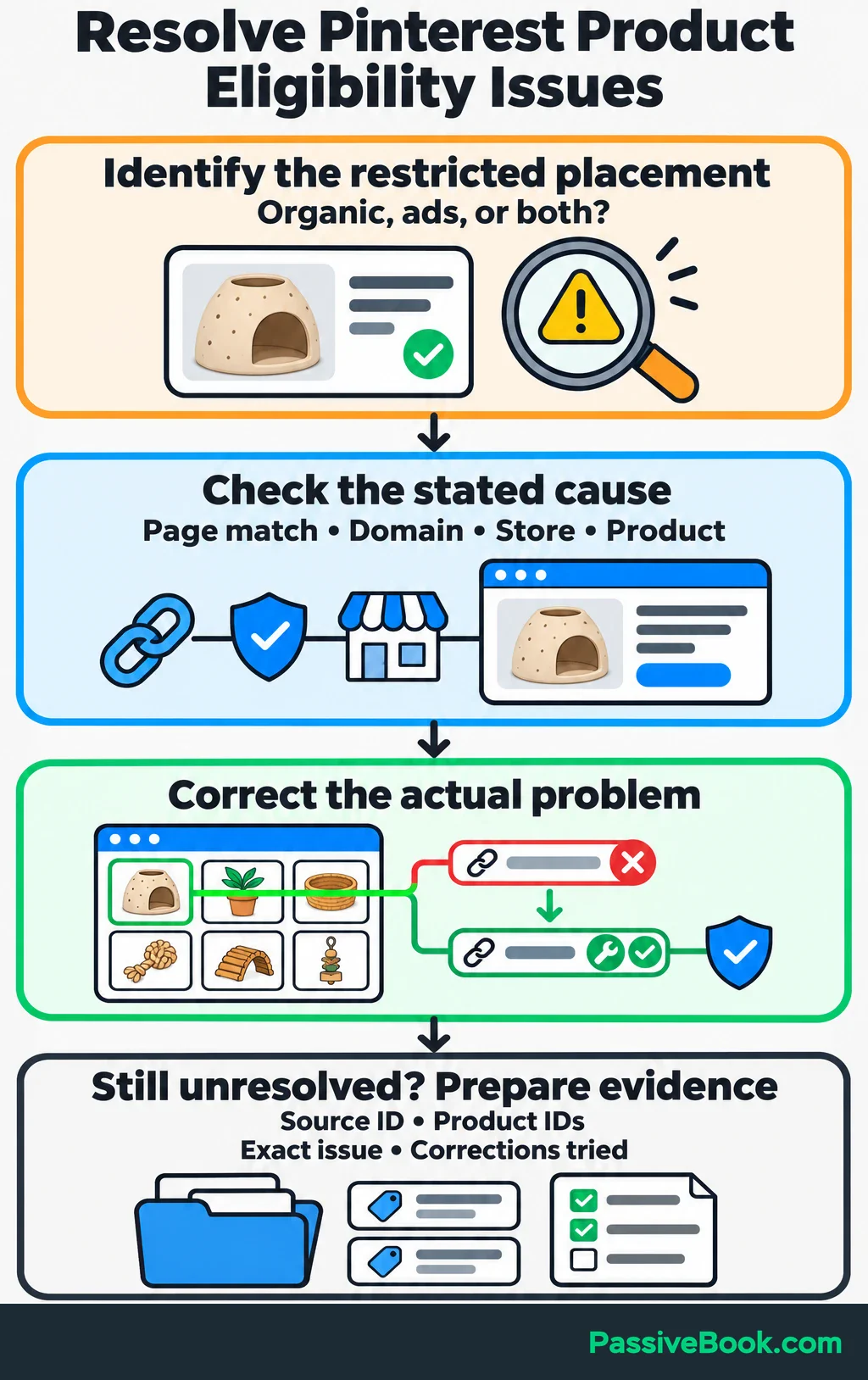
If the cave uploaded successfully but its destination uses the wrong domain, correct that link. Rebuilding the entire feed adds work without addressing the cause.
For an unresolved issue, send support the source ID, affected product IDs, exact issue details, and corrections already tried. That gives them something concrete to investigate.
Organize Products Into Useful Product Groups
Product groups collect catalog items using filters. They help you manage an assortment, compare performance, and select products for shopping ads.
They are different from variant families. An item_group_id connects versions of one cave; a product group can collect many different caves.
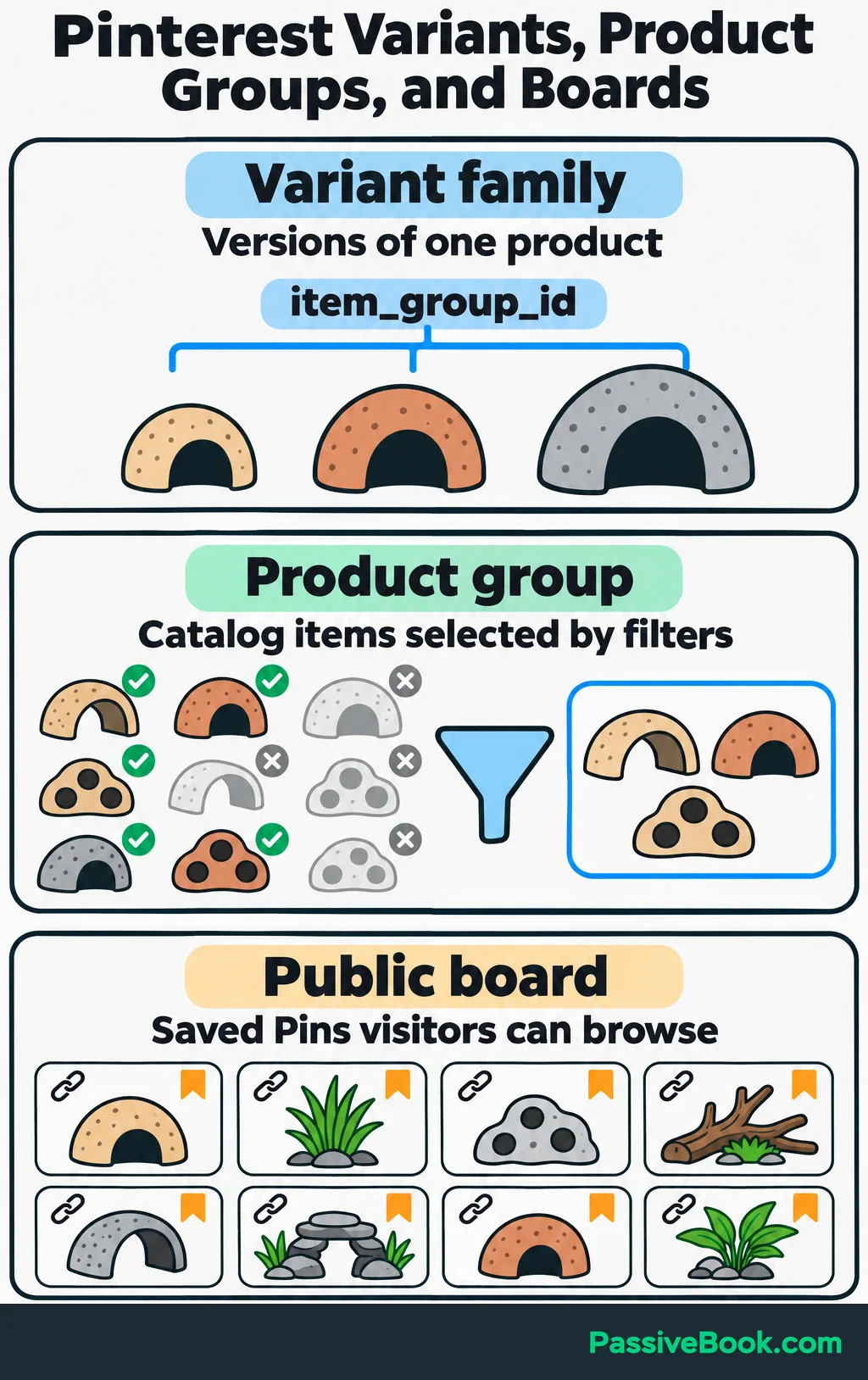
Start with a group that answers a useful question, such as “Which available products are ready to promote?”
To create it:
- Select the catalog or individual data source.
- Choose to create a product group using filters.
- Enter a clear name.
- Apply the filters and preview matching products.
- Save once the membership looks right.
For the example store, name the group “In-stock aquarium caves.” Require All conditions to match. Set Product type to Aquarium caves and Availability to in stock.
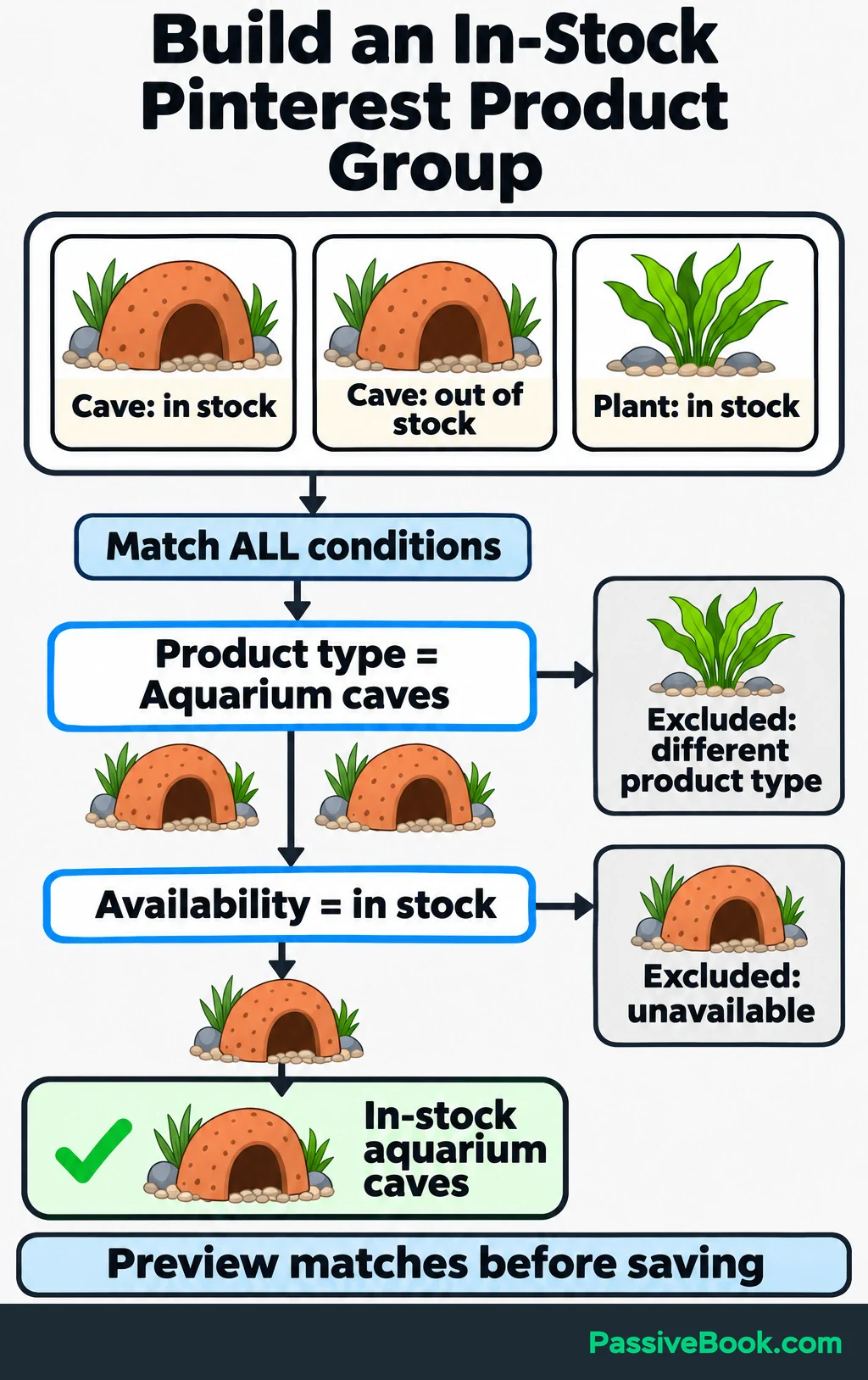
Check that the preview includes the intended variants and excludes unavailable ones. If the group is empty, check that the source contains the exact product_type value used in your filter.
Review membership after assortment changes. Edit or remove obsolete groups; the default All products group cannot be deleted. Manage Shopify-linked groups through Shopify.
To show products on your profile, save their Product Pins to relevant public boards. Product groups organize catalog inventory, while boards give visitors a place to browse saved Pins. Eligible Product Pins can also appear elsewhere across Pinterest. Pinterest explains profile display in its shopping overview.
Keep Prices, Stock, and Images Current
Automate both halves of the connection: generating the updated feed and having Pinterest retrieve it.
Pinterest’s hosted-feed guidance describes daily retrieval. Check the last successful processing result to confirm that fresh data actually arrived. An enabled schedule tells you what should happen; the processing result tells you what happened.
For manual feeds, I would set a weekly reminder and update promptly after price or stock changes. Pinterest requires accurate price and availability information current within seven days. That is a freshness requirement, not a reason to leave a sold-out item advertised as available until next week. Pinterest’s merchant guidelines explain the requirement.
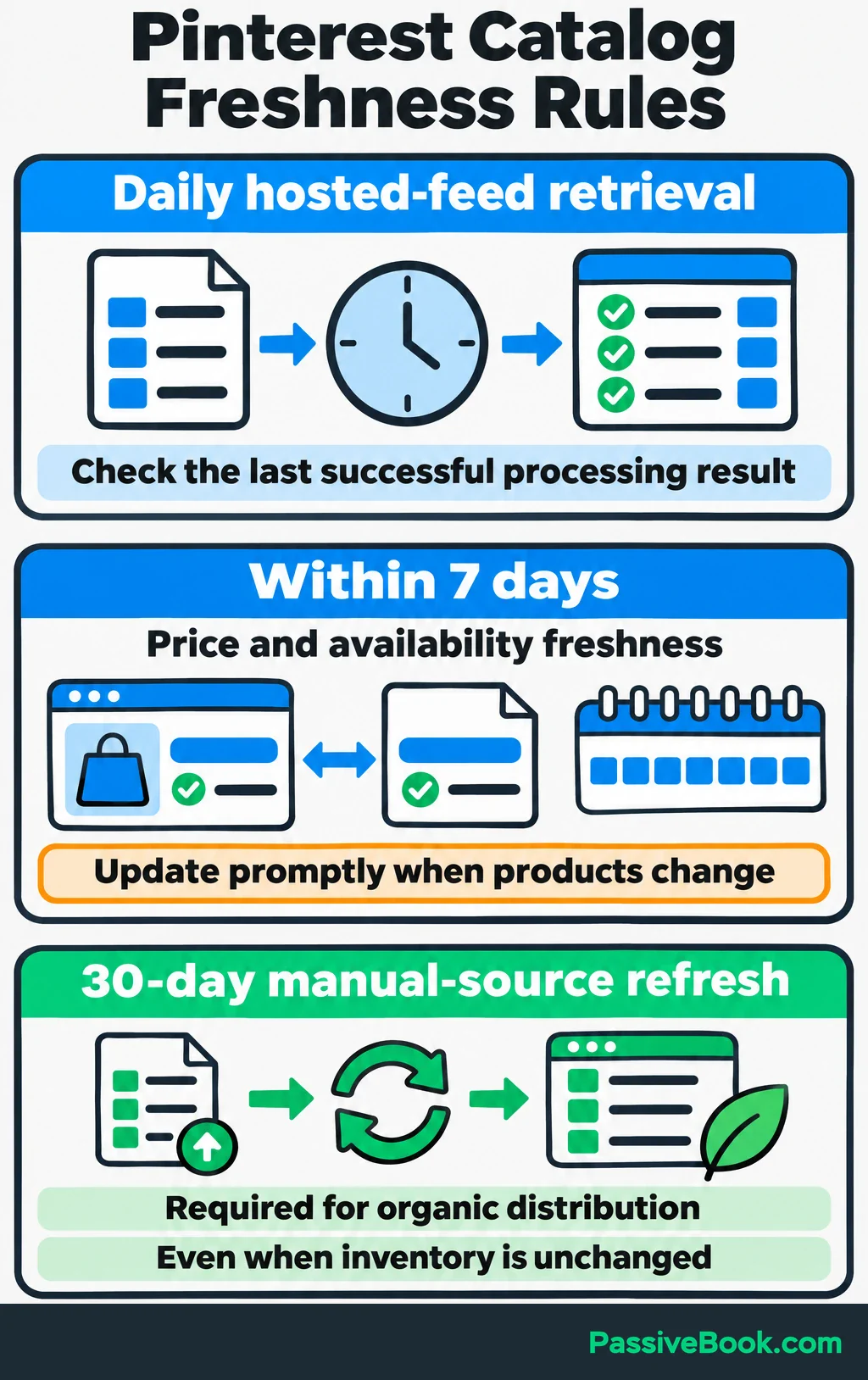
Manual sources also have a separate 30-day refresh deadline for organic distribution, even if the inventory has not changed.
Update the existing source and preserve IDs for continuing products. A title change does not make an existing cave a new product.
When replacing an image, use a different image URL. Pinterest’s feed instructions say that changing the file while keeping the same URL will not trigger the image update.
Mark temporarily unavailable products out of stock. Pinterest excludes these from organic and shopping-ad distribution. Remove discontinued products through the source and confirm their removal after processing.
Use a short weekly review:
- Last successful sync: Did processing complete after the latest feed was generated?
- Open issues: Are any products failing or ineligible for organic distribution?
- Product count: Did an unexpected increase or decrease occur?
- Listing accuracy: Do sampled prices, stock states, images, and destinations match the store?
- Group membership: Do important groups still contain the intended products?
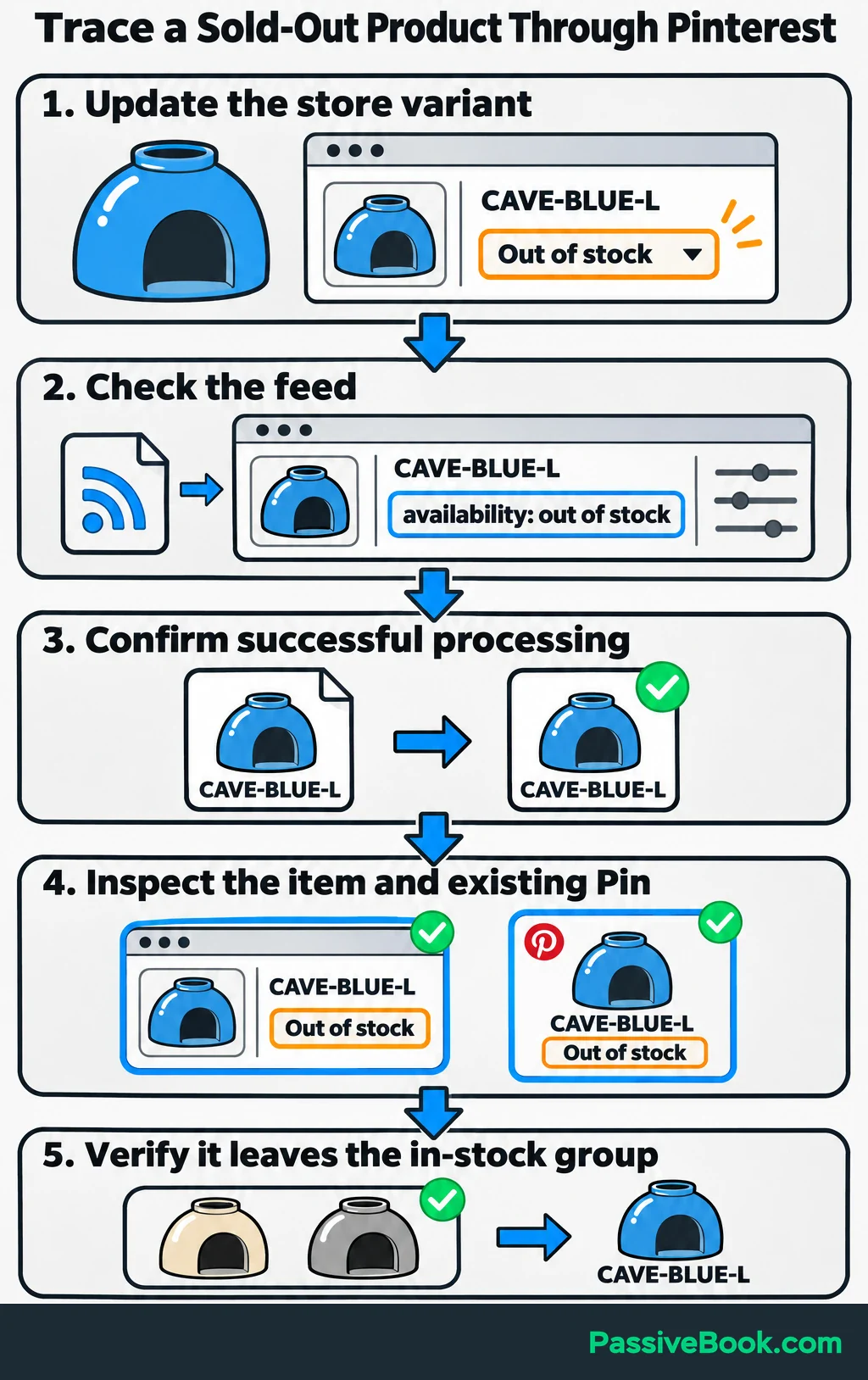
After setup, trace one real change through the whole connection. Suppose the blue, large cave sells out:
- Mark that variant out of stock in the store.
- Check that its feed record now contains
out of stock. - Confirm successful processing after that feed update.
- Inspect the catalog item and its existing Product Pin for the updated information.
- Verify that it leaves the in-stock product group once membership updates.
Repeat this check after a migration, integration change, or feed-tool replacement. Those are sensible times to verify that yesterday’s automation still works.
Measure Traffic and Improve Product Performance
Pinterest sends meaningful referral traffic to Passive Book’s blog. That is my experience with blog traffic, and it does not establish what a retail catalog will sell.
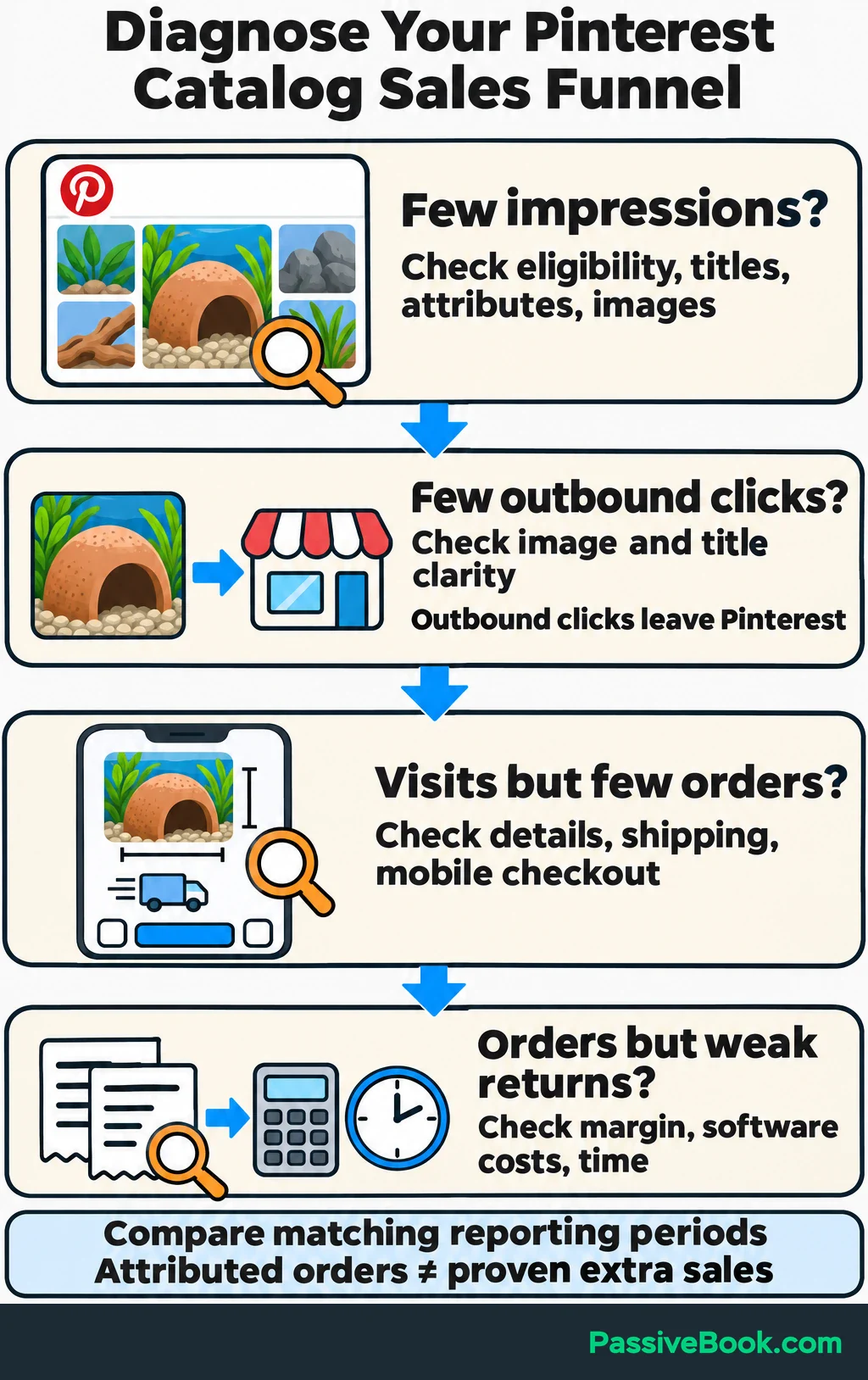
For your store, follow the path from product exposure to visits and orders.
Review Product Pin impressions and outbound clicks alongside Pinterest-referred sessions, orders, and revenue in your store analytics. Use matching reporting periods.
Pin clicks open a close-up view. Outbound clicks lead away from Pinterest, so they are the more relevant click measure when checking store traffic. Pinterest’s Analytics definitions distinguish the two.
Let the gap determine your next action:
| What You See | What I Would Check First |
|---|---|
| Few impressions | Organic eligibility, then clear titles, relevant attributes, and images |
| Impressions but few outbound clicks | Whether the image and title make the product and its appeal clear |
| Visits but few purchases | Product details, dimensions, shipping costs, and mobile checkout |
| Orders but poor returns on your effort | Product margin, software charges, and maintenance time |
Compare the aquarium-cave variants receiving visits with those generating orders. If shoppers visit the large cave but rarely buy it, inspect whether its dimensions and entrance size are clear before changing the entire catalog.
Choose one improvement you can assess. Keep the reporting period and change recorded so you know what you are comparing.
Start with a few Product Pins from the same reporting period. A review queue helps you choose what to check next without treating a small click difference as a clear winner.
Treat attributed purchases as measured outcomes, rather than proof that every order was an extra sale caused by Pinterest. Judge the channel by the orders it brings, the costs it adds, and the time it takes to maintain.
What Next?
Check whether your store’s official Pinterest integration supports your products, then inspect one variant from its store record through to its catalog listing.
Use the social buttons to share this guide when your next store-operations discussion turns to keeping another sales channel accurate.
Which part of your product-update process still needs manual work? Tell me in the comments, and bring any other catalog questions with you.
Share this post with your friends & followers:


Free Social Performance Workbook