Losing access to Pinterest can interrupt more than your browsing. It can leave scheduled content, customer messages and a useful source of website traffic outside your control.
The trouble can start with a stolen login, an app with too much access or posts that break Pinterest’s rules. When something goes wrong, it isn’t always clear which problem you’re dealing with.
Pinterest brings meaningful referral traffic to Passive Book, so losing access would disrupt work I rely on. The checks below help you protect that access and review privacy, content and automation before adding more Pins, tools or people.
Secure Your Login and Recovery Access
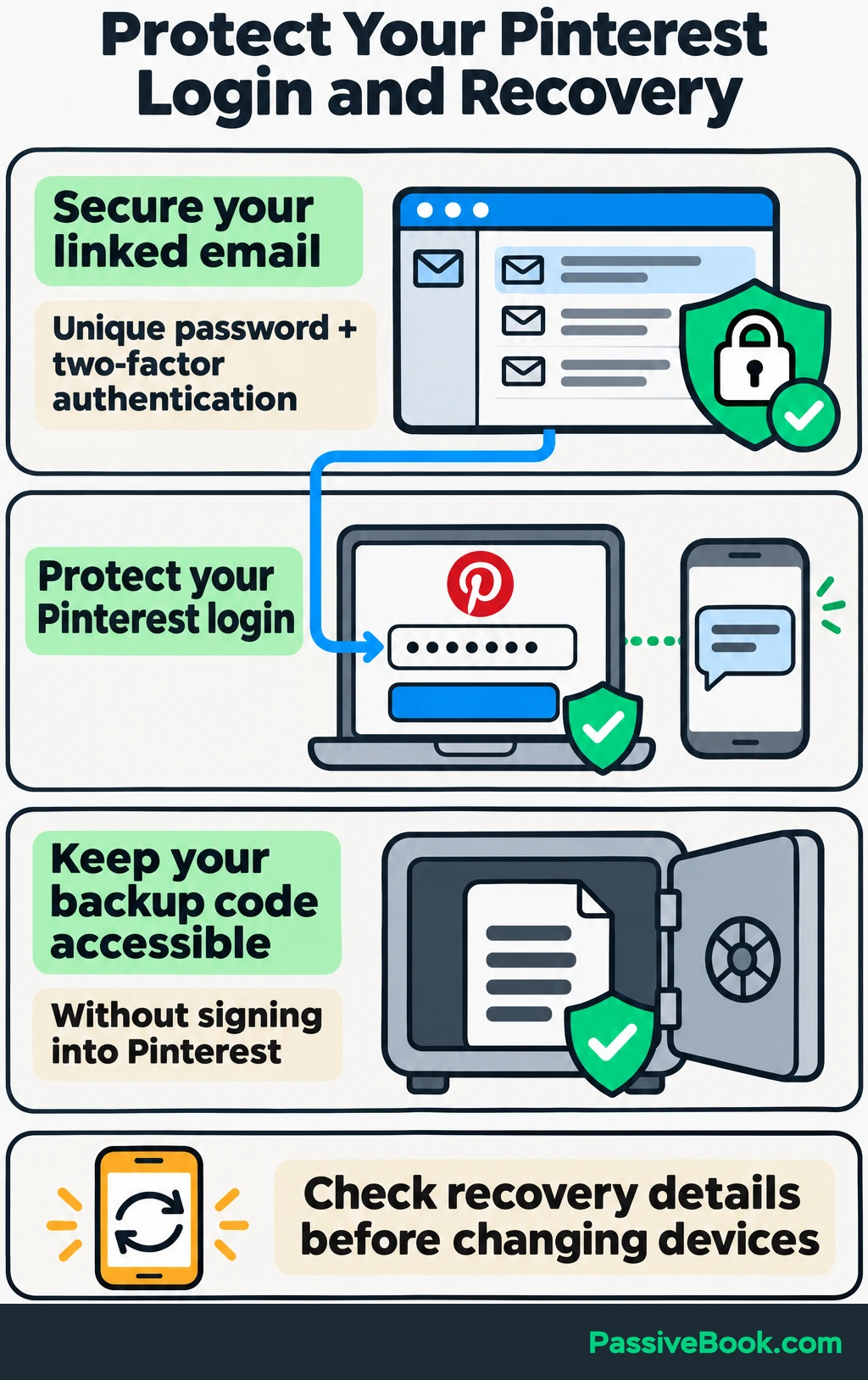
Start with a long, unique Pinterest password and save it in a password manager. Give your linked email account its own unique password and turn on two-factor authentication there too. That inbox matters because Pinterest password resets depend on access to it.
Next, enable Pinterest’s two-factor authentication where it is available. It adds a text-message code to the login process. Pinterest requires you to confirm your email and verify your phone number, and one number can be linked to only one account. Save the backup code somewhere you can reach without logging into Pinterest. Pinterest explains its two-factor requirements here.
Before replacing your phone, changing numbers or closing an email account, check that your recovery details still work. If you sign in through Google or Apple, protect that account too.
Unexpected account warnings deserve a slower response. Open Pinterest directly through its official app or by typing its address into your browser. A message threatening suspension is a reason to check your account, not a reason to rush through the sender’s link.
Pinterest says it never requests your password by email, instant message or phone. Enter it only on the genuine Pinterest website or official app, and don’t install software or open attachments from supposed support emails. These are part of Pinterest’s account-protection advice.
Keep verification codes private and install browser and device updates. These are small chores, but recovering a stolen account is a considerably worse chore.
Choose What Stays Public
Choose your account type based on how you use Pinterest. Promoting products, services or a commercial website requires a business account under Pinterest’s terms.
For the examples below, imagine you run a small online shop selling washable lunch bags and sharing lunch-packing tips. That commercial activity belongs on a business account.
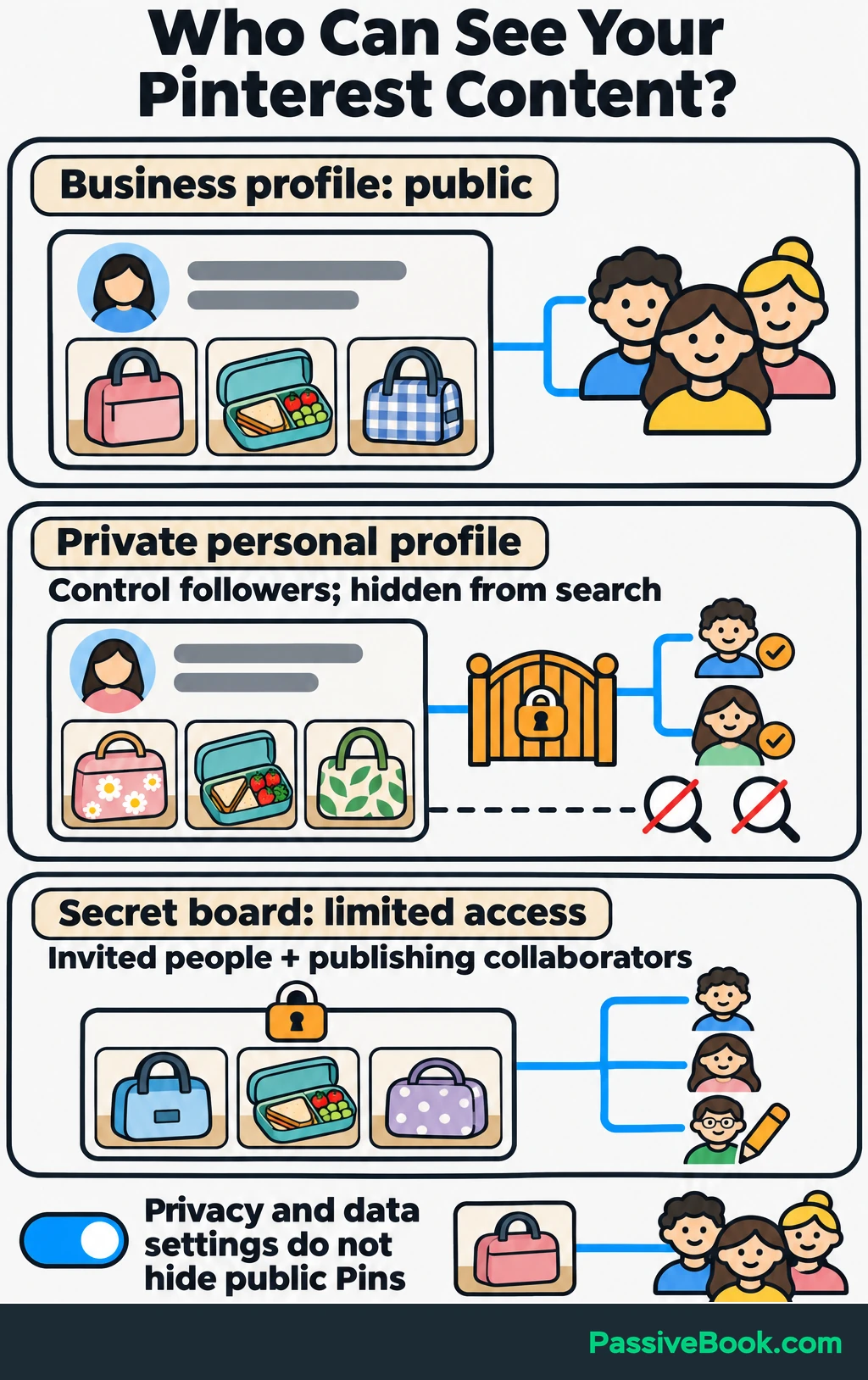
Business profiles stay public. For personal use, a private profile lets you control who follows you and keeps the profile out of Pinterest and external search results. Pinterest explains this distinction in its profile-visibility guidance.
You can still use secret boards for planning. These stay hidden from the public, but invited people and business collaborators with publishing access can view them. Review who has access and keep sensitive records elsewhere. A private inspiration board is useful; a board containing customer addresses is an unnecessary problem.
Before publishing, inspect both the subject and the background of your images. Look for:
- Address details: Delivery labels, envelopes, house numbers or readable pet tags.
- Customer information: Names on orders, packing slips or open computer screens.
- Personal details: School names, badges or documents that reveal more than you intended.
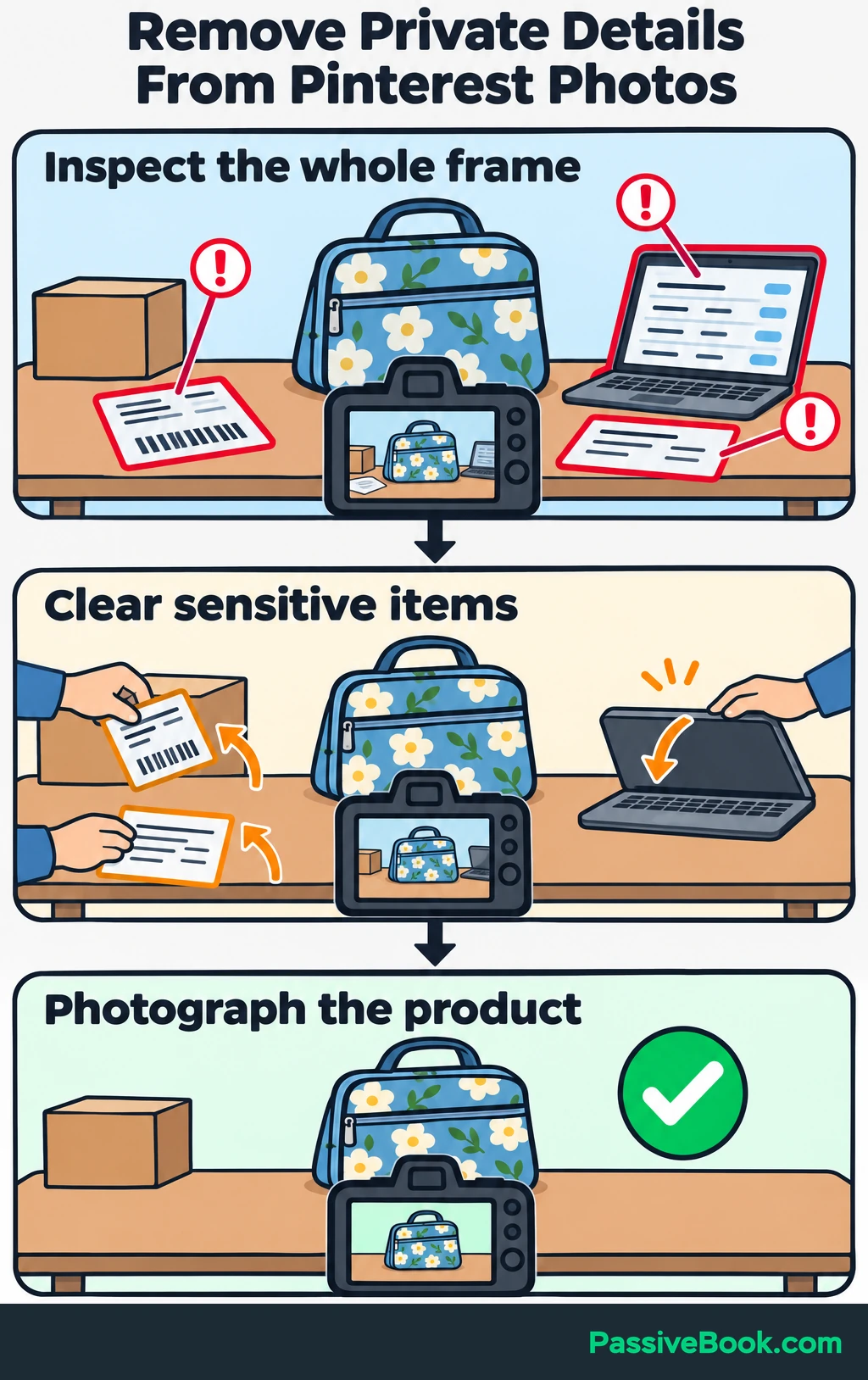
For the lunch-bag shop, clear customer orders off the packing table before photographing a product.
To control how Pinterest uses your activity and uploaded content, open Privacy and data in your settings. Review advertising personalization, sharing with partners and Generative AI settings. Advertising choices vary by location. The AI setting lets you opt out of having your content used to train Pinterest’s image-generation model. These settings do not hide your public Pins. Pinterest’s privacy and data guidance explains the choices.
Block unwanted contact and report harassment. Blocking stops following, messaging and Pin interactions, but use profile and board visibility settings to control what you expose publicly.
Control Access for Devices, Apps, and Collaborators
Account access tends to accumulate. You try a service, change computers or hire help, and the old permissions remain.
Review recent logins from a desktop browser. Open your security settings and inspect the connected-device sessions. Compare the device, date and location with your own activity, then end sessions you don’t recognize.
Review connected apps separately. For each service, ask:
- Purpose: What work does this app still do?
- Account: Is it connected to the correct Pinterest account?
- Permissions: Does it need everything it can access?
Disconnect services you no longer use. When adding a publishing service, connect through Pinterest’s own authorization screen and approve only the permissions the work requires. Skip services that ask you to hand over your password or copy browser session cookies, which can carry access to your logged-in account.
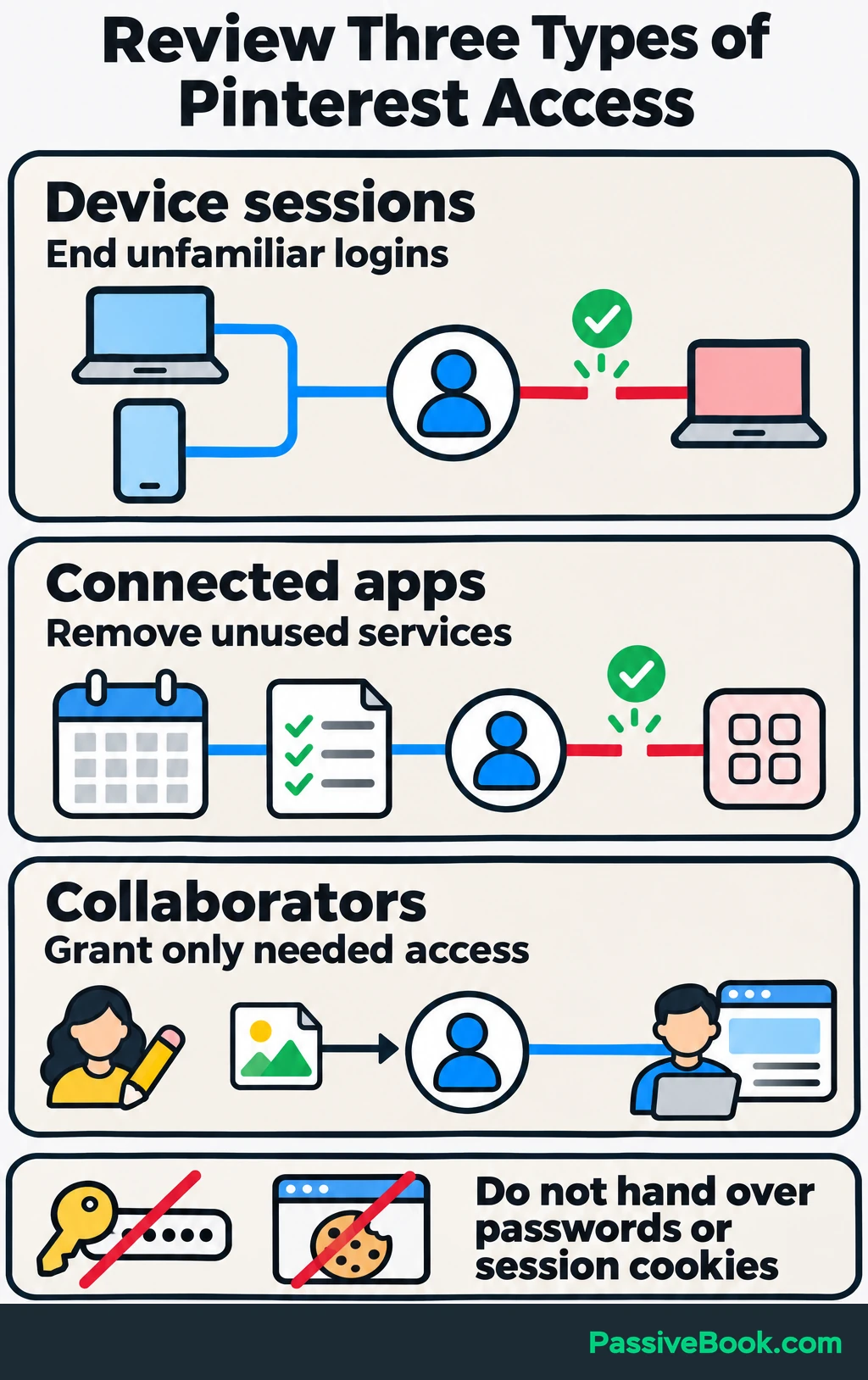
For collaborators, use Business Manager, Pinterest’s tool for assigning access to business accounts, instead of sharing the owner’s login. Both parties need business accounts.
Pay particular attention to Publisher access. Its permissions are not customizable, and they include creating, editing and deleting Pins and boards, accessing secret boards and making publishing changes without the owner’s approval. Pinterest lists the full business roles and permissions here.
I would give that access only to someone who needs to publish. If the lunch-bag shop hires a designer to make graphics, the designer can deliver the image files without entering Pinterest at all.
Remove access when the work ends. Put that task beside the final invoice so it doesn’t disappear into the administrative swamp.
Check Every Pin Before Publishing
Check the image, title and description together. Look for harassment, exposed private information, exploitation and harmful misinformation. Pinterest’s rules also apply to AI-generated content. Its Community Guidelines cover these restrictions.
Then compare every factual promise with the actual product or article.
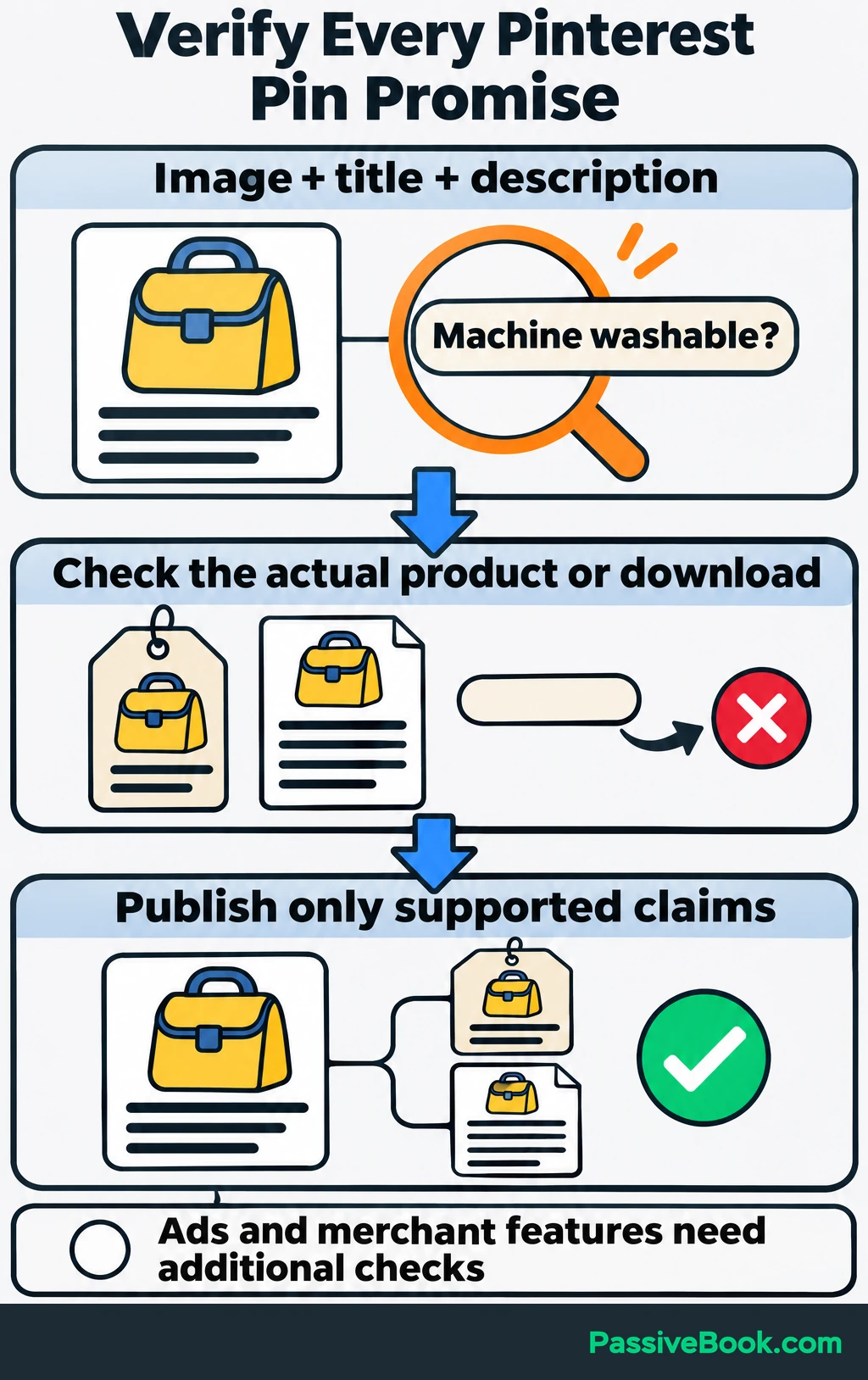
While reviewing a Pin draft for one of my digital products, I caught a sentence promising a checklist that wasn’t in the download. It sounded useful, which made it easy to overlook. Now I check the offer itself while reviewing the copy.
For the lunch-bag shop, that means removing invented materials, insulation claims, certifications or cleaning instructions. “Machine washable” needs to match the actual care instructions.
Before running ads or using merchant features, review their additional rules. Passing your ordinary Pin review does not complete those separate checks.
Use Content You Have Rights to Publish
Use your own photos, writing and designs, or assets licensed for your intended use. Keep the license or permission record with the original file.
Crediting a photographer does not, by itself, give you permission to download and republish their work.
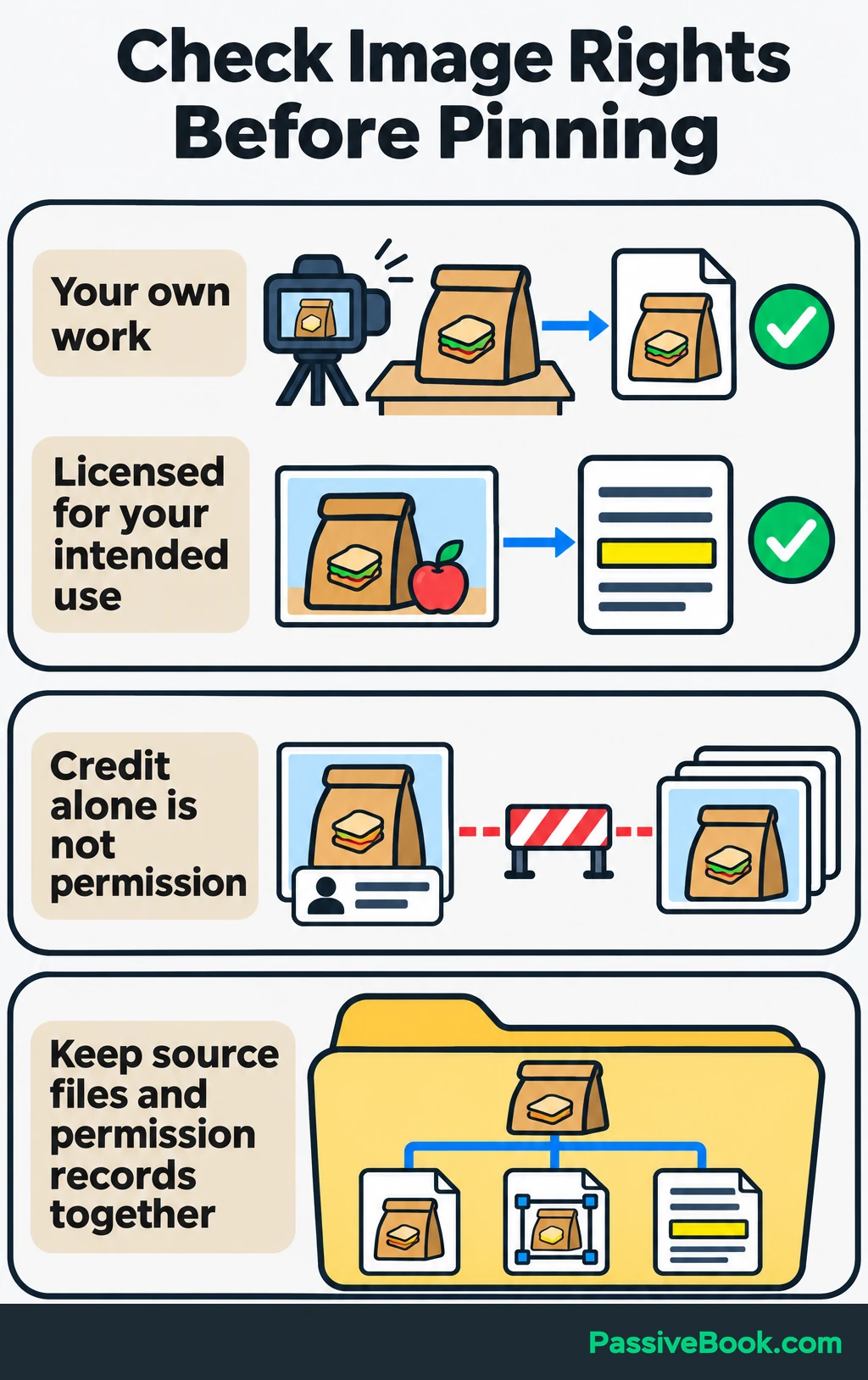
For the shop, photograph the actual lunch bag instead of copying another seller’s product image. If you use a stock photo in a promotional graphic, check that its license covers that use.
I would also keep the source files. An exported image is useful for publishing, but the editable version makes corrections much easier.
Make the Destination Deliver the Pin’s Promise
Open the destination page before scheduling the Pin. Compare what the visitor expects with what they actually find.
A free-checklist Pin should lead to the checklist or a clearly explained way to get it. If an email signup is required, say so. A product Pin should make the product and its sale purpose clear.
| Proposed Pin | Problem | Safer revision |
|---|---|---|
| “Free Lunch-Packing Checklist” links only to a paid lunch bag | The promised checklist is missing | Link to the checklist page and explain any signup requirement |
| “Shop Our Washable Lunch Bag” links to an unrelated article | The visitor cannot find the advertised product | Link directly to the lunch-bag product page |
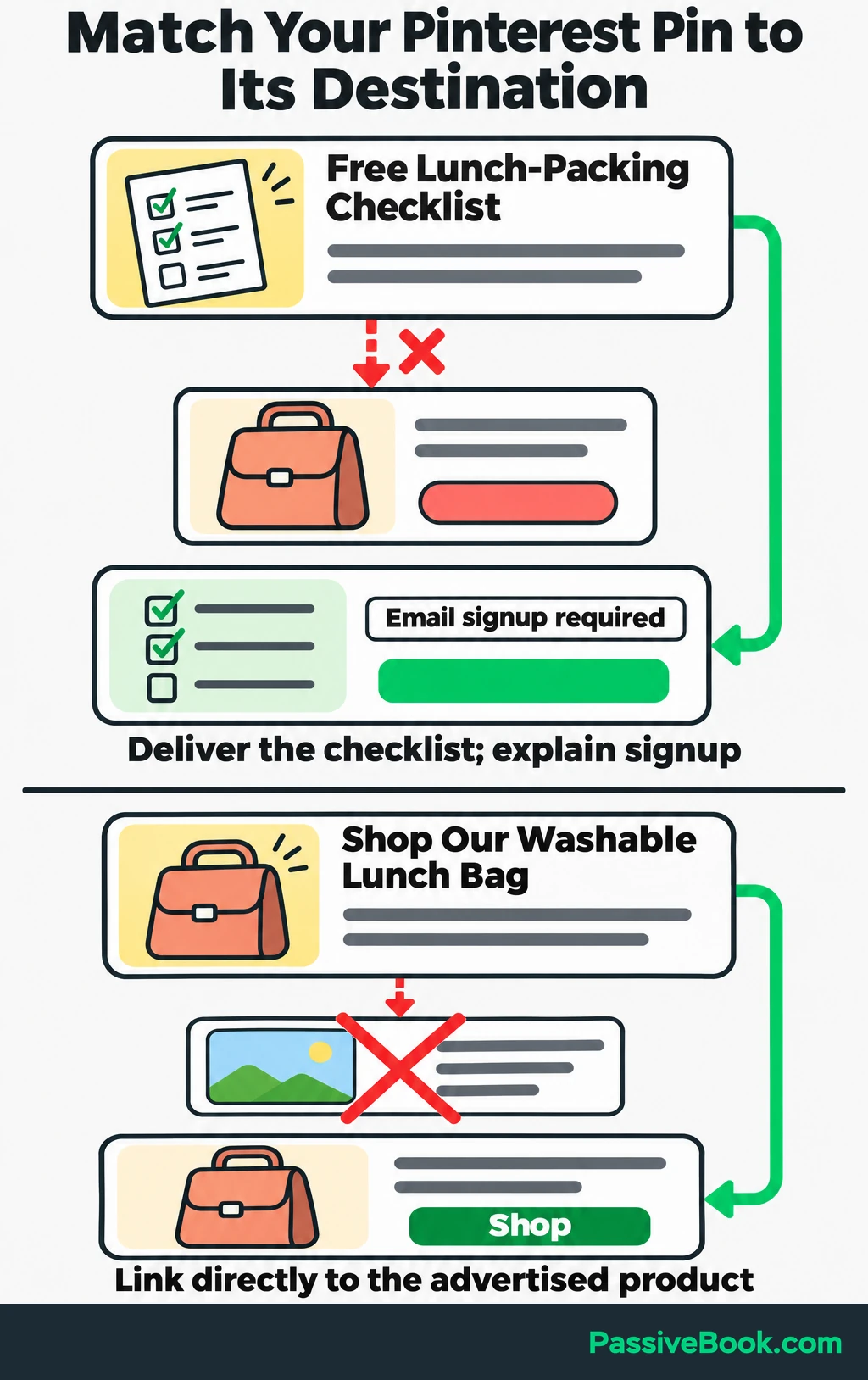
Check that the page loads and that its main offer is still available. Avoid deceptive redirects and attempts to work around a blocked domain.
My test is simple: would the person who clicked feel that the Pin sent them where it said it would?
For your next batch, start with what the destination page actually contains. An AI Skill can help turn those details into Pin copy, which you should still review before publishing.
Free AI Pinterest Studio




Disclose Commercial Relationships
Make a commercial relationship clear beside the recommendation. That includes affiliate commissions, sponsorships and products supplied in exchange for coverage.
Use plain wording that fits the relationship:
- Affiliate recommendation: “I earn a commission from purchases through this link.”
- Paid sponsorship: “Ad — paid partnership with [brand].”
- Gifted product: “This product was provided free by [brand].”

Keep the disclosure easy to notice rather than hiding it among unrelated hashtags. Follow the advertising law that applies to your content.
Pinterest requires clear disclosures for paid partnerships. If you live in the European Economic Area, you must also disclose the promotional purpose of commercial content, including promotions for your own products, and use Pinterest’s disclosure features when available. Its commercial and branded content guidelines explain these requirements.
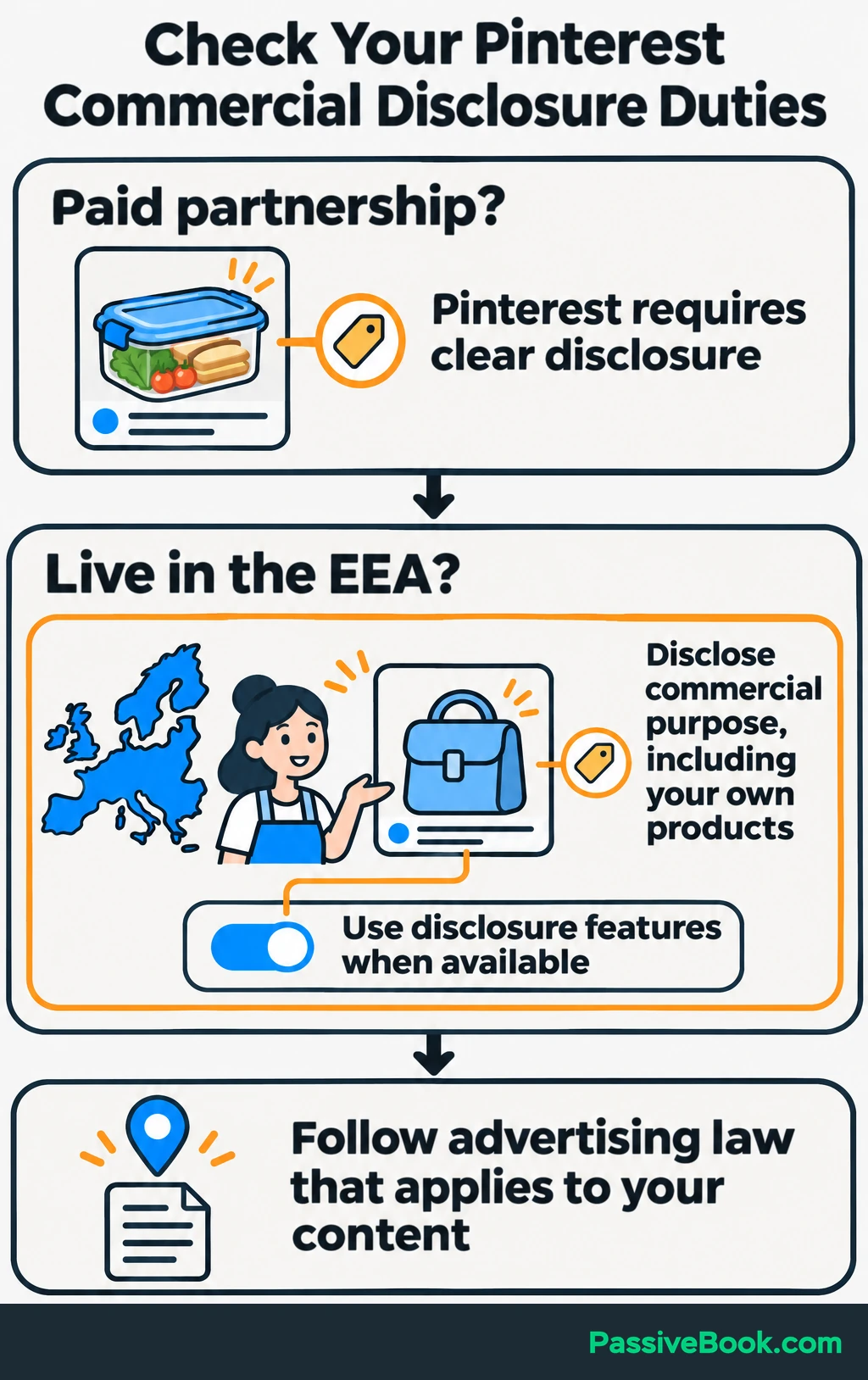
Affiliate recommendations should be original, useful and transparent about their links. Pinterest generally calls for one authentic affiliate account and prohibits reciprocal saving arrangements and repetitive bulk affiliate posting.
For the lunch-bag shop, a paid recommendation for another company’s lunch container needs a clear disclosure. Selling your own bag also needs clear promotional framing where required.
Avoid Spam When Scaling Your Publishing
More output gives you more content to review. It also gives mistakes more places to hide, so inspect the publishing pattern as well as each individual Pin.
Review Repetition and Engagement Tactics
Keep descriptions relevant to the content and save Pins to boards where they belong.
Skip purchased engagement, irrelevant keyword stuffing, coordinated attempts to manipulate distribution and repeated unsolicited promotional messages.
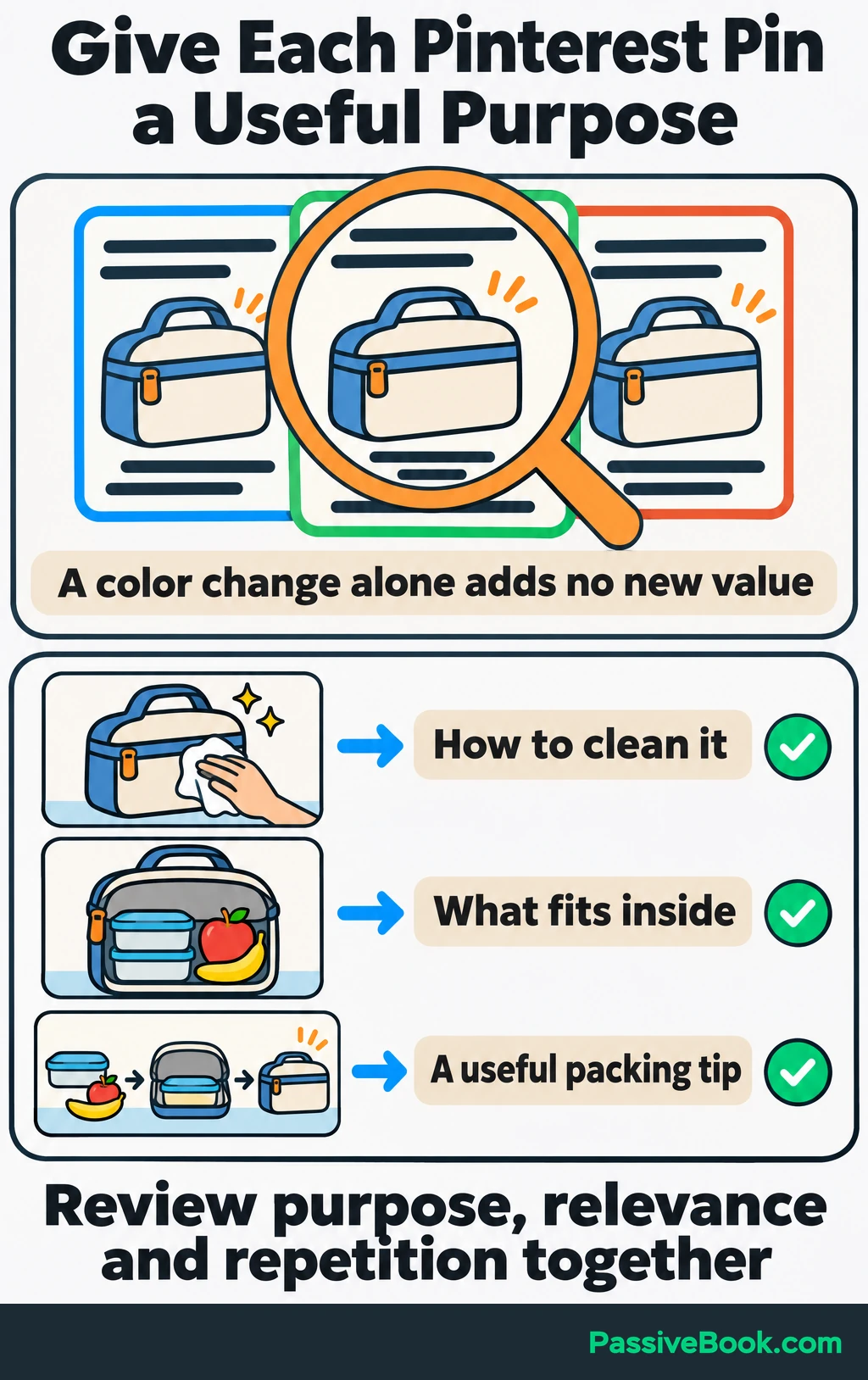
Before adding a batch to your queue, scan it as a group. Look for accidental duplicates and sales messages that repeat without giving the reader anything useful.
For the lunch-bag shop, different Pins could explain how to clean the bag, show what fits inside or share a packing tip. Those purposes help you decide whether another Pin deserves to exist.
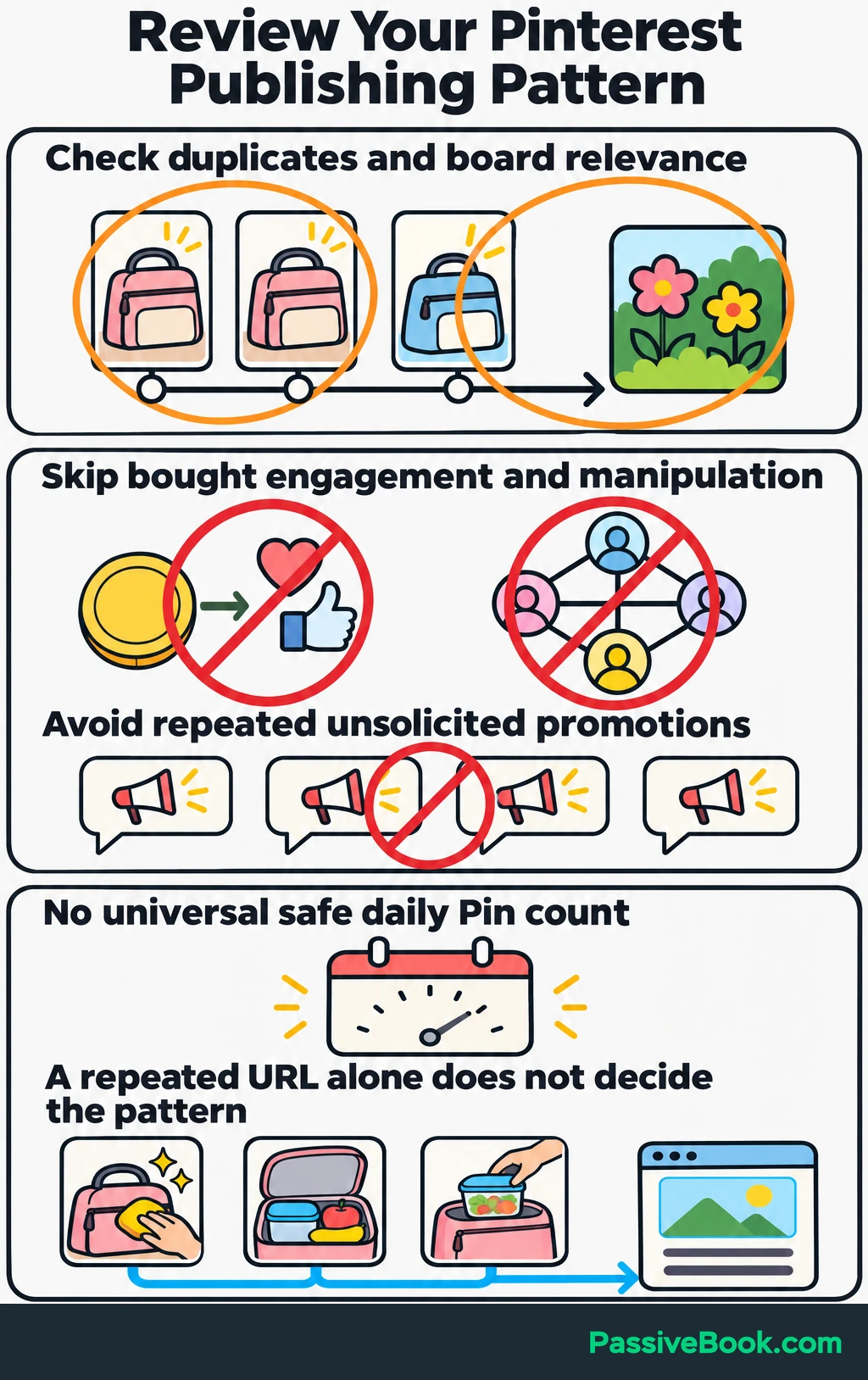
Changing the background color of the same sales graphic does not automatically make the next version useful.
There is no universal daily Pin count I would treat as a safety guarantee. Reusing a destination URL is also not enough, by itself, to judge the whole publishing pattern. Review relevance, repetition and purpose together.
Use Approved Scheduling and Automation
I would start with Pinterest’s native scheduler for straightforward business publishing. Create the Pin, check its image, copy, destination and board, then choose its publication time.
You don’t need a paid scheduler merely to put a Pin on the calendar.
For third-party automation, check whether Pinterest explicitly approves the activity you want to automate. A Pinterest authorization screen grants account permissions; it does not establish that every automated feature a service offers is allowed. Pinterest’s spam rules make approval a separate requirement.
I like automation, but a vendor’s “hands-free growth” headline is not evidence of permission.
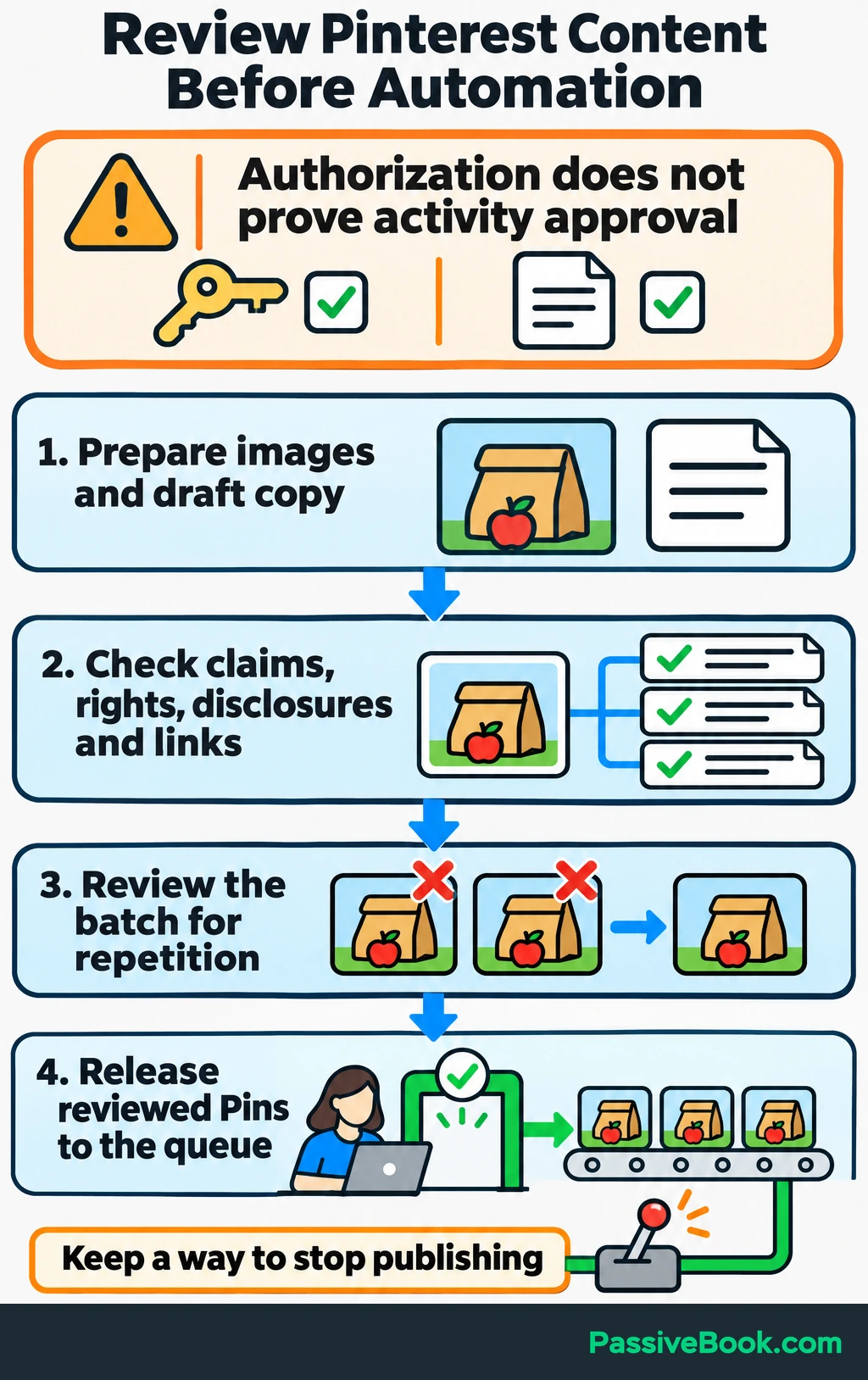
Use a workflow that gives you a clear review point:
- Prepare the images and draft copy.
- Check claims, rights, disclosures and destinations.
- Review the batch for duplicates and repetitive promotions.
- Release the reviewed Pins to the publishing queue.
For the shop, AI can help draft descriptions from verified product details. Someone still needs to check that it hasn’t turned a washable bag into a refrigerated food-storage system.
Keep a way to stop publishing. Know how to remove scheduled Pins or pause the connected service before a faulty batch goes live.
Passwords, customer records and access tokens do not belong in AI prompts. Access tokens let software act on an account, so protect them as carefully as other login credentials.
Maintain a Short Account Safety Routine
I would start with a weekly review and keep it short enough that you actually do it.
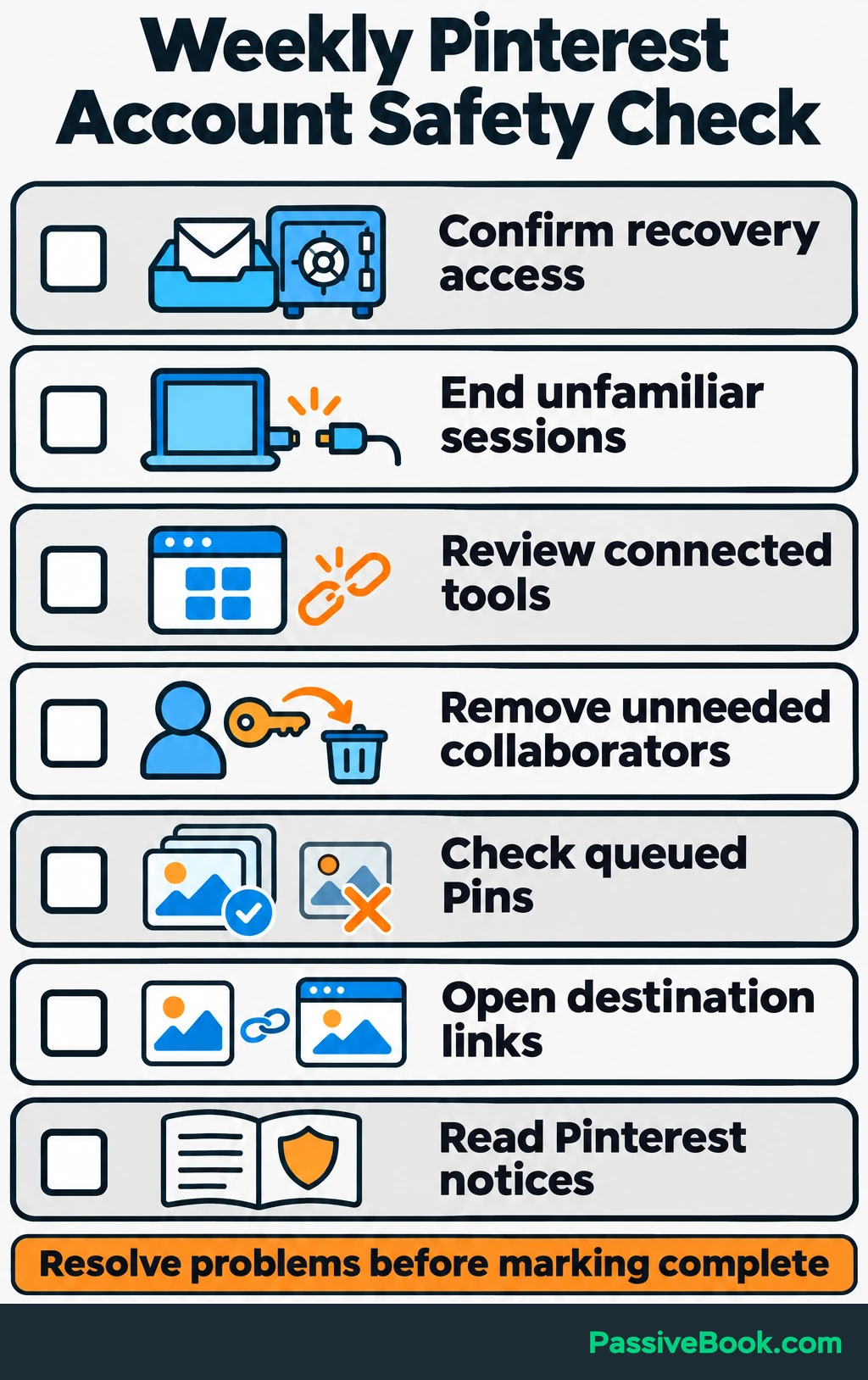
Copy this checklist into a document or task app. Mark each check complete after doing the work in the middle column and resolving any problems you find.
| Check | Action needed | Completed |
|---|---|---|
| Recovery access | Confirm you can access the linked email and locate your backup code | ☐ |
| Recent sessions | End unfamiliar sessions and investigate unexpected activity | ☐ |
| Connected tools | Remove unused services and review new permissions | ☐ |
| Collaborators | Remove access that is no longer needed | ☐ |
| Queued Pins | Correct duplicates, unsupported claims and missing disclosures | ☐ |
| Destination links | Open upcoming links and check that each page delivers its promise | ☐ |
| Pinterest notices | Read security alerts, policy notices and enforcement messages | ☐ |
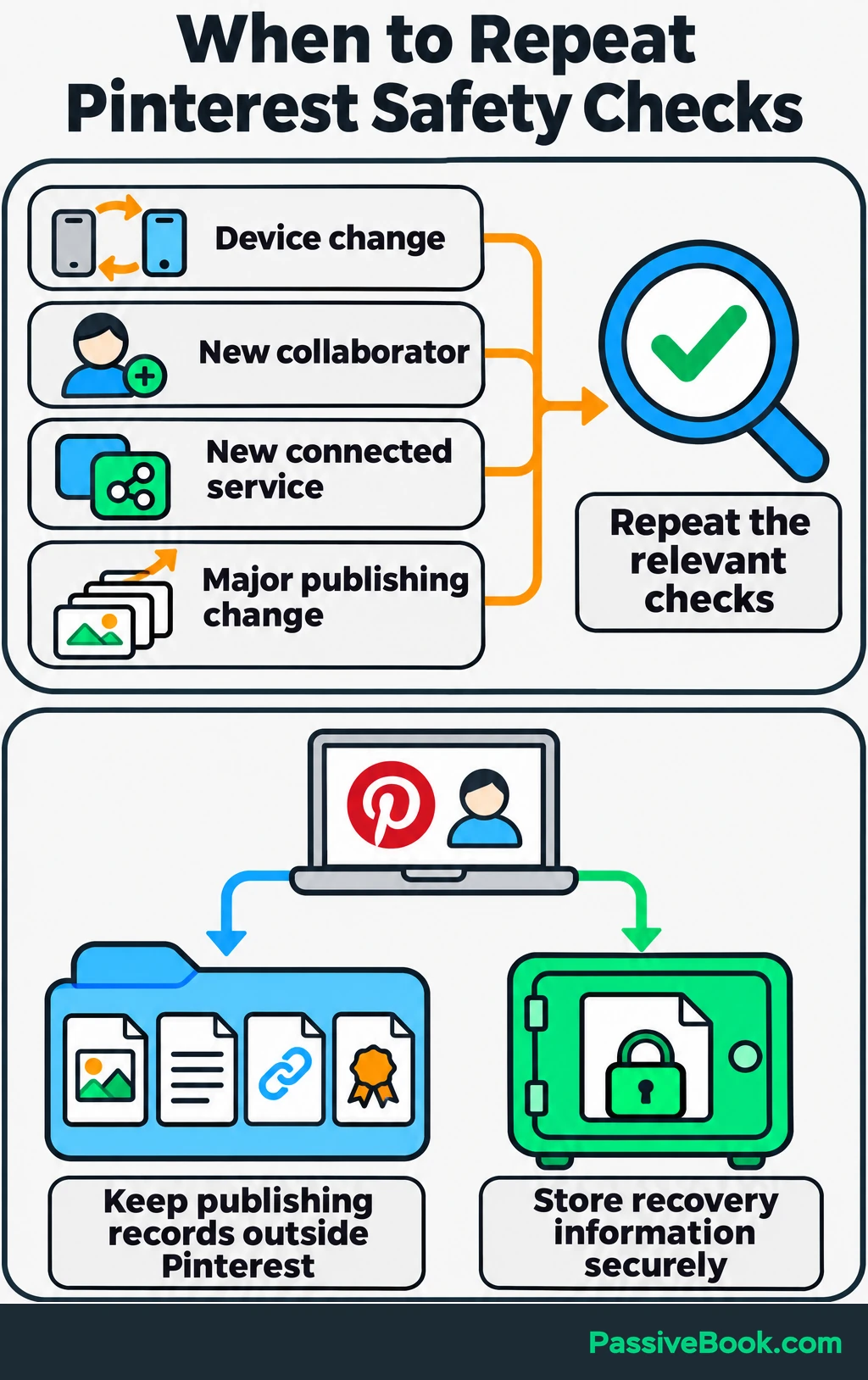
Repeat the relevant checks after changing devices, hiring help, connecting a service or substantially changing your publishing activity.
Read policy-update notices before changing your workflow. When a revision has a future effective date, distinguish the rules currently in force from the upcoming version.
Keep original graphics, descriptions, destination URLs and license records outside Pinterest. Store essential recovery information securely too. That makes corrections easier and gives you a record of what you intended to publish.
Recover Access or Respond to Restrictions
Recover a Hacked or Locked Account
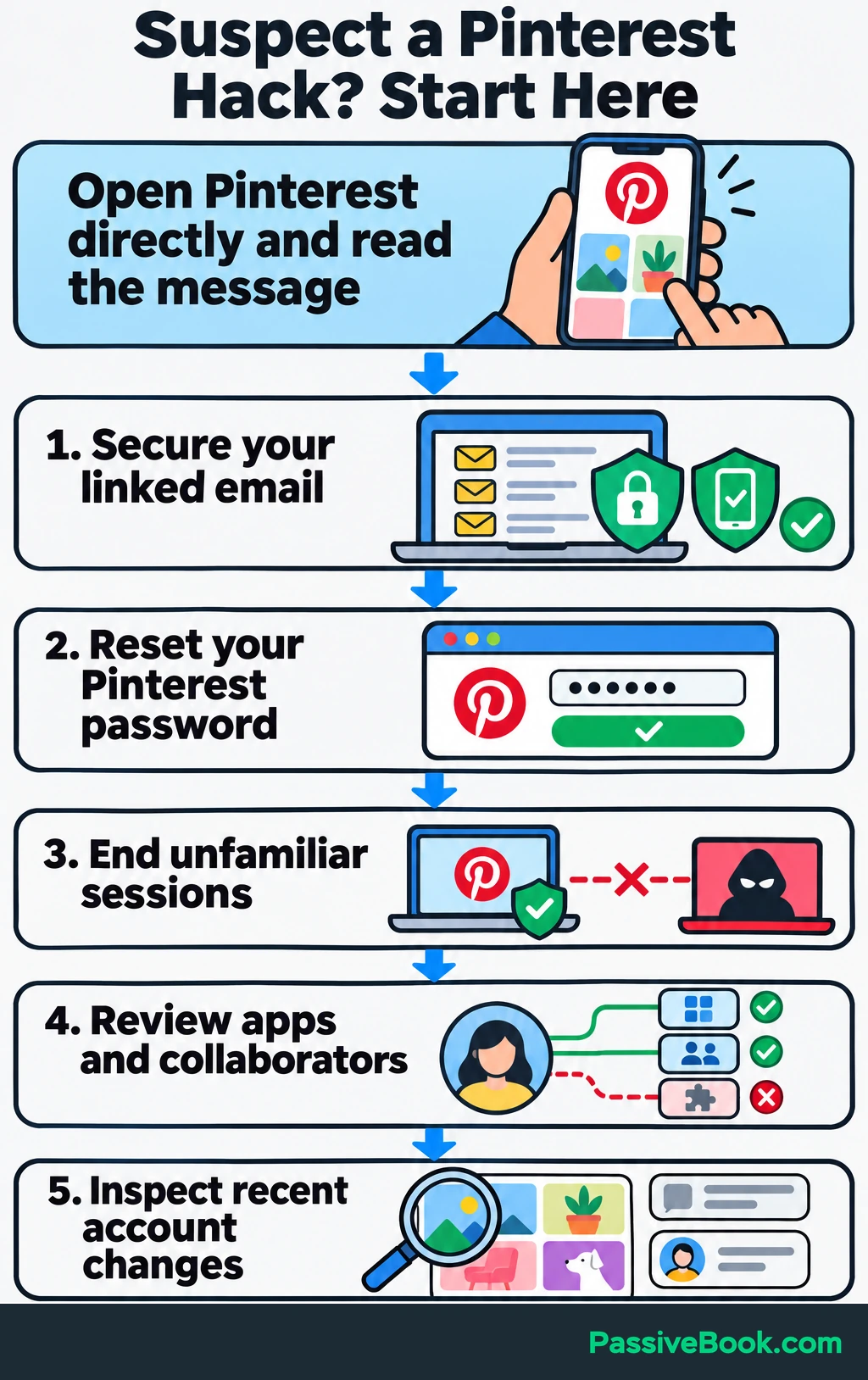
Investigate unfamiliar Pins, messages, profile changes or login alerts promptly. Start by opening Pinterest directly and reading the message shown when you try to sign in.
If you suspect unauthorized access:
- Secure the linked email account, including its password and two-factor authentication.
- Reset your Pinterest password through the official site.
- End unfamiliar sessions.
- Review connected apps and collaborator access.
- Inspect recent content and account changes.
If you have verified that an account-change email is genuinely from Pinterest, use its “Lock my account” action and reset your password. If you are unsure about the email, use the official app or website to seek help.
Pinterest may reset a password and log everyone out after detecting unusual activity. That protective reset differs from a policy suspension. Follow the recovery instructions for the message you actually received.
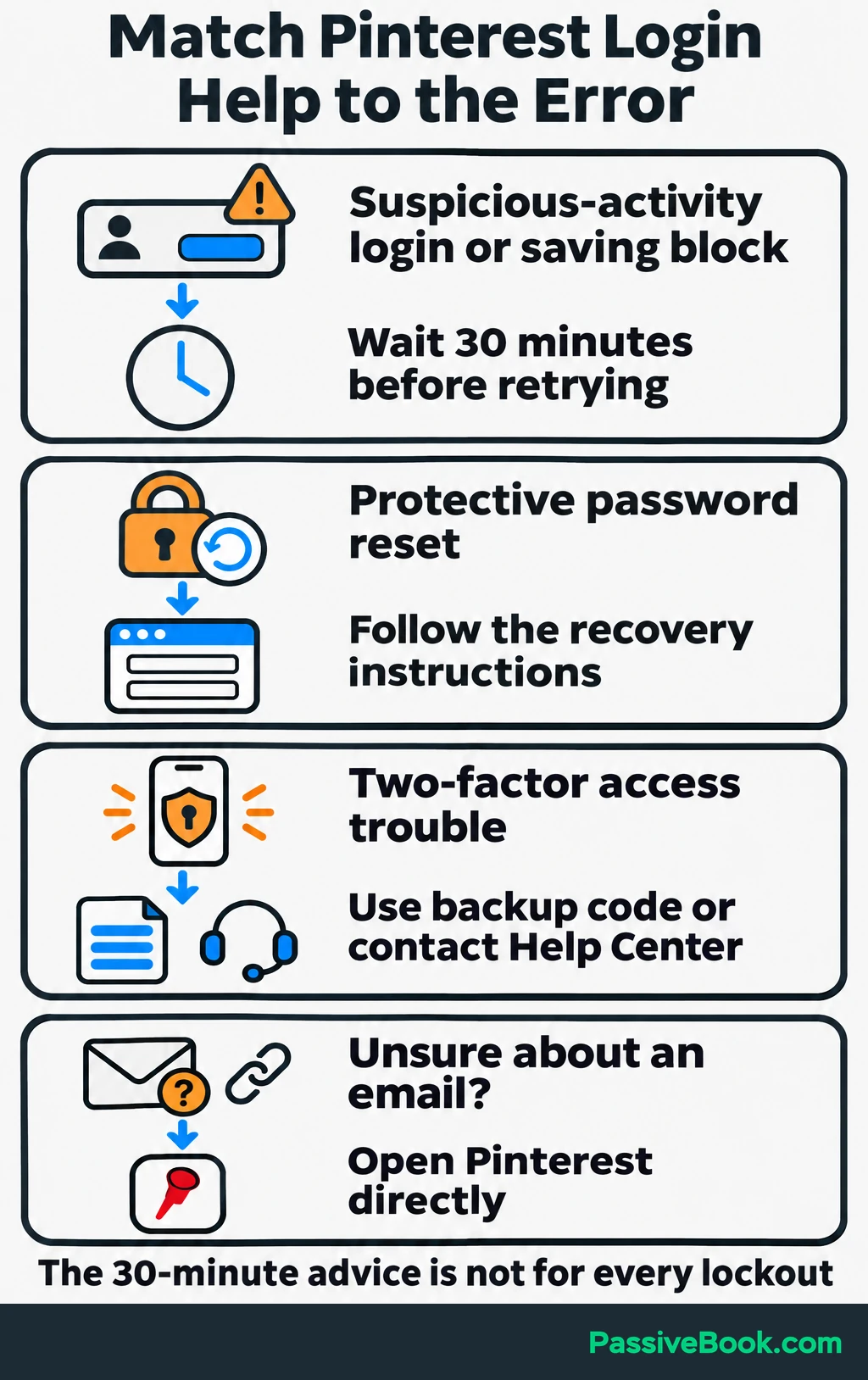
Use your saved backup code if needed. For trouble with two-factor authentication or changing its linked phone number, contact Pinterest through its Help Center.
One error has specific advice: when Pinterest blocks login or saving because of suspicious activity, it says to wait 30 minutes before trying again. That instruction applies to that error, rather than every kind of lockout. Pinterest’s login troubleshooting covers these different situations.
Respond to Content Removal or Account Suspension
Read the notice before changing anything. Identify the affected Pin, board or account and the rule Pinterest cites.
Removal, limited distribution and restrictions on posting are different actions. A fall in traffic alone does not establish that Pinterest has taken enforcement action. Pinterest explains its enforcement measures here.
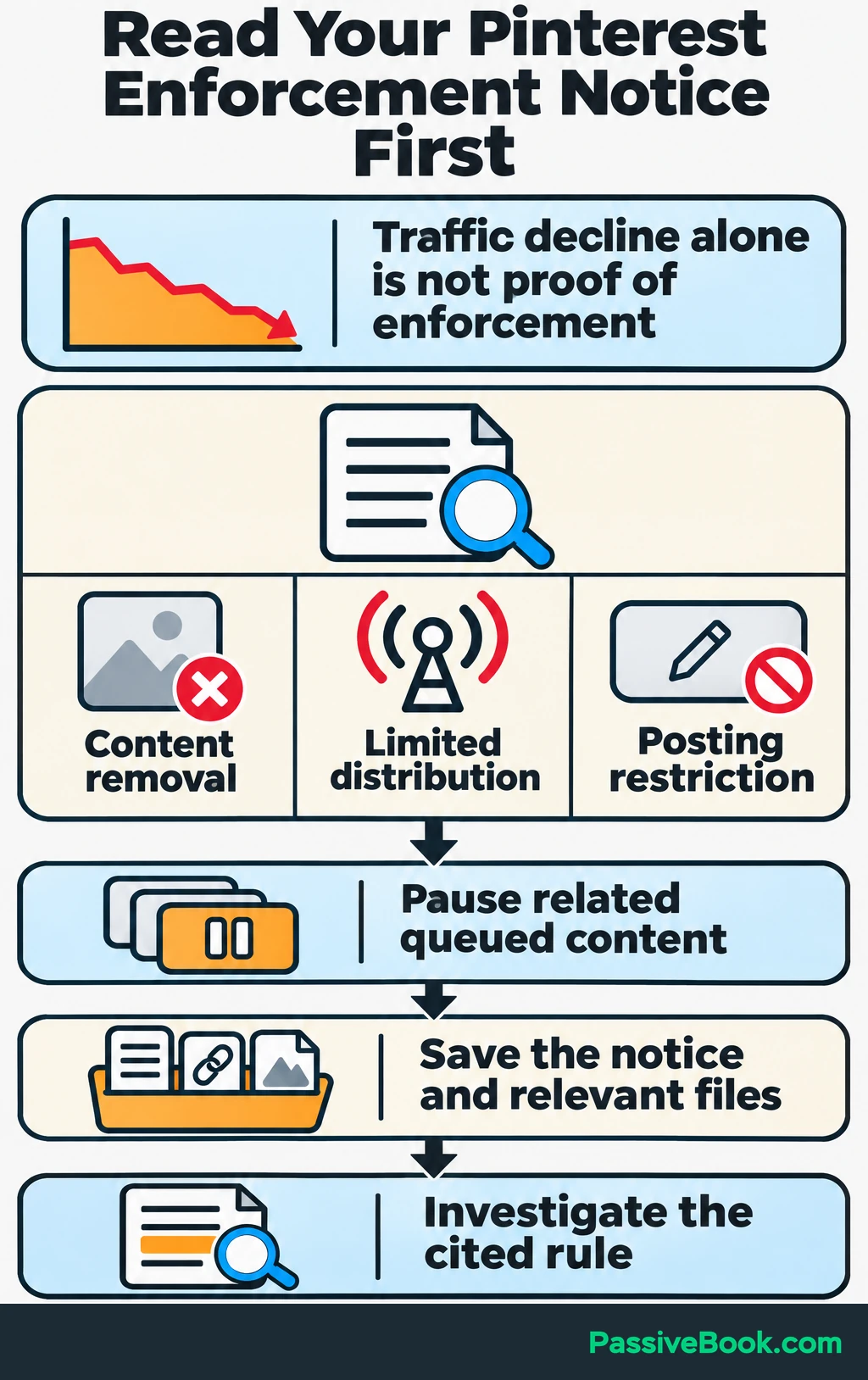
Pause related queued content while you investigate. Save the notice, affected URLs and relevant files, then address the behavior identified.
For example, if a lunch-bag Pin was removed over image rights, check the original image and license before publishing other Pins from the same batch.
If you believe Pinterest made an error, appeal through the official notice or Help Center. Keep your explanation focused:
- Decision: Identify the affected content or account and the notice you received.
- Reason: Explain why you believe the cited rule was applied incorrectly.
- Evidence: Include relevant ownership records, permissions or destination details.
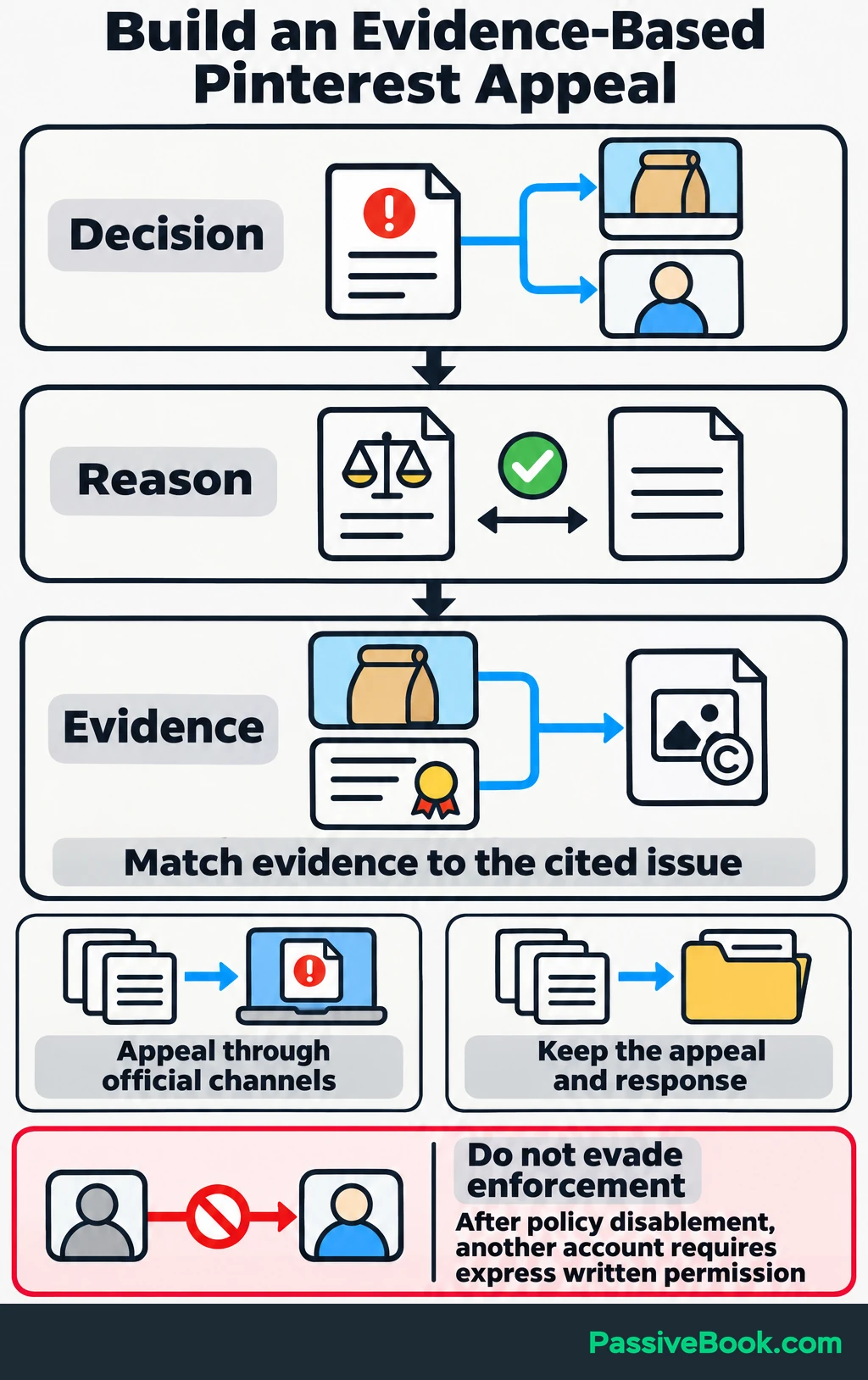
An image-rights appeal needs evidence about image rights. A paragraph about how hard you work does not answer that question.
Do not create a replacement account to evade enforcement. After Pinterest disables an account for policy violations, creating another requires its express written permission under its account-eligibility terms.
Keep records of your appeal and any response, and use that response to decide what needs to change.
What Next?
Open your Pinterest security settings and check your recovery access before scheduling another batch. Then copy the safety checklist into a recurring task so the next review already has a place on your calendar.
Use the social buttons to share this guide when planning how to give tools or collaborators access to Pinterest.
Which part of your setup needs attention first: recovery, permissions or publishing? Leave your answer in the comments, and bring any other questions too.
Share this post with your friends & followers:

