A customer hears about your business and searches Facebook before getting in touch. Can they tell what you offer, where you work, and how to ask a question?
A missing contact button or an old availability post leaves them guessing.
You may also be wondering whether a business Page puts your personal profile on display. This walkthrough covers the public details, privacy settings, posts, and replies that help customers check your service and ask about availability without adding another full-time job.
What Do You Need Before Creating a Page?
A Personal Account and the Right Business Presence
For the standard setup process, you need a personal Facebook account. You use it to create and access the Page, but your profile and Page have separate publishing identities.
A Page is free to create and use for ordinary posts. Running ads or paying to boost a post is optional. You can launch without buying either. GoDaddy’s Facebook Page guide
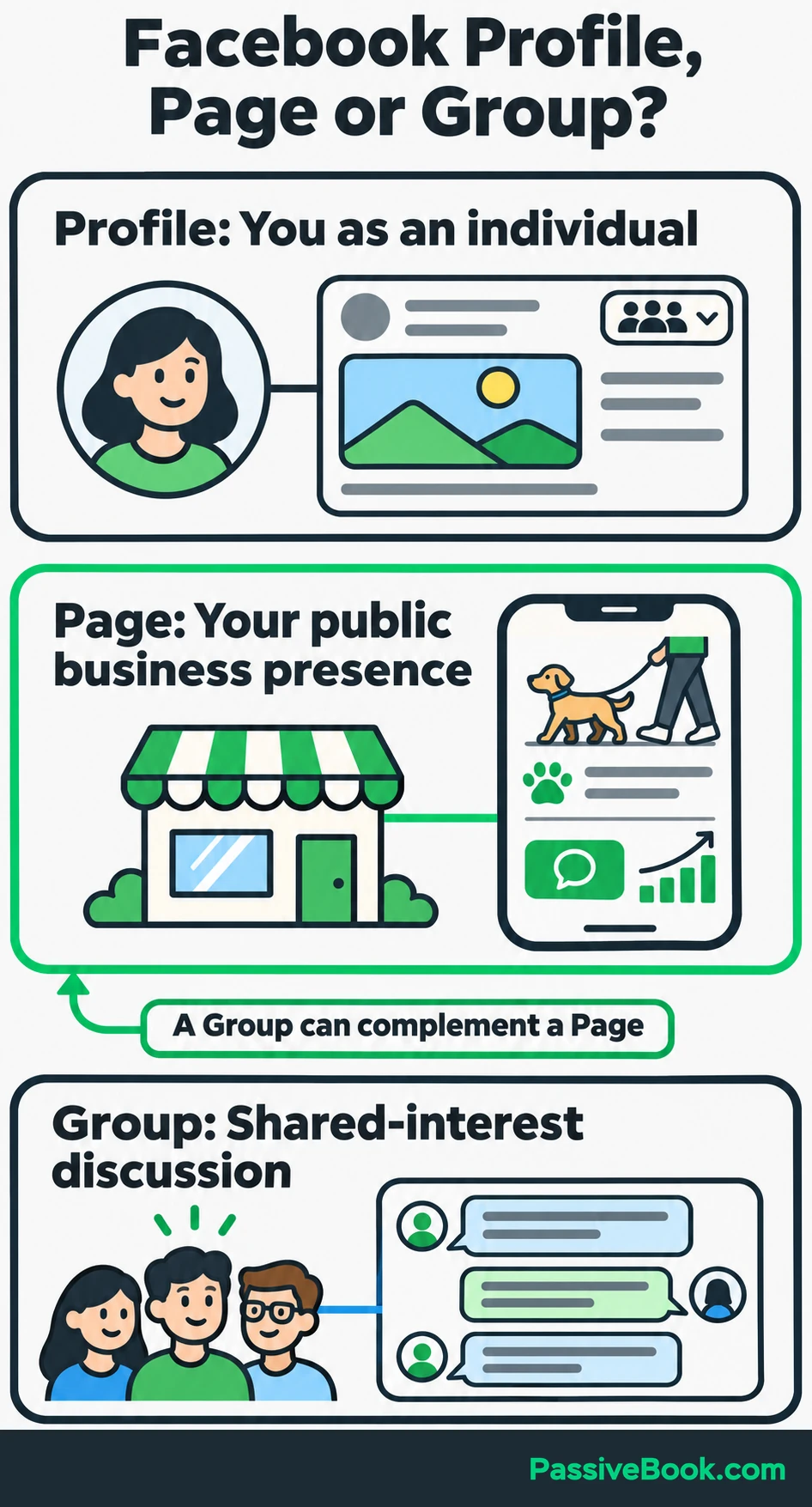
Choose the presence that matches the job:
- A personal profile represents you as an individual.
- A Page gives your business a public presence with business details, customer messages, and performance reports.
- A Group gives members a place to discuss a shared interest. It can complement a Page.
For a business, I would start with a Page. An additional personal profile does a different job.
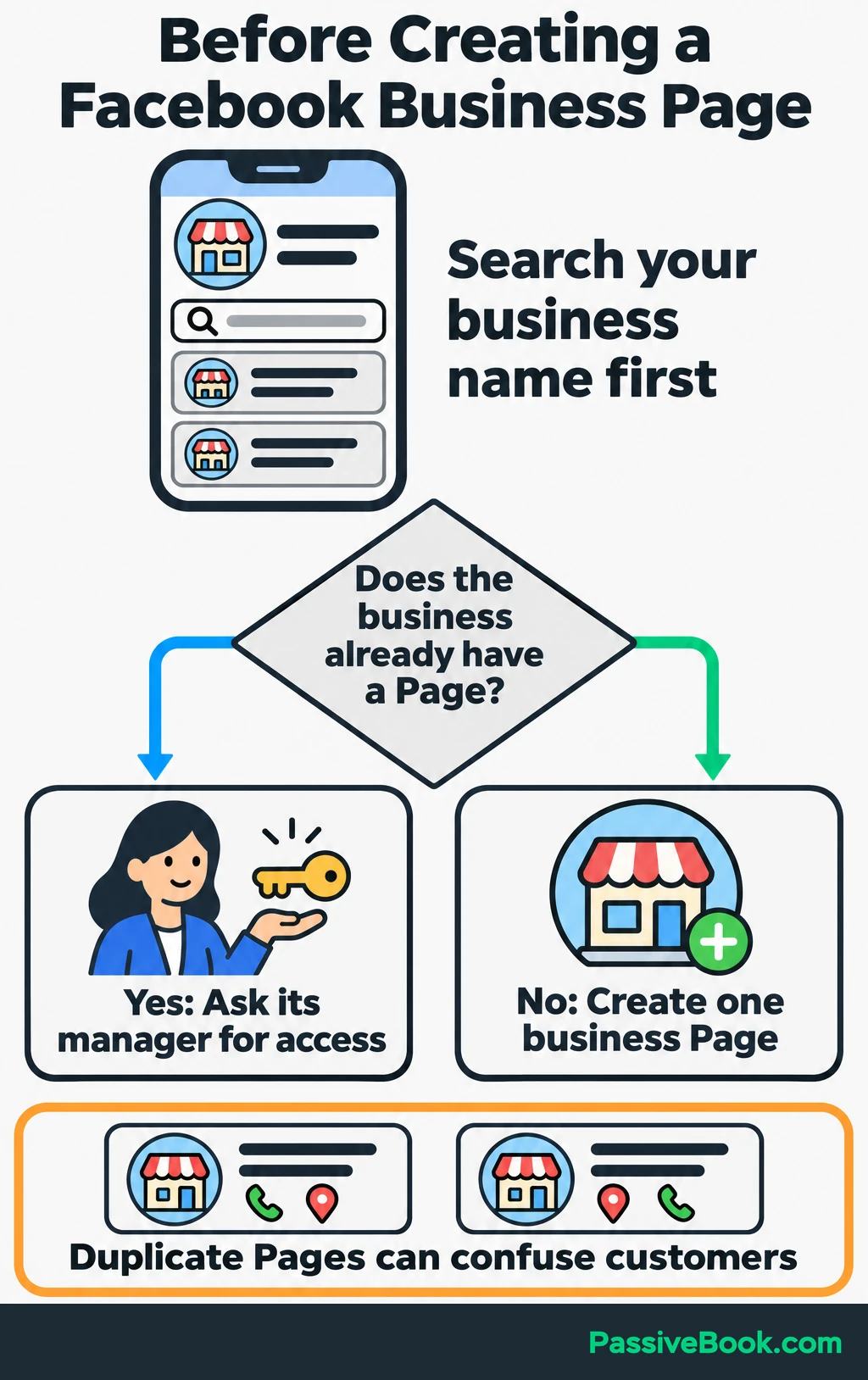
Before creating anything, search Facebook for your business name. If the business already has a Page, ask its current manager for access. Two Pages with different contact details give customers an unnecessary puzzle.
Throughout this guide, imagine you run Maple Trail Dog Walks, a neighborhood walking service. Its details and sample copy are illustrations, and its main goal is to receive availability inquiries.
Personal Privacy and Public Page Information
Creating a Page does not turn your personal posts into business posts. Your personal content keeps its audience settings, so review those settings before inviting customers to connect.
Use Facebook’s Privacy Checkup to check who can see your posts, email address, and phone number. Also inspect the public view of your personal profile. Anything already public can still be seen.
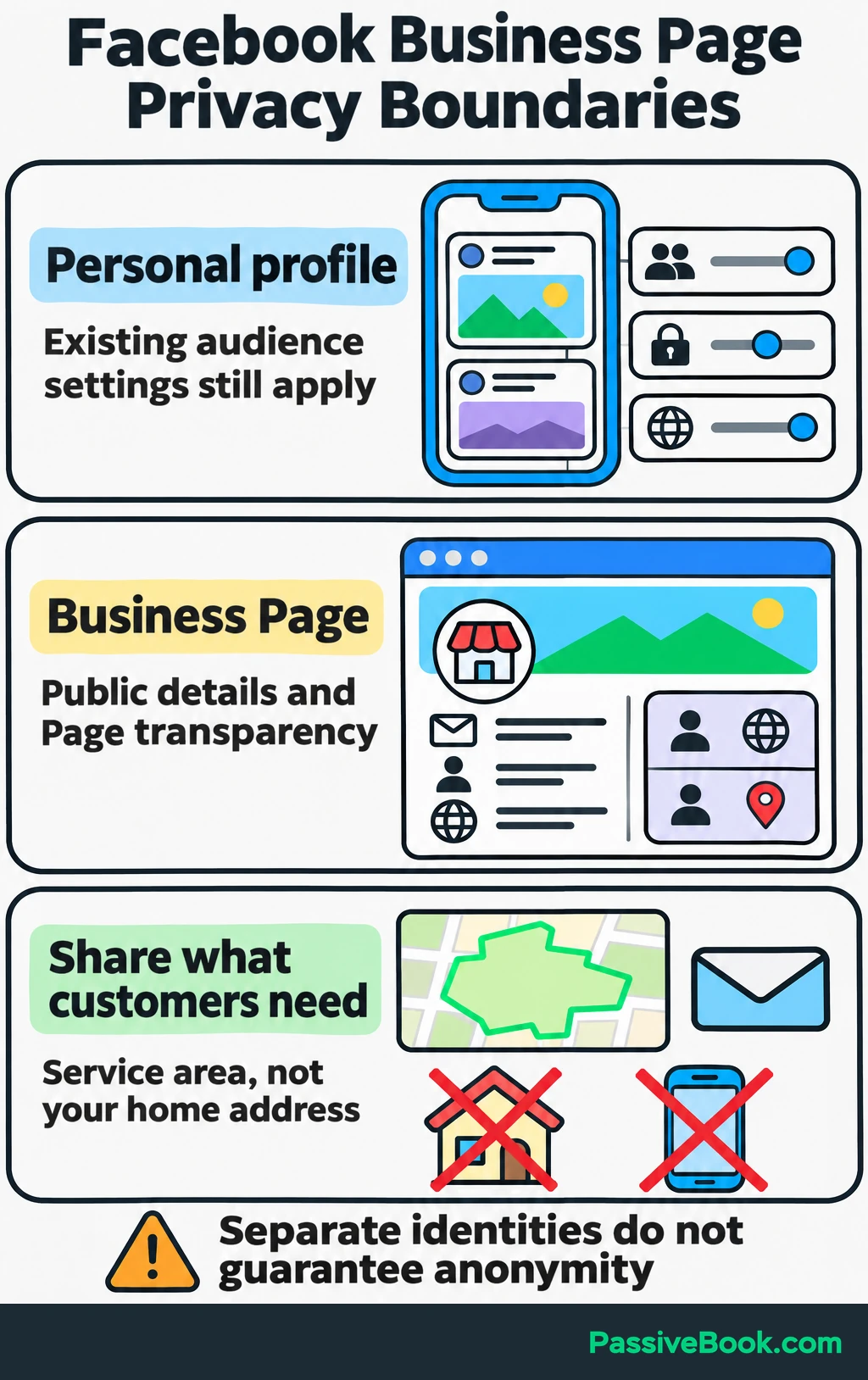
Your Page is public, and a separate business identity does not guarantee anonymity. Its public Page transparency section can show information such as the primary countries where its managers are based. Meta’s explanation of Page transparency
Decide which details customers actually need. A business email address may be useful. Your personal mobile number and home address may not be.
For Maple Trail Dog Walks, the service area belongs on the Page. The owner’s front door does not need a map pin.
Create Your Facebook Business Page
Have your business name, short description, contact details, and images ready. Then create the Page:
- On a computer, sign in to Facebook and open Pages. Choose Create Page or Create new Page. On a phone, open the Facebook app’s menu, find Pages, and choose Create.
- Select the option to create a Page. If Facebook asks which kind of presence you want, choose Public Page rather than another personal profile.
- Enter the business name customers recognize. Keep slogans and lists of services out of the name.
- Pick the closest specific category offered. For Maple Trail Dog Walks, look for Dog Walker rather than settling immediately for a broad business category.
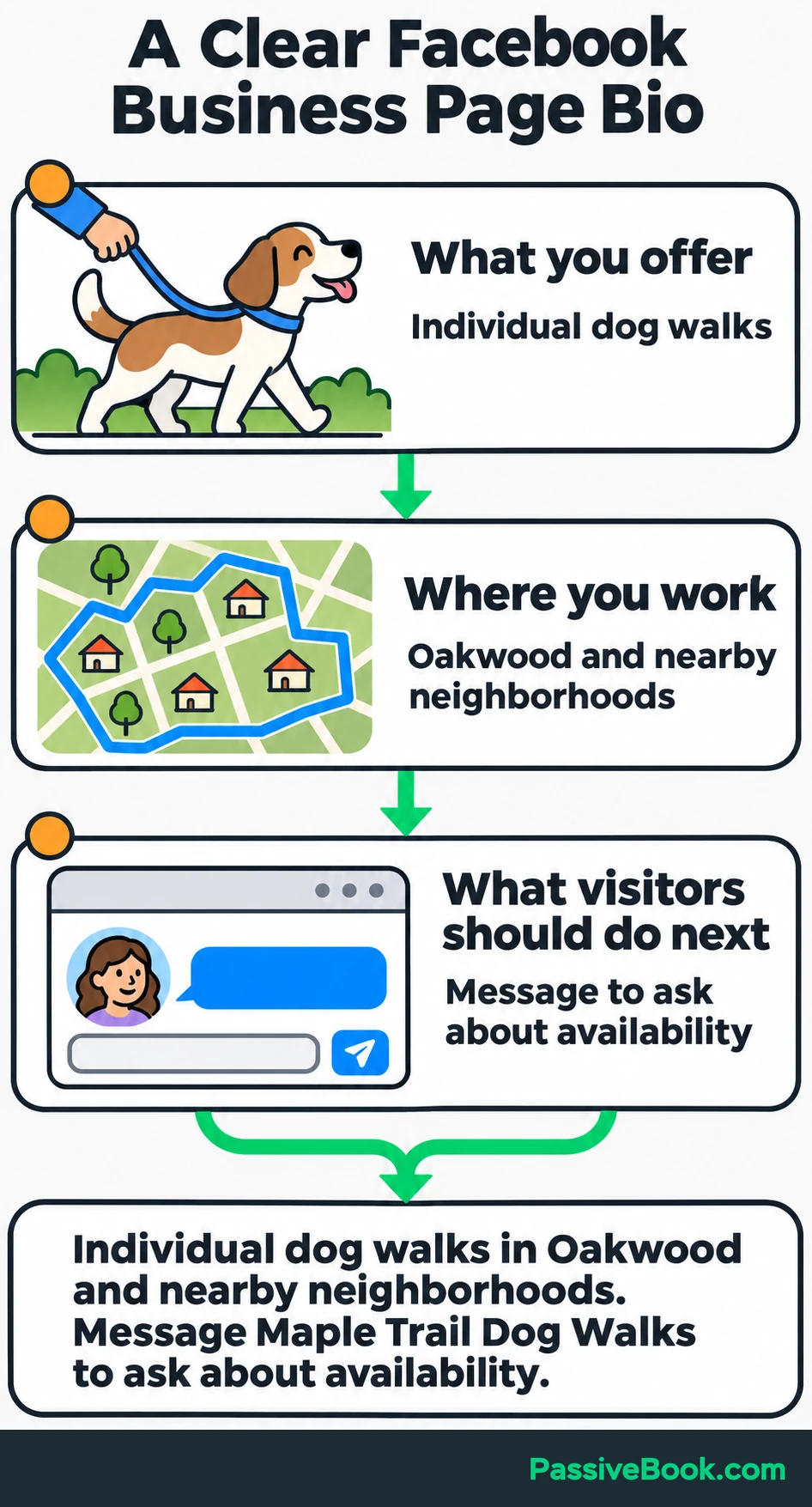
- Add a short bio explaining what you offer, where you work, and what visitors should do next.
- Complete the creation prompts. You can finish optional connections later.
The bio could read:
Individual dog walks in Oakwood and nearby neighborhoods. Message Maple Trail Dog Walks to ask about availability.
Menu labels can vary between desktop and mobile, but the core choices are the Page name, category, and business information.
If you know what you offer but are stuck on the wording, AI Social Copy Studio can write a first draft using your business details. Start with your bio, then use the same details for your welcome post and message acknowledgment.

Free AI Social Copy Studio




Once the Page exists, use Facebook’s profile selector to switch into it. Check that the active name and picture belong to the business before posting or commenting.
Finish the public details below before inviting customers to visit.
Complete Your Page’s Public Information
Add Recognizable Branding and a Username
Use a clear logo or business image for the profile picture. It needs to remain recognizable when Facebook displays it as a small circle beside a comment.
For the cover photo, choose an image that explains the service. Maple Trail Dog Walks could use an original walking photo with a short service-area line.
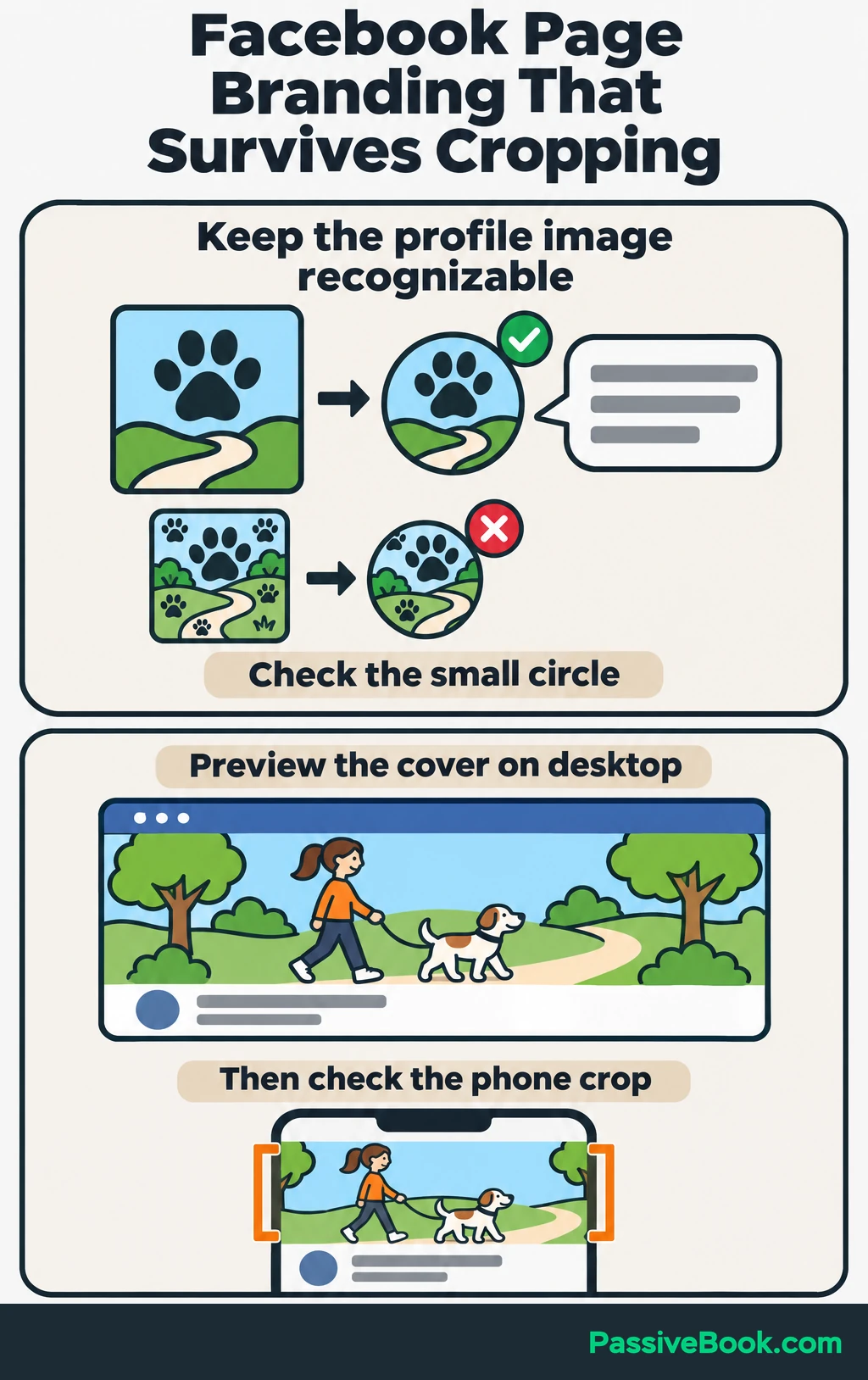
I would skip a cover packed with prices, hours, phone numbers, and tiny text. It becomes hard to read, and every change creates another editing job.
Canva is enough for a simple cover. Check the result on both a computer and a phone because cropping can hide text near the edges.
Next, choose an available username close to your business name, such as MapleTrailDogWalks. If Facebook does not let a new Page set one immediately, continue with setup and return to it later.
Copy the public Page link and save it somewhere easy to find.
Add Business Details Customers Can Use
Open the Page’s public information editor and complete the fields that help someone decide whether to contact you:
- Business email or customer-facing phone number.
- Website, if you have one.
- Service area or customer-facing location.
- Business hours.
- Description of the main service.
- Where to find prices or request a quote.
You do not need a website to provide a working inquiry route. Page messaging can handle the first conversation.
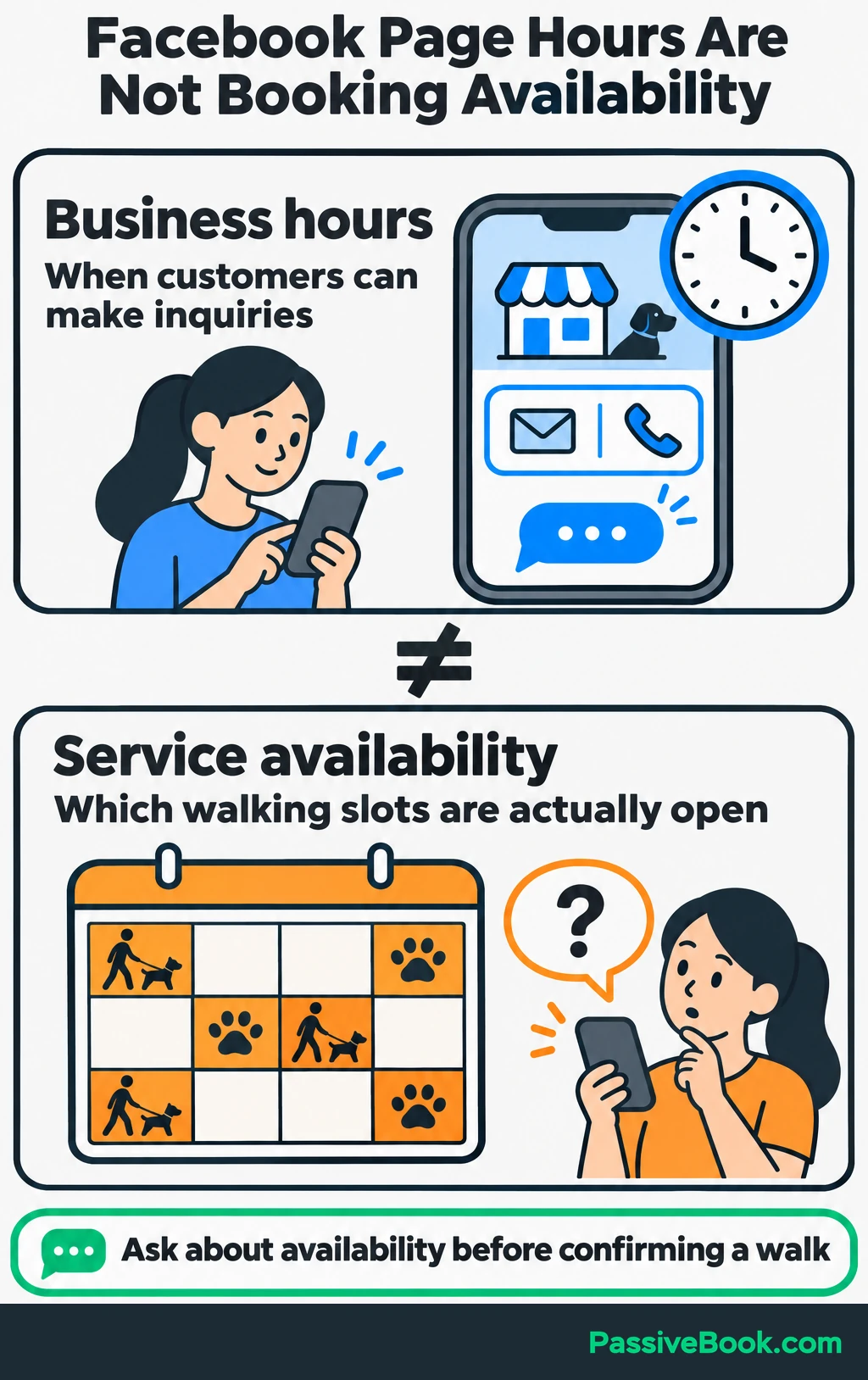
Publish a street address only if customers should visit that location. For Maple Trail Dog Walks, list the neighborhoods served and explain that walks are arranged by inquiry.
Keep hours and availability distinct. Being open for inquiries on Tuesday does not mean you have a Tuesday walking slot.
Check that your bio, service area, and contact details agree. Customers should not have to choose which version to believe.
Choose and Test the Primary Customer Action
Choose the next action before choosing the button.
If you need to discuss availability first, use a messaging action. If customers can book through an established website, send them to that booking page.
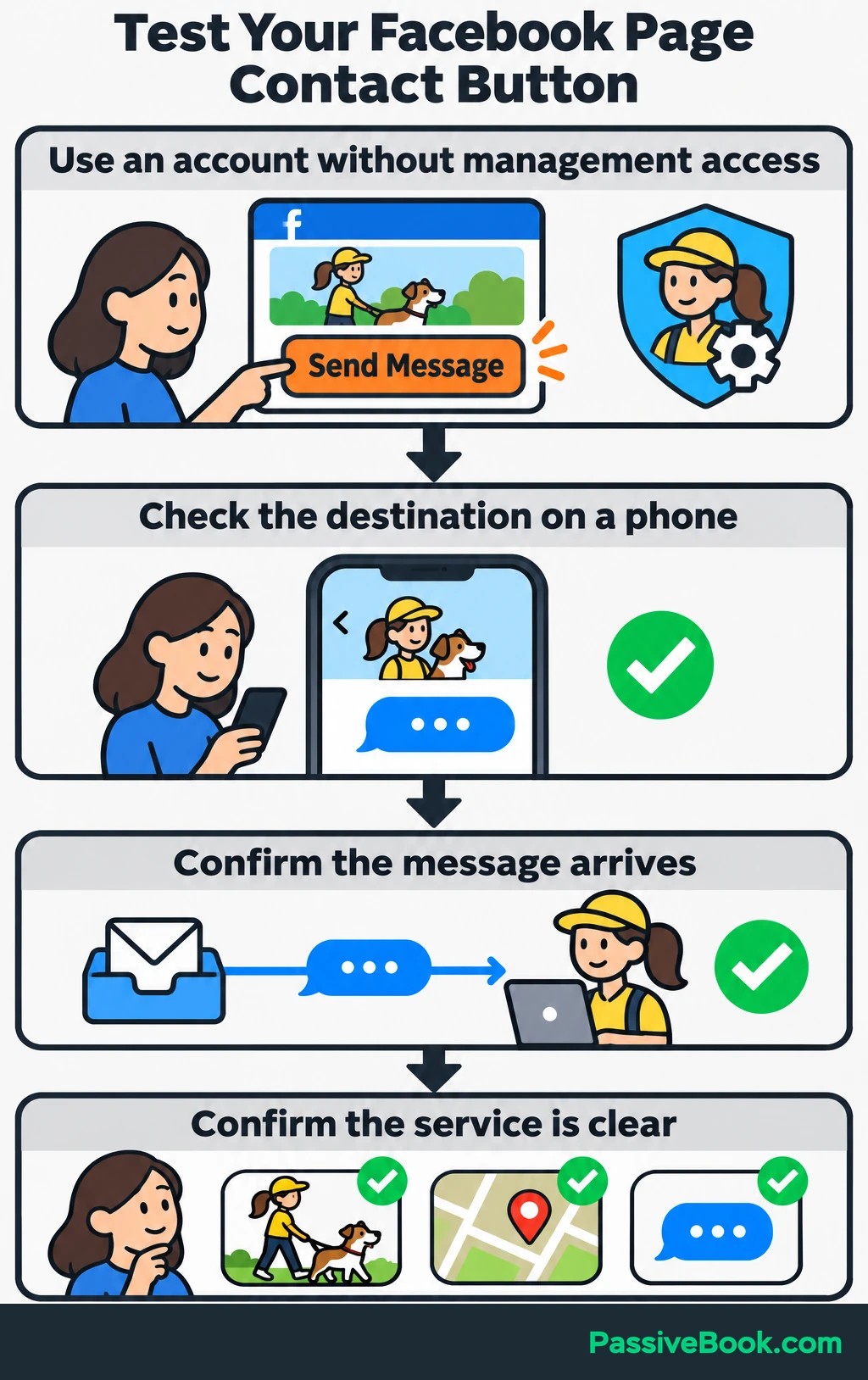
For Maple Trail Dog Walks, I would choose Send Message. A conversation can establish the neighborhood and preferred days before either side discusses a booking.
To add or change the button, open the menu beneath the Page’s cover photo and look for Add action button or Edit action button. Choose the action and follow the prompts to set it up. Then test it from an account without management access, or ask a trusted person to test it.
Confirm that:
- The button opens the intended conversation or website.
- A test message reaches the person responsible.
- The destination works on a phone.
- Visitors can understand the service without reading several posts.
A visible button is only half the job. Someone needs to receive what comes through it.
Manage Your Page on Desktop or Mobile
Facebook and Meta Business Suite handle related parts of the work.
Use Facebook in a desktop browser or its mobile app to switch into the Page, edit public details, and manage Page settings.
Meta Business Suite brings publishing, scheduling, messages, comments, and performance reports into one workspace. It is available on desktop and through mobile apps. Meta Business Suite’s app description
I would use a computer for initial setup and the phone app for quick replies. Choose whichever makes the work easier; you do not need to duplicate every task in both places.
Sign in with the account that has Page access, then select the correct Page. This matters especially when you manage more than one business.
Secure Your Page and Add Managers
Protect the Accounts That Control the Page
The personal accounts with Page access need protection because they control the business presence.
For each manager:
- Use a unique password, ideally stored in a password manager.
- Enable two-factor authentication, which adds another check when signing in.
- Keep recovery email addresses and phone numbers current.
- Store recovery codes somewhere secure outside the phone used to sign in.
For two-factor authentication, I would start with an authenticator app, which generates sign-in codes on your phone. Meta’s account security guidance
Give each manager access through their own account. Sharing a password makes it harder to remove one person’s access or know who changed something.
If a suitable person is available, add a trusted backup manager with full control. Confirm that they have accepted and can access the Page before changing another manager’s permissions.
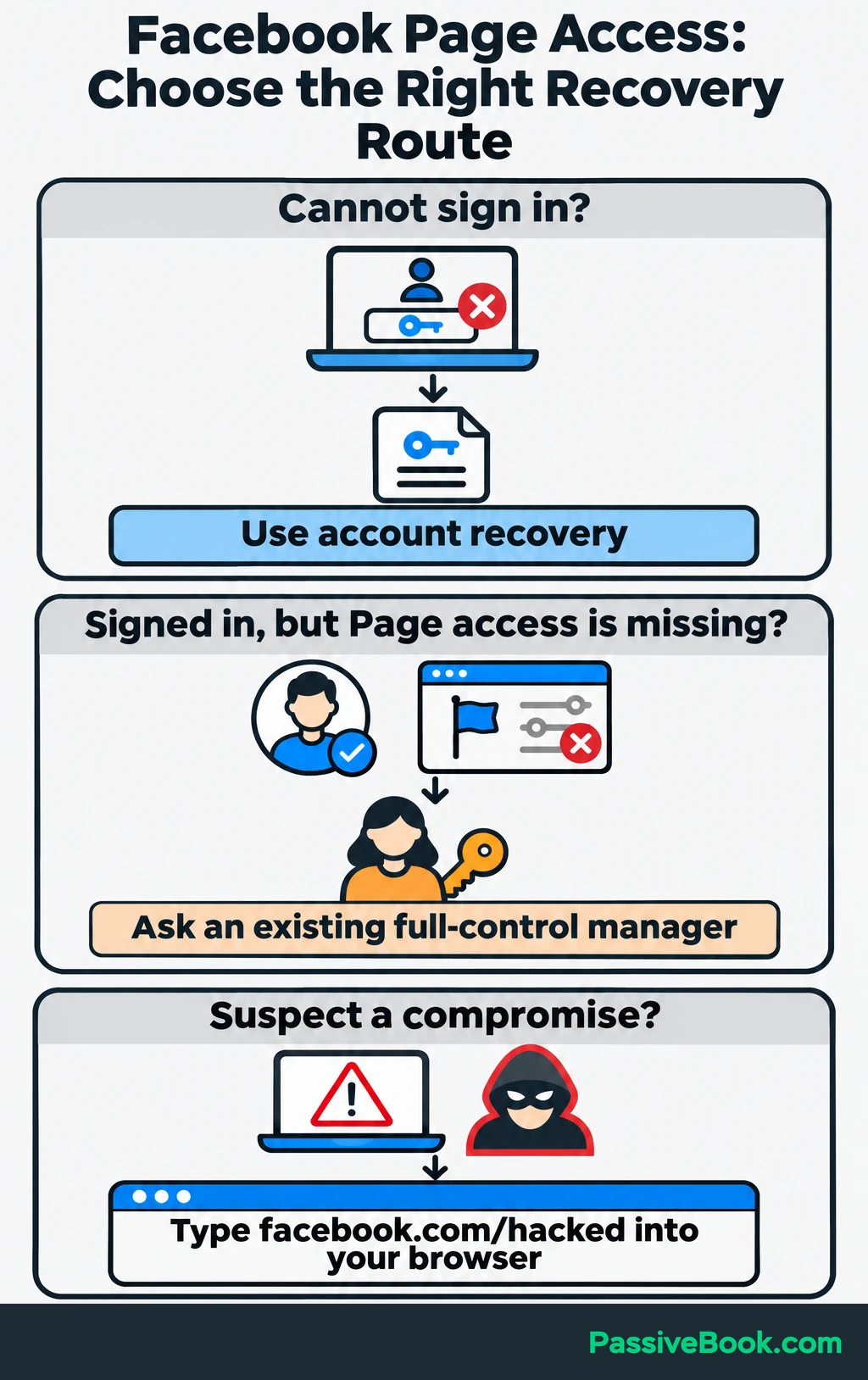
Use the right recovery route when something goes wrong. A login problem calls for account recovery. Missing Page permissions usually requires help from an existing full-control manager. For suspected compromise, use Facebook’s official hacked-account recovery process by typing facebook.com/hacked into your browser.
Choose Access Before Inviting Someone
More than one person can manage a Page, and they do not all need the same authority.
The main distinction is whether someone can switch into the Page on Facebook or only perform assigned work through business tools.
| Access Type | Can Switch Into the Page? | Permitted Work | Can Manage Access? |
|---|---|---|---|
| Facebook access with full control | Yes | Manage the Page and all its settings, including deletion | Yes; can add or remove people, including you |
| Facebook access with partial control | Yes | Manage permitted Page activity, such as content and conversations | No |
| Task access | No | Complete assigned work through tools such as Business Suite | No |
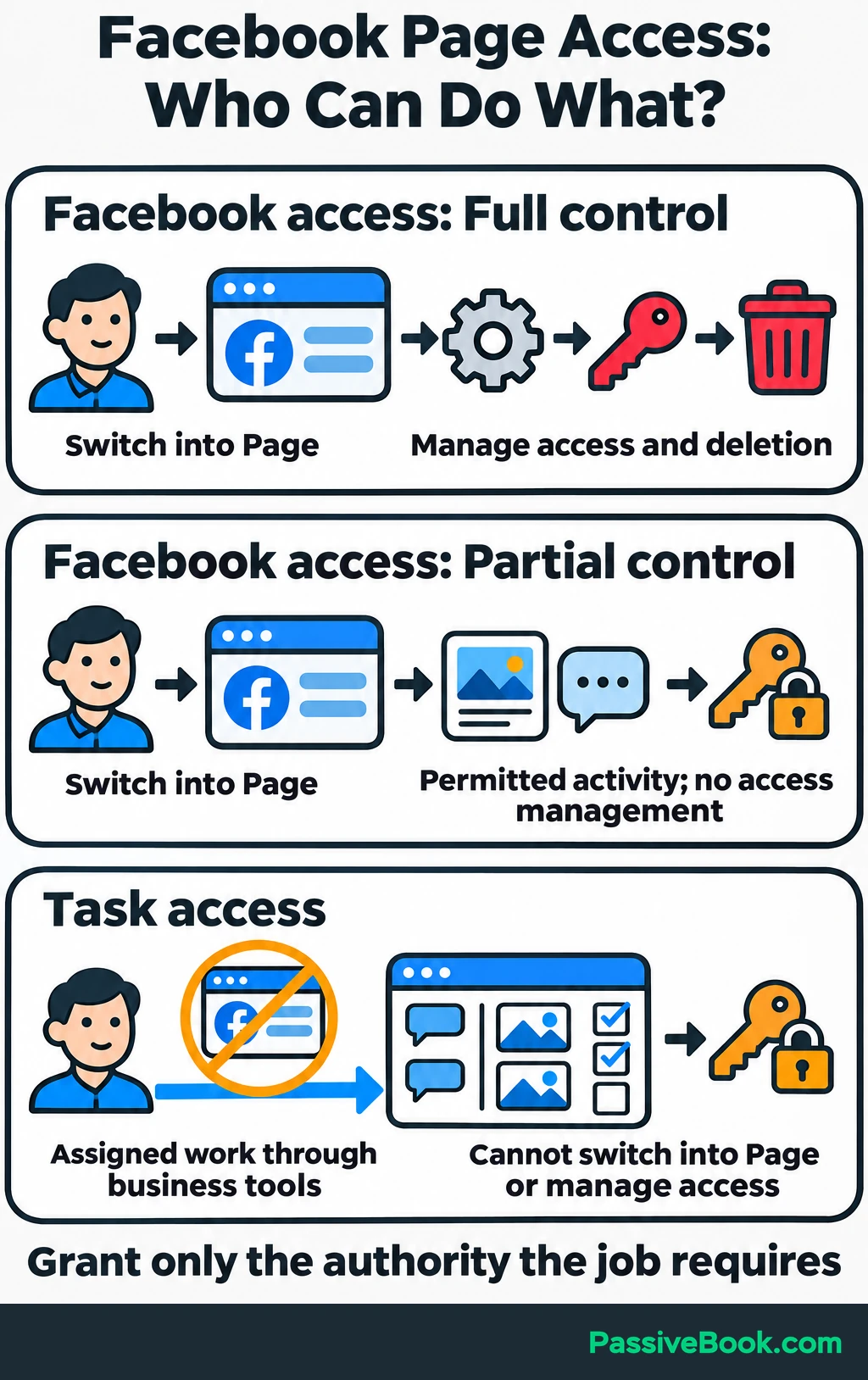
Full control is a substantial permission, so reserve it for people you trust to control the business presence. Meta’s Page permission definitions, page 18
To invite someone:
- From an account with full control, switch into the Page.
- Open its settings and find Page access, sometimes under Page setup.
- Choose to add a person with Facebook access or task access.
- Identify the correct account and select the permissions needed.
- Send the invitation and ask the recipient to accept.
- Have them test the actual task, such as answering a message.
For someone handling Maple Trail Dog Walks inquiries, I would start with task access for messages and community activity. Answering questions does not require the power to delete the Page.
Review access when responsibilities change and remove it when someone leaves.
Publish Useful Posts and Schedule Ahead
Answer a Customer Question in Each Post
Start with a question customers ask. Answer it clearly, add suitable text or media, and finish with one relevant next action.
Your first post should explain the service, area, and inquiry process. Feature or pin it using the Page’s available controls so new visitors can find it easily.
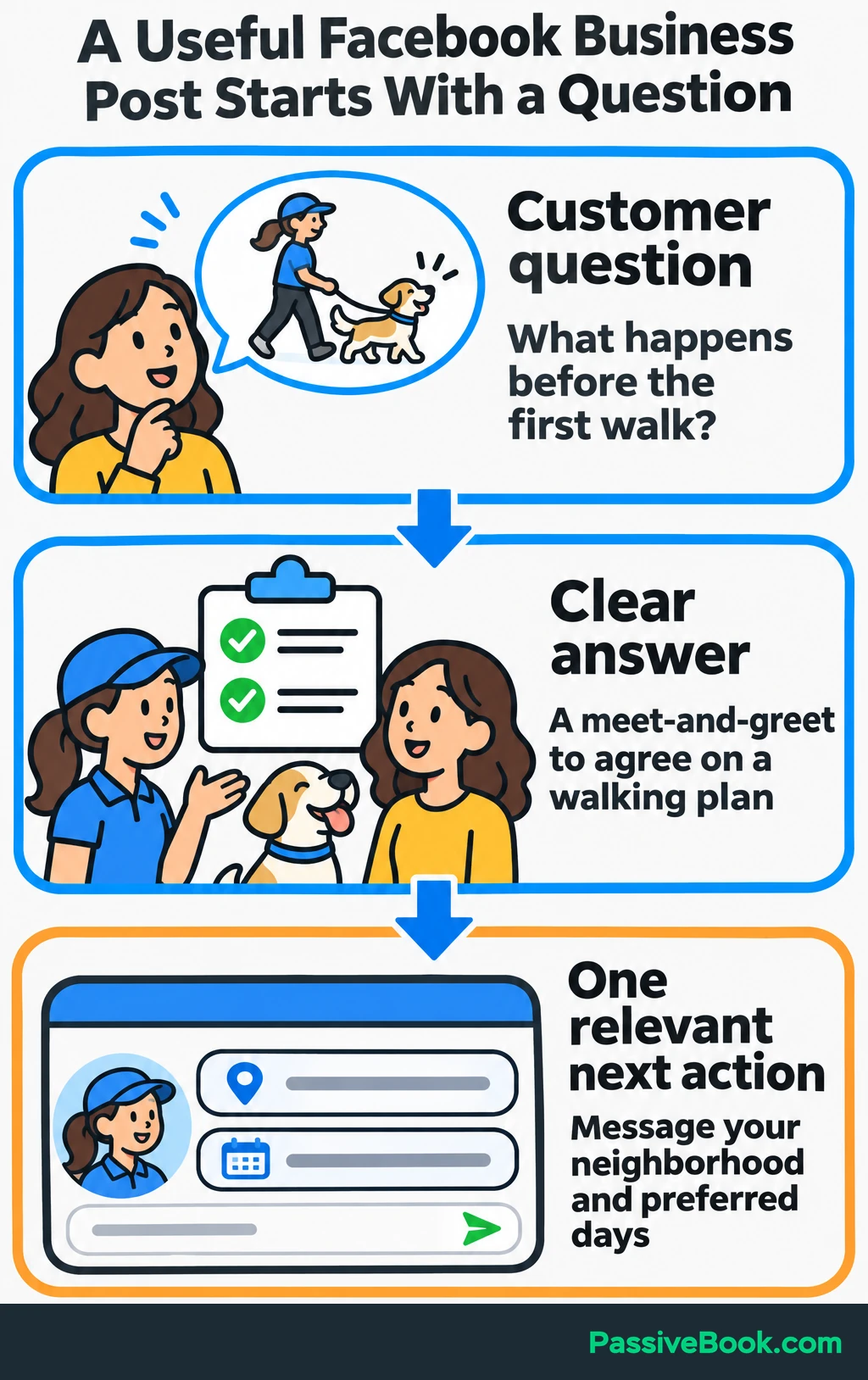
Here is a complete introductory post you can adapt:
Welcome to Maple Trail Dog Walks. We offer individual dog walks in Oakwood and nearby neighborhoods.
Before the first walk, we arrange a meet-and-greet to discuss your dog’s routine and agree on a walking plan.
Looking for regular walks? Message this Page with your neighborhood and preferred days, and we’ll check availability and explain pricing. Please keep your full address out of public comments.
After that, build repeatable topics around service explanations, common questions, and business updates.
For example, explain what happens at the meet-and-greet, what customers should prepare, or which walking slots are available. Each topic helps someone understand the service before contacting you.
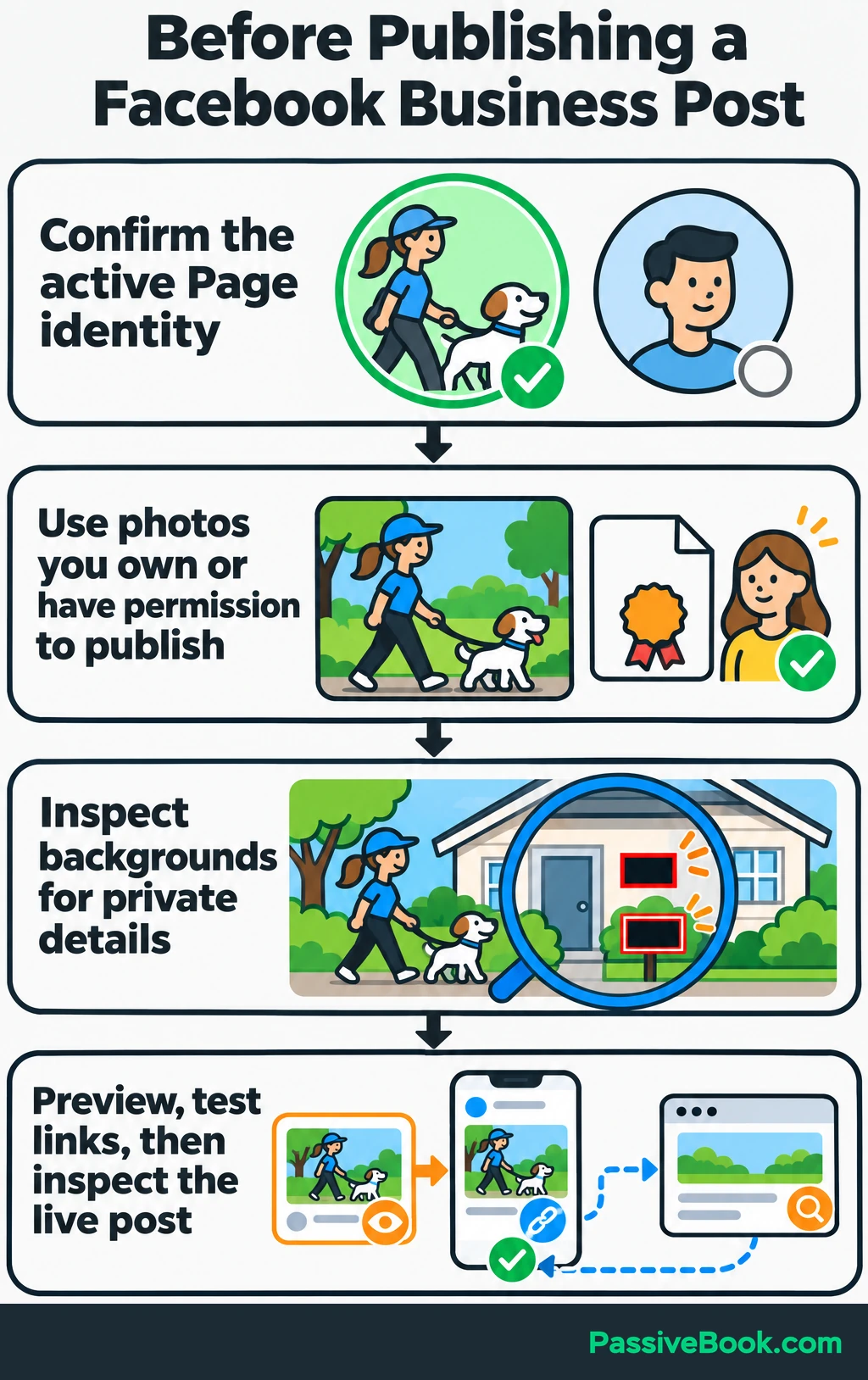
Use photos you own or have permission to publish. Get permission before sharing identifiable customers, homes, or testimonials, and inspect backgrounds for house numbers and other private details.
Before publishing, check the active Page identity, preview the post, and test any links. Inspect the published version too. A preview is helpful, but the live result is what customers see.
Batch Posts in Meta Business Suite
Choose a pace you can maintain alongside customer replies. I would start with two useful posts a week and adjust from there. That is a workload choice, not a rule for pleasing Facebook.
Prepare several posts in one session. A simple calendar keeps them connected to customer questions:
| Customer Question | Topic | Format | Next Action | Publication Date |
|---|---|---|---|---|
| What happens before the first walk? | Meet-and-greet process | Text and original photo | Message with neighborhood and days | First Monday |
| What should I prepare? | First-walk checklist | Simple graphic | Save for the meet-and-greet | First Thursday |
| Are regular slots available? | Current openings | Short text update | Ask about a listed slot | Second Monday, after checking availability |
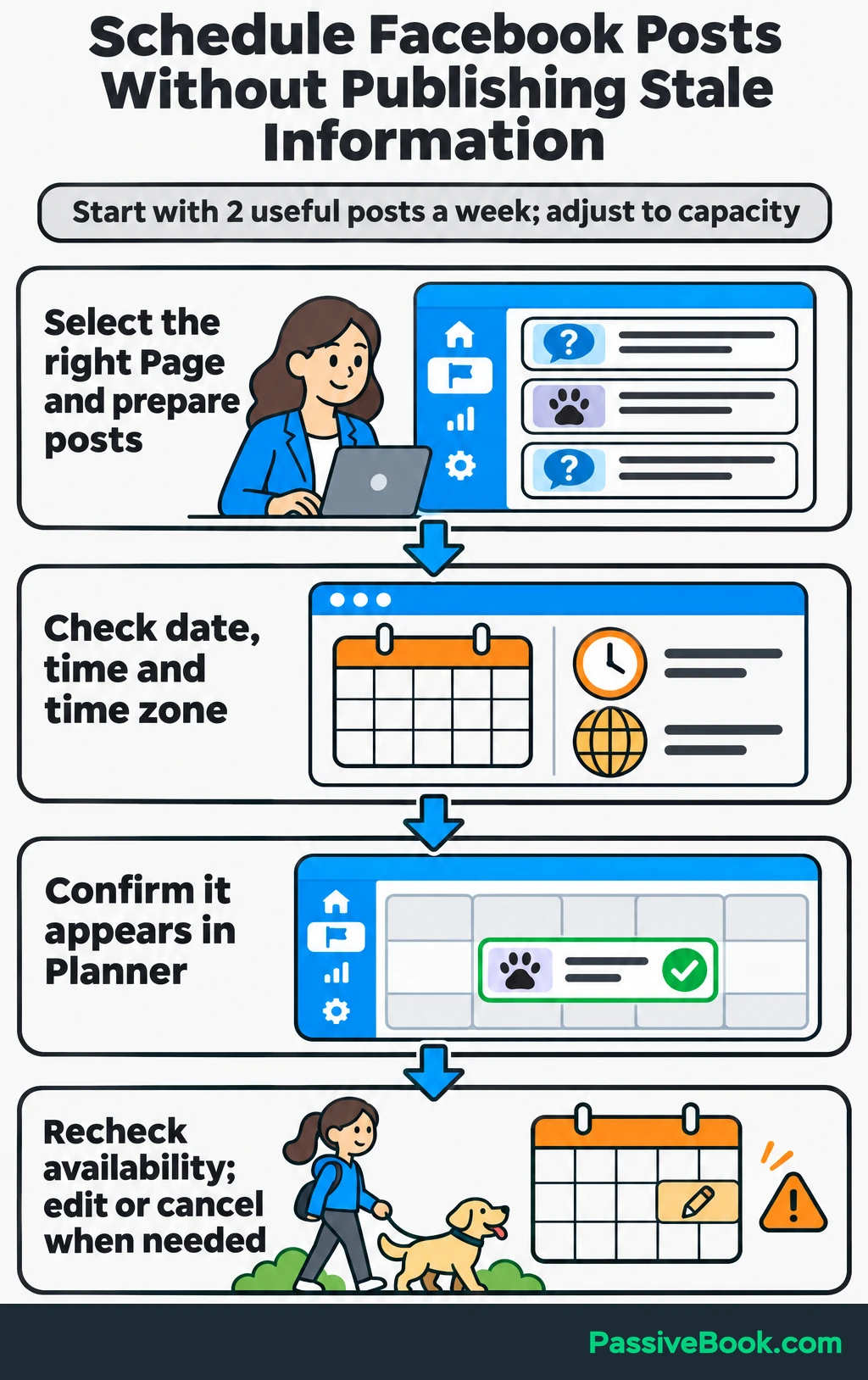
To schedule a post in Business Suite, select the correct Page and create the content. Choose the scheduling option, set the date and time, review the preview, and schedule it.
Confirm that it appears in Planner or the scheduled-content list. Check the time zone shown before loading several posts.
I would use Meta’s built-in scheduler before paying for another tool. You need a dependable routine before you need another subscription.
Edit or cancel availability announcements when circumstances change. Scheduled content still needs someone checking whether it remains true.
Respond to Messages and Manage Comments
Enable Page messaging and turn on inquiry notifications. Then decide who checks the inbox and when.
Use Business Suite’s Inbox to handle conversations, and keep reusable answers for common questions. Personalize them before sending.
Answer the customer’s question first. If they ask about availability, establish what they need:
Which neighborhood are you in, and which walking days do you need?
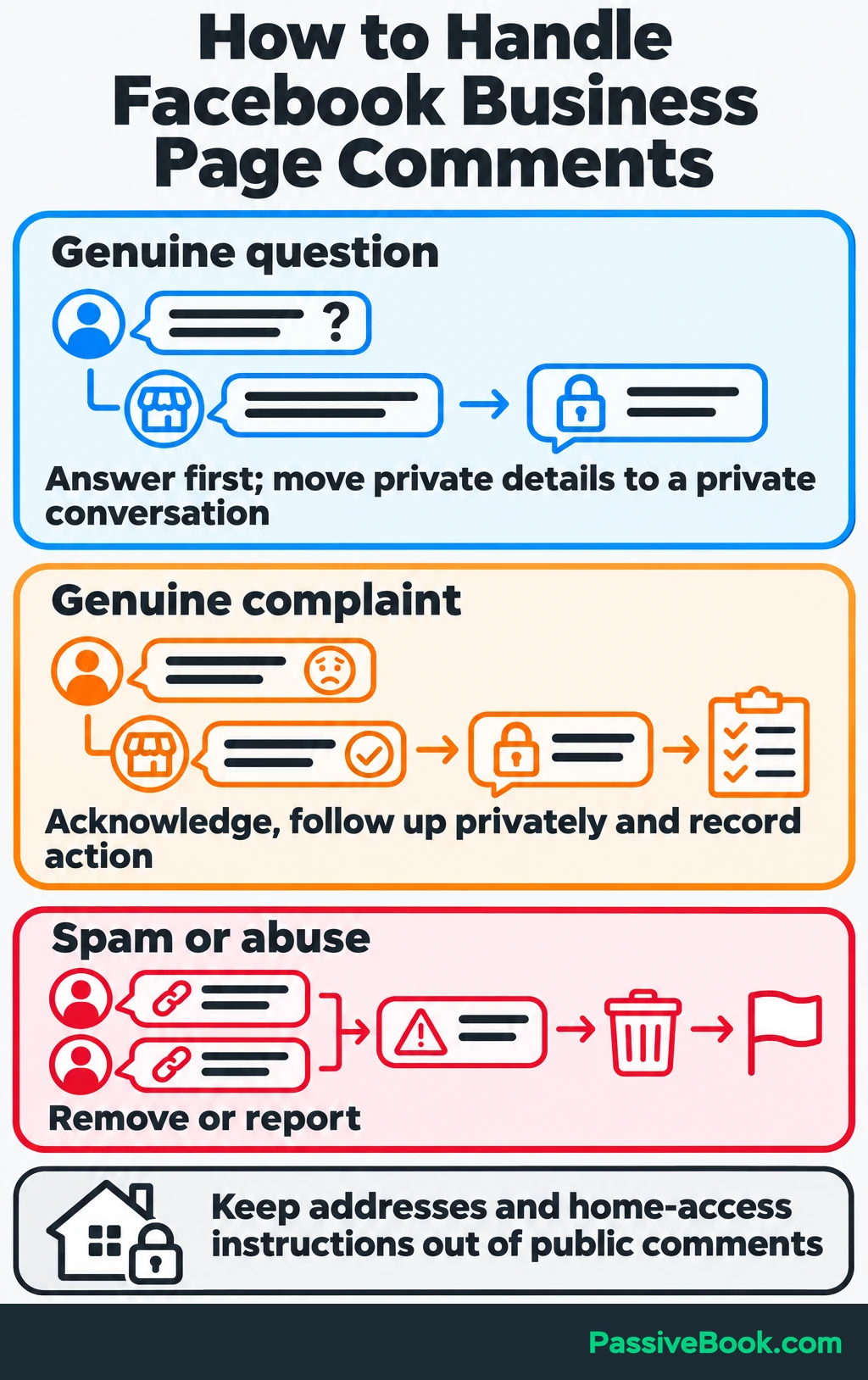
Keep full addresses and home-access instructions out of public comments. Move those details into private communication when needed.
For automated replies, use an acknowledgment that sets honest expectations:
Thanks for contacting Maple Trail Dog Walks. This is an automatic reply. Please send your neighborhood and preferred walking days, and we’ll check availability during our message-checking hours.
Add a specific response time only if you can meet it. Test the acknowledgment from another account, including outside business hours if you configure an away response.
Automation can acknowledge a message. It cannot confirm a walking slot you have not checked.
For genuine complaints, acknowledge the concern and arrange private follow-up. Deal with the issue there, then record any action the responsible manager needs to take. Remove or report spam and abuse rather than treating every hostile comment as a customer-service conversation.
Help Relevant Customers Find the Page
Once the Page has useful information and an introductory post, share it through places where people already encounter your business.
Add the link to your website, email signature, receipts, and relevant customer messages. Invite interested customers and contacts rather than sending every person you know an invitation.
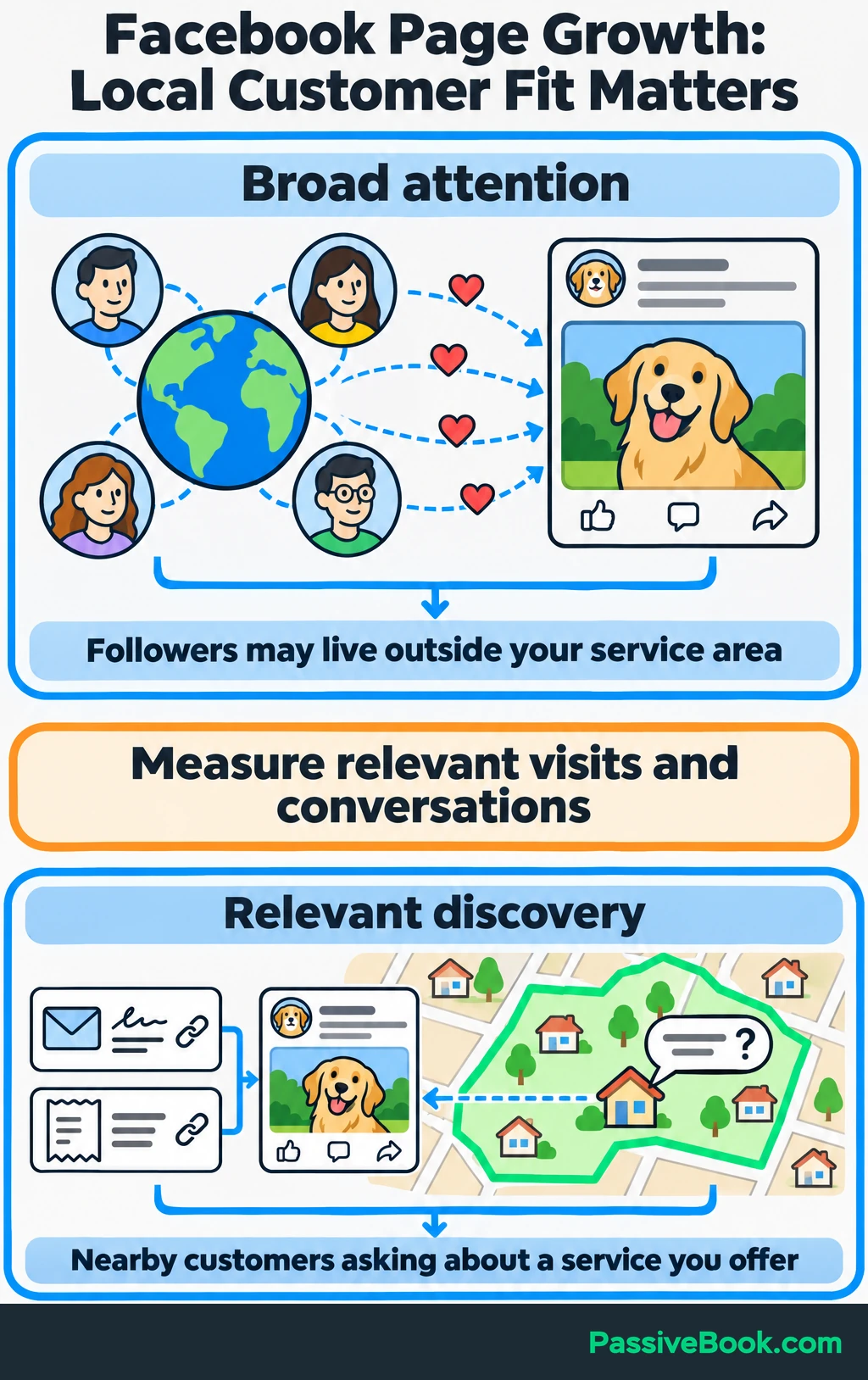
In community groups, contribute useful answers and follow the promotion rules. If business recommendations are allowed, explain your connection plainly.
After completed work, ask customers for honest feedback and make the Page link easy to find. Do not write the praise for them.
For Maple Trail Dog Walks, I would prioritize local customer touchpoints over broad follower campaigns. An inquiry from a nearby household can move the business forward; a follower outside the service area may simply enjoy dog photos.
Neither follower totals nor frequent posting guarantees customer reach. Keep the goal tied to relevant visits and conversations.
Use Insights to Improve Your Page
Open Insights in Meta Business Suite, select the Facebook Page, and choose a reporting period. Review individual posts alongside overall Page activity.
Meta’s overview includes measures such as views, interactions, and follows. Views count times content was played or displayed, so do not read them as a count of unique people. Meta’s Insights overview
Read the definition beside each metric before using it:
- Visibility measures show how much exposure content received.
- Interactions show actions such as reactions, comments, and shares.
- Link clicks show movement toward a linked destination, but do not prove a purchase or booking.
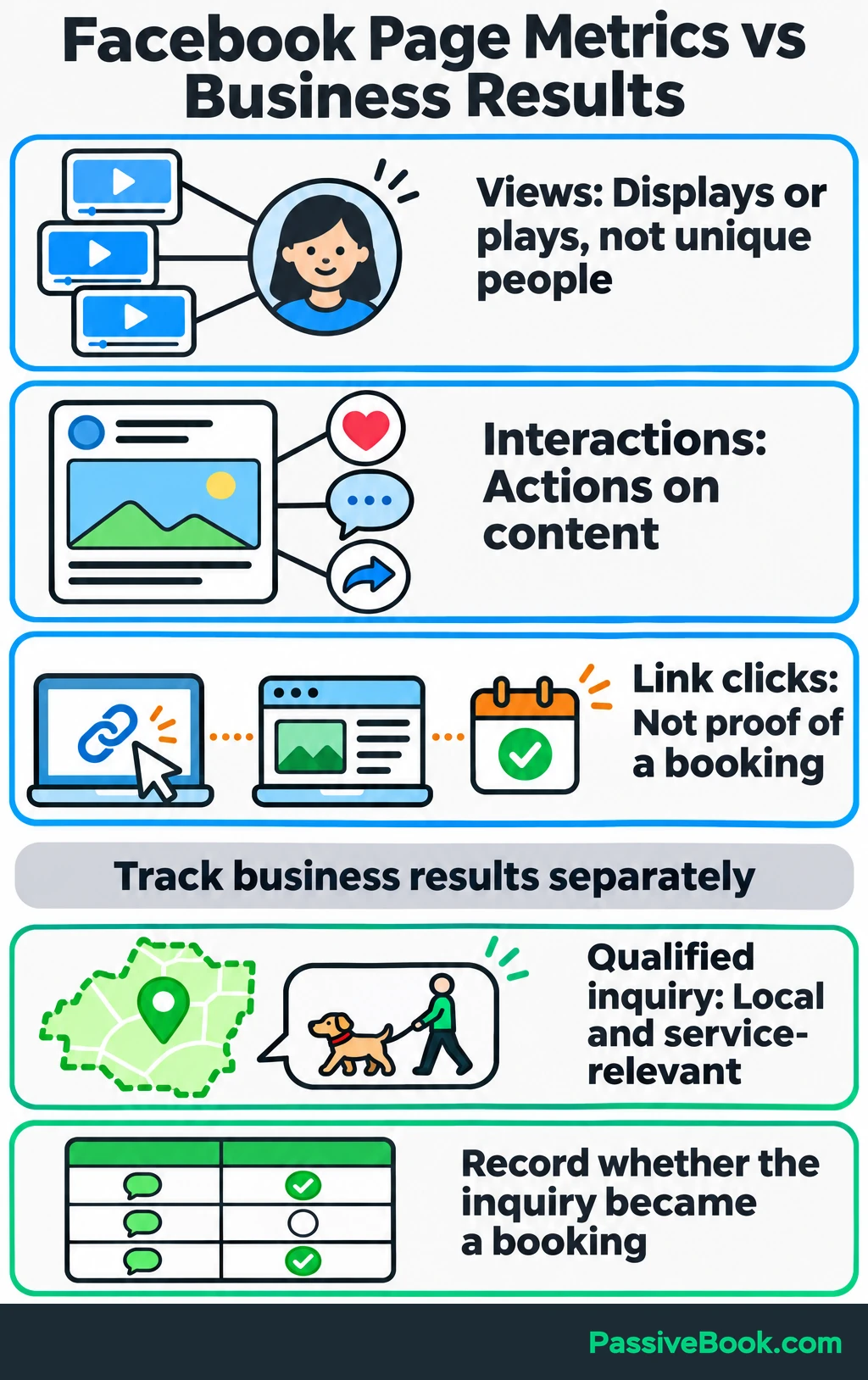
Track business results separately. A small spreadsheet can record the inquiry date, requested service, neighborhood, source, and whether it became a booking.
For this example, a qualified inquiry means someone in the service area asking about walks the business offers. Keep those inquiries separate from general compliments and unsuitable requests.
Ask how customers found you when the source is unclear. Do not credit every new booking to the latest post.
Compare similar posts over equivalent windows, such as their first seven days. Then adjust one element: the topic, format, or next action. A single strong post is a reason to investigate, not proof of a reliable pattern.
Around 2022, I spent six months chasing followers on Instagram and Twitter/X for another niche. The follower count gave me something to check, but it did not produce meaningful business returns. That experience is why I now choose the customer action before choosing what to measure.
For Maple Trail Dog Walks, a popular dog photo and a service explanation answer different questions. The photo may attract attention. The explanation may lead to availability inquiries. Use both observations to decide what deserves another post.
Keep the Page Current With a Manageable Routine
Give each recurring task an owner and a place to record completion. Adjust the frequency around your inquiry volume and available help.
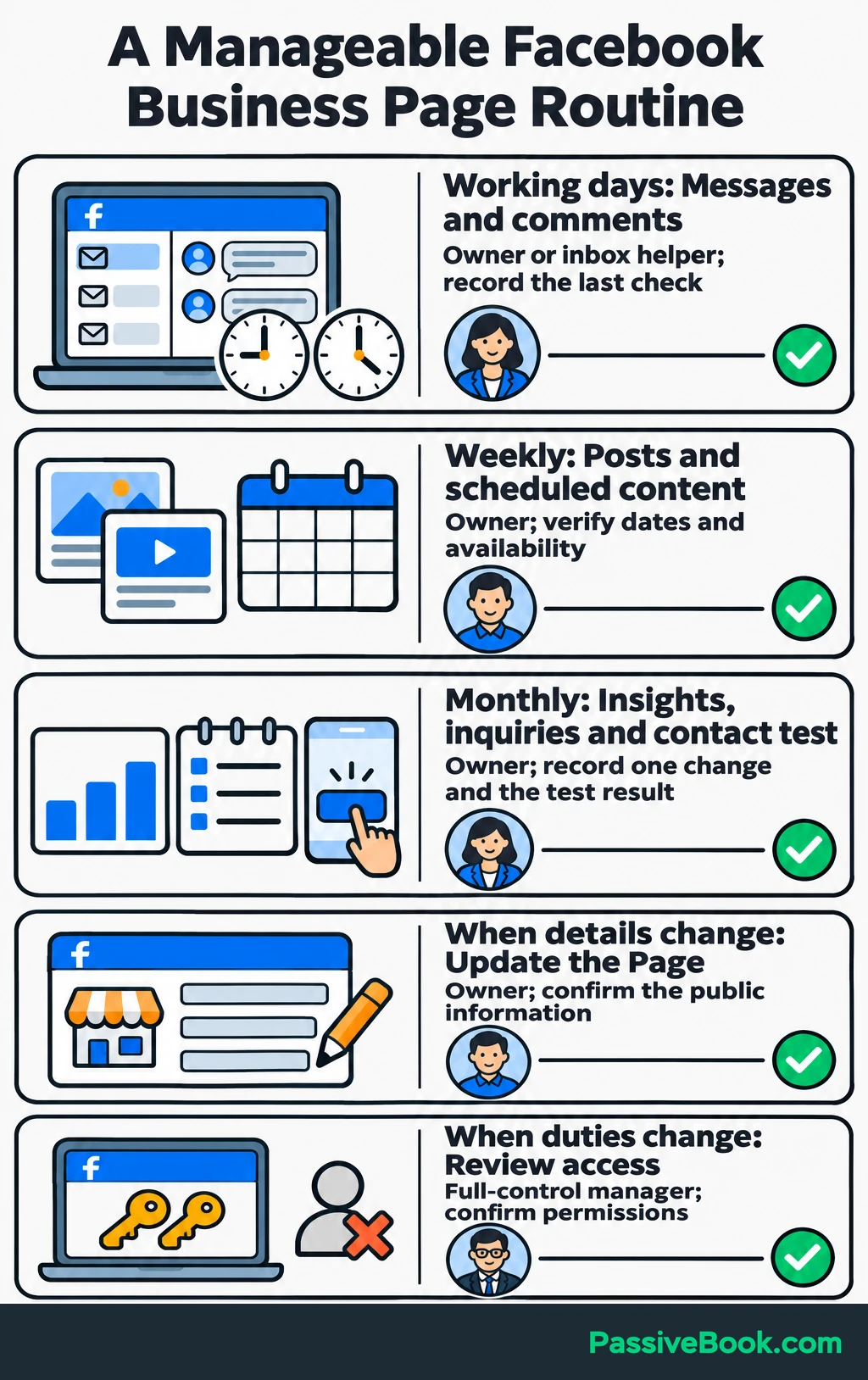
Here is a starting checklist for Maple Trail Dog Walks:
| Task | Responsible Person | Frequency | Completion Status |
|---|---|---|---|
| Answer messages and review comments | Owner or assigned inbox helper | Morning and late afternoon on working days | Record the last check |
| Prepare posts and inspect scheduled content | Owner | Weekly | Mark complete after checking dates and availability |
| Review Insights and inquiry records | Owner | Monthly | Record one change to try |
| Test the main contact action | Owner | Monthly and after changing it | Record whether the test arrived |
| Update hours, service areas, and contact details | Owner | Whenever they change | Confirm the public Page matches |
| Review manager access | Full-control manager | When duties change or someone leaves | Confirm permissions were updated |
Protect the customer-service checks first. If content preparation repeatedly pushes replies aside, reduce the posting schedule.
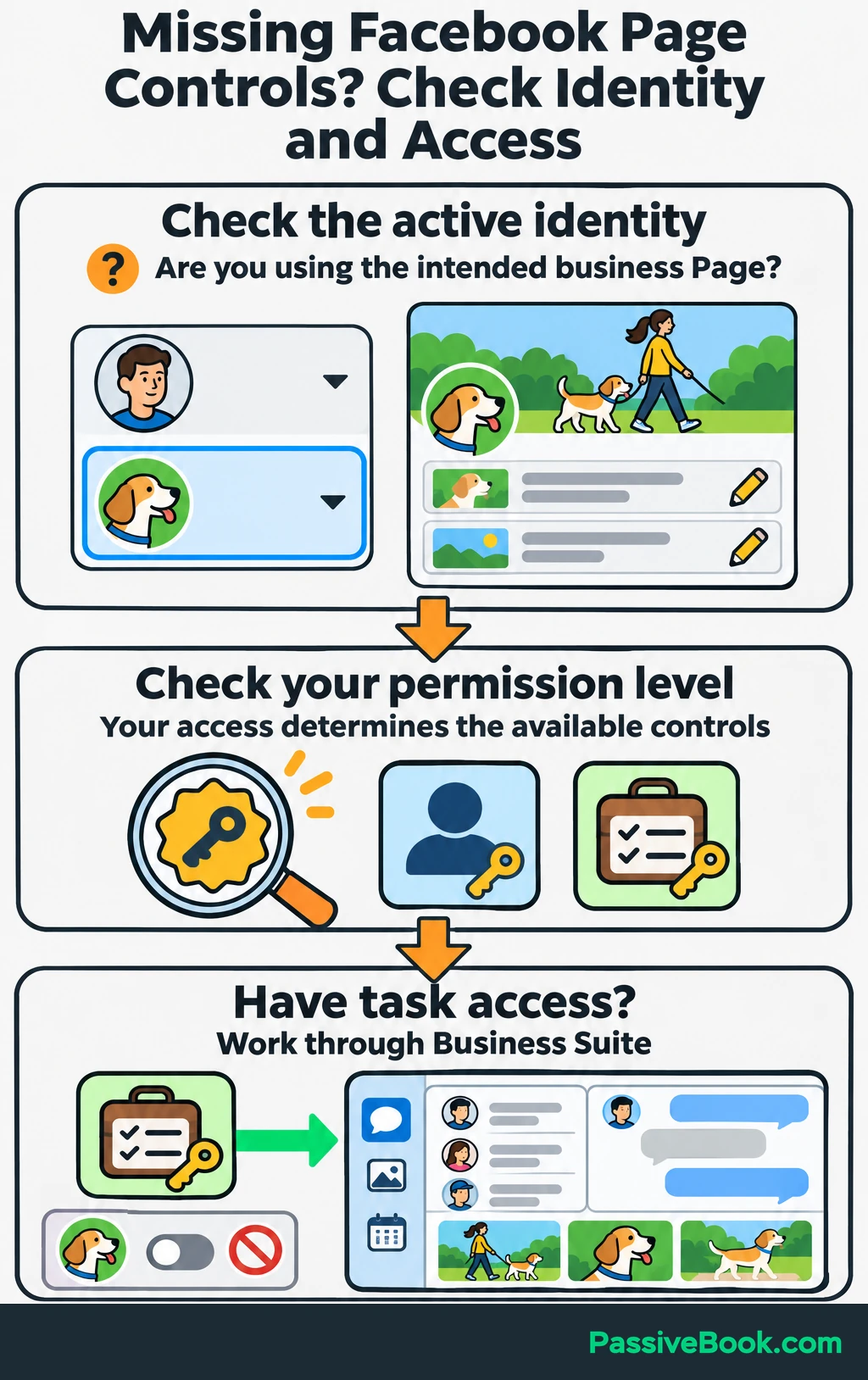
When editing controls disappear, check the active identity and your permission level before assuming something is broken. Someone with task access should work through Business Suite rather than expect to switch into the Page on Facebook.
The routine should keep information accurate and conversations moving. A busy calendar is not useful if nobody answers the inbox.
What Next?
Write your short bio and test the Page’s main contact action today. Those two tasks establish what you offer and whether a customer can reach you.
Use the social buttons to share this guide when you want to help others launch a Page they can actually keep current.
Which part of managing your Page needs a better routine: access, posting, or customer replies? Share your answer in the comments, and bring any other questions too.
Share this post with your friends & followers:

