Who could remove you from your own Facebook Page? If you’ve handed out full control to everyone who helps with posts, the answer may include people who no longer work with you.
That creates a problem beyond a forgotten password. An old permission or a stolen login can put your posts, customer messages, and business access within someone else’s reach. This guide shows you how to protect those connections with built-in safeguards and publishing habits that reduce avoidable policy trouble.
If someone has already changed your login or taken over your Page, go straight to Respond to Hacking or Restrictions.
Secure the Accounts That Control Your Page
In the usual setup, you sign in through your personal Facebook account to manage your business Page. The Page has no separate password.
A business portfolio groups assets, such as Pages and ad accounts, and controls access to them. Meta Business Suite gives you tools to manage content, messages, and other business work. These are connected parts of your setup, so securing only one leaves gaps.
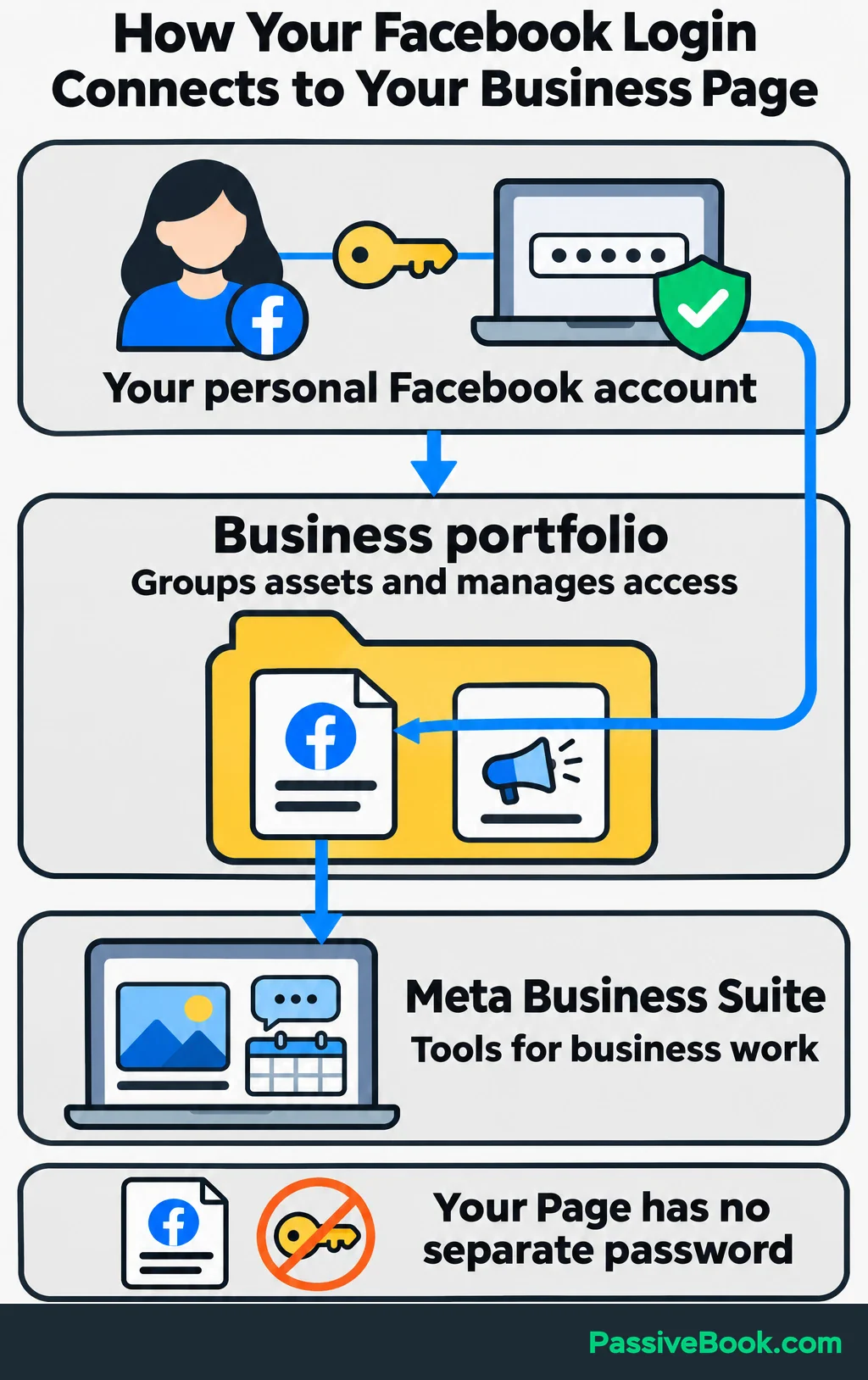
Start with every login that can reach your business assets. In Facebook’s settings, look for password and security controls under Accounts Center or Meta Account. The name can differ as Meta updates accounts.
Throughout this guide, imagine you run Watercolor Desk, an online business selling beginner watercolor practice guides. A freelance assistant helps publish posts. The situations below are illustrations.
Protect Your Password and Recovery Email
Give your Facebook login a long, unique password and store it in a password manager. Reusing your shop or email password means a problem elsewhere can spread to Facebook.
Your assistant should sign in with their own account and receive permission to do their work. Don’t send them your password, even for a quick task.
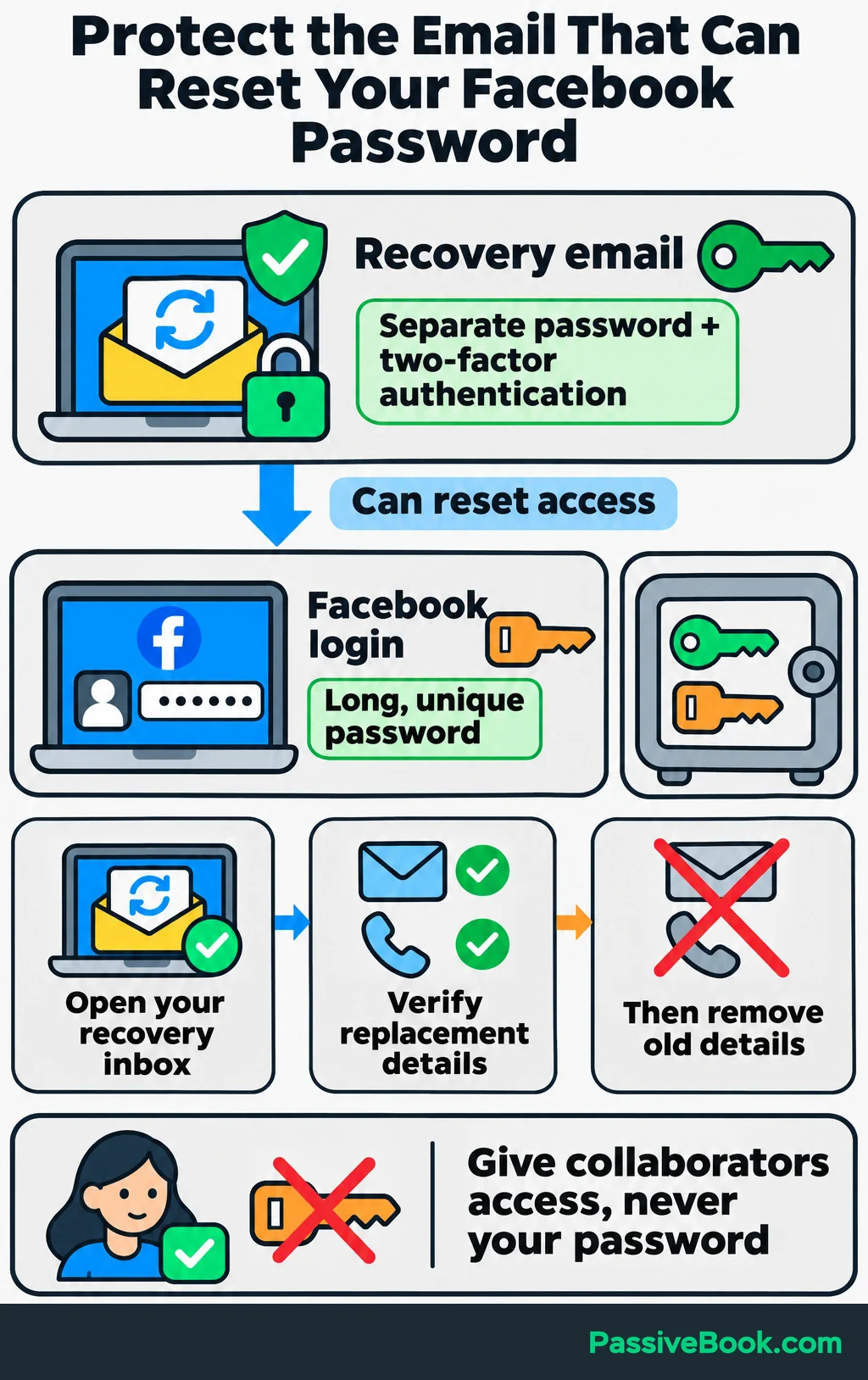
Next, secure the email account connected to Facebook. Give it a separate password and two-factor authentication because access to that inbox can allow someone to reset your Facebook password.
Check your recovery details while you’re there:
- Confirm that every listed email address and phone number still belongs to you.
- Add and verify replacement details before removing an old recovery method.
- Make sure you can actually open the recovery inbox and receive messages.
An address you recognize but can no longer access is a poor backup.
Enable Two-Factor Authentication and Prepare for a Lost Phone
Two-factor authentication adds another check when you sign in, usually a code after your password. Everyone who manages the business should enable it. I would choose an authenticator app; Meta also recommends that option.
To set it up:
- Open the two-factor authentication setting for the account that controls your Page.
- Choose an authenticator app and add the account by scanning the setup code or entering the supplied key.
- Enter the code generated by the app and finish activation.
- Generate recovery codes and save them somewhere protected that you can reach without your phone.
A printed copy stored securely or a protected password-manager entry can work. A screenshot that exists only on the phone you might lose cannot.
Before replacing or wiping your phone, confirm that your authenticator works on the replacement or that another recovery method is ready. Keep your current session open while you check.
If your account and device support it, add a passkey too. This lets you sign in using your device’s fingerprint, face recognition, or PIN. Passkeys resist fake login websites, which makes them useful protection against phishing. Keep your other login and recovery options working for devices where you cannot use the passkey.
Check Sessions and Enable Login Alerts
Review the devices currently signed in to your account. Look at the device, browser, and time together; a location alone may be imprecise.
End sessions you don’t recognize. If you find an unfamiliar session alongside changed recovery details or authentication settings, treat it as a possible compromise and use the recovery section below.
Turn on alerts for unrecognized logins and send them somewhere you actually monitor. An alert buried in an abandoned inbox offers very little help.
Limit Who Can Control Your Page and Business Assets
Match Permissions to the Work
Review Page access and business-portfolio access separately. Check people, partner businesses, pending invitations, and the assets assigned to each. In the portfolio, check who can add or remove people and assign assets.
For the Page itself, compare these access types:
| Access Type | What It Allows | When I Would Use It |
|---|---|---|
| Facebook access with full control | Manage the Page and its access, including removing other people and deleting the Page | For a trusted person responsible for the business |
| Facebook access with partial control | Switch into the Page and manage permitted activities without full access-management powers | When someone needs to work directly on Facebook |
| Task access | Perform assigned work through tools such as Meta Business Suite | For publishing, messaging, advertising, or reporting duties that need limited access |
Full control deserves particular care. Meta’s Page-access guidance explains that someone with this permission can remove you. Being the person who created the Page does not make that permission harmless.
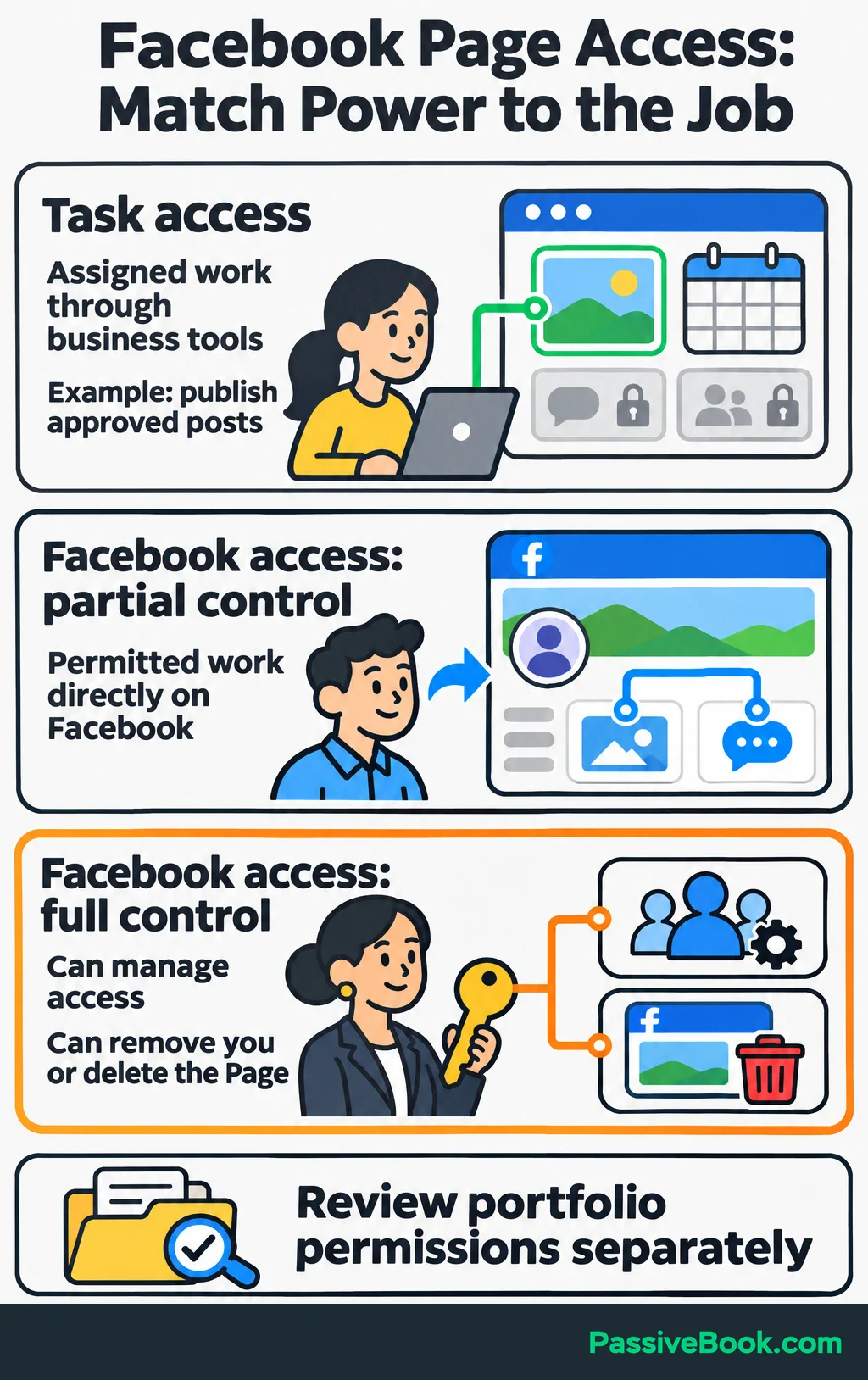
Choose access by responsibility. Then ask the person to confirm they can complete the assigned work before granting anything broader.
For Watercolor Desk, I would give the assistant task access for content so they can publish through Meta Business Suite. I would add messaging only if answering customers becomes part of the job. Scheduling a painting tip does not require the power to delete the business Page.
Keep a small access record. Here’s how that could look after reviewing Watercolor Desk’s setup:
| Person or Partner | Asset | Permission Level | Business Reason | Review Date |
|---|---|---|---|---|
| Owner | Watercolor Desk Page | Facebook access with full control | Manage settings and permissions | Last checked July 1; next check August 1 |
| Publishing assistant | Watercolor Desk Page | Task access: content | Publish approved practice tips | Last checked July 1; next check August 1 |
| Former launch agency | Watercolor Desk Page | Access removed after handover | Launch work finished; no ongoing duties | Removal confirmed July 1 |
Remove departed collaborators, unused invitations, and expired agency access. Before removing a legitimate connection, check whether a scheduled campaign or another active task still depends on it.
Preserve a Trusted Backup
A suitable second person with full control can help if you lose access. But that person also adds another account that needs protection.
Choose someone you trust with the business itself. Ask them to protect their login with a unique password and two-factor authentication. Then confirm they have accepted the invitation and can access the relevant Page and portfolio assets.
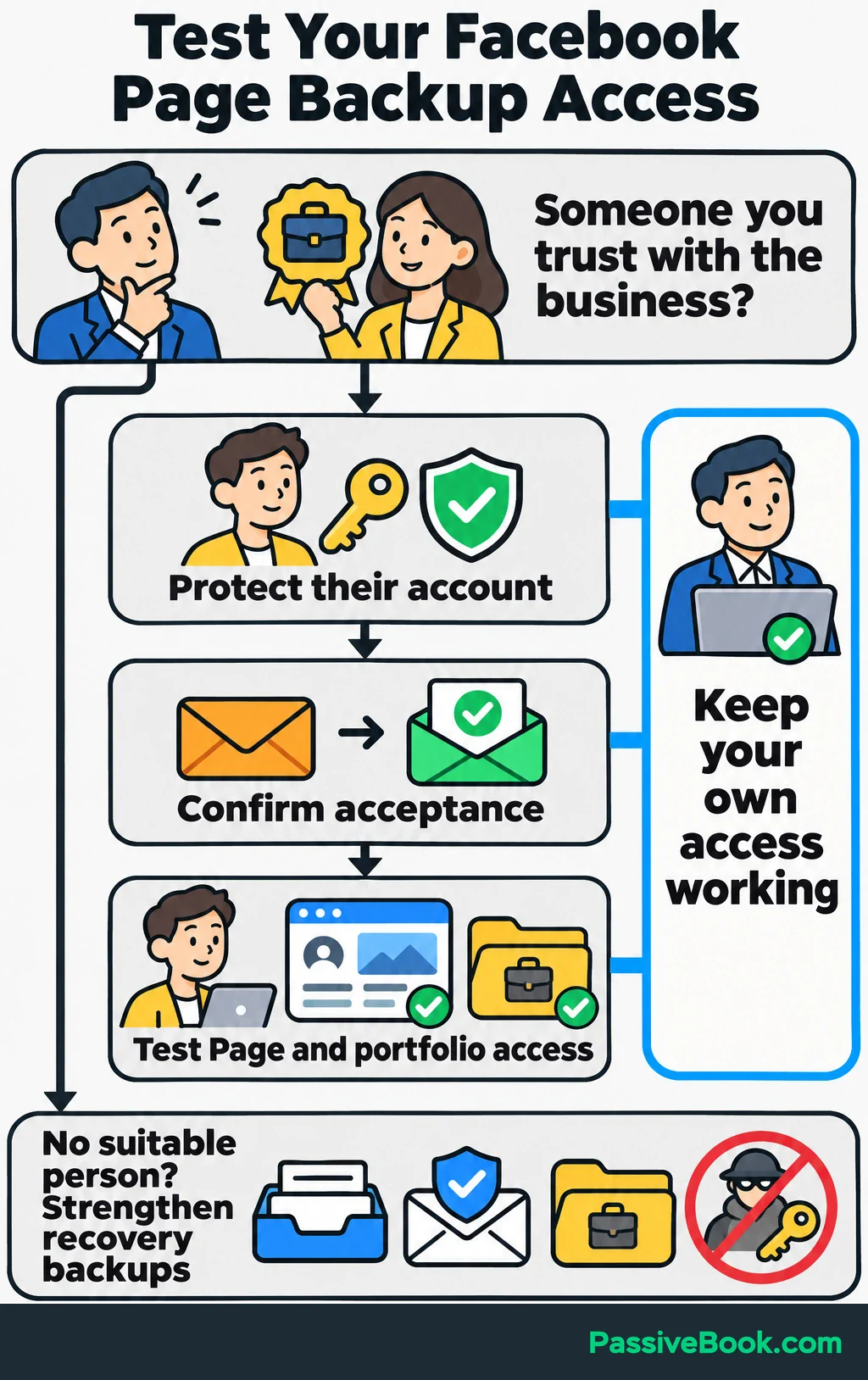
Keep your own working access throughout the test. A pending invitation is not a recovery route, and “I think they accepted it” is not a test.
If you don’t have a suitable person, strengthen your recovery email, authentication backups, and private business records. Don’t give an unfamiliar contact full control just to fill a backup slot.
Verify Unexpected Messages and Access Requests
A deletion threat is designed to make you act before you think. Copyright warnings, support offers, and partnership invitations can apply the same pressure.
Open Facebook or Meta Business Suite yourself, using your app or a saved bookmark. Check account status, Page status, and business restriction notices there. If an email looks suspicious, compare it with the recent emails recorded in your account’s security settings.
Reject any email or Facebook message asking for your password; Meta says it never makes that request.
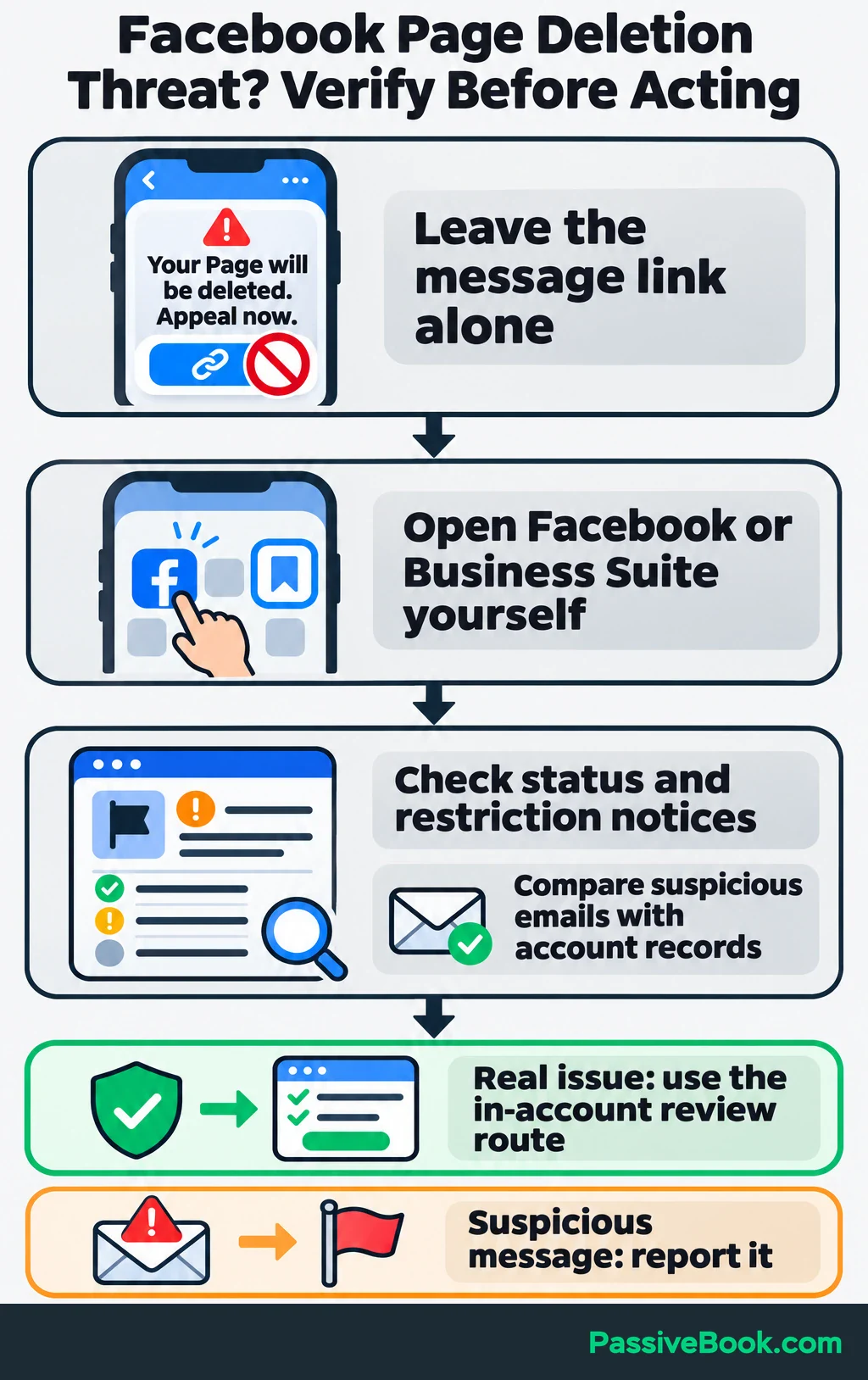
For access requests, check four things before approving:
- Who is asking?
- Which business do they represent?
- Which assets and permissions are they requesting?
- What agreed work requires that access?
Confirm the answers through an established contact method. If your assistant appears to request broader access, contact them through your usual conversation. A real notification can still contain a request you should reject.
Never give a supposed support agent your password, authentication codes, recovery codes, or browser-session information. Session cookies are browser data that can carry an existing login, so treat them as sensitive credentials. Reject unsolicited requests to control your computer remotely.
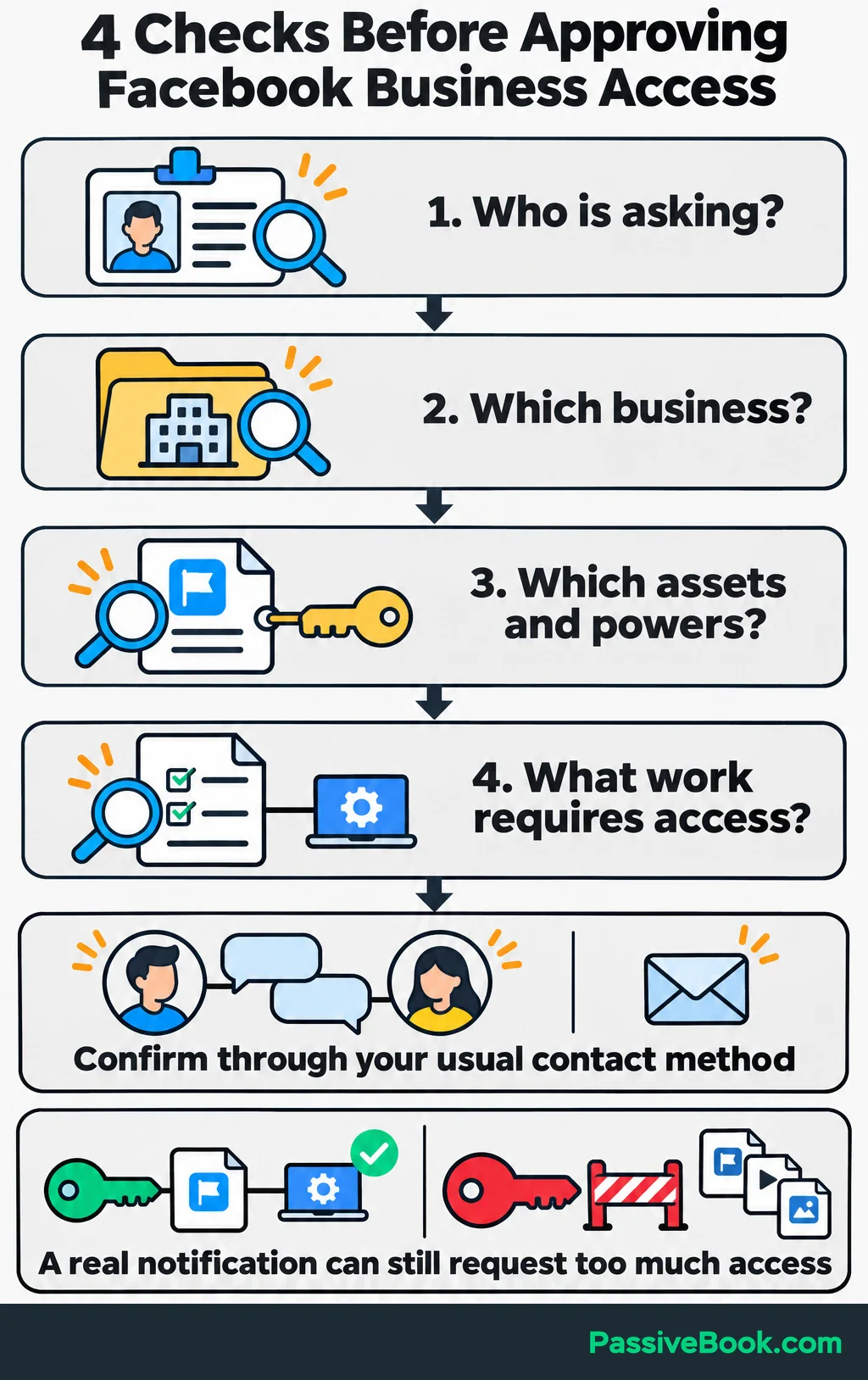
For Watercolor Desk, the message might say:
“Your Page will be deleted. Appeal now.”
You leave its link alone, open Facebook independently, and check for an actual notice. If there is a genuine issue, you follow the review route inside your account. If the message is suspicious, report it through the platform’s reporting controls.
The message’s urgency does not earn it permission.
Protect Devices, Connected Tools, and Customer Data
Login protection also depends on the device you use. Meta has documented malware that targets personal accounts to reach business assets and can attempt to evade two-factor authentication.
Keep your operating system, browser, security software, and Facebook apps updated. Enable a screen lock and review browser extensions. Remove unfamiliar software and extensions, especially anything installed after an unexpected “support” message or download prompt.
Next, review connected apps and business integrations. Keep the tools needed for current work and remove abandoned connections after checking what depends on them.
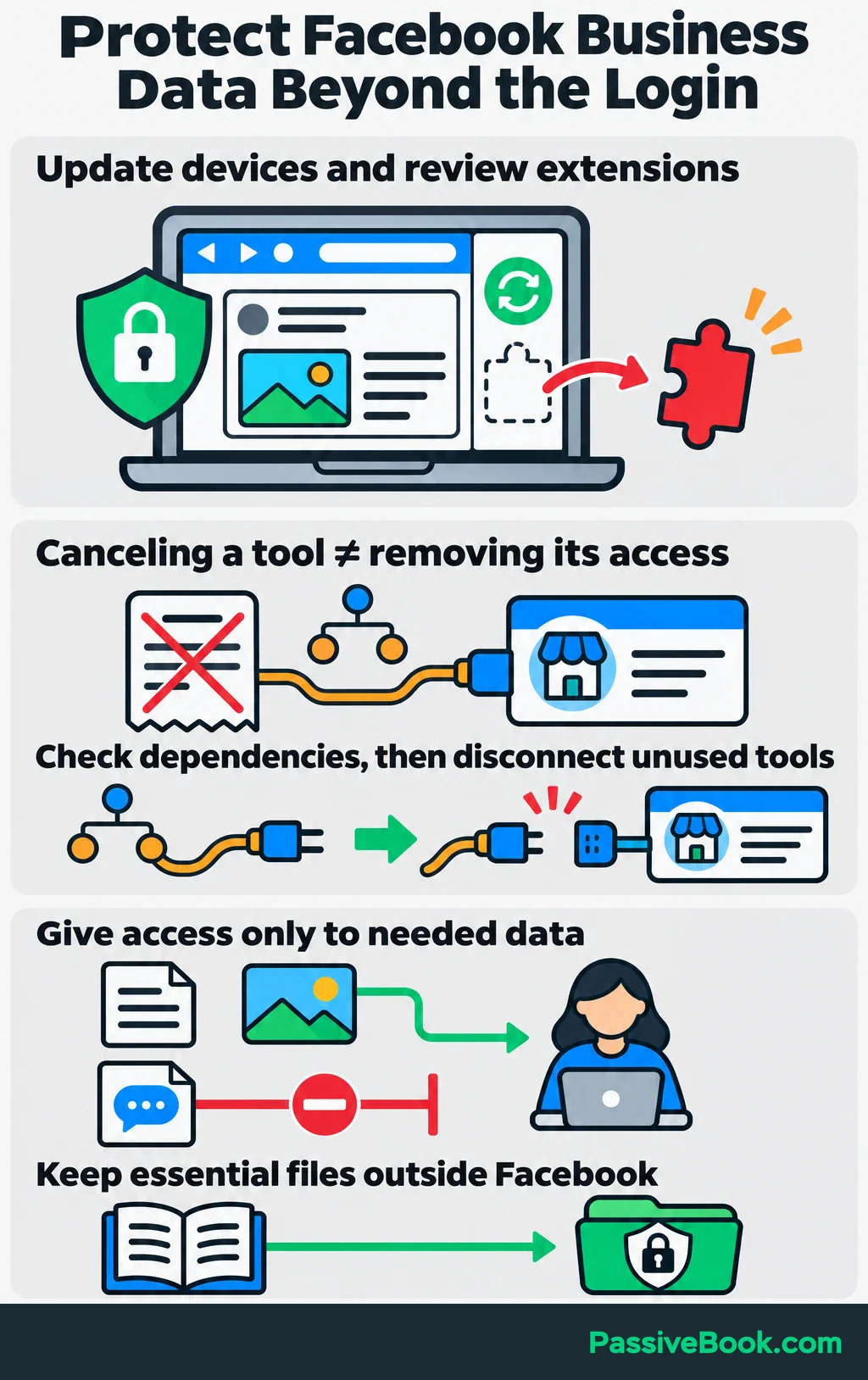
I found an old publishing connection while tidying up tools for a digital-product project. I had stopped using the service, but I had never removed its access. Canceling a tool and disconnecting it turned out to be two separate jobs. I now put both on the cleanup list.
For ordinary Facebook scheduling, I would start with the free Meta Business Suite tools. Add another service when it solves a real need, and connect it through Meta’s supported sign-in and authorization process. Skip services that ask you to send passwords, recovery codes, or session cookies.
Apply the same restraint to customer information:
- Collect only what you need to fulfill the request or order.
- Limit access to customer messages and exported records.
- Keep exports in protected storage and remove unnecessary copies.
- Dispose of records securely when you no longer need them, while keeping anything required for applicable record-retention obligations.
Watercolor Desk’s publishing assistant needs approved post copy and images. They do not automatically need customer-message exports.
Keep original guide files, images, post copy, and essential business records outside Facebook too. Losing Page access should not erase the files you need to serve customers.
Follow Meta’s Rules When Publishing and Promoting
Protecting your login and following Meta’s publishing rules are separate jobs. A well-protected account can still receive restrictions for what it publishes or how it behaves.
Use Meta’s Community Standards as the baseline for content and conduct. Keep business details accurate, respect other people’s content rights, and avoid impersonation, scams, and spam.
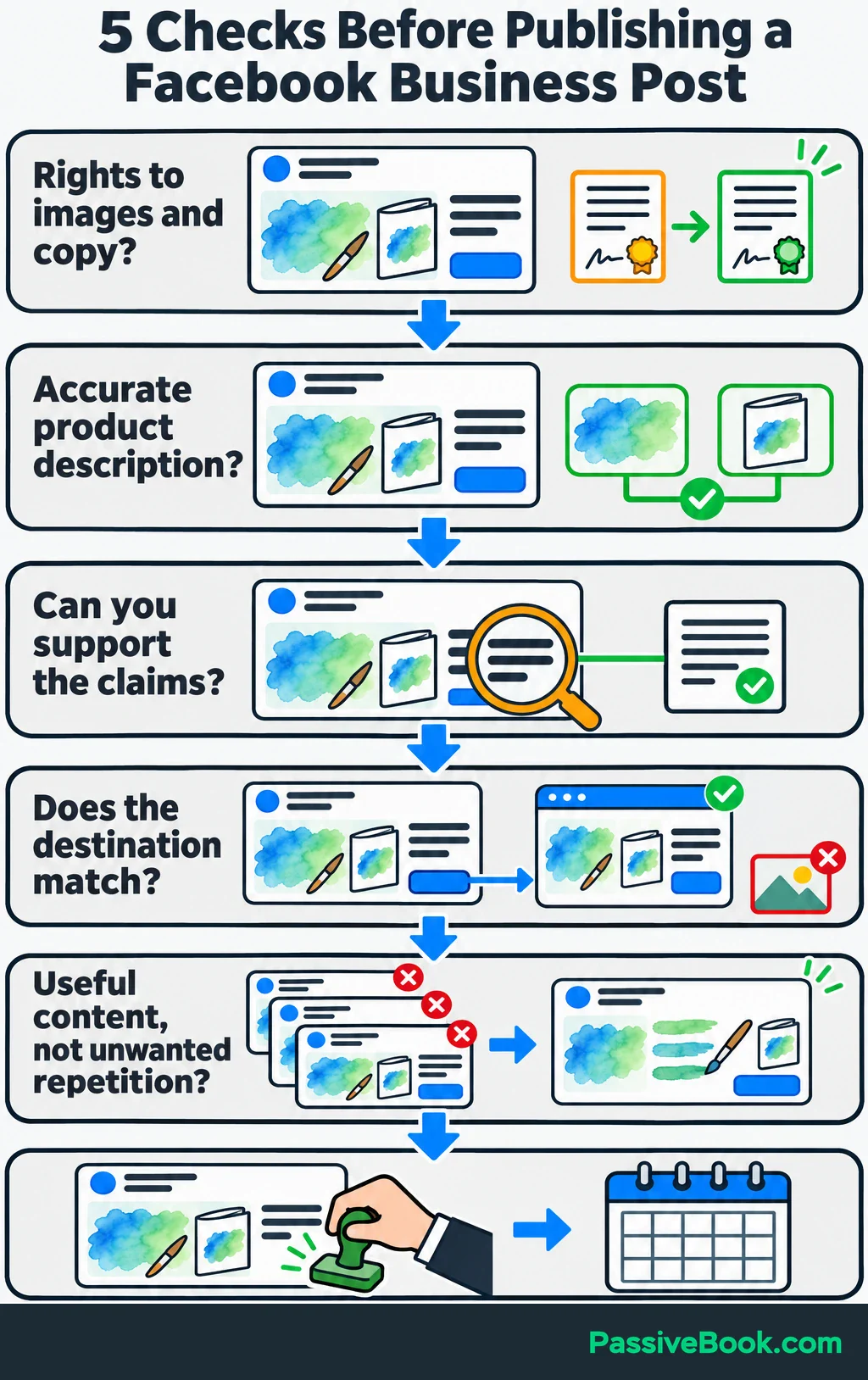
Before approving a scheduled post, check:
- Do we own the images and copy, or have permission to use them?
- Does the post accurately describe the product?
- Can we support the claims?
- Does the link lead to the offer described?
- Are we publishing something useful, or repeating unwanted promotions?
For Watercolor Desk, “Practice a simple watercolor wash with these guided exercises” describes the product. “Become a professional artist this weekend” promises far more than a beginner guide can support.
I would skip bought followers and services promising artificial engagement. Apart from giving you numbers with little business value, they can create policy problems. Meta describes reduced reach and lost monetization eligibility for certain spam practices. Those outcomes are different from an account suspension, but they still matter.
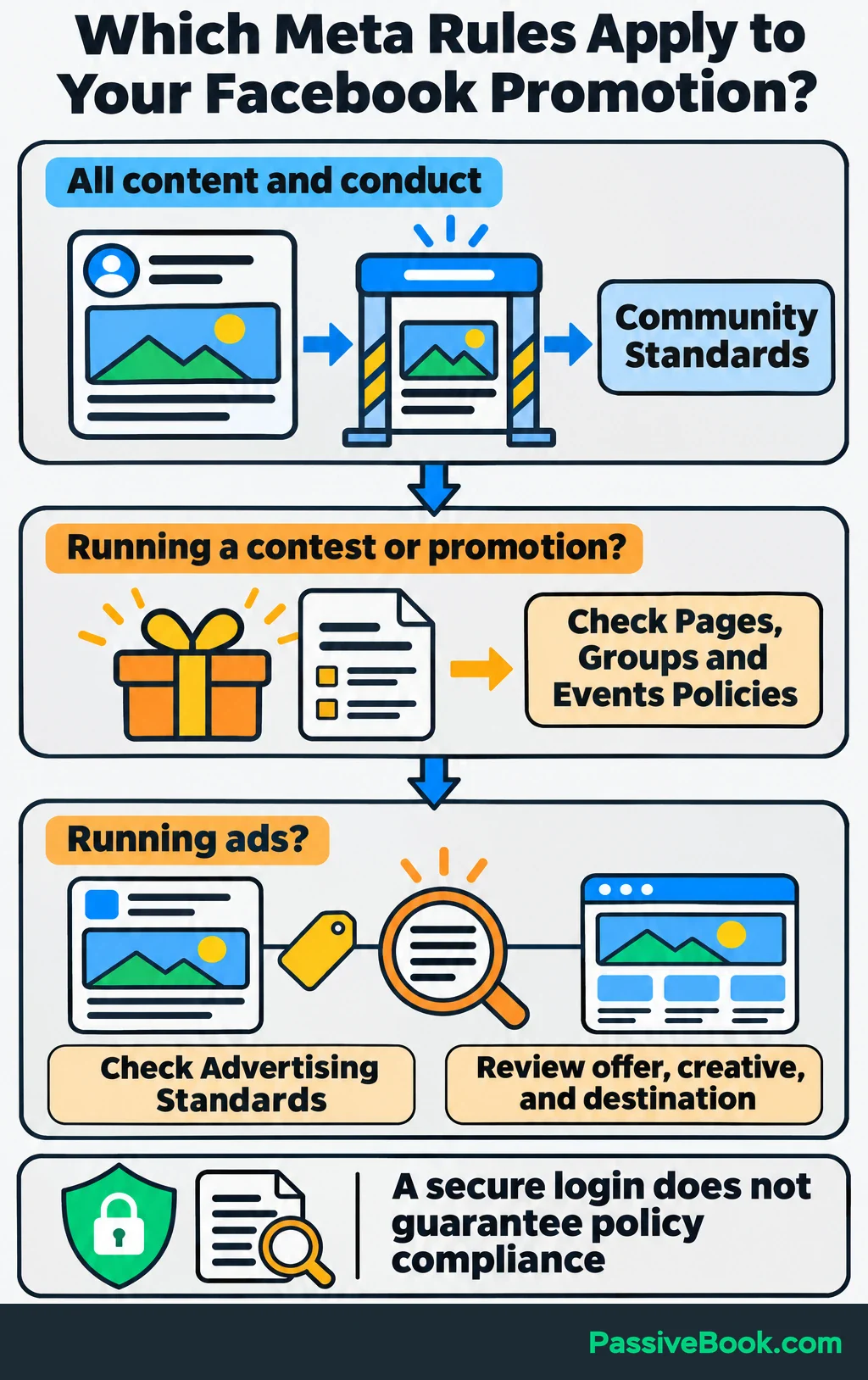
Check the Pages, Groups and Events Policies before introducing a contest or similar promotion. Sales features and other activities may have additional rules, so check those before changing how you sell.
If you run ads, review the offer, creative, and destination against Meta’s Advertising Standards before launching. An ordinary Page post does not establish that the same material meets advertising rules.
You can automate scheduling, but keep responsibility for what gets published. Strong login protection reduces unauthorized-access risk; it does not fix a policy violation or guarantee that restrictions will never happen.
Keep a Short Security Review Routine
I would start with a monthly calendar reminder and repeat the relevant checks whenever someone leaves, an agency changes, a device goes missing, or an unexpected alert arrives.
Use the same short checklist each time:
| Check | What You’re Looking For |
|---|---|
| Recovery details | Working email addresses, current phone numbers, and reachable recovery codes |
| Signed-in devices | Sessions you cannot explain |
| People and partners | Unneeded permissions, departed collaborators, and unexpected invitations |
| Connected tools | Abandoned services or permissions beyond the work required |
| Page and advertising activity | Posts, access changes, campaigns, or spending you did not authorize |
| Policy notices | Restrictions or review requests that need a response |
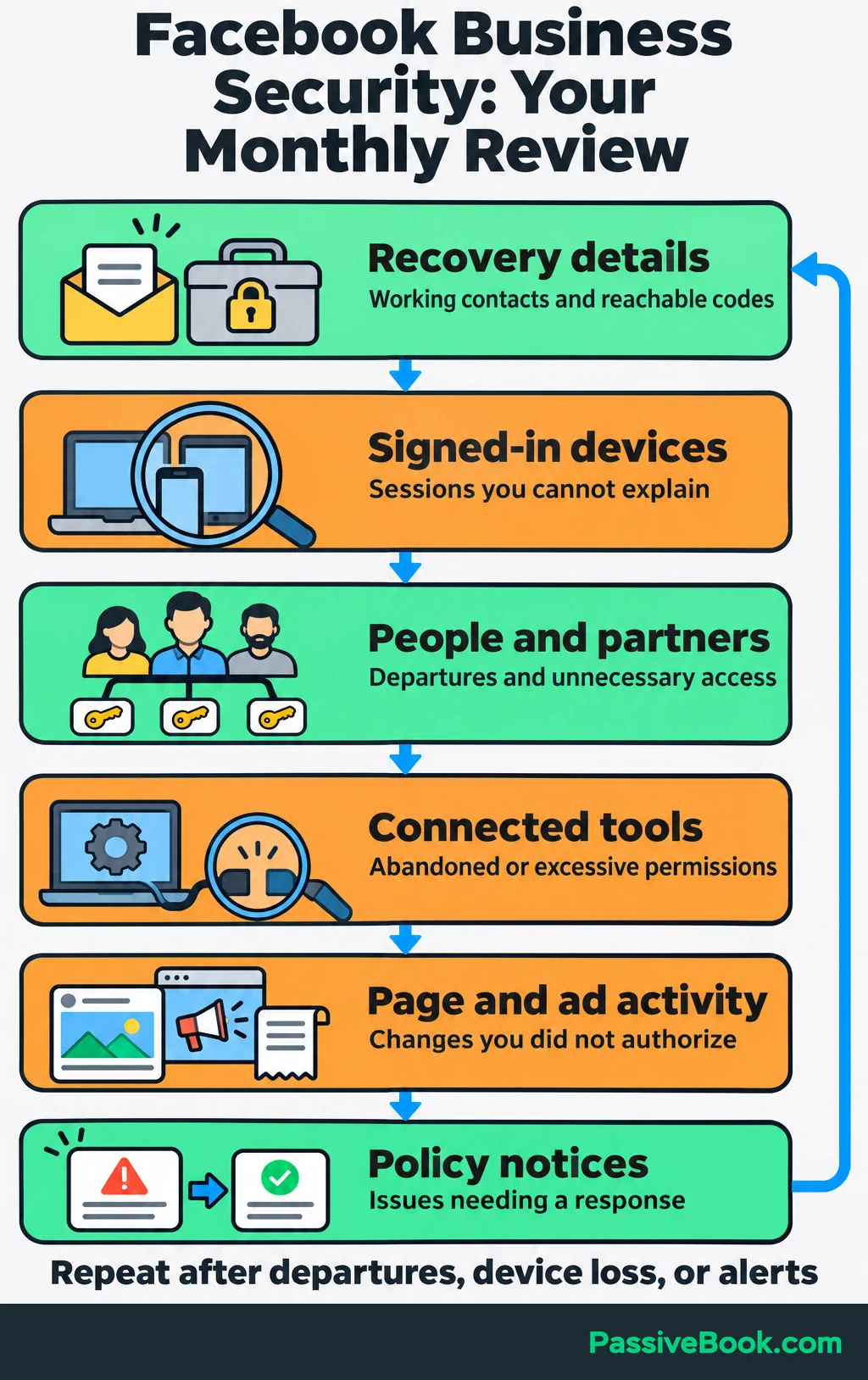
Enable business-change notifications and decide who checks them. If several people assume someone else is watching, nobody is watching.
Put the checks, the person responsible, and what needs your approval into one short procedure. That gives whoever handles your Page clear instructions to follow each month.

Free AI Operations Writer




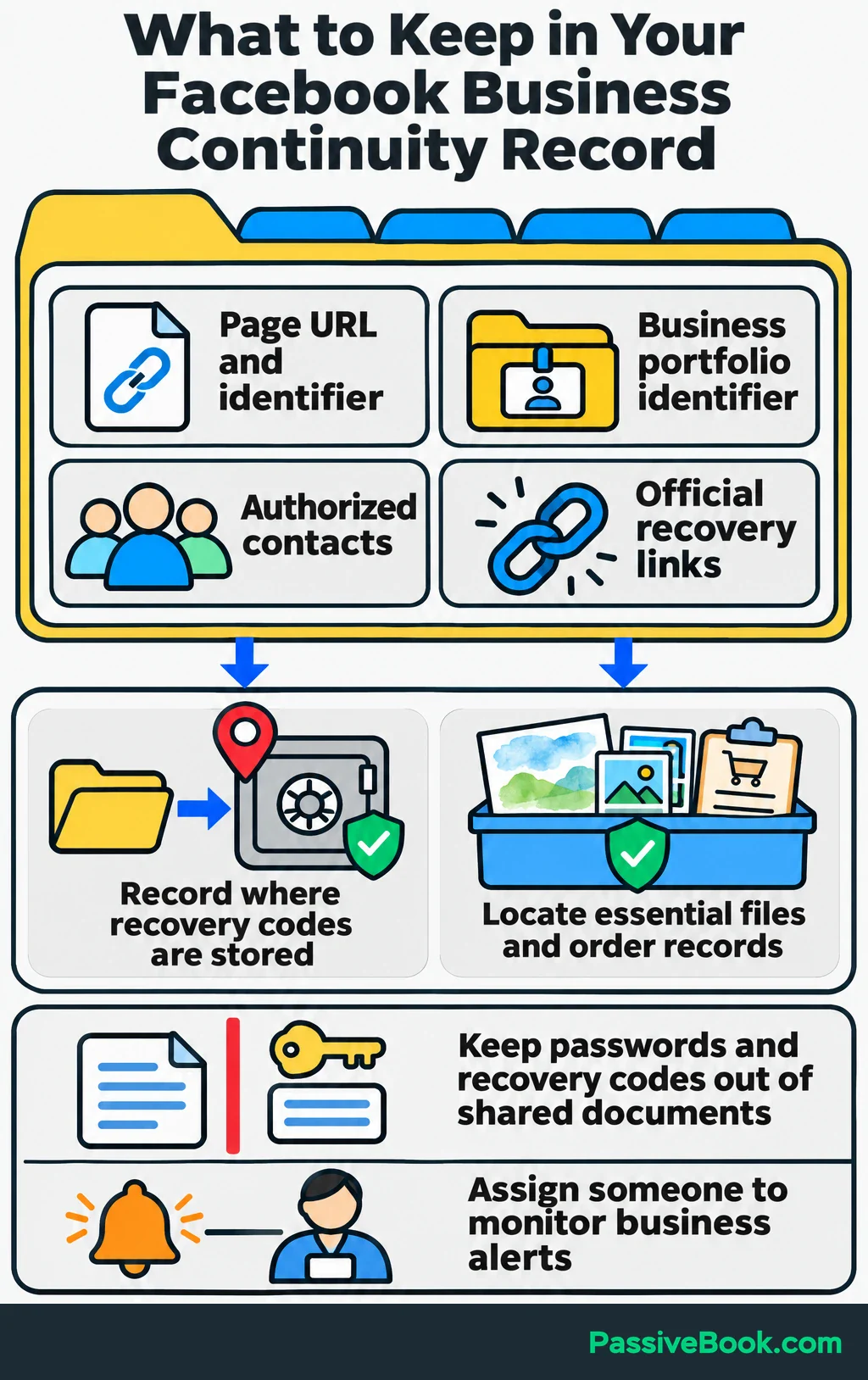
Keep a private continuity record with your Page URL and identifier, business-portfolio identifier, authorized contacts, and official recovery links. Record where recovery codes are stored, but leave the codes and passwords out of shared working documents.
For Watercolor Desk, that record should let you identify the affected assets without searching through old emails during a lockout. It should also point to the guide files and order records needed to keep serving customers.
Respond to Hacking or Restrictions
Recover a Compromised Account or Page
Open Facebook’s hacked-account recovery from a clean, trusted device. If you have a safe device you’ve previously used for Facebook, choose that one to help Meta recognize you.
If your recovery inbox was compromised, secure it before requesting a Facebook password reset. Otherwise, an attacker may still be able to interfere with password resets.
Work through the response in this order:
- Follow the official recovery prompts to regain access.
- Change compromised passwords, end unfamiliar sessions, and inspect recovery details and authentication methods.
- Review Page access and business-portfolio access separately. Remove unauthorized people, partners, and integrations.
- Check posts, messages, linked assets, and advertising activity for unauthorized changes.
- Preserve evidence, stop ongoing misuse, and address any customer impact.
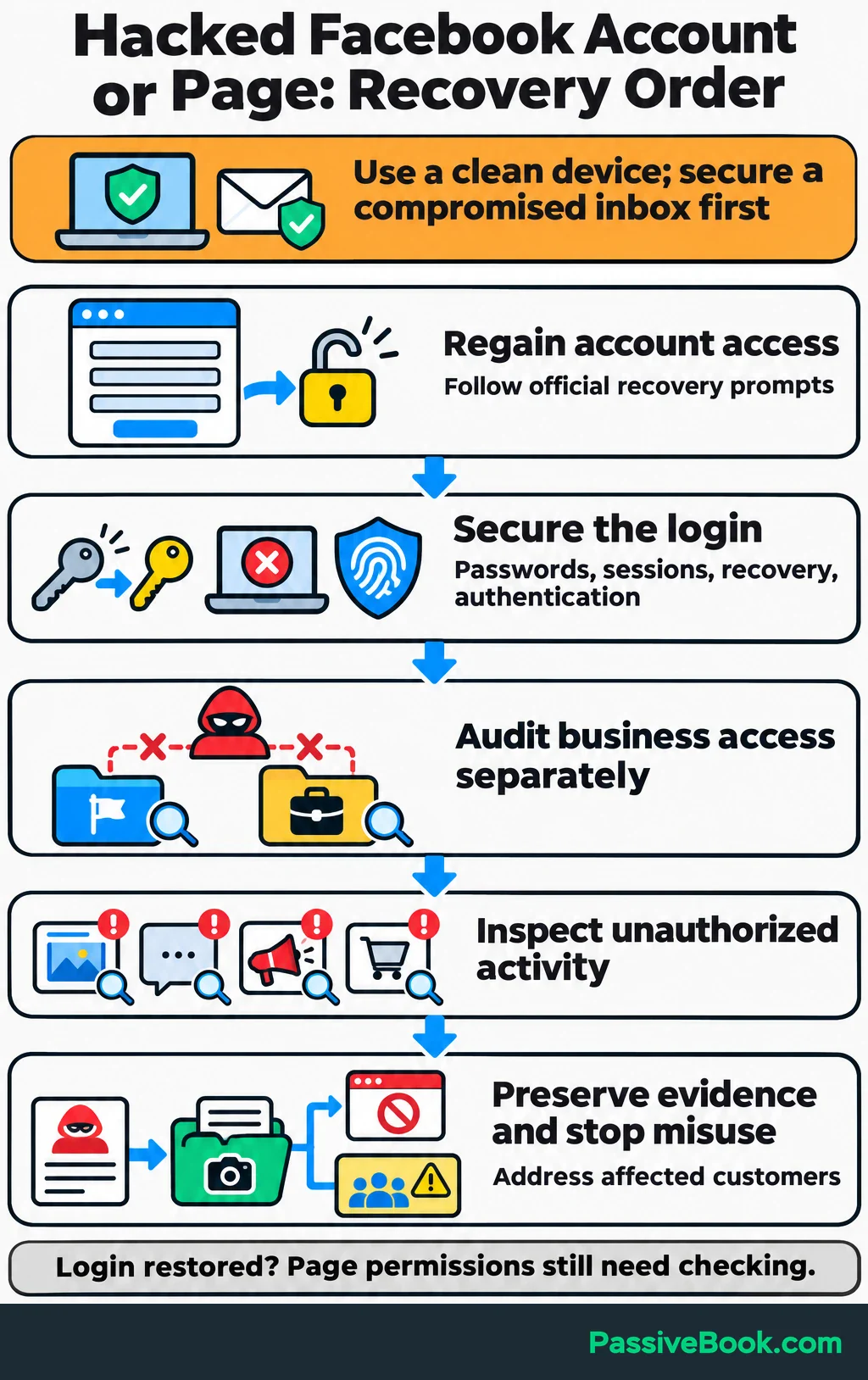
Restoring your personal login does not prove that your Page permissions are safe. Ask your trusted backup, if you have one, to inspect remaining access. If Page control was stolen, use Meta’s hacked-Page guidance.
Save screenshots, dates, asset identifiers, and suspicious transaction details. Stop unauthorized advertising as soon as you can and report suspicious charges through the official tools.
Preserve evidence before removing scam content. If the attacker contacted customers, notify affected people through a channel you control and explain which messages or requests were unauthorized.
For Watercolor Desk, that could mean warning customers that a message asking them to pay again was fraudulent. Keep the notice specific so people know what to ignore.
Use the recovery options Meta provides for your situation. Recovery, refunds, and response times are not guaranteed, and an unsolicited “recovery expert” should never receive your login details.
Request Review of a Policy Restriction
Open the restriction notice directly inside Facebook or Meta’s business tools. Identify the affected asset, the stated reason, the available review option, and any displayed deadline.
Then respond to that issue. Correct it where possible and submit relevant evidence through the official process. A clear explanation of the disputed post or activity is more useful than a long account of how much work went into the Page.
If unauthorized activity caused the violation, include the compromise details and the recovery steps you took. Keep copies of the notice, evidence, and submission confirmation.
Follow the decision’s instructions. Don’t create replacement accounts or assets to evade enforcement. That can add another problem while the original one remains unresolved.
What Next?
Open your account’s security settings and confirm that two-factor authentication is active and your recovery codes are reachable without your phone.
Use the social buttons to share this guide when you next review access with a collaborator, so everyone works from the same safeguards.
Which part of your setup would be hardest to recover if you lost your phone? Tell me in the comments, and bring any other questions about protecting your Page.
Share this post with your friends & followers:

