Adding a product should give shoppers another reason to visit your store. But a catalog update can also leave it without a category link, create duplicate pages or remove an address that still brings buyers.
These problems are easy to miss because the storefront can look perfectly normal. You can place an order while Google struggles to find the page.
That gap can leave useful products out of shoppers’ reach. This guide covers product-page improvements, category links and URL decisions that help shoppers find the right items as products are added, updated or removed.
Map Search Intent to Product and Category Pages
Start by deciding which page should answer each shopping need. Ecommerce catalog SEO becomes much easier when you have a clear destination for a search, rather than several pages competing to do the same job.
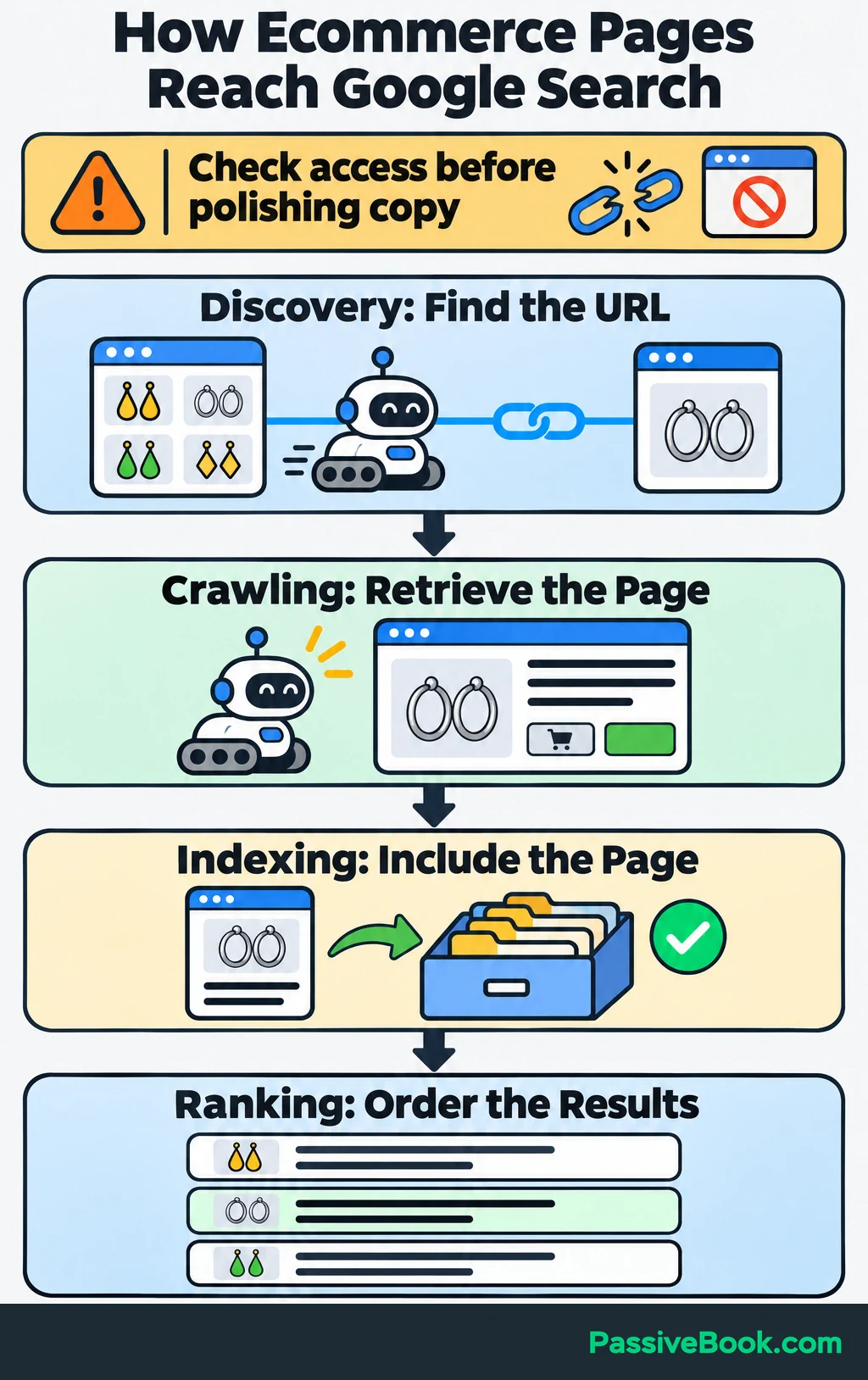
Keep four stages in mind:
- Discovery: Google finds a URL.
- Crawling: Google retrieves the page’s content.
- Indexing: Google includes the page in its search index.
- Ranking: Google decides where the page appears for a search.
A better description won’t solve a missing discovery path or an accidental indexing block. Check those before spending an afternoon polishing adjectives.
Build a catalog inventory from three sources: your product export, your sitemap (a file listing URLs for search engines) and a site crawl. A crawler follows links and records the pages it finds. Comparing its results with your product export can reveal active products that have no internal links.
Use a spreadsheet with columns for URL, page type, product identifier, category, variant relationship, search intent, stock status, intended indexability and next action. “Intended indexability” simply records whether you want that URL eligible to appear in search.
Then match searches to the right destination:
| Shopping need | Page to improve | What the page needs to provide |
|---|---|---|
| Browse a type of product | Category | A useful selection and help comparing options |
| Find a named product | Product page | Exact specifications, images, price and availability |
| Choose an option within a product | Product page or useful variant page | Clear differences and the correct purchasing choice |
Check customer questions, searches within your store, Google Search Console queries and current search results. Search Console shows how your site appears in Google Search. Existing queries reveal some demand you already reach; current results help you judge whether shoppers expect a collection or an individual product.
For the examples throughout this guide, imagine you sell sterling-silver earrings. Your categories include hoops and studs, and your Everyday Hoops come in 15 mm and 20 mm diameters. These product details are illustrative.
“Silver hoop earrings” belongs to the hoop category. “Everyday sterling silver hoops” belongs to the product page. Similar phrases can share a page; another wording doesn’t automatically deserve another destination.
My jewellery store failed because I skipped market research and bought inventory people didn’t want. That wasn’t an SEO problem. It’s why I would check demand before building a catalog around names and distinctions that only make sense to the owner.
Prioritize commercially important pages with relevant demand and reliable inventory. Also look for shared problems: fixing a category template can help more products than rewriting one low-priority description.
Before substantial changes, export Search Console performance for your priority URLs and record when you implement each change. You’ll need that baseline later.
Build Categories and Links That Expose Your Products
Organize Categories Around Shopping Decisions
Use categories that match how people choose products. Start with familiar product types, then add distinctions that make browsing easier.
For the earrings store, hoops and studs make sense as categories. Diameter can remain a filter unless a particular size deserves a useful browsing page of its own.
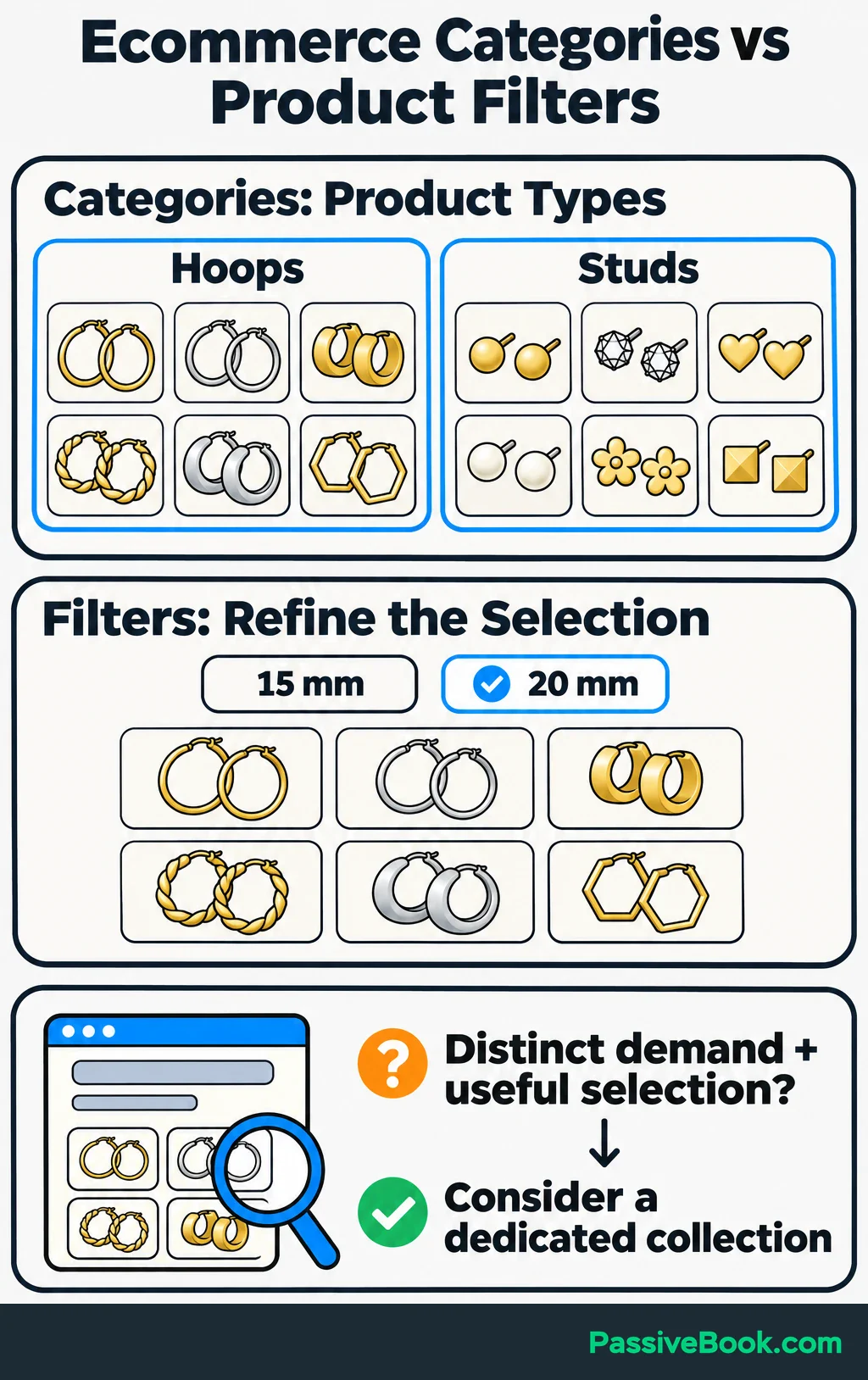
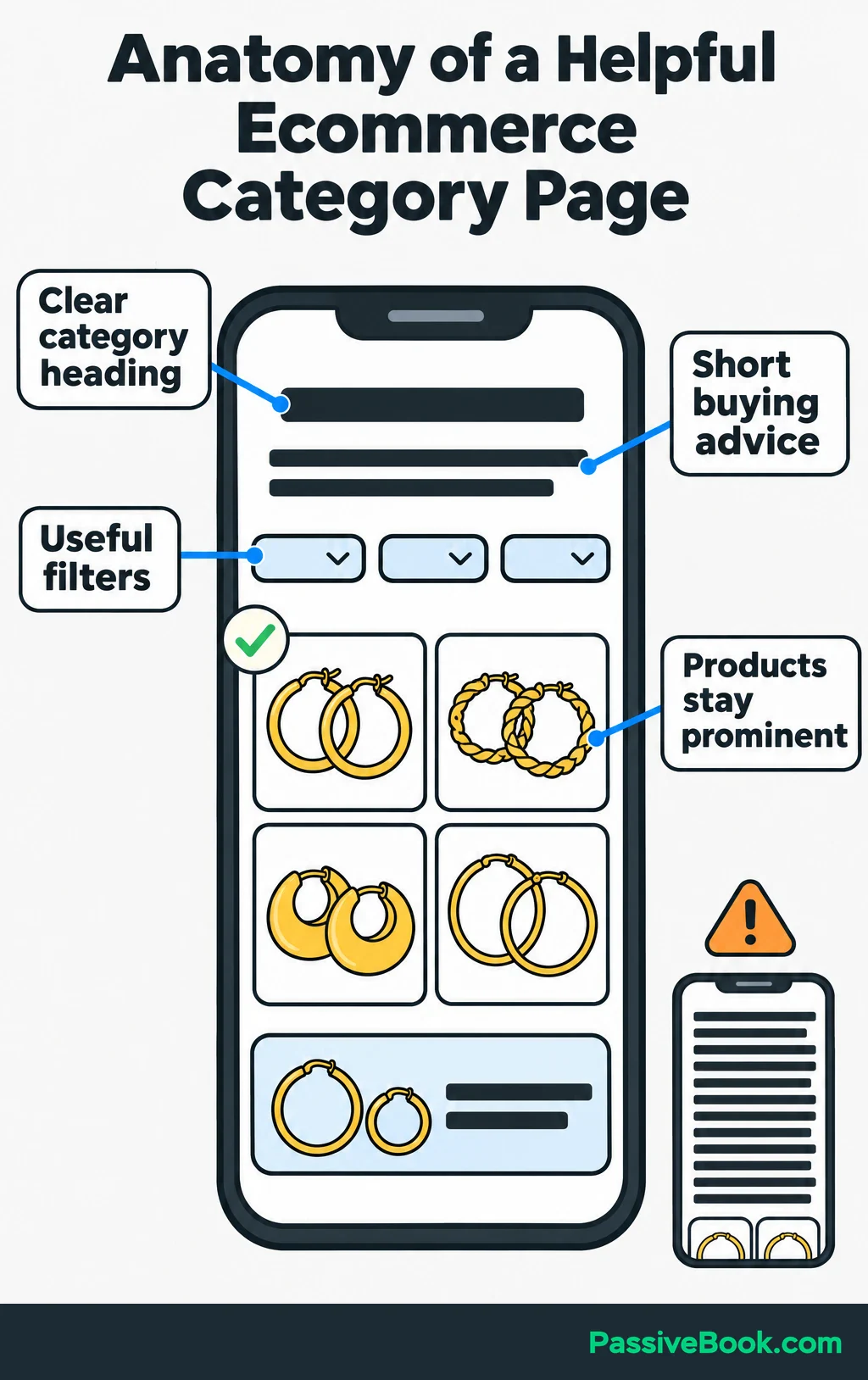
Each category needs:
- A descriptive title tag and main heading.
- A relevant, easy-to-scan product selection.
- Short advice that helps shoppers compare the products.
- Filters that match real buying decisions.
Keep the product grid prominent. Someone comparing earrings shouldn’t have to scroll through an essay before seeing an earring.
Improve an existing category before adding a near-identical one. I would add a subcategory only when it makes a growing selection easier to browse or serves a distinct shopping need.
Keep product URLs stable when category assignments change. You can place Everyday Hoops in both “Hoop Earrings” and a seasonal collection without giving the product a new address each time.
Connect Navigation, Categories and Products
Give shoppers a clear route from your navigation to categories and then to products.
For the example, that route might be:
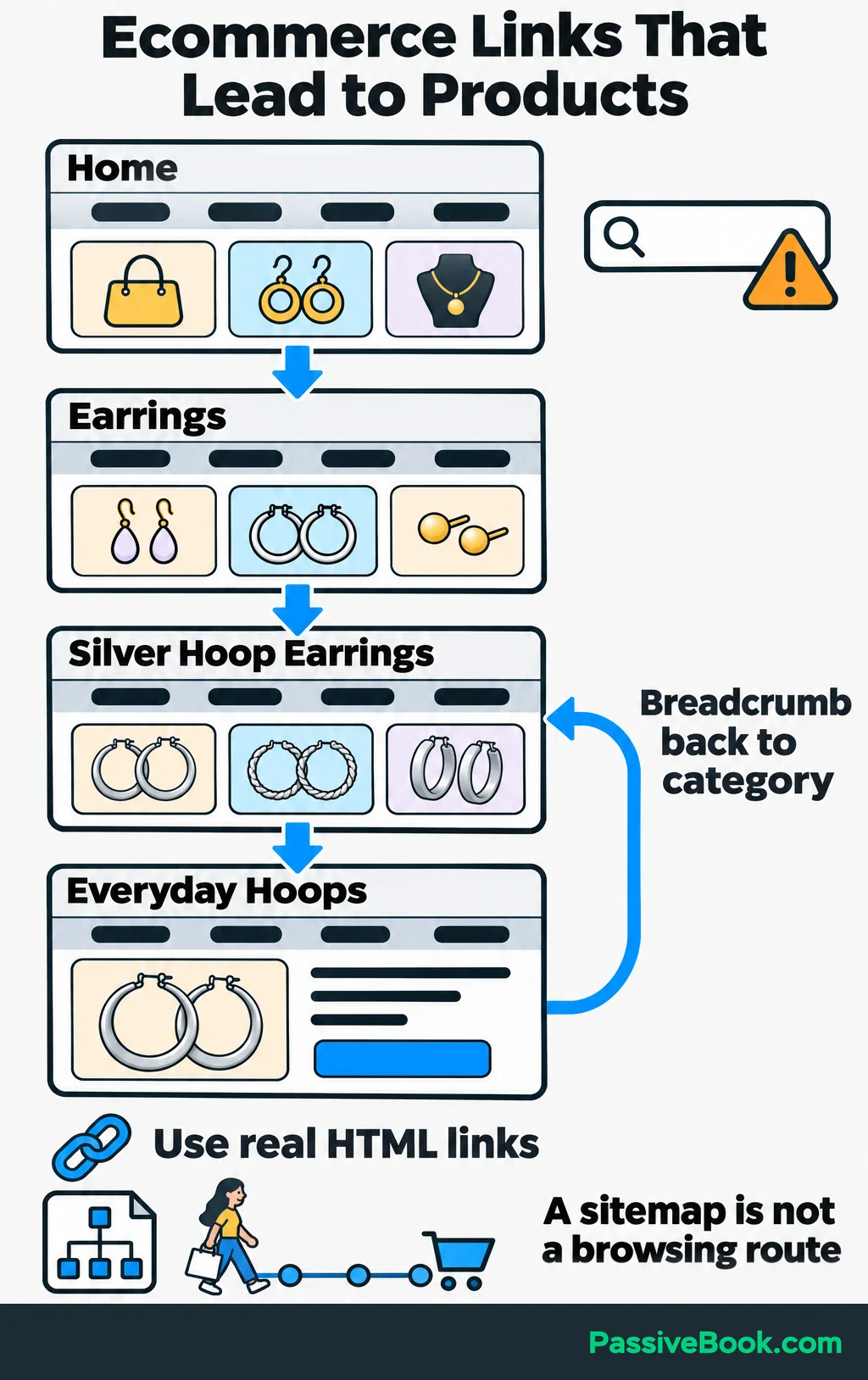
Home → Earrings → Silver Hoop Earrings → Everyday Hoops
Use ordinary HTML links with real destinations, such as <a href="/products/everyday-hoops/">. Google generally doesn’t search through a store’s search box to discover products, and it primarily understands site structure through links rather than URL folders. Google’s ecommerce navigation guidance explains both points.
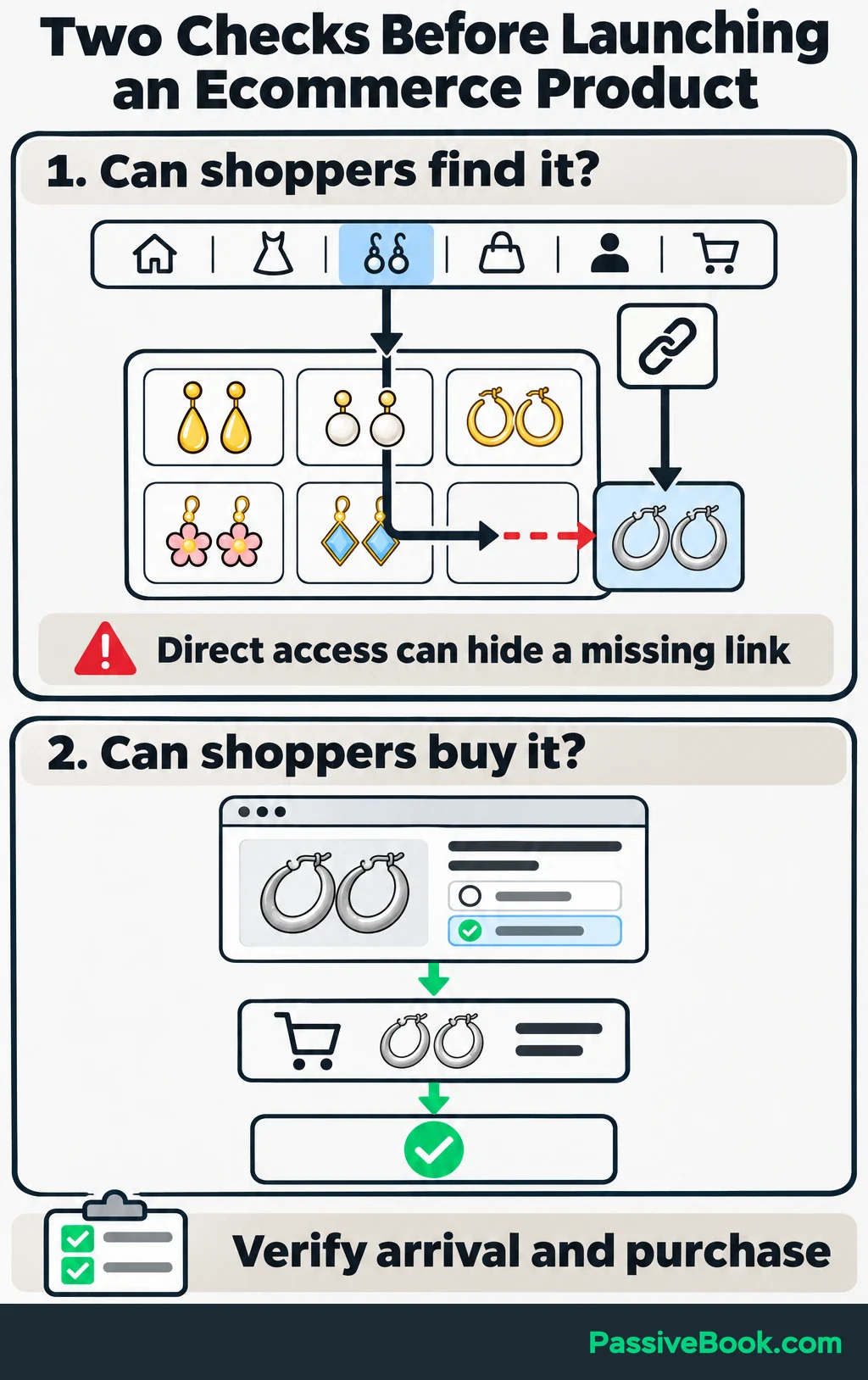
Add breadcrumbs so shoppers can move back to a useful category, and link to relevant alternatives where they help someone continue shopping.
On one of my digital-product sites, I added a bundle and checked that its checkout worked. Later, I tried reaching it from the main navigation and found that I needed the direct link. I’d checked the purchase path after arrival and missed the path to arrival. Now I include both in a launch review.
For your catalog, every intended search destination should have a crawlable internal link. A sitemap can support discovery, but it doesn’t give shoppers a browsing route.
Make Products Beyond the First Page Reachable
Check what happens after the first screen of category products.
A “load more” button may work for shoppers, but Google’s crawlers generally don’t click buttons to reveal more items. Provide separate pagination URLs and crawlable links between them, even if the visible experience uses infinite scroll.
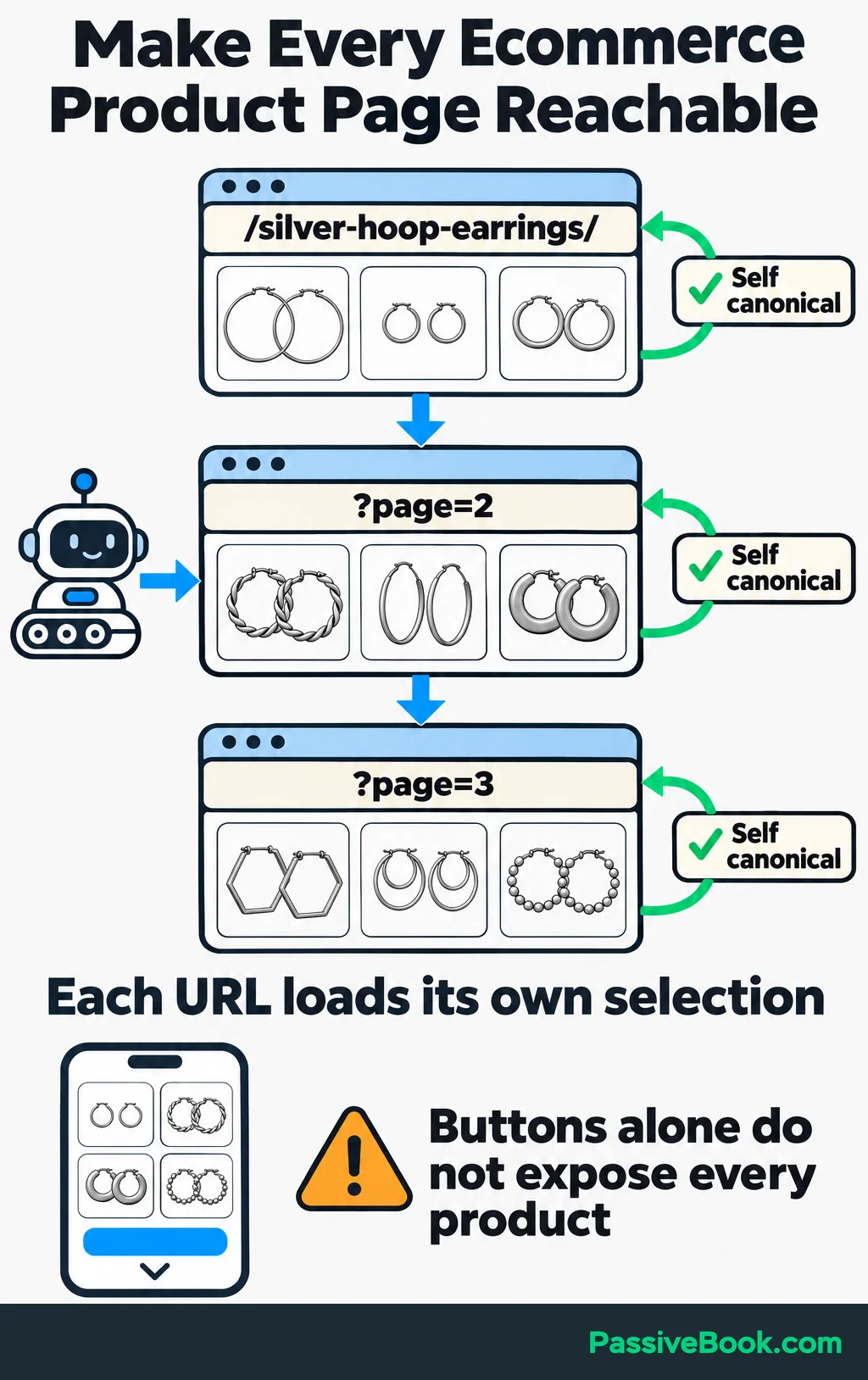
For example:
/silver-hoop-earrings//silver-hoop-earrings/?page=2/silver-hoop-earrings/?page=3
Each page should load its own product selection when opened directly.
Give each pagination page a canonical pointing to itself. A canonical identifies the preferred URL for a page; don’t point every page in the sequence to page one, because later pages expose different products. These are explicit recommendations in Google’s pagination guidance.
Choose Which Catalog URLs Should Appear in Search
Use the Right Crawl and Indexing Controls
Your store may generate far more URLs than it has products. Tracking links, variant selectors, filters and sorting options all contribute.
Three controls solve different problems:
- Canonical: Identifies your preferred URL among duplicate or very similar pages.
- Noindex: Tells supporting search engines to keep an accessible page out of search.
- Robots.txt: Restricts crawling of specified URL patterns.
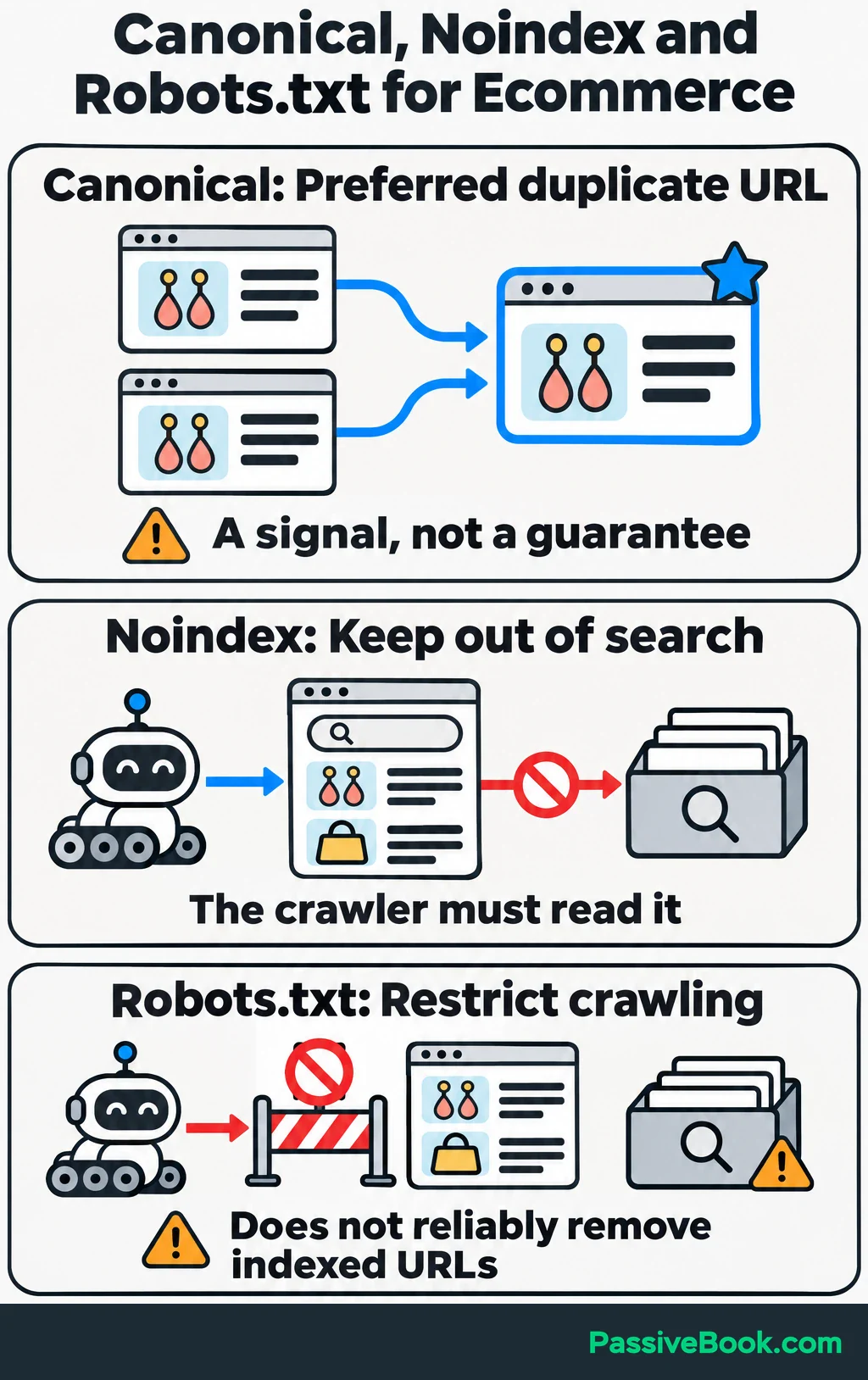
Use canonicalization when several addresses show substantially the same product. Point duplicate versions toward the preferred product URL, and use that preferred address in internal links and your sitemap. Google treats canonical annotations as signals, so keep the signals consistent. Google’s canonicalization guidance covers this distinction.
Use noindex for pages such as internal search results that should remain usable but stay out of search. Google must be able to crawl a page to read its noindex directive. Blocking it in robots.txt prevents that, and robots.txt alone doesn’t reliably remove an indexed URL. Google’s noindex documentation explains this requirement.
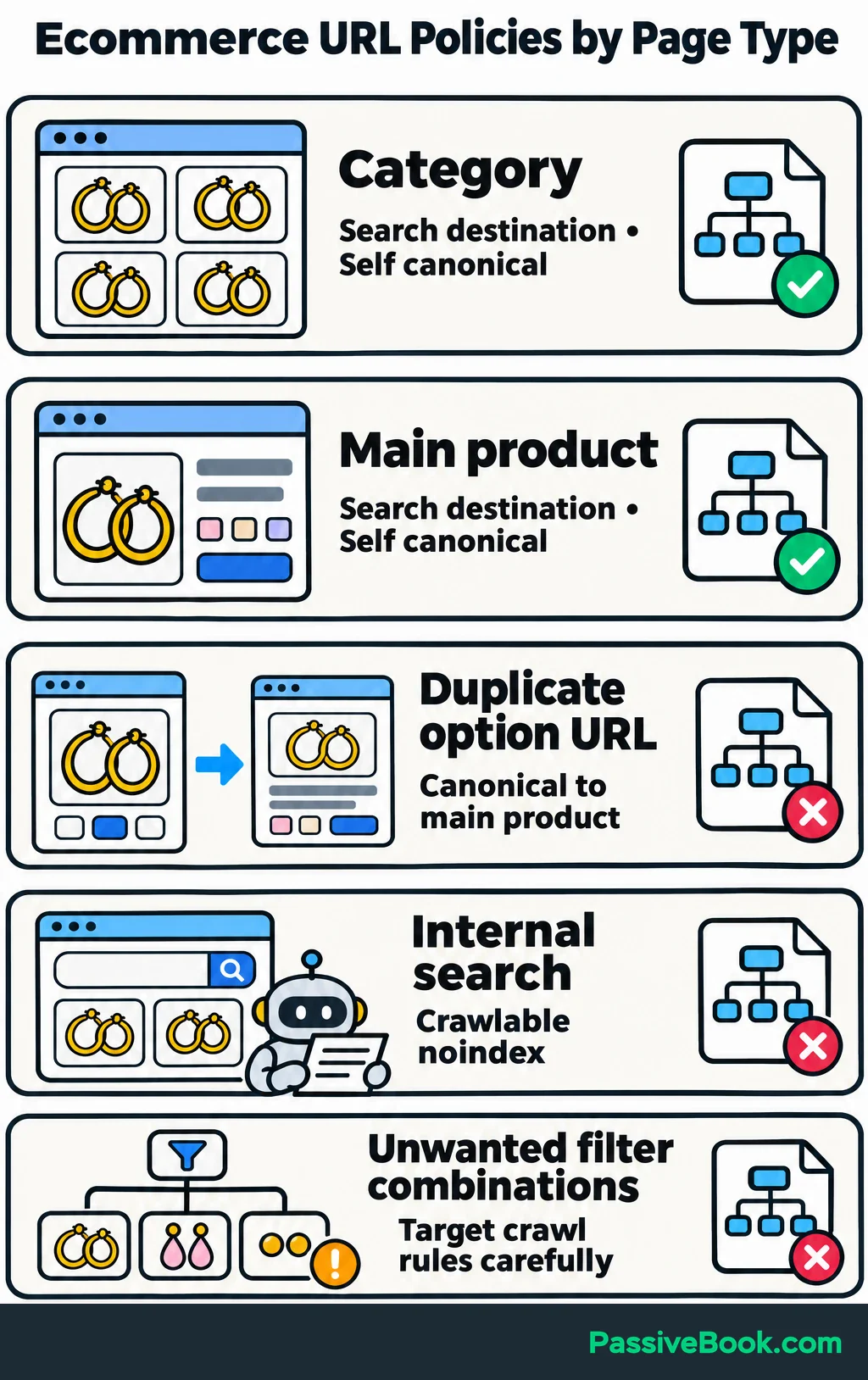
Record your choices before applying rules across the store:
| URL pattern | Intended search visibility | Canonical target | Crawl/indexing control | Sitemap inclusion |
|---|---|---|---|---|
/silver-hoop-earrings/ | Search destination for browsing hoops | Itself | Allow crawling; no noindex | Yes |
/products/everyday-hoops/ | Main product search destination | Itself | Allow crawling; no noindex | Yes |
/products/everyday-hoops/?size=20mm | Option selector within the same product | Base product URL | Allow crawling; consolidate duplicate content | No |
/search?q=hoops | Store search results only | No separate consolidation target | Crawlable noindex | No |
| Unwanted multi-filter combinations | No planned search destination | No blanket target for different selections | Targeted crawl restrictions; handle existing indexed URLs separately | No |
This table is a policy to implement and test. It prevents one plugin setting from quietly becoming your entire URL strategy.
Decide Whether Variants Need Separate Search Pages
Keep routine options together when one product page answers the buying need.
For Everyday Hoops, I would start with one product page and a diameter selector. Both options share the same design and material, and shoppers can compare them in one place.
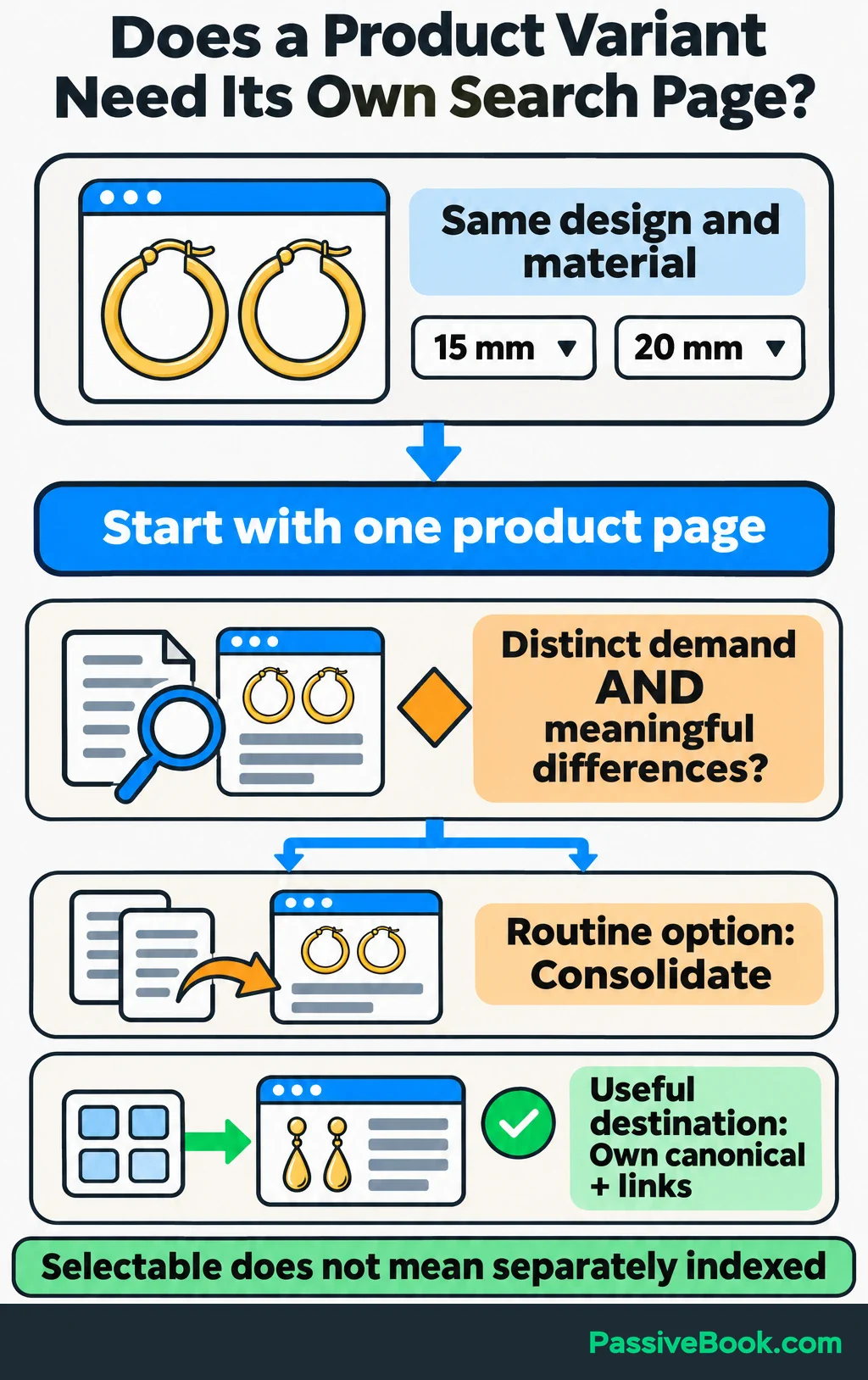
A URL such as ?size=20mm can open the larger option directly without needing its own search listing. Selecting an option and indexing a page are separate decisions.
Consider separate searchable pages when an option has distinct demand and enough meaningful differences to support its own images, information and internal links. Changing “15 mm” to “20 mm” in otherwise identical copy is a weak reason to create another destination.
Consolidate substantially duplicate option URLs around the main product page. If you create independently useful variant pages, give them their own canonical URLs and a deliberate place in your navigation.
Limit Filter and Sorting URLs
Filters help shoppers narrow a selection. They can also create an expanding set of URLs as people combine size, finish, price and sorting choices.
Make a filtered selection searchable only when it deserves a maintained landing page. It needs a stable address, useful products, relevant information and internal links.
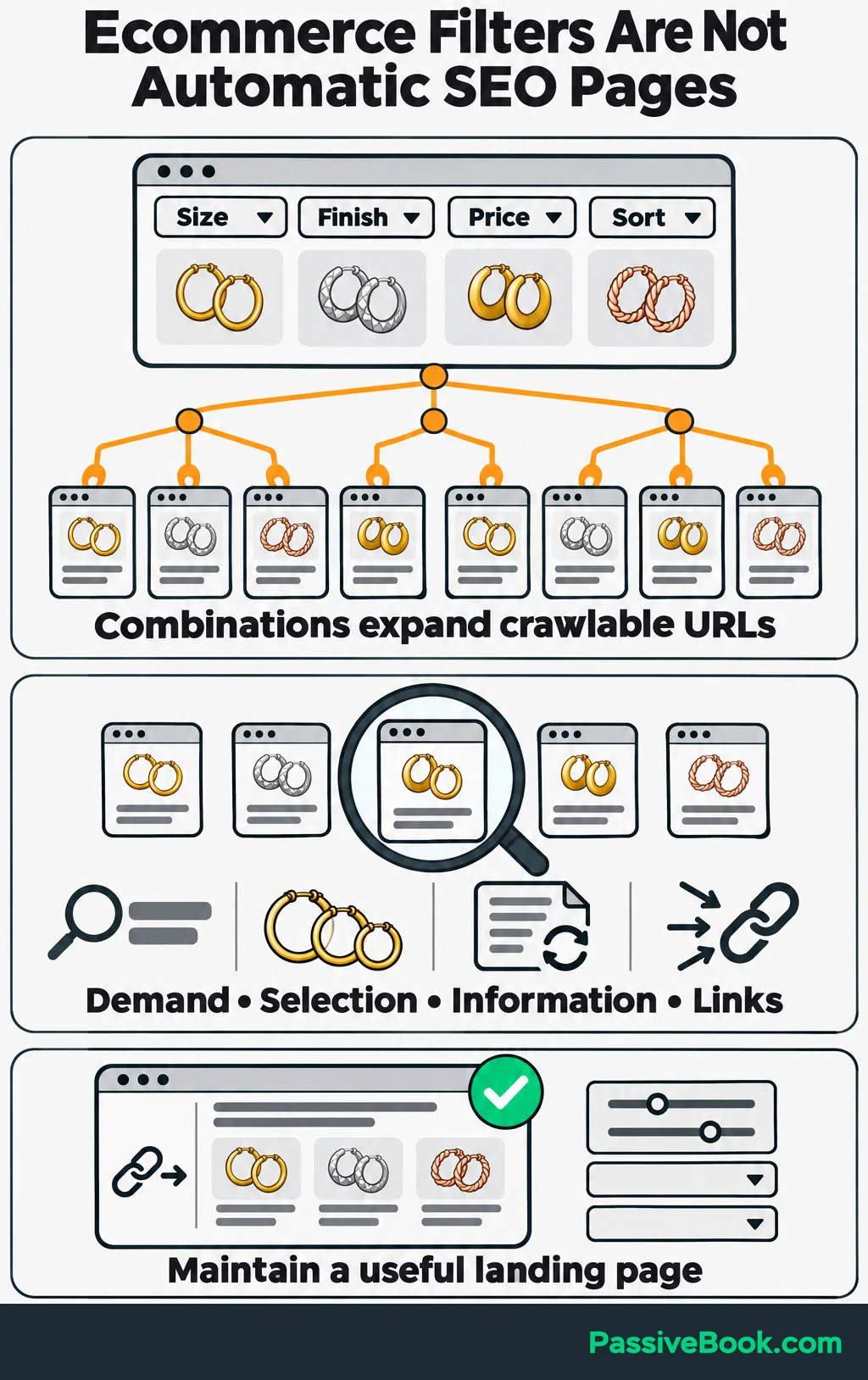
For example, a dedicated small-hoops collection might earn a place if you confirm demand and consistently stock a worthwhile selection. Every possible combination of diameter and price does not.
For unwanted filter patterns, use targeted crawl rules while preserving access to products, pagination and valuable landing pages. Canonicals alone are less effective at controlling this crawl expansion. Google’s faceted-navigation guidance recommends preventing unnecessary crawling and returning 404 responses for nonsensical combinations and nonexistent pagination pages.
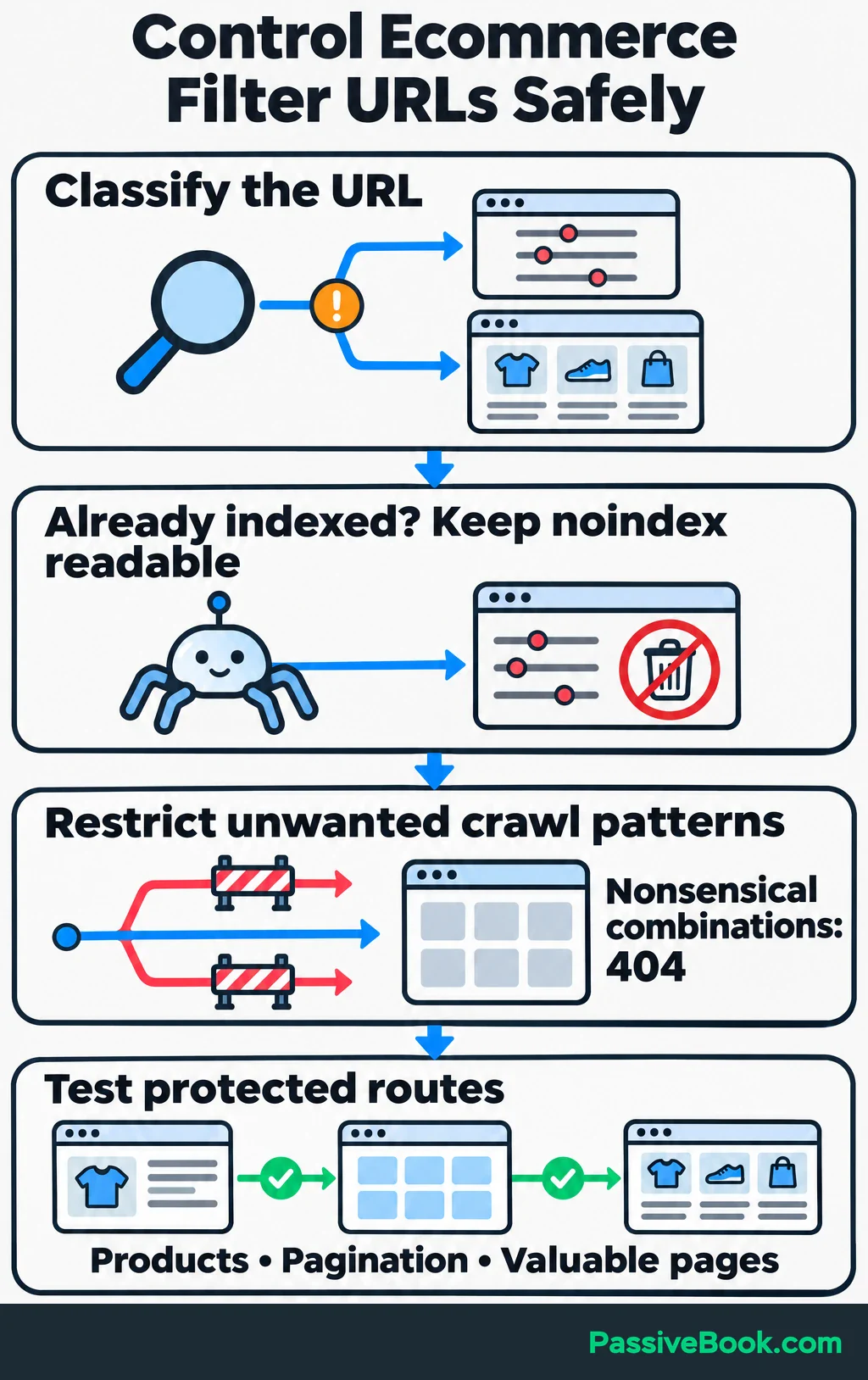
For unwanted URLs already in search, use noindex and keep them crawlable so Google can read the directive.
I would test filter rules on representative URLs before releasing them. A broad rule that also blocks your product options creates a bigger problem than the one you were fixing.
Check That Priority Pages Match Your Policy
Inspect representative URLs in Google Search Console: a category, a product, an option selector, a filtered page and a later pagination page.
Check two things separately:
- Indexed information: What Google last processed, including its selected canonical.
- Live accessibility: Whether Google can currently retrieve and render the page.
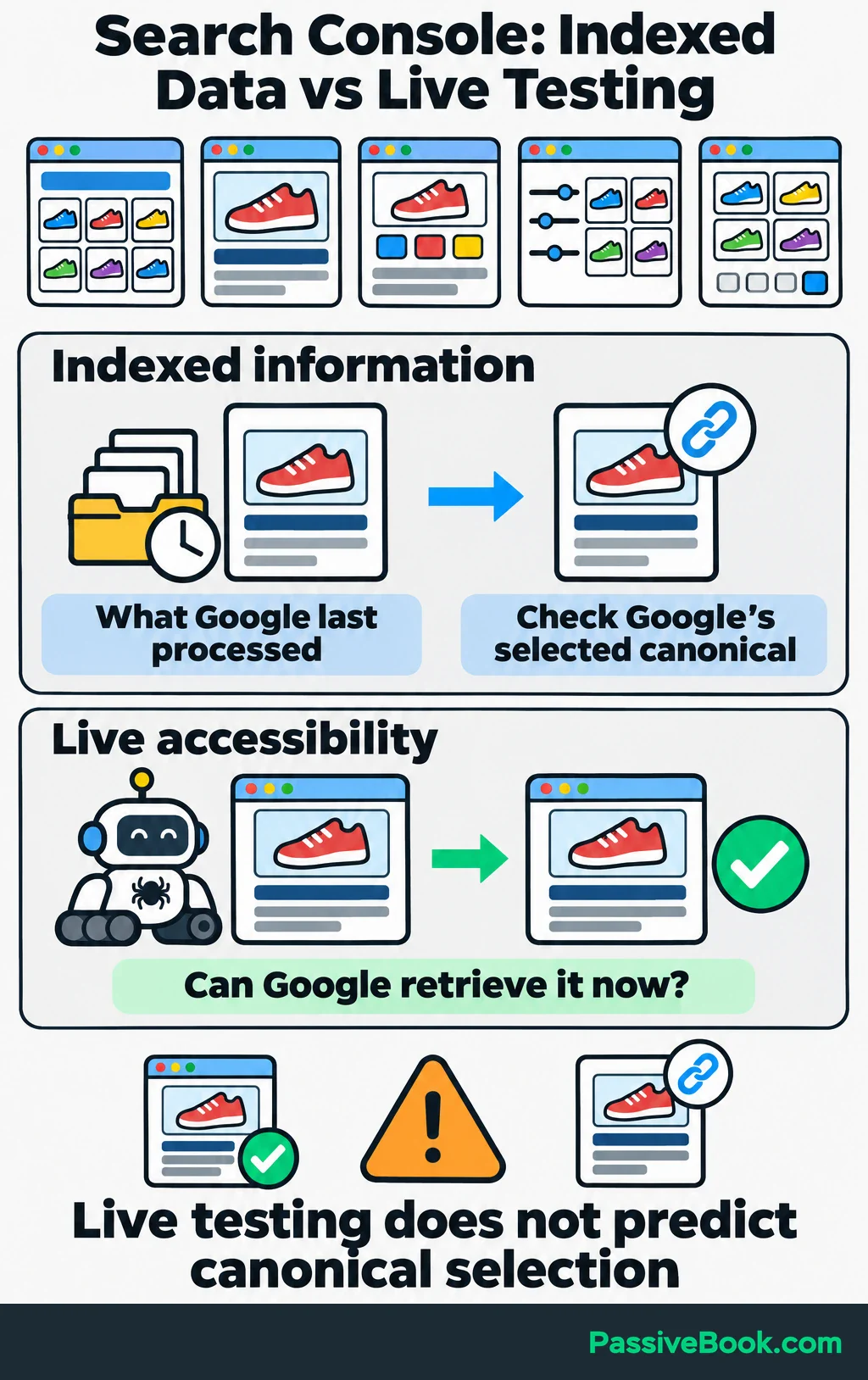
The live test doesn’t tell you which canonical Google will ultimately select. Use the indexed information for that comparison.
Fix server errors, broken links, accidental crawl blocks, unintended noindex directives and wrong canonical targets before expanding content work.
Then clean up the sitemap. Include preferred, indexable URLs that return successful responses, and remove redirected, deleted and intentionally excluded addresses. Modification dates should reflect significant changes to content, structured data or links, rather than resetting whenever the sitemap runs. Google’s sitemap guidance explains these signals.
Optimize Product Pages for Search and Purchase
Make Titles and Descriptions Specific
Build titles from accurate identifying details: the product name, type, material and a useful distinguishing feature.
“Everyday” leaves too much work to the shopper. “Everyday Sterling Silver Hoop Earrings” explains what the page sells.
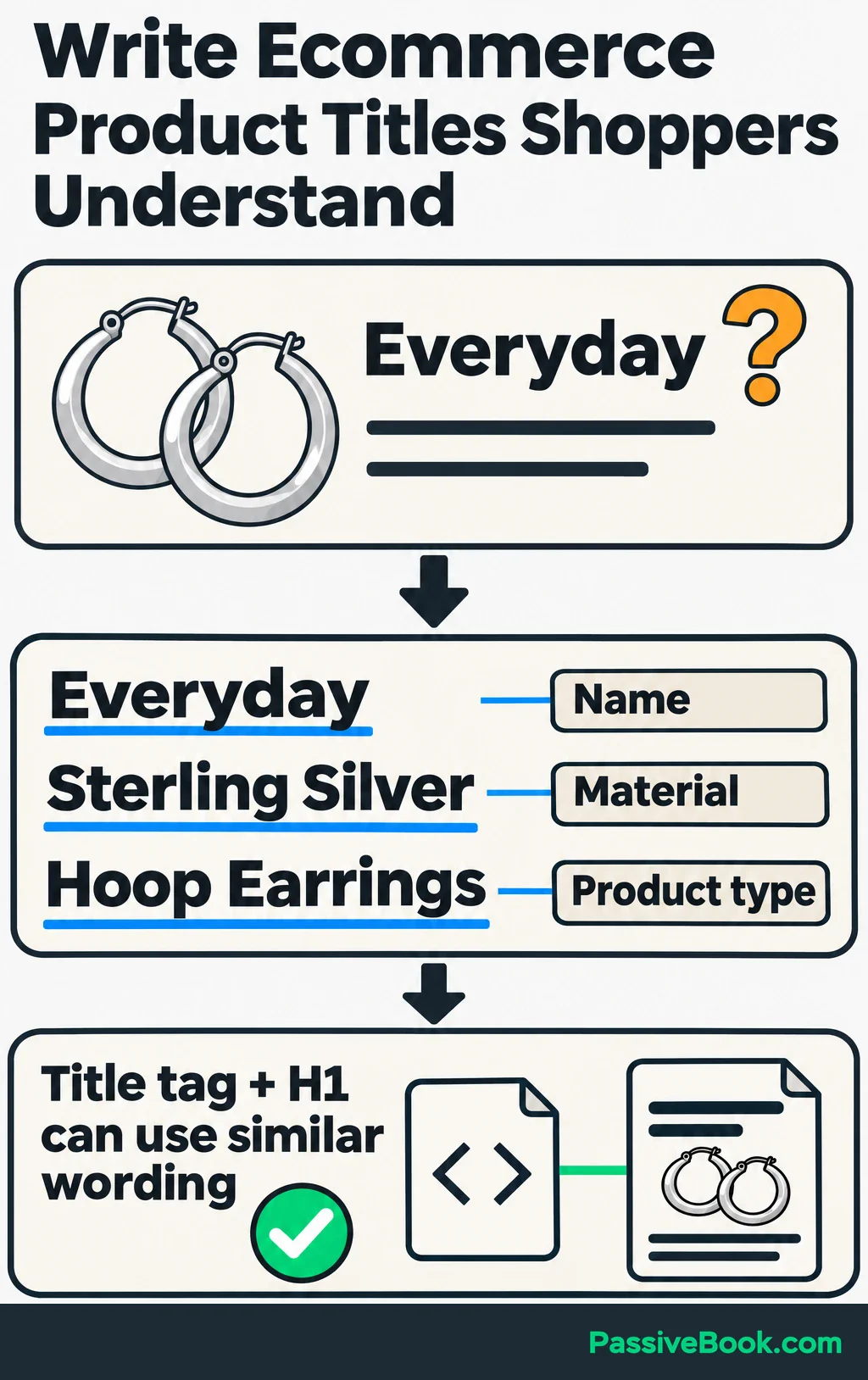
The title tag appears in the page’s HTML, while the H1 is its main visible heading. They can use similar wording. There’s no prize for making them awkwardly different.
Write a concise meta description that summarizes the product and gives someone a reason to inspect it. For the example:
Explore Everyday sterling silver hoop earrings with a hinged clasp. Compare 15 mm and 20 mm diameters, check availability and choose your size.
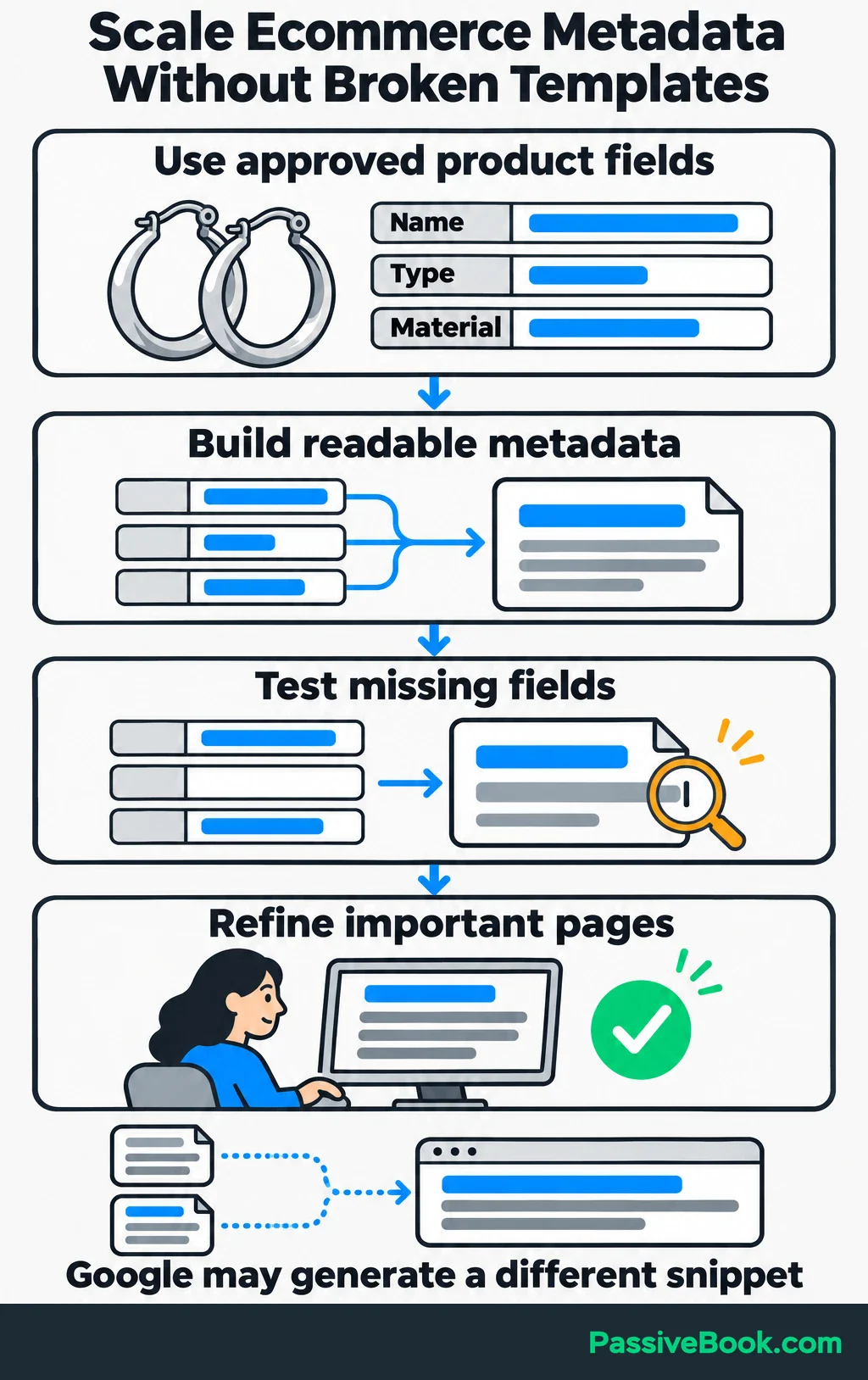
Use approved product fields to generate sensible titles and descriptions across the catalog, then refine important pages individually. Check what happens when a field is missing so your template doesn’t produce titles with empty separators.
Treat the description as useful source text, rather than a guaranteed search preview. Google can generate snippets from page content instead. Google’s snippet guidance also supports programmatically generated descriptions when they remain accurate and readable.
Answer the Questions That Block a Purchase
Explain what the product is and how its specifications affect the buyer’s choice.
For Everyday Hoops, shoppers need more than “beautiful earrings for every occasion.” They need the diameter, weight, material, clasp details, what comes in the order and how to care for it.
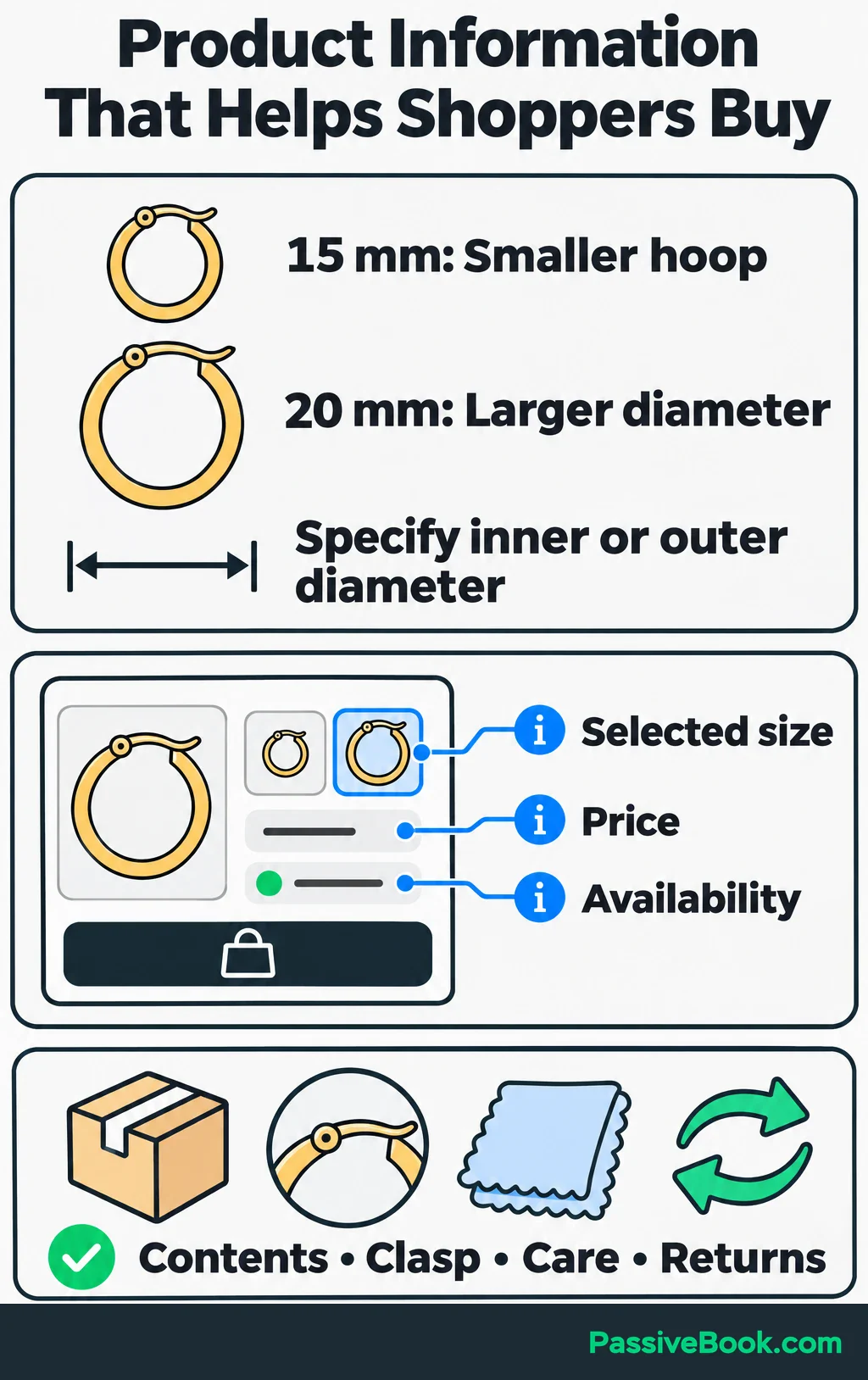
Place a short size comparison beside the selector:
Choose 15 mm for the smaller hoop or 20 mm for a larger diameter. See both sizes worn in the comparison photos.
Add measurements from approved product records, and label whether a diameter is the inner or outer measurement. That distinction can change what someone expects to receive.
Keep price, selected size and availability clear near the purchase button. Make shipping and return information easy to reach before checkout, including any product-specific restrictions.
Reuse factual specifications when needed. Useful product information matters more than making every sentence unique or reaching a word count.
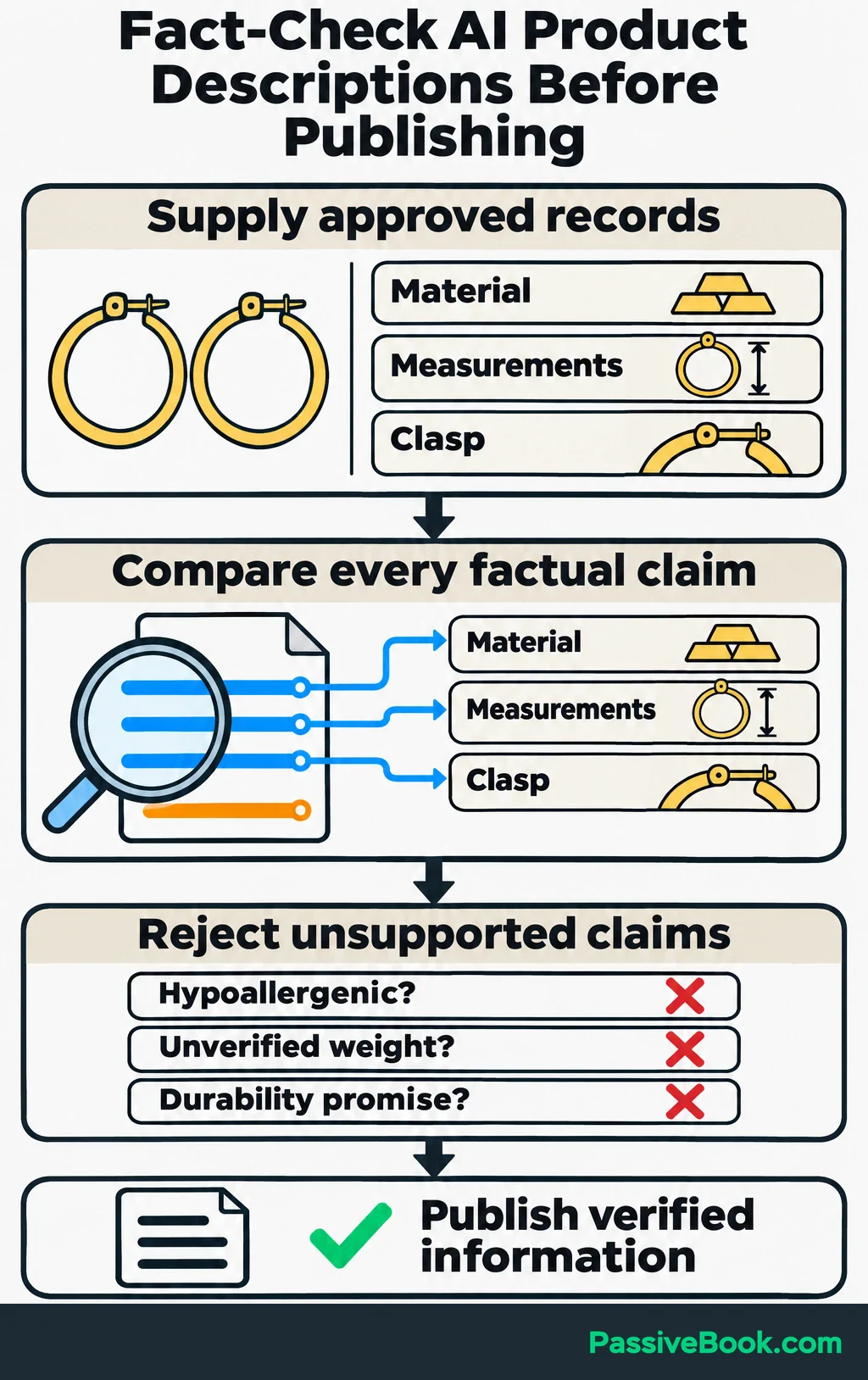
If you use AI to draft descriptions, supply approved records and check the result against them. I would reject a polished paragraph that invents “hypoallergenic,” a weight or a durability claim. Smooth wording doesn’t make a missing fact appear.
If your product facts are ready but the wording isn’t, the AI Ecommerce Copy Studio can draft the pieces one at a time. It also handles stockout notices and discontinued pages, so you can review each piece of copy.

Free AI Ecommerce Copy Studio




Improve Images and Mobile Usability
Show the product clearly, including details and scale.
For the hoops, include a front view, a clasp close-up and a size comparison. Compress images and serve suitable dimensions, but preserve enough detail for inspection.
Write alternative text that explains informative images, such as “Sterling silver hoop earrings showing the hinged clasp.” Purely decorative images can use empty alt text.
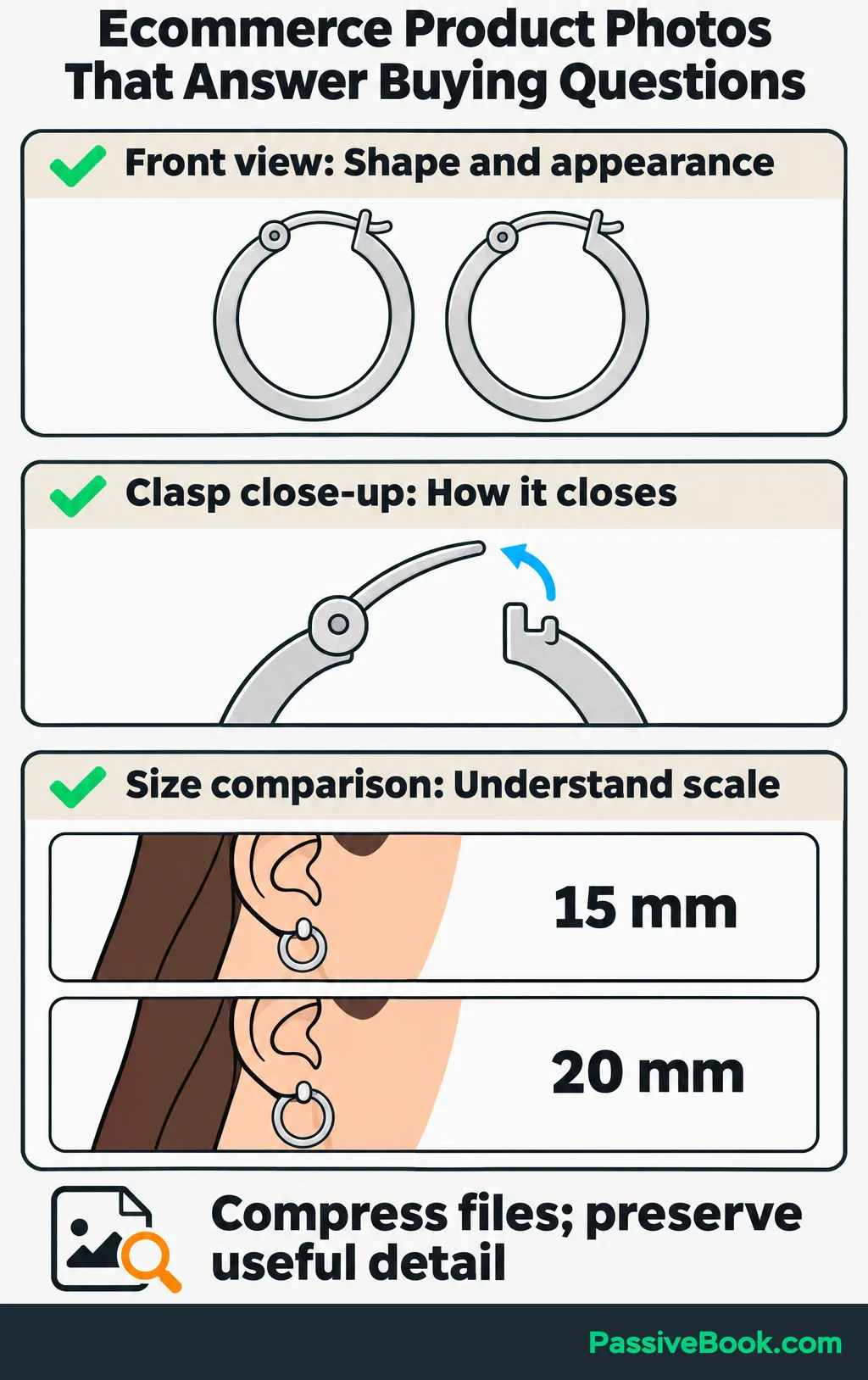
Load the main visible product image promptly and defer suitable images farther down the page. Don’t lazy-load the image responsible for Largest Contentful Paint, the measure of when the largest visible content appears. Doing so delays that content. Google’s LCP guidance explains why.
Test representative product and category pages on your phone. Try the tasks that matter:
- Select each size and confirm the image, price and stock status.
- Open and clear filters.
- Read shipping and return information.
- Add the chosen option to the cart.
- Check for buttons or content that move while loading.
Use PageSpeed Insights to investigate loading problems, but also complete the shopping task yourself. A report won’t tell you that your thumb keeps selecting the wrong diameter.
Add Structured Data That Matches the Product Page
Structured data gives search engines product information in a standard format. Your ecommerce platform or an integrated plugin may already generate it, so inspect the existing output before adding another tool.
For purchasable product pages, use Product to describe the item and an Offer entry inside it for the price and buying terms. Google’s merchant-listing requirements include the product name, image and offer information, including the active price and currency.
Add accurate availability and applicable identifiers from your records. Availability is recommended in the markup; it should still be part of your operating checklist because incorrect stock information misleads shoppers.
Genuine review and rating information can add detail, but it isn’t a substitute for required fields. Don’t add ratings that aren’t represented on the page. Google’s merchant-listing documentation separates required properties from recommended additions and makes clear that eligibility doesn’t guarantee display.
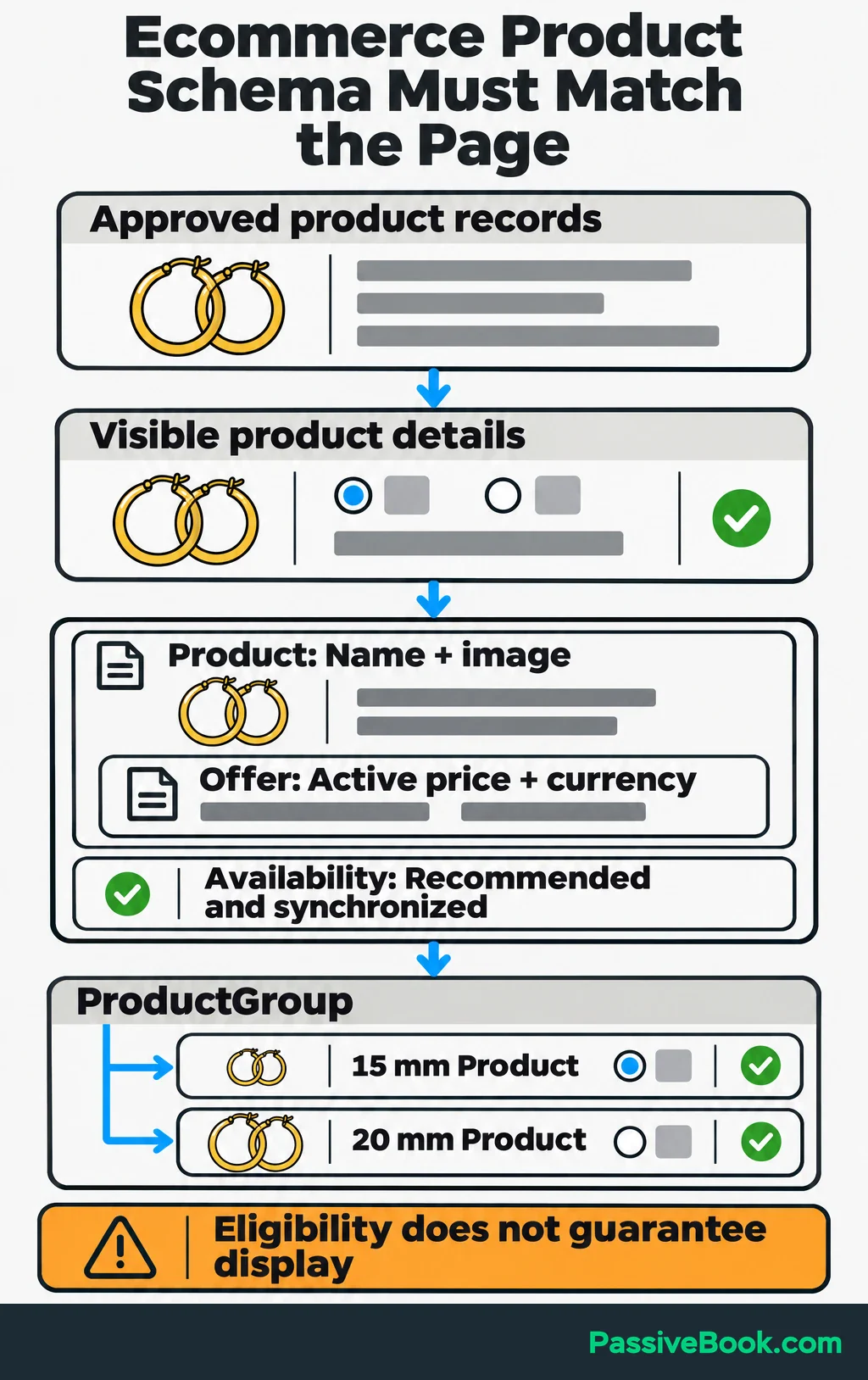
For variants, use ProductGroup to describe the shared product and variant-specific Product entries for its options.
Everyday Hoops could have a stable group identifier and separate identifiers for the 15 mm and 20 mm options. Each variant URL should preselect the correct option and show its matching image, price and availability. Google supports both single-page and multipage implementations, with different canonical arrangements. Google’s variant guidance describes those requirements.
Generate visible details and structured data from the same approved product records. Otherwise, a stock update can reach the purchase button while leaving yesterday’s availability in the markup.
Before releasing template changes, run representative pages through Google’s Rich Results Test, which checks structured data for errors that can prevent enhanced search results. Include a product with variants and one with an unavailable option. Resolve conflicting output from themes, apps or plugins instead of assuming more markup helps.
Protect Visibility When Products Change
Keep Temporary Stockouts Useful
Keep an expected-to-return product at its existing URL. Return a normal 200 success response and preserve its useful descriptions, specifications and images.
I would keep the page as an intended search destination, including its internal links and sitemap entry, while clearly showing what shoppers can currently buy. Google’s guidance for temporary sales interruptions recommends keeping product information online and updating availability rather than closing access. Google’s temporary-unavailability guidance supports this approach.
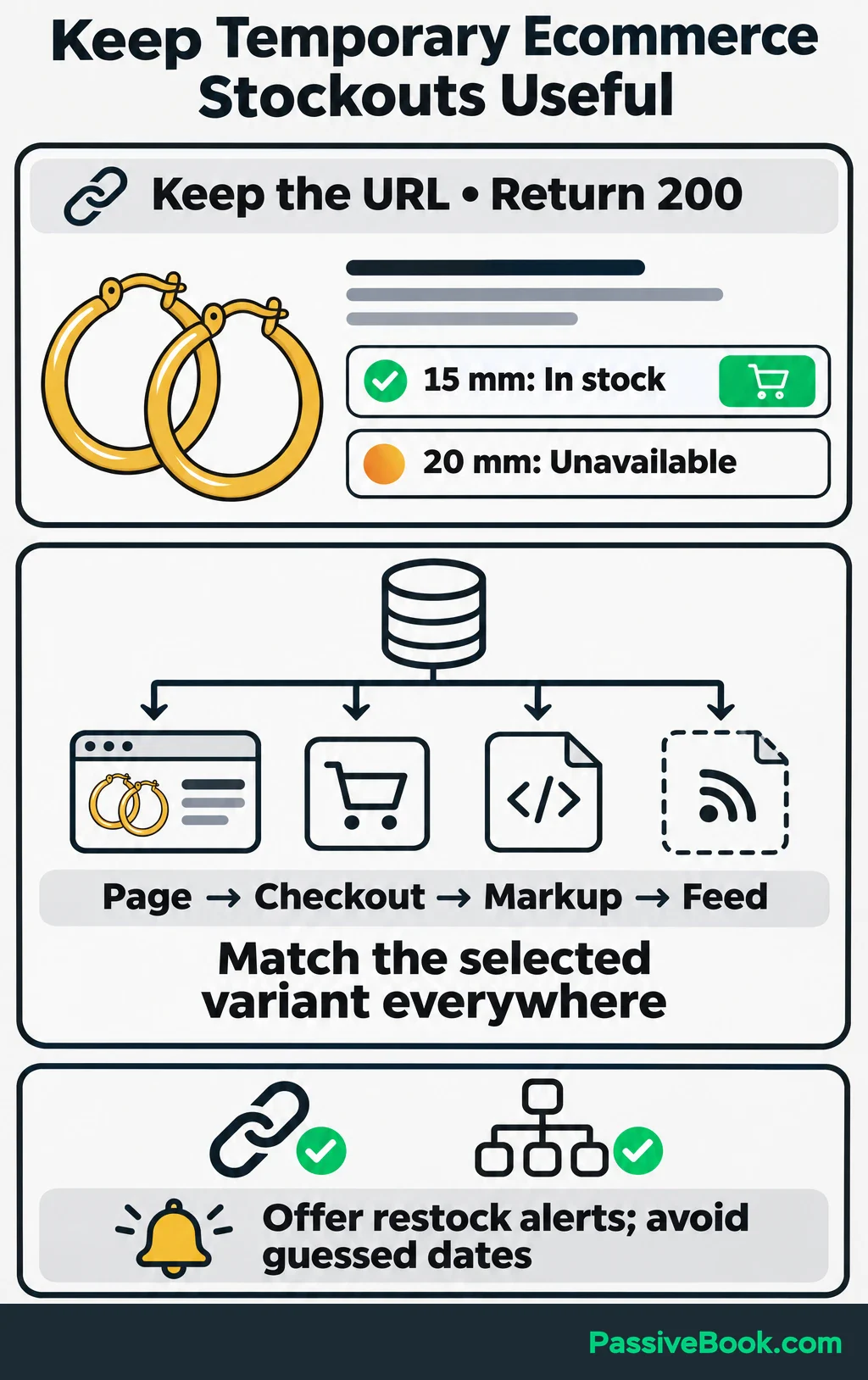
If the 20 mm Everyday Hoops sell out, mark that option unavailable and keep the 15 mm option selectable if it remains in stock. Don’t make the whole product disappear because one diameter is missing.
Update purchasing controls and structured data together. You can offer a restock notification, but give a return date only when you have a reliable one.
If you submit products to Google Merchant Center, which manages product data for Google shopping destinations, the selected variant’s availability must agree across the submitted data, landing page and checkout. Merchant Center’s availability requirements apply at the variant level.
Choose Whether to Keep, Redirect or Remove Discontinued Pages
A discontinued product needs a decision based on what remains useful.
| Situation | Action | What the shopper should find |
|---|---|---|
| The page still answers useful product or care questions | Keep a useful reference page | A clear discontinued notice, original information and suitable alternatives |
| A close replacement satisfies the original need | Use a permanent redirect | The relevant replacement product |
| No useful page or suitable replacement remains | Return 404 or 410 | A helpful unavailable-page message with navigation |
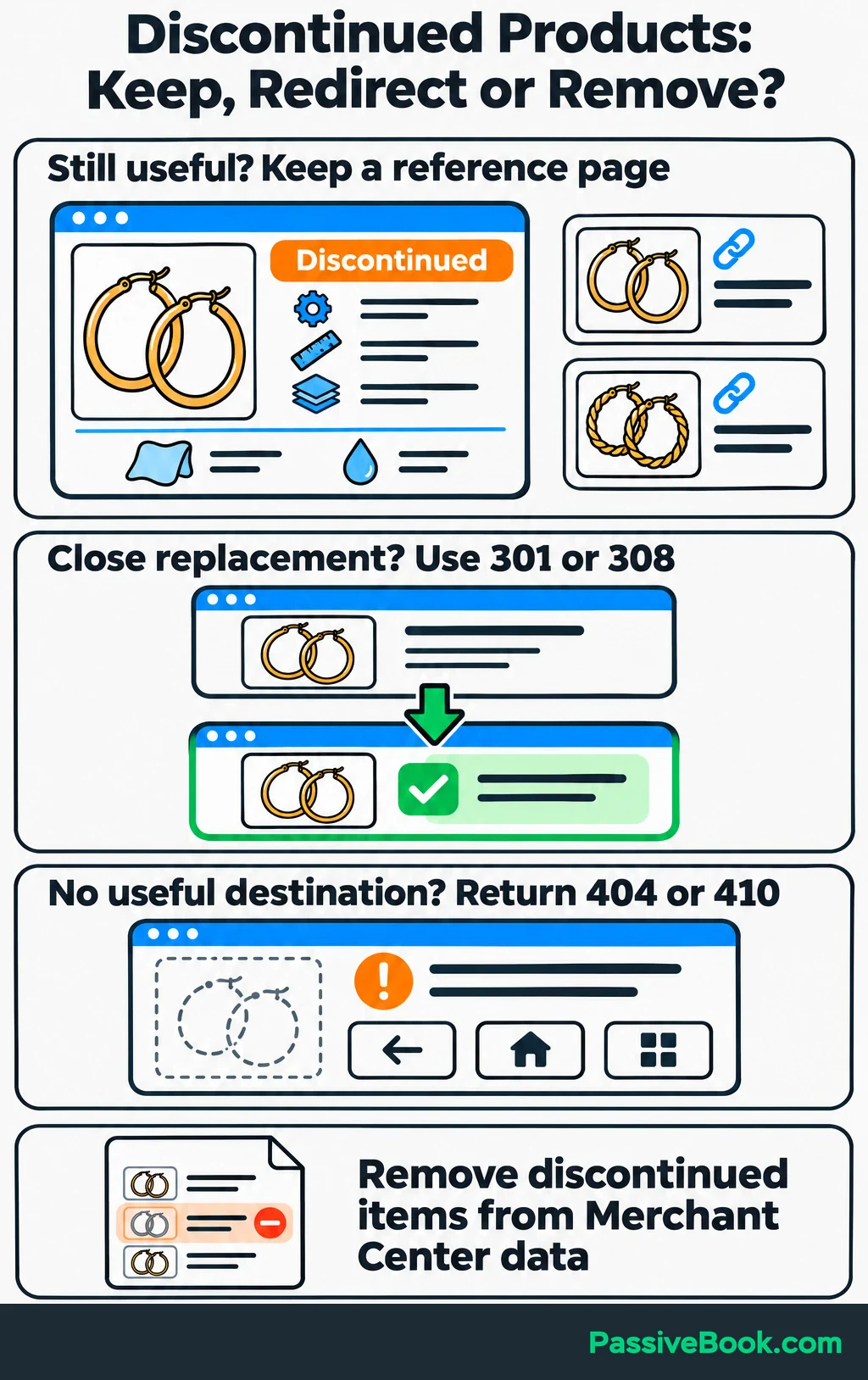
For a discontinued hoop design, keep its page if people still need its specifications or care information. Remove purchasing controls that suggest it remains available.
Use a 301 or 308 redirect when a close replacement serves the same need. Avoid sending every discontinued design to the home page. Google warns that irrelevant bulk redirects can be treated as soft 404s, meaning the destination is handled like a missing page despite the redirect. Google’s URL-change guidance explains this risk.
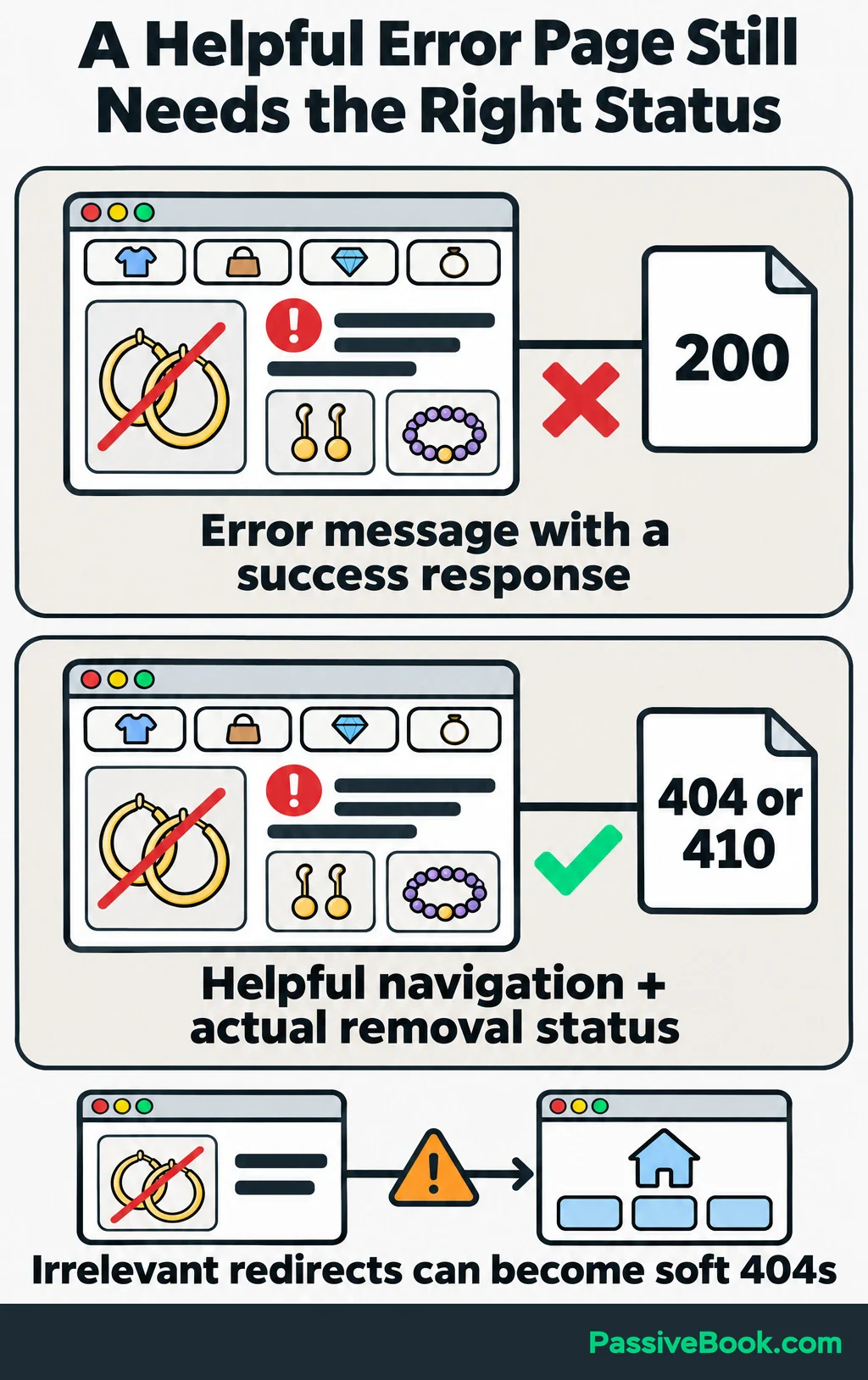
When removing a page, return an actual 404 or 410 response rather than an error message with a 200 success code. Remove obsolete internal links and sitemap entries, and keep useful navigation on the error page.
For Merchant Center, permanently discontinued products should be removed from the submitted product data, even if you retain an informational webpage. That is a separate decision from keeping the URL useful.
Preserve Working URLs During Catalog Edits
Keep existing URLs when you change product names, prices or category assignments.
Renaming Everyday Hoops doesn’t require changing /products/everyday-hoops/. A working URL can stay put while the page’s title and product details improve.
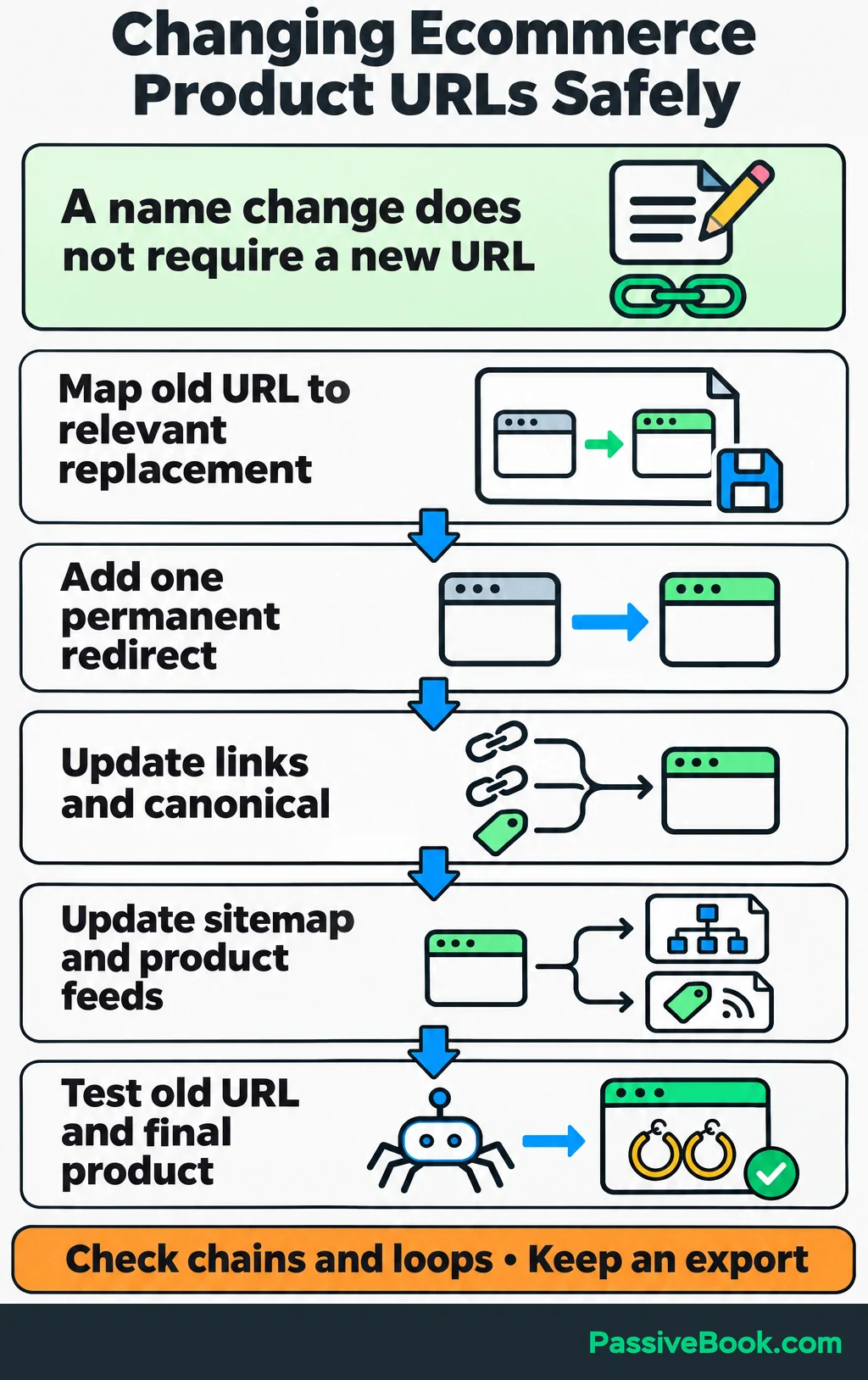
When an address must change:
- Map the old URL to its relevant replacement.
- Add a direct permanent redirect to the final destination.
- Update internal links and the replacement’s canonical.
- Update the sitemap and applicable product feeds.
- Test the old address and the final page.
Check that the redirect doesn’t form a chain or loop, and confirm the destination loads the intended product. For bulk changes, keep an export of the old URLs and settings so you can recover from a bad mapping.
Make Catalog SEO a Repeatable Workflow
Turn these decisions into checks attached to catalog events. That gives you a practical maintenance system without requiring a daily manual audit.
| Triggering change | Required check |
|---|---|
| Product addition | Approved data, suitable category, stable URL, useful content, internal links, deliberate indexing decision and valid page output |
| Specification edit | Visible copy, comparison information and structured data reflect the approved change |
| Price change | Product page, selected variant, cart, markup and applicable feed agree |
| Stock change | Availability and purchasing controls update together |
| Discontinuation | Someone chooses to retain, redirect or remove the page |
| URL change | Redirect, internal links, canonical, sitemap and feeds point to the correct destination |
Start with platform features and shared templates. If your store runs on WordPress, I would check what WooCommerce and Rank Math already produce before adding another SEO plugin.
Automate checks for missing fields, broken links, unexpected noindex directives, incorrect canonical targets and stock mismatches. Make or n8n can connect catalog exports, checks and a review sheet when your existing tools don’t cover the workflow.
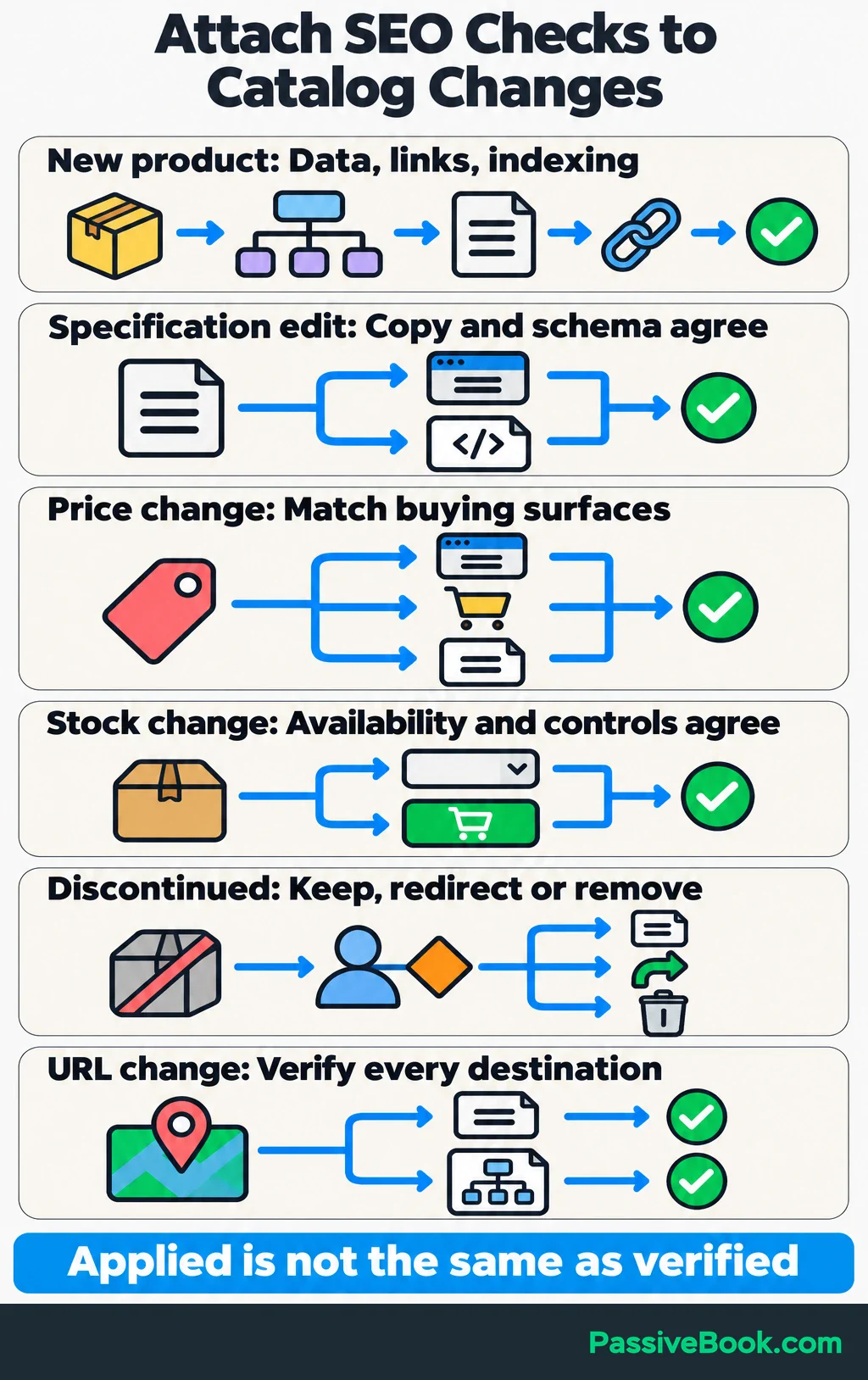
Send exceptions for review instead of sending a successful-run notification every morning. An alert that the 20 mm option says “in stock” in one place and “out of stock” in another deserves attention. “The automation ran” usually doesn’t.
Keep judgment in the decisions that change search destinations. I wouldn’t let a text-matching rule assign replacement redirects or create new category pages without review.
Track each issue in a sheet with the affected URL, triggering change, detected issue, action, owner and verification status. Even if you’re the only owner, record whether a fix is merely applied or actually checked.
Review immediately after major imports and template releases. For recurring checks, I would start weekly and adjust to catalog activity. A store changing stock every day needs faster exception checks than one adding a product each month.
Measure Results and Choose the Next Fix
Compare results with the baseline you saved before making changes. Separate category pages from product pages so one growing collection doesn’t hide a problem elsewhere.
In Search Console, track impressions, clicks, relevant queries, click-through rate and average position for those groups. Click-through rate shows the share of search impressions that produced clicks. Google’s search-performance documentation explains how these measures are counted.
Also watch unexpected exclusions among your intended search destinations. You don’t need every generated filter URL indexed. You do need to investigate when a priority category or product page drops out.
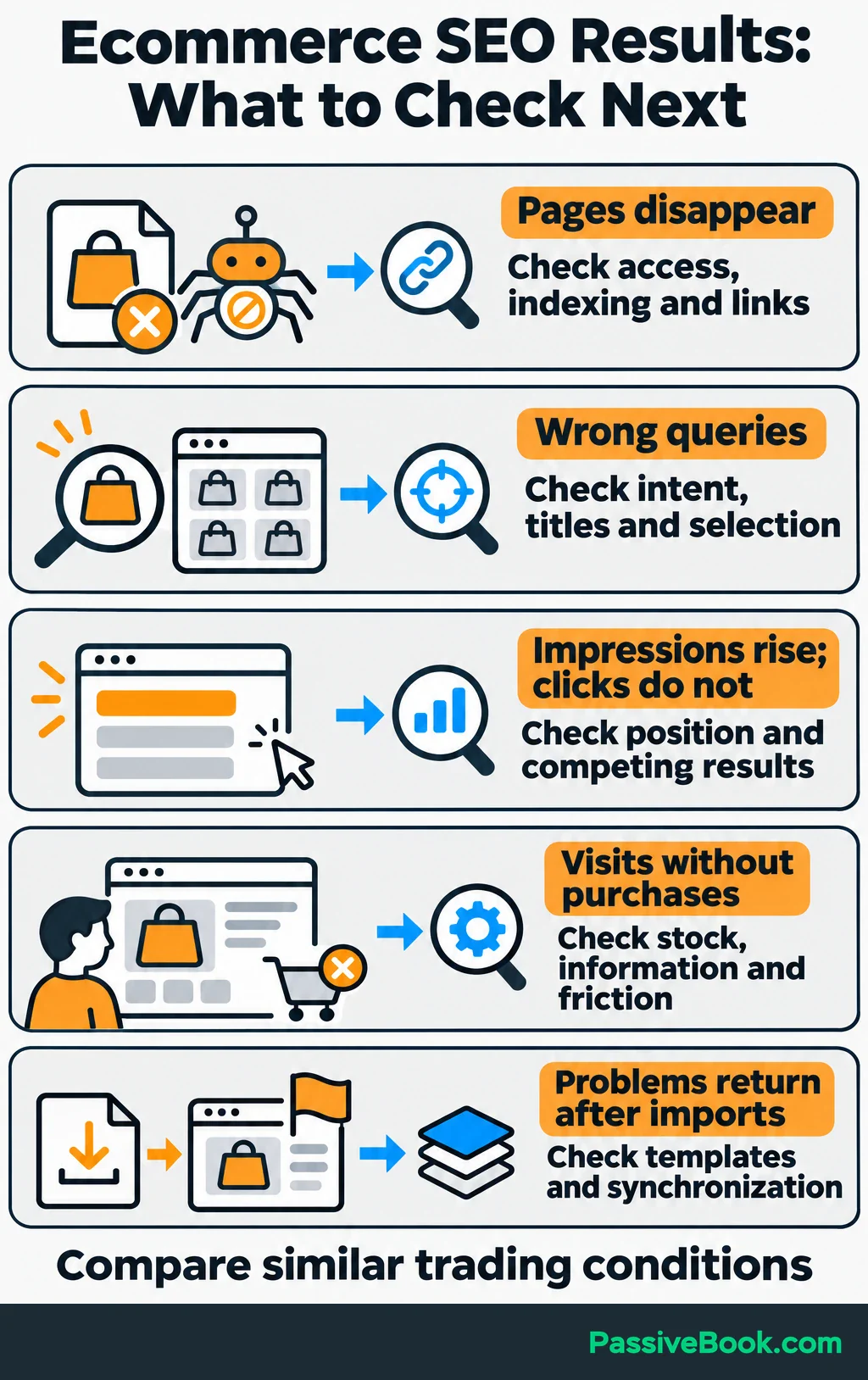
Use the pattern to choose your next check:
| What you observe | What to investigate |
|---|---|
| Important pages stop appearing in search | Accessibility, indexing directives, canonical selection and internal links |
| Pages appear for unrelated searches | Intent mapping, titles and the actual product selection |
| Relevant impressions rise but clicks don’t | Search position, competing results and how clearly the page answers the query |
| Qualified organic visits arrive but purchases remain weak | Stock availability, product information, shipping costs and buying friction |
| Problems return after imports | The import process, shared templates and synchronization checks |
Where tracking supports it, connect organic landing-page visits with purchases and revenue in Google Analytics. Keep those results alongside search visibility rather than treating ranking gains as the whole outcome.
Compare suitable periods with similar trading conditions. A page selling both hoop sizes isn’t directly comparable with the same page while its popular size is unavailable. Seasonality and logged catalog changes also matter when interpreting movement.
For the next round, I would restore access to important pages first, resolve conflicting URL signals, improve category links and then strengthen buying information. Fix recurring process failures as you find them, or you’ll pay for the same cleanup again.
What Next?
Choose one important category and trace the route from your navigation to a product beyond its first page. Record any broken links, missing products or unexpected indexing rules, then fix the first confirmed problem.
Use the social buttons to share this guide when your next catalog cleanup needs a common set of rules.
Which catalog change is hardest for you to manage confidently: new products, variants, stockouts or discontinued items? Tell me in the comments, and add any other questions you have.
Share this post with your friends & followers:

