A shopper reads your buying guide, finds the answer they needed, and then has to search your store for the product you just described. The advice helped, but the route to buying stopped halfway.
You can keep publishing while that gap stays open. More articles give you more pages to maintain, but they don’t automatically make your catalog easier to browse. This guide shows you how to connect buying advice, categories, and products, choose which connections deserve attention first, and check whether shoppers use them.
What Makes an Ecommerce Internal Linking Strategy Effective?
Internal links connect pages on the same website. Your menu, category listings, breadcrumbs, product recommendations, and links inside articles all create routes through your store.
Each route should serve a purpose. A guide answers a question, a category helps someone compare options, and a product page helps them evaluate a specific purchase.
Those connections also help search engines. Google uses links to discover pages and understand their relationships and relative importance within a site. That makes your navigation part of how Google understands your catalog. Google explains this in its ecommerce site-structure guidance.
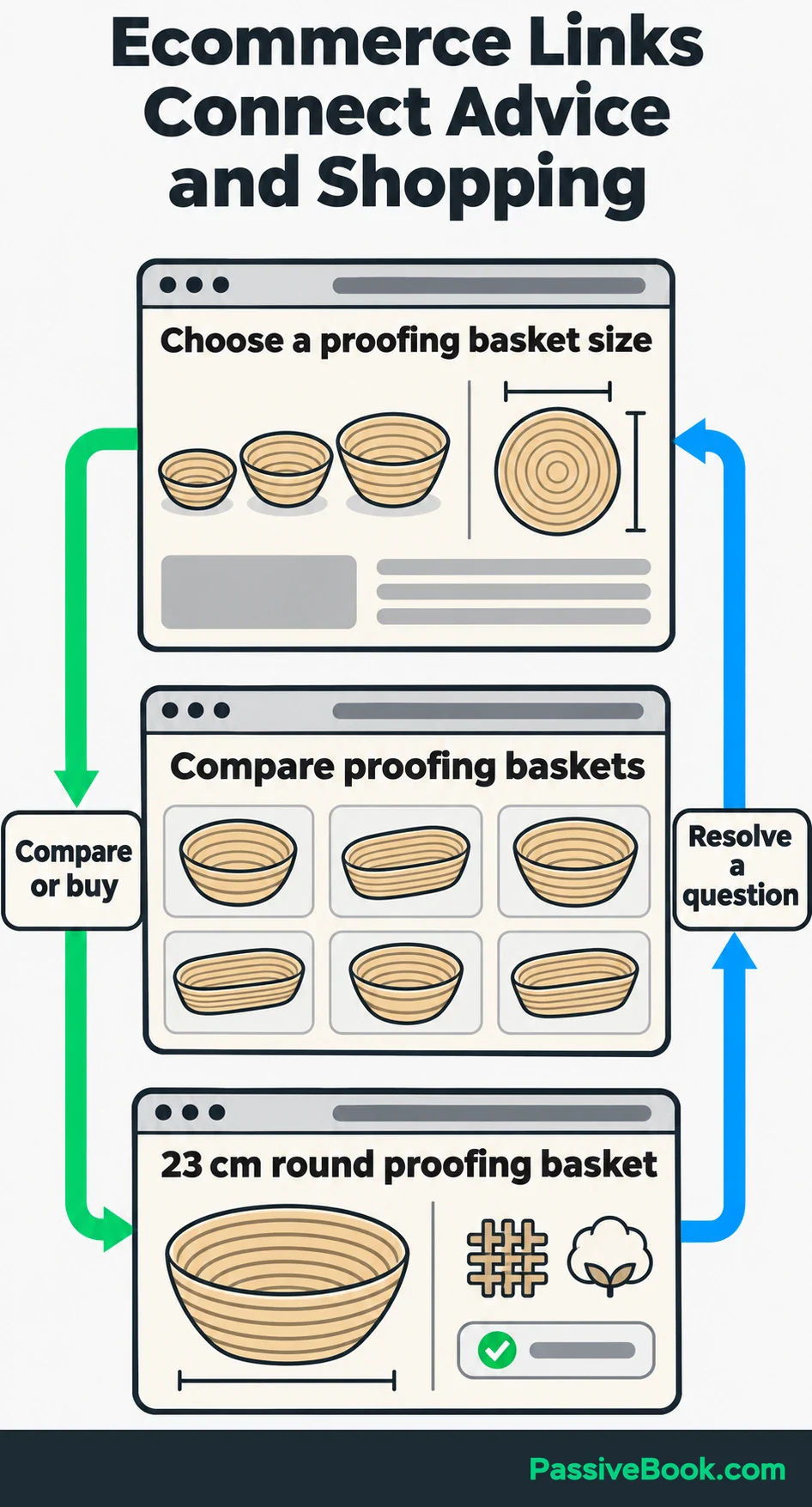
I would build an ecommerce content and internal linking strategy around three questions:
- Can someone browse to every product you want discovered?
- Does each useful guide lead to a relevant shopping decision?
- Can shoppers reach the advice they need from your shopping pages?
Throughout this guide, imagine you run a bread-baking supplies shop. You have a “Proofing baskets” category, a “23 cm round proofing basket” product, and a guide to choosing a proofing basket size. The shop and its pages are illustrative.
The aim is to connect those pages around a real decision. Adding links alone does not guarantee indexing, better rankings, or sales.
Choose the Pages to Improve First
Start with a page inventory. A spreadsheet is enough, and I would skip buying another tool until the manual work becomes a problem.
List your categories, products, and guides. Give each one a primary shopper need and search topic. This stops you from treating every mention of a phrase as a reason to link to the same destination.
For the bread-baking shop, the pages have separate jobs:
| Page | Primary topic | Shopper’s need | Useful next destination |
|---|---|---|---|
| Proofing baskets category | Proofing baskets | Compare available shapes and sizes | A suitable product or the sizing guide |
| 23 cm round proofing basket | That specific basket | Check dimensions, materials, and availability | Sizing advice or a compatible liner |
| Proofing basket sizing guide | How to choose a proofing basket size | Understand which size to consider | The category or a matching product |
If you cannot decide whether a search topic belongs to a category or a guide, inspect the search results. Look at whether the prominent results offer products to compare or explanations to read. Use that as evidence of what searchers expect.
Add these fields to your planning sheet:
- URL and page type.
- Primary query or topic.
- Parent category, where applicable.
- Business importance.
- Pages currently linking to it.
- Next action.
You do not need a complicated scoring formula. I would start where customer demand, business value, and weak internal support overlap. Search impressions, customer questions, sales, stock availability, and margin can all inform that choice.
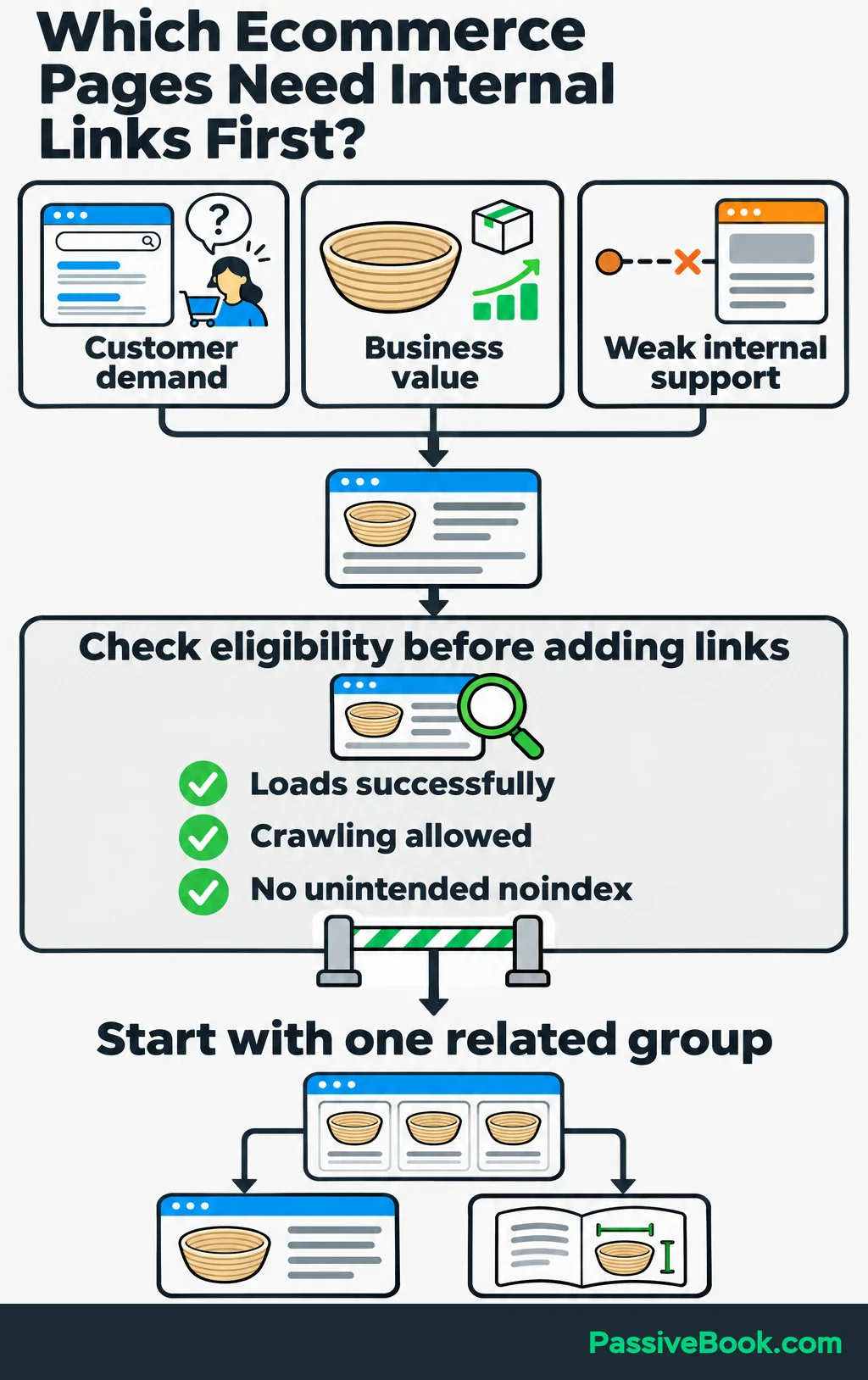
An established seller may deserve attention, but so might a promising category or a new product that nobody can easily reach.
Next, compare your inventory with the pages reachable from your homepage. On a small store, follow the paths manually. On a larger one, use a site crawler: software that follows links and lists the pages it finds.
Investigate anything missing. An orphan page has no incoming internal links, but a missing crawl result can also mean the crawler could not follow your navigation. Check before deciding which problem you have.
Before adding links, check whether Google can access and index each priority page using URL Inspection in Google Search Console. The page should load successfully, allow crawling, and have no unintended noindex instruction telling search engines to exclude it from results. These are basic eligibility checks under Google’s technical requirements.
Where duplicate versions exist, choose a preferred URL. Use it in internal links, in your sitemap (the page list you provide to search engines), and in canonical tags. A canonical tag tells search engines which version you prefer. Google recommends this URL consistency for ecommerce sites.
Finally, save a baseline before editing. Record current search performance and whatever shopping data you already collect. Keep a separate change log with the source page, destination, placement, anchor text, and publication date.
Begin with one related group. Fixing the basket category, its products, and its buying guide gives you a process you can repeat across the store.
Build Crawlable Shopping Navigation
Connect Categories and Products
Build the main browsing route before adding editorial links. Your catalog should make sense even to someone who never reads your blog.
Link important categories from your menu, relevant subcategories from their parents, and products from their listings. Googlebot generally does not submit queries into store search boxes, so a product that appears only through search lacks a dependable browsing route. Google recommends linked navigation through to your products.
For the example shop, the route could be:
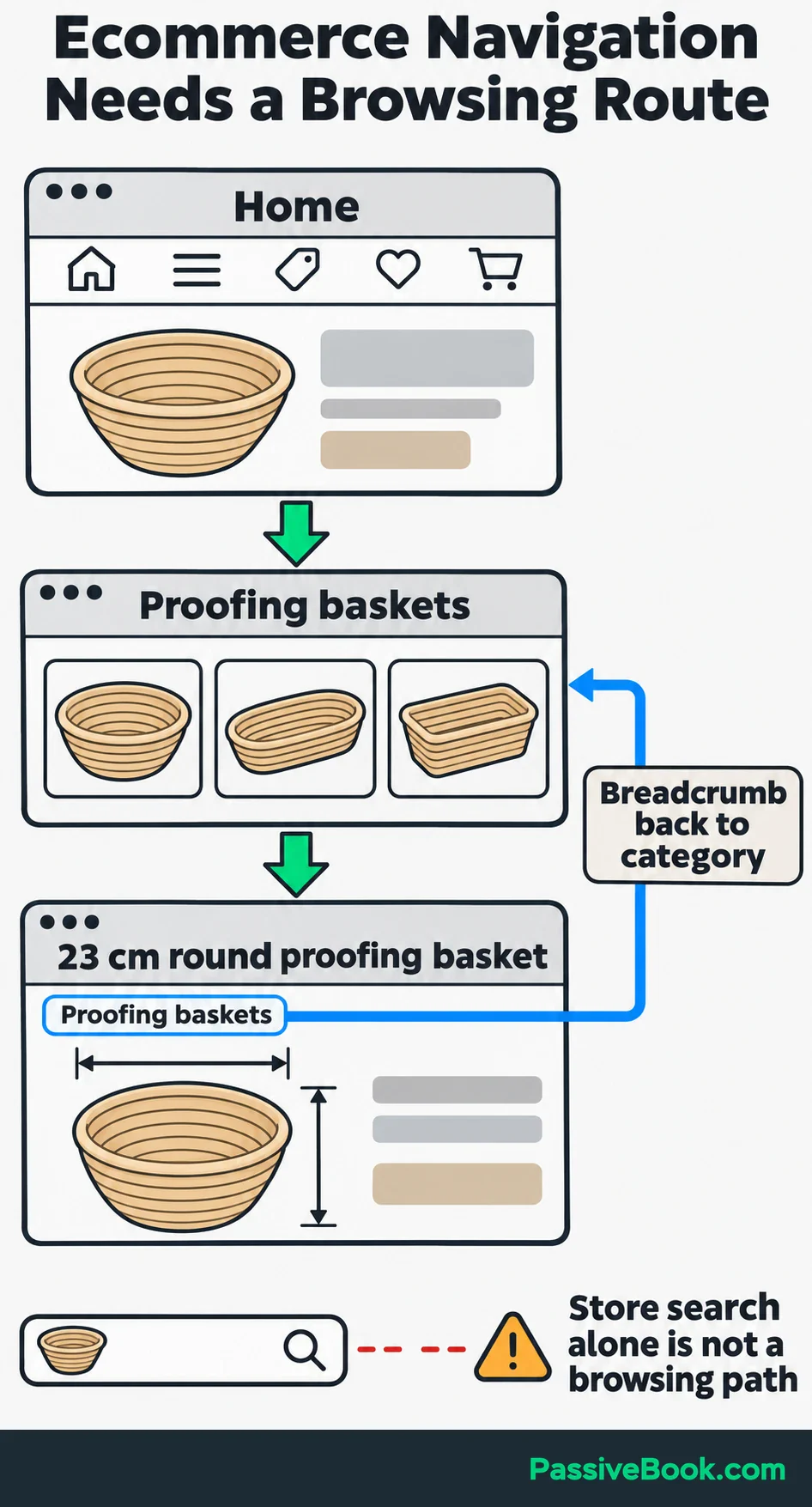
Home → Proofing baskets → 23 cm round proofing basket
On the product page, clickable breadcrumbs provide a way back to “Proofing baskets.” That matters when a shopper lands directly on the product and wants to compare it with other options.
Remove detours that serve no useful purpose. If baskets sit inside several vague categories before anyone reaches them, review that structure. But keep distinctions that help people browse. I would not flatten a sensible catalog just to satisfy a universal “three clicks” rule.
Give selected categories or products more prominence when they deserve shopper attention. A homepage feature can make sense for a core range. Putting the entire catalog in the main menu usually makes choosing harder.
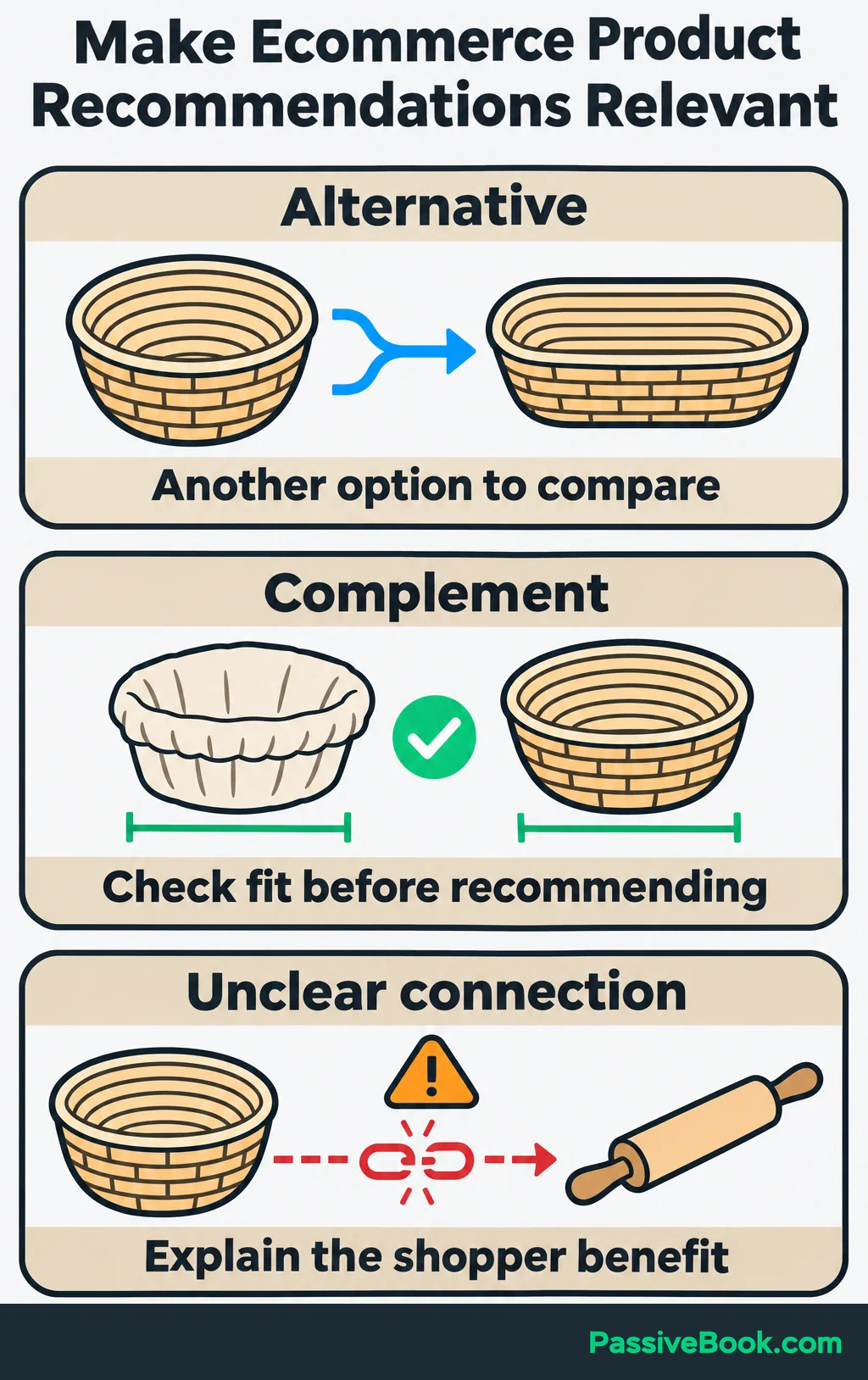
Product recommendations need the same judgment:
- Another proofing basket is an alternative.
- A liner that fits the selected basket is a complement.
- An unrelated baking tool needs a clearer reason to appear.
Check dimensions and compatibility before recommending accessories. “Frequently bought together” is an awkward promise when the two items do not fit together.
Keep the Full Catalog Reachable
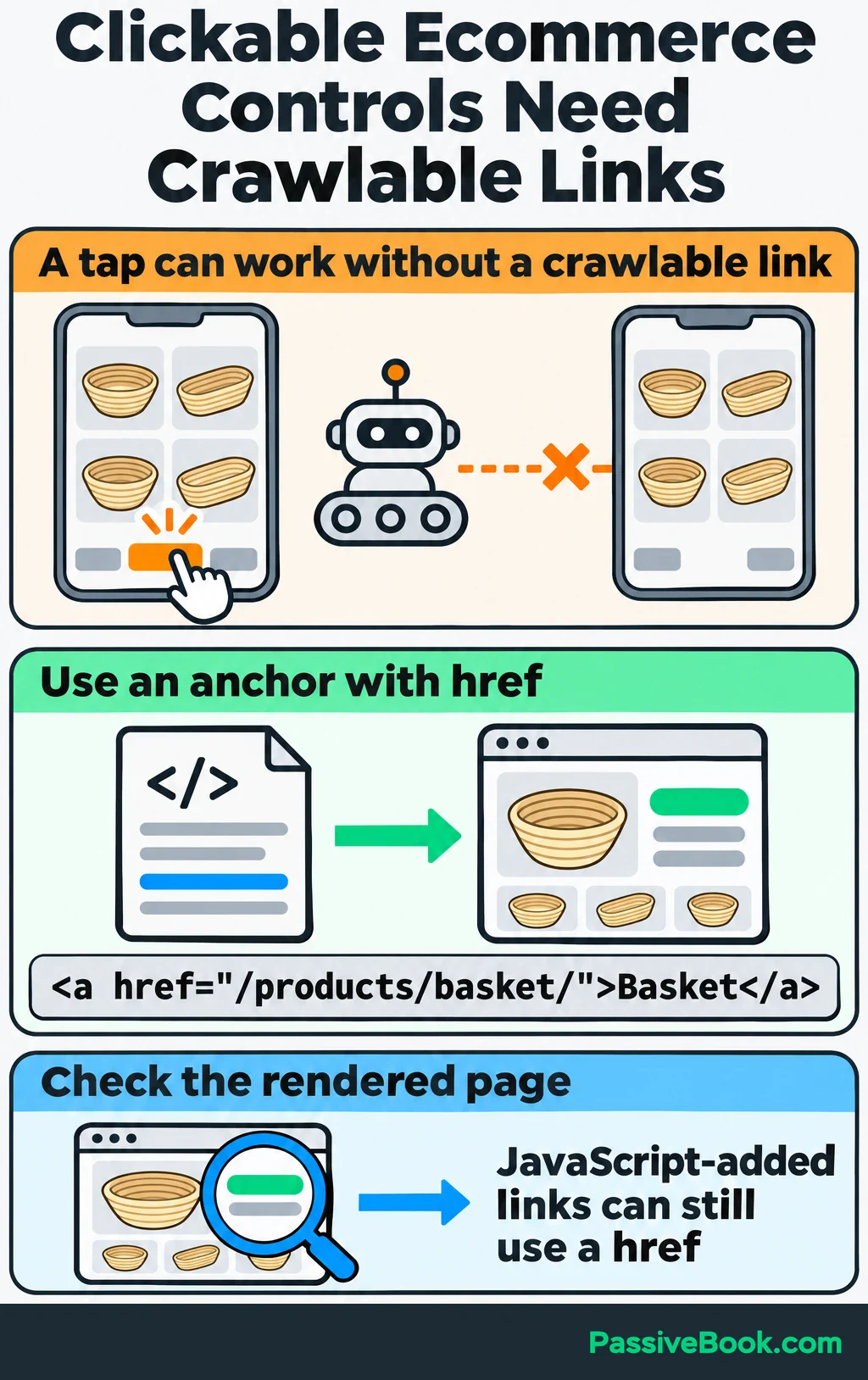
A link that works when you tap it is not necessarily a link a crawler can follow.
Use standard <a href="…"> links, including when JavaScript adds them to the page. Check the rendered page—the version produced after scripts run—rather than assuming a clickable element is enough. Google shows which link formats it can reliably crawl.
Then inspect products beyond the first listing page. If a category spans several pages, connect each page to the next with pagination links. Give each listing page a distinct URL and a canonical tag pointing to itself, rather than to page one.
“Load more” and infinite scrolling can still serve shoppers, but they need an underlying crawlable route. Google’s crawlers generally do not click buttons to reveal additional products. Its pagination guidance explains the required structure.
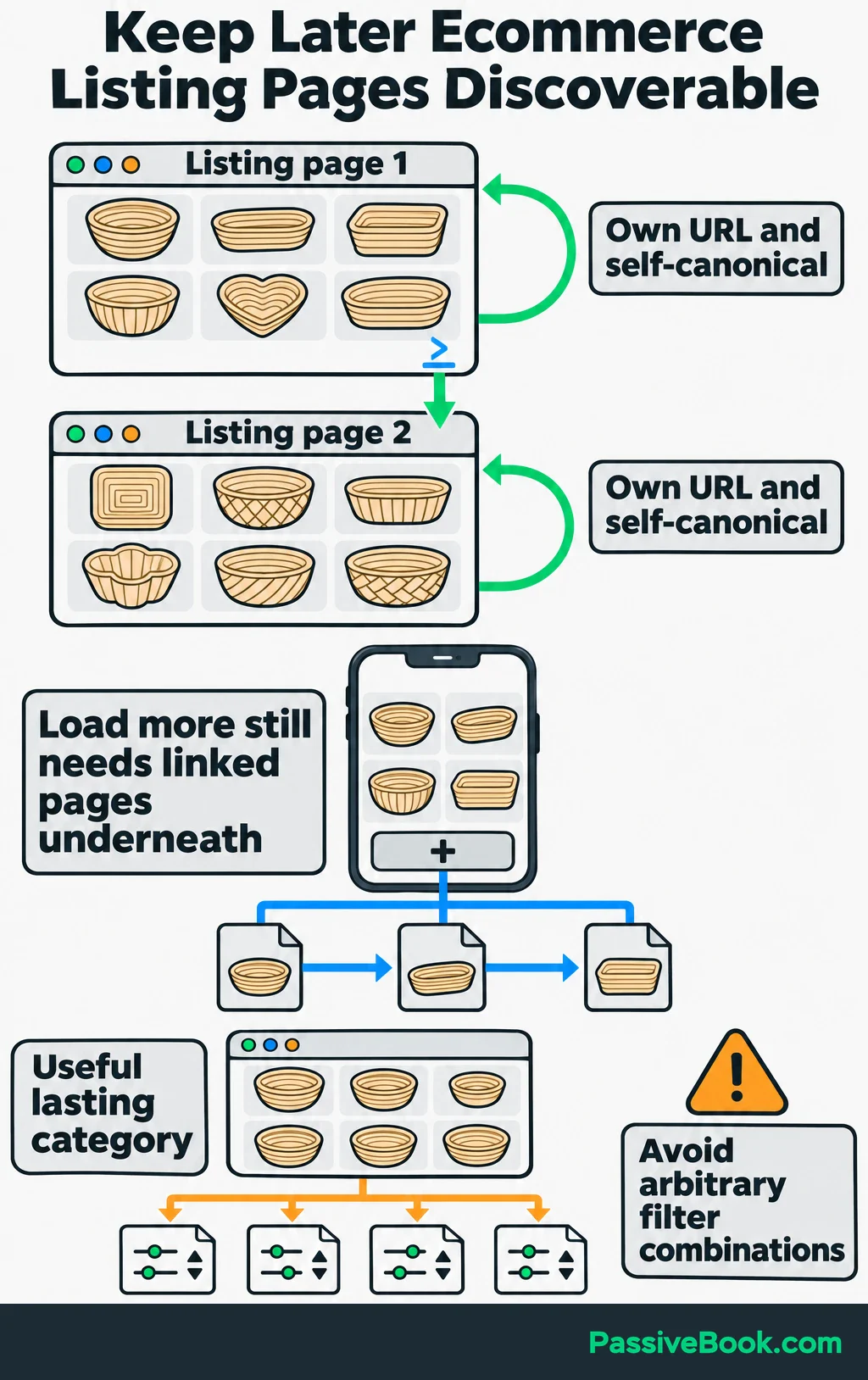
Filters deserve a separate check. Shape, material, size, and sorting options can generate many URL combinations. Google warns that uncontrolled filter URLs can waste crawling resources and slow the discovery of useful pages. See its guidance on faceted navigation.
I would promote a stable “Round proofing baskets” category if it serves a lasting shopping need. I would skip adding editorial links to arbitrary combinations of filters and sort orders.
Finish by walking the route on your phone. Open the menu, browse later listing pages, enter a product, follow its breadcrumb, and test a recommendation. This is where cramped menus and missing links become obvious.
Write Anchor Text That Explains the Destination
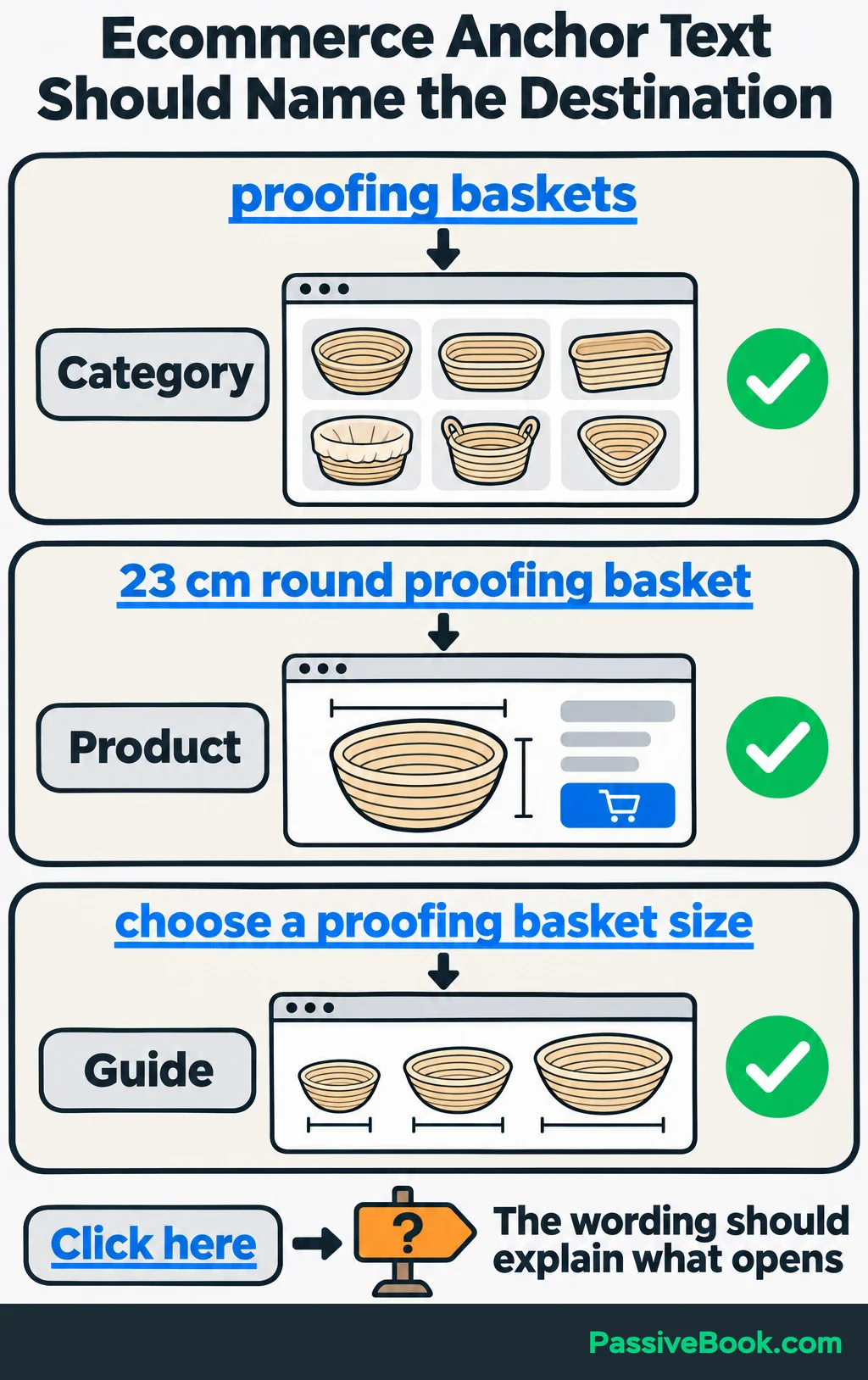
Anchor text is the visible, clickable wording of a link. Choose the destination first, then describe what someone will find there.
For the example shop:
| Destination | Clear anchor text |
|---|---|
| Category | “proofing baskets” |
| Product | “23 cm round proofing basket” |
| Guide | “choose a proofing basket size” |
“Click here” makes readers inspect the surrounding sentence to guess the destination. Descriptive wording does that work for them.
Use accurate product and category names when they fit. You do not need forced synonyms, and you should not stretch a simple link into “best cheap premium bread proofing baskets online.”
Make product names clickable. If an image is the only linked element, give it alt text that describes the image. Google uses that text as the link’s anchor text.
There is no ideal links-per-page count. Add links that help the decision and leave passages readable. These principles follow Google’s anchor-text and internal-link guidance.
Connect Editorial Content to Shopping Decisions
Give Each Guide a Useful Next Step
Match the destination to the question the passage has just answered.
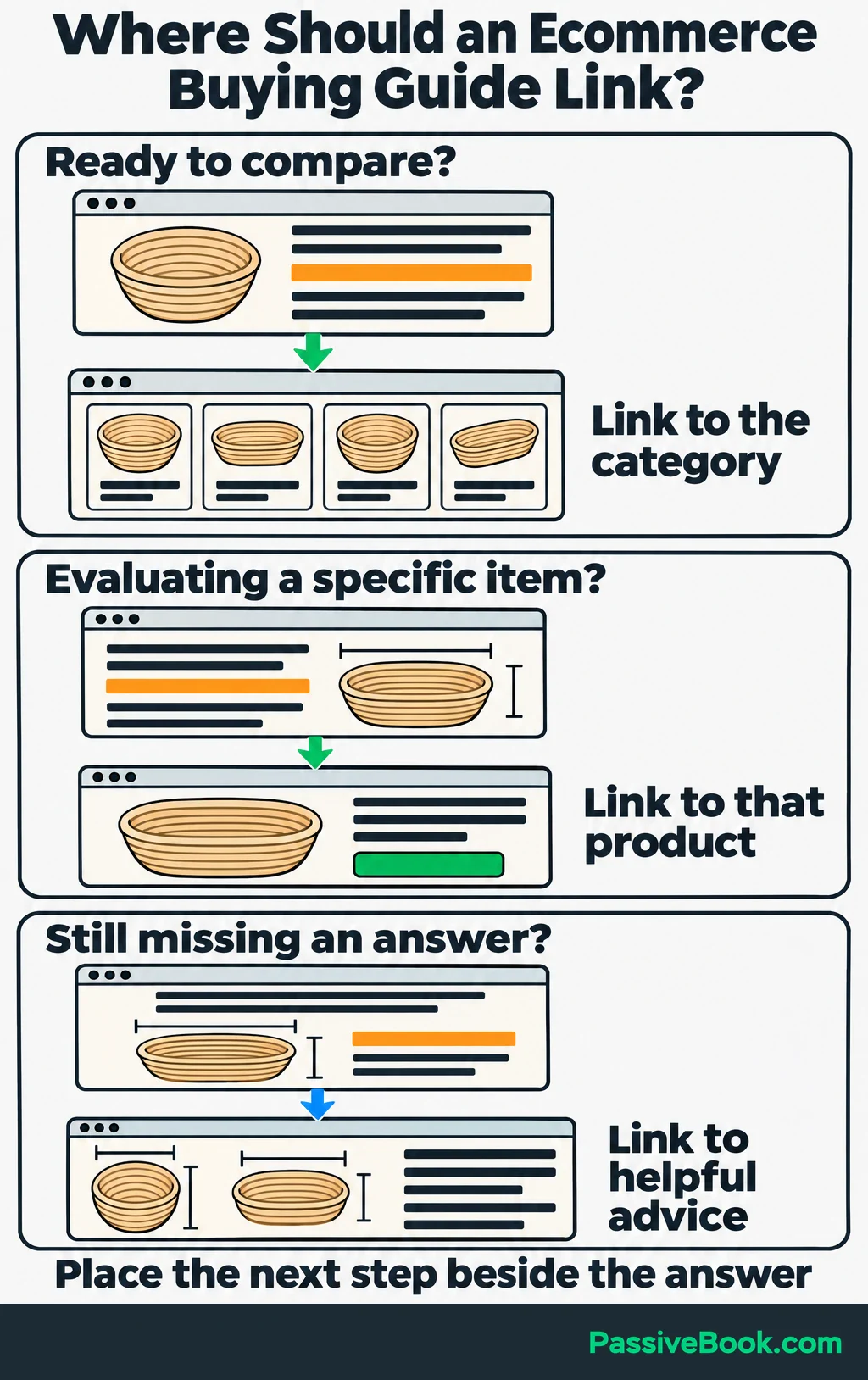
Send readers to a category when they are ready to compare. Send them to a product when you are discussing a specific item. Use another guide when an unanswered question still blocks the decision.
In the sizing guide, explain how to assess size before asking readers to shop. After that explanation, a short transition can do the job:
Ready to compare options? Browse our proofing baskets by shape and size.
Link the words “browse our proofing baskets” to the category. The surrounding sentence gives the link a reason to exist.
A product link belongs in the passage discussing that product’s actual dimensions and use. Do not recommend the 23 cm basket merely because the paragraph contains the word “basket.” The advice must support the choice.
I caught a similar gap on one of my digital-product sites. A guide explained how to choose between formats, but the relevant product appeared only in the footer. I had included the destination and still made the reader hunt for it.
I moved the link beside the explanation it depended on. That gave me a useful editing check: could someone act on the advice at the point where they understood it?
Back in the baking shop, the same check applies in both directions. Someone reading the product dimensions may still need help choosing a size. Put “choose a proofing basket size” beside those dimensions, and offer the same help near category size comparisons.
Your connected route now supports several entry points:
- A guide reader can move into the category to compare options.
- A category visitor can open the guide to resolve uncertainty.
- A product visitor can check sizing advice and return to the item.
An end-of-guide shopping block can provide another route, especially after a long explanation. I would use it alongside relevant links within the advice. Readers should not have to reach the final paragraph to act on a question answered halfway down.
If the destination is clear but the wording is slowing you down, this AI Skill can draft the connecting passages. Give it excerpts from your category, product, and guide pages to get copy you can review and paste into place.
Free AI Ecommerce Copy Studio




Add Incoming Links From Existing Pages
Publishing a new page creates a destination. You still need useful routes into it.
Search your existing content for related questions and product mentions. Read each candidate passage before editing. A matching word is a starting point, not proof that a link belongs there.
For a new sizing guide, review the basket category, basket product pages, and any existing guide that raises sizing questions. If a passage already answers the question fully, it may need no extra link.
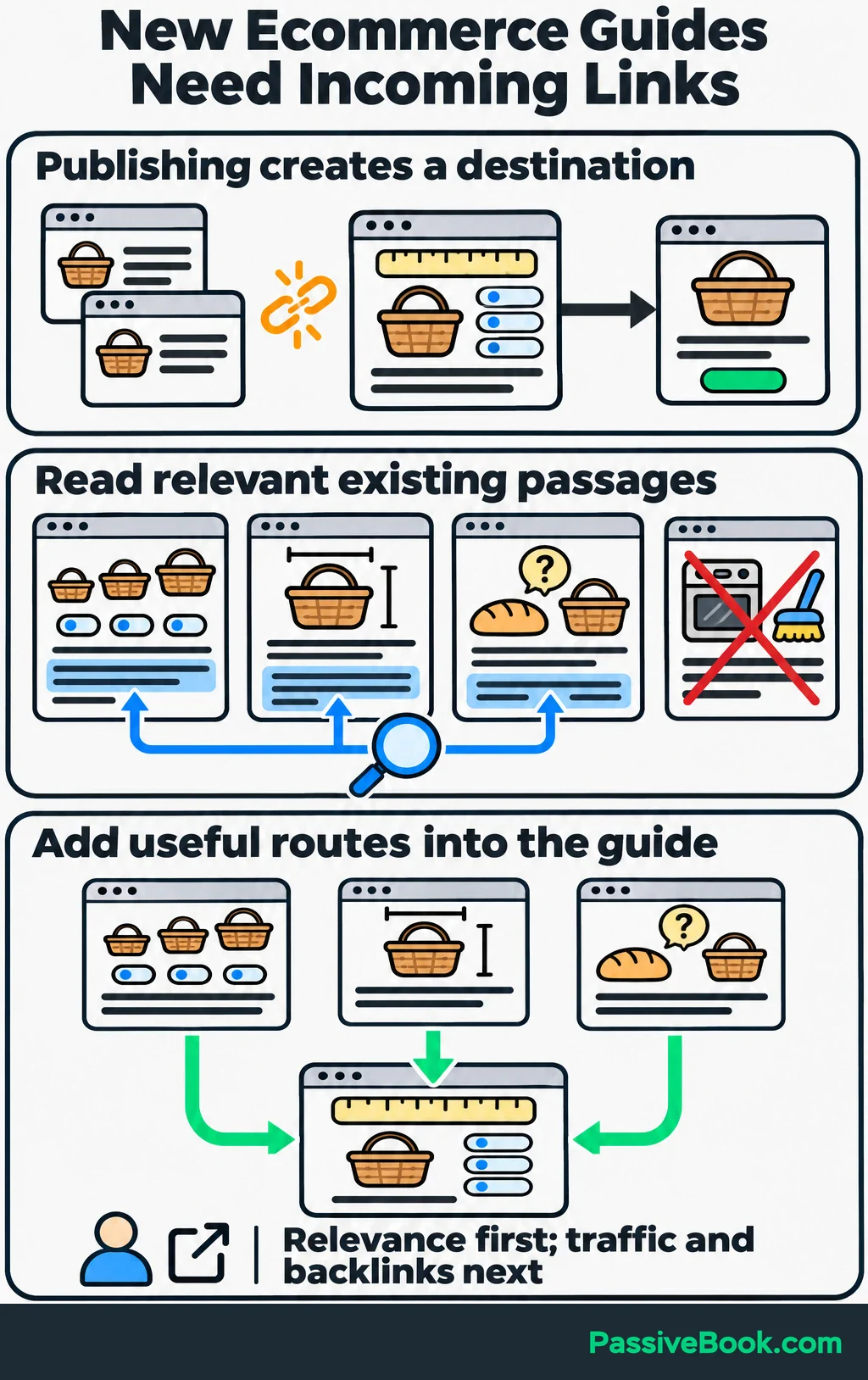
Among equally relevant sources, I would start with pages that already receive visitors or have earned external links. Relevance comes first. A popular article about cleaning an oven is still a poor place to force in basket-sizing advice.
Sometimes the existing sentence needs revision. Replace a vague instruction such as “Choose the right basket” with enough context to explain why the linked guide will help. Record the placement and anchor in your change log.
For future content briefs, include:
- The shopping decision the page will support.
- Relevant category and product destinations.
- Existing pages that should link to the new page.
- Any unresolved question the content must answer.
Check for an existing guide before commissioning another one. If your sizing guide already answers the question, improving it is usually more useful than creating a competing article with a slightly different title.
Maintain Links as the Catalog Changes
Internal linking becomes a system when publishing and catalog changes trigger the right checks.
Use a short checklist whenever you publish:
- Place the page within the browsing structure.
- Add relevant incoming links from existing pages.
- Check its outgoing links and product recommendations.
- Test the shopper’s route on mobile.
- Record the changes and confirm any placement tracking works.
Product availability needs ongoing attention. If the 23 cm basket is temporarily unavailable, keep its page useful with clear availability information and suitable alternatives. Recheck any guide that prominently recommends it, especially if readers arrive expecting to buy immediately.
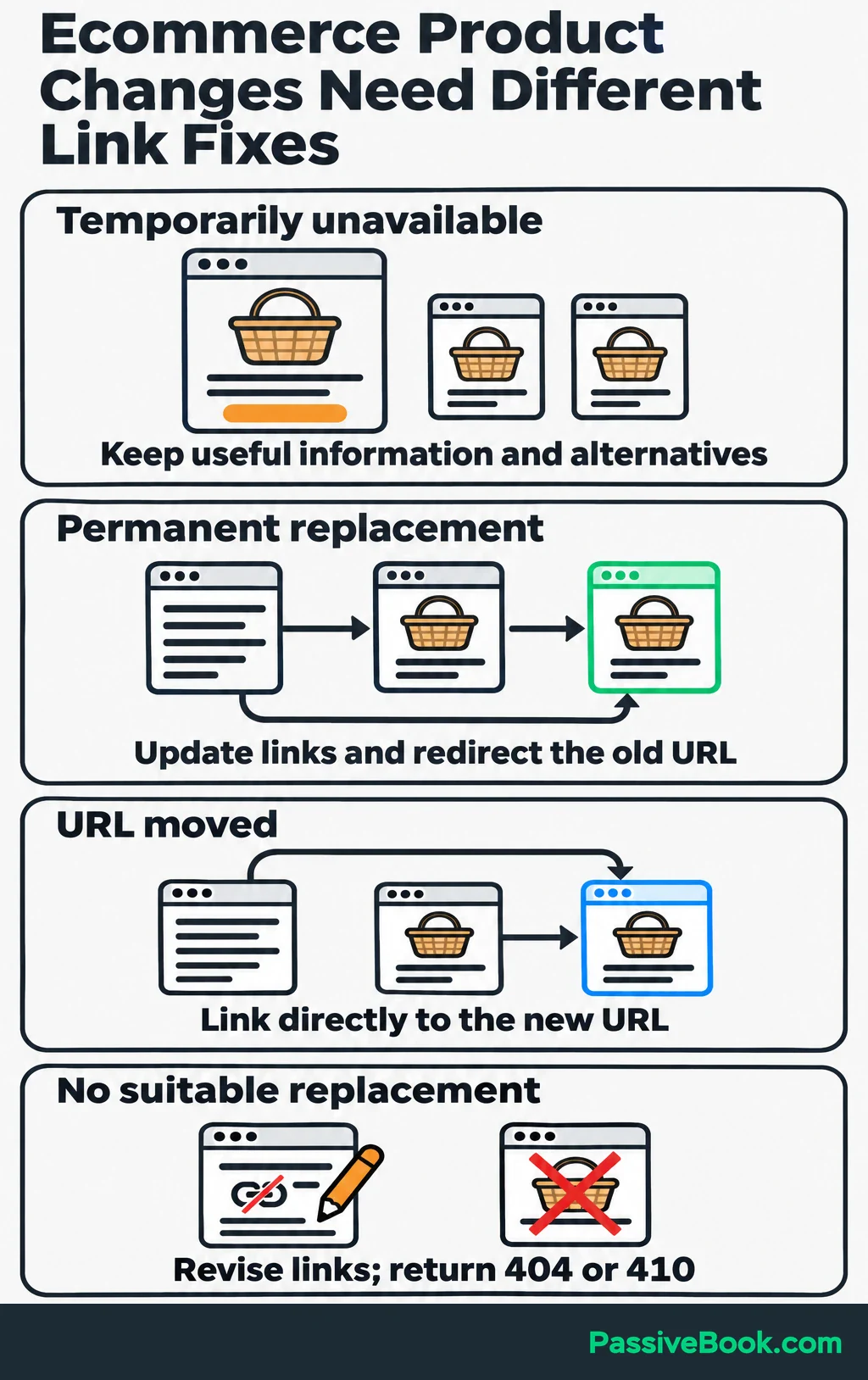
Permanent removal requires a different decision:
| What changed | What to do |
|---|---|
| The product has a clear replacement serving the same need | Update incoming links and set a permanent redirect so the old URL sends visitors to the replacement |
| The page has moved to a new URL | Point links directly to the new URL and redirect the old one |
| The product is gone with no suitable replacement | Remove or revise incoming recommendations and return a 404 (not found) or 410 (gone) status for the removed page |
These choices follow Google’s guidance for removed and replaced pages.
Do not send every discontinued product to the homepage. Someone following a specific basket recommendation needs a relevant replacement or a clear explanation.
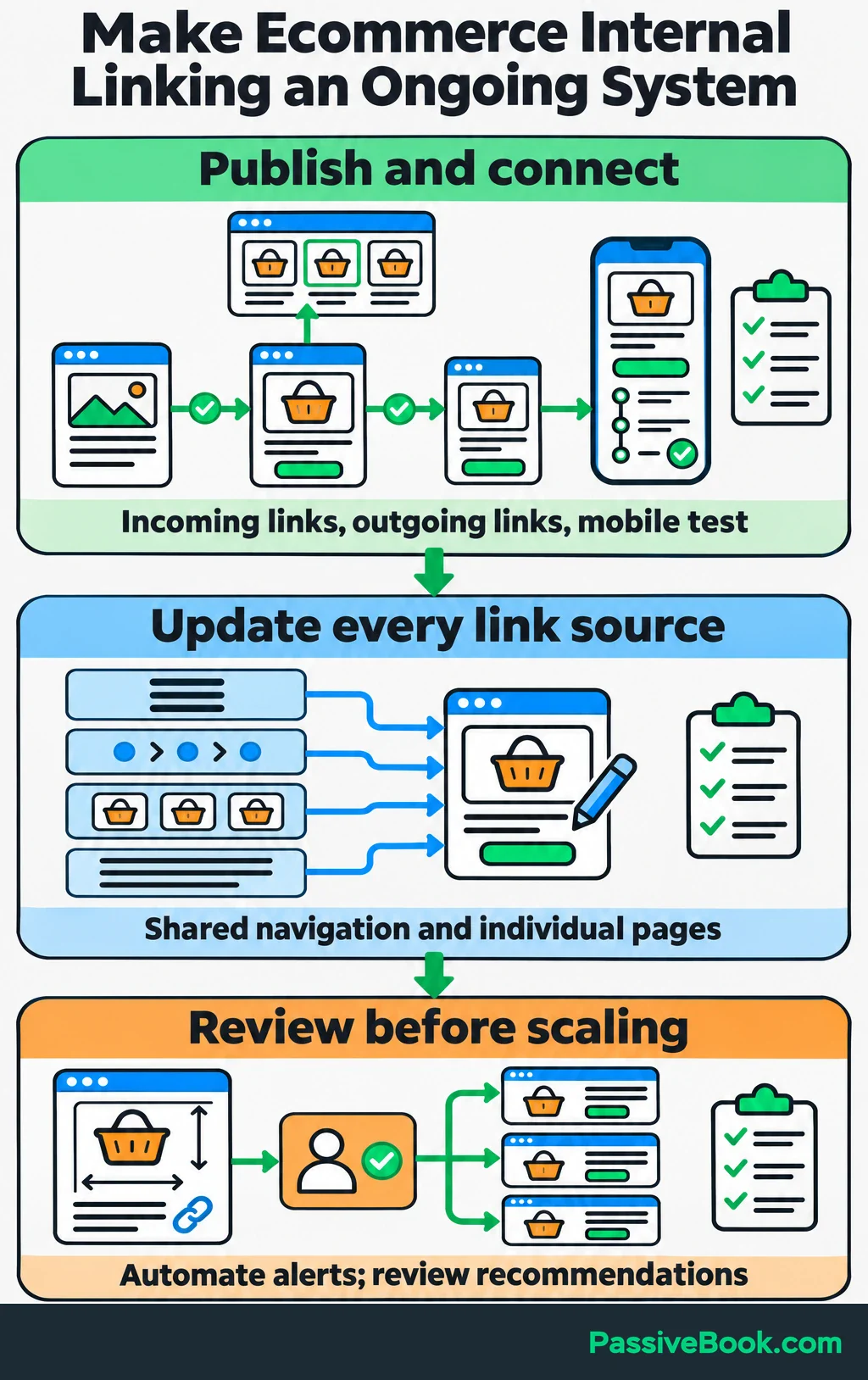
After a URL change, update shared menus, breadcrumbs, and recommendation templates as well as individual articles. A working redirect is useful, but your own links should lead directly to the final destination.
Once a relationship proves useful, turn it into a reusable rule. For example, show the sizing guide beside dimensions on basket product pages. Review representative products before applying that rule across the range.
I would automate broken-link alerts and suggestions for related pages as the catalog grows. I would keep a human review before publishing contextual recommendations. A script can find matching words very quickly. That does not give it judgment about what fits a shopper’s problem.
Measure Discovery, Search Visibility, and Shopping Outcomes
Check Whether Priority Pages Are Easier to Find
First, verify the change itself. Recrawl the edited section or walk it manually. Confirm that the links exist, the destinations work, and each priority page has a navigable incoming path.
If discovery or indexing was the original problem, inspect those URLs in Search Console. Keep that check separate from performance: a reachable page, an indexed page, and a page earning search traffic are different observations.
Use Search Console’s Performance report to compare clicks, impressions (appearances in search results), and average position for your selected pages and relevant queries.
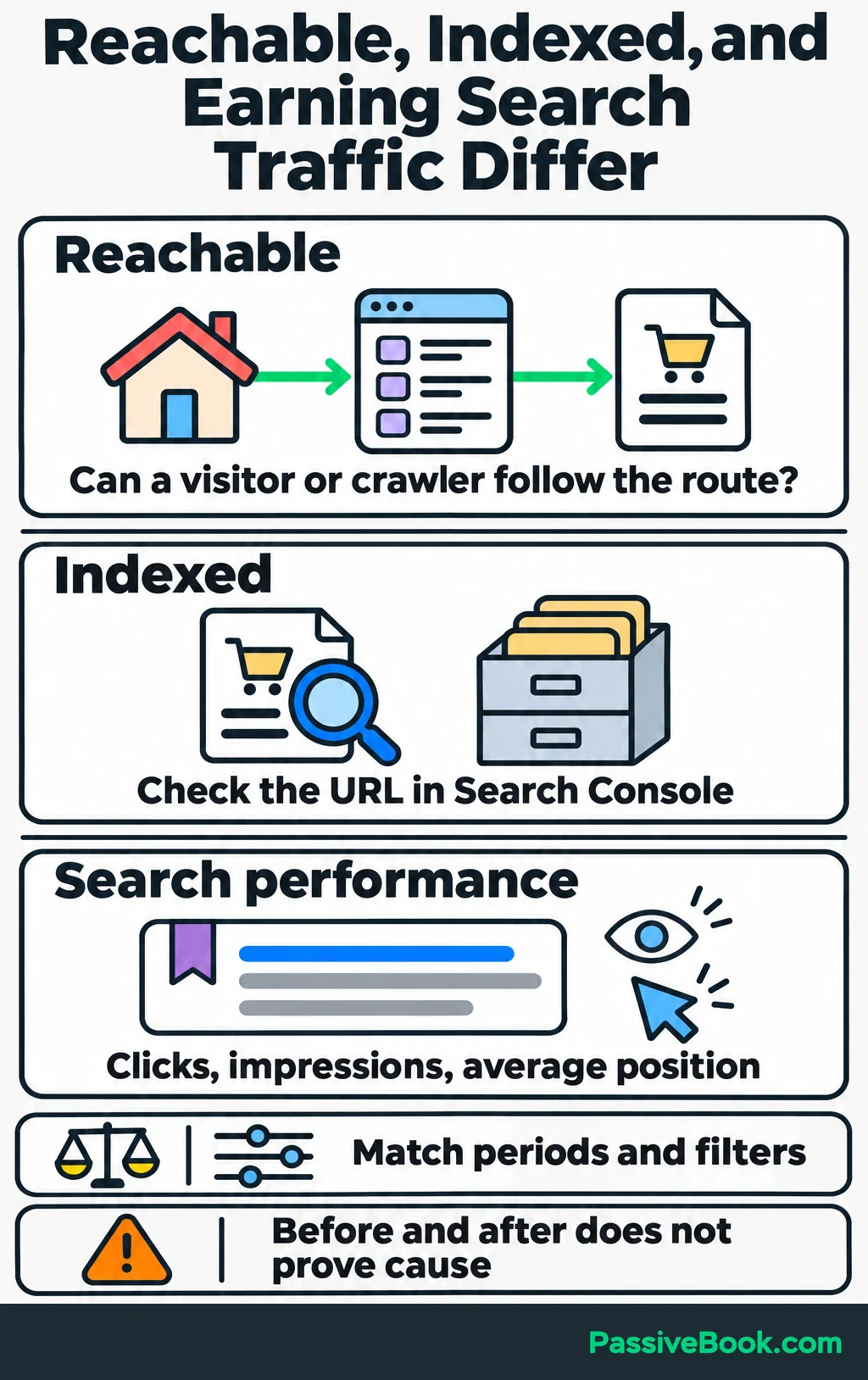
Keep the comparison consistent:
- Use periods of equal length.
- Keep country, device, and search type filters the same.
- Review relevant queries alongside page totals.
- Check your change log for other edits, promotions, and stock changes.
I would review implementation soon after publishing, then assess performance over a period long enough to contain useful traffic. Checking a low-traffic product every morning mostly measures your willingness to refresh a report.
Seasonality and other changes can move the numbers too. A rise after your edits is encouraging evidence, but a before-and-after comparison alone does not prove the links caused it.
Check Whether Shoppers Take the Next Step
Search visibility tells you whether people are arriving. Shopping paths tell you what happens after they get there.
To see which pages people visit after the sizing guide, use Path exploration in Google Analytics 4 (GA4).
Page paths do not identify which link someone clicked when several placements lead to the same destination. If you need that detail, set up a custom event to track internal-link clicks before publishing. Have it record the source page, destination, and placement, such as “sizing passage” or “end-of-guide block.”
GA4’s enhanced-measurement click event tracks links to other websites, so internal links need separate tracking. Google documents that event’s scope here.
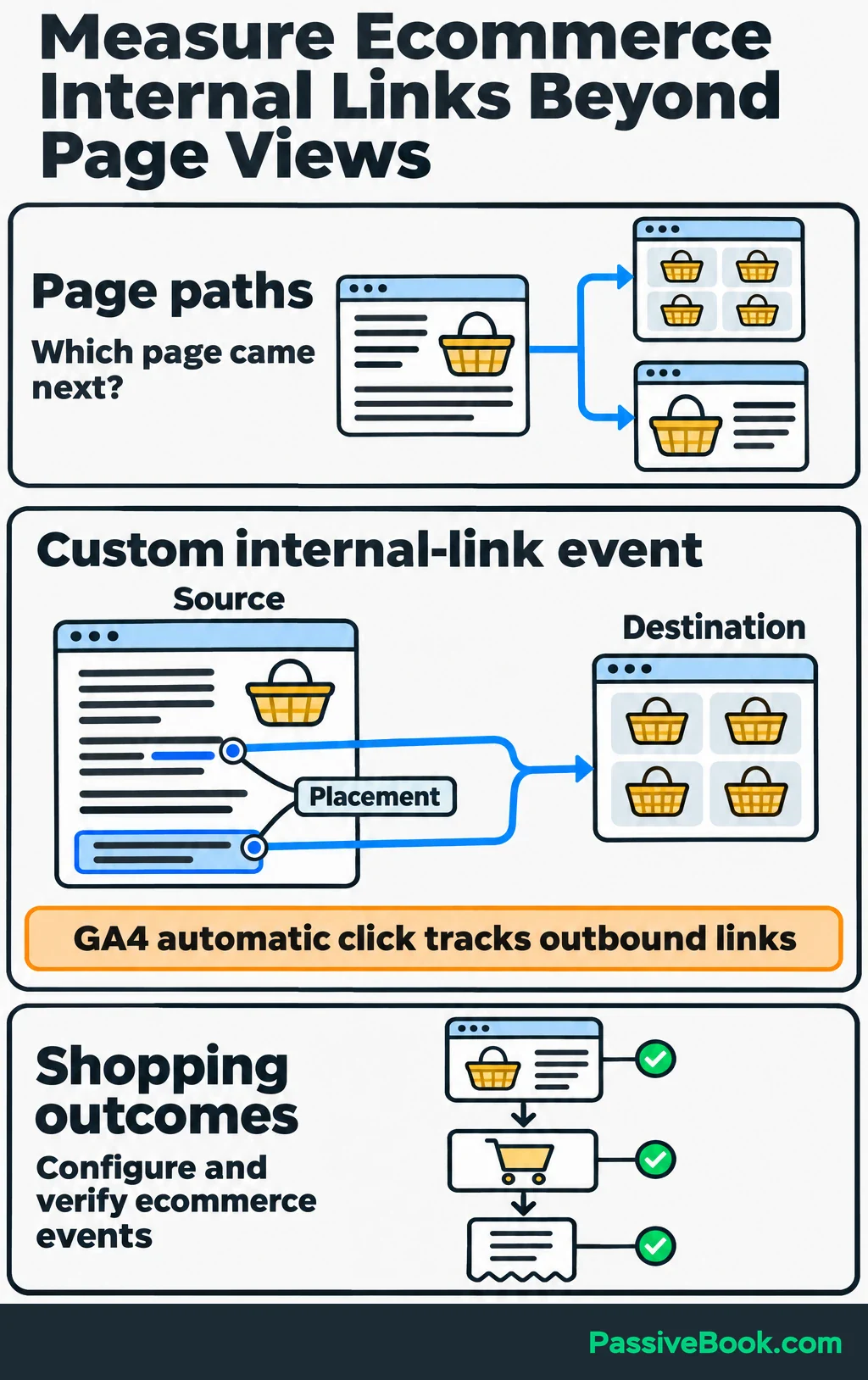
Before evaluating shopping outcomes, verify that your store sends ecommerce events correctly. GA4 does not collect ecommerce events automatically, although your platform integration may send them. Check product views, add-to-cart actions, and purchases before relying on the reports. Google explains these ecommerce data requirements.
Use the findings to choose your next edit:
| What you observe | What to investigate next |
|---|---|
| A priority product still lacks a reachable browsing path | Repair the category listing or pagination |
| Guide visitors rarely continue to the linked category or product | Check the link’s wording, visibility, and destination’s relevance |
| Customer messages repeatedly ask how to choose a basket size | Improve the product information and access to the guide |
| More guide visitors reach relevant products and add items to their carts | Review purchases and consider extending the pattern to related pages |
Keep extra page views in perspective. Returning to a sizing guide can be useful, but repeated movement between pages may also mean the answer remains unclear.
I would judge the work by whether people can find suitable products and make informed decisions. A longer browsing session is not automatically a better one.
What Next?
Pick one category, one product, and one buying guide, then walk the routes between them on your phone. Fix the first missing connection and record what you changed before expanding to another group.
Use the social buttons to share this guide when your next store discussion turns to connecting content with products. A shared process makes those edits easier to assign and review.
Which part of your store currently leaves shoppers without a clear next step? Tell me in the comments, and bring any other questions about your linking setup.
Share this post with your friends & followers:

