A shopper wants to compare several products, but your category page gives them a row of photos and little help choosing. In your search reports, the same collection appears under several URLs, and you’re unsure which version needs attention.
You can spend hours rewriting descriptions while a useful collection stays hard to find or browse. And more traffic does little if visitors cannot work out which product fits their needs. The workflow below connects search visibility with that buying decision, so you can choose which categories to improve, help shoppers reach suitable products, and track purchases from organic visits.
Match Each Category to a Shopping Intent
Start by asking what the shopper wants to choose. Your category’s main phrase, product selection, and buying guidance should all support that decision.
Gather possible search terms from:
- Google Search Console, which shows queries already bringing your site into Google’s results.
- Your store’s search box, especially repeated searches that return poor results.
- Customer emails and questions.
- A keyword research tool. I would use Ubersuggest for an initial check if you want a budget-conscious option.
Group phrases that describe the same need, then search promising terms in the market you serve. Look at the pages ranking prominently. Are they collections, individual products, or advice articles? That gives you evidence about the kind of page searchers expect.
For the running example, imagine you sell cat-travel supplies and want to improve your “Cat Carriers” collection. The keywords, URLs, and copy below are illustrations rather than measured opportunities.
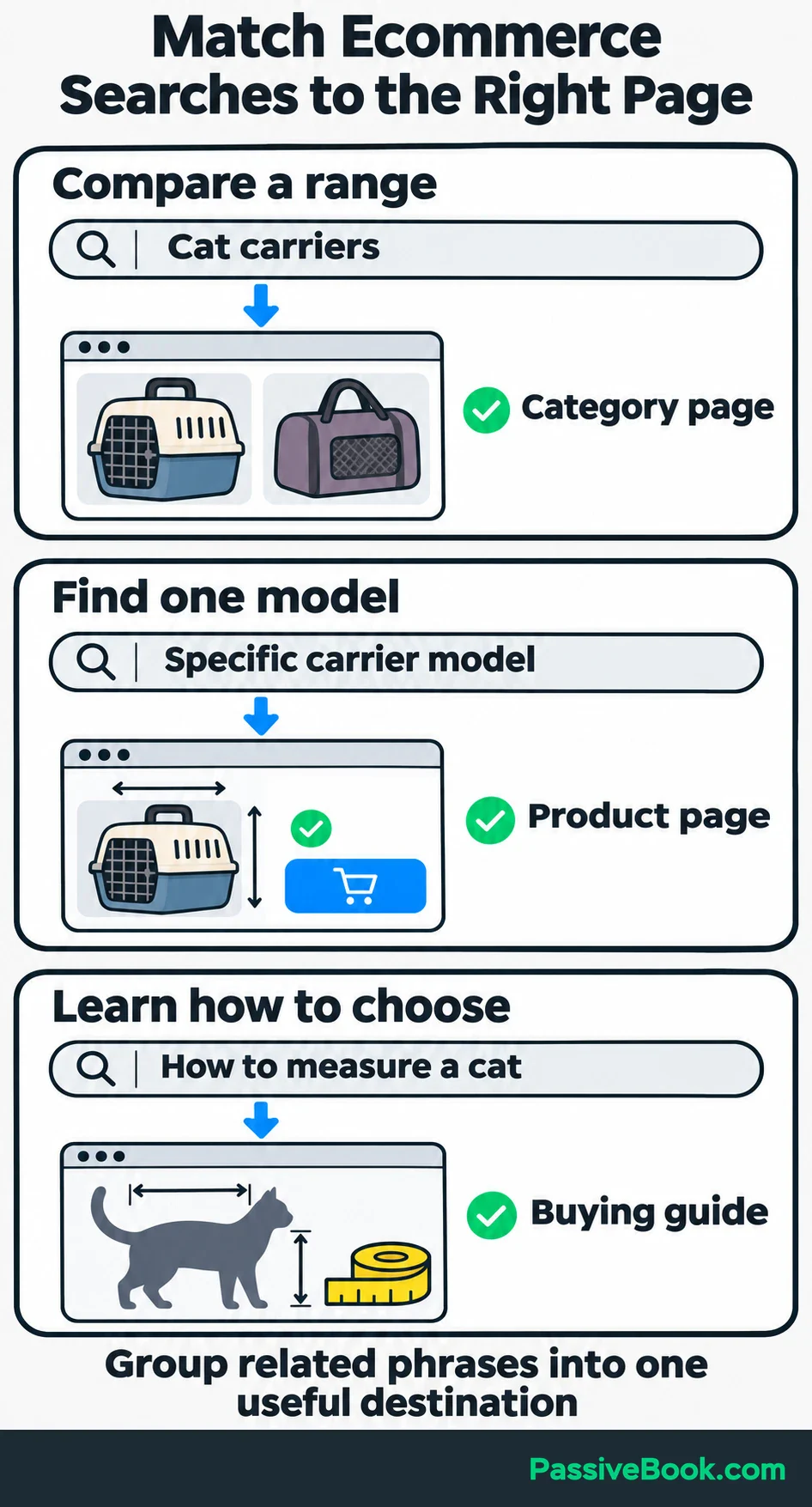
Build a simple keyword map before editing:
| Query Group | Shopping Intent | Preferred URL | Related Terms to Investigate | Matching Products or Content |
|---|---|---|---|---|
| Cat carriers | Compare a range of carriers | /cat-carriers/ | Hard-sided carriers, soft-sided carriers | The full carrier assortment |
| Soft-sided cat carriers | Compare carriers with soft-sided construction | /soft-sided-cat-carriers/, if justified | Fabric cat carriers | Matching soft-sided models |
| A specific carrier model name | Check or buy that model | Its product URL | Model name plus dimensions | That exact product |
| How to measure a cat for a carrier | Learn how to check fit | /guides/cat-carrier-sizing/ | Cat carrier measurements | A sizing guide using reliable product guidance |
Assign each group to one preferred destination. Several closely related phrases can belong on the same page. Creating another category for every wording variation gives you more pages to maintain without giving shoppers another useful choice.
A narrower collection needs three things: evidence of demand, a distinct selection need, and enough relevant products to make comparison worthwhile. Until “Soft-Sided Cat Carriers” passes those checks, soft-sided construction can remain a filter.
My jewellery store taught me the cost of skipping this work. I chose stock I liked and worked on presenting it, but I had done too little research into what people wanted to buy. Unsold inventory was an expensive answer. That experience is why I would check demand and assortment before expanding a store’s category structure.
Choose Which Categories to Improve First
List your existing categories before creating more. Include the URL, intended shopping need, available products, search traffic, and the main problem you can identify.
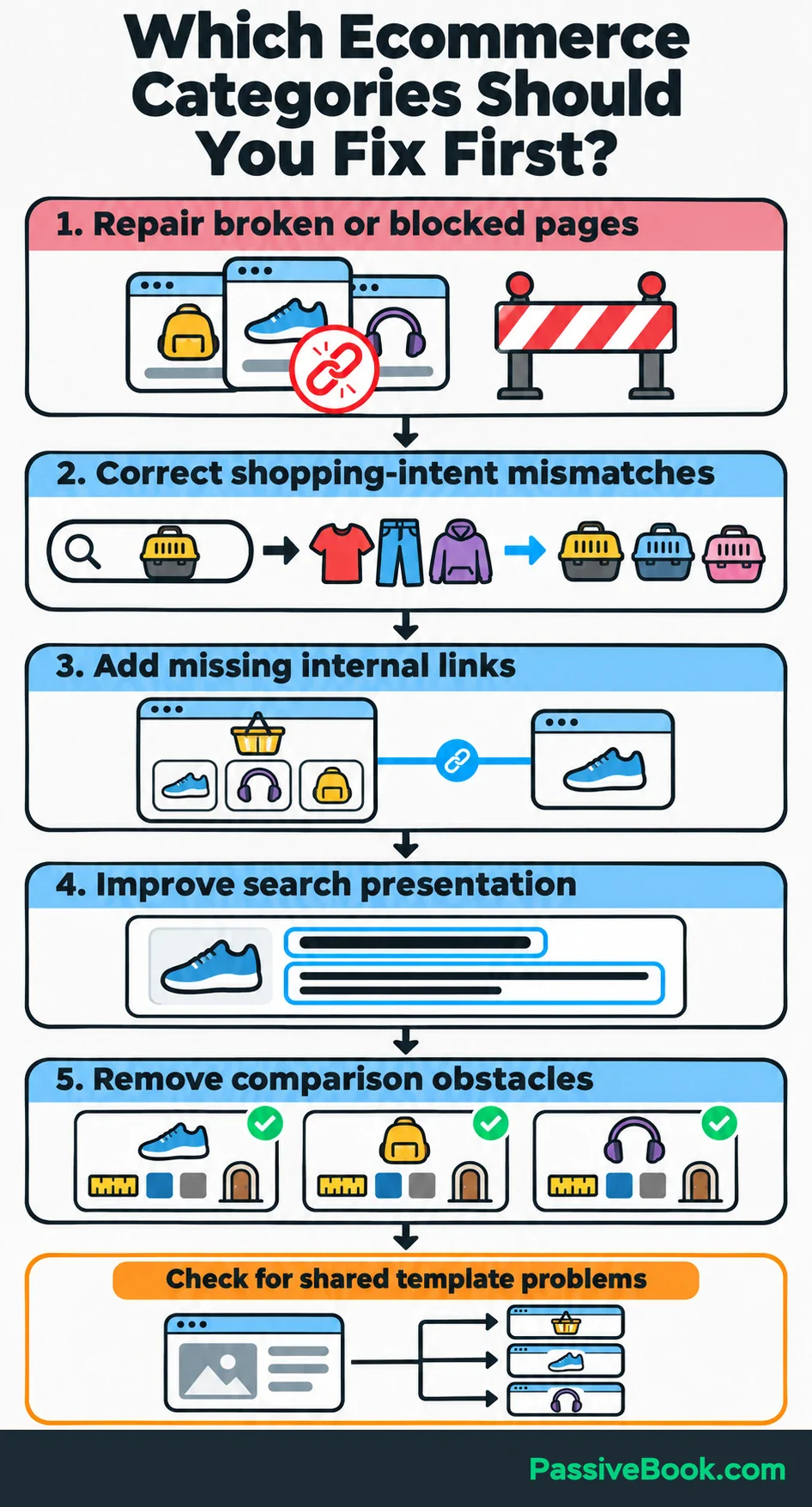
I would work through that list in this order:
- Repair valuable categories that are broken or accidentally blocked.
- Correct categories targeting the wrong shopping need.
- Add missing links to useful collections.
- Improve search titles and descriptions where the page already earns relevant impressions.
- Remove obstacles that make products difficult to compare.
Use Search Console’s URL Inspection tool for important pages. Review the indexed information to see whether Google has indexed the URL and which canonical it selected. A canonical is the preferred version of a page when several URLs show similar content.
Then run a live test and inspect the rendered page to check what loads now. The indexed report describes Google’s stored information; the live test helps you examine the current page.
Save a dated baseline for each selected category: search clicks, organic landing sessions, purchases, and revenue. Keep a short change log alongside it.
A new category will not have traffic history, so judge it by demand, product availability, and readiness to help shoppers choose. An existing category should not jump the queue merely because it has been around longer.
Also look for shared problems. If every category loses filter selections when visitors return from a product, one template fix may help far more than ten rewritten introductions.
Connect Categories Through a Clear Hierarchy
Organize the store around how shoppers narrow their choices. Each level should help them make a useful decision.
For the example, a browsing path could be:
Cat Travel Gear → Cat Carriers → Soft-Sided Cat Carriers → Individual Products
Include the soft-sided collection only if it earns the separate role described earlier. A small assortment may work better with fewer levels.
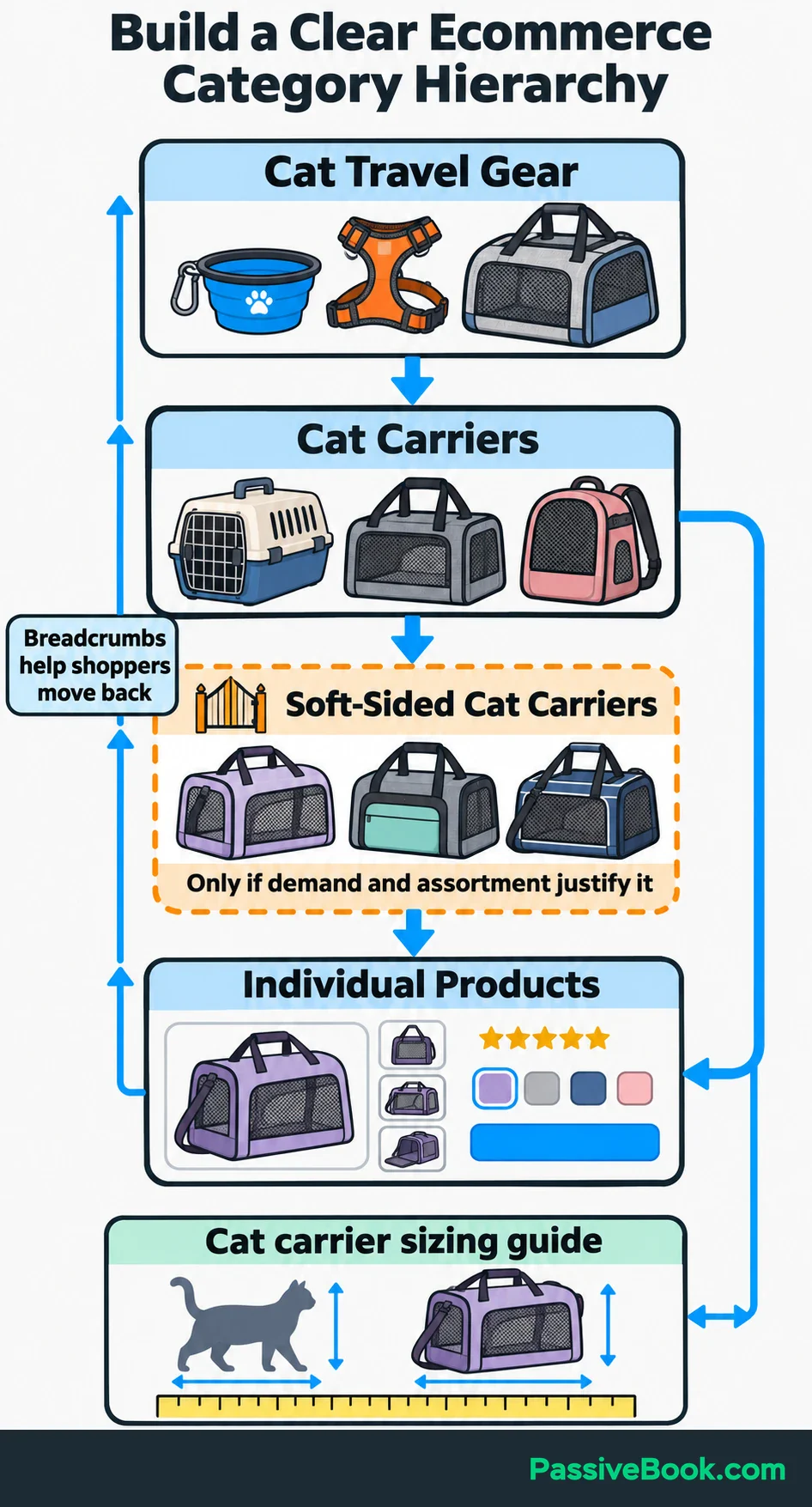
Link important categories from your main navigation, and link useful subcategories from their parent pages. Google explains that links between pages help it understand a store’s structure and the relative importance of its pages. Google’s ecommerce navigation guidance
Add contextual links where they help someone continue choosing. “Cat carrier sizing guide” tells shoppers more than “learn more.” That guide should also give readers a relevant route back to the collection.
Visible breadcrumbs help people move back through the hierarchy. Add matching BreadcrumbList structured data—the machine-readable version of that trail—and validate it with Google’s Rich Results Test.
Keep category URLs readable and stable. I would leave a working URL alone unless changing it solves a real problem. If you replace an established URL, permanently redirect it to the closest relevant replacement. Update internal links, canonical references, and your XML sitemap, the file listing URLs you want search engines to discover.
Make Categories and Products Discoverable
Check Category Indexing and Product Links
Crawling means fetching a page. Indexing means including it in a search engine’s searchable collection. Your intended category landing pages need to support both.
Check that each important category:
- Returns HTTP 200, the response for a successfully loaded page.
- Allows search crawlers to access it.
- Has no accidental
noindexinstruction, which tells search engines to exclude the page from results. - Declares the intended canonical URL.
- Includes working product links.
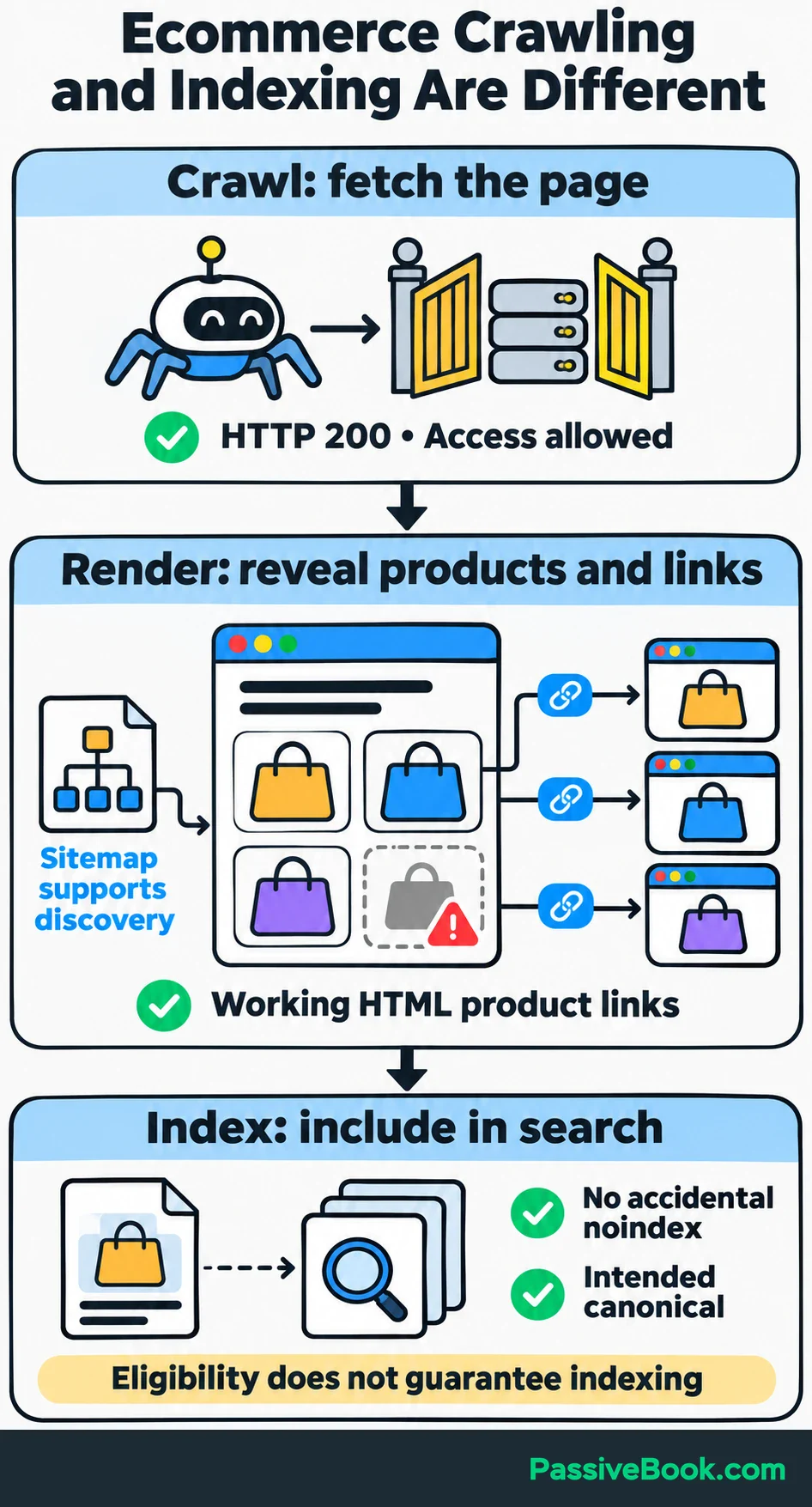
Product cards should use ordinary HTML links with an <a href> pointing to the preferred product URL. Products should be reachable through category browsing, including later listing pages. Google generally does not submit searches through your store’s search box to discover products.
If JavaScript loads the collection, inspect the rendered page. Confirm that essential copy, product listings, and links appear. Fix a missing grid before adding another paragraph above it.
Include preferred, indexable category and product URLs in your XML sitemap. Treat the sitemap as a supporting discovery route while keeping category navigation usable.
Keep Products Beyond the First Page Accessible
A collection can look complete to you while its later products remain difficult for a crawler to reach.
Give each page of products a distinct URL, such as:
/cat-carriers//cat-carriers/?page=2/cat-carriers/?page=3
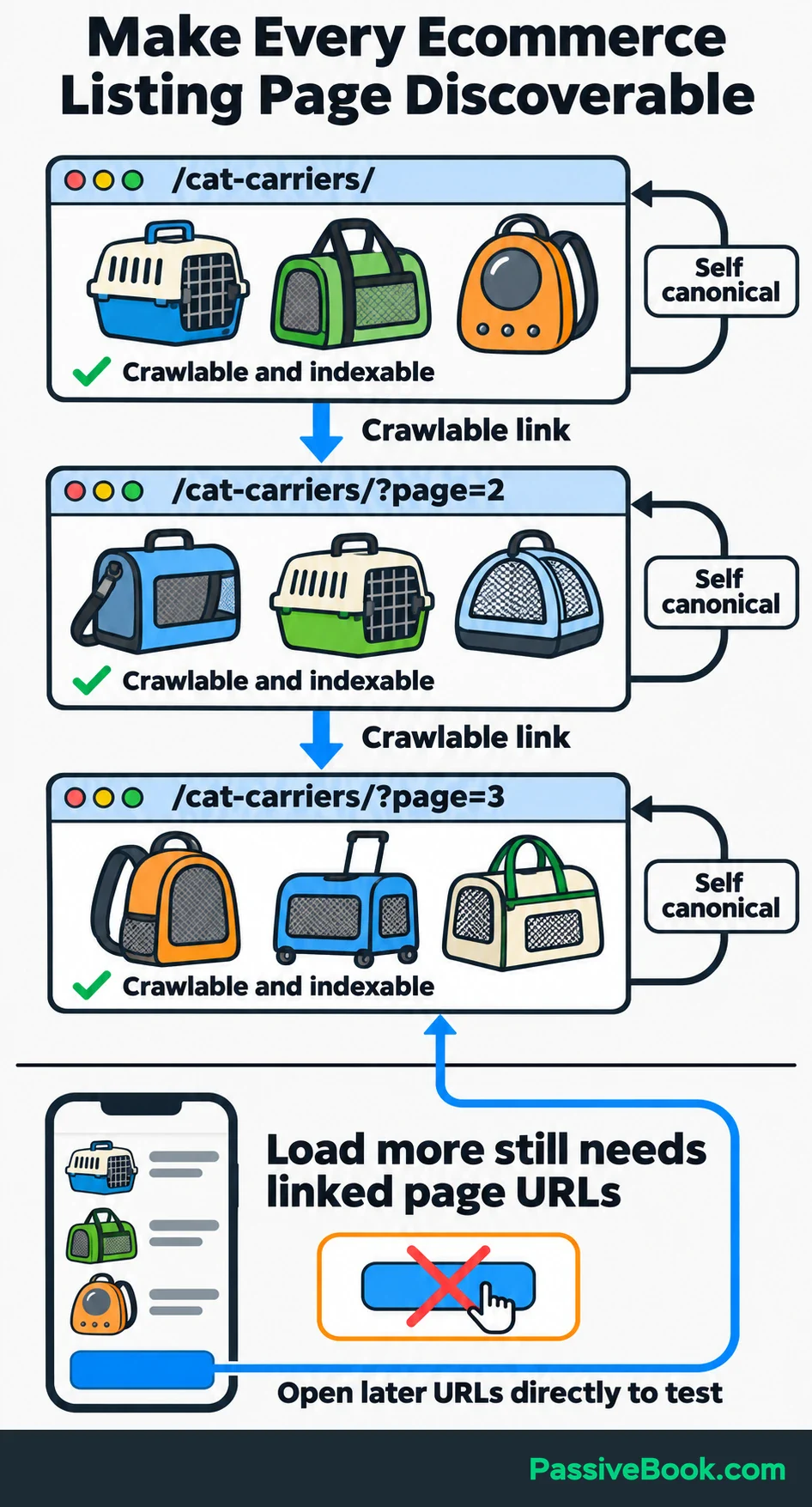
Link the sequence with crawlable links. Each page should declare its own canonical URL rather than sending every canonical reference back to page one. Keep those listing pages accessible for crawling and indexing.
“Load more” and infinite scrolling can still work for shoppers, but they need linked paginated URLs that expose the corresponding products. Google’s crawlers generally do not click buttons or trigger interactions to reveal another batch. Google’s pagination guidance
Test a later URL directly. It should show its expected products without requiring you to start at the first page and press a button twice.
Control Filter and Sort URLs
Filters narrow the selection, while sorting changes its order. Both can create extra URLs.
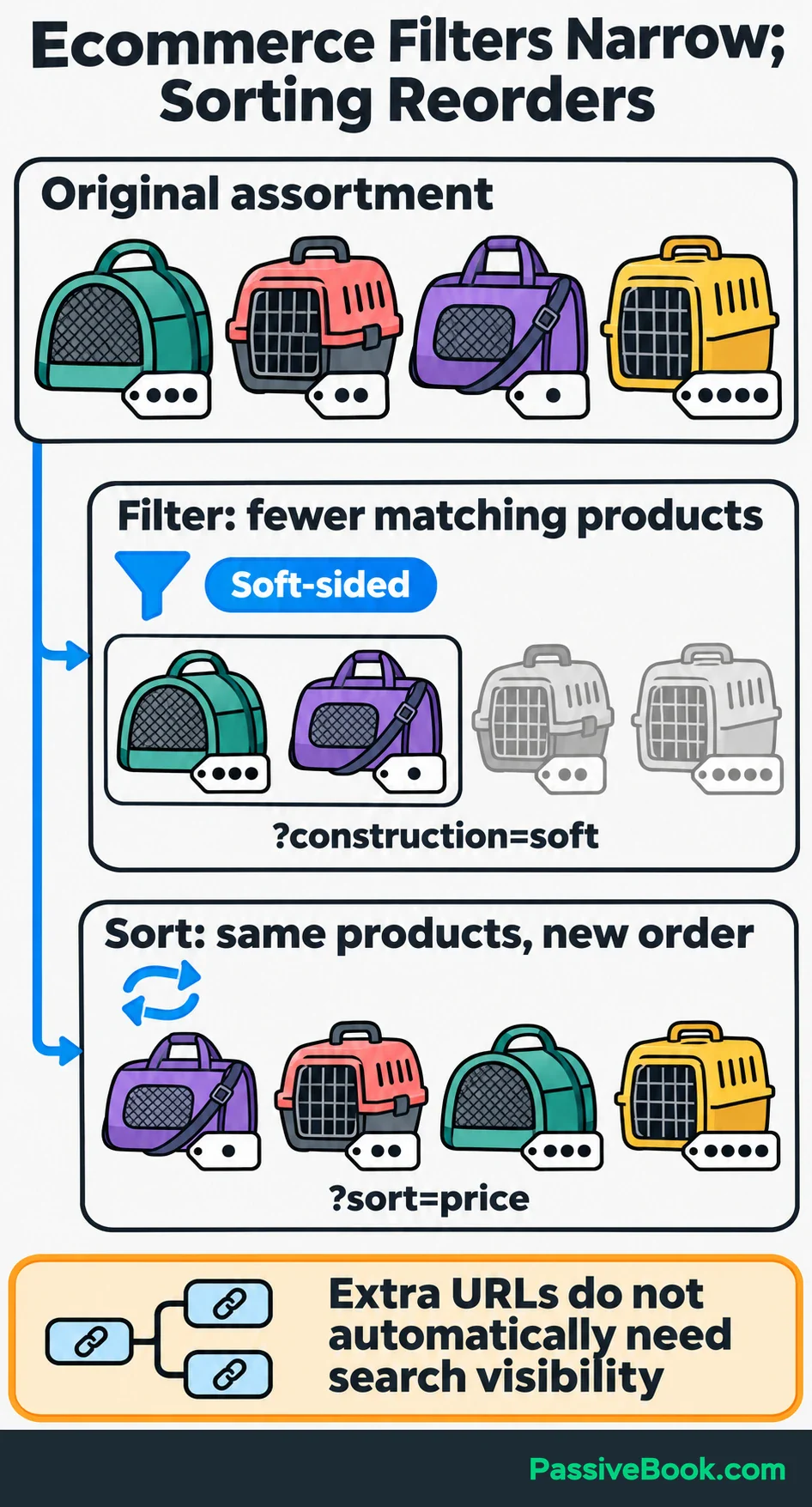
Construction, colour, price, and size filters can create many URLs with little separate search value. Crawling them can slow discovery of useful pages.
Decide which selections deserve search visibility before applying technical rules.
Make Valuable Selections Search Landing Pages
Use the demand, shopping-need, and assortment checks from your keyword map.
If “Soft-Sided Cat Carriers” qualifies, give it one stable destination with:
- Products that match the selection.
- A specific title and visible heading.
- Brief guidance relevant to those products.
- A link from the main “Cat Carriers” category.
- Consistent internal links and a canonical reference pointing to its preferred URL.
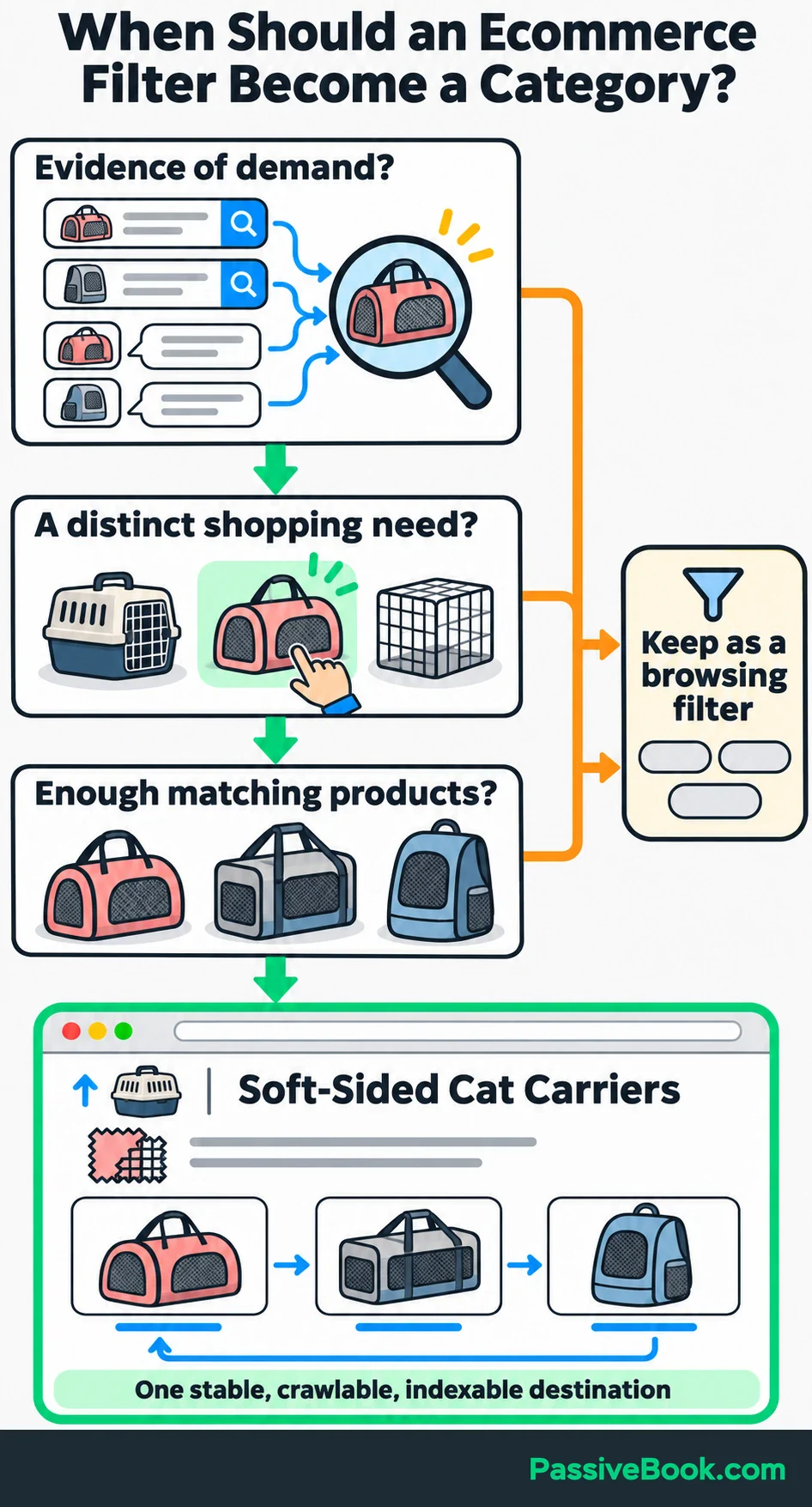
Keep that approved collection crawlable and indexable.
I would start with a few useful collections; hundreds of filter pages mean hundreds more pages to maintain.
Apply the Right Control to Unwanted URLs
Record a URL policy. The robots.txt file tells crawlers which URLs they may access.
| URL Pattern | Control and Condition |
|---|---|
/cat-carriers/ | Allow indexing; canonical points to itself. Keep pagination accessible. |
/soft-sided-cat-carriers/ | Allow indexing; canonical points to itself. Validate demand and assortment first. |
/cat-carriers/?sort=price | Canonical to the corresponding default-order page only when substantially similar. |
/cat-carriers/?size=small | Use crawlable noindex for browsing-only selections. Keep products linked from indexable collections. |
?colour=blue&size=small&price=low and similar redundant combinations | Targeted robots.txt restrictions; preserve approved collections, products, and pagination. |
A canonical suggests the preferred URL for duplicate or substantially similar pages. Google may choose another URL, and crawling can continue. Google’s canonicalization guidance
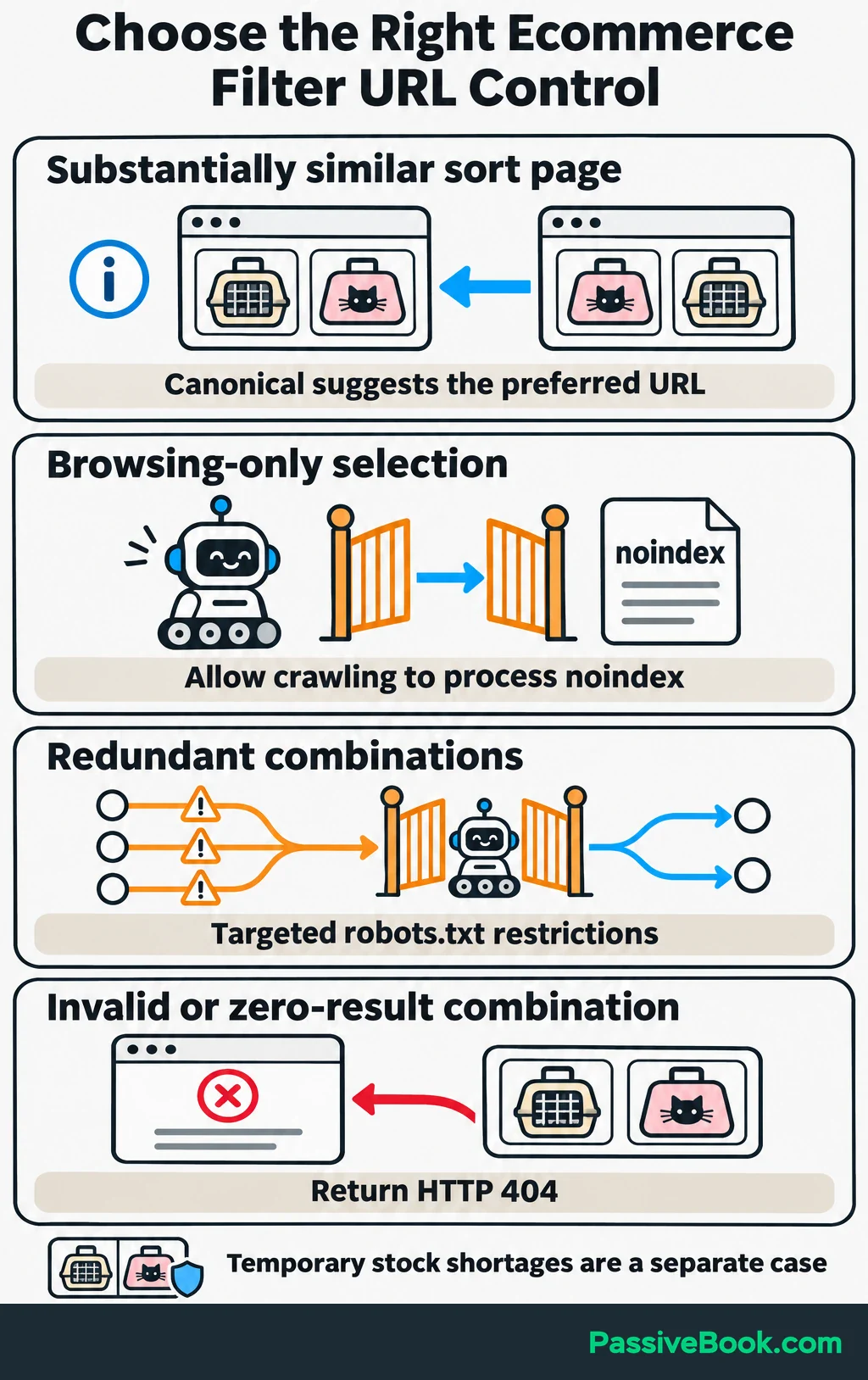
Google must crawl a page and process its noindex instruction to remove it from results. Blocking access in robots.txt prevents Google from reading that instruction. Google’s indexing-control requirements
For already indexed filter URLs, let Google process noindex before blocking access. A robots.txt block alone does not reliably remove indexed URLs.
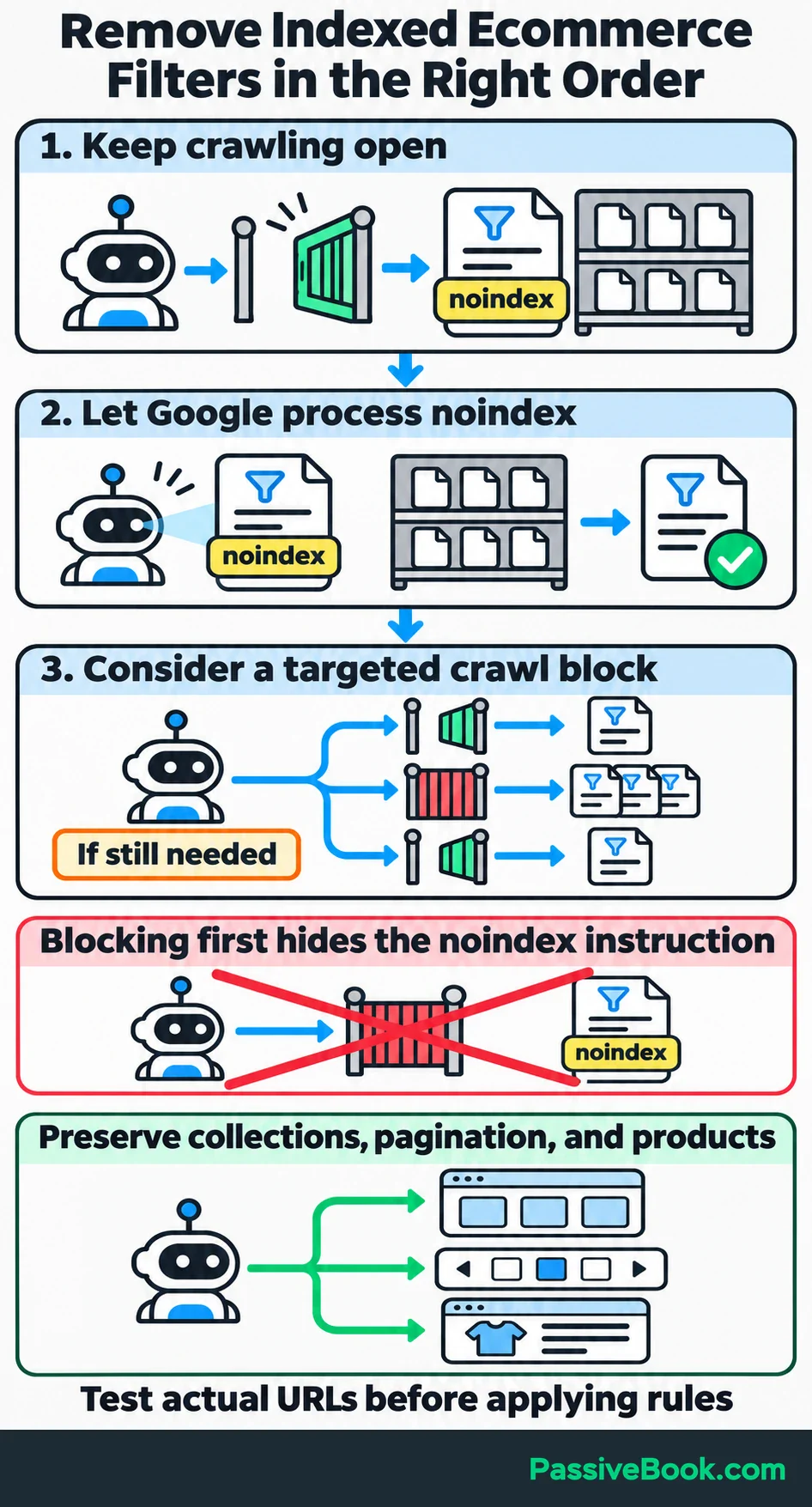
Test proposed rules against actual filter URLs, approved collections, pagination, and products. A broad rule that blocks every URL containing a question mark could catch useful pages too.
For invalid or zero-result generated filter combinations, return HTTP 404 (“not found”) at the requested URL and offer links back to useful collections. Keep established categories experiencing temporary stock shortages separate from that rule. Google’s faceted-navigation guidance
Write Category Content That Supports the Purchase
Align the Title, Heading, and Description
Make the page’s search presentation and visible content describe the same assortment.
The title should name the collection and give a useful reason to investigate it. The H1 is the main visible page heading, and it can be simpler. The meta description previews what shoppers can compare.
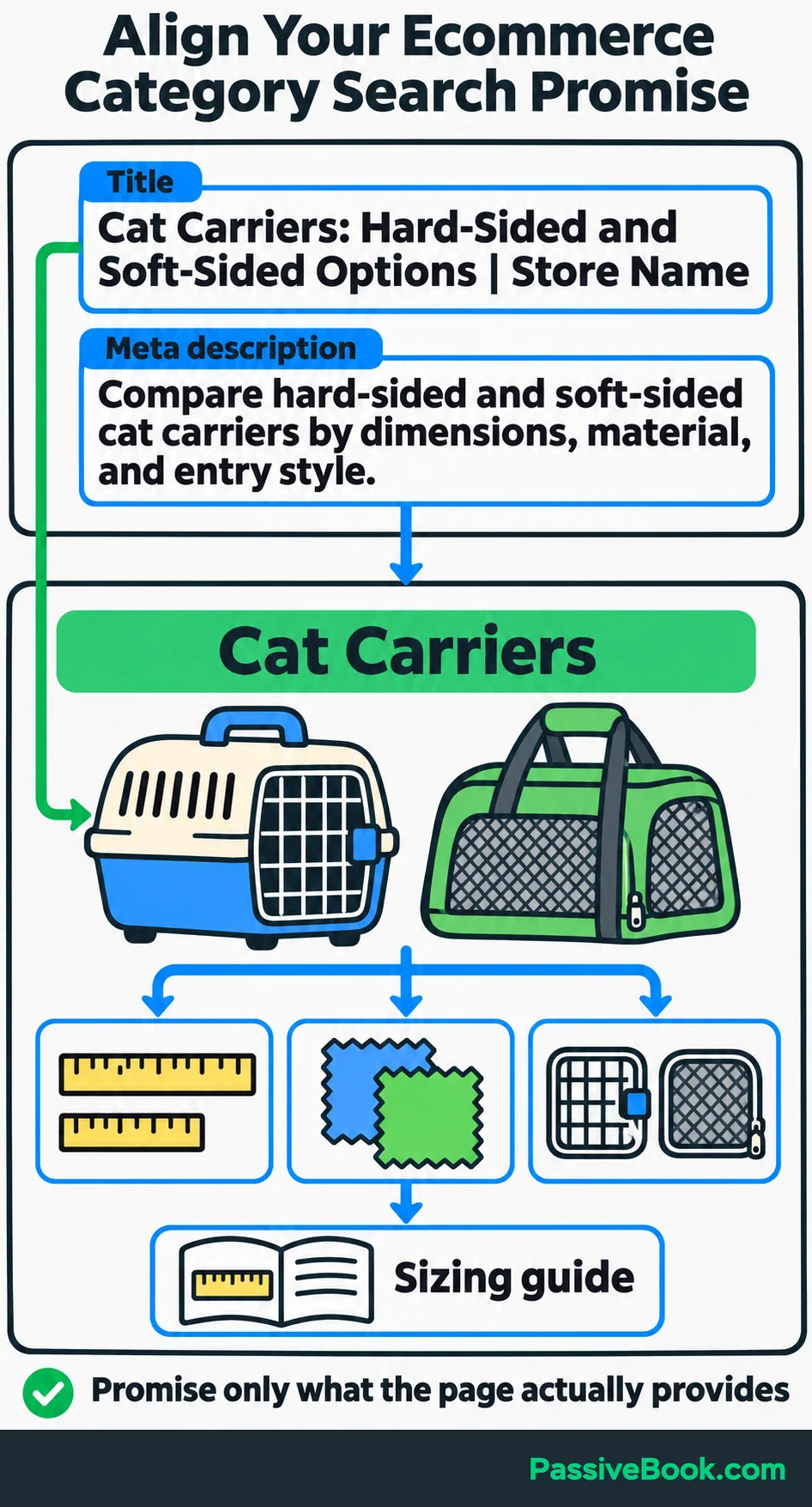
For the example collection:
- Title: Cat Carriers: Hard-Sided and Soft-Sided Options | Store Name
- H1: Cat Carriers
- Meta Description: Compare hard-sided and soft-sided cat carriers by dimensions, material, and entry style. Browse the collection and check our sizing guide.
That copy assumes the store carries both construction types and provides the comparison details and guide. Change it to match what your page actually offers.
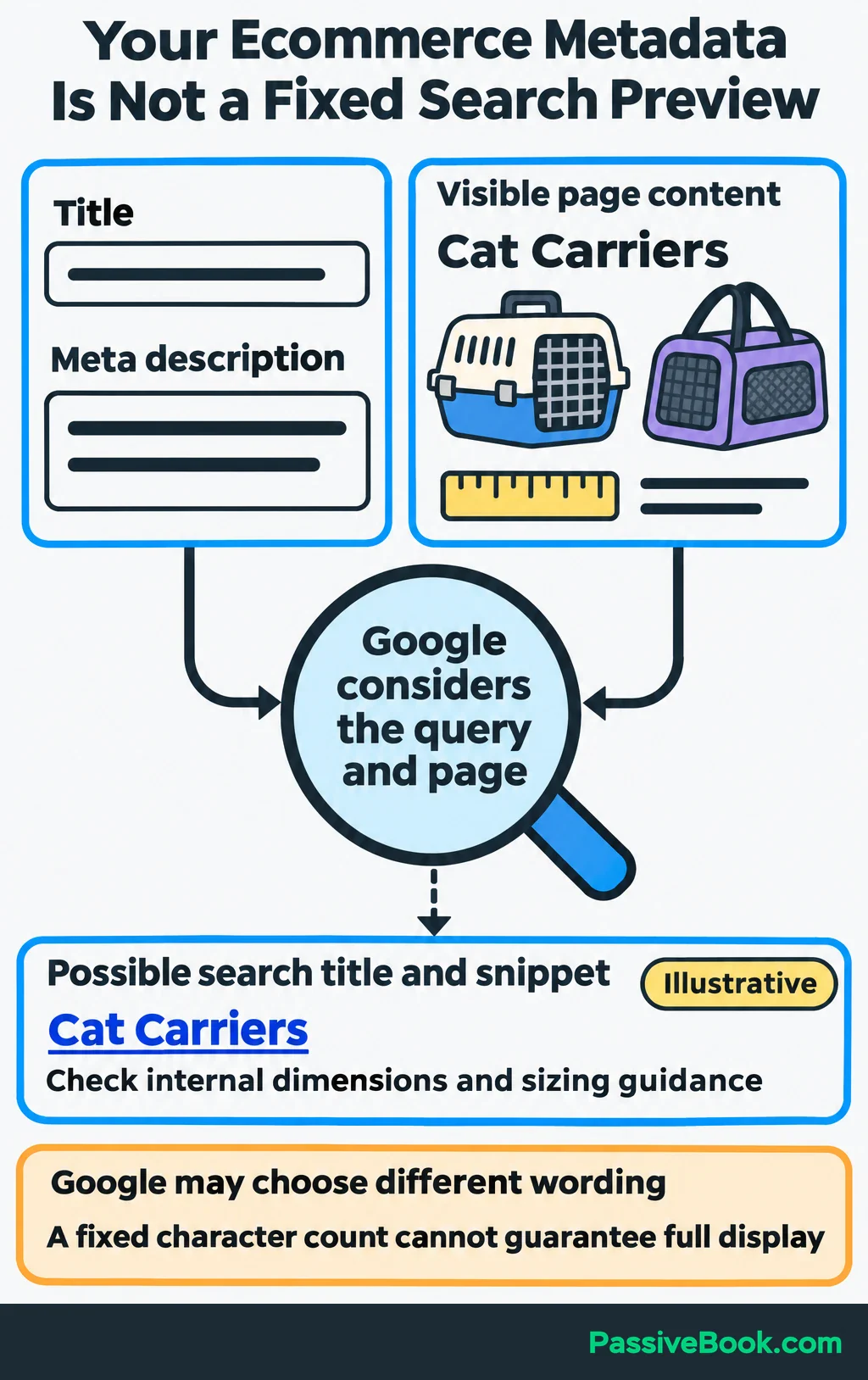
Google can generate a different search title, and a fixed character count does not guarantee full display. Write a concise, descriptive title rather than repeating keyword variations. Google’s title guidance
Google usually creates search snippets from page content. It may use your meta description when that gives a better summary for the query. Google’s snippet guidance
Answer Buying Questions Near the Relevant Choice
Open with enough information to orient the shopper, then make the products easy to reach.
For the carrier collection, a short introduction could say:
Compare hard-sided and soft-sided cat carriers, then narrow the collection by construction and entry style. Check each product’s internal dimensions and sizing guidance before choosing.
Next, identify what shoppers need to know to compare the products you sell. Useful questions might include:
- Which construction types are available?
- Where can I find internal dimensions?
- Which models offer top entry, front entry, or both?
- How do I check the manufacturer’s sizing guidance?
Put each answer near the relevant choice. Beside a size filter, for example:
Compare your cat’s measurements with each carrier’s internal dimensions and the manufacturer’s sizing guidance.
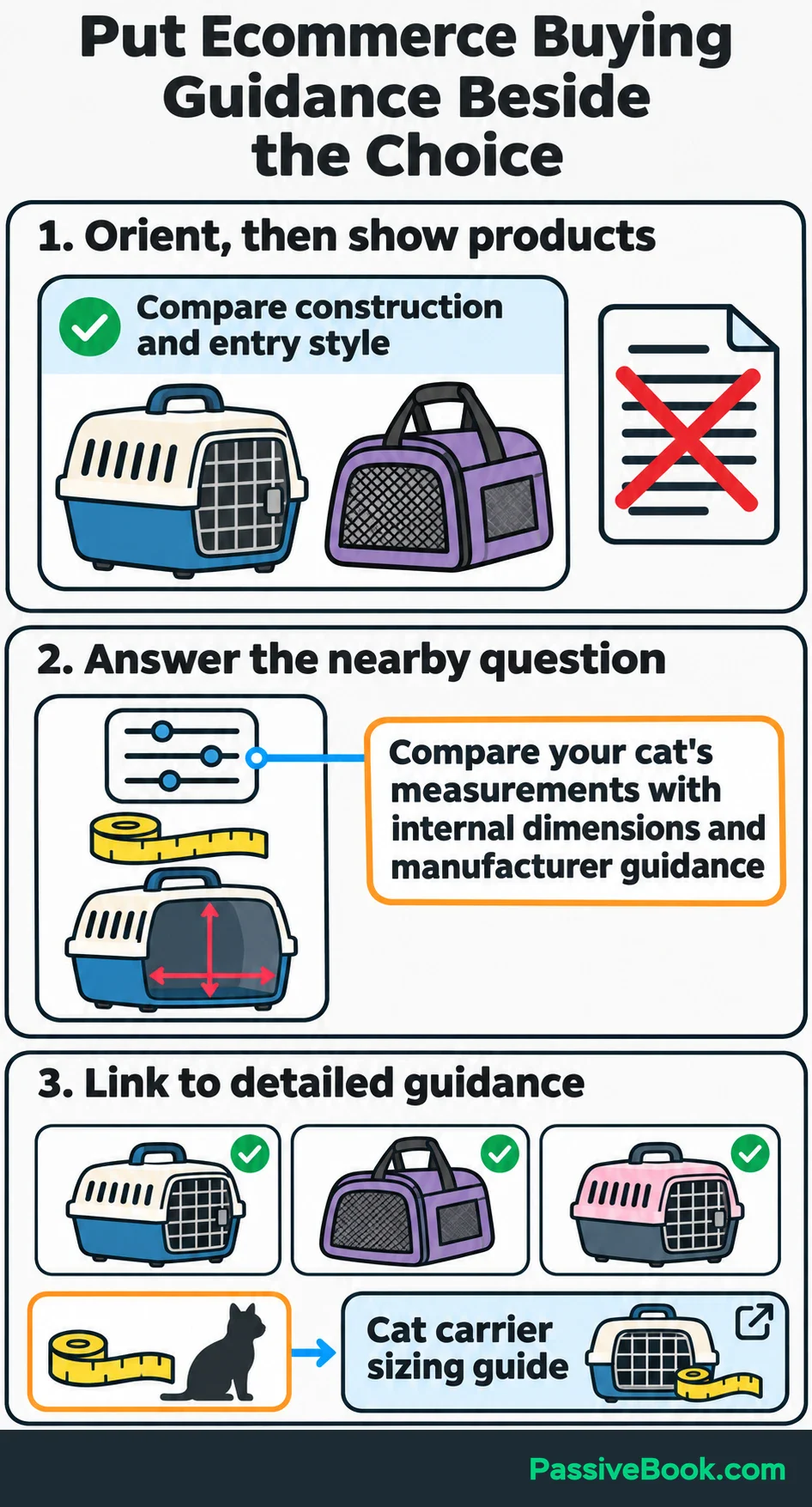
Longer instructions can sit below the grid or on a linked guide. Someone ready to compare products should not have to scroll past an essay first.
Let the buying decision determine the length. A short collection with clear differences may need little explanation. A complicated assortment may need more.
Use verified product information for dimensions, materials, sizing, and performance claims. A category description should help shoppers understand the products you stock, so generic filler has little work to do.
If you have the product details but are stuck on the wording, the AI Ecommerce Copy Studio can turn them into a first draft. It separates the short introduction from guidance that belongs beside filters or below the grid.
Free AI Ecommerce Copy Studio




Make the Product Grid Easy to Shop
Every product in the grid should fulfil the category’s promise. Lead with relevant, available options and avoid letting unavailable stock dominate the first screen.
Use a consistent card format so shoppers can compare the same details across products.
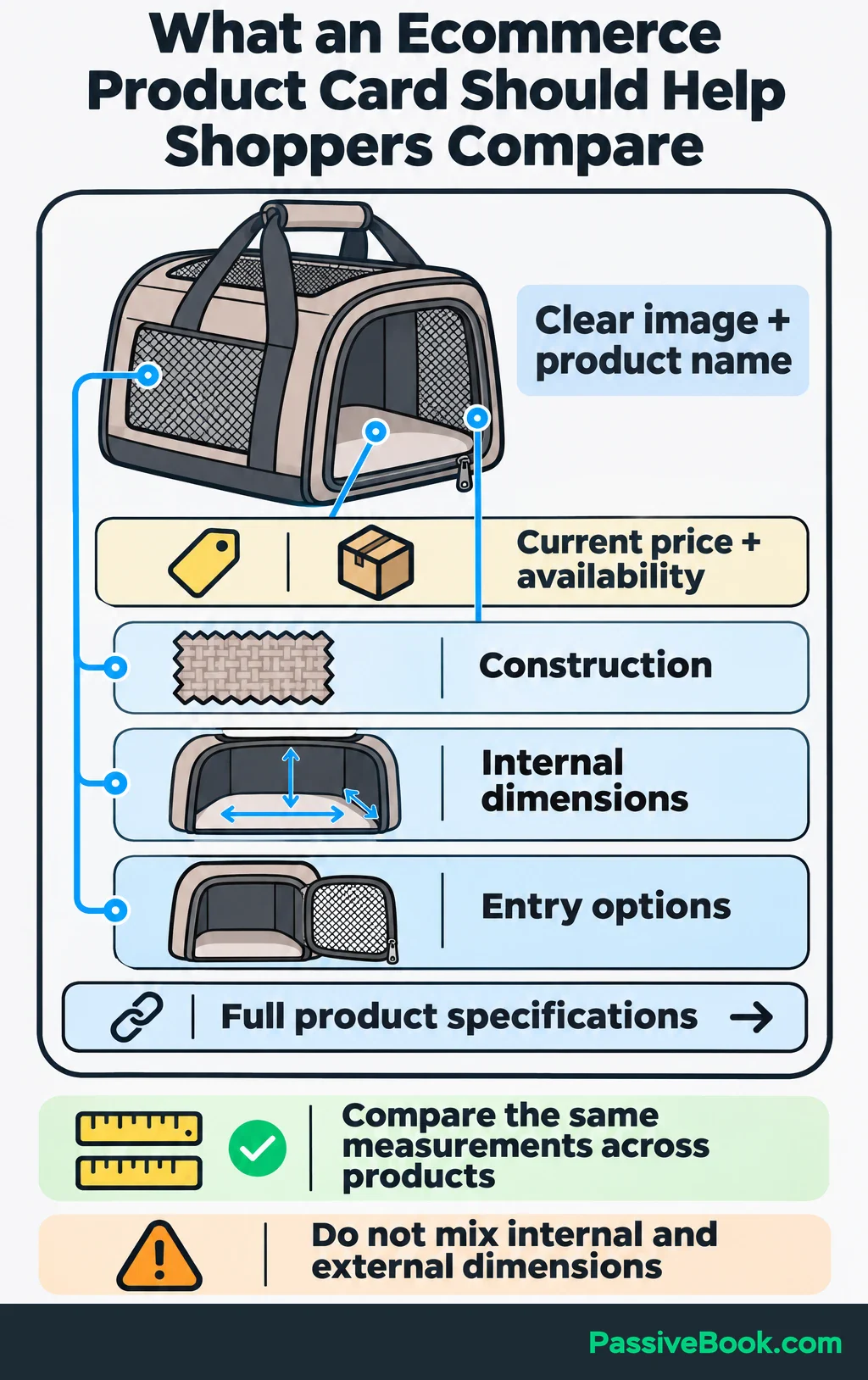
For the carrier collection, I would show:
- Product Identity: A clear product name and consistent image.
- Purchase Details: Current price and availability.
- Comparison Details: Construction type, internal dimensions, and entry options.
- Next Step: A clear link to the full product specifications.
If a detail would overcrowd the card, give it a predictable place on the product page. Avoid showing external dimensions on one card and internal dimensions on another without making the difference clear.
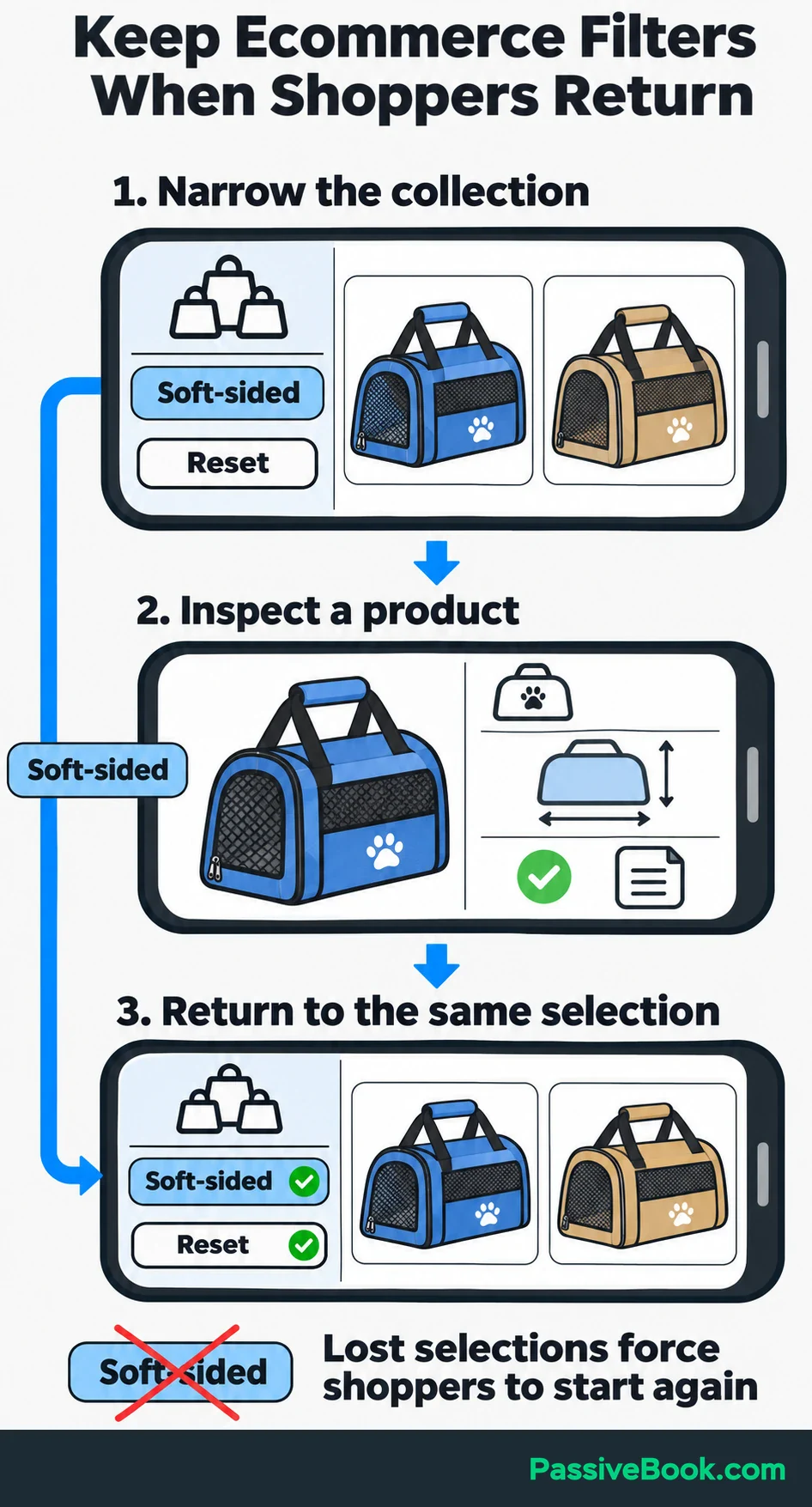
Build filters from accurate product attributes. Show result counts and applied filters, provide an obvious reset, and preserve selections when someone returns from a product page. Offer useful sorting, such as price order, while keeping the default selection relevant.
Make delivery, returns, and genuine review information easy to find where they help shoppers decide.
Image alt text should reflect the image’s role. Describe meaningful visual information, use empty alt attributes for decorative or redundant images, and describe the destination when an image supplies a link’s accessible name. W3C’s image-alternative guidance
During a temporary inventory gap, keep an established category helpful. Explain availability and link to relevant alternatives. An empty grid with no explanation leaves shoppers with nowhere useful to go.
Improve Mobile Browsing and Page Speed
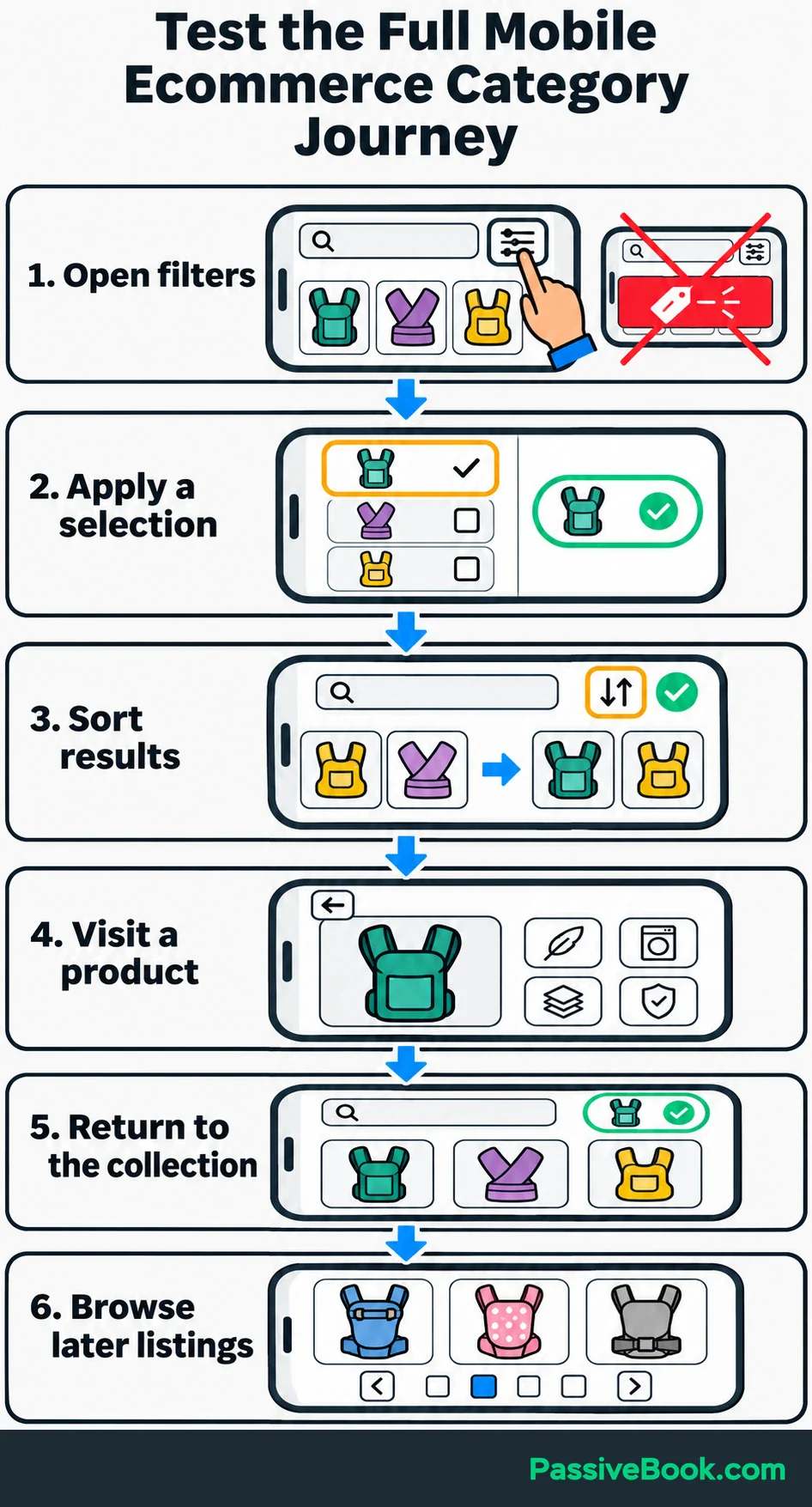
Test the whole shopping journey on a phone. Open filters, apply a selection, sort the results, visit a product, return to the collection, and browse later listings.
Watch for problems you can observe:
- A promotion overlay covers the filter controls.
- Small buttons make selections difficult.
- Returning from a product clears the chosen filters.
- Images load and push the product you were about to tap down the screen.
- Sorting appears unresponsive, so you tap it again.
Fix those problems before treating performance as a score to collect.
Use appropriately sized, compressed images and reserve their display space. Defer images below the visible area, but prioritize imagery needed for the first screen. Remove scripts and widgets that delay useful content or shopping controls.
Core Web Vitals measure loading, responsiveness, and visual stability. Use Search Console to identify affected page groups and PageSpeed Insights to investigate likely fixes. Google’s Core Web Vitals guidance
I would judge progress by whether the category becomes easier to use alongside those measurements. A better performance score does not guarantee higher rankings.
Measure Results and Repeat the Workflow
Before comparing results, test a shopping journey and check that Google Analytics 4 records these actions without missing or duplicate events:
- List Viewed:
view_item_list - Product Selected:
select_item - Product Added to Cart:
add_to_cart - Purchase Completed:
purchase
Use the same product-list identifier, such as cat_carriers, for list views and selections to connect product clicks to this collection. GA4 ecommerce measurement guidance
In Search Console, compare each selected category’s impressions, clicks, click-through rate, and relevant queries with your baseline. Use average position as supporting context, and check whether the page is appearing for the shopping need you intended.
In analytics, select organic sessions that began on the improved category pages. Follow product selections, cart activity, purchases, and revenue from that group. Search Console clicks and analytics sessions use different measurement systems, so their totals will not match exactly.
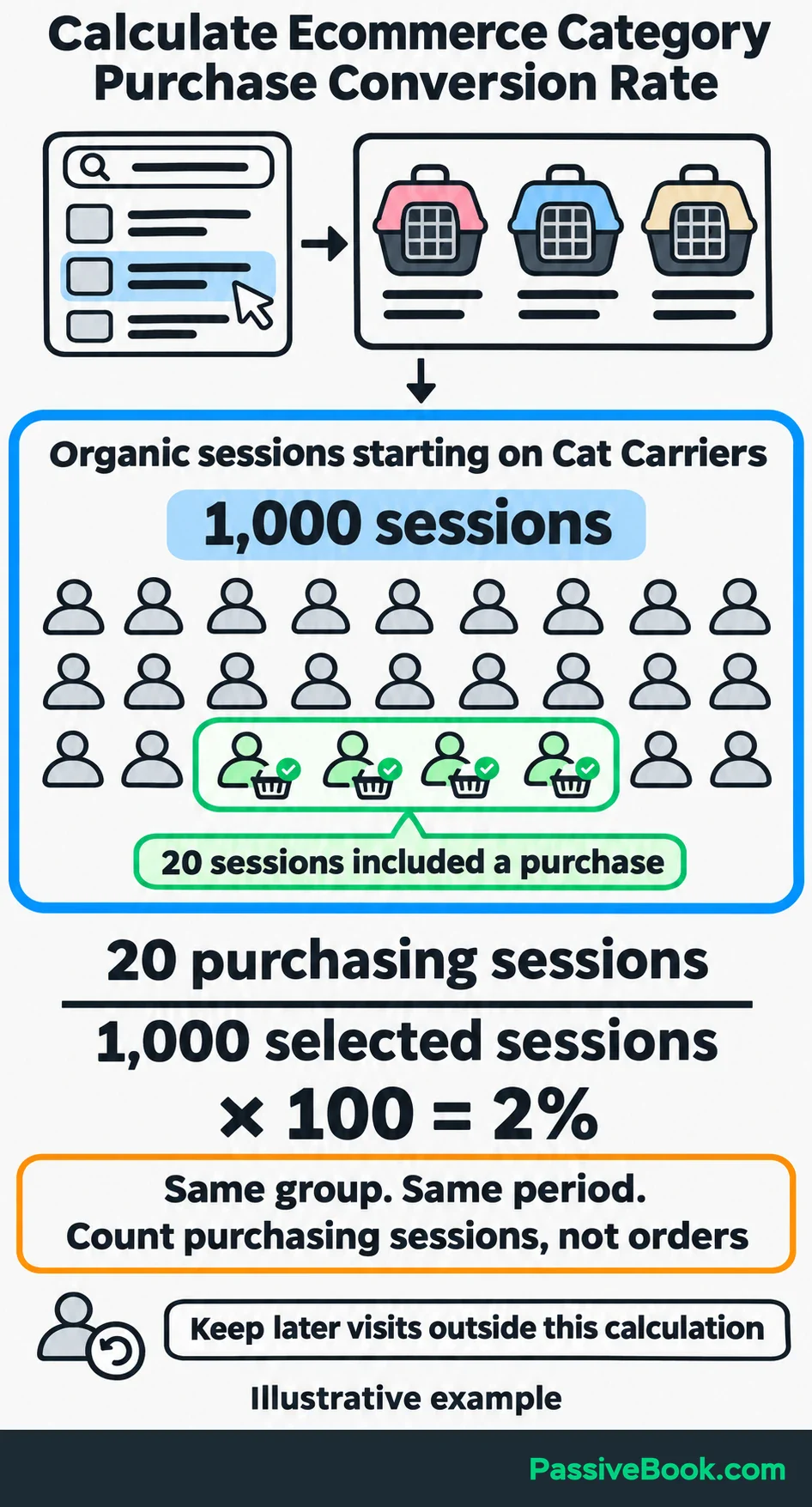
For a consistent purchase conversion rate, count sessions in that selected group that included a purchase, then divide by all sessions in the same group and period.
For illustration, if 20 of 1,000 organic sessions beginning on “Cat Carriers” included a purchase, the rate is:
20 ÷ 1,000 × 100 = 2%
Count purchasing sessions rather than orders, and keep later visits outside this calculation.
Use the pattern to choose your next investigation:
| What You See | What I Would Check Next |
|---|---|
| Little visibility for relevant searches | Indexing, shopping intent, internal links, and whether the assortment supports the target |
| Relevant impressions but few clicks | Search title, snippet, competing results, and position |
| Visits but few product selections | Product relevance, card details, filter usability, and mobile browsing |
| Product selections but few cart additions | Product information, availability, price, and delivery details |
| Cart additions but few purchases | Checkout errors, unexpected costs, and payment friction |
Compare equivalent periods and record promotions, stock changes, and seasonal demand. Before-and-after movement alone cannot show which edit caused a change.
Once a change works across representative pages, reuse the useful template components and URL rules. Keep each collection’s targeting, products, and buying guidance specific. That is how the work becomes a repeatable system without turning every category into the same page with a different heading.
What Next?
Choose one stocked category and write down its shopping intent, preferred URL, and most obvious obstacle today. Save its baseline, then work through the relevant checks before moving to another collection.
Use the social buttons to share this workflow when a category-page discussion needs a practical starting point.
Which obstacle is most likely holding back your strongest category: discovery, targeting, or product selection? Share your reasoning in the comments, and bring any other questions too.
Share this post with your friends & followers:

