A listener asks for your show’s Apple Podcasts link, but you only have a Spotify link to send. The episode is ready, yet listening means asking them to change apps.
You could start uploading files everywhere, but that creates another publishing job. Soon you’re checking which version went where and whether you remembered the show notes. Here’s how to get your show into more listening apps through one feed, with public playback checks so you can send listeners a link that works.
How Podcast Syndication Works
You publish your episodes with one podcast host and submit the show’s RSS feed to your chosen listening platforms. Once connected, those platforms check the feed for new episodes.
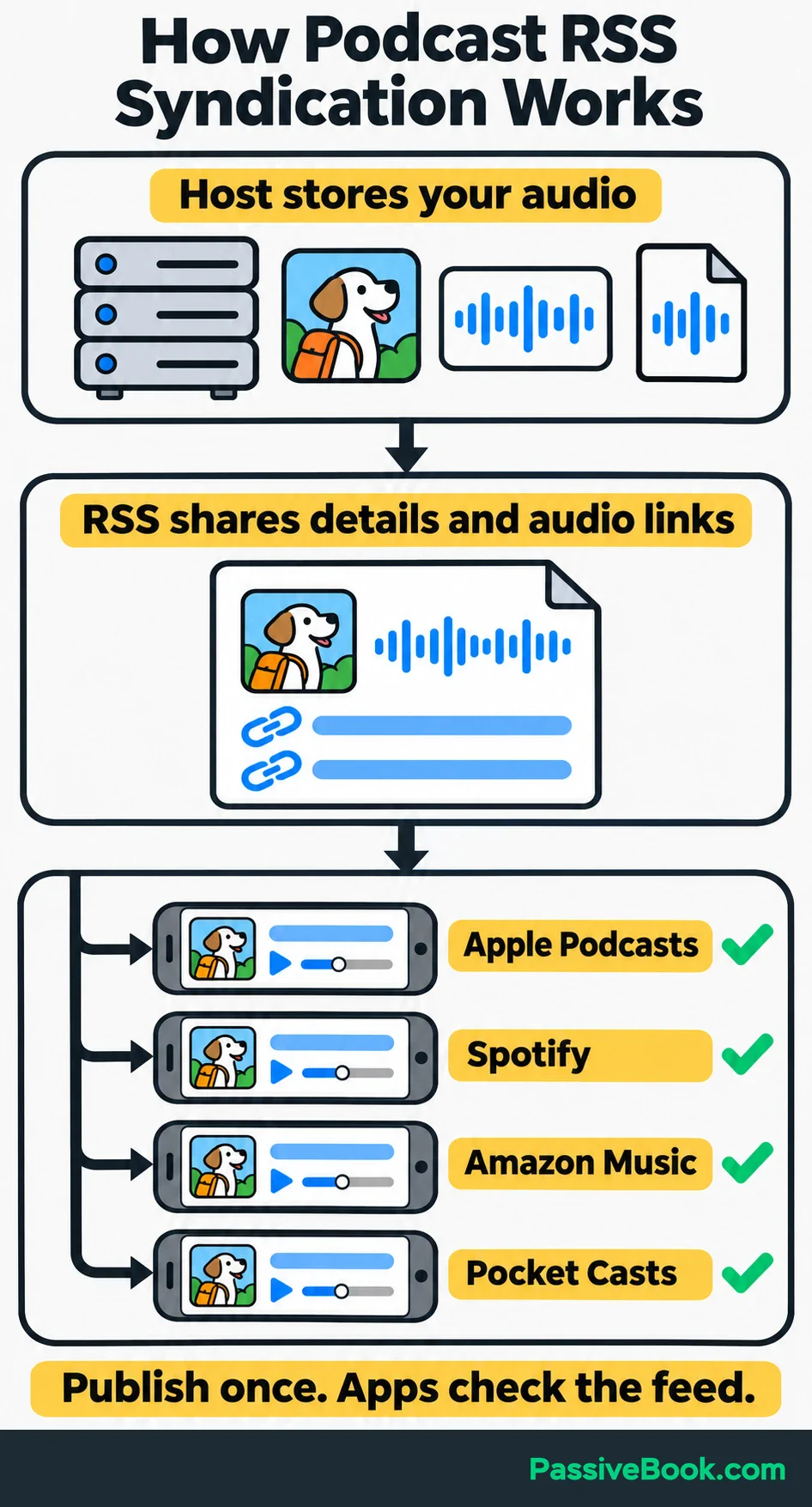
Three parts do different jobs:
| Part | What it does |
|---|---|
| Podcast host | Stores your audio files and usually creates your RSS feed. |
| RSS feed | Supplies your show details, episode descriptions, artwork, and audio links in a file podcast apps can read. |
| Listening platform | Makes your show available to people using services such as Apple Podcasts or Spotify. |
You don’t need separate hosting for every destination. Spotify can act as both a host and a listening platform, but you can also appear on Spotify while hosting elsewhere.
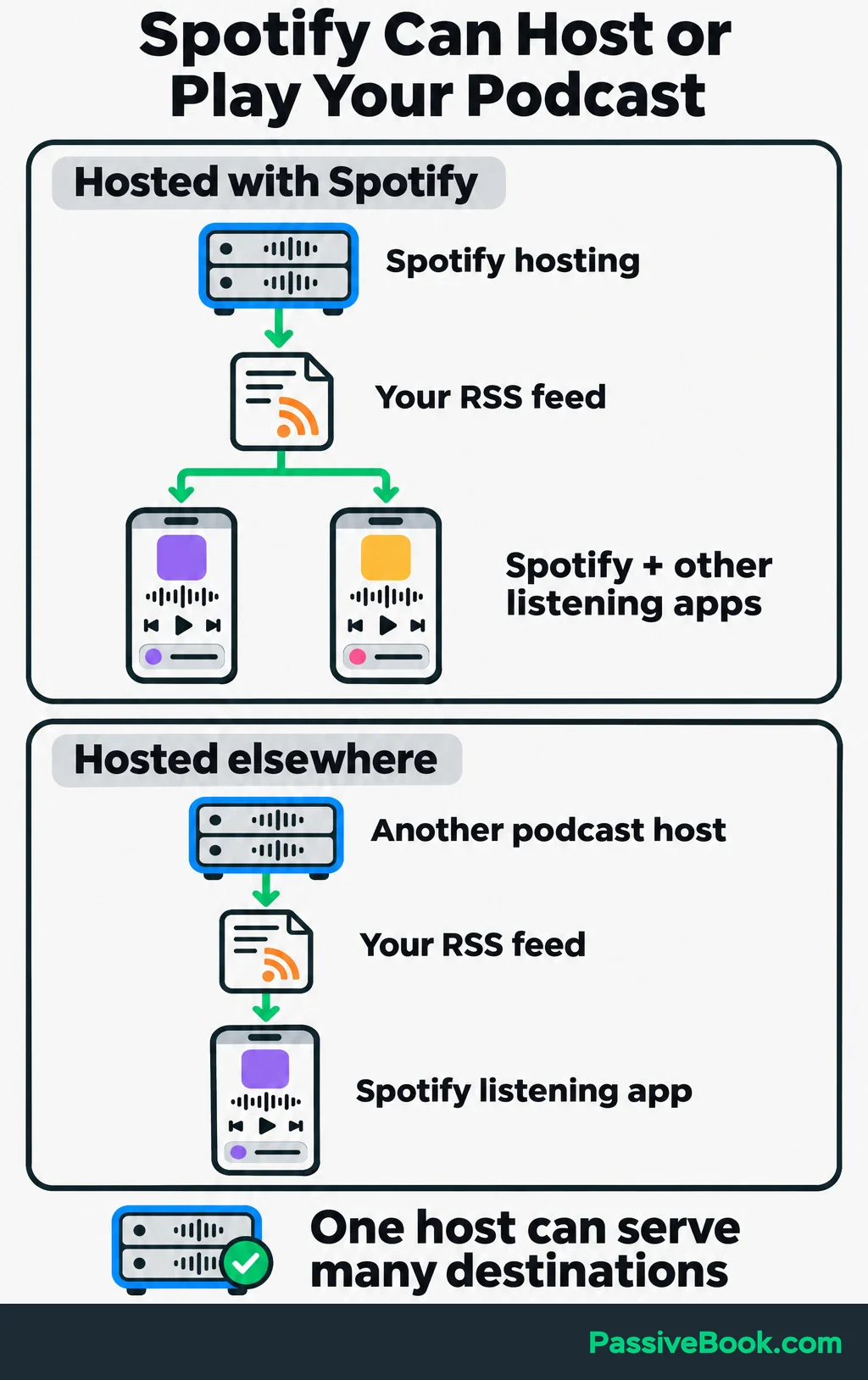
Syndication gives people more places to find and follow your show. It doesn’t guarantee listeners. Useful episodes and promotion still matter.
For the examples, imagine you sell printable packing checklists for day hikes with dogs. Your podcast, Weekend Trail Dogs, supports that shop. We’ll follow “Packing for Your Dog’s First Day Hike” from its first upload through public playback checks.
1. Prepare One Public RSS Feed
If your current host already provides a working public podcast feed, I would keep it. Adding listening platforms is a poor reason to move a show that works.
If you need a host, compare:
- Ongoing cost: What will you pay once introductory offers end?
- Upload allowance: Can it handle your planned episode length and schedule?
- Public RSS access: Can you copy your feed URL and submit it elsewhere?
- Migration support: Can you export your show and redirect its feed when leaving?
For a budget-first start, Spotify for Creators offers free podcast hosting. You can use it without making Spotify your only listening destination.
I would skip a premium distribution tool until you can name a recurring task that your host doesn’t already handle.
Find Your Feed and Verification Email
Copy the podcast RSS URL from your host’s feed or distribution settings. It is the address for the whole show, rather than your website, an individual audio file, or a Spotify listening page.
Save that URL somewhere easy to find. You’ll reuse it for each submission.
Next, choose a dedicated contact email that you control and check regularly. Some destinations send ownership codes to the email inside the feed, which may differ from your hosting account’s login email.
If you host with Spotify, publish your first episode and enable RSS distribution before submitting elsewhere. Your show appears on Spotify automatically, but you must submit it to other destinations. Enabling the feed also makes its contact email public, so choose that address deliberately. Spotify explains these distribution and privacy conditions.
Check the Show Details and First Episode
Complete the information at your host before submitting. These details become the starting point for your platform listings.
- Show details: Title, creator name, description, language, category, and explicit-content setting.
- Episode details: A descriptive title, summary, publication date, explicit-content setting, and working audio.
- Show artwork: A square image with a title people can read at a small size.
- Content permissions: Permission to distribute your recordings, guest contributions, music, artwork, and other material you didn’t create.
Apple requires at least one episode, artwork, and a compliant RSS feed that is publicly accessible without a password. You don’t need a large back catalog to begin. Apple’s RSS requirements give your host the technical checks to meet.
For artwork, I would export a 3000 × 3000-pixel JPG or PNG from Canva. Use a solid background and remove transparency. That follows Apple’s preferred show-cover specifications and gives you one master image to maintain.
Run your host’s feed checks and resolve errors before submitting. Let the host generate the feed’s code. If you can’t resolve a validation error through the host’s settings, send it to hosting support instead of editing unfamiliar code.
For Weekend Trail Dogs, publish “Packing for Your Dog’s First Day Hike” and listen to the uploaded audio. Then open the public feed and confirm that the episode title, description, and audio link appear. A browser may display raw text; you’re checking that the published episode is present.
2. Submit Your Feed to Listening Platforms
I would start with Apple Podcasts and Spotify, then add Amazon Music and Pocket Casts. Add further destinations when listeners ask for them or you have a clear reason to expect your audience there.
Before submitting, search each service for your show and check your host’s distribution records. Your host may have submitted it already, or another app may have picked up the public feed.
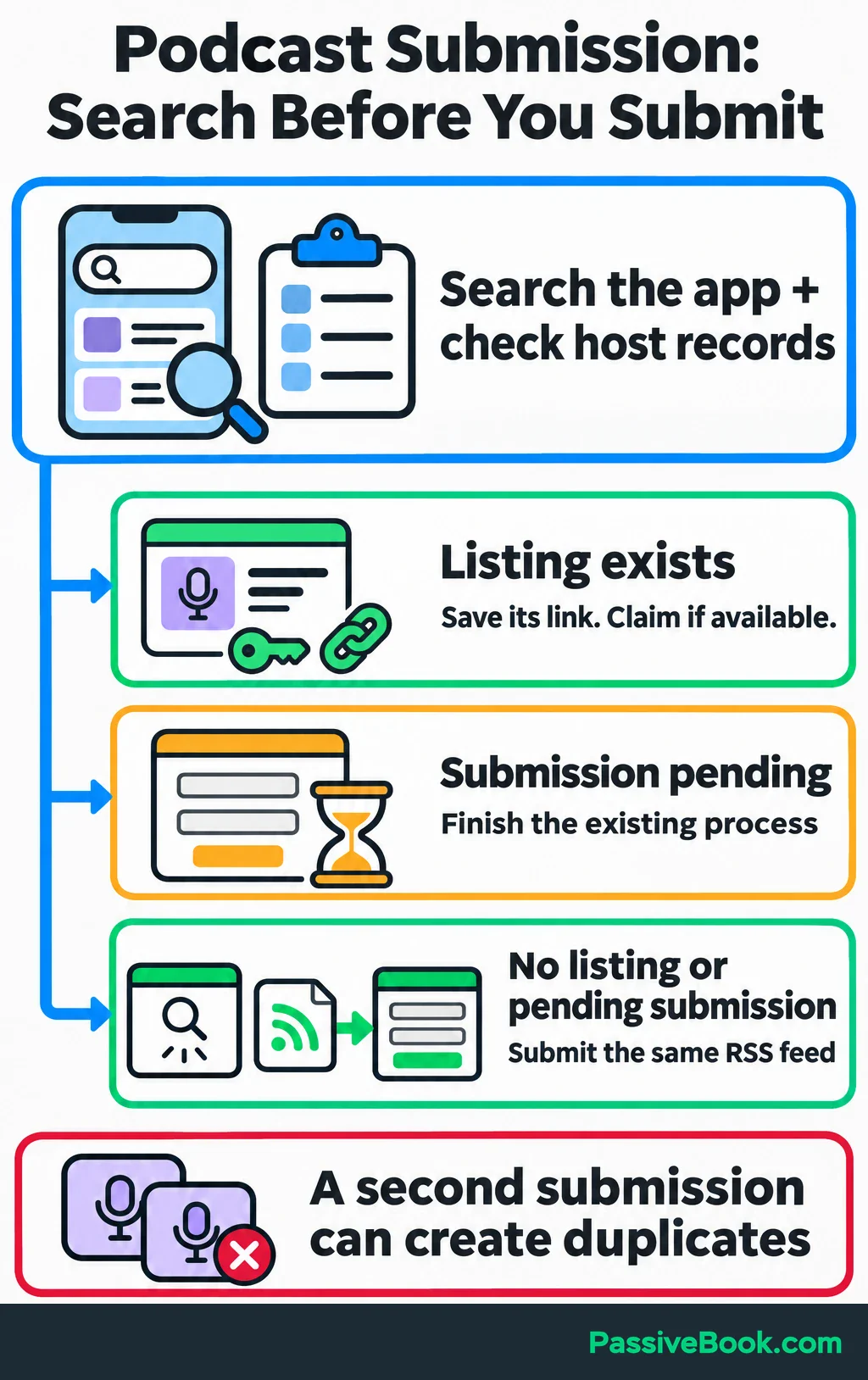
If a listing exists, save its public link and claim it where the service offers that option. If your host shows a pending submission, finish that process. Creating another listing gives you another problem to manage.
Use your host’s submission integration when it supports the destination. Otherwise, submit the same primary RSS URL directly. Complete any ownership verification either way.
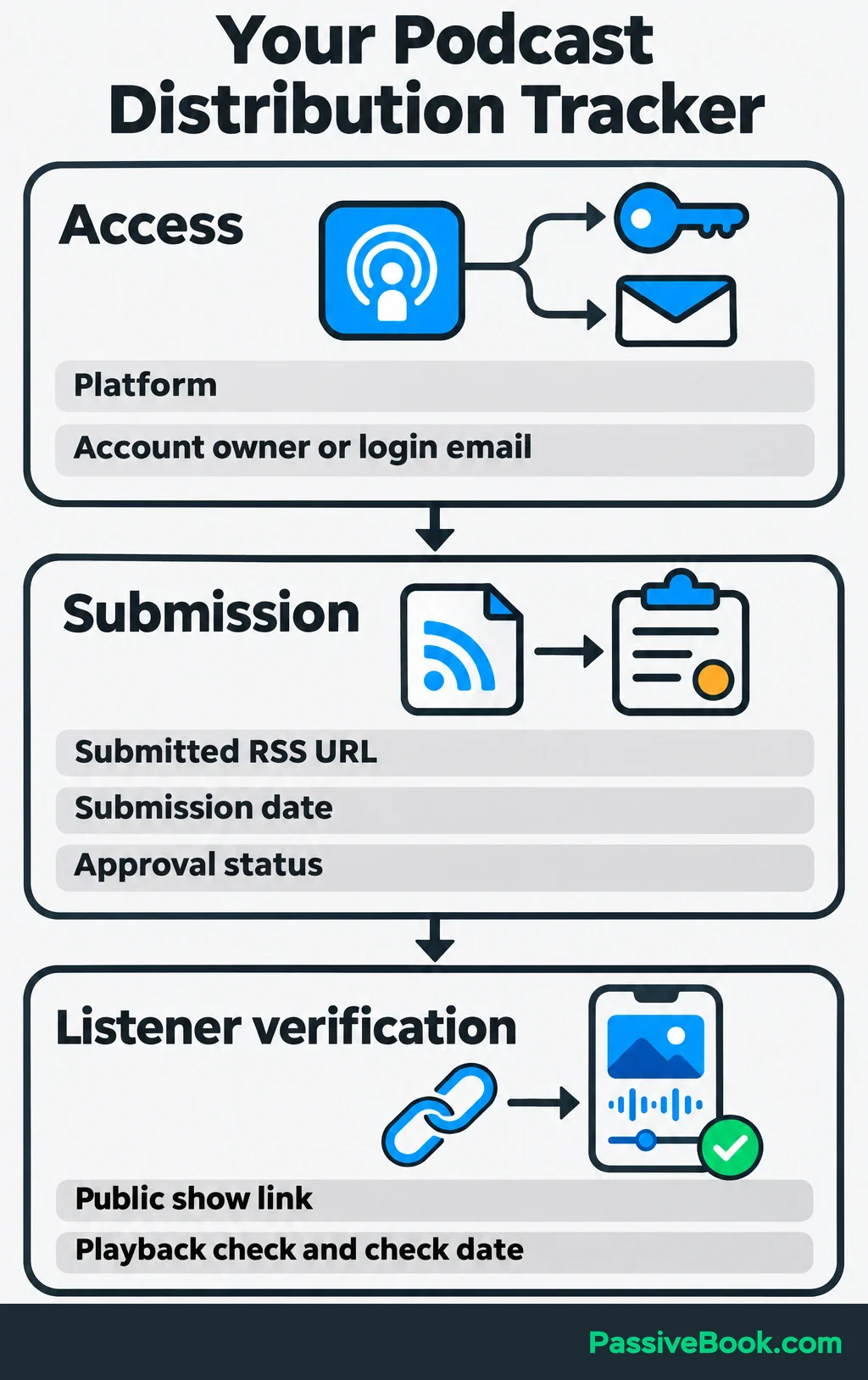
Keep a simple spreadsheet with these columns:
- Platform
- Account owner or login email
- Submitted RSS URL
- Submission date
- Approval status
- Public show link
- Playback check and check date
Record the account you actually used. Six months later, “probably my other email” is not a useful access policy.
Apple Podcasts
Create an account in Apple Podcasts Connect, Apple’s dashboard for submitting and managing shows. Use an activated Apple Account with two-factor authentication.
Apple’s activation guidance includes adding a valid payment method. However, distributing a free RSS show does not require joining the paid Apple Podcasters Program, which serves paid subscription offerings. Apple’s account requirements explain the distinction.
To submit your feed:
- Add a new show and choose “Add a show with an RSS feed.”
- Paste your RSS URL and review the imported details.
- Resolve validation errors and confirm your content rights and contact information.
- Choose the countries or regions where the show should appear and its release timing.
- Save and publish the submission for Apple’s review.
For a public show, enable the option that makes the feed publicly available through Apple’s catalog. This lets other podcast app developers include it, but you should still check your chosen destinations yourself.
If the show already exists outside your account, use “Claim Existing Show.” Generate the claim token and enter it through your host’s claiming controls. If the show cannot use that process, contact Apple support instead of submitting a second copy.
Spotify
For a show hosted elsewhere, sign in to Spotify for Creators and choose “Find an existing show,” then “Somewhere else.”
Enter your RSS feed and complete ownership verification using the code sent to the email address in that feed. Review the imported information and finish the submission prompts.
If someone has already claimed the show, ask its existing account owner to grant access. Another submission won’t solve an account-access problem.
For a Spotify-hosted show, check its existing public listing. You don’t need to submit it to Spotify again.
Amazon Music
Sign in to Amazon Music for Podcasters and choose “Add or Claim Your Podcast.”
Enter your RSS URL, review the imported show information, and complete ownership verification through the feed’s contact email.
Once the listing is available, copy its public show link into your tracker. An accepted feed is progress, but the playback check still comes later.
Pocket Casts
Open the Pocket Casts submission form and enter your RSS feed URL. The form also accepts an Apple Podcasts link, but I would reuse the primary feed you’ve already recorded.
Select public visibility so the show can appear in search.
After submission, save the resulting share link in your tracker. Use that link to check the show directly while search indexing catches up.
3. Connect YouTube and YouTube Music Through RSS
YouTube offers an optional route for reaching listeners without filming. It turns selected audio episodes into videos using your show artwork as a static image.
This connection publishes to YouTube and YouTube Music. It doesn’t submit your show to other podcast apps.
First, check that the channel owner’s country or region appears in YouTube’s supported RSS locations. Your channel also needs permission to use YouTube’s advanced features. If you don’t have access, Studio will prompt you to verify your identity during setup.
Check the episode content before importing. YouTube says RSS-delivered content cannot contain advertisements. It separately allows branded content, such as host-read sponsorships, when you disclose it and follow the applicable policies. Check your episodes against YouTube’s RSS content rules before connecting an ad-supported feed.
Then connect the show:
- In YouTube Studio, create a new podcast and choose “Submit RSS feed.”
- Enter your feed URL and verify ownership with the code sent to its email address.
- Choose all existing episodes, episodes after a selected date, or future episodes only.
- Review the visibility settings and save.
- Wait for the initial private videos to finish uploading.
- Check playback and any copyright warnings. To make the podcast public, open “Content” in Studio, select “Podcasts,” and click “Publish” beside the imported feed.
Connecting the feed alone does not make the initial catalog public.
If you already uploaded episodes manually, choose an import date after the latest one already on YouTube. Otherwise, you could publish two copies of the same episode.
For Weekend Trail Dogs, import the day-hike episode, check its audio and artwork, and publish after the checks pass. You don’t need to turn a useful audio episode into a separate video production project.
4. Verify Every Public Listing
Open each public show link outside its creator dashboard. A dashboard confirms what you submitted; a public page shows what a listener can access.
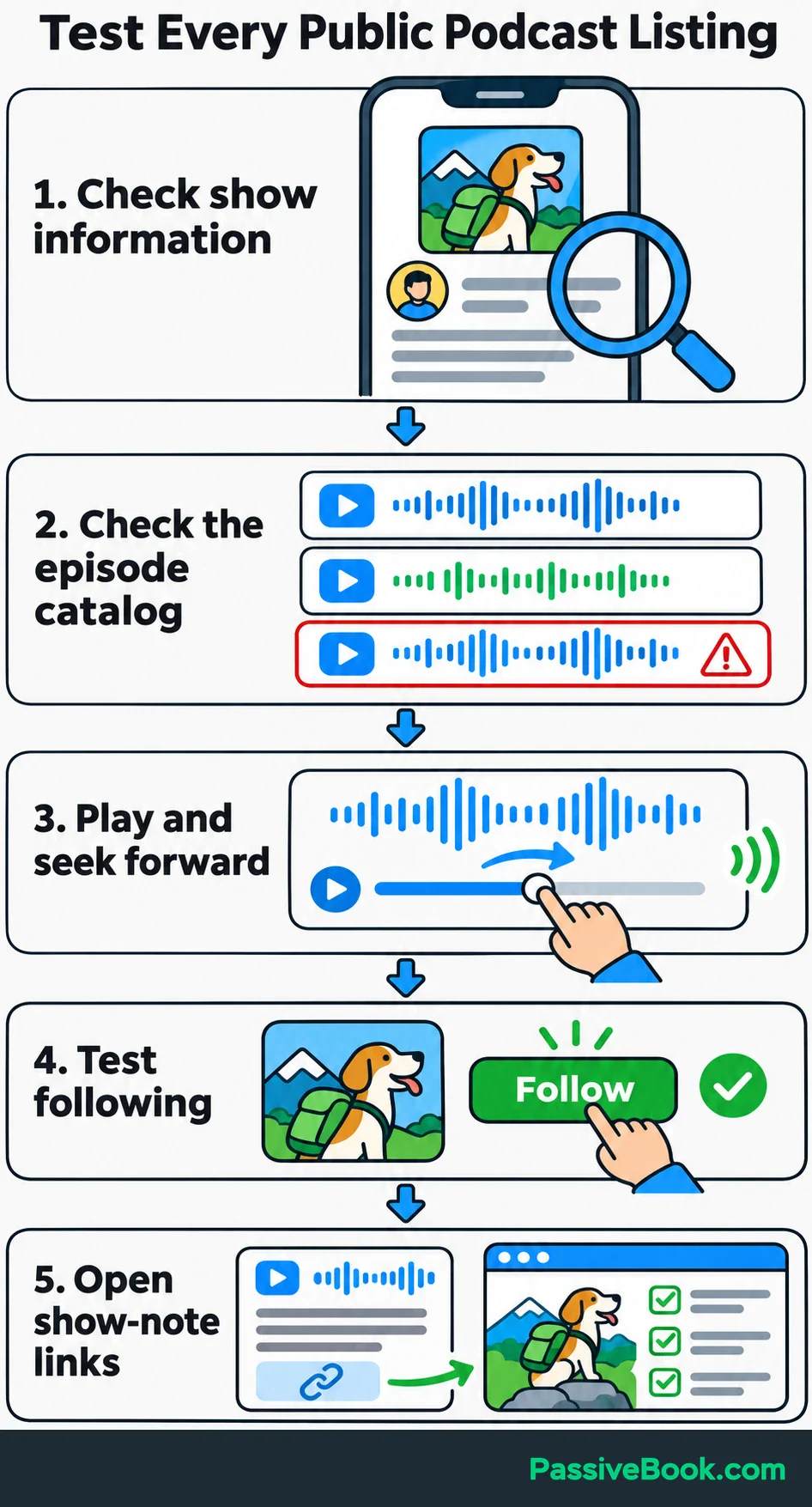
Use the same checklist for every destination:
- Show information: Check the title, creator name, artwork, and description.
- Episode catalog: Confirm that the intended episodes appear without extra copies.
- Playback: Start an episode and seek forward to another point.
- Following: Check that you can follow or subscribe to the show.
- Show-note links: Open the website and resource links you included.
For the running example, play “Packing for Your Dog’s First Day Hike” on every selected service. Confirm that its checklist link opens the intended page.
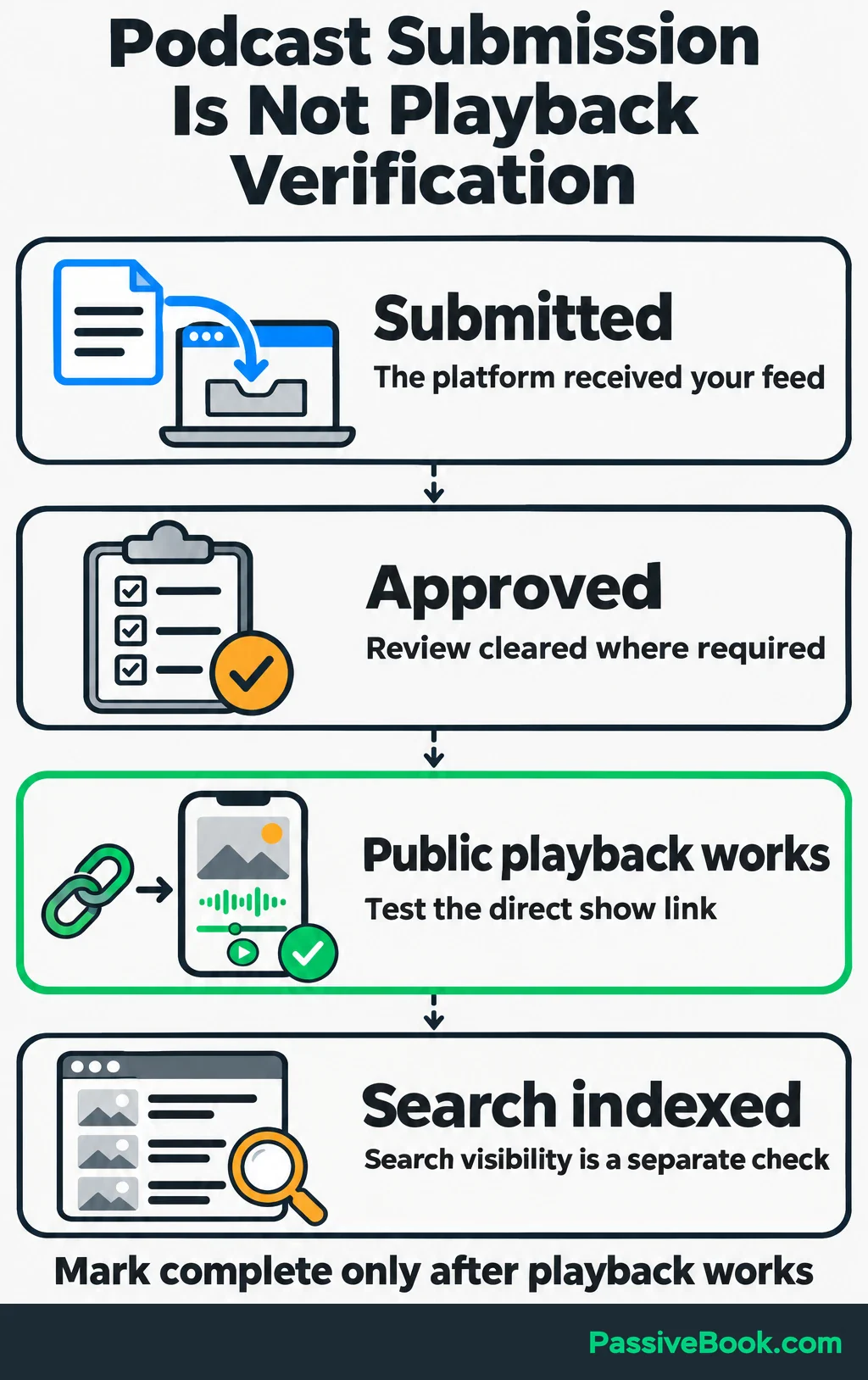
Submission, approval, public availability, and search indexing are separate stages. If a show doesn’t appear in search, try its direct public link before assuming the submission failed.
Fix shared information at your host so the correction reaches feed-connected platforms. Use each destination’s own controls for settings specific to that service, such as regional availability.
Mark a platform complete only after public playback works. “Submitted” deserves its own status.
5. Publish Future Episodes Once at Your Host
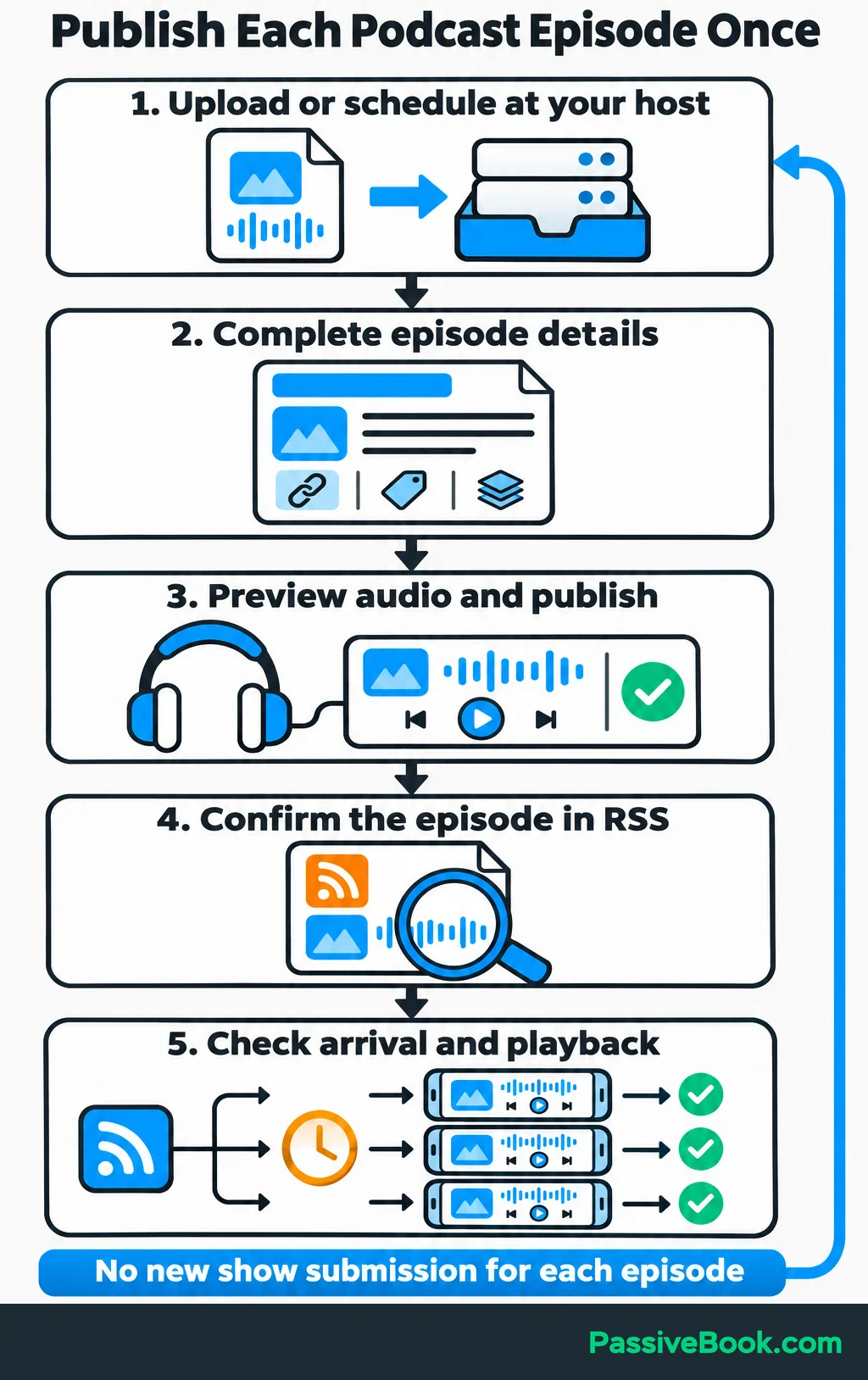
Once setup works, your normal publishing routine becomes much shorter:
- Upload or schedule the audio at your host.
- Complete the episode title, summary, links, and content labels.
- Preview the audio and publish.
- Confirm the new episode appears in your RSS feed.
- Check its arrival and playback on connected services.
Use the next Weekend Trail Dogs episode, “Organizing Your Dog’s Day-Hike Bag,” to test this routine. It should reach your connected destinations without another show submission or separate audio upload.
Allow time for platforms to refresh before announcing that an episode is available everywhere. Apple says feed changes often appear within a few hours, but your public links are the practical check.
When I built my article pipeline, I automated the handoff between tools before adding a clear check at the end. I still had to open the output to find missing pieces. That experience changed how I approach publishing: automate the repeat work, and keep a small check where a failure would reach the reader or listener.
For your podcast, keep a recurring check for episode details, playback, missing destinations, and failure notices. I would skip adding a separate automation tool, such as n8n or Make, unless RSS leaves you with a recurring task to automate.
YouTube handles updates differently. Edit show-level details in Studio. Episode titles and descriptions update from RSS unless you edit them in Studio, which stops later feed updates for that episode. YouTube’s update guidance explains this exception.
To replace audio, update the file at your host, then use “Re-upload from RSS feed” in Studio. YouTube creates a new video and makes the old one private; changing the audio at your host alone won’t update the existing video.
Troubleshoot Missing Episodes and Duplicate Listings
A Show or Episode Is Missing or Will Not Play
Start where the failure first appears.
If the whole show is missing, check the submission status, approval, release timing, and direct public link. Don’t submit again simply because search hasn’t found it yet.
If one episode is missing, work through these checks:
- Confirm the episode is published at your host, rather than saved as a draft or scheduled for later.
- Open the exact RSS feed recorded in your distribution tracker.
- Check that the episode appears there.
- Test whether its audio link works without signing in.
- Resolve feed errors before changing settings at individual destinations.
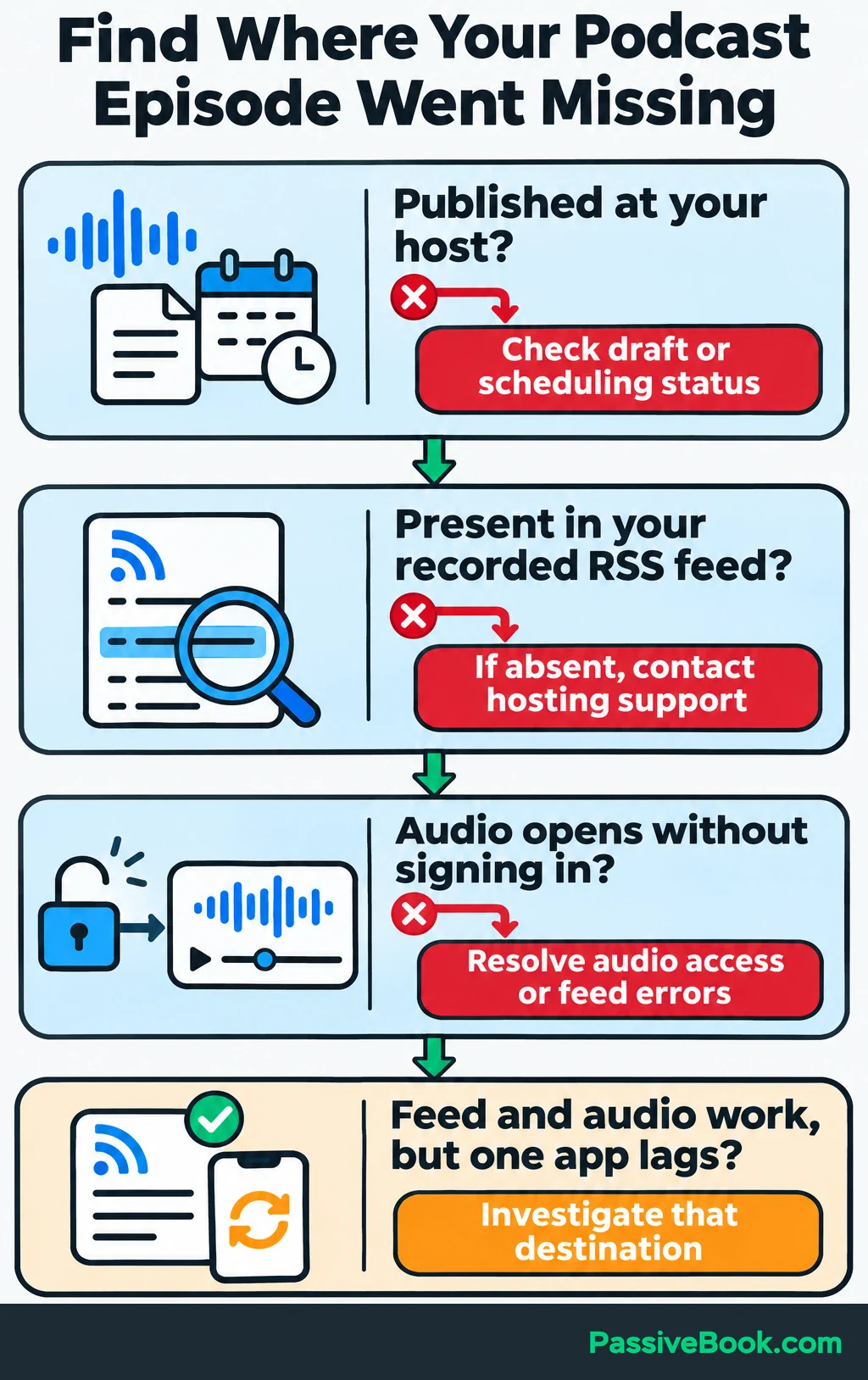
If the episode is absent from the feed, start with hosting support. If it appears and plays correctly but one platform remains outdated, investigate that destination.
For Apple, check that the show’s status is “Published.” If the host’s changes are live but Apple remains outdated after a few hours, use “Refresh Feed” in Podcasts Connect. Apple’s refresh guidance covers this sequence.
For failed ownership verification, check the email actually included in the feed. Look in spam, correct the address at your host if needed, and request another code.
When contacting support, send the feed URL, public show link, affected episode, exact error message, and publication time with its time zone. Those details give support something to investigate.
The Show Appears More Than Once
First, identify the listing you need to preserve. Check its public URL, account access, connected feed, and existing followers.
Then contact the platform’s support team to resolve the competing listings. Don’t delete the established listing just because the newer one looks easier to access.
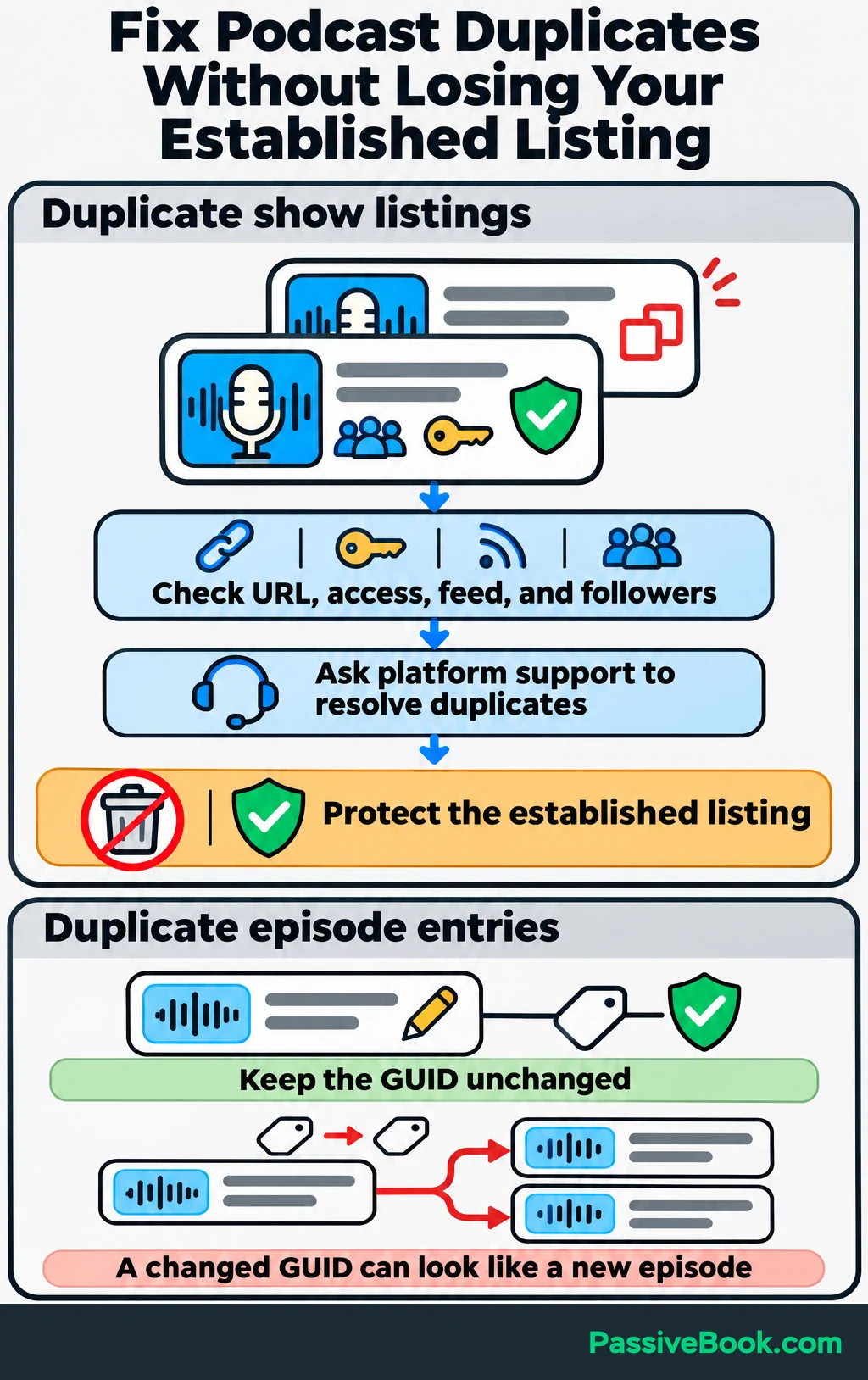
Keep episode GUIDs unchanged when correcting titles or descriptions. A GUID is the permanent identifier an app uses to recognize an episode. Changing it can make an existing episode look new and create duplicates. Apple explains why these identifiers must remain stable.
If you move hosts later, use the hosts’ migration and feed-redirect process so existing listings can follow the change.
Help Listeners Find Your Syndicated Podcast
Once the listings work, give people one place to choose how they listen.
Create a podcast page on your website with a short show description and verified links to your selected apps. If you already use WordPress, an ordinary page is enough. I wouldn’t buy another landing-page tool for a row of listening buttons.
You don’t need a long sales page. Start with who the show helps, what it covers, and the listening links you’ve checked.
Free AI Podcast Studio




Place that page where the episode’s subject already matters to the visitor.
For Weekend Trail Dogs, embed the day-hike episode in an article about preparing for a dog-friendly hike. Then link to the podcast’s listening page from the email that accompanies your packing checklist. The article, checklist, and episode answer related needs, so the connection feels useful.
Keep episode titles specific. “Packing for Your Dog’s First Day Hike” tells a listener more than “Episode 1: Getting Started.” Recommend an older episode when it helps with the current topic, and ask listeners to follow the show.
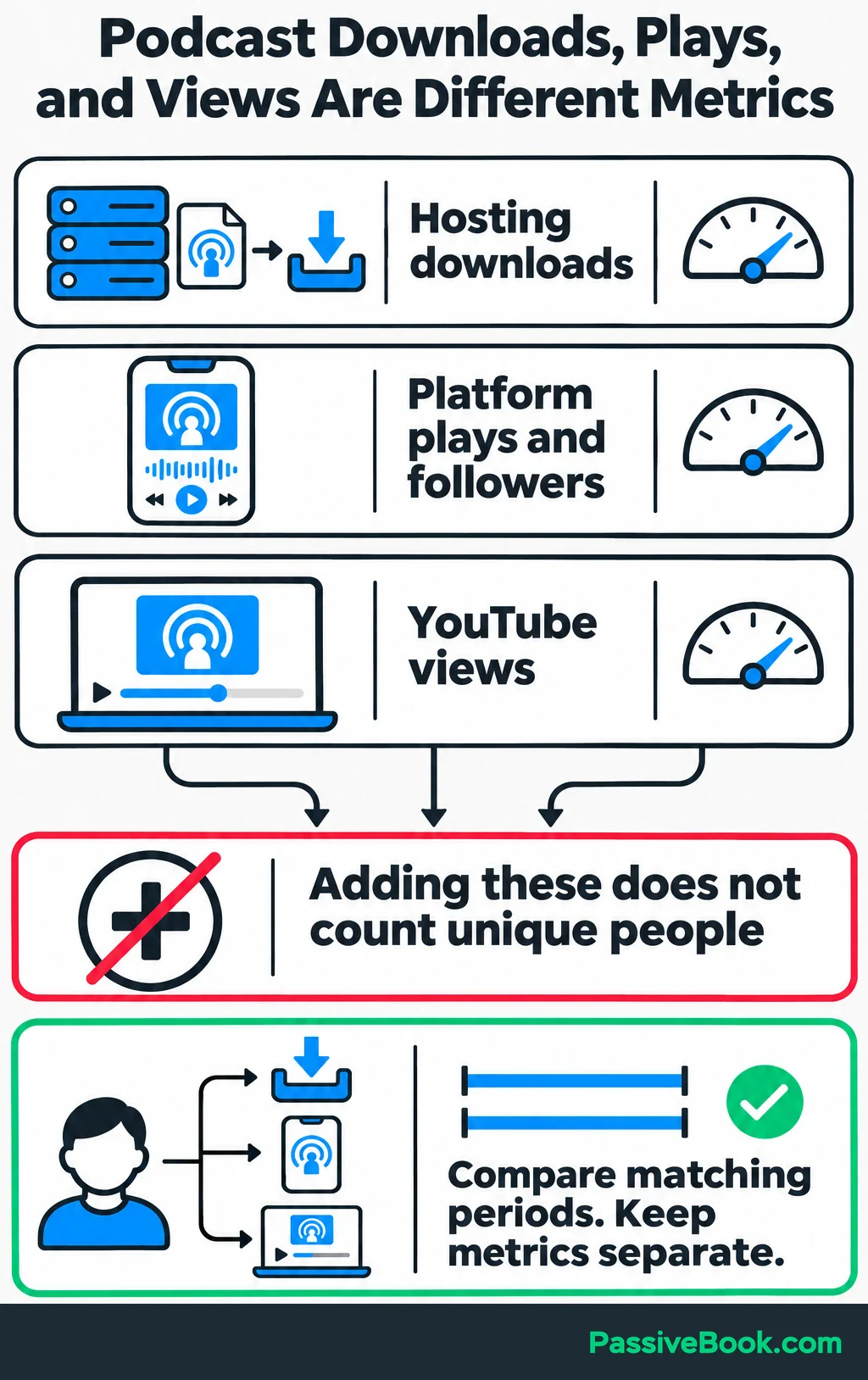
Review results over matching periods. Look at hosting downloads alongside platform listening and follower reports, but keep downloads, plays, and YouTube views separate. Adding them together won’t produce a count of unique people.
For example, Apple’s analytics measure activity within Apple Podcasts. They don’t describe your entire syndicated audience.
I would use those reports to choose where to spend promotion time. Keep working listings available, and put extra effort into the places showing useful listener activity.
What Next?
Copy your RSS URL into a distribution tracker and check whether your show already appears on Apple Podcasts and Spotify. That gives you a clear next task: submit, claim, or test playback.
Use the social buttons to share this guide when a podcast launch needs fewer uploads and a clearer way to check distribution.
Which part of your setup still needs a manual check before you can trust it? Leave your answer in the comments, along with any other questions.
Share this post with your friends & followers:

