Your first episode is ready, but getting it onto Spotify, Apple Podcasts and Amazon Music looks like three more publishing jobs. Add YouTube and a few listening apps, and recording starts to look like the easy part.
The confusing part is knowing what you submit once and what needs attention every time. Get that wrong and you can end up with duplicate listings, missing episodes or a show that only plays inside your hosting account. This walkthrough helps you get that recording into searchable, playable listings on the major platforms, with a publishing routine you can reuse for future episodes.
How Podcast Distribution Works
The basic process is simple: upload your audio to one podcast host, submit its RSS feed to listening platforms, and publish future episodes through that host.
Three parts do different jobs:
- Podcast Host: Stores your audio files and gives you a place to publish episodes.
- RSS Feed: Supplies your show details, episode descriptions and links to the audio files.
- Listening Platforms: Let people find, follow and play your show.
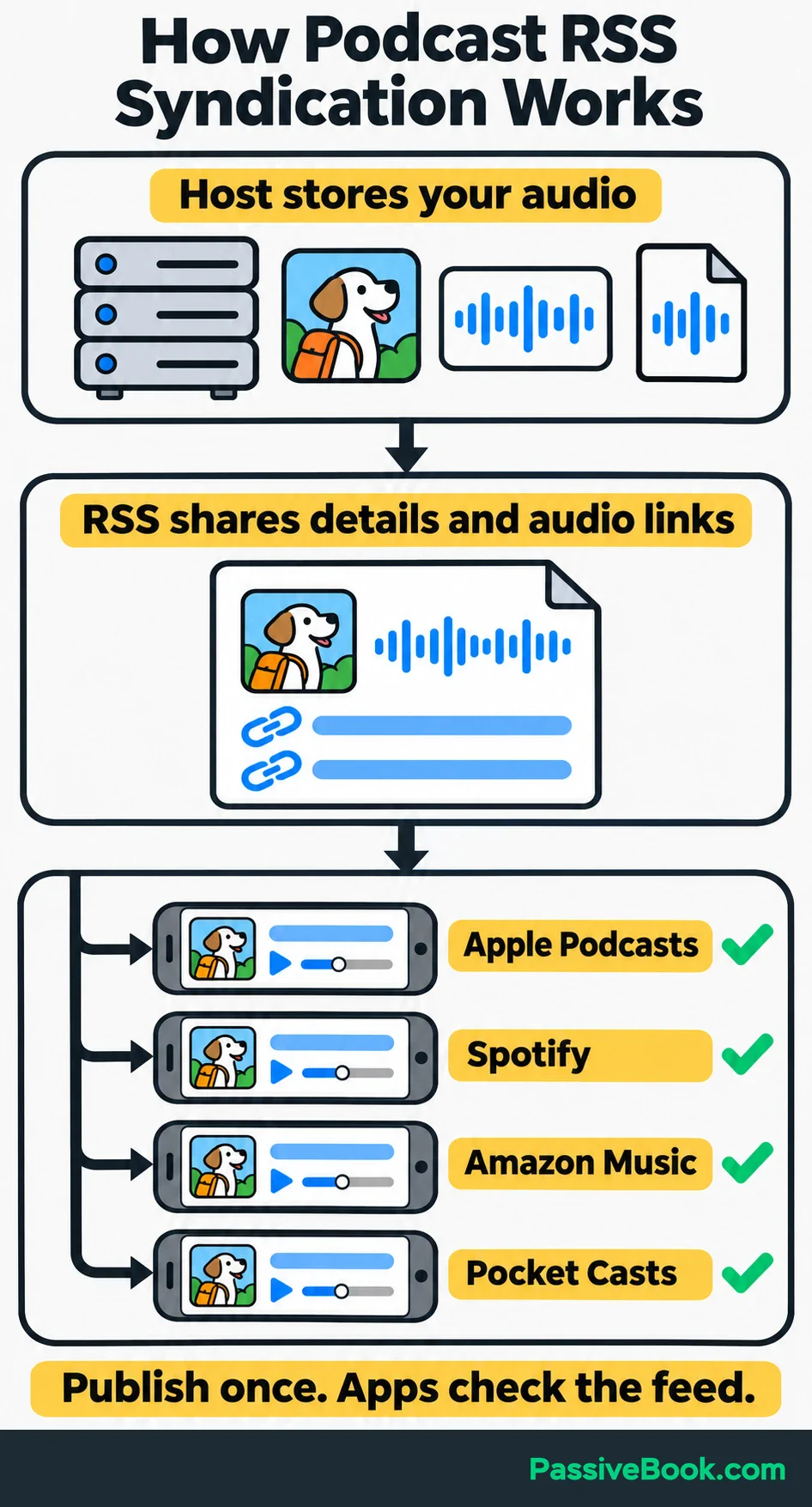
An RSS feed is a file that podcast apps can read. Your host creates and updates it, so you usually won’t need to write code.
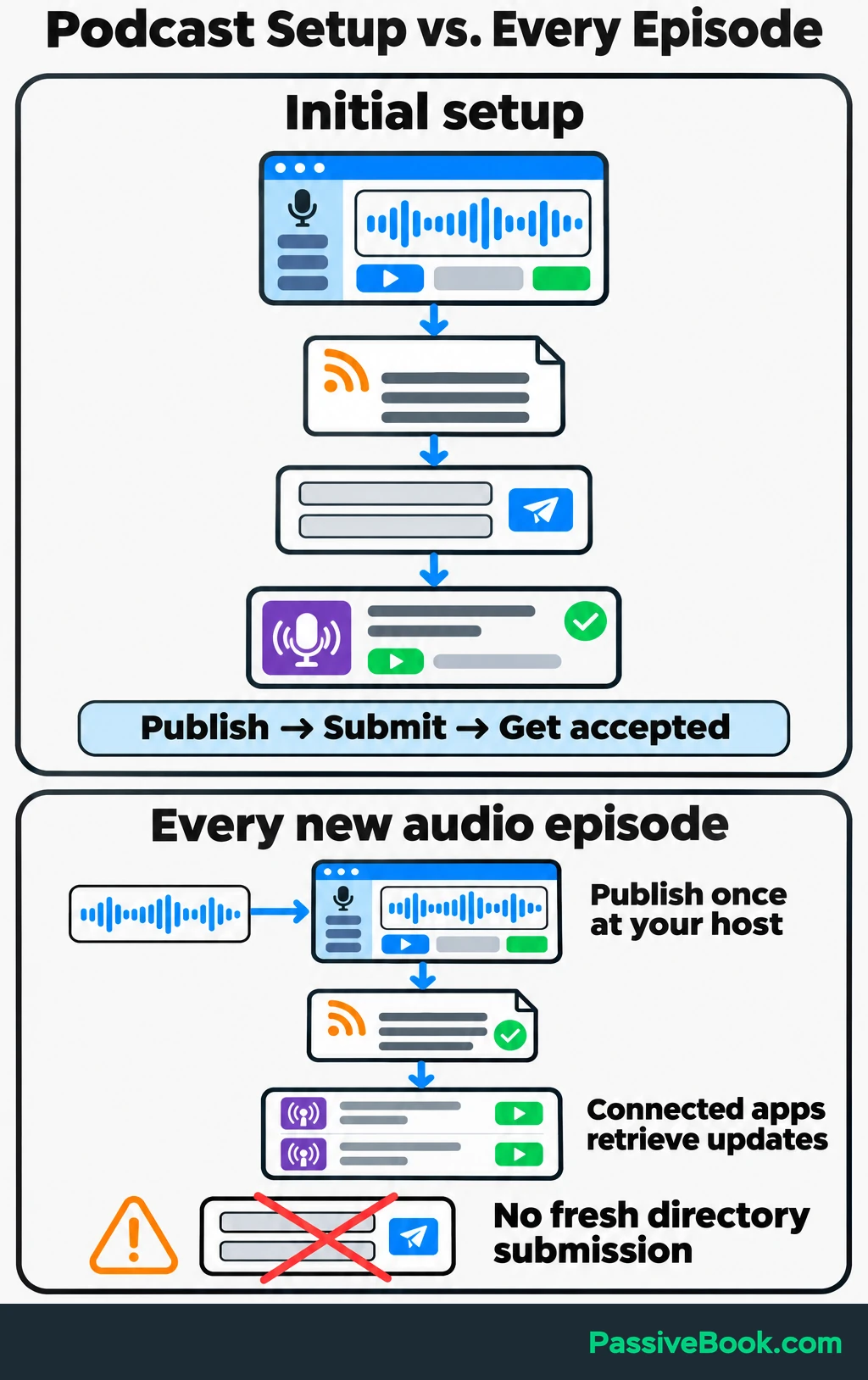
Once a platform accepts your feed, it can retrieve new episodes when you publish them. Submitting the show is the initial setup. Publishing episodes is the recurring job.
Throughout this guide, imagine you sell downloadable dog-friendly day-trip guides and publish a show called Weekend Dog Walks. Your first episode is “What to Pack for a Day Out With Your Dog.”
The goal is a working feed and searchable, playable listings on the platforms you choose. Distribution makes your podcast available, but it doesn’t guarantee an audience.
1. Choose a Podcast Host
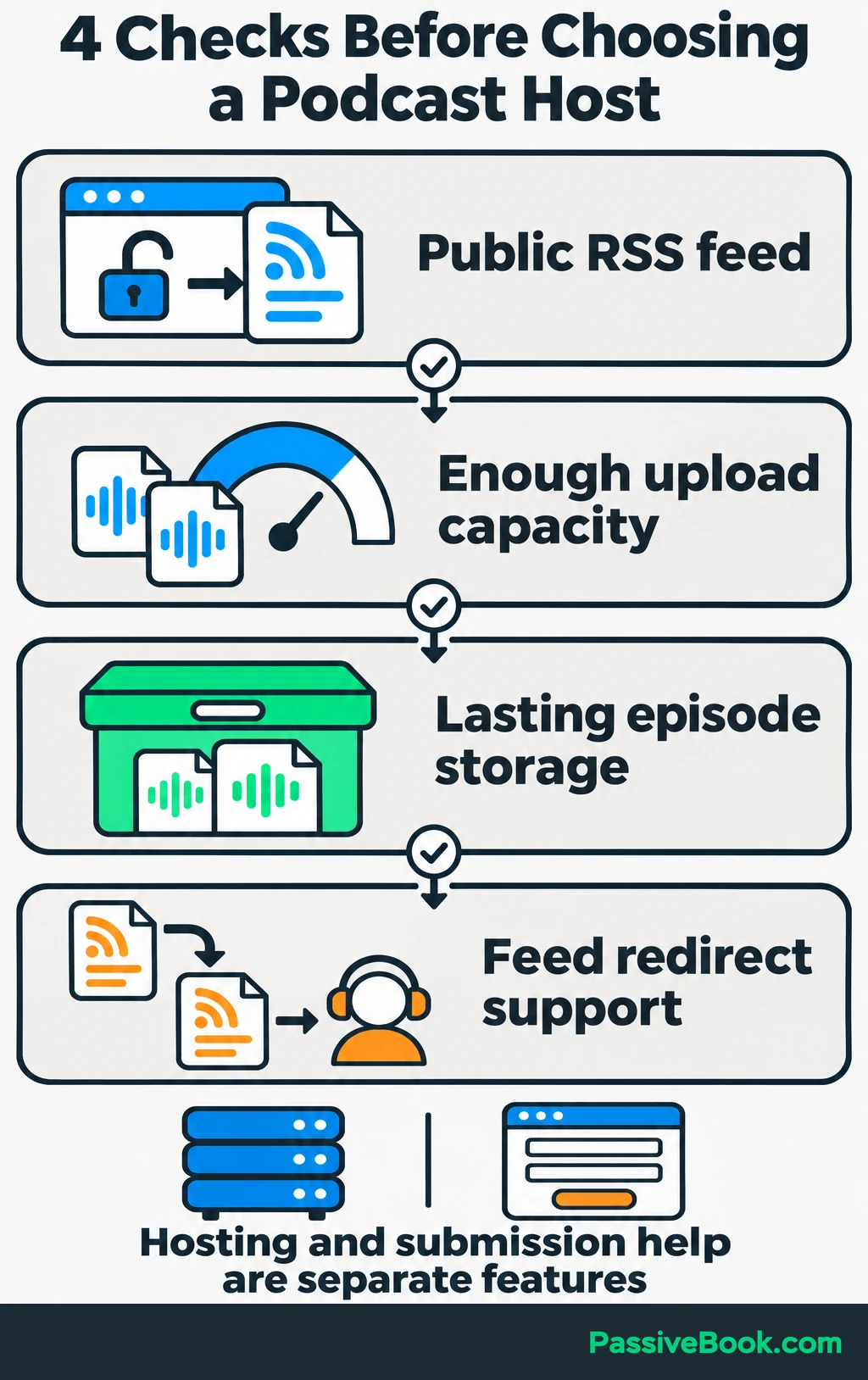
Start with a host that gives you a public RSS feed, enough upload capacity and lasting storage for your episodes. It should also support a feed redirect, which sends listening apps to your new feed if you move hosts later.
Hosting and submission assistance are separate features. A host stores your show, and its distribution tools may help submit it. You can also submit the same feed yourself.
You don’t need a separate distribution subscription just because you choose manual submission.
Here are three options. Costs are in USD, and the linked pages carry current terms.
| Host | Hosting Cost in USD | Upload Allowance | Main Distribution or Retention Condition |
|---|---|---|---|
| Spotify for Creators | Free | Unlimited hosting | Publishes to Spotify automatically; you submit the RSS feed to other services yourself. |
| RSS.com Free | $0 for one show | Unlimited audio episodes, with no storage cap | No expiry date. Includes submission tools for major platforms, and requires a card for account verification. |
| Buzzsprout Audio | $15/month equivalent when billed annually: $180/year | 72 upload hours per year | Paid hosting keeps your archive available while subscribed. Its free plan allows two upload hours monthly but keeps episodes for only 90 days. |
For Weekend Dog Walks, I would start with RSS.com Free because its submission tools reduce the initial setup work. Spotify for Creators is another sensible free choice if you’re happy to handle the other submissions yourself.
I would skip Buzzsprout’s free plan for a lasting archive. An episode about packing for a day trip should still be useful after three months, so temporary storage works against the show.
Pay when a host solves a problem you actually have: more capacity, useful support or a workflow you prefer. A monthly bill isn’t a launch requirement.
2. Prepare Your Show and Publish Its First Episode
Before submitting anywhere, complete your show’s basic information. This information is often called metadata, but it’s simply the text and settings that describe your podcast.
Add:
- Show Title: The name listeners should search for.
- Author or Host Name: The person or business behind the show.
- Description: What you cover and why someone would listen.
- Language and Category: The language spoken and the closest matching subject.
- Explicit-Content Setting: An accurate label for the content you publish.
Keep the description concrete. “Conversations that inspire adventure” could mean almost anything.
For the running example, a clearer excerpt would be:
Practical help for planning dog-friendly day trips, from packing and route checks to finding places to stop.
Next, prepare your cover. I would use Canva to make a square 3000 × 3000-pixel design, export it as a JPG or PNG, and check that the title stays readable at thumbnail size.
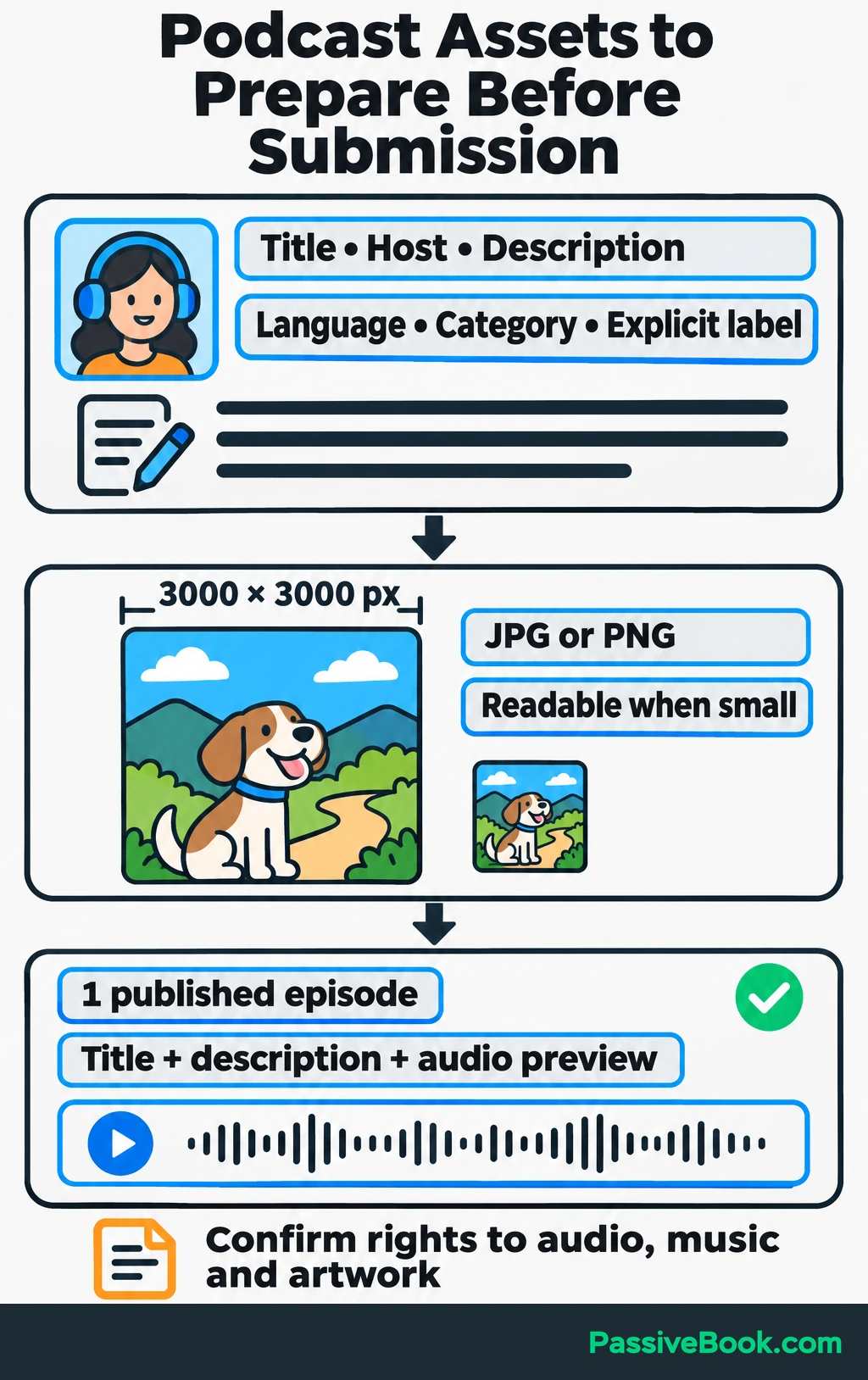
Use a solid background. Apple accepts RSS show covers between 1400 × 1400 and 3000 × 3000 pixels, and prefers the largest size. Its show-cover specifications explain the accepted formats.
Then upload your finished audio in a format your host accepts. Add the episode title and description, listen to the uploaded version, and publish it.
For Weekend Dog Walks, the episode is:
“What to Pack for a Day Out With Your Dog”
Its description could begin:
Build a simple packing checklist for your next dog-friendly day trip.
Apple requires at least one episode, artwork and the required feed information before submission. Your host should generate those feed fields from the details you enter.
Use audio, music and artwork you own or have permission to distribute. When completing platform rights declarations, answer accurately: music licensed from another creator is still third-party material. Apple asks you to confirm that you have the necessary rights during submission.
3. Check Your Public RSS Feed
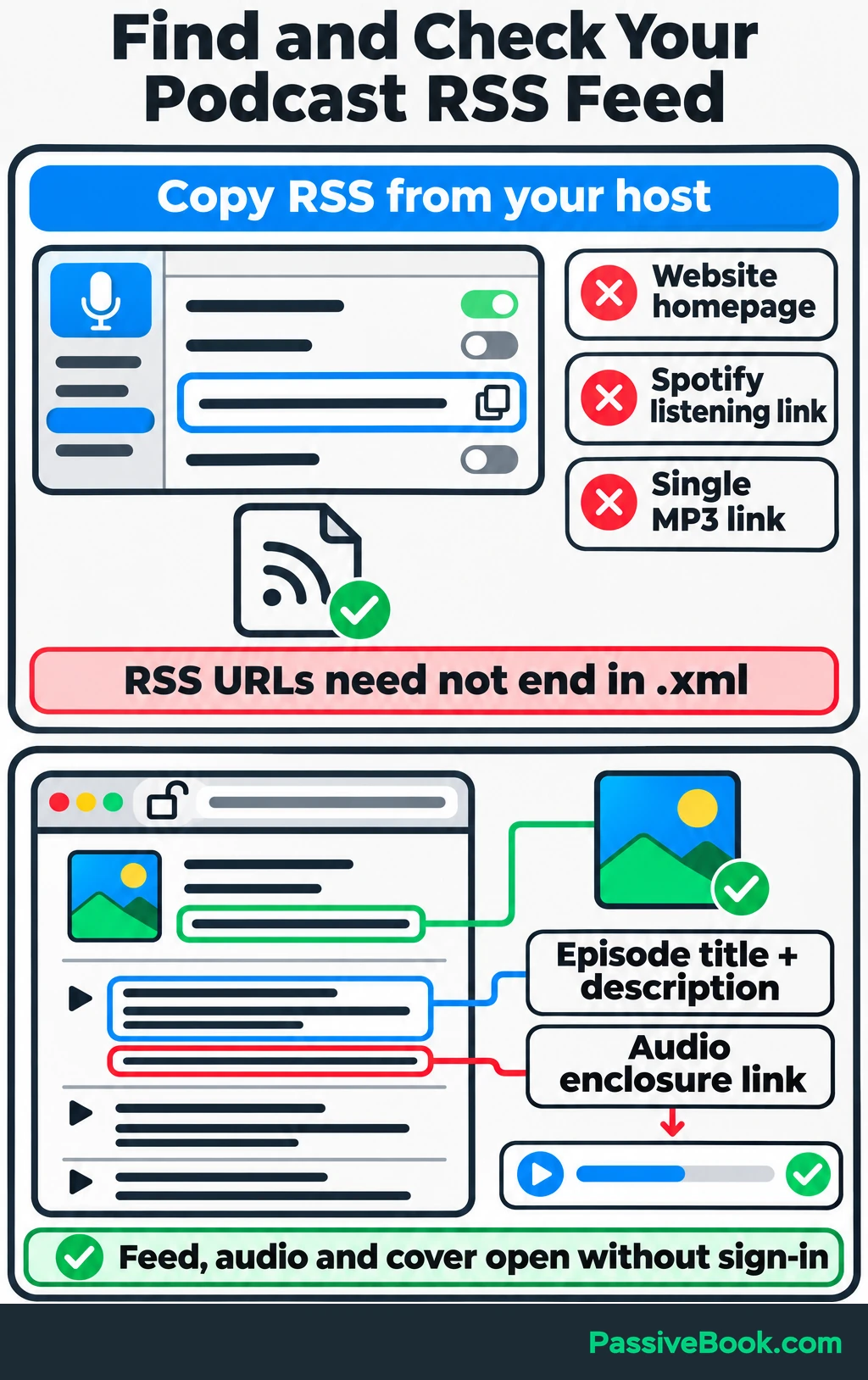
Copy the public podcast RSS URL from your host. This is the address you’ll submit to listening platforms.
An illustrative address might look like:
https://feeds.example.com/weekend-dog-walks.xmlYour real address may look different, and it doesn’t have to end in .xml. Copy it from the host instead of guessing.
A website homepage, Spotify listening link and individual MP3 address serve different purposes. They won’t replace your show’s RSS feed in a feed-submission form.
If you host with Spotify for Creators, publish your first episode and then enable RSS distribution. Spotify creates the feed after that first publication, but you must enable it to distribute beyond Spotify.
Use a dedicated contact inbox you control for verification. Enabling Spotify’s feed makes that email address public, as explained in its RSS distribution requirements. Some hosts let you expose the address temporarily when a submission requires it.
Before submitting, check three things:
- The feed opens without asking you to sign in.
- It contains your published episode’s title, description and audio link.
- The linked audio and cover image are publicly accessible.
Your browser may show the feed as plain code or download it as a file. Either can be normal. Search within it for your episode title. Then find the <enclosure> entry, which contains the link to that episode’s audio file.
If anything is missing or incorrect, fix it through your host. Apple’s RSS requirements cover public access and the media-serving features a compatible host must support.
4. Submit Your Feed to the Major Platforms
Search each platform for your show before adding it. A host integration or another catalog may already have created a listing.
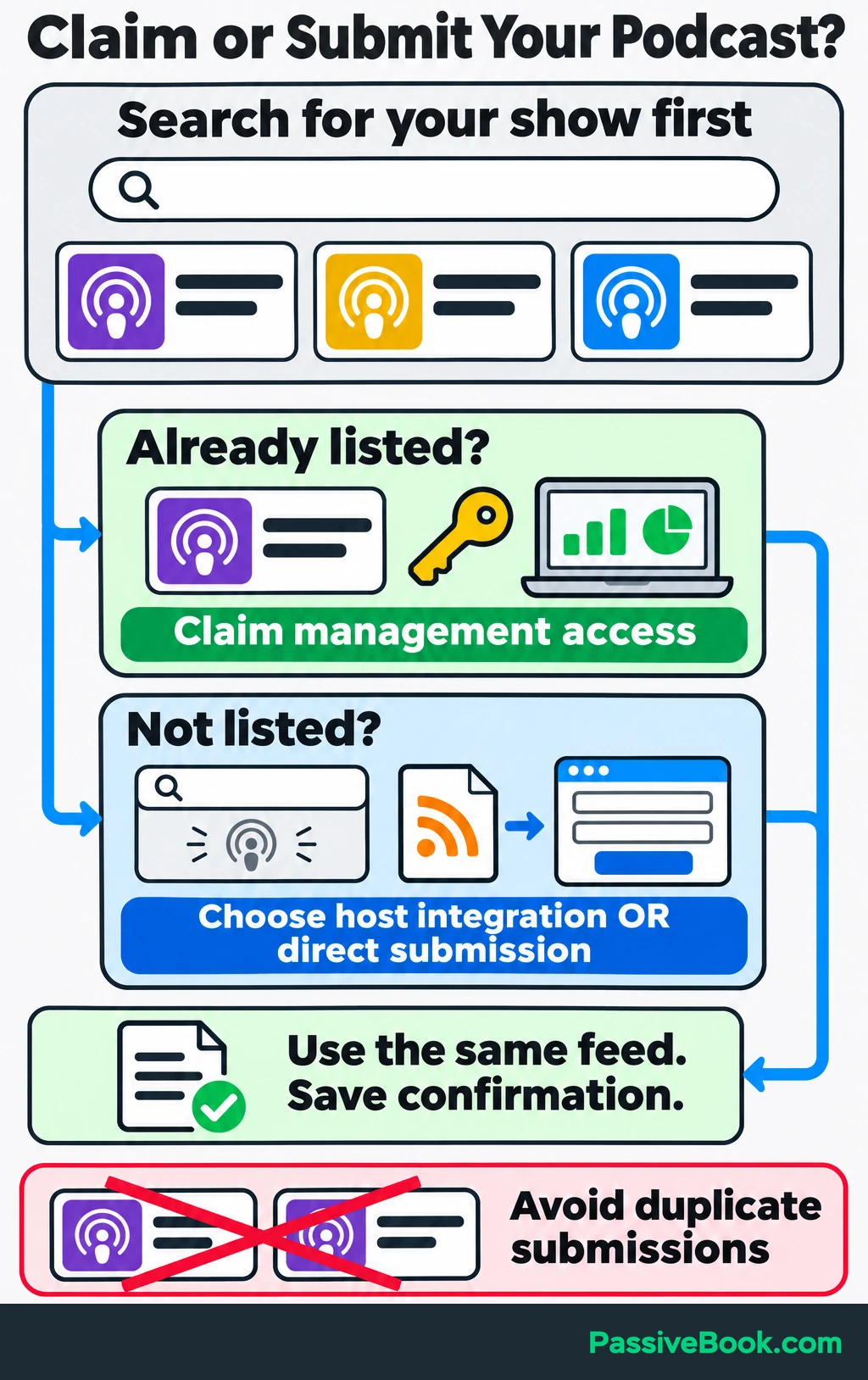
For each service, choose one submission route: your host’s integration or direct submission. If the listing already exists, claim management access instead of creating another copy.
Use the same primary RSS feed throughout, and save submission confirmations.
Spotify
Shows hosted with Spotify for Creators appear on Spotify automatically.
If you host elsewhere, use your host’s Spotify integration or add the externally hosted show through Spotify for Creators.
To connect it yourself:
- Sign in to Spotify for Creators.
- Choose “Find an existing show,” then “Somewhere else.”
- Enter your RSS feed or existing Spotify show URL.
- Complete verification using the email address in your feed.
Claiming the show gives you management access while your existing host continues to store and publish the audio.
For Weekend Dog Walks, check that the imported title and first episode match your host before saving the listing.
Apple Podcasts
Sign in to Apple Podcasts Connect and choose “Add a show with an RSS feed.” Enter your feed URL and review the imported details.
Complete the contact and content-rights information, choose the countries where the show should be available, and set its release timing.
For broad distribution, enable the option that makes your feed publicly available through Apple’s catalog. Other app developers can then include the show in their apps. Apple explains this setting in its submission requirements.
Resolve validation warnings before publishing for review. Validation checks whether the feed works technically; content approval is a separate check. A valid feed hasn’t necessarily finished review.
You don’t need paid Apple Podcasters Program membership to list a free RSS-based show. That membership is required when you want to sell subscriptions.
Amazon Music
Sign in to Amazon Music for Podcasters and choose the option to add or claim your podcast.
Enter the RSS feed, check the imported show information and complete ownership verification through the contact email in your feed.
Amazon asks for one feed per series and requires agreement to its content license terms. It retrieves the episodes from that feed, as described in its podcast submission requirements.
Once the listing is available, save its public listening URL. Keep that separate from the dashboard address you use to manage the show.
YouTube and YouTube Music
YouTube handles RSS differently: it imports the audio and creates videos using your show artwork as a static image. Those videos can appear on YouTube and YouTube Music.
First, check whether YouTube supports RSS imports in the channel owner’s country or region. Your channel also needs “advanced features” enabled, and YouTube may ask you to verify your identity to unlock them.
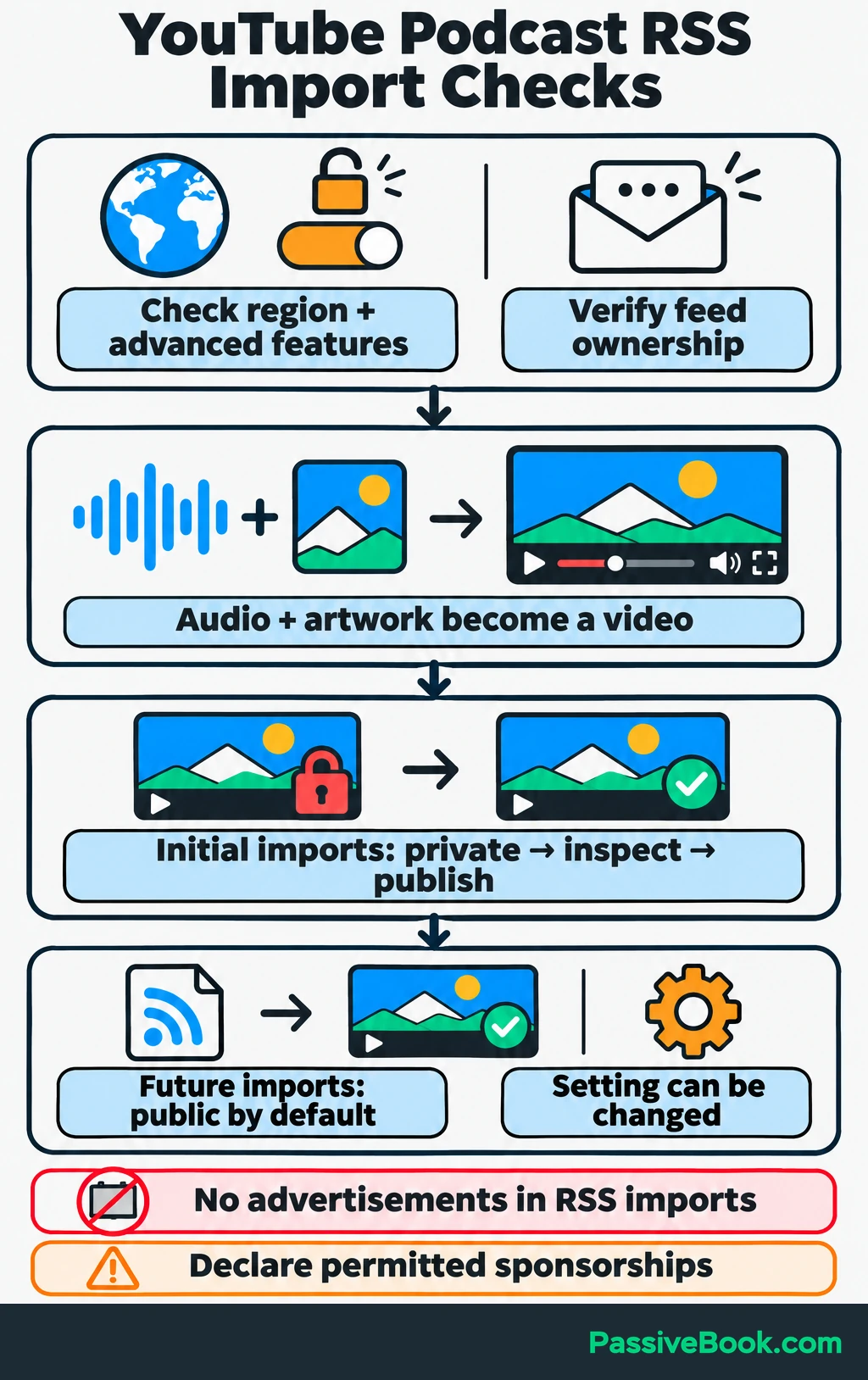
In YouTube Studio, create a podcast using “Submit RSS feed.” Enter the feed, verify ownership by email and choose which episodes to import.
If you already uploaded episodes to the channel, select an import date that avoids copying them again.
The initial imports start as private videos. Inspect them for playback and copyright problems, then publish the podcast. New feed episodes become public automatically under the default setting, which you can change. YouTube’s RSS publishing requirements cover eligibility and visibility.
Check monetized episodes before importing them. YouTube prohibits advertisements in RSS-delivered content, while permitted branded content, including sponsorships and endorsements, must be declared and follow its policies. Its RSS content requirements explain that distinction.
You don’t need to film yourself to use this route. A checked audio import and readable cover are enough to begin.
Pocket Casts and Other Listening Apps
Search Pocket Casts for the show first. If it’s missing, submit your feed through its podcast submission form and choose the public podcast option so the listing can appear in search.
Check other listening apps before submitting there too. Some build their listings from larger catalogs, so your show may already be available.
I would finish Spotify, Apple Podcasts and Amazon Music first, then check YouTube and Pocket Casts. A few verified listings are more useful than a long list of submission forms you can’t remember completing.
If your host submitted on your behalf, claim management access wherever the service supports it. You’ll want access when you need to change availability, investigate an error or review platform-specific analytics.
5. Confirm Listeners Can Find and Play Your Podcast
A submission confirmation tells you the form went through. Your launch check needs to establish that listeners can use the result.
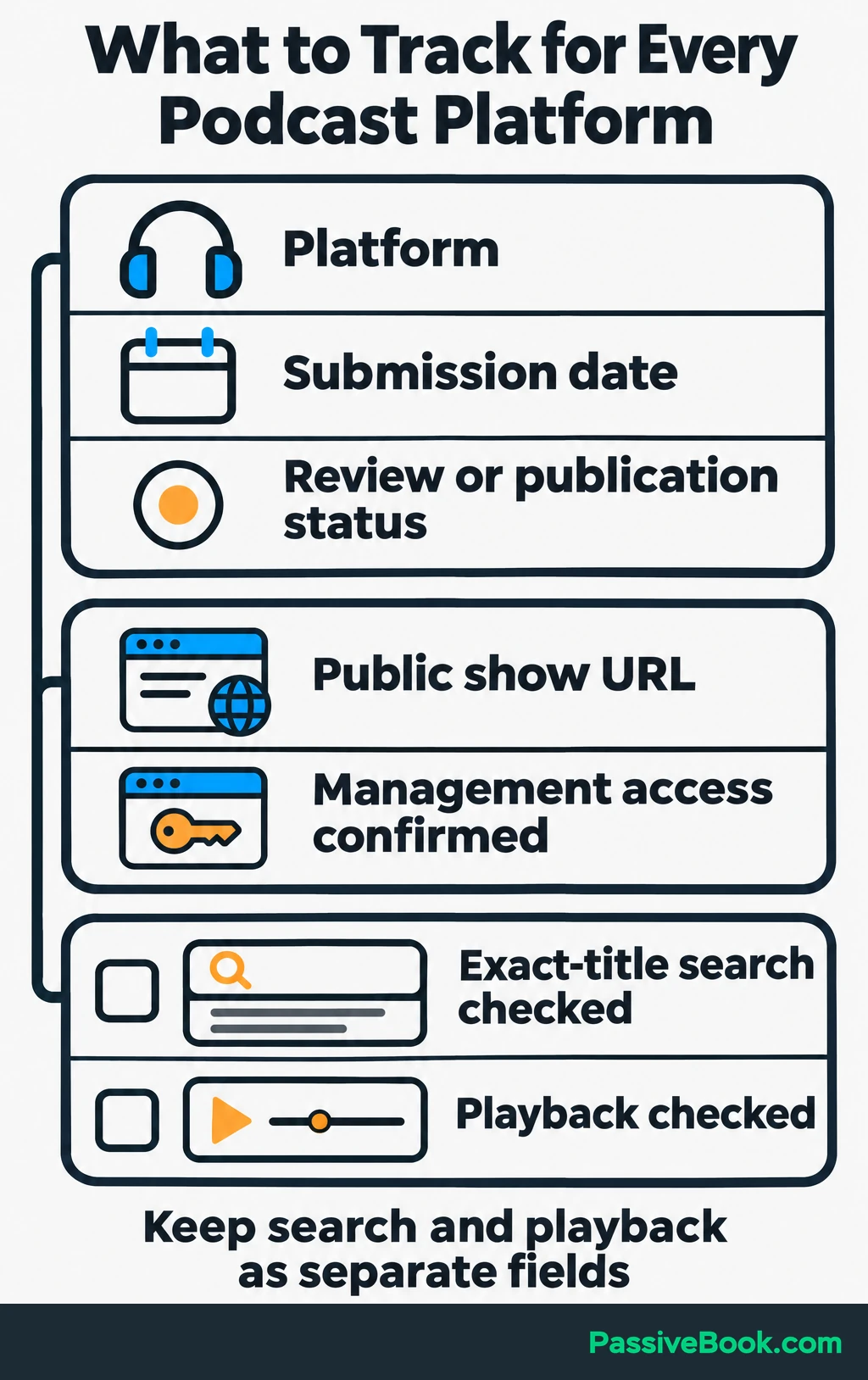
Keep a simple spreadsheet with these columns:
- Platform
- Submission date
- Review or publication status
- Public show URL
- Management access confirmed
- Exact-title search checked
- Playback checked
Separate search visibility from playback. A direct link can work while the show is still missing from search, and those are different problems.
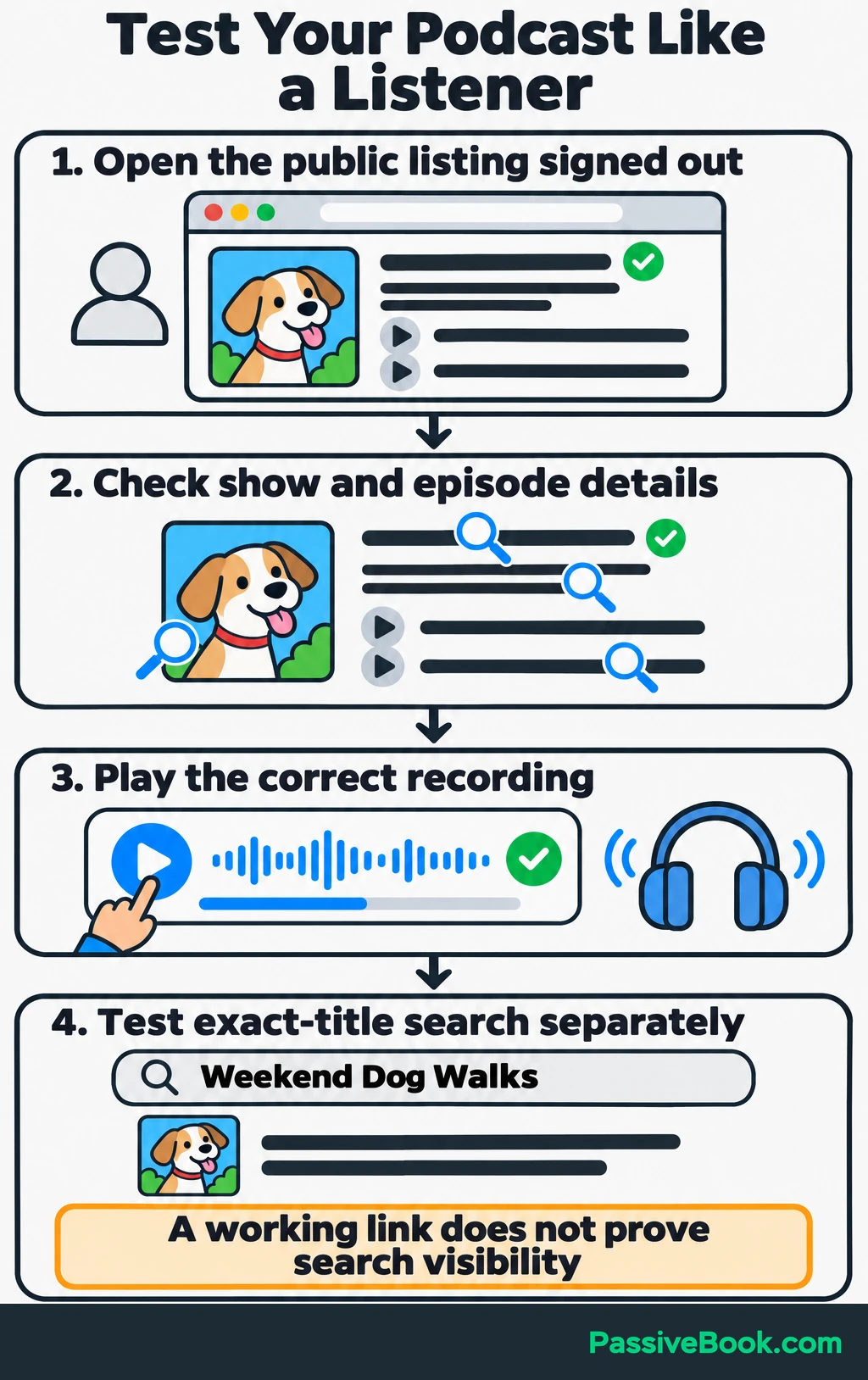
For each platform, open the public listing while signed out. Check the title, artwork, description and episode list, then play the first episode.
For Weekend Dog Walks, confirm that “What to Pack for a Day Out With Your Dog” appears and that it plays the correct recording. Then search for the exact show title and record whether it appears.
I once marked a product page as ready because it opened from my WordPress dashboard. Checking the public URL while signed out showed that the page was still unpublished. That small mistake changed my launch checklist: I check what a visitor can open.
Apply that same check here before sharing your podcast links.
Once verified, put the listening links on one podcast page. Your host’s page is fine, or you can use your existing website. Give people one address to share and a clear choice of listening apps.
Working listings make your show available; now give people a reason to listen. Start with a post that shares one useful takeaway and points readers to your podcast page.
Free AI Podcast Studio




6. Fix Rejected Feeds and Missing Episodes
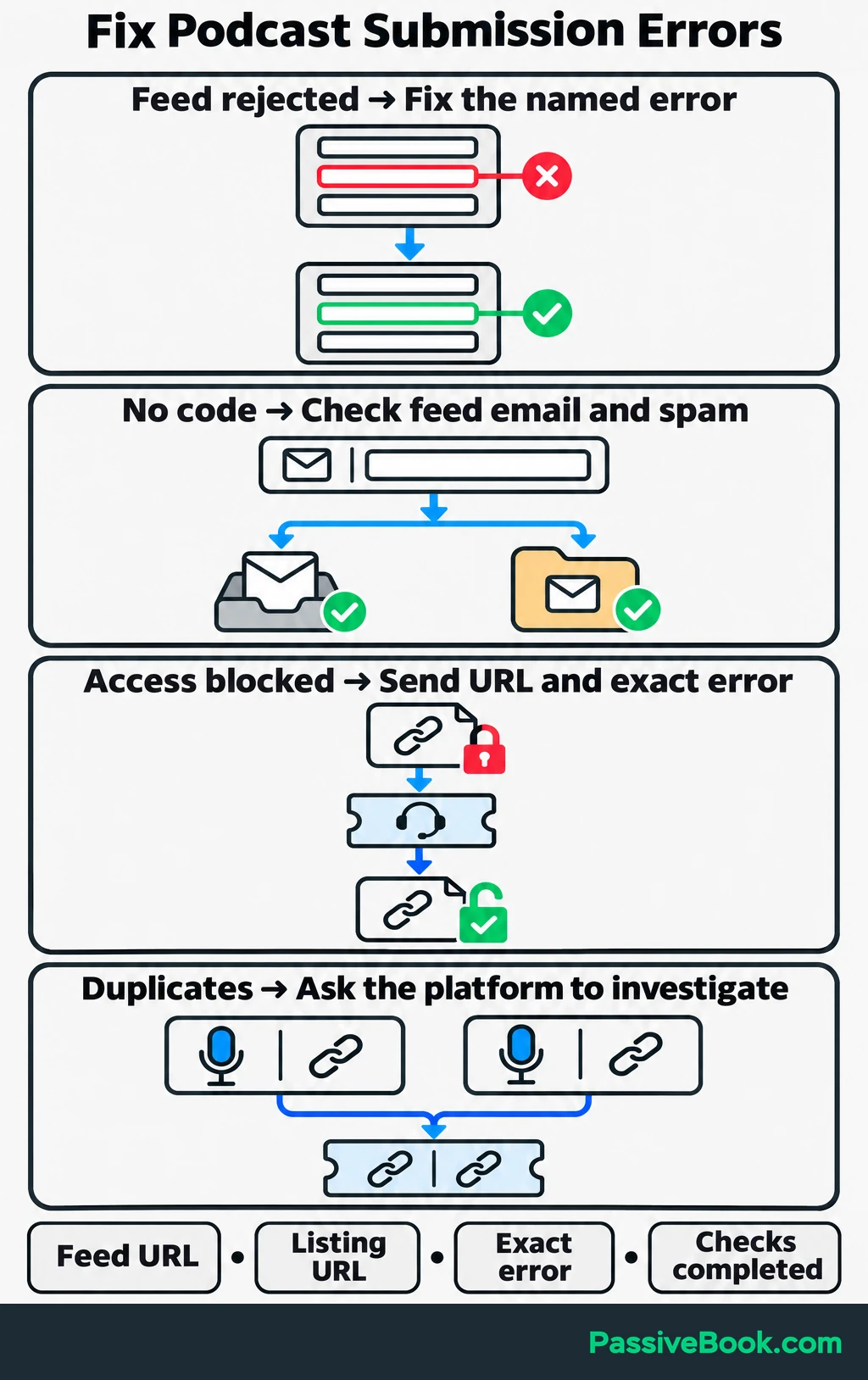
Start where the problem first appears. If an episode is missing from your host’s feed, changing its Spotify listing won’t fix it.
| Problem | What to Check and Do |
|---|---|
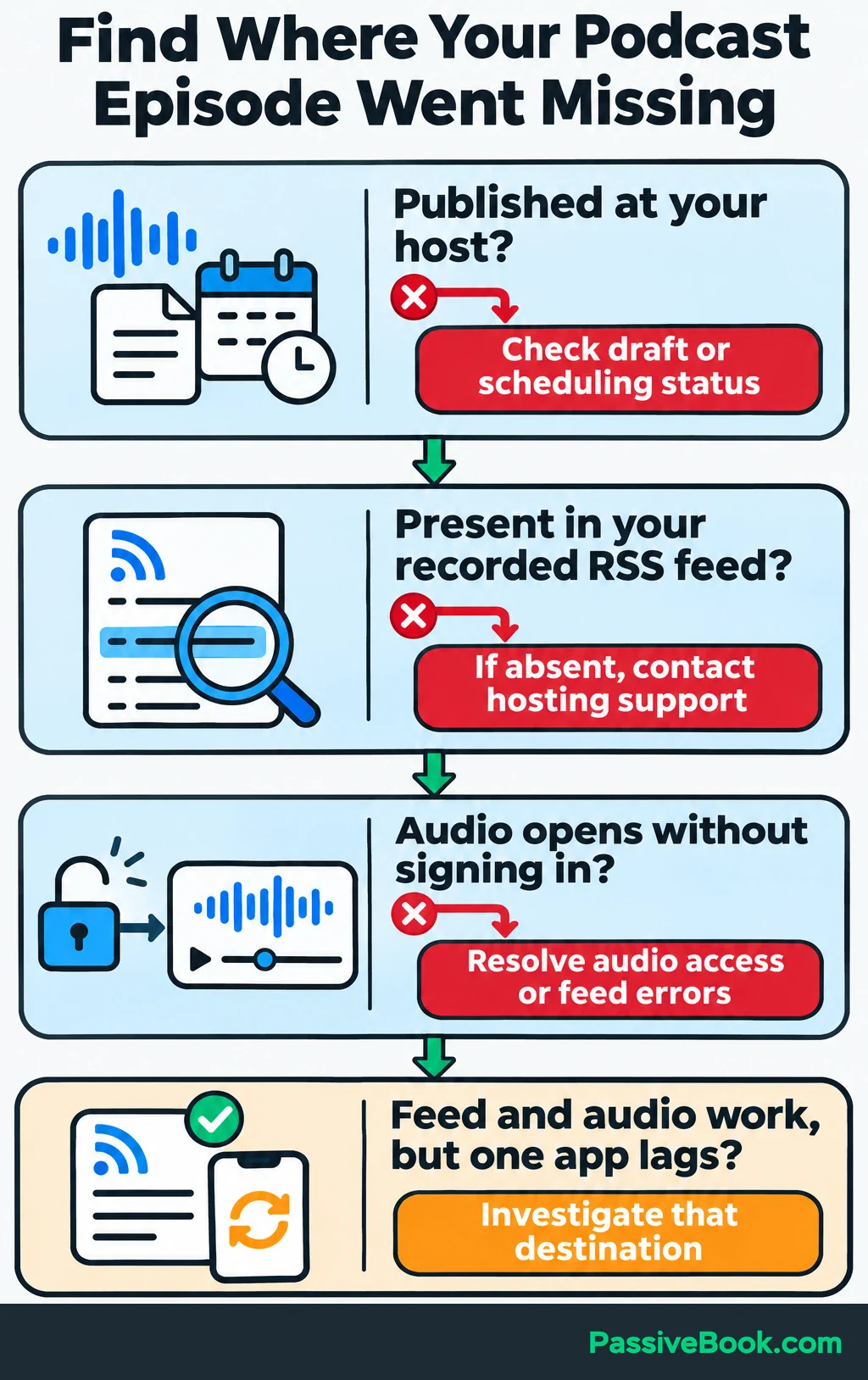
| Feed rejected | Read the exact error. Correct the named issue, such as missing language, incompatible artwork or an inaccessible audio file, then validate again. |
| Verification email missing | Confirm that the feed contains an inbox you control. Enable email exposure through your host if needed, check spam and request another code. |
| Episode absent from the feed | Check that it is published, its release time has passed and the host is using the intended time zone. Fix publishing at the host first. |
| Episode in the feed but absent from one platform | Check review status, regional availability and public visibility, then follow that platform’s refresh guidance. |
| Feed or media won’t open publicly | Ask your host to investigate access restrictions or server errors. Include the affected URL and exact error. |
| Duplicate listing | Contact the platform with both listing URLs and your primary feed. Ask it to investigate the existing listings before submitting again. |
For an artwork error, check the exported file itself. A square design can still have the wrong dimensions or contain transparency after export.
If an episode appears but won’t play, open its audio link from the feed. A failure there points toward hosting or file access. If it plays directly but fails on one service, include that distinction in your support request.
Review and update times vary, so check the platform’s status before treating a delay as a failed submission. Repeatedly submitting the same show can leave you with duplicates instead of a faster launch.
When contacting support, send the feed URL, public listing URL, exact error and the checks you’ve already completed. That gives support something useful to investigate.
7. Publish Future Episodes Through the Same Feed
Once your listings work, keep publishing through the same host.
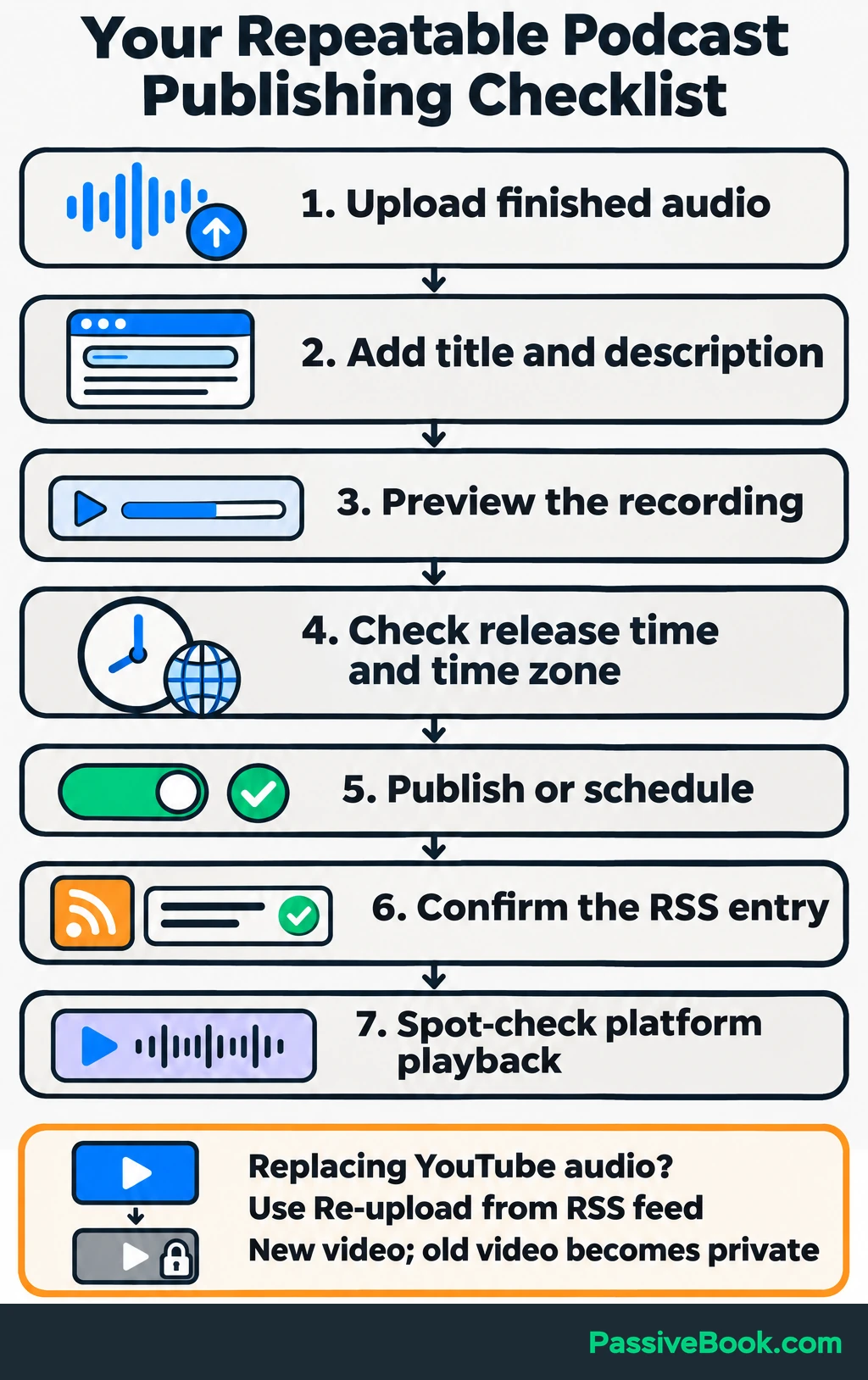
Use one repeatable checklist:
- Upload the finished audio.
- Add the episode title and description.
- Preview the uploaded recording.
- Confirm the release date, time and time zone.
- Publish or schedule the episode.
- Check that it enters the RSS feed.
- Spot-check playback on connected platforms.
Keep backup copies of the audio, artwork and show notes outside your hosting account.
Ordinary new audio episodes don’t need fresh directory submissions. For the next Weekend Dog Walks episode, you publish at the host and let the connected platforms retrieve it.
YouTube needs extra attention when you replace audio. Changing the file at your host won’t replace an already imported YouTube video. Use “Re-upload from RSS feed” for that episode; YouTube creates a new video and makes the old one private.
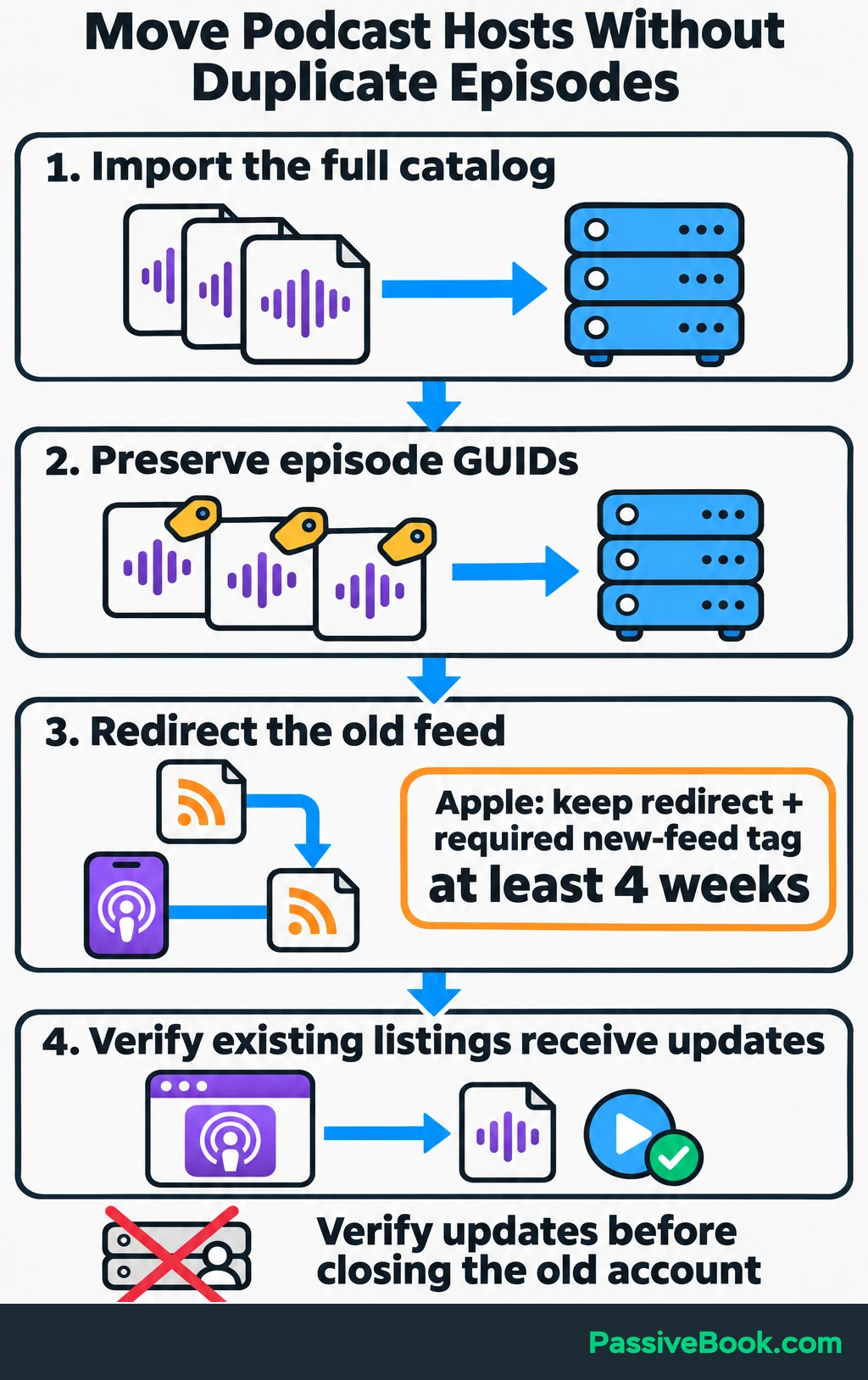
Before changing hosts, check that the full catalog imported correctly and preserve each episode’s permanent identifier, often called its GUID. Changing those identifiers can create duplicate episodes.
Have the hosts arrange a feed redirect so apps following the old address can find the new one. Apple requires the redirect and applicable new-feed tag to remain for at least four weeks. Follow its feed-migration requirements, and verify that existing listings receive new episodes before closing the old account.
I would keep host migration separate from a launch. Get one feed working first, then move only when there’s a clear reason.
What Next?
Choose your host and publish one finished episode with its cover and show details. That gives you a real feed to check and submit, instead of another afternoon comparing tools.
Use the social buttons to share this guide when you’re planning a podcast launch together, so everyone can work toward listings that listeners can find and play.
Which part of distribution would you most like to stop doing manually? Tell me in the comments, and bring any other questions too.
Share this post with your friends & followers:

