A viewer watches your product demo, sees something useful, and has to hunt for the next step. You could put a clickable button inside the video, but would that help them act or just add another subscription?
That uncertainty makes it easy to spend an afternoon comparing players before deciding what the video should achieve. The campaign below connects a short demonstration to a checklist signup, with a spending limit and results you can use to decide whether the interaction earns its keep.
What Is Interactive Video Marketing?
Interactive video marketing lets viewers take actions within a video. They can select a link, inspect a product, answer a question, complete a form, or choose what plays next.
You do not need multiple storylines. A short demonstration with one working call to action, or CTA, can be enough.
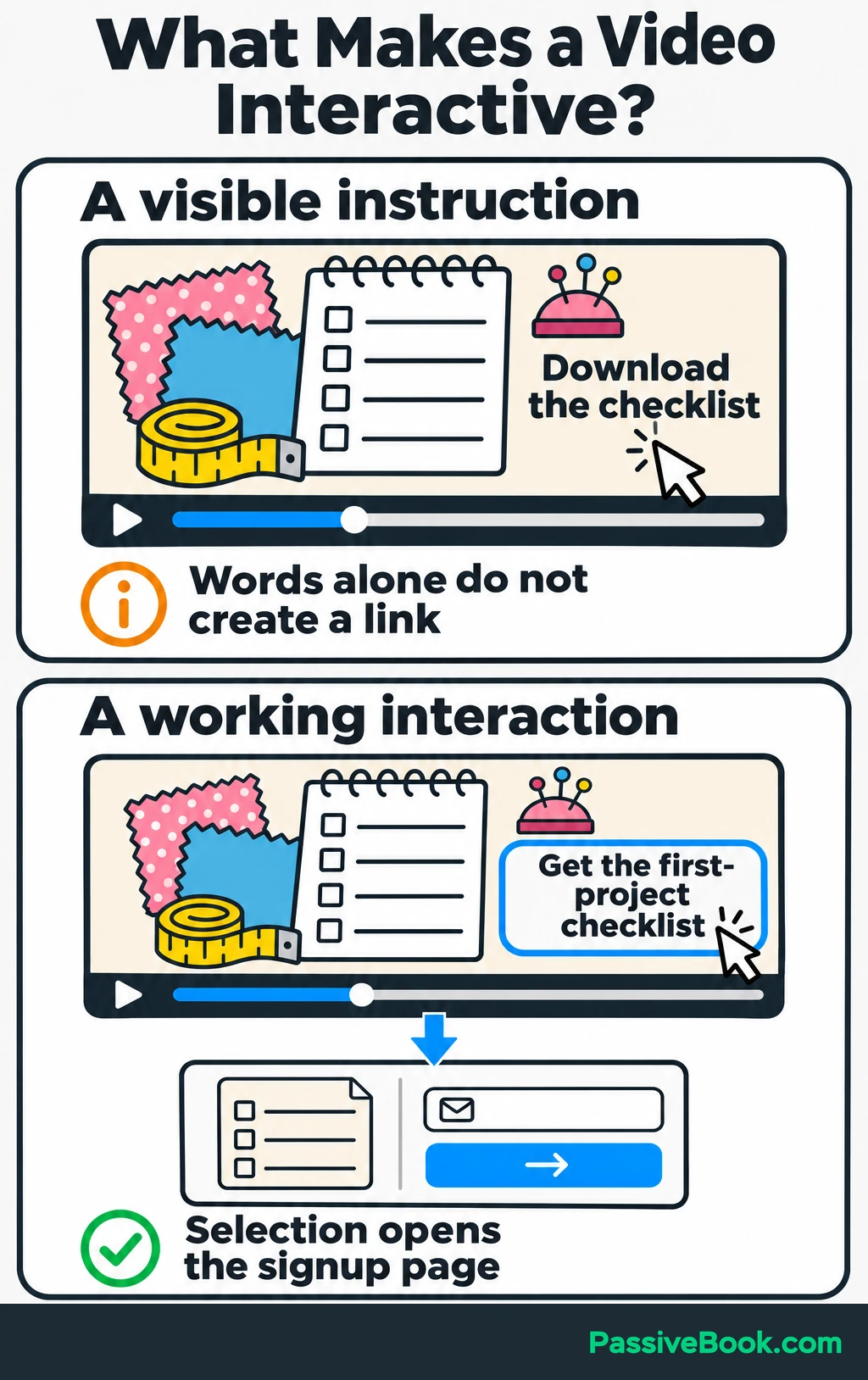
The distinction is whether the control works. Text saying “Download the checklist” is a visual instruction. A selectable link that opens the checklist signup page adds an interaction.
Use that interaction to remove a real obstacle. It might help viewers find the right explanation or reach an offer when they understand its value. If a standard video with a nearby button already makes the next step clear, I would keep it.
Throughout this guide, imagine you sell printable sewing project planners. Your video demonstrates a planning page and offers a free first-project checklist. The business, sample copy, and campaign figures are illustrative.
1. Choose One Measurable Viewer Action
Decide what viewers should do after watching, and match that action to what they need now.
Someone exploring a topic may want a useful checklist. Someone comparing products may want a closer look. Someone ready to buy needs a clear route to checkout.
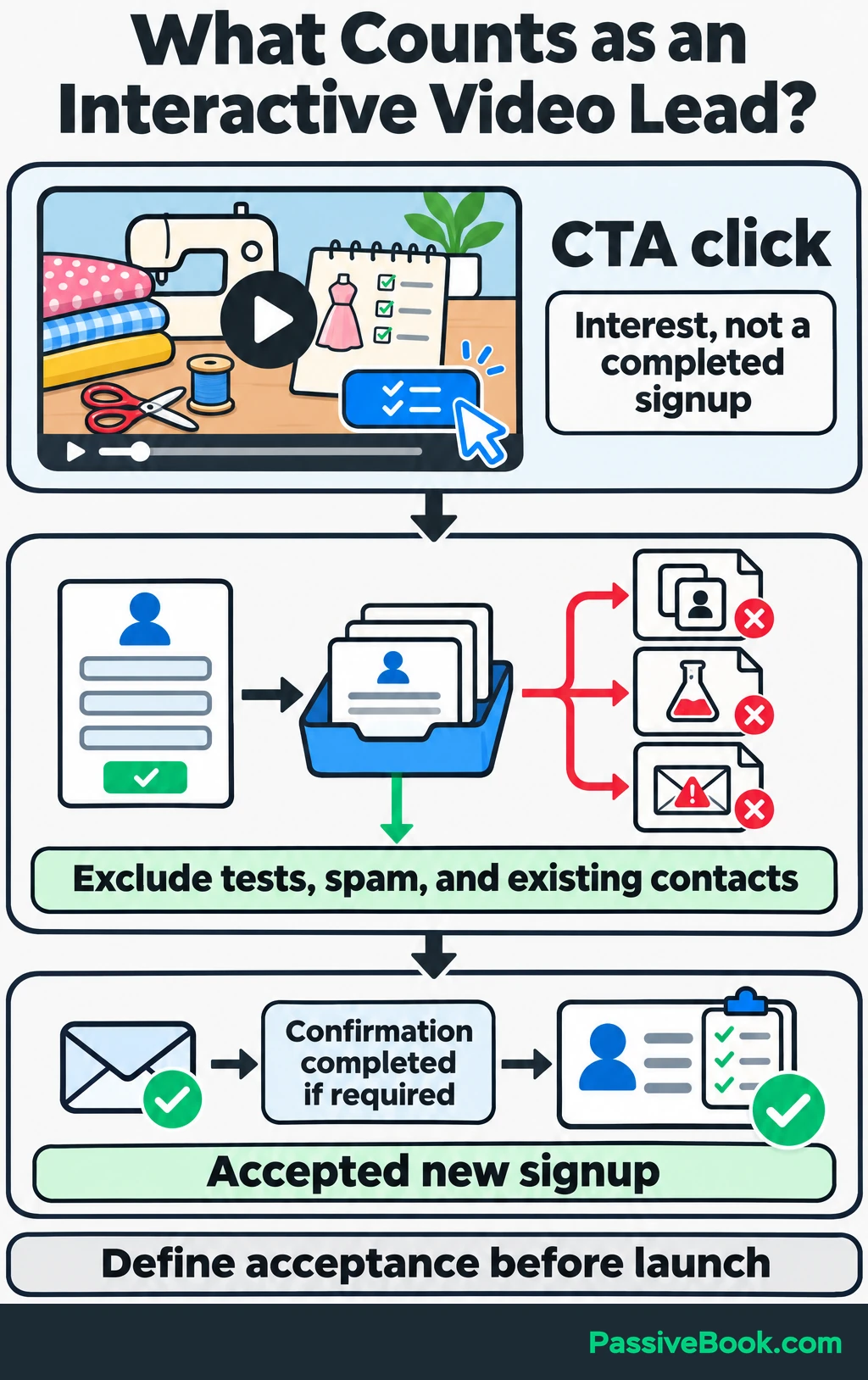
Choose one primary outcome. For the sewing-planner campaign, I would count valid new checklist signups. Button clicks help explain what happened along the way, and later planner purchases help show whether those leads have business value.
Write the goal plainly:
Help visitors to the sewing-project article request the first-project checklist, and count accepted new signups from the test.
Define “accepted” before launch. Exclude test entries, spam, and existing contacts requesting the file again. If your signup process requires email confirmation, count people after they confirm.
Start on a relevant page that already receives some traffic. Record its visitors and checklist signups before changing the experience. That gives you a starting point, though a before-and-after comparison alone will not prove the video caused a change.
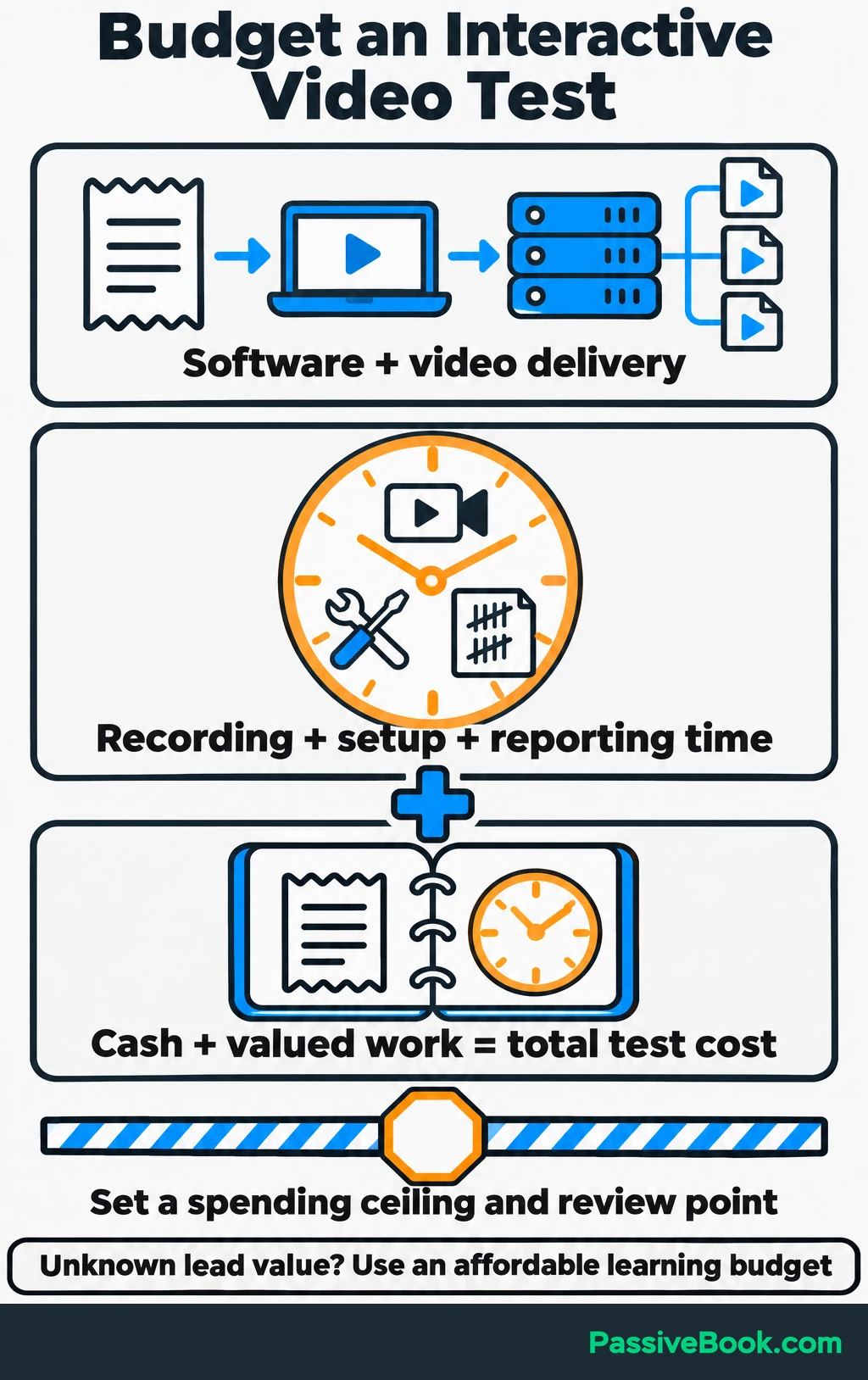
Set a spending ceiling too. Include software, recording, setup, reporting, and ongoing video delivery.
If you know what a lead is worth, use that to choose an acceptable cost per signup. If you do not, set a learning budget you can afford to lose and a review point. “Keep paying until something happens” is an expensive measurement plan.
2. Match the Interaction to the Viewer’s Need
Choose the interaction after choosing the action. Each extra control should help viewers understand something or move forward.
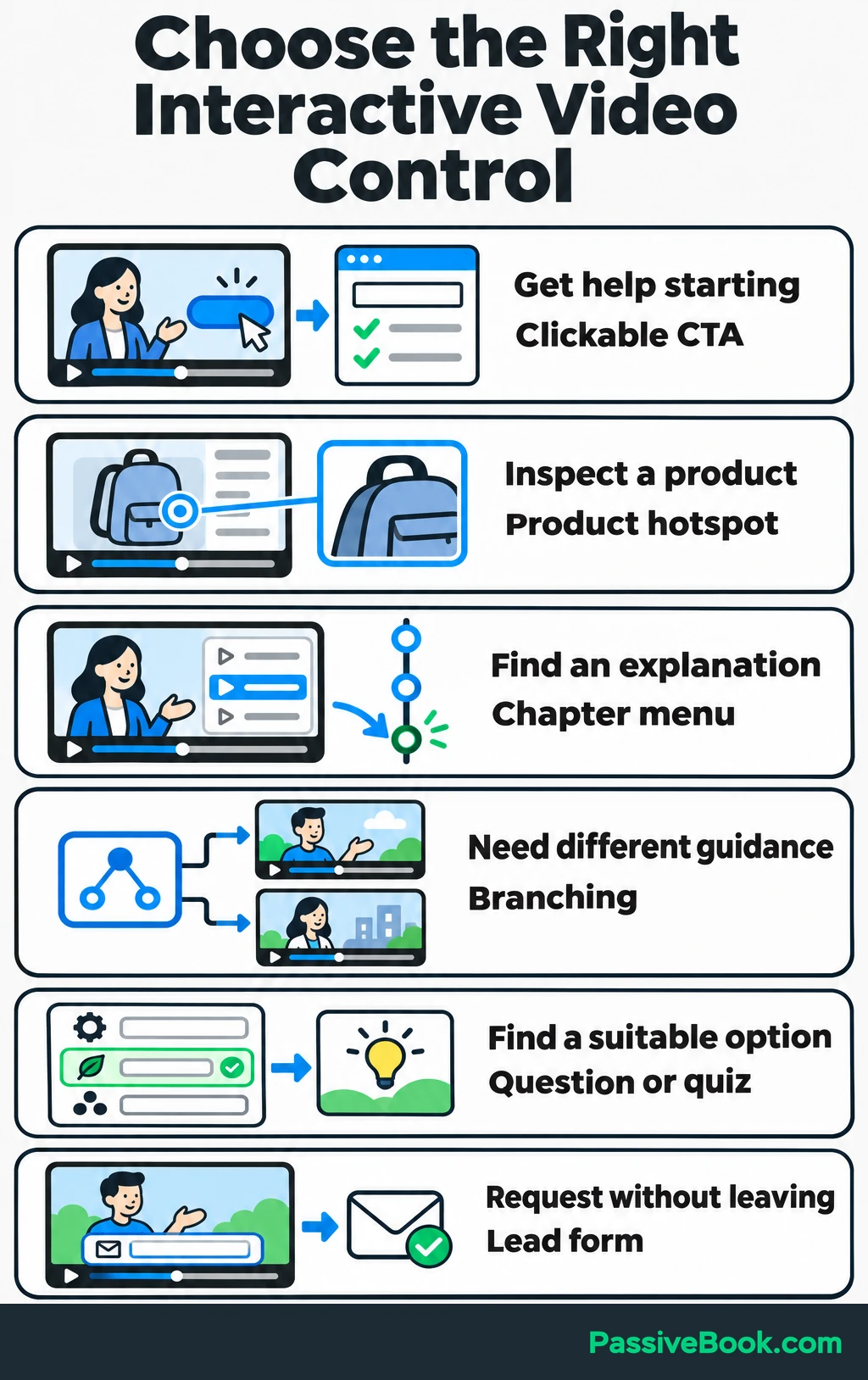
| Viewer Need | Interaction | Destination | Additional Production Work |
|---|---|---|---|
| Get help starting a project | Clickable CTA | First-project checklist signup page | Write the label and set its timing |
| Inspect the planner page being shown | Product hotspot: a selectable area over the item | Planner details or product page | Position the hotspot and check it stays aligned |
| Find a useful explanation quickly | Chapter menu | A point within the video | Mark and label the sections |
| Get different guidance based on progress | Branching choice | A separate explanation for each choice | Record, connect, and test each route |
| Receive a relevant recommendation | Question or quiz | Content selected from the answer | Write questions and map useful responses |
| Request the checklist without leaving the player | Lead form | Confirmation and resource delivery | Connect contact capture, consent, and delivery |
These features can work together, but they do not all belong in your first campaign.
For the sewing planner, I would start with one CTA: “Get the first-project checklist.” It leads to an existing signup page, so there is no need to build a new form inside the player.
A hotspot could help later if viewers want to inspect individual planner pages. But a link to a product page and a purchase completed inside the video are different capabilities. Check which one a tool actually provides.
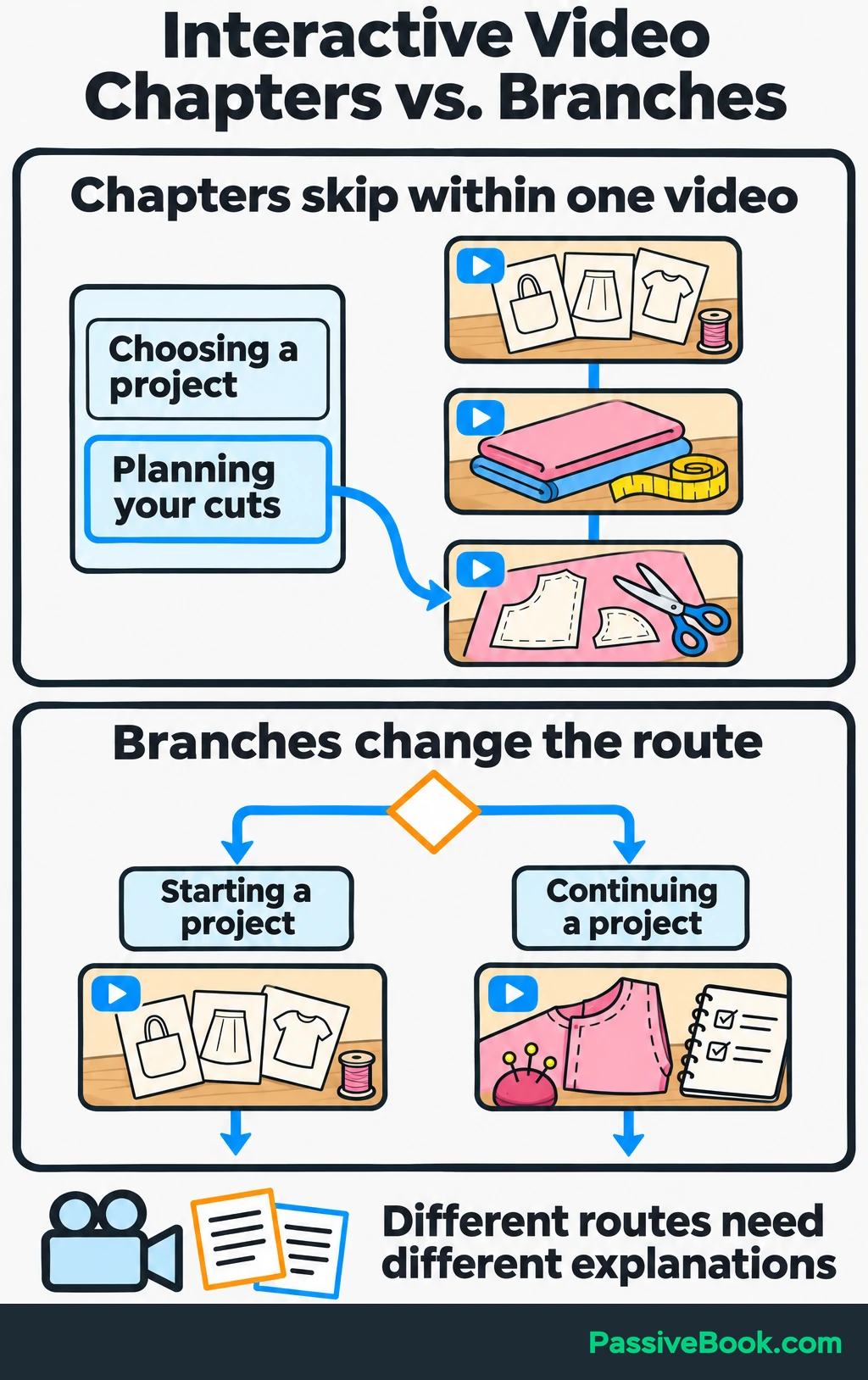
Chapters and branches solve different problems too. Chapters let viewers skip to “Choosing a project” or “Planning your cuts.” Branches change the route based on their choice. Record separate routes only when those viewers need different explanations.
The same rule applies to quizzes. Ask a question because its answer changes the help you provide. Otherwise, you have given the viewer homework.
3. Storyboard the Shortest Useful Journey
Work backward from the destination. What must viewers understand before requesting the resource?
Show that information, demonstrate the benefit, and introduce the interaction when its purpose becomes clear. A simple table is enough to plan the journey before recording.
| Scene | Narration or Visual | Viewer Question | Interaction Label | Destination | Tracking Event |
|---|---|---|---|---|---|
| Introduce the problem | Show project notes scattered across separate scraps | “How can I keep these details together?” | None | Continue to demonstration | First playback |
| Demonstrate the planner | Fill in fabric, measurements, and next tasks on one page | “What would I put on this page?” | None | Continue to checklist preview | No extra event needed |
| Preview the checklist | Show its project-choice and preparation prompts | “What should I check before starting?” | None | Continue to invitation | No extra event needed |
| Offer the resource | Explain what the free checklist helps viewers prepare | “Where can I get the checklist?” | Get the first-project checklist | Checklist signup page | Checklist CTA click |
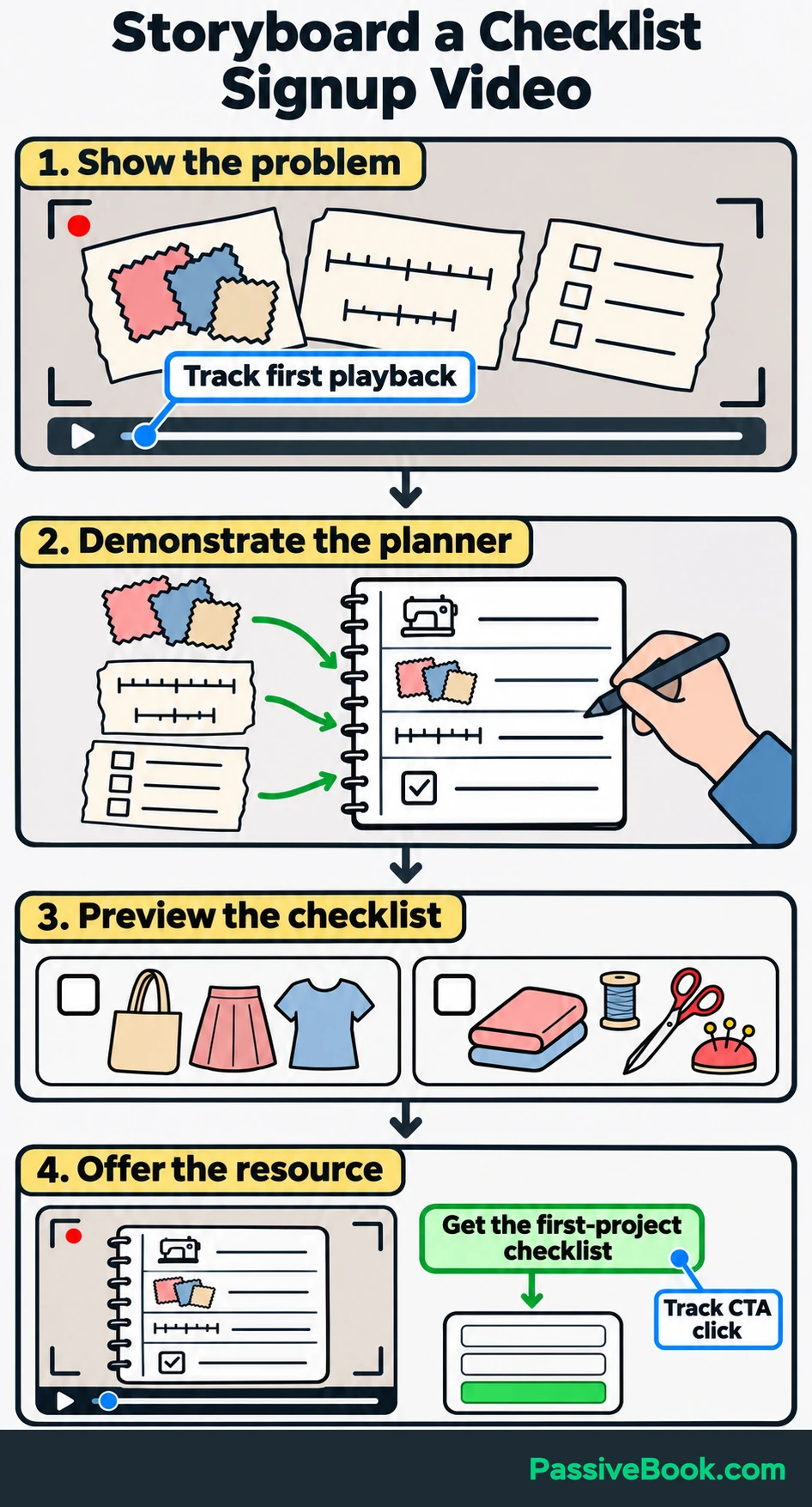
Keep one primary action at each decision point. “Get the first-project checklist” tells viewers what they will receive. “Click here” makes them work it out.
Decide what happens if they ignore the prompt. For this first test, the demonstration can finish normally, with a text link beneath the player still available.
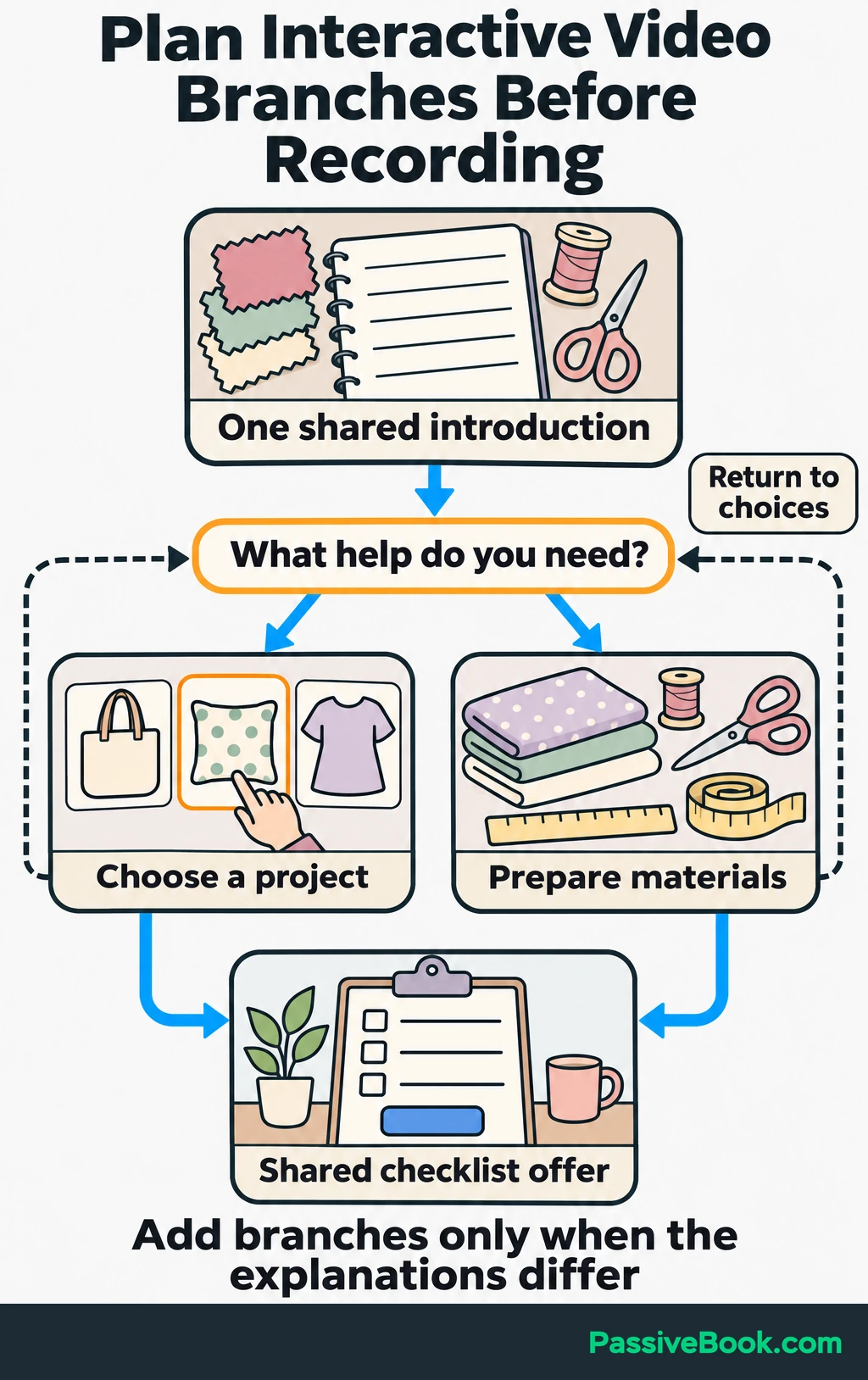
If you add branches later, draw every route and ending before recording. Include a way to return to the choices, and reuse shared scenes rather than filming the same introduction several times.
You can make the footage with a screen recording, narrated slides, or an overhead view of the printed planner. Your face does not need a supporting role.
If the blank script is holding you up, AI Video Studio can draft the words and visual directions around your own offer. Choose a screen recording, slides, or overhead demonstration so the draft fits what you can actually record.
Free AI Video Studio




4. Choose a Player Within Your Test Budget
Your recorder creates the footage. The interactive player adds the working links, questions, and choices.
Compare players against your storyboard rather than their longest feature list. Check whether each option can:
- Complete the Journey: Provide the exact interaction and destination you planned.
- Publish Where Needed: Work through an embed on your site or a shareable viewing page.
- Work on Mobile: Keep controls readable and selectable on a small screen.
- Report Useful Actions: Show starts, clicks, and answers at the level you need.
- Connect Your Data: Pass campaign details to your form and export contacts if it collects them.
- Stay Within Budget: Cover expected viewing, storage, setup, and ongoing costs.
Three options suit different jobs.
- H5P: My first option to investigate for a small experiment on an existing WordPress site. Its WordPress plugin is free and open source, and Interactive Video supports links, questions, bookmarks, and navigation based on answers. That is enough for a demonstration linking to an existing signup page. Budget separately for hosting, video delivery, maintenance, and reporting setup; a free plugin does not make those jobs disappear. See the H5P Interactive Video features.
- Mindstamp: Worth considering when hosted authoring and built-in reporting would save substantial setup time. Basic includes buttons, questions, and per-viewer reporting; conditional logic requires Pro or above. Check the current plans and pricing against the journey you need. Continued online playback requires an active subscription, so include that recurring cost rather than treating the trial as permanent hosting. Mindstamp’s playback requirements explain the dependency.
- VideoAsk: Better suited to question-led journeys where an answer determines the next video step. It offers a free account for exploration and supports routing between steps. This is a different format from adding controls over one continuous demonstration. VideoAsk’s overview explains the approach, and redirecting viewers to an external page requires a paid plan.
I would investigate H5P first for this campaign if the WordPress site is already running. If configuring its reporting costs more time than the test deserves, I would compare a hosted option or simplify the measurement.
Count your hours when comparing costs. I spent six months building a membership site alongside a corporate job, and the ongoing content work became unsustainable. I would apply that lesson here: choose something you can maintain after the interesting setup work ends.
5. Build the Video and Connect the Conversion Path
Create the Footage and Add the Interactions
Record only what the storyboard needs. Reuse suitable footage, trim unrelated introductions, and leave clear space for the controls.
A screen recording works well for a digital planner. Loom is my usual choice for walkthroughs, while Canva is useful for preparing slides and supporting visuals.
The build process is similar across players:
- Create an interactive-video project and upload or connect the footage.
- Add the link, question, or other planned interaction.
- Set when it appears, where it sits, and what happens when selected.
- Enter the destination and check whether it opens in the same tab or a new one.
- Preview the result with captions and controls visible.
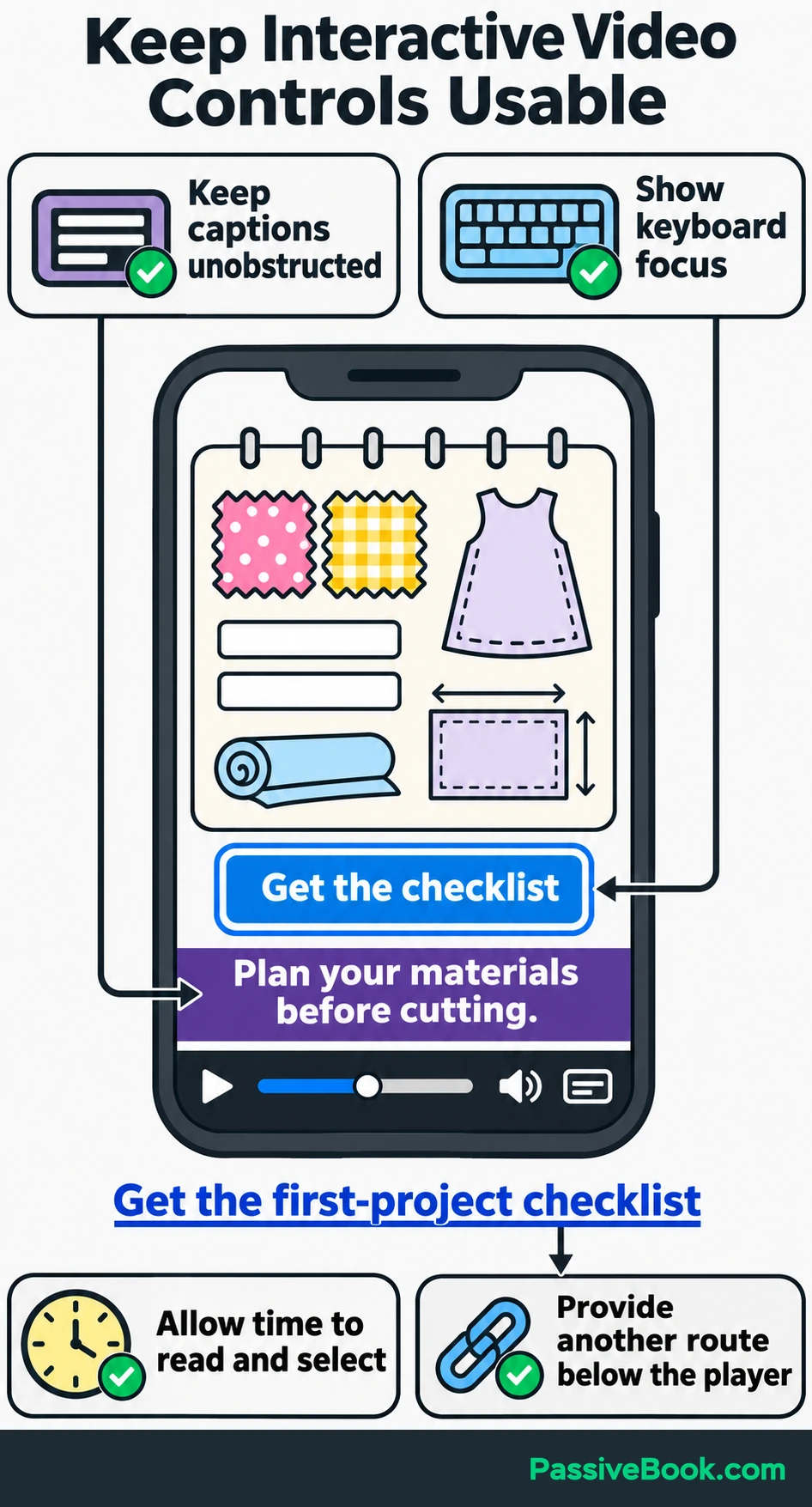
For the WordPress route, install and activate the H5P plugin, then create an Interactive Video item. Add the footage and place a link interaction after the checklist preview. Give it the planned label and connect it to the existing signup page.
Keep the invitation visible long enough to read and select. If you ask a question that requires thought, pause playback while viewers decide.
Add accurate captions, including meaningful sounds where needed, and correct automatic transcription errors. W3C’s caption guidance explains what captions should convey.
Controls should stay clear of captions and important visuals. Choose controls that work with a keyboard and show which item has focus, as described in W3C’s media-player guidance. Include a normal text link to the checklist beneath the player as another way to reach it.
Complete the Signup and Delivery Handoff
The destination must deliver the promise made by the button.
For “Get the first-project checklist,” send viewers to a focused page showing that checklist and a short request form. Ask only for the details needed, explain what happens after submission, and provide a clear confirmation.
Reuse your existing website and email system. On WordPress, I would look at the form and delivery setup already in place, such as Fluent Forms and FluentCRM, before adding another service. A linked page can handle the whole handoff without a special connection between the player and your email platform.
Configure the form to save the campaign version with each accepted submission. If you later introduce branches, save the selected path too.
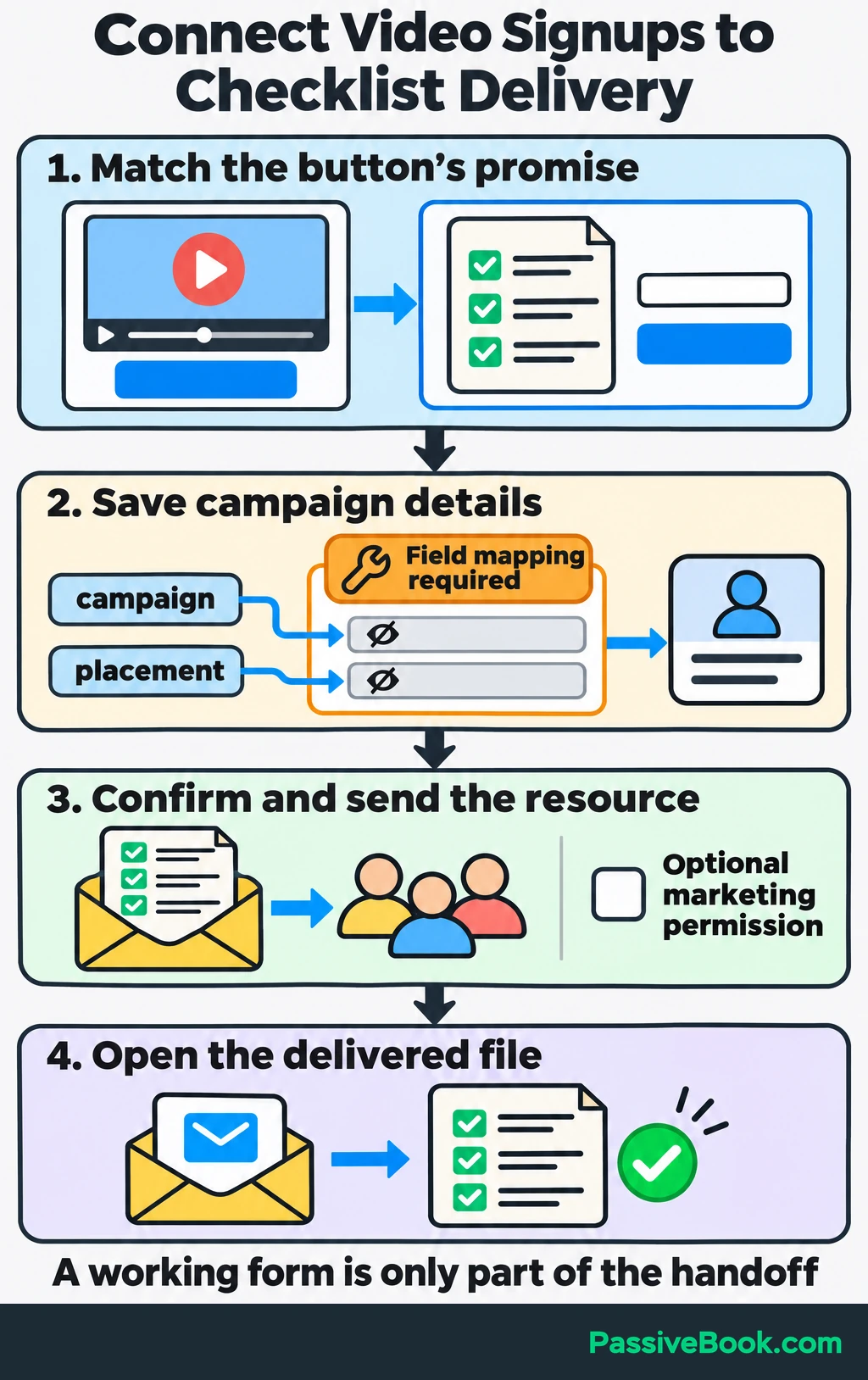
For example, the CTA could open:
/first-project-checklist/?campaign=sewing-video-v1&placement=player
Your form must be configured to read those values into hidden fields. Putting them in the address does not save them automatically.
Explain data use beside the form, and keep optional marketing permission separate from checklist delivery. For this campaign, I would deliver the resource to everyone who requests it and send promotional follow-up only to those who have agreed to receive it. Where UK email-marketing rules apply, unsolicited marketing to individual subscribers requires consent unless a qualifying exception applies. The ICO explains those requirements.
While checking a digital-product download flow, I once stopped my test after the form worked. When I finally opened the delivery email, its link pointed to an older file. Now I end that test with the promised resource open in front of me.
Do the same here. A successful submission is only part of the handoff.
Set Up Tracking Before Promotion
Record enough to see where people stop:
- Page Visitors: Unique visitors to the page containing the experience during the reporting period.
- Video Starters: Unique viewers who begin playback during that period.
- CTA Clickers: Unique viewers who select the checklist invitation during that period.
- Accepted New Leads: New contacts whose valid requests complete your signup requirements.
- Purchases: Later planner orders attributed to those leads.
Use player reports for viewing behavior and accepted form or checkout records for completed actions. Do not count a button click as a lead.
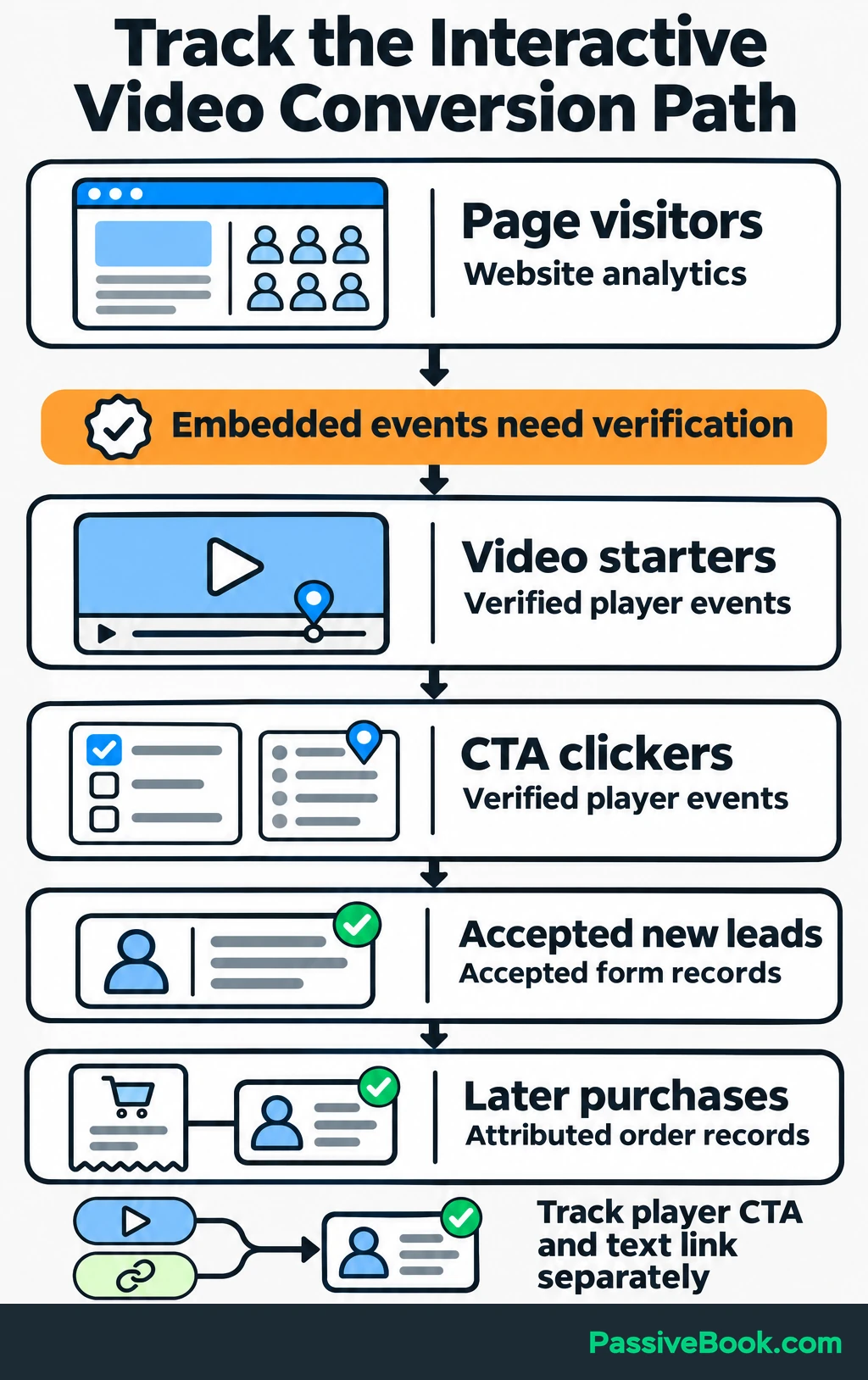
Before launch, check whether the player reports first playback and CTA selections. If you want those events in Google Analytics, use a supported integration or configure event tracking. A website analytics installation alone is not evidence that interactions inside an embedded player are being recorded.
Keep this proportionate. If detailed interaction tracking requires custom development beyond your budget, use reliable page and form counts for the main decision and leave unsupported video rates unreported.
Give each version a distinct identifier, such as sewing-video-v1. Track the text link beneath the player separately from the in-video CTA so you can tell which route produced a signup.
6. Test and Publish the Complete Experience
Publish using the player’s supported embed or share link. A normal exported video file will not retain working overlays, forms, or branches. Those controls belong to the interactive experience.
Test the whole journey on desktop and mobile, including fullscreen playback:
- Start, pause, and replay the video.
- Select every control, and ignore prompts to check the default route.
- Follow any branches and return routes.
- Check labels, captions, keyboard access, and control placement.
- Open the destination, submit the form, and receive the checklist.
- Confirm the expected tracking events appear once.
- Submit again and check that it does not create another new-lead count.
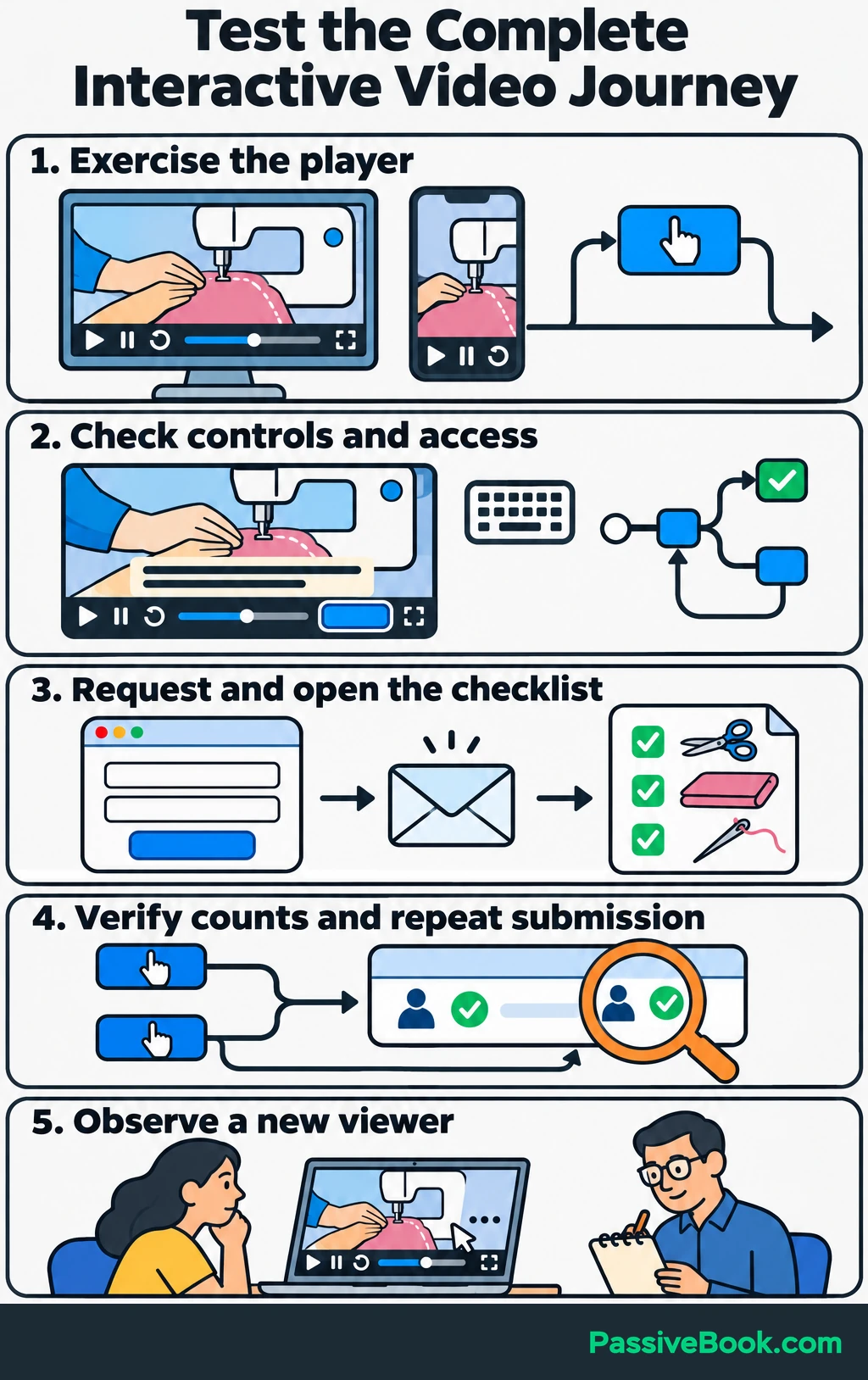
Then ask someone unfamiliar with the video to obtain the checklist. Give them the task without explaining where to click. Watch for hesitation, unreadable prompts, slow loading, and confusing page changes.
Embed the tested experience in the relevant sewing-project article or landing page. Put it where the demonstration answers a question the visitor already has.
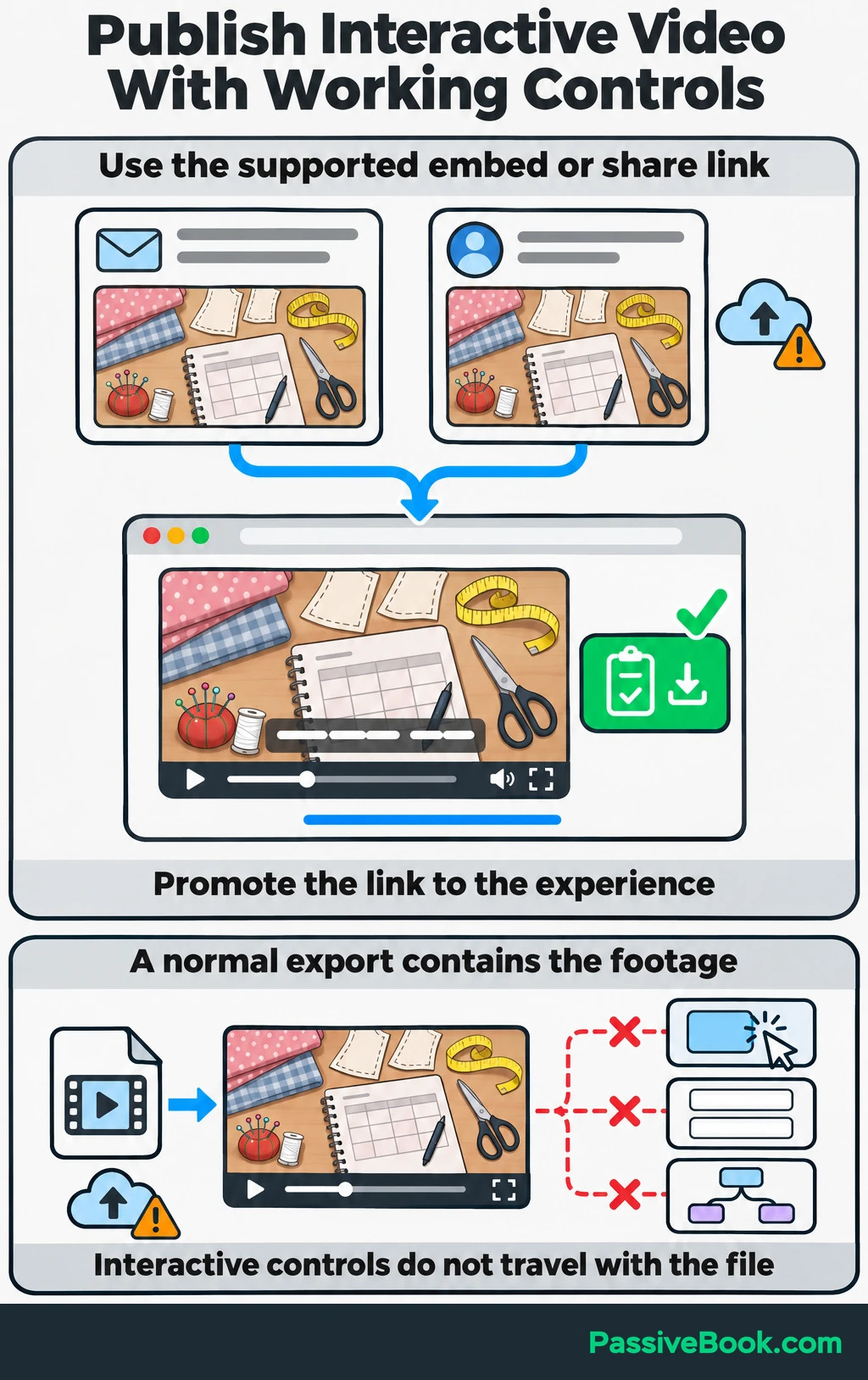
For email and social promotion, link a thumbnail or preview to that working experience. Do not assume the interactions will travel with a video uploaded to another platform.
Start with traffic you already have. There is little value in buying more visitors for a broken download link.
7. Measure Results and Improve the Weakest Step
Choose one reporting period, exclude tests, and use the same counting method throughout. Count each accepted new lead once.
“Unique viewers” may mean browsers or devices rather than identified people. Label the numbers according to what your tools can actually observe.
For viewer-based rates, count only leads connected to the tracked video starters. Leads from the separate text link belong in the overall page result, but should not automatically be credited to viewers.
Here is how the sewing-planner test could look. These are illustrative figures, and all ten leads below came through the tracked video CTA during the same reporting period:
- 500 unique page visitors.
- 200 unique video starters.
- 40 unique CTA clickers.
- 10 accepted new leads.
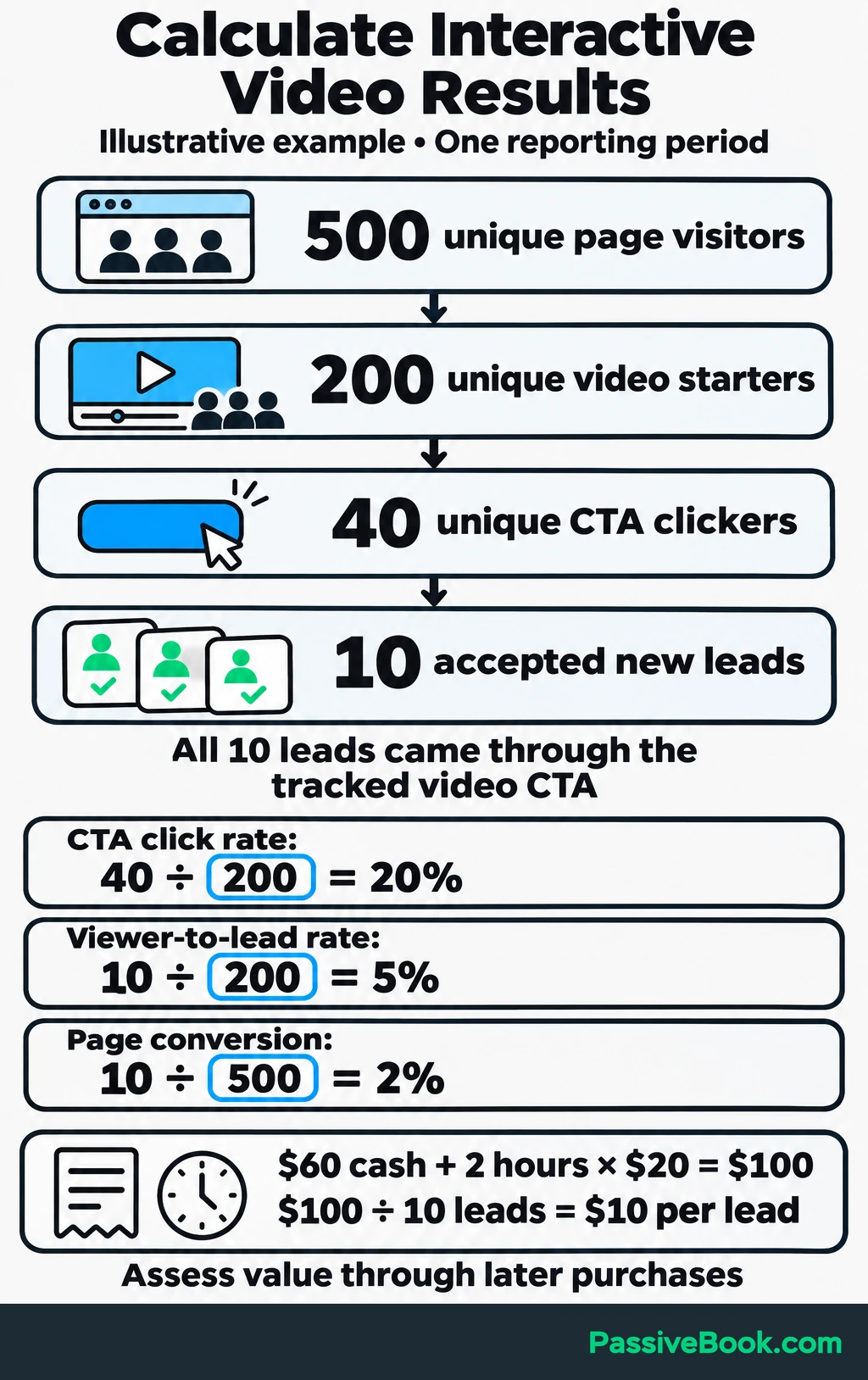
The CTA click rate counts the starters who selected the invitation: 40 ÷ 200 × 100 = 20%.
The viewer-to-lead rate counts starters who became new leads: 10 ÷ 200 × 100 = 5%.
The page conversion rate counts new leads among all page visitors: 10 ÷ 500 × 100 = 2%.
For cost, include cash expenses and the value assigned to your work. Suppose the test used $60 in cash and two hours valued at $20 per hour. Total cost is $100, so ten new leads cost $10 each.
That is a result to assess, not a success verdict. Track later planner purchases over a defined follow-up period and compare the resulting profit with what it costs to keep the campaign running.
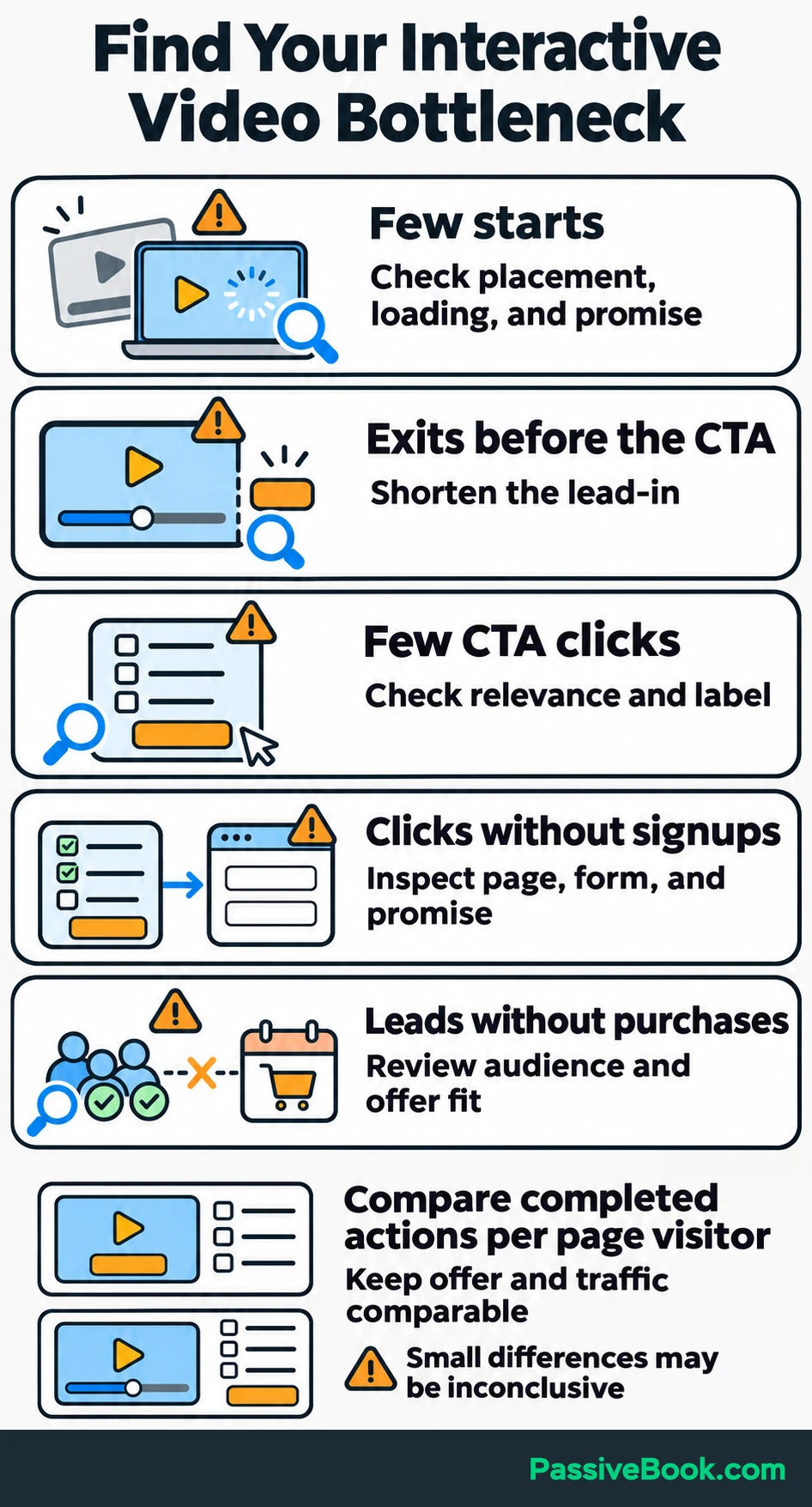
Use the transitions to choose your next change:
- Few Starts: Check placement, loading, the thumbnail, and whether the opening promise matches the page.
- Exits Before the CTA: Remove explanation that delays the useful demonstration.
- Few CTA Clicks: Check whether the checklist solves the problem shown and whether the label makes that clear.
- Clicks Without Signups: Inspect the destination, form, loading, and delivery promise.
- Leads Without Purchases: Review whether the checklist attracts people who need the paid planner.
To assess whether interactivity helps, compare it with a conventional video offering the same checklist through a nearby button. Keep the offer and traffic comparable, and judge completed actions per page visitor. Comparing viewers alone can hide differences in who chooses to watch.
If possible, split comparable traffic between the two versions. If you compare different time periods, record changes in traffic sources and promotion that could affect the result.
A small pilot can uncover broken steps and confusing controls. A small conversion difference does not establish a reliable improvement.
Change one meaningful element at a time, and use the original spending ceiling to decide whether to keep, simplify, or stop the campaign. Add branches or more footage only when the results justify their production and upkeep.
What Next?
Choose one existing page and write down the single action its video should help visitors complete. Sketch the route from demonstration to destination before opening a player comparison.
Use the social buttons to share this guide when a discussion about interactive video needs a practical test and a spending limit.
Which step in your current viewer journey needs the most help? Tell me in the comments, and bring any other questions about planning or measuring your test.
Share this post with your friends & followers:

