An order comes in during your workday, but getting it out still means copying an address, checking stock, choosing postage, and sending tracking details. A few orders are manageable. A busy evening eats the time you had set aside for everything else.
When those handoffs depend on memory, you can miss an order or promise stock that has already sold. Buying another app can leave you with one more place to check. This guide shows you how to connect the work into a reliable flow, with clear checks before products leave your hands.
Map Your Current Fulfillment Workflow
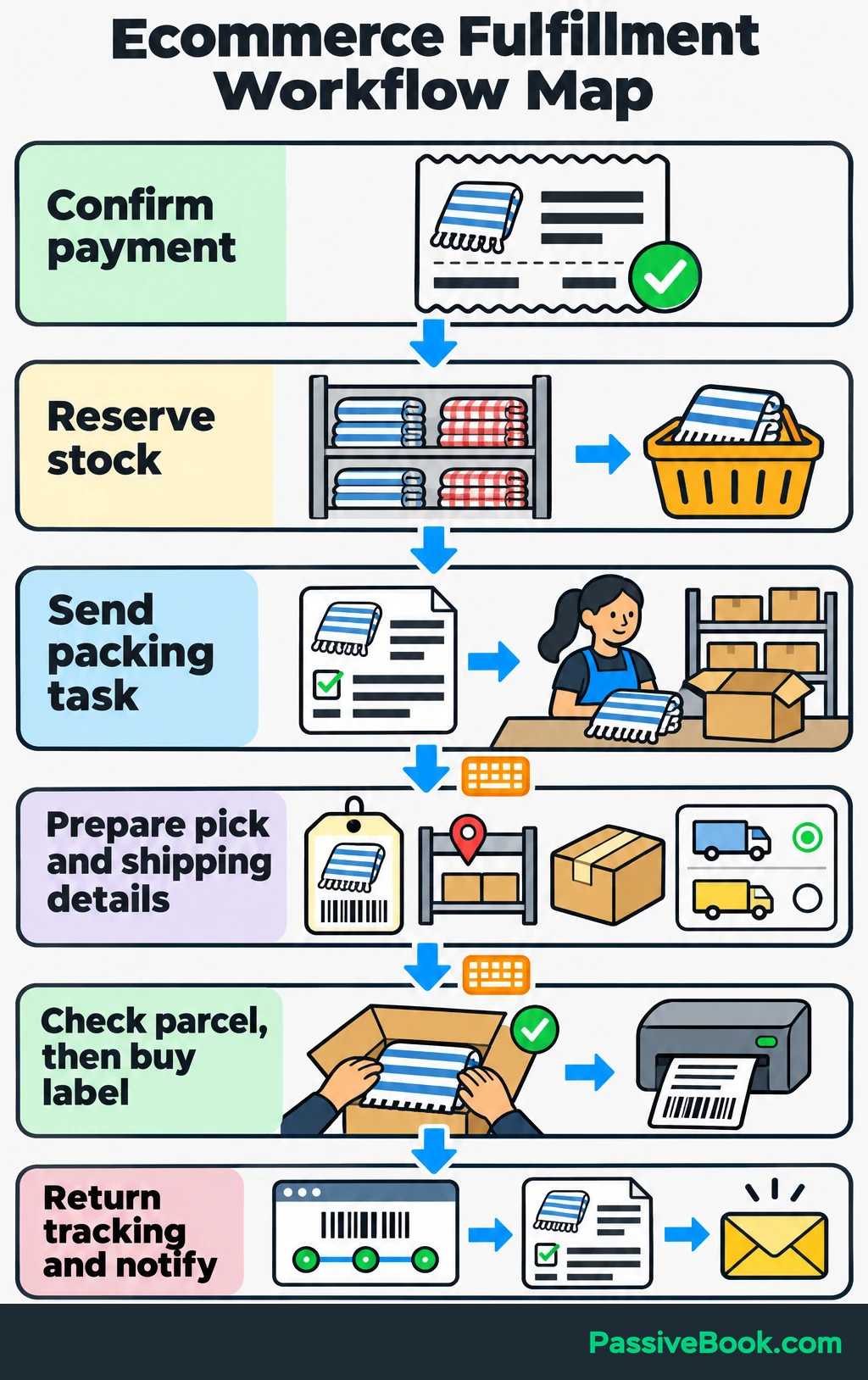
Start by following one recent order from payment to carrier handoff. Repeat this for each sales channel because marketplace orders may take a different path from orders placed on your website.
Write down where each action happens:
- Payment is confirmed.
- Stock is reserved for the order.
- The order reaches the person or company packing it.
- Picking instructions and shipping details are prepared.
- The parcel is checked and its label is purchased.
- Tracking returns to the sales channel and the customer receives an update.
Mark every place where you copy information, change a status, or check another screen. Those handoffs are your first candidates for automation.
Start by automating repeated decisions and data transfers. People still pick products, check parcels, and resolve unusual orders. You do not need warehouse robots to stop retyping addresses.
Throughout this guide, imagine you sell cotton tea towels in striped and checked patterns, and you pack orders yourself. The store, rules, costs, and savings are illustrative.
Keep payment status separate from fulfillment status. A paid order might still need an address correction or a fraud review, so “paid” should not automatically mean “send it.”
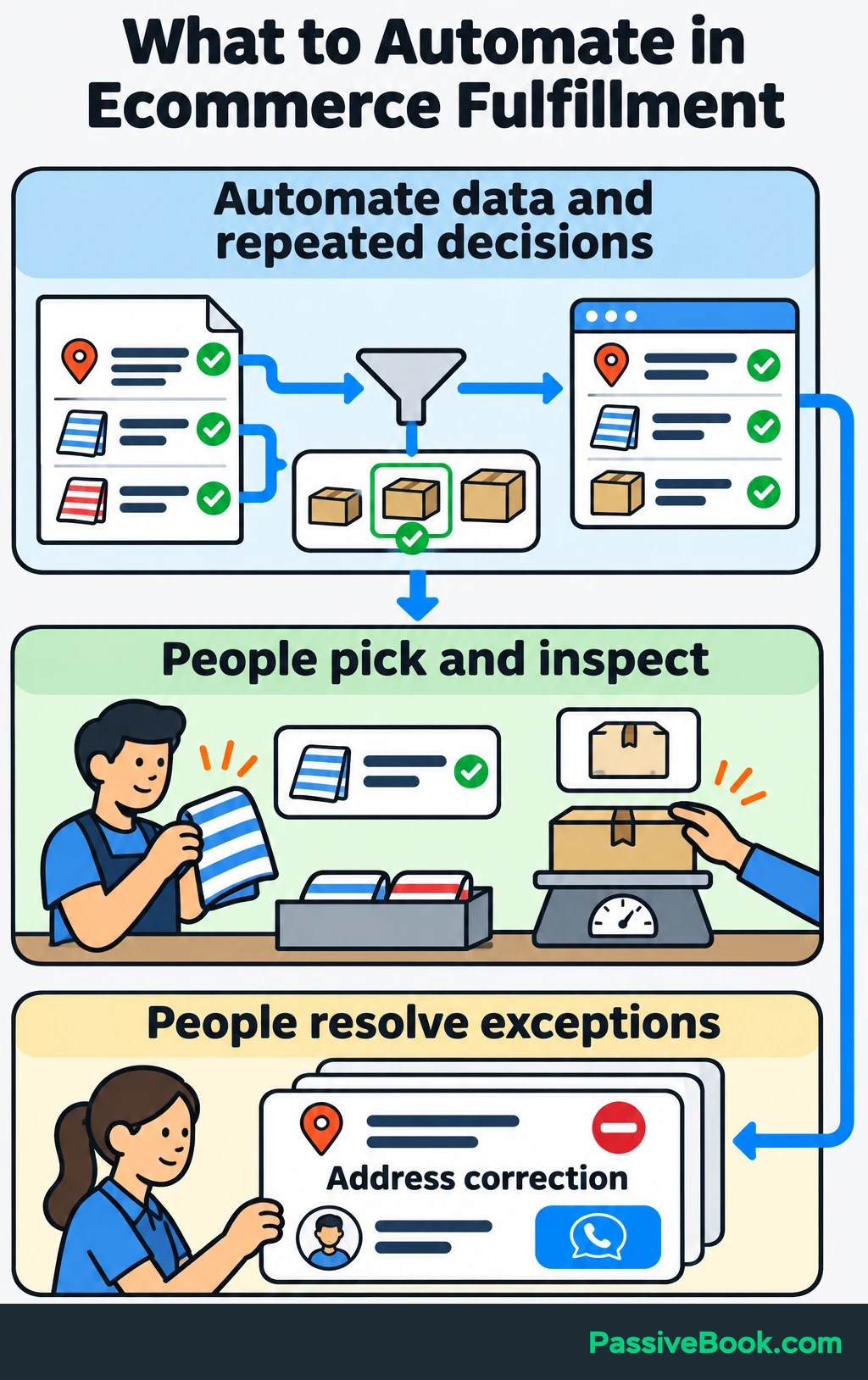
Define what makes an order ready, what puts it on hold, and who clears that hold. Even when that person is you, give held orders a visible queue.
Then choose one troublesome handoff. If copying orders into shipping software takes most of your evening, start there. Record the time it takes and any mistakes before changing it, so you have something useful to compare later.
Before connecting any apps, give that handoff a clear set of rules. Write down what starts it, which orders can proceed, and what should happen when something goes wrong.

Free AI Automation Planner




Choose the Smallest Stack That Covers Your Workflow
I would keep your current storefront unless it cannot support a required connection. Moving the whole shop to avoid one manual task is an expensive form of tidying up.
Compare the Full Operating Cost
Compare costs at your current volume and in a busier month. Include subscriptions, setup, maintenance, postage, packaging, storage, packing labor, and returns. An import, stock update, tracking update, and retry may each incur usage charges.
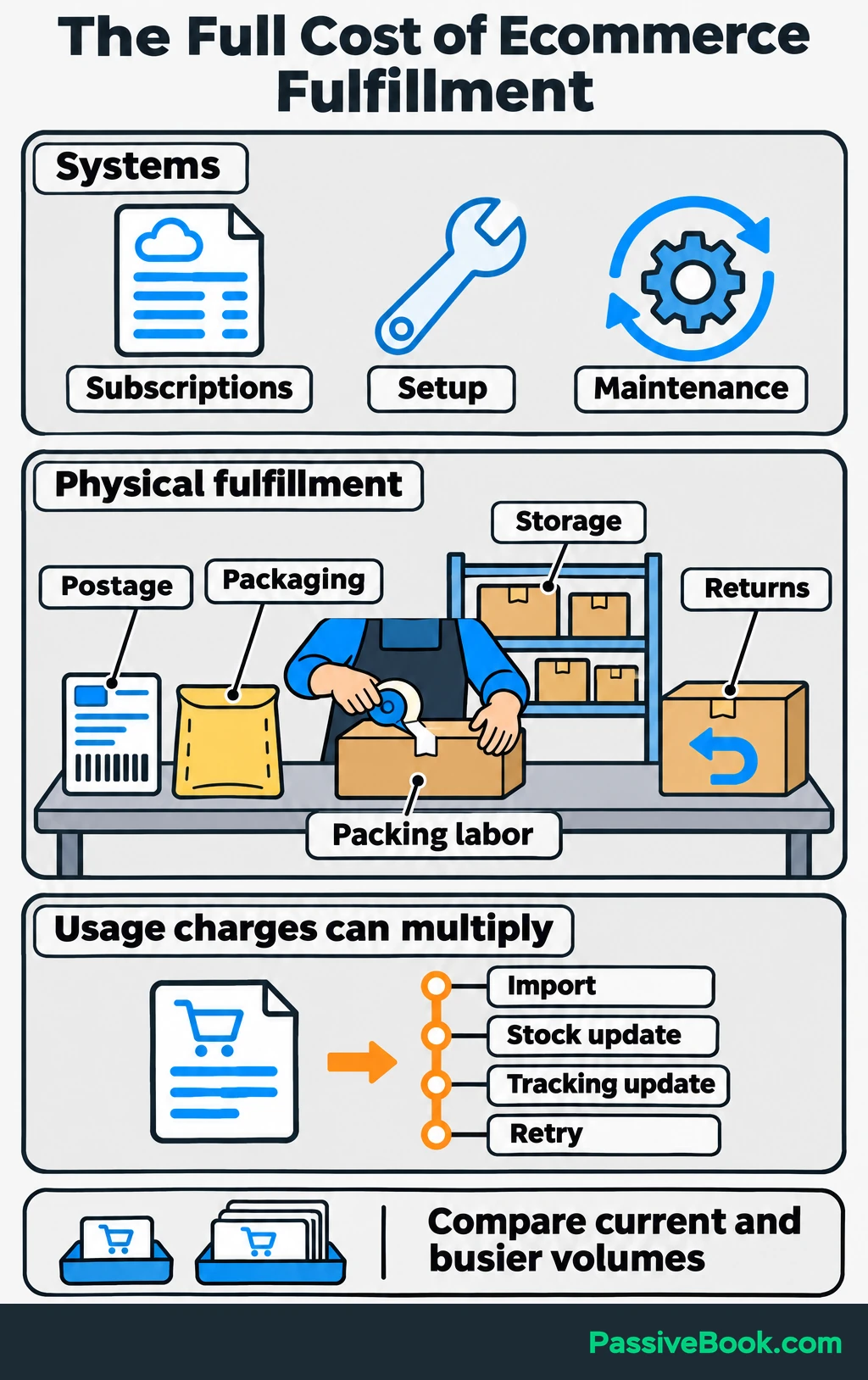
Check that you can export orders, stock, and tracking, and process pending orders if the connection fails.
Connect Your Existing Storefront and Fulfillment Tools
Give each job one owner. Two tools should not both decide how much stock is available or independently create shipments for the same order.
For Shopify label purchases, check location and carrier eligibility; some carriers also require your store address to be in the same country. For other store rules, check Shopify Flow, a free automation app whose features vary by plan.
For our tea-towel store, assuming eligible Shopify label support, the starting connection map could look like this:
| Fulfillment Job | Responsible Tool | Data Exchanged | Incremental Cost |
|---|---|---|---|
| Capture orders | Existing Shopify store | Order reference, items, address, payment status | Existing store subscription |
| Control sellable stock | Shopify inventory | Quantity changes for each pattern | No separate inventory app in this setup |
| Prepare shipments | Shopify label tools | Address, package details, carrier service, tracking | Postage and printing supplies |
| Send shipment confirmation | Shopify notifications | Tracking link and items included | No separate messaging app in this setup |
| Alert you to held orders | Shopify Flow, where supported | Order reference and hold reason | No separate Flow app fee |
For WooCommerce and ShipStation, choose which order statuses import and which applies after shipment. Test order import and tracking return.
Use Make or n8n to connect apps only where a direct integration leaves a gap. I’d choose Make for quick setup and n8n for more control; self-hosting adds hosting, updates, and recovery work.
Add a Fulfillment Partner When Physical Handling Is the Bottleneck
When storage and packing limit your capacity, compare a third-party logistics provider (3PL) to store, pack, and ship for you.
Request quotes for your products, packaging, order volume, and destinations. ShipBob lists implementation, receiving, warehousing, and picking, packing, and shipping as standard charges. Ask about returns, minimum charges, and stock removal too.
Confirm order acceptance, tracking return, stock updates, and cancellation handling before sending inventory.
I would fix order connections first if packing is still manageable. Outsourcing a broken handoff gives you a broken handoff in a larger building.
Synchronize Inventory From One Authoritative Record
Choose one system to control the quantities customers can buy. Other channels should receive those quantities rather than maintain competing versions.
First, count your physical stock and give every sellable variant a unique SKU, the product code your systems use to identify it.
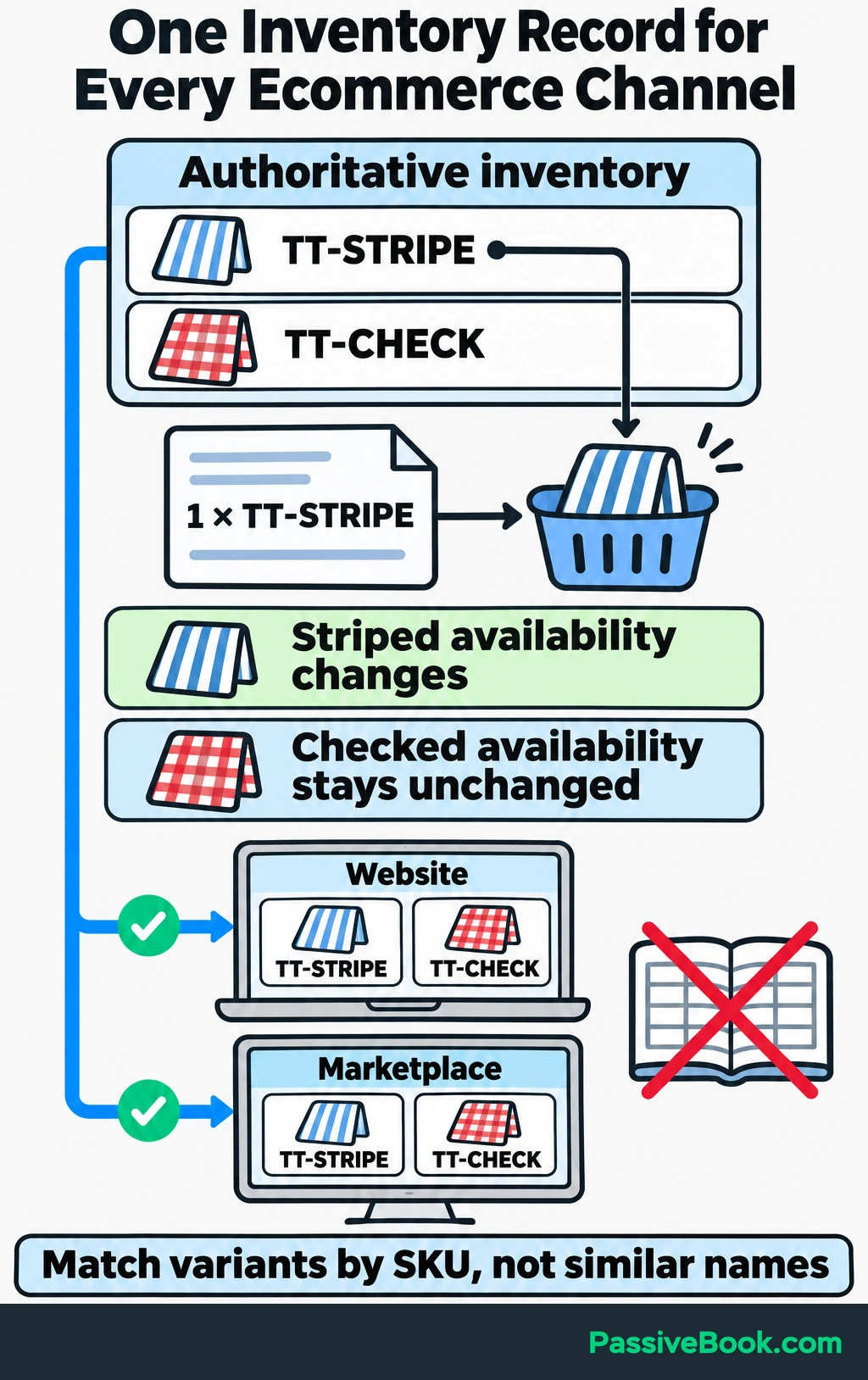
For the tea towels:
TT-STRIPEidentifies the striped pattern.TT-CHECKidentifies the checked pattern.
Use those codes consistently across channels and locations. Similar product names are not a reliable substitute.
Separate stock that is available to sell from units already promised to orders, damaged units, and incoming deliveries. A carton on its way to you is not stock you can pack tonight.
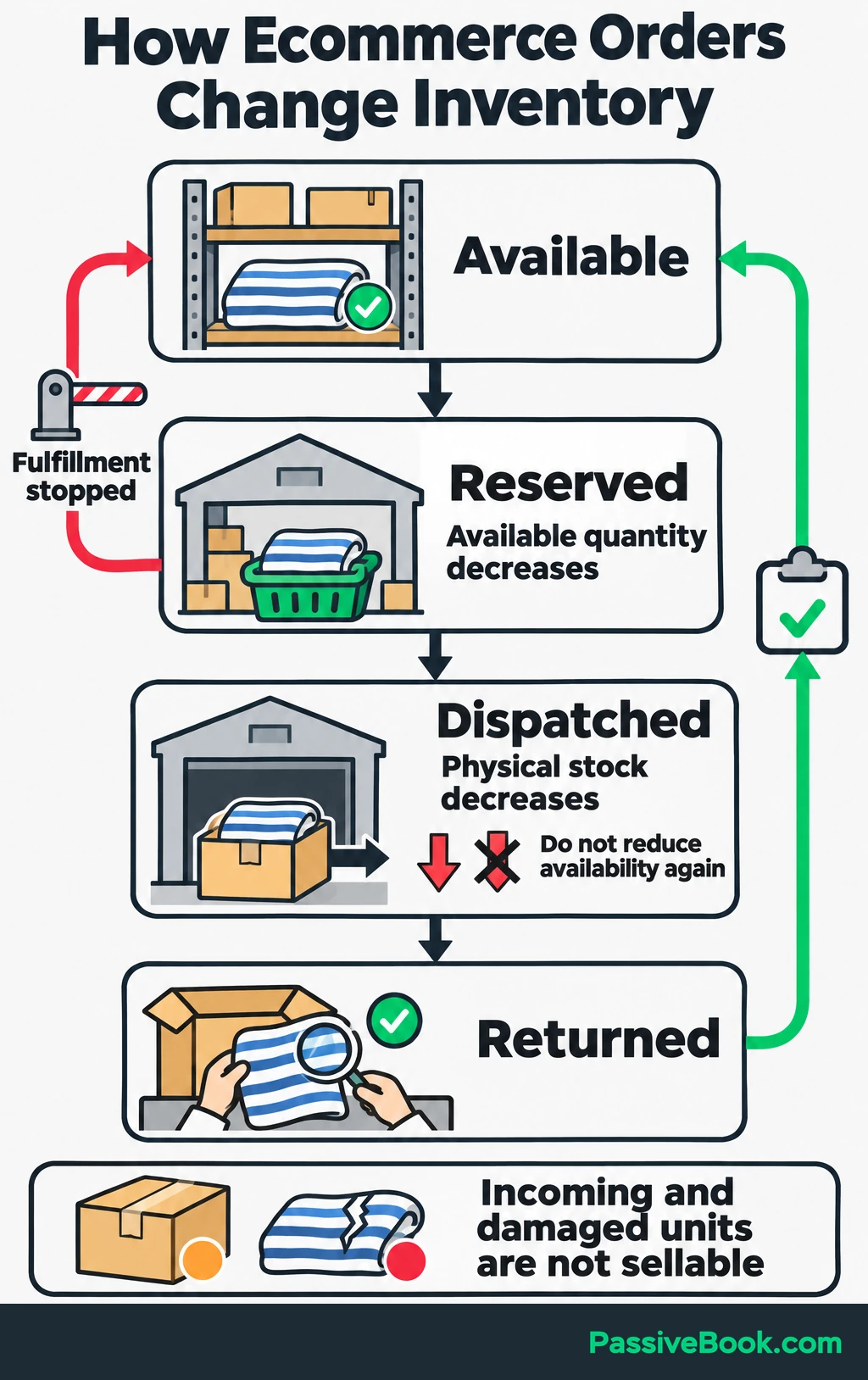
Map when each quantity changes:
- An order reserves its units under your store’s stock rules, reducing what remains available. Held orders may still reserve stock while they await approval to pack.
- Dispatch removes those units from physical stock.
- Cancellation releases the reservation only after you confirm fulfillment has stopped.
- A return becomes sellable only after it arrives and passes inspection.
Check that a shipment update does not reduce available stock again after those units have been reserved.
Then place a test order for one striped towel. Its available quantity should change in every connected channel, while the checked towel stays unchanged. Test the last available unit as well. Where synchronization takes time, consider holding back a small stock buffer so every channel is not offering the same final towel.
Route Eligible Orders Automatically
Connect each sales channel through one intended import route. An active direct integration and an old custom workflow can otherwise send the same order twice.
For every order, carry across its channel, unique order reference, SKUs, quantities, delivery address, purchased shipping option, and fulfillment location.
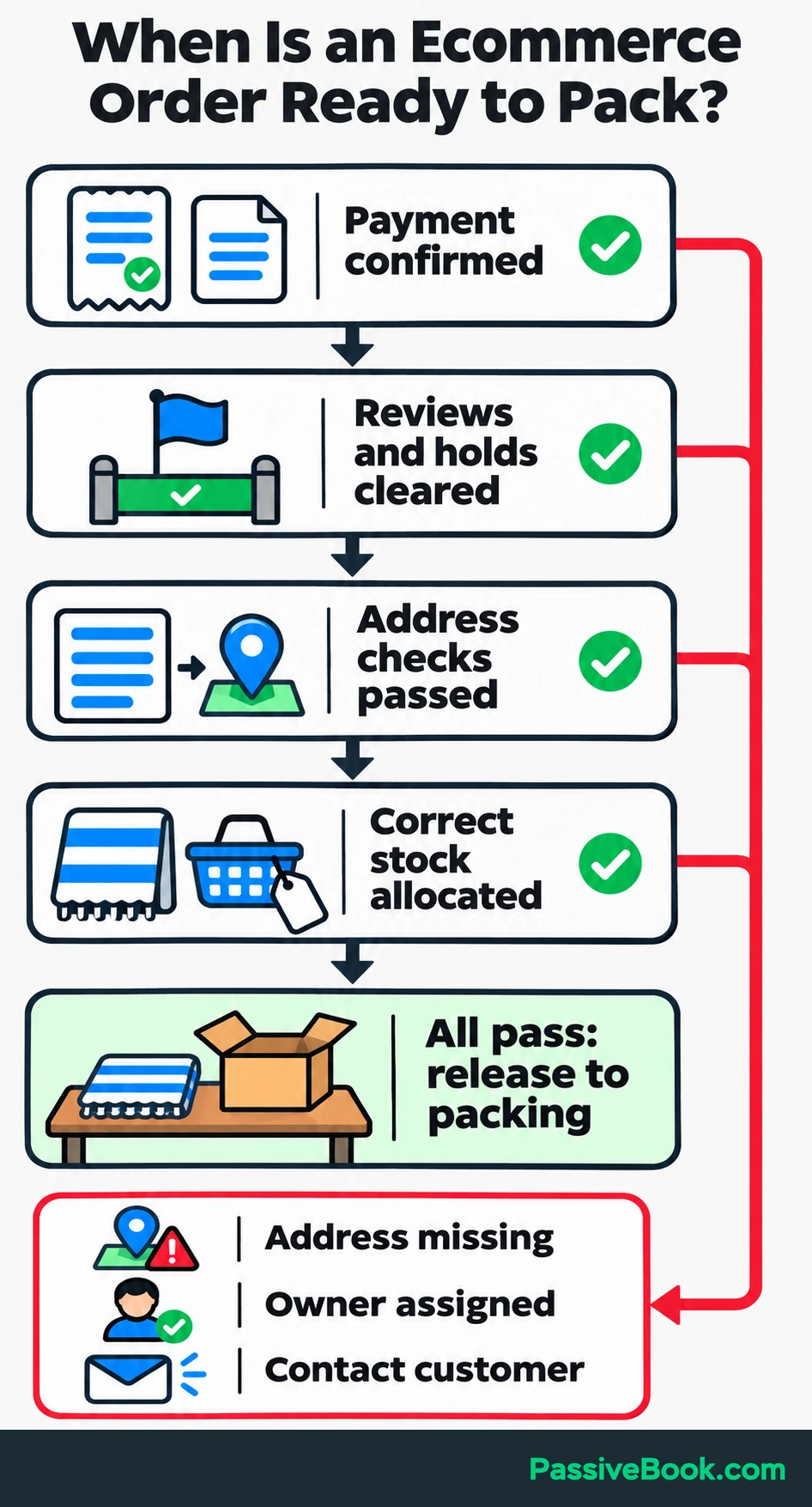
Next, write the release rule. I would require all of these conditions:
- Payment: Confirmed under your payment policy.
- Review: Fraud checks and other holds cleared.
- Address: Required fields complete and service checks passed.
- Stock: The correct items allocated to the order.
Send anything that fails to a visible exception queue. Each entry needs a reason, an owner, and a next action. “Address missing—contact customer” is useful. “Automation failed” leaves you with detective work.
With one packing location, eligible tea-towel orders go to your in-house queue. There is no need for elaborate warehouse logic.
With several locations, prioritize stock availability and the delivery commitment, then compare fulfillment cost and avoid unnecessary split shipments. The closest location is not useful if it cannot complete the order.
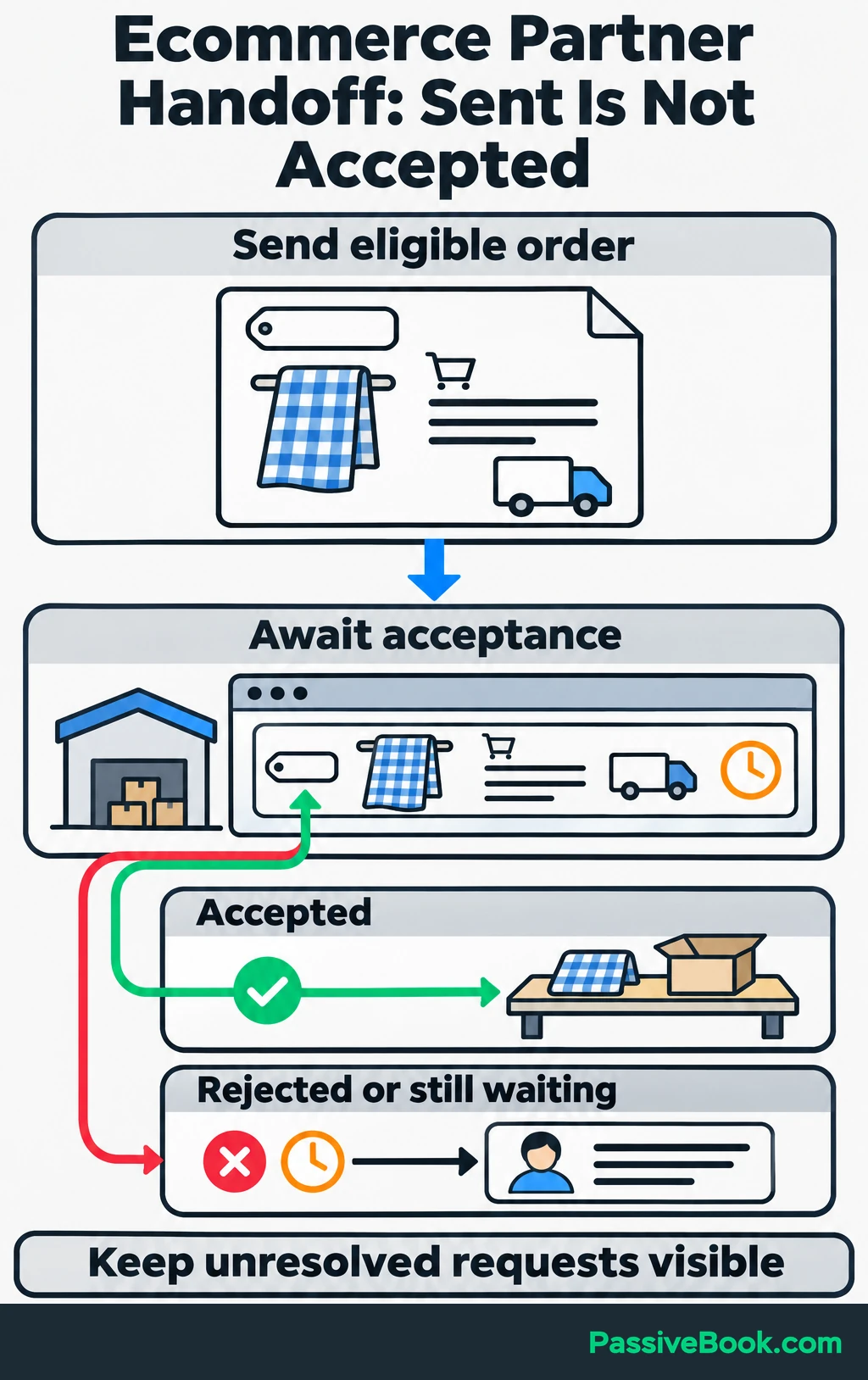
If a partner receives the order, require confirmation that it accepted the request. Keep rejected requests and requests awaiting acceptance visible. Sending an order is only one side of the handoff.
When the tea-towel stock eventually moves to a partner, test acceptance and cancellation handling before changing the automatic destination.
Automate Picking Instructions and Shipping Labels
The next goal is to prepare a shipment without making someone enter the same package details repeatedly. Keep the final physical check in place while the rules do the preparation.
Check whether your label tool can choose package presets from order details. If it cannot, select the preset manually or add shipping software with that feature.
Build Shipping Rules From Verified Package Data
Pack representative orders, then weigh and measure the finished parcels, including the mailer and any inserts.
Save package presets for combinations that consistently fit. A one-towel preset should not silently apply to an order containing six towels.
For the tea-towel store, a one-towel shipping rule would work like this:
- Trigger: An order enters the eligible packing queue.
- Conditions: It contains one towel, uses standard shipping, and has a supported domestic destination.
- Action: Apply the measured one-towel package preset and matching carrier service.
- Exception: Send orders that do not match to review or another tested rule.
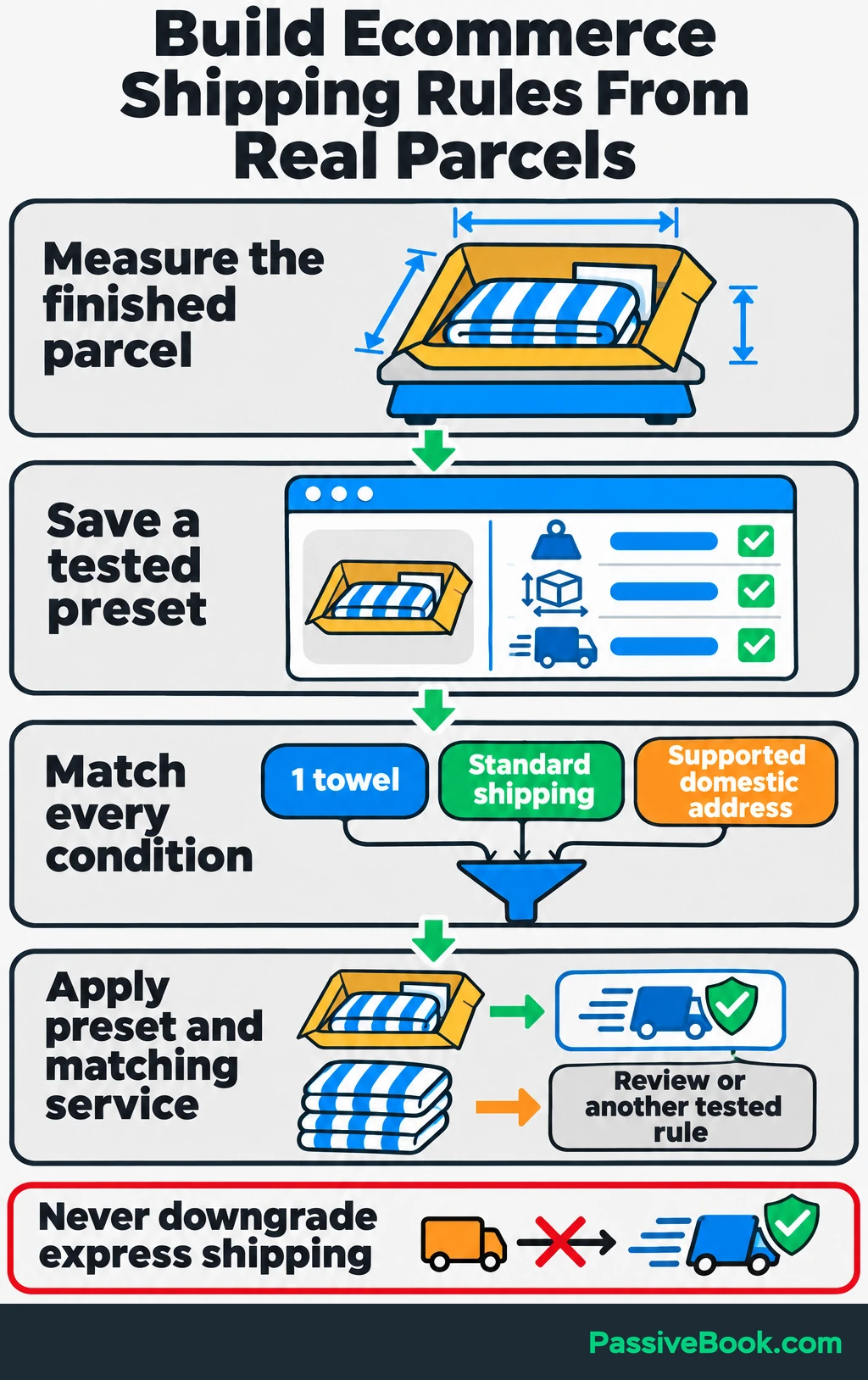
The shipping service must meet the option purchased at checkout. Do not let a “cheapest service” rule quietly downgrade an express order.
ShipStation, for example, supports automation rules that use order criteria to set carrier, service, and package details. That is useful when you repeatedly make the same shipping choices. ShipStation automation-rule examples.
Include dimensions as well as weight. A bulky parcel can be billed using dimensional weight, which reflects the space it occupies. UPS explains how dimensional weight affects shipping charges.
I would leave international orders outside the first rollout until customs information, service eligibility, and any required duties arrangements have been tested.
Keep a Physical Check Before Dispatch
Generate picking instructions with the SKU, quantity, and storage location. “One TT-STRIPE from shelf A” is much clearer than “one towel.”
Use a checklist or supported barcode scanning to match the picked product to the order. Then check the packed parcel before approving label purchase.
The rules should supply the package and service details. Your check confirms that the actual parcel matches them.
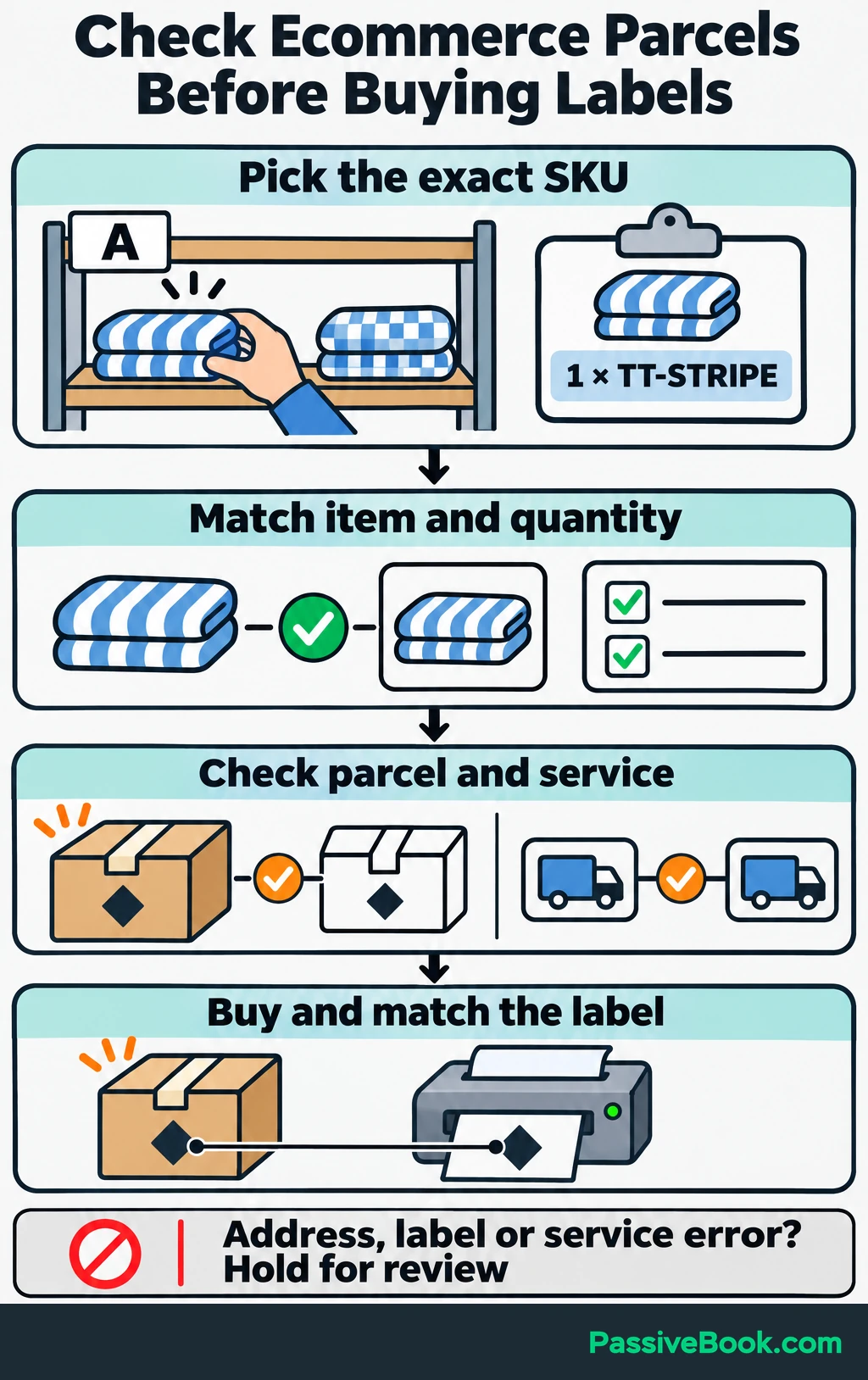
Batch-printing can save repeated clicks, but keep each parcel matched to its label. Working through one checked parcel at a time is a sensible starting point when you pack alone.
Hold address errors, label failures, and unsupported services for review. Do not substitute an untested service just to clear the queue.
If you pack products yourself on Shopify, leave blanket automatic fulfillment disabled. Shopify warns that it marks new orders fulfilled, making pending physical shipments harder to identify. Automate preparation around your packing check instead. Shopify’s automatic-fulfillment guidance.
Return Tracking and Send Customer Updates
Complete the return path from shipping software or your partner to the original sales channel.
Send back the carrier, tracking number, and the items and quantities included. If an order leaves in two parcels, retain two shipment records so the customer can see what is still outstanding.
Assign one sender to each message type:
| Message | Suggested Owner | Trigger |
|---|---|---|
| Order confirmation | Storefront | Order placed, with accurate payment wording |
| Shipment preparation notice, if used | Storefront or shipping tool | Label created |
| Dispatch confirmation | Chosen notification system | Confirmed handoff under your workflow |
| Delivery update | Carrier or connected tracking service | Carrier reports the delivery event |
Check what your integration actually treats as “shipped.” Label creation does not establish that the carrier has the parcel.
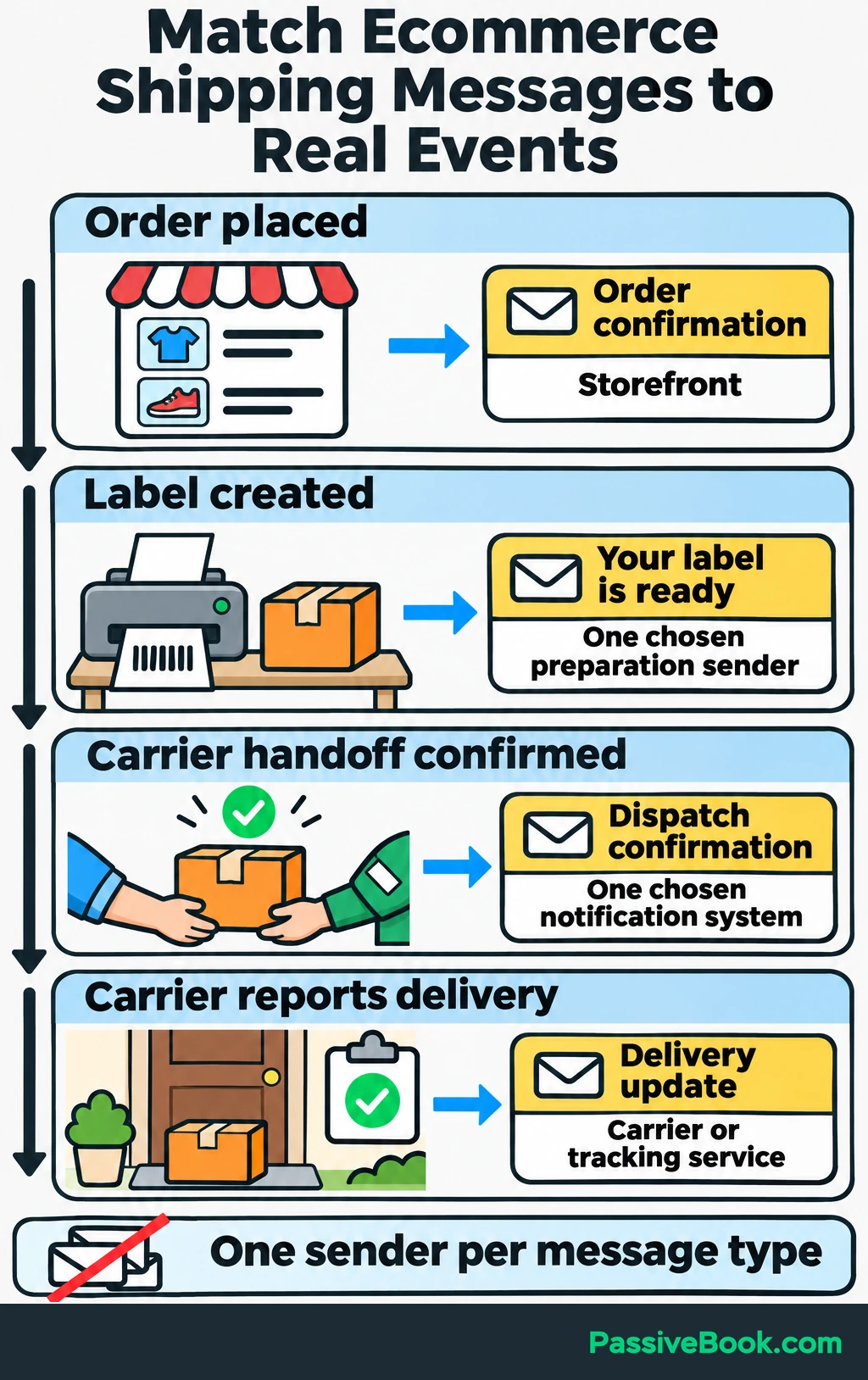
If your system sends a message immediately after label purchase, make its wording match that event: “Your label is ready” should not become “Your parcel is on its way” while it is still on your desk.
Turn off overlapping messages after testing them. Customers do not need three emails celebrating the same towel.
Set alerts for missing tracking, stalled carrier progress, and failed delivery. Choose the review threshold around the service used, and include the order reference and action needed.
For WooCommerce and ShipStation, verify that shipment updates are enabled and that the returned tracking information appears in the order. Test the customer-facing message too; an internal order note alone does not prove the buyer received a useful update.
Test the Workflow and Make Failures Recoverable
A reliable workflow needs a way to notice missing work and recover without repeating completed actions.
Prevent Missing and Duplicate Fulfillment Actions
Save the destination’s order, shipment, and label references against the original order.
Before retrying an interrupted action, check whether it already succeeded. A tool may create a label and then lose its connection before it reports success. Repeating the purchase immediately can buy postage twice.
Custom workflows should also check whether an order is already being processed before another run starts.
Do not rely entirely on event notifications, often called webhooks. Shopify documents that delivery is not always guaranteed and recommends scheduled checks to reconcile records. Shopify webhook delivery guidance.
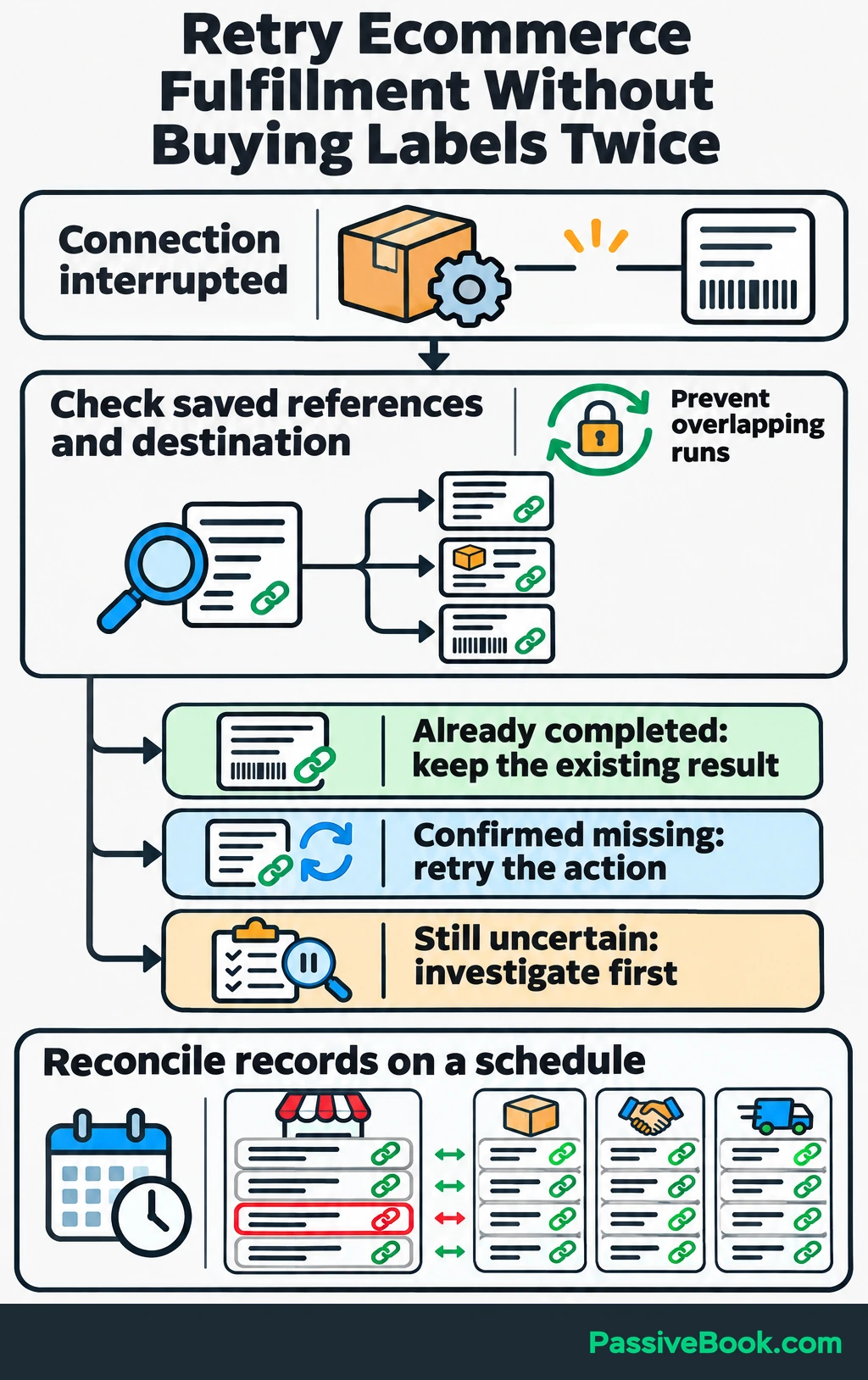
Compare eligible storefront orders with packing queues, partner acceptances, and shipment records often enough to catch gaps before your dispatch deadline.
A website automation once showed a completed run, but the record I needed was missing from the receiving tool. Since then, I check the destination itself before trusting a new connection.
Keep failed runs and alerts visible in Make or n8n. In n8n, an error workflow can respond when an execution fails, including sending an alert. n8n error workflows.
Give each alert an owner and enough information to act.
Pilot One Complete Order Path
Start with one predictable category, such as a single tea towel sent to a supported domestic address.
Use supported test modes first, then make a controlled live shipment to verify the printer, physical packing, tracking return, and carrier handoff.
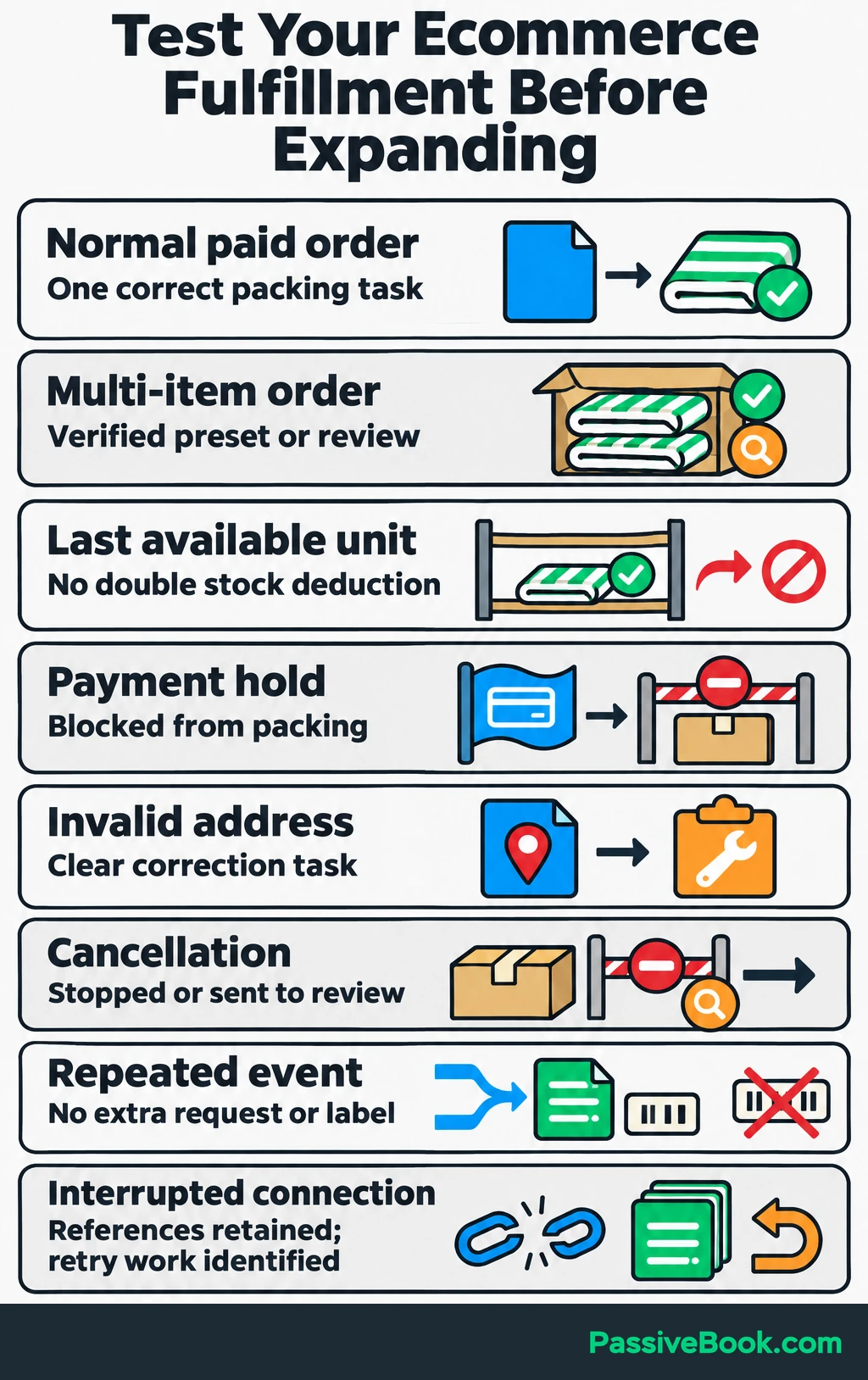
Check these cases before expanding:
| Test | Required Result |
|---|---|
| Normal paid order | Reaches packing once with the correct item and address |
| Multi-item order | Uses a verified package rule or goes to review |
| Last available unit | Reduces available stock across channels; dispatch does not reduce it again |
| Payment hold | Remains outside the packing queue |
| Invalid address | Stops with a clear correction task |
| Cancellation | Stops packing or sends an unresolved cancellation to review |
| Repeated event | Creates no extra fulfillment request or label |
| Interrupted connection | Retains completed actions’ references and identifies orders needing a retry |
For the normal tea-towel order, follow the whole trail: payment confirmed, striped towel reserved, packing task created, package checked, label purchased, parcel handed over, and tracking returned. Open the customer message at the end.
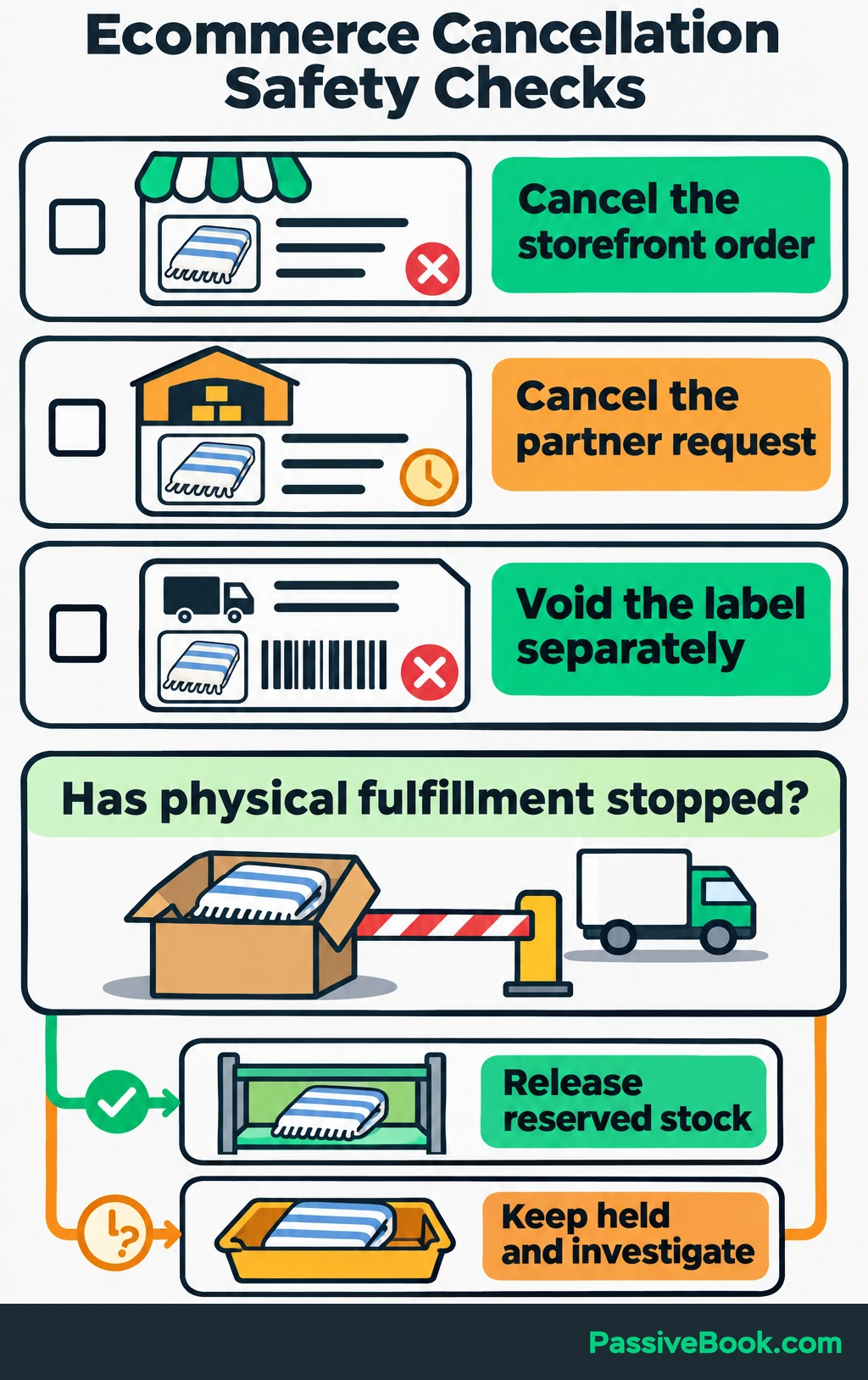
Test cancellation just as carefully. Cancelling the storefront order, cancelling a partner request, and voiding a label are separate actions. Confirm that physical fulfillment has stopped before releasing stock.
Keep a way to pause automatic release while you process held orders manually. After an outage, reconcile pending work before restarting.
Measure Time Saved, Errors and Cost per Order
Compare the new workflow with your baseline using similar order types. A month of single-towel orders is not a fair comparison with a month full of gift bundles.
Track:
- Administrative Time: Minutes spent entering data, choosing shipping settings, and updating records.
- Dispatch Time: Time from payment confirmation to carrier handoff.
- Errors: Missed orders, incorrect shipments, duplicate labels, and stock mismatches.
- Cost per Order: Software, postage, packaging, physical handling, and relevant labor.
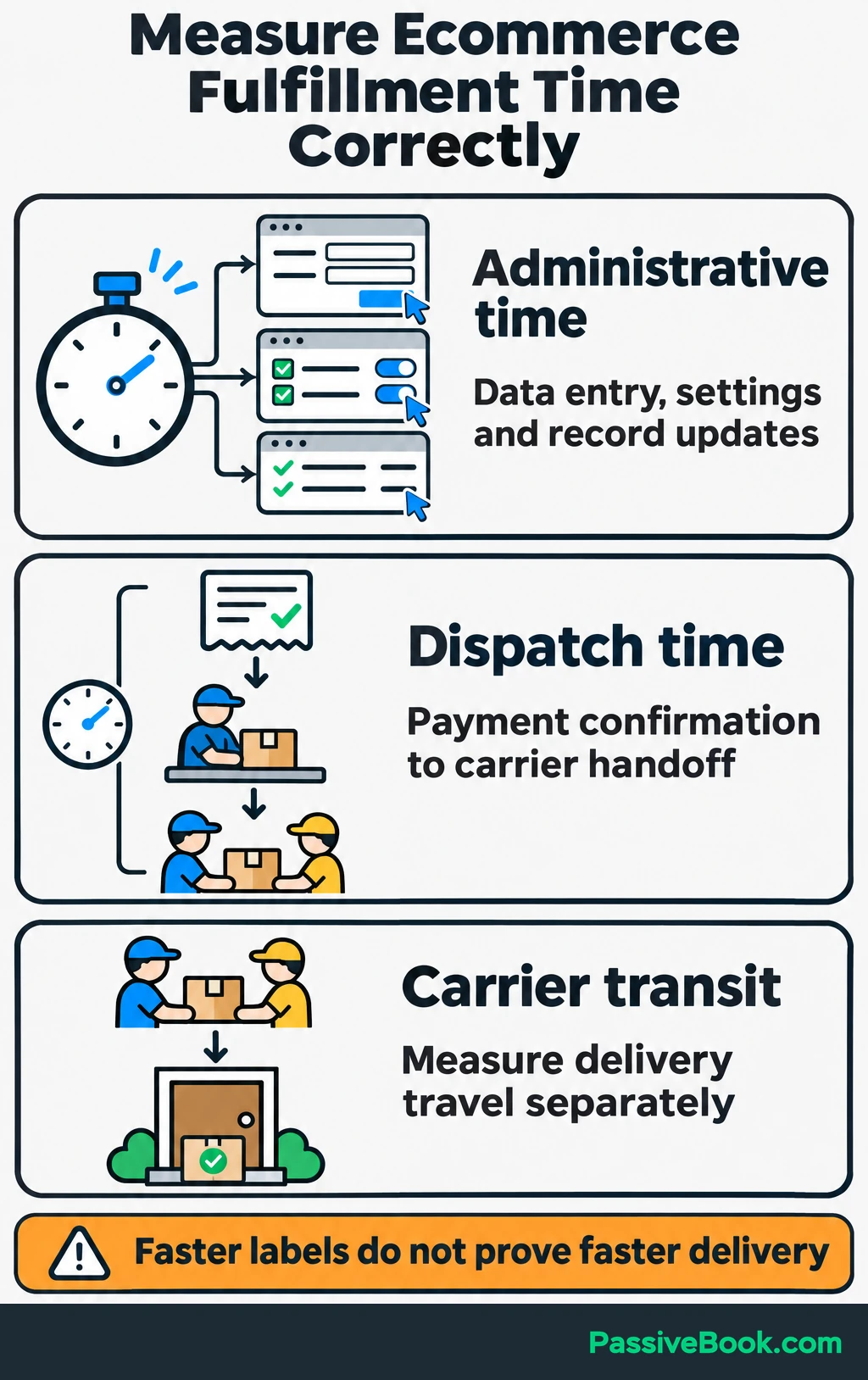
Measure carrier transit separately. Faster label preparation does not prove faster delivery.
To estimate net hours saved, count the administrative minutes removed across the month, then subtract exception handling and maintenance.
Suppose the tea-towel store handles 200 orders each month. Administrative work falls from five minutes to two minutes per order:
- Three minutes saved across 200 orders frees 600 minutes, or 10 hours.
- Two hours of oversight leaves eight hours.
- Valuing those hours at $25 gives $200 of capacity.
- Subtracting $60 in added software costs leaves $140 in estimated monthly value before other cost changes.
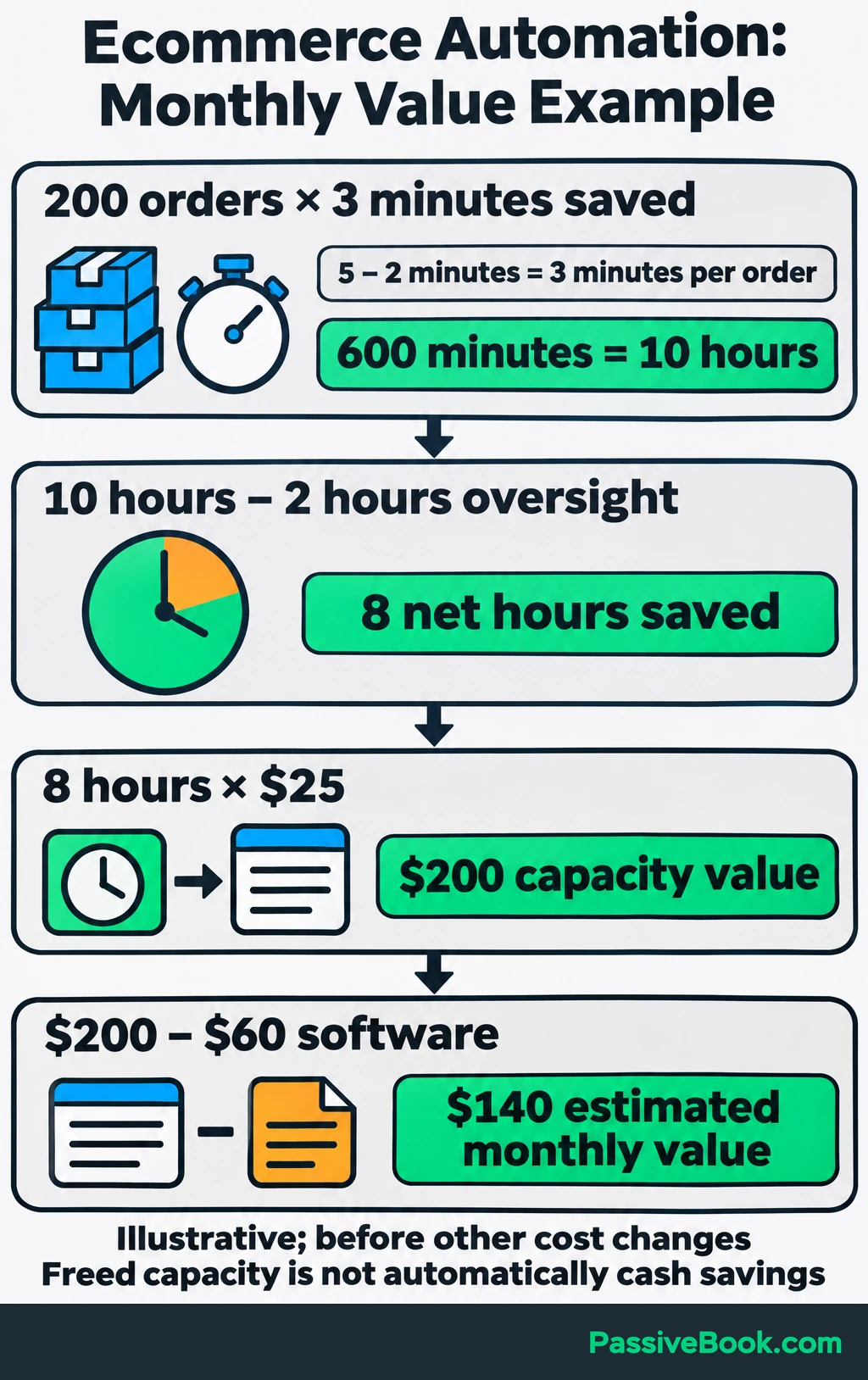
These are illustrative figures, not promised savings.
Freed capacity is also different from cash savings. Saving your own evening does not reduce an expense unless you actually stop paying one. It can still be valuable because you can use that time elsewhere.
Let the remaining bottleneck choose your next change. If orders reach packing cleanly but parcels pile up beside you, another connector will not help much. Better packing arrangements or a fulfillment partner might.
What Next?
Trace one recent order and write down every place you copied information or changed a status. Choose the most repetitive handoff and test one connection through to its final result.
Use the social buttons to share this guide when fulfillment planning starts turning into another round of app shopping. A clear order path makes those choices much easier.
Which handoff would give you the most time back if it worked reliably? Tell me in the comments, and bring any other fulfillment questions with it.
Share this post with your friends & followers:

