Your video shows a calm brushing demonstration, and the landing page explains the course clearly. But would you be comfortable seeing that ad beside a video showing rough handling of a frightened dog?
Getting the ad approved answers one question. Deciding where it belongs takes a separate check, and confusing the two can leave you paying for an association you would never choose.
You can handle both without a compliance department. This guide shows how to review your offer, choose content controls, and make a clear launch decision—and what to do when a placement crosses your line.
Which Rules Apply to YouTube Advertising?
Before spending, make two decisions: whether your advertising follows policy, and whether the surrounding content suits your brand. Ad approval does not establish placement suitability.
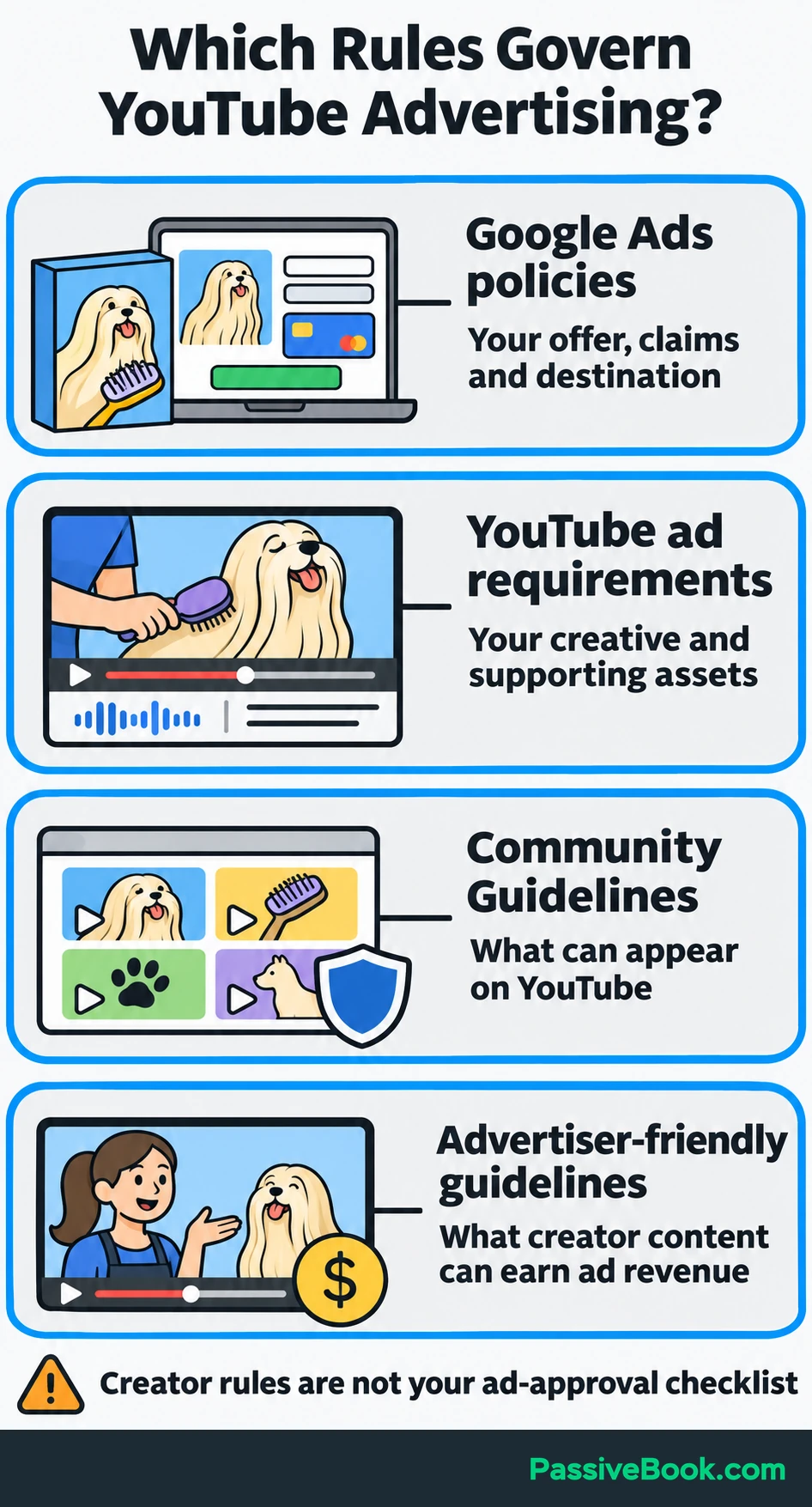
Several rule sets work together:
| Framework | What It Governs | Advertiser Action |
|---|---|---|
| Google Ads policies | Your offer, sales practices, ads, and destination pages | Review the product, claims, checkout, and data use |
| YouTube’s additional ad requirements | Extra creative standards for ads on YouTube | Check the video, audio, text, and associated assets |
| YouTube Community Guidelines | Content allowed on the platform | Understand the platform’s boundaries and report apparent violations |
| Advertiser-friendly content guidelines | Whether creator content can earn advertising revenue | Understand the monetization rules, then apply your own suitability standard |
The creator guidelines are useful context, but they are not your ad-approval checklist. A video can be allowed on YouTube without being eligible to earn ad revenue. Content eligible for advertising can still be a poor fit for your business.
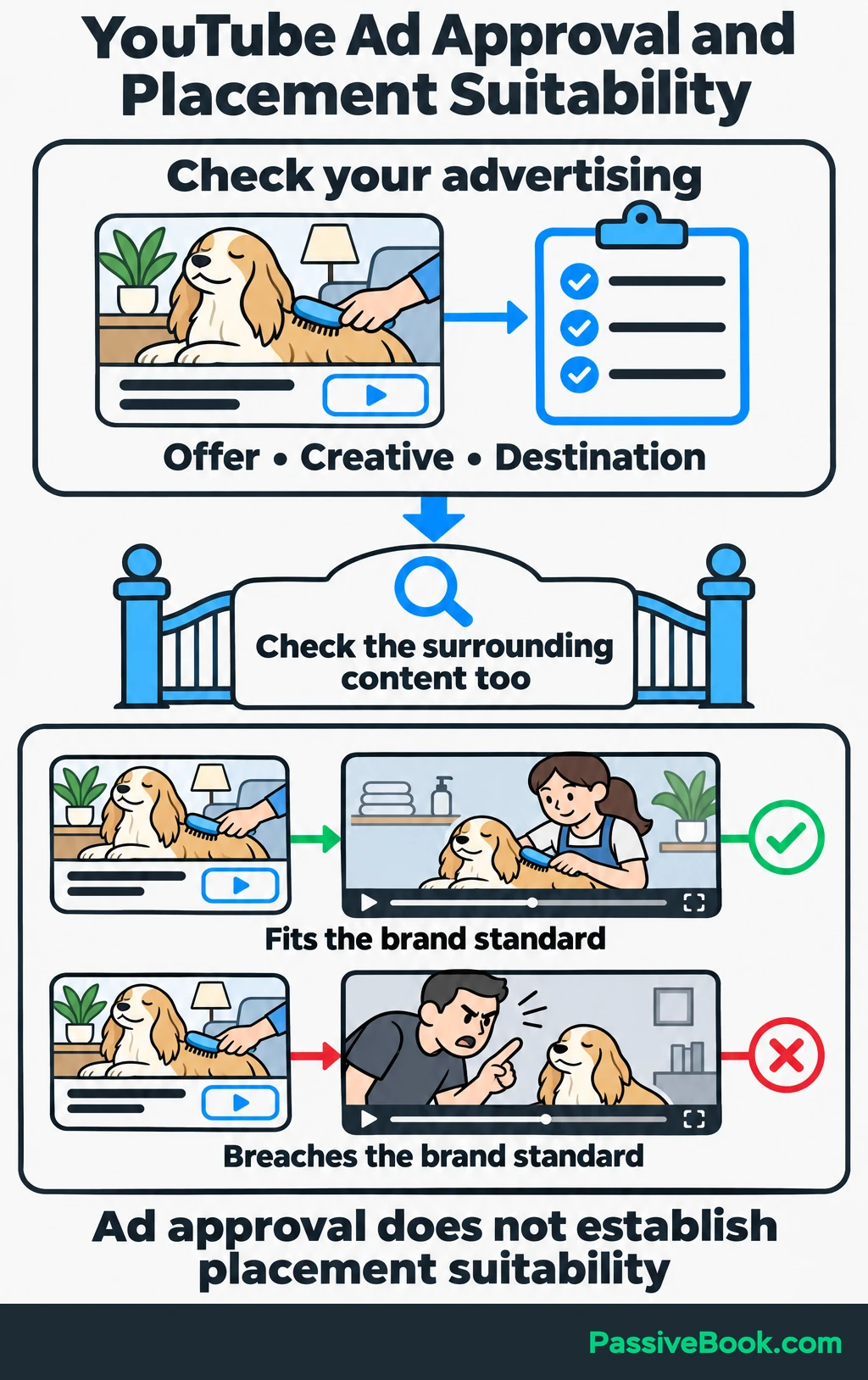
Brand safety means avoiding harmful content associations. Brand suitability means deciding which otherwise permitted contexts fit your particular business.
Throughout this guide, imagine you sell an online course teaching at-home coat care for long-haired dogs between grooming appointments. The copy and campaign decisions are illustrations. The settings discussed apply to self-serve Google Ads campaigns.
Check Your Offer, Creative, and Landing Page
Establish Whether the Offer Is Eligible
Check the product, sales practices, destination, and target countries before producing the ad. An attractive video cannot make an ineligible offer acceptable.
Google separates prohibited content and practices from restricted advertising:
- Prohibited offers include counterfeit goods and certain dangerous products.
- Prohibited practices include misleading customers and trying to bypass ad review.
- Restricted offers can run only when their particular conditions are met.
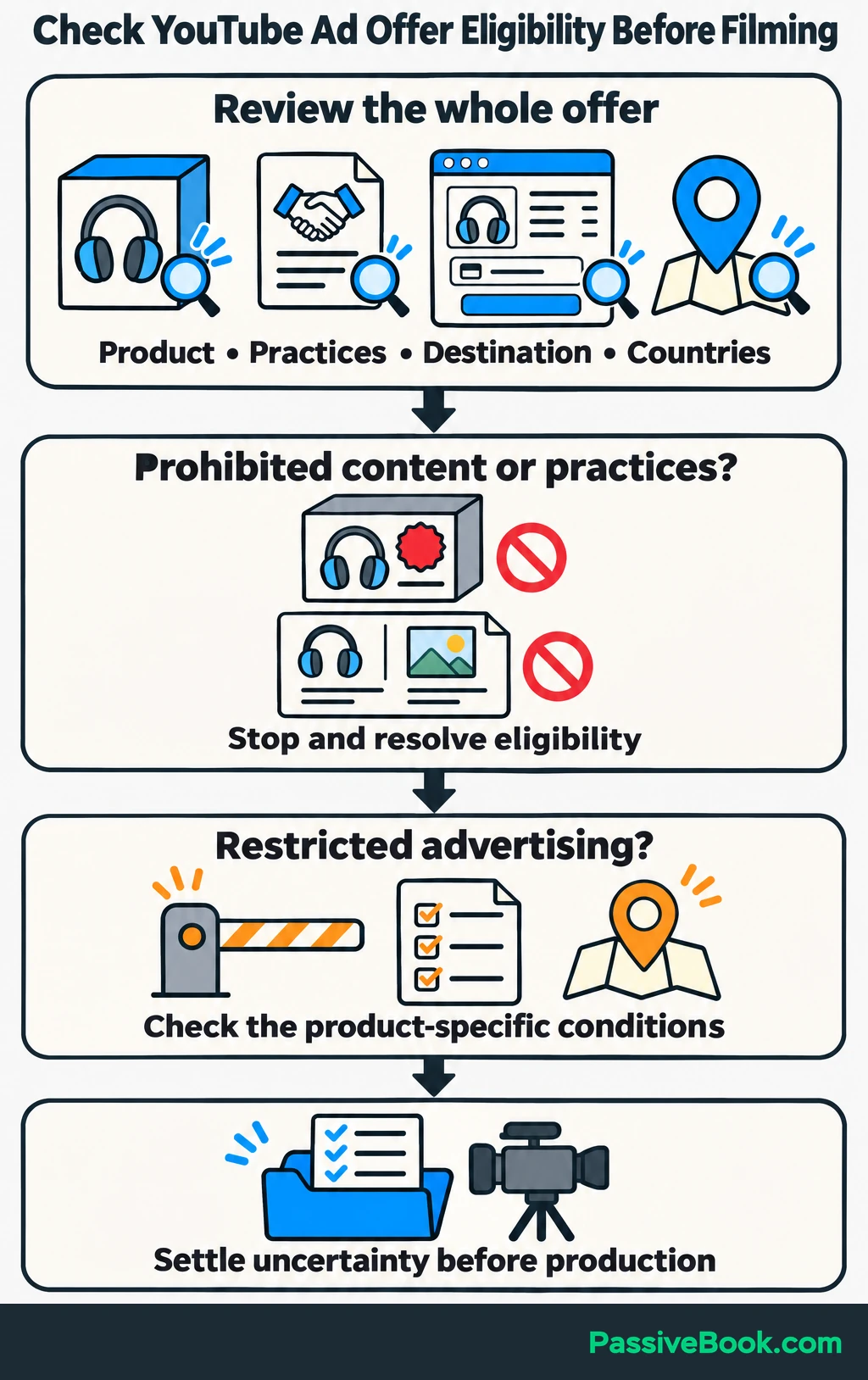
Healthcare and medicine promotions show why the distinction matters. Some cannot be advertised, while others require approval and can run only in permitted locations. Check the healthcare and medicines requirements for the actual product.
For the coat-care course, review the lessons and linked sales material together. Ordinary brushing lessons and claims to cure skin disease raise different questions. “It’s about dogs” is not an eligibility check.
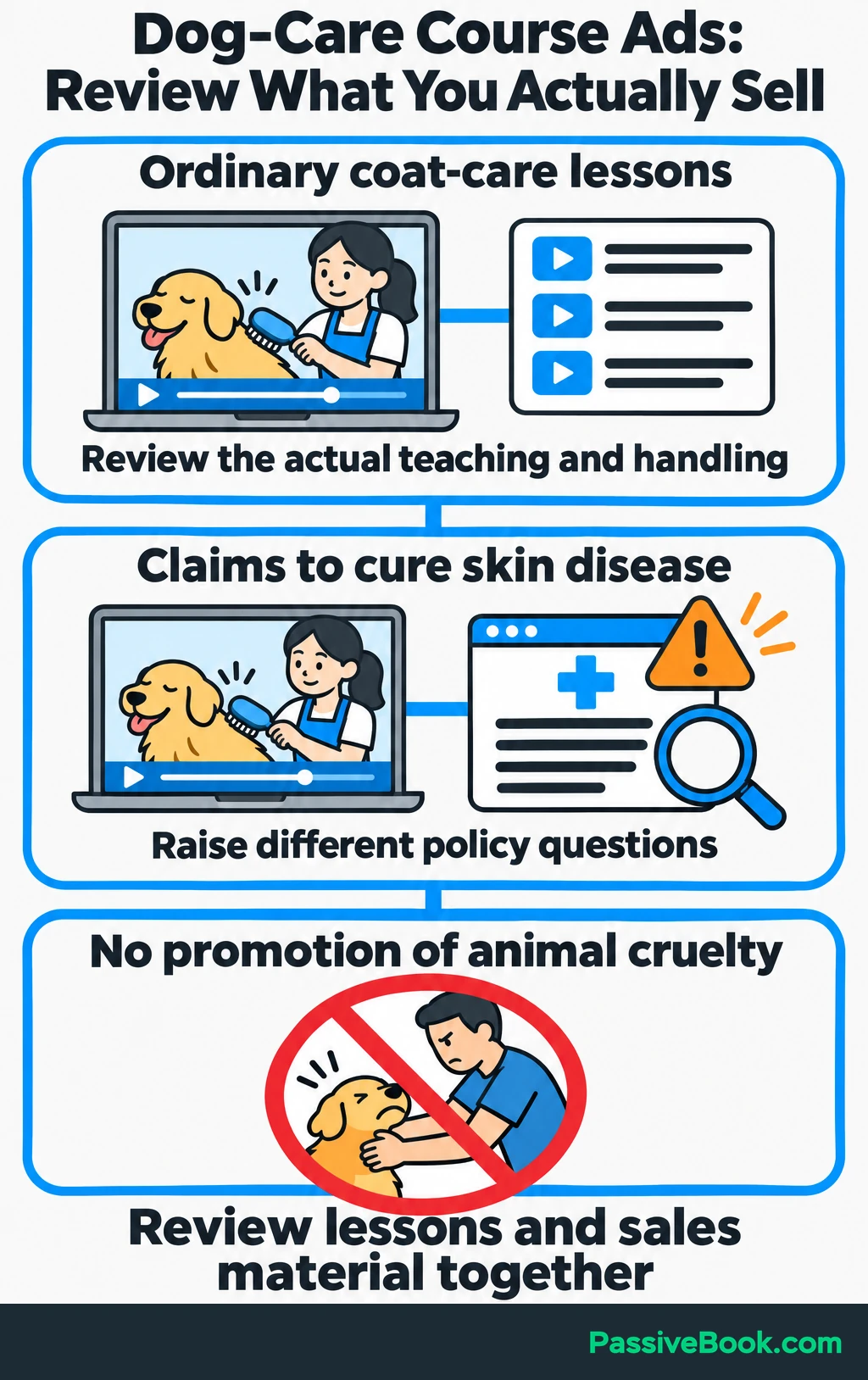
Google also prohibits promotions of animal cruelty or gratuitous violence toward animals. Review what the course teaches and how it presents animal handling, rather than checking the ad in isolation.
I would settle any uncertainty about the core offer here. Filming first and reading the policy later is an expensive order of operations.
Review Claims, Visuals, and Audio
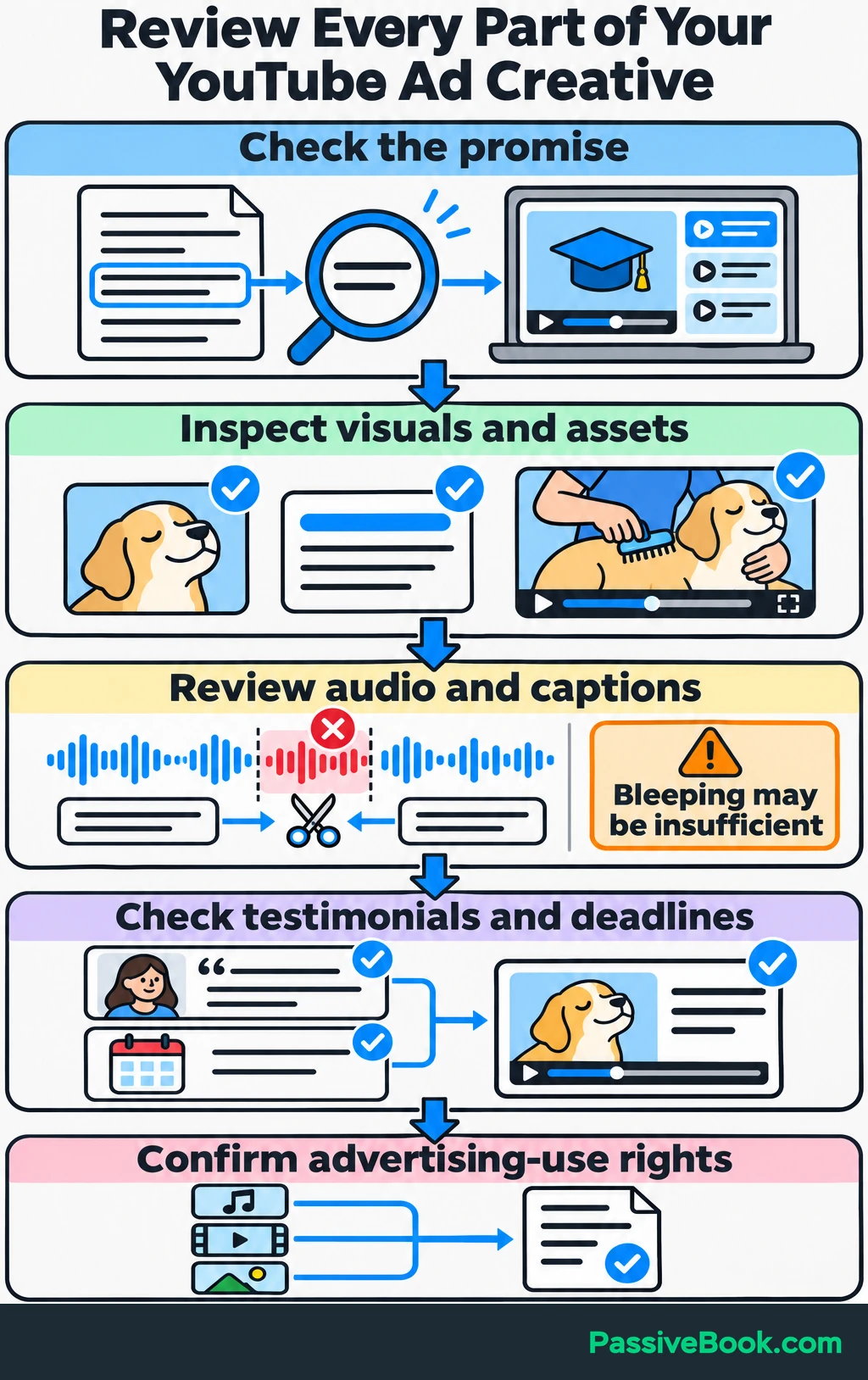
Review everything viewers can see or hear: the script, spoken audio, captions, on-screen text, thumbnail, headline, and supporting assets.
YouTube’s additional creative requirements prohibit exaggerated claims and certain distressing imagery. They also call for removing profane or offensive language from audio and captions; bleeping or censoring is often insufficient.
Start with the promise. Describe what buyers receive instead of guaranteeing an outcome you cannot support.
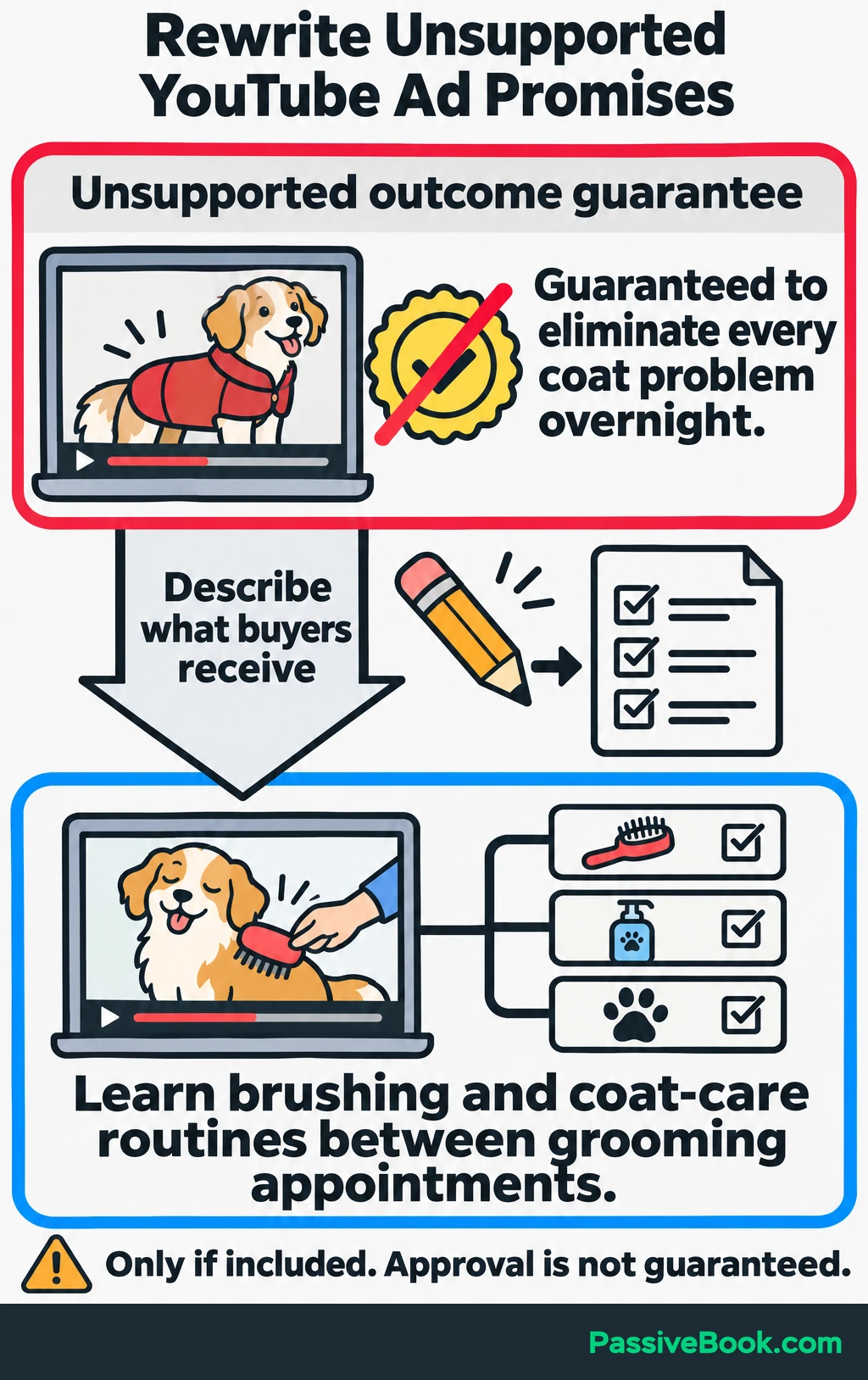
For the course, replace:
“Guaranteed to eliminate every coat problem overnight.”
With:
“Learn brushing and coat-care routines between grooming appointments.”
Use that wording only if those lessons are included. It improves the claim, but it does not guarantee approval.
On one of my digital-product sites, I found a sales-page sentence that promised a finished result while the product provided instructions and worksheets. I could point to the materials, but I could not promise what every buyer would do with them. I rewrote the sentence around the work the product actually helped people complete. That is the check I would use here too.
Spotting an overpromise is easier than writing its replacement. AI Video Studio helps you rewrite the ad around what you actually sell and keep the landing-page wording consistent.

Free AI Video Studio




For the demonstration, show calm brushing and clear handling. I would skip graphic neglect footage used to frighten viewers into buying.
Keep testimonials genuine and review their claims as carefully as your own. Use real deadlines, and retain permissions or licenses for music, footage, and photographs that cover advertising use. Follow Google’s copyright-certification requirements when applicable.
Check the Destination and Data Use
Click through the finished ad as a buyer would. The landing page should present the same course and offer, with clear access details and payment terms.
Google’s pricing-disclosure requirements require clear disclosure of the full expense and payment model. If payment repeats, show the recurring charge and billing interval.
A one-time course should not quietly become a subscription at checkout. Surprise billing is a terrible welcome lesson.
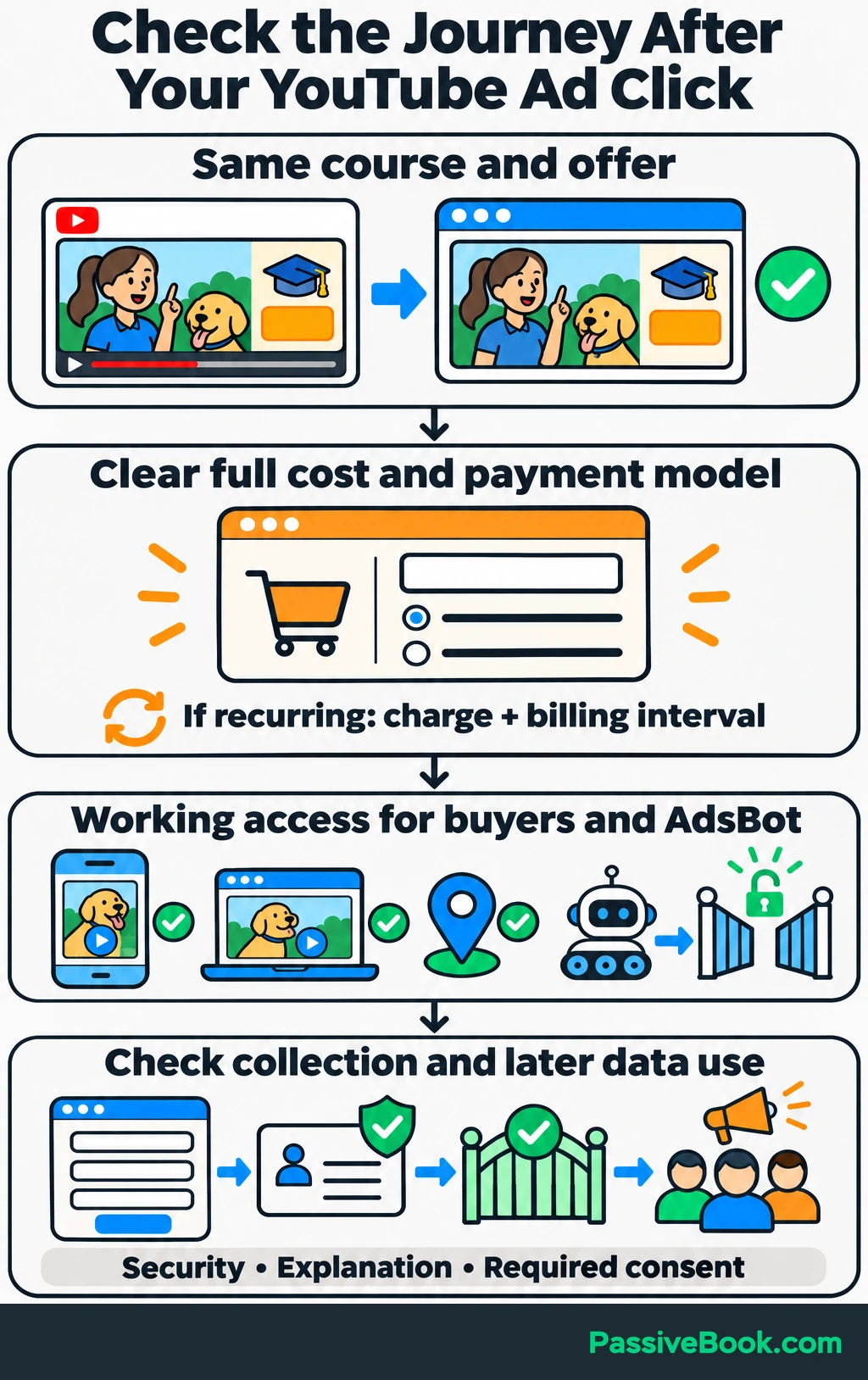
Test the destination on common phones, computers, and browsers, and check access from your target locations. Fix broken pages, misleading redirects, and navigation that traps visitors. Google’s destination requirements also require access for its AdsBot review crawler. A security setting that blocks that crawler can obstruct review even when the page opens for you.
For data collection, check that:
- Forms collect information you need and explain its use.
- Customer information has appropriate security.
- Required consent is obtained.
- Remarketing (showing ads to previous visitors) and targeting with customer lists meet the applicable rules.
Google’s data collection and use policy includes additional requirements for personalized advertising. A working signup form does not establish that every later use of those email addresses is permitted.
Set Your Brand’s Content-suitability Controls
Define Acceptable Surrounding Content
Write a short placement standard before choosing exclusions. Give yourself three categories: acceptable, unacceptable, and needs review.
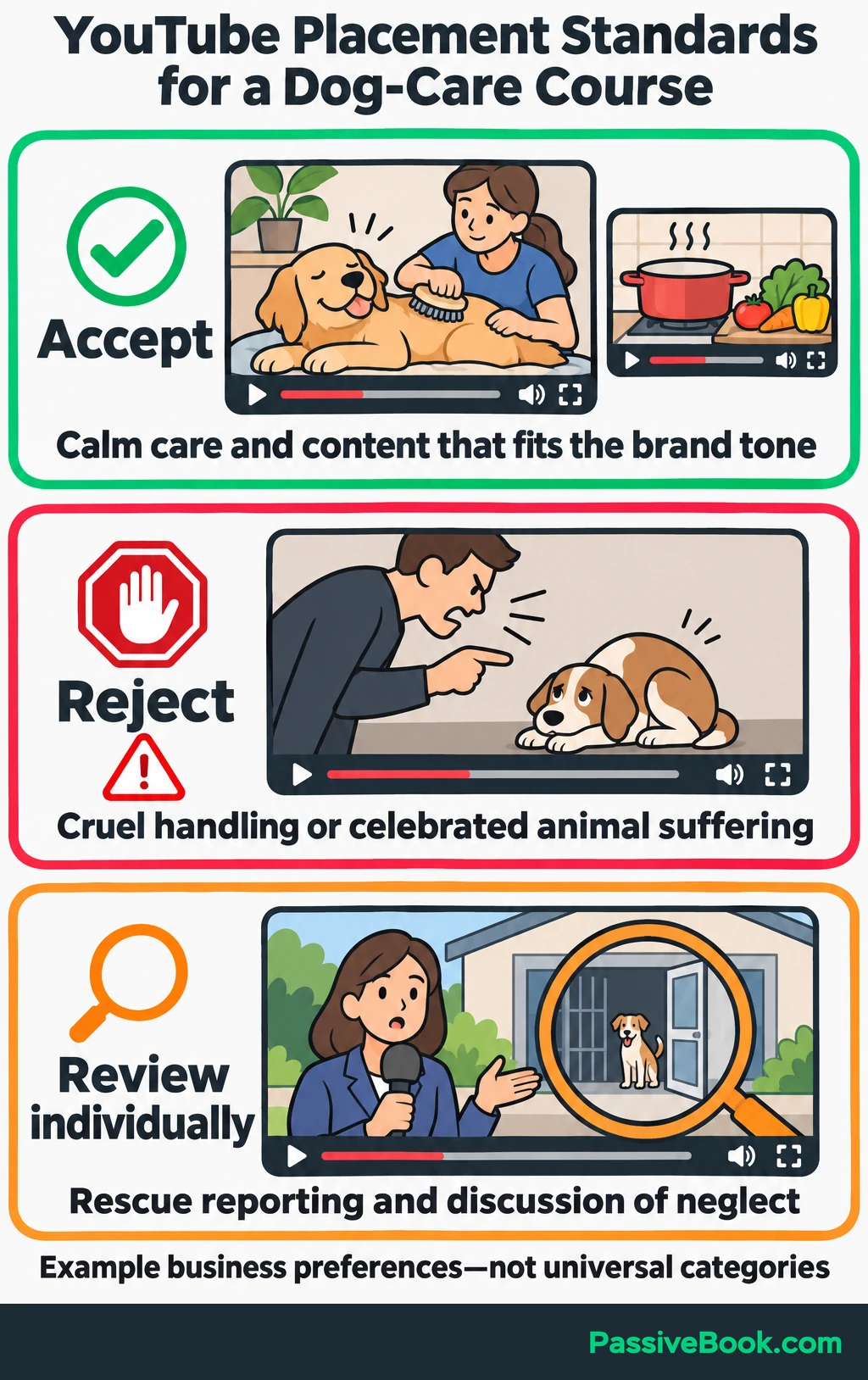
For the coat-care course, I would use:
| Decision | Placement Standard |
|---|---|
| Accept | Calm grooming demonstrations, routine pet care, and unrelated content that fits the brand’s tone |
| Reject | Cruel handling, staged distress, or content celebrating animal suffering |
| Review individually | Non-graphic rescue reporting and discussion of neglect |
These are the example business’s preferences. Another advertiser might make different choices about rescue reporting.
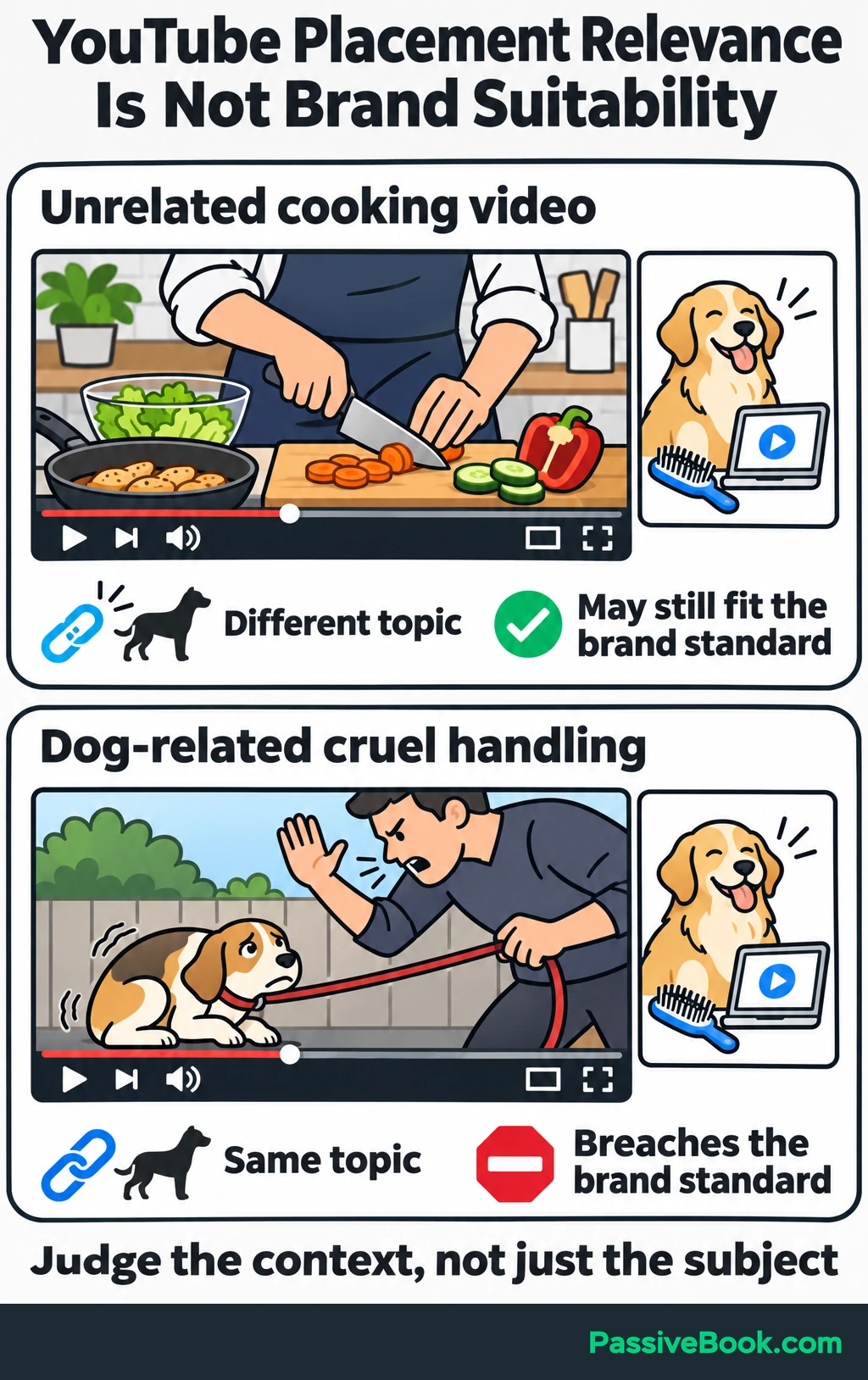
Keep relevance separate from suitability. A cooking video can be harmless even though it has nothing to do with dogs. A dog-related video can conflict with everything your course teaches.
The standard gives you a reason to act beyond “I don’t like this channel.” It also helps another person make the same decision when you are unavailable.
Choose an Inventory Type
An inventory type sets broad content boundaries. It does not let you approve each channel individually. To choose one, open Content suitability in Google Ads’ Tools menu, then select Inventory type.
| Inventory Type | Content Boundaries | Reach Tradeoff | Appropriate Use |
|---|---|---|---|
| Maximum | Broadest range of monetization-eligible content, including some stronger language or violence in permitted contexts | Most available inventory | Brands comfortable with broader content boundaries |
| Moderate | Excludes content such as repeated strong profanity, strong sexual content, and graphic violence | Broad reach with tighter boundaries | A starting point for most brands |
| Limited | Stricter thresholds, particularly for language and sexual suggestiveness | Less available inventory | Brands whose written standards require tighter limits |
Google recommends Moderate and makes it the default. Its inventory definitions explain the boundaries and warn that exclusions cannot guarantee every related item will be blocked.
For the coat-care course, I would compare Moderate with the placement standard first. Choose Limited if its stricter thresholds address a real requirement. Do not select it simply because the name sounds reassuring: it still does not create a list of individually approved channels.
Before saving, check the wider account. New campaigns use account-level content exclusions, while campaigns created before 2022 can retain campaign-level controls. A change intended for one campaign can therefore affect others. Google explains that distinction in its content-exclusion scope guidance.
Add Exclusions for Specific Concerns
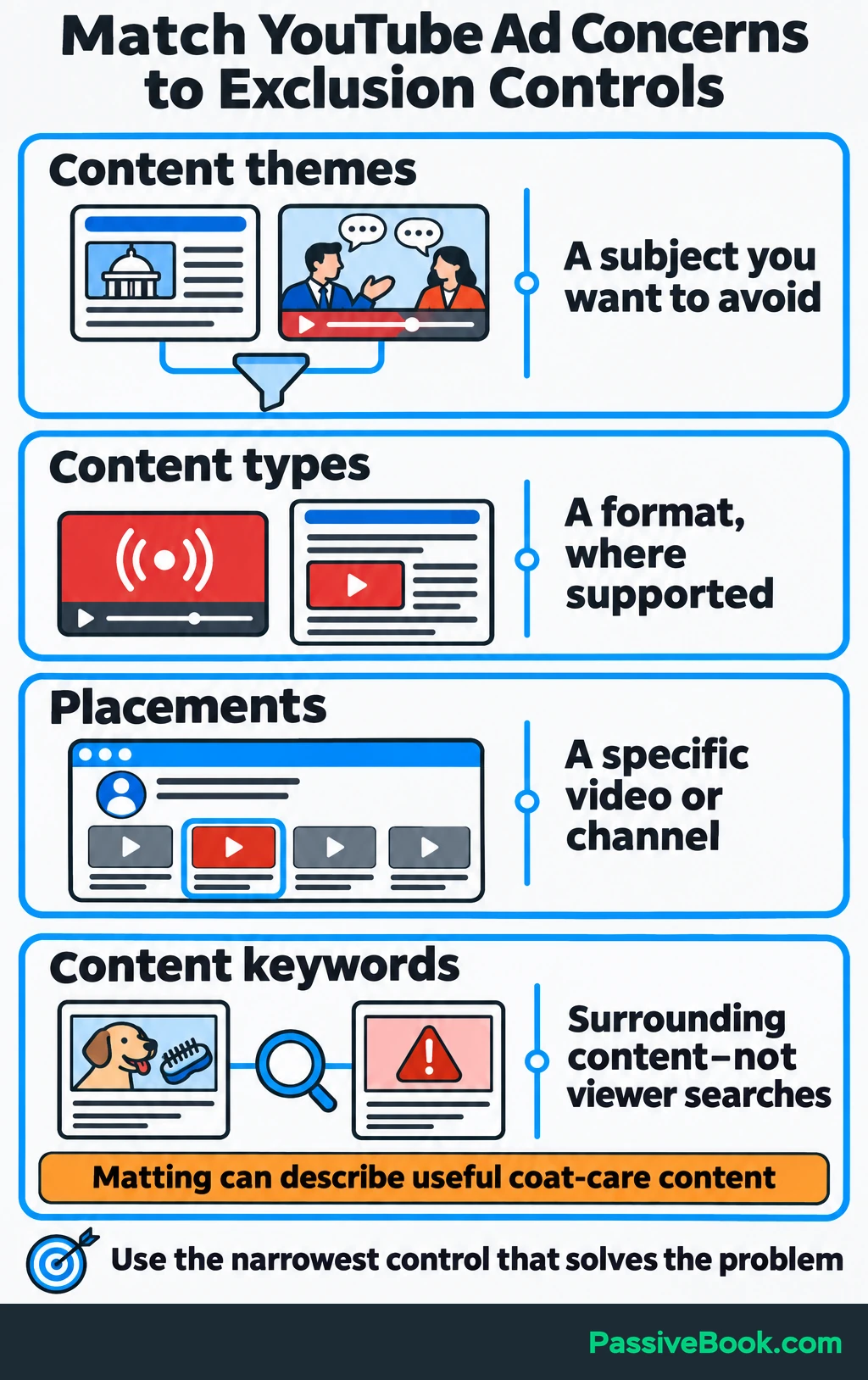
Match each concern to the control that addresses it:
- Content themes: Exclude subjects such as sensitive news or politics.
- Content types: Exclude formats such as live streams or embedded videos where supported.
- Placements: Exclude a particular video or channel.
- Content keywords: Exclude surrounding content associated with selected words.
Use the narrowest control that solves the problem. An isolated unsuitable video may justify a video exclusion. A recurring pattern across a channel may justify excluding the channel.
Keyword exclusions need particular care. They support exact matches, but a word can appear in several contexts. Excluding “matting,” for example, could remove useful coat-care content. These exclusions concern surrounding content, not searches people enter.
I would skip a large, unexplained keyword list copied from another business. You inherit its blind spots as well as its exclusions.
Keep a simple log:
| Placement or Term | Reason | Decision and Record |
|---|---|---|
| Video showing cruel handling; no specific URL supplied in this example | Breaches the animal-handling standard | Record the URL, then save an account-level video exclusion and the date applied |
| “Matting” | Could block useful coat-care lessons | Leave the keyword unexcluded and record the review date when checked |
Record commercial exclusions separately from safety decisions. “No useful sales activity” and “celebrates animal suffering” should not become the same spreadsheet category.
Account-level placement exclusions override campaign and ad-group settings, so check that scope before applying them. To exclude a video or channel, open Advanced settings on the Content suitability page. Enter its URL under Excluded placements and save.
Confirm Coverage for the Inventory You Buy
A saved exclusion does not mean it works everywhere your campaign can appear.
Google’s content-suitability coverage matrix shows these differences:
| YouTube Surface | Inventory Types | Content-type Exclusions | Placement Exclusions | Content Keywords | Content Themes |
|---|---|---|---|---|---|
| In-stream and Watch Next | Supported | Supported | Supported | Supported | Supported |
| Shorts | Supported | Not supported | Supported, with exceptions below | Not supported | Supported, with exceptions below |
| Home and Subscription feeds | Supported | Not supported | Not supported | Not supported | Not supported |
For Shorts, placement and content-theme exclusions are unavailable in Video action and Performance Max campaigns. For in-stream and Watch Next ads, suitability settings apply to the main video on the watch page. Digital content labels no longer apply to YouTube ads.
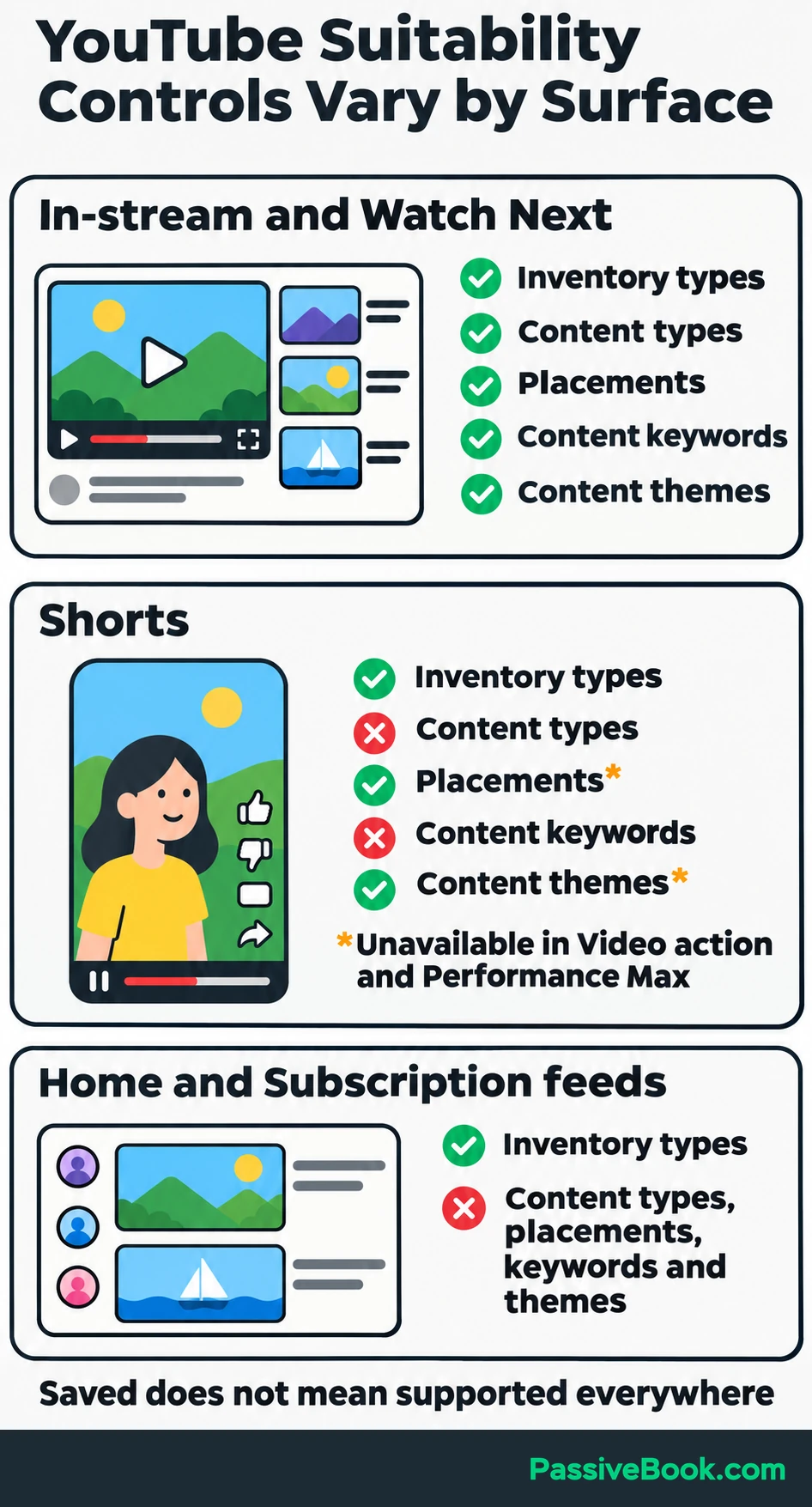
If your standard depends on excluding particular placements, do not assume that protection extends to Home or Subscription feeds. Where available, choose delivery settings that support your required controls; otherwise, reconsider whether the campaign setup meets your standard.
Also check whether Google video partners are enabled. They extend delivery beyond YouTube to publisher websites and apps. Their inclusion varies by campaign setup, so inspect the actual settings rather than assuming the campaign is YouTube-only. See Google’s video partner guidance for supported campaign options.
For an initial test intended only for YouTube, I would disable that additional inventory where the campaign allows it. Expand later if there is a clear reason and you can review the added delivery.
Complete the Pre-launch Check
Keep one launch record with the evidence, unresolved problems, and decision. A spreadsheet is enough.
Here is a launch record for the coat-care example. It separates the decisions described above from checks that need evidence from the actual campaign.
| Item | What the Example Provides | Evidence Still Needed |
|---|---|---|
| Offer and claims | An online coat-care course; revised copy promises routines between grooming appointments | Review of the actual lessons, final creative, and target-country eligibility; not supplied here |
| Music rights | Permission for the chosen track does not establish advertising rights | A license covering advertising use, or a replacement track with those rights |
| Destination and data use | The ad and landing page describe the same course | Checkout, access, security, and consent test results; not supplied here |
| Targeting | The course is aimed at owners of long-haired dogs | Actual locations, audience settings, and any customer-data permissions; not supplied here |
| Suitability controls | Moderate proposed; “matting” left unexcluded | Saved account settings and records for any placement exclusions; not supplied here |
| Delivery coverage | A YouTube-only initial test is proposed | Actual delivery surfaces and video-partner setting; not confirmed here |
This campaign stays paused: advertising rights for the music are unresolved, and the other checks still need evidence. Replacing the track with one licensed for advertising clears the music blocker. Complete the remaining checks and submit the revised creative for review; internal checks do not guarantee Google approval.
Set the advertising video to Public or Unlisted. Save its URL alongside the landing-page version and campaign settings so you know exactly what was submitted.
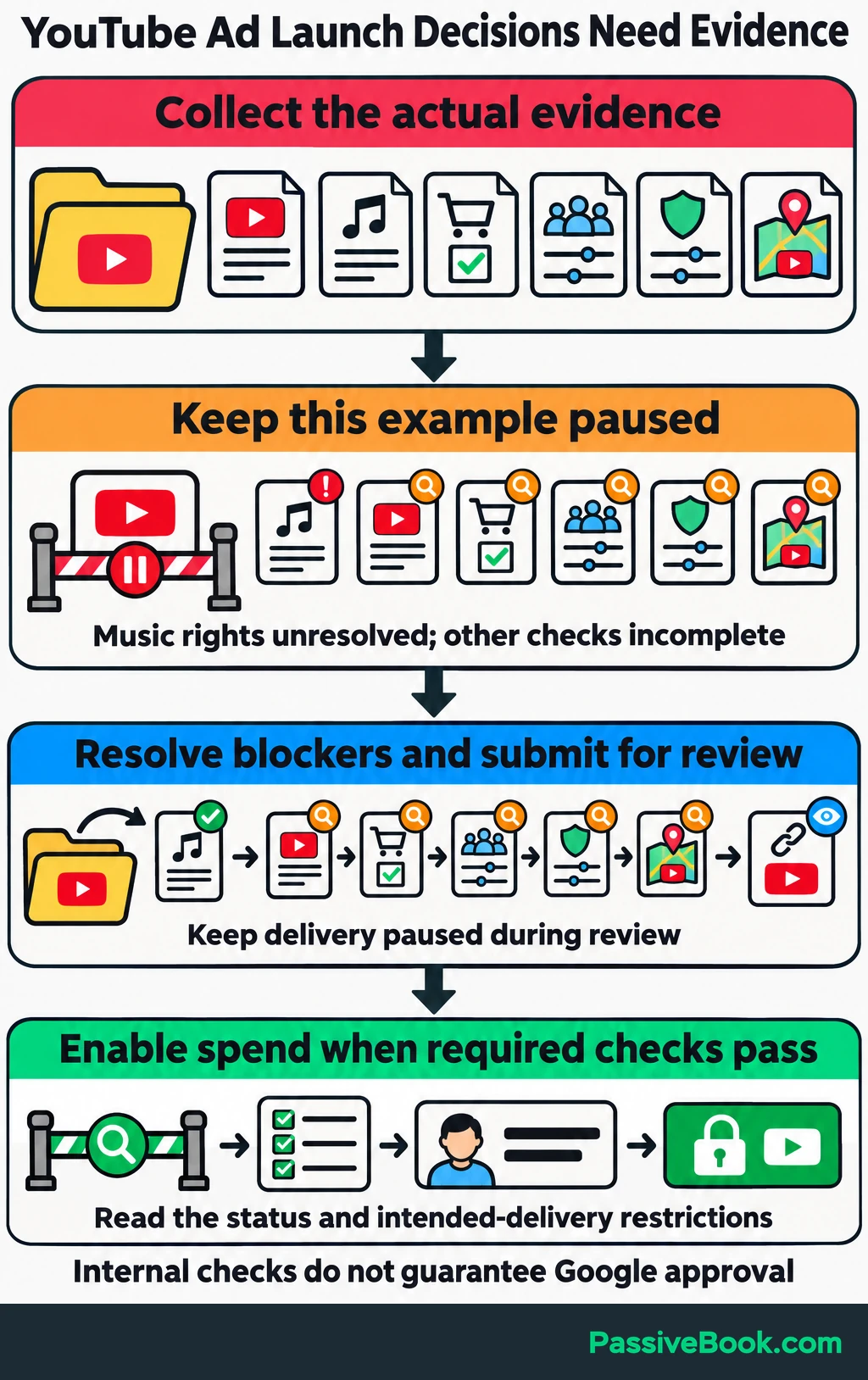
Submit several days before a required launch. Paused ads are reviewed, and most reviews finish within one business day, though complex reviews take longer. Google’s ad-review guidance supports preparing early while keeping delivery paused.
Before enabling spend, read the status:
- Under review: The decision is pending.
- Eligible: The ad can serve, subject to campaign settings.
- Eligible (Limited): The ad can serve with restrictions; check whether those restrictions prevent your intended delivery.
- Disapproved: The ad cannot serve.
Launch when the required checks pass. Revise correctable problems and hold unresolved eligibility questions.
Give one person responsibility for policy alerts and placement reviews. If that person is you, put both tasks on the calendar. A checklist without an owner is stationery.
Resolve Policy Decisions
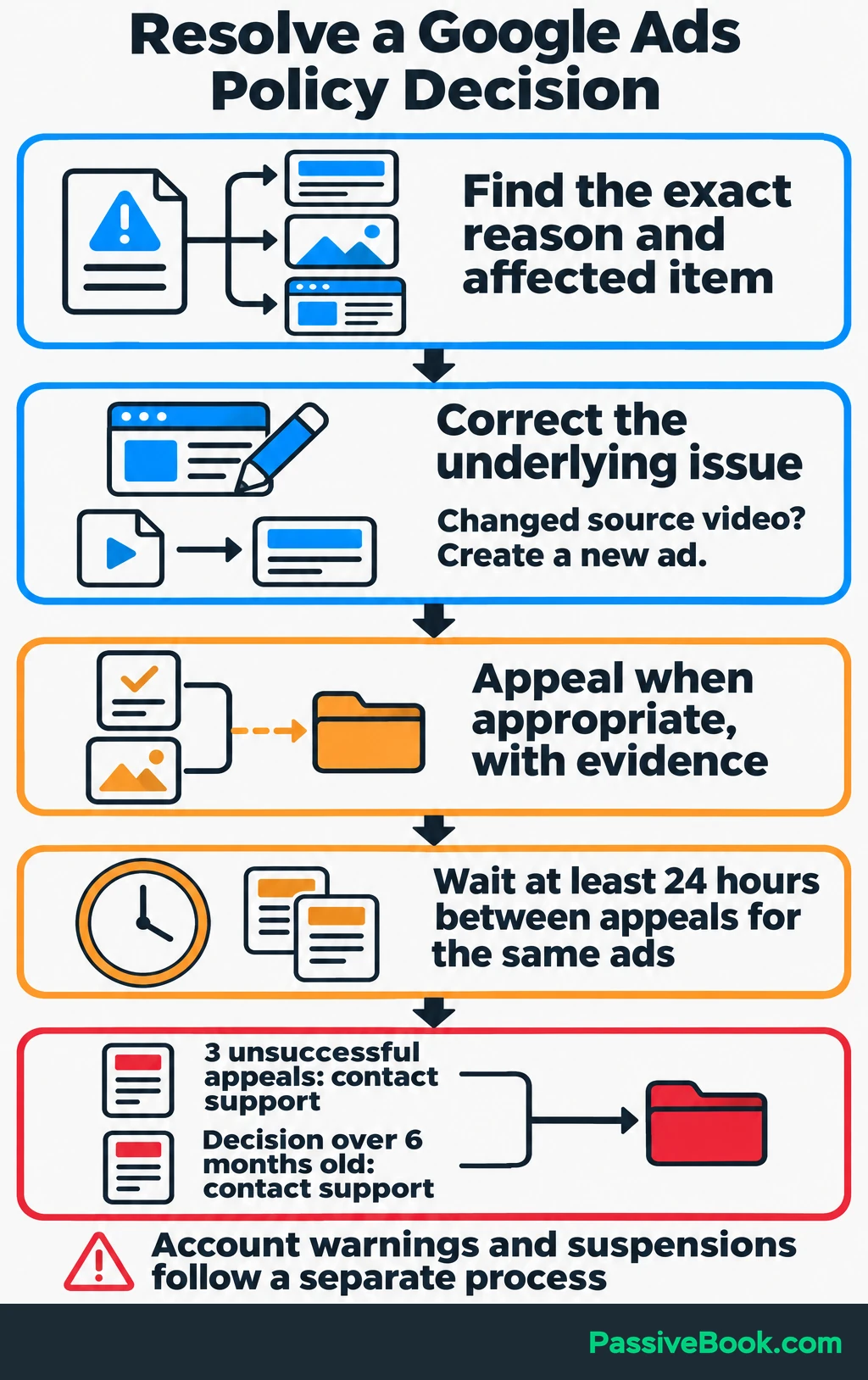
Start with the exact policy reason and identify the affected ad, asset, or destination. Fixing the headline will not solve a broken landing page.
Saving an ad edit starts another review. If you correct the source video, create a new ad using the updated video URL.
Use Policy manager, Google Ads’ tool for reviewing policy issues and appeals, when a correction requires an appeal or evidence supports a mistaken decision. Explain the change or policy basis and track the outcome.
For the course, a useful explanation might identify the flagged sentence, its replacement, and the matching lesson content. “Please approve urgently” supplies a deadline, but no reason to change the decision.
Wait at least 24 hours between appeals for the same ads. After three unsuccessful appeals for an ad, contact support. Policy decisions more than six months old also require support rather than an in-account appeal. Google lists these conditions in its correction and appeal guidance.
Treat account warnings and suspensions separately from individual ad disapprovals. Follow the account notice and appeal process. Egregious violations can trigger immediate suspension without warning, as Google explains in its account-enforcement guidance.
I would fix the underlying issue before making another submission. Repeated submissions of the same problem are not a review strategy.
Manage Brand Safety After Launch
Review Placement Context Alongside Performance
Open the Where ads showed report and begin with placements receiving substantial exposure, plus anything flagged by a customer or colleague. Inspect available video-level detail and compare the content with your written standard.
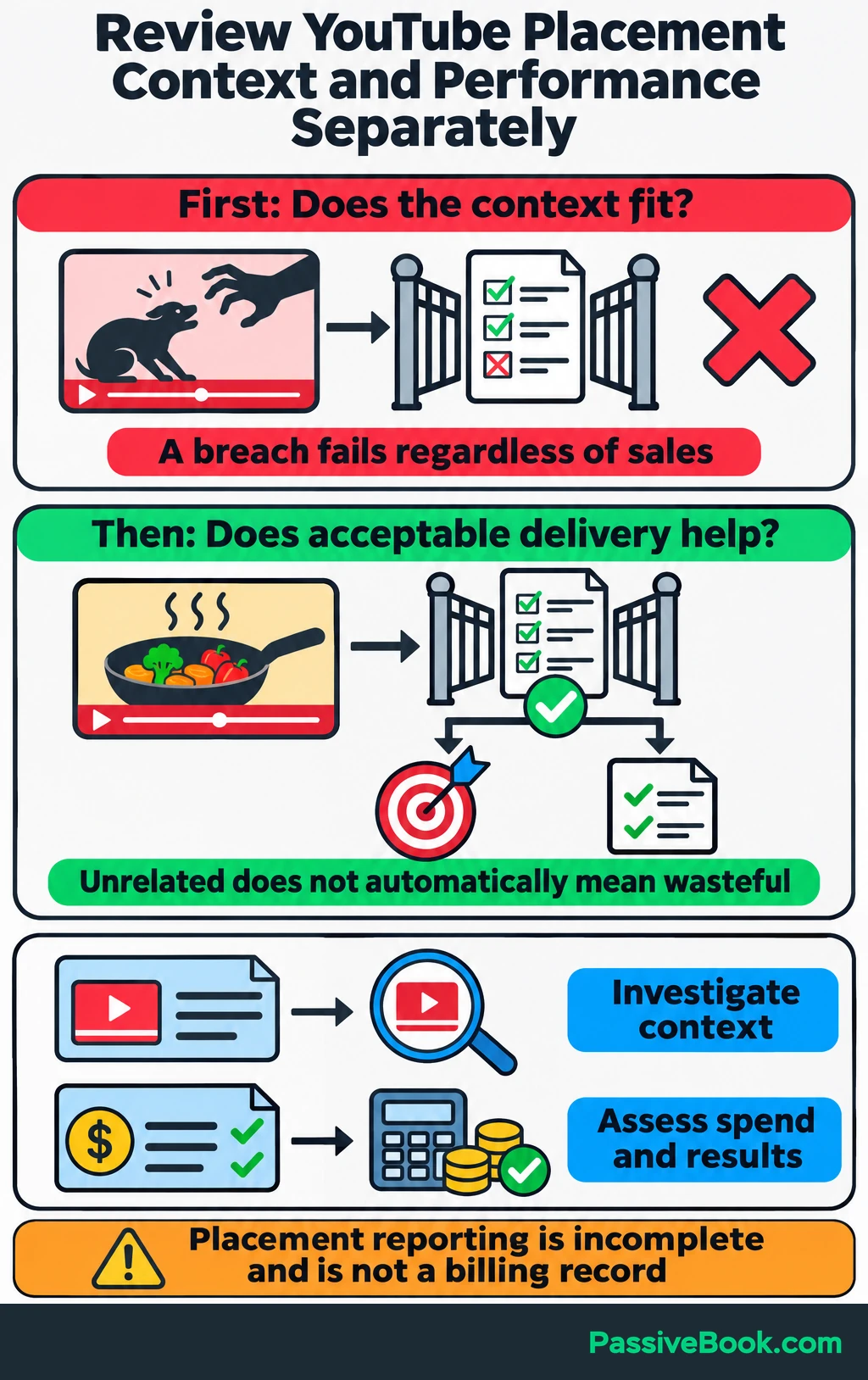
Google cautions that the placement report is neither exhaustive nor an accurate billing record. Non-watch-page YouTube delivery can appear as “youtube.com,” so you will not always get a specific video to inspect.
Use the report to investigate context. Use campaign cost and conversion reporting to assess spend.
For each placement you inspect, separate two decisions:
- Suitability: Does the context breach the placement standard?
- Performance: Does acceptable delivery help the campaign’s objective?
For the coat-care course, cruel-handling content fails the first check regardless of sales. A harmless cooking video needs a commercial assessment. Being unrelated does not automatically make it wasteful.
I would start with a daily check during the initial launch, then adjust the schedule to delivery volume and the consequences of missing a problem. A small campaign may later need less frequent review. Flagged concerns deserve prompt attention regardless of the schedule.
Recheck after material changes to targeting, delivery surfaces, or creative. Also revisit exclusions that may be blocking acceptable content. The goal is useful boundaries, not the longest possible blocklist.
Contain an Unsuitable Placement
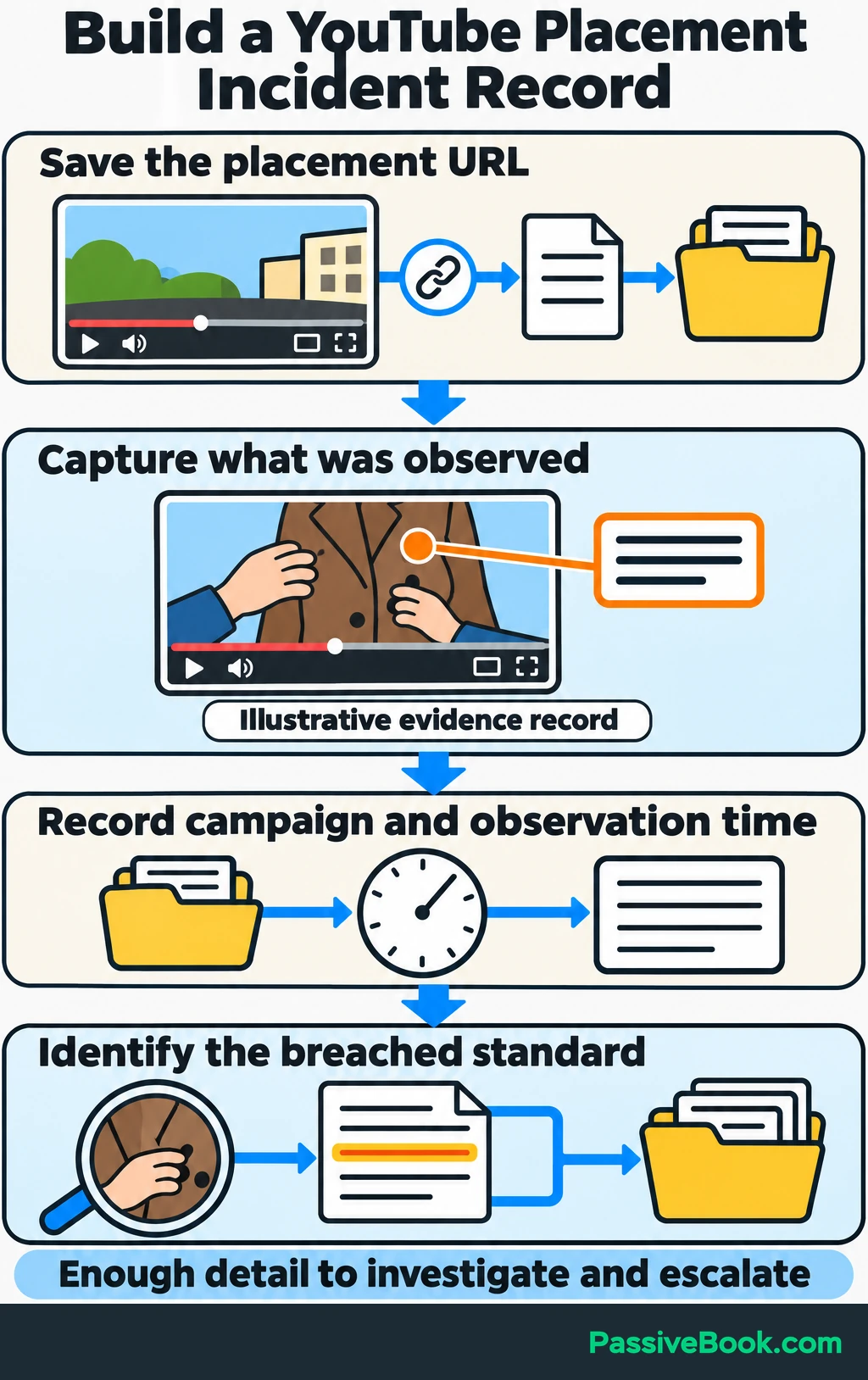
If a placement appears to breach your standard, capture enough detail to investigate:
- The placement URL and a screenshot of what was observed.
- The campaign involved.
- The observation time.
- The part of the placement standard it appears to breach.
Pause affected delivery when continued exposure would cross that standard.
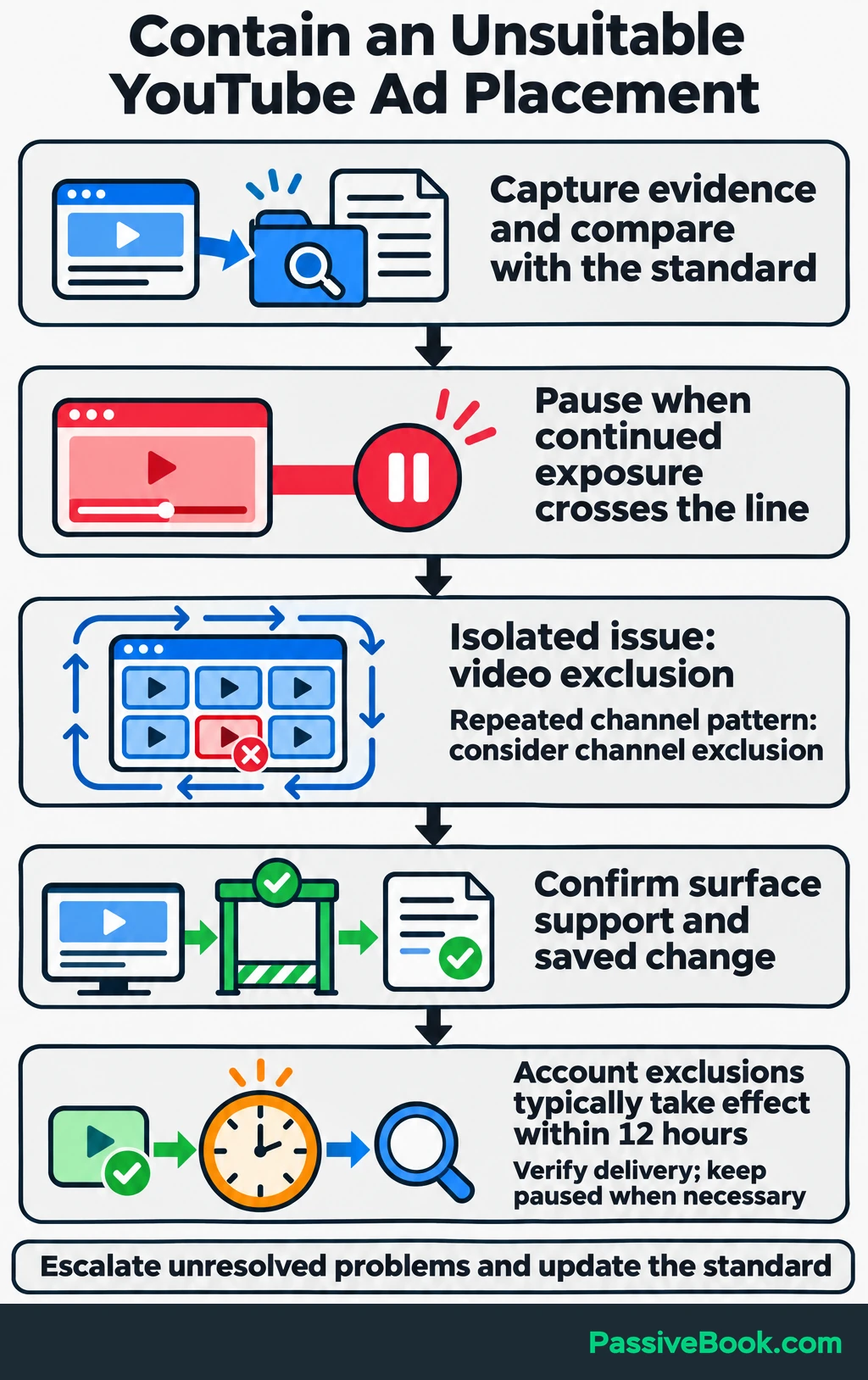
Suppose a viewer reports the coat-care ad beside a video showing cruel handling. Open the reported video, compare it with the standard, and record what you find. If the concern is isolated, exclude that video. If the channel repeatedly publishes similar material, a channel exclusion may be appropriate.
Then inspect which controls apply to that delivery surface. Adding an exclusion is only useful if the relevant inventory supports it.
New account-level placement exclusions typically take effect within 12 hours. Verify the saved change and check subsequent delivery; keep affected delivery paused when necessary during that period. Google documents the timing and account-level precedence in its placement-exclusion guidance.
Report apparent Community Guidelines violations to YouTube, and take unresolved exclusion or delivery problems to Google Ads support.
Finally, update the written standard if the incident exposed a missing rule. That turns one unpleasant placement into a clearer decision for the next review.
What Next?
Write three lines for your next campaign: the content you accept, the content you reject, and the subjects that need individual review. Compare those lines with the controls available on every surface where the campaign can run.
Use the social buttons to share this guide when a campaign discussion gets stuck at “the ad was approved.” The placement decision still needs an answer.
Which surrounding content would make you pause an otherwise successful campaign? Share your boundary in the comments, along with any other questions.
Share this post with your friends & followers:

