Your next video needs another weekend of editing, but viewers are already asking questions about the last one. Waiting until the next upload leaves those questions hanging, and filming a whole video to answer each one would swallow your week.
Those unanswered questions are a chance to stay in touch, but you need a way to respond that fits around editing. This guide covers finding and publishing YouTube posts on mobile and PC, with examples for gathering feedback and continuing the conversation without another filming session.
Where to Find YouTube Community Posts
Open your channel page and select Posts. You can find another creator’s posts the same way. On mobile, swipe across the channel tabs if Posts is off-screen.
Older tutorials call this the Community tab. Look for Posts in the current interface.
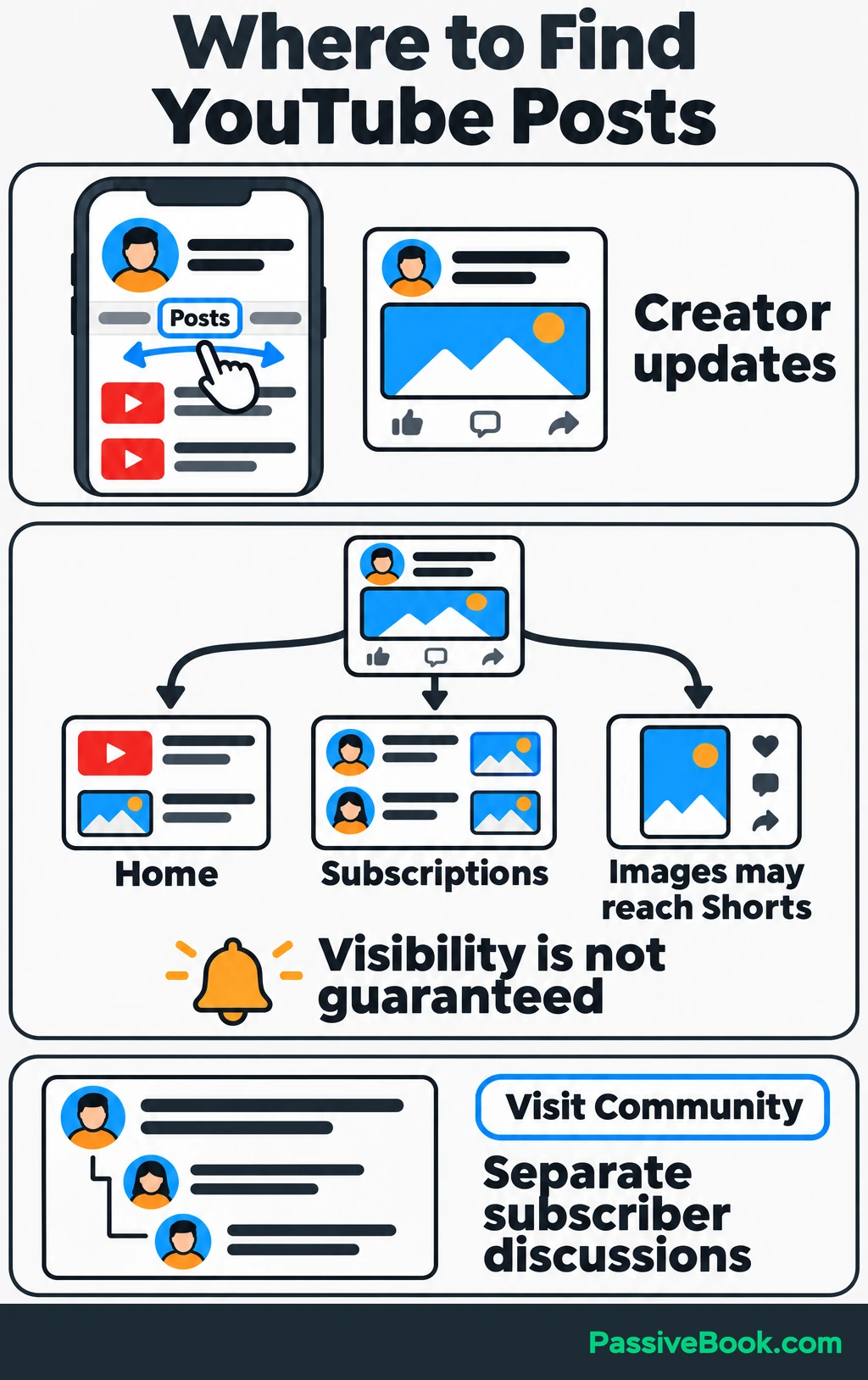
Viewers may also see your posts on your channel’s Home tab, in their Home or Subscriptions feeds, and, for image posts, in the Shorts feed. Subscribers may receive notifications, but publishing doesn’t guarantee that every subscriber will see the post. YouTube explains where posts can appear.
You might also see Visit Community. That opens a separate discussion space where subscribers can start conversations. You don’t need to enable it to publish ordinary creator posts in the Posts tab. YouTube explains the separate Communities feature here.
Why Can’t I Create a Post?
First, check that you’re signed into the channel you want to use. This is easy to miss when one Google account manages several channels.
You don’t need a minimum subscriber count, phone verification, or advanced feature access for basic posting. YouTube lists the Posts tab under its standard features. Clickable external links in posts have a separate advanced-access requirement. See YouTube’s feature-access table.
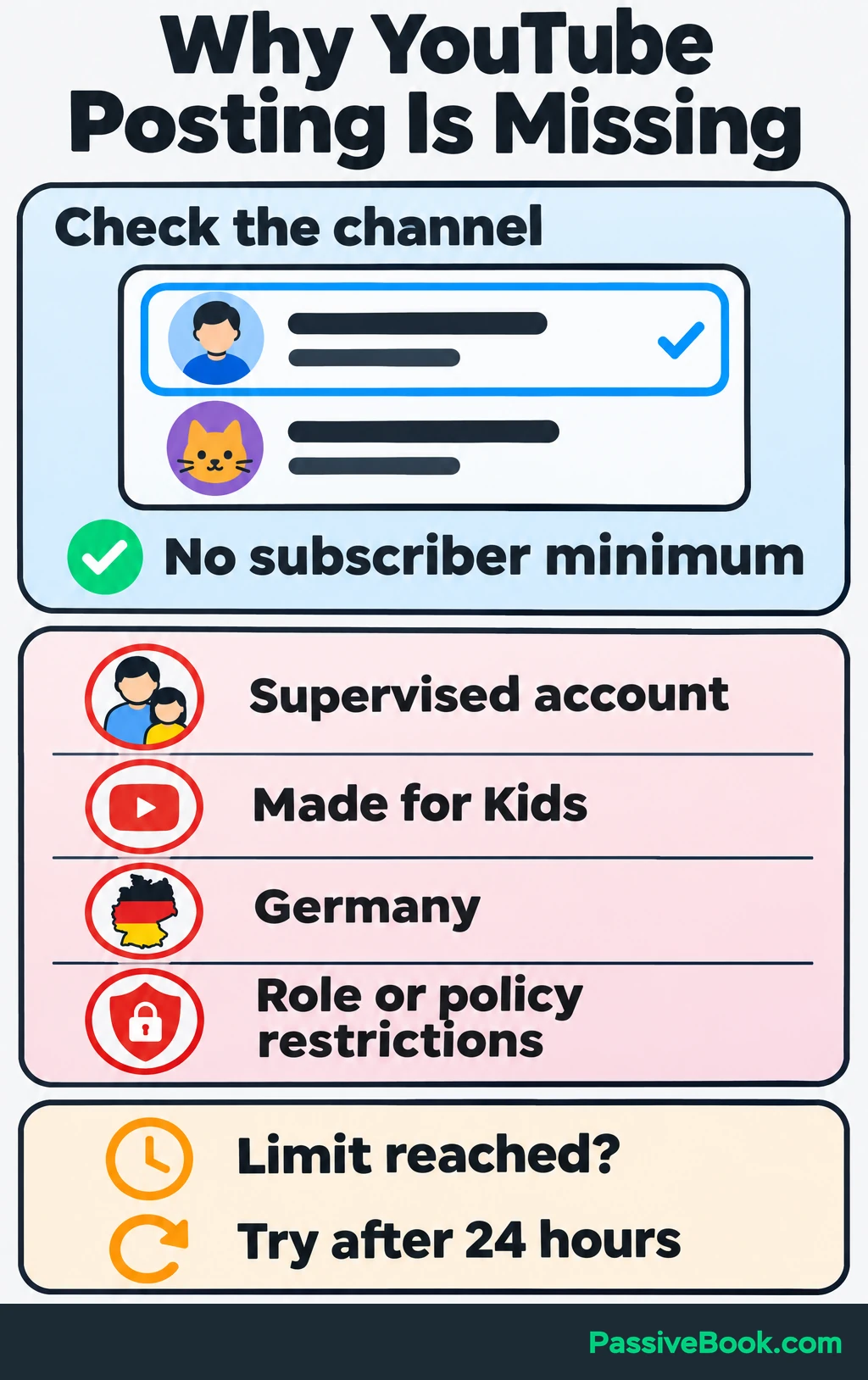
If the option is still missing, check these restrictions:
- Supervised accounts can’t create posts.
- Channels set as Made for Kids can’t create posts.
- Posts are unavailable in Germany.
- Your channel role or policy restrictions may limit access.
These are account restrictions, so having more subscribers won’t fix them. YouTube lists its posting restrictions here.
A “limit reached” message means something different: you’ve hit the posting limit. Try again after 24 hours.
How to Publish a Community Post on Mobile
Use the main YouTube app on Android or iPhone.
- Select the channel you want to publish from.
- Tap Create, shown as a plus sign, then Post.
- Write your message.
- Review it and tap Post.
- Open your channel’s Posts tab to check the published result.
For your first post, ask one question people can answer without doing homework. Give enough context that someone who missed your last upload can still join in.
For the examples below, imagine you run a long-haired dog grooming channel that supports a downloadable coat-care planner. The posts and responses are illustrations.
A simple opening question could be:
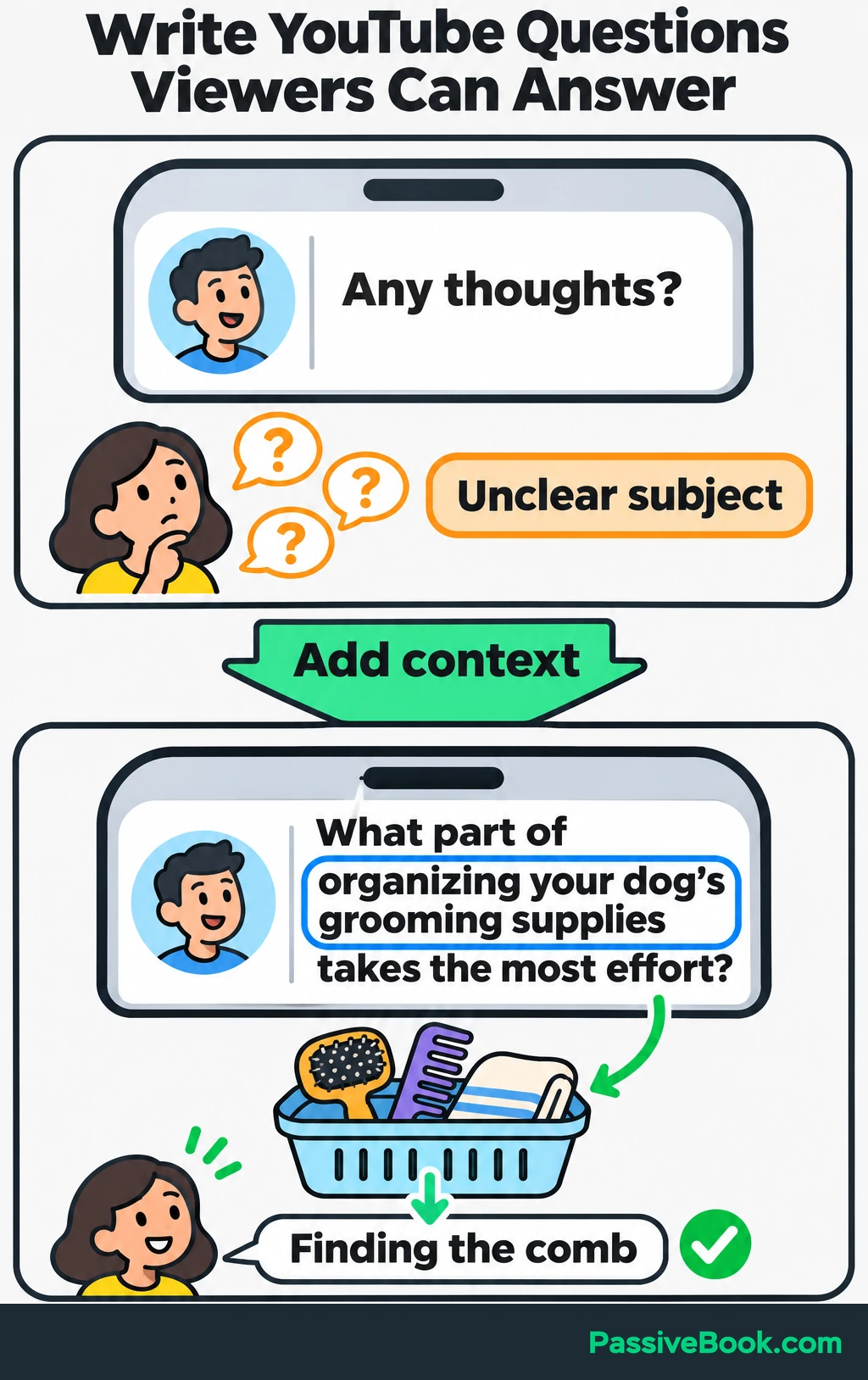
What part of organizing your dog’s grooming supplies takes the most effort?
That gives viewers a clear subject. “Any thoughts?” makes them work out what you wanted to discuss.
I would publish a plain text question first. You can learn the posting process without also making a graphic.
If you have a video topic or viewer question but haven’t found the wording, AI Video Studio can turn it into post drafts. Review the options and publish the one that gives viewers the clearest reason to respond.
Free AI Video Studio




How to Publish a Community Post on PC
On a computer, publish through YouTube.com:
- Sign in with the correct channel.
- Click Create, then Create post.
- Enter your message, or choose an image, poll, quiz, or video.
- Review the text and any attachments.
- Click Post, then check your channel’s Posts tab.
Before publishing, read the post as someone who hasn’t watched your latest video. Replace vague references such as “that checklist” with “the grooming-supply checklist.”
I prefer a PC when comparing images or preparing several posts together because it’s easier to review everything on a larger screen. A phone is handy for posting a photo you’ve just taken. Use whichever removes the most friction.
Choose a Post Format for the Response You Want
Decide what you want viewers to do before choosing a format.
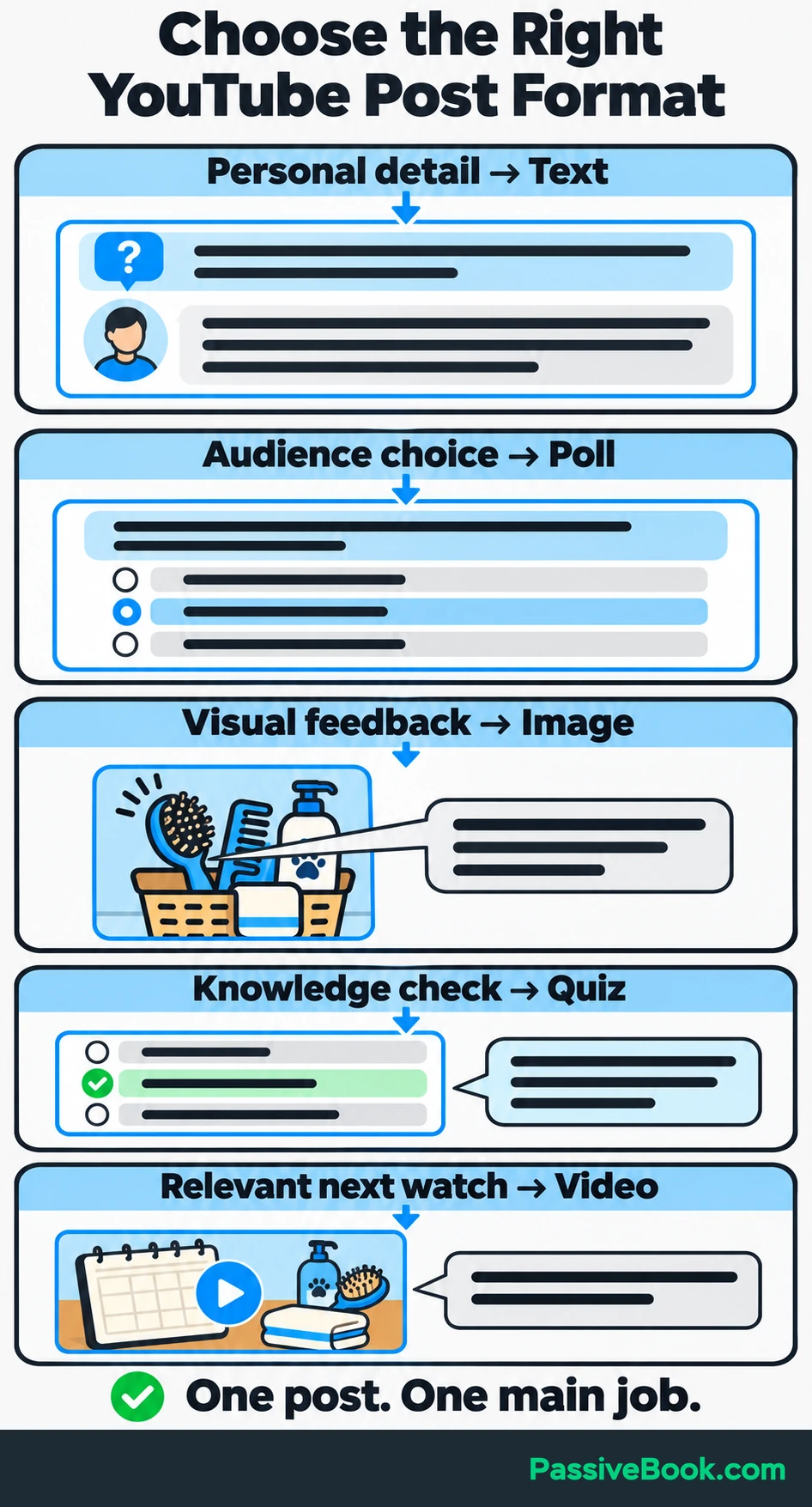
A question that needs personal detail belongs in a text post. A choice between a few topics suits a poll. A storage layout is easier to discuss when viewers can see it.
Give each post one main job. Asking people to vote, watch a video, download a planner, and leave a detailed comment creates four competing requests.
Standalone text works well for questions and short updates. Add the context and then the request:
I’m planning a walkthrough of the coat-care planner. Which part needs a closer explanation?
The following formats make different kinds of responses easier.
Polls for Audience Choices
Use a poll when you have a few clear options and want viewers to choose between them.
Select a text or image poll, enter your question, and add the choices. Both types support up to four options.
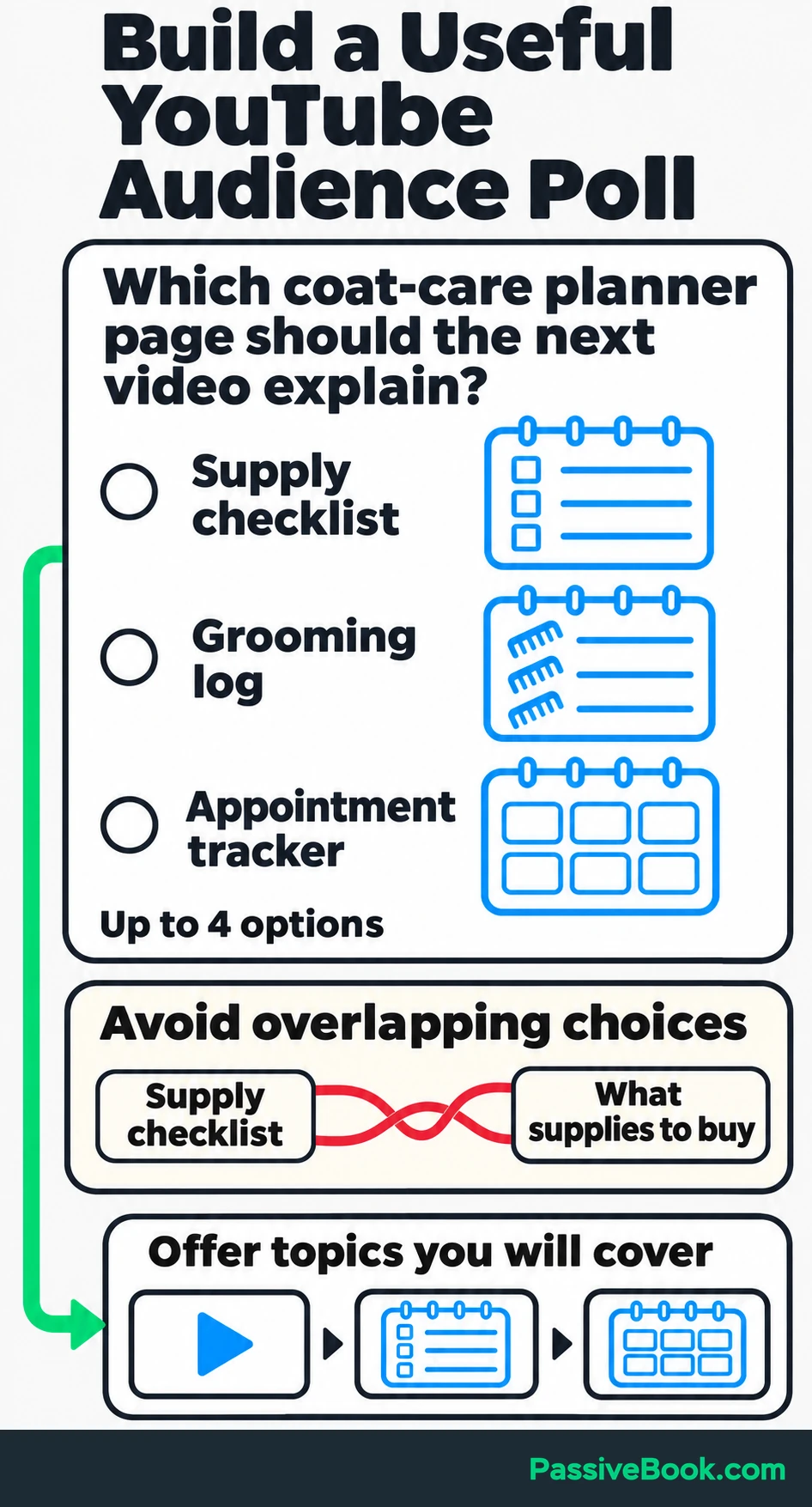
Here’s a complete text poll you can adapt:
Which coat-care planner page should the next video explain?
– Supply checklist
– Grooming log
– Appointment tracker
Only offer topics you’re willing to cover. Asking viewers to choose and then ignoring every option isn’t much of a conversation.
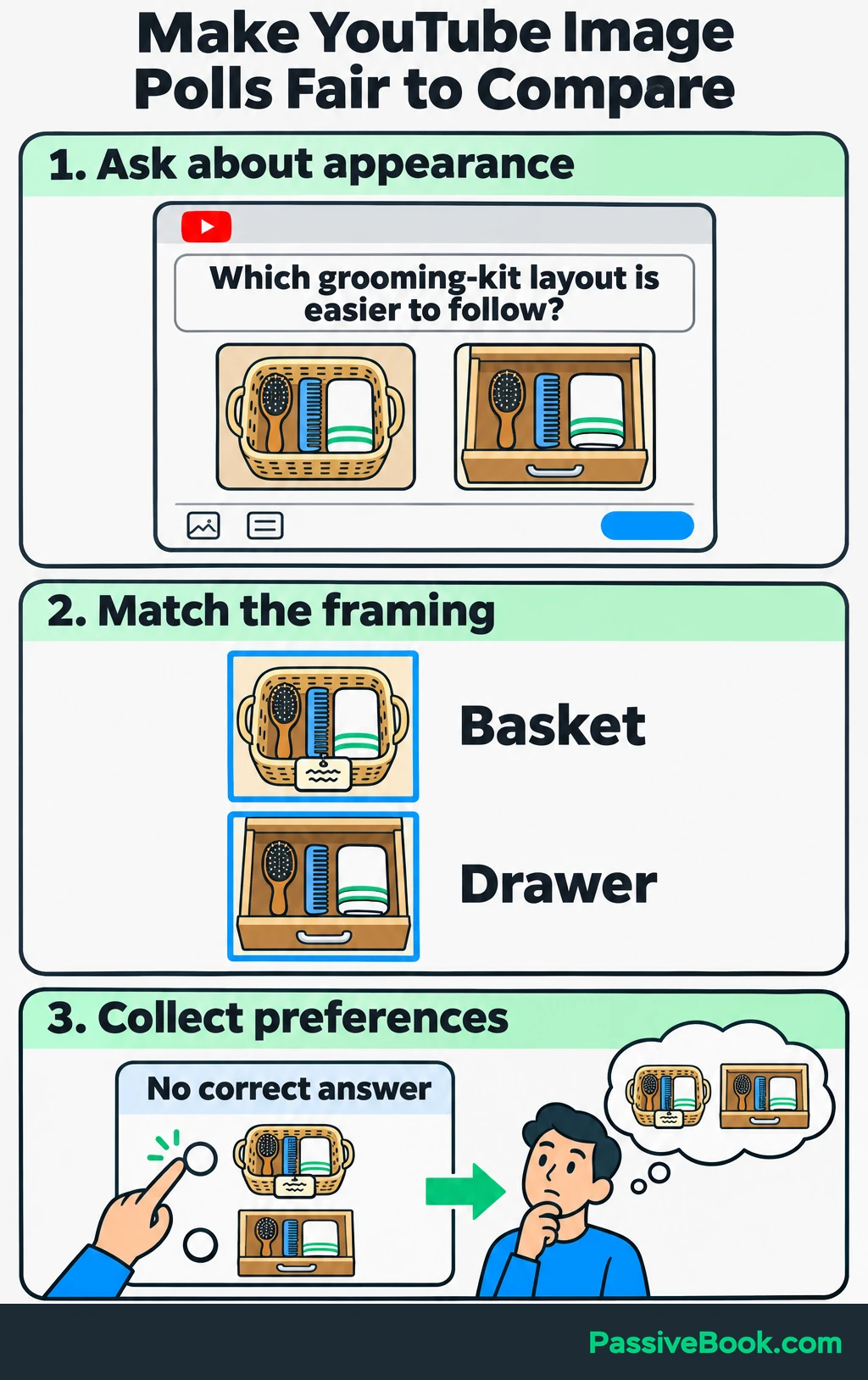
Keep the choices distinct. “Supply checklist” and “What supplies to buy” would overlap and make the result harder to use.
Choose an image poll when appearance matters. For example, show two grooming-kit storage layouts and ask which is easier to follow. Use similar framing so viewers are comparing the layouts rather than the photography.
A poll gathers preferences. There’s no correct answer.
Images and GIFs for Visual Updates
Use an image when seeing something helps viewers answer.
Attach a photo, graphic, or GIF through the composer’s image option. For the grooming channel, a labeled supply basket gives people something specific to discuss. A caption excerpt might be:
Which item do you always have to search for?
You can upload up to 10 images, with a maximum size of 16 MB each, in JPG, PNG, GIF, or WEBP format. YouTube recommends a square layout for feed display. See its image requirements.
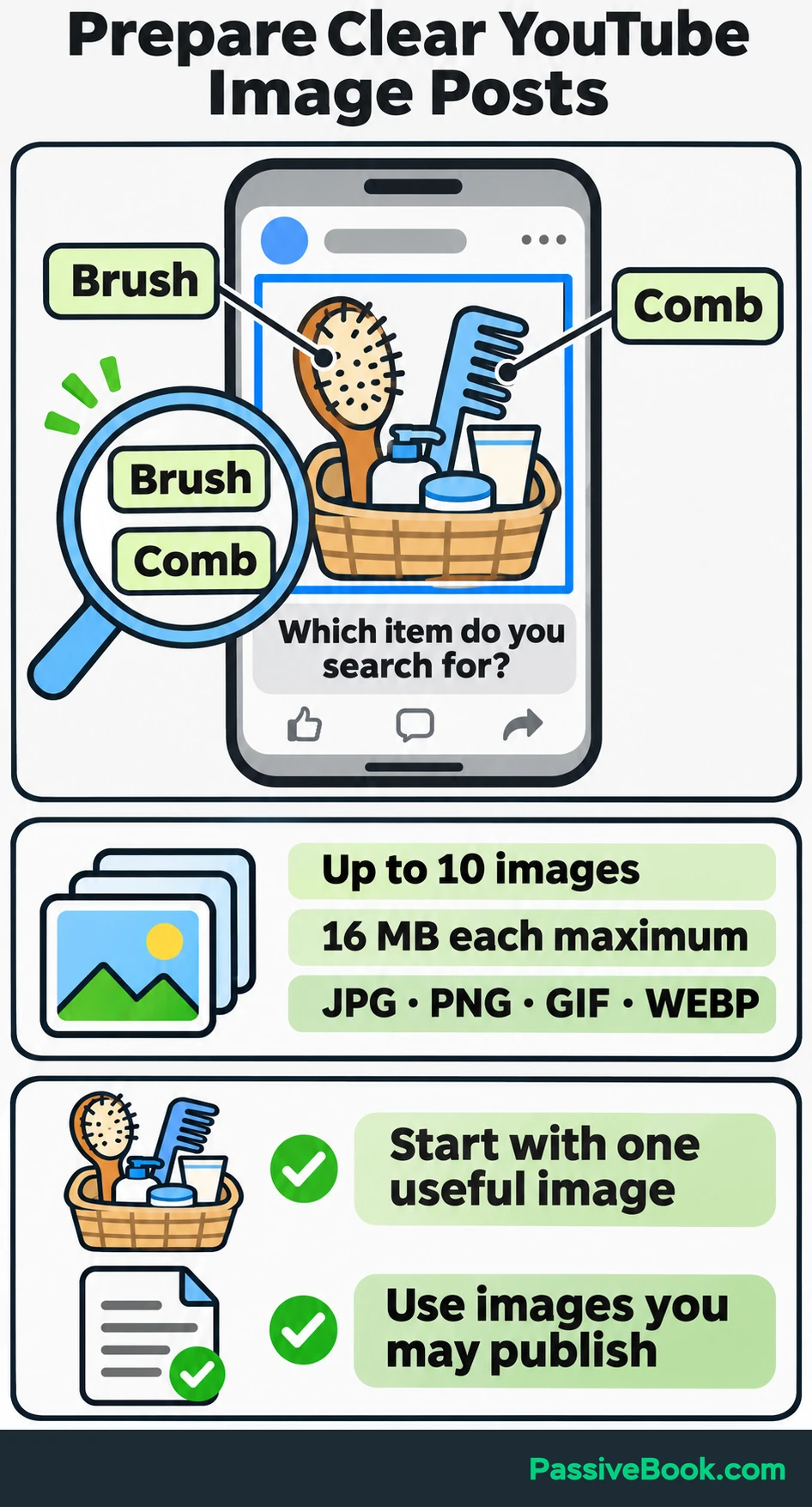
You rarely need all 10. I would start with one clear photo and add more only when they explain another part of the setup.
Check that labels are readable on a phone, and use images you own or have permission to publish. A decorative graphic adds little if viewers still can’t see what you’re asking about.
On Android, review the music automatically added to image posts. To remove it, tap the track and then the trash icon before publishing.
Quizzes for a Knowledge Check
Choose a quiz when you want to reinforce something your tutorial taught.
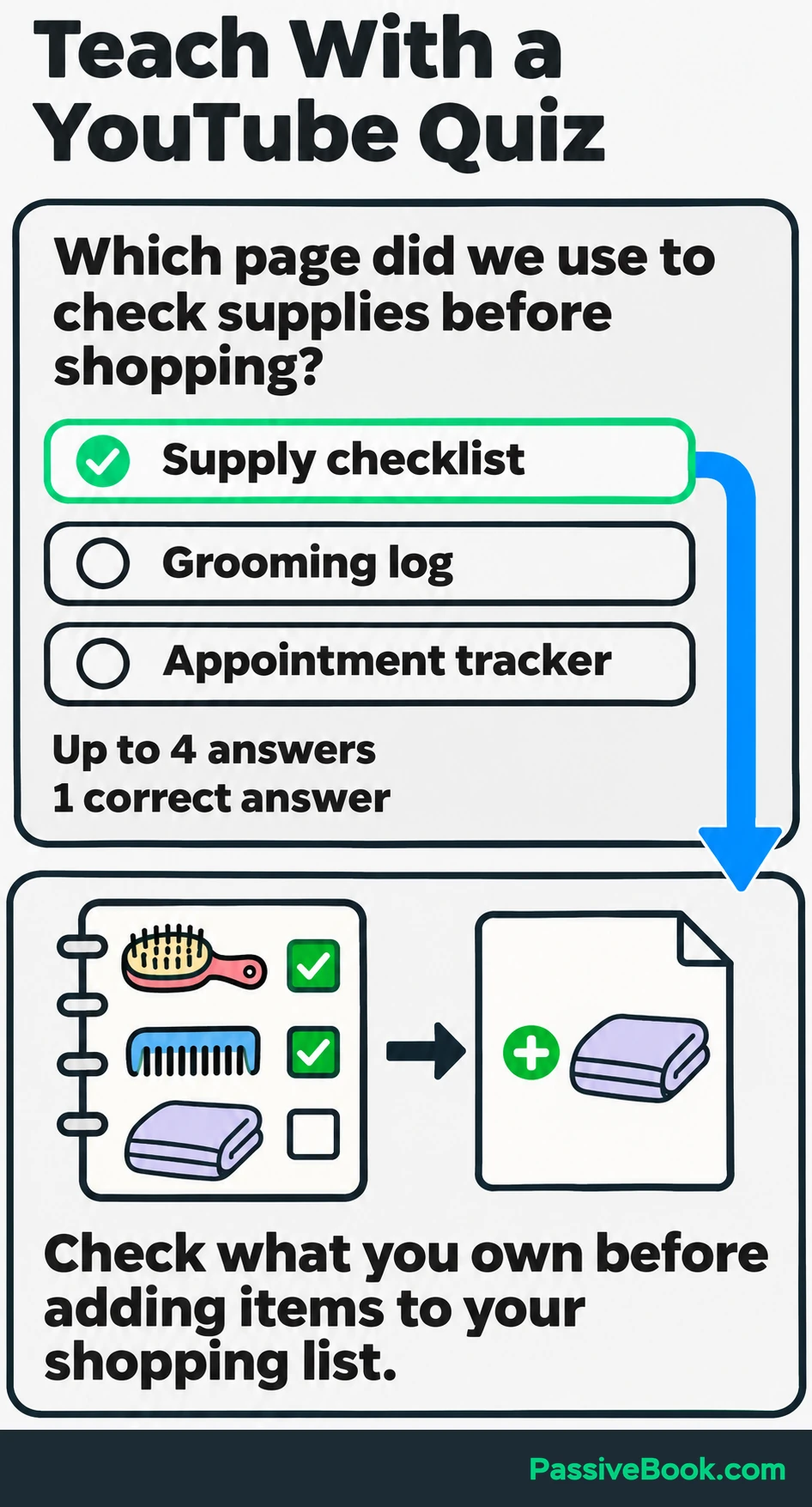
Select Quiz, enter the question, add up to four answers, and mark the single correct answer. Include a short explanation so viewers learn something from the result.
For the planner walkthrough, the question could be:
Which page did we use to check supplies before shopping?
“Supply checklist” would be the correct answer. The explanation could say that this page helps viewers check what they already have before adding anything to their shopping list.
Keep the question tied to a useful lesson. I would skip obscure trivia unless trivia is part of the channel’s appeal. Getting an answer wrong should lead to a helpful explanation.
Video Posts for a Relevant Next Watch
Share a video when it answers the question your post raises.
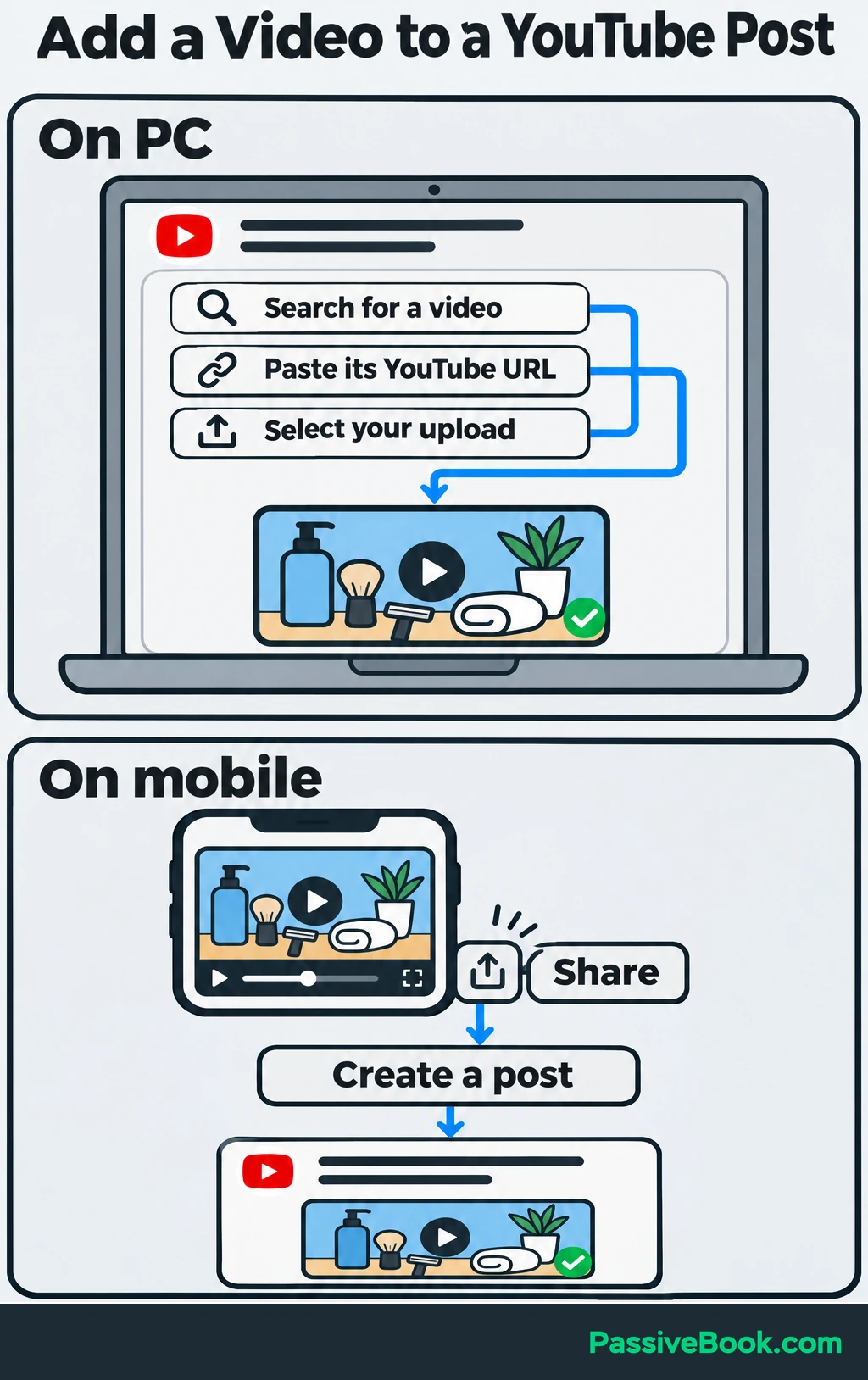
On PC, choose the video option and search for a video, paste its YouTube URL, or select one of your uploads. On mobile, open the video’s sharing options and choose Create a post.
Explain the reason to watch. For example:
Not sure where to start with the supply checklist? This walkthrough shows how to fill it in before shopping.
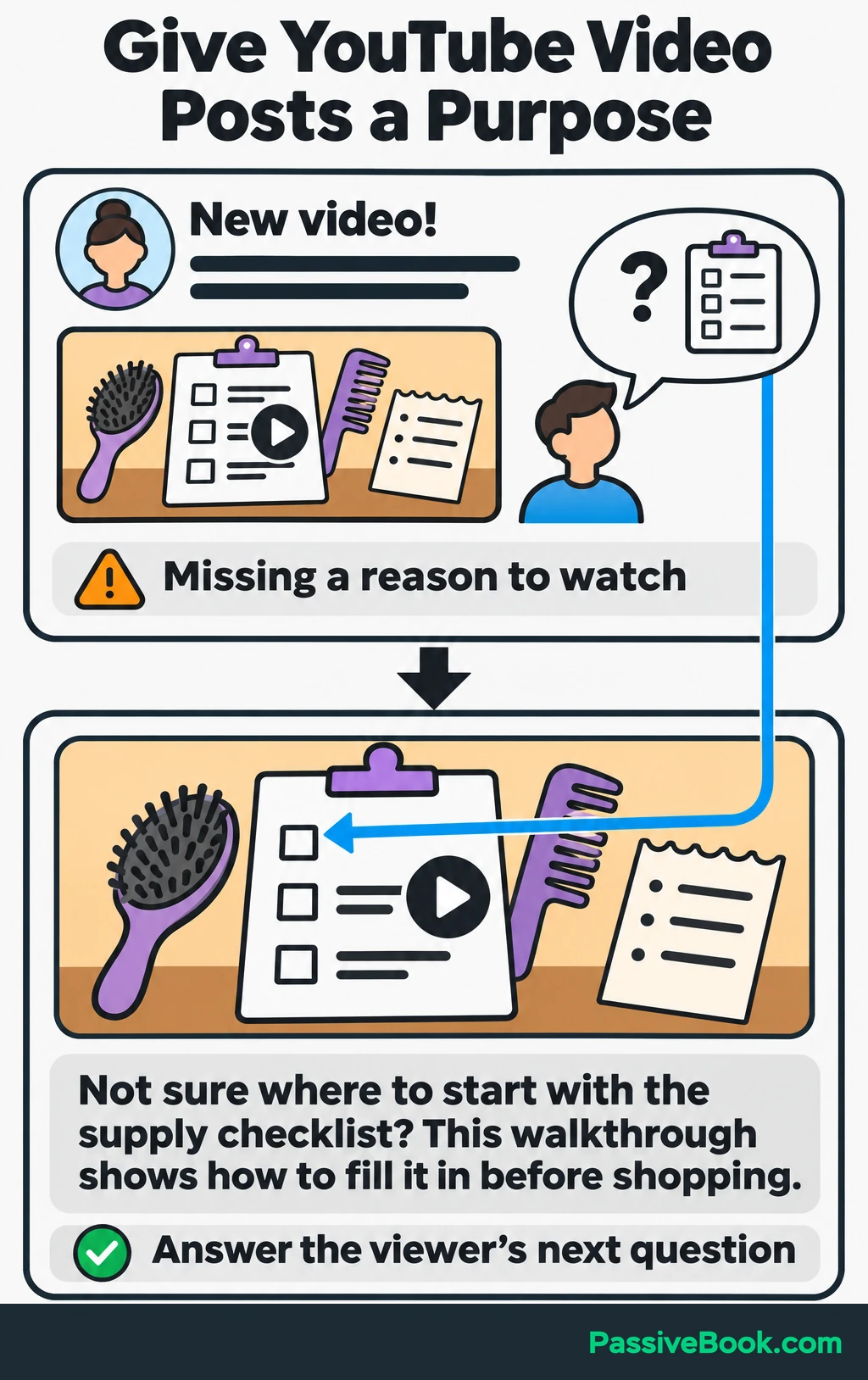
That gives the video a purpose beyond “please watch my upload.”
For the grooming channel, I would link the planner walkthrough when people ask how a page works. I would skip repeatedly sharing it just because the calendar has an empty slot.
Schedule Posts Between Uploads
Build posts from material you already have: a viewer question, a photo taken during filming, or a detail that deserves a clearer explanation.
When I was running my membership site alongside a day job, I kept update ideas in a separate list from lesson drafts. Every update became another hunt for something to say. Keeping unanswered member questions beside the relevant draft made follow-ups easier to write. It didn’t remove the site’s wider content treadmill, but it stopped me from treating every update as a new assignment.
For YouTube, keep the post idea and its intended response beside your video notes. A simple note is enough; you don’t need another paid tool.
Then schedule through the composer:
- On a phone: Tap the clock, choose the date, time, and time zone, then tap Done and Schedule.
- On PC: Open the arrow beside Post, select Schedule Post, choose the date, time, and time zone, then confirm.
Use a phone or PC for this. Scheduling is unavailable on Android tablets and iPads. YouTube notes the tablet limitations here.
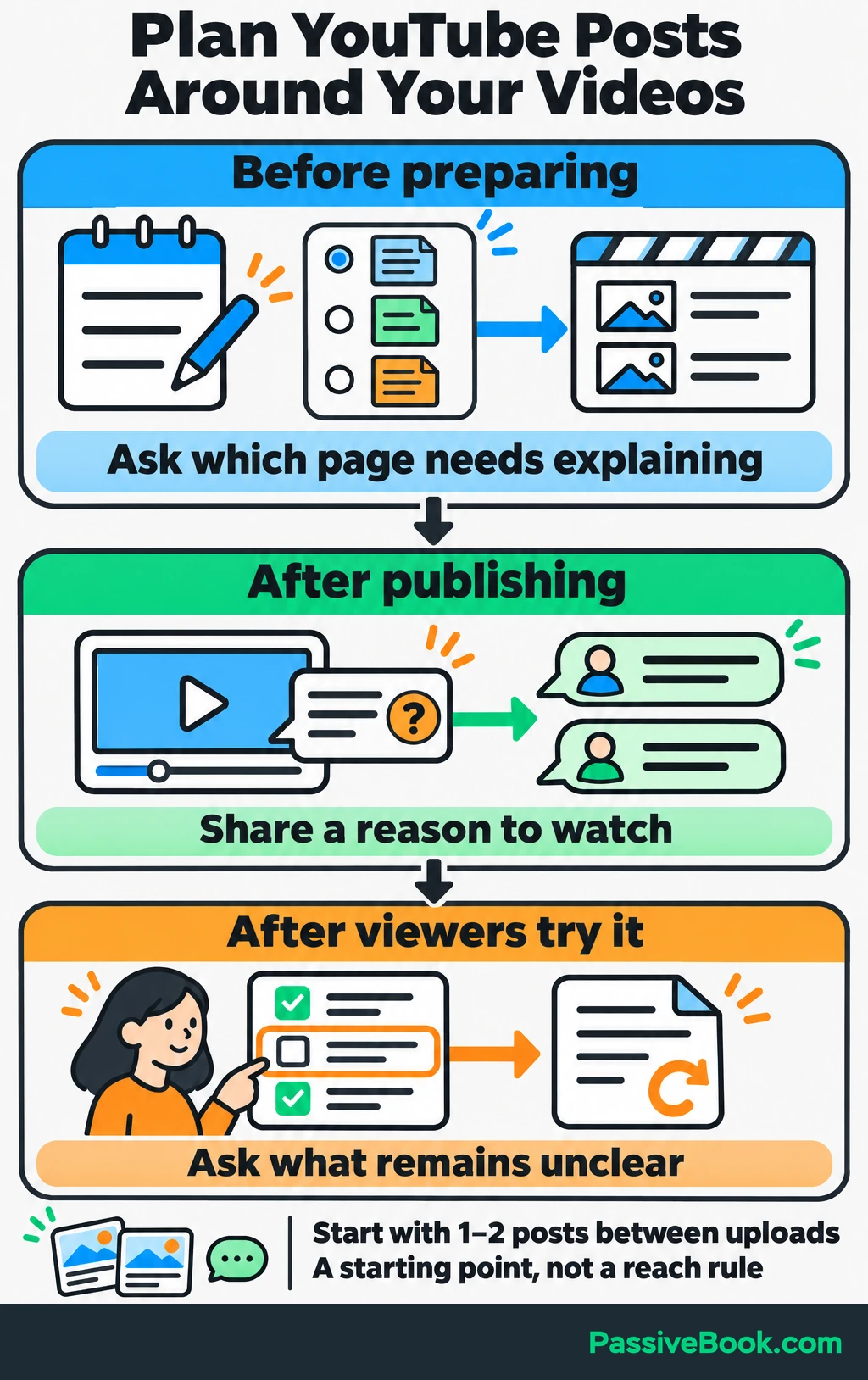
For the grooming channel, a manageable sequence could look like this:
| Point in the video workflow | Post | What it helps you decide |
|---|---|---|
| Before preparing the walkthrough | Poll about which planner page needs explaining | Which page to demonstrate |
| After publishing the walkthrough | Share the video with a specific reason to watch | Which questions in the replies need an explanation |
| After viewers have had time to try it | Ask which part remains unclear | What to clarify next |
I would start with one or two posts between uploads and leave time to reply. That’s a manageable starting point, not a rule for reach.
Review queued posts in the Scheduled section of your channel’s Posts tab. If a video is delayed, adjust any post that assumes it’s already available.
Keep the Conversation Going After Publishing
A question creates a small commitment: you’re inviting people to answer, so make room to read what they say.
Reply to specific points and use a focused follow-up when it would help. Heart useful contributions to acknowledge them.
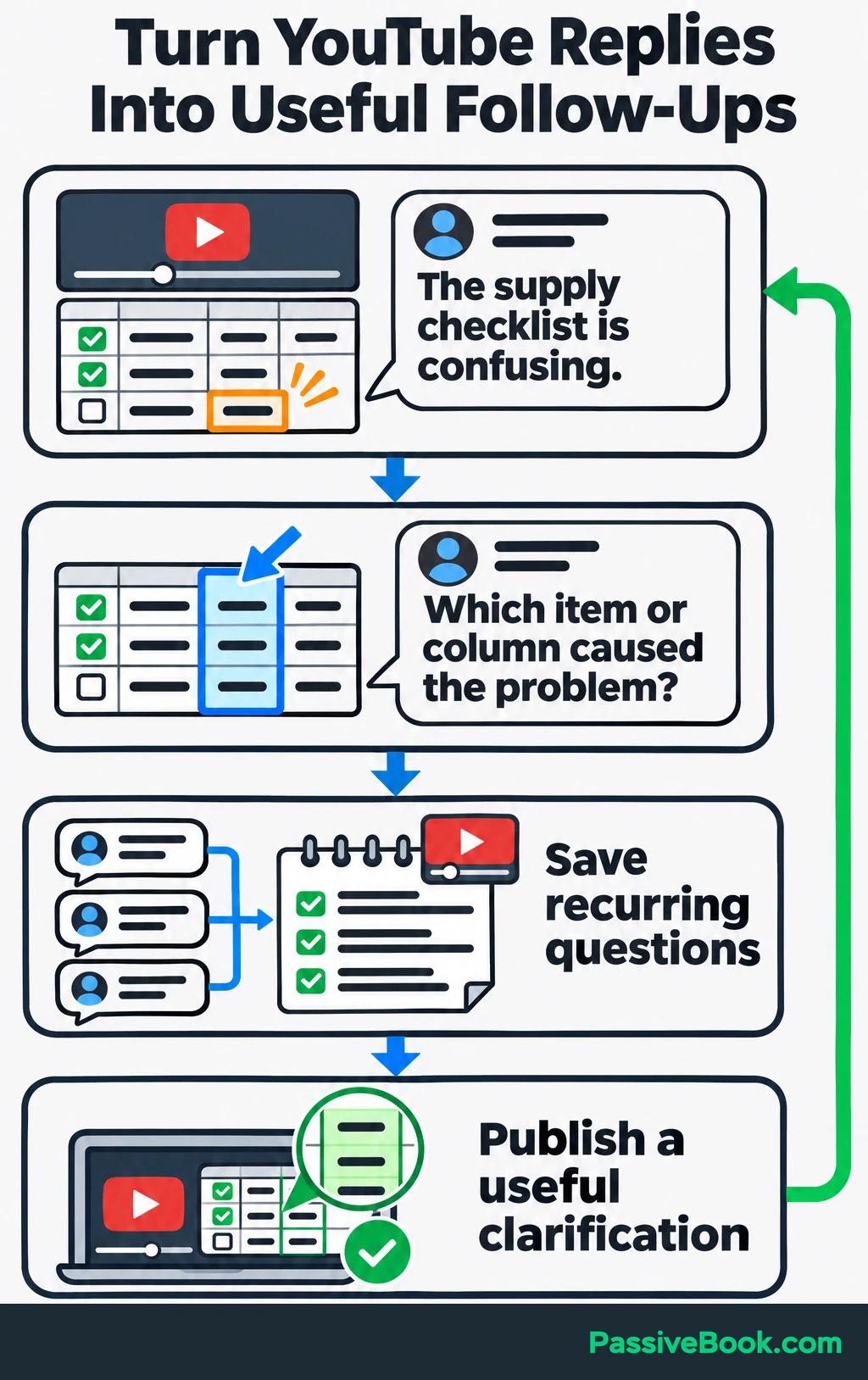
If a viewer says the supply checklist is confusing, ask which item or column caused the problem. “Thanks for commenting!” is polite, but it won’t tell you what needs fixing.
Follow through on polls, too. When you publish the selected walkthrough, acknowledge the choice and explain where the video addresses it. Later posts should add a clarification, demonstration, or answer rather than repeat the same promotion.
You can review posts and their comments in YouTube Studio by opening Content and selecting Posts.
If comments are missing, check the individual post’s settings and your channel defaults. Posts sharing a video inherit that video’s comment settings, and YouTube can also disable comments for safety reasons.
Keep useful recurring questions beside your content notes. For the grooming channel, several questions about filling in the supply checklist could justify a closer demonstration. That is a better reason to make another video than needing something to upload.
Check Which Posts Are Worth Repeating
On desktop, open YouTube Studio, select Analytics, then Content and Posts.
YouTube reports post impressions, likes, subscribers gained from posts, and top posts ranked by likes or votes. Impressions count how often a post was shown, so they aren’t a count of individual people. See YouTube’s documented post metrics.
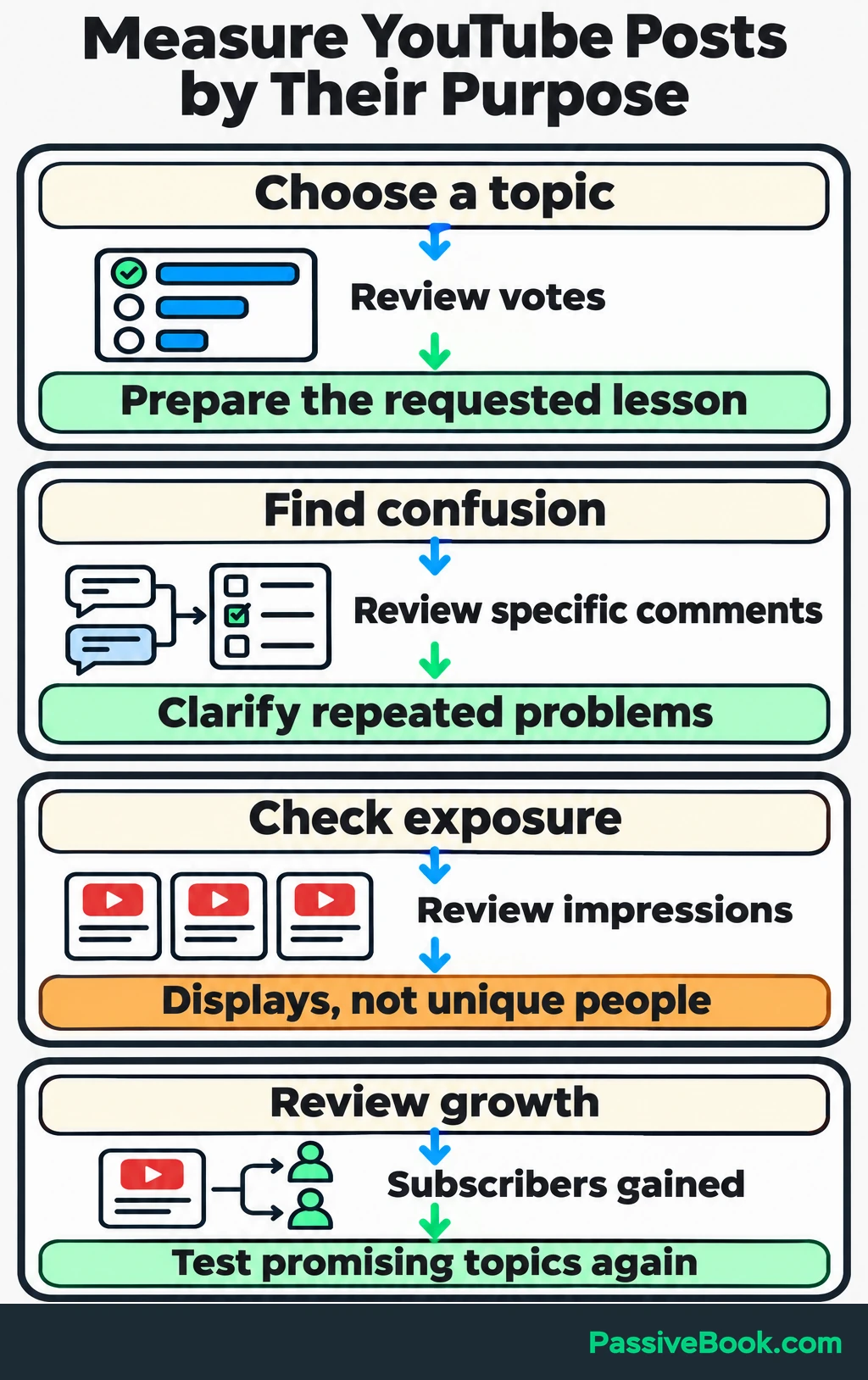
Judge each post against its purpose:
| Purpose | What to review | A useful next decision |
|---|---|---|
| Choose a tutorial topic | Votes and the choices viewers selected | Prepare the requested explanation |
| Find points of confusion | Comments naming specific problems | Clarify the repeated problem |
| Check exposure | Impressions | Compare distribution with similar posts |
| Review subscriber growth from posts | Subscribers gained | Look for topics worth testing again |
Compare similar posts over the same time since publication. A poll that has been live for a month has had more opportunity to gather votes than yesterday’s question.
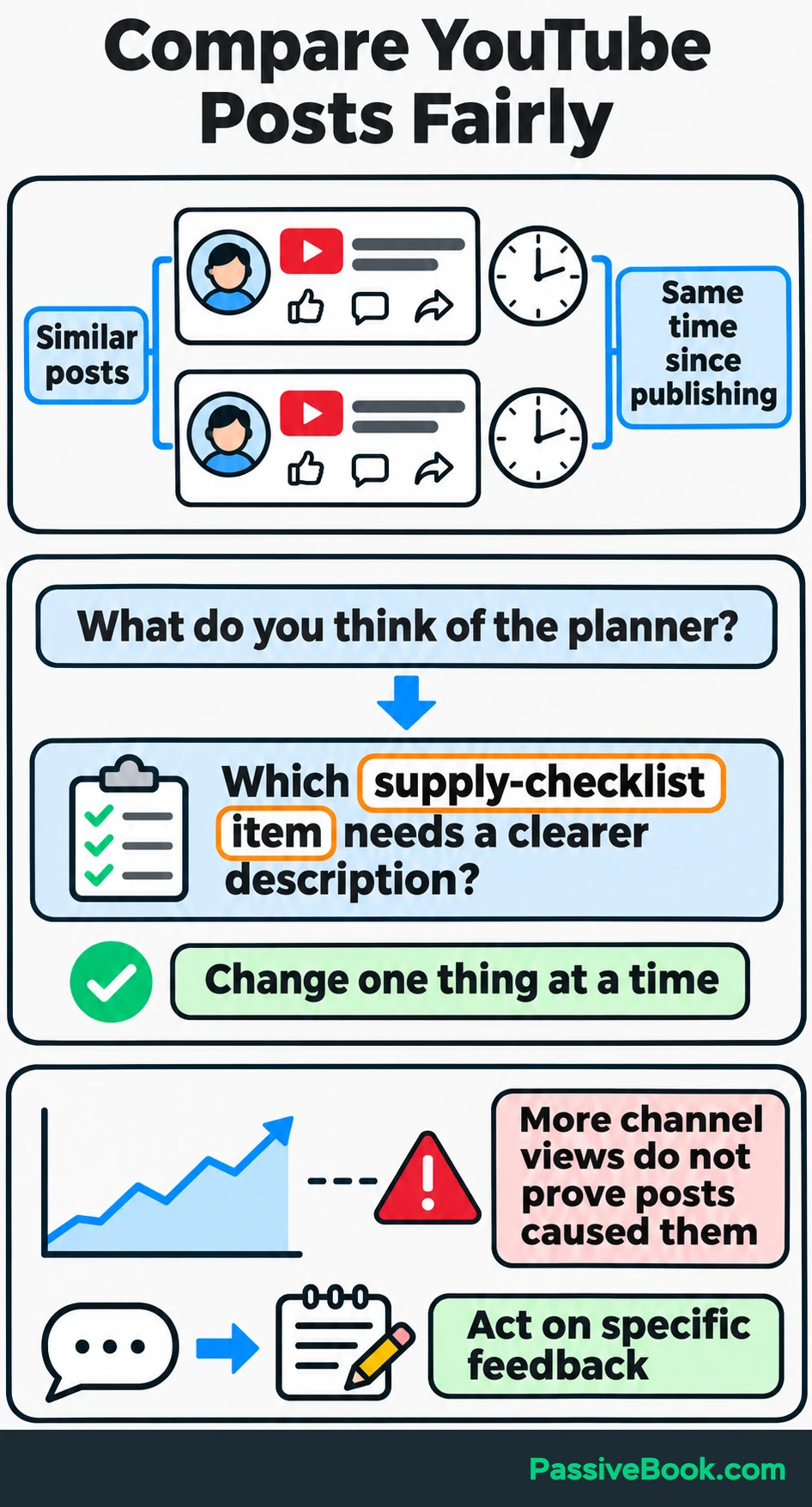
I would review posts weekly and change one thing at a time. If a question is too broad, make it narrower before deciding the whole topic failed.
For example, “What do you think of the planner?” could become “Which supply-checklist item needs a clearer description?” The second question gives you a more useful answer to act on.
Votes and comments show interaction. A rise in channel views or returning viewers alone doesn’t establish that posts caused it. Use the direct responses to choose your next useful action rather than crediting every improvement to your posting schedule.
What Next?
Open the post composer and turn one unanswered question from your latest video into a focused text post or poll. Leave time to read and reply before planning the next one.
Use the social buttons to share this guide when you’re comparing ways to stay connected between uploads without adding another filming session.
Which question from your viewers would make the most useful first post? Share it in the comments, and bring any other questions about publishing or planning posts.
Share this post with your friends & followers:

