A viewer asks which supplies they need, and a fake account replies with a payment link. Another thread has turned into a fight. Meanwhile, the question you actually want to answer gets buried.
You can remove each problem as it appears, but that leaves you checking the channel when you should be making something else.
YouTube has free controls that can catch some trouble before it reaches viewers. Here’s how to use them across comments, Community posts and live chat, and when to bring in a trusted moderator so every discussion doesn’t depend on you being present.
Set Your Comment Moderation Defaults
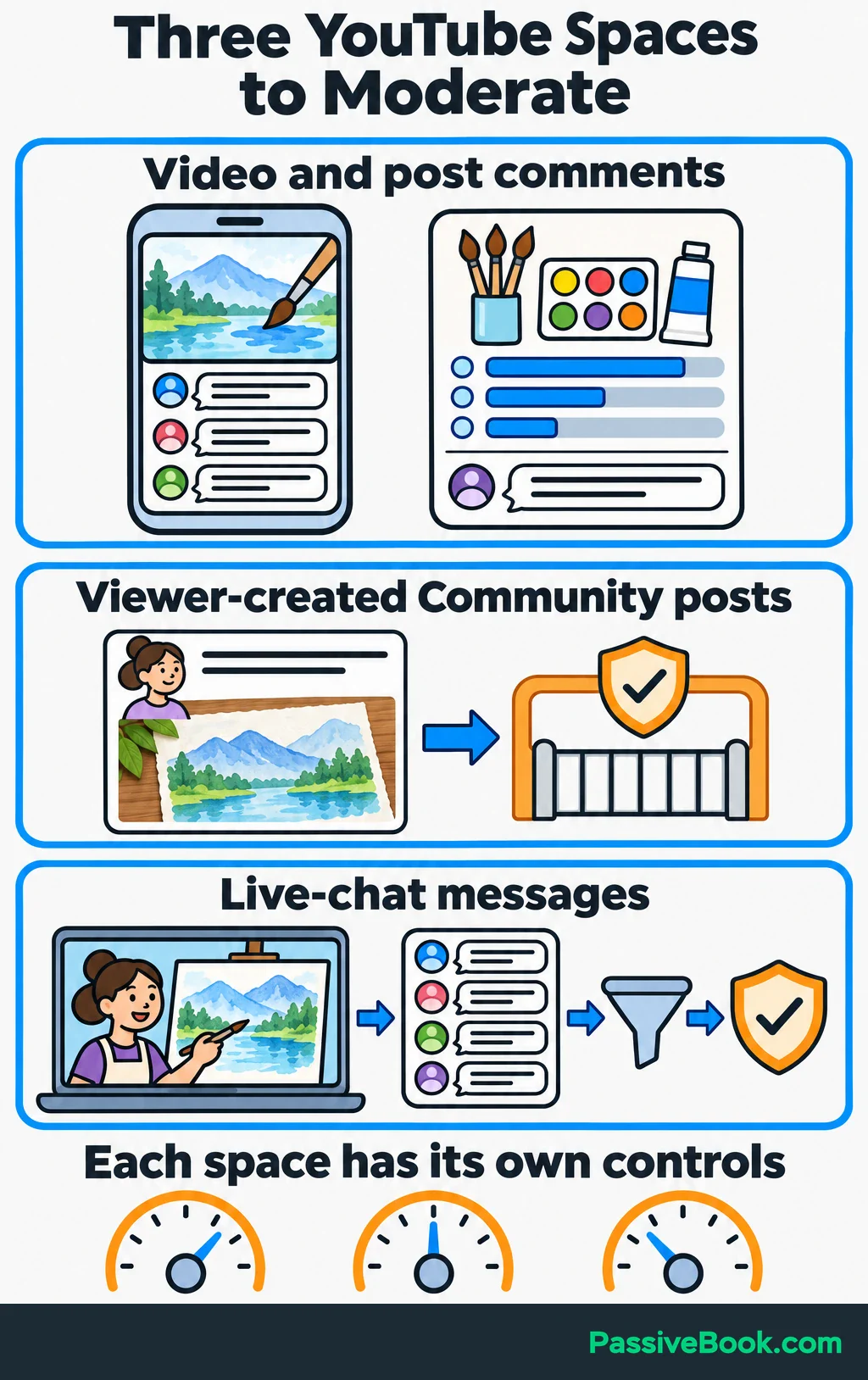
Start by separating three places viewers can write: comments beneath your videos and posts, viewer-created posts in your Community, and live-chat messages. Each has its own controls.
Use YouTube Studio to configure settings and review queues. The regular YouTube app lets you act while watching a video or visiting your Community, and live chat has controls you use during a stream.
Before changing filters, decide what you’ll allow. I would start with three channel rules:
- Welcome relevant questions and criticism.
- Prohibit spam, scams and unrelated promotion.
- Prohibit harassment and sharing personal information.
Save these in Channel guidelines under Studio’s Community moderation settings. They communicate expectations, but YouTube does not automatically enforce your custom rules. YouTube explains how channel guidelines work.
For the examples throughout this guide, imagine you run a beginner watercolor channel and sell a painting course. You publish tutorials and supply polls, invite viewers to share paintings, and occasionally teach live lessons.
To configure your defaults:
- Desktop: Open YouTube Studio’s Settings, select Community moderation, then Content controls.
- Android or iPhone: Open the Studio app, tap your profile picture and Settings, then select Content controls under Community.
Choose your settings and save where prompted.
Choose Which Comments to Hold
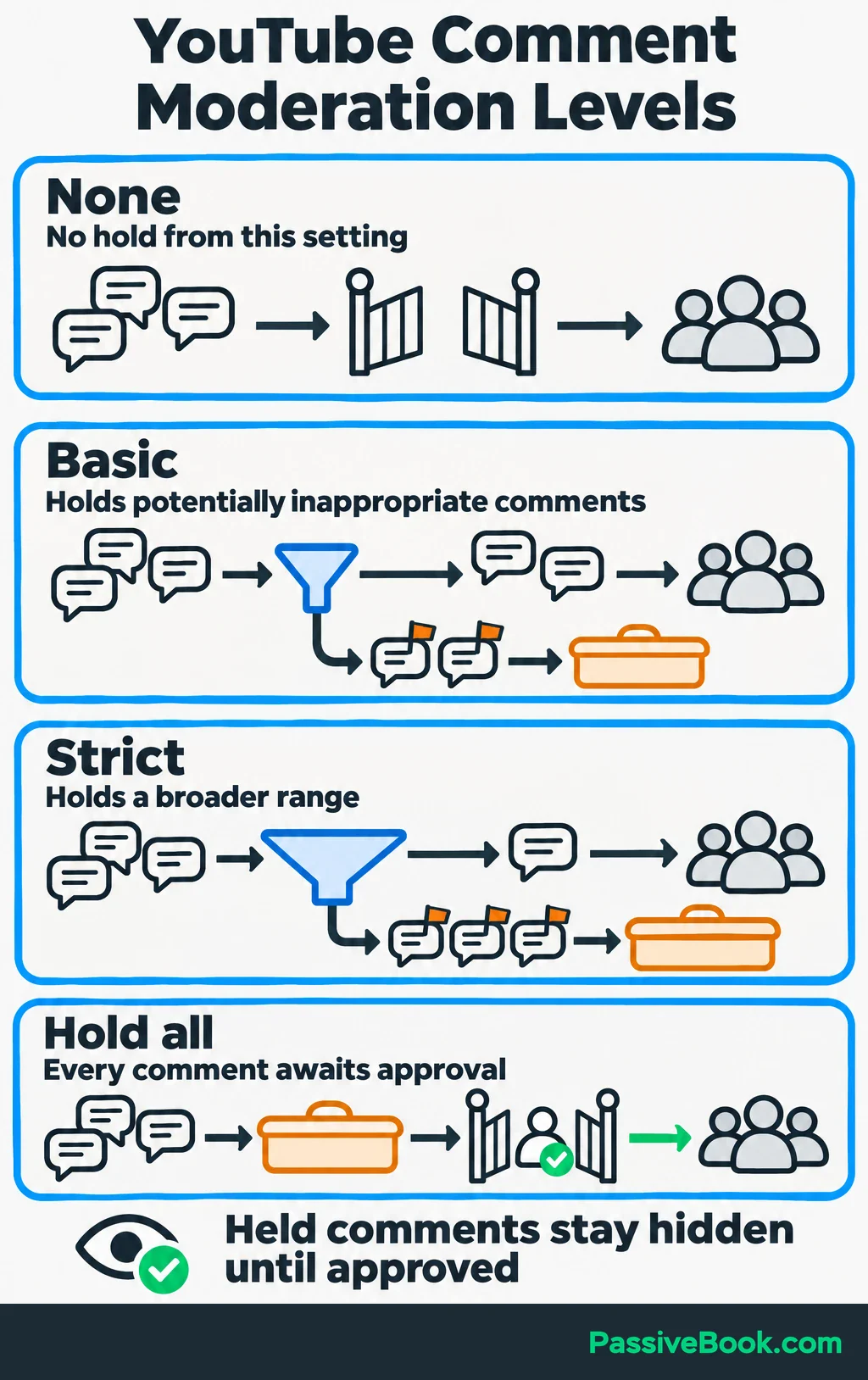
Turn comments on and choose a moderation level below. Held comments stay hidden from viewers until you approve them.
| Setting | What it does | When I would choose it |
|---|---|---|
| None | Adds no moderation hold through this setting. | When you deliberately want to review published discussion yourself. |
| Basic | Holds potentially inappropriate comments. | As the starting point for ordinary discussion. |
| Strict | Holds a broader range of potentially inappropriate comments. | When harmful comments repeatedly get through Basic. |
| Hold all | Sends comments for approval before publication. | When every submission needs review and you can handle the queue. |
For the watercolor channel, I would start with Basic. A comment such as “The lesson moves too fast” should remain eligible for discussion, even if it stings a little.
Check both held and published comments. Filters can hold a useful contribution and miss an abusive one, so neither queue tells the whole story.
Hold all is a reasonable choice during a difficult period. Just remember that viewers will be waiting for you to approve their contributions.
Add Focused Word and Link Filters
Use Blocked words for recurring scam phrases and abusive terms. Enter words or phrases separated by commas, and build the list from problems you actually see.
Be specific. If scam replies repeatedly say “message my prize account,” that phrase is more useful than blocking “message.” Blocking “brush” on a painting channel would create a queue full of perfectly reasonable questions.
To hold comments and viewer posts containing URLs or hashtags for review, turn on Link text. In live chat, the link filter blocks messages containing URLs, and blocked words block matching messages.
Comments from you, moderators and approved users bypass the link filter. Approved users’ comments also bypass blocked-word and potentially inappropriate-content filters. YouTube details these filtering exceptions.
Keep that approved-user list small. Approval gives someone a filter exemption; it does not give them moderation powers.
Change Protection on Existing Videos
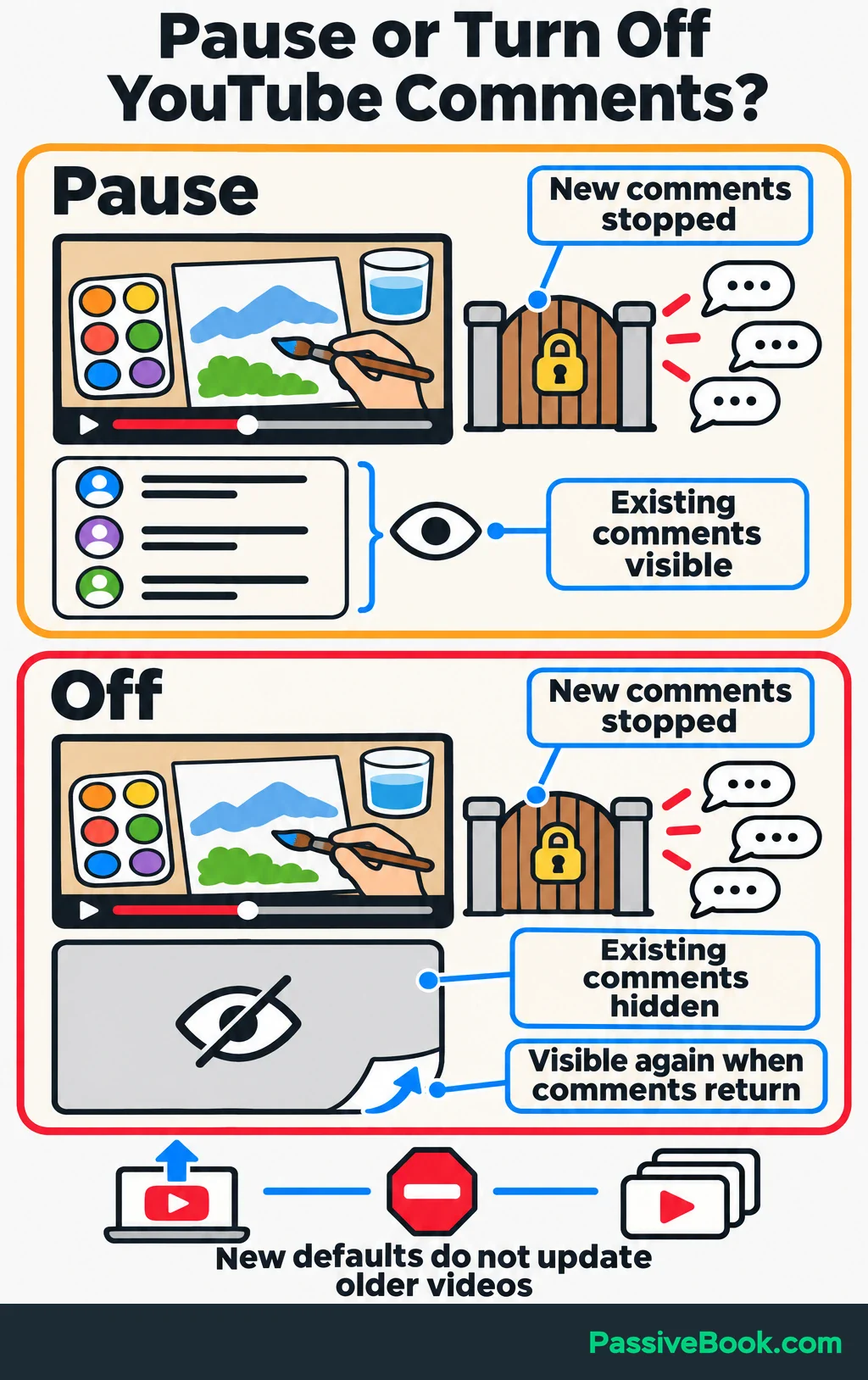
Your default comment settings apply to new videos and posts. They do not update the existing ones. YouTube confirms the scope of comment defaults.
To change an older video on desktop:
- Open Content in Studio and select the video.
- Expand Show more.
- Find Comments and ratings, choose the settings, and save.
For several videos, select them in Content and use the bulk-edit comment settings. Channel-wide word and link filters also cover future comments beneath older videos.
On mobile, open your video in the regular YouTube app. Open Comments, tap the settings icon, and change Comments under For this video.
Choose the response that fits the problem:
- Pause: Stops new comments while keeping existing comments visible.
- Off: Stops commenting and hides existing comments until you turn comments back on.
- Subscribers and members: Limits who can comment, with a minimum subscription time you choose. Apply this per video rather than as a channel default.
I would pause a tutorial during a sudden pile-on if I needed time to review it. Turning everything off would also hide useful materials questions already answered.
Comments are unavailable on private videos and videos designated made for kids.
Review Comments and Act on Abuse
On desktop, open Community in Studio and check Published and Held. On Android or iPhone, open Community in the Studio app and select View all, then switch between published and held comments.
Use Content type to focus on videos or My posts. Response status helps you find questions you haven’t answered.
Review held comments regularly. Automatically held comments remain available for up to 60 days, so the queue is not permanent storage. YouTube’s held-comment retention rules.
Approve, Remove, or Report Individual Comments
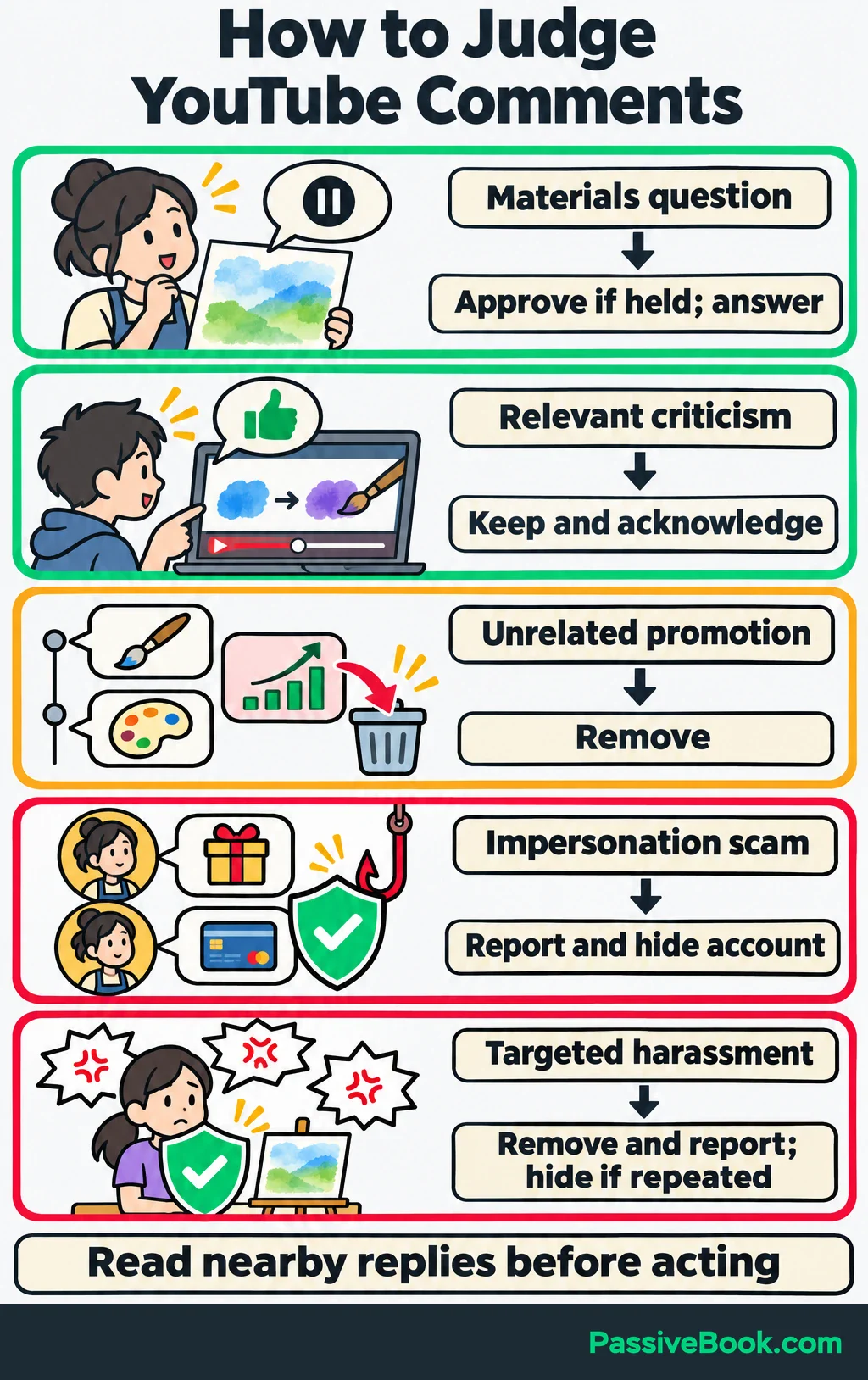
Read the comment and nearby replies before acting. A sentence that looks hostile alone may be quoting something another person said.
Approve legitimate held comments. Remove content that breaks your channel rules, and report spam or content that violates YouTube’s policies. An off-topic comment may break your rules without violating YouTube’s policies, so removal does not always call for a report.
Some situations need a short explanation as well as a moderation action. If you’re unsure how to word it, start with your channel rules and what actually happened.

Free AI Community Host




Here’s how I would apply that distinction to the watercolor channel:
| Comment type | Watercolor example | Action | Reason |
|---|---|---|---|
| Materials question | “Can I use student-grade paper for this exercise?” | Approve if held, then answer. | It helps the viewer follow the lesson. |
| Relevant criticism | “You move through the mixing step too quickly.” | Retain and acknowledge. | It identifies a teaching problem. |
| Unrelated promotion | “Visit my channel for daily stock picks.” | Remove. | It distracts from the discussion and breaks the promotion rule. |
| Impersonation scam | An account copying your branding says, “You won a painting kit. Pay shipping here.” | Report the scam and hide the account. | It impersonates the channel and asks viewers for money. |
| Targeted harassment | Repeated insults aimed at a viewer who shared their first painting. | Remove and report; hide the account if the behavior continues. | It targets a person and prevents useful participation. |
Use the menu beside a comment to find the available actions.
Then give useful contributions some attention. Answer questions, heart helpful replies, and pin a reusable answer beneath a video when several viewers need it.
For example, a pinned comment could clarify which paper and brush the lesson uses. That gives the next viewer somewhere useful to look before posting the same question.
Hide Persistent Offenders and Reverse Mistaken Hides
Choose Hide from channel from the menu beside a comment when an account repeatedly harasses people or is clearly running a scam.
Hiding applies across comments, live chat and Community posts, and YouTube does not notify the hidden user. It is broader than removing one comment. YouTube explains channel-wide hiding.
I would use it for a fake prize account immediately. A viewer who dislikes your teaching style has not earned the same treatment.
To reverse a mistaken hide, open Studio’s Community moderation settings and select User management. Remove the account from Hidden users and save. New comments from that account can appear again.
Moderate Creator Posts and Viewer Posts
Comments beneath a supply poll you publish are different from a painting photo a subscriber posts in your Community.
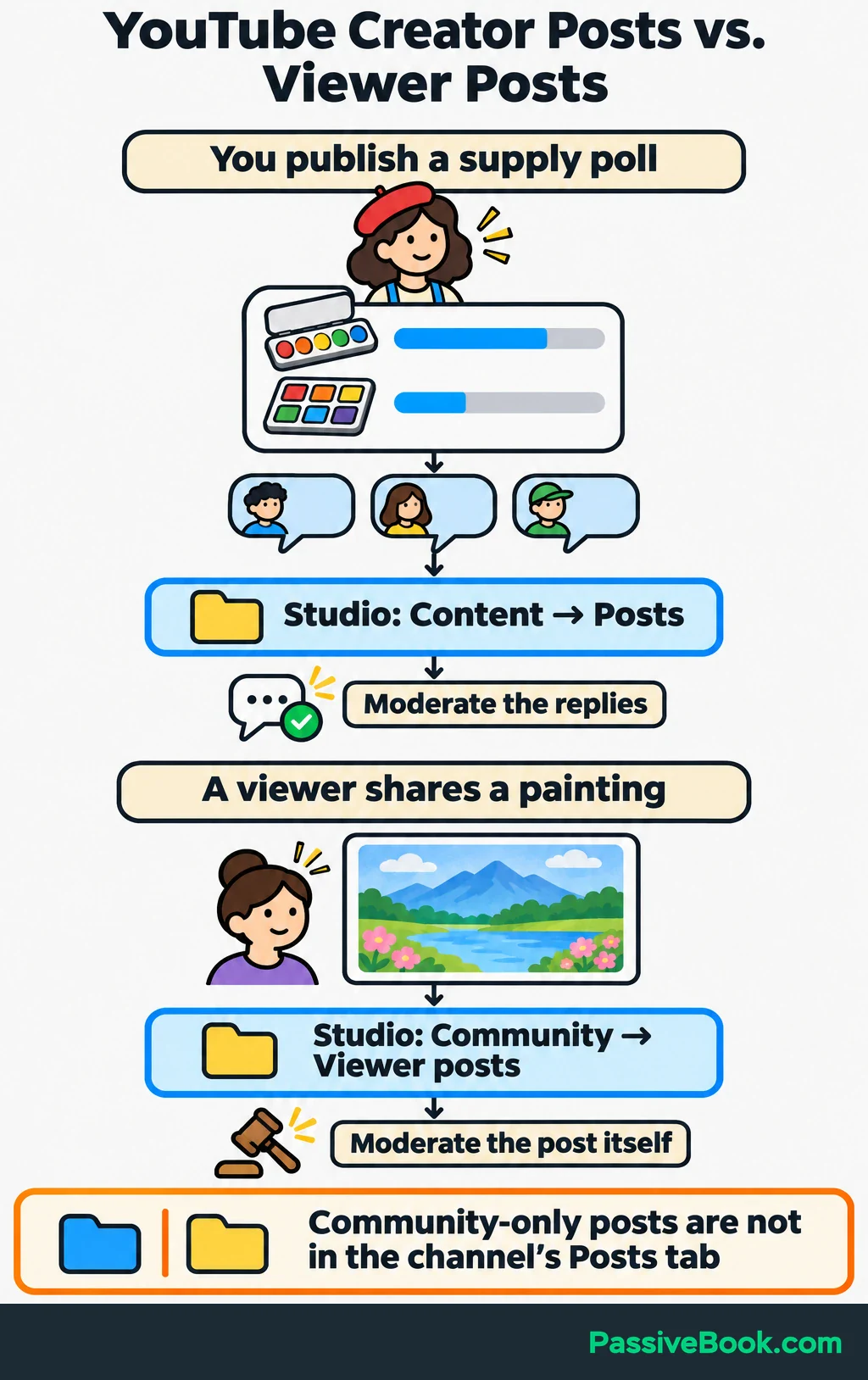
Your regular channel posts appear in the Posts tab. If you enable a Community, subscribers can also create posts there. Community-only posts do not appear in the channel’s Posts tab. YouTube explains the distinction between these spaces.
That difference determines where you review the content and which settings apply.
Manage Comments Beneath Your Posts
In Studio’s Content area, select Posts. Find your published post and open its comments.
Apply the same rules you use beneath videos: approve useful held replies, retain relevant criticism, remove unwanted promotion, and report scams or abuse.
To change an existing post’s comment settings, open its Details, choose the settings, and save. Pause is unavailable for posts.
Suppose your supply poll asks viewers to choose between two paint sets. Keep replies explaining why neither set suits a beginner. Remove fake discount links.
If several people misunderstand the question, edit the post itself. Moderation cannot repair a confusing poll by deleting everyone who noticed.
Control Viewer-created Community Posts
First, confirm that your Community is enabled. In the YouTube app, visit your channel’s Posts area and select Turn on my Community if available, then finish the setup.
Next, choose who can post. Open Visit Community, then Community settings and Who can post. Set the minimum time someone must have been subscribed before posting.
In Studio’s Content controls, choose a viewer-post moderation level:
- None: Adds no moderation hold for viewer posts.
- Basic: Holds potentially inappropriate posts.
- Hold all: Holds viewer posts until approval.
I would start with Basic for general painting discussions. If you want to check every submission before it appears, choose Hold all. Existing word and link filters also apply.
On desktop, open Community in Studio, select Viewer posts, and review both Held and Published. Approve useful painting questions or photos, remove unwanted promotions, and report violations.
On mobile, visit the Community and open a post’s menu. Owners can remove or report posts. Moderators can choose Hold in Studio to send a post for owner review.
Not interested only removes a post from your own view. Other viewers can still see it, so it does not solve a moderation problem. YouTube describes these Community moderation actions.
Assign Trusted Moderators
Delegate when your review backlog keeps returning or when presenting a live lesson prevents you from watching the conversation.
Choose someone who can leave criticism alone and act on abuse. Being enthusiastic about your channel is useful, but judgment matters more.
I would start with a standard moderator and grant managing moderator access only when the person needs the extra controls.
| Role | Comment and viewer-post actions | Live-chat actions | Settings access |
|---|---|---|---|
| Standard moderator | Hold video comments and viewer posts for owner review, report comments, and hide users. | Remove messages, issue timeouts, hide users, and review held messages. | No access to change moderation settings. |
| Managing moderator | The same actions, plus management of standard moderators and approved users. | The same actions, plus participation controls and message delays. | Can change supported comment settings and filters through moderation controls. |
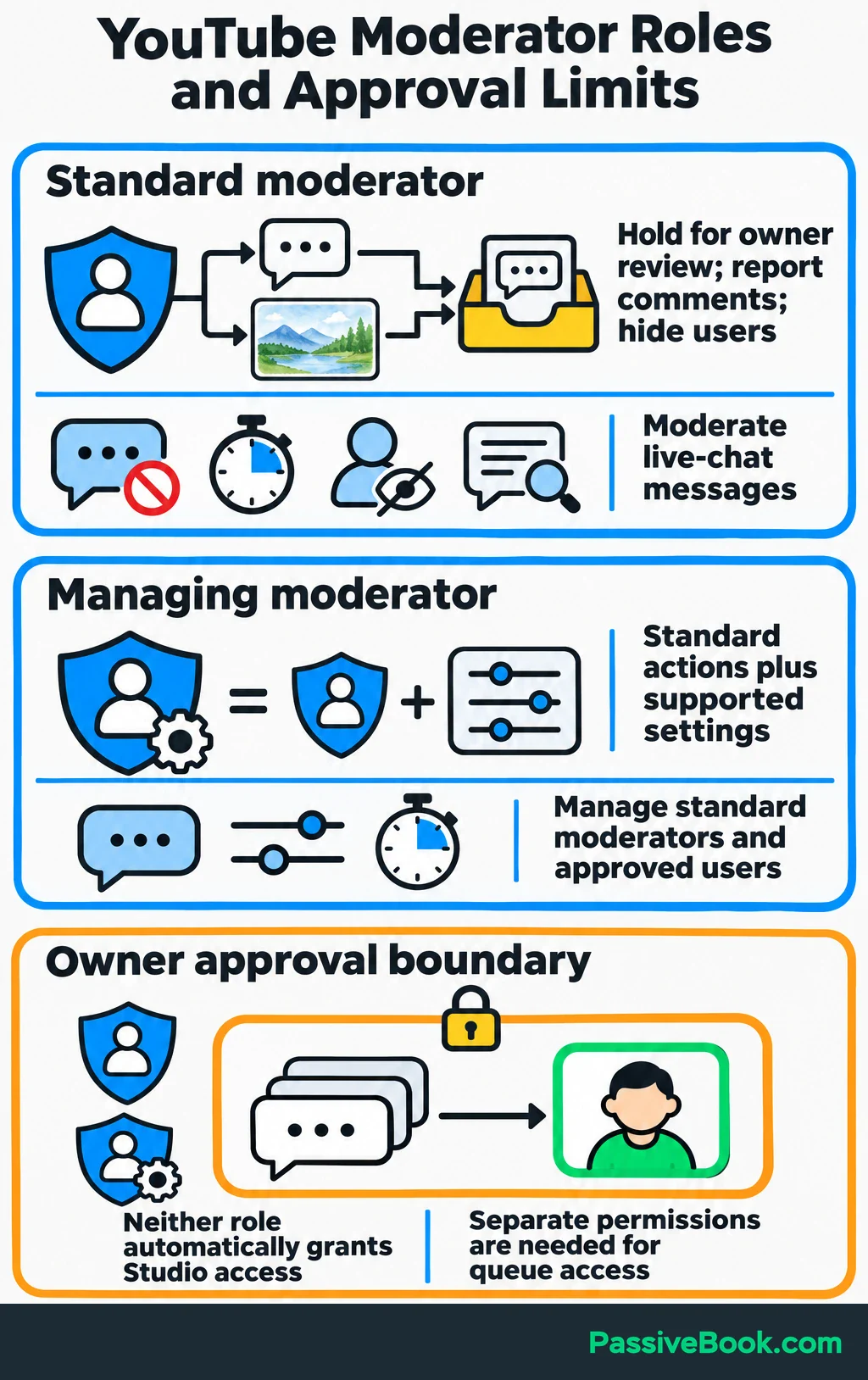
Neither role automatically grants access to YouTube Studio or its held-comment queue. Keep approvals with the owner unless you deliberately grant separate channel permissions. YouTube explains moderator access limits.
To add someone on desktop, open User management in Studio’s Community moderation settings. Enter their channel URL under Standard moderators or Managing moderators and save.
On mobile, open the menu beside their comment on one of your videos, choose Add as moderator, and select the role. Remove access when the responsibility ends.
Give the person a short handoff covering:
- Allowed discussion: Questions, corrections and criticism of the lesson.
- Prohibited behavior: Scams, personal attacks, unwanted promotion and personal information.
- Uncertain cases: Hold comments or viewer posts for your review. Ask you about uncertain chat messages before acting.
- Clear repeat abuse: Hide the account according to your agreed rules.
Practise with a few watercolor examples before a live lesson. Agree on how they can reach you while you’re teaching, and assign a role instead of sharing your password.
Configure and Moderate Live Chat
Live chat needs its own setup because decisions happen while the conversation is moving. Your video-comment defaults do not replace these controls.
Prepare Filters and Participation Controls
Start with the automatic chat filter in Content controls. On desktop, find Messages in your live chat; in the Studio app, find Live chat moderation. Choose Basic or Strict. Basic holds potentially inappropriate messages; Strict holds a broader range.
Then open the stream’s settings in Live Control Room, the Studio area for managing broadcasts.
Under Customization, enable Slow mode and choose a message delay if chat is becoming difficult to follow. This limits how often each viewer can send messages, but owners, moderators and channel members are exempt.
To limit who can send messages, open the stream’s Edit settings and select Live chat. Under Who can send a message, choose Subscribers and set a minimum subscription duration. Members-only chat suits events for paying channel members, but it cannot run alongside subscribers-only chat. Slow mode can work with subscribers-only chat. YouTube explains these live-chat controls.
For a public watercolor lesson, I would start with Basic and add Slow mode when needed. Requiring a subscription is reasonable during disruption, but it also adds a step for a new viewer asking an honest question.
Before going live, confirm that your moderator can enter the chat and contact you. A managing moderator can adjust participation and message delays through chat settings in the YouTube app.
Handle Held Messages and Disruptive Viewers
Show legitimate held messages and hide abusive ones. Messages left without a decision remain hidden.
On desktop, open the message’s menu. On mobile, tap the message in the YouTube app and select an action.
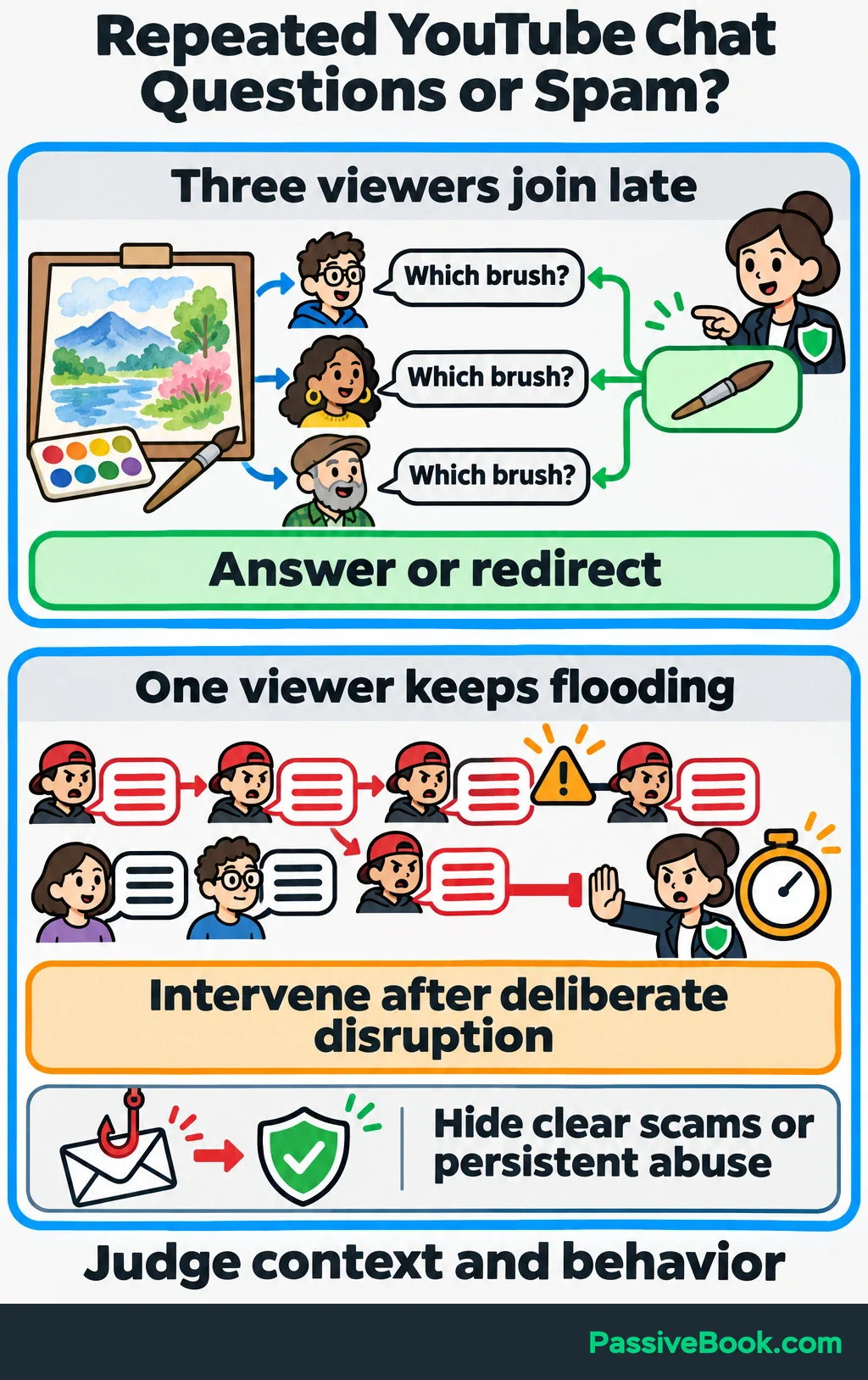
Use the controls according to the behavior:
- Remove: Clear a harmful message.
- Timeout: Temporarily stop someone from sending messages when they are disrupting the lesson.
- Hide: Deal with persistent abuse or a clear scam account.
Available timeouts range from 10 seconds to 24 hours. Both moderator roles can issue them and review held chat messages. YouTube details live-chat moderator actions.
Repeated questions need judgment. Three viewers asking which brush you’re using may have joined late. Answer or redirect them. One person deliberately flooding the chat after a warning needs intervention.
During a larger disruption, tighten participation or turn chat off if necessary. You cannot disable chat during Premieres.
After the stream, review comments beneath the recording separately from chat replay. They are different conversations with different controls.
Keep Moderation Manageable
Build a review routine around publishing activity and the amount of discussion you receive.
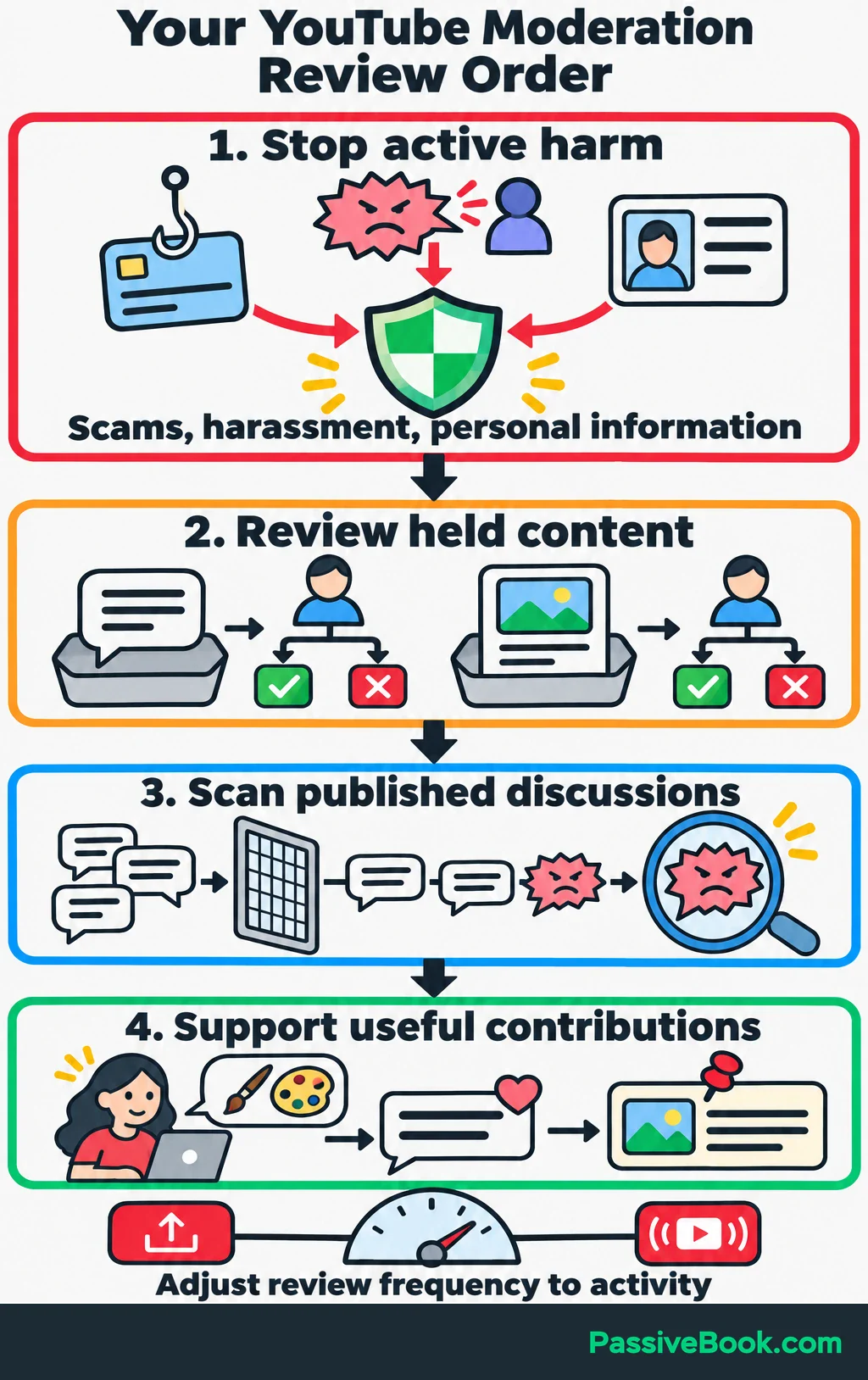
I would check after publishing and around live events, then adjust the schedule to the queue. Use this order:
- Address active scams, harassment or exposed personal information.
- Review held comments and viewer posts.
- Scan published discussions for problems the filters missed.
- Answer useful questions and acknowledge helpful contributions.
If legitimate painting questions keep getting held, narrow the blocked phrase responsible. A bigger filter list is not automatically a better one.
Also fix information gaps that keep creating work. On a digital-product site, I kept answering the same download question before adding the answer beside the download link. That experience shapes what I would do here: put recurring materials answers near the lesson instead of treating every repeat question as a moderation issue.
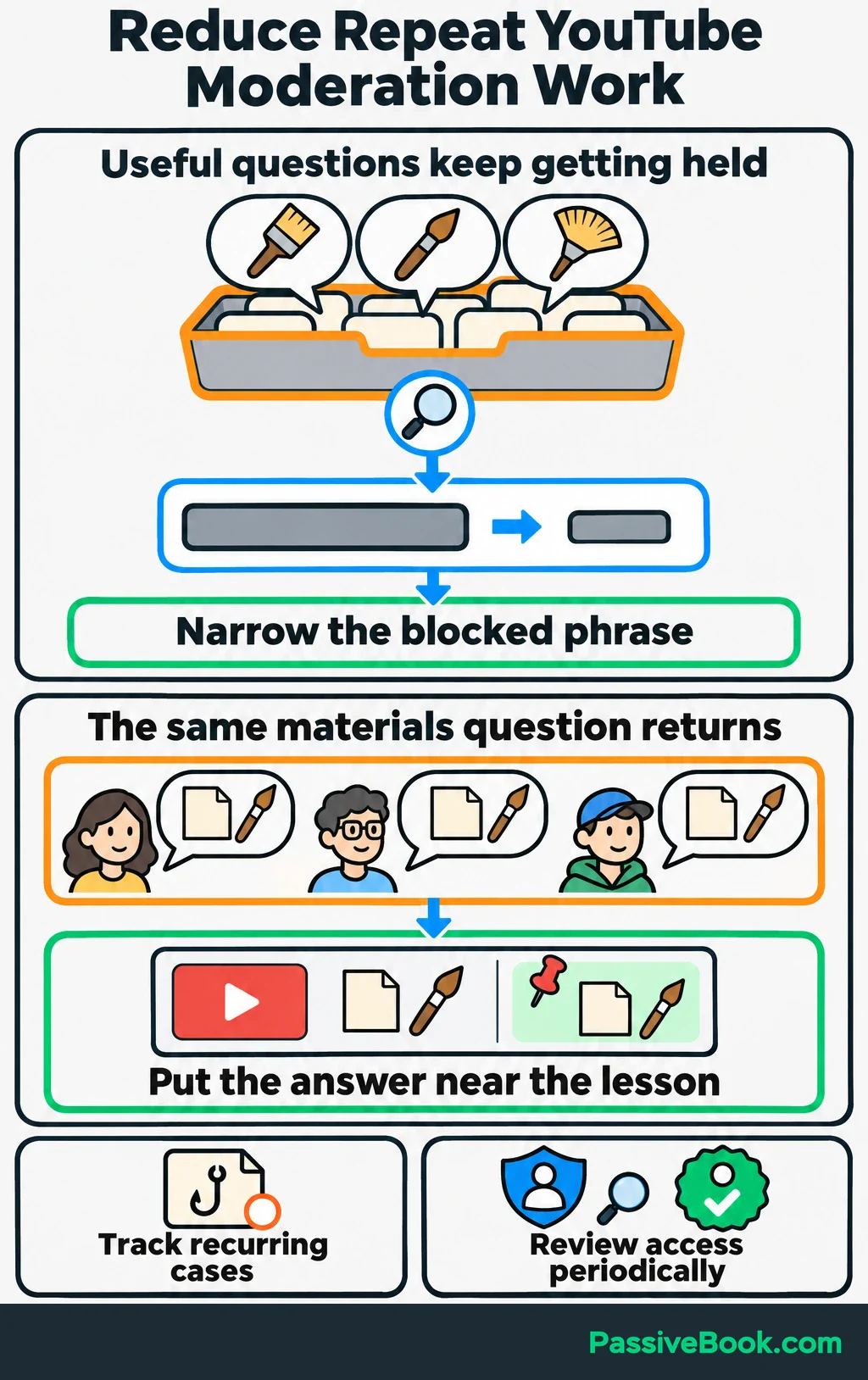
Keep a shared note for recurring scams and unresolved cases. Review moderator and approved-user access periodically, especially when people stop helping.
Start with YouTube’s free native tools. I would skip another subscription until you can name a task they cannot handle. Before paying, check the tool’s supported actions, required permissions, cost, and whether you can recover from a mistaken action.
Filters can catch some problems and moderators can share the work, but keep a review routine. The aim is a discussion you can manage without watching every reply arrive.
What Next?
Open Content controls and check the moderation level for new comments. Choose Basic if it fits your channel, then review Held to see what needs a decision.
Use the social buttons to share this guide when your moderation team needs the same rules and controls in front of them.
Which part of your channel needs the most attention: video comments, viewer posts or live chat? Tell me in the comments, and bring any other moderation questions with you.
Share this post with your friends & followers:

