Three theme demos look promising, but it’s hard to tell which will suit the site you actually need. One promises speed, another includes dozens of layouts, and a premium bundle promises to handle everything.
None tells you how much work an ordinary page update will take or what you’ll pay to keep the site running.
Those gaps can leave you rebuilding pages or buying tools you hadn’t budgeted for. This comparison pairs published speed tests with editing options, business fit, and ongoing costs to help you choose a theme you can comfortably maintain.
Which WordPress Theme Should You Choose?
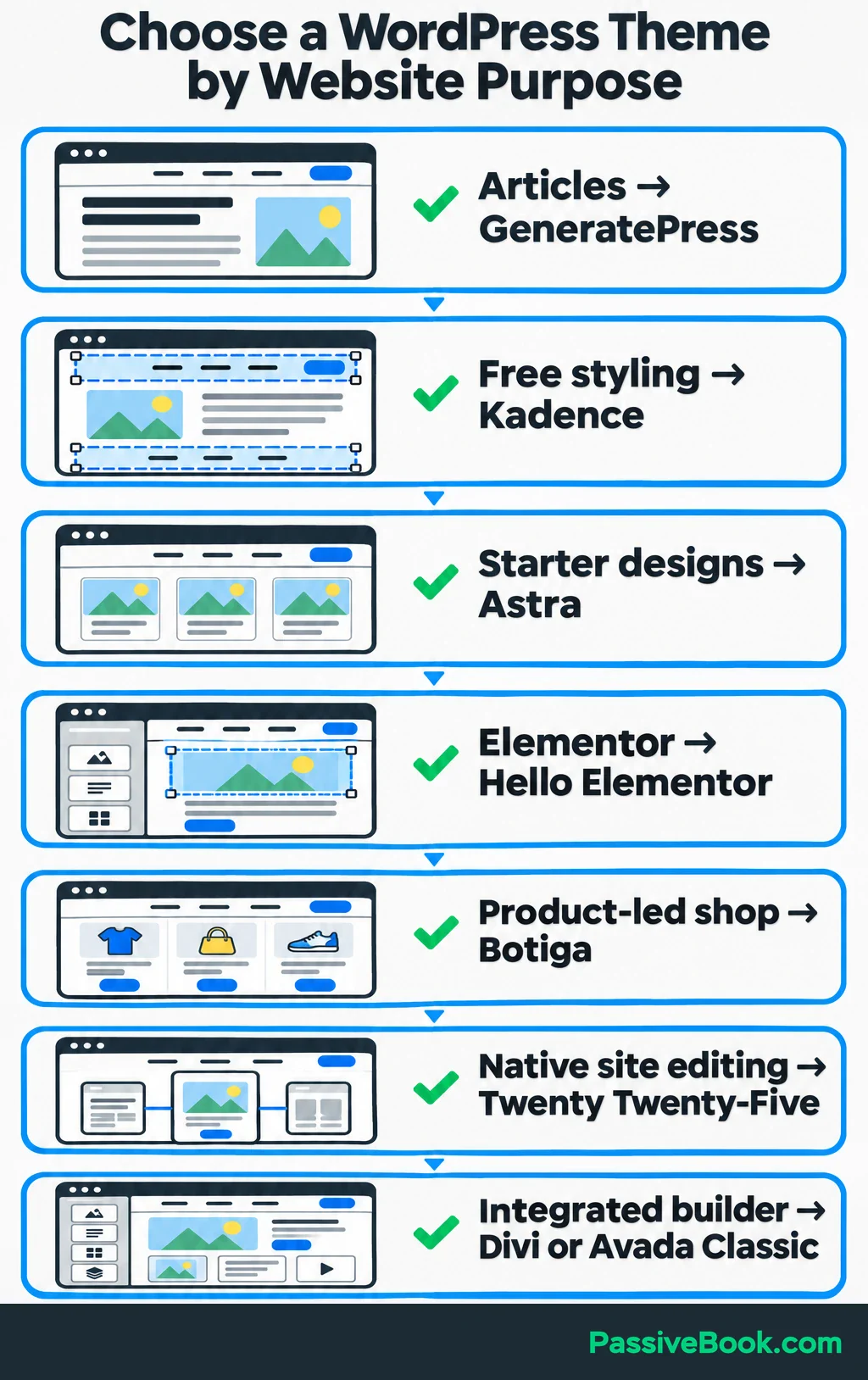
I would start with GeneratePress for a site built around articles. I use it with GenerateBlocks, a plugin that adds layout blocks to WordPress’s editor, for simple pages and reusable layouts.
But the best WordPress themes solve different problems. Use this shortlist to decide which two deserve a closer look:
- Content and readable articles: GeneratePress.
- Generous free header, footer, and styling controls: Kadence.
- A broad choice of starter designs: Astra.
- A site you plan to build with Elementor’s visual page builder: Hello Elementor.
- A shop where products lead the experience: Botiga.
- Free editing of the whole site through WordPress blocks: Twenty Twenty-Five.
- An integrated visual builder: Divi or Avada Classic.
A free theme can provide a professional foundation. Clear navigation, readable text, consistent spacing, and useful pages matter more than a premium badge.
Start by listing what visitors must do. Then choose a theme that makes those tasks easy to present and maintain.
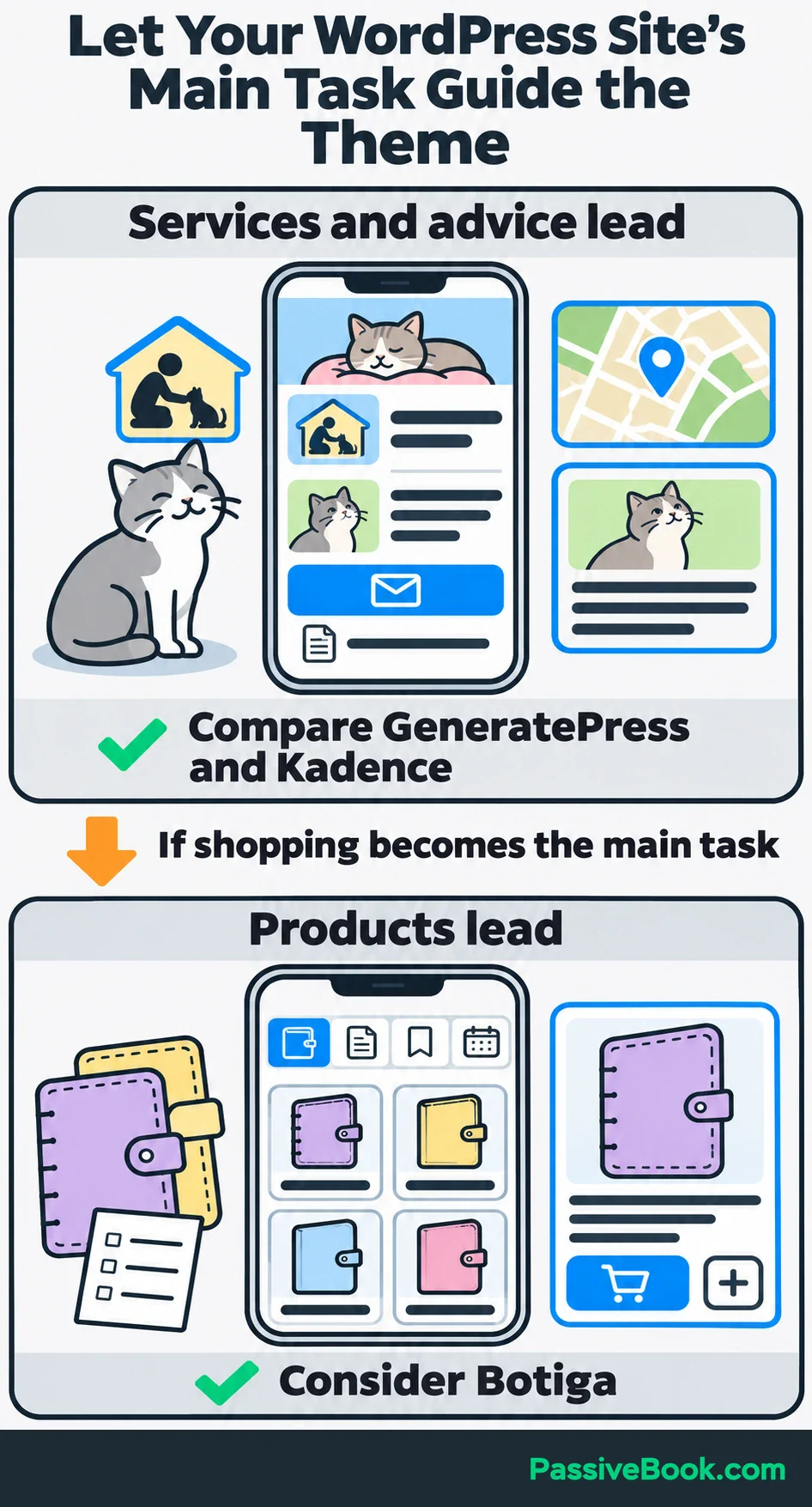
For the running example, imagine you offer senior-cat sitting. Your site needs advice articles, visit inquiries, an email signup, and downloadable care organizers sold through WooCommerce, a plugin that adds an online store to WordPress. Services and articles lead the site, while the small shop supports them.
I would compare GeneratePress and Kadence first for that brief. Botiga becomes more interesting if organizer sales grow into the site’s main purpose.
Choose Your Editing Workflow First
A theme can look right in a demo and still feel awkward every time you change a page. Decide how you want to work before comparing colors and layouts.
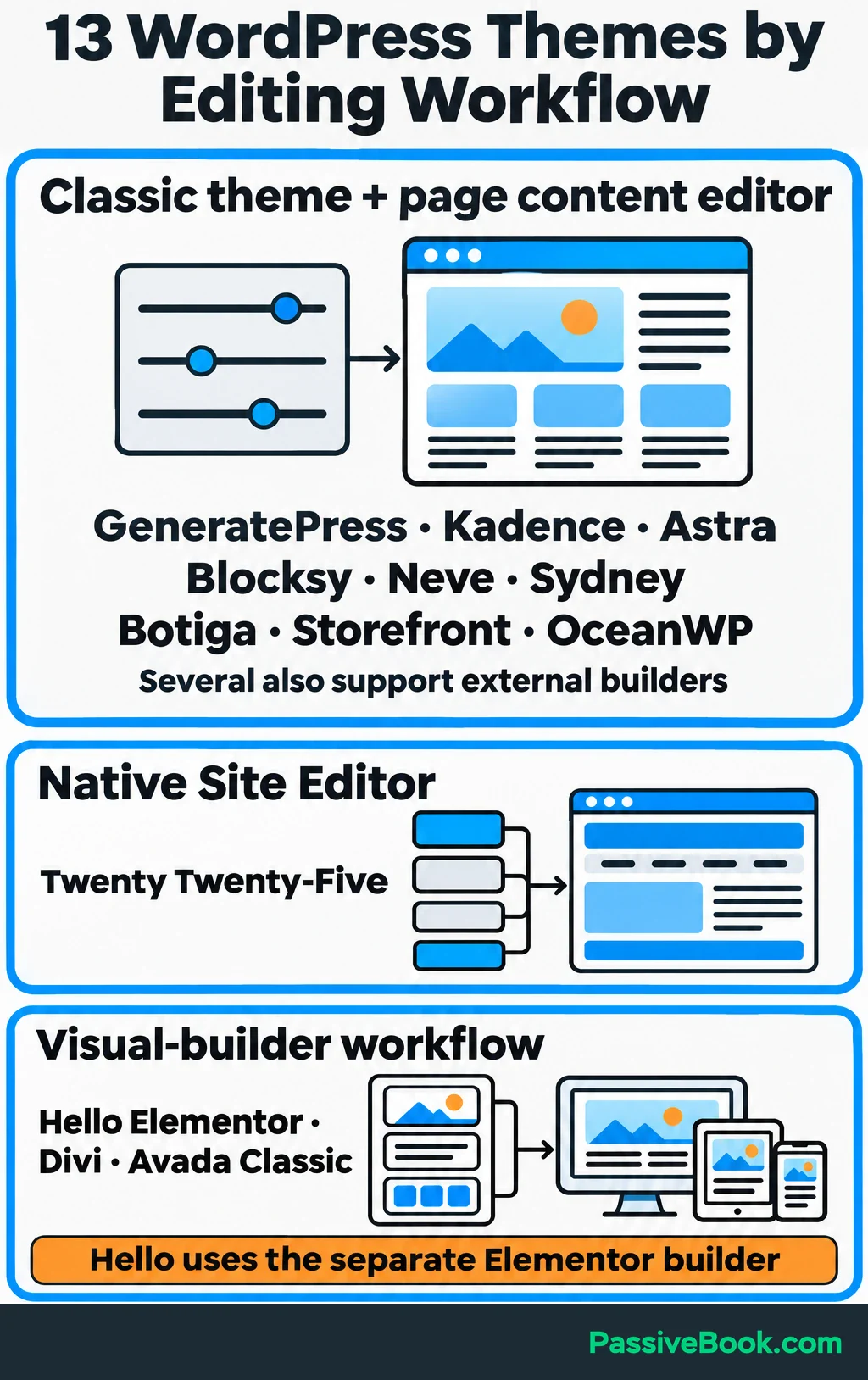
There are three main approaches:
| Workflow | How You Edit | What You Need to Learn |
|---|---|---|
| Classic theme with blocks | Theme controls handle site-wide presentation, and the block editor handles page content | Global styling, page layouts, and reusable blocks |
| Block theme | WordPress’s Site Editor handles headers, footers, navigation, and templates | The difference between editing one page and editing a shared template |
| Visual builder | A builder provides visual controls for pages and, where included, site-wide templates | The builder’s layout system, responsive controls, and license requirements |
GeneratePress, Astra, Kadence, and Blocksy fit the first approach. They work with the block editor without requiring you to build every part of the site inside a separate visual builder.
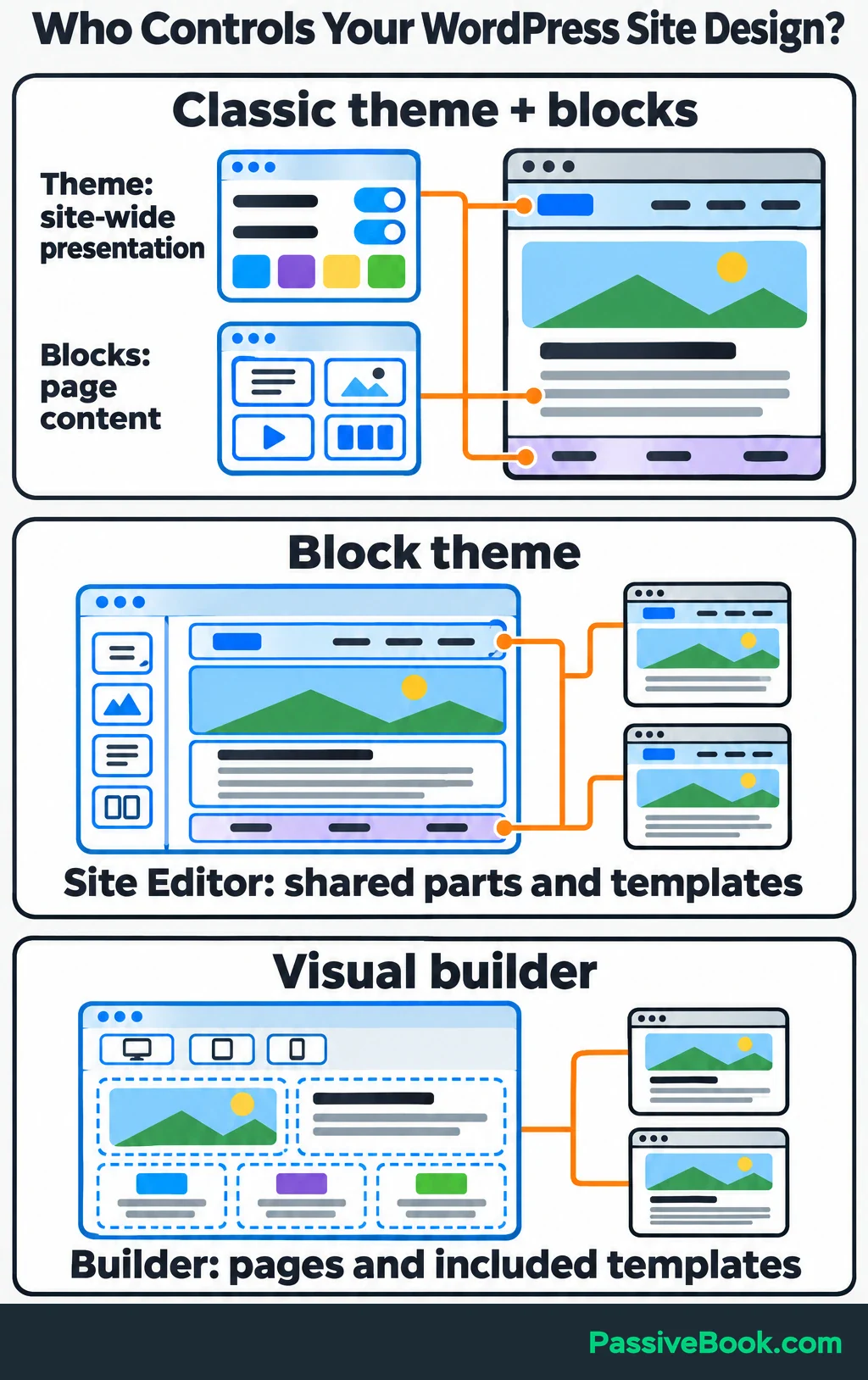
Twenty Twenty-Five fits the second. You can edit the site’s shared parts with WordPress blocks, but you need to understand where a change will appear. Editing an article template can affect many articles.
Hello with Elementor, Divi, and Avada Classic fit the third. Compare the theme and builder together because that combination determines your editing experience and much of the finished page’s complexity.
On one digital-product site, I built the same signup section separately on several pages. When the offer changed, I had to find and update each version. Moving it into a reusable section removed that small but persistent maintenance job.
That experience shapes what I check now: can I change a shared element once and trust the right pages to follow?
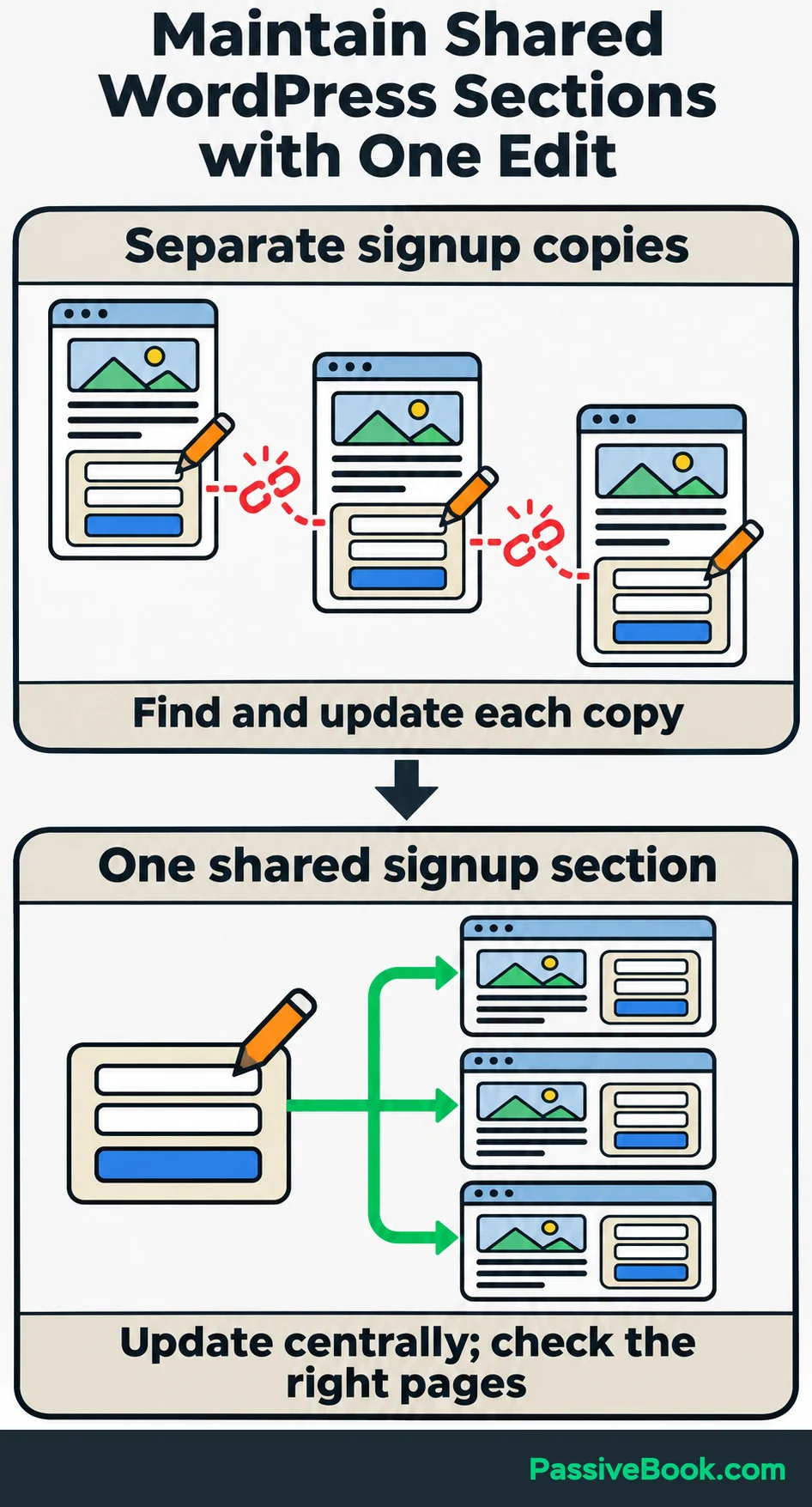
For your shortlist, try changing a header, updating a repeated signup section, and adding a new page. Those ordinary jobs tell you more than watching a polished demo.
Keep business functions in suitable plugins. In the cat-sitting example:
- The theme presents the visit-inquiry form; a forms plugin handles submissions.
- The signup section introduces the offer; an email tool manages subscribers.
- The product page presents the organizer; WooCommerce handles the purchase.
I use Fluent Forms for forms and FluentCRM for WordPress-based email automation. Those are separate decisions from the theme.
Choose one main design workflow. Learning three overlapping layout systems is an impressive way to postpone publishing.
How to Read the Speed Results
The speed figures below come from published tests by NitroPack, WPForms, and WP Rocket. I haven’t personally speed-tested all 13 themes.
Their tests used different workloads, so the numbers support a shortlist rather than one fastest-to-slowest ranking:
- NitroPack tested blank WordPress installations with no added content or plugins. It measured page size with Pingdom’s speed test and mobile performance scores with Google’s PageSpeed Insights tool. NitroPack’s benchmark
- WPForms describes SiteGround shared hosting with common content and plugins. Its Twenty Twenty-Five result specifically refers to a fresh installation, so that figure needs separate treatment. WPForms’ benchmark
- WP Rocket used an OVH server in France with PHP 8.0 and separated lightweight themes from configurations using visual builders. WP Rocket’s benchmark
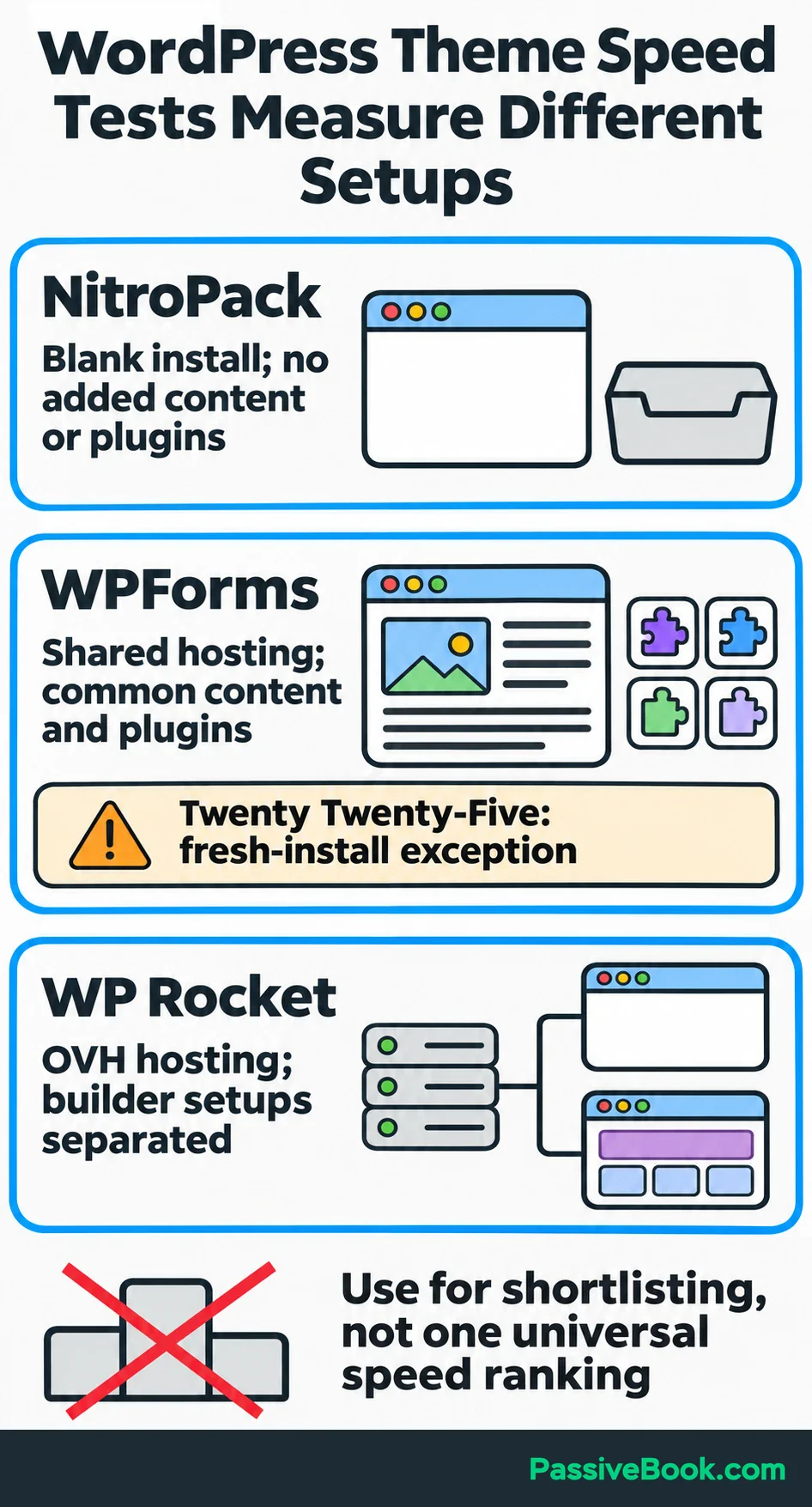
A blank theme’s page weight tells you something useful about its starting point. It doesn’t tell you how quickly your homepage will load after adding photography, forms, analytics, and product features.
Likewise, “load time” and “fully loaded time” are the publishers’ metric labels. They aren’t interchangeable measurements.
For your finished site, watch three Core Web Vitals:
| Metric | What It Measures | Good Threshold |
|---|---|---|
| Largest Contentful Paint, or LCP | How quickly the main visible content loads | 2.5 seconds or less |
| Interaction to Next Paint, or INP | How quickly the page responds to interactions | 200 milliseconds or less |
| Cumulative Layout Shift, or CLS | How much visible content moves unexpectedly | 0.1 or less |
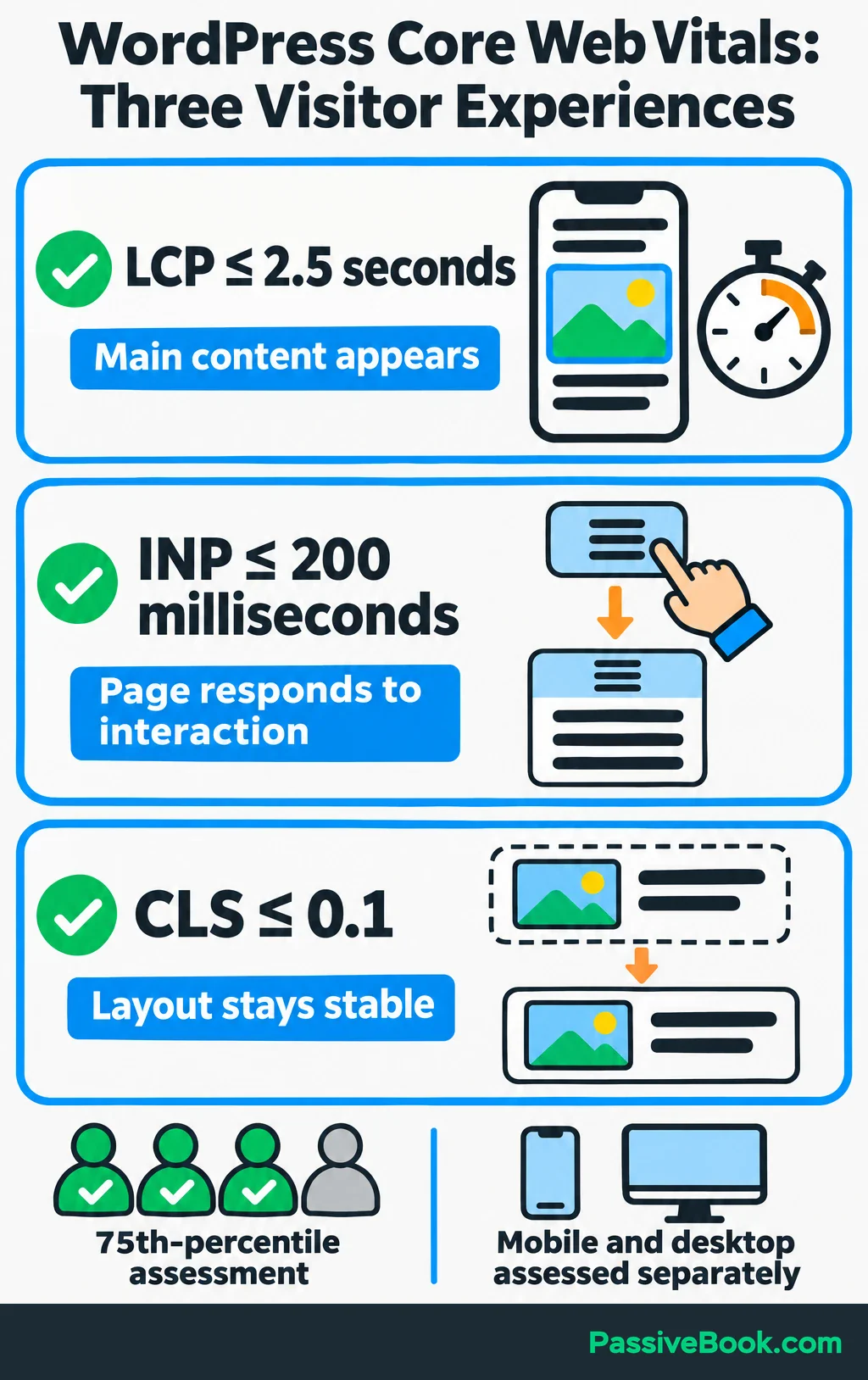
These targets are assessed at the 75th percentile, separately for mobile and desktop. In plain words, the assessment considers whether at least three-quarters of observed experiences meet each target. Google’s Core Web Vitals guidance
PageSpeed Insights shows results from simulated tests and, where available, data from actual visitors. A high simulated score doesn’t prove that actual visitors meet the Core Web Vitals targets.
Use the published figures to eliminate poor fits. Let tests of your actual pages decide between the finalists.
The 13 Best WordPress Themes Compared
The entry numbers help you navigate; they don’t rank speed.
The table keeps quoted prices in one place. These are displayed USD offers for selected options, before applicable taxes or fees. Linked product pages provide current terms. A paid package is an option to assess, not a required purchase.
| Theme | Best Use Case | Editing Workflow | Free Availability | Selected Paid Option and Site Limit | Purchase and Renewal Costs | Source-Labeled Speed Result | Principal Trade-Off |
|---|---|---|---|---|---|---|---|
| GeneratePress | Articles and reusable content layouts | Classic theme + blocks | Free theme | GeneratePress One, 1 site | $99/year, renewing yearly | NitroPack: 99/100 mobile; 37.7 KB page | Custom layouts need some design work |
| Kadence | Business sites needing strong free styling controls | Classic theme + blocks | Free theme | Vendor software package, 1 site | $350/year for the wider software bundle | NitroPack: 99/100 mobile; 54.8 KB page | The paid bundle may include software you don’t need |
| Astra | Adapting a suitable starter design | Classic theme + blocks or builder | Free theme | Astra Pro + AI, up to 3 sites | $99 first year; $149/year renewal | NitroPack: 100/100 mobile; 48.5 KB page | Demo dependencies and premium templates need checking |
| Blocksy | A blog with a growing shop | Classic theme + blocks | Free theme | Personal Pro, 1 site | $69/year or $199 lifetime | WPForms: 0.67-second load time | Extensive controls add setup decisions |
| Neve | A conventional business homepage and articles | Classic theme + blocks or builder | Free theme | Personal Pro, unlimited sites | $69 introductory year; $139/year standard renewal | NitroPack: 100/100 mobile; 42.4 KB page | Advanced store controls require a higher tier |
| Hello Elementor | An Elementor-based site | Elementor builder | Free theme and free builder edition | Elementor Pro Essential or Advanced Solo, 1 site | Theme is $0; paid builder price quoted separately and renews at its regular rate | NitroPack: 99/100 mobile; 32.7 KB page, without Elementor | The quoted result excludes the builder you’ll use |
| Twenty Twenty-Five | Free native editing across the site | WordPress Site Editor | Free theme | No premium theme tier | $0 theme cost; no theme renewal | WPForms: under 0.6-second load time on a fresh installation | Templates and global styles take practice |
| Sydney | Services and visit inquiries | Classic theme + blocks or Elementor | Free theme | Personal Pro, 1 site | $63 promotional first year; $79/year regular renewal; 12 months’ support included; support extension listed separately at $49/year | NitroPack: 99/100 mobile; 48.1 KB page | Optional Elementor widgets add a builder dependency |
| Botiga | A product-led WooCommerce shop | Theme controls + blocks or supported builder | Free theme | Personal Pro, 1 site | $63 promotional first year; $79/year regular renewal; 12 months’ support included; support extension listed separately at $49/year | WPForms: 0.41-second load time | Store controls offer less value for a service-led site |
| Storefront | A basic WooCommerce shop | Classic theme + page content editor | Free theme | No paid theme option selected | $0 base theme; additional styling may cost extra | WPForms: 0.73-second load time | A distinctive design can need more styling work |
| OceanWP | Detailed control over content and store presentation | Classic theme + blocks or builder | Free theme | Optional commercial extensions; current package allowance not verified | $0 base theme; paid package and renewal quote needed | WP Rocket: 2.9 seconds fully loaded; 88/100 mobile | More settings and extensions to manage |
| Divi | An integrated visual design system | Divi Builder | No free theme edition | Divi membership, unlimited sites | $89/year or $249 lifetime; optional services cost extra | WP Rocket: Divi + Divi Builder, 3.2 seconds fully loaded; 84/100 mobile | Changing builders can require layout rebuilding |
| Avada Classic | A feature-rich visual build | Avada’s integrated builder | No free theme edition | Envato Regular License, 1 end product | $69 once; future updates and 6 months’ support included; support extensions extra | WP Rocket: Avada + Fusion, 2.3 seconds fully loaded; 87/100 mobile | Broad features create more configuration work |
1. GeneratePress: Best for Lightweight Content Sites
GeneratePress is my default choice when articles do most of the work. I use it with GenerateBlocks because I want reusable layouts without making ordinary publishing feel like a design project.
It also supports Elementor and WooCommerce, so choosing it doesn’t restrict you to a blog.
For the cat-sitting site, I would build a readable article layout, a clear service page, and one reusable organizer promotion. The paid One package adds advanced theme and block controls, GenerateCloud for saving and sharing layouts, GeneratePress AI for editing with written instructions, and priority email support.
Start free unless you can name a paid capability you need.
The main trade-off is design effort. GeneratePress gives you a flexible foundation, but you still need to decide how the pages should look. If an existing starter design already matches your needs closely, Astra may get you moving sooner.
2. Kadence: Best for Free Design Controls
Kadence is the free option I would compare most closely with GeneratePress.
Its drag-and-drop header and footer controls, global typography, and coordinated colors help you make the whole site consistent. You can build a useful service homepage without committing to a separate visual builder.
That suits the running example well. The mobile header needs a clear route to visit inquiries, while articles need comfortable text and a signup invitation.
Kadence handles the site’s overall appearance. Kadence Blocks adds layout blocks to WordPress’s editor, while starter-template tools import ready-made designs.
I would use the free theme first. The listed paid vendor offer is a wider software bundle, so buying it makes sense only if the included products solve enough of your actual requirements.
3. Astra: Best for Starter-template Variety
Astra earns its place when a suitable starter design removes a lot of layout work.
First choose your editor, then choose a template made for it. Astra supports Spectra, which adds blocks to the WordPress editor, as well as Elementor and WooCommerce.
For the cat-sitting site, I would look for a service layout with useful article navigation and a modest shop section. The demo doesn’t need cats in its photographs. It needs the right structure.
Check which plugins the design imports and which parts require payment. Premium Starter Templates belong to a higher package than the selected Astra Pro option.
A starter site saves time when you keep much of its structure. If you plan to replace nearly every section, you may be importing work you’ll immediately delete.
4. Blocksy: Best for Flexible Blog and Store Styling
Blocksy deserves a place on the shortlist when articles and products both need attention.
It works with the block editor and supports WooCommerce, making it a practical candidate for a site that begins with advice and later develops a larger catalog.
In the running example, you could keep articles easy to browse while giving care organizers clearer product presentation. That mixed purpose is where I would compare Blocksy with GeneratePress.
The trade-off is the number of choices. Detailed controls are useful when you need them, but they can turn a small build into an extended spacing investigation.
Blocksy Companion is a separate plugin that adds starter-site imports and theme extensions. Choose the annual or lifetime paid option only after confirming that its particular features justify the upgrade.
5. Neve: Best for Straightforward Business Sites
Neve suits a familiar business-site structure: services, an About page, inquiries, and articles.
Its header, footer, and global styling controls provide a practical starting point, and it supports blocks and popular page builders.
I would consider it when you want a conventional layout you can finish and maintain comfortably. The cat-sitting homepage needs to explain the service, show the area covered, answer practical questions, and make inquiries easy. That brief doesn’t demand an elaborate design system.
The pricing distinction matters if you plan to grow the shop. Personal Pro covers general customization needs, but advanced WooCommerce controls belong to Business.
Decide which store features you need before comparing paid tiers. Otherwise, the entry price can make two packages look more similar than they are.
6. Hello Elementor: Best for Elementor-led Design
Choose Hello when you have already chosen Elementor as your main design tool.
Hello provides a minimal foundation, and Elementor supplies the visual editing experience. Its small blank-installation result is useful context, but NitroPack tested it without Elementor installed.
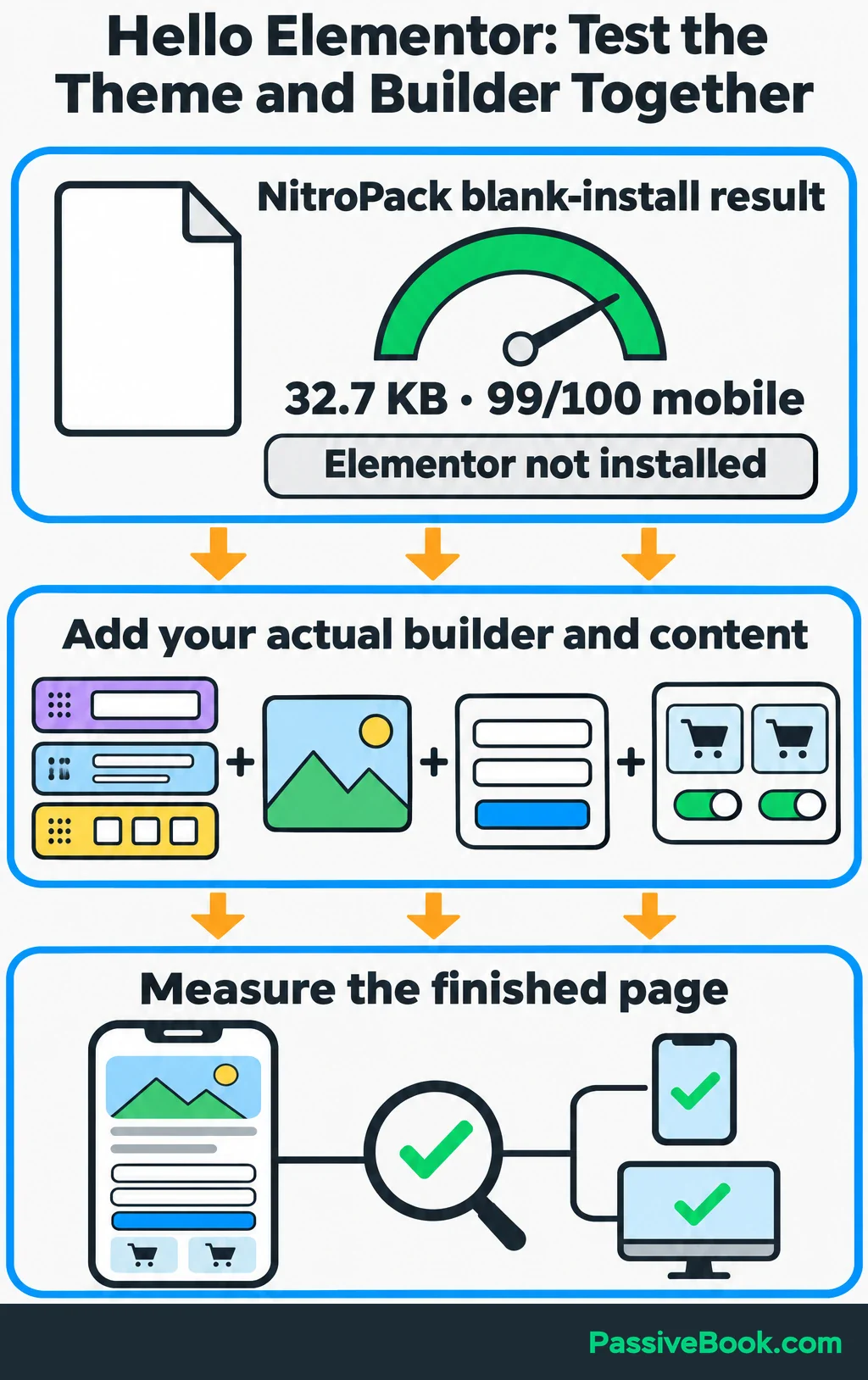
Your decision therefore needs a finished-page test with the builder active.
The free builder can handle page layouts. Paid requirements depend on the design: Essential includes Theme Builder, while Advanced Solo adds eCommerce features for custom WooCommerce layouts.
You don’t need Elementor’s WooCommerce design tools merely because your site sells something. You need them when you want those custom store layouts.
I would skip Hello for a mostly block-based article site. For an established Elementor workflow, it makes much more sense. Budget for the builder and consider the work involved if you replace it later.
7. Twenty Twenty-Five: Best for Free Native Site Editing
Twenty Twenty-Five is my choice when keeping the design inside WordPress’s native tools matters most.
You can edit headers, footers, navigation, and templates with blocks. Its patterns provide starting layouts for services, landing pages, and articles, and there is no premium theme tier to unlock.
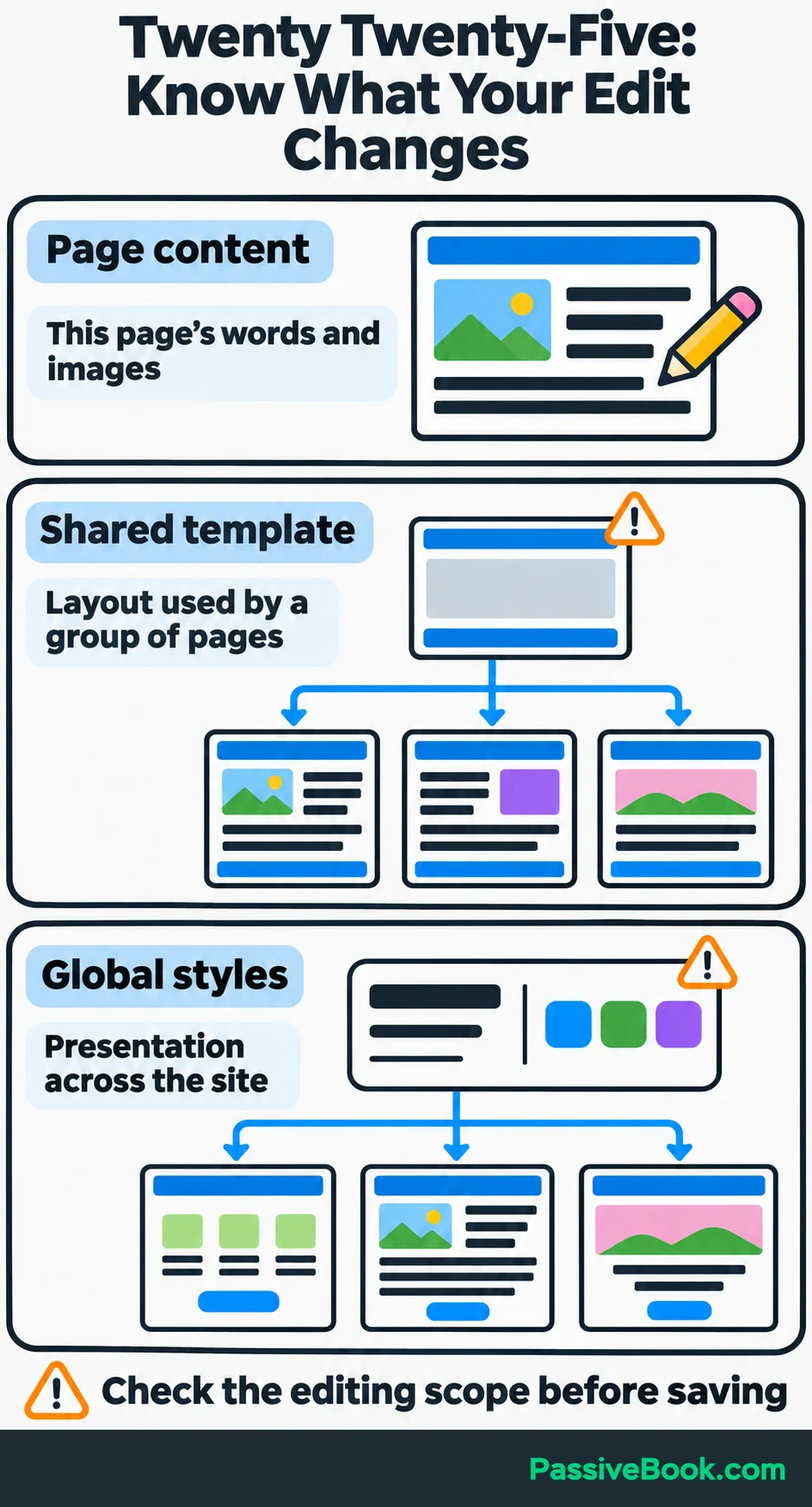
The learning curve comes from understanding shared design.
A page contains that page’s content. A template controls the surrounding layout used by a group of pages. Global styles affect presentation across the site.
Learn those distinctions before making broad changes.
For the cat-sitting site, this approach can cover a simple service page and advice library without a separate builder subscription. Choose another workflow if guided theme controls or a commercial support entitlement would make maintenance easier for you.
8. Sydney: Best for Service-business Websites
Sydney is worth testing when the homepage’s main job is to generate inquiries.
Its service-oriented approach suits a page that explains what you offer, establishes credibility, and helps visitors take the next step. It supports the block editor and Elementor.
For the running example, I would prioritize service coverage, visit details, useful trust information, and a visible inquiry button. The organizer shop can sit elsewhere in the navigation.
Sydney Pro includes premium theme controls and Elementor widgets, but those widgets are useful only if you intend to use Elementor.
I would choose Sydney because its service layout fits the brief, rather than because a demo includes impressive motion effects.
9. Botiga: Best for Product-first WooCommerce Stores
Botiga moves up the shortlist when shopping is the main visitor task.
Its product galleries, catalog presentation, and store styling provide a focused starting point. Pro adds product filters and variation swatches—buttons for choosing options such as color or size. Merchant Pro is a separate plugin for store features such as bundles and discounts, and it costs extra.
For the original cat-sitting brief, I would keep Botiga behind the service and content options. A small range of care organizers doesn’t automatically justify building the whole site around a catalog.
That recommendation changes if the business develops a substantial organizer shop.
Before upgrading, connect each paid feature to a real browsing problem. Filters can help shoppers explore a large range. A handful of downloads may need only clear categories and useful product descriptions.
10. Storefront: Best for a Basic Free WooCommerce Foundation
Storefront is a straightforward option for a conventional WooCommerce shop.
Automattic publishes it, and WooCommerce core developers designed and developed it. The theme provides layout and color controls with community support through WordPress.org. Storefront’s official listing
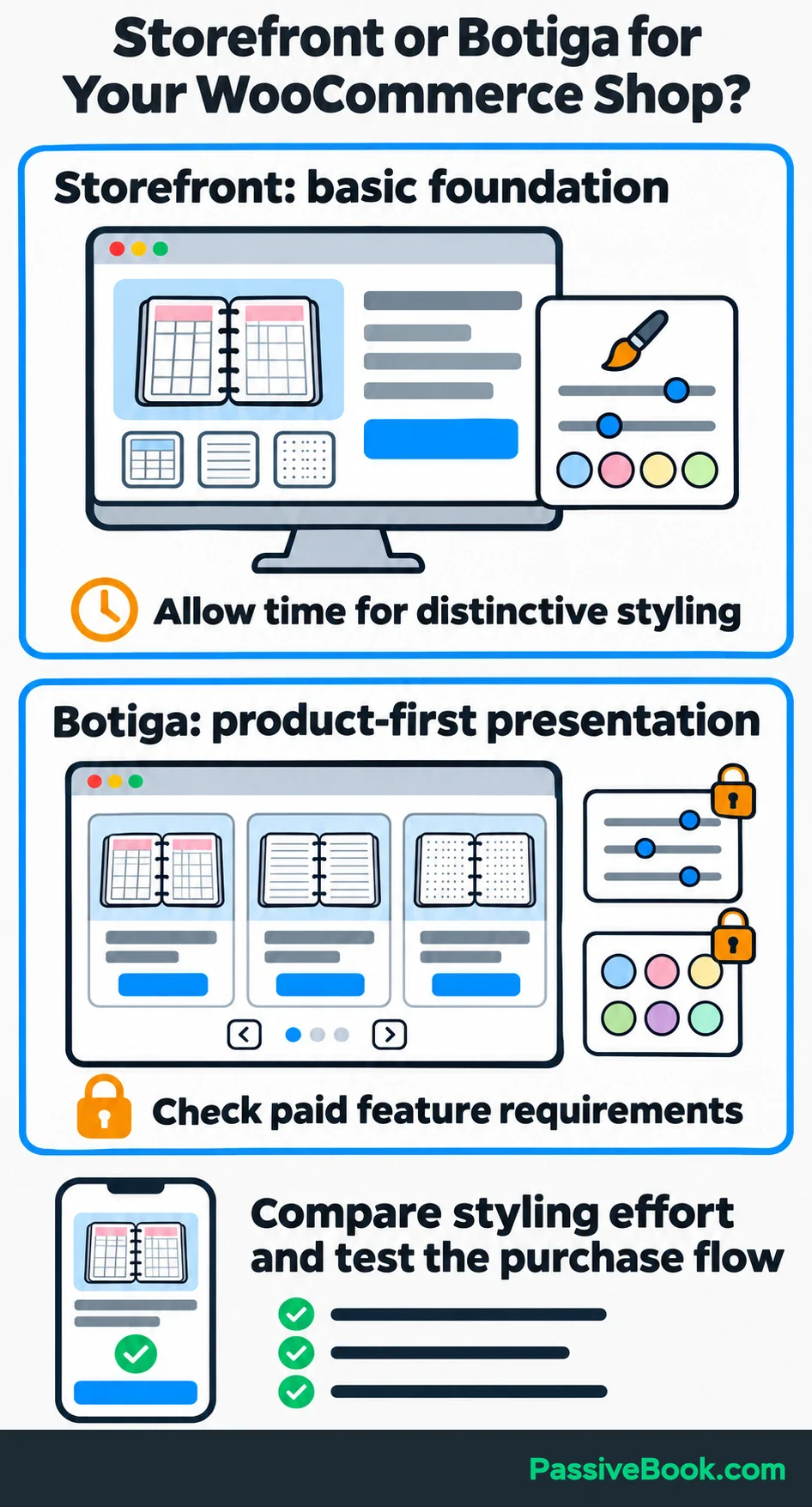
I would consider it when the store needs a simple foundation and you’re comfortable doing some styling work.
Compare that effort with Botiga. A free theme remains free, but the time spent achieving a particular design belongs in your decision.
For the running example, Storefront could present downloadable organizers, but it wouldn’t be my first choice for a homepage led by visits and advice.
Review its update history and compatibility with your current store setup before committing. Its WooCommerce background is useful context, but the finished purchase flow still needs testing.
11. OceanWP: Best for Detailed Theme-level Customization
OceanWP suits people who want substantial control over presentation across content and WooCommerce pages.
It supports external builders, including Elementor, and provides responsive controls for different screen sizes.
I would shortlist it when you can already identify several settings you need. For example, you may want different page structures for services, advice articles, and products.
The cost of that flexibility is configuration work.
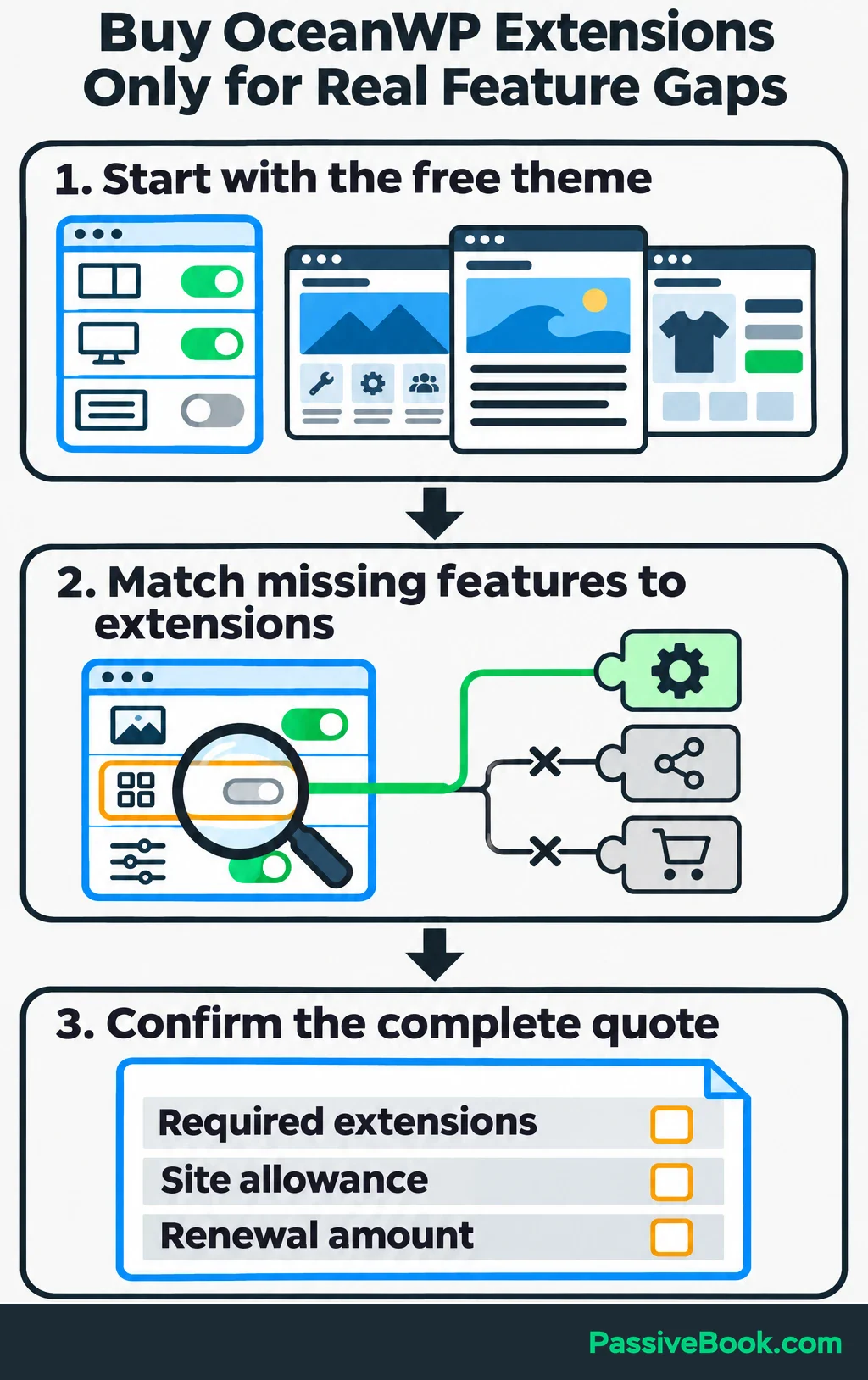
Start with the free theme and list any missing capabilities. Then identify the commercial extensions that supply them. Avoid choosing a package simply because it contains the largest collection.
The table leaves paid pricing and site allowances unquoted because those details weren’t verified. Confirm the required extensions, license scope, and renewal amount before treating OceanWP as a paid contender.
12. Divi: Best for an Integrated Visual Design Workflow
Divi makes sense when you want one visual system for pages and shared site templates.
It includes tools for custom WooCommerce layouts, and its unlimited-site licensing can be useful when you maintain several sites.
I would choose it because I wanted to work in Divi regularly. Its layout controls need enough use to justify the learning effort.
WP Rocket tested Divi with Divi Builder but didn’t identify the version used. Its result doesn’t establish how Divi 5 performs.
The lifetime theme purchase includes theme updates and support under its terms. Optional services such as Divi AI have separate subscription arrangements.
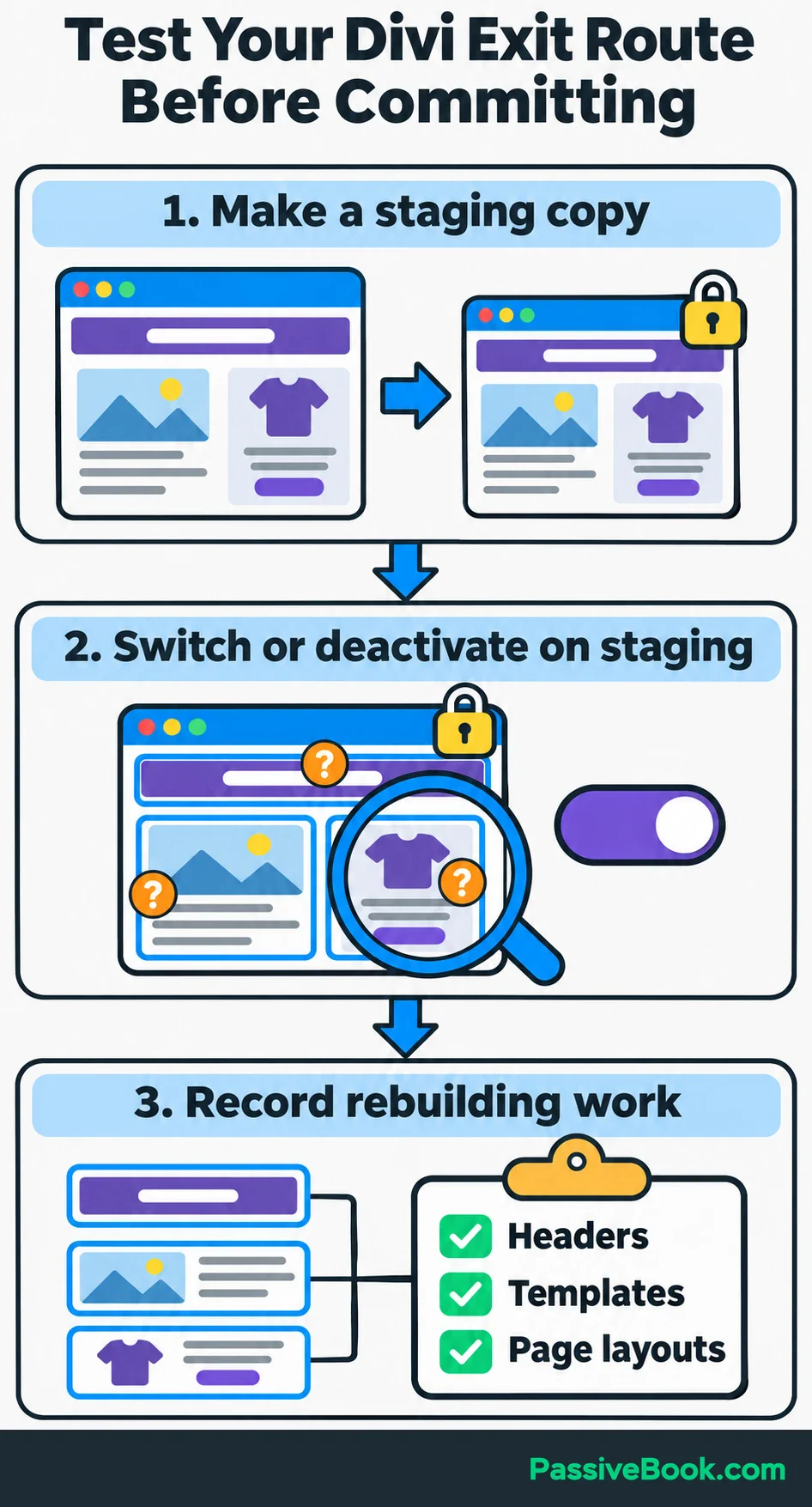
Before committing, test what happens when you switch away. The amount of layout rebuilding matters as much as the purchase price.
13. Avada Classic: Best for Feature-rich Visual Builds
Avada Classic combines a visual builder, forms, reusable layouts, and WooCommerce design tools.
That can be useful when several requirements fit its system. You get a broad set of design tools from one vendor, but you also have a broad set of controls to learn.
This entry covers the Envato purchase identified as Avada Classic. The vendor also sells Avada One through a separate subscription offering.
For the cat-sitting site, I would choose Classic only if its integrated tools clearly reduced the work required. A service page, article library, and small download shop don’t need every feature it offers.
Its one-time license includes future updates, while support has a limited included term. Keep those two entitlements separate when comparing its ongoing cost with annual alternatives.
When Is a Premium Theme Worth Paying for?
A premium theme is worth paying for when a particular feature or support entitlement saves work you would otherwise need to do.
Good reasons include:
- A starter layout that closely matches the pages you need.
- A shared layout that appears only on selected pages or categories.
- Store controls that solve a specific shopping problem.
- Commercial support for a site you depend on.
- Reusable design tools that make frequent updates easier.
“More features” is a weak reason on its own. Every unused option still gets a place in the sales pitch.
For the cat-sitting site, a useful paid feature might let you add an organizer promotion to relevant advice articles and update it centrally. A complicated product filter would have little value if you sell only a few downloads.
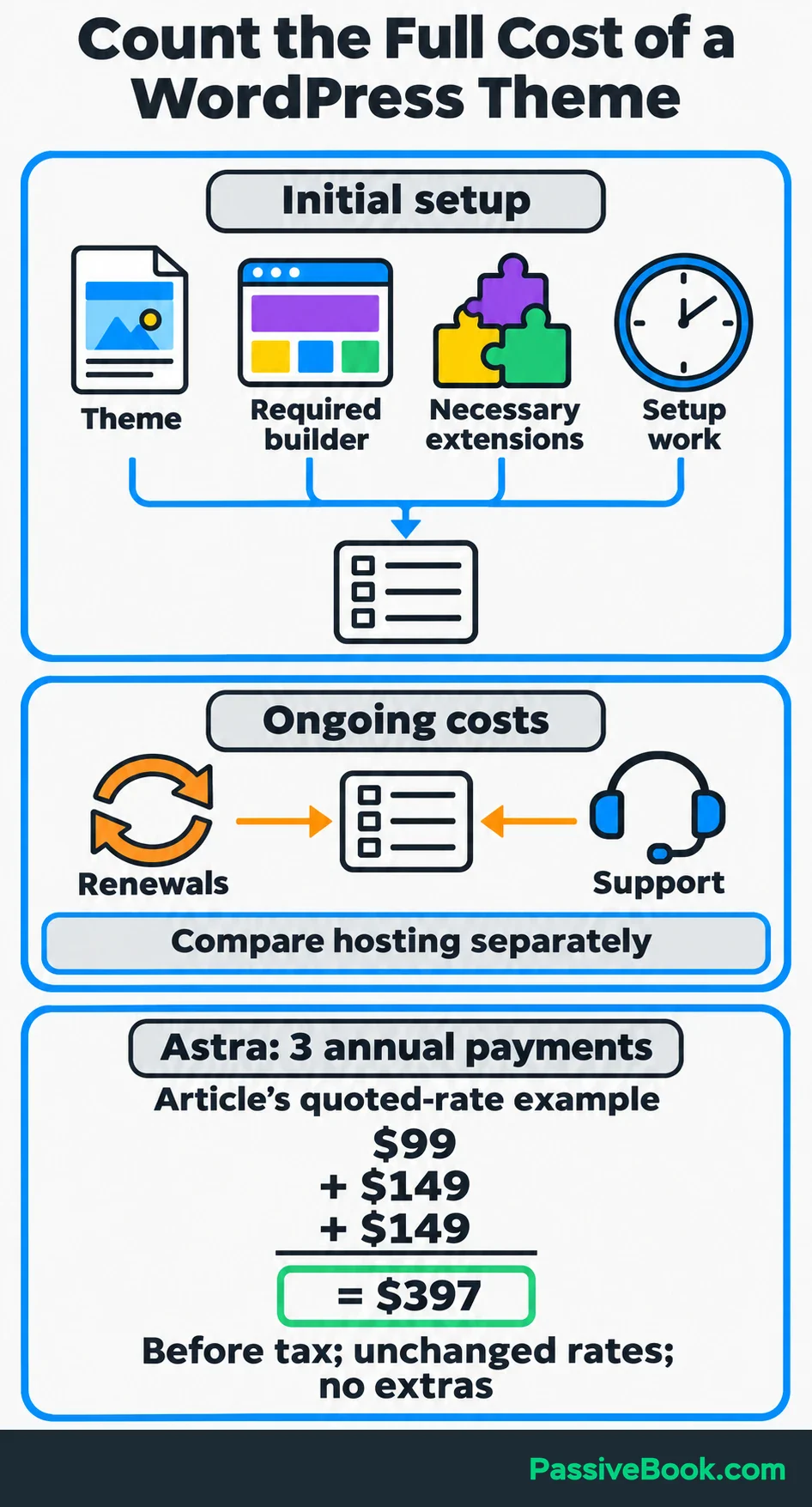
Compare ownership cost over several years. Count the theme, required builder, necessary extensions, and setup work first. Then add renewals and ongoing support. Keep hosting separate so you can compare theme choices fairly.
An annual package and a lifetime license are easier to compare over the same period. Enter the prices and required extras for your two finalists before deciding which offers better value.

Free Software Cost Calculator




For example, three years of Astra’s selected annual subscription means one introductory year and two renewals. Using the rates in the table, that totals $397 before tax, assuming unchanged pricing and no additional purchases.
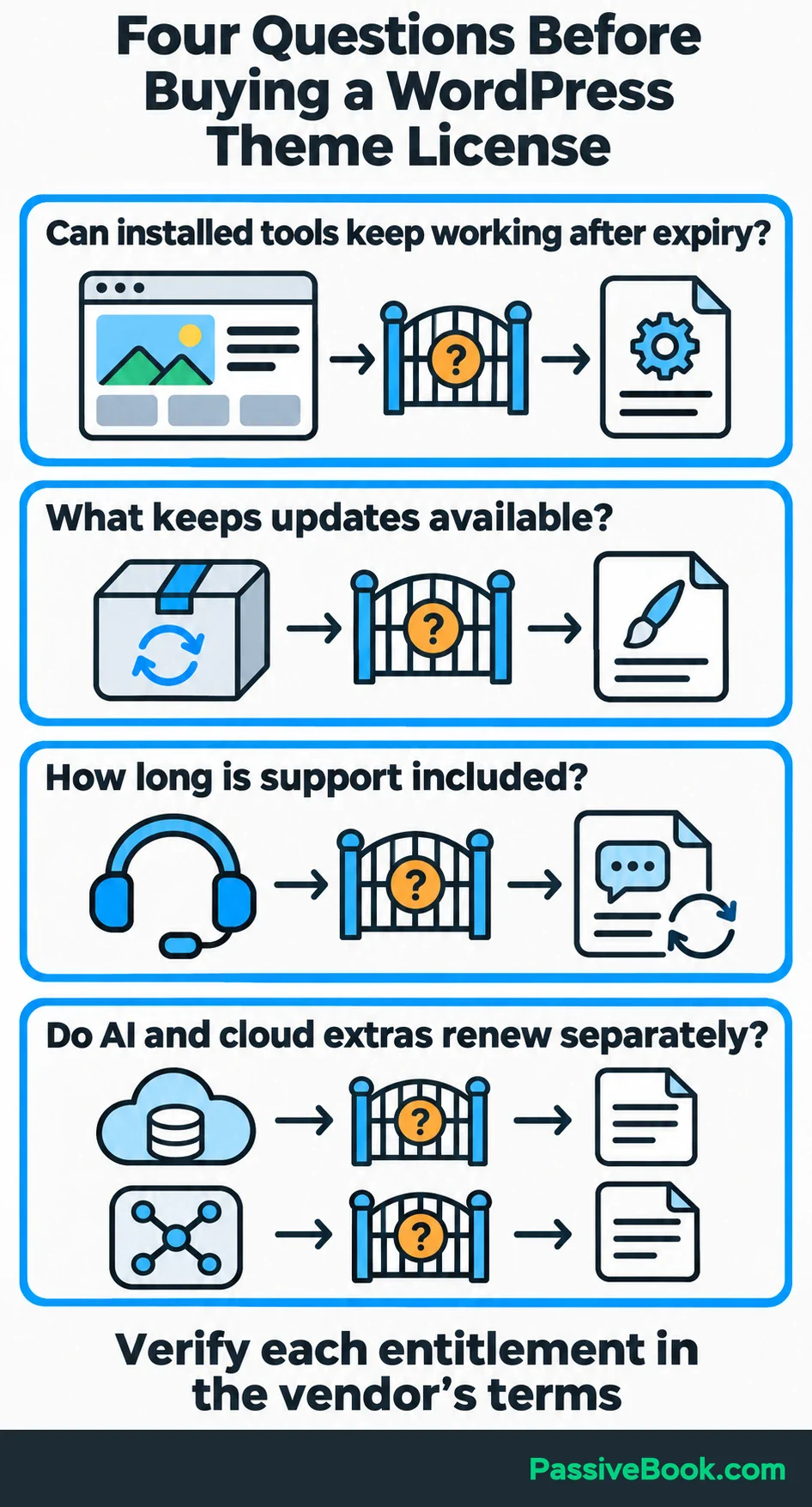
Also separate four questions:
- Can I keep using the installed theme and builder after the subscription ends?
- Must I keep the license active to receive updates?
- How long is support included, and what does extending it cost?
- Do AI tools, cloud storage, or other extras renew separately?
A lifetime theme license can be good value when you expect to keep using it. It doesn’t automatically cover every service sold beside it.
I would stay with a free edition until a concrete limitation appears. Premium pricing alone doesn’t establish better security, higher rankings, or more sales.
Test Your Final Two Choices Before Committing
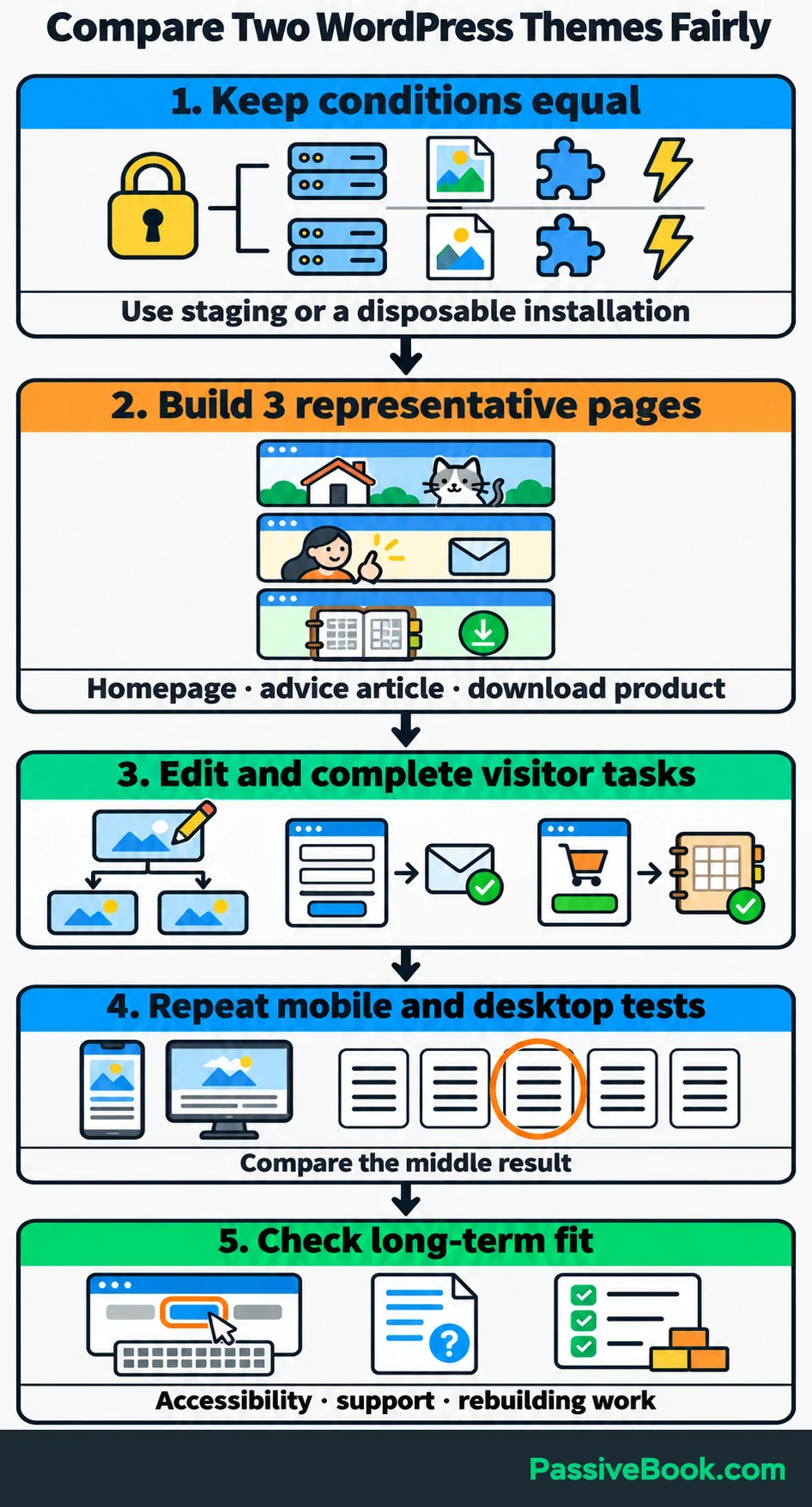
Build the same small site with both finalists.
For an existing site, back up first and use staging—a private copy where changes won’t affect visitors. For a new site, use a disposable installation.
Keep the hosting, content, images, essential plugins, and caching settings the same. Import only the starter design and dependencies you intend to retain.
For the cat-sitting example, build three representative pages:
- A homepage explaining visits, coverage, and how to inquire.
- An illustrated advice article with an email signup.
- A WooCommerce page selling one downloadable care organizer.
That gives you a useful sample of the actual site without rebuilding everything.
Next, try ordinary editing work. Change the global font, adjust the mobile menu, update a repeated section, and create a new article. Notice whether you can find the relevant controls and predict what each change will affect.
A theme that feels confusing during this small trial deserves scrutiny before it becomes your daily tool.
Run several mobile and desktop performance tests and compare the middle result rather than the best run. Check main-content loading, layout movement, page weight, and script-related delays alongside the overall score.
If one result is poor, inspect the cause. A large photograph or third-party script may explain the difference. Changing themes won’t necessarily remove it.
Then complete the visitor tasks yourself:
- Find an advice article through the navigation.
- Submit a visit inquiry and confirm that it reaches the intended inbox.
- Join the email list and check the promised response.
- Place a test order and confirm access to the organizer download.
Use your phone for these tasks too. A purchase button that looks tidy on a desktop can become awkward beneath a sticky mobile header.
Check basic accessibility on the finished pages. You should be able to reach navigation, buttons, and form fields with the keyboard and see which item has focus. Text needs sufficient contrast, form fields need clear labels, and zooming shouldn’t hide essential controls.
These checks catch useful problems, though they don’t establish complete accessibility.
Before choosing, review the theme’s current WordPress and PHP requirements, changelog, and support entitlement. Look for recent discussions involving the plugins you need. An unresolved report about your checkout plugin matters more than a long list of generic five-star reviews.
Test the exit route on staging as well. Switch themes or deactivate the builder and inspect what remains. Record which headers, templates, and page layouts would need rebuilding.
For an existing site, preserve URLs and inspect headings, navigation, SEO metadata, and mobile presentation after the change. Google uses Core Web Vitals in its ranking systems, but good scores don’t guarantee top rankings. Google’s page-experience guidance
Choose the finalist that completes essential tasks, performs well with your content, fits the full budget, and feels comfortable to edit. That is a stronger foundation than winning a blank-page benchmark.
What Next?
Pick two themes and build the same homepage with each today. For a site led by advice and service inquiries, I would begin with GeneratePress and Kadence.
Use the social buttons to share this comparison when a theme shortlist needs a clearer decision than another attractive demo.
Which part of choosing a theme feels hardest to judge for your site: editing, performance, or ongoing cost? Tell me in the comments, and bring any other questions about your shortlist.
Share this post with your friends & followers:

