You have an hour to fix your slow WordPress site, but every guide suggests a different shopping list. Better hosting, another plugin, perhaps a new theme. You could spend the whole hour buying things and still have the same delay.
The harder part is knowing what deserves attention. A slow server, a huge photograph and a script that freezes your menu need different fixes. Here’s how to trace the delay on your pages, choose the fix worth trying first and check that your faster site still works—without rebuilding it.
Find Your Biggest Speed Bottleneck
Measure Representative Pages
Start with three pages that cover the main jobs your site does:
- Your homepage.
- An article with several images.
- A product page or a page with an important signup form.
Run each through PageSpeed Insights, Google’s free tool for checking page performance, on mobile and desktop. Save three runs for each page and device, then compare the middle value for each lab metric. This stops one unusually good result from becoming your entire success story.
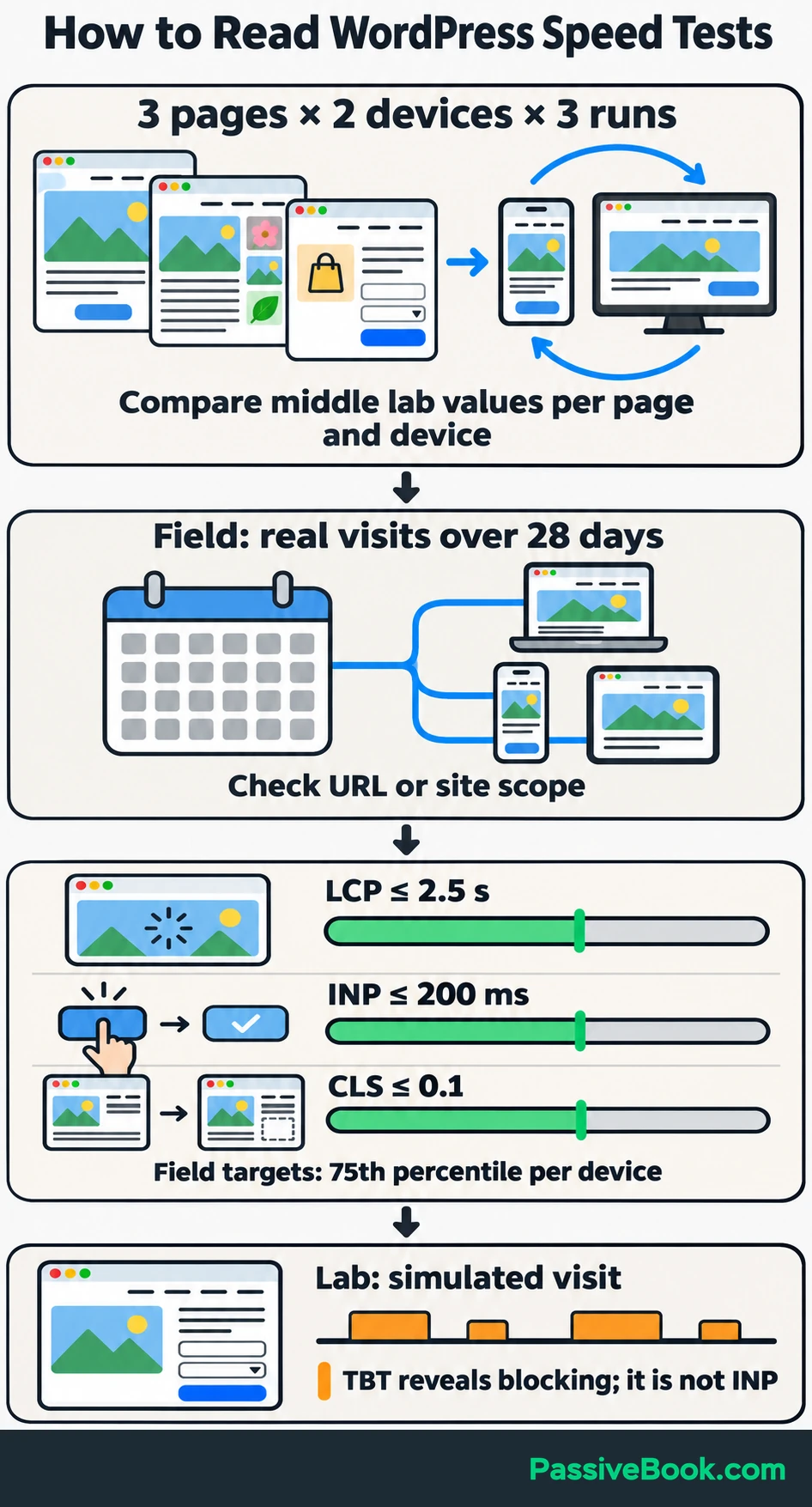
Also visit those pages while logged out. Open the menu, scroll through the content and try the main action. Your normal admin session may receive different caching behavior from a visitor.
Focus on these Core Web Vitals, Google’s measures of loading speed, responsiveness and visual stability:
| Metric | What It Measures | Good Target |
|---|---|---|
| Largest Contentful Paint, or LCP | When the largest visible image or text block appears | 2.5 seconds or less |
| Interaction to Next Paint, or INP | How quickly the page responds visually to interactions | 200 milliseconds or less |
| Cumulative Layout Shift, or CLS | How much visible content unexpectedly moves | 0.1 or less |
For real visitors, these targets apply at the 75th percentile, assessed separately for mobile and desktop. That means at least three-quarters of the measured experiences should meet each target.
Keep the two parts of PageSpeed Insights separate. Field data covers real visits during the preceding 28 days, and it may describe the whole site rather than your exact page. Lab data comes from a simulated visit and helps you investigate changes immediately. Check which scope the report shows. Google explains how PageSpeed Insights reports these results.
If your site lacks field data, begin with the lab results and hands-on checks. Total Blocking Time, or TBT, can help reveal browser processing problems in the lab, but it is not an INP measurement.
Match the Symptoms to the Right Fixes
Use the report to choose your next action rather than working through every possible setting.
| Symptom | Evidence to Inspect | First Action |
|---|---|---|
| A long wait before anything arrives | Time to first byte and whether the page was served from cache | Confirm public-page caching works |
| The main content appears late | The identified LCP element and its loading breakdown | Fix the stage causing the delay |
| Menus or buttons respond slowly | Long JavaScript tasks and work triggered by the interaction | Remove or reduce the responsible script |
| Text or buttons jump around | Images, embeds or other content loading without reserved space | Add dimensions or reserve the required space |
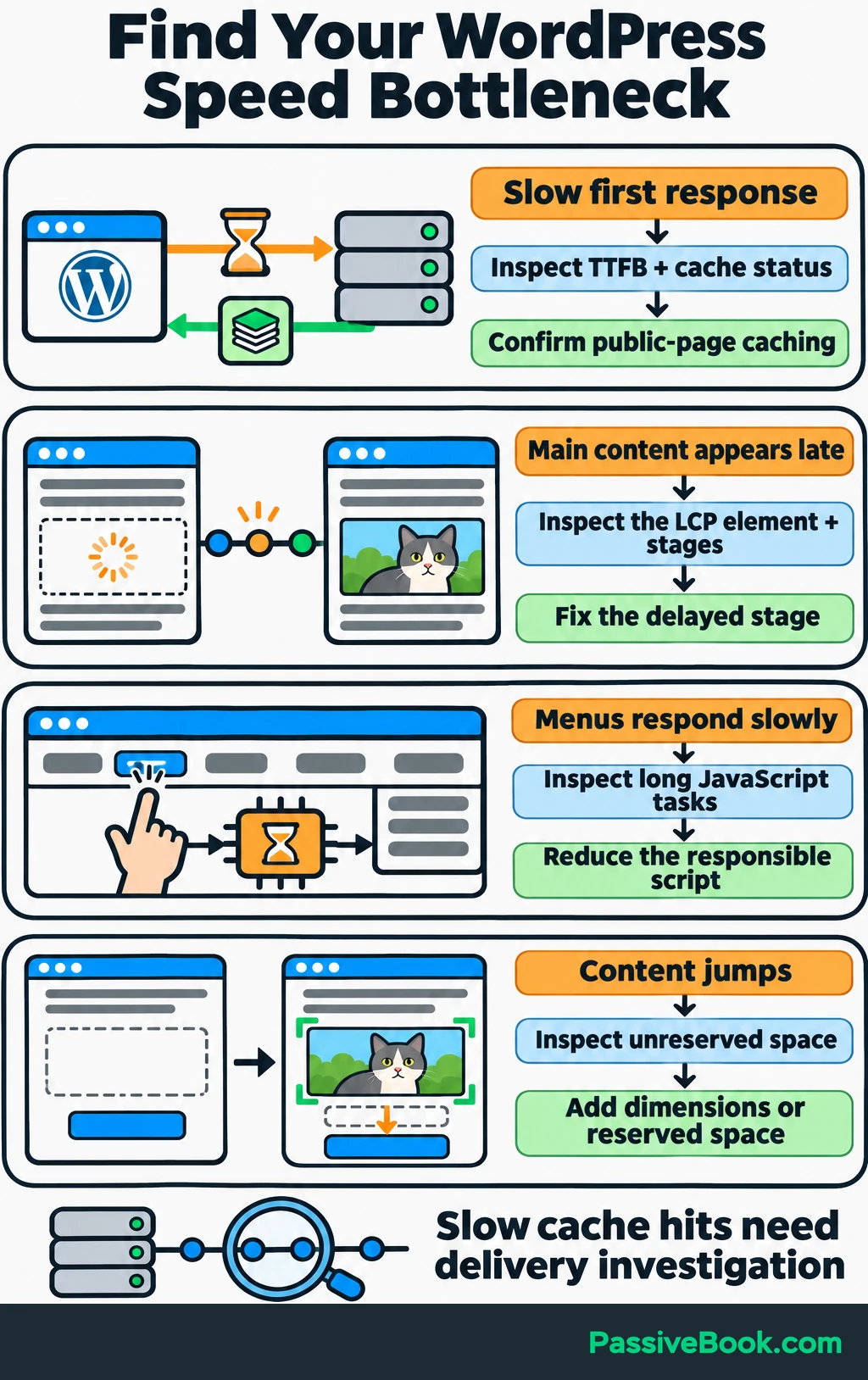
Time to first byte, often shortened to TTFB, measures the wait until the browser receives the first part of the response. It includes network and server delays, so a high value does not prove you need more expensive hosting.
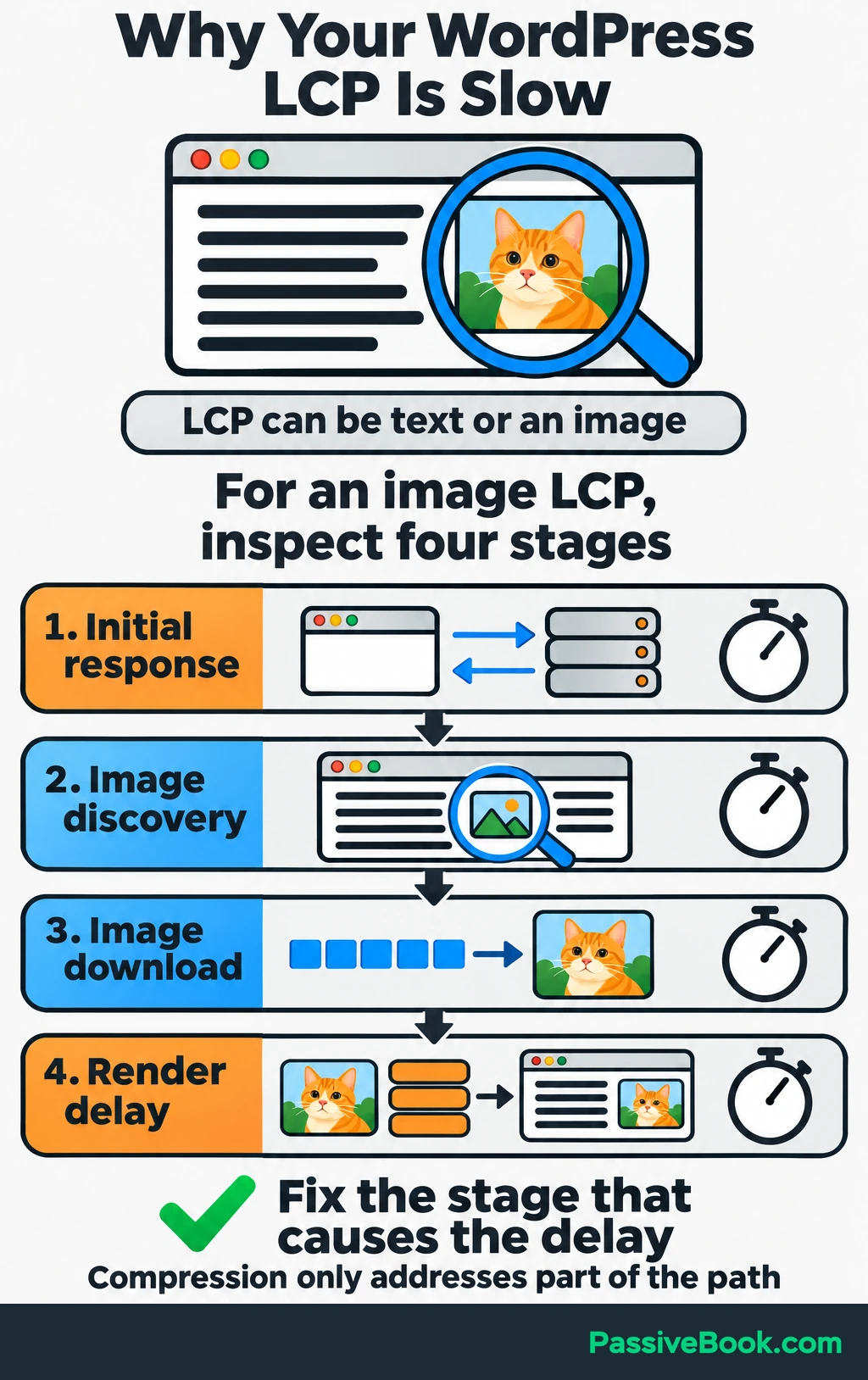
Likewise, a poor LCP result does not automatically mean “compress images.” The largest element might be text. If it is an image, the delay could come from the initial response, discovering the image late, downloading it or waiting to display it. Google’s LCP breakdown explains these stages.
For the examples below, imagine your site publishes cat-care articles and sells printable cat-sitter instruction sheets through WooCommerce, a WordPress plugin for running an online shop.
If several important articles share a slow template, fix that template before polishing a rarely visited archive. If confirmed cache hits still arrive slowly, ask your host to investigate cache delivery and network delays. A slow cached response alone does not show that WordPress is taking too long to build the page.
Create a Rollback Point Before Making Changes
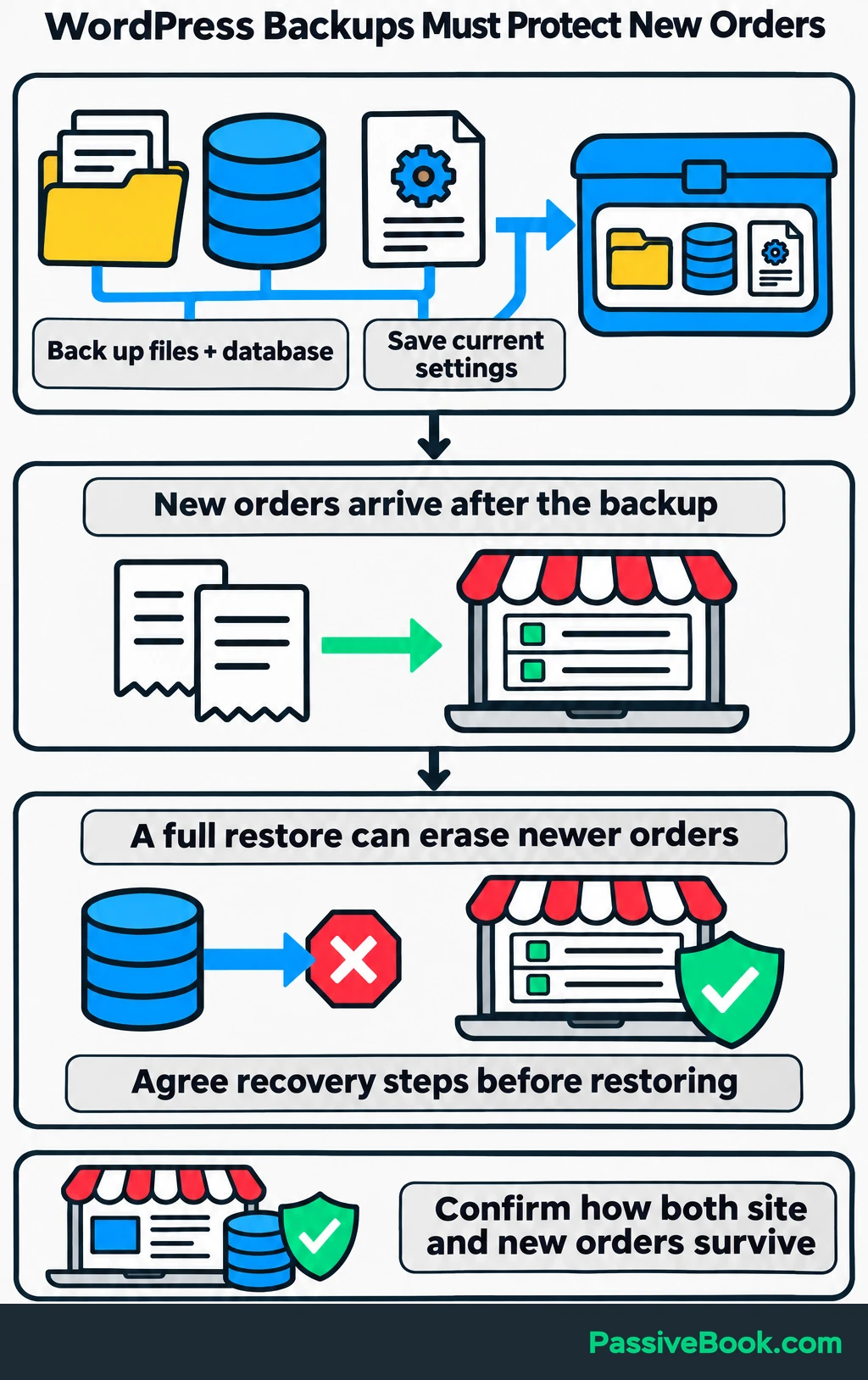
Back up both your WordPress files and database. Confirm how you would restore them, and save screenshots or an export of your current performance settings.
For an active shop, make sure the recovery plan preserves orders received after the backup. Restoring yesterday’s database can also restore yesterday’s order list.
Use staging—a separate copy of your site—for changes that could affect many pages or records. That includes:
- Removing plugins or changing themes.
- Processing the media library in bulk.
- Cleaning the database.
- Switching PHP versions.
Protect staging with access controls and prevent it from sending customer emails or taking live payments. Keep it out of search results too.
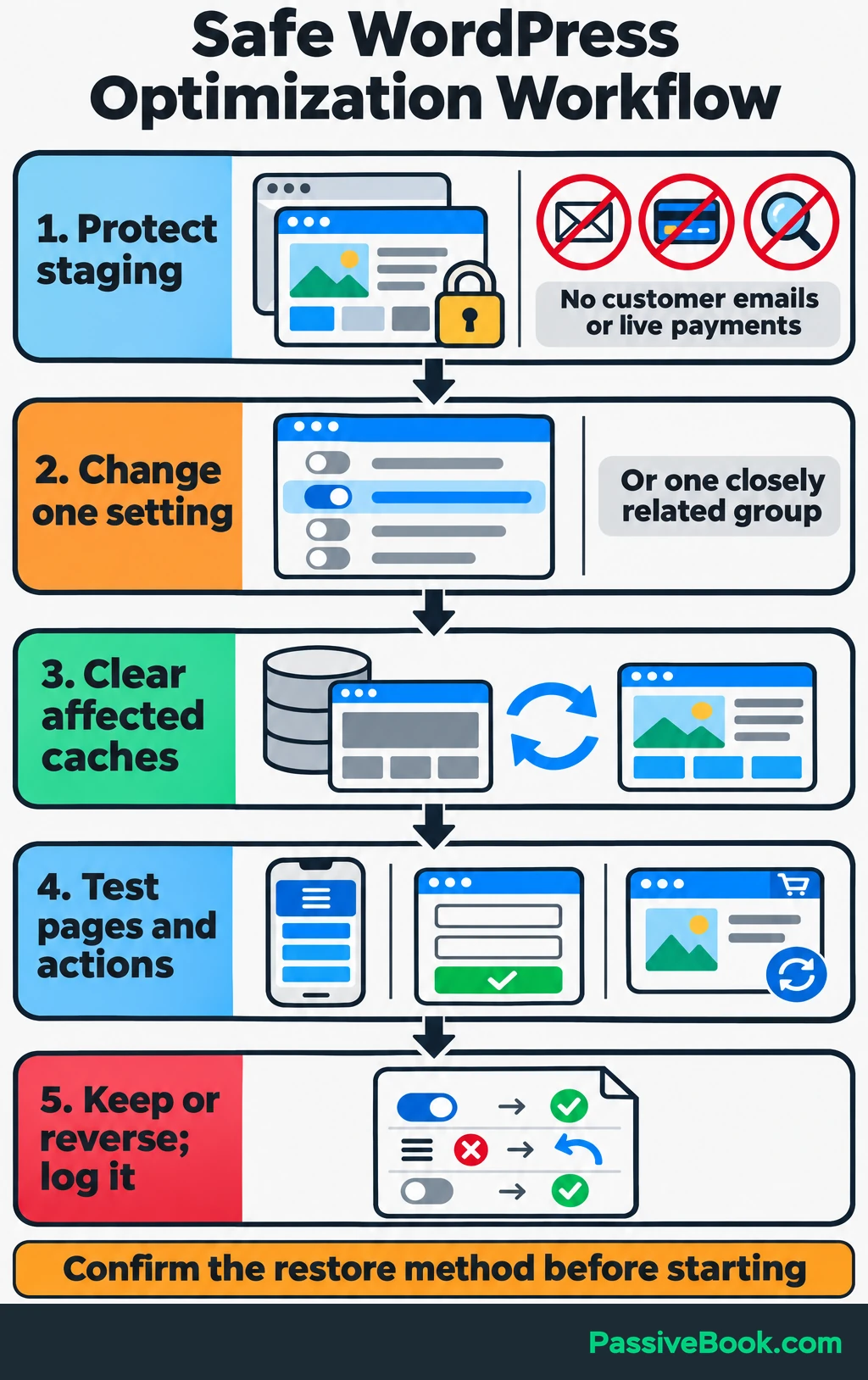
Then change one setting, or one closely related group, at a time. Clear the affected caches, check the page and test its important actions before continuing.
I once enabled several asset settings together on a WordPress site. The page looked fine, but the mobile menu stopped responding. I had turned a simple rollback into a guessing game because I could no longer tell which setting caused it.
Now I keep a short change log. “Enabled JavaScript deferral; menu failed; setting reversed” is enough. You need a way back, not a second documentation business.
Enable Caching for Public Pages
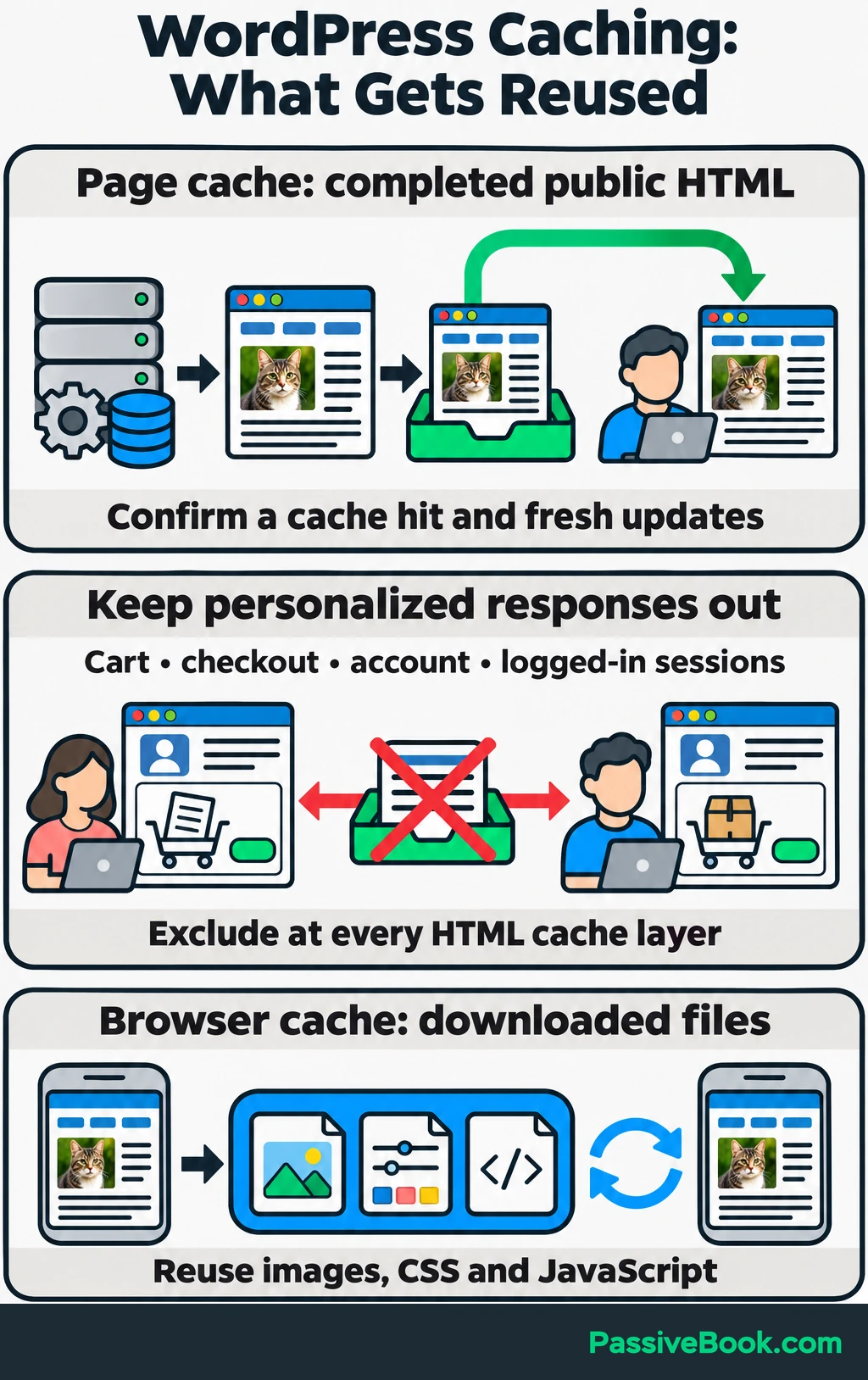
Page caching keeps a generated copy of a public page so WordPress can reuse it instead of rebuilding it for every visitor.
Browser caching serves a different purpose: it lets a visitor’s browser reuse downloaded files such as images, styles and scripts. Both can work together. WordPress’s performance guide describes these caching methods.
Check your hosting first. If it includes page caching, use the host’s supported setup before installing another tool.
Give overlapping features one clear owner. A host cache and a plugin can work together when their integration supports it, but two plugins independently changing the same files create extra work for you.
When hosting does not provide suitable caching, WP Super Cache is a free option for basic page caching. I use WP Rocket as a paid performance tool, but I would not buy it just to duplicate a setup that already works.
Start with basic caching:
- Enable it using the host’s integration or your chosen plugin.
- Visit a public page while logged out to populate the cache.
- Reload it and confirm a cache hit using the host’s indicator or the plugin’s cache test.
- Edit the page and check that visitors receive the updated version.
Keep administrative, logged-in and personalized responses out of shared public caches.
For the cat-sitter shop, verify that cart, checkout and account pages stay dynamic. Customer-session rules matter too, including when a customer returns to an otherwise public page. Check these exclusions at every layer that caches HTML. WooCommerce’s caching guidance covers the pages and session cookies involved.
Test with separate browser sessions. Add an instruction sheet to one cart and confirm it does not appear in the other. Then check cart updates and returning-customer behavior.
Make Images and Media Lighter
Serve Appropriately Sized, Compressed Images
Start with oversized images on your important pages. Keep the originals, resize the images to suit their placement and compress them until further savings would noticeably hurt quality.
Check photographs and product previews differently. A slightly softer background photograph may be acceptable, but customers should still be able to read the text in your printable preview.
Display width and image width are related, but they are not always identical. An image displayed at 800 CSS pixels wide might use a 1,600-pixel version on a screen with twice the pixel density. That still avoids sending a 4,000-pixel original.
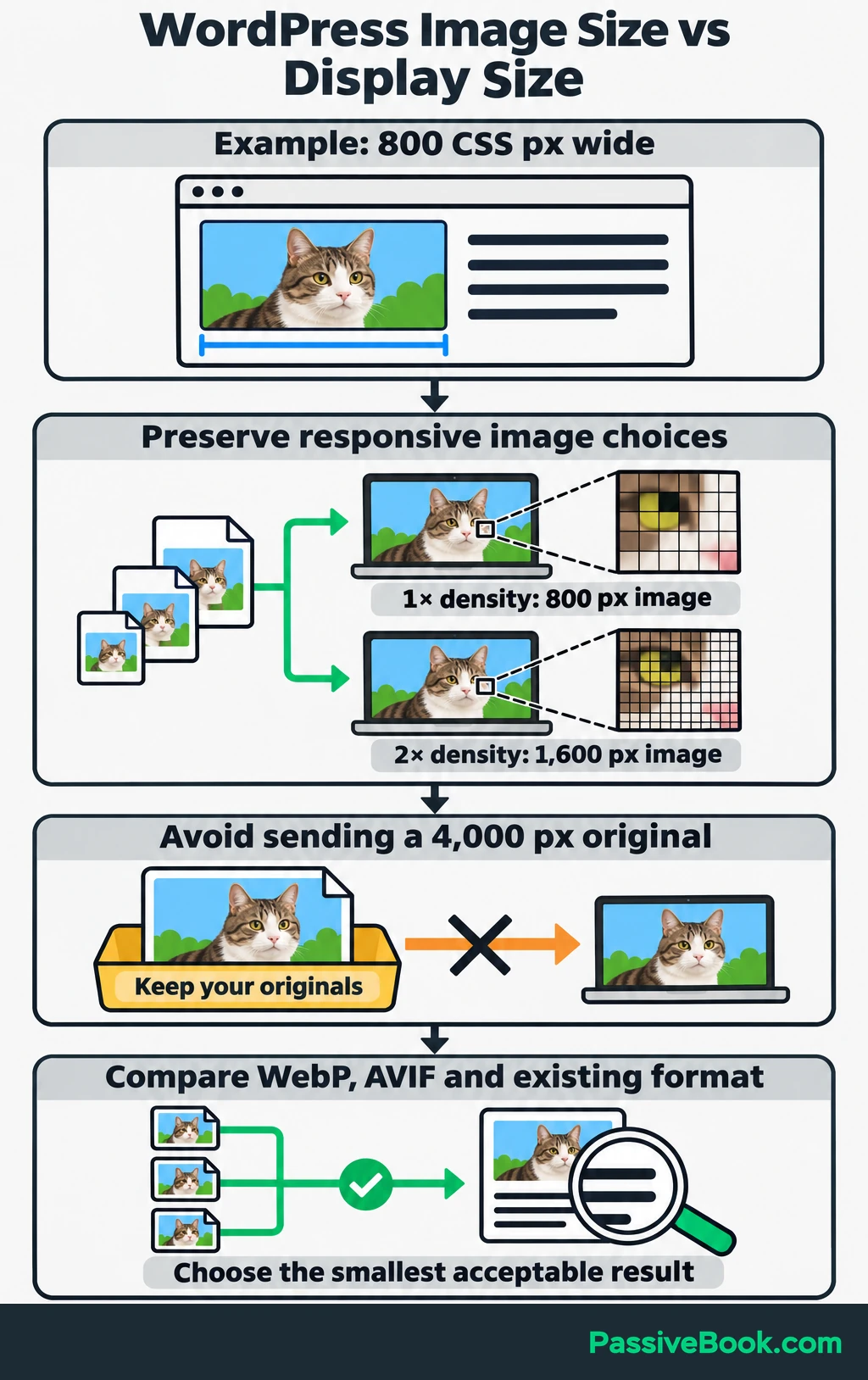
WordPress normally offers the browser several image sizes to choose from; these are responsive images. Preserve that behavior when changing themes or image tools.
Compare WebP or AVIF—image formats that can reduce file size—with the existing format and keep the smallest acceptable result. If you want WordPress to process AVIF uploads, first check the media information in Site Health for server support. WordPress explains why AVIF processing depends on the host’s image libraries.
Finally, inspect what visitors actually download. Open the browser’s developer tools, select the image request in the Network panel and check its file size and dimensions. Compressing an original that the page never serves changes your storage use, not that page’s download.
Load Visible Content First
Lazy loading postpones an image until it approaches the visible part of the page. That helps with photographs farther down an article, but it can delay the main image visitors are waiting for.
Keep the identified LCP image out of lazy loading. If diagnostics show that the browser discovers it late, use your theme’s or performance tool’s image-priority controls to make it available sooner. Avoid marking every image as high priority.
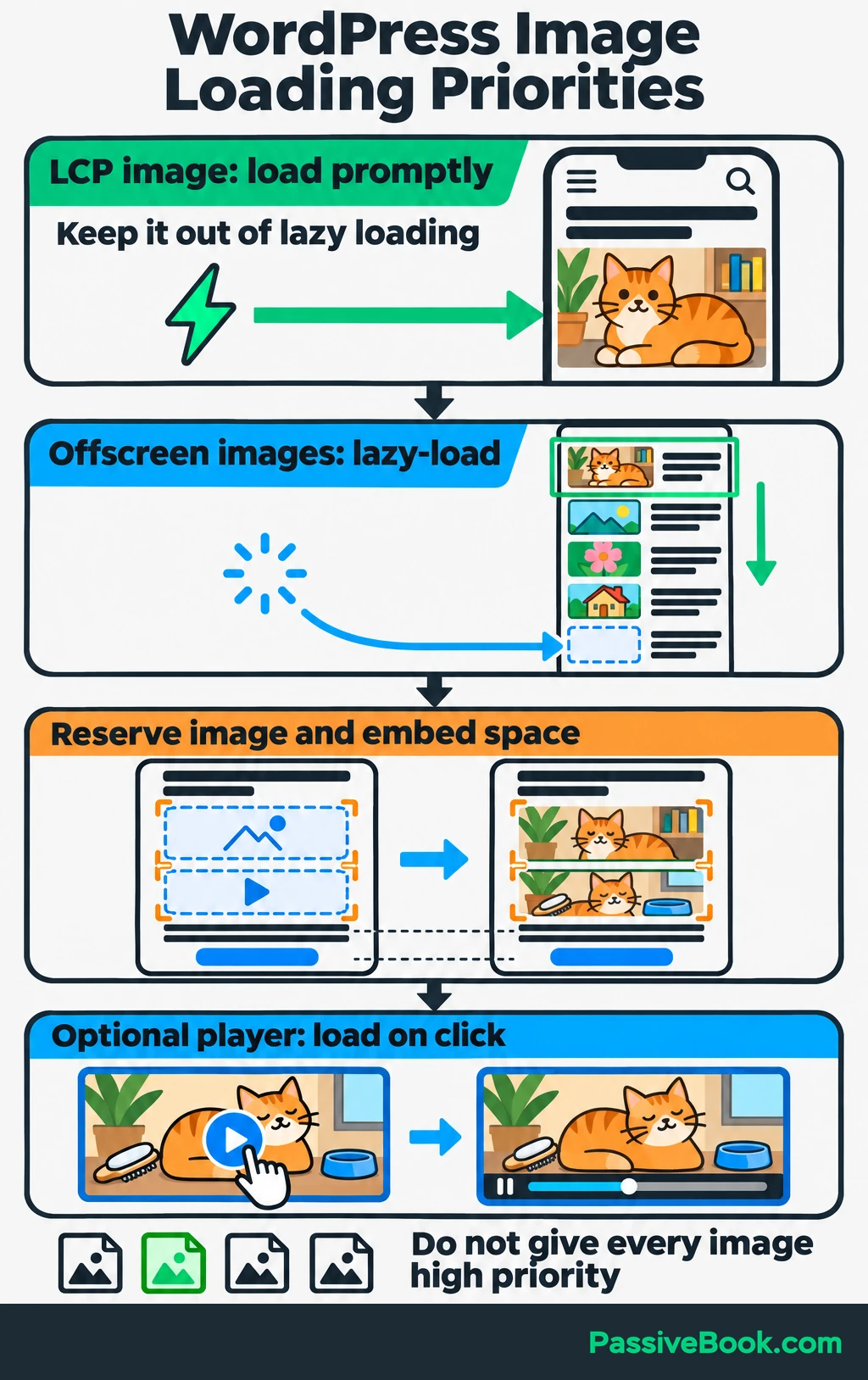
For the cat-care article, that means checking the main photograph first. The fifth photograph can wait until the reader gets closer.
Give images explicit dimensions or an aspect ratio, and reserve space for video players, advertising and other embeds. Otherwise, arriving content can push text and buttons around. Google identifies missing image dimensions and unreserved embed space as common causes of layout shifts.
For an optional video, I would use a preview that loads the player when clicked. The reader can start watching without every visitor downloading a player they never use.
Reduce the Code Each Page Loads
Remove Unnecessary Plugin and Theme Work
Make a short list of your plugins and what each one does. Look for duplicate features, abandoned integrations and extras you no longer use.
Start by disabling unnecessary features within existing tools. Removing a slider nobody sees is easier than replacing the entire plugin that also runs your working forms.
Then test suspected plugins individually on staging. Compare the same page before and after deactivation:
- Did its server response improve?
- Did it download fewer or smaller files?
- Did browser processing decrease?
- Did an important feature disappear?
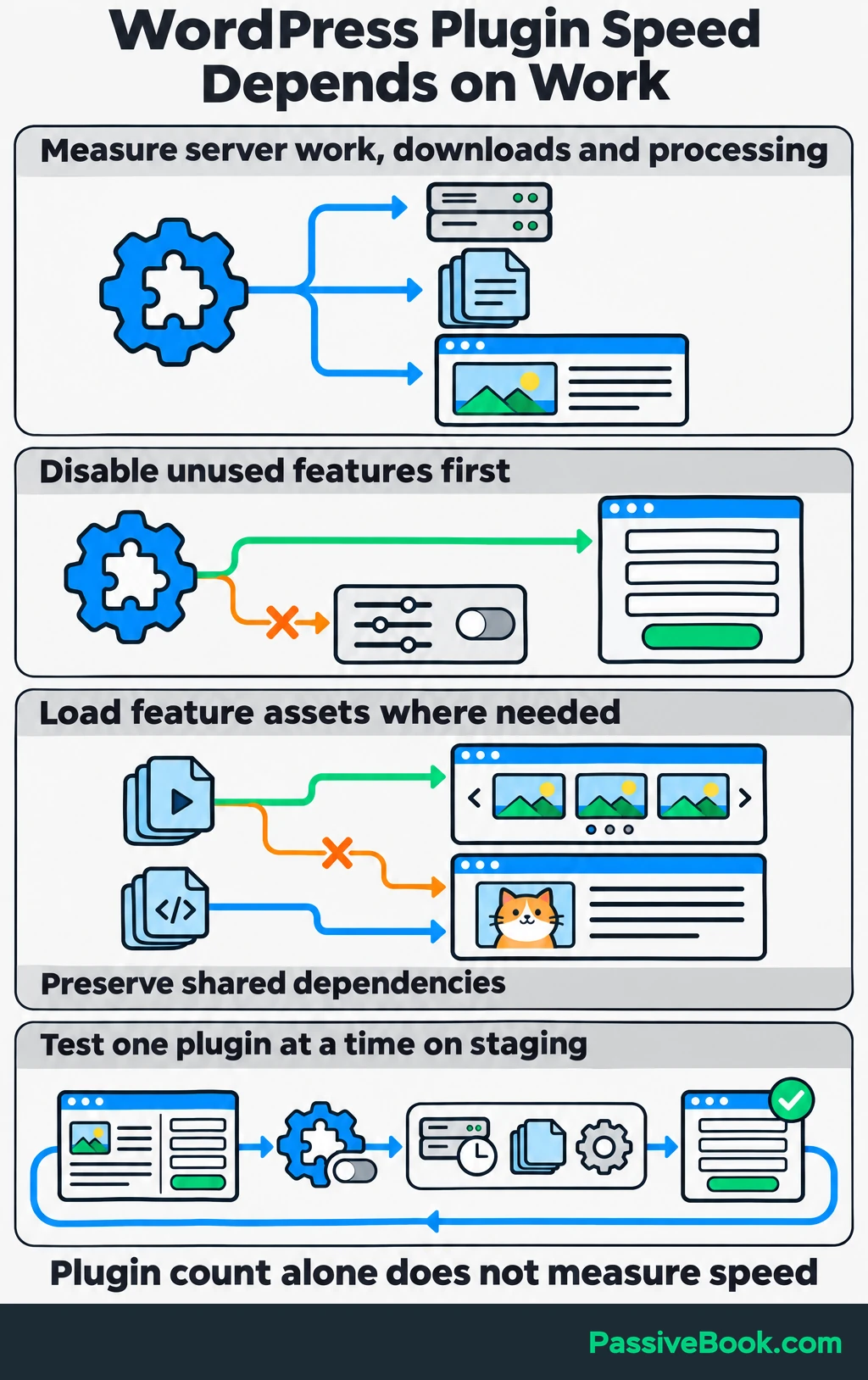
Judge the work a plugin performs. A plugin count does not tell you whether your site is fast.
Where supported, restrict feature-specific assets to pages that need them. A plain cat-care article should not load a slider script merely because the homepage has a slider. Keep any shared files that other features depend on.
I use the GeneratePress theme, but I would simplify a heavy template before changing themes. Remove decorative sections, unnecessary animations and unused widgets first.
If you still need a replacement, test it with real articles, product pages and mobile navigation. A fast demo does not show how your content and plugins will behave.
Optimize CSS and JavaScript Selectively
CSS controls presentation, and JavaScript powers many interactions. Both can delay a page when it loads or processes more code than it needs.
Use the diagnostics to identify styles that hold up the first display and scripts that consume substantial processing time. Remove unnecessary work before changing when the remaining work happens.
Treat these settings separately:
| Setting | What It Changes | What to Check |
|---|---|---|
| Minification | Removes unnecessary characters to reduce file size | Layout and script behavior |
| Unused-CSS removal | Tries to omit styles the page does not need | Menus, popups and other states hidden at first |
| JavaScript deferral | Changes when scripts execute during loading | Navigation, forms and dependent scripts |
| JavaScript delay | Often postpones scripts until an interaction or other trigger | Whether the first tap works promptly |
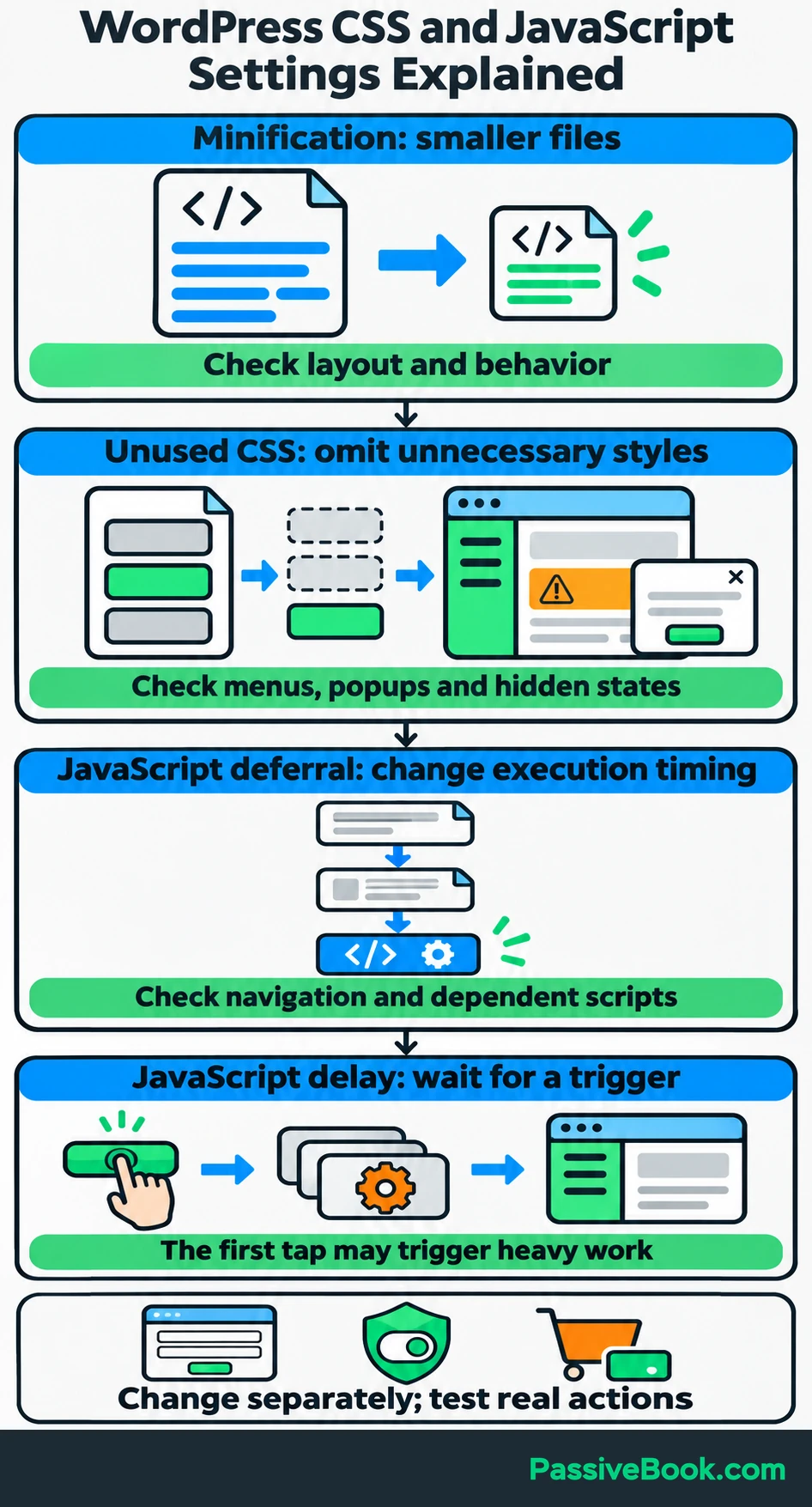
I would leave blanket JavaScript delay off initially. Moving a pile of work onto the visitor’s first tap can make an apparently fast page feel unresponsive.
When a control reacts slowly, investigate what happens around that interaction. A developer may need to reduce a long task or simplify the code handling the click. Google’s INP guidance explains how processing can delay visible responses.
After each change, check navigation, search, forms, consent controls and checkout. Test hidden states too: open the menu and trigger form validation rather than checking only the initial view.
Also ask your host or CDN whether Brotli or gzip compression is enabled for HTML, CSS and JavaScript. These reduce the amount of text transferred and complement image optimization.
Trim Fonts and Third-party Scripts
If custom fonts are not central to your design, I would choose system fonts, which are already available on the visitor’s device and need no font download. Otherwise, keep only the font families and weights your pages use.
Make sure text remains visible while a web font loads, then check whether the replacement font moves surrounding content. Font choices affect both when text appears and whether its position changes. Google’s font guidance explains these effects.
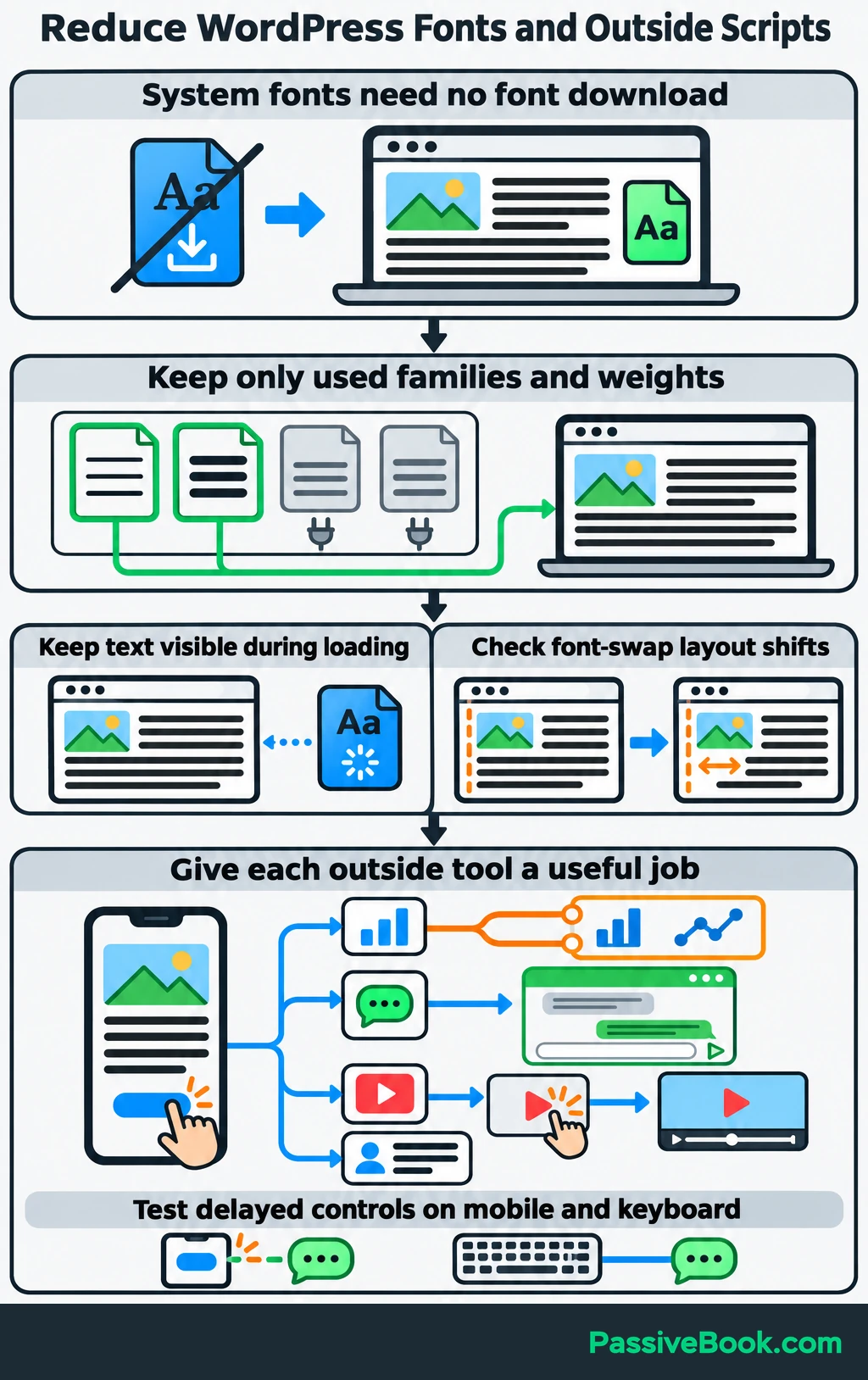
Next, review code added by outside services:
- Analytics and advertising tags.
- Live chat.
- Social feeds and sharing widgets.
- Video players.
- Popup and personalization tools.
Keep each tool tied to a useful job. Two tracking integrations recording the same activity deserve a closer look.
Load optional widgets when needed, but preserve essential controls. Test delayed features on mobile and with a keyboard. A chat button that appears quickly but cannot open has contributed very little.
Use a CDN to Improve Delivery
A content delivery network, or CDN, serves cached files from locations closer to visitors. It is worth testing when your audience is far from your hosting server.
Start with an included CDN if your host offers one. Compare results from locations where your visitors live.
I use Cloudflare. Its CDN works when visitors receive website files through Cloudflare’s servers. Using only its DNS service, which directs browsers to your server’s address, does not enable the CDN. Cloudflare explains the difference between proxied and DNS-only records.
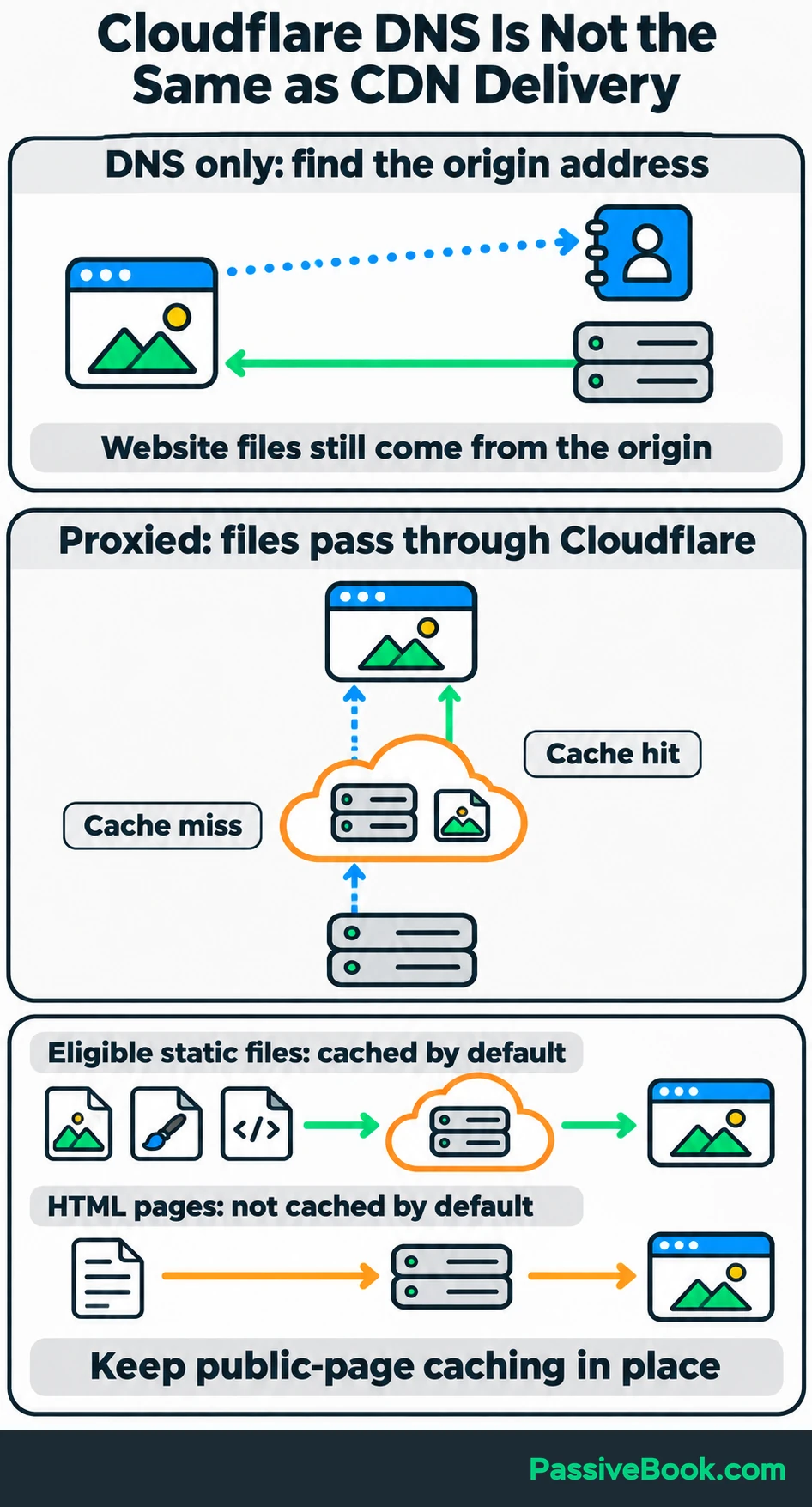
There is another distinction: Cloudflare caches eligible static files by default, but it does not cache HTML pages by default. Keep your public-page caching in place unless you deliberately configure a supported HTML-caching setup. Cloudflare documents its default cache behavior.
Use your provider’s supported integration and preserve existing DNS records, including email records. Confirm HTTPS works, then check whether eligible assets receive cache hits on subsequent requests.
For the cat-sitter site, test an article update to confirm cache purging works. Then submit a form and walk through the instruction-sheet purchase. Delivery changes still need business checks.
Fix Slow Server Processing
Check Software and Expensive Background Work
Compare a cached public article with pages WordPress must generate for the current request, such as search results, an account page or checkout.
Use comparable network conditions. If cached articles respond quickly but dynamic pages remain slow, investigate what happens while WordPress builds those responses.
Update WordPress, plugins and themes through your rollback process. Also test a PHP version that remains supported and works with your site. PHP runs much of WordPress’s server-side code, and compatibility matters more than choosing the highest version number available.
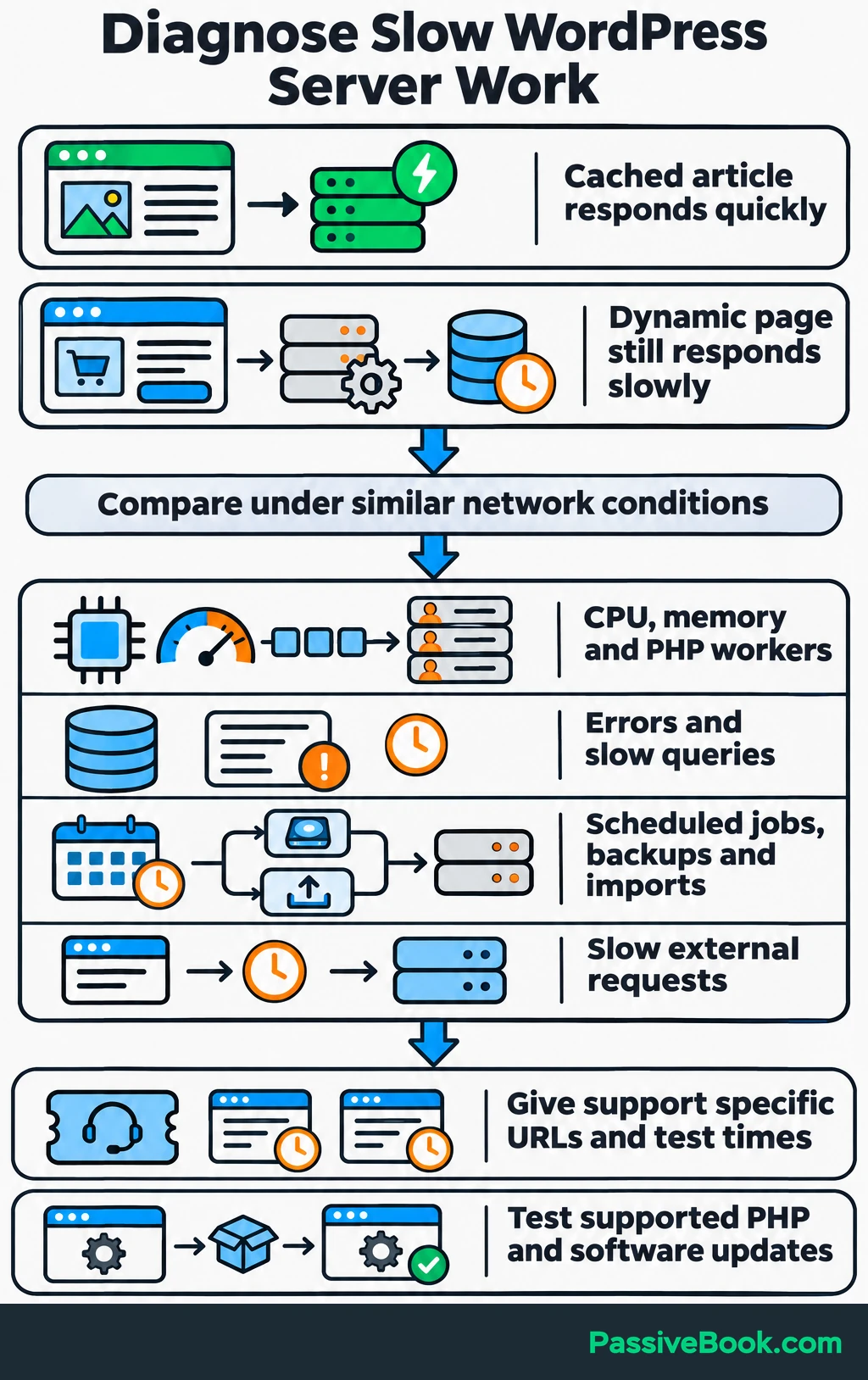
Give hosting support specific URLs and test times. Ask them to investigate:
- CPU and memory pressure.
- Limits on PHP workers—the processes handling simultaneous PHP requests.
- Errors and slow database queries.
- Scheduled jobs, backups or imports running during the delay.
- Requests to external services that take too long to answer.
This gives support something to inspect beyond “my site feels slow.”
When the responsible component remains unclear, use Query Monitor, a WordPress diagnostic plugin, with technical help. It groups database queries by plugin or theme and shows requests your site makes to outside services.
Use those findings to choose the fix. A slow external request needs attention to that integration; more image compression will not shorten its wait.
Address Database Work Selectively
A database cleanup is not automatically a speed improvement. Fewer old rows do not prove the requests serving your pages became faster.
Target expensive or repeated database work first.
For routine cleanup, take a fresh database backup and review what will be removed. Spam, trash, expired temporary records and revisions you no longer need may be reasonable candidates.
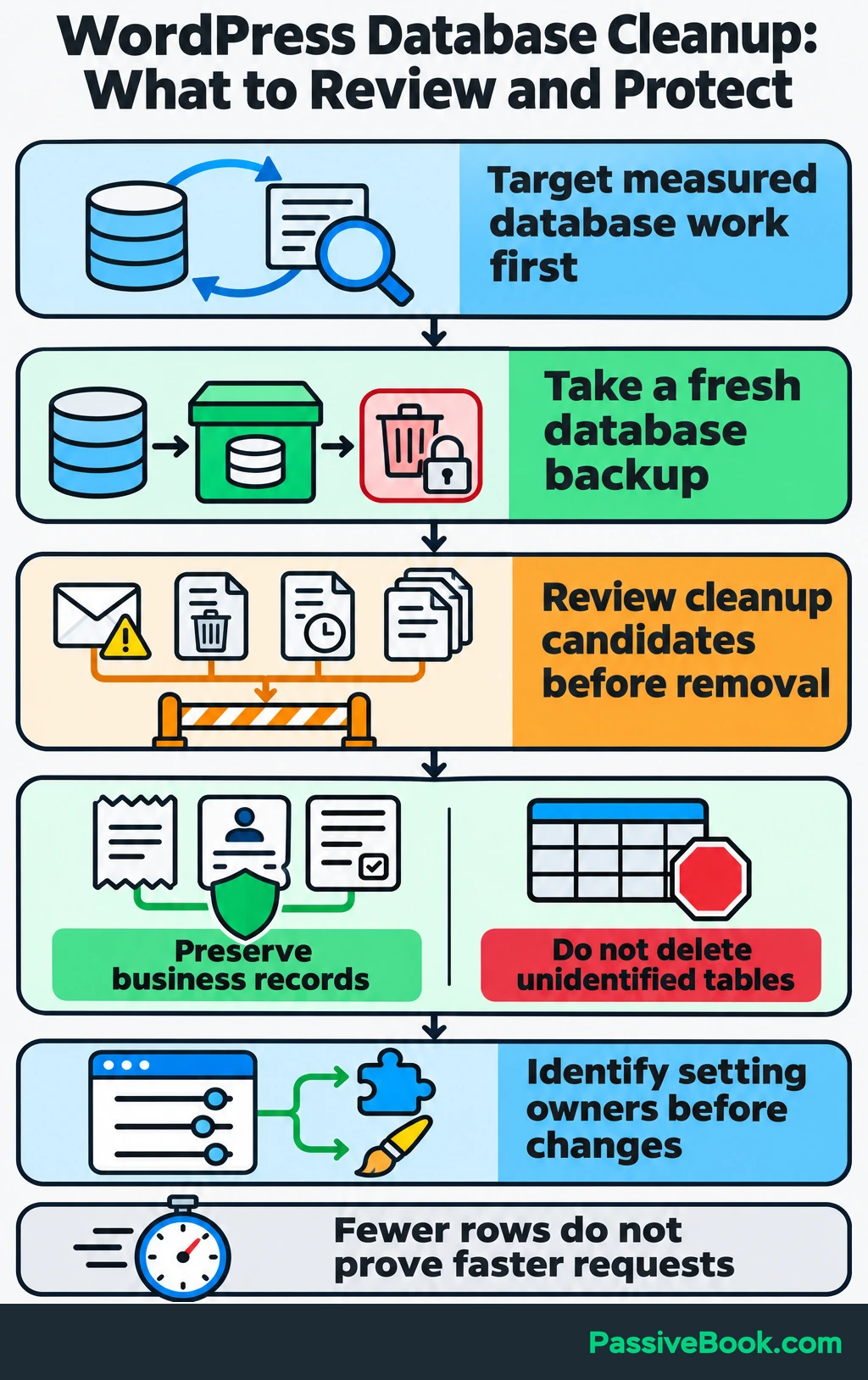
Preserve orders, customer records, form submissions and tables you cannot identify. “Unfamiliar” is a poor deletion rule.
If diagnostics flag excessive autoloaded settings, ask a specialist to identify their owners. These are settings WordPress loads automatically, and some are needed throughout the site. Change them only after understanding their purpose.
Persistent object caching may help when repeated database work is a measured bottleneck. It reuses data across requests, while page caching reuses a completed page. Redis and Memcached can provide this persistent storage, but they require server support. WordPress’s object-cache documentation explains the distinction.
Have your host configure its supported option, then compare dynamic response times. Installing a plugin alone does not establish that a working cache exists.
Upgrade Hosting When Capacity Is the Constraint
Upgrade when diagnostics show that the site lacks resources or faces persistent resource contention after the relevant fixes.
Before paying, compare:
- Available CPU, memory and simultaneous-request capacity.
- Server location relative to your audience.
- Supported caching.
- Staging and backups.
- Support responsibilities.
- Renewal cost and administration time.
I use DigitalOcean, but I would not send a beginner to a self-managed server simply because its monthly bill looks attractive. Someone still has to maintain it. Managed hosting can be the better purchase when it removes work you cannot reliably handle.
Once you have two hosting options that meet your technical needs, compare more than the advertised monthly price. Include renewals, migration costs and the time you would spend maintaining each setup.

Free Software Cost Calculator




Hire technical help for persistent slow queries, repeated optimization conflicts or a migration beyond your comfort level. Request a defined scope, measurements before and after, functional checks and rollback instructions.
During a move, preserve your URLs and verify HTTPS, redirects, indexing settings, forms and purchases. For a live shop, agree on how new orders will be handled during the switch.
Verify the Improvement and Keep It Working
Return to the pages you tested at the start. Repeat the same device settings and test location where possible, and keep browser and server-cache conditions comparable except for the change being tested.
Save repeated results and compare the middle values again. Keep improvements that address the diagnosed delay while preserving essential actions.
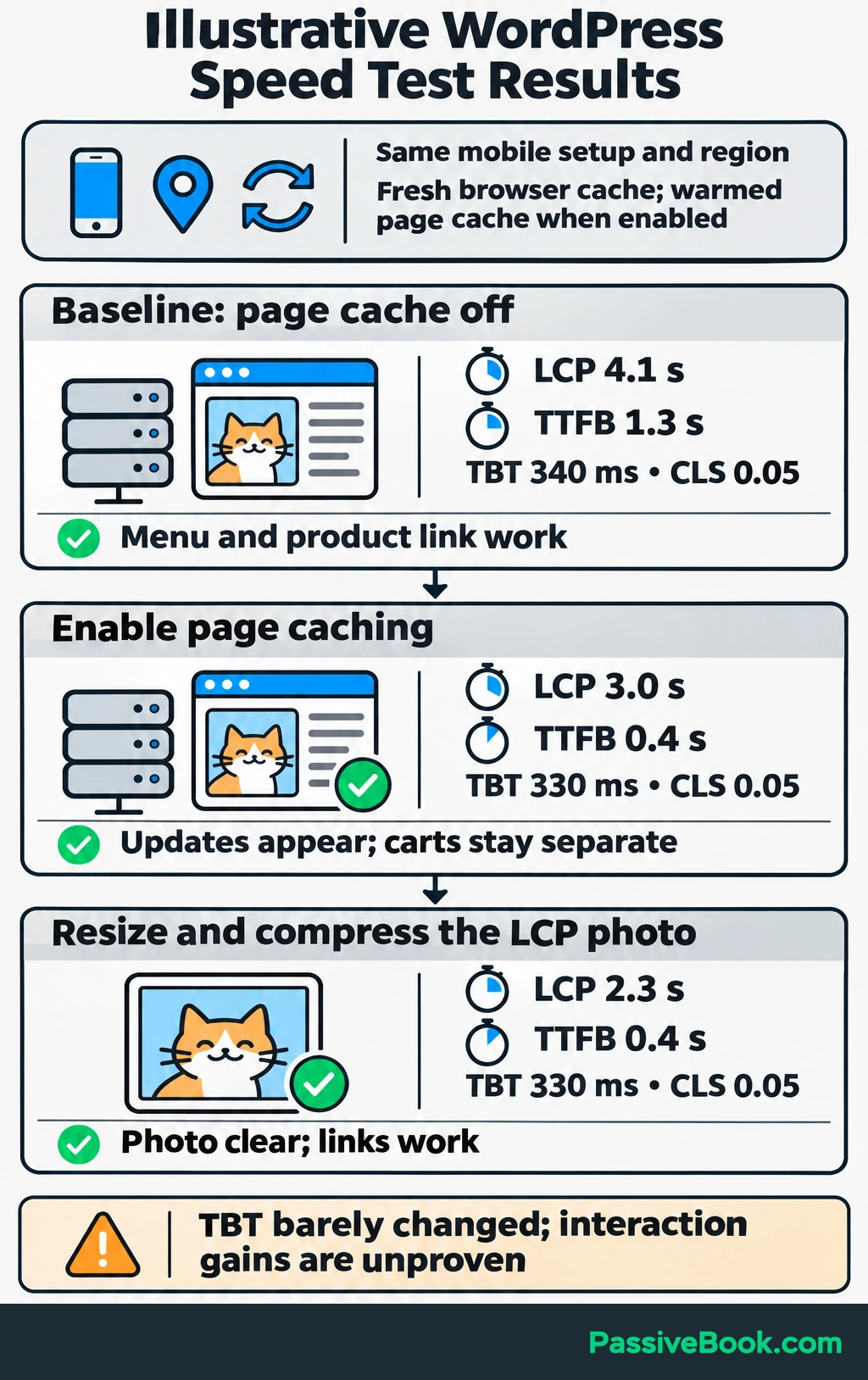
Use a worksheet like this. The figures below are illustrative, showing how to record a sequence of changes rather than predicting your results.
For all three rows, assume the same mobile test setup and region, a fresh browser cache, and a warmed page cache once caching is enabled.
| URL | Change | Test Conditions | Lab LCP | TBT | CLS | Time to First Byte | Functional-Check Result |
|---|---|---|---|---|---|---|---|
/cat-sitter-checklist/ | Baseline | Mobile; page cache off | 4.1 s | 340 ms | 0.05 | 1.3 s | Menu and product link work |
/cat-sitter-checklist/ | Enable page caching | Same setup; confirmed cache hit | 3.0 s | 330 ms | 0.05 | 0.4 s | Updated article appears; cart stays separate |
/cat-sitter-checklist/ | Resize and compress LCP photograph | Same setup; confirmed cache hit | 2.3 s | 330 ms | 0.05 | 0.4 s | Photograph remains clear; links work |
In this example, caching shortened the initial wait, but LCP still needed attention. Optimizing the identified photograph addressed the next delay. TBT barely changed, so these results would not justify claiming that interactions improved.
Record field Core Web Vitals separately, including whether they cover the exact URL or the whole site. The rolling field report will not reflect today’s change immediately.
Then walk through the site on mobile and desktop:
- Open navigation and search.
- View images and start any optional media.
- Submit the important form.
- Add the instruction sheet to the cart and update it.
- Complete a test purchase on staging through your payment provider’s test mode.
- Confirm the download works and check the expected messages in staging’s email log or test inbox.
Also check that important content, links and indexing settings remain intact.
Over time, monitor groups of similar pages in Search Console’s Core Web Vitals report. Google groups URLs with similar experiences, which can help reveal problems shared across a template. The report documentation explains how those groups work.
Build image sizing into publishing, and retest after significant plugin, template, embed or hosting changes. Once important pages perform well and visitor actions work reliably, stop adding settings. Your site does not need a new performance experiment every weekend.
What Next?
Choose one important article and save three mobile PageSpeed runs before changing anything. Identify its largest delay, then check whether your hosting or existing tools already provide the fix.
Use the social buttons to share this guide when the next WordPress discussion turns into a list of plugins to buy. A measured starting point can save a lot of unnecessary tinkering.
Which delay would you tackle first on your site, and what evidence points to it? Share your answer in the comments, and bring any other questions too.
Share this post with your friends & followers:

