Your website can look fine while an old plugin waits for an update or a former contractor still has administrator access. A working homepage tells you little about those gaps—or whether your backups would work if something went wrong.
If trouble hits, you could spend hours rebuilding pages, checking orders, and answering customers. This guide puts WordPress security tasks in a practical order, with recovery checks and a maintenance routine built around the pages, forms, and purchases your site needs to keep working.
Start With This WordPress Security Checklist
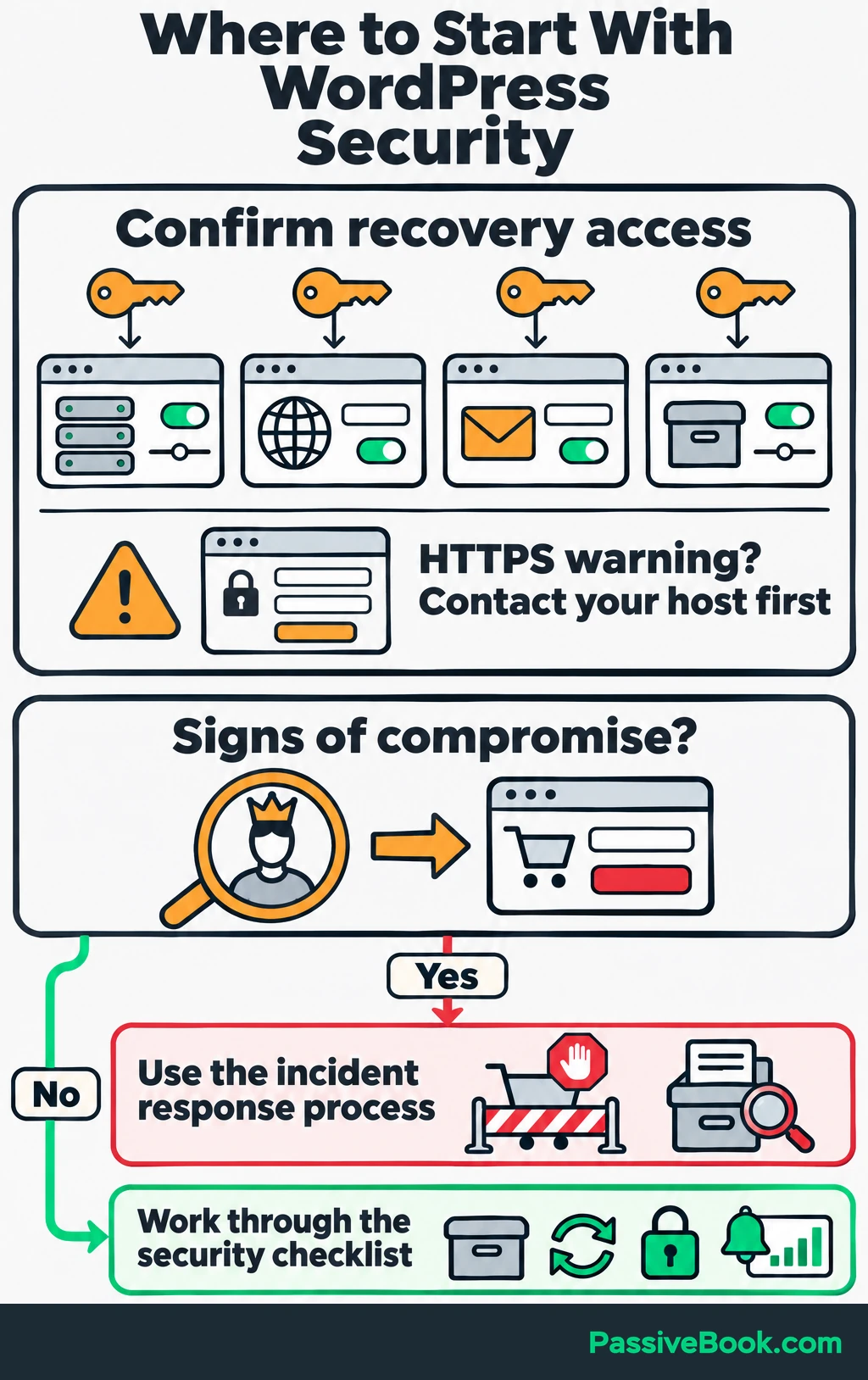
First, confirm that you can access WordPress, your hosting account, domain management, and recovery email. Keep recovery details somewhere you can reach without opening your website.
If your browser shows an HTTPS certificate warning, ask your host to resolve it before entering credentials.
Next, check for unfamiliar administrators, unexpected redirects, altered checkout pages, or malware warnings. If you find any, jump to Respond to a Suspected WordPress Hack. Otherwise, work through this checklist.
Assign each task to a named person. If you work alone, that person can be you, but your host’s responsibilities still need to be clear.
| Action | Responsible Person | Completion Check |
|---|---|---|
| Verify recovery access | You | Hosting, domain, email, and backup accounts are accessible |
| Create and test a backup | You or backup provider | A separate test copy restores successfully |
| Update essential software | You or maintenance provider | Updates finish and key functions still work |
| Remove unnecessary extensions | You | Unused plugins and themes are deleted |
| Protect privileged accounts | Each account holder | Unique passwords, working 2FA, and saved recovery codes |
| Check server support | Host or server administrator | PHP, database, and web-server maintenance are confirmed |
| Verify HTTPS | You and host | Login, checkout, and downloads open without warnings |
| Activate firewall protection | You or host | Protection is active and customer functions pass testing |
| Run scans and test alerts | You | Findings are reviewed and a test alert reaches your inbox |
These layers reduce risk, but none promises perfect protection. That is also the position in WordPress’s security guidance.
To make the checks concrete, imagine you sell downloadable sewing patterns through WooCommerce, the plugin that adds a shop to WordPress. You need to protect the pattern files, customer accounts, orders, and the path from payment to download. We’ll use that shop throughout.
Create Backups You Can Restore
Back up the Database and Site Files
A complete recovery needs both the database and the site files. Downloading your WordPress folder alone usually misses the database, which lives separately. WordPress’s backup guidance explains this distinction.
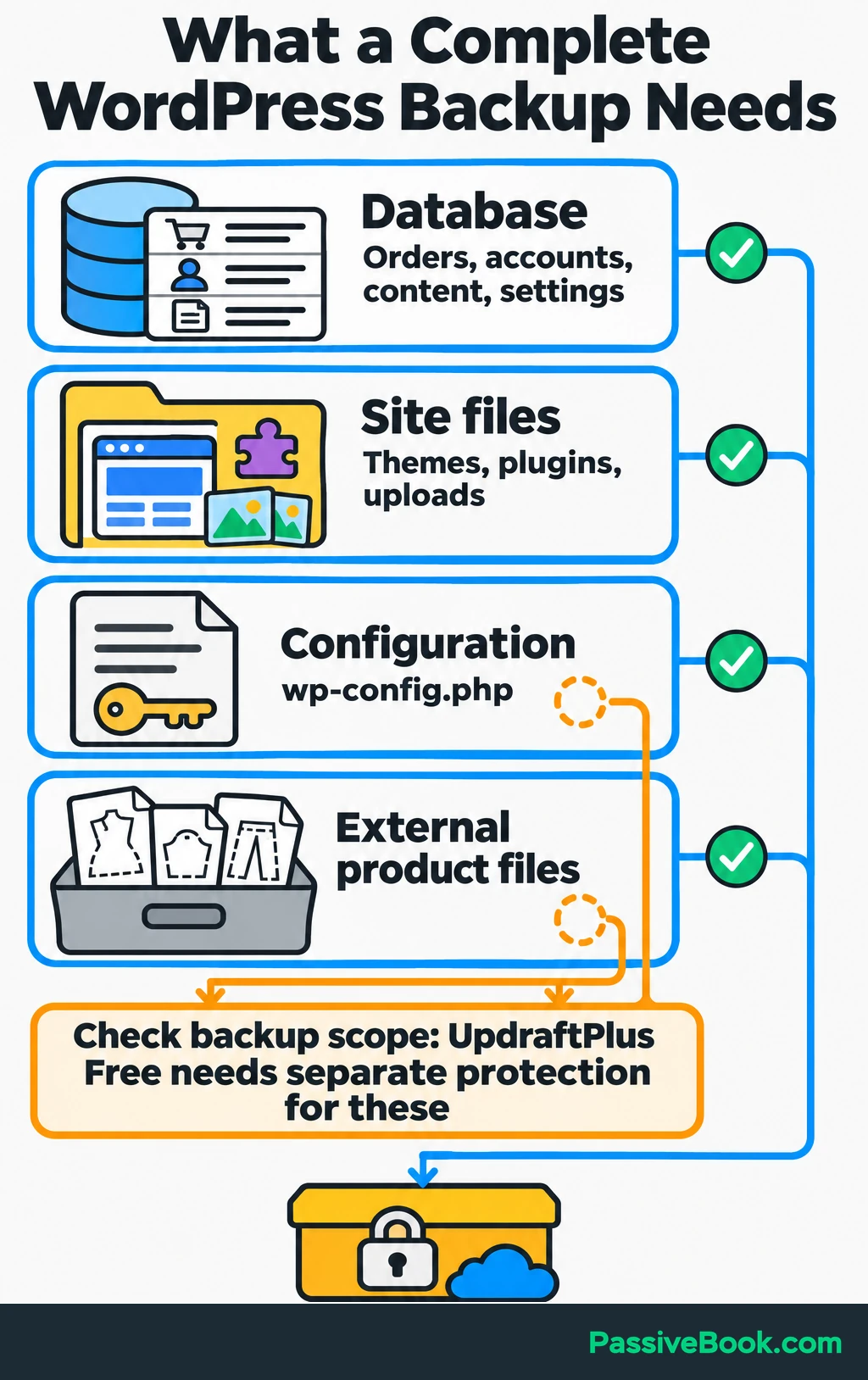
Your backup should cover:
- The database, including content, settings, accounts, and order records.
- Themes, plugins, images, and other uploads.
- Configuration files, including
wp-config.php, which holds WordPress’s main settings. - Downloadable products stored outside the normal WordPress folders or with another storage provider.
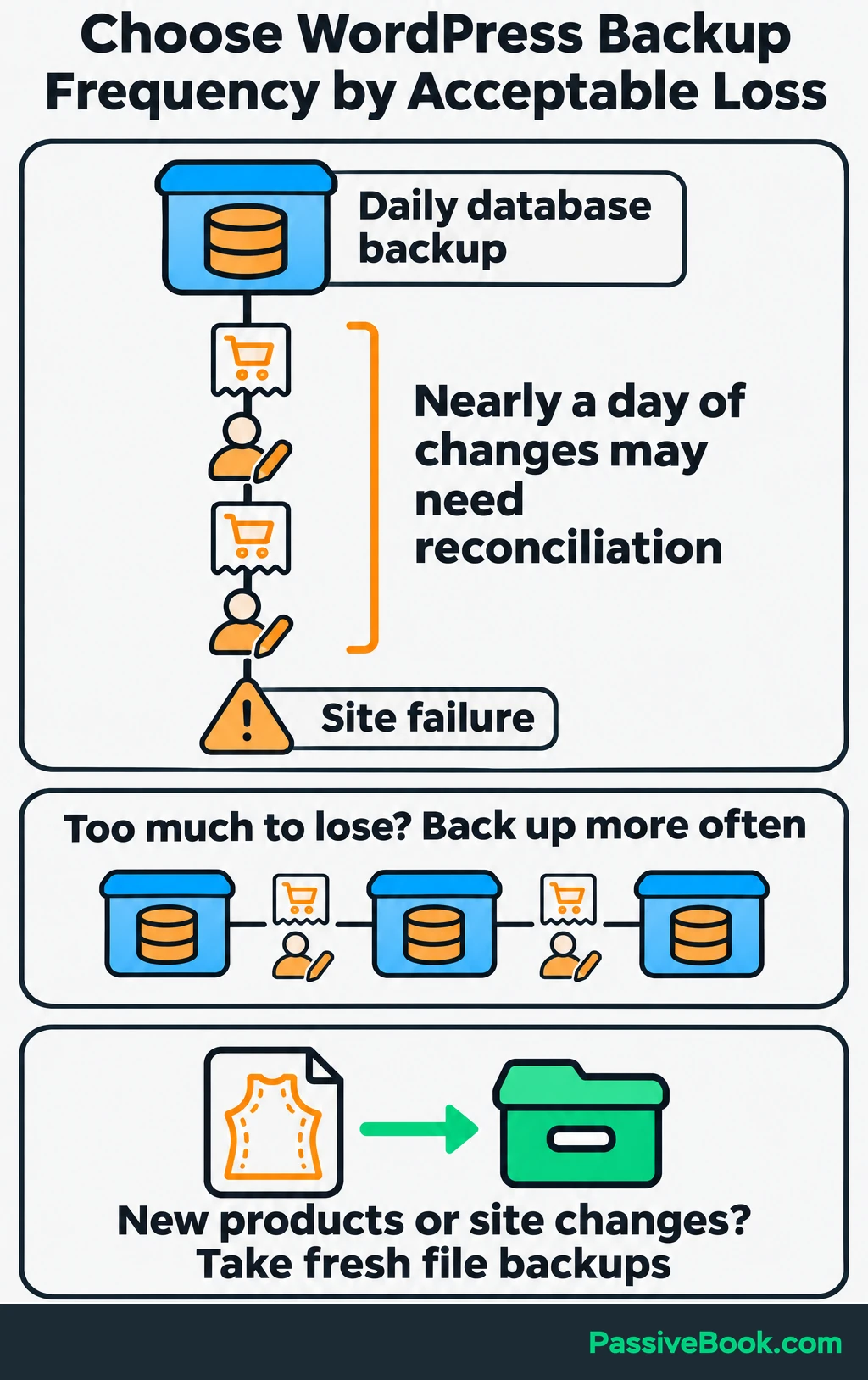
Choose the backup frequency by deciding how much recent activity you could afford to lose.
For the sewing-pattern shop, a daily database backup could leave nearly a day of orders and account changes to reconcile. If that would be unacceptable, choose a service that backs up more often. Take fresh file backups when you add patterns or change the site, too.
Keep several historical recovery points and a protected copy outside your hosting account. Make sure you can retrieve that copy without logging into WordPress.
I would use the host’s backup service if it covers these needs and passes a restore test. There is no prize for installing another plugin.
If you need a separate option, UpdraftPlus Free supports scheduled backups and remote storage. Its free coverage includes the WordPress database and wp-content, but you need separate protection for wp-config.php and files outside that coverage. Check UpdraftPlus’s backup scope before relying on it.
Test a Restore Before Relying on the Backup
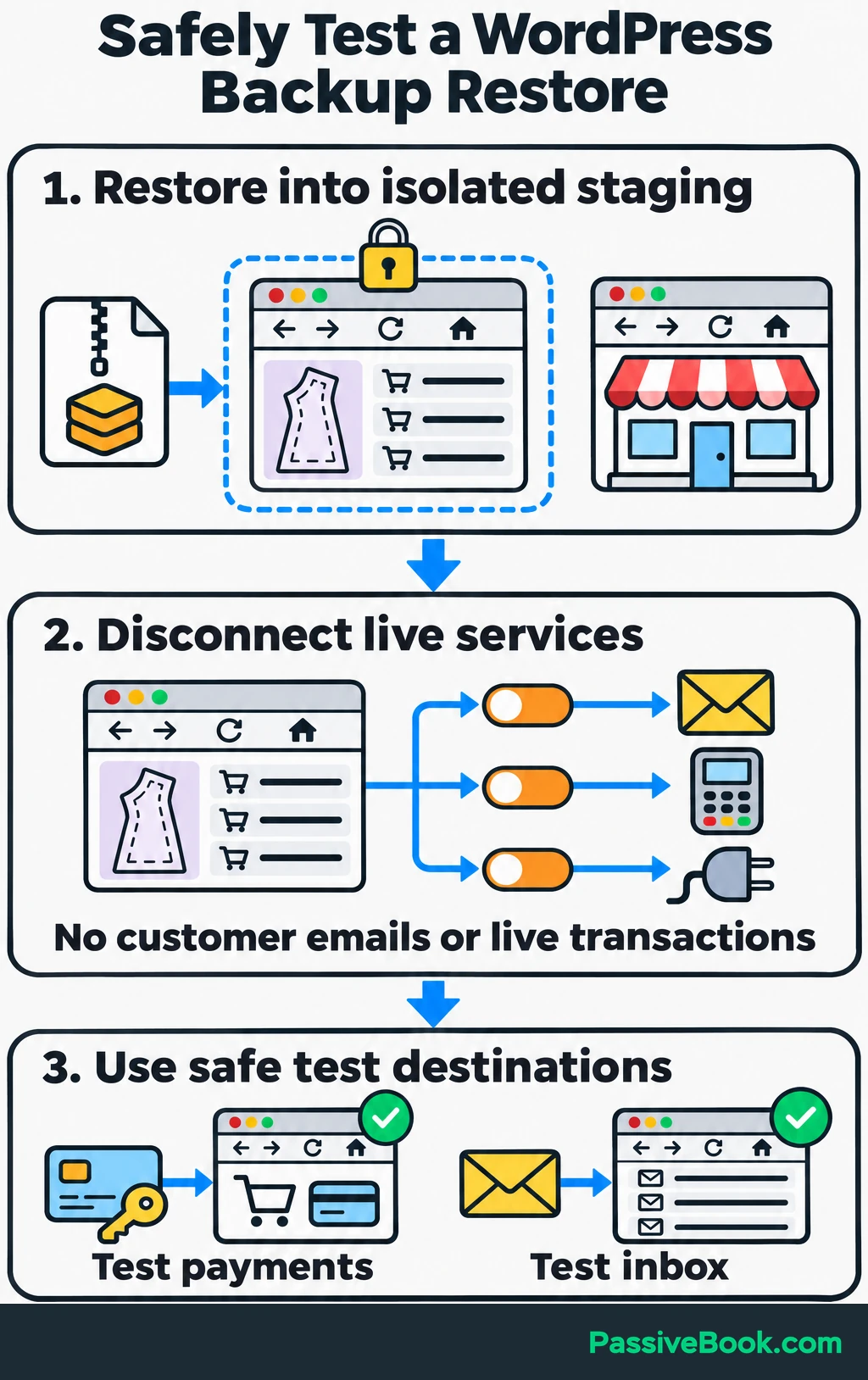
Restore a backup into an isolated test environment, often called staging. Ask your host to create one if you have never done this.
Before running the restored site, prevent it from sending customer emails, taking live payments, or contacting services connected to the live site. Use test payment credentials and direct emails to a test inbox.
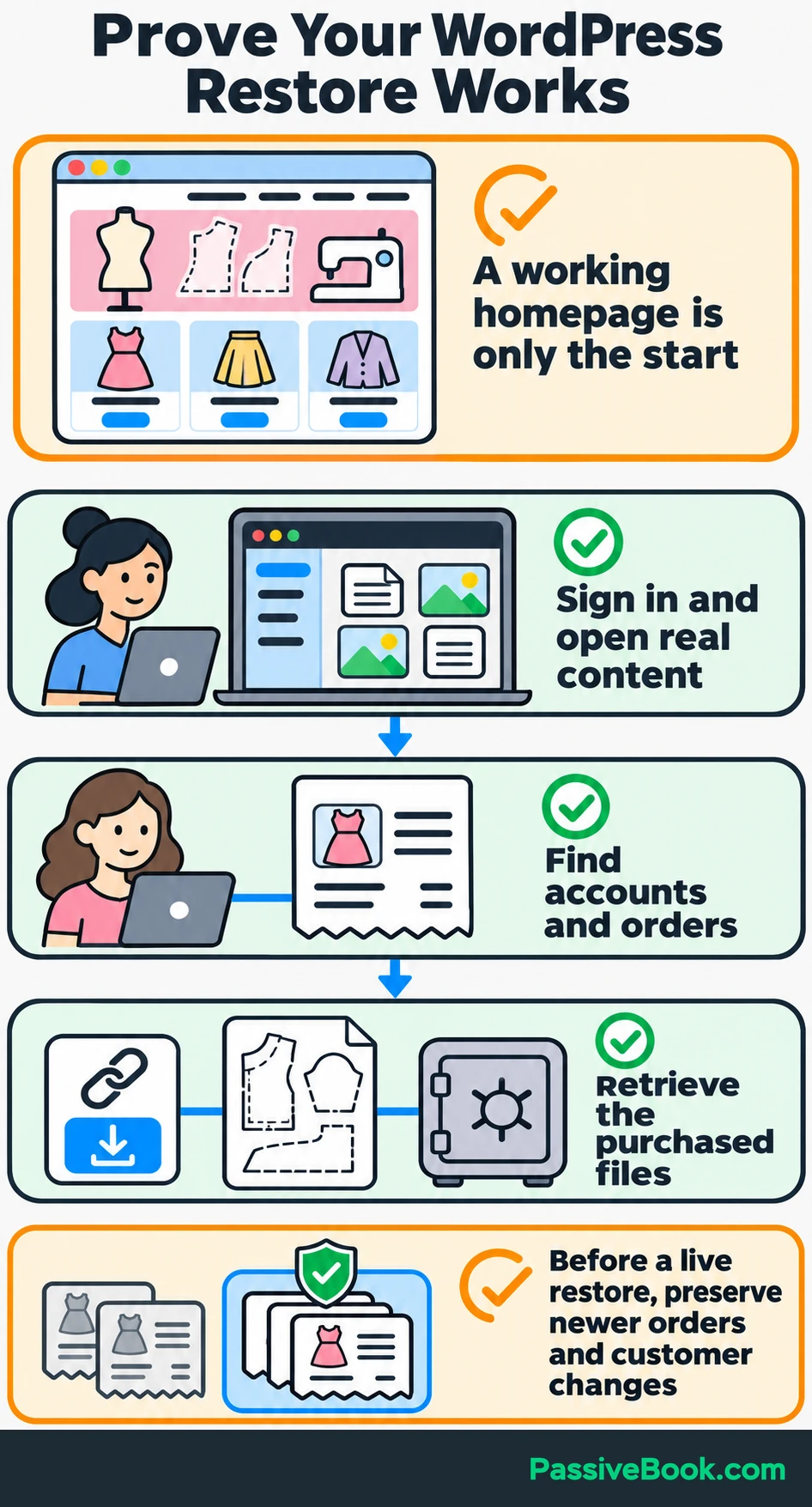
Then check that you can:
- Sign in as an administrator.
- Open representative pages and images.
- Find expected customer accounts and orders.
- Access a purchased download through the normal customer process.
- Retrieve any product files stored elsewhere.
For the sewing-pattern shop, opening the homepage proves very little about recovery. Finding an order and downloading its pattern proves much more.
Save the recovery steps, backup location, required credentials, support contact, and successful test date outside WordPress. Include instructions for restoring when the dashboard is unavailable.
Before restoring over a live shop, preserve legitimate orders and customer changes made after the backup. A restore can otherwise replace newer records with older ones.
Update WordPress and Remove Risky Extensions
Remove Unnecessary or Unsupported Software
Review your installed plugins and themes before adding anything new. For each one, record its purpose, source, maintenance status, and whether you still need it.
Delete unused plugins rather than leaving them deactivated. Keep your active theme, its required parent theme if applicable, and a maintained fallback theme.
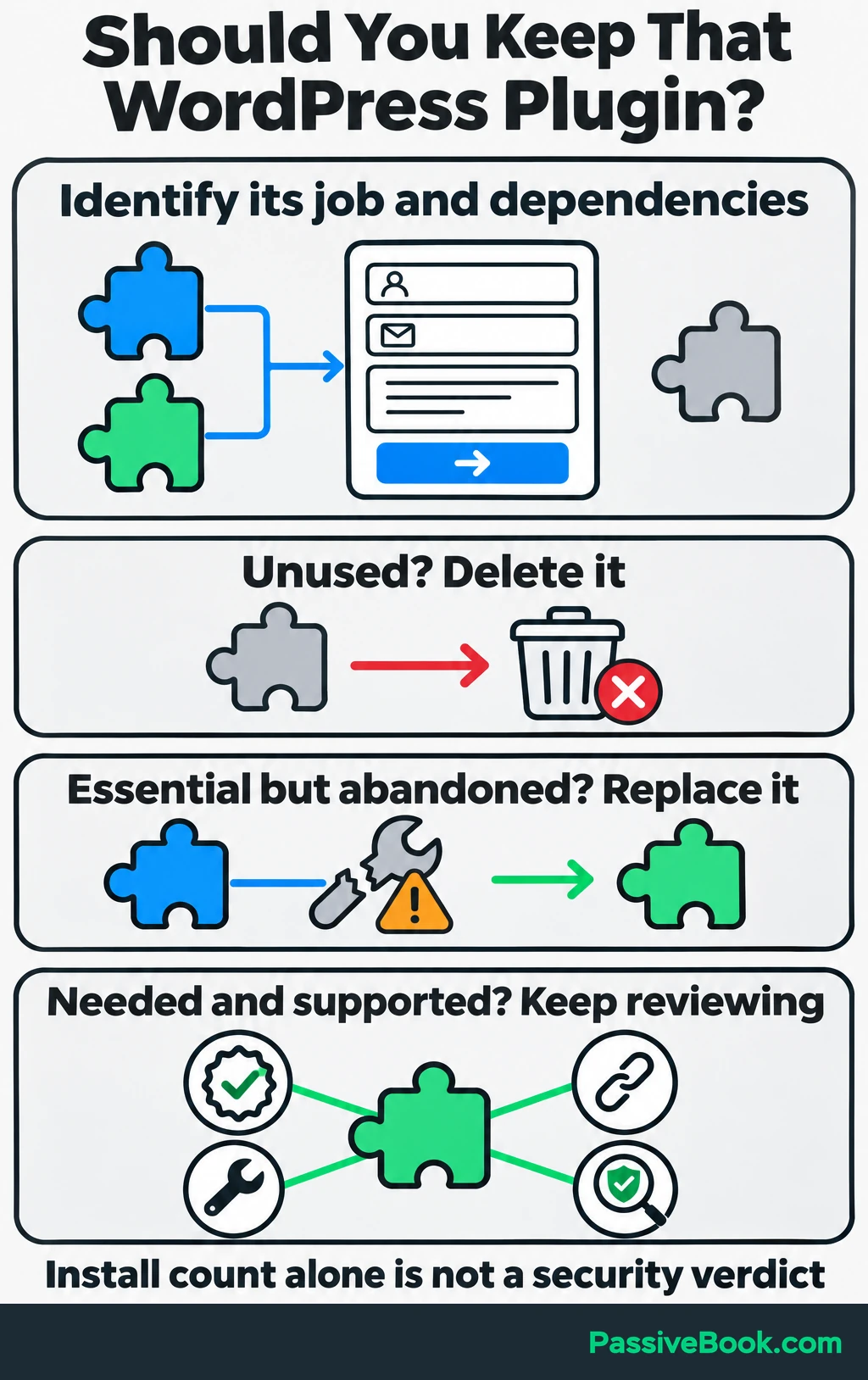
On one of my content sites, I found two form plugins doing one job, plus a deactivated add-on from an abandoned experiment. I had kept them because I might need them later. After checking where the forms appeared, I removed the extras. Now I give each plugin a clear job before it earns a place on a site.
Download extensions from WordPress.org or the publisher’s authentic website. Skip unofficial copies of paid plugins.
When choosing or keeping a plugin, look at maintenance, compatibility, support, and known security problems together. A large install count does not settle the decision.
Replace abandoned software that handles an essential function. If a vulnerable extension has no safe patch, check what depends on it and disable or remove it while arranging an alternative. Leaving a known opening because replacement is inconvenient is a poor trade.
Apply Updates and Check Essential Functions
Before updating, confirm that you have a recent backup you know how to restore. Read compatibility notes, especially for WooCommerce, payment extensions, and anything that controls access to purchases.
Apply the WordPress core, plugin, and theme updates on the staging copy first. Find available updates under Dashboard > Updates.
Give testing a deadline. “Waiting until I have time” can become a very long update policy.
Verify that automatic core security updates are enabled. For plugin and theme updates, I would automate changes when reliable backups, failure alerts, and function checks are in place. Changes to checkout deserve closer attention.
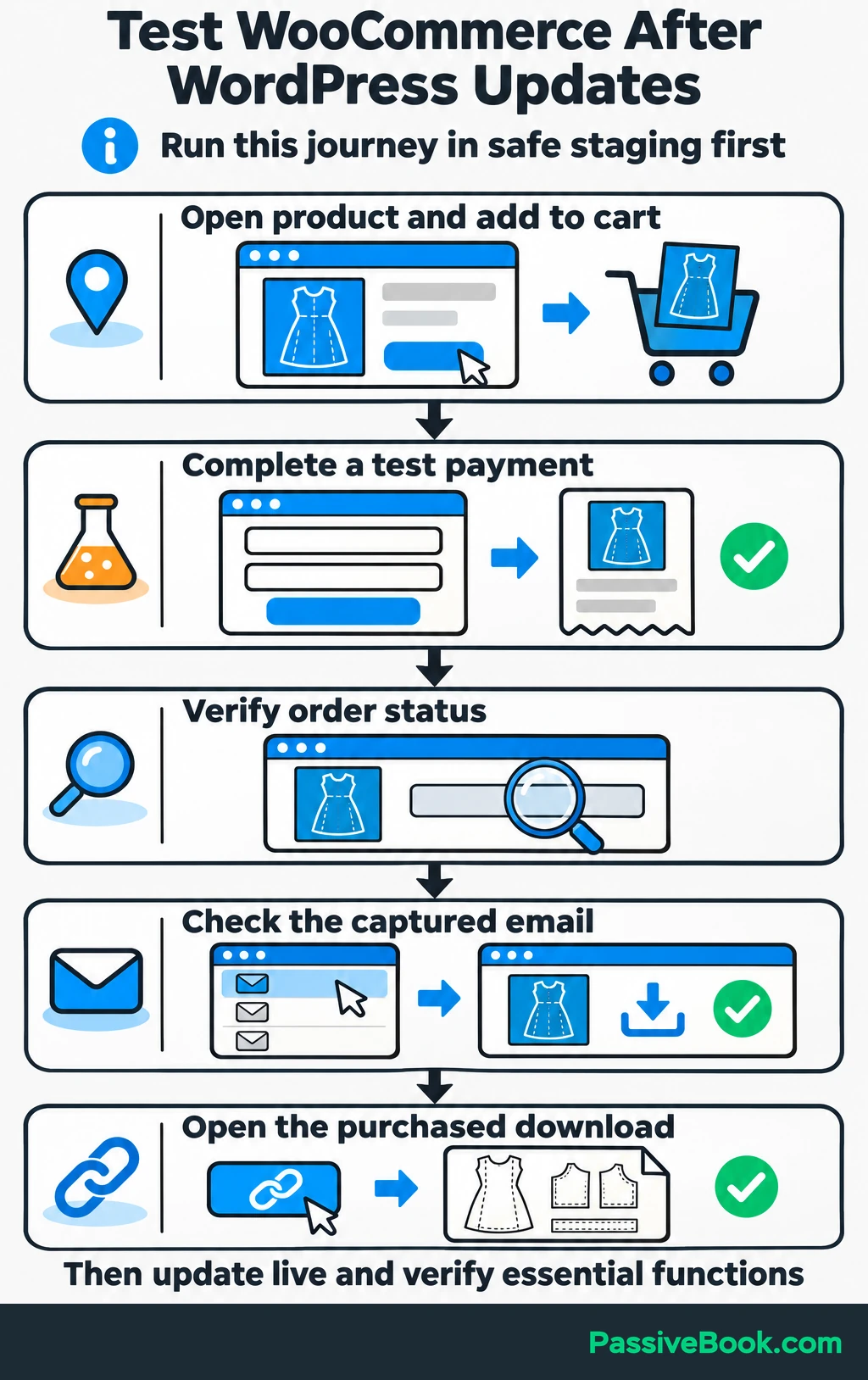
After updating the sewing-pattern shop, run the complete customer journey in a safe test environment:
- Open a pattern page and add it to the cart.
- Complete a test payment.
- Confirm that the order status is correct.
- Check the captured confirmation email.
- Follow the purchased-download link and open the file.
Also test administrator login and your main forms. For a blog or service site, replace the purchase steps with opening a recent article and submitting a contact or signup form. Check that the submission reaches its destination.
Once staging checks pass, apply the same updates to the live site and verify that its essential functions still work.
If an update breaks the site, use your recovery process to restore service. Then fix the incompatibility or replace the component. If rolling back reintroduces a known vulnerability, address it promptly rather than treating the rollback as a permanent solution.
Protect Logins and Limit Account Access
Require Strong Authentication and Reliable Recovery
Use a password manager to generate long, unique passwords for WordPress and the accounts that control it:
- Hosting.
- Domain registration and DNS, which directs visitors to your website’s server.
- Backup storage.
- Recovery email.
Enable two-factor authentication wherever those services offer it. Two-factor authentication, or 2FA, adds another check beyond your password, such as a code from an authenticator app.
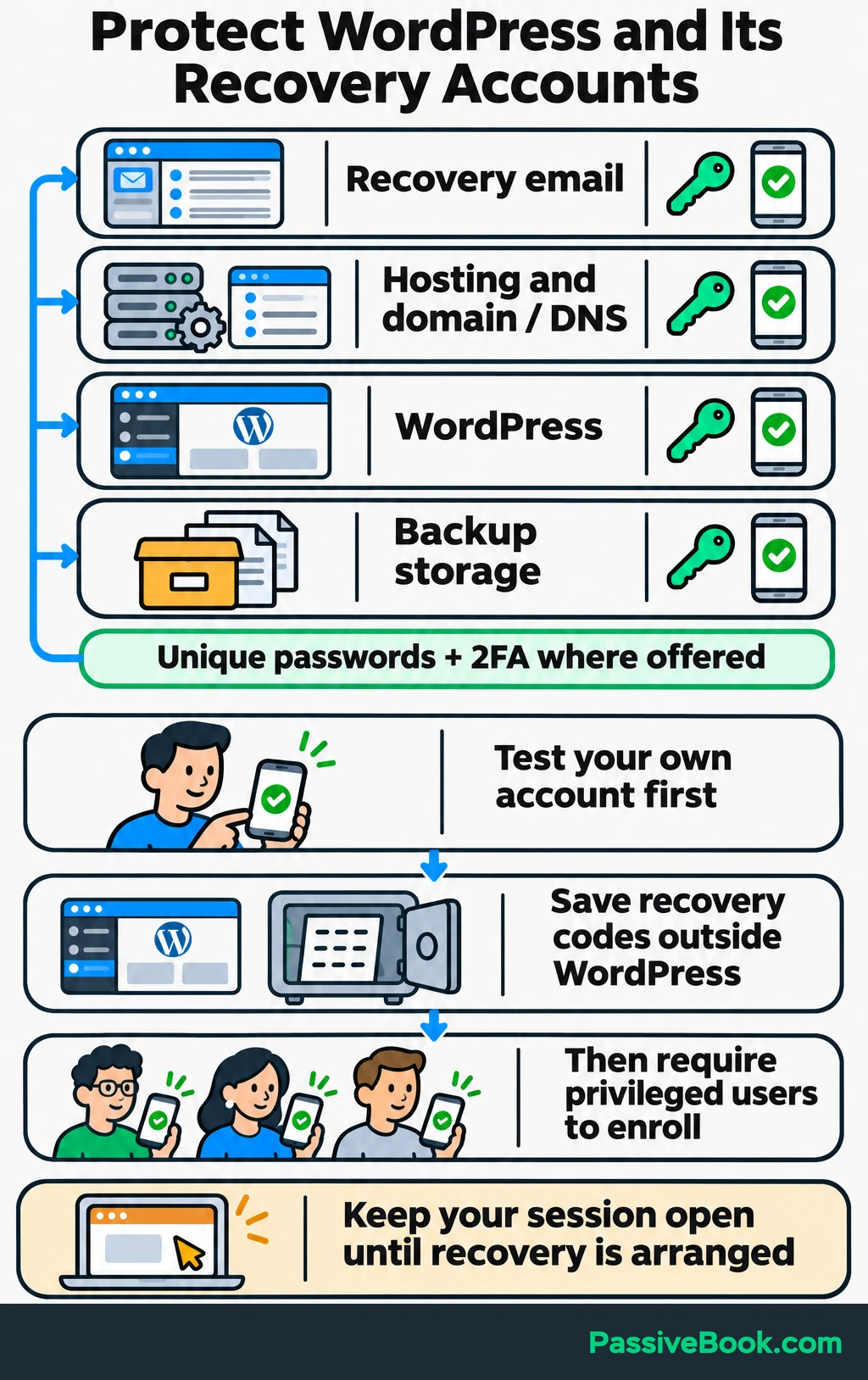
WordPress core does not include 2FA, so add it for administrators and other privileged users through a maintained plugin or a service that manages your logins. See WordPress’s authentication guidance.
Enroll your own account and test it before requiring everyone else to use it. Save recovery codes securely outside the website, and confirm how your host can help if you lose access. Keep your working session open until recovery is arranged.
Update the computers, phones, and browsers you use to manage the site. If you suspect malware on a device, stop using it for administration until it has been checked.
Give Each Person Only the Permissions They Need
Give each person an individual account. Shared logins make access harder to remove and changes harder to trace.
Choose the role by the work:
| Work Required | Starting Role |
|---|---|
| Install plugins and manage site settings | Administrator |
| Manage and publish site content across authors | Editor |
| Write and publish their own posts | Author |
| Submit drafts for review | Contributor |
These are the standard distinctions in WordPress’s roles and capabilities. Extensions can change permissions, so check the actual access on your site.
For the sewing-pattern shop, a freelance writer preparing sewing tutorials needs content access. They do not need permission to install plugins or manage customer records.
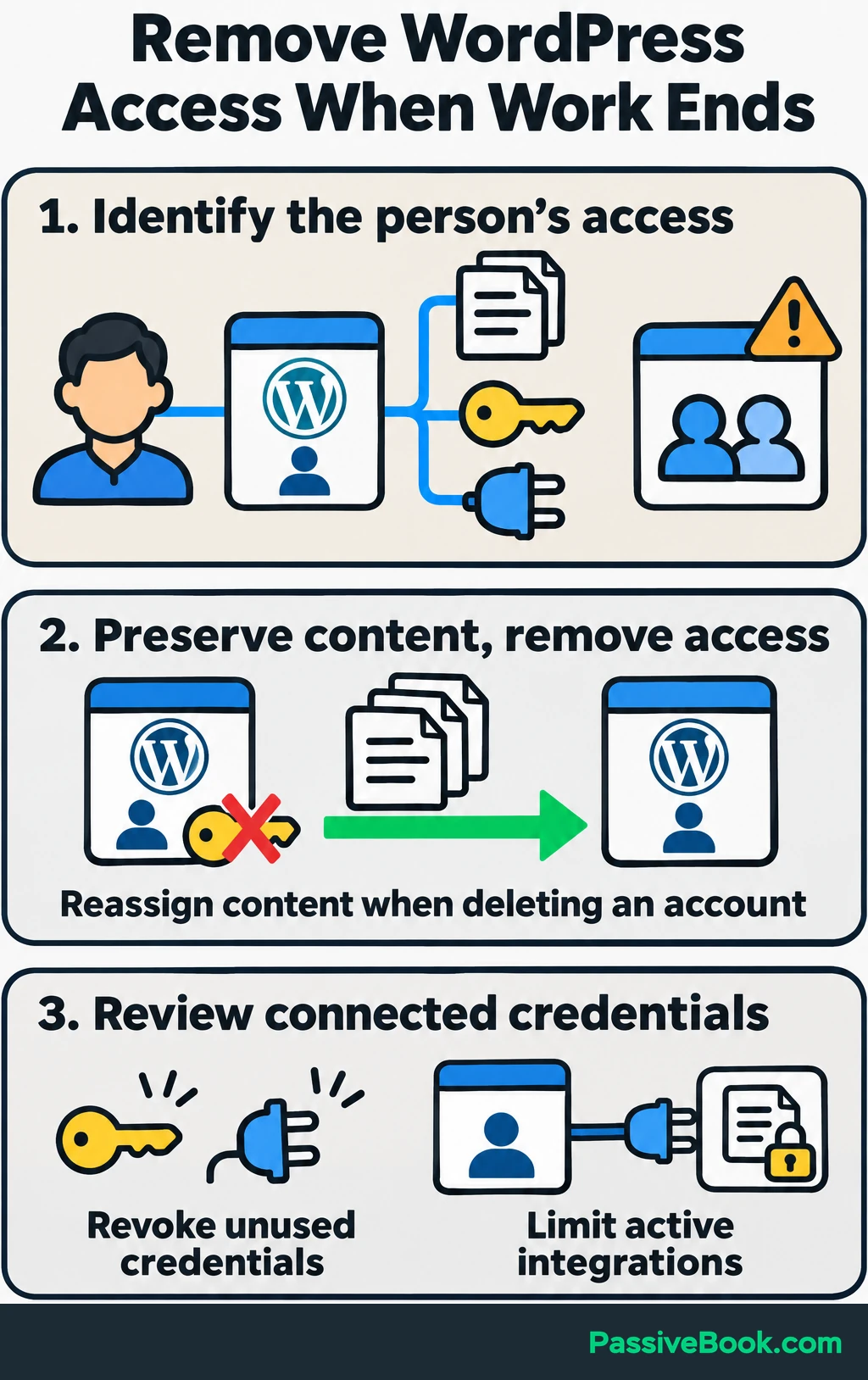
Remove access when a collaborator finishes. Reassign their content when deleting an account so you retain the work.
Review integration access as well. Application passwords are separate credentials that let connected tools access WordPress. Revoke unused application passwords and API keys. For active integrations, use accounts with only the permissions their work requires.
Secure Your Hosting Environment
Ask your host who handles server updates, security alerts, backup restoration, and incident assistance. Get specific answers rather than assuming that “secure hosting” includes every task.
I use self-hosted WordPress with DigitalOcean, but that setup comes with server responsibilities. If you lack the time or skills to manage those, I would choose managed support. Saving on hosting stops being useful when you inherit a second job.
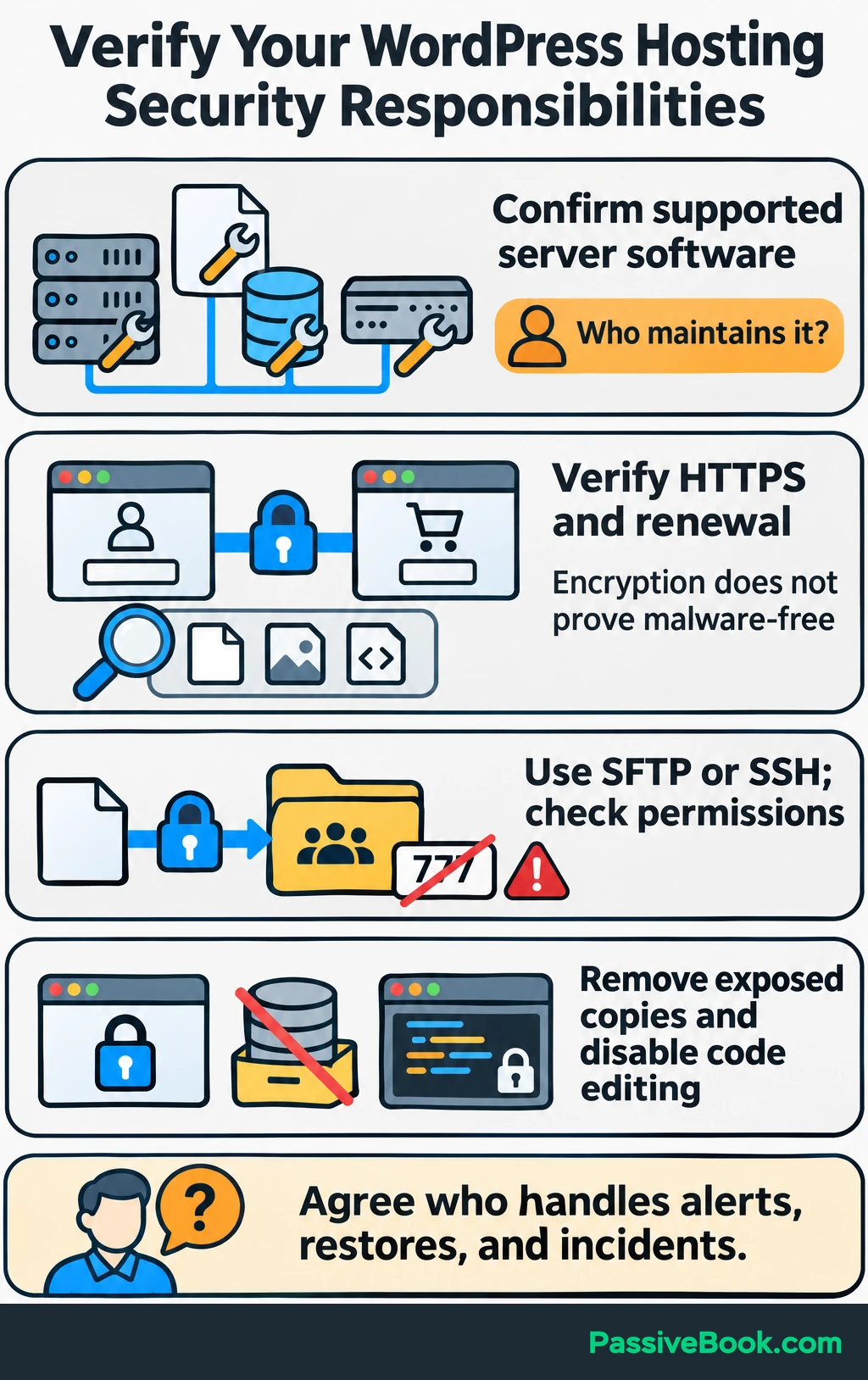
Ask the host to confirm that PHP—the software WordPress runs on—is compatible with your site and still receiving security fixes. The official PHP support table shows which releases remain supported. The database and web-server software need maintenance too.
Work through these hosting checks:
- HTTPS: Check public pages, login, administration, checkout, and downloads. Arrange certificate renewal, redirect HTTP visitors to HTTPS, and fix warnings about insecure page resources. HTTPS protects the connection; it does not prove the site is free of malware.
- File Access: Use SFTP or SSH for encrypted access to server files. Ask the host to check file ownership and permissions. Don’t fix a write error by granting blanket
777permissions, which allow everyone to write. - Old Copies: Remove obsolete test installations and publicly accessible backup archives. Protect staging copies with access controls.
- Dashboard File Editing: Disable the built-in plugin and theme code editors.
Your host can handle the last change. If you maintain the configuration yourself, save a copy of wp-config.php, keep file access available for recovery, and add this above its “stop editing” line:
define( 'DISALLOW_FILE_EDIT', true );This disables dashboard code editing while leaving normal plugin and theme updates available. It is one small restriction, not a replacement for updates or account protection. The setting is documented in WordPress’s file-editor guidance.
Configure a Firewall and Login Protection
Fill Gaps in Your Existing Protection
A web application firewall filters suspicious requests to your website. A malware scanner examines site contents for signs of trouble. You need to know which functions your host already supplies before buying more.
I would start with one security suite that fills the missing functions. Several overlapping suites give you more settings to maintain and more possible conflicts.
Wordfence Free combines an on-site firewall, malware scanning, 2FA, login protection, and vulnerability alerts. However, new firewall rules and malware signatures arrive after a 30-day delay. If that delay is unacceptable for your business, choose real-time coverage through your host or a paid service. Wordfence Free features and limits
Complete the firewall setup rather than stopping after plugin activation. Follow its server-specific instructions and confirm that protection becomes active after any learning period.
I also use Cloudflare with self-hosted WordPress. Its firewall can filter traffic before it reaches the server, provided your website is configured to send requests through Cloudflare first. It complements an on-site scanner.
Cloudflare Free includes the Free Managed Ruleset, while broader managed rules require a paid plan. Check Cloudflare’s firewall availability when deciding whether its coverage meets your needs.
For a tight budget, I would spend first on reliable recovery and support. Extra security tools should close a specific gap.
Block Abusive Traffic Without Blocking Customers
Enable login-attempt throttling through your host, firewall, or chosen security plugin. This slows repeated attempts rather than allowing unlimited guesses.
Keep hosting access available while changing login rules. Test a successful login, password reset, and your recovery method before ending the session.
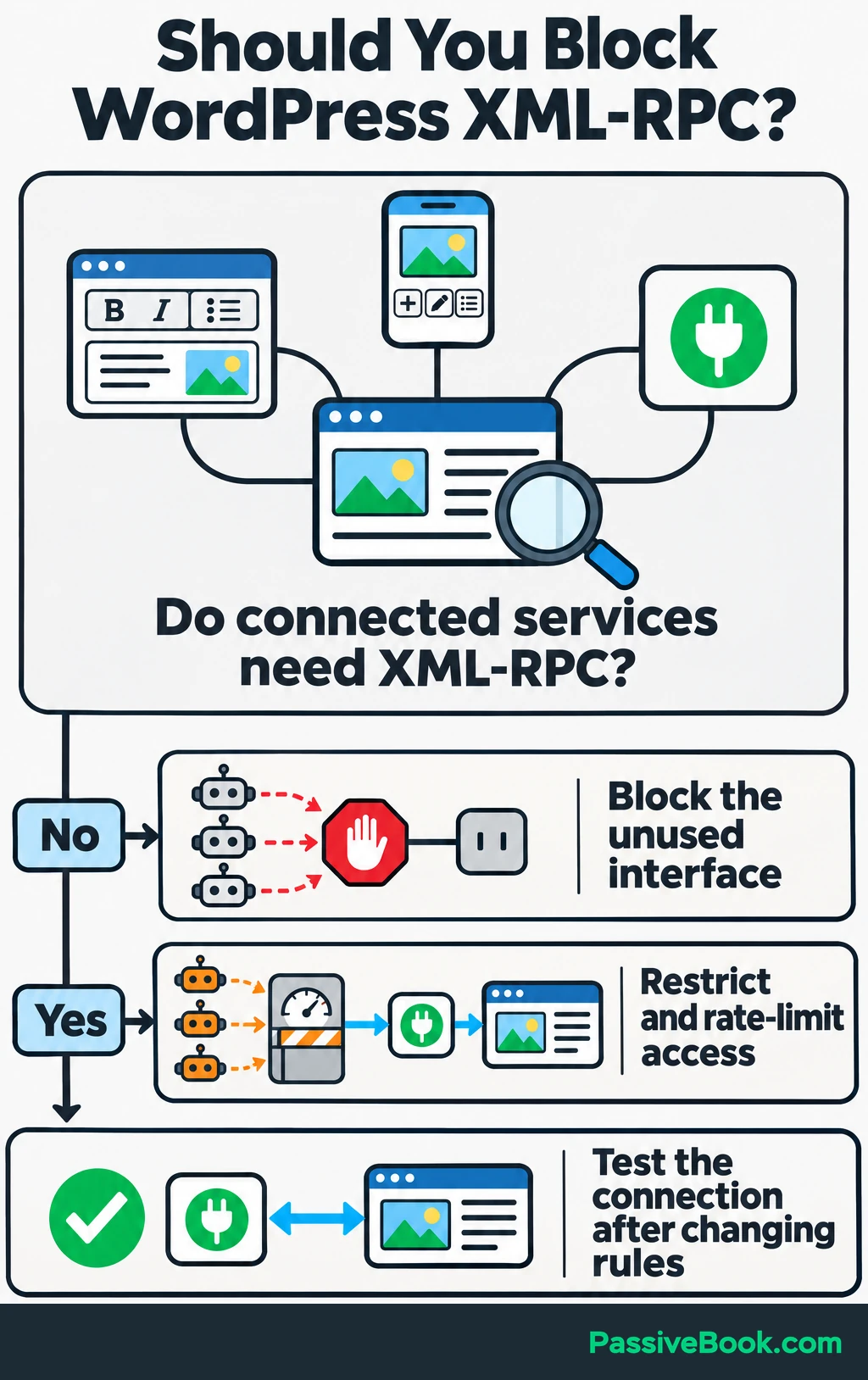
Also check whether connected services need XML-RPC, an older interface used by some publishing tools, mobile apps, and Jetpack features. Block it when unused. If a service needs it, restrict and rate-limit it, then test that connection.
After enabling firewall rules, test forms, checkout, purchased downloads, and payment callbacks. A payment callback is the message a payment provider sends to tell your store what happened to a payment.
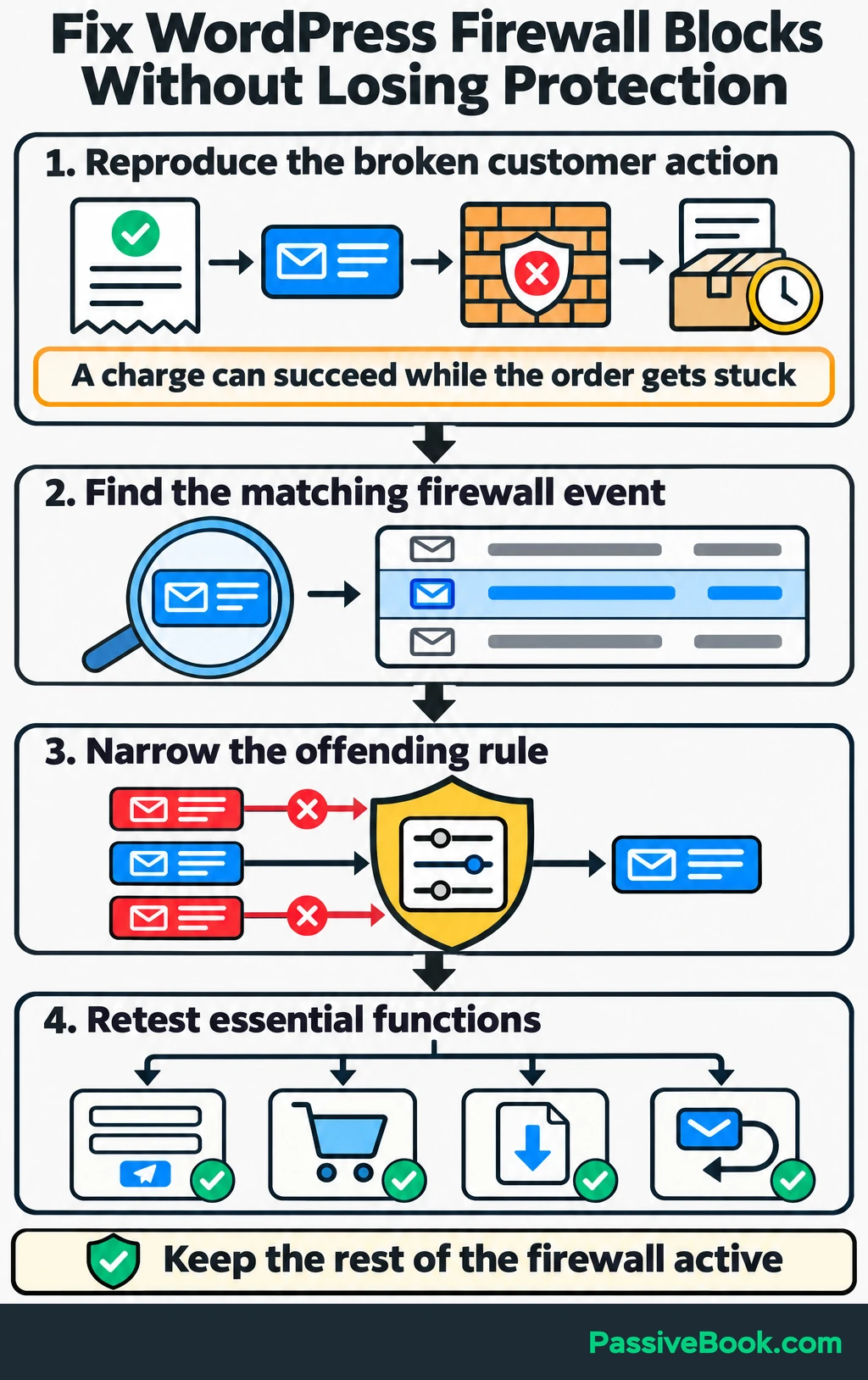
For the sewing-pattern shop, a successful charge followed by a stuck order is a broken customer journey even if the homepage looks normal.
If legitimate traffic fails, find the matching firewall event and narrow the offending rule. Avoid disabling the whole firewall to solve one blocked request.
Scan the Site and Act on Security Alerts
Run an initial scan, read its findings, and enable recurring scans. Confirm that scheduled scans finish successfully.
Treat the findings according to what they show:
| Finding | Next Action |
|---|---|
| A plugin has a known vulnerability | Update it or arrange removal or replacement |
| A file differs from its original version | Compare the change with authentic files and documented customizations |
| Suspected malicious code appears | Investigate promptly and use the incident process below |
| A scan fails or skips important locations | Fix the coverage problem and rerun it |
Check what your scanner actually examines. Wordfence’s Standard scan excludes comparisons of plugin and theme files against their WordPress.org versions by default. Enable those comparisons if you use it. They cannot provide an original-file comparison for every commercial or custom component. Wordfence scan coverage
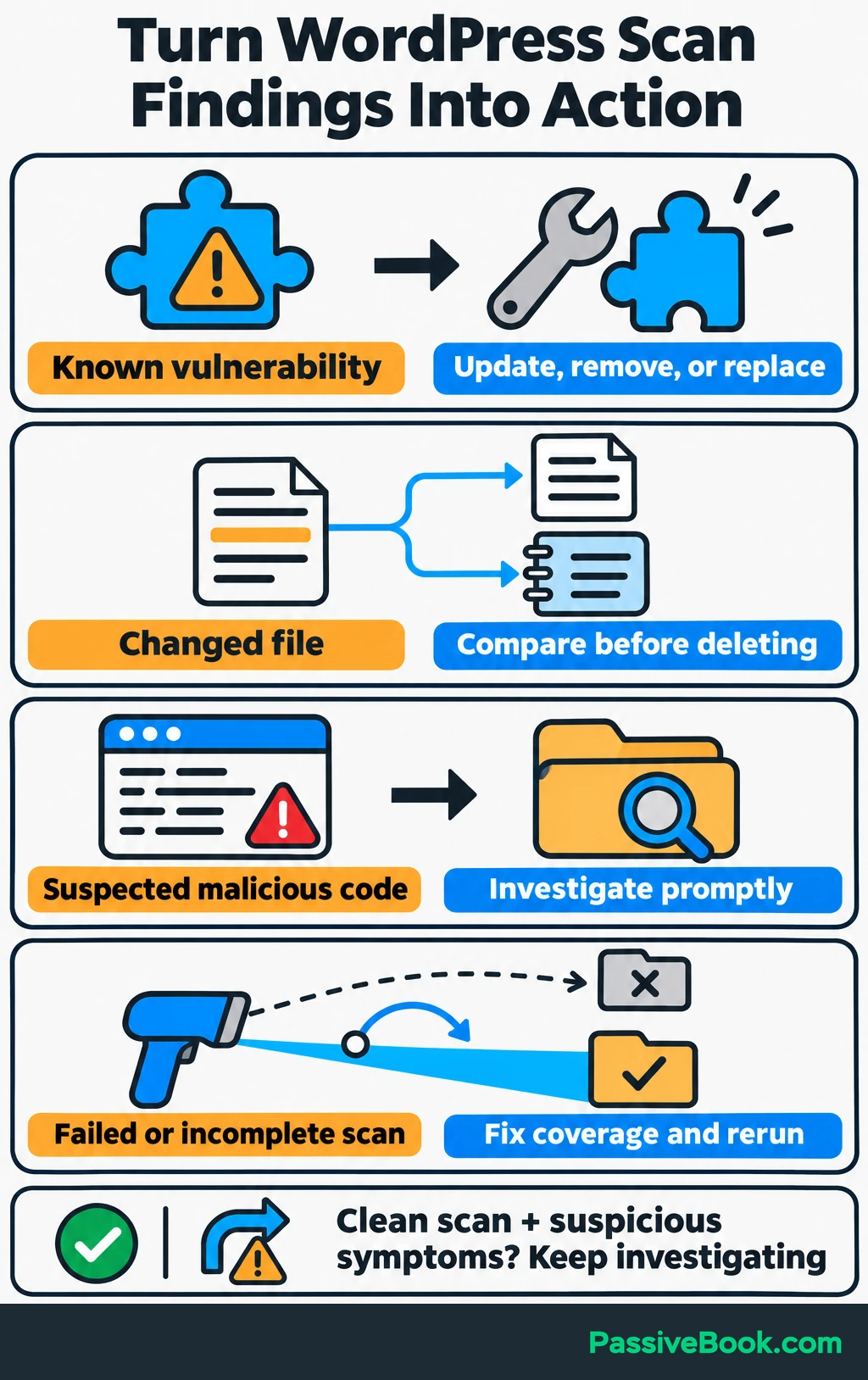
Do not delete every flagged file automatically. A deliberate customization can differ from the original, and deleting an essential file can break the site.
Send actionable warnings to an inbox you check. Enable available alerts for malware, unexpected administrator creation, privilege changes, suspicious file changes, and security-tool deactivation. If your chosen tool lacks an important alert, check whether your host or a maintained activity log can supply it.
Test delivery. An alert that exists only inside a dashboard you rarely visit has limited value.
A clean scan does not settle unexplained redirects, unfamiliar accounts, or changed checkout behavior. Investigate those symptoms even when the scan reports nothing.
Keep Security Maintenance Running
Automate recurring work after verifying that it succeeds: backups, suitable updates, scans, and external uptime checks.
An external uptime check visits your site from outside the hosting account and alerts you when it cannot reach it. That helps you notice outages, but it does not confirm that checkout works.
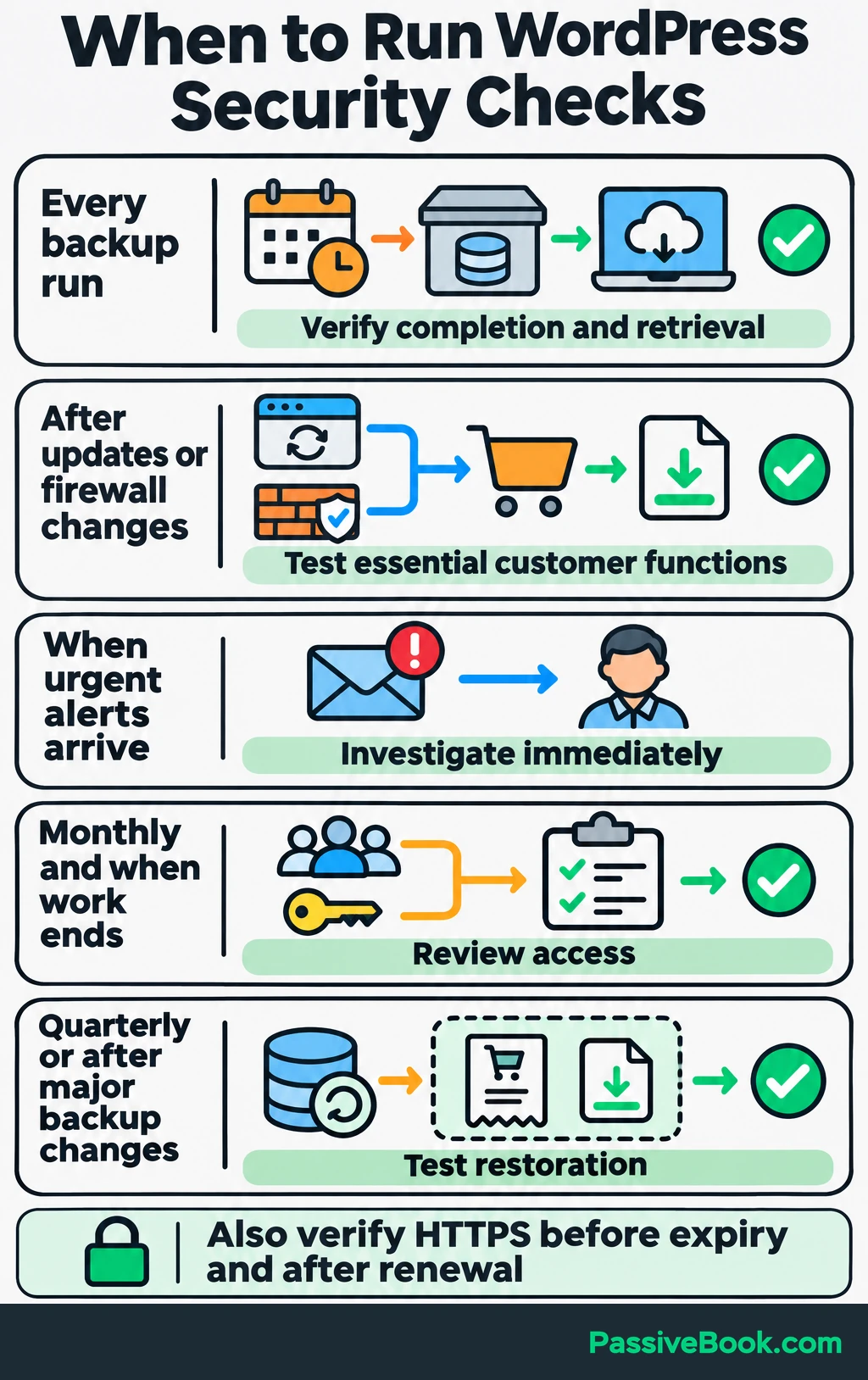
Extend your opening checklist into a small maintenance record. I would start with this schedule and adjust it to the site’s activity.
| Task | Frequency or Trigger | Responsible Person | Completion Evidence | Next Action if It Fails |
|---|---|---|---|---|
| Check backup completion | Each scheduled run | You or backup provider | Successful run and retrievable remote copy | Fix storage, access, or scheduling |
| Review update failures | After each update attempt | You or maintainer | Current version and successful function check | Investigate or recover service |
| Resolve security findings | When an alert arrives | You or specialist | Finding reviewed and fix recorded | Escalate unresolved urgent issues |
| Review account access | Monthly and when work ends | You | Current users and integrations have a purpose | Remove or reduce access |
| Check certificate renewal | Before expiry and after renewal | Host, verified by you | Valid certificate with working HTTPS | Contact host before expiry |
| Test restoration | Quarterly and after major backup changes | You or host | Successful isolated restore | Repair the recovery process |
Treat urgent vulnerability and malware alerts when they arrive. They should not wait for the monthly review.
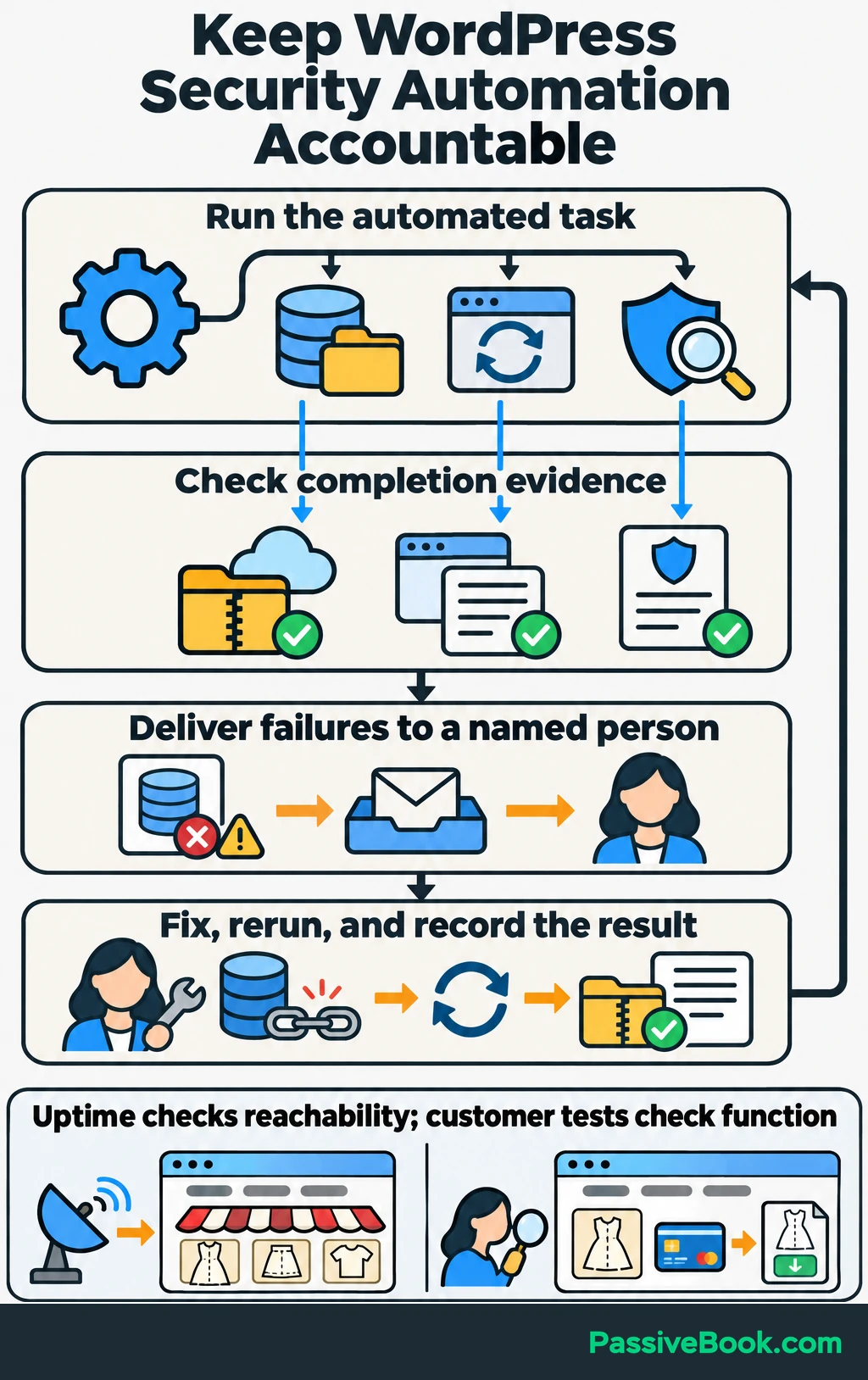
For the sewing-pattern shop, reuse the purchase-to-download test after significant updates, firewall changes, and recovery work. Keep its steps in the maintenance record so the check does not depend on memory.
Automation removes repetition. Someone still needs to notice when it stops working.
Use the schedule above as the starting point for written instructions. Record who handles each check, what counts as done, and who to contact when it fails.

Free AI Operations Writer




Respond to a Suspected WordPress Hack
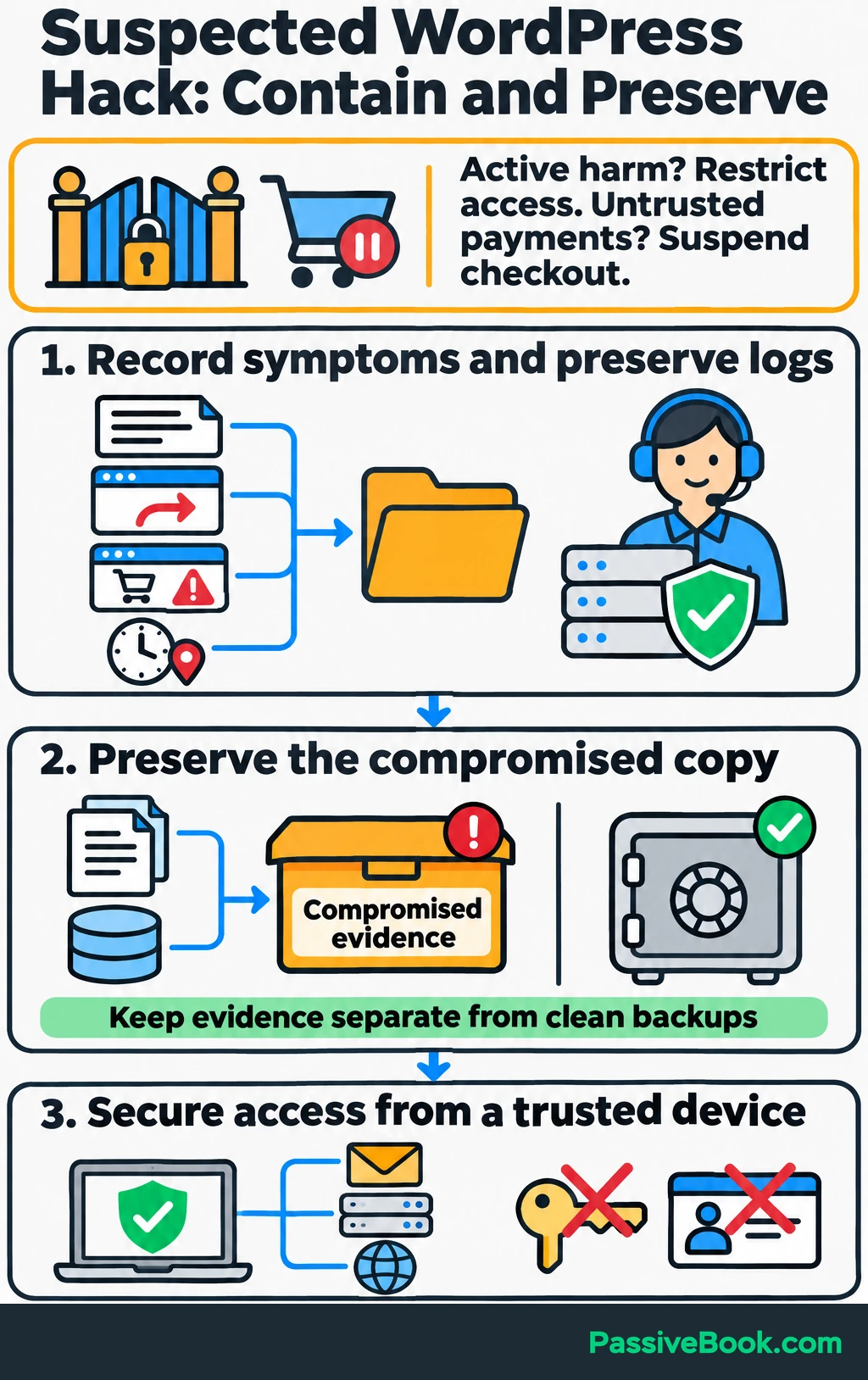
Unexpected administrators, malicious redirects, injected pages, altered checkout behavior, malware warnings, and host abuse notices deserve immediate investigation. Failed-login attempts alone do not prove someone got in.
If harmful activity is underway, ask your host to restrict public access while you gather evidence. Suspend checkout immediately when you cannot trust payment integrity.
Then work through these steps:
- Record the Symptoms: Save affected URLs, screenshots, the discovery time and timezone, and recent changes. Contact your host and ask it to preserve relevant logs.
- Preserve a Separate Copy: Before destructive cleanup, retain a clearly labeled copy of the compromised files and database. Keep it separate from clean recovery backups. WordPress recommends documenting the incident and preserving the affected site to support investigation. WordPress incident guidance
- Secure Access: From a trusted device, protect recovery email and infrastructure accounts, revoke unauthorized access, and invalidate compromised sessions. Ask the host or specialist to help if you cannot establish which credentials were exposed.
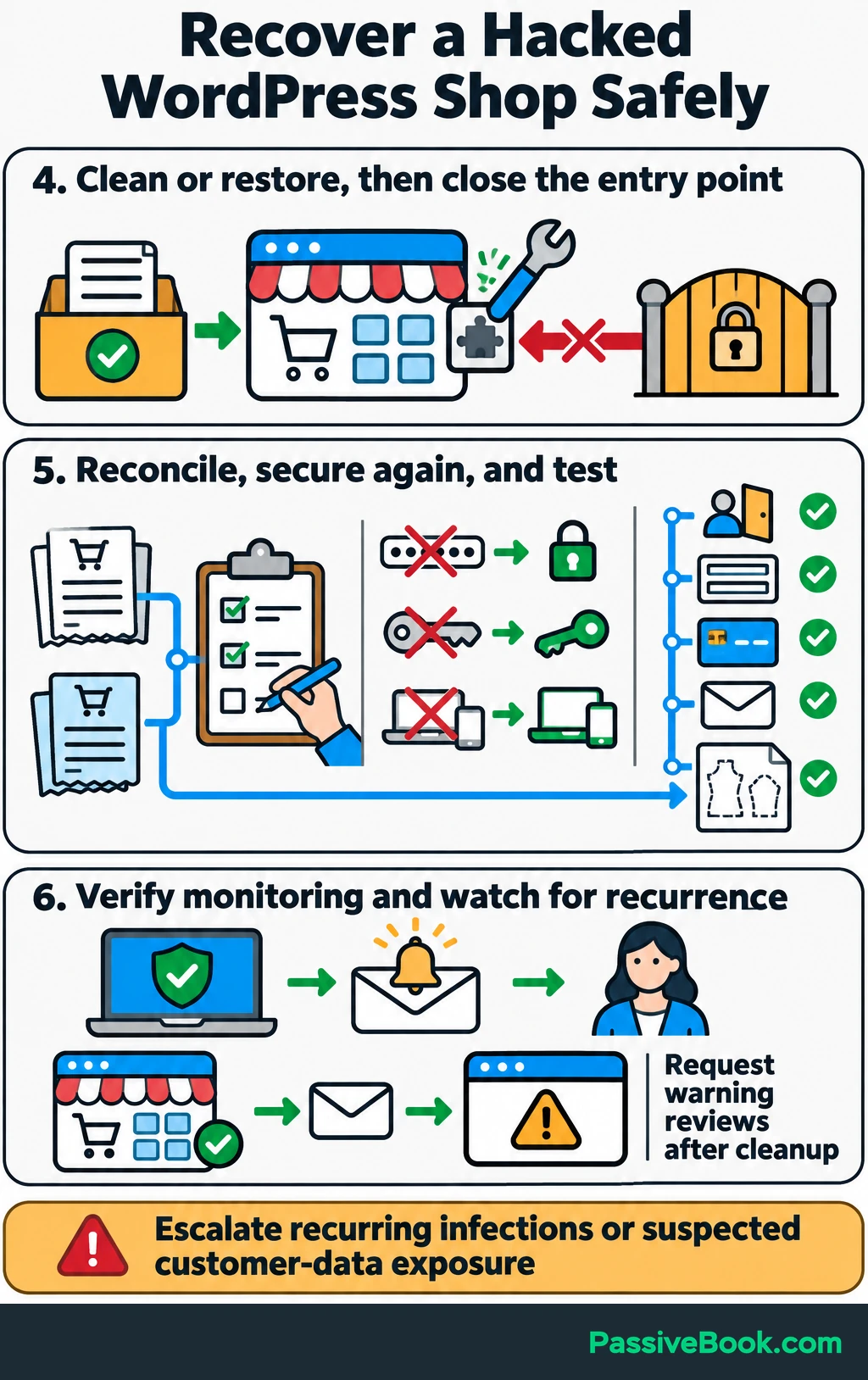
- Clean or Restore: Arrange cleanup or restore a verified clean recovery point. Identify and patch or remove the entry point before reopening. Restoring the same vulnerable setup can let the attacker return.
- Reconcile and Test: Recover legitimate orders and customer changes made after the restored backup. After cleanup, replace exposed passwords and API keys again and invalidate remaining sessions. Then test login, forms, payments, confirmation emails, and downloads.
- Watch for Recurrence: Verify scans and alert delivery. Once cleanup is complete, request a review from any service still showing a security warning.
Wordfence’s recovery guidance covers file comparisons and cleanup, but I would bring in help when the infection returns, the hosting account is affected, customer information may be exposed, or no clean recovery point is available.
Ask the host or incident-response specialist what the cleanup covers, what entry point they identified, and what must change to prevent a repeat.
For the sewing-pattern shop, recovery is complete when customers can safely buy and receive the right files, newer orders are accounted for, and monitoring works again. A familiar-looking homepage is only one check.
What Next?
Retrieve your latest backup and arrange an isolated restore test. That gives you a concrete starting point for the rest of the checklist.
Use the social buttons to share this guide with your website team so backup, access, and maintenance responsibilities get assigned.
Which security task are you least confident you could complete right now? Tell me in the comments, and leave any other questions there too.
Share this post with your friends & followers:

