A routine plugin update becomes three separate jobs when you run three websites. You repeat the same clicks, check the same settings and try to remember which site still needs attention.
Bringing those jobs into one dashboard sounds appealing, but sharing software also means a bad change can reach several websites. Existing URLs, forms and checkout still need to work after the conversion. This guide walks through deciding whether Multisite fits, creating the network and managing its sites, domains and shared software, so saving update time does not leave you with broken sites or lost content.
Is WordPress Multisite Right for Your Websites?
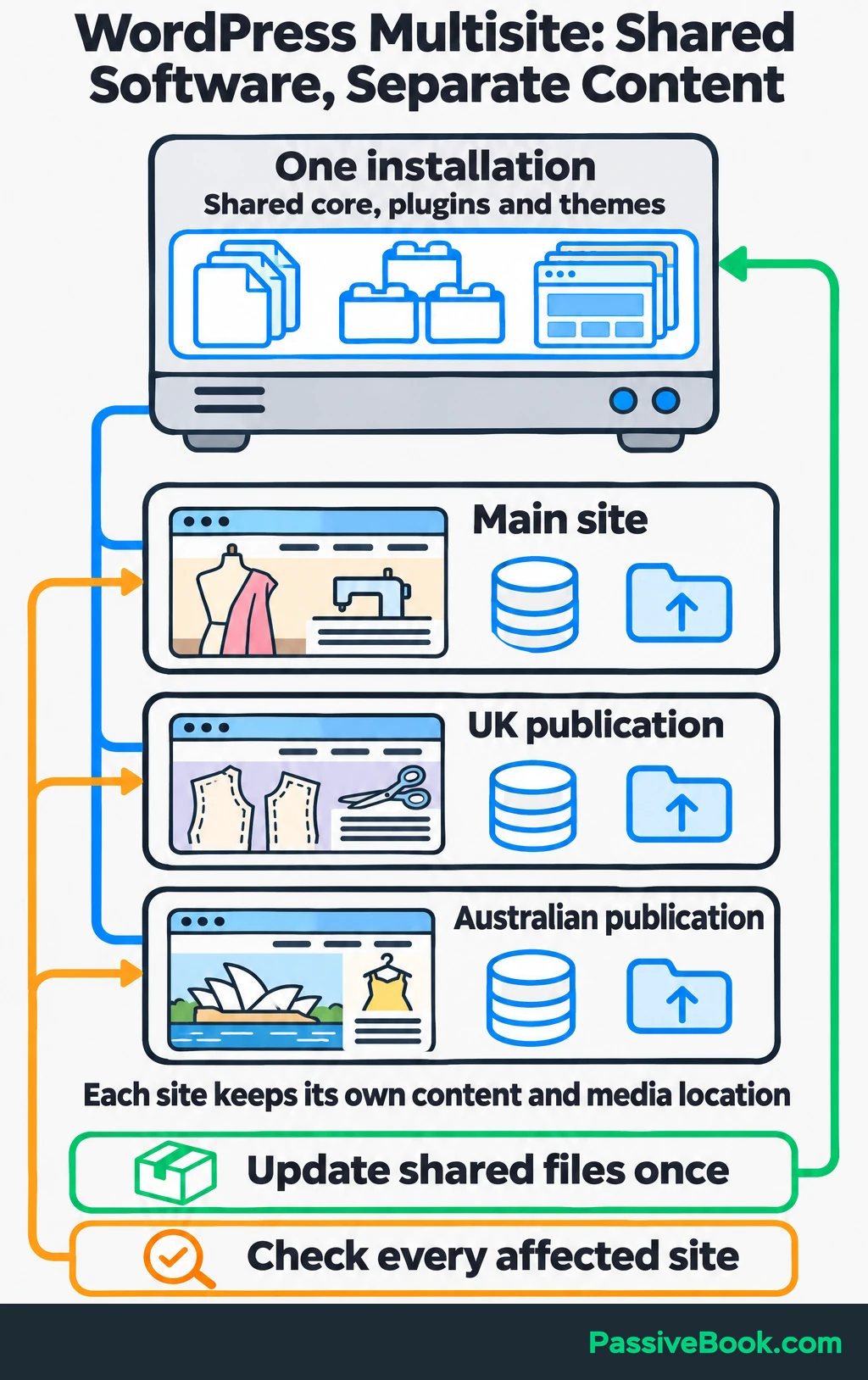
WordPress Multisite lets several websites run from one WordPress installation. The additional websites are often called subsites. They share WordPress, plugin and theme files, but each site has its own content tables and media location. Publishing an article on one site does not automatically publish it elsewhere.
The useful question is whether your websites can live with the same software versions and maintenance schedule.
| Choose | When It Fits |
|---|---|
| WordPress Multisite | Sites need separate dashboards and publishing teams, but can share software and maintenance. |
| Separate installations | Sites need different software versions, stronger isolation or an easier transfer to another owner. |
| One website with pages or categories | You need separate content sections, but separate dashboards and settings would add little value. |
I would choose Multisite for related publications with similar needs. I would usually keep unrelated client businesses separate, especially when handing over a website is part of the job.
The administration saving is concrete: you update one shared plugin installation instead of repeating that action on every installation. You still need to check each site that uses it. A successful update message does not tell you whether a form still submits.
For the example throughout this guide, imagine you run Stitch Guide. You sell beginner dressmaking patterns on the main website and want UK and Australian publications managed by local editors. Those separate publishing teams give Multisite a useful job.
If the regional differences amount to a few articles, I would use categories instead.
Also budget for hosting capacity, staging, backups and software licences. A shared installation can reduce repeated work, but it does not guarantee a smaller hosting bill. Its shared code and infrastructure also mean one failure can affect several sites.
Choose Your Network’s Site Addresses
Choose the address structure before converting WordPress. The two standard options are subdirectories and subdomains.
All domains below are placeholders.
| Structure | Example | DNS Requirements | Setup Implications |
|---|---|---|---|
| Subdirectories | stitchguide.example/uk/ | No extra DNS record for each site because the hostname stays the same. | Simpler hostname management, but you must avoid clashes between main-site page paths and subsite names. |
| Subdomains | uk.stitchguide.example | Each hostname must resolve to the host and be routed to the same WordPress installation. | Hosting and HTTPS must cover each hostname. Wildcard DNS and server routing support on-demand subdomain creation. |
DNS directs a hostname to your hosting service. Hosting routing then directs that request to the correct WordPress installation. Creating a site inside WordPress does neither job. Each hostname also needs a certificate for HTTPS, which encrypts the connection between the visitor’s browser and your server.
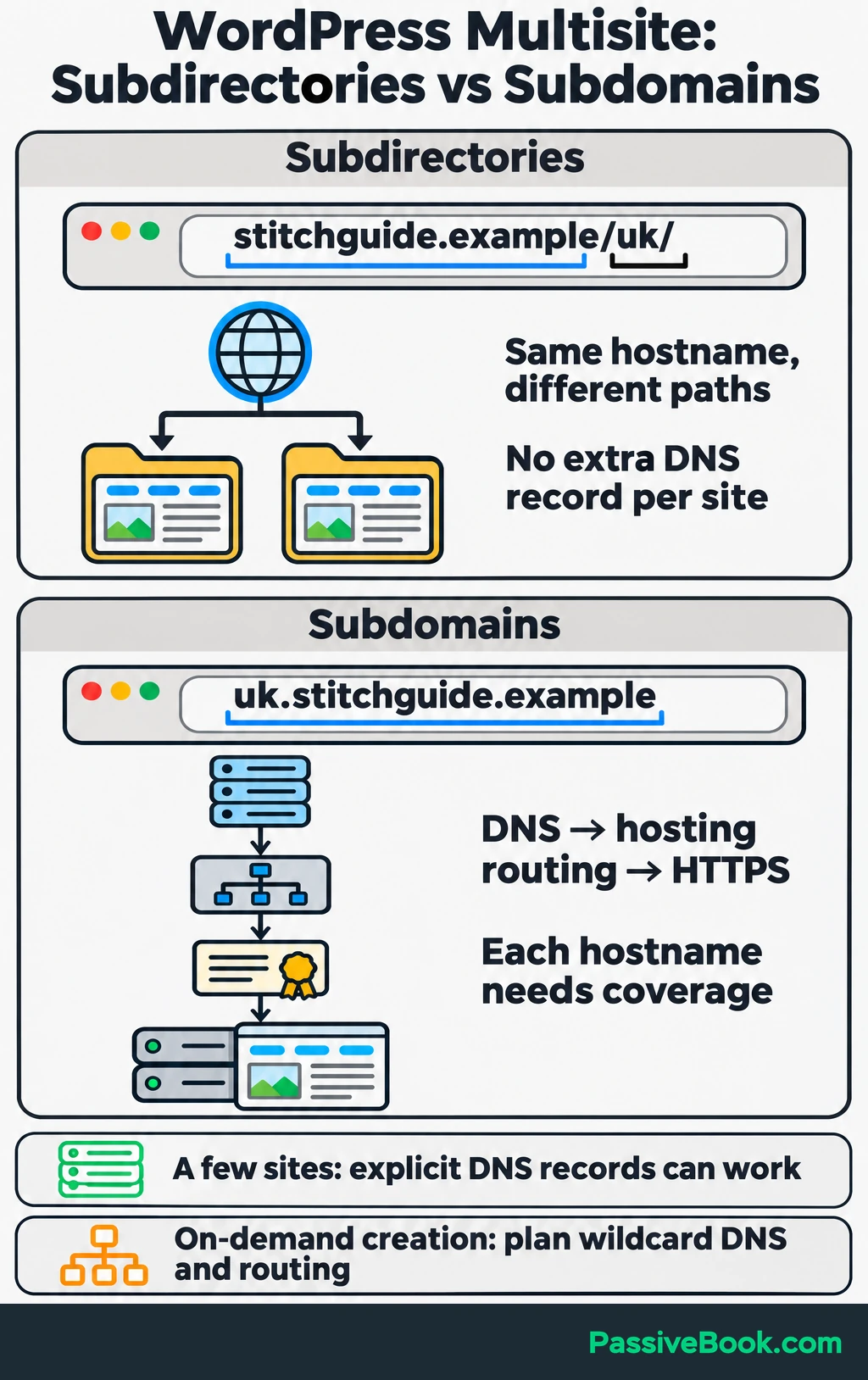
For a few manually created subdomain sites, explicit DNS records are enough. You do not need wildcard DNS just because you chose subdomains.
Check what the installer allows before committing:
- Subdomain setup is unavailable when the WordPress URL contains a path, such as
stitchguide.example/wordpress. - The default subdirectory check blocks an installation containing published content dated more than one month ago. That is a content-date check, rather than simply the age of the installation. WordPress’s eligibility code shows the condition.
If your preferred option is unavailable, resolve the URL and migration implications before proceeding.
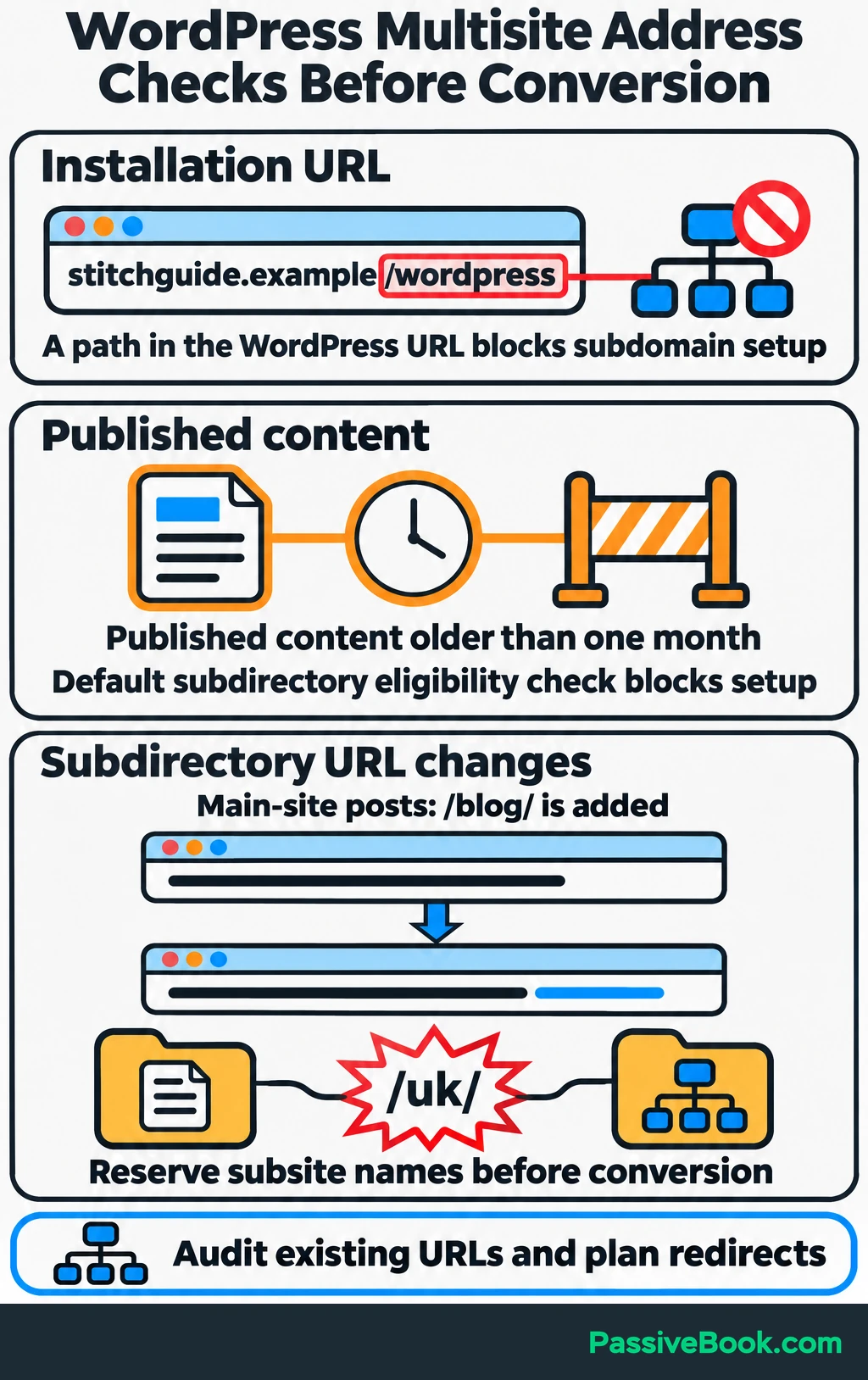
A standard subdirectory network also adds /blog/ to the main site’s post permalinks. Audit existing post URLs and arrange redirects where needed. Keep important main-site page names out of your subsite naming plan because a new subsite can conflict with an existing page path. WordPress documents these permalink collisions.
Save a record of your important public pages before changing their URLs. You can compare those pages after conversion rather than relying on memory.
Free Website Change Workbook




For a fresh Stitch Guide installation, I would choose subdirectories and use uk and au for the publications. Either structure can later use custom domains.
Changing the underlying network structure is a migration involving URLs and configuration, so choose it with your likely site layout in mind.
Prepare Hosting and a Recovery Path
Start with a working self-hosted WordPress installation. Before editing anything, confirm that your hosting plan supports Multisite, your chosen address structure, additional hostnames and HTTPS.
You also need access beyond the WordPress dashboard:
- A WordPress administrator account.
- Hosting files and configuration.
- The database and its backup tools.
- DNS settings.
- A working way to contact whoever manages the server.
Keep those credentials and recovery instructions somewhere you can reach if WordPress stops loading.
Apache and Nginx are web servers: software that receives requests for your pages. Ask your host which one handles your installation and whether it supports Multisite’s routing rules. Apache needs rewrite support to send page requests to WordPress. Standalone Nginx does not read Apache’s .htaccess configuration file, so its routing changes must be applied in the server configuration. WordPress’s Nginx documentation explains this difference.
My primary hosting choice is DigitalOcean, but managing a server comes with maintenance work. If you want the host to handle configuration, confirm that support explicitly covers your planned network.
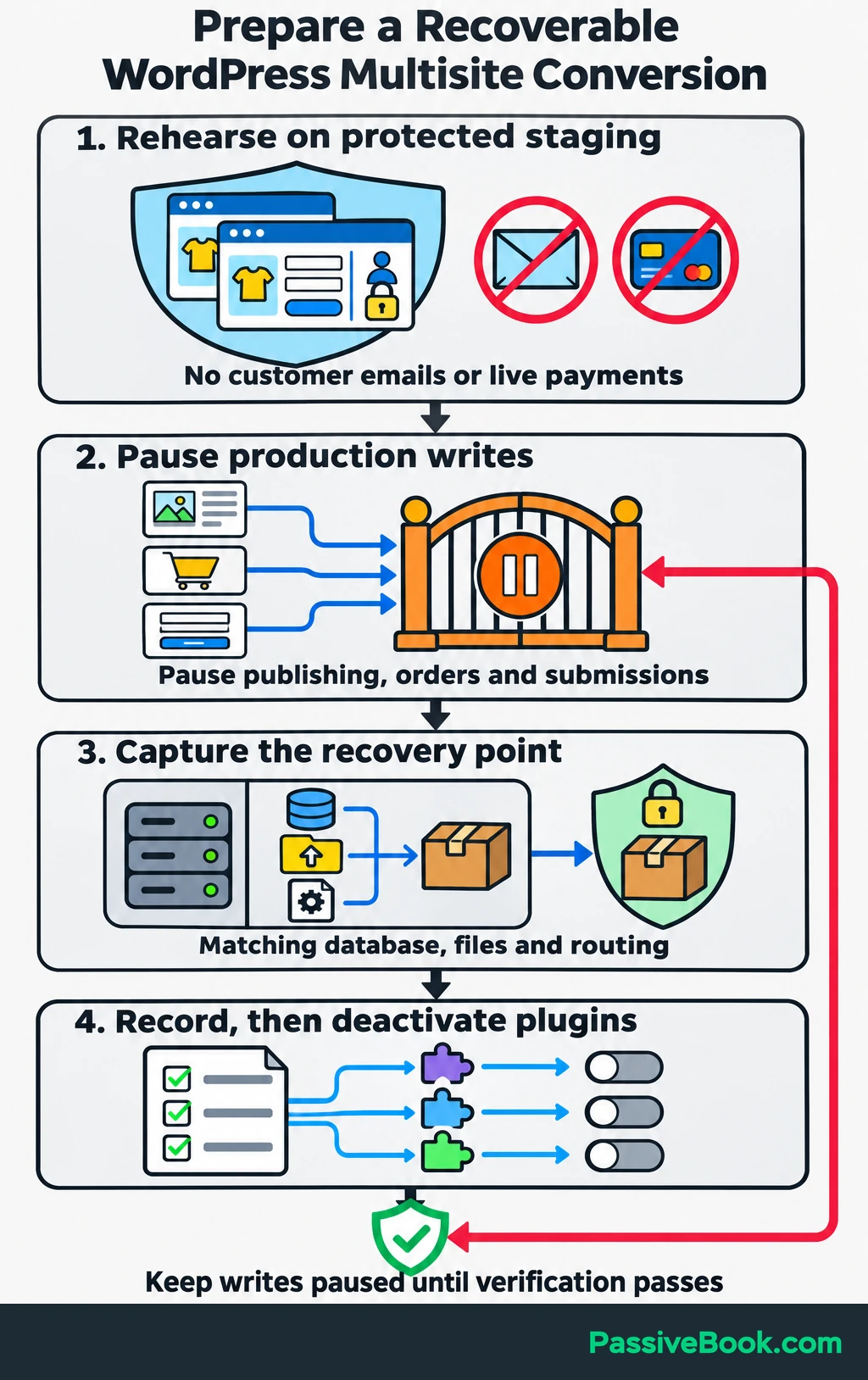
Next, prepare a backup containing the database and files, including uploads, plugins, themes, wp-config.php and routing configuration. Keep a protected copy outside production and verify that you can restore it.
Rehearse the conversion on a protected staging copy first. Staging is a separate copy where you can test changes without editing the public website.
During that rehearsal:
- Check essential plugins and themes for developer-documented Multisite support.
- Prevent staging from sending customer emails or taking live payments.
- Record important URLs and test the functions your business needs.
- Complete the conversion and compare the results with the original site.
For Stitch Guide, that test list would include pattern downloads, checkout, account access and enquiry forms.
Complete any planned change to WordPress’s installation directory before beginning the conversion. Immediately before converting the live site, pause publishing, orders, form submissions and other changes to stored data. Take the final backup and confirm that existing post URLs work. Record which plugins are active, then deactivate all active plugins.
Keep the write pause in place through verification. That gives you a clean recovery point if the conversion fails.
Enable the Multisite Network
Open Network Setup
Open the installation’s wp-config.php file through your hosting file manager or secure file access. Add this line above the stop-editing comment and before WordPress loads its settings:
define( 'WP_ALLOW_MULTISITE', true );If that definition already exists, edit it instead of adding a duplicate.
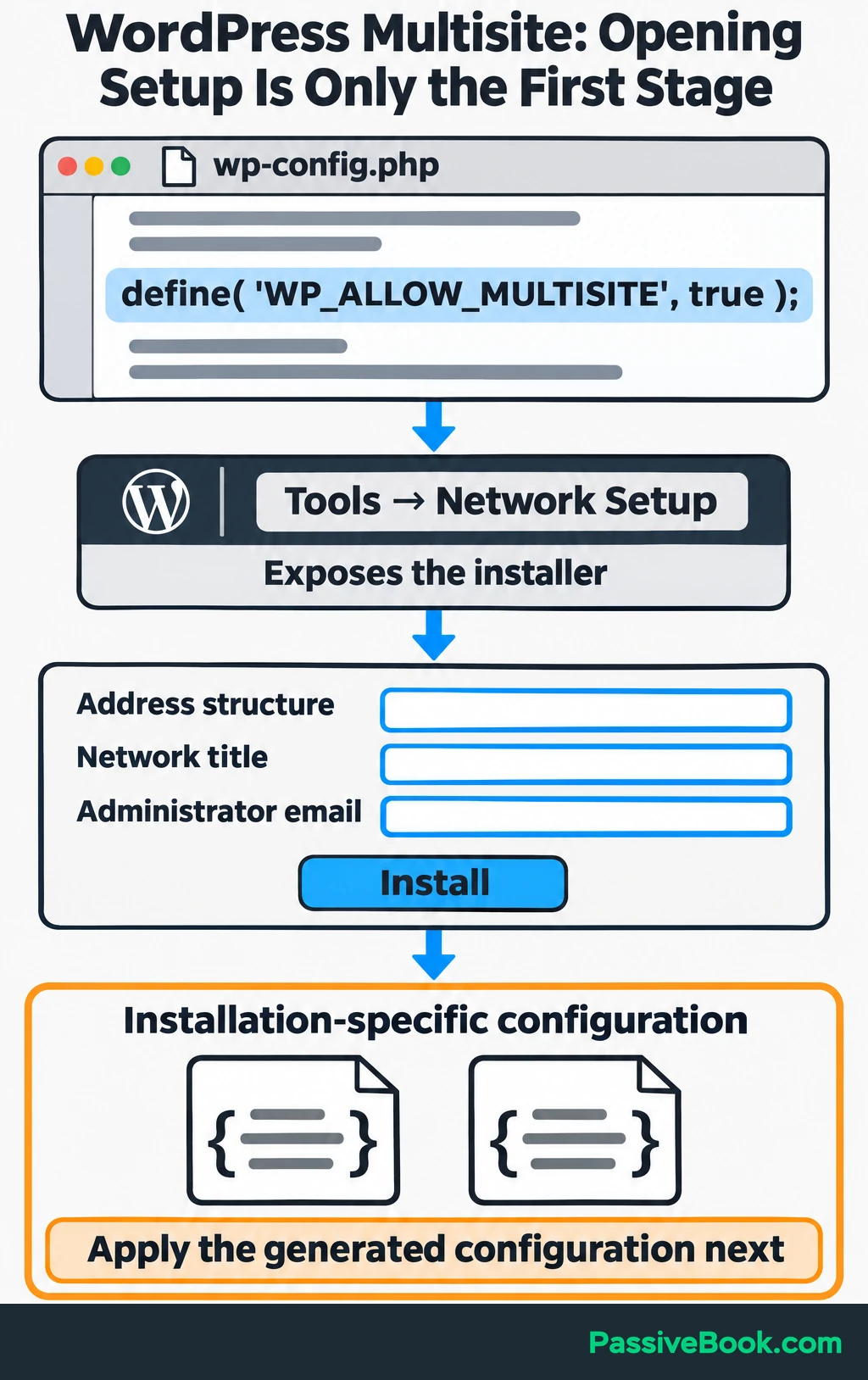
Save the file and refresh the dashboard. Open Tools → Network Setup.
This line exposes the network installer. It does not finish activating Multisite.
Choose the available address structure, enter a network title and use an administrator email that someone monitors. For the example, the title could be “Stitch Guide Publications.”
Check the details, then click Install.
Apply the Generated Configuration
Keep the installation screen open. It now shows configuration generated for this WordPress installation.
Apply its instructions in order:
- Copy the supplied constants into
wp-config.phpwhere instructed. - On Apache, replace the existing WordPress rewrite block in
.htaccesswith the generated Multisite rules. Preserve unrelated hosting, security and redirect directives. - For standalone Nginx, have the host or server administrator apply the matching Multisite server configuration.
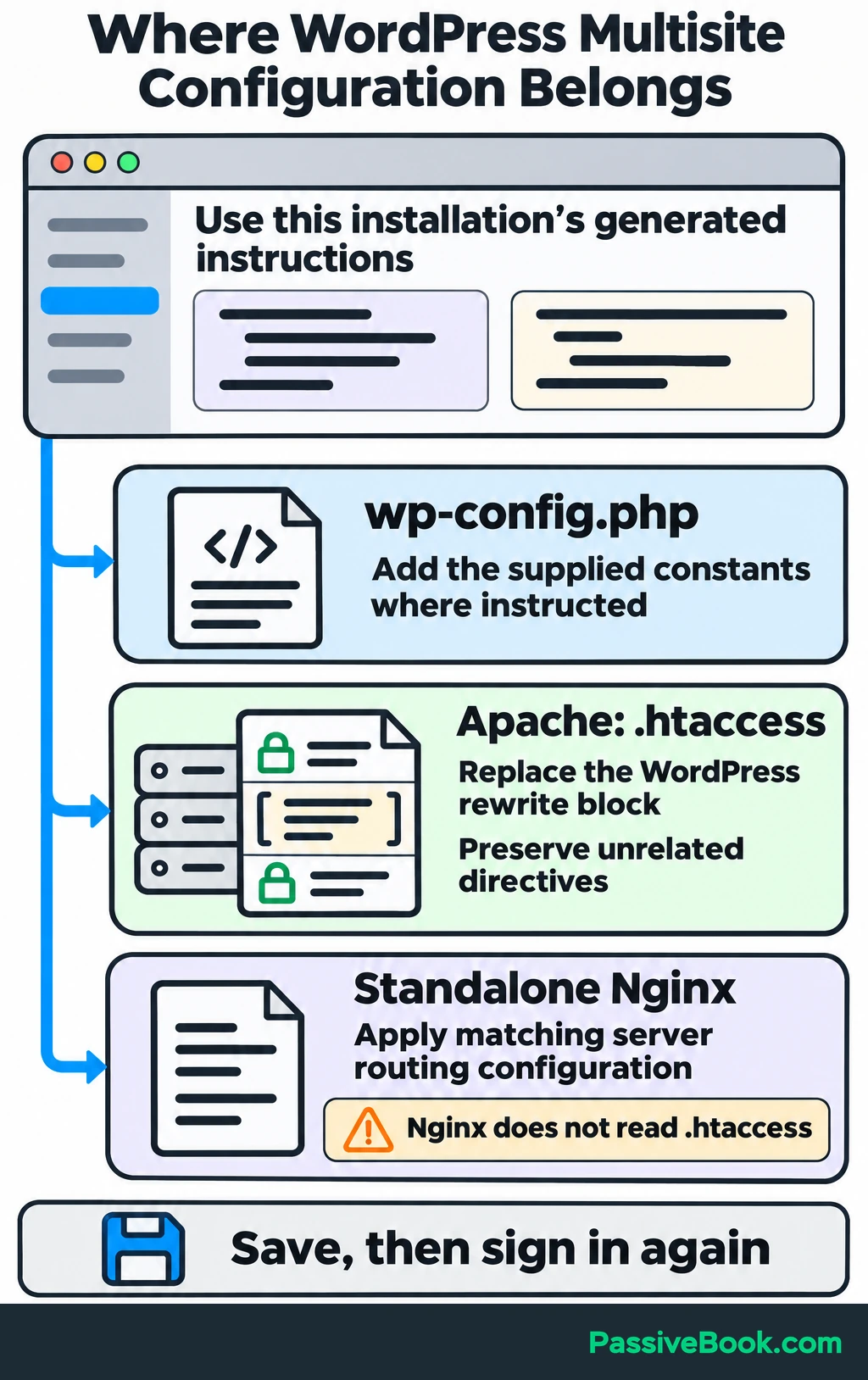
Use your installation’s generated domain, path and site IDs. Another network’s configuration can send requests to the wrong place.
Save the changes, then follow the link to sign in again.
Verify the Original Site
Open My Sites → Network Admin. This dashboard controls the network. Your original site still has its own dashboard for publishing and local settings.
Return to that site and reactivate its tested plugins one at a time, using your recorded list. Choose network activation only when the plugin requires it or you deliberately want it running everywhere.
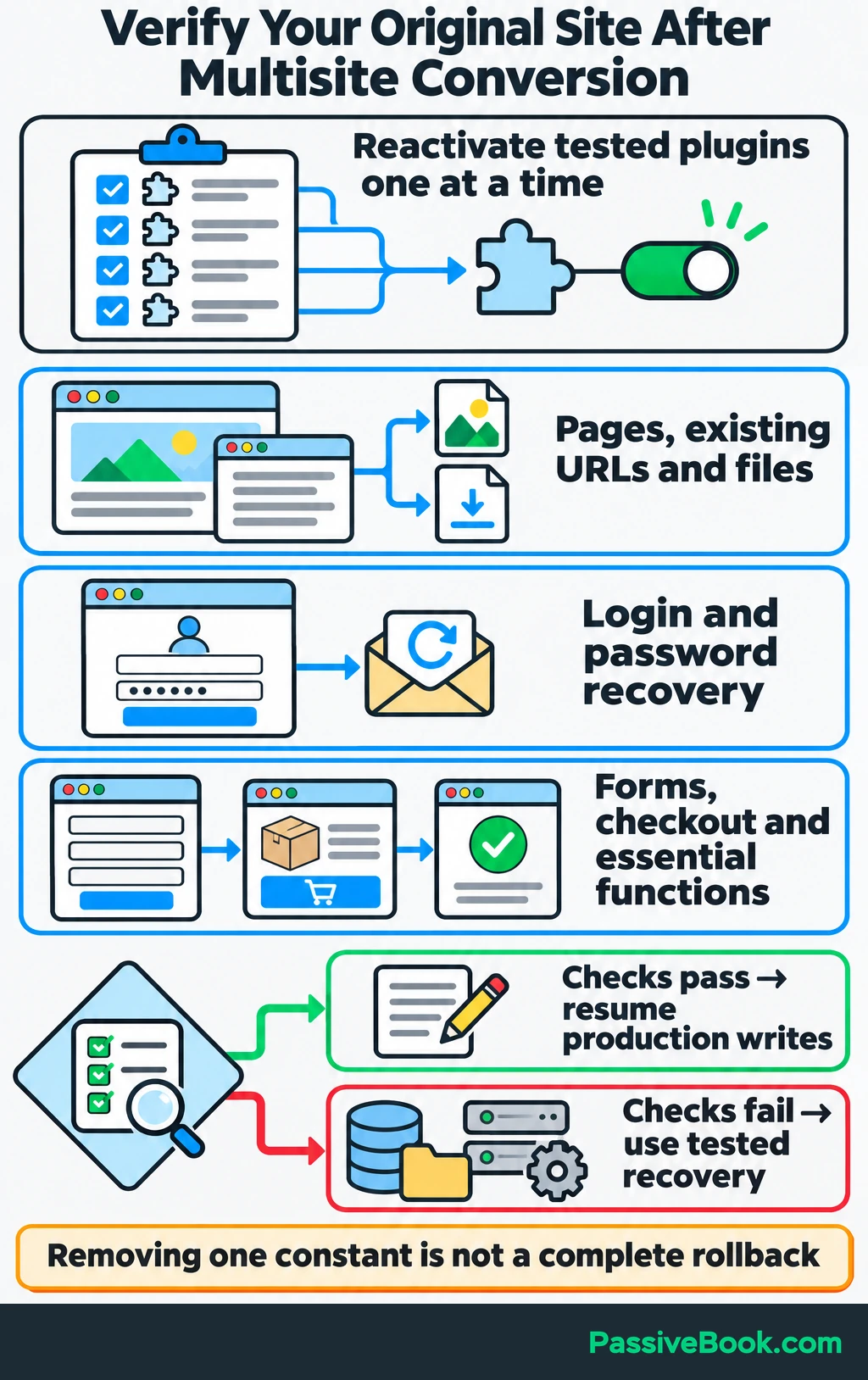
Before adding subsites, check:
- The homepage and existing post URLs.
- Images and downloadable files.
- Login and password recovery.
- Forms, checkout and other essential functions.
Resume production writes after these checks pass.
If the conversion fails, use the prepared recovery process to restore the matching database, files and server configuration. Removing one Multisite definition is not a complete rollback of the installation changes.
Create and Configure Your Sites
Before adding sites, open Network Settings and review the defaults.
For a network where you create every site yourself, leave public registration disabled. Set suitable welcome content, permitted upload types, file-size limits and storage allowances. For a pattern publication, make sure the allowed uploads cover the PDFs and images editors actually need.
If you chose subdomains, configure the new hostname’s DNS, hosting routing and HTTPS before opening it. Use the destination supplied by your host.
Then add the first site from the Sites screen in Network Admin. Choose Add New and enter:
| Field | Stitch Guide Example |
|---|---|
| Site address | uk |
| Site title | Stitch Guide UK |
| Site language | English (UK) |
| Administrator email | An address belonging to the person responsible for local site settings |
An existing user’s email assigns that account as the site administrator. An unfamiliar email creates a new account with that role, so check the address carefully.
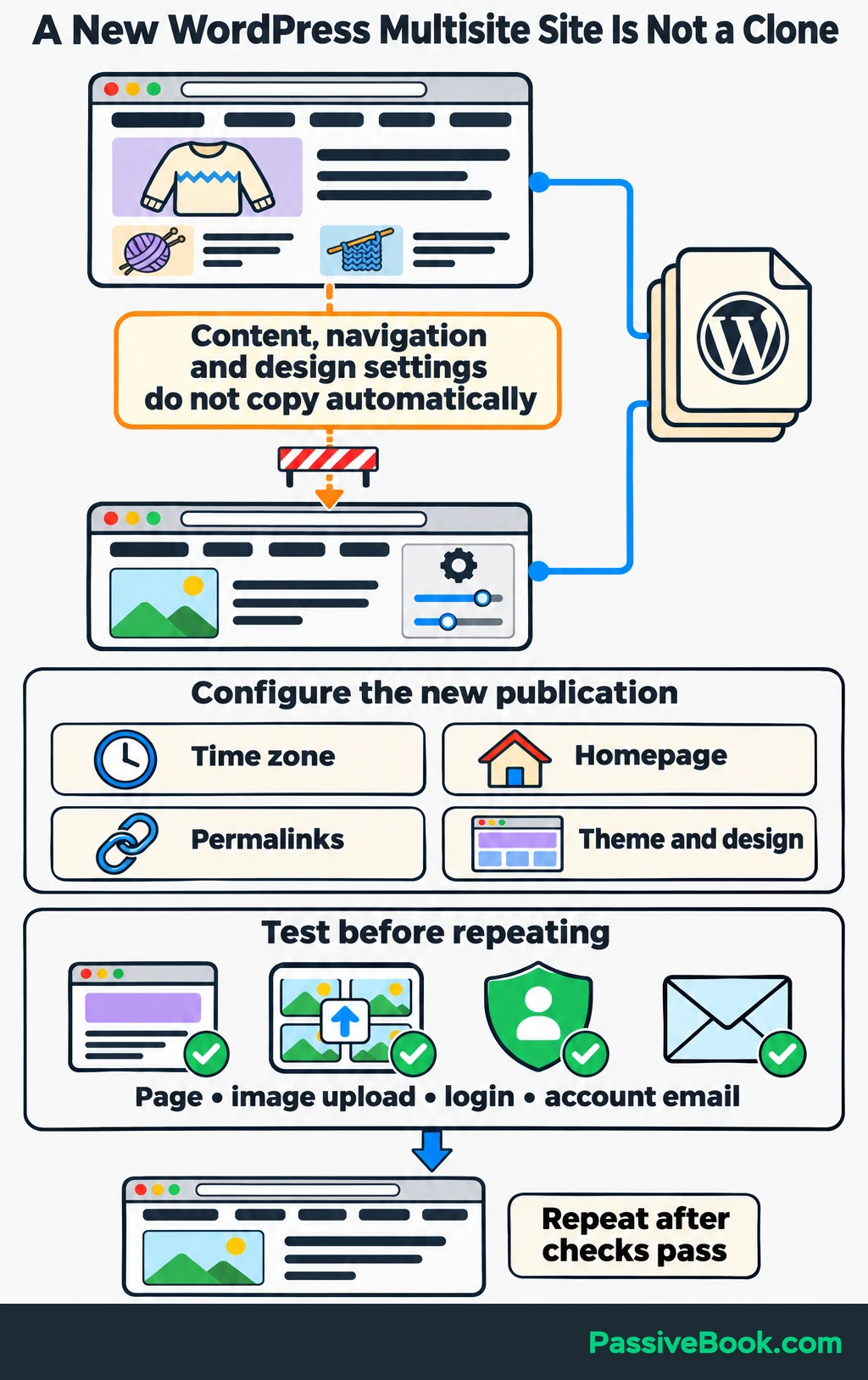
Open the new site’s dashboard and set its time zone, homepage and permalink structure. Choose its available theme and configure the design.
Adding a site does not clone the main website’s content, navigation or design settings. Treat it as a new publication to configure.
Publish a test page, upload an image, check login and confirm that the account email arrives. Once those checks pass, repeat the process for the Australian publication using au.
Use the network’s Sites list to review or edit sites, and My Sites to switch between publishing dashboards.
When a publication is no longer needed, archive it if you want to retain its data while taking it out of service. Back up before deleting it: deleting a subsite removes its content and content tables, and there is no normal undo action. WordPress explains the difference between archiving and deletion.
Give a Site Its Own Domain
Get the subsite working at its original address before mapping a domain.
WordPress has native domain mapping for both subdomain and subdirectory networks, so the standard workflow does not require a mapping plugin. WordPress’s domain-mapping documentation covers both structures.
The order matters:
- Add the custom hostname to your hosting configuration so it serves the existing WordPress installation.
- Point its DNS to the destination supplied by the host.
- Provision HTTPS for that hostname.
- Change the subsite’s saved WordPress address.
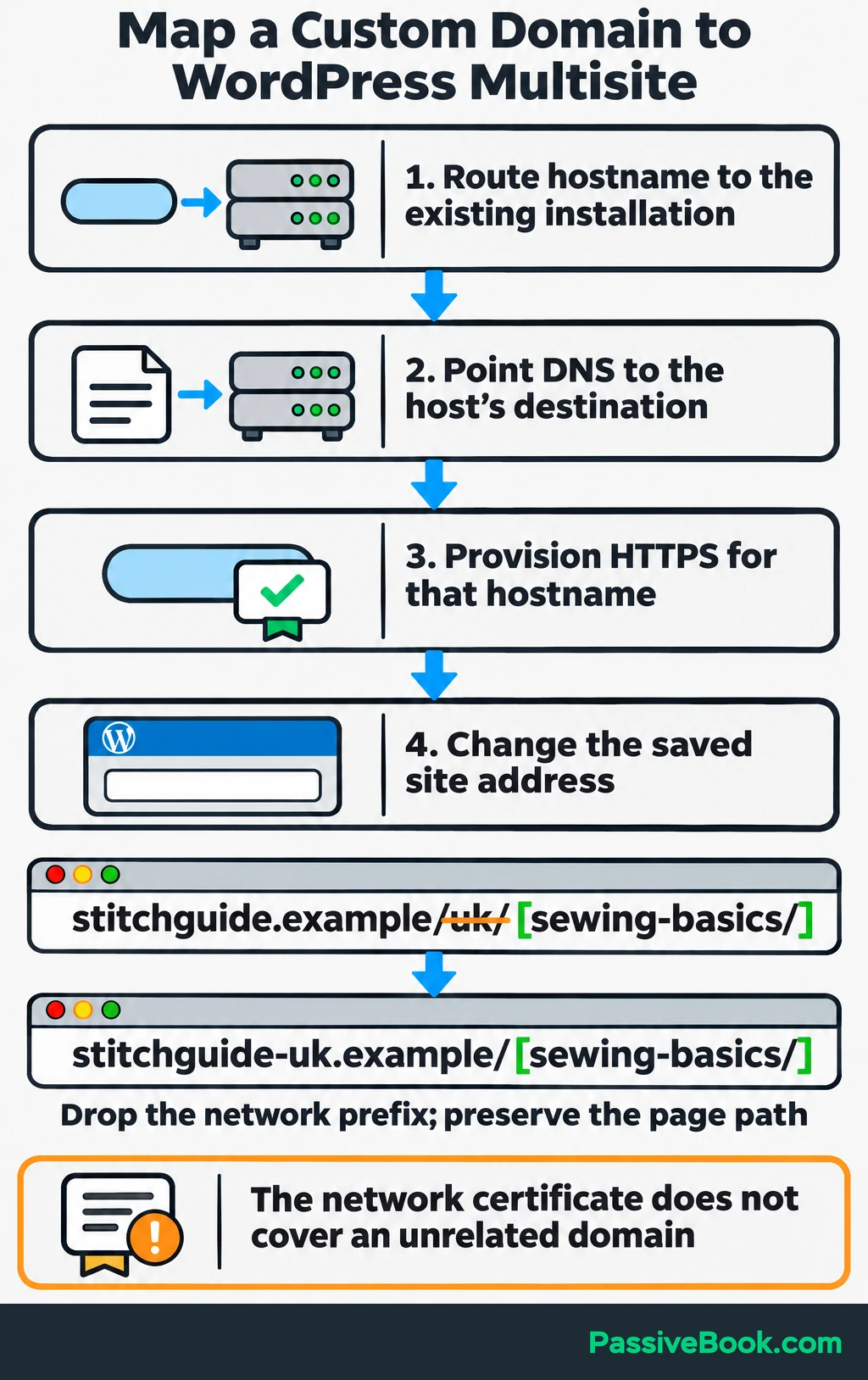
The network domain’s certificate does not cover an unrelated custom domain.
For Stitch Guide UK, edit the site in Network Admin and change Site Address (URL) to:
https://stitchguide-uk.exampleSave the change, then test public pages, media, administration and login at that address.
For an established publication, arrange redirects from each old URL to its matching page on the custom domain. For example, stitchguide.example/uk/sewing-basics/ should redirect to stitchguide-uk.example/sewing-basics/. The network’s /uk/ prefix drops out; the page’s own path stays the same.
Check embedded links and image references for the old address too. If stored URLs need replacing, use a Multisite-aware migration method and test it on staging first.
Assign Users the Access They Need
Separate the ability to publish from the ability to change the network.
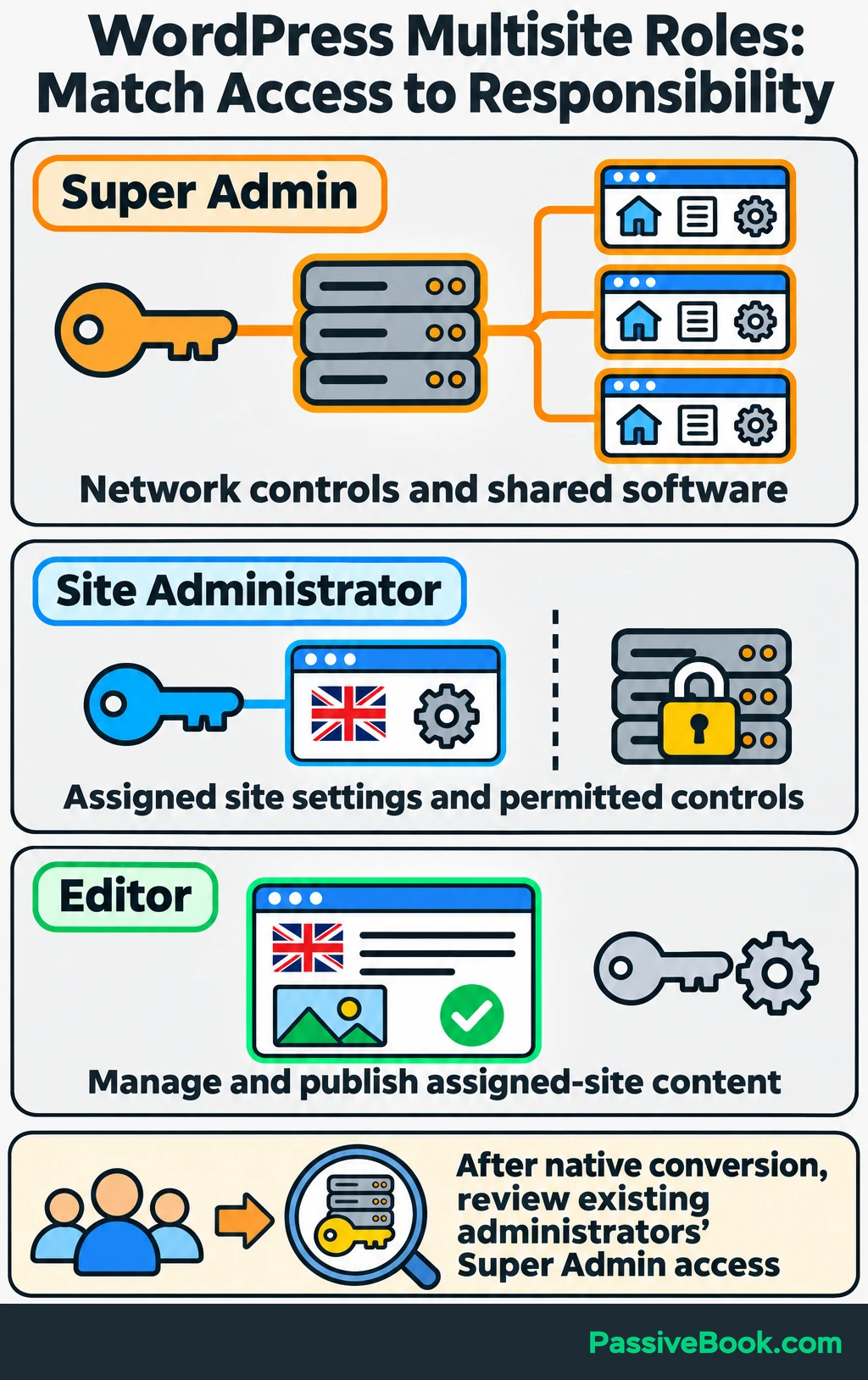
| Access | What It Is For | Stitch Guide Assignment |
|---|---|---|
| Super Admin | Managing the network, shared software and network-wide controls. | The person responsible for the whole installation. |
| Site Administrator | Managing an assigned site’s settings and permitted controls. | A local manager who needs configuration access. |
| Editor | Managing and publishing content on an assigned site. | The UK or Australian publication’s editor. |
Review existing administrator accounts immediately after native single-site conversion. WordPress adds those accounts to the initial Super Admin list. Remove network privileges from anyone who only needs access to one site. The network-initialization code shows this behaviour.
To give someone publishing access, create or locate their network account, then add that account to the required site with the appropriate role. You can use the site’s Users screen and select the existing user.
Creating a network account alone does not grant editing access to a site. Site membership and roles are assigned separately; Super Admin privileges provide broader access.
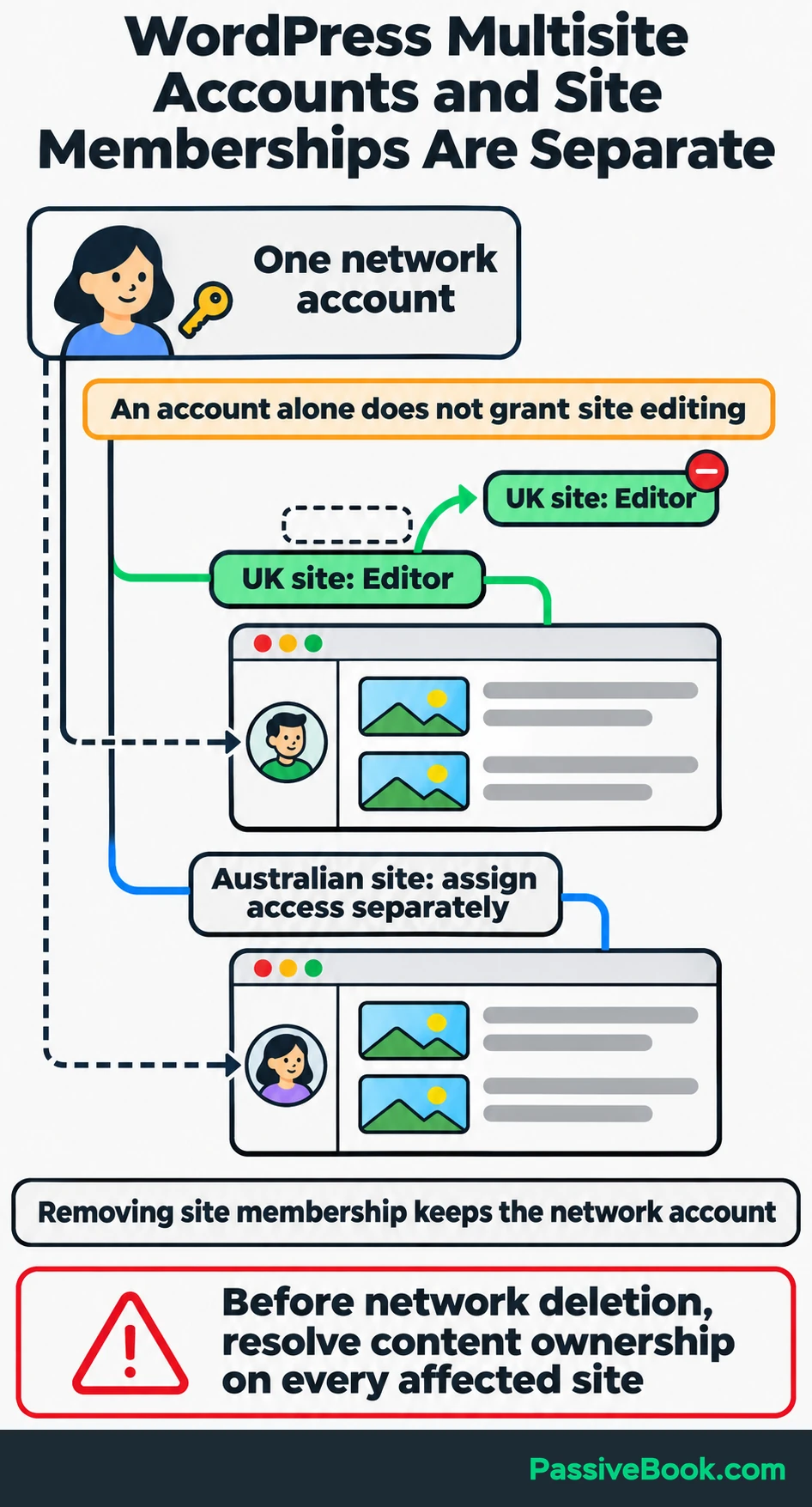
Give the UK editor an Editor role on the UK publication. If that person also works on Australian articles, assign access there separately. There is no need to grant network control to publish a sewing tutorial.
Use unique passwords and a Multisite-compatible multifactor authentication method for privileged accounts. Test its recovery process and protect recovery codes outside WordPress.
When someone leaves or changes responsibilities, review their site memberships and network privileges. Removing a person from one site leaves their network account intact. Before deleting that account from the network, resolve content ownership on every affected site.
Manage Plugins and Themes Centrally
Activate Plugins at the Appropriate Level
Before installing a plugin, check its developer’s Multisite support, activation requirements and licence coverage. Test the functions you need on staging.
Install plugins from the Plugins screen in Network Admin, then choose where each plugin runs:
- Site activation runs the plugin on the selected site. Open that site’s Plugins screen and click Activate.
- Network activation runs it across every site. Click Network Activate in Network Admin.
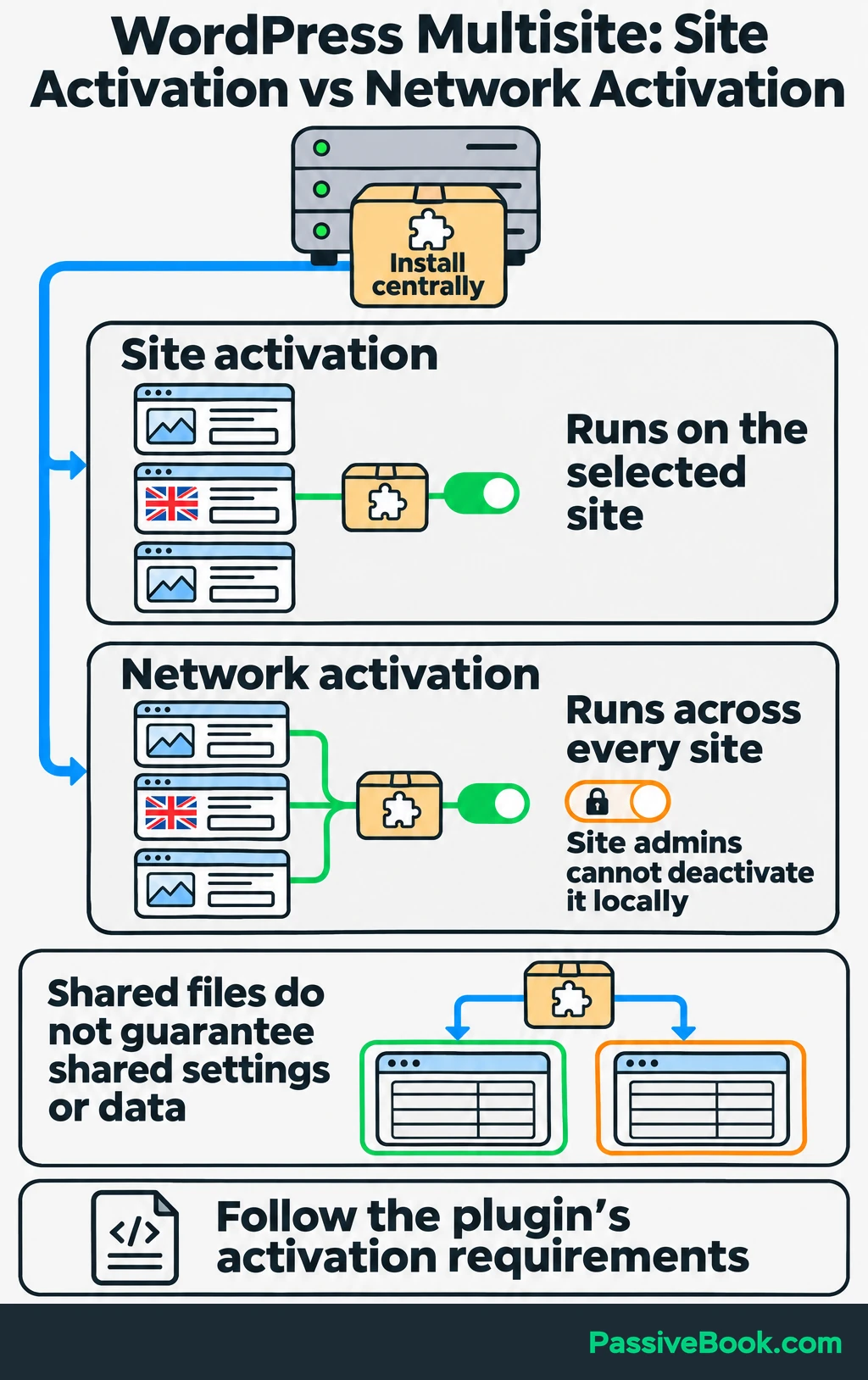
Some plugins require network activation, so follow the developer’s instructions. Otherwise, I would activate optional features only where they are needed.
If local administrators should control optional plugins, enable the Plugins menu in Network Settings. They still cannot deactivate network-activated plugins.
Shared plugin files do not guarantee shared settings or data. A form plugin might run across the network while keeping each site’s forms and entries separate. Configure Stitch Guide UK’s workshop enquiry form within that site unless the plugin explicitly provides network-wide controls.
I once kept an inactive plugin on one of my WordPress sites because I could not remember whether a page still needed it. I had to inspect the page before removing it. That is why I would record each shared plugin’s purpose and the sites that depend on it.
Check that record and actual usage before deleting a plugin.
Make Approved Themes Available
Install themes centrally, then make approved themes available network-wide or only to selected sites.
Enabling a theme makes it available to choose. It does not activate it on every site. Activate the chosen theme inside each site’s dashboard.
GeneratePress is my usual WordPress preference, but I would still verify support for the exact theme version and extensions planned for the network.
Keep each publication’s design settings local. Stitch Guide UK can have its own navigation and homepage while using the same theme files as the Australian publication.
Because those files are shared, test a theme-file change on every site that uses them.
Back up and Restore the Network
Choose a backup method that explicitly supports Multisite. Confirm whether it can restore the whole network, an individual subsite or both.
Your backup coverage should include:
- The full database, including shared users and network settings.
- Every site’s content tables and any plugin-created tables.
- All upload locations.
- Plugins, themes and other code.
wp-config.phpand routing configuration.
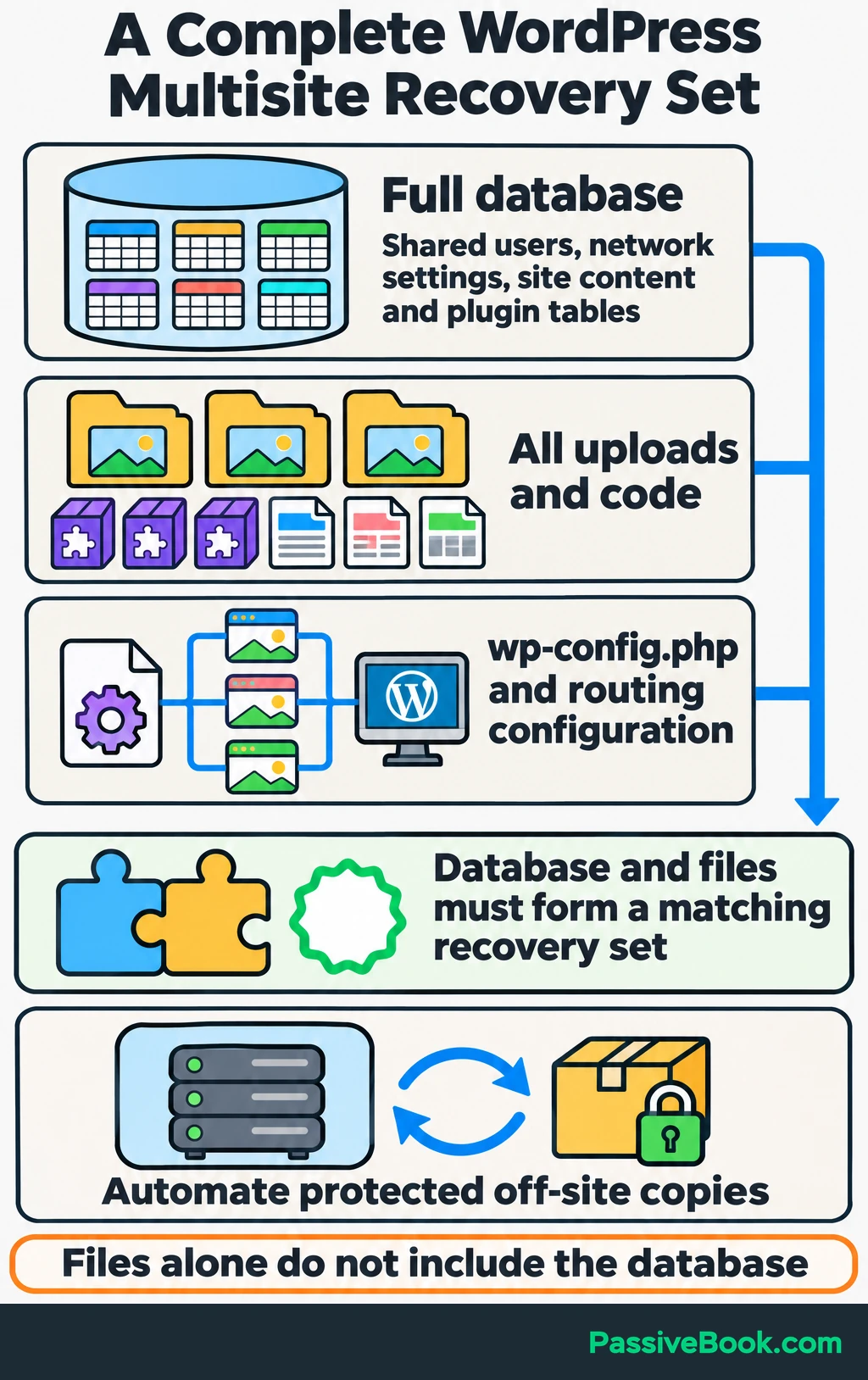
Database and file backups need to form a matching recovery set. Downloading the WordPress files alone does not capture the database. WordPress explains why both are needed.
Automate backups, keep protected off-site copies and choose a schedule based on how much recent work you can afford to lose. If losing a day of orders is unacceptable, a daily database backup is too far apart.
I would test recovery before relying on the schedule:
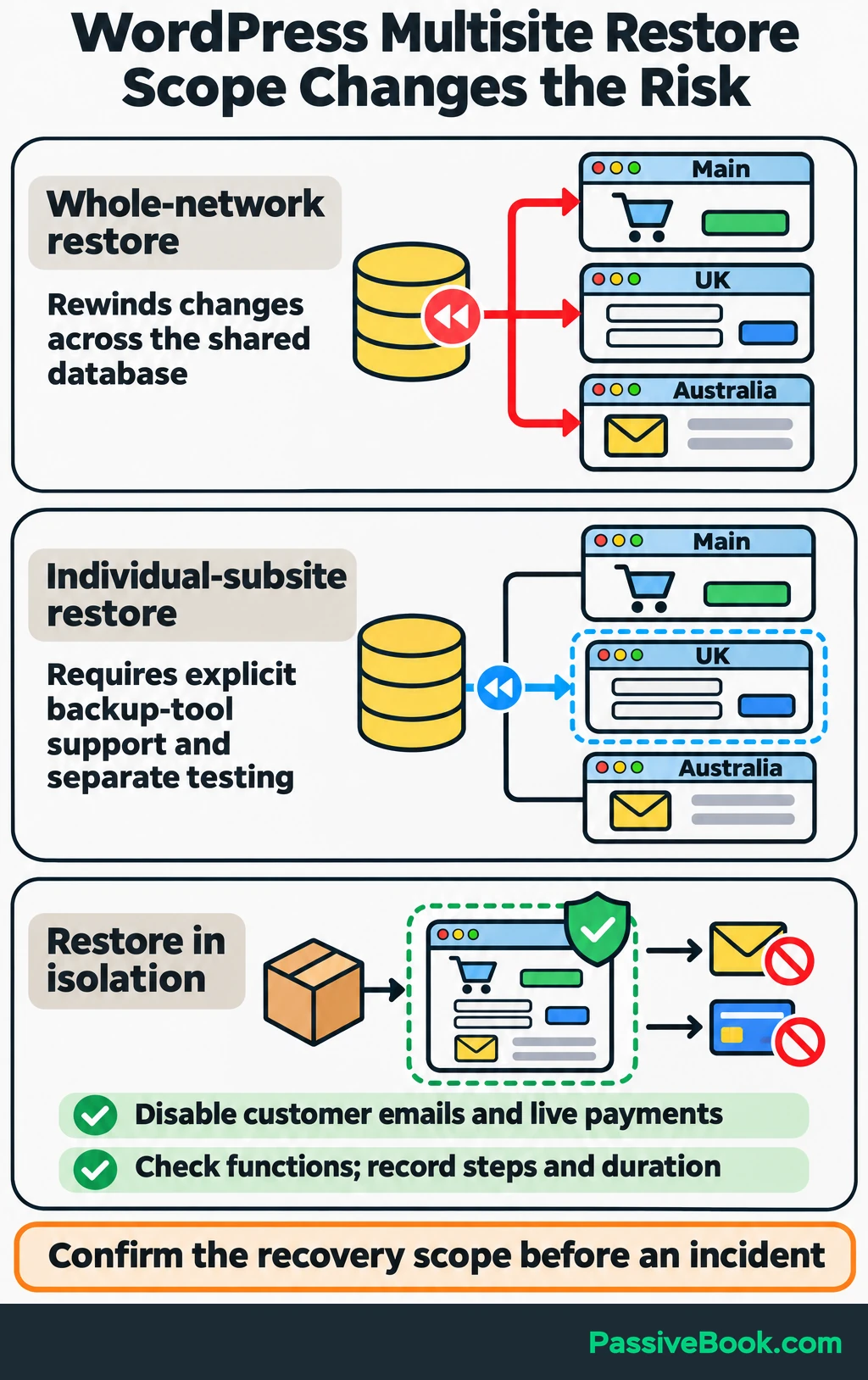
- Restore a complete backup into an isolated environment using the documented recovery method.
- Keep outgoing customer emails and live payments disabled.
- Check the main site, subsites, mapped domains, media and essential functions.
- Record the steps and how long restoration took.
Repeat that test after material hosting or storage changes.
Test individual-subsite recovery separately. Restoring the whole shared database to fix Stitch Guide UK would also rewind changes on the Australian publication and main site.
That makes the recovery scope a business decision. Confirm it before an urgent restore, when everyone is already impatient.
Keep the Network Updated and Reliable
Keep a short inventory of sites, responsible people, domains, active software and critical functions. A simple spreadsheet is enough.
For Stitch Guide, the critical functions might be pattern checkout on the main site, workshop enquiries in the UK publication and newsletter signup in the Australian publication.
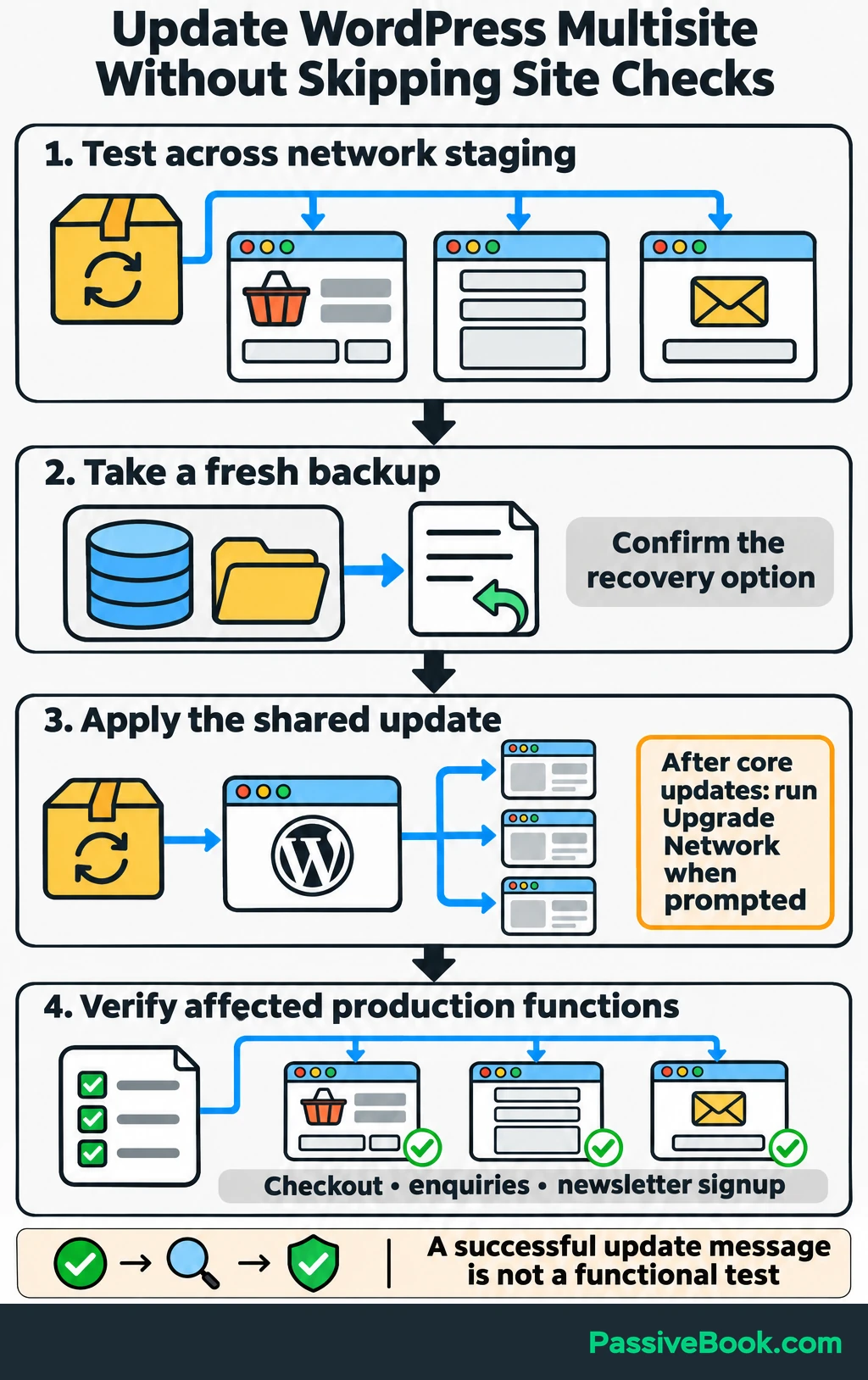
Use that list when applying shared updates:
- Test the update on network staging across the different site configurations.
- Take a fresh production backup and confirm the recovery option.
- Apply the update centrally.
- Check the affected production functions and record the result.
After a WordPress core update, run Upgrade Network when prompted. This applies required database changes across the sites. WordPress documents this additional network update step.
Keep WordPress, plugins, themes and server software supported and patched. Remove unused components after checking dependencies across the network. WordPress identifies software updates as a central part of ongoing security maintenance.
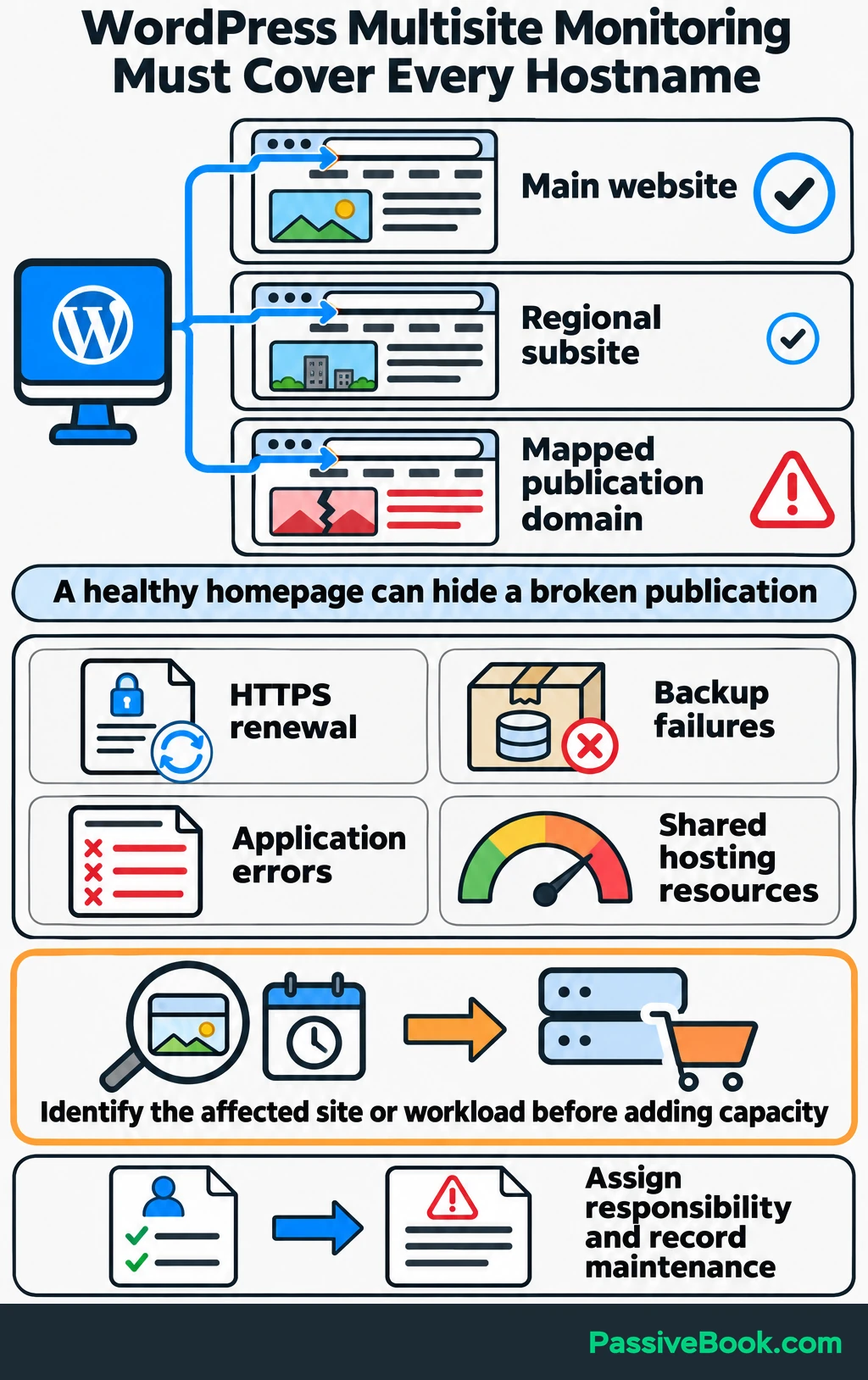
Monitor each public hostname, HTTPS renewal, backup failures, application errors and shared hosting resources. Checking only the main homepage can miss a broken mapped publication.
If the network slows down, identify the affected site or workload before buying more capacity. A failing scheduled task and a genuine traffic increase need different responses.
Assign responsibility for updates, access reviews, backup checks and incidents. Even when you handle everything yourself, a brief maintenance record keeps recurring work from becoming a memory test.
Troubleshoot Common Multisite Problems
Start with the last change and determine how many sites are affected. That helps separate a local setting from a shared configuration problem.
| Symptom | First Checks | Next Action |
|---|---|---|
| Network Setup is missing | Confirm that the correct installation’s wp-config.php contains WP_ALLOW_MULTISITE with valid PHP syntax before WordPress loads its settings. | Correct the definition and refresh the dashboard while signed in as an administrator. |
| A subdomain does not resolve | Check its DNS record, hosting hostname routing and HTTPS coverage. | Apply the host’s required settings. Creating the WordPress site does not create these external settings. |
| The main site works, but subsites return 404s | Compare the saved site address with the requested URL, then inspect the routing rules for your network structure. | Have the host check Apache rewrite support or the Nginx configuration against the working staging setup. |
| A mapped domain loops during login | Check its saved HTTPS address, certificate, redirects and existing cookie configuration. | Correct mismatched settings and test with fresh browser cookies before changing configuration constants. |
| Plugin or theme controls are missing | Check account privileges, theme availability, Plugins menu permissions and network activation. | Adjust the relevant permission or availability setting using a Super Admin account. |
| A shared update breaks several sites | Check the recent change and hosting error logs. | Reverse the identified change or follow the tested recovery procedure, accounting for content added since the backup. |
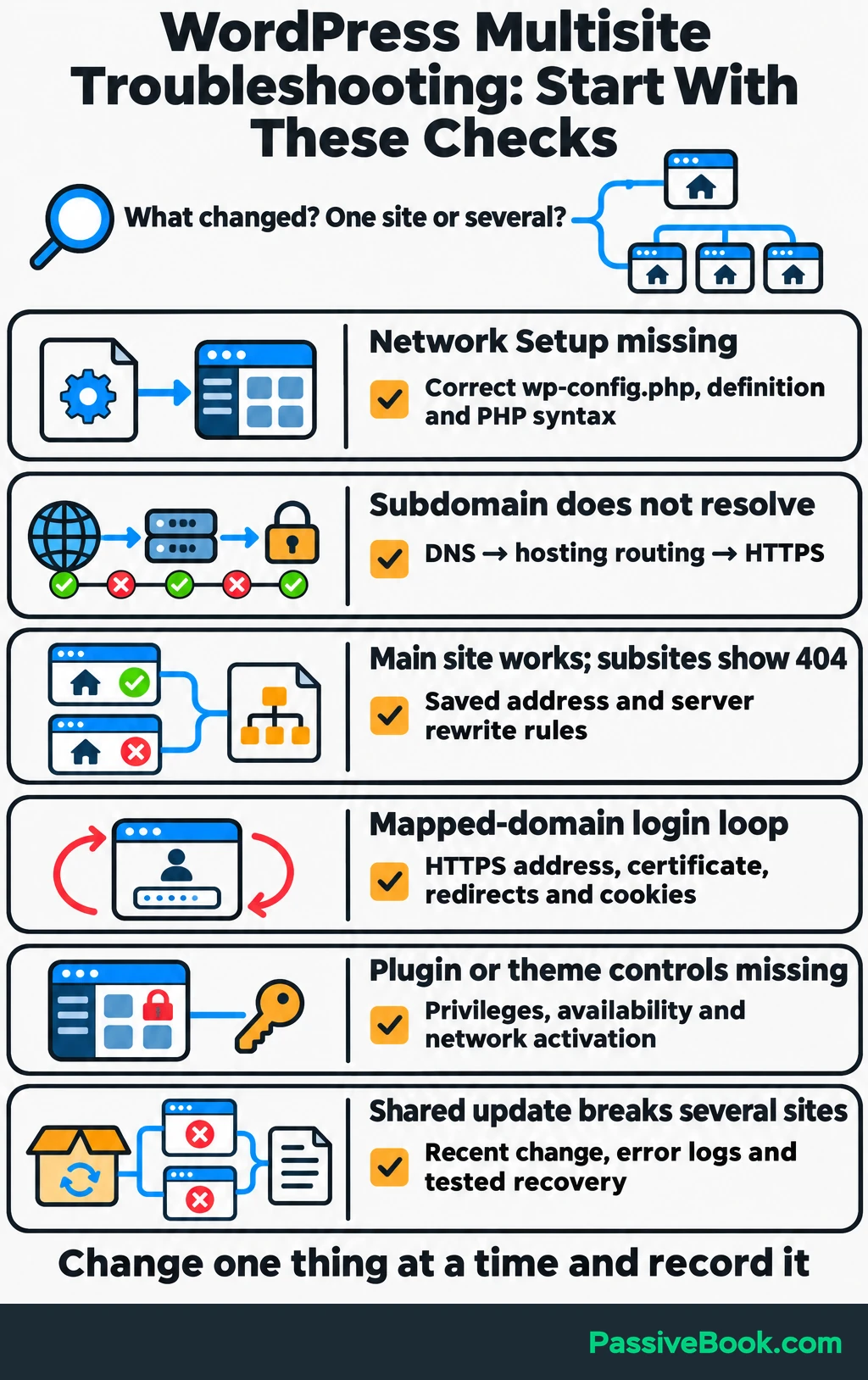
Subsite 404s can come from server rewrite problems even when the main site works. WordPress’s network debugging guidance covers this failure pattern.
Use hosting access when a dashboard is unavailable, and change one thing at a time. Record what you changed so a second person can follow the investigation.
What Next?
Write down which websites need separate dashboards and which can share a software stack. If Multisite fits, make your first implementation task a backup-and-restore rehearsal on staging.
Use the social buttons to share this guide when planning a shared WordPress setup, so the address, access and recovery decisions stay part of the conversation.
Which part of managing several websites takes the most time in your current setup? Share your answer, along with any other questions, in the comments.
Share this post with your friends & followers:

