Your website looks fine, so it’s tempting to leave the update notices for another week. Then you wonder whether clicking them will break something—and whether the backup you set up months ago actually works.
That uncertainty turns a small job into one you keep avoiding. Meanwhile, an unnoticed form error or missing download can leave visitors stuck even when the homepage loads. To catch those failures and make updates less daunting, this guide gives you a repeatable maintenance schedule, a recovery plan, and a way to decide which jobs to automate or pay someone to handle.
Your WordPress Maintenance Checklist
This guide covers self-hosted WordPress: the WordPress.org software installed with a hosting provider. Start by checking what your hosting plan already handles, including backups, security monitoring, updates, and restoration. Paying twice for the same task won’t make it twice as finished.
I run Passive Book on WordPress, with blogging and Pinterest as its active channels. My preference is to automate repeatable work and keep a short checklist for the things that need a person.
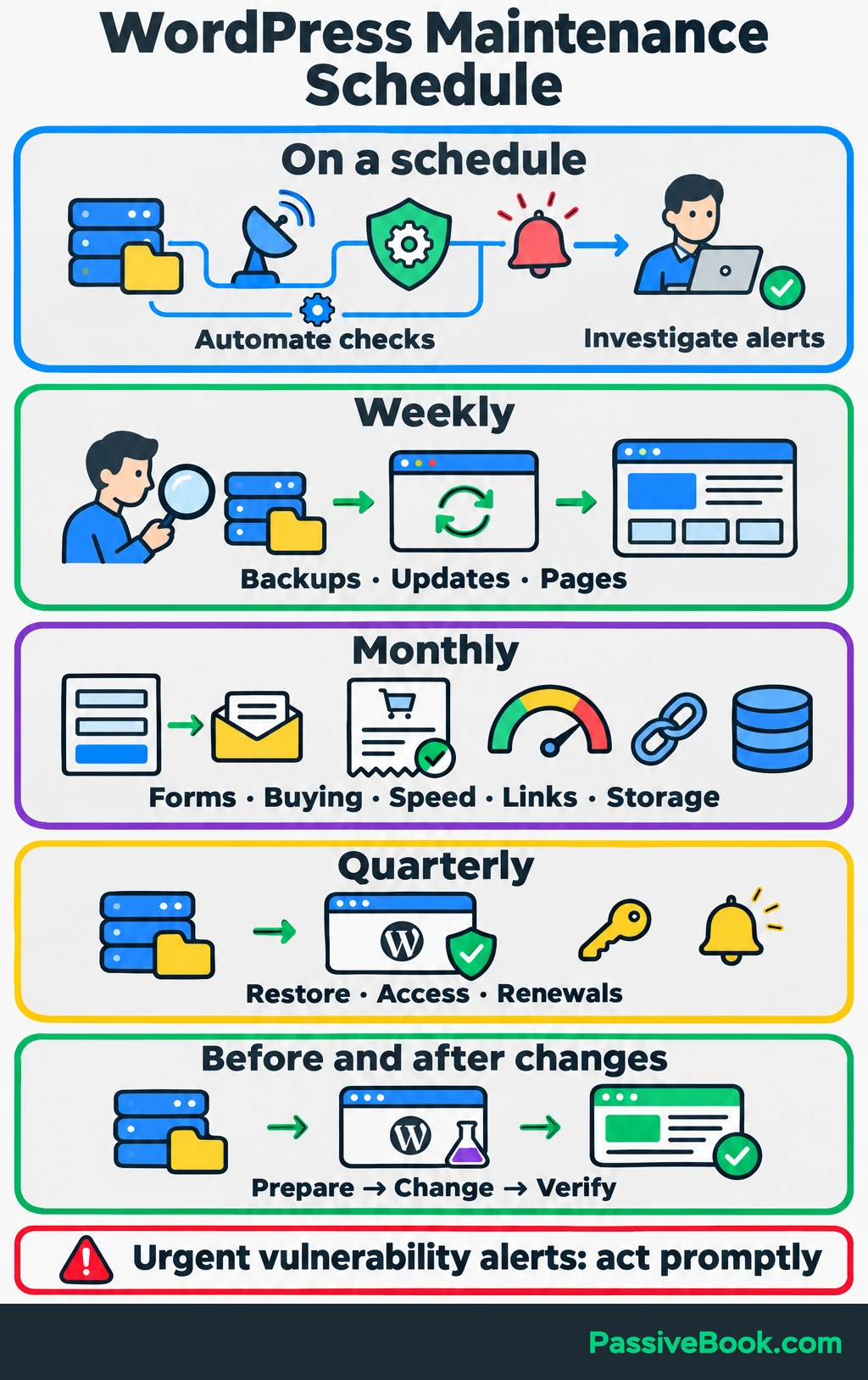
I’d start with this schedule:
| Frequency | Task | Automated Action | Manual Confirmation | Responsible Person |
|---|---|---|---|---|
| On a schedule | Backups, uptime checks, and security monitoring | Run backups and monitoring; send failure alerts | Investigate failures when alerts arrive | You, with hosting support for server problems |
| Weekly | Backup verification, updates, and public-page checks | Deliver backup reports and update notices | Check stored backups, review updates, and inspect key pages | You |
| Monthly | Forms, purchases, speed, links, and storage | Collect performance reports and broken-link results | Submit forms, test buying, review warnings, and inspect storage use | You |
| Quarterly | Restore rehearsal, account access, and renewals | Send renewal reminders | Restore a test copy; review users, software, payment details, and renewal contacts | You, with support for the first restore |
| Before and after changes | Recovery preparation and testing | Create a fresh backup where supported | Test substantial changes separately, then check affected live functions | Whoever makes the change |
Act on urgent vulnerability notices when they arrive rather than leaving them for the weekly review. Send alerts to an inbox you actually monitor.
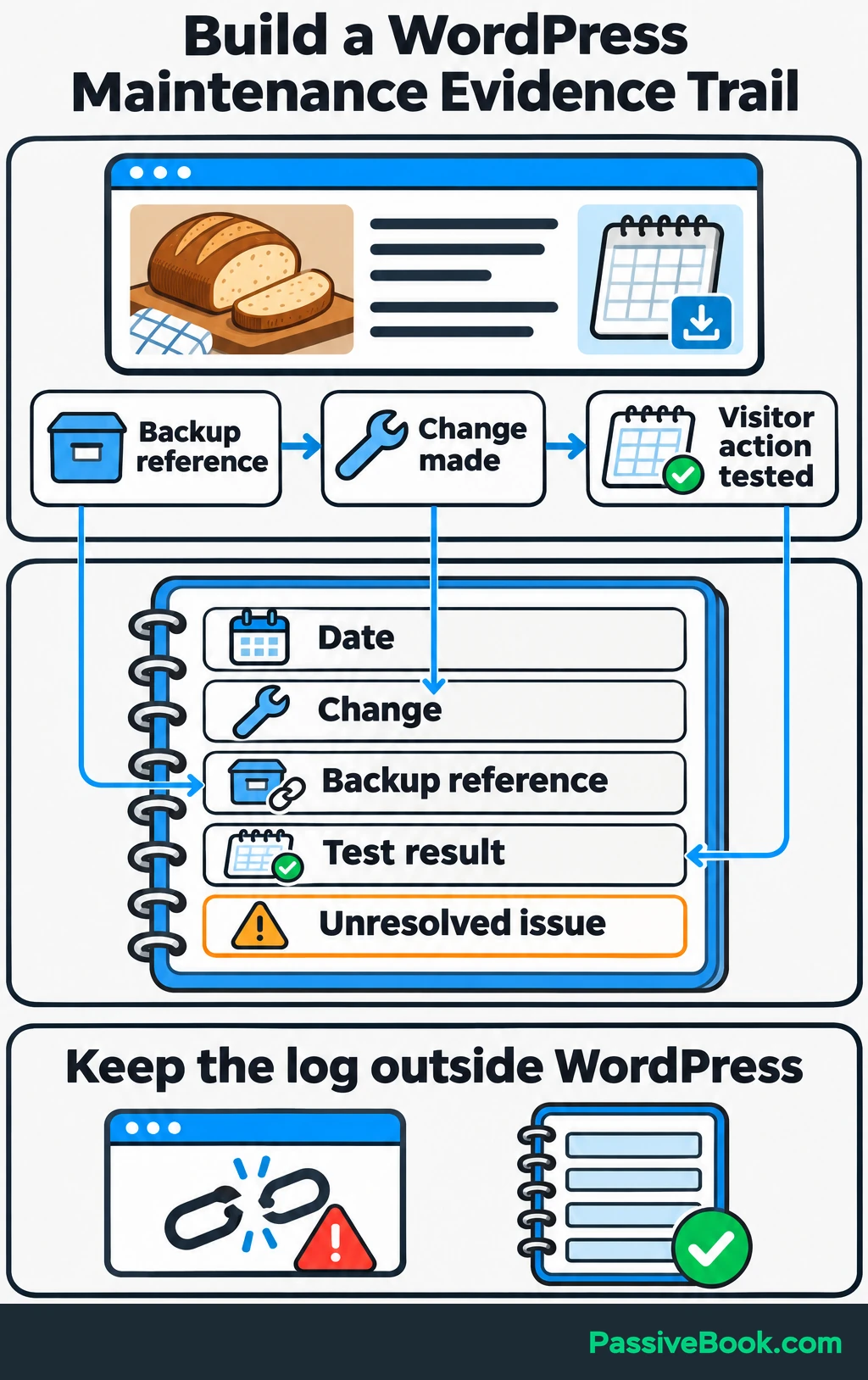
Keep a maintenance log in a spreadsheet or note outside WordPress. Record the date, change, backup reference, test result, and anything unresolved.
For the examples below, imagine you run a home-baking blog selling a printable bread-baking planner through WooCommerce, a plugin for selling through WordPress. Your routine needs to protect recipes and photos, but also subscriber forms, purchases, and download delivery. If you don’t sell anything, skip the purchase checks and test your main visitor action, such as a signup or contact form.
Create Backups You Can Restore
Back up Files and the Database
Before making changes, confirm you can access your WordPress administrator account, hosting account, and backup storage. Keep recovery instructions somewhere you can reach when the website is unavailable.
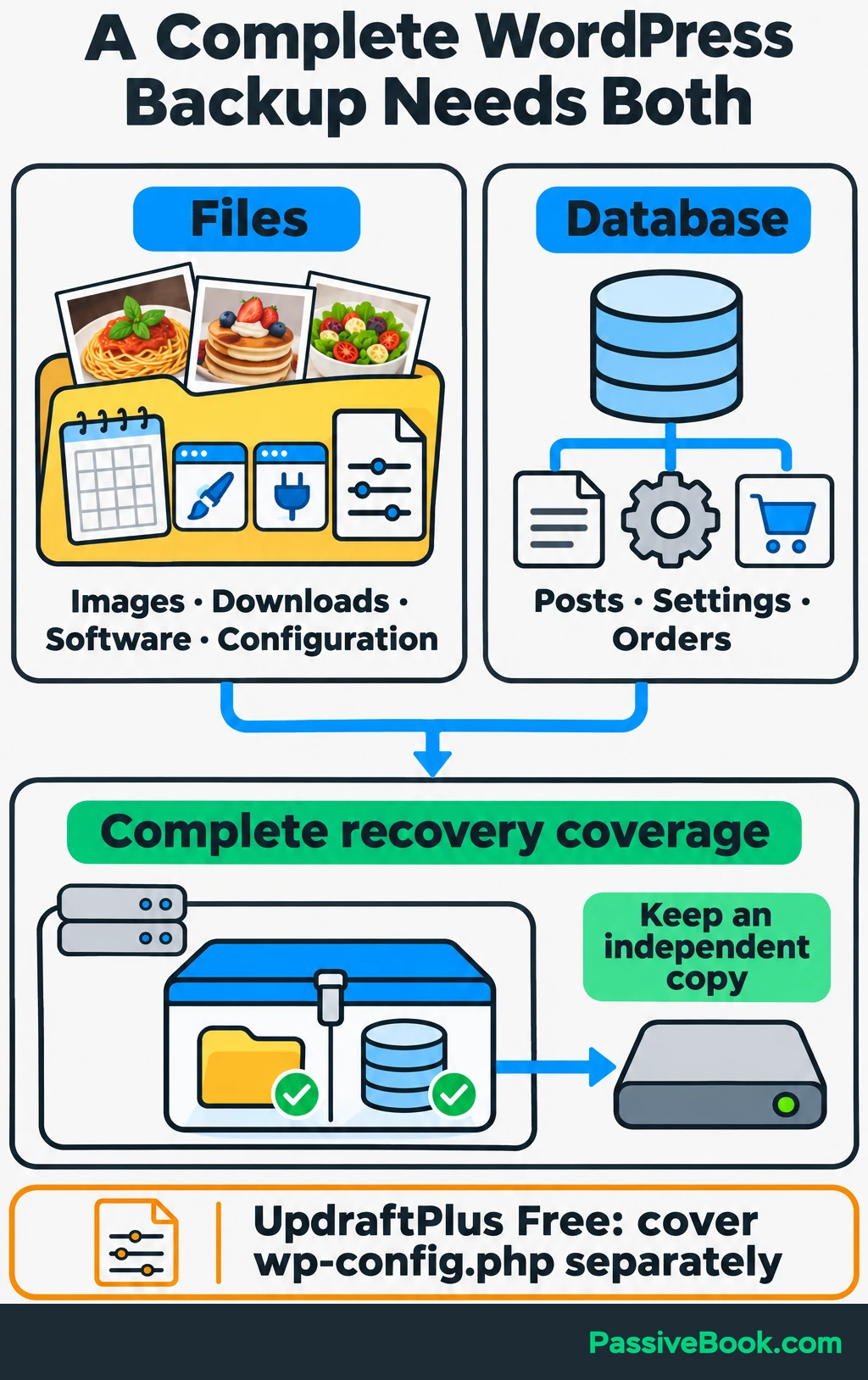
A complete recovery needs two types of data:
- Files, including photos, downloads, themes, plugins, and configuration.
- The database, which holds posts, settings, and records such as orders.
Downloading the WordPress folder alone does not capture the database. WordPress explains this distinction in its backup guidance.
Choose a backup schedule by asking: “How much recent work could I afford to lose?”
A successful daily backup can still leave almost a day of newer records unprotected. That might be manageable for a quiet blog, but unacceptable when purchases arrive throughout the day. Shorten the interval when losing those records would create a serious problem.
Ask your host:
- Does the backup include both files and the database?
- How often does it run, and how long are copies retained?
- Can I restore it myself?
- Are restoration or recovery support charged separately?
Keep several dated recovery points and an independent copy outside the hosting account.
If your host leaves a gap, a maintained backup plugin can help. UpdraftPlus Free supports scheduled file and database backups to supported remote storage. In its settings, connect your storage account and choose how often to back up files and the database. Set how many copies to keep, enable email reports, and run the first backup manually.
Check coverage before relying on it. The free version covers the database and WordPress content folder, but configuration files such as wp-config.php need separate coverage through your host or another suitable option. See what UpdraftPlus backs up.
For your baking blog, verify that recipes, photos, planner files, product settings, and purchase records are covered. Read the completion report and check the actual storage destination. A scheduled job is an intention; a stored backup is something you can test.
Practice Restoring a Backup
Ask your host to help restore a selected backup into a separate test environment. This lets you learn the process without replacing the live website.
Protect that copy with a password or another access restriction. Disable customer messages, live payments, and other actions that could reach real people before testing.
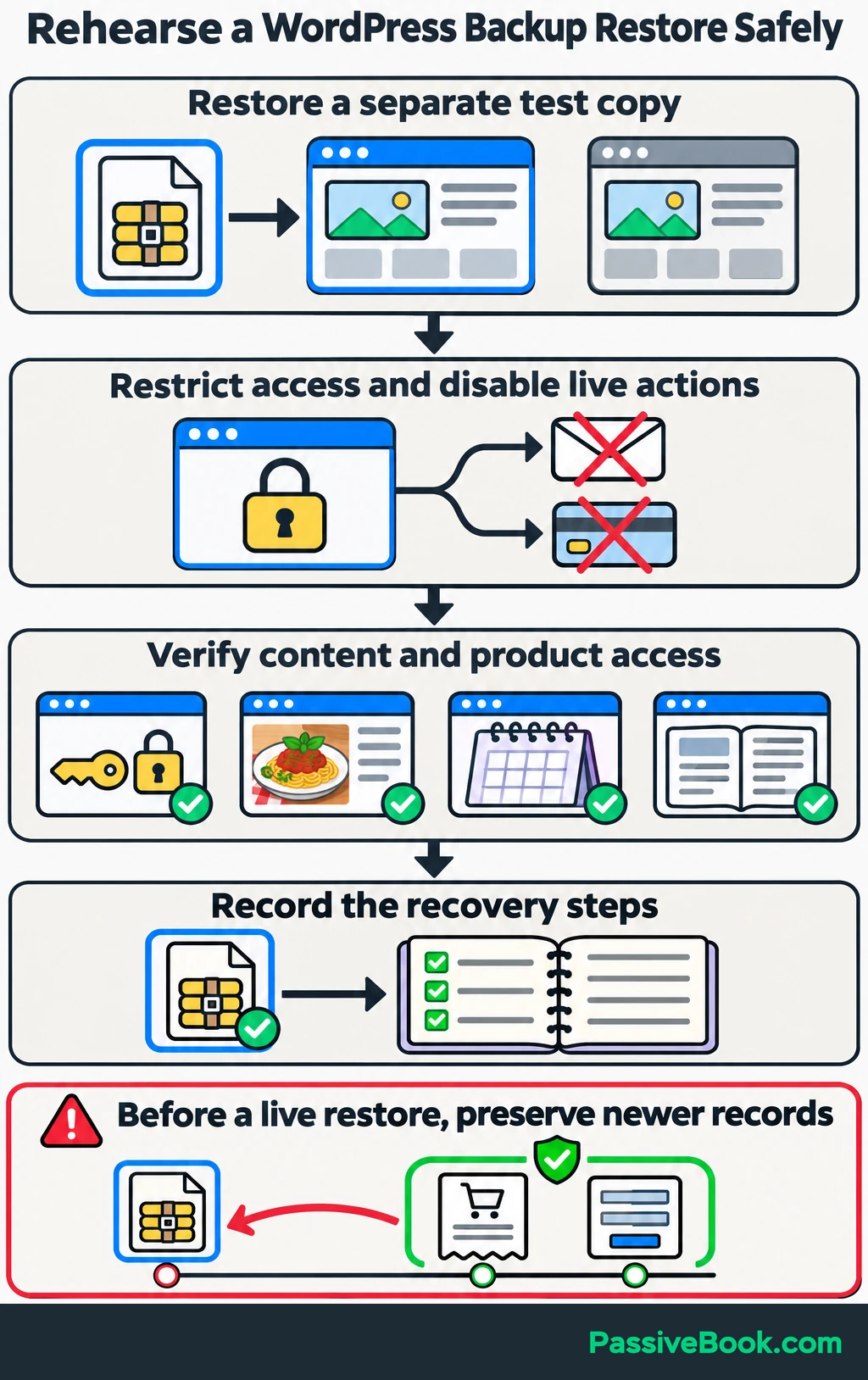
Then confirm you can:
- Sign in.
- Open recent recipes and their images.
- View the planner product.
- Access the correct printable download.
Write down the recovery steps and resolve missing files or records before relying on the process.
A live database restore replaces newer records. If the backup predates recent purchases or form submissions, have support preserve and reconcile them before restoring. Otherwise, fixing the website can erase the evidence that a customer bought something.
Update WordPress, Plugins, and Themes Safely
Prepare a Recovery Point and Test Copy
Before installing an update, read its release notes—the developer’s description of changes and requirements. Check the required WordPress and PHP versions, along with instructions about related plugins. PHP is the programming language WordPress runs on.
If compatibility is unclear, ask the developer. Replace unsupported software rather than postponing updates indefinitely to keep it running.
Take a fresh backup and confirm the restoration method. Next, use staging—a separate copy of your website—for substantial changes and anything affecting purchases or custom features.
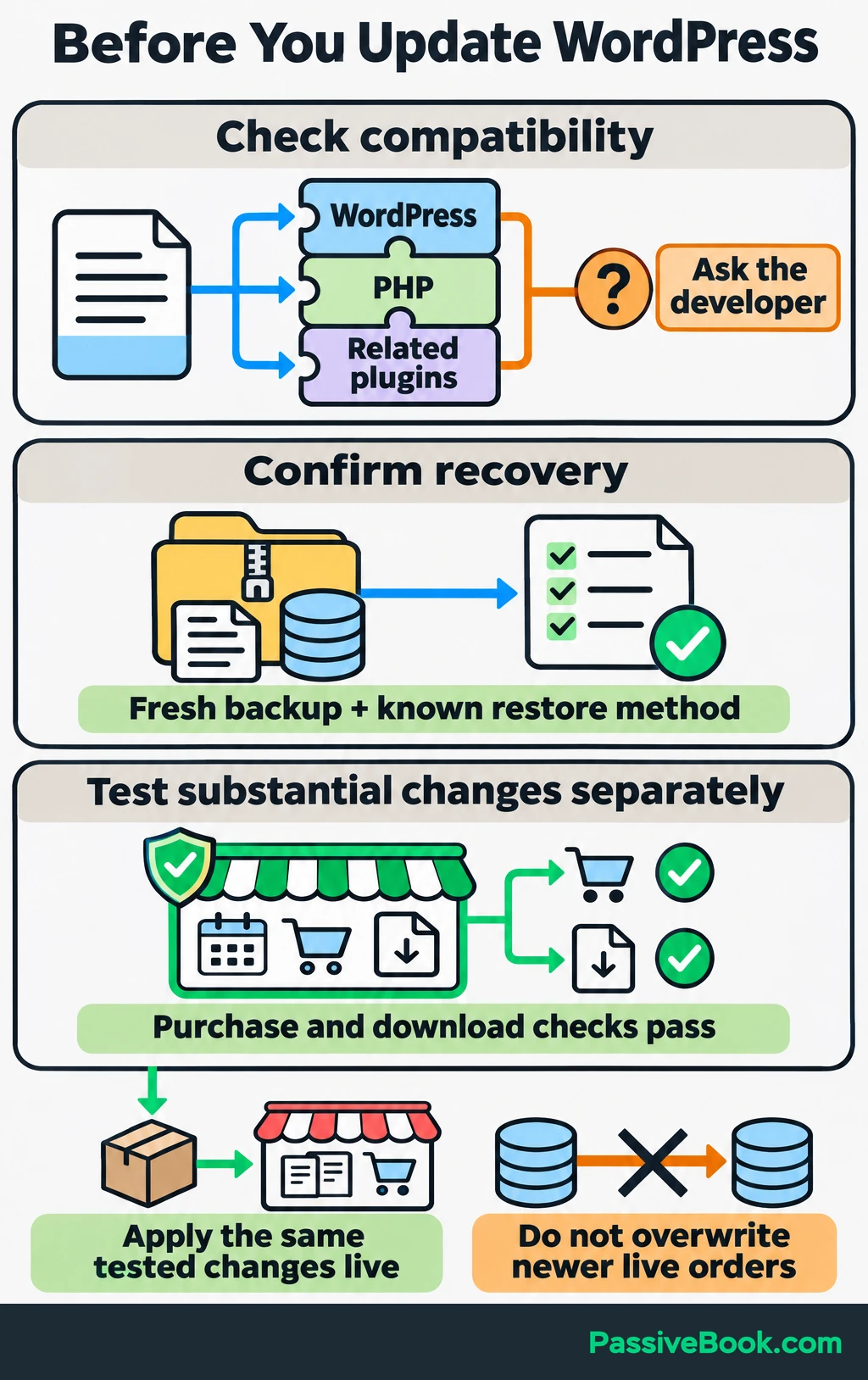
For the baking blog, update the staging copy and test the planner’s purchase and download process. WooCommerce recommends testing updates on staging before applying them to the live store.
Once the tests pass, apply the same tested changes to the live site. Avoid copying the entire staging database over it, because the live site may have received newer orders or submissions.
If staging tools make that distinction unclear, ask your host to handle the transfer.
Apply Updates in Controlled Steps
Use WordPress or your host’s update tools. For a simple update, review what will change and start the update. For related components, follow the developer’s required order.
Let each operation finish before starting another. Complete any required database update before testing.
Choose a quieter period for work that could interrupt visitors. If checkout or other essential functions must be unavailable, use a temporary maintenance page configured to return 503 Service Unavailable. Your host can help set this up. Remove it promptly after testing.
Afterward, run the essential-function checks below. If old pages remain visible, clear the relevant WordPress, hosting, or Cloudflare cache, then check again.
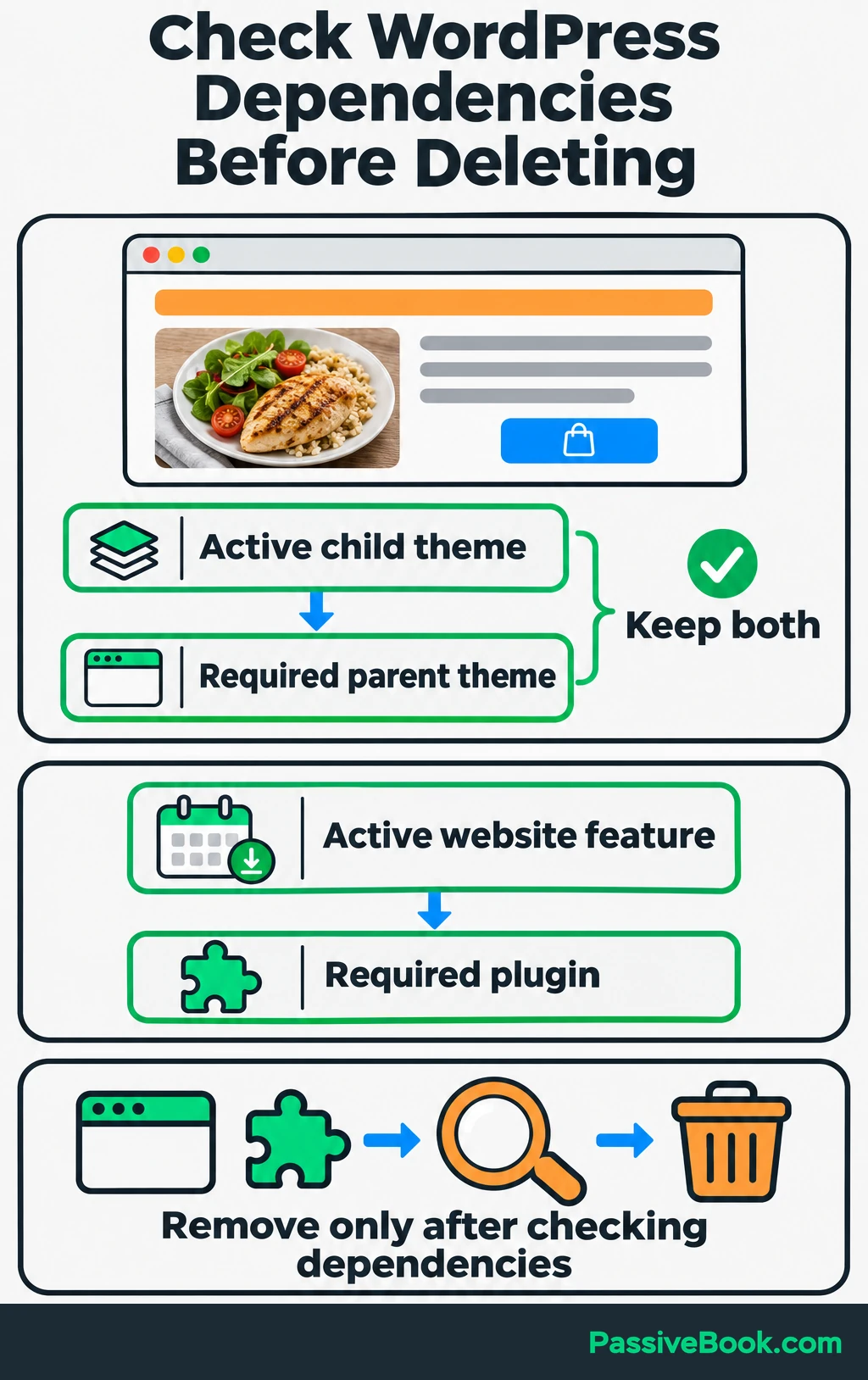
Remove unused plugins and unnecessary themes after checking whether active features depend on them. If you use a child theme, keep its parent theme too: the child theme builds on files in the parent.
Ask your host which PHP version runs your website and whether it still receives security fixes. Arrange a tested upgrade before support ends; the PHP support schedule lists supported versions.
Test Essential Website Functions
An update notice saying “completed” tells you the update finished. You still need to check what visitors can do.
Open the public website while logged out, using a phone and a desktop. Work through this checklist:
- Pages: Open the homepage, a recent article, and an important sales page. Check navigation, images, and buttons.
- Forms: Submit a test entry and confirm it reaches the intended inbox or subscriber system. A success message alone does not prove delivery.
- Purchases: Check the cart, checkout, order record, confirmation email, and product access.
- Keyboard Use: Move through important links and forms with the keyboard. You should see which item has focus, and fields should have clear labels.
- Links: Check important destinations, especially signup pages, product links, and downloads. Correct mistakes or replace unavailable resources.
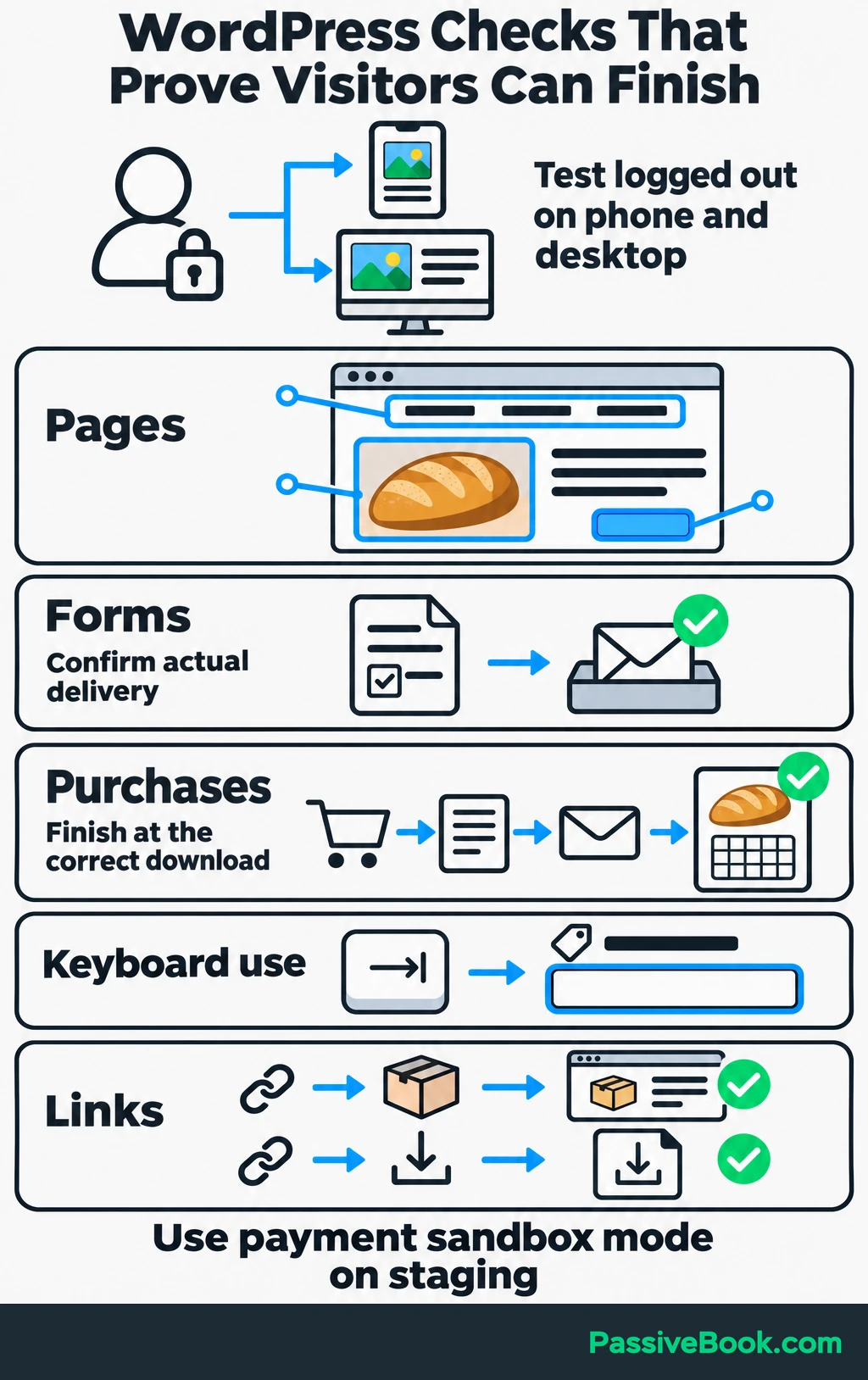
On staging, use your payment provider’s sandbox or test mode, which simulates payments without charging anyone. For live purchase checks, follow your payment provider’s documented procedure and leave sandbox settings off the live website.
For your baking blog, the purchase test ends when the correct bread-baking planner opens. Reaching the thank-you page is only part of the job.
Repeat these checks after updates, restores, and performance changes, as well as during the monthly review. Focus extra attention on the functions affected by each change.
Review Security Alerts and Account Access
Start with the accounts that control the website.
Use unique passwords stored in a password manager. Enable two-factor authentication for WordPress administrators through a maintained plugin or supported service. This adds another sign-in check, such as a code from an authenticator app.
Store recovery codes outside WordPress, and protect your hosting, domain, and recovery-email accounts too.
Give each person only the permissions their work requires. Someone drafting recipes usually does not need permission to install plugins. Remove obsolete access and investigate unfamiliar administrators.
Before adding a security service, check what your host already provides. Establish who monitors vulnerabilities and suspicious activity, where alerts arrive, and who responds.
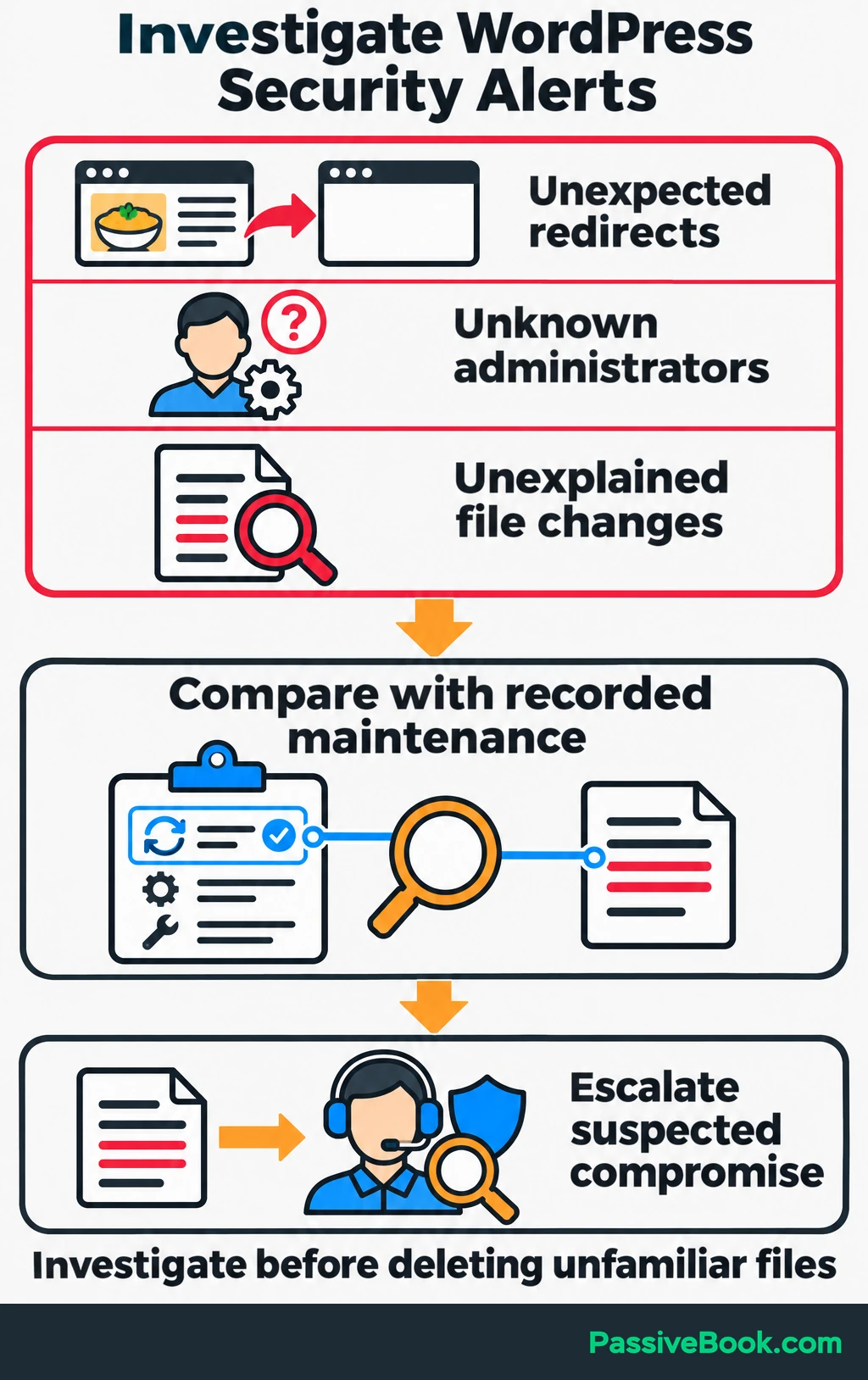
Unexpected redirects, unknown accounts, or unexplained file changes deserve investigation. File changes can also come from legitimate updates, so compare them with your maintenance log before deleting anything. WordPress describes file monitoring as one part of its security guidance.
Check that public pages and sign-in screens load over HTTPS without certificate warnings. Send suspected compromise to your host or a WordPress security specialist.
Keep Your Website Fast
Find and Fix Measured Slowdowns
Start with a measurement rather than another optimization plugin.
Use PageSpeed Insights, Google’s page-speed testing tool, on three representative pages: your homepage, a photo-heavy article, and a sales page.
Save the page address, mobile or desktop setting, and reported problems. Repeat tests under comparable conditions because individual results vary.
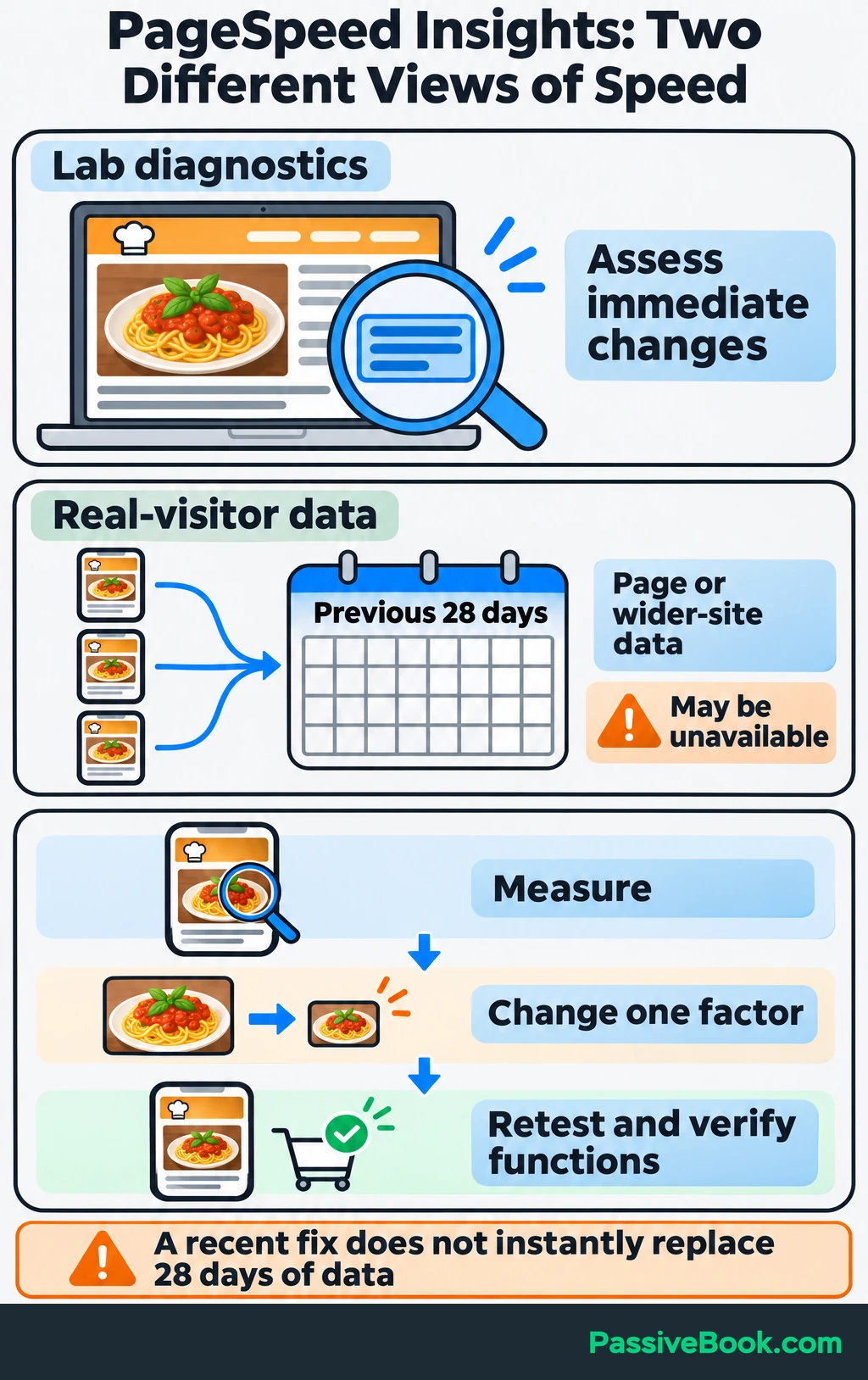
PageSpeed Insights separates simulated diagnostic tests from real-visitor data. The visitor data covers the previous 28 days and may describe the tested page or the wider website. It may also be unavailable for sites with too little data. Use the diagnostics to assess immediate changes rather than expecting yesterday’s fix to transform a 28-day report. Google explains the difference here.
Match the fix to the reported problem:
| Reported Problem | Useful First Action |
|---|---|
| Oversized images | Resize and compress the images used on that page |
| Heavy scripts | Review optional widgets, embeds, and plugin features |
| Slow server response | Ask your host to investigate server processing and resources |
| Little or no page caching | Check existing hosting caching before adding a plugin |
Caching reuses prepared pages so the server does less repeated work. I would check the host’s setup first and consider WP Rocket when a paid caching tool fills a clear gap.
Keep cart, checkout, and customer-account pages out of shared page caching because their content belongs to individual customers. WooCommerce lists these caching exclusions.
For the baking blog, if large recipe photos are the reported problem, fix those before changing checkout settings. Change one factor, repeat the same tests, and check affected visitor functions.
Review WordPress’s Site Health report and your hosting storage notices during the monthly check. Ask the host about server warnings you cannot resolve yourself.
Clean the Database Selectively
Review what has accumulated before deleting it. Start with confirmed spam and unwanted trash, and keep revision history you still use.
Back up the database first. Preserve orders, customer records, form submissions, and active-plugin settings. Leave unfamiliar tables alone.
If you already use WP Rocket, its database cleanup options can handle selected categories. Read what each option removes before selecting it. WP Rocket warns that cleanup has no built-in undo, so recovery requires a backup.
I would skip installing another plugin just to delete a few old revisions. Clean up a known problem; don’t expect routine deletion to produce a noticeable speed improvement.
Recover When Something Goes Wrong
Handle a Failed Update or Outage
Stop making changes and record what happened. Save error messages, affected page addresses, and the most recent successful action from your log.
Then choose the next step from the symptom:
| Symptom | Next Step |
|---|---|
| The whole site is unavailable | Check your host’s service status and contact support |
| WordPress reports a critical error | Check the administrator inbox for a Recovery Mode email |
| One function broke after an update | Investigate the changed component and its dependencies |
| The site remains in maintenance mode | Ask the host to confirm updating has stopped before removing a stale maintenance flag |
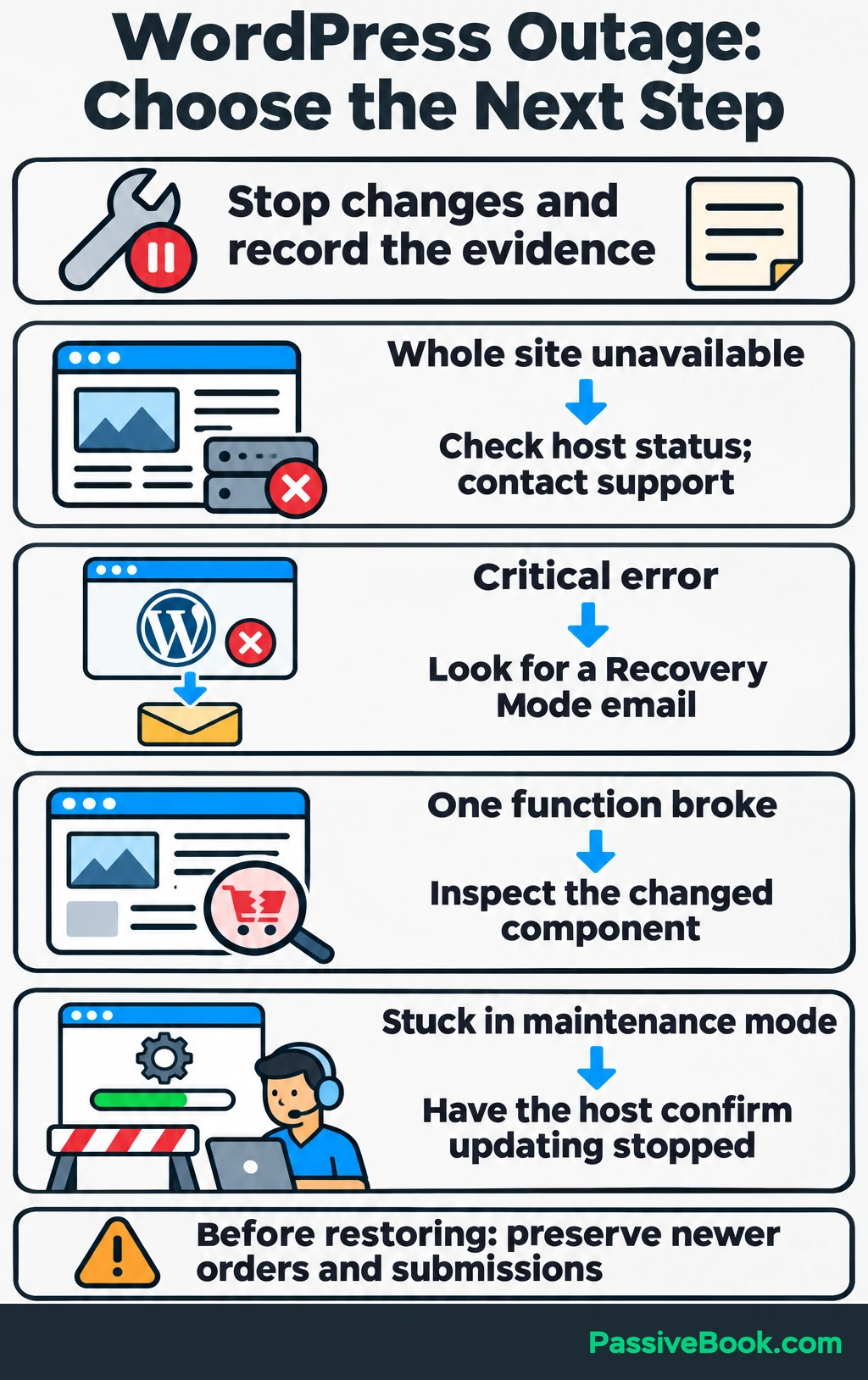
A WordPress Recovery Mode link may let you sign in and deactivate the failing component after a fatal error. Contact your host if the email does not arrive or access remains unavailable.
Use a targeted fix when possible. Deactivating an identified failing plugin may avoid replacing the whole site.
Restore a verified working backup when necessary, with newer orders and submissions preserved as described earlier. After recovery, retest essential functions and investigate the conflict on staging before trying the change again.
Respond to Suspected Compromise
Document suspicious behavior and contact your host or a WordPress security specialist. Give them the timeline, recent changes, affected pages, error messages, and available backups.
Ask them to contain the incident and preserve relevant logs. Share credentials through a secure channel.
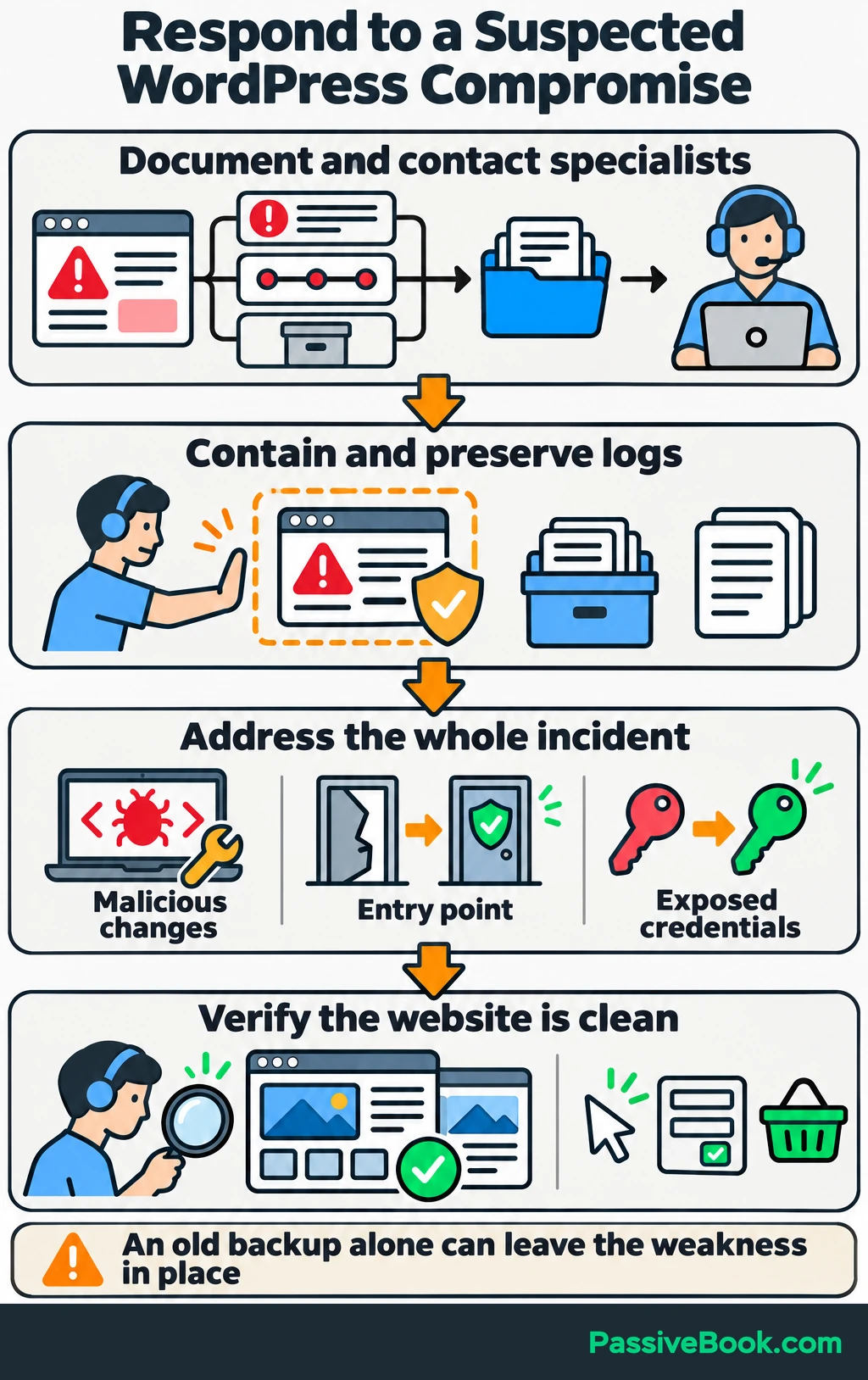
Recovery needs to address malicious changes, the entry point, exposed credentials, and verification that the website is clean. Restoring an old backup alone can leave the original weakness in place. WordPress’s hacked-site recovery guidance covers that broader process.
This is where I would pay for specialist help. Guessing which unfamiliar files to delete is a poor recovery plan.
Choose What to Automate and Delegate
Automate Repeatable Work
Automate backups, external uptime checks, security scans, and renewal reminders. Give every alert a named recipient who can act.
An external uptime monitor checks your public website from outside the hosting account and notifies you when it becomes unavailable. It does not replace testing forms and purchases: a homepage can load while checkout fails.
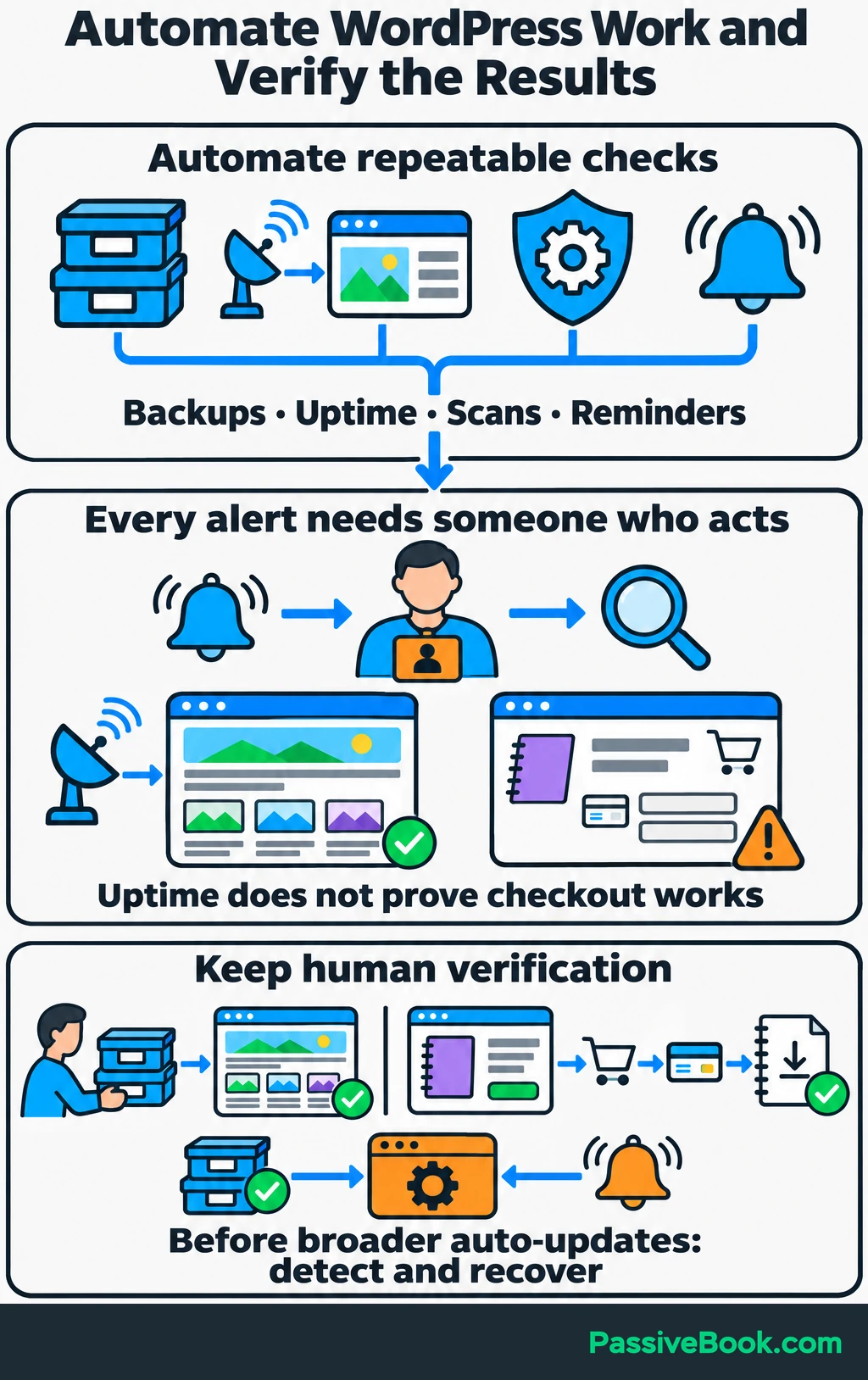
Keep automatic updates enabled for WordPress’s maintenance and security releases. Before automating major releases, plugins, or themes, confirm you can detect failures and restore a tested backup, with support if needed.
For the baking blog, I would supervise changes affecting WooCommerce, payments, and download delivery unless a maintenance service tests and recovers them.
Keep restore rehearsals and visitor-function checks on the manual checklist. Automation should remove repetitive work while leaving you able to confirm the result.
Hire Help When You Cannot Safely Verify or Recover Changes
You can handle routine inspections and documented updates once you have a tested recovery process. Routine maintenance does not require writing code.
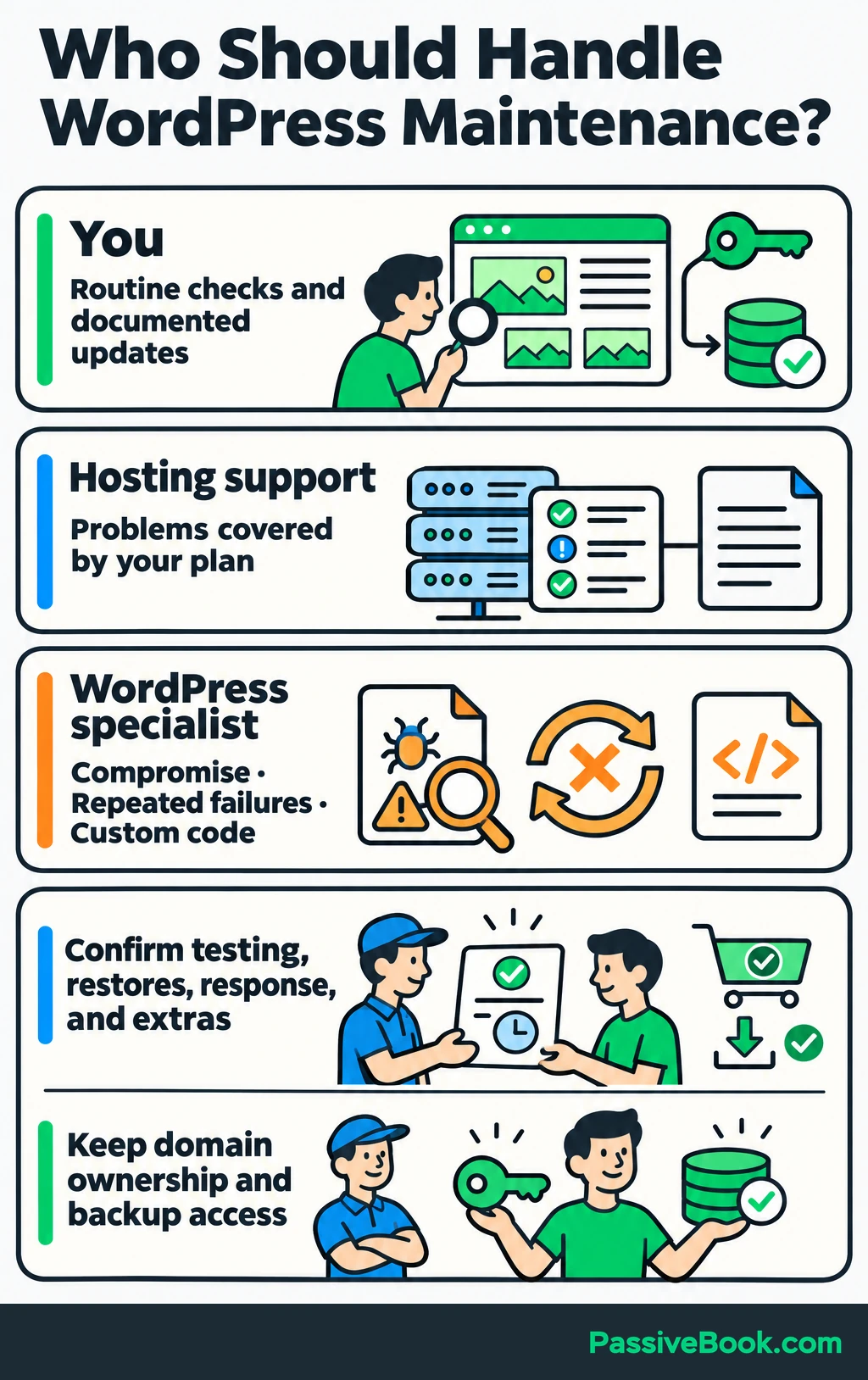
Use hosting support for problems covered by your plan. Hire specialist help for suspected compromise, repeated update failures, custom-code problems, or work you cannot consistently cover.
Compare providers using the same questions:
- Do you test updates before and after installation?
- How long do you retain backups, and who performs restores?
- Do you test purchases and download delivery?
- What emergency response is included?
- Does the plan include malware cleanup?
- Which tasks or incidents cost extra?
Keep ownership of your domain and essential accounts, along with independent access to backups.
I would pay for a clear response commitment before paying for a longer monthly report. The useful part is knowing who acts when something fails.
How Much Does WordPress Maintenance Cost?
Separate hosting and domain renewals from additional maintenance spending. Extra costs may include backup storage, premium plugin renewals, monitoring, and professional labor.
DIY maintenance can add $0 in plugin license fees when free tools and existing hosting features cover your needs. Your time, storage, and incident support still need a budget.
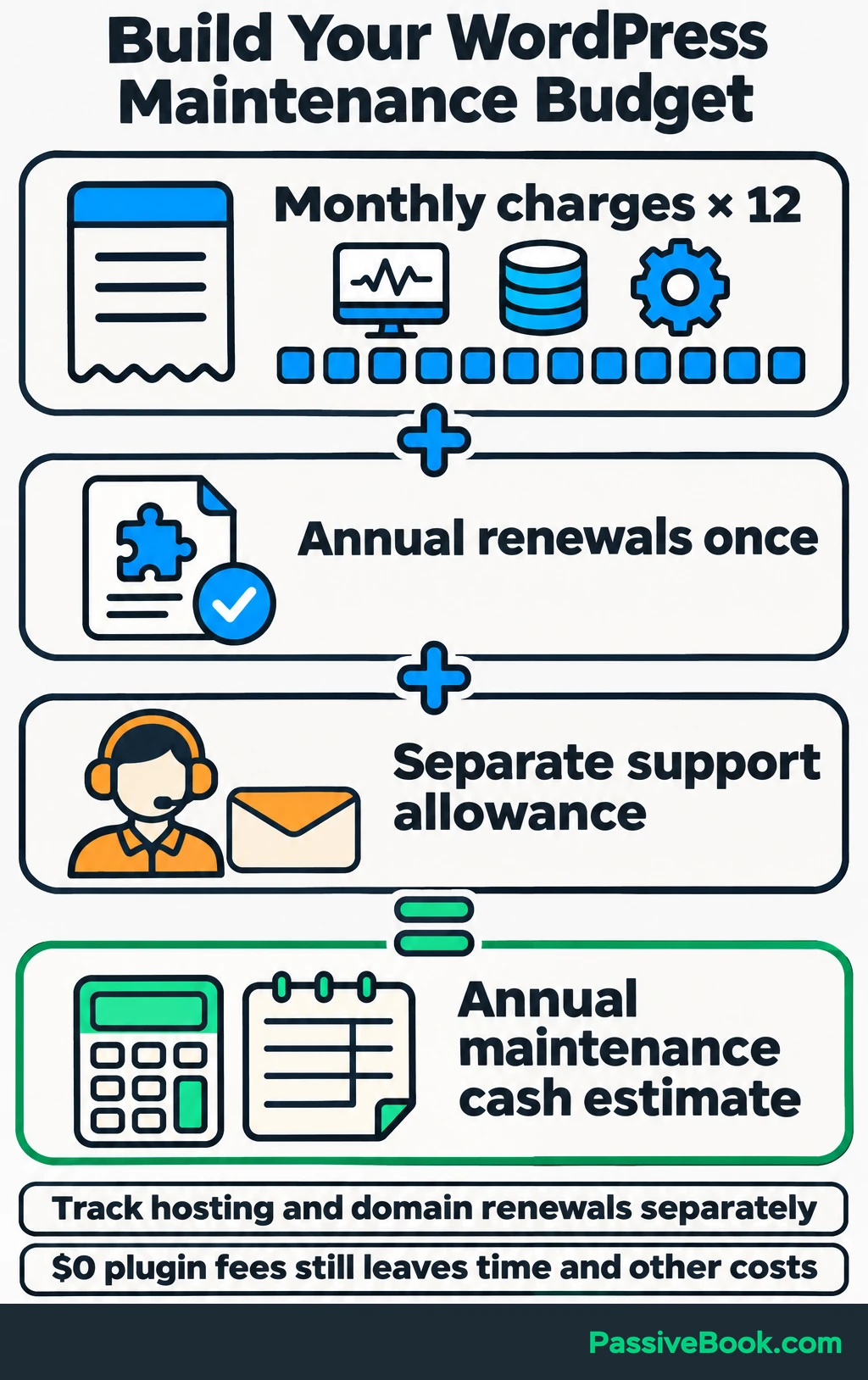
For an annual cash estimate, count recurring monthly charges for twelve months, add annual renewals once, and keep a separate allowance for paid support.
WP Buffs, for example, requires its Perform plan for WooCommerce sites or sites taking on-site payments. It lists that plan at US$239 per month; check its plans and eligibility rules before budgeting.
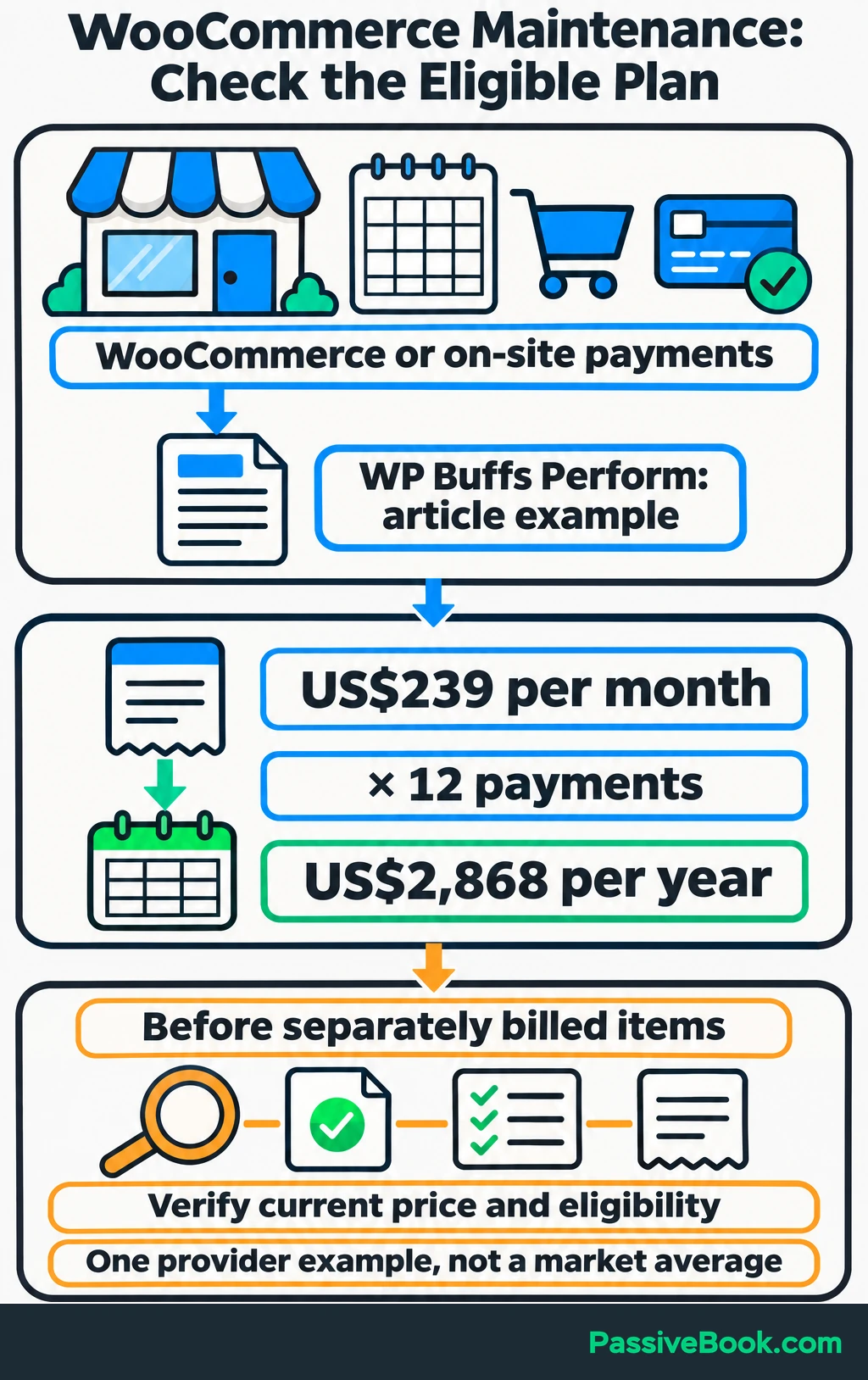
For the baking blog, twelve monthly payments at that price total US$2,868 per year, before separately billed items.
That is one provider’s offer, not a market average or my endorsement. Compare the included work with what you can handle yourself, and check renewal prices before buying overlapping services.
A low introductory price doesn’t tell you what you’ll spend after renewal. Put two suitable options side by side before adding another paid tool or changing hosts.

Free Software Cost Calculator




What Next?
Open your backup destination and confirm that a recent backup is there. Then book your first restore rehearsal and put the weekly checklist on your calendar.
Use the social buttons to share this guide when a practical maintenance routine would make website upkeep easier to manage.
Which part of maintaining your site still feels hardest to verify? Tell me in the comments, and bring any other WordPress maintenance questions with you.
Share this post with your friends & followers:

