A tutorial is scheduled for the morning, but lunchtime arrives and it still says “Scheduled.” Now you’re checking whether other background jobs have stopped too.
That uncertainty creates work. You check backups, email queues, and plugin logs because a saved schedule tells you when something should happen, but doesn’t prove it happened. The checks and scheduling options below help you trace missed WordPress jobs and choose a dependable way to trigger them, so publishing, backups, and email don’t become another daily checking routine.
How WP-Cron Works
WP-Cron handles scheduled WordPress tasks, including publishing posts and checking for updates. By default, requests reaching WordPress trigger checks for work that is due. It isn’t a system scheduler running independently of your site’s traffic, so a scheduled time doesn’t guarantee an exact start time. WordPress explains this traffic dependence.
Each scheduled event has a few parts:
- Hook: The name of the action WordPress should trigger.
- Callback: The code attached to that hook that performs the work.
- Arguments: Details passed to the callback, such as a post ID.
- Next Run: When the event becomes due.
- Recurrence: Whether it repeats, and at what interval.
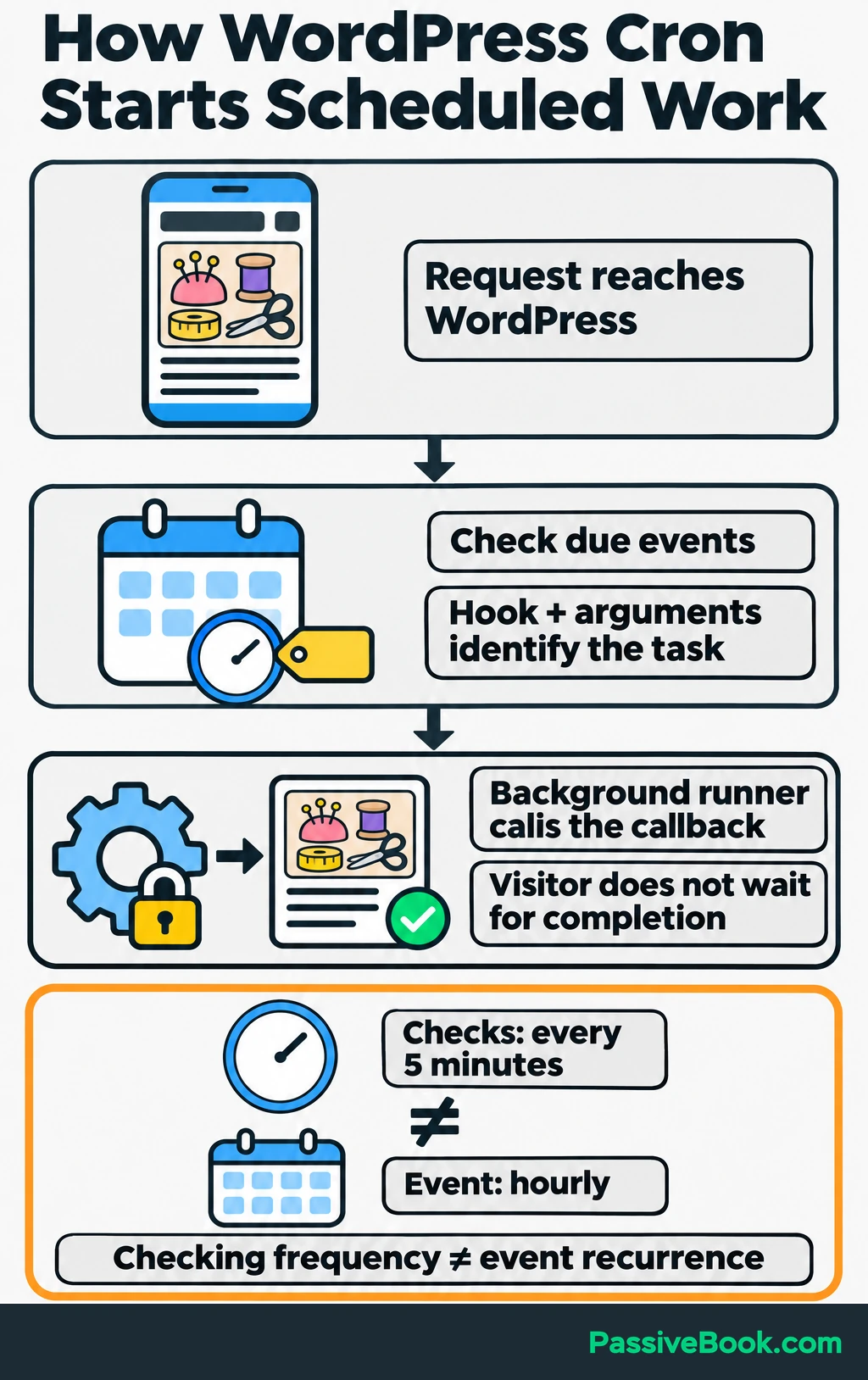
For illustration, imagine your WordPress shop sells downloadable sewing patterns and publishes sewing tutorials. A scheduled tutorial has a publishing event, and its post ID tells WordPress which tutorial to publish.
Keep the event’s recurrence separate from how often WordPress checks for due work. Checking for due work every five minutes doesn’t make an hourly event run every five minutes.
By default, WordPress sends a background web request to start the cron runner—the process that executes due events. It checks a temporary lock to reduce overlapping runs. The visitor’s request doesn’t wait for all the scheduled work to finish, but those jobs still use server resources. Moving the trigger won’t make a heavy backup or import free to run. The spawning implementation shows how this works.
Inspect Your Current Cron Setup
Start with the task you care about. Write down what should happen, when it should happen, and which WordPress feature or plugin owns it.
For the sewing shop, that could be:
“The zipper tutorial should publish at 9 a.m. WordPress handles the scheduled post.”
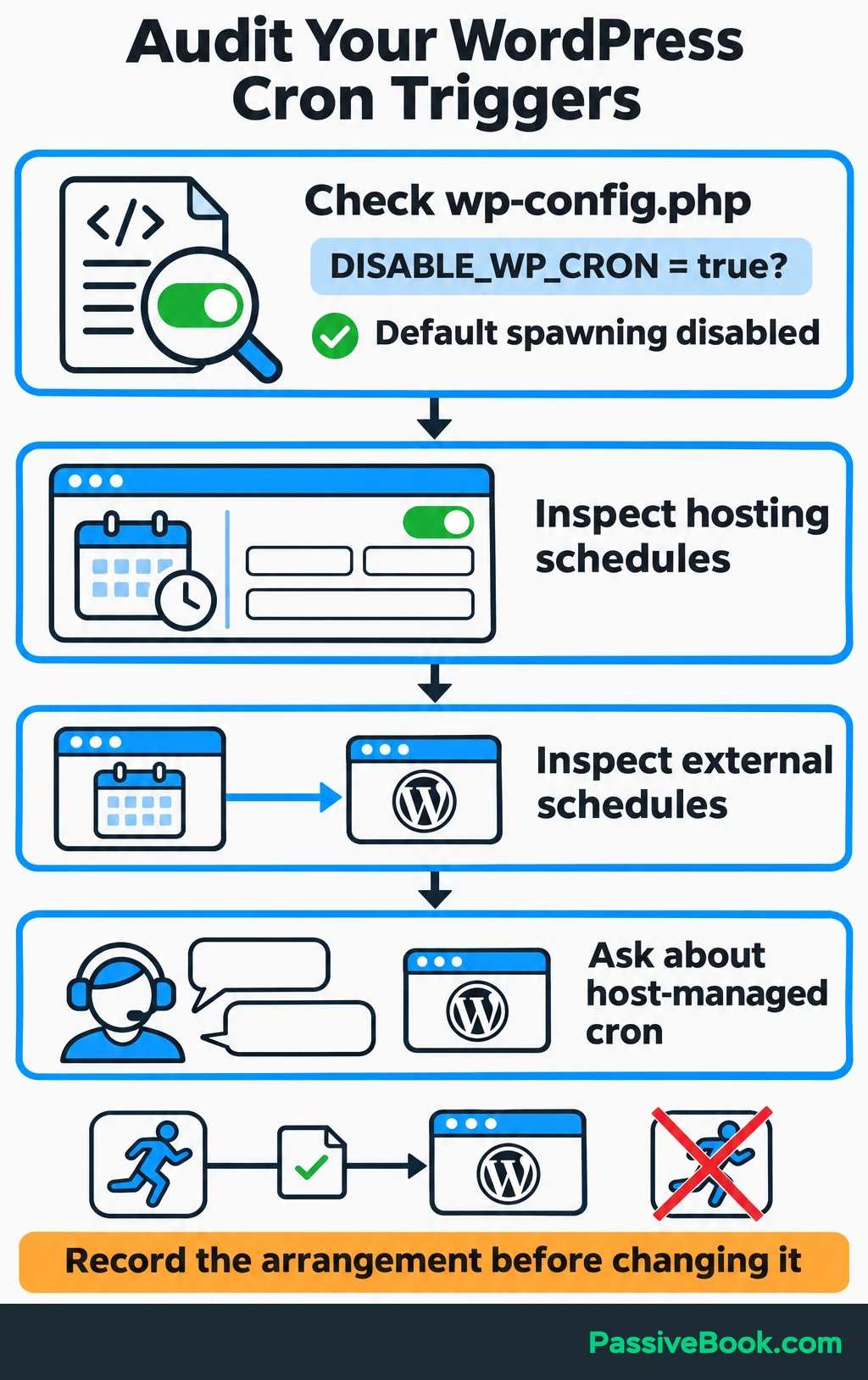
Then identify what currently starts cron:
- Check
wp-config.phpforDISABLE_WP_CRON. A boolean value oftruedisables default traffic-triggered spawning. - Look for scheduled jobs in your hosting account.
- Check any external scheduling service you use.
- Ask your host whether it already manages WordPress cron.
Record the existing arrangement before changing it. Otherwise, you can accidentally leave the site with no trigger or add a second runner you don’t need.

Use WP Crontrol for dashboard controls or WP-CLI for terminal commands. They can work together, but installing either one doesn’t create a server schedule.
Keep a small inventory of important events. This illustrative entry uses GMT; compare all your records in the same timezone.
| Hook | Arguments | Next Run | Recurrence | Owning Component | Expected Result |
|---|---|---|---|---|---|
publish_future_post | [482] | Tomorrow, 09:00 GMT | Once | WordPress scheduled posts | Tutorial with post ID 482 becomes published |
Inspect Events With WP Crontrol
Install and activate WP Crontrol, then open Cron Events under Tools.
Search for the affected hook and inspect its arguments, callbacks, next run, recurrence, and any overdue warning. For a scheduled tutorial, look for publish_future_post and match the post ID in its arguments. Two events with that hook may belong to two different tutorials.
Don’t delete an unfamiliar event simply because it shows no action. Some plugins register their callbacks only when cron runs, so the callback can be absent from the inspection screen while still being available during execution. Identify the owning plugin first. WP Crontrol documents this exception.
I would start here if you’re learning how to manage WP-Cron in WordPress. Seeing the hook and arguments together makes it easier to select the right event.
Inspect Events With WP-CLI
WP-CLI lets you manage WordPress through terminal commands. You need SSH access, which lets you open a secure terminal connection to the server. WP-CLI must also be installed there.
Connect as the site’s hosting account and run commands from the WordPress installation directory. Alternatively, append --path=/absolute/path/to/wordpress to each command.
Start with:
wp cron event list
Include arguments when several events share a hook:
wp cron event list --fields=hook,args,next_run_gmt,recurrenceThe next_run_gmt column uses GMT. Convert it before comparing it with a publishing time shown in your site’s local timezone.
To see available recurrence names and their intervals, run:
wp cron schedule listThese commands inspect the schedule. They don’t run the listed events.
Manage Individual Cron Events
Before changing events, back up the database and record the original hook, arguments, next run, and recurrence.
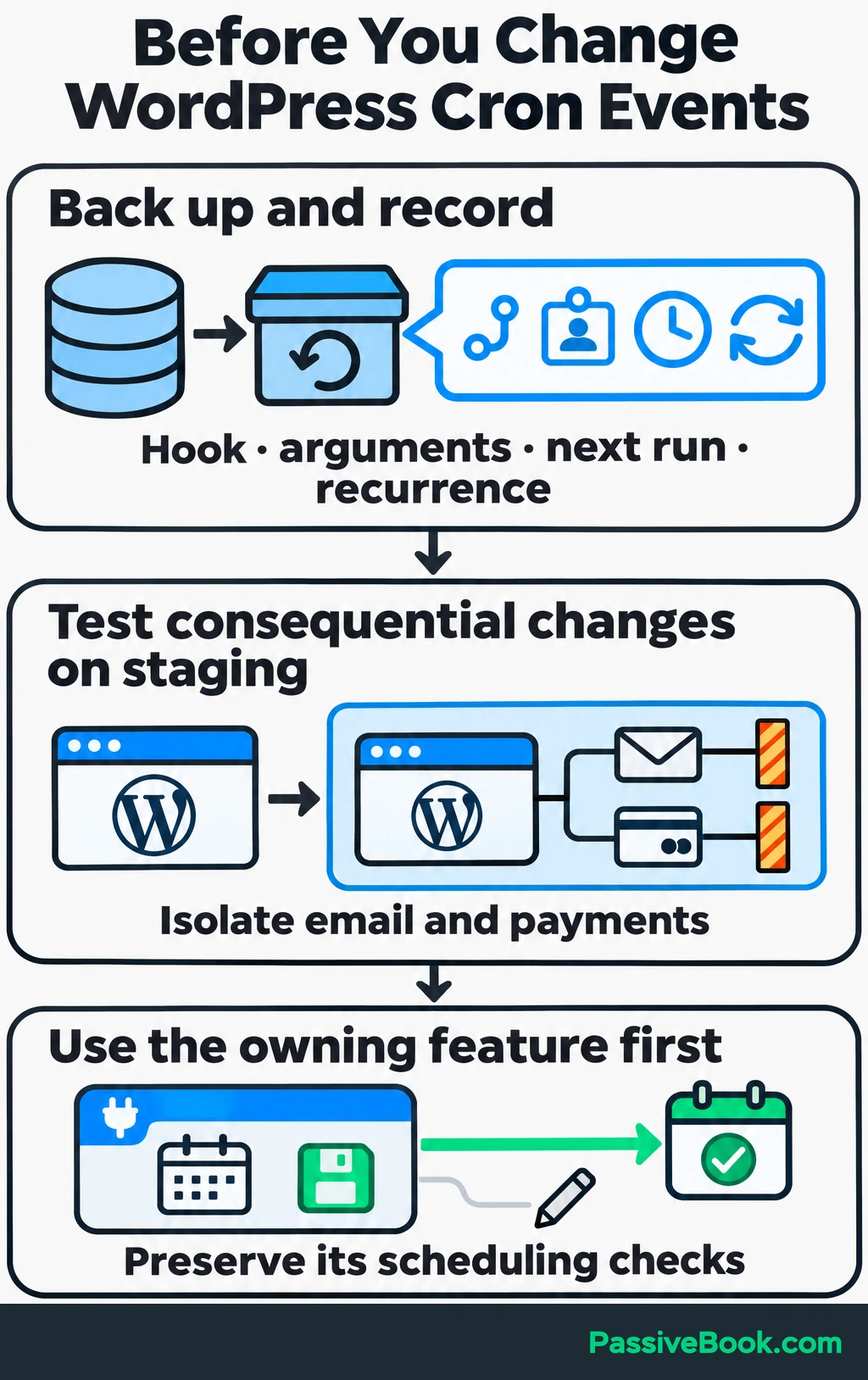
Use staging for changes that could publish content, send customer emails, or affect orders. A staging site is a separate copy of your site for testing; check that its outgoing email and payment integrations are isolated too.
I prefer changing schedules through the feature that created them. Direct event editing is useful, but the owning plugin may have settings or checks that your edit would bypass.
Run an Event Manually
First, establish what the event will do. “Run now” can mean “send those emails now,” and the button doesn’t know whether that was your intention.
In WP Crontrol, find the intended event by both its hook and arguments, then choose Run now.
For the sewing shop, use a disposable tutorial on staging whose publication time has already passed. Run its publishing event and confirm that the post becomes published.
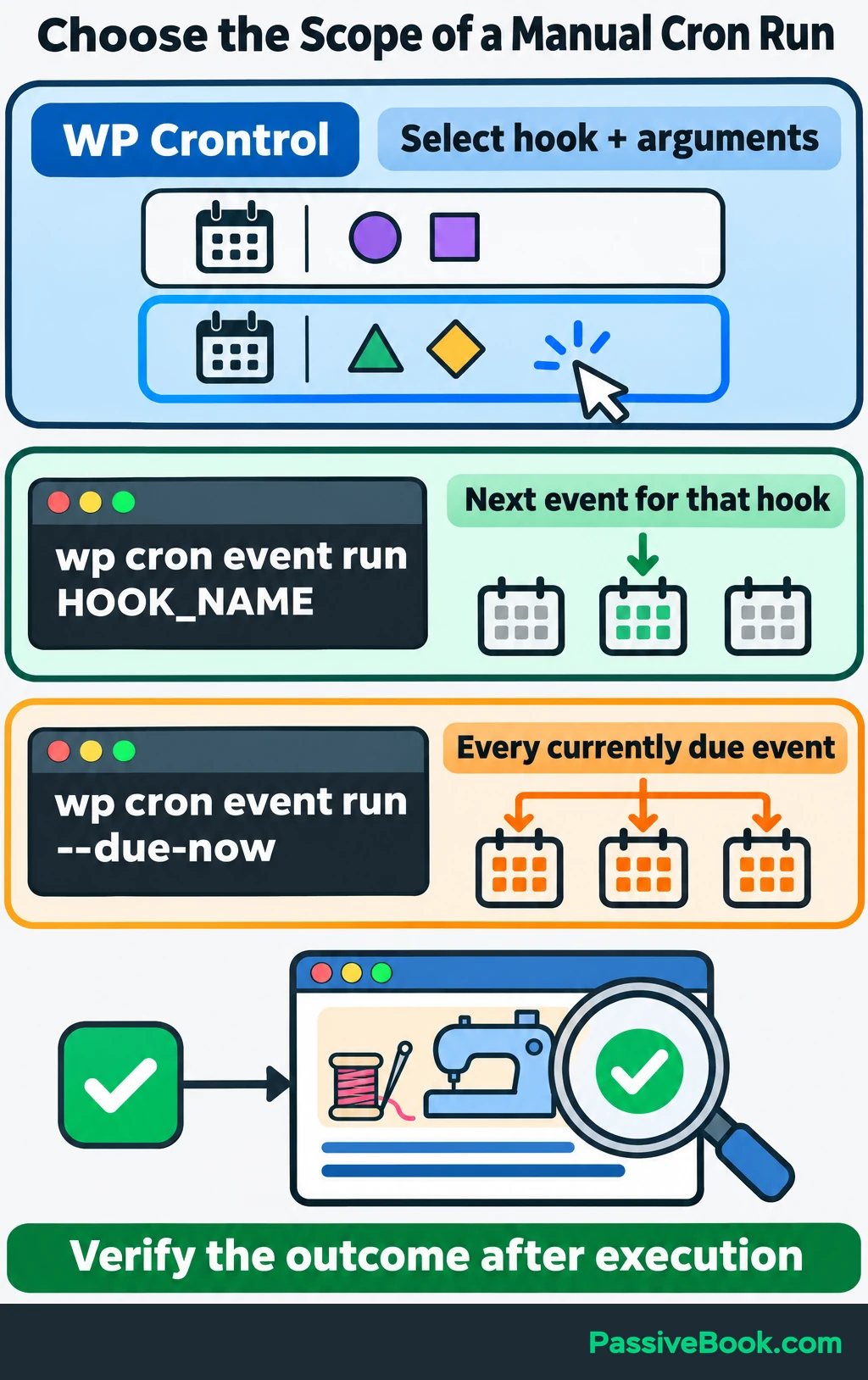
With WP-CLI, the basic command is:
wp cron event run HOOK_NAMEReplace HOOK_NAME with the actual hook. This runs the next scheduled event for that hook. When several events share it and you need one particular argument set, I would select the exact event in WP Crontrol. The WP-CLI documentation defines this command’s scope.
To run all currently due events:
wp cron event run --due-nowUse that only when you’re ready for every due task to execute.
Afterward, inspect the actual result and the remaining schedule. A command reporting execution is useful evidence, but it doesn’t prove that a backup file exists or an email reached its recipient.
Reschedule or Add an Event
Change timing through the owning feature first:
- For a tutorial, change its scheduled publication time in the post editor.
- For a backup, use the backup plugin’s scheduling settings.
- For a custom task, check the code or settings responsible for scheduling it.
To change an event directly in WP Crontrol, choose Edit beside it and adjust its next run time or recurrence. Preserve the hook and arguments unless you specifically intend to change what runs.
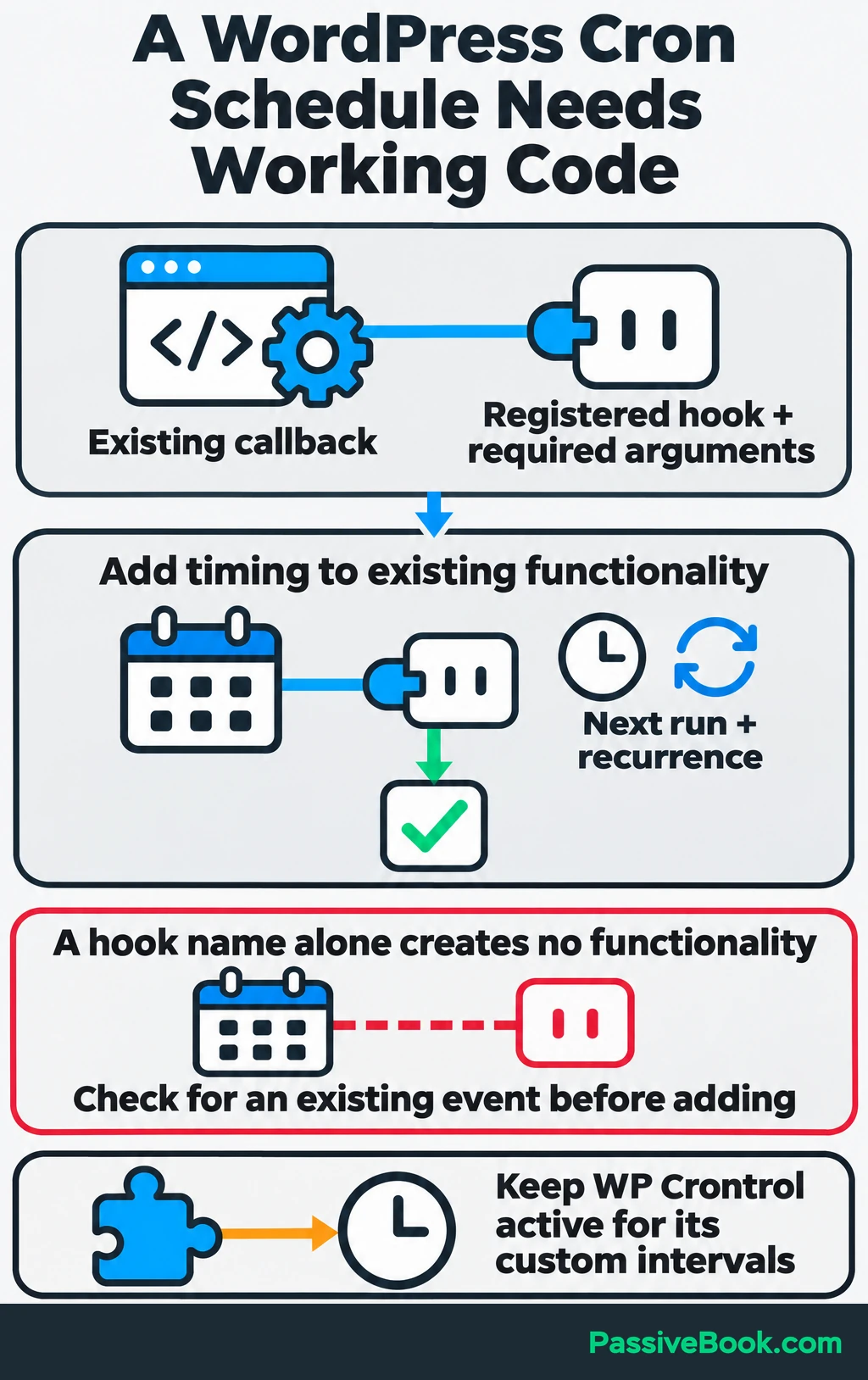
Add an event only when its callback already exists and you know the required arguments. To create its schedule in WP Crontrol, choose Add New Cron Event and enter the hook, arguments, next run time, and recurrence. Typing send_pattern_reminder into a hook field doesn’t create reminder functionality. It creates a schedule with a name.
For an existing registered hook that requires no arguments, WP-CLI can create an hourly event starting in one hour:
wp cron event schedule REGISTERED_HOOK '+1 hour' hourlyReplace REGISTERED_HOOK and choose a recurrence available on your site. This adds an event; it doesn’t edit an existing one. Check for an existing schedule before using it.
WP Crontrol can also supply custom recurrence intervals. Add one only when the task needs it, and keep the plugin active while events rely on that interval. Its custom schedules become unavailable after deactivation.
Pause or Delete Unwanted Events
For a temporary stop, WP Crontrol’s pause control can be more useful than deletion because plugins may recreate missing events.
There is an important catch: pausing suppresses callbacks for the entire hook. Every event using that hook is affected, while the events remain scheduled. Pausing publish_future_post would therefore affect all scheduled tutorials using it. WP Crontrol explains its hook-wide pause behavior.
Keep WP Crontrol active while relying on a pause: deactivating it resumes paused hooks.

Delete an individual event only after confirming that it is unwanted. In WP Crontrol, select the exact entry.
With WP-CLI:
wp cron event delete HOOK_NAMEThis removes all scheduled events matching that hook. Use it only when that is the intended scope. The delete command’s documentation confirms this behavior.
Troubleshoot WP-Cron Problems
Follow the task through five checks:
- Was the event registered?
- Has its due time arrived?
- Did the runner start?
- Did the callback execute successfully?
- Did the expected business result happen?
This order keeps you from changing the scheduler to fix a problem inside a plugin.
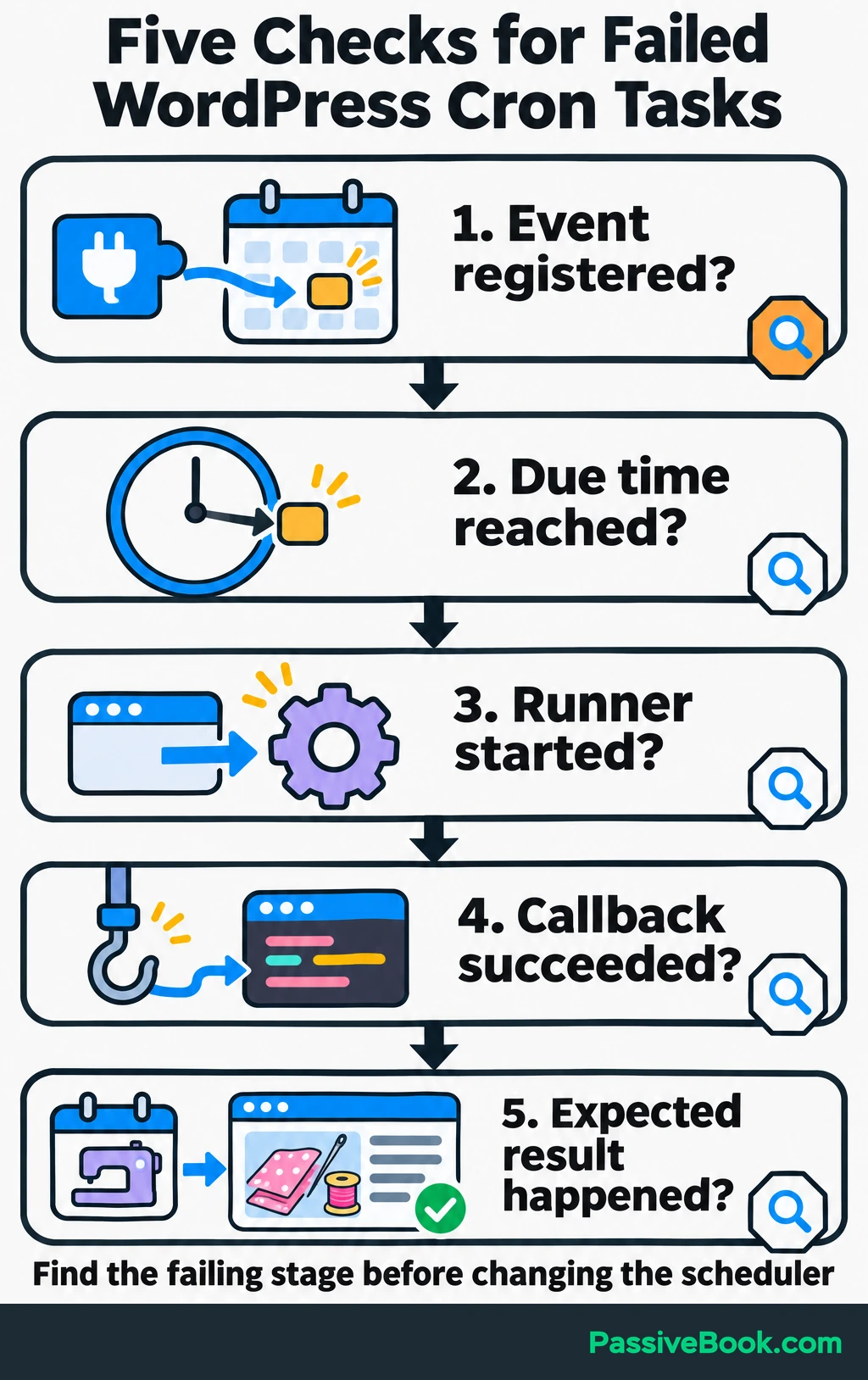
If the expected event is missing, inspect the owning component’s settings and registration behavior. A runner cannot execute a task that was never scheduled.
For the sewing tutorial, first confirm that the post is scheduled and has the correct publishing time. Then look for its event.
Due Events Never Start
When events remain overdue, check whether anything is starting the runner.
Common causes include sparse requests reaching WordPress, default triggering disabled without a replacement, or a replacement schedule that has stopped working.
For default triggering, inspect loopback results in Site Health. A loopback request is your server making a request back to its own site. You can also run:
wp cron test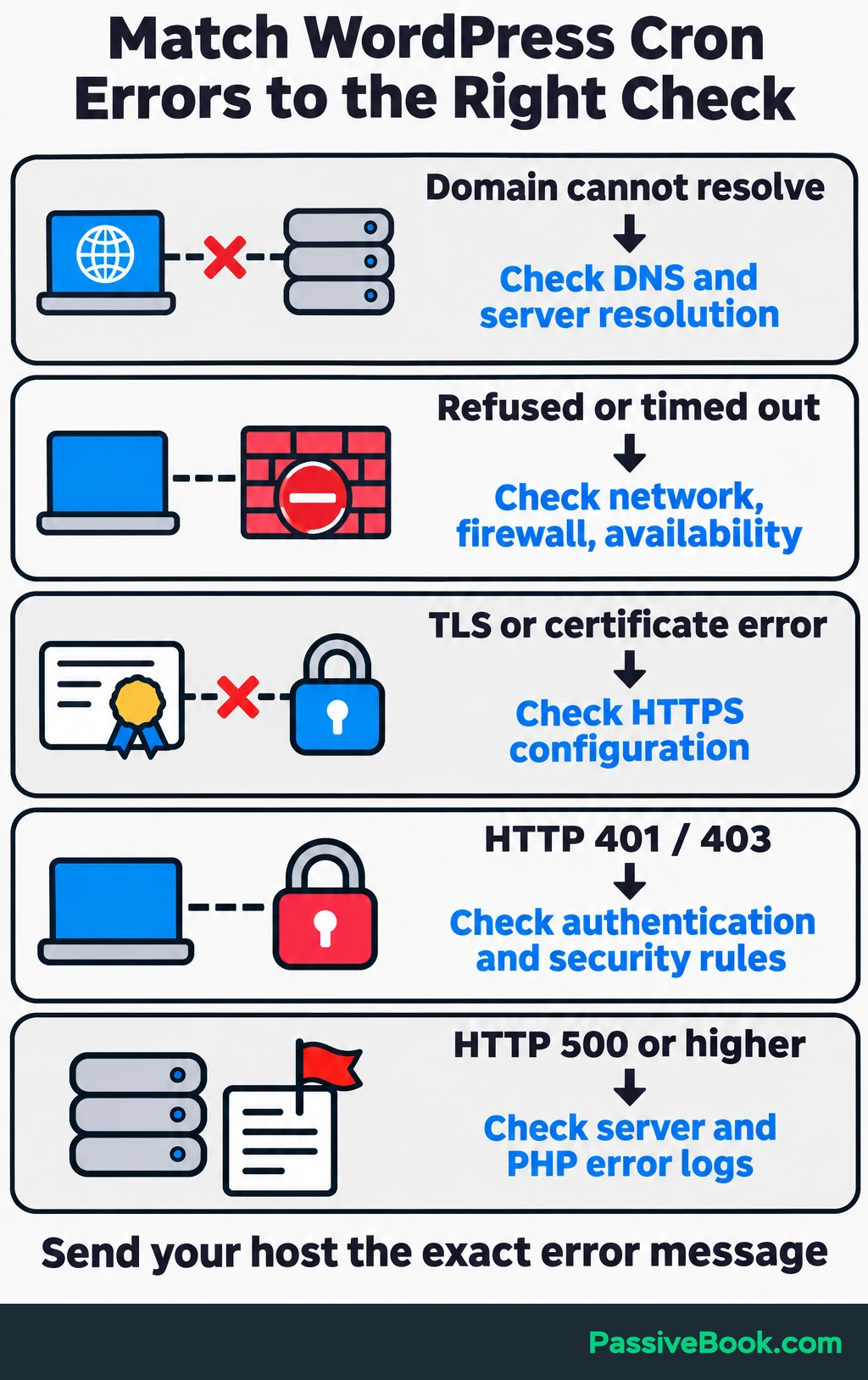
Expected success looks like:
Success: WP-Cron spawning is working as expected.The command reports an error when DISABLE_WP_CRON is true, even if that setting is intentional. It tests default spawning, so use your replacement scheduler’s history to assess a server-cron setup. WP-CLI documents these checks.
Match a persistent error to the likely repair:
| Error | What to Check |
|---|---|
| Domain cannot be resolved | DNS records and the server’s ability to resolve the hostname |
| Connection refused or timed out | Network access, firewall rules, and server availability |
| TLS or certificate error | HTTPS certificate and secure connection configuration |
| HTTP 401 or 403 | Password protection, authentication, or security rules blocking the request |
| HTTP 500 or higher | Server and PHP error logs |
These categories follow WP Crontrol’s spawning-error guidance. Give your host the exact message rather than “cron is broken.”
For a replacement runner, check its execution history, URL or installation path, account permissions, and captured output. If it starts but appears stuck, have the host inspect running processes and cron locks before clearing scheduling state.
Retest after the relevant fix.
Events Run but the Task Fails
If the runner starts, follow the failure into the callback.
Inspect the responsible plugin’s logs and PHP errors for fatal errors, timeouts, exhausted memory, or failed connections to another service. Reproduce suspected plugin conflicts on staging with error logging enabled and public error display disabled.
WooCommerce adds another place to look. Workflows using Action Scheduler, a queue for background jobs, have individual actions with their own statuses and logs. Open Scheduled Actions and inspect the affected item instead of expecting every queued action in WP Crontrol. Action Scheduler’s administration documentation describes these controls.
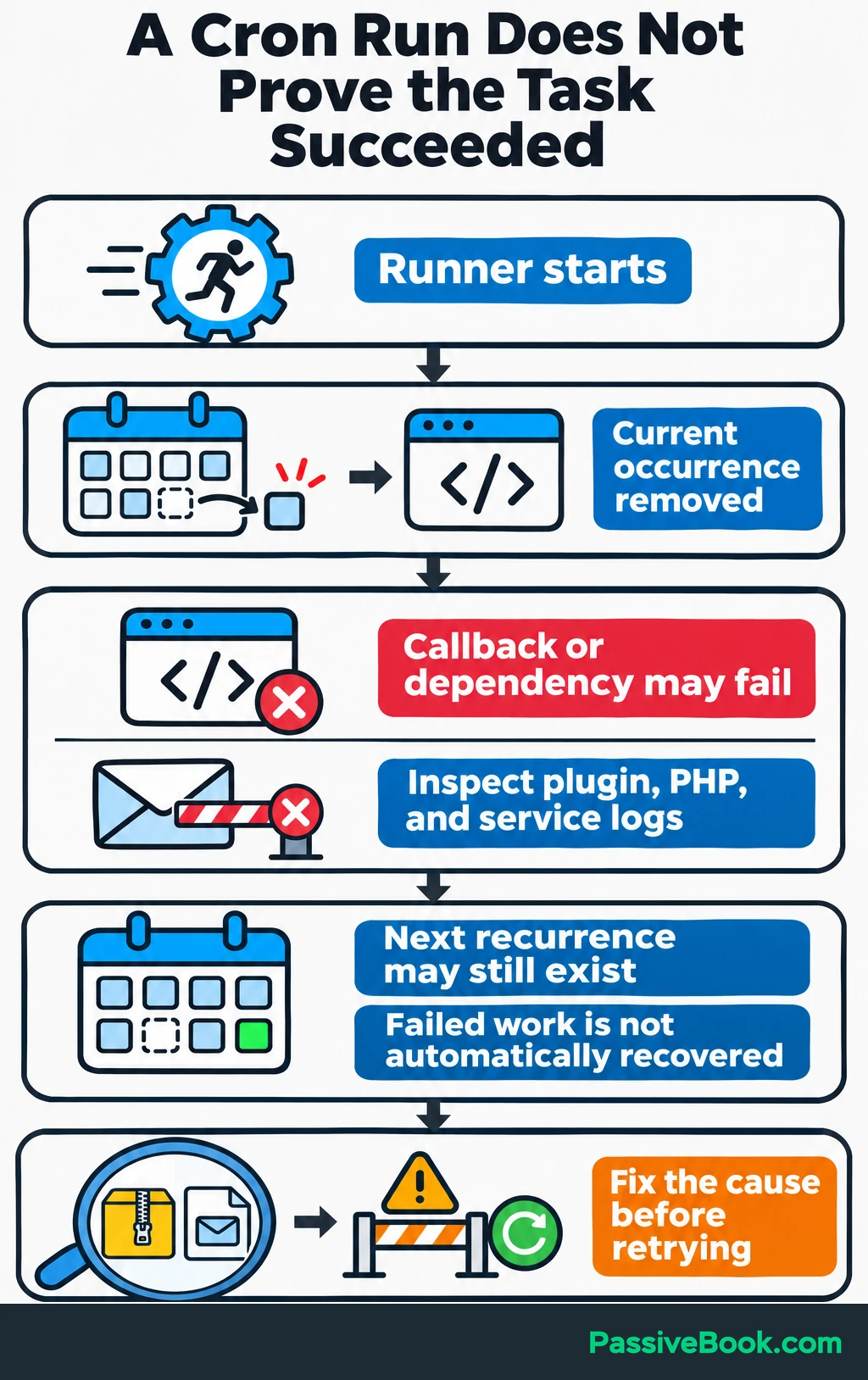
Then check the final service. An email callback may complete while the mail provider later rejects the message. A backup task may start but fail to upload its archive.
Fix the cause before retrying anything that could duplicate an email or transaction. WP-Cron normally removes the current scheduled occurrence before invoking its callback, so a callback failure doesn’t automatically restore that occurrence for another attempt. You can see this order in the WordPress cron runner.
The next recurring occurrence may still exist. That doesn’t establish that the failed work was recovered.
Tasks Execute More Than Once
Compare hooks, arguments, scheduled times, and task logs before deleting anything.
Two publish_future_post events with different post IDs represent different tutorials. A shared hook name alone isn’t evidence of duplication.

If identical work keeps being registered, fix the registration code first. Otherwise, you’ll keep deleting events that return.
Custom scheduling code should check wp_next_scheduled() with the same arguments and argument types used when scheduling the event. A numeric ID and a string containing that ID don’t necessarily identify the same event. WordPress requires the arguments to match exactly.
Also review redundant runners and overlapping long-running work. Keep one documented triggering arrangement. For oversized custom tasks, have the developer divide the work into bounded batches so one run doesn’t try to process everything.
When Should You Use Server Cron?
Keep default WP-Cron when observed task completion meets your needs. I wouldn’t change a working setup just because a tutorial calls server cron “more professional.”
Use an independent scheduler when important jobs need regular checks regardless of visits.
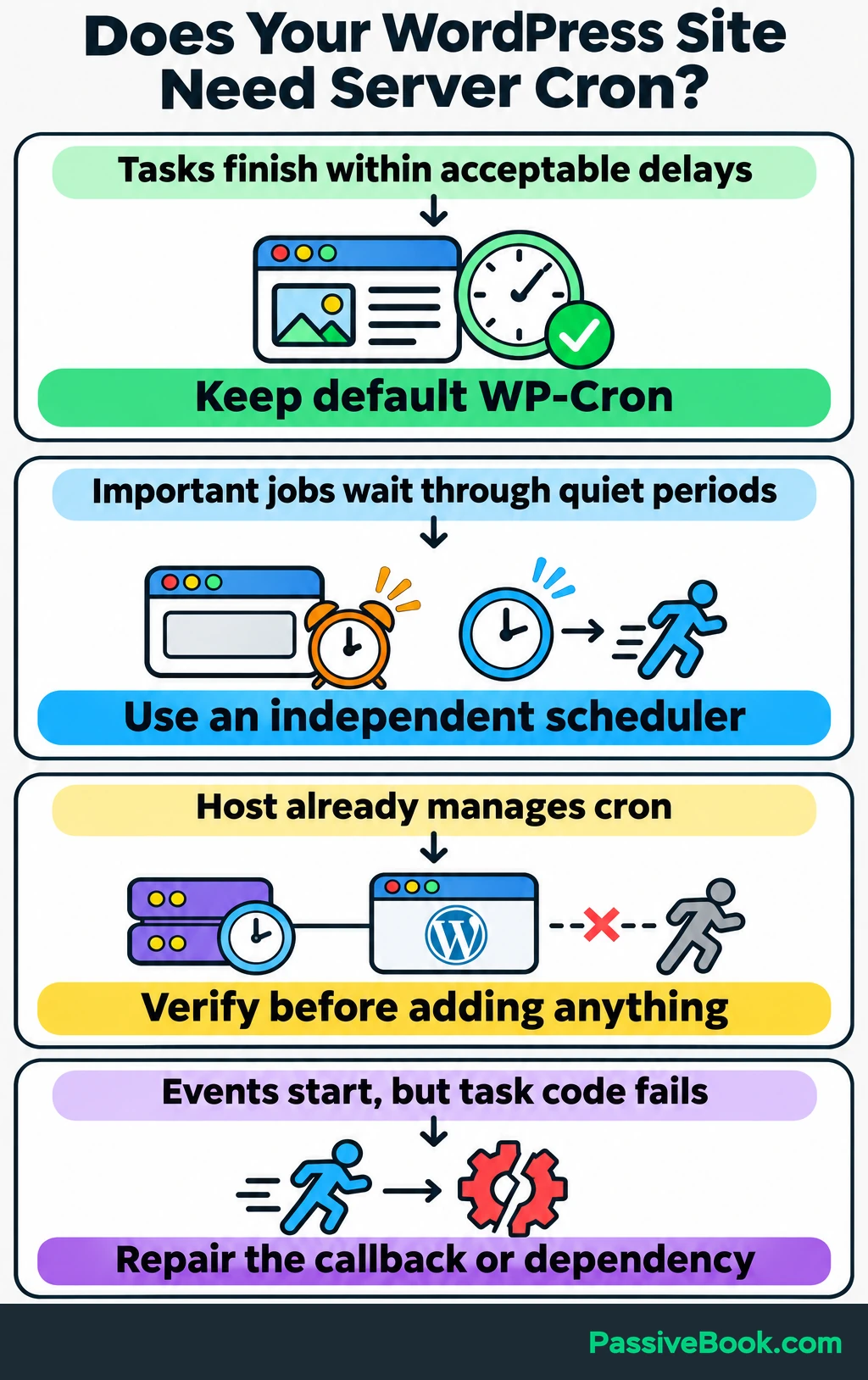
For the sewing shop, a tutorial that can publish somewhat late may be acceptable. If a scheduled promotion depends on that tutorial being live before an email goes out, traffic-dependent timing becomes harder to justify.
| Your Situation | What I Would Choose |
|---|---|
| Tasks finish within acceptable delays | Keep default WP-Cron and review important outcomes |
| Important jobs wait through quiet periods | Use a host-managed or independent scheduler |
| The host already manages WordPress cron | Verify that arrangement before adding anything |
| Events start but fail inside plugin code | Repair the callback or dependency first |
Choose the checking interval from the shortest acceptable delay and the plugin’s requirements.
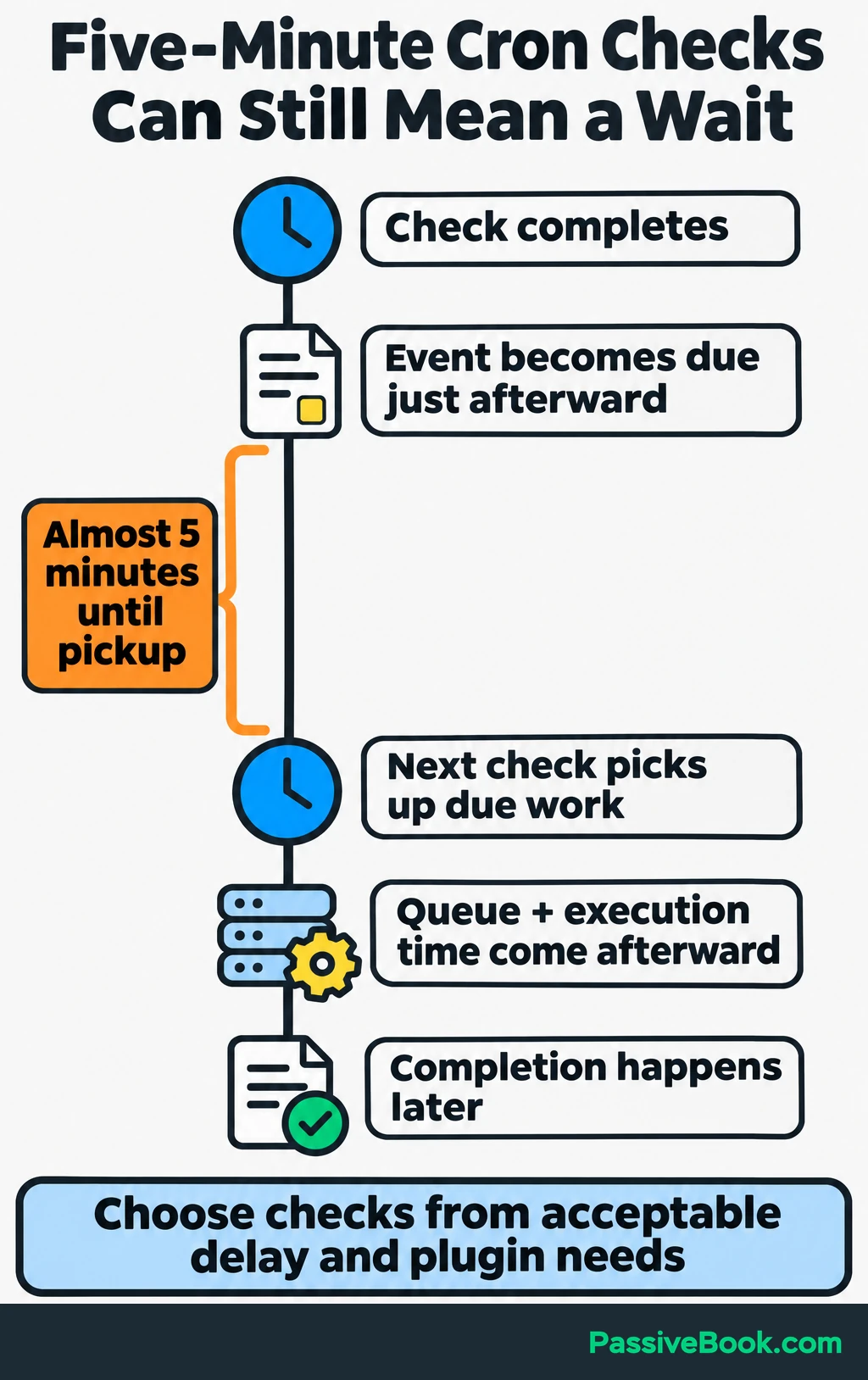
With checks every five minutes, an event becoming due just after a check can wait almost five minutes for pickup. Execution and queue time come afterward. Choose a shorter supported interval if that delay is too long.
Server cron removes dependence on visitor requests. It doesn’t repair broken callbacks or guarantee completion during an outage. That distinction is why WordPress recommends a system scheduler for time-sensitive checks.
Configure Server Cron for WordPress
The safe sequence is to prepare and test the replacement, enable its schedule, disable default triggering, and then verify unattended work.
You don’t need to move to a more expensive server simply to follow this process. First check the scheduling facilities your host already provides.
Set up and Test the Replacement Runner
Save the existing scheduler configuration and a recoverable copy of wp-config.php.
Use your host’s supported WordPress scheduling feature when available. Otherwise, a Linux scheduler can make a regular HTTPS request to the installation’s wp-cron.php file.
Before adding a schedule, confirm:
- Executable: The actual path to
curl, a command-line tool for making HTTP requests. - Endpoint: The full HTTPS address of
wp-cron.php, including any WordPress installation subdirectory. - Account: The hosting account that will execute the command.
- Log: A writable file outside the public web directory.
Test the command as that account after replacing the placeholders:
/usr/bin/curl --fail --silent --show-error 'WORDPRESS_CRON_URL' >> /home/ACCOUNT/wp-cron.log 2>&1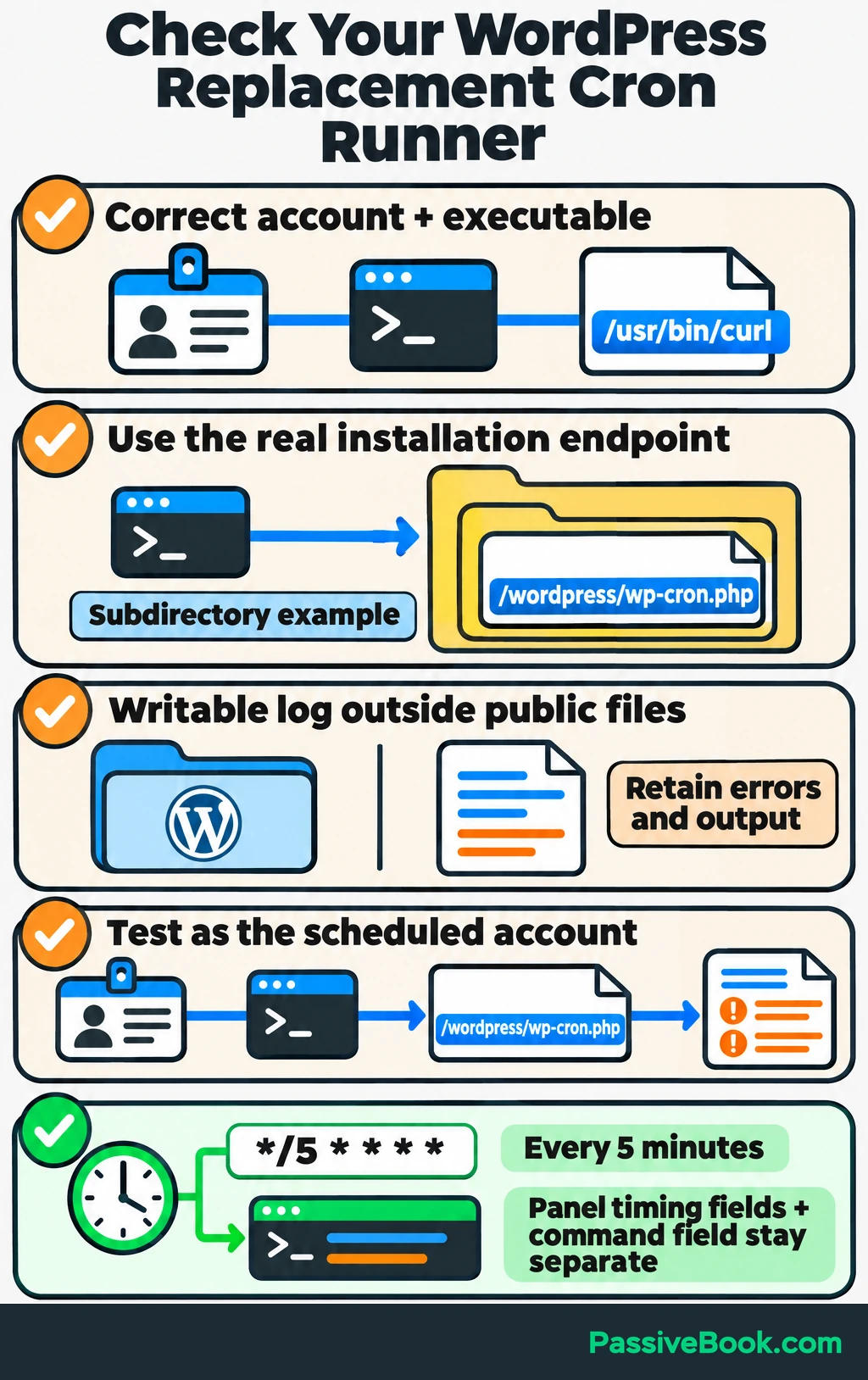
For example, if WordPress is installed in a /wordpress/ directory, its endpoint may be https://example.com/wordpress/wp-cron.php. Use the installation’s real address rather than assuming the homepage URL is sufficient.
The options suppress the progress meter while retaining error messages and reporting HTTP error responses as failures. The redirection appends output and errors to your log.
Once the command works, run crontab -e as the hosting account to open its schedule, then add this entry:
*/5 * * * * /usr/bin/curl --fail --silent --show-error 'WORDPRESS_CRON_URL' >> /home/ACCOUNT/wp-cron.log 2>&1The five timing fields are minute, hour, day of month, month, and weekday. Here, */5 * * * * means every five minutes.
If your hosting panel provides separate timing fields, enter the timing there and put only the command in its command field. Save the job and confirm that it is enabled.
Without hosting cron access, an external HTTP scheduler can request the same endpoint. Make sure its requests reach WordPress through authentication, caching, and security controls. Allow the required request without broadly disabling your site’s protections.
Disable Traffic-triggered WP-Cron
After the replacement command works and its schedule is active, edit wp-config.php.
Add this before WordPress loads, above the “stop editing” comment:
define( 'DISABLE_WP_CRON', true );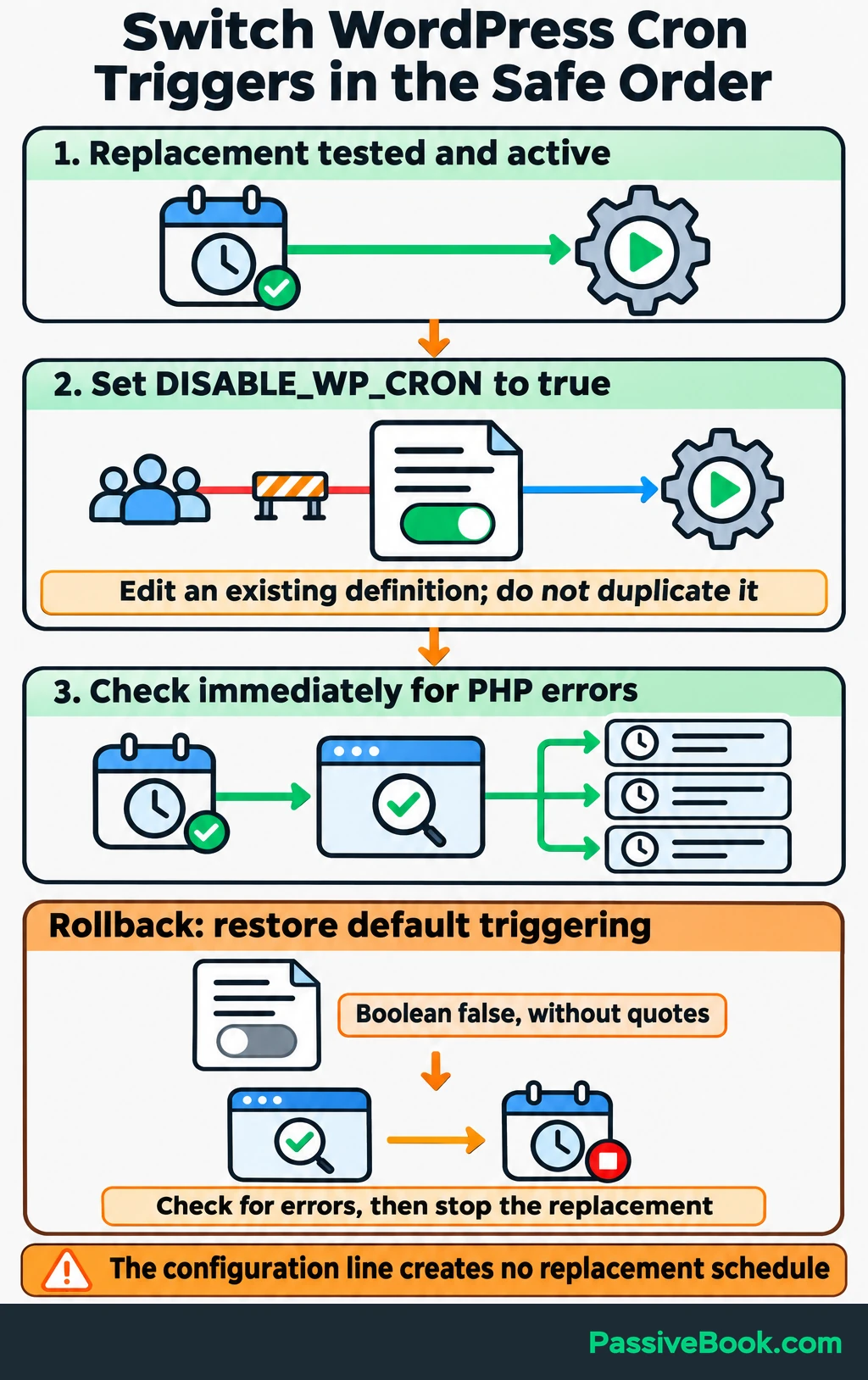
If the definition already exists, edit it instead of adding another.
This disables default traffic-triggered spawning. It leaves scheduled events in place and allows the replacement scheduler to invoke wp-cron.php. Adding the line by itself creates no replacement schedule.
Check the site for PHP errors immediately after saving. Keep your recoverable copy available in case the edit needs restoring.
To re-enable default triggering, remove the disabling definition or change its existing value to boolean false:
define( 'DISABLE_WP_CRON', false );Use false without quotation marks. After restoring default triggering and checking for errors, stop the replacement schedule when rolling back.
Verify Unattended Execution
Test a real outcome after the switch.
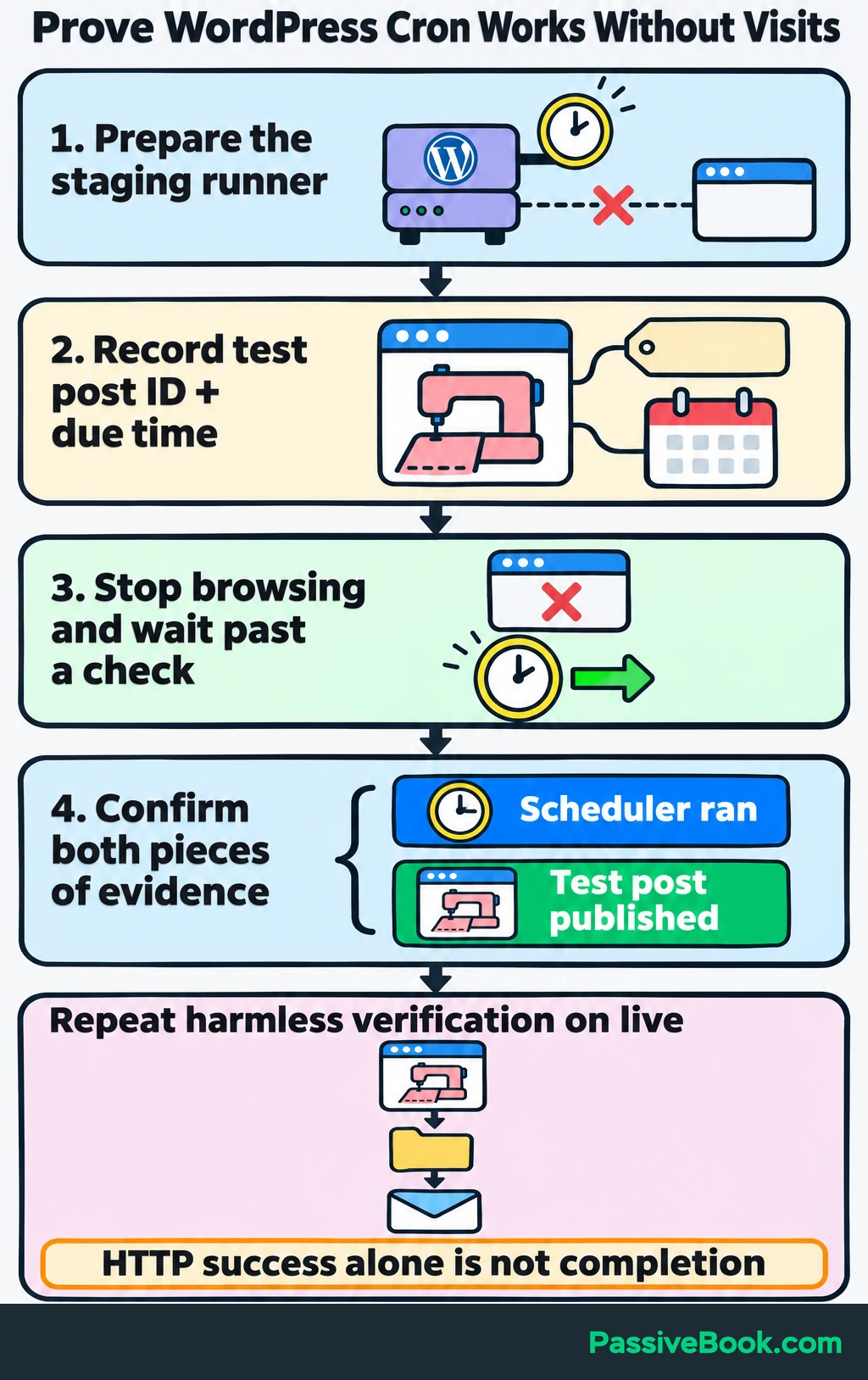
For a staging test, give that WordPress installation its own replacement schedule and disable its default triggering. Schedule a disposable sewing tutorial for a future time and record its post ID and due time. Then stop browsing until after the next scheduled runner opportunity.
Check two things afterward:
- The scheduler’s execution history shows that it ran.
- The tutorial became published.
A successful HTTP response or an empty error log alone doesn’t prove the publishing callback completed. After testing on staging, repeat with a harmless test post on the live site to verify its scheduler too.
Also confirm that recurring events advance to their next run and important jobs produce their expected output. For a backup, check the archive. For queued email, check the queue and delivery logs.
If verification fails, restore default triggering while correcting the replacement, then repeat the controlled test.
Enable scheduler failure notifications where available, and retain logs with rotation so they don’t grow forever. Recheck critical outcomes after a hosting migration or a change to the plugin responsible for the task.
Once the test passes, document what starts cron and how you confirm important jobs finished. That gives you or whoever maintains the site a procedure to follow after the next change.
Free AI Operations Writer




What Next?
Inspect one important event and record its hook, arguments, due time, and expected result. Use that evidence to decide whether you need to repair the task or change what triggers it.
Use the social buttons to share this guide when you want dependable scheduled work to become part of the site’s maintenance routine.
Which background task would cause the most trouble if it quietly stopped? Share your answer in the comments, and bring any other WP-Cron questions too.
Share this post with your friends & followers:

