Your website opens normally, but could you recover it if your hosting account were locked tomorrow? Would you know where the backups are, who can change the domain settings, or which service to call?
Those gaps are easy to ignore while orders and signups keep arriving. During an outage, they become jobs you must solve before you can get the business running again. The checklist below helps you protect the accounts and software behind your site, then verify that you can recover it—using free or included protections where they cover the job.
Start With a Prioritized Website Security Checklist
If visitors see unexpected redirects, you find an administrator account you didn’t create, or your site receives a malware warning, jump to “What Should You Do If Your Website Is Hacked?” near the end. Routine maintenance can wait while you address a suspected compromise.
Otherwise, start by finding the accounts that control your site:
- Your domain registrar holds the registration for your website address.
- Your DNS provider manages the records that point your domain to your website and email services.
- Your host stores and serves the website.
- Your content management system, or CMS, manages pages, posts and settings.
- Your recovery email receives password resets and security notices.
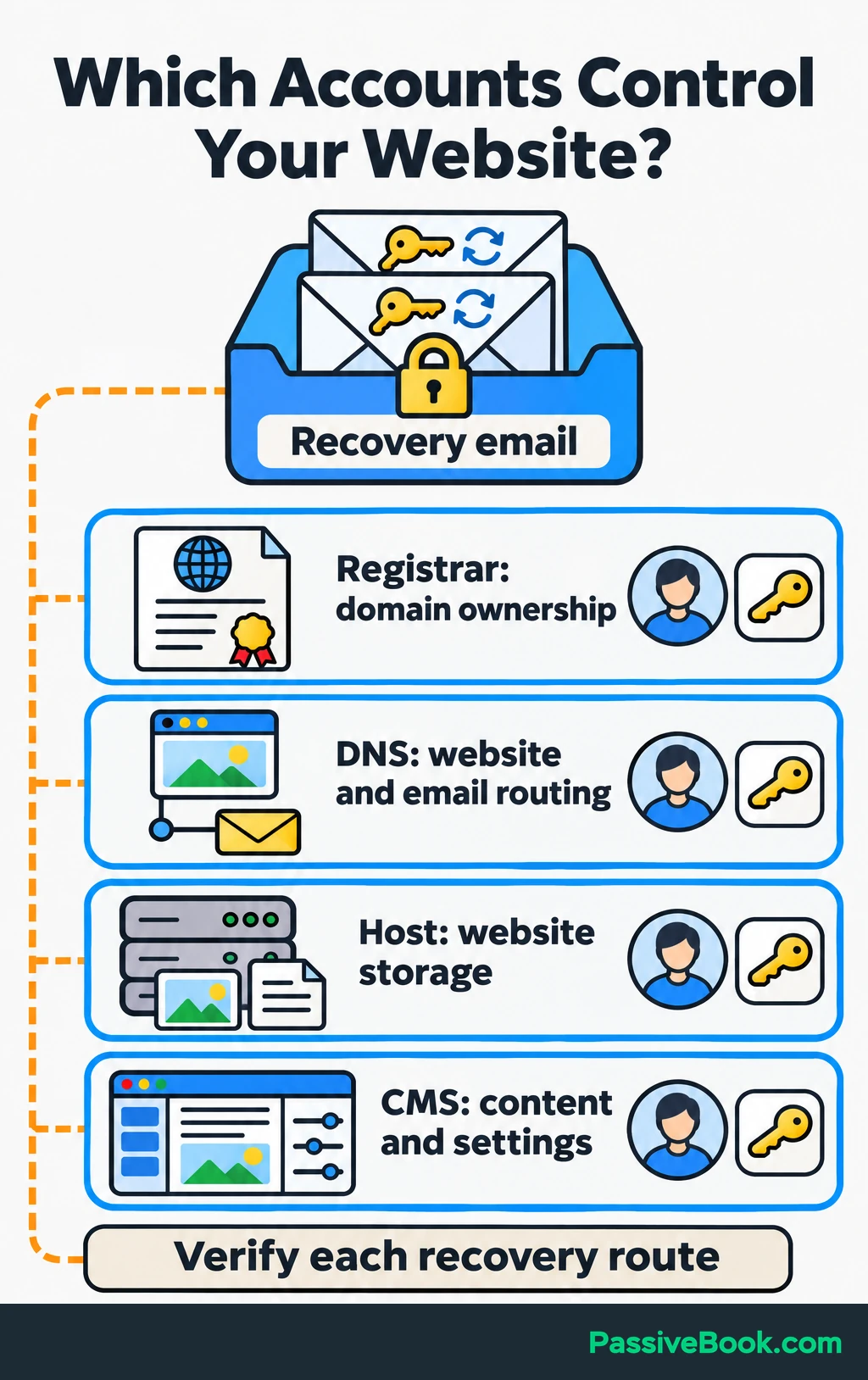
One company may handle several of these jobs. Record the account owner and recovery method for each, then confirm who handles certificates, server maintenance, application updates, backups and emergency support.
If you’re unsure which jobs your host handles, ask for those boundaries in writing. Start with your current setup and the responsibilities you need confirmed.

Free AI Provider Buying Assistant


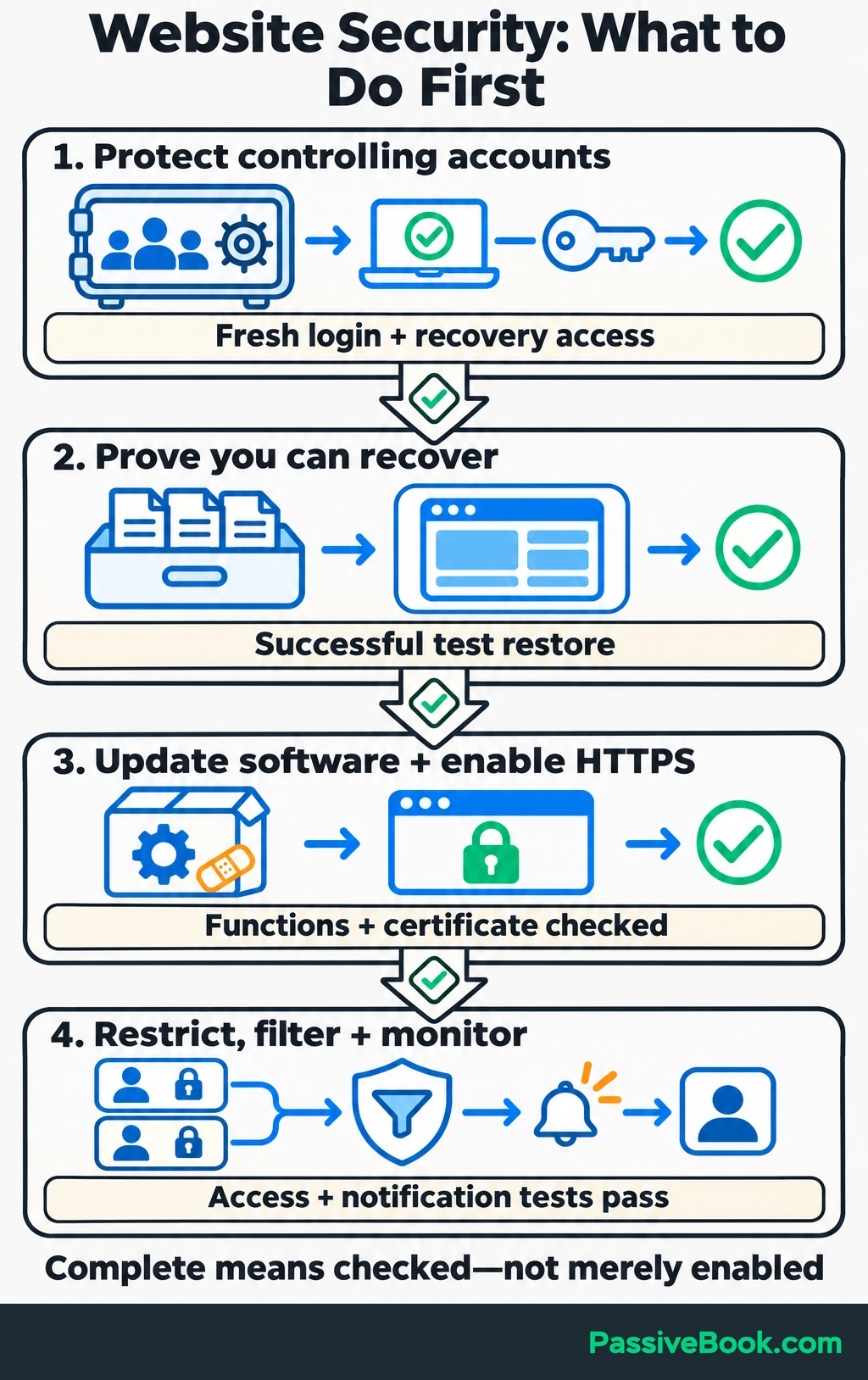
Use this checklist in order. Replace “you” with a named person wherever someone else handles the work, and mark an item complete only after its check passes.
| Action | Responsible Person | Status | Evidence to Record |
|---|---|---|---|
| Protect controlling accounts and recovery email | You | To check | Fresh login succeeds with strong authentication; recovery codes are accessible |
| Create a complete backup and test restoration | You or backup provider | To check | A separate test copy restores successfully |
| Update software and remove unsupported components | You for the CMS; host for managed server software | To check | Installed versions checked; essential functions pass |
| Enable HTTPS and automatic certificate renewal | You and host | To check | HTTP redirects correctly; certificate and renewal checks pass |
| Restrict accounts and exposed features | You | To check | Limited accounts cannot perform administrator actions |
| Activate traffic filtering and login limits | You or host | To check | Protection is active and legitimate visits still work |
| Enable alerts and assign a response owner | You | To check | Test notification reaches an inbox you can access during an outage |
On a hosted website platform, you usually manage accounts, permissions and available settings while the provider maintains the underlying software. Confirm its coverage. With self-hosted WordPress, assign responsibility for the CMS, themes and plugins too. An unmanaged server adds server maintenance to your list.
I use self-hosted WordPress and Cloudflare on Passive Book. That gives me control, but it also gives me jobs to assign. A provider’s logo in my dashboard doesn’t tell me who will restore a broken site.
For the examples below, imagine your website teaches watercolor painting and sells downloadable practice sheets through a hosted checkout and delivery service. You manage the CMS and domain, your host maintains the server, and the sales service handles payment records and download delivery.
Secure Every Account That Controls Your Website
Strengthen Authentication and Account Recovery
Protect your recovery email first because password resets for other services may arrive there. Then secure your registrar, DNS, hosting, CMS, backup storage and hosted checkout accounts.
Use a password manager to generate and store a long, unique password for every account. Replace reused or exposed passwords.
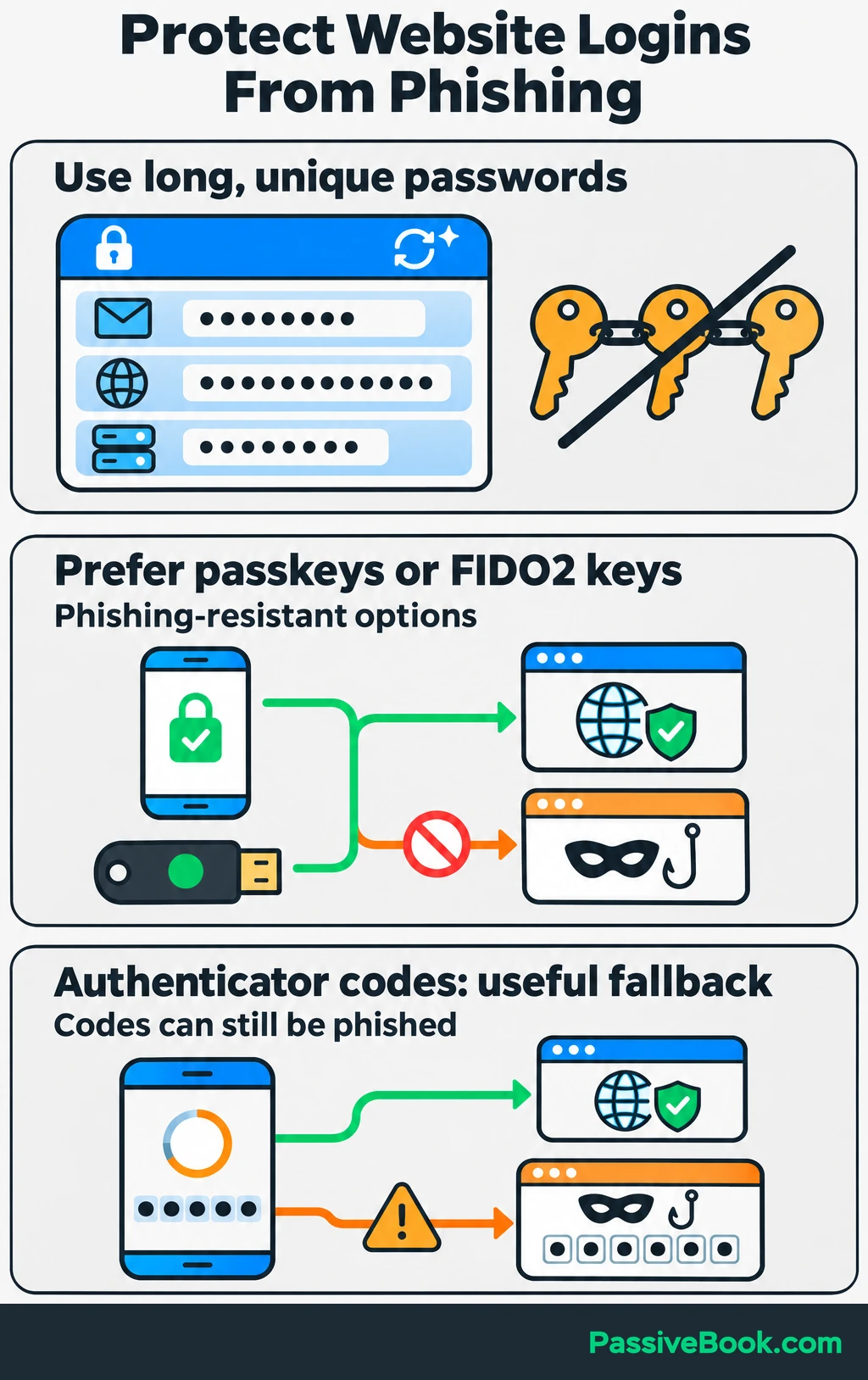
Enable multifactor authentication, or MFA, which requires another proof of identity beyond a password. Where available, I would choose a passkey, which lets you sign in using your device’s screen lock, or a FIDO2 security key, a physical device used to approve logins. These can resist fake login sites. An authenticator app generates temporary login codes and is a useful fallback, but a criminal can still trick you into entering a code on a fake page. NIST explains this distinction between phishing-resistant authentication and manually entered codes.
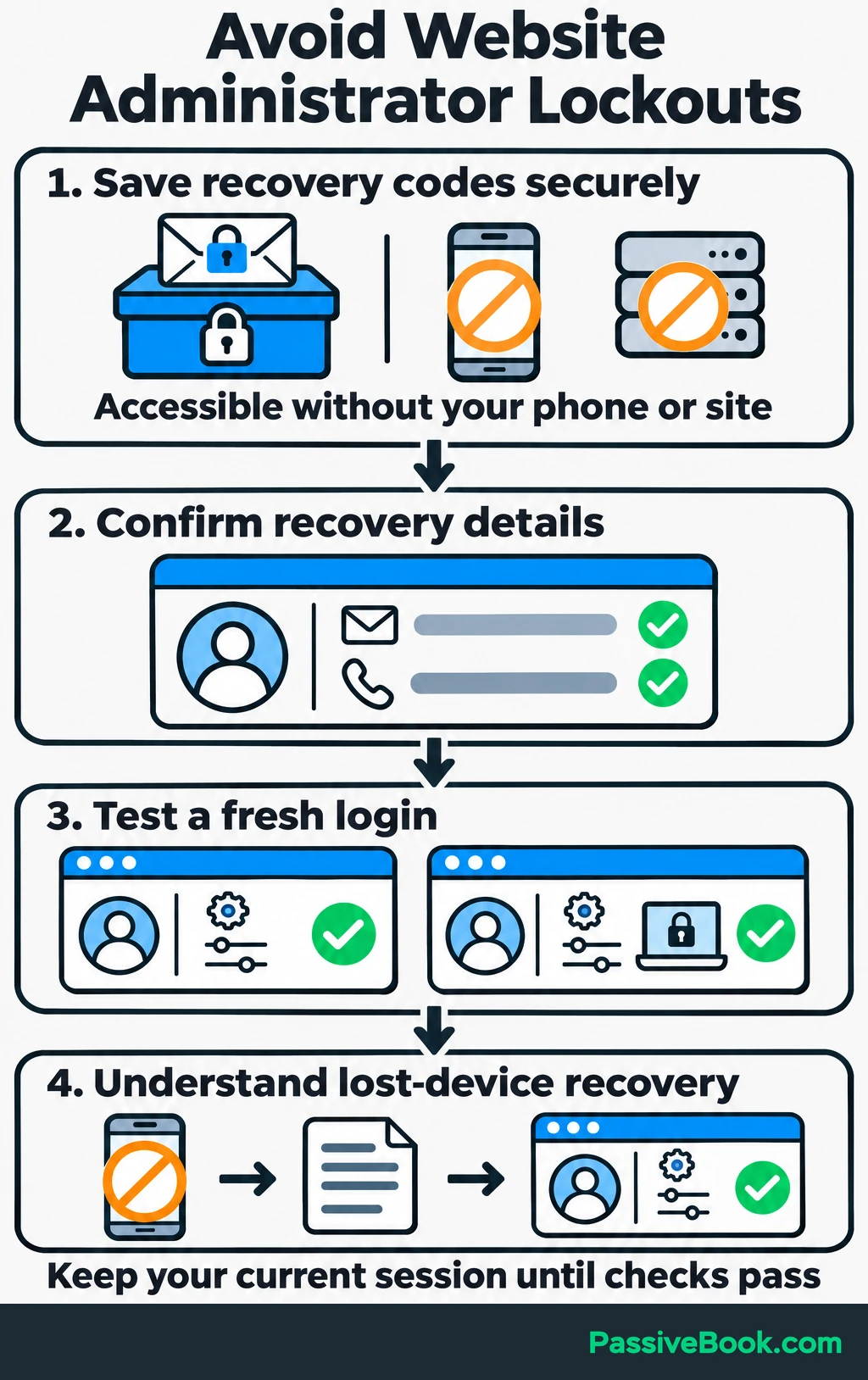
Before ending your current administrator session:
- Save recovery codes somewhere secure that remains accessible without your website or phone.
- Confirm the recovery email and phone details.
- Open a fresh browser session and test the new login method.
- Check that you understand the recovery process if a device is lost.
Keep administrator devices, browsers and extensions updated too. When an email warns about an account problem, open the service directly through your saved address and check there.
Finally, enable domain renewal reminders or automatic renewal, and keep billing details current. A well-protected website still needs its address.
Limit Administrator Access
Give every collaborator an individual account and only the permissions their work requires. A shared administrator login makes it harder to remove one person’s access or understand who changed a setting.
For everyday writing, use a limited publishing account. Keep administrator access for tasks such as installing software and changing security settings.
I used to stay signed in as an administrator while doing ordinary content work on one of my sites. Writing a paragraph didn’t need that power, but convenience had made it the default. I now separate publishing from administration because fewer everyday actions need access to everything.
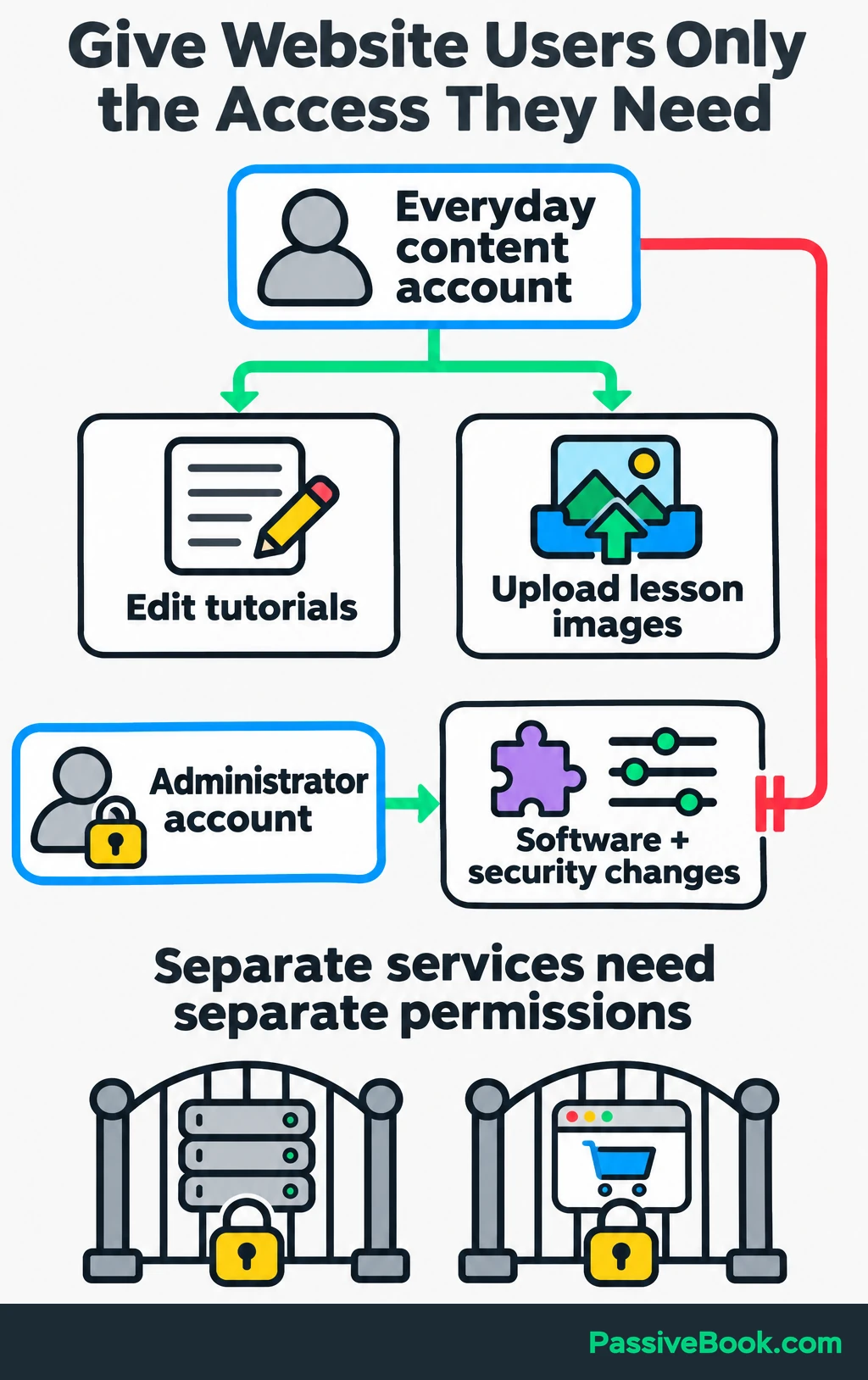
On your watercolor blog, a contributor might need to edit tutorials and upload lesson images. They don’t need permission to install plugins, change hosting settings or open the hosted checkout account.
Review existing access and remove what no longer serves a purpose:
- Former collaborators and unused accounts, preserving their content where needed.
- Old login sessions.
- Connected applications you no longer use.
- Integration credentials left behind by abandoned tools.
Enable login throttling through your platform, host or security service. This slows or limits repeated attempts. Confirm your recovery route before applying restrictions so you can recover from an accidental lockout.
Create Backups You Can Restore
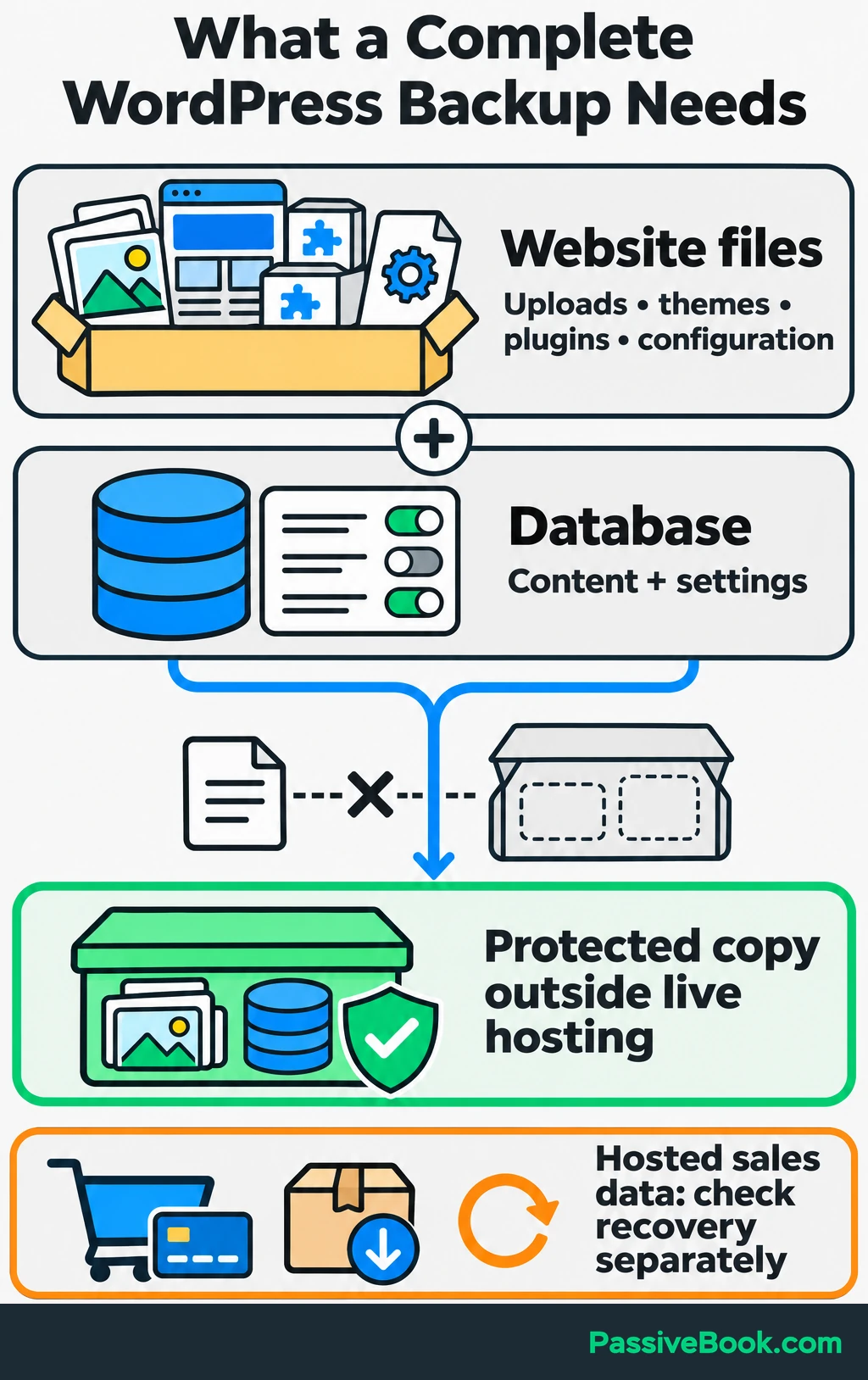
A backup needs everything required to rebuild the site, not just the latest articles.
For WordPress, that normally means both the website files and database. Files include uploads, themes, plugins and configuration; the database holds content and settings. A content export alone is incomplete. WordPress documents these backup components.
Ask your host or platform:
- What does the backup include?
- How often does it run?
- How many historical versions remain available?
- Can I retrieve the backup if my hosting account is unavailable?
- Who performs a restore, and is assistance included?
Automate backups and keep a protected copy outside the live hosting account. Secure that separate storage account too. A backup that an intruder can delete alongside the website offers little comfort.
Choose the frequency by asking how much recent work you could afford to lose. For a site that changes daily, I would start with daily backups and add a fresh backup before substantial changes. A store taking orders throughout the day may need more frequent backups; daily backups could leave a day’s orders to reconstruct. Keep older versions because you may discover a problem after several newer backups already contain it.
For your watercolor site, include tutorial images, website settings and practice-sheet source files under your control. Check recovery arrangements for hosted payment records and delivered products separately. Your website backup does not automatically include another service’s data.
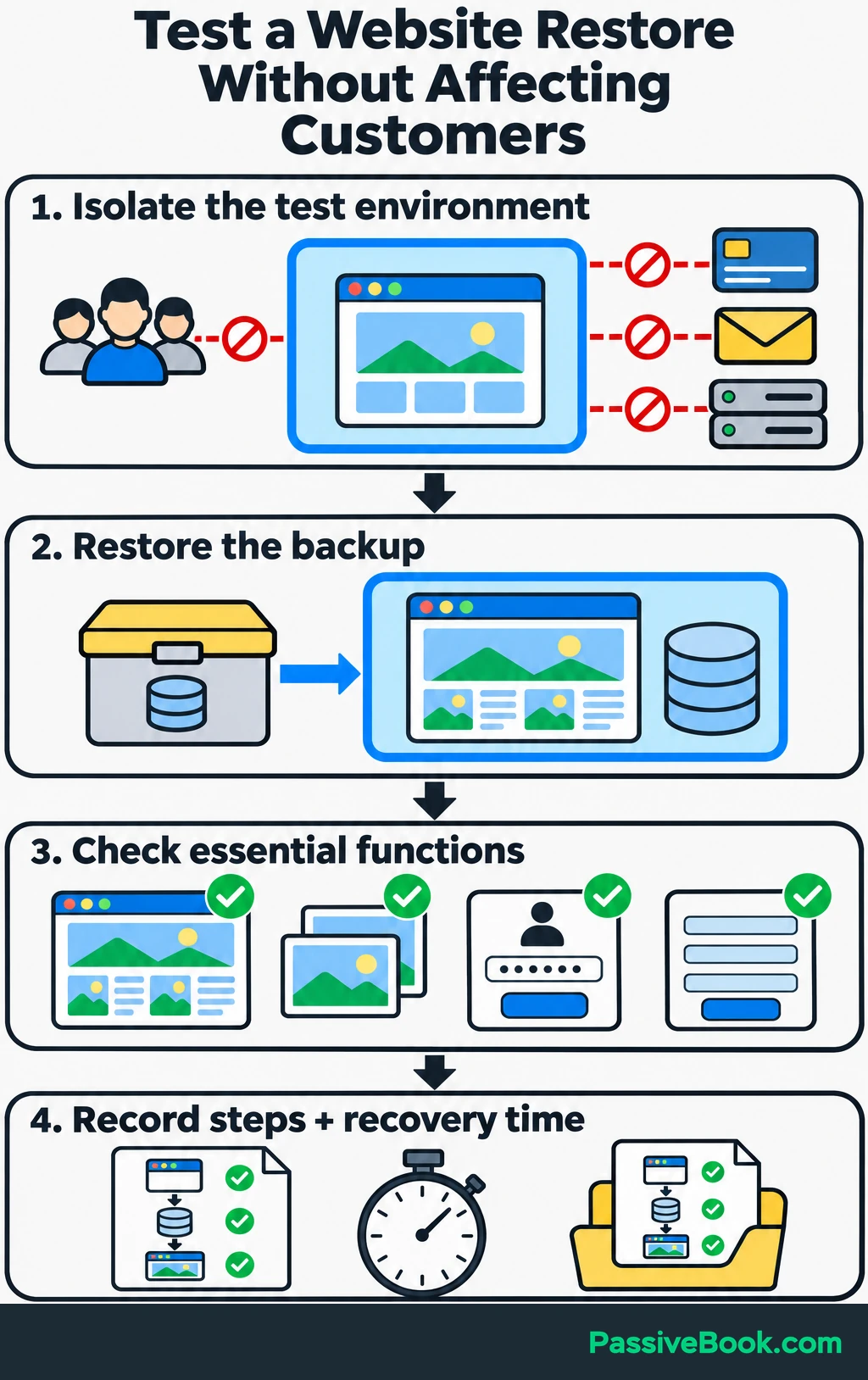
Then test restoration:
- Prepare an isolated test environment that visitors cannot access. Block its connections to live payment, messaging and other production services before restoring anything.
- Restore the backup into that environment.
- Check pages, images, administrator access and essential functions.
- Record the restore steps and how long recovery took.
Keep the procedure somewhere you can reach during an outage. A folder full of archives becomes useful when you know which one to choose and how to restore it.
Update Software and Remove Unsupported Components
List the software you control: the CMS, themes, plugins, extensions and any custom application components. Ask your host to confirm responsibility for server software, including the operating system and software that runs your site.
Remove unused components and replace those that no longer receive security fixes. Deactivating a plugin may leave its files installed, so remove abandoned software once you have confirmed it is unnecessary.
Download software from official developers or trusted repositories. I would skip unofficial copies of paid themes and plugins. Saving money on software of unknown origin is a strange place to economize.
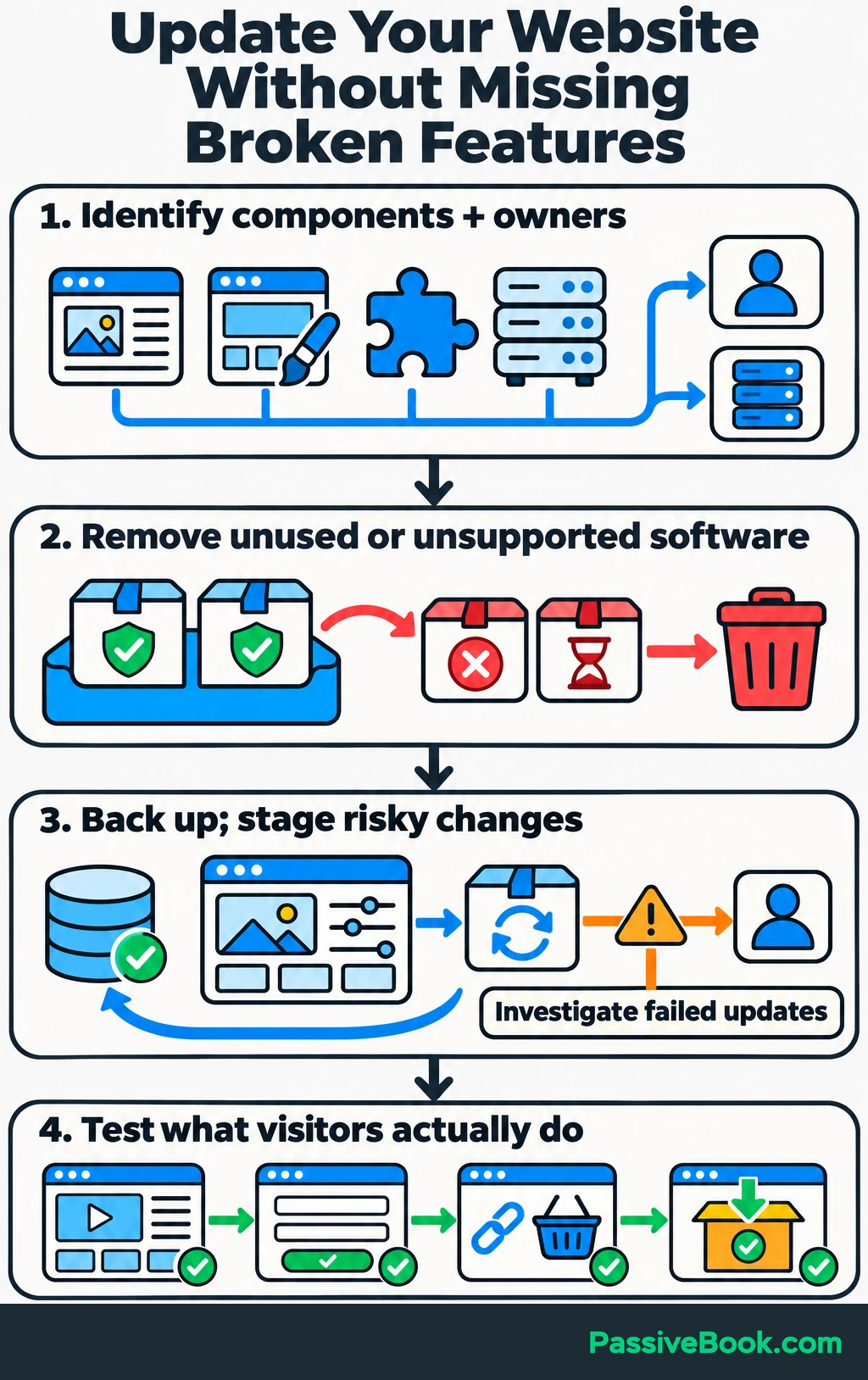
Apply security fixes promptly. For changes likely to affect important functions, use a staging site—a separate test copy—with a current backup and a clear way to reverse the change.
Enable supported automatic updates where practical, along with failure notifications. Someone still needs to investigate failed updates and alerts about vulnerable installed versions. Automation should remove repetitive work, not hide unfinished work.
After an update, test what visitors actually do. On your watercolor site, that means opening a tutorial, submitting the signup form, following the checkout link and completing the delivery test through your sales service.
A working homepage is one check. It doesn’t tell you whether a form stopped sending messages.
Enable HTTPS Across Your Website
HTTPS uses TLS, a protocol that encrypts information travelling between a visitor and your website. A TLS certificate helps the browser verify that it has reached the intended domain. HTTPS protects the connection, but it does not remove malware, repair vulnerable plugins or stop someone using a stolen administrator account.
Start with your provider’s managed certificate service. Let’s Encrypt provides free certificates, and many hosts obtain and manage them for customers.
I would use that option before taking on manual certificate maintenance.
Work through the change in this order:
- Confirm certificate coverage for every hostname visitors use, including the main domain and
wwwversion where applicable. - Check that HTTPS loads correctly before redirecting HTTP visits.
- Enable the redirect so visitors consistently reach HTTPS.
- Replace insecure image, script and stylesheet addresses. These cause “mixed content,” where an HTTPS page requests some resources over HTTP.
- Confirm automatic renewal and arrange alerts for renewal failures.
- Test login, forms, checkout links and other important pages.
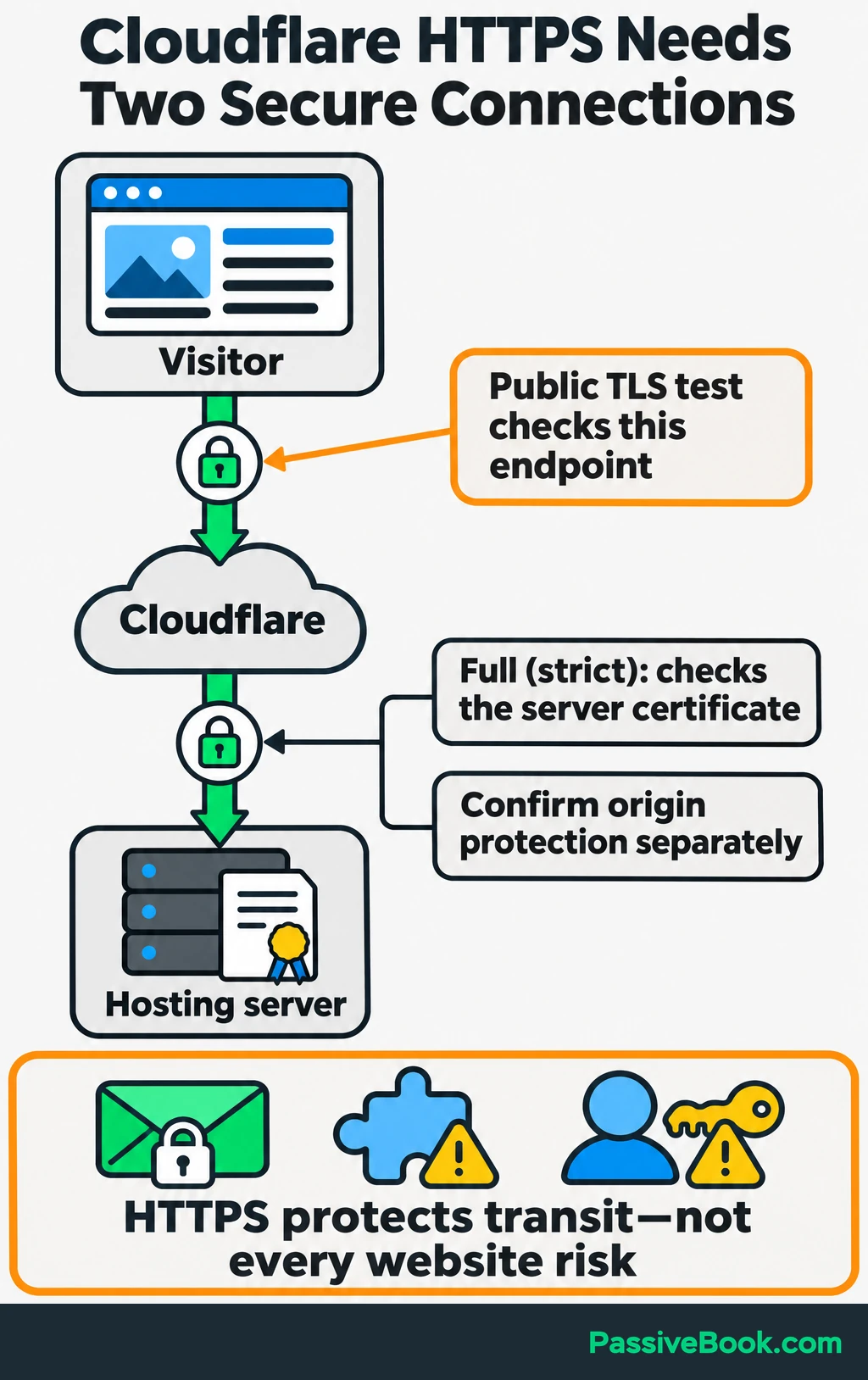
If Cloudflare sits between visitors and your hosting server, both connections need encryption. Cloudflare’s “Full (strict)” mode also checks the server’s certificate. Set up a certificate that meets its requirements before enabling the mode. Cloudflare documents those requirements.
Use the free Qualys SSL Server Test to check the public hostname’s certificate and TLS configuration. Ask your host to resolve findings you don’t understand.
Behind a proxy such as Cloudflare, that public test checks the visitor-facing endpoint. Have your host confirm the separate connection to the hosting server too.
Reduce Exposed Features and Sensitive Data
Protect Files and Configuration
Turn off features your site does not need. Start with unnecessary public registration, unused integrations, public debugging output and old test installations.
Debugging output can reveal internal details. Directory listings can expose files when a visitor opens a folder address. Ask your host to disable both where they are unnecessary.
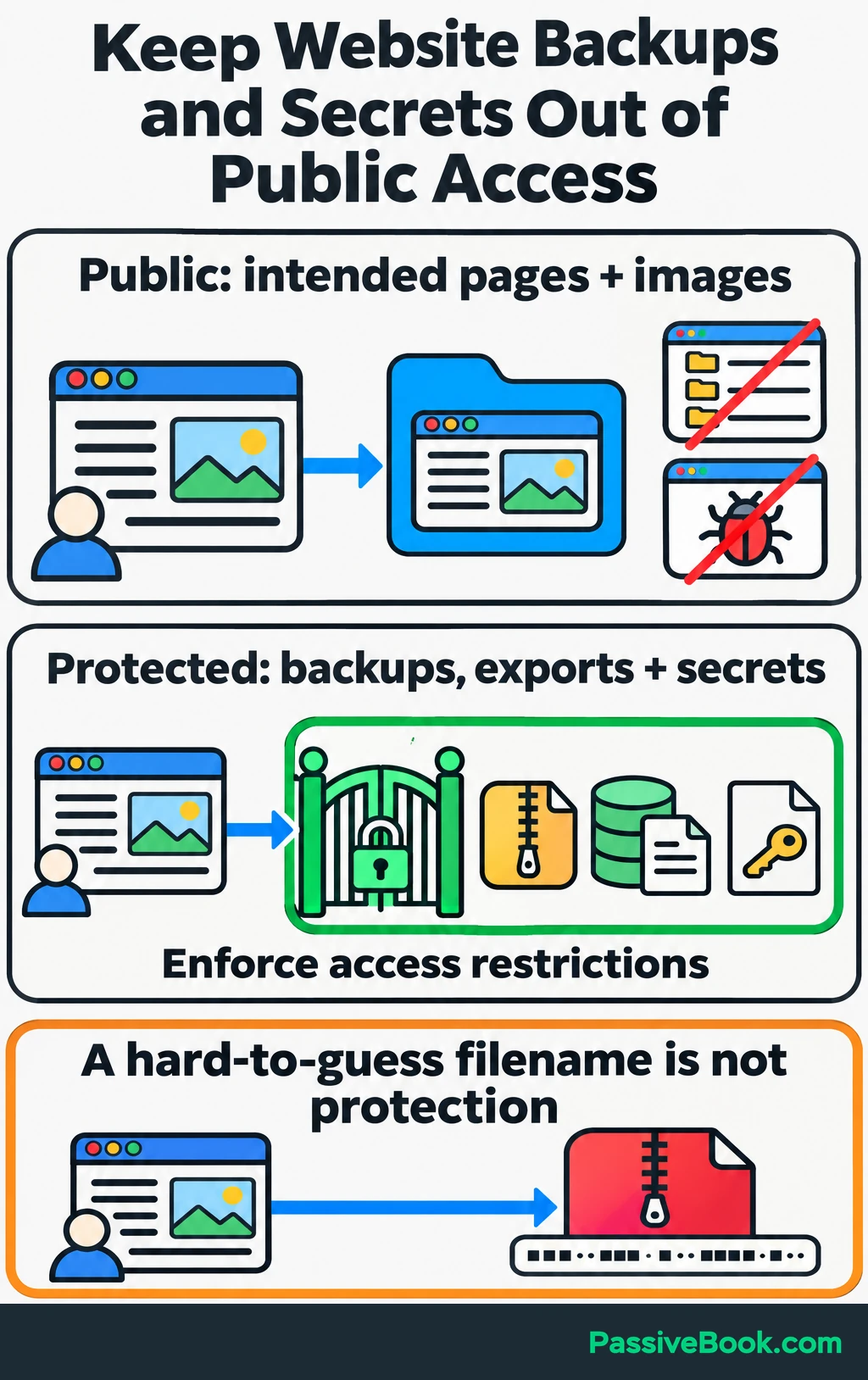
Keep backup archives, database exports and secrets outside public access. Secrets include service passwords and integration keys. A hard-to-guess filename is not an access restriction.
Have your host apply file permissions suited to its environment. These settings control which accounts can read or change files. I would ask the host to fix a permission problem rather than copying a command that makes everything writable.
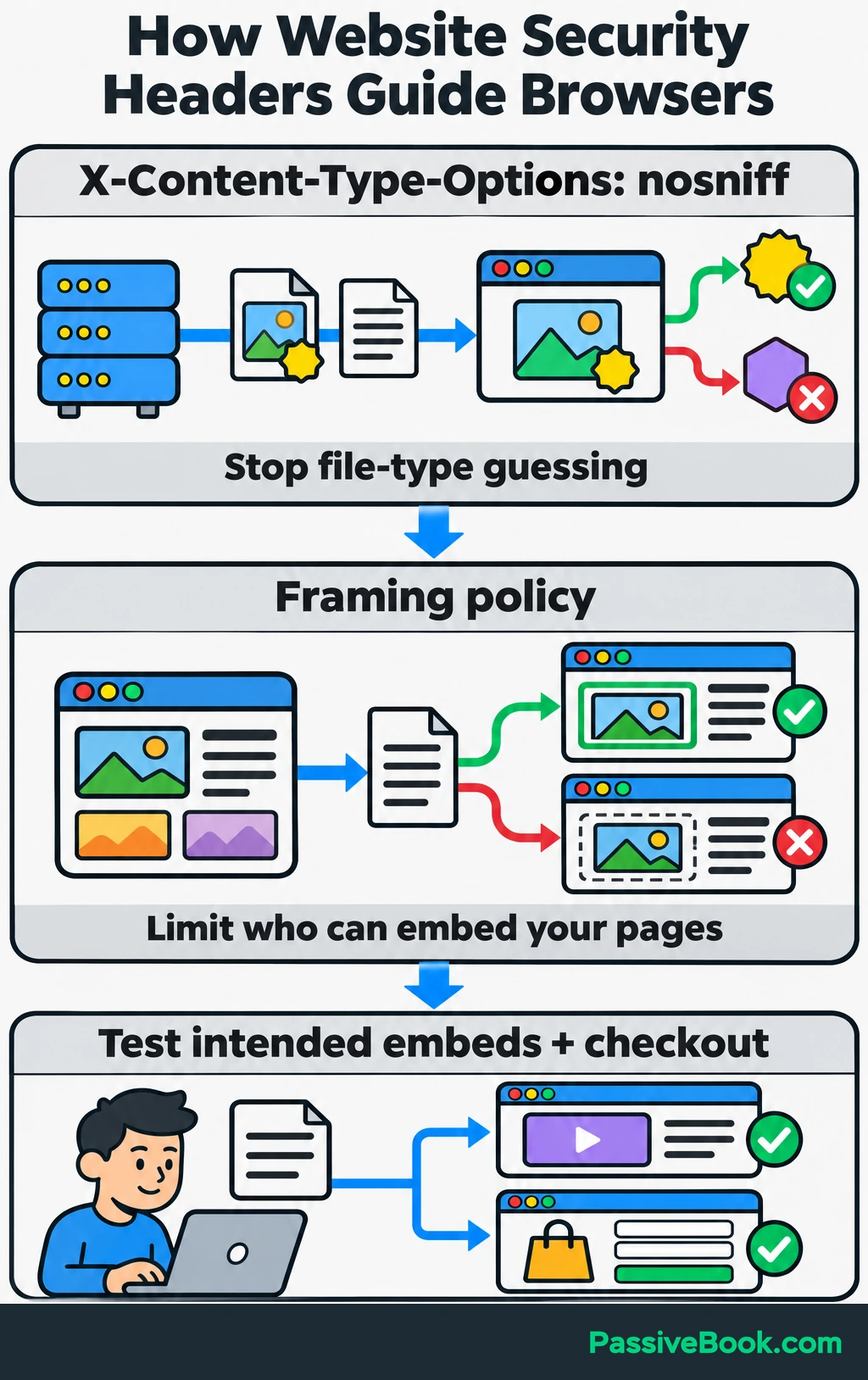
Also ask your host or developer to review browser security headers. These are instructions sent with a page. Useful protections include X-Content-Type-Options: nosniff, which stops browsers guessing a different file type, and a framing policy that limits which sites may embed your pages. OWASP explains these header protections.
Test embedded content and checkout integrations after changes. A restrictive setting needs to fit how your site works.
Protect Forms, Uploads and Private Content
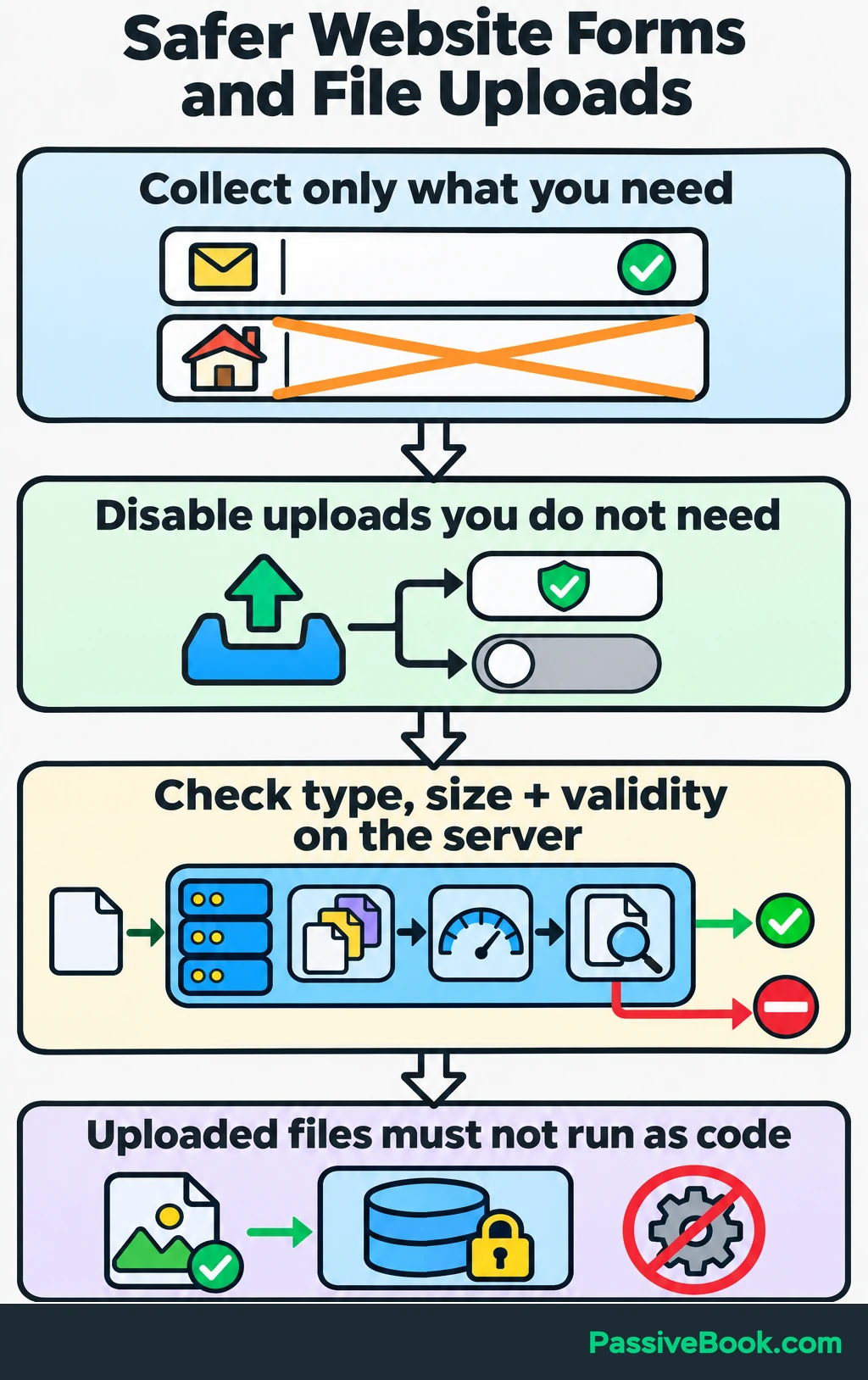
Use maintained components for contact forms, accounts and purchases. Collect only the information needed to provide the service. Your watercolor newsletter signup probably doesn’t need a home address.
Disable visitor uploads unless they serve a clear purpose. If you need them, have the platform or developer enforce allowed file types, size limits and validation on the server. Uploaded files must not be able to run as website code.
Paid downloads need access controls too. Hiding a button or leaving a page out of navigation does not prevent someone opening its address directly. OWASP recommends enforcing authorization for protected files as well as other resources.
For your practice sheets, check how the delivery service grants access. It may use customer accounts or temporary download links that it checks before granting access. Test the intended restrictions using a separate browser and the service’s testing tools, and confirm that expired or unauthorized access fails as designed.
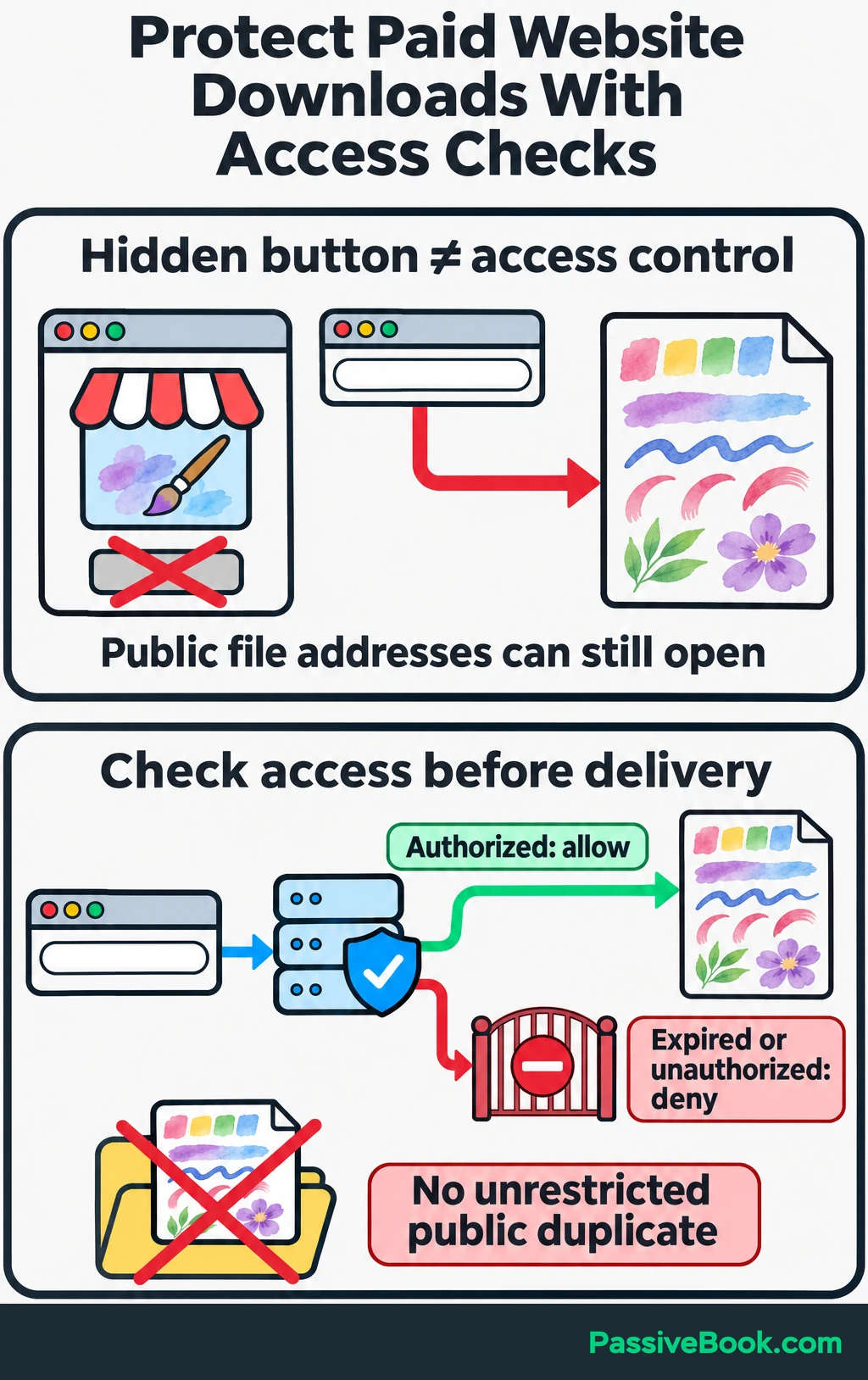
Avoid leaving an unrestricted duplicate of the paid file in your website’s public uploads folder.
If you have custom forms, login systems or purchase features, have a developer review them before public use. Custom code creates maintenance work even when the first version looks simple.
Filter Malicious and Abusive Traffic
Check what your host already provides before adding another service.
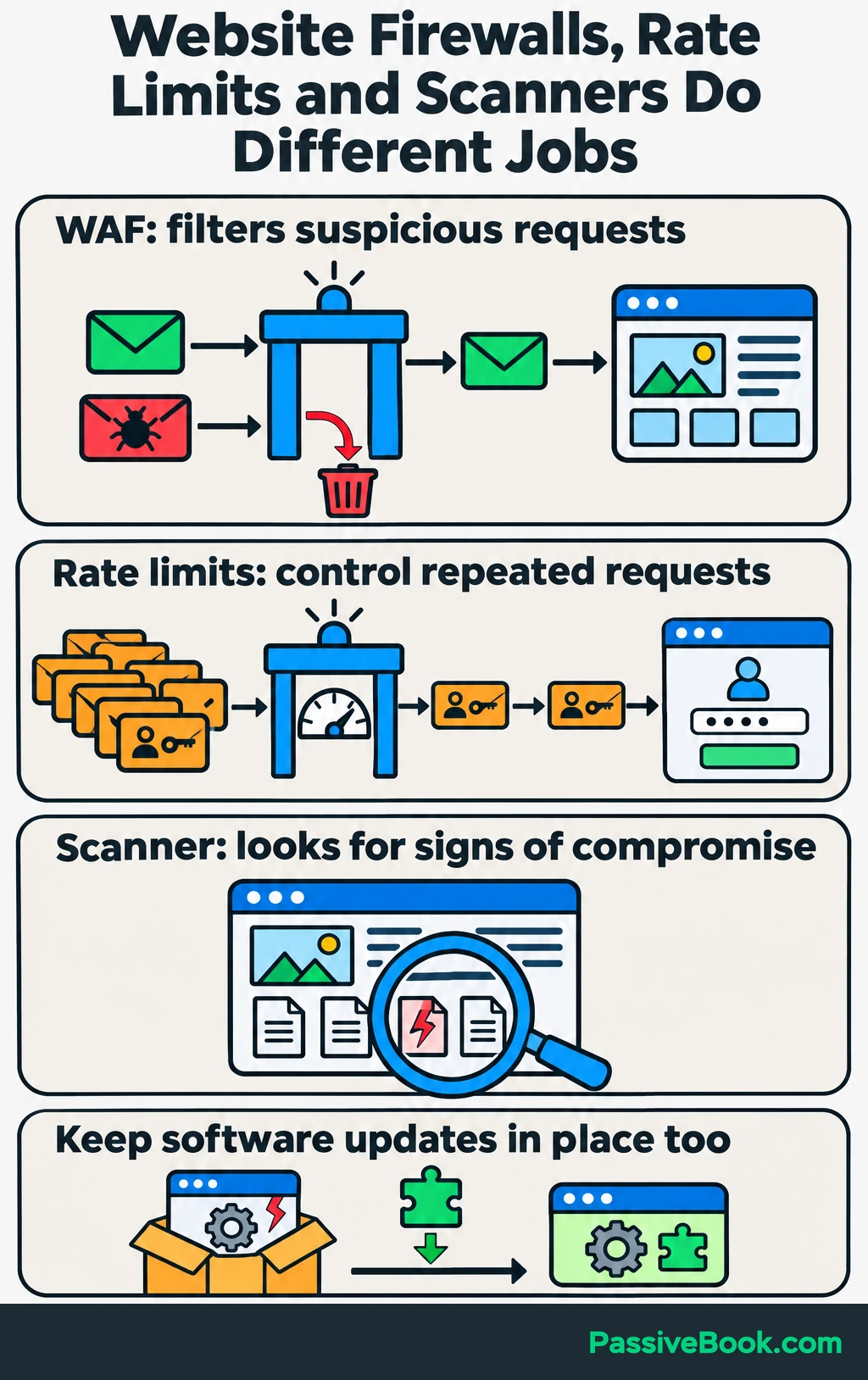
A web application firewall, often called a WAF, filters suspicious website requests. Rate limits control repeated requests, such as rapid login attempts or excessive form submissions.
I use Cloudflare, and I would consider its free service for a small site after checking the host’s existing coverage. Its Free Managed Ruleset protects against selected high-impact, widely exploited vulnerabilities. Broader managed rulesets require paid plans. Cloudflare lists the available coverage.
Keep software updates in place alongside filtering. A firewall filters requests; a malware scanner looks for signs of compromise. They do different jobs.
If setup requires changing DNS providers, save the existing records first. Preserve website, subdomain and email records, and confirm that the website’s traffic actually passes through the filtering service.
Introduce additional rules gradually. Then test:
- Administrator and contributor logins.
- Newsletter and contact forms.
- Checkout connections.
- Notifications sent from the sales service to your site, if your site uses them to record purchases or grant access.
- Download access.
For the watercolor site, a rule that blocks the newsletter signup form could prevent visitors receiving the free resource even while the homepage looks fine.
When a legitimate request is blocked, find the rule responsible and make a narrow correction. Switching off all protection leaves you with a working form and an unfinished security job.
Verify Protection and Maintain It
Test the Controls and Essential Visitor Journeys
In fresh sessions, confirm that MFA is required, a contributor cannot perform administrator actions, and revoked accounts no longer have access. Record the results alongside your latest successful backup and restore test.
After significant changes, check HTTPS redirects and test an important visitor journey. For your watercolor site, follow this path:
- Open a tutorial as a visitor.
- Request the free signup resource and confirm delivery.
- Open the provider’s test mode or follow its supported test-purchase procedure.
- Complete a purchase through the hosted checkout.
- Confirm that the correct practice sheet becomes available.
Use your host’s or platform’s security checks to inspect installed components and server files. Investigate findings before changing settings or deleting files.
I would also run Sucuri SiteCheck for publicly visible malware and suspicious content. It cannot inspect server-side files, so a clean result does not establish that those files are clean.
Set up Alerts and Recurring Maintenance
Send alerts to an inbox you can access while the website is down. Then send a test notification.
Enable available alerts for suspicious logins, unexpected administrator accounts, unauthorized file changes and vulnerabilities affecting installed software. Add monitoring for downtime, certificate renewal failures and failed backups.
Verify your website in Google Search Console too. Its Security Issues report can show findings involving hacked content, malware and social engineering, and affected visits may receive warnings. Google explains what the report covers.
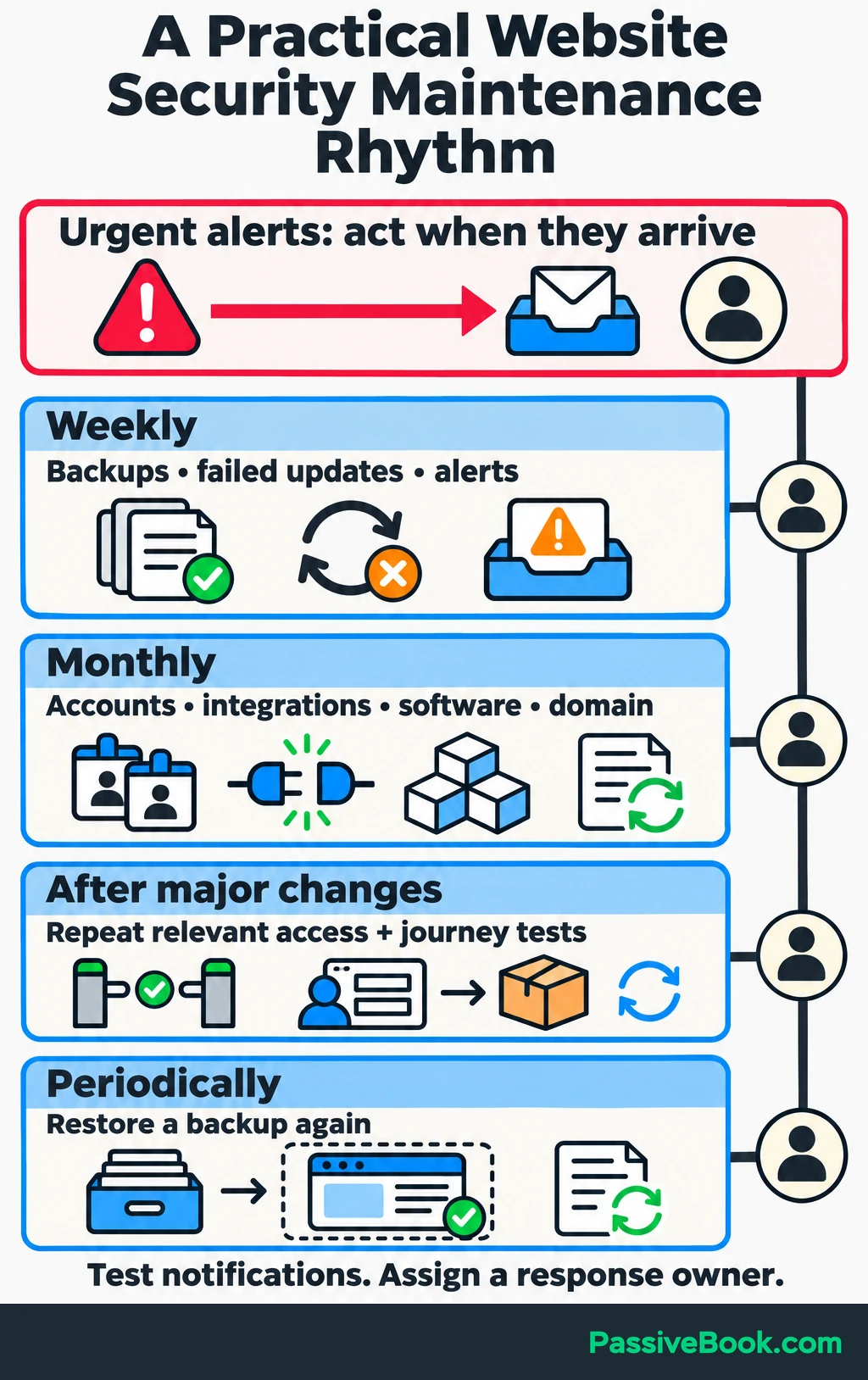
Assign someone to act on alerts. An automated warning with no owner is an unread task.
I would start with this maintenance rhythm:
- Weekly: Review backup results, failed updates, security alerts and unresolved findings.
- Monthly: Check accounts, integrations, installed components and domain renewal details.
- After major changes: Repeat the relevant access and visitor-journey checks.
- Periodically: Restore a backup again, especially after changing hosts, backup tools or site structure.
Urgent security alerts need attention when they arrive; the weekly review catches work that slipped through.
Keep a short record of providers, responsibilities, security settings, recovery instructions and emergency contacts. Store passwords and recovery codes securely, and record how an authorized person can obtain them.
When Is Paid Website Security Worth It?
Pay when a service fills a specific gap you cannot reliably cover yourself.
Start with included hosting protections, free certificates, strong account security and available monitoring. These can cover much of a basic setup, but reliable storage, restoration and hands-on support may still cost money.
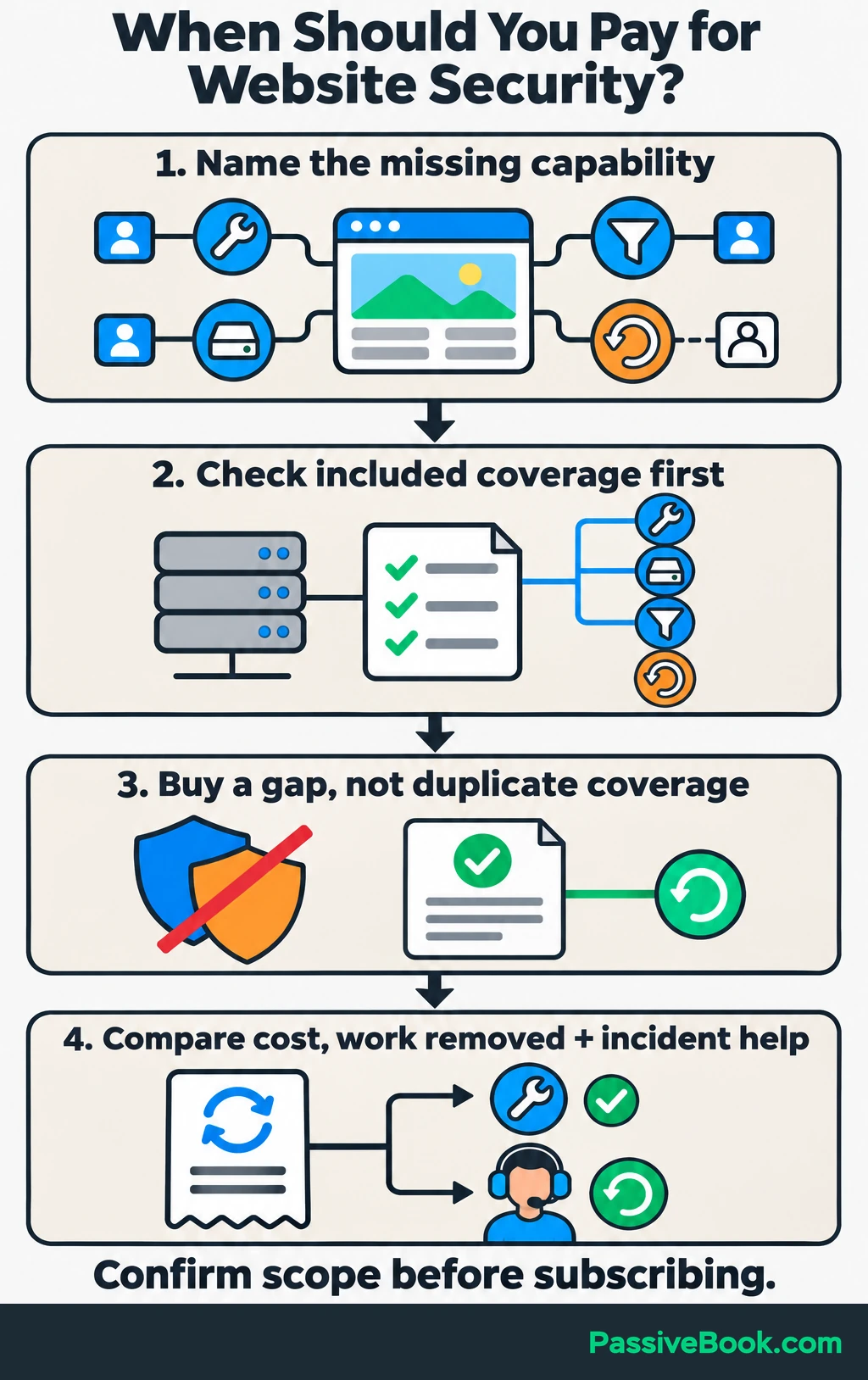
Before buying, ask what work the service performs:
| Missing Capability | What to Confirm Before Paying |
|---|---|
| Managed updates | Which components are covered, how failures are handled and whether essential functions are checked |
| Independent backups | What is included, retention history, storage separation and access during a hosting outage |
| Restoration help | Who performs the restore, when support is available and what assistance costs |
| Broader traffic filtering | Which additional protections address your site’s actual exposure |
| Malware cleanup | Whether investigation, removal and fixing the entry point are included |
| Custom application review | Whether the developer checks login, permissions, forms and sensitive data handling |
For the watercolor site, I would prioritize dependable recovery and clear support responsibilities before buying overlapping security subscriptions.
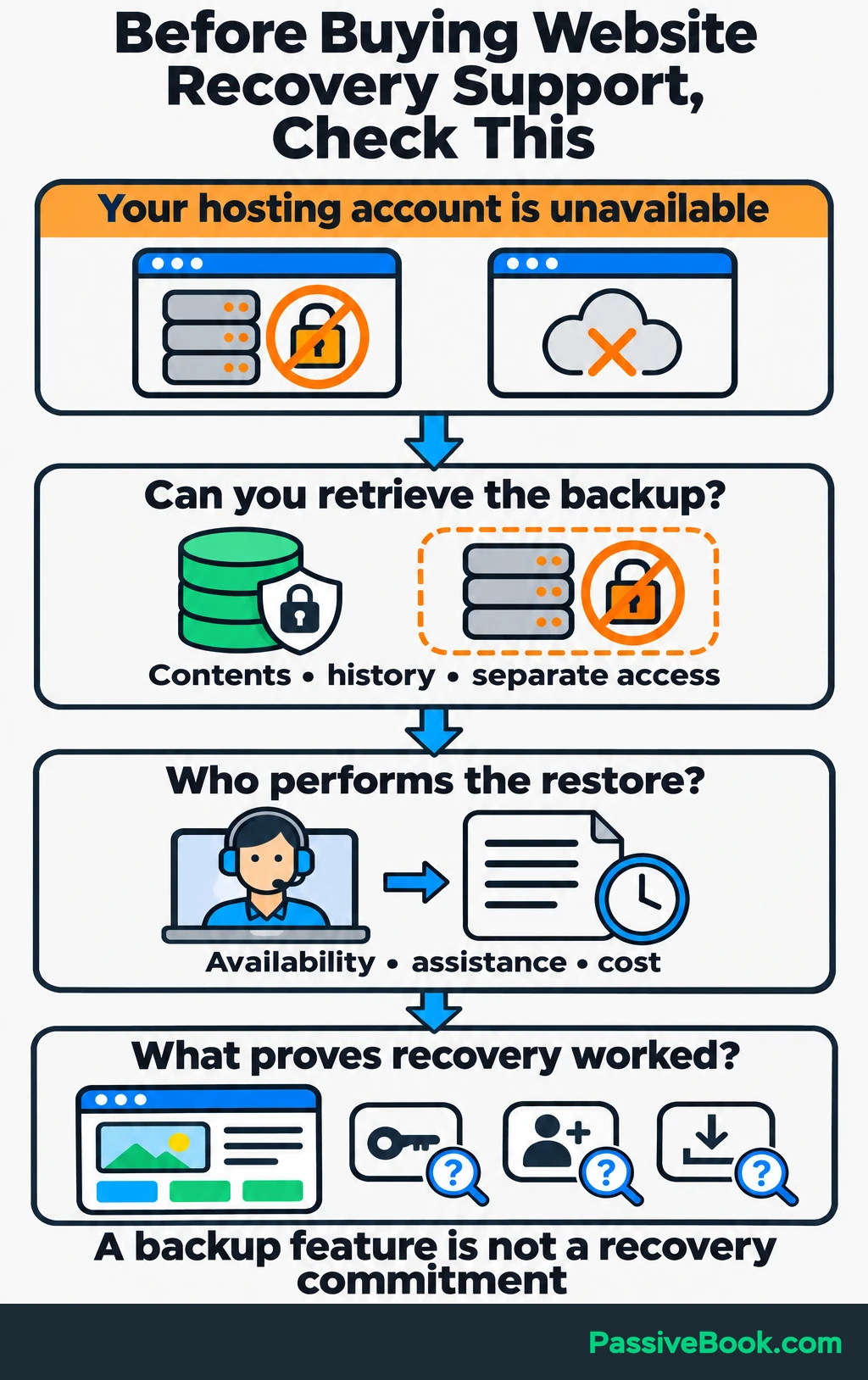
If server or application maintenance exceeds what you can consistently handle, managed maintenance is a sensible purchase. Compare the recurring cost with the work it removes and the help you receive during an incident.
A dashboard full of blocked requests can look impressive. Ask who fixes the site when something gets through.
What Should You Do If Your Website Is Hacked?
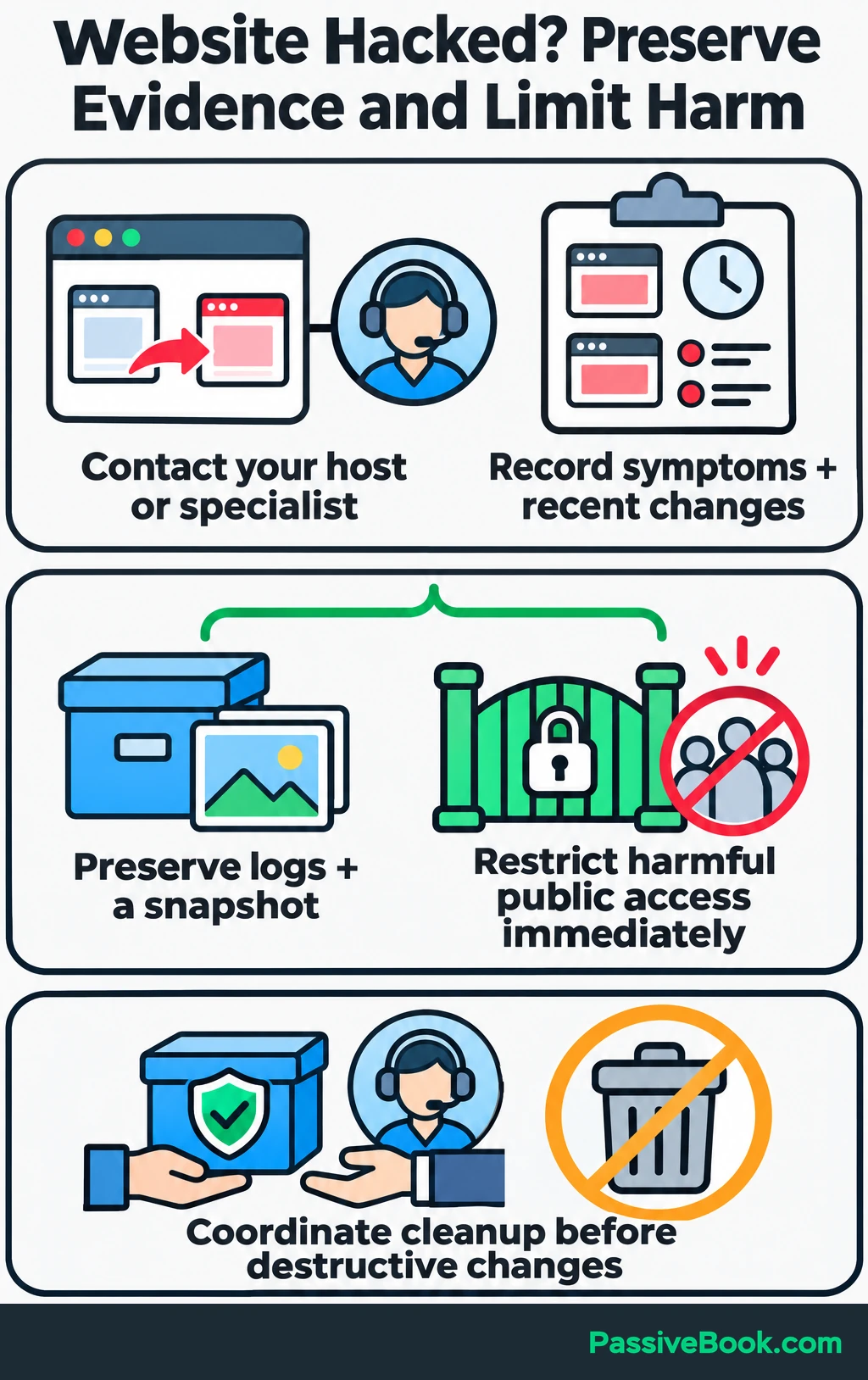
Contact your host or incident specialist promptly. Record the symptoms, affected addresses, when you first noticed them and any recent changes.
Preserve logs and a snapshot before destructive cleanup. If the site is exposing data or harming visitors, ask the host to restrict affected public access immediately while preserving evidence. WordPress’s hacked-site guidance recommends documenting symptoms, involving the host and preserving the environment.
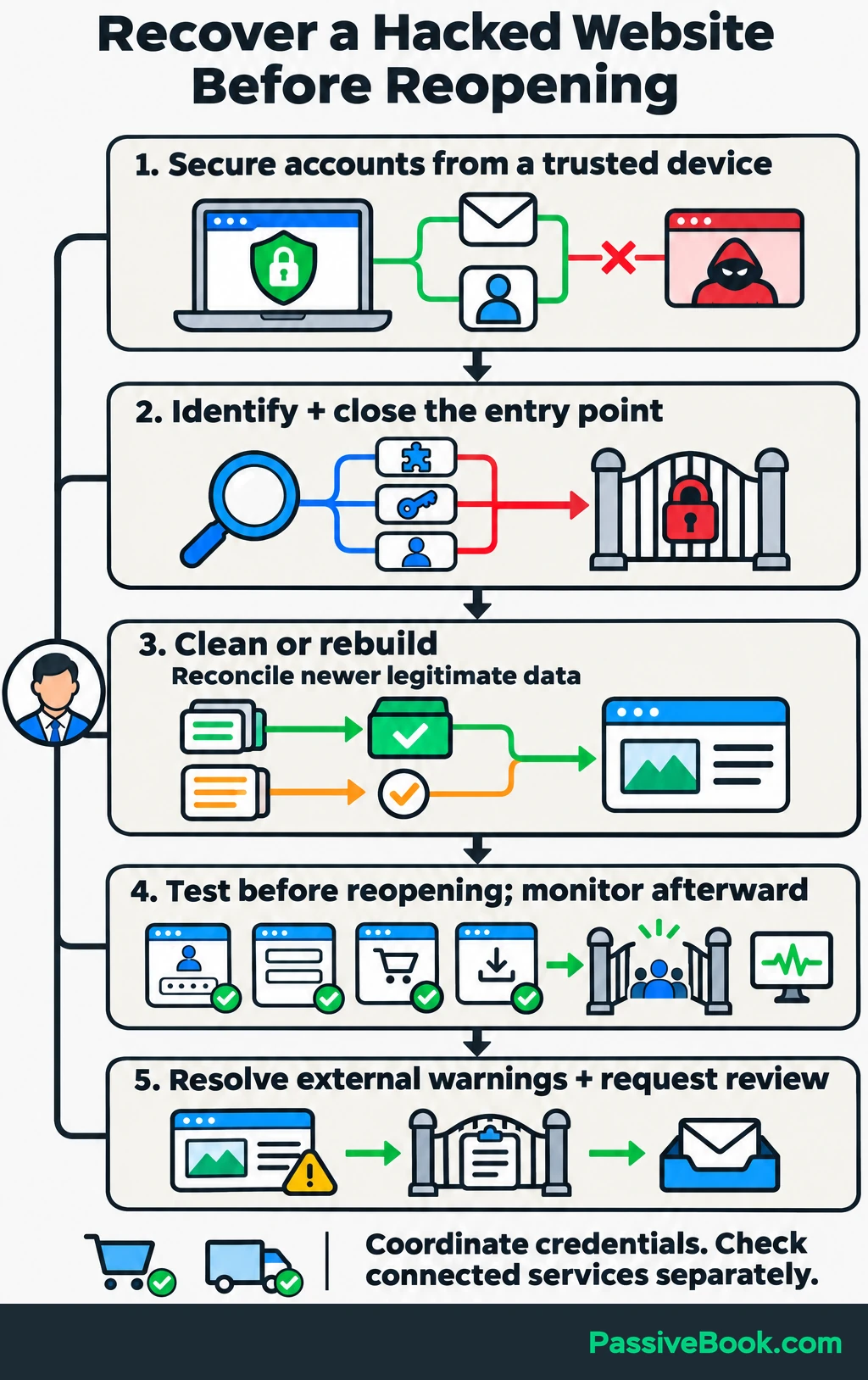
Then coordinate recovery:
- Secure controlling accounts from a trusted device. Protect recovery email, registrar, DNS, hosting and administrator accounts. Revoke suspicious sessions and replace exposed credentials.
- Identify and close the entry point. This may involve vulnerable software, a compromised account or an exposed integration key.
- Remove malicious changes. A specialist may recommend rebuilding from trusted files or restoring a verified clean backup. Reconcile newer legitimate data before replacing the live site.
- Test before reopening. Check accounts, updates, forms, redirects, purchases and delivery, then monitor for a return of the symptoms.
- Resolve external warnings. If Google reports security issues, fix all reported problems across the site, test the fixes and request a review through Search Console.
Coordinate credential changes with the person handling cleanup so replacement credentials do not remain exposed.
For your watercolor business, check the hosted sales and delivery account separately if its credentials or connections may be affected. Do not assume restoring the blog also restores or clears those services.
If personal information may have been exposed, obtain qualified advice promptly about notification duties under applicable laws and contracts. The FTC’s business breach-response guide explains why legal advice and checking notification requirements belong in the response.
What Next?
Open your recovery email account and check its authentication and recovery settings. Then copy the checklist and assign a person to each remaining task.
Use the social buttons to share this guide when you want a clearer plan for protecting and recovering a website.
Which item would be hardest to complete on your site: account recovery, a tested backup or knowing who handles an incident? Share your answer in the comments, and bring any other website security questions with it.
Share this post with your friends & followers: