You have website files on your computer, but you want to check them in a browser before paying for hosting or putting an unfinished page online.
The confusing part is choosing what to install. A simple HTML page needs very little, while WordPress needs several services working together. Pick the wrong setup and you can spend an evening fixing software your site never needed.
An ordinary computer is enough for a small local site. This guide takes you from a folder of files to a working browser address, with a separate route for WordPress and clear limits on what stays private.
What Does Hosting a Website Locally Mean?
When you host a website locally, your computer runs the server software and your browser asks it for pages over HTTP. You can build and test without buying hosting or a domain.
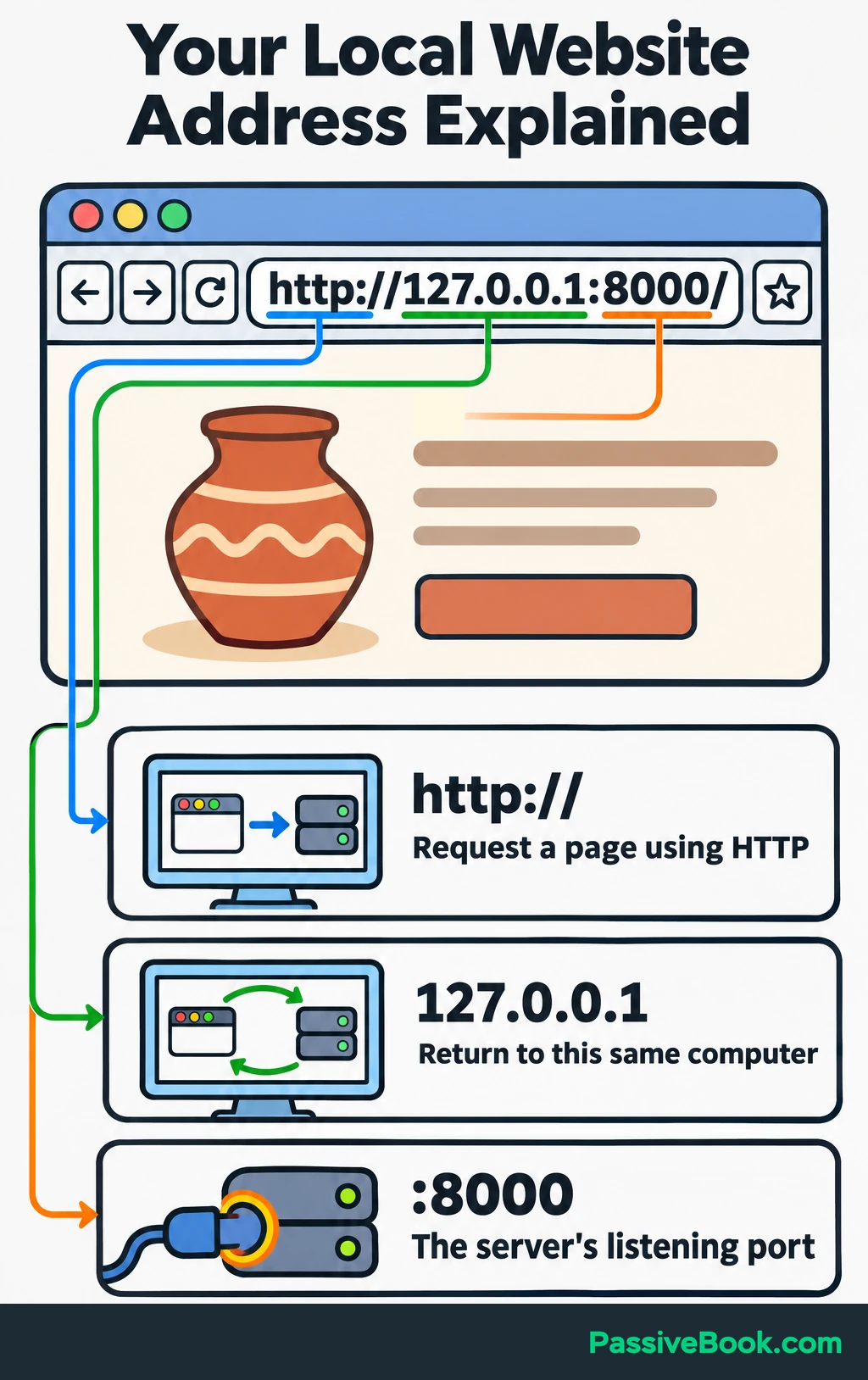
Three parts of the address matter:
| Part | What it means |
|---|---|
http:// | The browser requests the page through HTTP. |
127.0.0.1 | Your computer’s IPv4 loopback address, which sends the request back to the same device. |
:8000 | The port where this server accepts requests. |
localhost also refers to the device opening the address. In this walkthrough, you’ll use http://127.0.0.1:8000/ to match the server’s settings.
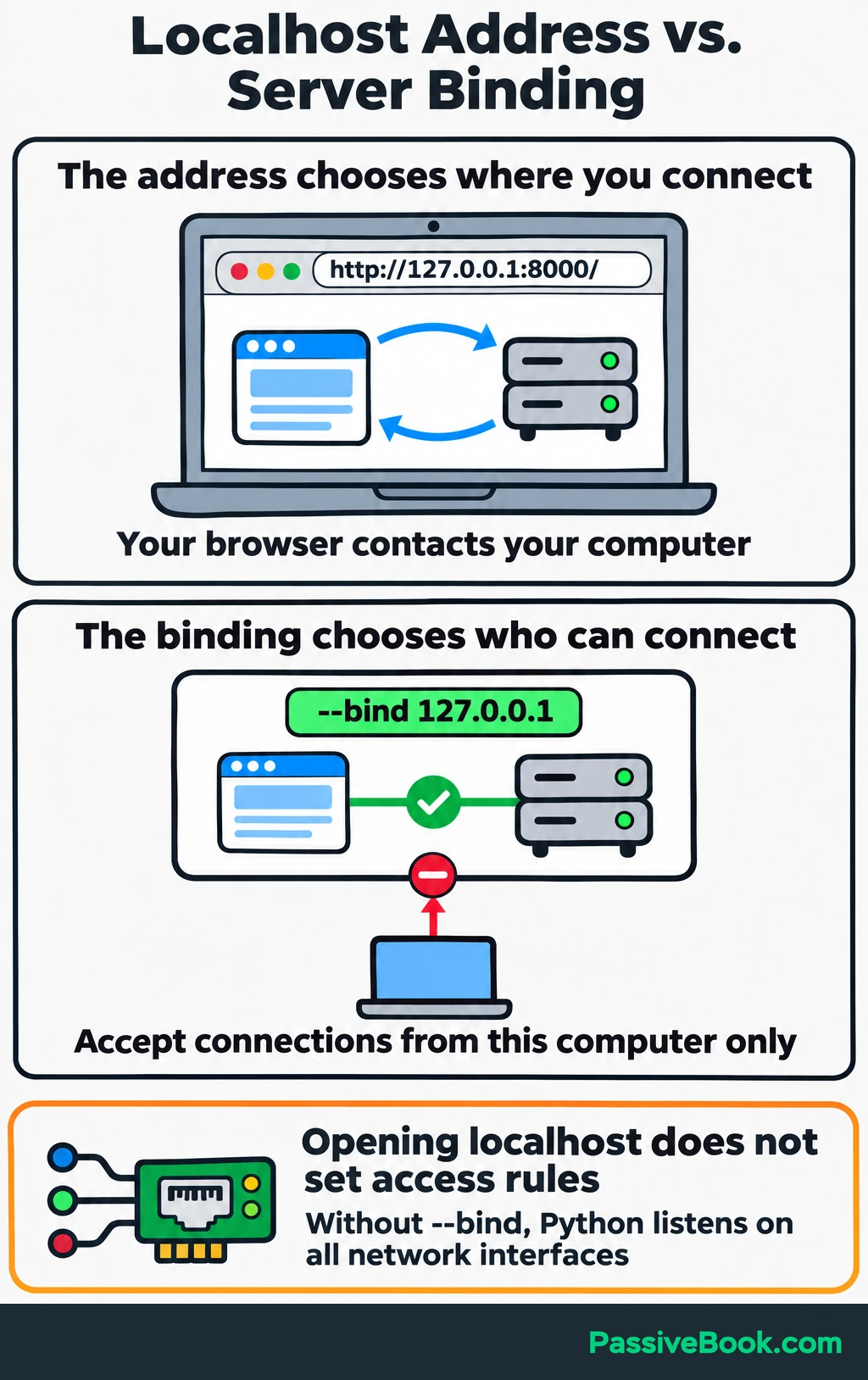
The address you open and the address the server listens on are separate settings. Opening localhost does not, by itself, make a server private. The Python commands below explicitly accept connections only from your computer.
You might already preview HTML by double-clicking a file. That opens a file:// address, which works for basic pages, but browser restrictions can block some JavaScript file requests. A local HTTP server lets you test those features through HTTP. MDN explains these local-file restrictions.
Choose a Server That Matches Your Website
Choose based on what your website needs to run.
| Website type | Required environment | Setup to follow |
|---|---|---|
| HTML, CSS, and browser JavaScript files | A static file server that sends files to the browser | The Python walkthrough below |
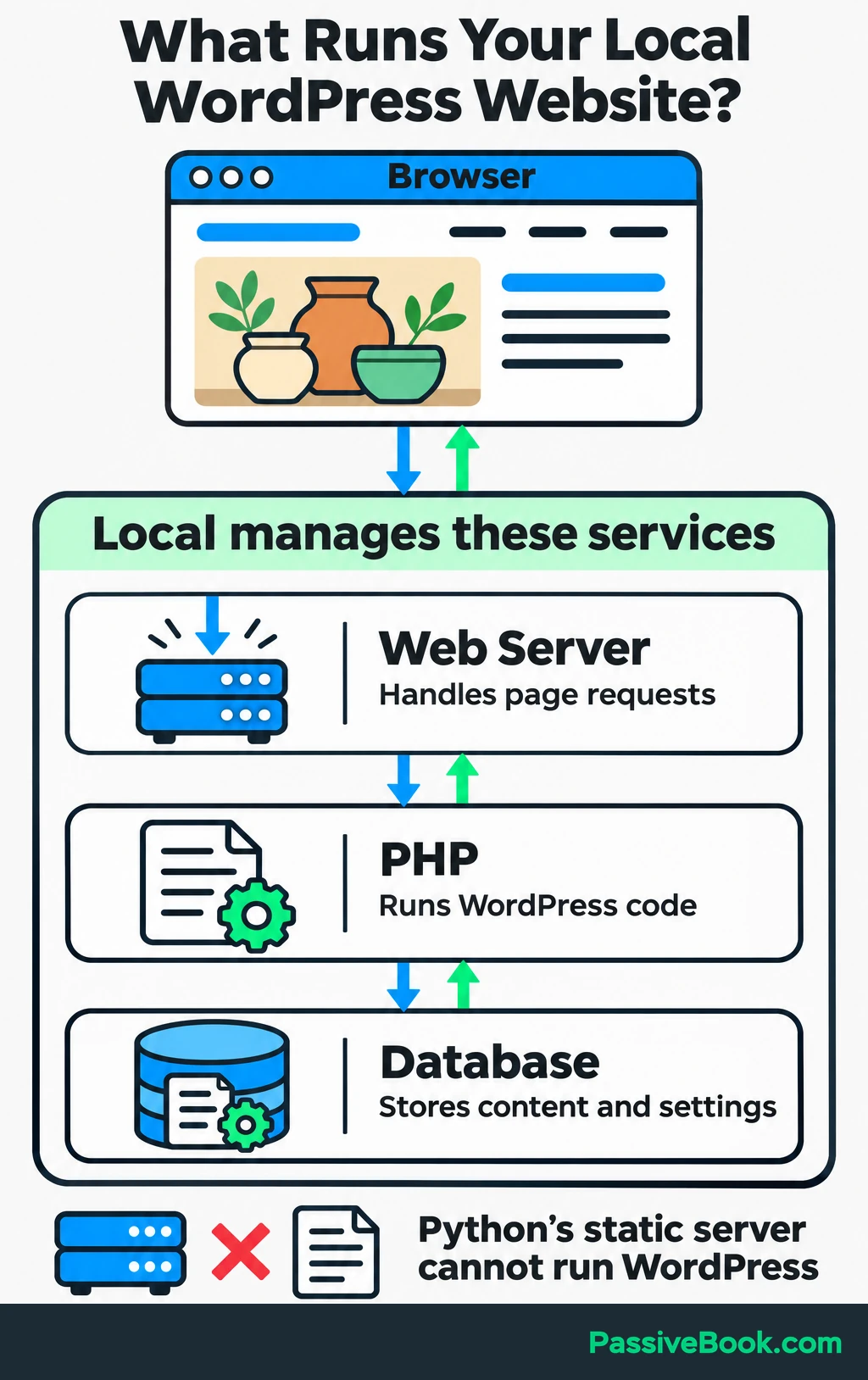
| WordPress | A web server, PHP to run WordPress code, and a database to store content | The Local walkthrough |
| A project with build tools or server-side code | The software that runs its code (its runtime), plus any services listed in its instructions | The project’s own setup guide |
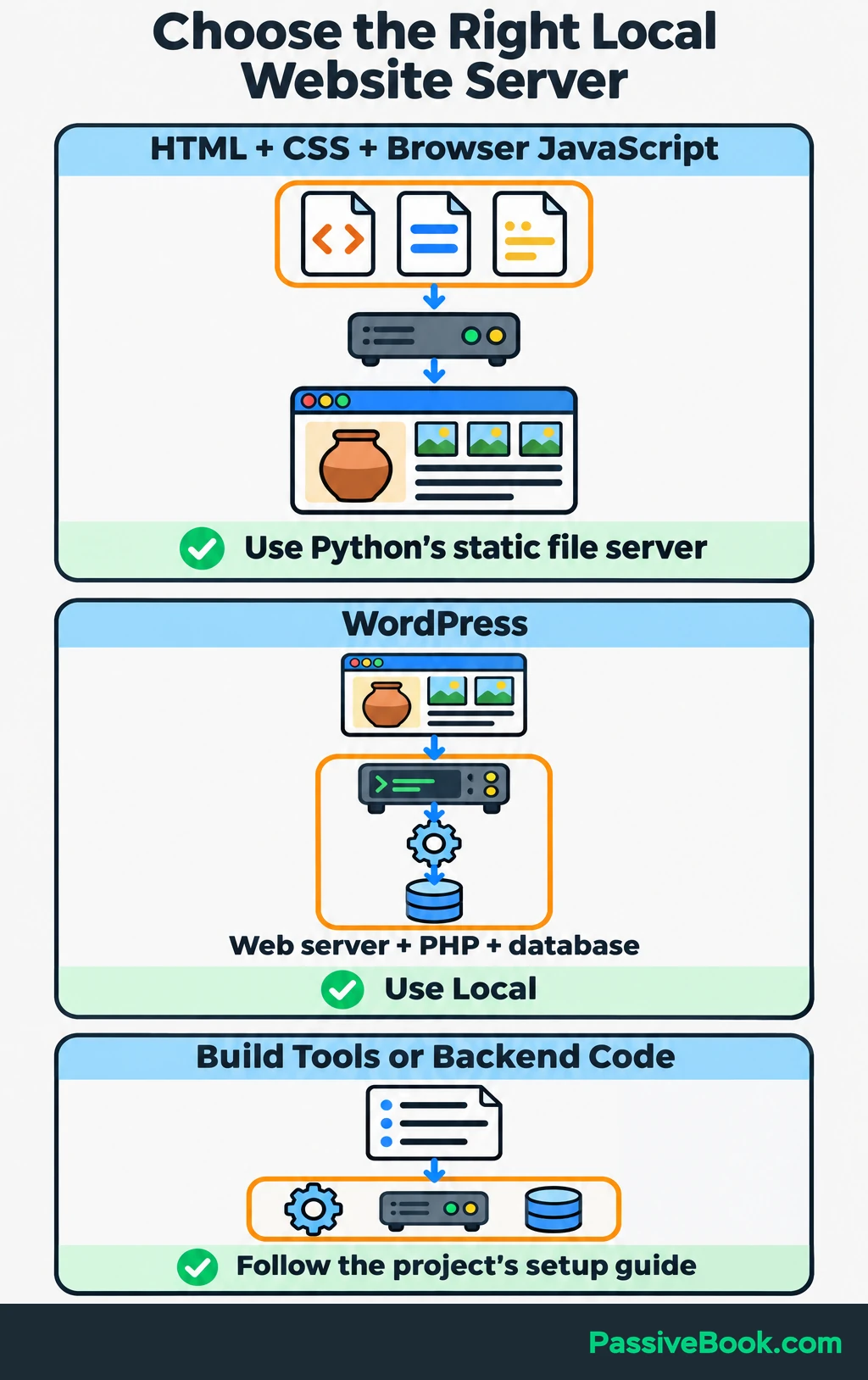
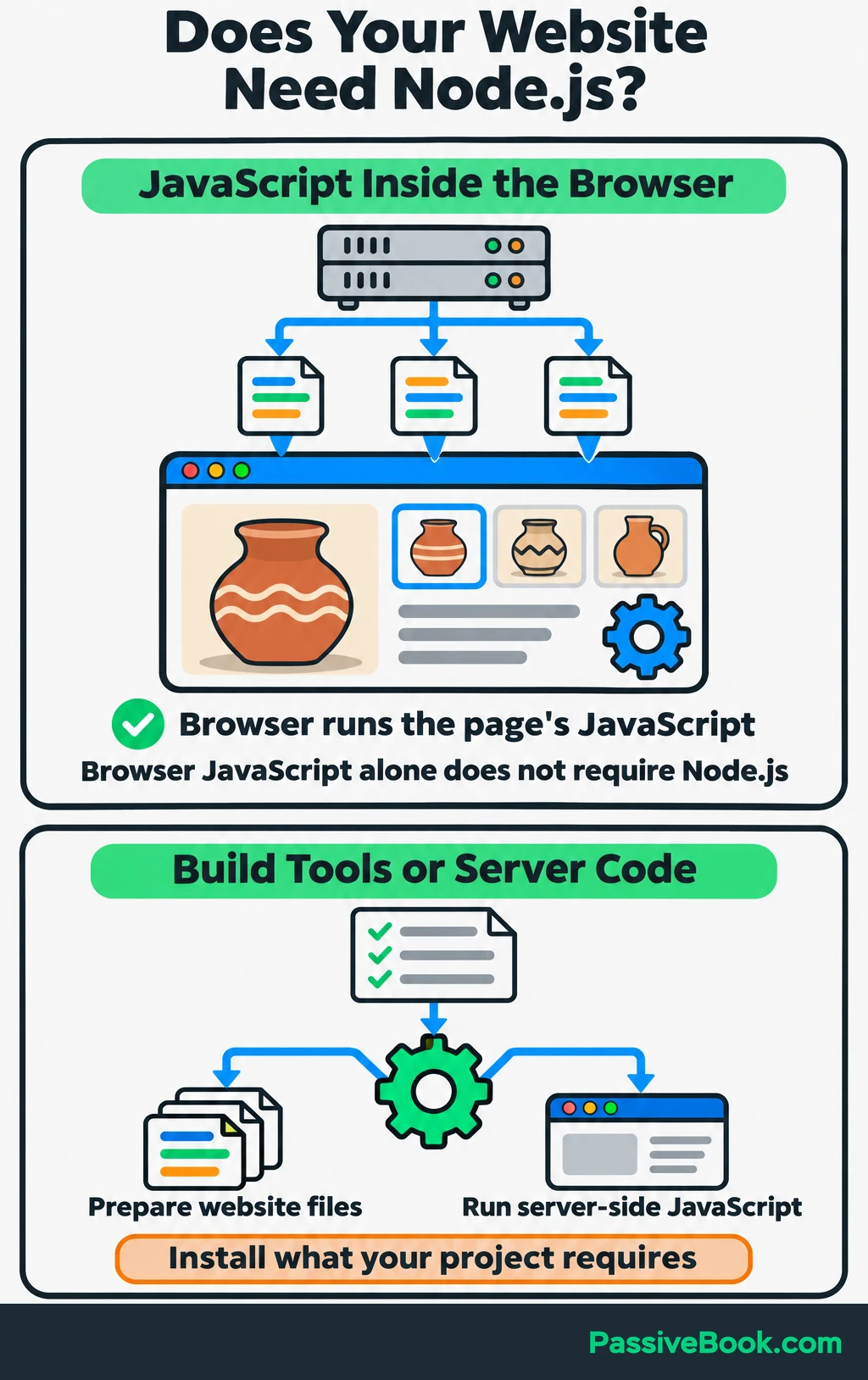
A static server sends files without running application code on the server. Your browser runs the JavaScript inside the page, so browser JavaScript alone does not require Node.js, which runs JavaScript outside the browser. Some projects need Node.js to prepare their files or run server code.
If your project already has setup instructions, follow them. Install the software and services it lists, then run its development command from the project folder. Open the address it prints, and use its documented setting for accepting connections only from your computer.
For the example here, imagine you’re building a small site selling downloadable beginner pottery guides. Start with a simple HTML page and use Python to preview it. Follow the WordPress alternative only if you’re building that site in WordPress.
I would skip a larger server package for a folder of HTML files. More software gives you more settings to troubleshoot, and none of them improve your pottery photographs.
Host an HTML, CSS, and JavaScript Website With Python
You need a browser, a plain-text editor, and Python 3. You won’t need to write Python code; you’ll use its built-in file server.
1. Prepare Your Website Folder
Create a dedicated folder for your website. Keep its homepage, stylesheets, scripts, and images inside it.
For this example, name the folder pottery-site and create a file called index.html at its top level. Paste this into the file:
<!doctype html>
<html lang="en">
<head>
  <meta charset="utf-8">
  <meta name="viewport" content="width=device-width, initial-scale=1">
  <title>Pottery Guides</title>
</head>
<body>
  <h1>Beginner Pottery Guides</h1>
  <p>Practical lessons for your first clay projects.</p>
</body>
</html>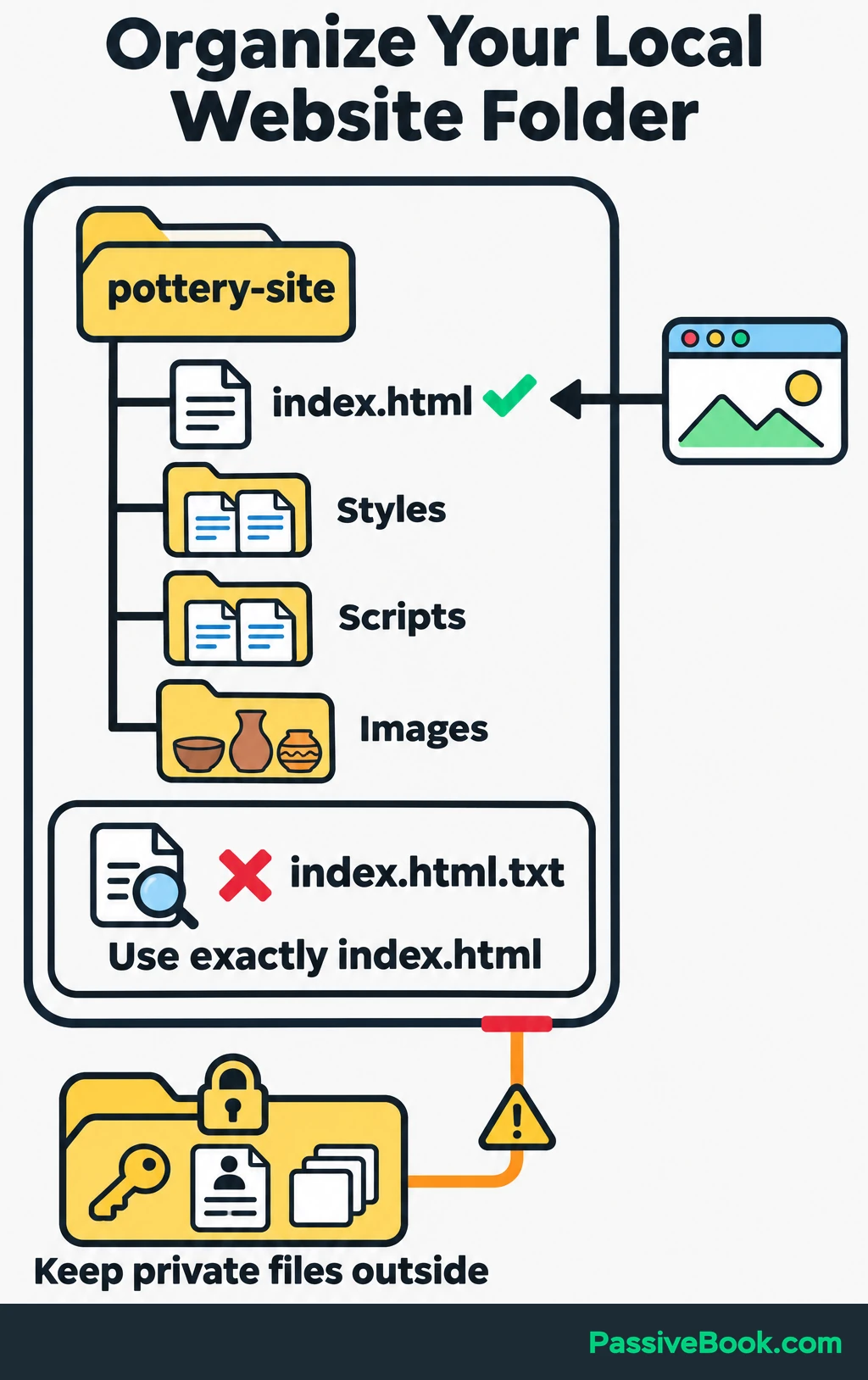
Save it with a plain-text editor or code editor. If you use TextEdit on a Mac, switch the document to plain text first. Check that the filename is exactly index.html, rather than index.html.txt.
If you already have a website folder, use that instead. There’s no need to replace its homepage with the sample.
Keep personal documents, credentials, and backups outside the folder you serve. The server can make files inside that folder available through browser requests.
2. Check That Python 3 Is Installed
Open PowerShell on Windows or Terminal on macOS or Linux. This is where you’ll type commands and press Enter to run them.
On Windows, enter:
py -3 --versionOn macOS or Linux, enter:
python3 --versionThe result should begin with Python 3.
If Python is missing, get the Windows installation manager or macOS installer from the official Python downloads page. On Linux, install Python 3 through your distribution’s package manager.
After installation, close and reopen your terminal, then repeat the version check. Continue once it reports Python 3.
3. Start the Server From Your Website Folder
First, tell the terminal which folder contains your website. Replace the example path below with the actual location of pottery-site.
On Windows:
Set-Location "C:\path\to\pottery-site"On macOS or Linux:
cd "/path/to/pottery-site"You can copy the folder’s location from your file manager. Keep the quotation marks because folder names may contain spaces.
Now run the server command for your computer.
On Windows:
py -3 -m http.server 8000 --bind 127.0.0.1On macOS or Linux:
python3 -m http.server 8000 --bind 127.0.0.1This serves the current folder on port 8000. Keep --bind 127.0.0.1: it restricts incoming connections to your computer. Without that setting, Python’s server listens on all network interfaces by default. Python documents the binding behavior here.
Leave the terminal open. The command staying active means the server is running.
4. Open Your Website and Test a Change
Enter this address in your browser’s address bar:
http://127.0.0.1:8000/You should see “Beginner Pottery Guides” and the sentence beneath it.
http://localhost:8000/ also points to your computer, but use 127.0.0.1 here so the address matches the server binding.
Next, make one obvious change. Replace the heading in index.html with:
<h1>Start Your First Pottery Project</h1>Save the file and refresh the browser. The new heading confirms that you’re editing the copy the server is displaying. This setup requires you to refresh after saving.
I once kept changing a product-page headline while the browser stubbornly showed the old version. I had two copies of the page and was editing the wrong folder. Now I make one obvious change before doing any serious work. It’s a small check that saves a surprisingly annoying detour.
Once that works, check any of these features you’ve added to your site:
- Follow navigation links and confirm they open the right pages.
- Check that images and styles load.
- Try download links, including any sample pottery-guide PDF.
- Narrow the browser window and check that the page remains readable.
- Open your browser’s developer tools from its menu, then refresh the page. Check “Console” for JavaScript errors and “Network” for files that failed to load.
A visible form or checkout button does not prove that submissions or payments work. Those need the required backend or external service, and payment tests belong in that service’s test environment. This first page confirms that your local server works.
5. Stop and Restart the Server
Return to the terminal and press Ctrl+C to stop the server. Your website files remain saved.
To start again, open the terminal, return to the website folder, and run the same server command, including --bind 127.0.0.1.
The local address works while the server is running and your computer is awake. When the computer sleeps or you stop the server, the browser can no longer request pages from it.
Set up a Local WordPress Website With Local
WordPress needs PHP to run its application code and a database to store content and settings. Python’s static file server does not provide that environment.
I would use Local for a beginner WordPress setup. It’s free and creates WordPress with the supporting services, so you don’t have to configure each part yourself.
Check Local’s supported operating systems and hardware requirements before downloading the installer for your computer.
Once installed:
- Create a new site and name it “Pottery Guides.”
- Choose the “Preferred” environment for a fresh practice site. If you’re matching an existing public site, choose compatible versions of its services instead.
- Enter a WordPress administrator username, password, and email address, then let Local finish creating the site.
- Start the site if it isn’t already running, then click “Open site” to view it in your browser.
- Open the dashboard with “WP Admin” and create a page titled “Beginner Pottery Guides.”
- Add a short paragraph, preview the page, then change a sentence and preview it again.
You now have a working local WordPress site where you can test themes, plugins, and page changes.
Keep Live Links disabled while working privately. Enabling that feature creates remote access through a shareable URL. Local explains how Live Links work here.
A generated address ending in .local is a local development address, not a purchased public domain. Start and stop this site through Local; the Python commands control only the separate static server.
Fix Common Localhost Problems
Use the error or browser behavior to choose your next action.
| Symptom | Likely cause | Action |
|---|---|---|
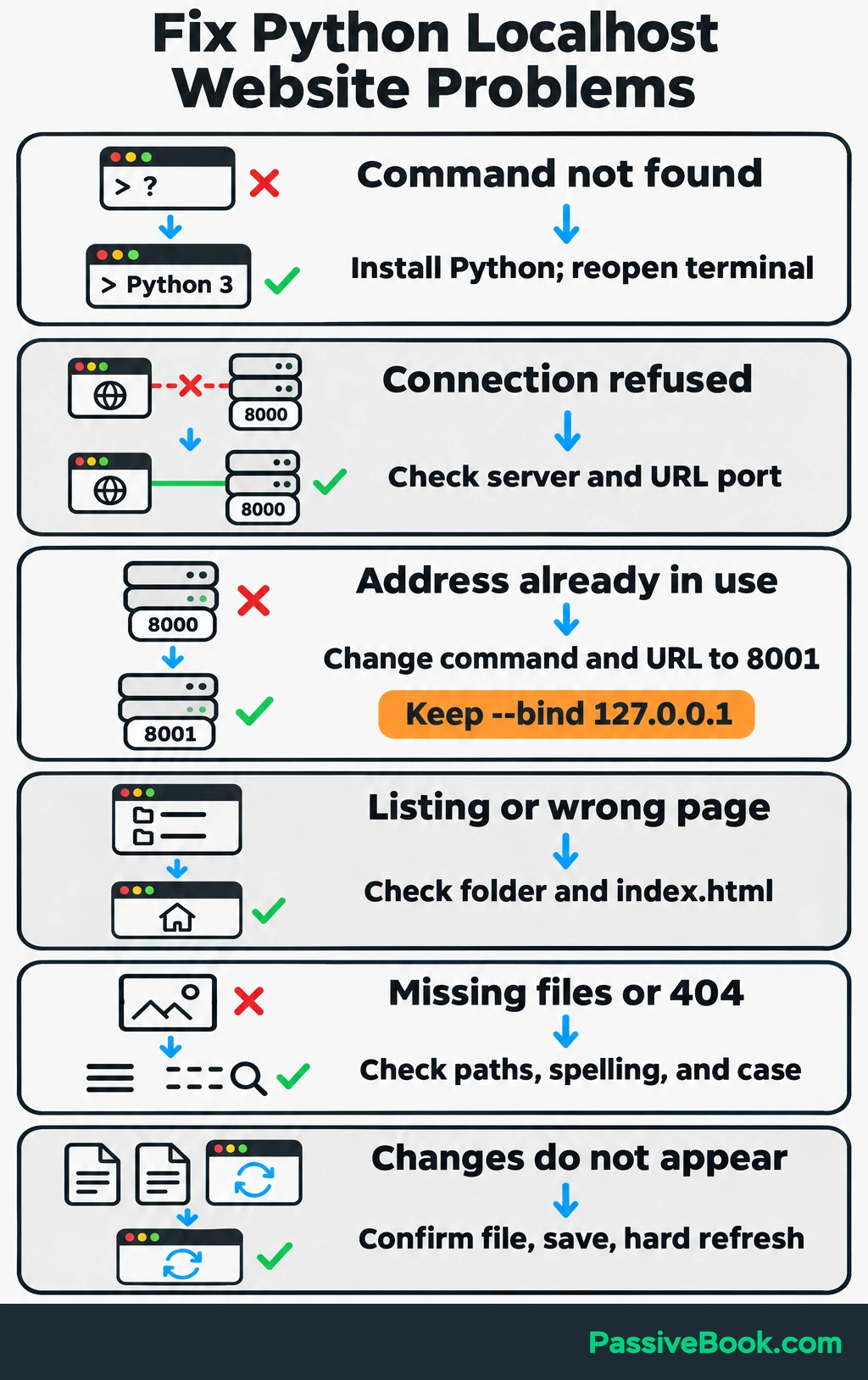
| Python command is not found | Python is missing or the terminal has not picked up the installation | Finish installing Python, reopen the terminal, and repeat the version check. |
| Connection refused or page unreachable | The server stopped, or the address uses the wrong port | Confirm the server is running and open http://127.0.0.1:8000/, including http://. Match the port to your command. |
| “Address already in use” | Another process is using port 8000 | Replace 8000 with 8001 in your server command, keep the binding setting, and open http://127.0.0.1:8001/. |
| A directory listing or the wrong page appears | The server is serving another folder, or the homepage filename is wrong | Check the exact index.html filename. Stop the server, enter the correct folder, and restart it. |
| Images or styles are missing, or requests return 404 | File paths do not match the files | Check relative paths, spelling, and filename capitalization. Inspect the failed request in the browser’s Network panel. |
| Saved changes do not appear | You edited another copy, or the browser has an older response | Confirm the file’s location and save it. In Chrome or Firefox, try a hard refresh with Ctrl+Shift+R on Windows/Linux or Command+Shift+R on macOS. In Safari, use Command+Option+R. |
| PHP code appears as text | A static server is sending PHP without executing it | Stop the static server and use the PHP environment required by the application. |
| Local reports a router conflict | Another application is using port 80 | Switch Local’s Router Mode setting to “localhost” and reopen the site from Local. It will use a dedicated port. |
Local’s localhost router mode avoids its port-80 router, but that mode does not support Local’s HTTPS or Live Links features. Choose it when resolving that conflict matters more than those features. Local documents the router-mode tradeoffs.
When Do You Need Public Hosting?
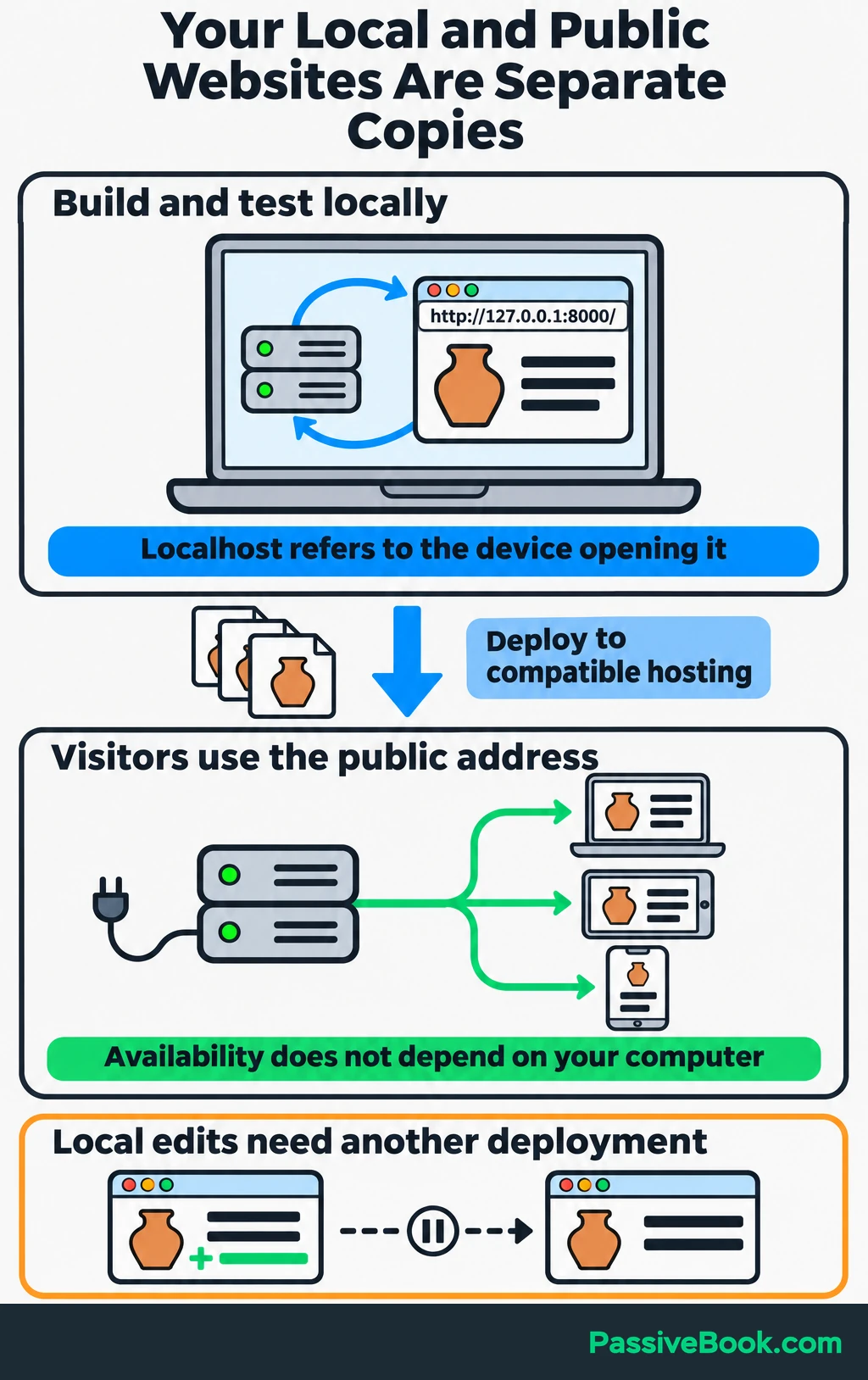
Use local hosting while building and testing on your computer. You need public hosting when visitors should reach the site over the internet and it should remain available independently of your computer.
When you’re ready to publish, set a hosting budget before comparing plans. Leave room for the site’s other running costs rather than spending the whole budget on hosting.

Free Software Cost Calculator


Sending a friend your localhost link won’t show them your pottery-guide page. Their browser will look for a server on their own device. For a private remote review, use a staging environment with access controls—a separate hosted copy protected by a login or password.
Match the public hosting to what you built:
| Your local site | What to publish |
|---|---|
| Static HTML, CSS, and JavaScript | Upload the website files to static hosting. |
| An application with backend code | Use hosting that supports its runtime and required services. |
| WordPress | Migrate both the WordPress files and database to WordPress-compatible hosting. |
Use production hosting software and configuration when you publish. Python explicitly warns that its simple HTTP server is not recommended for production. See Python’s production-use warning.
After deployment, retest navigation, downloads, forms, and integrations at the public address. The pottery-guide page may look right locally while a download path breaks after upload.
Also remember that the two copies are separate. Editing your local site does not automatically update the published version.
What Next?
Create your website folder and get one page to load at http://127.0.0.1:8000/. Then change its heading, save, and refresh so you know the whole loop works.
Use the social buttons to share this guide when a project needs a private place to take shape before launch.
Which part of local hosting still feels unclear: the commands, the files, or the address? Leave a comment, and bring any other questions too.
Share this post with your friends & followers: