Your checkout is slowing down, and the biggest server on the comparison page costs more than your current stack. Will it fix the delay, or just give the same problem a more expensive home?
Dedicated hosting gives you more control and exclusive hardware, but it also brings decisions about security, backups and maintenance. The rental price only covers part of the job, so this guide compares the full costs and responsibilities of shared hosting, a virtual private server (VPS) and a dedicated server. It also walks through setup and migration checks to protect your live site and customer orders.
How Does Dedicated Server Hosting Work?
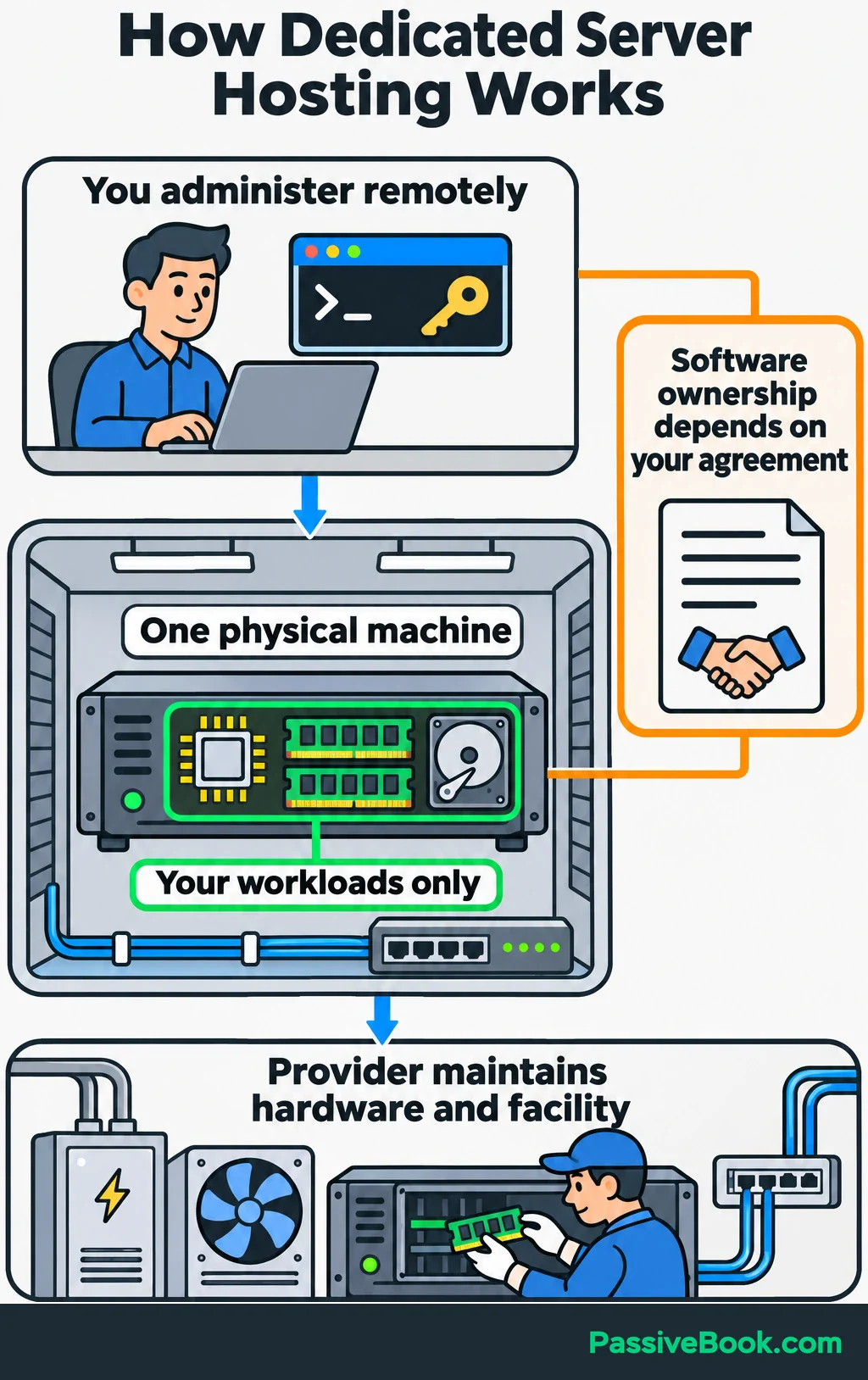
Dedicated server hosting means renting an entire physical computer in a hosting provider’s data center. Its processors, memory and local disks serve your workloads exclusively. You manage it remotely, so you don’t need a server humming under your desk.
You’ll also see the term “bare metal.” It commonly describes this physical hosting model. OVHcloud’s dedicated-server guide makes a useful distinction: the machine is physical, and administering its software is the customer’s responsibility under that service.
Here’s what happens when someone visits a website:
- DNS, the system that connects domain names to server addresses, directs the visitor toward the site.
- The web server receives the request.
- It returns a saved copy of the page, called a cached page, or asks the website software and database to build a response.
- The response travels back to the visitor’s browser.
For the running example, imagine your WordPress website publishes indoor-cat care articles and sells downloadable activity planners through WooCommerce, a plugin that adds a shop to WordPress.
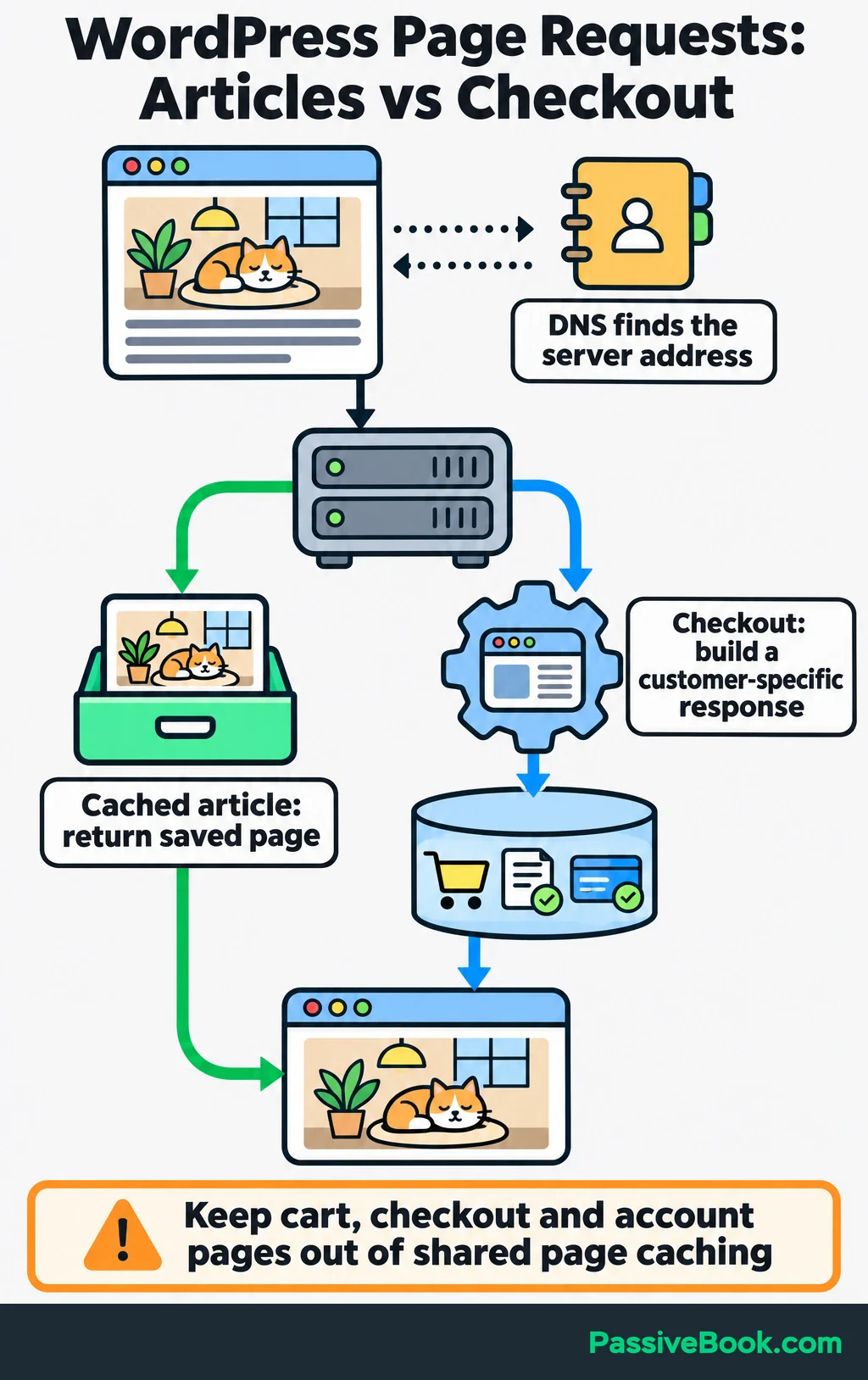
Reading an article and buying a planner use the same server differently. A cached article can be returned directly, while checkout needs current cart, payment and order information. That difference matters when choosing hardware.
The provider maintains the physical machine, facility and underlying network. Who handles the software depends on your agreement.
What Are the Benefits of Dedicated Hosting?
The main benefits are exclusive resources, control over configuration and room for demanding workloads.
- Resource Isolation: Other customers’ applications don’t compete for the same machine’s processors, memory or local disks. Your own applications can still compete with each other, so scheduling and configuration matter.
- Configuration Control: Within the provider’s management terms, you can choose compatible software and adjust how the website, database and background tasks run.
- Sustained Capacity: You can reserve substantial hardware for a busy website, a demanding database or several applications whose combined needs justify the machine.
For the planner shop, that control might let an administrator keep a large background import from using resources needed for checkout.
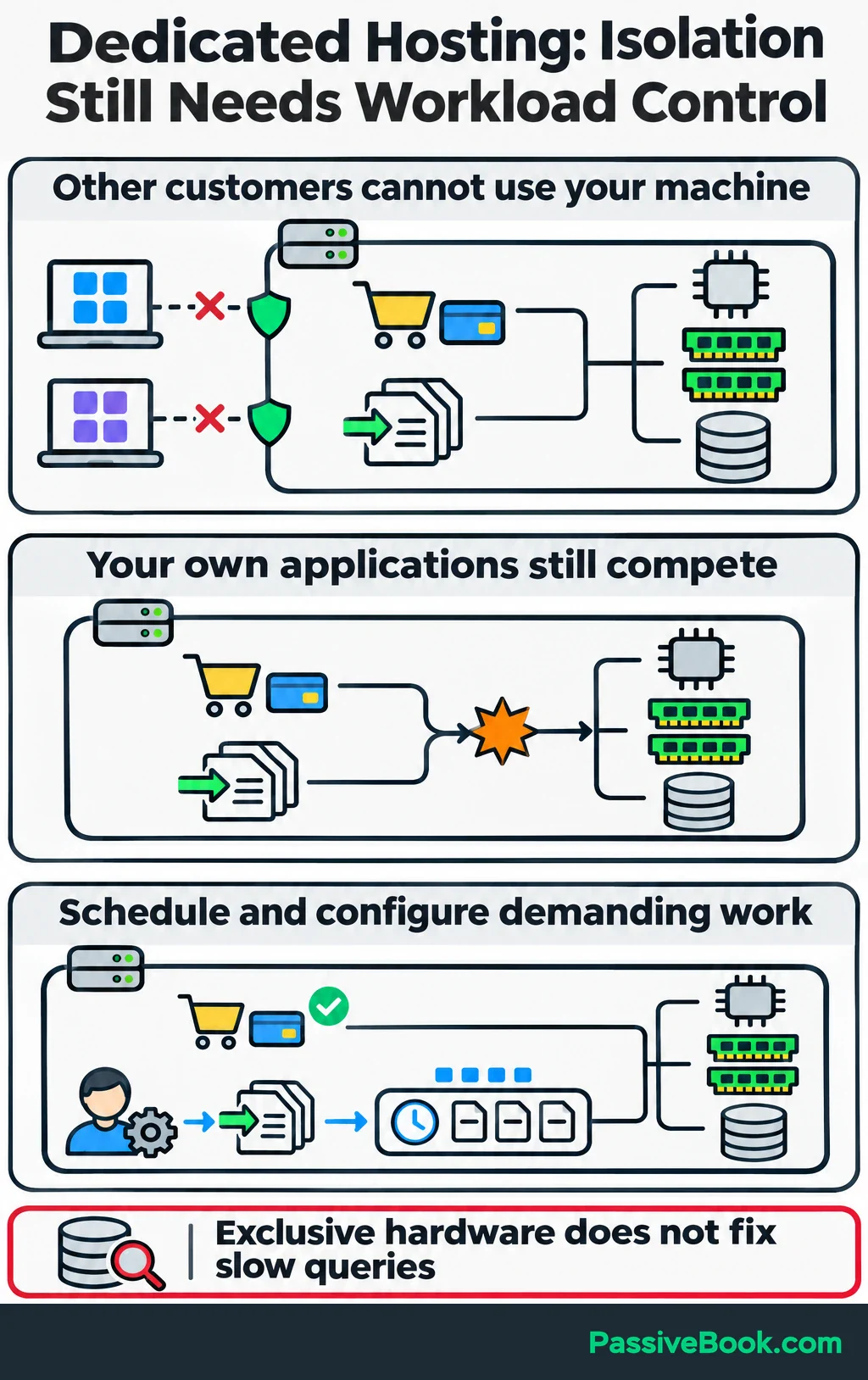
But dedicated hardware doesn’t automatically make WordPress faster. A slow database query can remain slow on an expensive machine, and an incorrectly configured server can still expose customer data.
I would buy dedicated hosting to solve a named problem: sustained resource shortages, a need for physical isolation or a configuration the current host cannot support. “The business is growing” needs more detail before it becomes a purchase order.
Managed or Unmanaged Dedicated Hosting?
Choose unmanaged hosting only when you or a hired administrator can maintain the server. That includes securing access, installing updates, investigating failures and restoring the website.
Hardware support isn’t the same as website support. A provider might replace a failed disk while leaving you responsible for rebuilding everything on it.
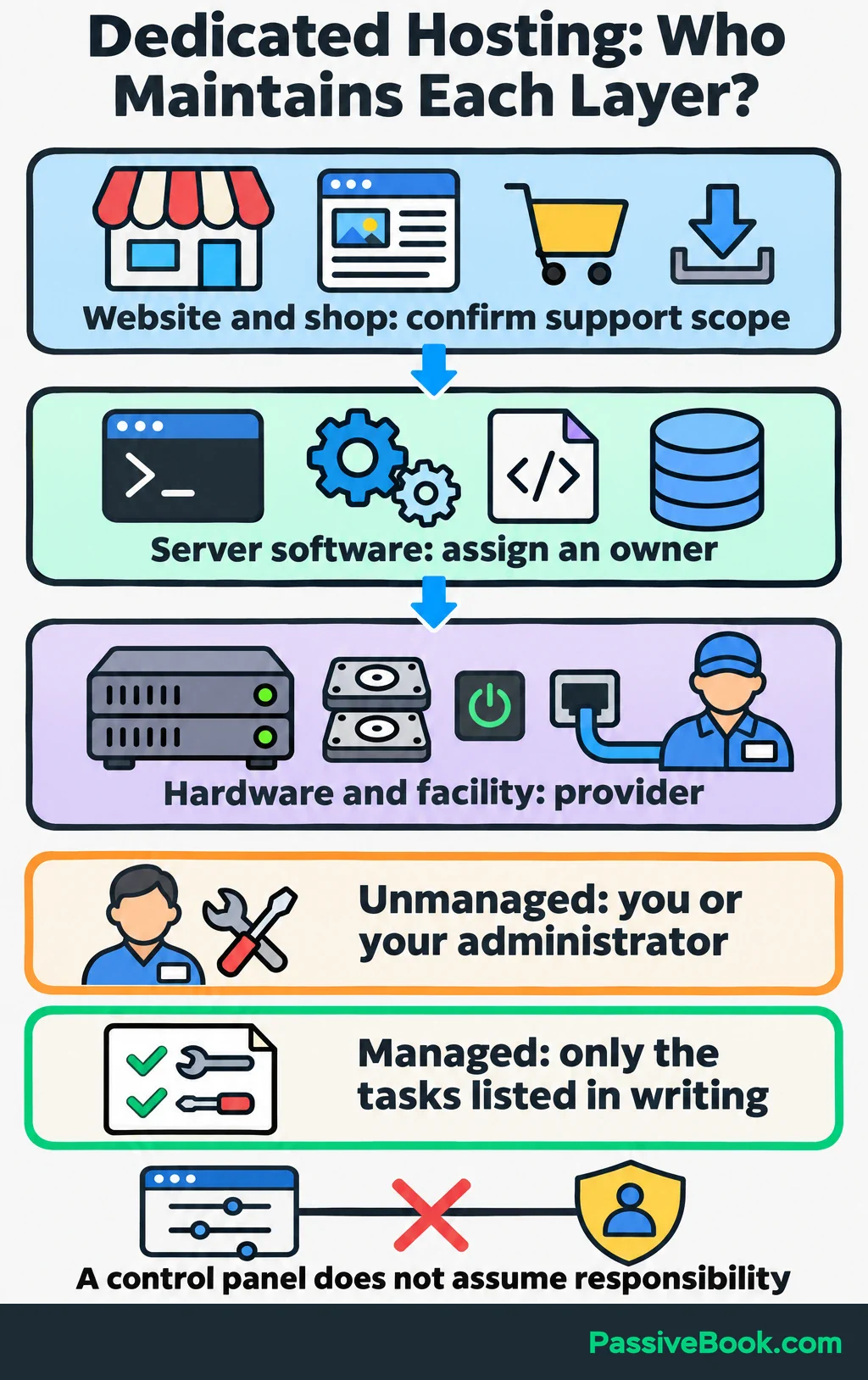
Managed hosting can shift some of that work to the provider, but the word “managed” isn’t a complete service description. Get written answers about:
- Updates: Who maintains the operating system, web server, PHP, database and WordPress?
- Monitoring: Who receives alerts, and who investigates them?
- Recovery: Who creates backups, tests restores and performs an emergency restoration?
- Application Support: Does support cover WooCommerce problems, or stop when the server itself is running?
- Response Coverage: What hours are covered, how quickly does someone respond, and what costs extra?
Record the responsible person or provider beside each task, along with coverage hours and additional charges. For the planner shop, someone needs to own the response when customers cannot download purchases.
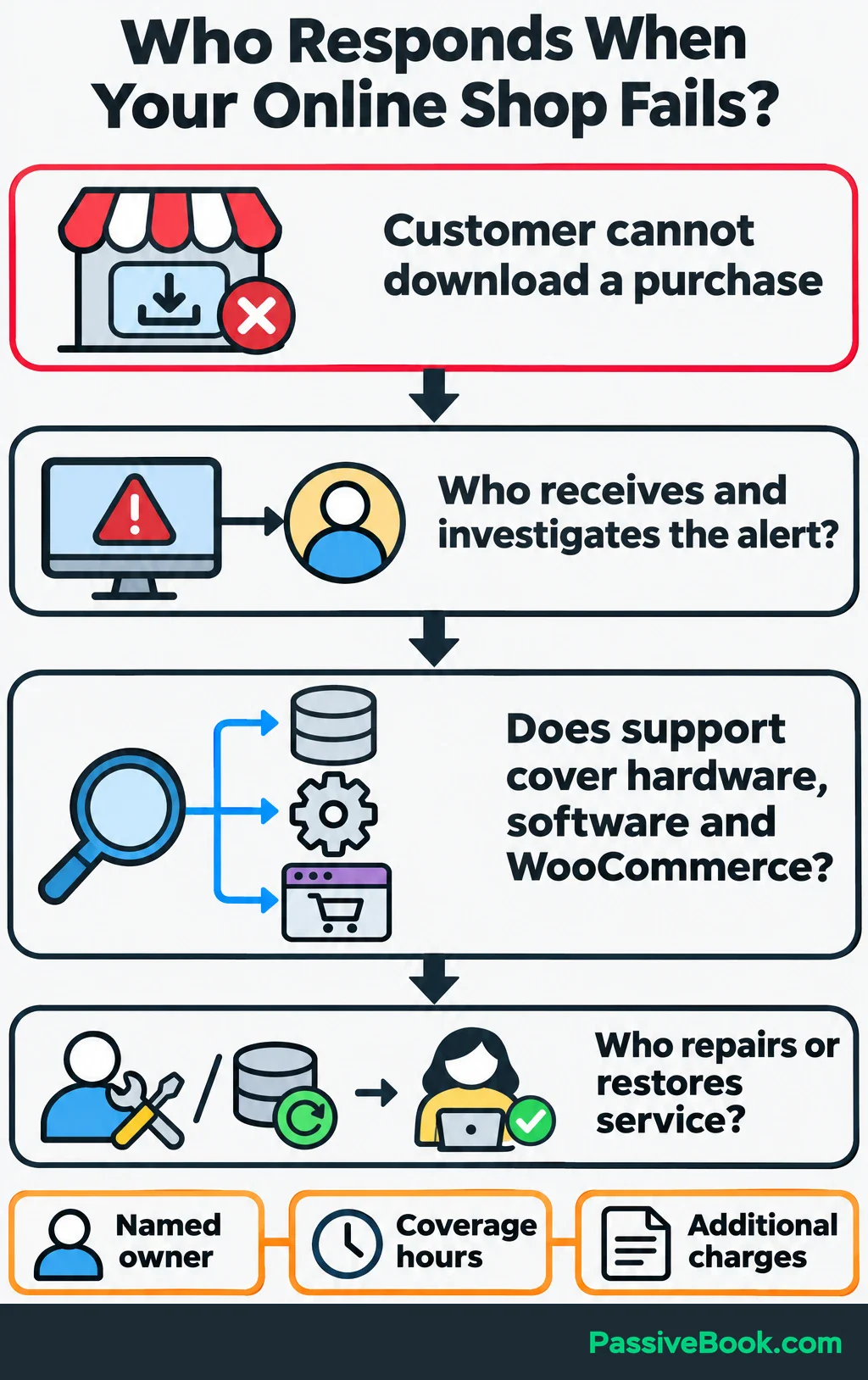
When I compared hosting options for one of my WordPress projects, I initially focused on the monthly bill. Then I added a row for restoring the site and had nobody’s name to put beside it. I rebuilt the comparison around who would do the work.
For a beginner running a live shop, I would choose clearly scoped management over learning server administration during an outage. A control panel can make tasks easier, but it doesn’t take responsibility for them.
How Much Does Dedicated Hosting Cost to Run?
Count everything required to keep the website working, backed up and supported each month.
That usually means server rental, management, backup storage, paid software, monitoring and any applicable network or IP-address charges.
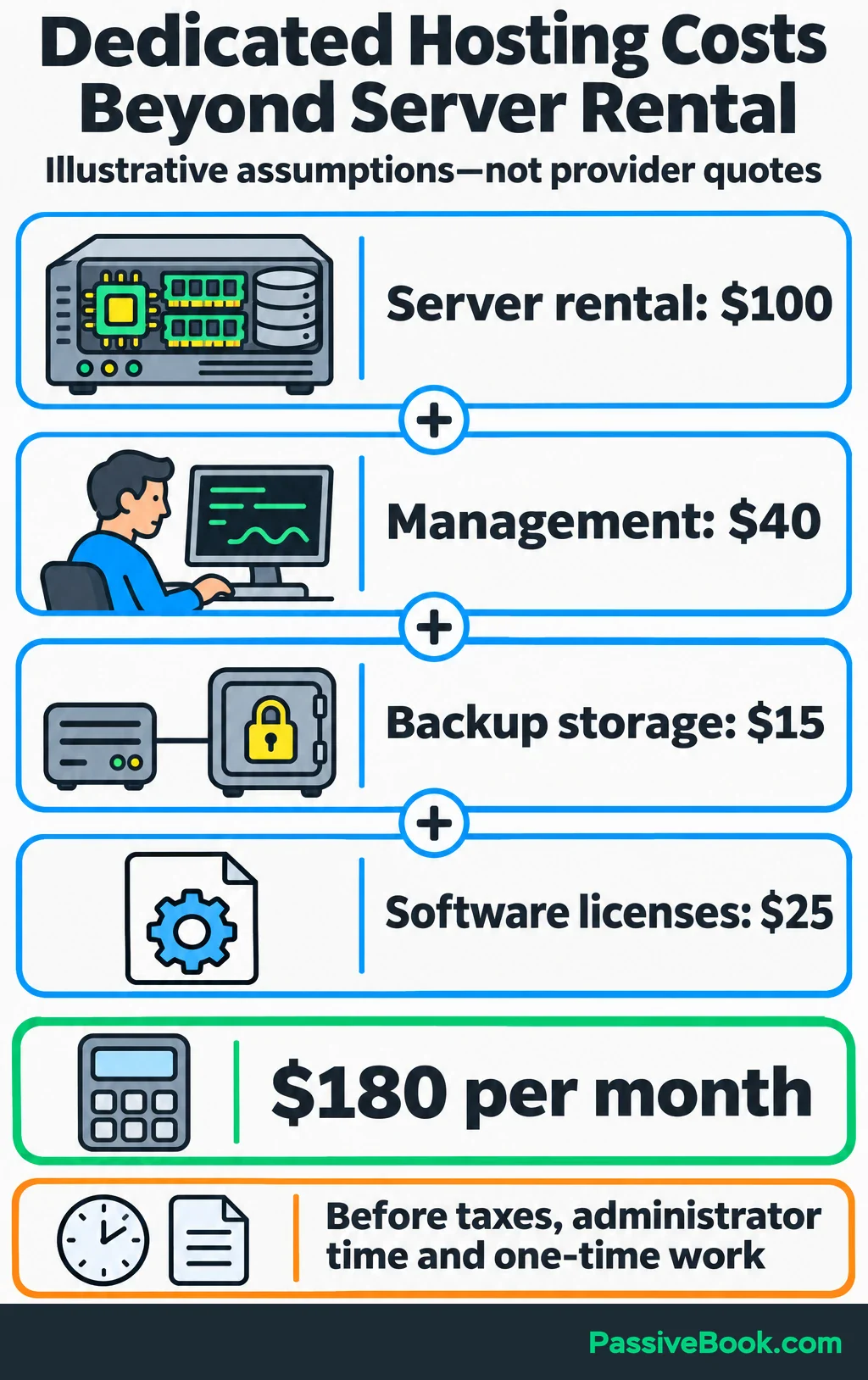
Here’s an illustrative monthly budget. These are assumed figures, not provider quotes:
| Item | Assumed Monthly Cost |
|---|---|
| Physical server rental | $100 |
| Server management | $40 |
| Separate backup storage | $15 |
| Software licenses | $25 |
| Total | $180 |
The calculation is $100 + $40 + $15 + $25 = $180 per month, before taxes, administrator time and one-time work.
Budget separately for setup, migration and temporary overlap with the old host. You need that overlap to test the new environment before cancelling the old one.
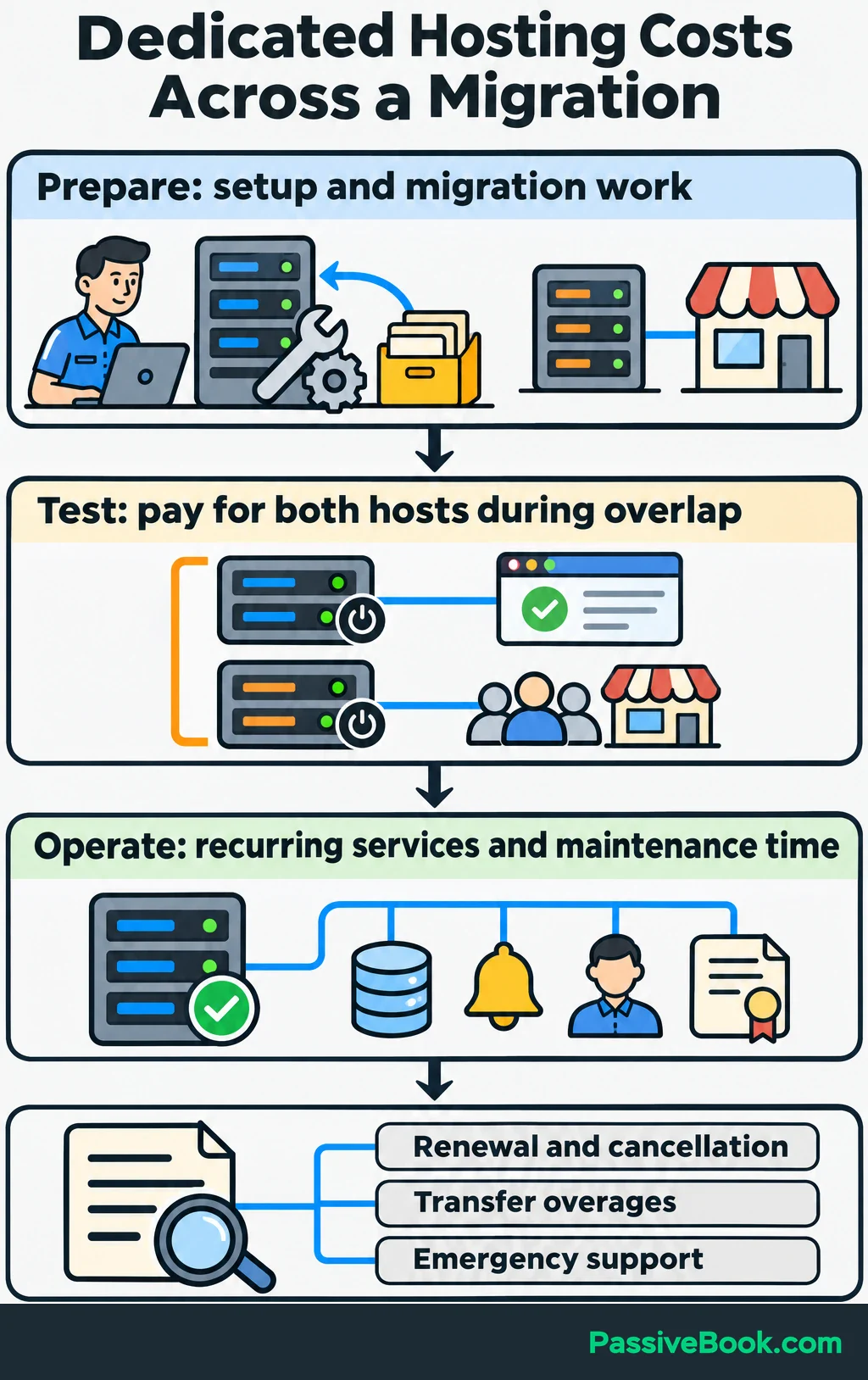
Compare equivalent packages. A server without administration or independent backups isn’t directly comparable to a package that includes both.
Before signing, check renewal pricing, billing commitments, cancellation terms, transfer overages and emergency-support fees. I would also estimate my own maintenance time. An evening spent fixing the server is still a business cost, even when nobody sends an invoice.
Before comparing rental prices, work out how much room your budget leaves for the server itself. The calculator below gives you that ceiling and lets you compare the full cost of staying or moving.

Free Software Cost Calculator


Should You Choose Shared Hosting, a VPS or a Dedicated Server?
Shared hosting gives you an account in a provider-controlled environment. A VPS, or virtual private server, gives you a separate virtual machine with allocated resources. Dedicated hosting reserves the physical machine.
This table shows the practical differences. IBM’s hosting comparison explains the underlying resource allocation and why physical-server expansion can require more work.
| Hosting Type | Resource Allocation | Administrative Control | Maintenance Responsibility | Expansion Method | Total Operating Cost |
|---|---|---|---|---|---|
| Shared hosting | Shared machine with account limits | Usually website settings and approved software | Provider maintains the server; you maintain your site | Change plans or migrate | Usually lowest for a modest site |
| VPS hosting | Allocated virtual resources on shared hardware | Usually control over the virtual server | You or a contracted management service | Resize within provider limits or migrate | Includes the virtual machine and needed support |
| Dedicated hosting | Exclusive physical machine | Broad control within service terms | You or a contracted management service | Hardware changes, replacement or additional servers | Includes full-machine rental and needed support |
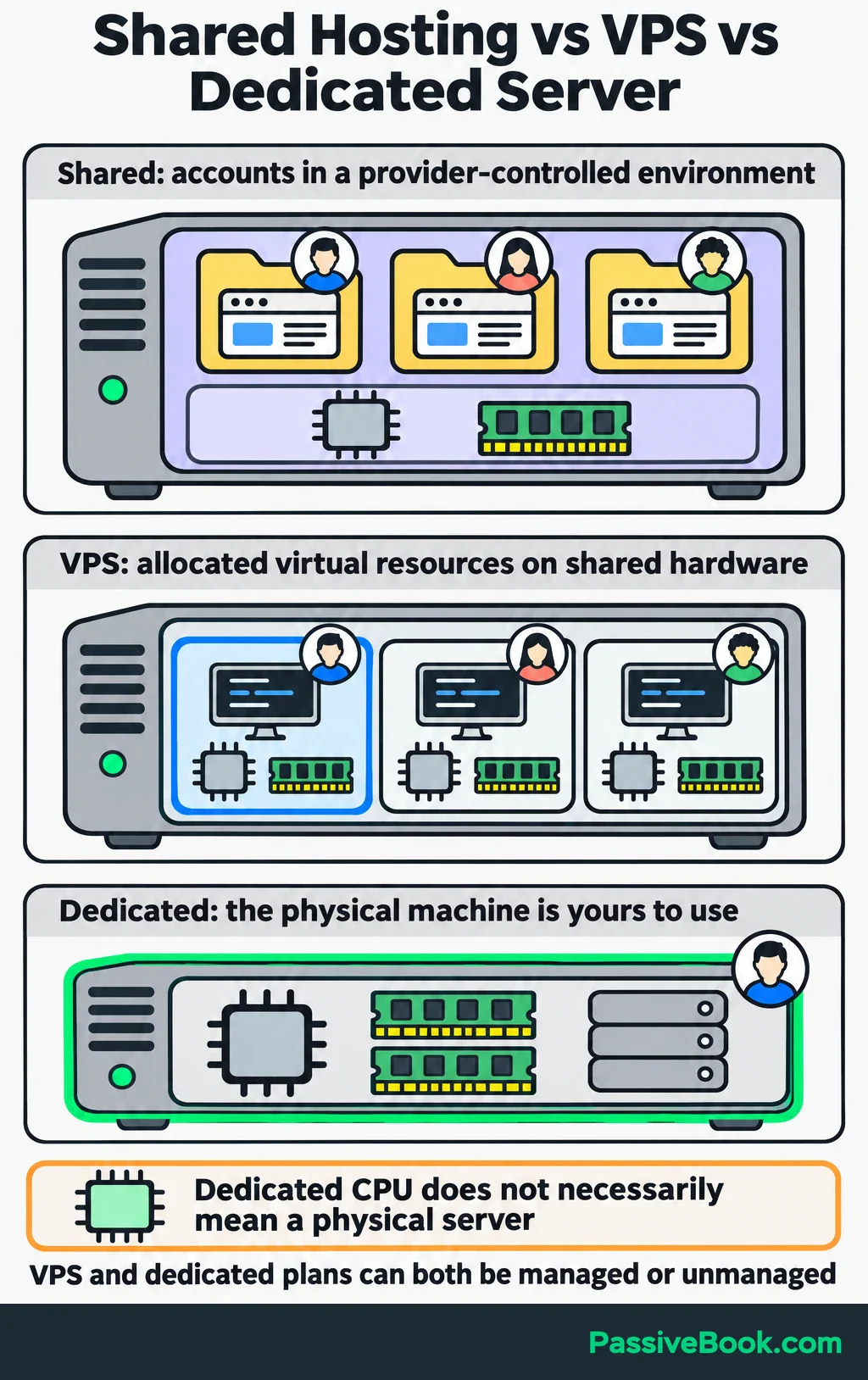
Both VPS and dedicated hosting can be managed or unmanaged.
Read product names carefully, too. I use DigitalOcean, but its “dedicated CPU” Droplets are still virtual machines. They reserve CPU resources without giving you an entire physical server. DigitalOcean explains that distinction here.
Before upgrading, reproduce the slow task and ask your host or administrator to check:
- CPU: Is processing capacity consistently exhausted during the problem?
- Memory: Are services running out of working memory or being stopped?
- Storage: Are disk delays or a nearly full disk slowing requests?
- Application: Are database queries, plugins or external services causing the delay?
- Plan Limits: Is the host restricting simultaneous requests or other resources?
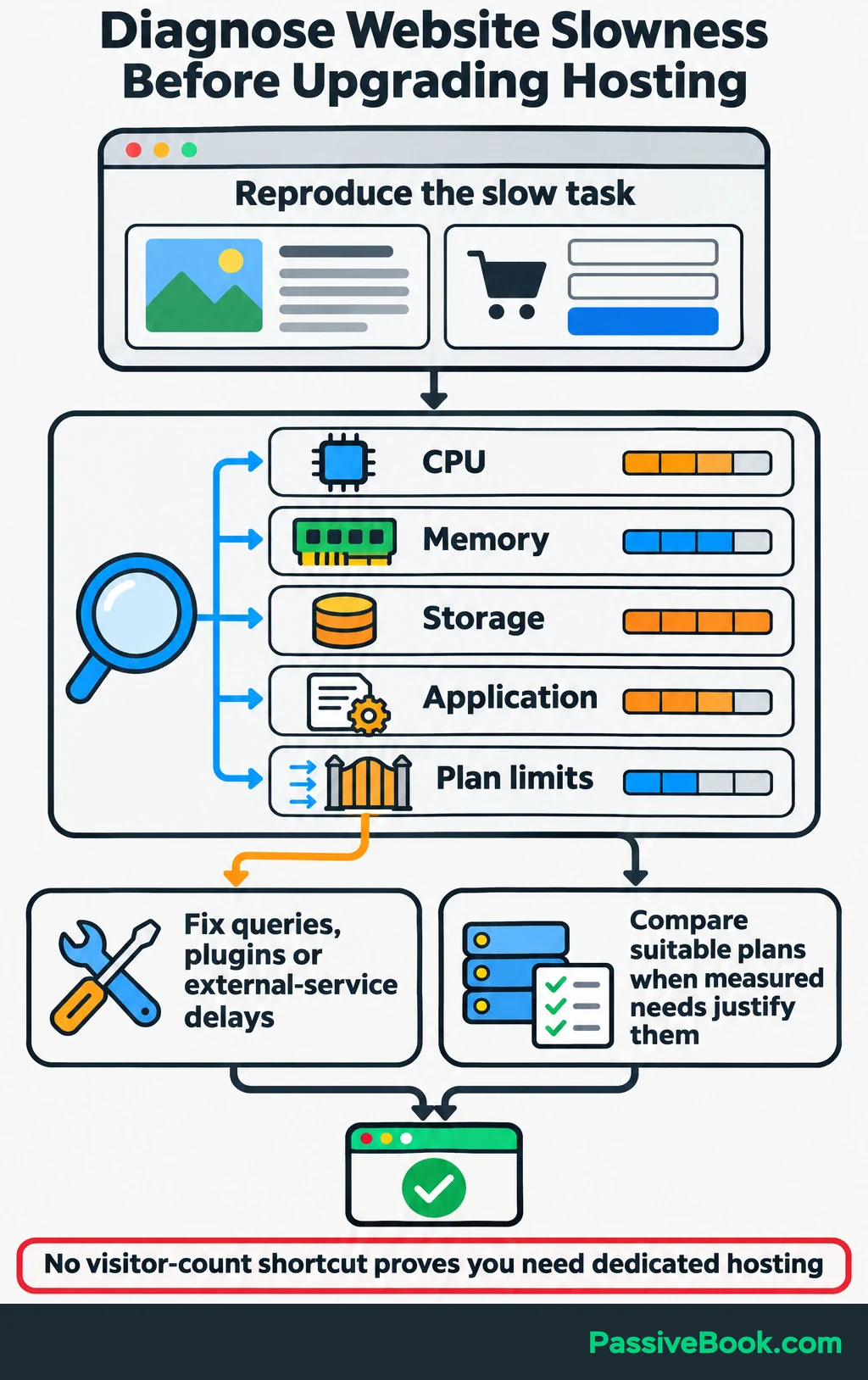
For the cat-care site, test article browsing separately from planner checkout. WooCommerce’s cart, checkout and account pages need customer-specific information and should be excluded from shared page caching. WooCommerce documents these exclusions.
My default would be to keep suitable shared hosting or choose a managed VPS until measurements justify a whole machine. Dedicated hosting makes sense when the required capacity, physical isolation or configuration earns its full operating cost. There’s no useful monthly-visitor threshold that replaces that assessment.
You don’t need to collect every server measurement yourself. This AI tool turns your description of the problem into a support request that asks your host for the evidence behind an upgrade recommendation.

Free AI Provider Buying Assistant
How to Choose a Dedicated Server and Provider
Start with a short specification based on what your website does and where the current limit appears.
For the planner shop, describe the workload plainly: WordPress, WooCommerce, article browsing, checkout, downloadable files and scheduled tasks. Give providers the measurements collected during slow periods so they can recommend hardware based on actual demand.
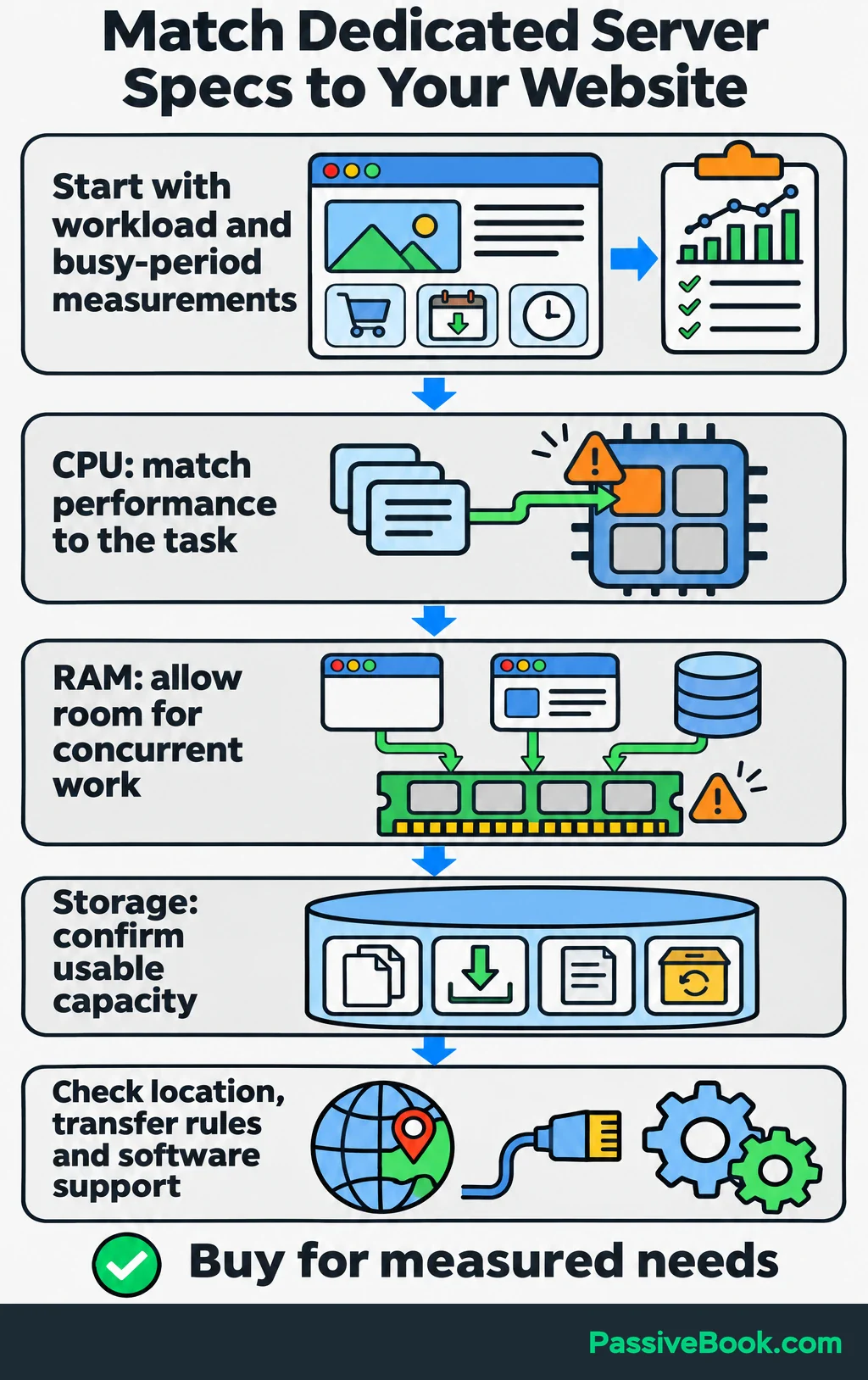
Compare these parts:
- CPU: Match processor performance to the work. More cores won’t necessarily shorten a task that mainly uses one core.
- Memory: Allow room for the operating system, application processes and database during busy periods.
- Storage: Count website files, downloads, database growth, logs and space needed during recovery. Ask for usable capacity after the chosen disk layout.
- Software Compatibility: Confirm support for the Linux release, PHP version, database and any management panel you plan to use.
- Network: Compare connection speed, included data transfer and overage rules. Exclusive server hardware doesn’t give you exclusive use of the provider’s network.
Choose a location that serves visitors and important connected services well. If most customers are in one region, I would start there rather than choosing a distant location for a small rental saving.
Then check what happens when something breaks:
- How long before the server is ready to use?
- Can you access a remote console if normal login fails?
- How are failed components replaced?
- Who answers emergency requests?
- What does the uptime agreement cover, exclude and offer as a remedy?
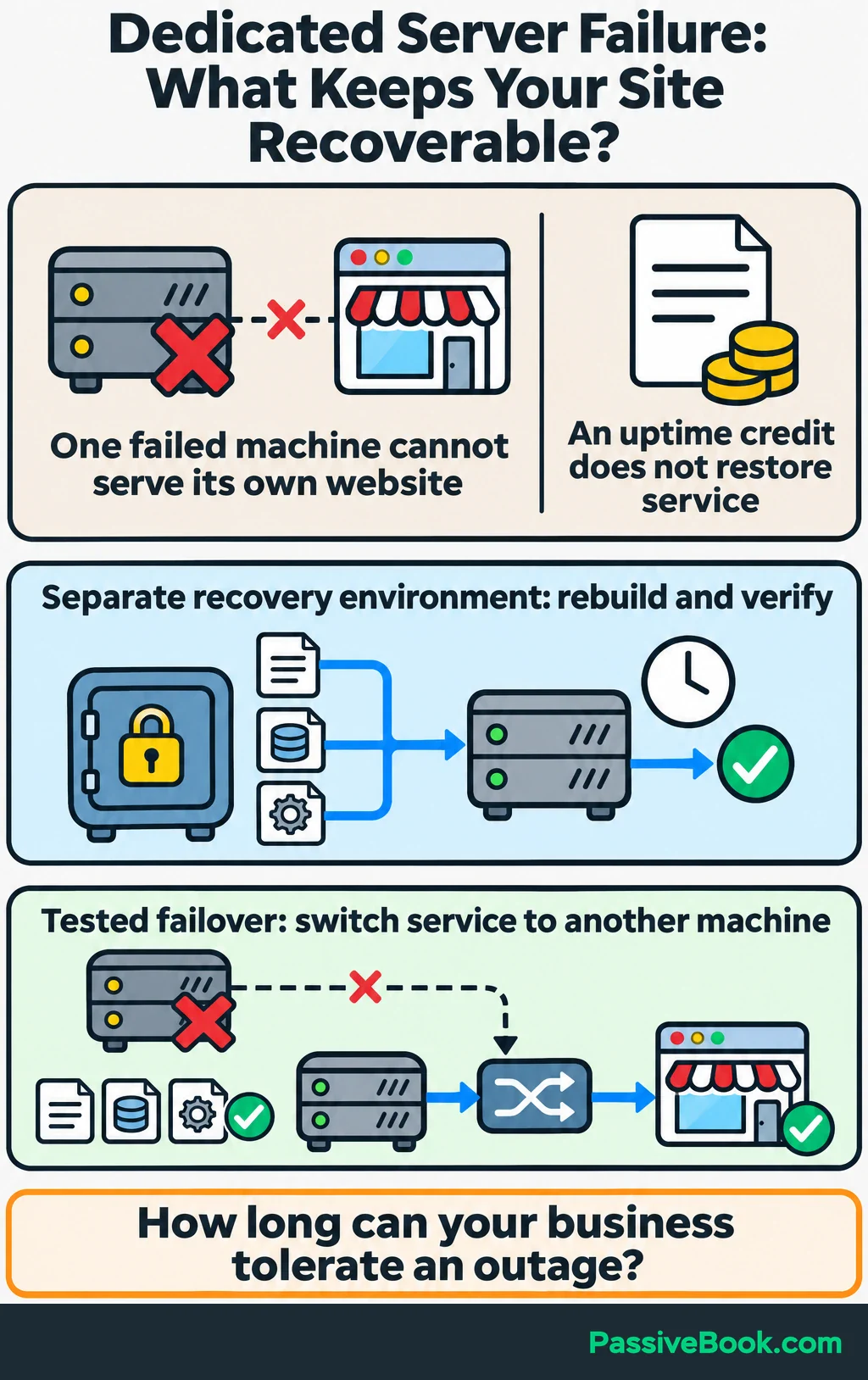
An uptime credit won’t restore the planner shop. Read the recovery arrangements as closely as the uptime promise.
Also ask which upgrades require downtime or migration. A physical machine may need replacement to grow, so confirm how you can export files, databases and configuration.
Finally, decide how long the business can tolerate being unavailable. One server cannot keep serving the website through its own complete failure. If rebuilding from backups would take too long, include a separate recovery environment or a tested system that switches service to another machine.
How to Set up a Dedicated Server Safely
The following path uses Linux and WordPress for the planner shop. It gives you the order of work and the checks to complete; installation commands vary by operating system and management tools.
With managed hosting, assign the relevant steps to the provider and verify the results before moving visitors.
1. Prepare Recovery Access and Provision the Server
Gather access to the hosting account, domain’s DNS settings and connected services. Enable multifactor authentication on the hosting account and store recovery details securely.
For an existing site, collect its files, database, configuration and scheduled-task settings. Make an independent backup before changing anything, and confirm that it can be restored.
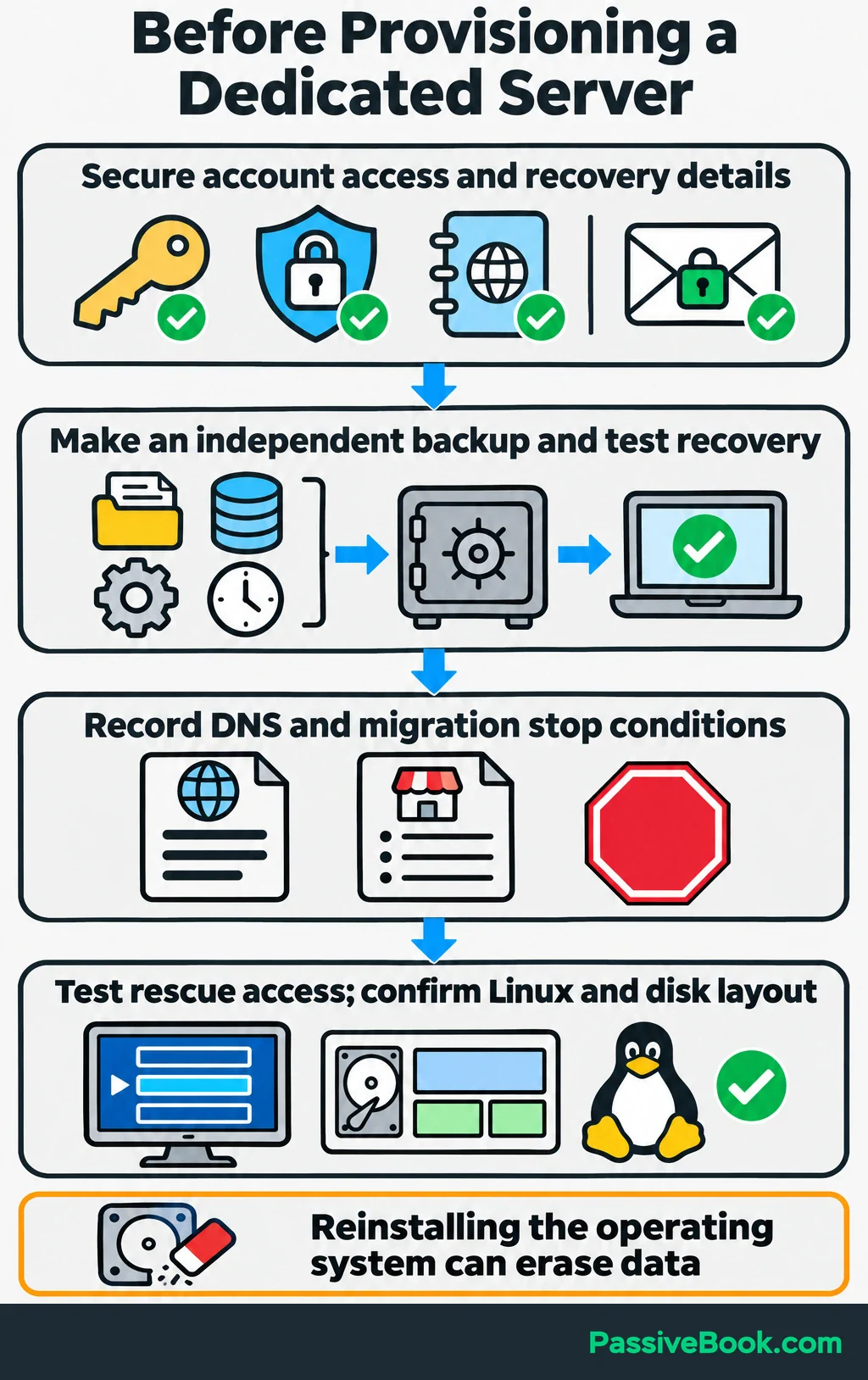
Record the current DNS settings and decide what would stop the migration. Failed checkout or missing order records should stop the move until resolved.
Choose a supported Linux release that works with the website and any control panel. Confirm the disk layout before installation because reinstalling the operating system can erase existing data.
Locate and test the provider’s remote console or rescue procedure. This is your way back in if a later access change goes wrong.
2. Secure Administrative and Network Access
SSH is an encrypted terminal connection used to administer Linux remotely. Before the first connection, verify the server’s SSH host-key fingerprint through a trusted provider channel. The fingerprint helps confirm you’re connecting to the intended machine.
Apply available operating-system security updates, then create a named administrator account. Set it up to log in with an SSH key pair: the public key goes on the server, and the private key stays protected on your device.
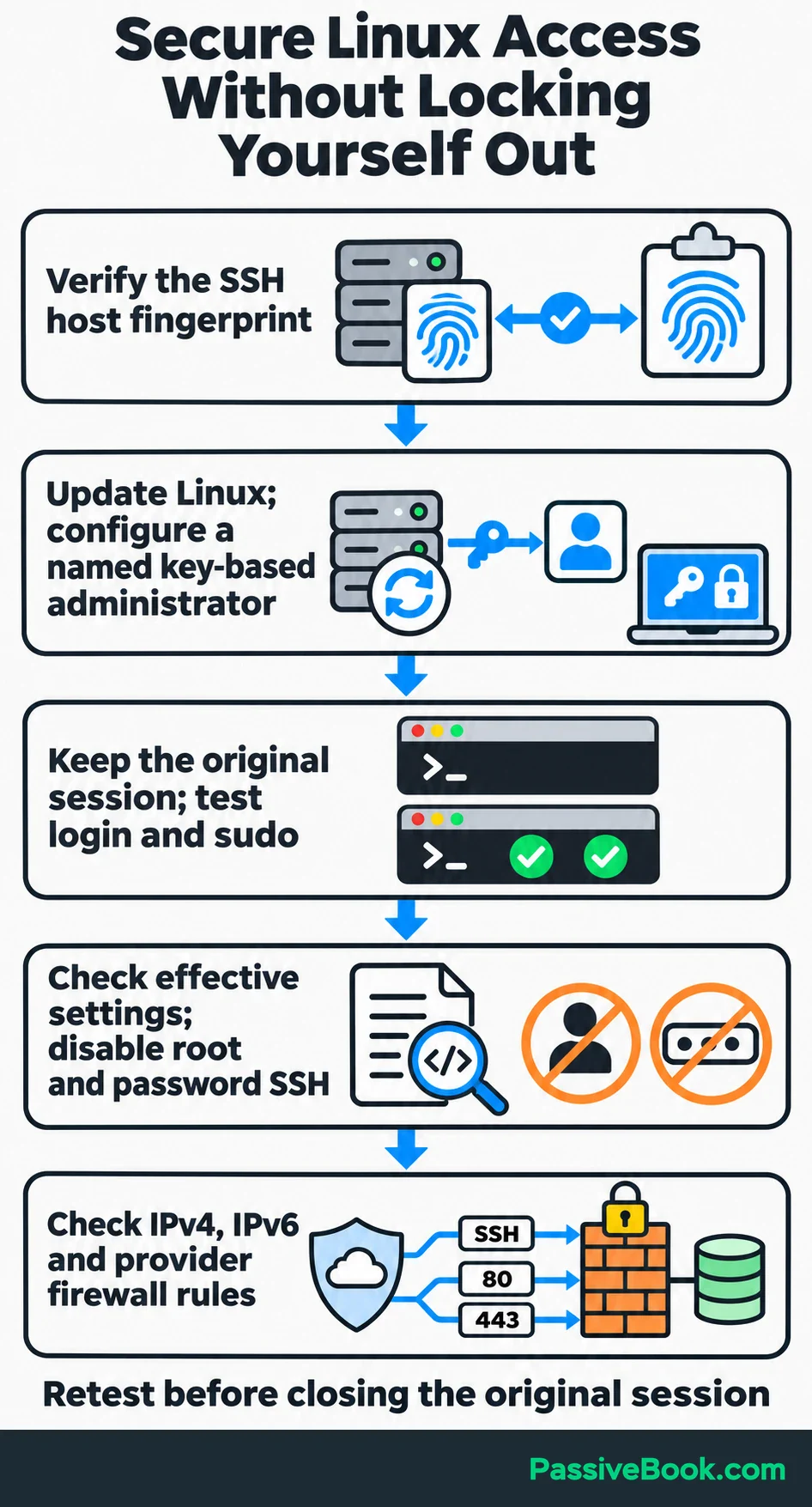
Keep the original session open while you test a second login and confirm that the new account can run administrative commands.
Once that works, disable direct SSH login as root, the unrestricted administrator account, and disable password-based login methods. Check which settings SSH will actually use, because another configuration file can take precedence over the one you edited.
On Ubuntu, sudo sshd -t checks configuration syntax before you apply a change. It doesn’t prove that your next login will work, so test again afterward. Ubuntu’s OpenSSH guidance explains the configuration checks.
Before enabling a firewall that blocks unsolicited incoming connections:
- Administration: Allow the working SSH port.
- Website: Allow TCP ports 80 and 443 for HTTP and HTTPS.
- Database: Keep access private rather than exposing it publicly.
- Address Coverage: Check both address types, IPv4 and IPv6, as well as any separate firewall supplied by the host.
Retest access before closing the original session.
3. Install the Website Software
WordPress needs a web server, PHP to run its code and a database to store its content and settings. A common setup uses Nginx or Apache with PHP and MariaDB or MySQL.
Choose maintained versions compatible with the site and plugins. Check WordPress’s published requirements rather than copying versions from an old installation tutorial. A supported management panel can handle installation if it fits your maintenance plan.
Create a database user limited to the website’s database. Configure file ownership and permissions so the application has the access it needs without making everything writable. Protect credentials and prevent public downloads of configuration files or database backups.
For a new website, run the WordPress installer against the new database.
For a migration, copy the existing files, import the database and update its connection details. Keep the existing domain and URLs when the website address isn’t changing; a hosting move doesn’t require a rebrand.
Configure planner downloads, scheduled tasks and transactional email. I would use the FluentSMTP plugin to send WordPress emails through an email-delivery service rather than manage a mail server too.
Keep production notifications and scheduled jobs disabled on the copied site during preparation. You don’t want both hosts sending customer emails or processing the same scheduled work.
4. Configure HTTPS
HTTPS encrypts traffic between the visitor’s browser and the website. Install a valid certificate covering the domain names you use, then configure redirects from HTTP to HTTPS.
For an existing site, obtain the certificate before moving visitors. DNS-01 validation proves domain control through a DNS record, so it can issue a certificate without pointing website traffic at the new server. Let’s Encrypt explains how DNS-01 works.
Automate renewal and use DNS credentials restricted to the permissions needed for validation. Avoid storing unrestricted access to your entire DNS account on the web server.
Test renewal, then check that pages, images and checkout load securely without warnings.
If visitors reach your site through Cloudflare, encrypt the connection from Cloudflare to your server and validate the server’s certificate. Cloudflare’s Full (strict) mode does both.
5. Establish Backups and Monitoring
Decide how much recent data you can afford to lose and how long recovery can take. Those answers should determine the backup schedule and recovery plan.
Losing a day’s edits on an article site is different from losing a day’s planner orders. Set database-backup frequency around the shop’s order activity, and include customer accounts and download permissions.
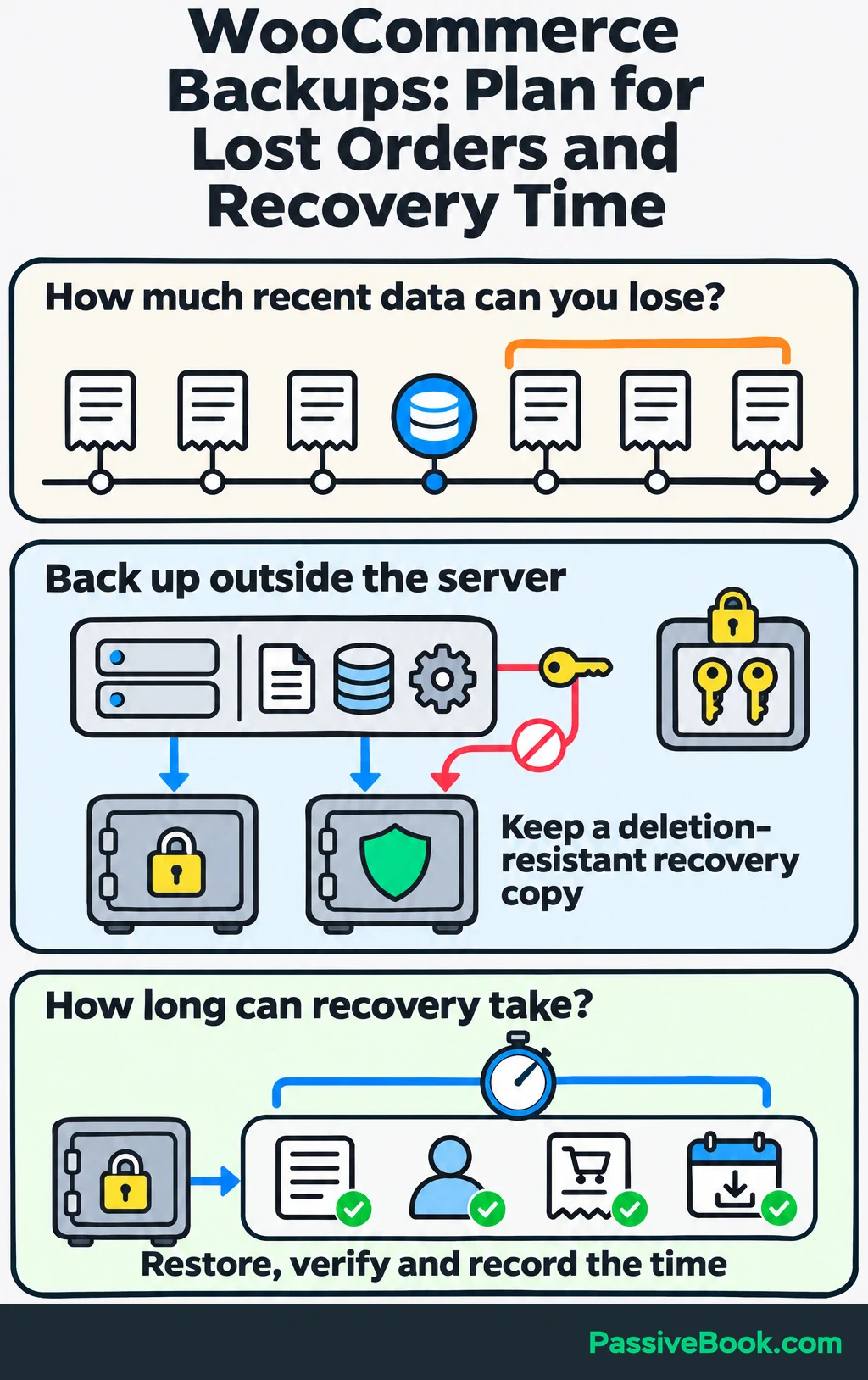
Automate encrypted backups of files, databases and configuration to storage outside the server. Restrict access to the people responsible for testing and restoring them. These protections and regular recovery checks follow the Canadian Centre for Cyber Security’s backup guidance. I would also retain a recovery copy that ordinary server credentials cannot delete.
Restore a backup into a separate test environment. Check articles, accounts, order records and downloadable planners, and record how long restoration takes. Keep the credentials and encryption keys needed for recovery available securely outside the failed server.
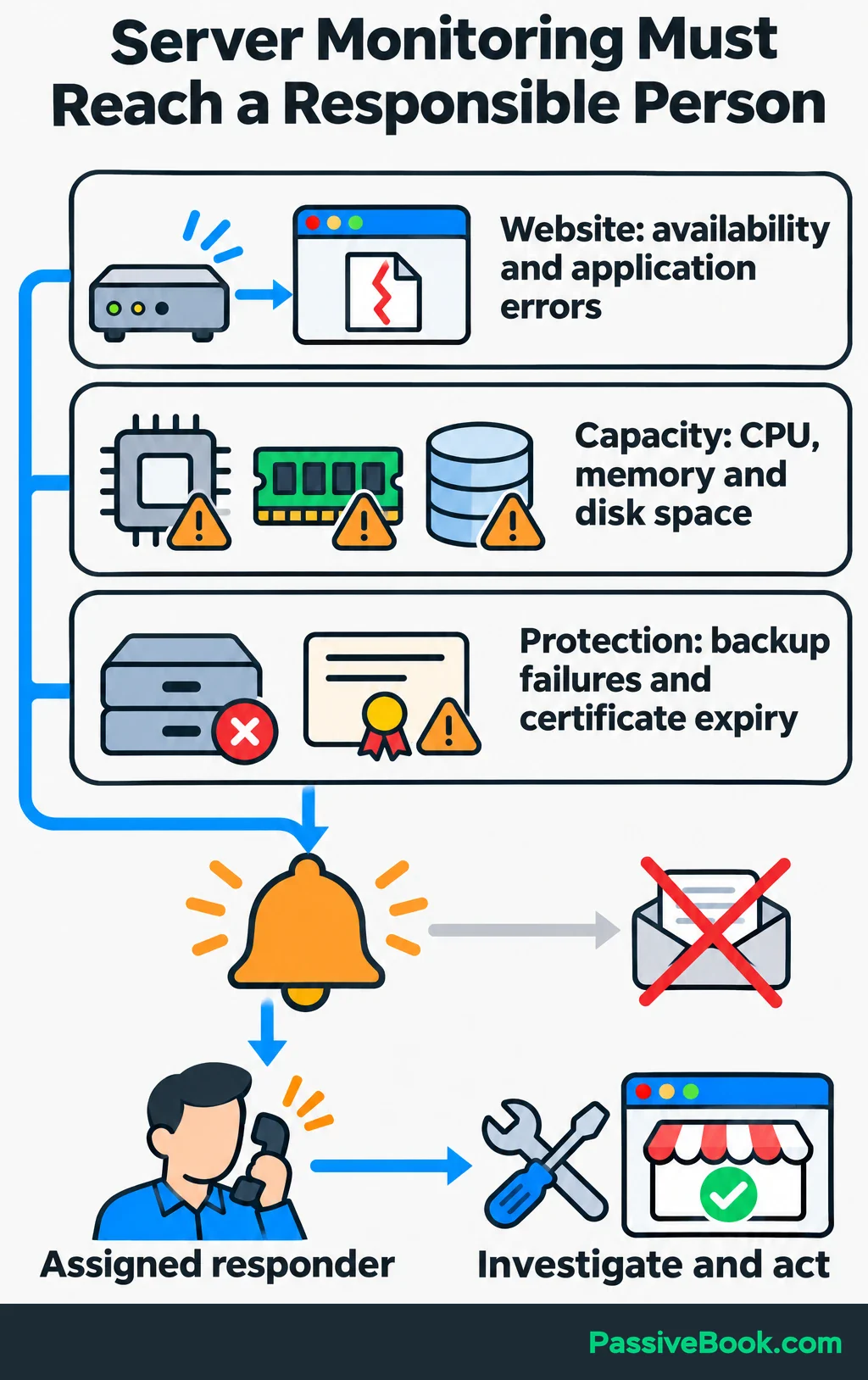
Then configure external availability checks and alerts for:
- Website Failures: Unavailable pages and application errors.
- Capacity Problems: Exhausted memory, heavy CPU use and low disk space.
- Protection Failures: Failed backups and approaching certificate expiry.
Send alerts to the person responsible for responding. An alert buried in an unattended inbox is a very quiet monitoring system.
6. Test the Website Before Switching Visitors
Preview the new machine using a local hostname override. This maps your existing domain to the new server on your computer while everyone else continues using the live site.
Check the whole customer journey:
- Open articles, images and redirects.
- Log in and test forms and account pages.
- Add a planner to the cart and complete checkout using the payment provider’s supported test mode.
- Confirm the test order, receipt and download permission.
- Run scheduled tasks in a controlled way and check their results.
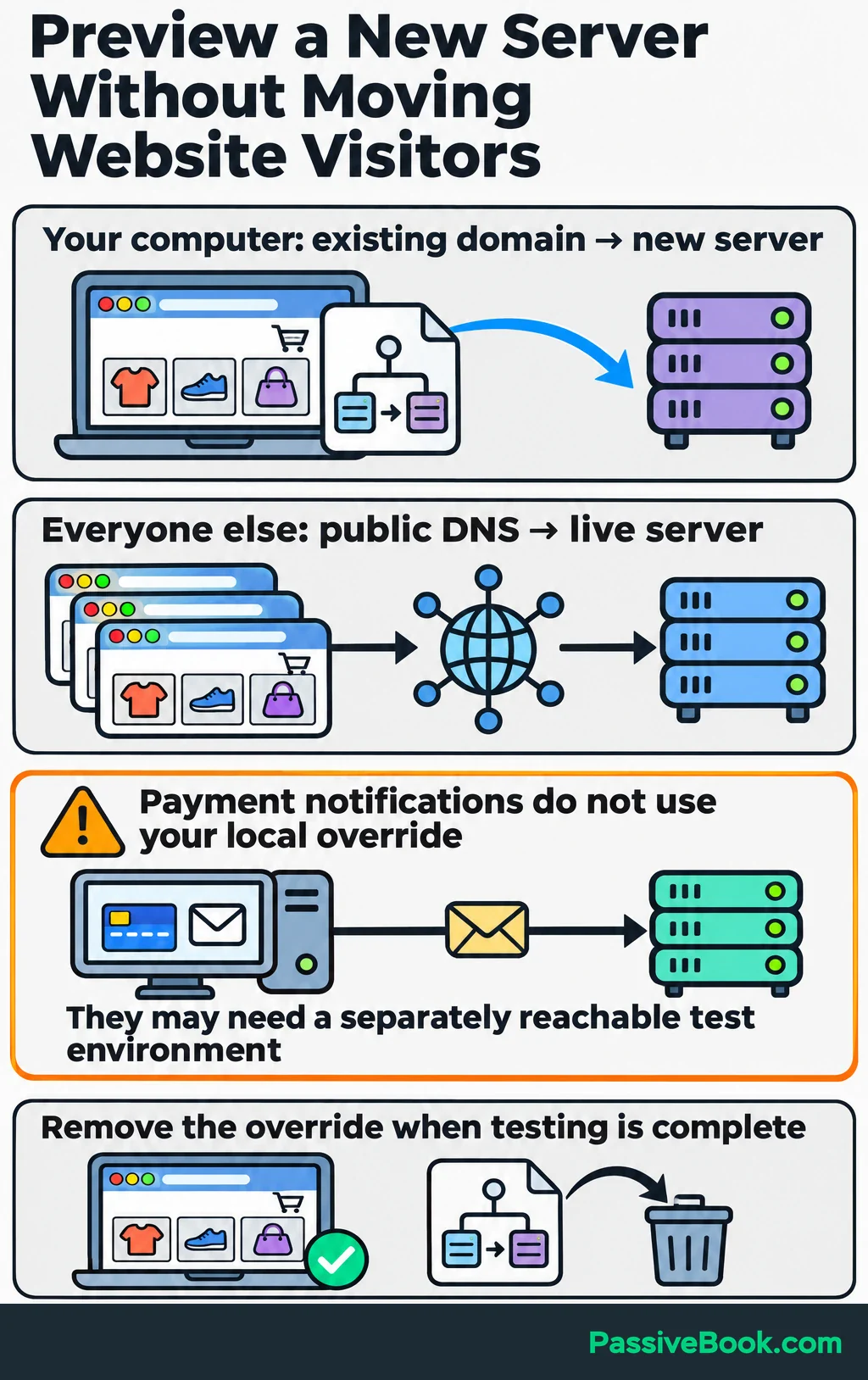
Route test emails to an address you control, and keep real customer notifications and other live integrations disabled on the test copy.
A local override changes only your computer. Your payment provider sends payment-status notifications from its own systems, so testing them may require a separate environment the provider can reach.
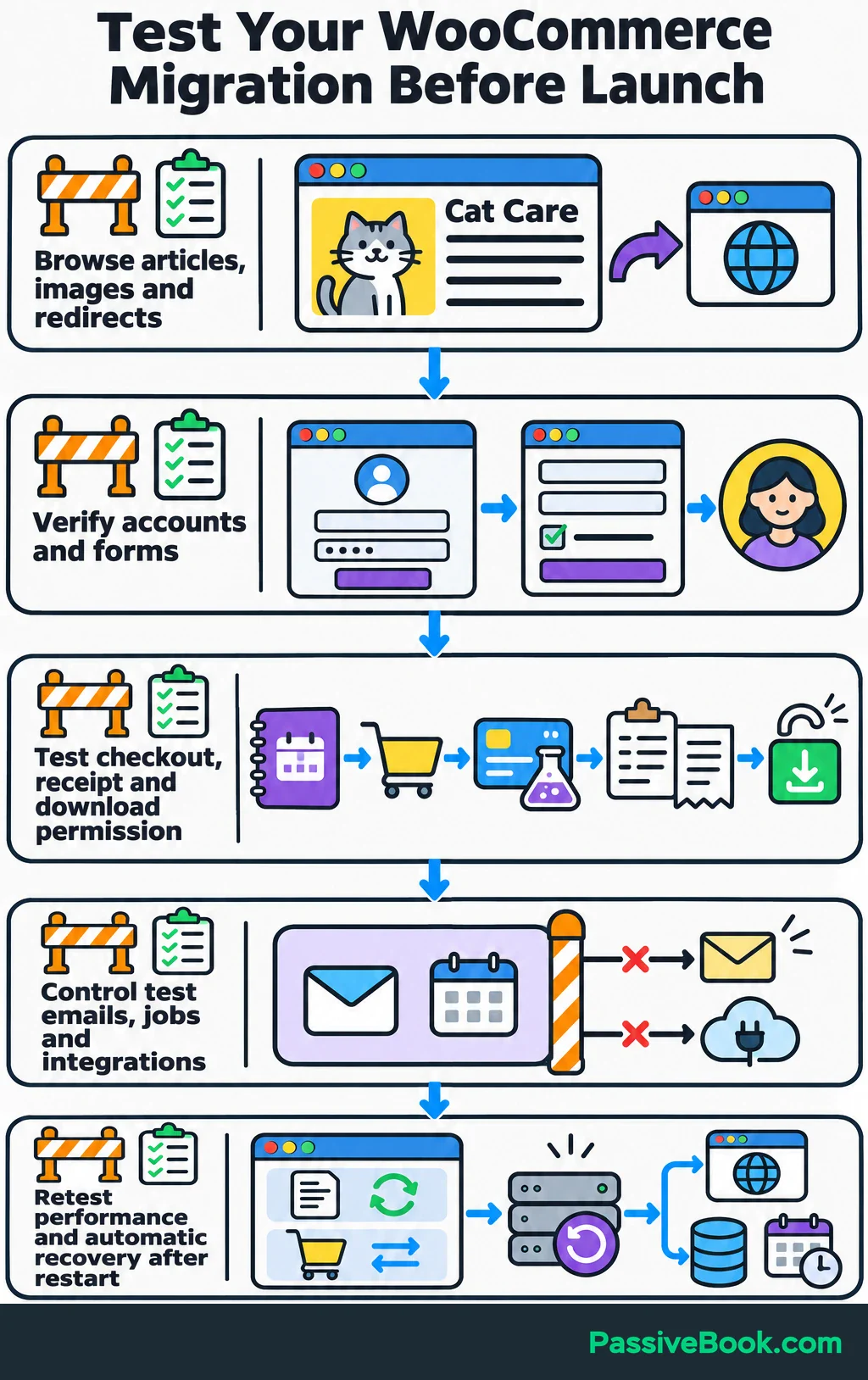
Repeat the tasks that exposed the original slowdown using representative cached article requests and dynamic shop requests. Resolve errors and confirm enough spare capacity before launch.
Finally, perform a planned restart. Verify that the web server, database, scheduled services and website recover automatically. Remove the local override when testing is complete.
7. Move Traffic and Verify the Migration
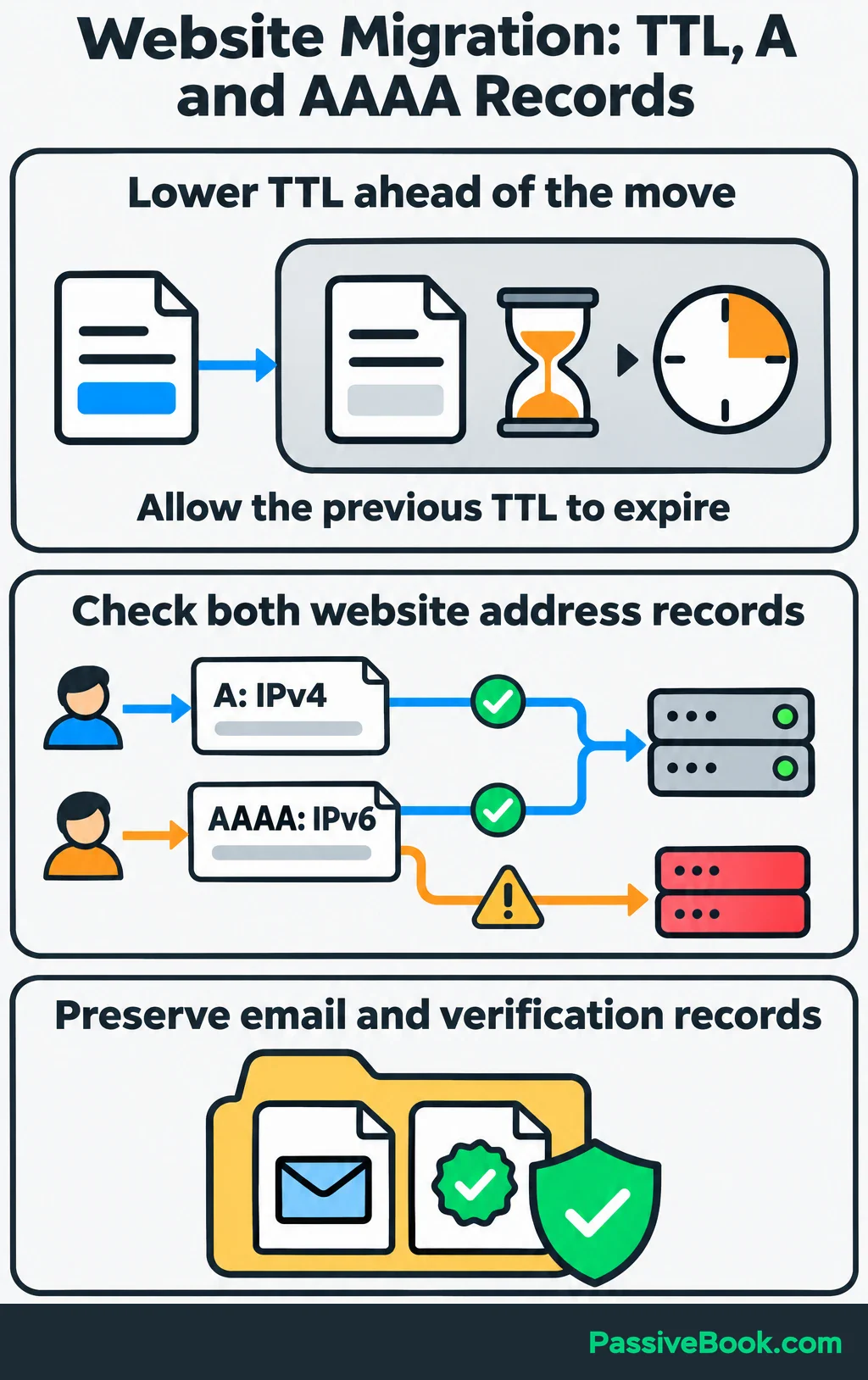
For an existing website, lower the website DNS records’ time to live, or TTL, ahead of the move. TTL tells DNS resolvers how long to cache a record. Allow the previous TTL to expire before the switch.
Preserve email and verification records, and identify both IPv4 website records, called A records, and IPv6 records, called AAAA records. An unchanged AAAA record can keep some visitors reaching the old server.
For the planner shop, use a planned maintenance window for the final transfer:
- Pause orders and other changes on the old site, and control background tasks and incoming payment updates.
- Synchronize changed files and transfer a consistent database copy.
- Verify the new copy and prepare production payment, email and scheduled-task settings.
- Point the website’s DNS records to the new server.
- Check HTTPS, checkout, downloads and email, then reopen orders and enable production jobs on the new host.
Prevent the old site from accepting conflicting transactions while cached DNS records expire. Monitor both environments and investigate application errors or failed payment notifications.
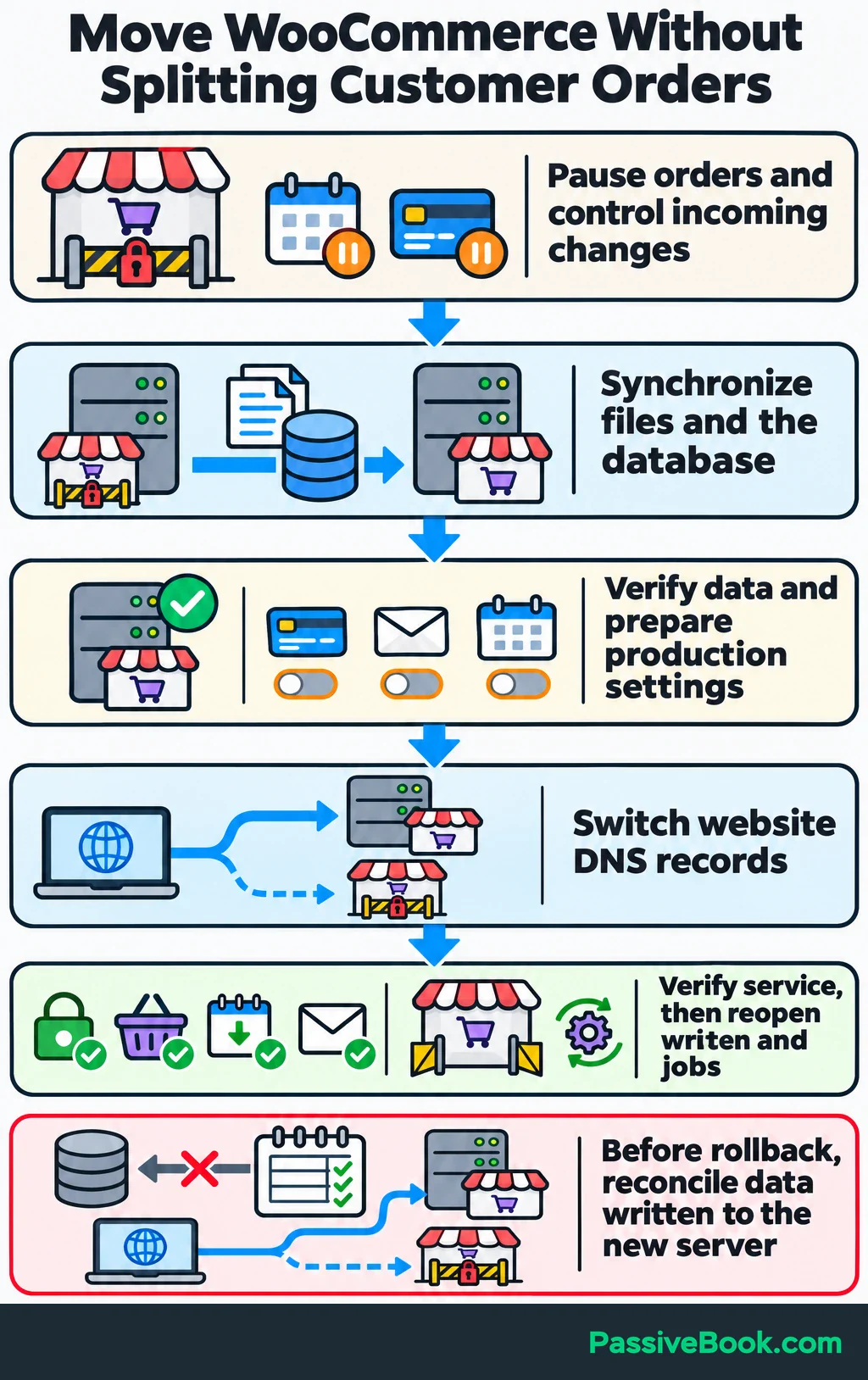
Keep the old hosting until the new site and its backups are verified. If you need to reverse the move, first reconcile any orders and other data written to the new server. Sending traffic back to an older database can discard those changes.
Retire the old environment after the new site and recovery process work. For a brand-new website, publish after testing; there’s no old database to synchronize or hosting account to retire.
What Maintenance Does a Dedicated Server Need?
A dedicated server needs ongoing ownership after launch. Put maintenance on a schedule and name the person responsible, even when that person is a provider.
- Updates: Maintain Linux, the web server, PHP, database, WordPress, themes and plugins. Test consequential changes and plan required restarts.
- Operational Checks: Review availability, application errors, disk health, resource use and backup results.
- Recovery Checks: Repeat restores after meaningful infrastructure or application changes, and verify that alerts still reach the right person.
- Capacity Reviews: Watch busy-period demand and growth. Tune the constrained component or plan an upgrade before it becomes urgent.
Confirm exactly what automatic updates cover. On Ubuntu, software from an added third-party source isn’t automatically included in unattended updates. Ubuntu’s update documentation explains how to include those sources.
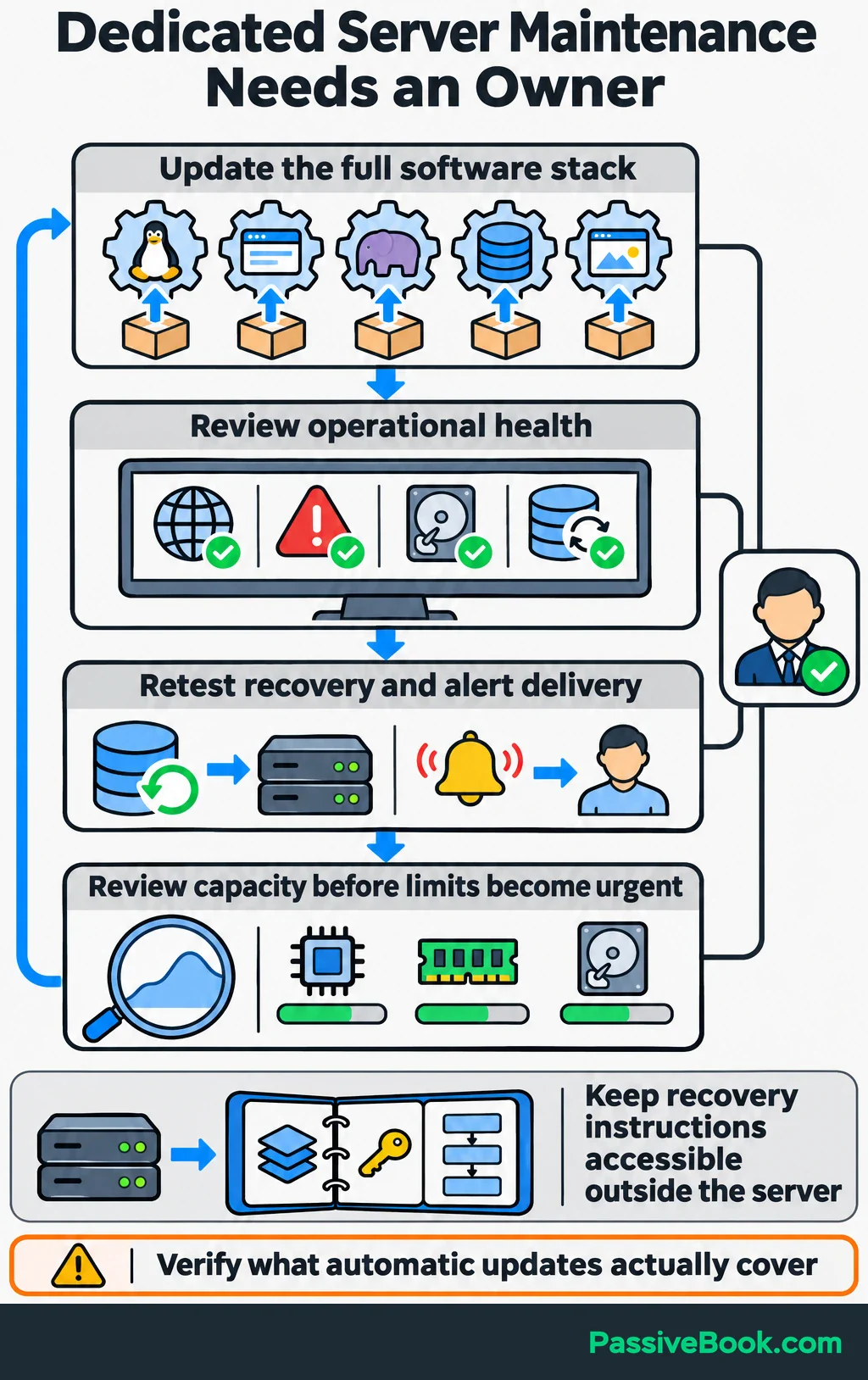
Keep a short recovery document listing services, important configuration, access ownership, restoration steps and provider escalation details. Store it somewhere you can reach when the server is unavailable.
I would also retain portable file backups, database exports and configuration records. Moving later should be a planned business decision, not an archaeological project.
What Next?
Write down one hosting problem you can reproduce, then ask your current host for the measurements behind it. Use that evidence to compare a suitable VPS with a dedicated server, including management and recovery costs.
If this guide helped turn a confusing upgrade into a clearer decision, use the social buttons to share it with your business community.
What would dedicated hosting need to solve for you to justify the extra cost and upkeep? Leave your answer—and any other questions—in the comments.
Share this post with your friends & followers: