Your hosting plan looks cheap until you try to work out what happens when traffic jumps, checkout stops working, or a backup needs restoring. The sales page promises speed, but says less about who fixes the problem.
You could end up paying for capacity you don’t need or taking on server work you don’t have time for. To make that tradeoff clearer, this guide explains how cloud hosting works, builds a monthly budget, and compares hosting options so you can judge whether a move is worth the cost and upkeep.
What Is Cloud Hosting?
Cloud hosting runs your website or application on computing resources rented from a provider’s pool of physical equipment. You rent processing power, memory, storage, and network access instead of buying and maintaining a server.
Your website might run on one virtual server, which is a separate computing environment created through software. Or it might use several servers and separate services for its database and files.
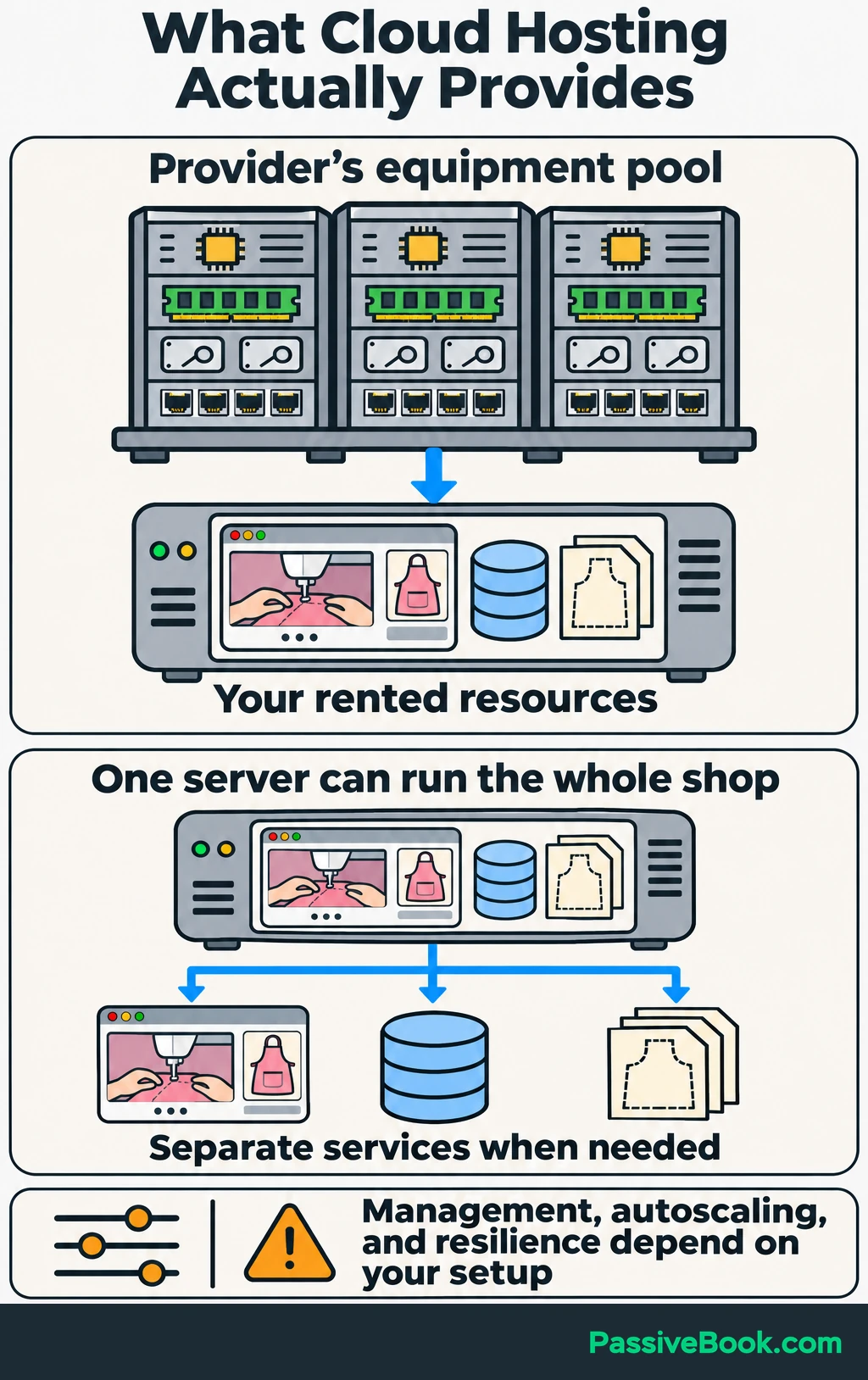
The word “cloud” does not tell you how much of that setup is managed. It also does not promise automatic scaling or uninterrupted access. Those features depend on what you buy and how it is configured.
Throughout this article, imagine you run a sewing website with tutorials and downloadable apron patterns. WordPress runs the website, and its WooCommerce plugin adds the shop. The shop and its workload figures are illustrations.
You could host that entire website on one cloud server. As it grows, you could increase the server’s resources or move parts of the website into separate services. You do not need a complicated setup just because those options exist.
How Does Cloud Hosting Work?
The Resources That Serve Your Website
A cloud provider owns physical servers in data centers. Software called virtualization divides that equipment into separate virtual servers, each with its own operating environment.
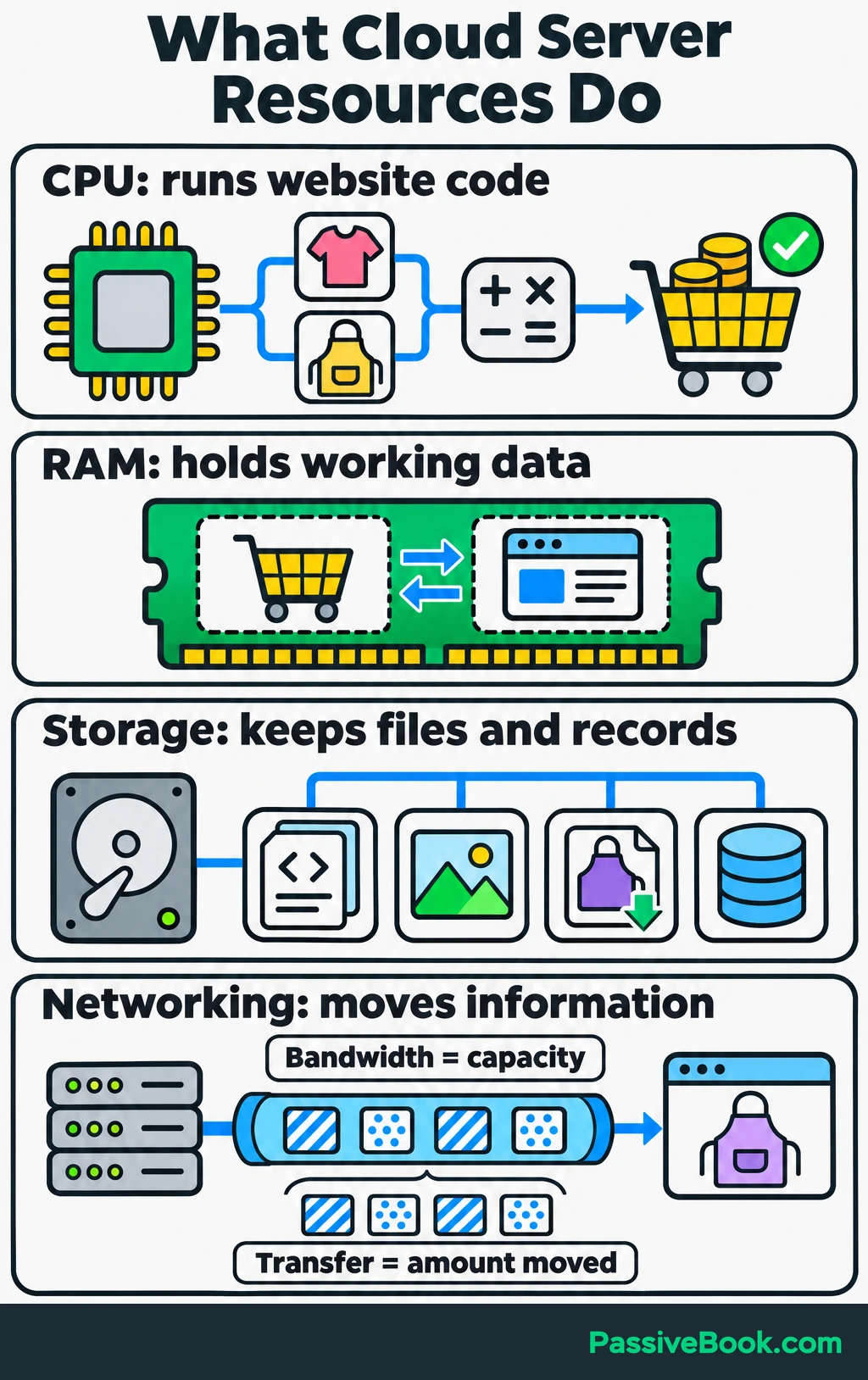
The main resources have different jobs:
- CPU: Processes requests and runs code, such as calculating a cart total.
- RAM: Holds data the server needs while it works. Too little can cause slowdowns or failed requests.
- Storage: Holds your website software, images, downloadable files, and database records.
- Networking: Moves information between your server and visitors. Bandwidth describes connection capacity; data transfer describes how much information moves.
When someone opens an apron tutorial, the visit usually follows this path:
- DNS, the system that looks up domain names, directs the browser toward your hosting service.
- The server runs WordPress and reads the information it needs from the database.
- It sends the page back to the browser.
A cache can save a reusable version of a page, so WordPress does not have to build it again for every visitor. A content delivery network, or CDN, can serve cached content from locations closer to visitors.
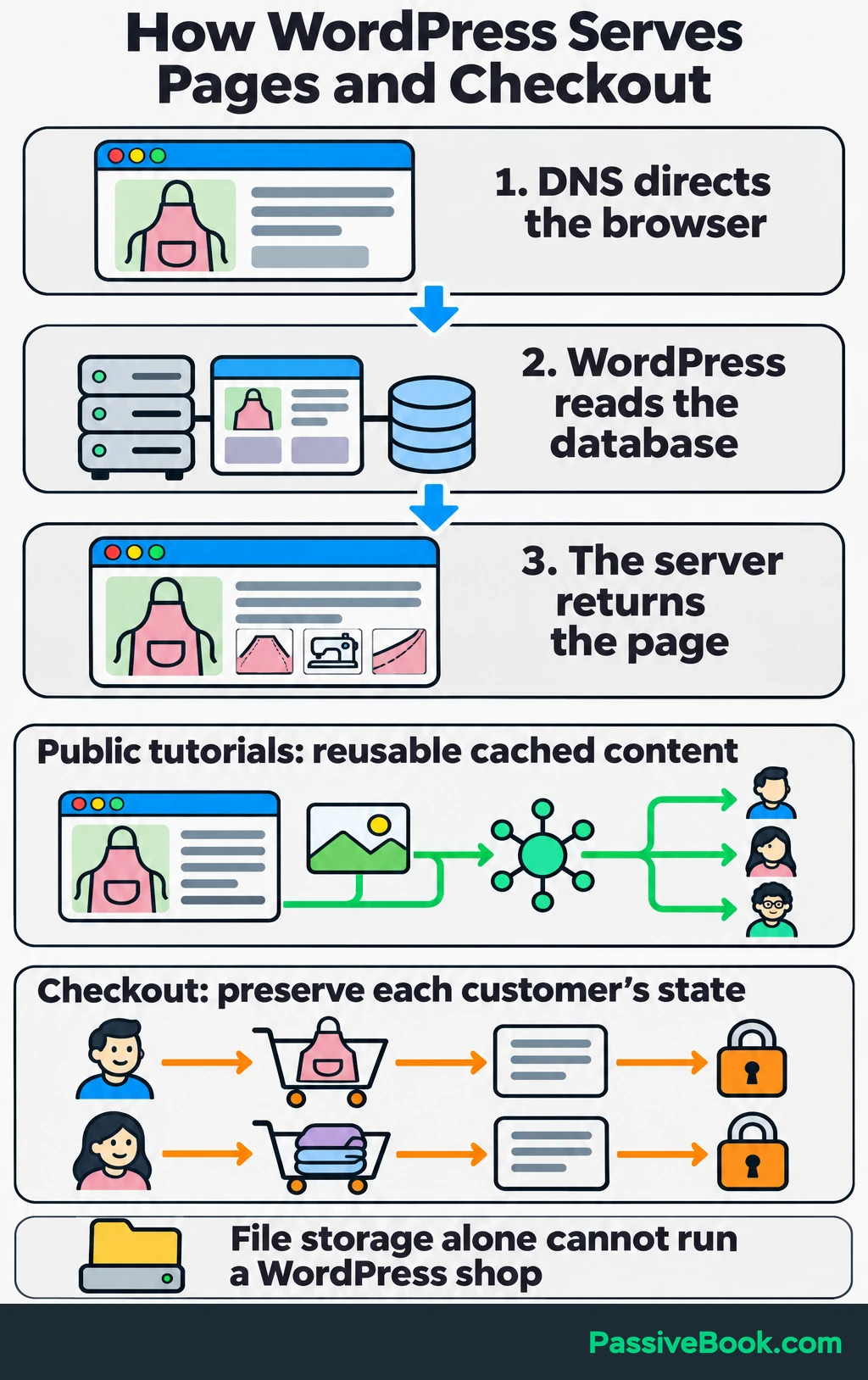
That works well for public tutorials and images. Checkout needs to handle each customer’s cart and payment state correctly, so it cannot be treated like a reusable public page.
WordPress, its database, and your pattern files can all share one server. Separate file storage can hold downloads, but storage alone cannot run a dynamic WordPress shop.
How Websites Scale
Scaling means adding capacity when the website needs more resources. There are two main approaches.
- Vertical scaling: Give one server more CPU, RAM, or storage.
- Horizontal scaling: Add servers and use a load balancer to distribute requests between them.
Vertical scaling is usually easier to understand and manage. Horizontal scaling requires the servers to work together, including consistent access to orders, uploaded files, and customer sessions.
Autoscaling adjusts capacity using rules you set. It needs a service that supports it and an application that can use the extra capacity. Buying an ordinary cloud server does not switch it on.
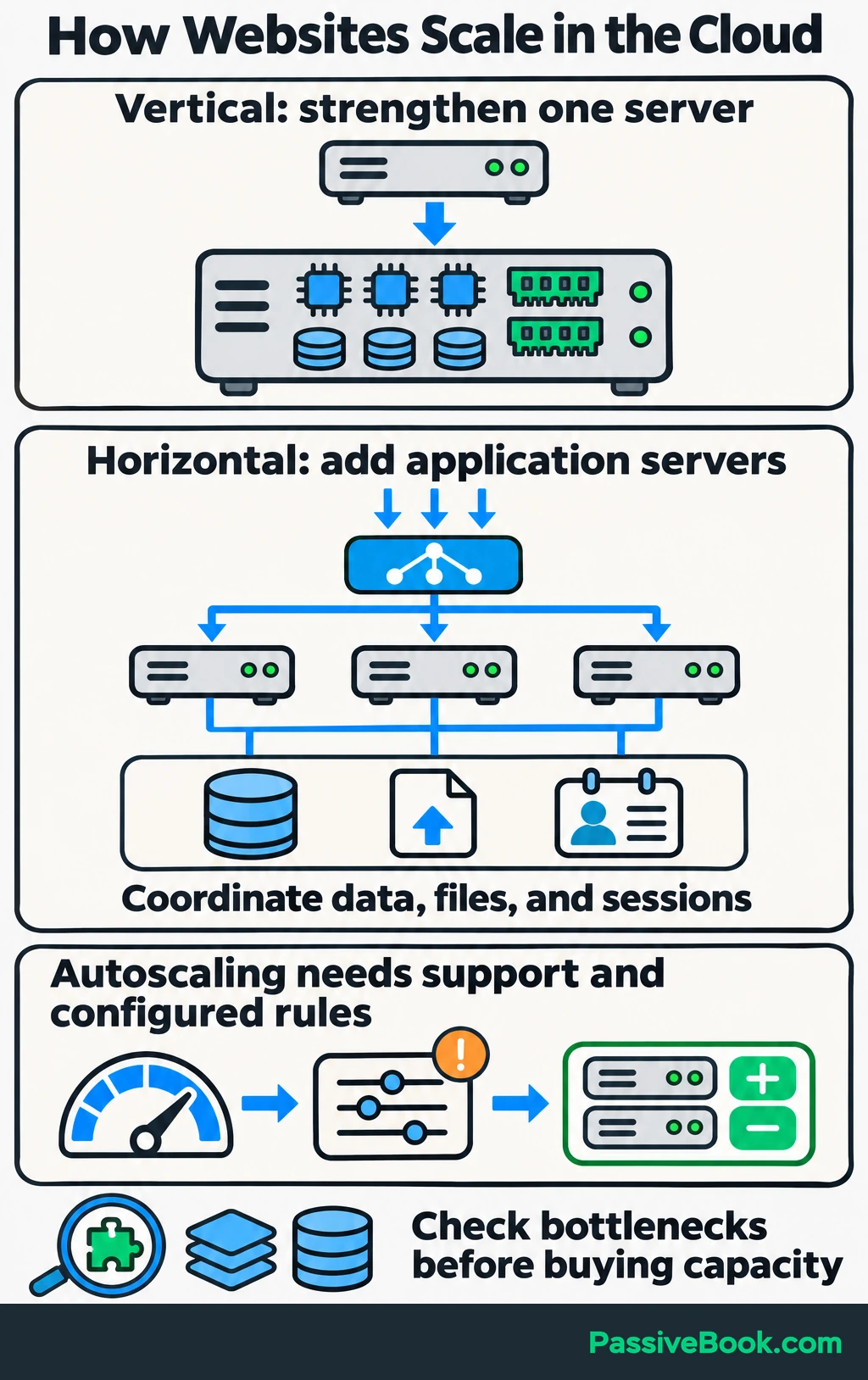
For the sewing shop, a busy tutorial and a busy checkout create different demands. Cached tutorial pages may need little work from WordPress, while several simultaneous purchases require fresh database activity.
I would check caching, slow plugins, and database problems before paying for a larger server. More resources can give inefficient code a larger room to make a mess in.
Also check whether upgrades interrupt service. DigitalOcean calls its virtual servers Droplets, and requires them to be powered down before resizing. Plan that work before a promotion, rather than discovering the requirement during it.
What Happens When a Server Fails?
A single cloud server can still be a single point of failure. If it stops working, your website may stop with it.
Automatic replacement can help, but replacement takes time. It also needs the right software, files, and data before it can serve customers.
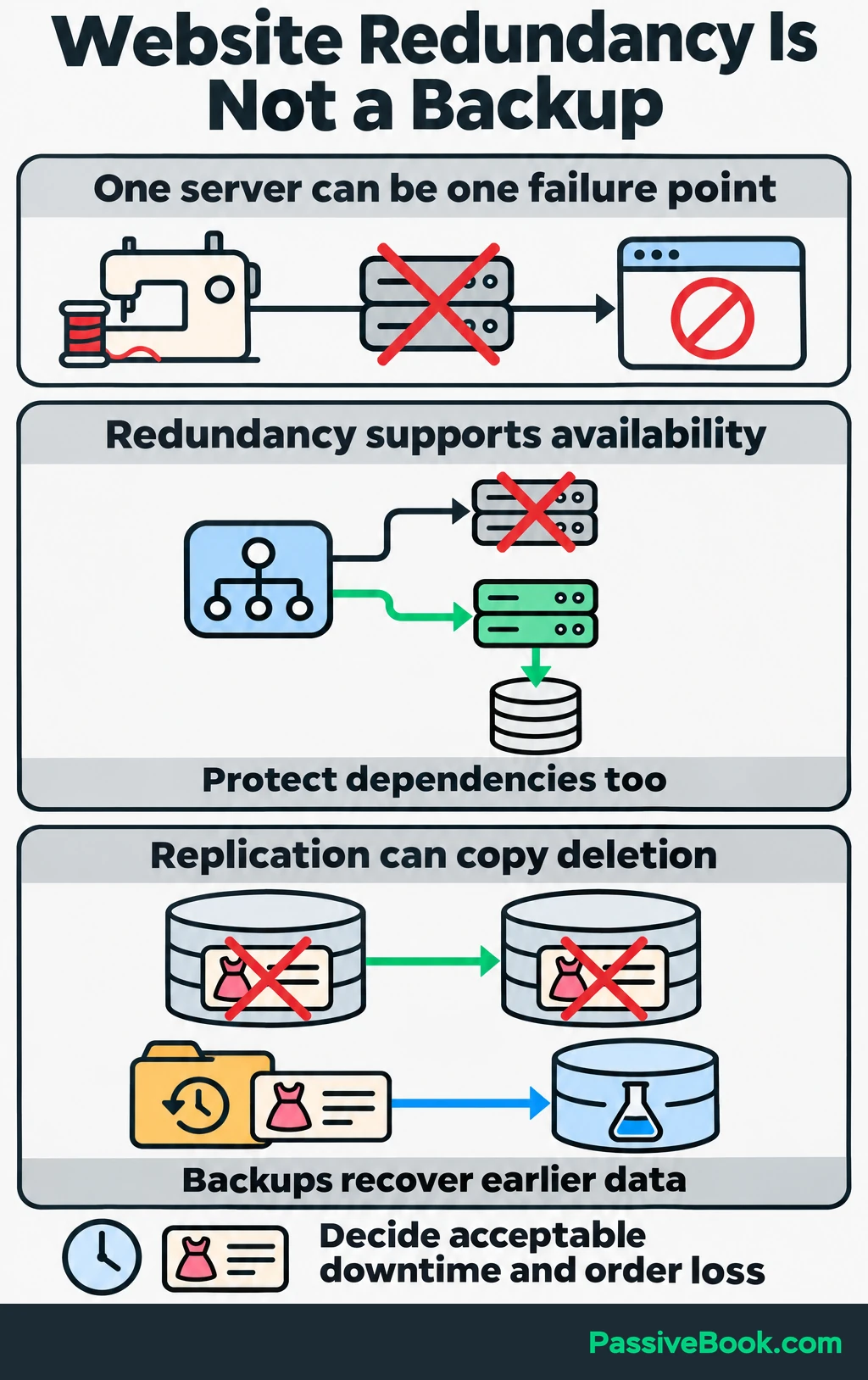
A more resilient setup might use several application servers, traffic routing that avoids unhealthy servers, and a database designed to survive a failure. Separate infrastructure locations can reduce exposure to a data-center problem. The protection must cover the website’s dependencies too, as AWS’s reliability guidance explains.
Backups solve a different problem. Redundancy helps keep the shop available; backups let you recover earlier data after deletion, corruption, or loss. A live database copy can copy an accidental deletion too.
For the sewing shop, the decision is practical: how long can purchases be unavailable, and how many recent orders could you afford to reconstruct? Better protection costs more, so buy it around the consequences of failure.
What Are the Benefits of Cloud Hosting?
Cloud hosting gives you useful options, but each benefit depends on the service and setup.
- Adjustable capacity: Increase resources as the website grows without purchasing hardware. The sewing shop could add capacity before launching a pattern bundle.
- Resource control: Choose a combination of processing power, memory, and storage that fits the work. A download-heavy website has different needs from one running complex searches.
- Flexible spending: Choose bundled resources or separately metered services. A simple bundle can make budgeting easier, but reserved capacity still costs money during quiet periods.
- Recovery options: Add backups, redundant services, and recovery procedures according to what an interruption would cost the business.
- Less hardware work: The provider maintains the physical equipment. Responsibility for operating-system updates, WordPress, and troubleshooting depends on the management service.
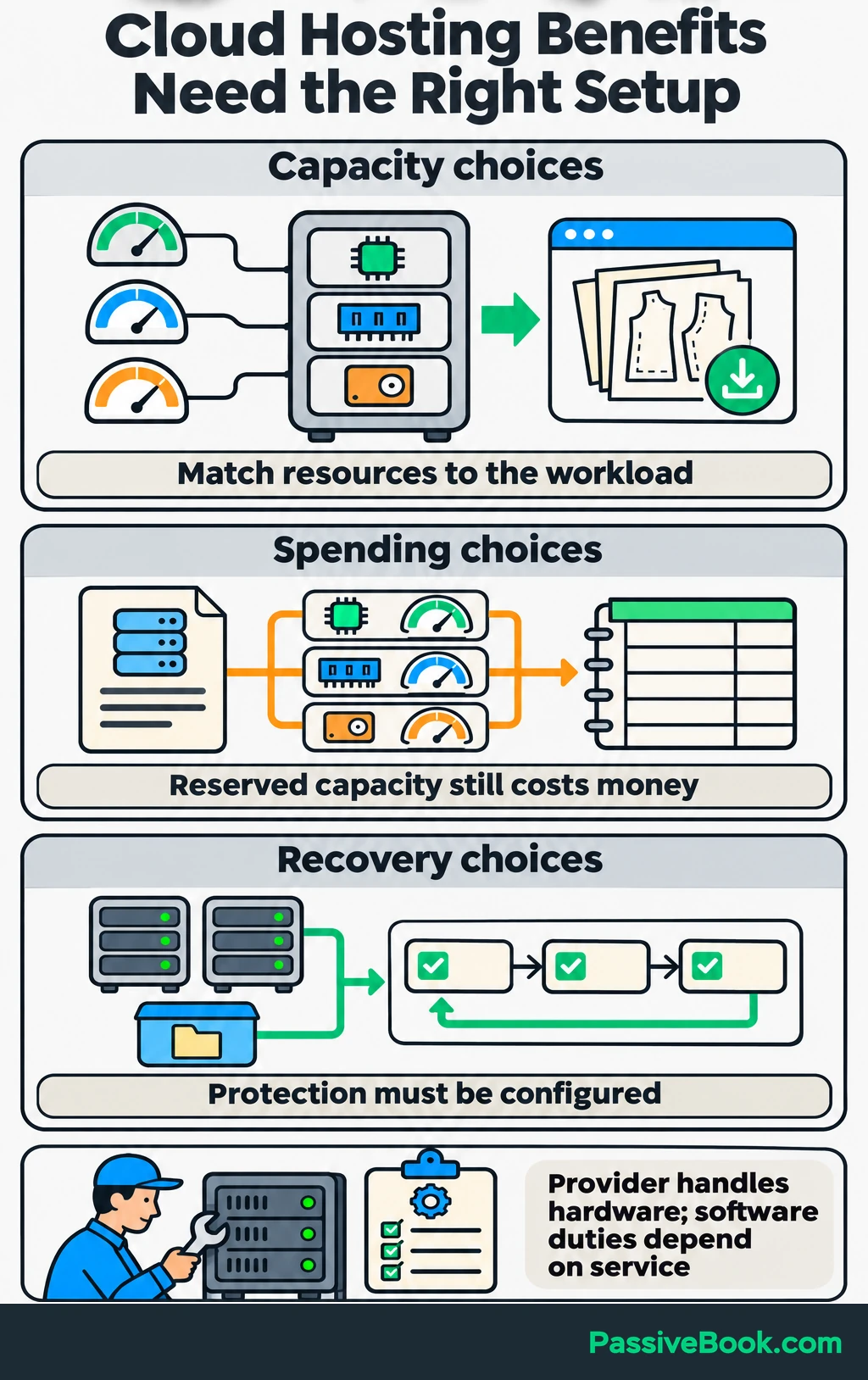
The benefit I value most is choice. I can change the setup as a website’s needs become clearer.
That does not make cloud hosting automatically faster, cheaper, or safer. A well-run shared plan can be a better purchase than a cloud server nobody has time to maintain.
How Does Cloud Hosting Compare With Shared, VPS, and Dedicated Hosting?
These labels describe different things.
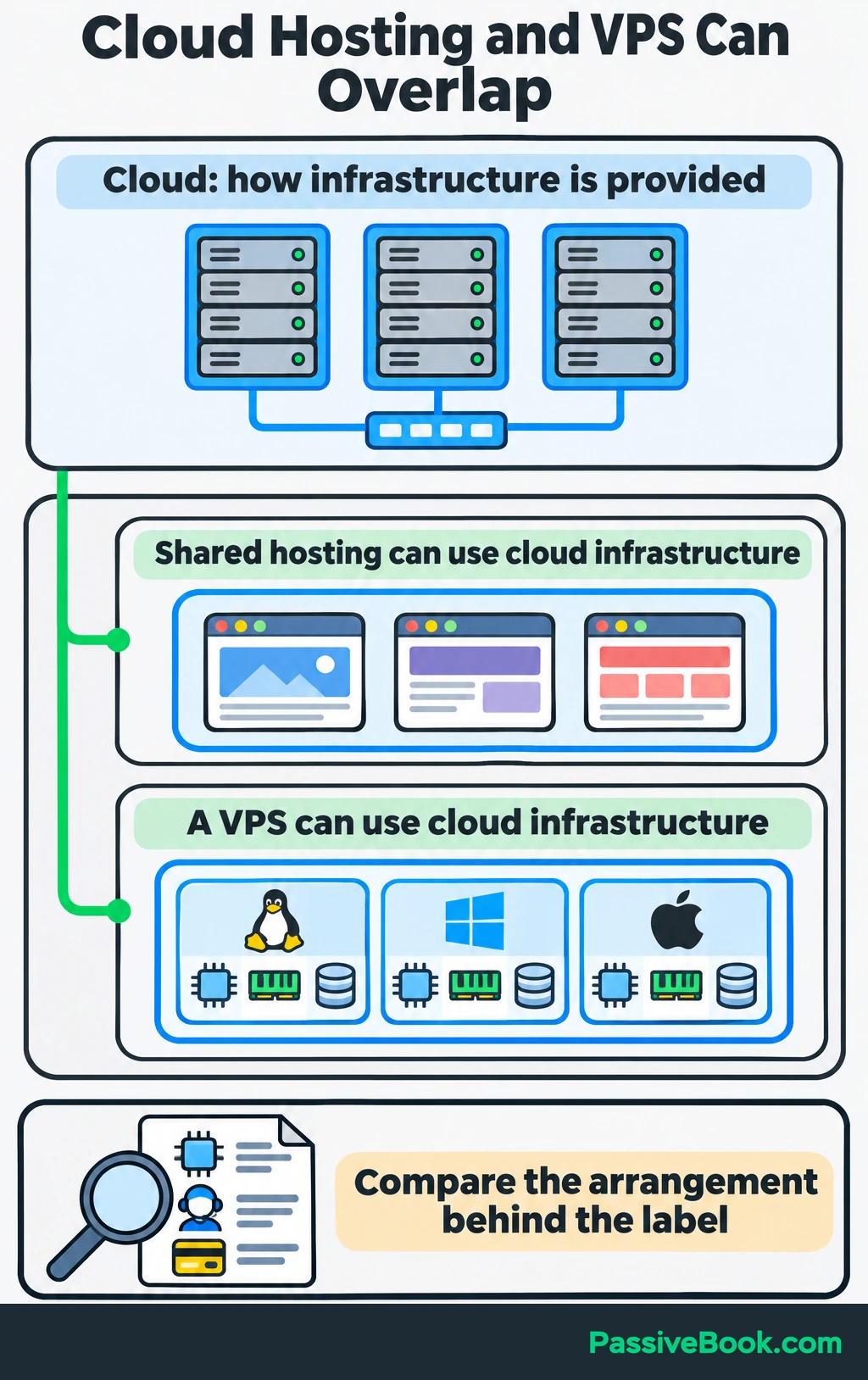
“Cloud” describes how infrastructure is provided. Shared hosting, VPS hosting, and dedicated hosting describe how resources are arranged. A VPS is a virtual private server, and it can run on cloud infrastructure. Shared hosting can too.
Use the table to compare the actual arrangement behind a plan.
| Hosting Type | Resource Sharing | Expansion Method | Maintenance Responsibility | Billing Pattern | Suitable Use |
|---|---|---|---|---|---|
| Shared hosting | Several websites share a hosting environment within plan limits | Upgrade the plan or move when its limits become restrictive | Host manages the server; website duties depend on the package | Usually a subscription, often with different introductory and renewal rates | A modest website whose performance, features, and support needs are met |
| VPS hosting | Separate virtual environment with allocated resources; CPU capacity may still be shared | Resize the server or add servers if the application supports it | You manage server software unless management is included | Subscription or usage billing, with possible extras | A website needing more control, specific software, or clearer resource allocation |
| Dedicated hosting | One physical server assigned to one customer | Upgrade hardware or add another server | Hardware is the provider’s job; software management depends on the contract | Usually a recurring server charge plus selected services | Sustained workloads or requirements that justify exclusive hardware |
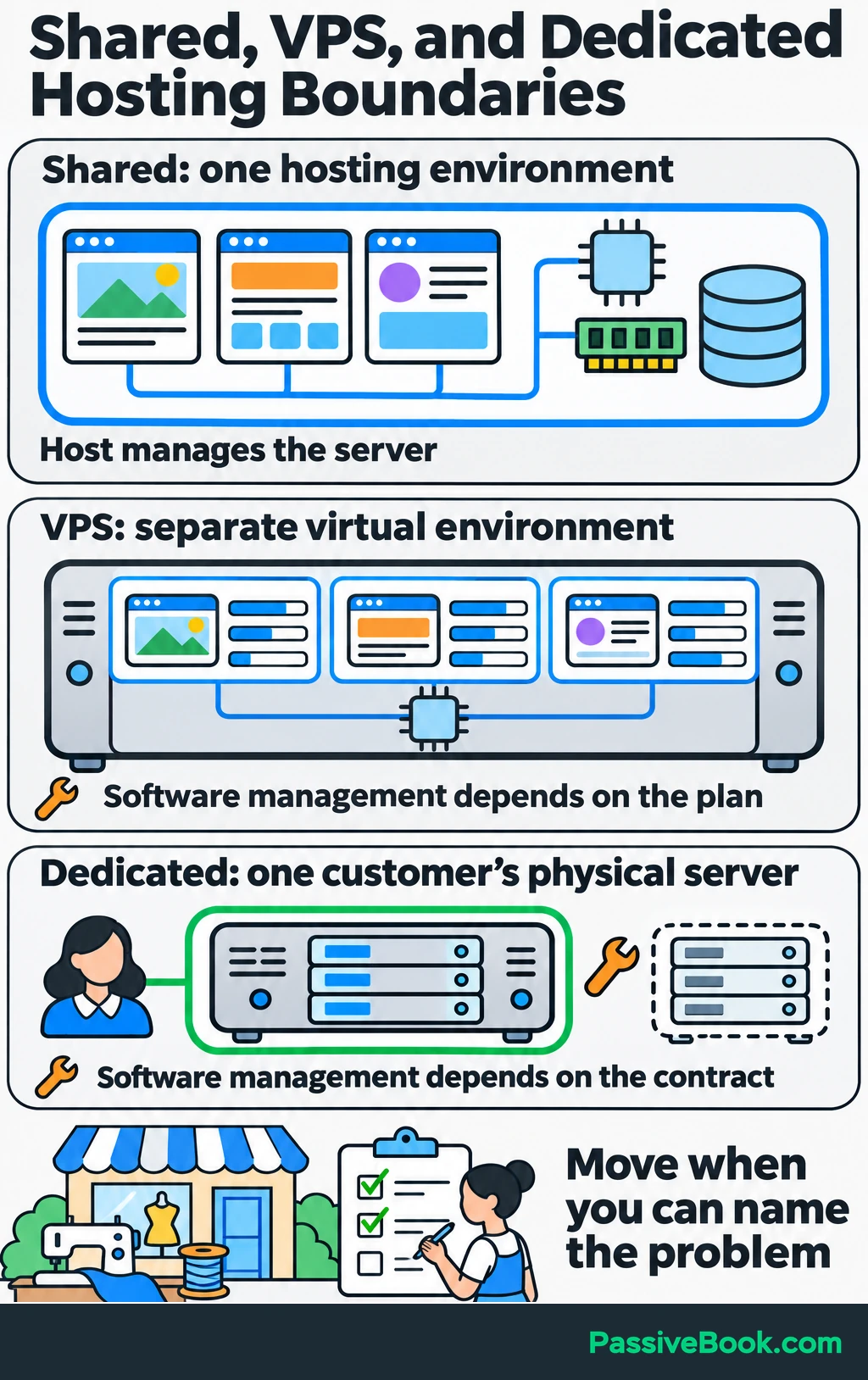
I would keep the sewing shop on suitable shared hosting while it performs well and support does its job. A “cloud” badge is not a reason to migrate.
Move when you can name the problem: a resource limit, unsupported software, repeated service failures, or a complete cost comparison that favors the new setup.
Should You Choose Managed or Self-managed Cloud Hosting?
Choose self-managed hosting when someone can own server configuration, updates, monitoring, troubleshooting, and recovery.
A ready-made WordPress installation saves setup work. It does not provide ongoing administration.
On one of my WordPress sites, my setup notes stopped at “WordPress installed.” When I returned to document recovery, I found a list of tools but no clear restore procedure. I had recorded how to start the website and left out how to bring it back.
That changed how I compare hosting. I want a named owner for recovery before I count the setup as finished.
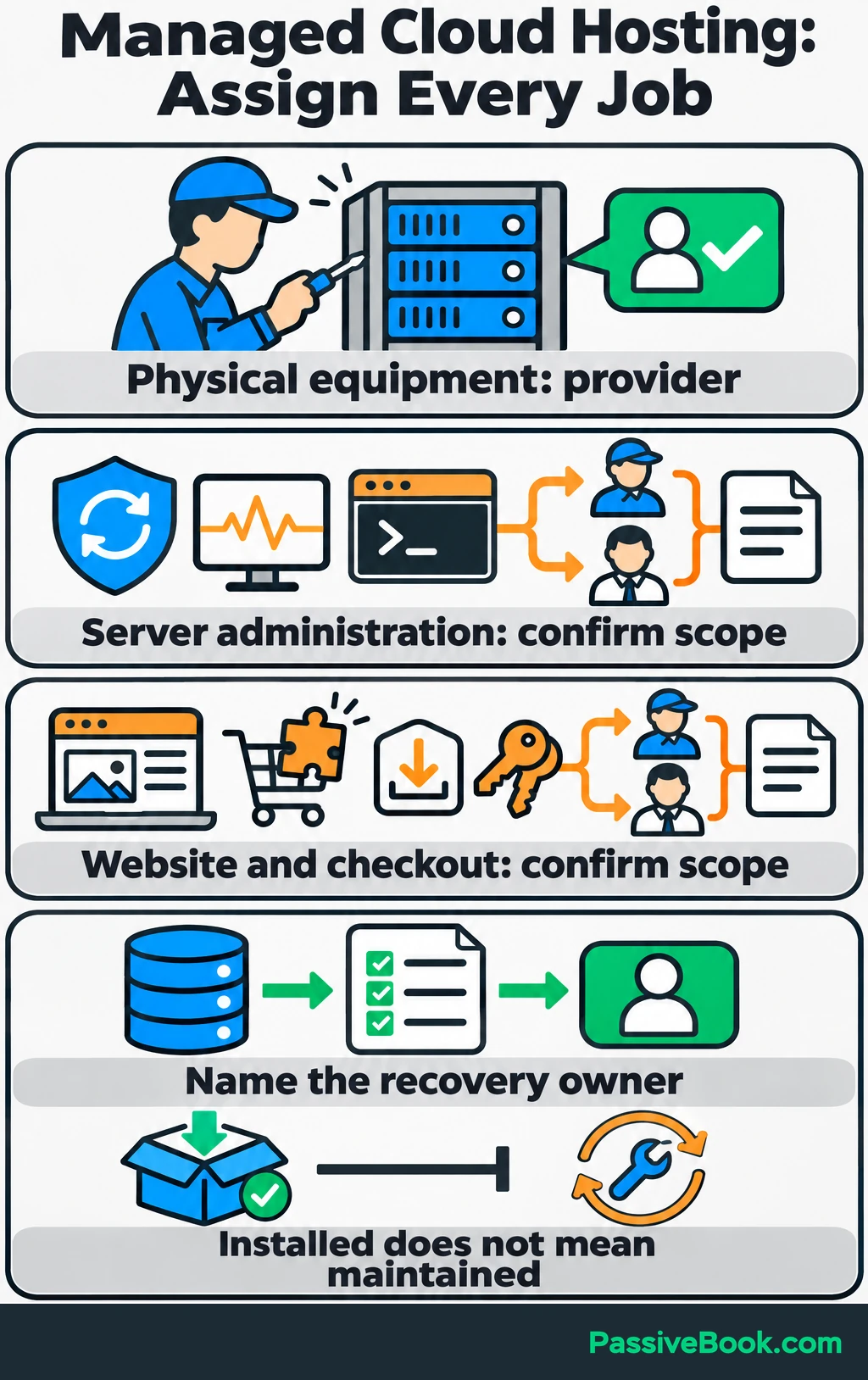
Managed hosting can take some of that work off your plate, but “managed” needs unpacking. Before buying, establish who handles:
- Server and operating-system patches.
- WordPress, theme, and plugin updates.
- Backup monitoring and restores.
- Security incidents and access problems.
- Failed checkouts and broken downloads.
For the sewing shop, “we manage the server” might still leave you responsible for a WooCommerce plugin conflict.
Security duties also remain. Someone must protect accounts, control permissions, configure HTTPS, restrict server access, and keep software updated. The division changes with the service purchased.
Managed application platforms are another option for custom software. They can operate the environment where developers deploy code, while developers remain responsible for the application. That is different from managing a WordPress website.
If you have limited time and no dependable technical help, I would shortlist managed WordPress hosting first. Compare its subscription with the server bill plus your time and paid help. Self-managed hosting only stays cheap if you can manage it competently.
How Much Does Cloud Hosting Cost per Month?
Build the Complete Estimate
Cloud hosting has no single monthly price because the bill depends on what is bundled and what is charged separately.
For a useful estimate, count the server, any separate storage or database, backups, chargeable data transfer, management, support, and applicable taxes. Count each item once.
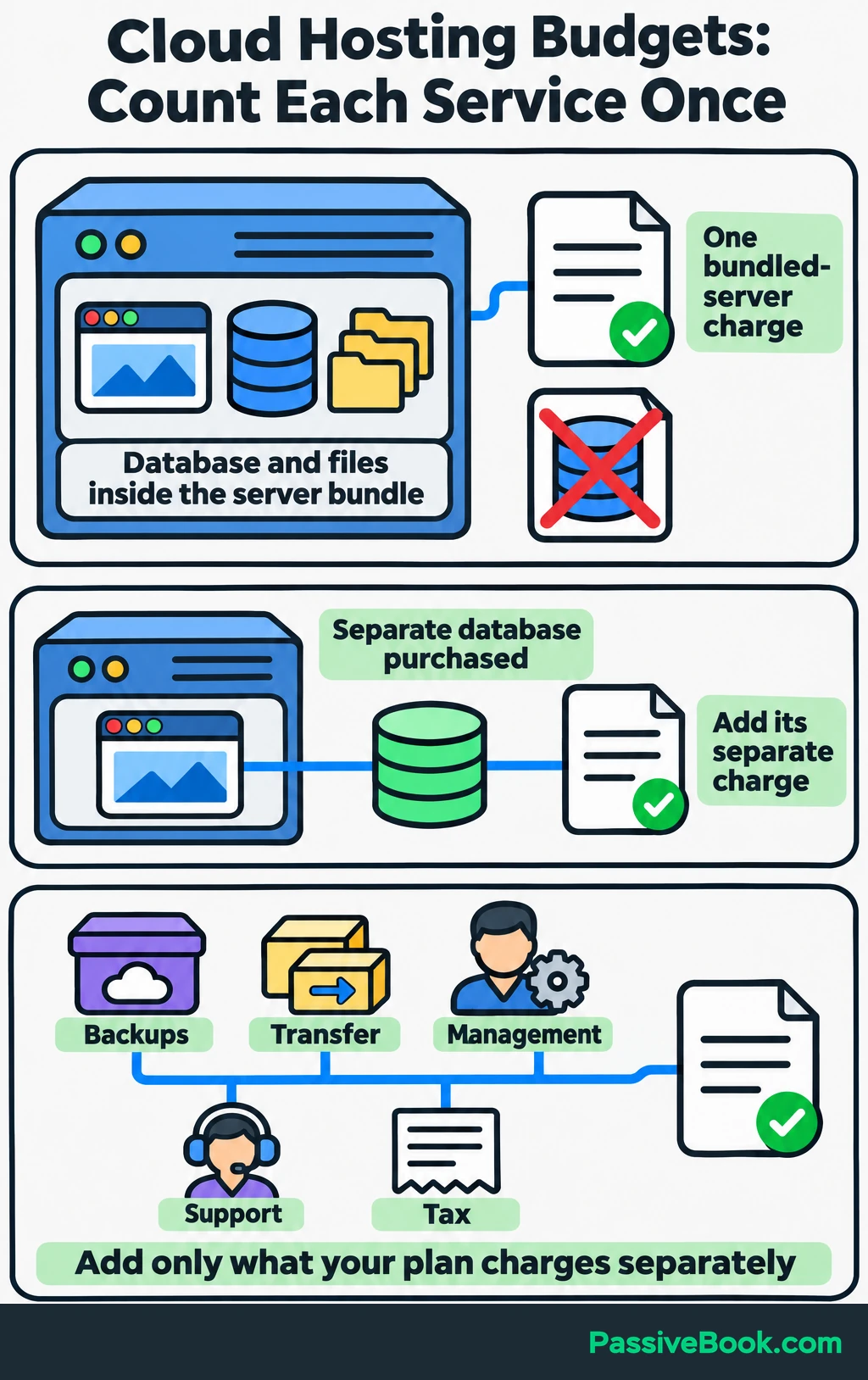
A database running inside a bundled server does not create a separate managed-database bill. If you later buy a separate database service, add that charge then.
Keep domain registration, business email, and one-time migration work visible as separate website expenses.
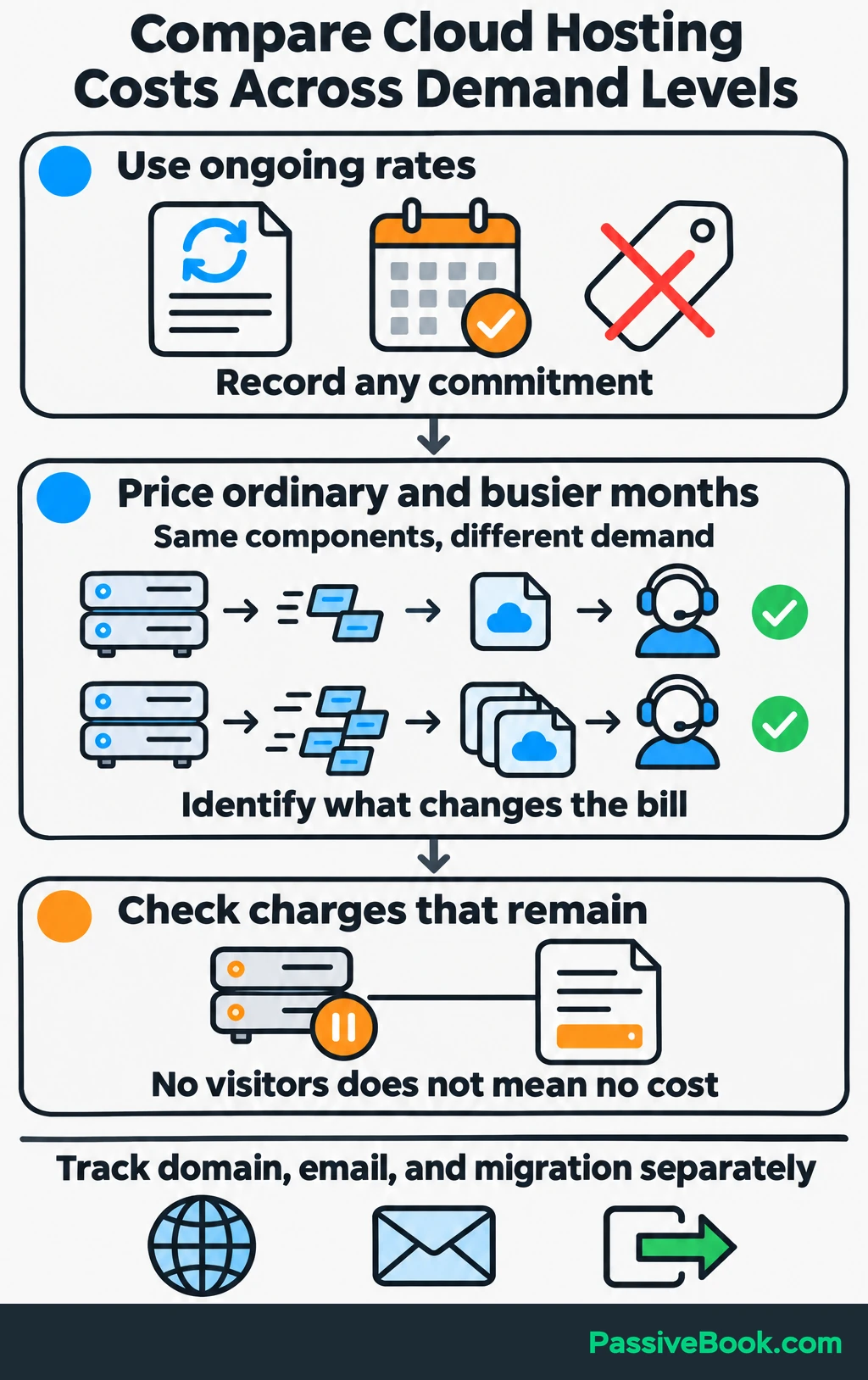
Compare ordinary demand with a busier month using the same components. This shows whether the extra cost comes from transfer, more capacity, growing backups, or several things together.
Use ongoing or renewal prices, and note any upfront commitment. Also check what remains chargeable when stopped. “Pay for usage” can mean paying for resources kept available, even when nobody visits.
A Worked Budget for the Sewing Shop
Assume WordPress, its database, and files share one DigitalOcean Basic Regular Droplet for a full billing cycle.
The selected $12 monthly bundle includes one virtual CPU (vCPU), 2 GiB of RAM, 50 GiB of solid-state storage, and 2,000 GiB of outbound transfer. GiB is a data unit slightly larger than a gigabyte (GB). Check the configuration and rate on DigitalOcean’s Droplet pricing page before buying.
Basic daily backups add 30% of the Droplet charge under DigitalOcean’s percentage-based backup pricing.
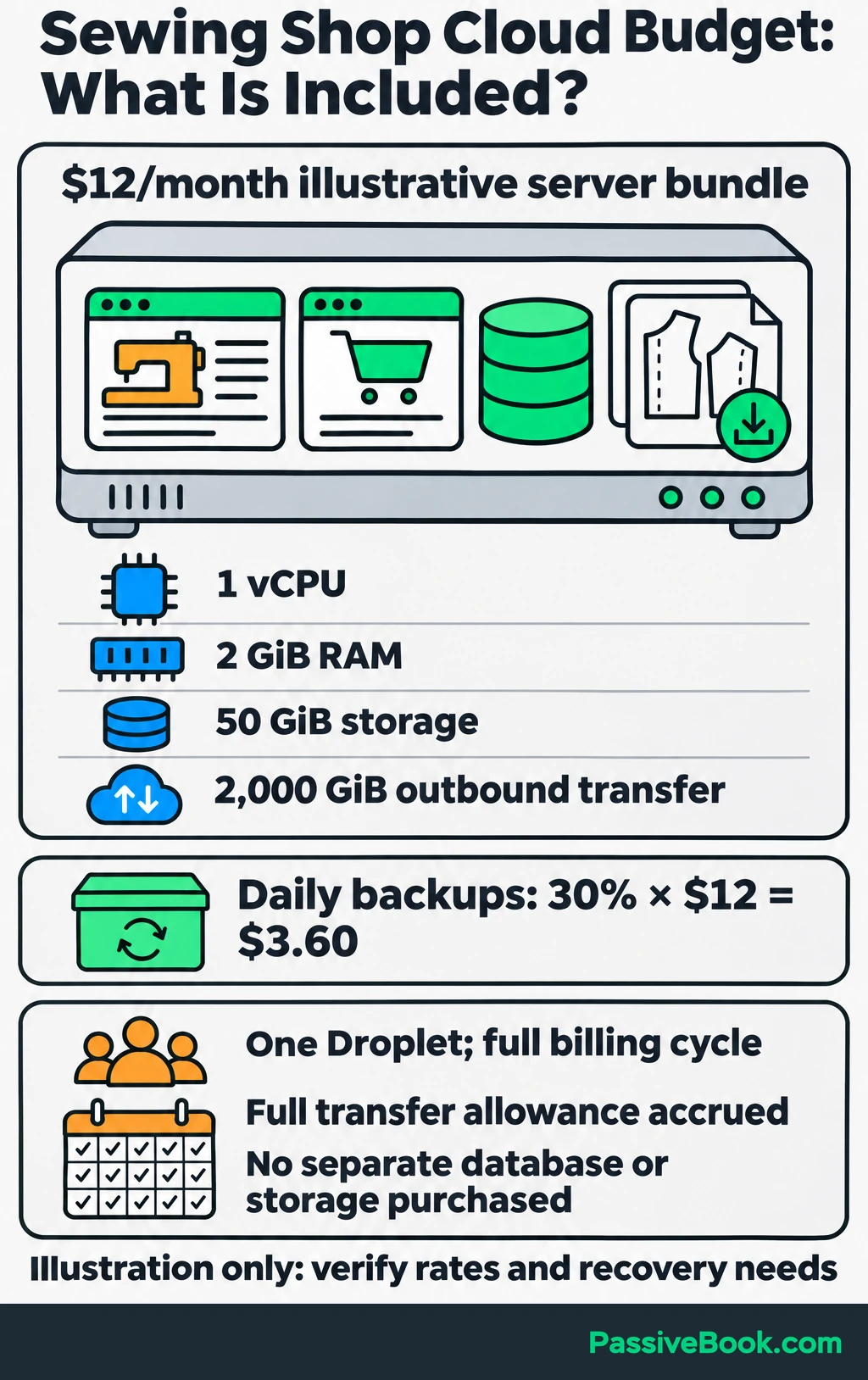
For this illustration, assume it is the only Droplet in your DigitalOcean team—the billing group for your resources—and its full transfer allowance has accrued. Outbound transfer totals 600 GiB in the ordinary month and 2,100 GiB in the busier month. Only transfer above the allowance costs extra: $0.01 per GiB under DigitalOcean’s transfer rules, which pool usage and time-accrued allowances across the team.
| Component | What the Estimate Assumes | Ordinary Month | Higher-Demand Month |
|---|---|---|---|
| Bundled server | Same $12 server for the full billing cycle | $12.00 | $12.00 |
| Basic daily backups | Enabled throughout, at 30% of the server charge | $3.60 | $3.60 |
| Outbound transfer overage | 600 GiB / 2,100 GiB used against a 2,000 GiB allowance; excess costs $0.01 per GiB | $0.00 | $1.00 |
| Separate database or storage | None purchased; database and files use the server’s bundled resources | $0.00 | $0.00 |
The backup charge counts 30% of the server bill:
$12 × 0.30 = $3.60
The higher-demand month exceeds the included transfer by 100 GiB:
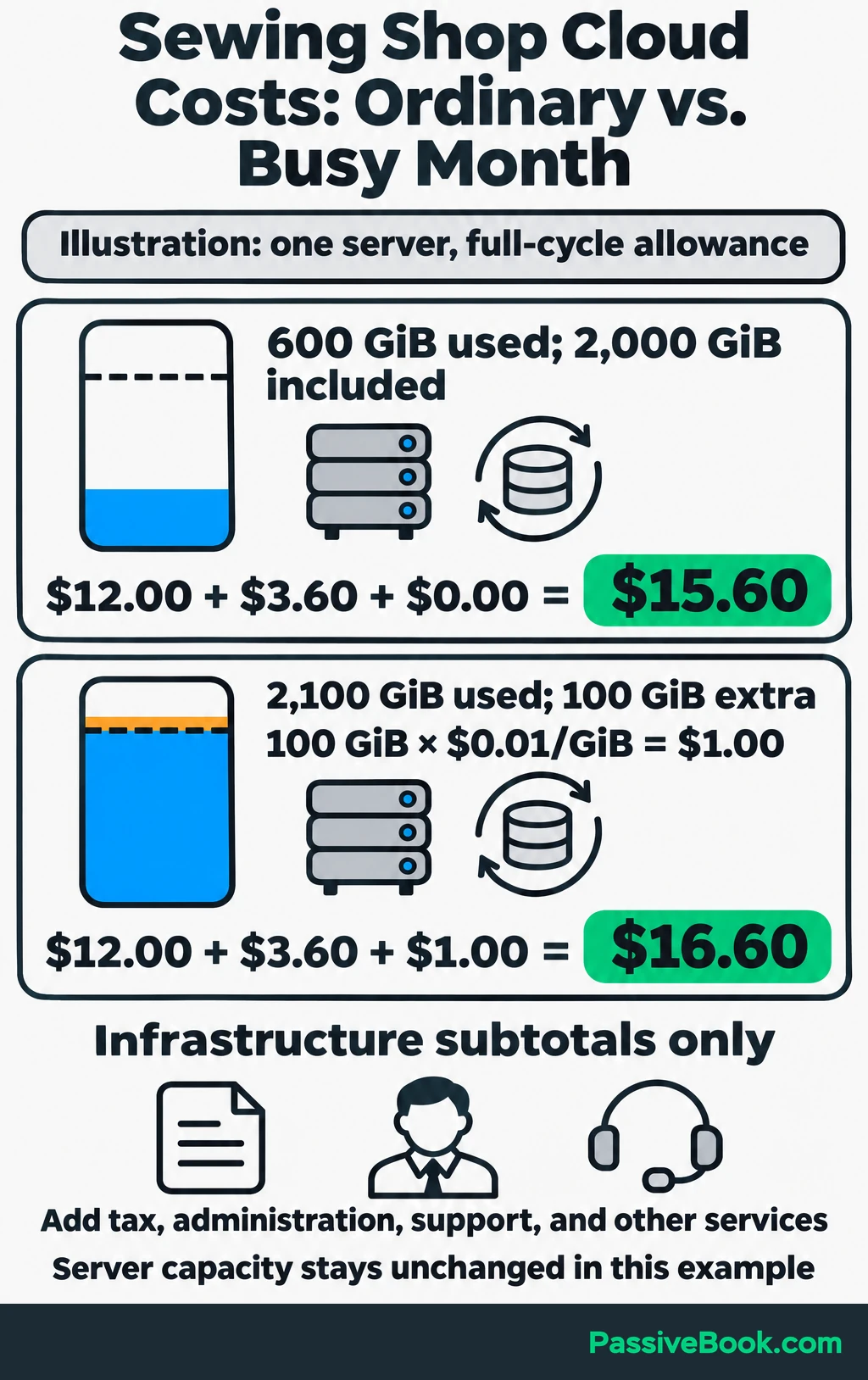
(2,100 − 2,000) × $0.01 = $1.00
That gives infrastructure subtotals of $15.60 for the ordinary month and $16.60 for the higher-demand month. Taxes, administration, paid support, and additional services still need to be added.
This example holds server capacity steady to show transfer costs. It does not establish that the server can handle every busy month.
Recovery needs another decision too. Daily backups could leave recent orders missing after a restore. DigitalOcean says its disk-image backups are optimized for low-write systems and that application-level backups may be more appropriate for active databases. Price a database recovery method around how much recent order data you can afford to lose.
Prevent Unexpected Charges
Set up billing notifications before adding metered services, and restrict who can create resources. If you enable autoscaling, set a maximum capacity and estimate the cost of reaching it.
Treat alerts as notifications. They are not guaranteed spending caps. For example, Amazon’s cloud spending tracker, AWS Budgets, updates periodically, so charges can build before an alert arrives.
Unused resources need attention too. DigitalOcean continues billing powered-off bundled Droplets because their resources remain reserved.
After preserving the data you need, remove unused resources and check for separately billed disks, snapshots, and other services. Then review the bill after traffic jumps or configuration changes.
For the sewing shop, I would compare the estimate with actual charges after the first full month and after each major promotion. That gives the next budget something better than optimism to work with.
How Do You Choose a Reliable Cloud Hosting Provider?
Match the Service to Your Workload
Start with what the website needs to do, then compare providers.
For an existing website, review resource use, slow requests, and errors. Monthly visitor totals alone do not show how much work happens at once.
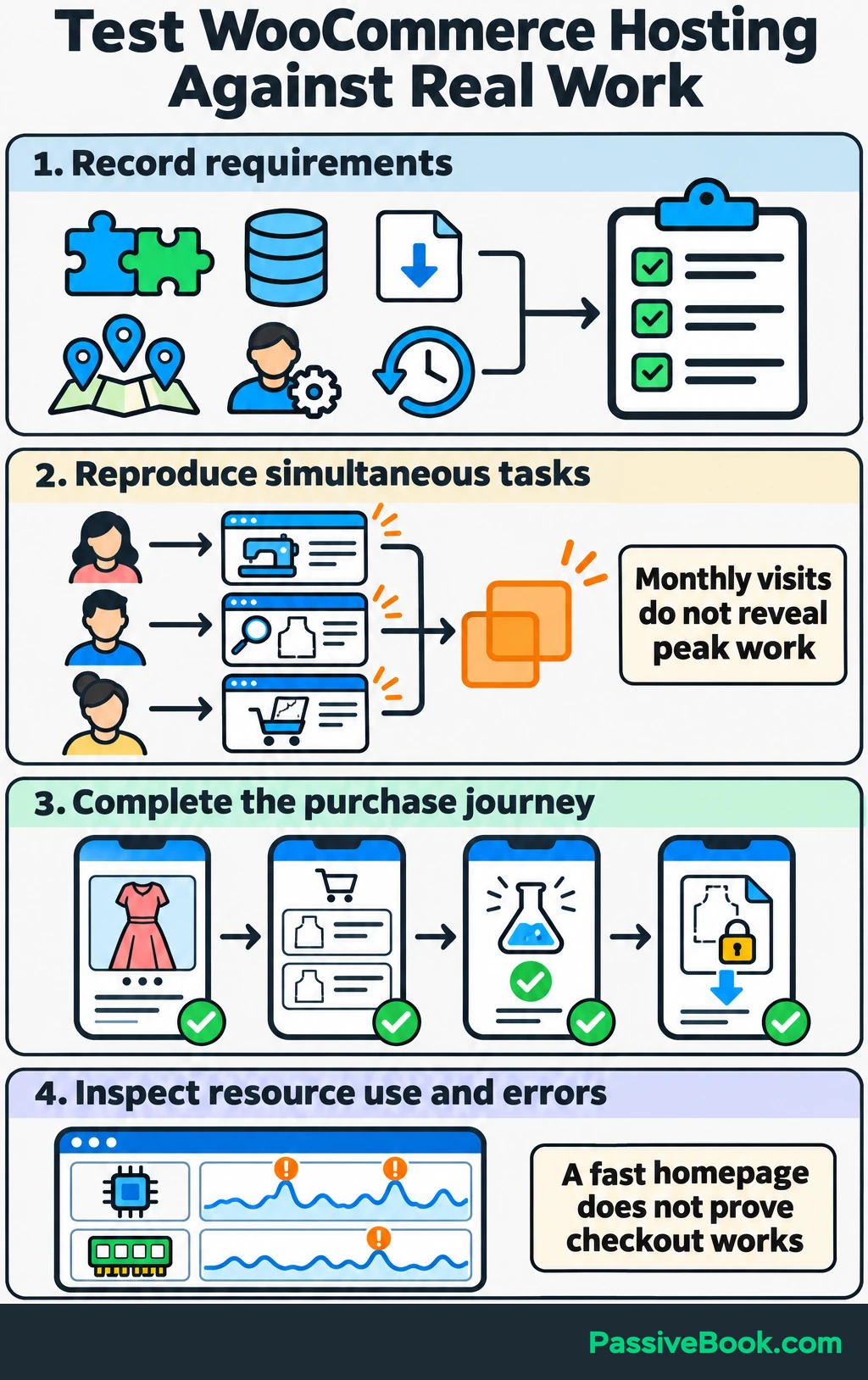
Record:
- Application needs: WordPress and WooCommerce versions, required plugins, and any special software.
- Storage and downloads: Website files, database size, pattern files, and expected outbound transfer.
- Peak activity: Simultaneous browsing, searches, purchases, and downloads.
- Visitor locations: Where most customers are, so you can choose a sensible hosting location.
- Administration: Who can maintain the service and respond when something breaks.
- Recovery needs: Acceptable interruption time and acceptable loss of recent data.
Test representative work. For the sewing shop, that means opening tutorials, adding patterns to a cart, completing test purchases, and downloading purchased files.
A fast homepage does not tell you whether checkout works under load.
Cloud Hosting Options to Consider
DigitalOcean is my primary hosting provider, so it belongs on my shortlist when direct server control makes sense. That preference does not make a self-managed server the right choice for everyone.
I recommend Bluehost as a beginner-friendly alternative, but I haven’t used its Cloud product myself.
These are three services worth evaluating. The managed rows need written ongoing quotes because a promotional headline does not establish the ordinary bill or renewal commitment.
| Service | Applications and Management | Cost to Compare | Scaling Limits | Recovery | Support |
|---|---|---|---|---|---|
| DigitalOcean Basic Regular Droplet, 1 vCPU / 2 GiB | WordPress or compatible software; you maintain the server and website | Both worked subtotals above exclude tax and administration; extra capacity costs more | Resizing requires shutdown; disk size cannot be reduced | Daily disk backups selected in the budget; database recovery needs separate planning | Infrastructure support; you handle application repairs |
| Cloudways Flexible on DigitalOcean, sized after testing | WordPress and WooCommerce on a managed server platform; confirm website maintenance duties | No workload-specific quote here; include server capacity, transfer, offsite backup storage, and required support | Confirm resize interruption and downgrade options | Automated backup and restore tools; confirm schedule and retention | 24/7 chat and tickets; confirm plugin troubleshooting and paid support scope |
| Bluehost Cloud 10 | Managed WordPress with automatic WordPress and plugin updates | Renewal and upgrade quotes needed; divide the renewal total by paid months and note upfront payment | Packaged resource limits; confirm upgrade timing and billing | Advertises realtime backups; confirm schedule, retention, and restoration help | Advertises 24/7 priority support; confirm checkout troubleshooting coverage |
For Bluehost Cloud, check whether the package fits one modest website before paying for capacity aimed at several sites. A larger bundle is useful only if you need what it contains.
Verify Recovery and Support Before Committing
Read what the service-level agreement covers. An SLA is a service commitment with conditions and a stated remedy.
For example, DigitalOcean’s CPU Droplet SLA offers credits for covered infrastructure failures and excludes problems caused by customer application code or configuration. A credit does not restore checkout or replace lost sales.
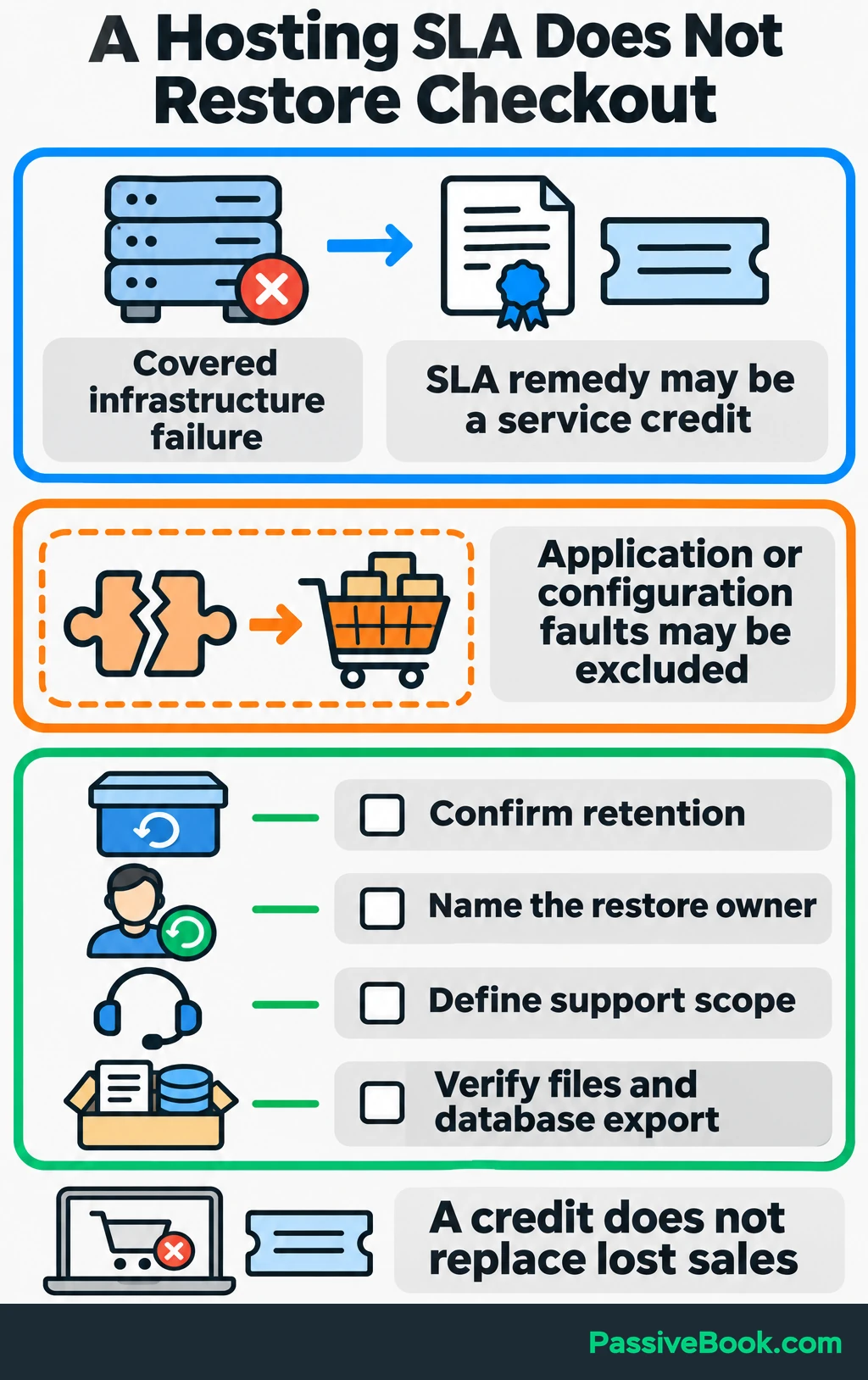
Before committing, establish backup retention, who performs restores, what incident support includes, and whether you can export your files and database.
Then test a copy of the sewing shop:
- Check tutorials, product pages, carts, and test payments.
- Confirm purchase emails and protected downloads work.
- Restore a backup into a separate test environment.
- Record how to return to the old host if migration fails.
- Decide how to preserve orders placed during the move.
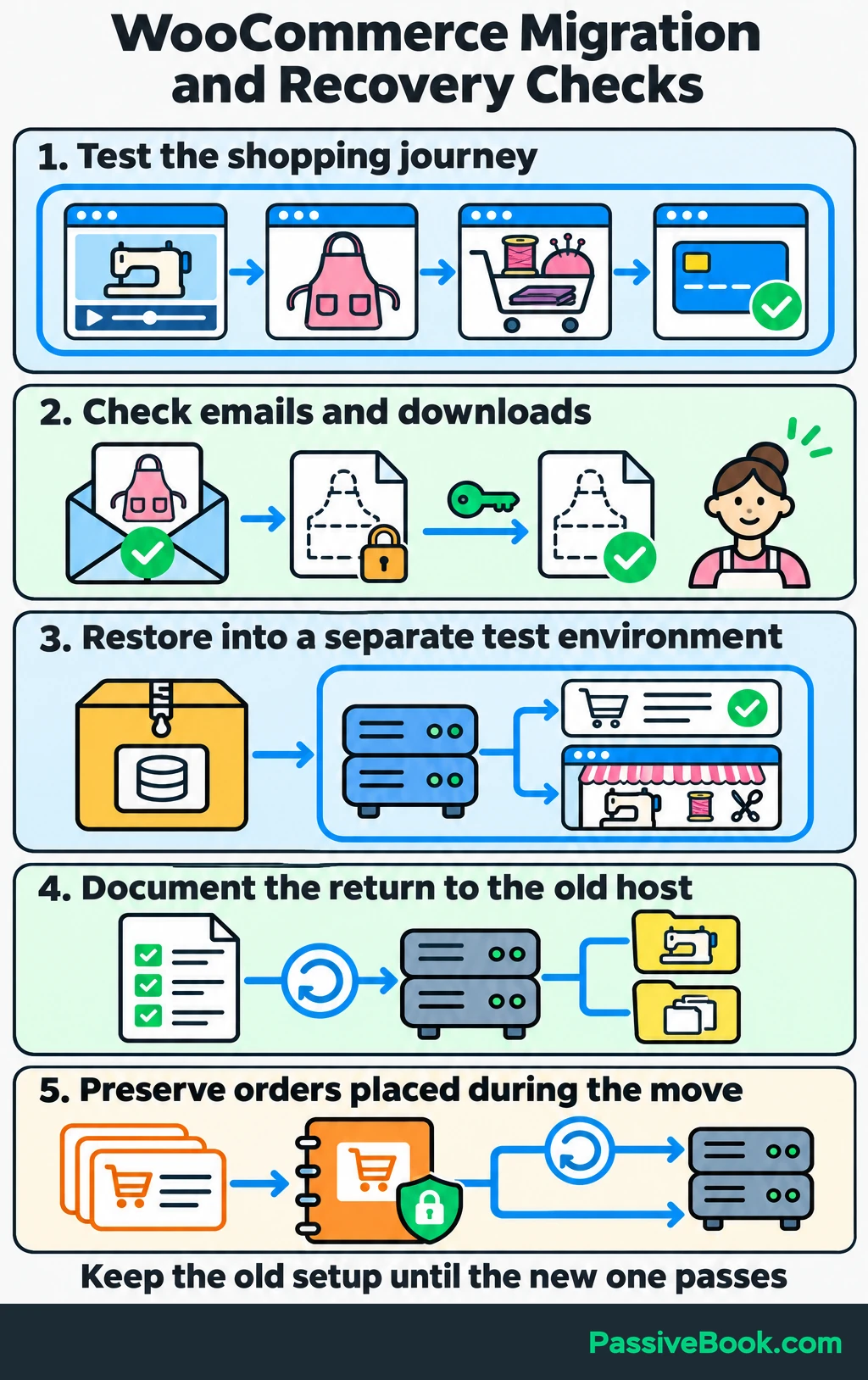
Keep the old setup available until the new one has passed those checks. A rollback that discards new orders is another problem waiting to happen.
I would choose the least complex service that meets the workload, recovery, support, and budget requirements. If the current host already does that, keeping it is a perfectly good decision.
What Next?
Write a one-page hosting brief with your current costs, busiest website tasks, available technical help, and recovery needs. Use it to request two comparable quotes before planning a move.
You do not need to guess the technical details to ask for a useful quote. Start with what you know and turn unclear costs, support duties, and recovery arrangements into questions for the host.
Free AI Provider Buying Assistant


Use the social buttons to share this guide when the hosting conversation needs clearer costs and fewer promises.
Which part of your current setup would be hardest to recover if it failed? Tell me in the comments, and bring any other cloud hosting questions with you.
Share this post with your friends & followers: